AWOW CQA801 Fun Tab User Guide
IMPORTANT SAFETY INSTRUCTIONS AND PRECAUTIONS
- Read all instructions carefully before use.
- Retain this manual for future reference.
- Use this product only in the manner described.
- Only use a water-dampened soft-cloth to clean the surface of this product. The following will damage this product: water or moisture ingress, exposure to prolonged extreme heat or cold; excessive humidity, dust or sandy. It is recommended to thoroughly charge the device for the first time. Subsequent charges can be as needed. During charging, or extended use, the product may become
warm. - There are no user serviceable parts in this product.
- Unauthorized attempts to dismantle or repair this product will void product warranty and may result in dangerous electric shock.
- Remove data cable by pulling it from the plug, not from the cord.
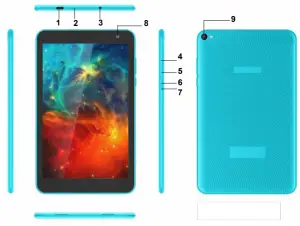
| Number | Description |
| 1 | Type-C interface (Data Transfer, Charging, USB Storage flash drive). |
| 2 | (Internal) Micro SD Card slot (Supports cards up to 64GB) |
| 3 | Stereo Earphone Socket (3.5mm Jack) |
| 4 | Volume Up |
| 5 | Volume Down |
| 6 | On / OFF button (*Press and hold to turn ON and OFF) |
| 7 | Reset button |
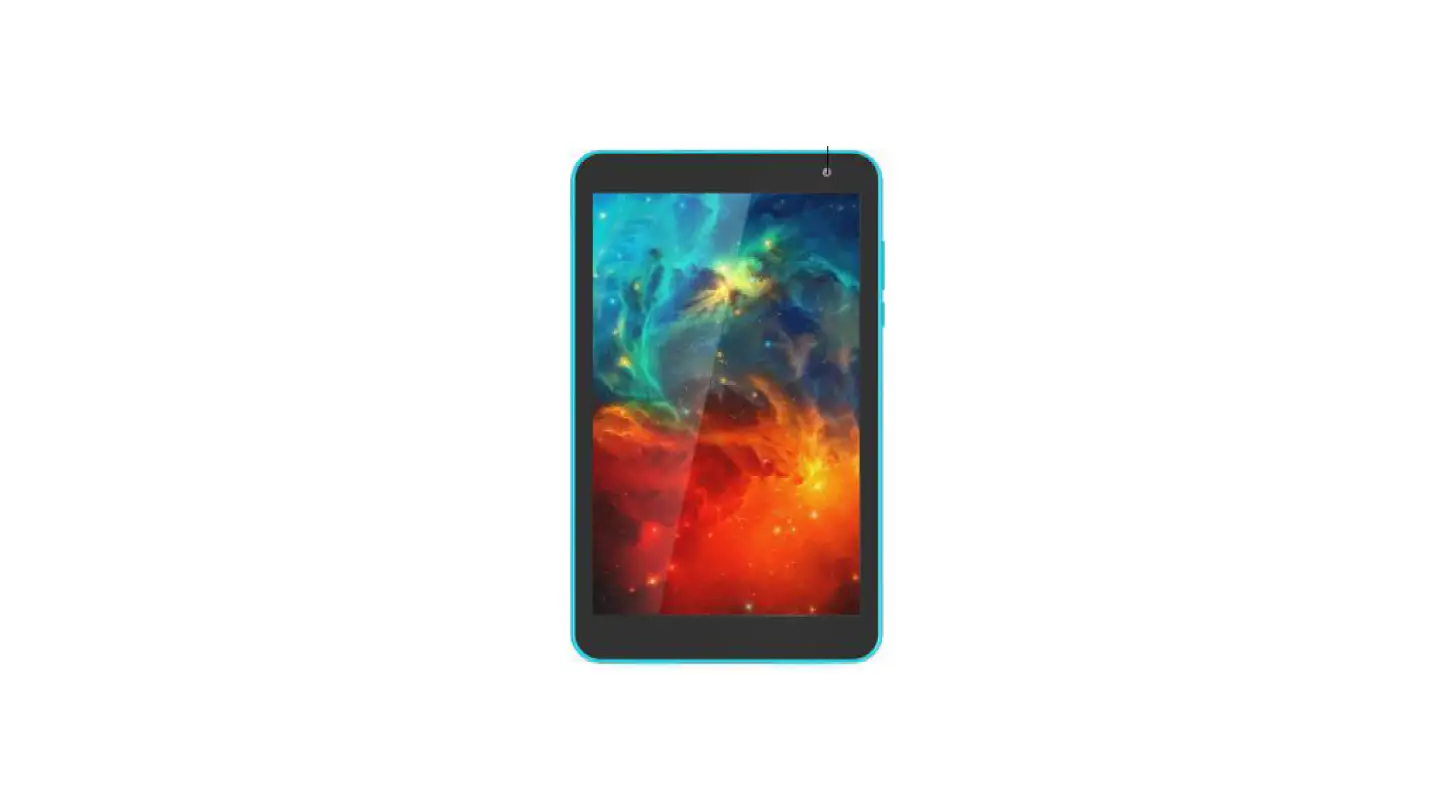
| 8 | Front mount camera |
| 9 | Rear camera |
ACCESSORIES
- 1 x MID Tablet,
- 1 x Micro USB/DATA cable,
- 1 x User Guide
TURNING ON AND OFF
To turn ON, PRESS and HOLD the POWER button until the screen turns ON. To turn OFF, PRESS and HOLD the POWER button until the power screen appears. Then select Power Off. Note: At any time you con press the POWER BUTTON to enter Snooze mode or to woke from Snooze mode.
BATTERY CHARGING
Connect your tablet to any USB charging socket Wall adapter or PC), using the supplied USB/DATA cable.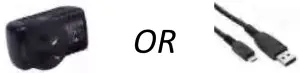
You will be alerted when the battery charge falls below 15%. If the battery Is completely depleted your tablet will automatically turn off.
Note: If the battery has been completely exhausted, it may take a few minutes to switch on once charging has begun. Your tablet con be used during charging however this may increase the time needed to fully charge the batten,.
RUN TIME
Run time of portable devices including your tablet can be extended by reducing the screen brightness, turning off Bluetooth function, turning off the Location function, turning off Wi-Fi when not in use, turning off Apps that are not required and manually turning the screen off using the power button when not in use.
5 POINT TOUCH-SCREEN
Your tablet has 5 different touch screen behaviors.
- TAP: Tap once to select or start a function, option or application
- TAP and HOLD: Tap and hold to select or start a function
- DRAG and DROP: Tap then drag an item and drop it to a location
- DOUBLE TAP: Double Tap an item twice to select or start a function
- SLIDE/SWIPE: Tap then slide an item up, down, left or right
SLEEP MODE
During prolonged inactive use where no buttons have been pressed, the screen will turn off automatically to conserve power. Press the POWER button to wake your tablet.
Note: This can be adjusted in Display option under Settings.
LOCK / UNLOCK
When your tablet is in sleep mode, press the POWER button to show the unlock screen. Swipe up to unlock Note: Some of the following images may be different from the actual product supplied.
HOME SCREEN ICONS
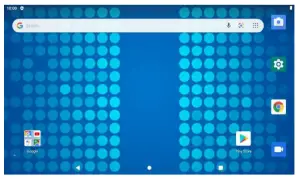
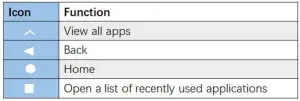
VIEW ALL APPS
On the Home page, swipe up to view all the installed apps on your tablet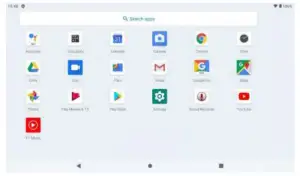
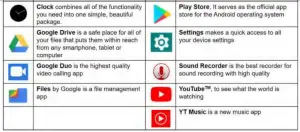
APPS ICONS
Note: Some of the following images may be different from the actual product supplied.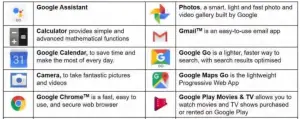
Swipe down over the Notification Menu Bar (top of the screen) to bring up any notifications you may have.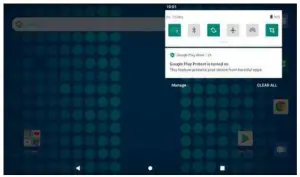
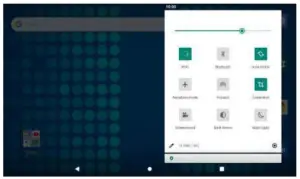
Press the drop down bar (in red circle) in the NOTIFICATIONS MENU bar to display your shortcuts menu such as: Battery Saver, Wi-Fi, Location, Bluetooth, Screenshot, Aeroplane mode, etc.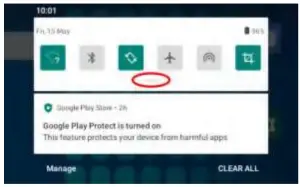
SETTINGS
WI-Fi
Notes : Win connection is recruited connection to the Internet (for amok Nov Score App or web browsing)
Follow the steps below to connect to WI-Fl:
Settings > Network & Internet >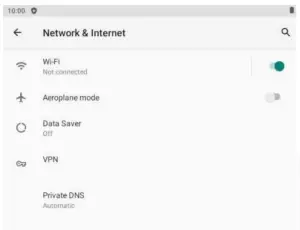
Tap the desired NETWORK name. If this NETWORK connects successfully, “Connected” will appear. If the NETWORK is encrypted, enter the password then tap ‘Connect”.
Your Tablet will Indicate when the NETWORK connection Is ready for use when the WIFI icon appears on the top Eight notification bar.
CONNECTING TO A PC / MAC VIA USB
Connect the USB cable to your Tablet and PC/MAC, making sure you are using the correct MICRO USB cable supplied.
WHY CREATE A GOOGLE ACCOUNT
Creating a Google account allows you to talk, chat, share, schedule, store, organize, collaborate, discover, and create online. A Google account also provides user level access to Gmail and YouTube which are all backed up online and accessible online via the cloud.
Google Play Store
Open the PLAY STORE APP and set up your account. If you have an existing account select EXISTING, otherwise choose NEW to create a new account and follow the set-up steps.
Specification
| Operation System: | Android 11 Go |
| Size | 210 x 127x 9.5mm |
| CPU processor type: | Quad Core |
| Memory: | 32 GB |
| RAM: | 2 GB |
| TF card: | 128M-64G |
| Display screen: | 8 ” Capacitive multi-touch IPS TFT |
| Resolution: | 1280 x 800 |
| Battery and capacity: | Rechargeable Li-ion Poly 4000MAh |
| Camera Resolution: | 2.0MP (Front mount), 8.0MP (Rear Mount) |
| Screen auto orientation: | &sensor 3D |
| Voice Recording | Built-in microphone |
| Supported file types: | Video format: avi, mov, mp4, 3gp, fly Audio format: mp3, flat, aac, way, m4a (1b play other fonnats, you will need to download the App that supports the format you intend to play) |
Google, Android, Google Play, YouTube and other marks are trademarks of Google LLC.
The Android robot is reproduced or modified from work created and shared by Google and used according to terms described in the Creative Commons 3.0 Attribution License.
FAQ
| The HDMI output to my TV doesn’t work | Please make sure the HDMI output has been turned on under the Settings Menu (Settings > Display > HDMI > ON) |
| I can’t turn my tablet ON? |
|
| I can’t hear anything through my headset, or the sound quality is very bad |
|
| I can’t copy files or play music |
|
| My tablet displays a network or service error message |
|
| the first time a few extra minutes will be required to load all the content. | |
| My touch screen is slow and not working correctly |
|
| My tablet is frozen or a severe error has occurred |
|
| My tablet becomes hot when is use or while charging |
|
| An error occurs when I open my music files | . –
|
| The available memory on my tablet is less than 8GB. Why is that so? | Some of this space is required to pre-load Apps and other Software. Space is required for the OS (Operating System). |
| My MID tablets internal memory is almost full; can I install or move the Apps to external SD card? | Latest Android OS will only allow apps to be installed on internal memory. To free up the internal space:
|
| My tablet screen has cracked; will it be covered by warranty? | No, physical damage is not covered by warranty. |
| I can’t find the Micro SD card socket | Please remove the top housing section by accessing the SD Card Release Panel Access Point. Please refer to the Appearance and buttons section of this manual. |
Please note: As continuous improvements are made to this product, slight operational differences may occur. For the most up-to-date user manual, please visit our web site.
This device complies with Part 15 of the FCC Rules. Operation is subject to the following two conditions: (1) this device may not cause harmful interference, and (2) this device must accept any interference received, including interference that may cause undesired operation
NOTE: This equipment has been tested and found to comply with the limits for a Class B digital device, pursuant to Part 15 of the FCC Rules. These limits are designed to provide reasonable protection against harmful interference in a residential installation. This equipment generates, uses and can radiate radio frequency energy and, if not installed and used in accordance with the instructions, may cause harmful interference to radio communications. However, there is no guarantee that interference will not occur in a particular installation. If this equipment does cause harmful interference to radio or television reception, which can be determined by turning the equipment off and on, the user is encouraged to try to correct the interference by one or more of the following measures:
- Reorient or relocate the receiving antenna.
- Increase the separation between the equipment and receiver.
- Connect the equipment into an outlet on a circuit different from that to which the receiver is connected.
- Consult the dealer or an experienced radio/TV technician for help.
Warning: changes or modifications not expressly approved by the party responsible for compliance could void the user’s authority to operate the equipment
Radiation Exposure Statement This equipment complies with FCC radiation exposure limits set forth for an uncontrolled environment. This equipment should be installed and operated with minimum distance 20cm between the radiator and your body.
This device complies with Part 15 of the FCC Rules. Operation is subject to the following two conditions: (1) this device may not cause harmful interference, and (2) this device must accept any interference received, including interference that may cause undesired operation
NOTE: This equipment has been tested and found to comply with the limits for a Class B digital device, pursuant to Part 15 of the FCC Rules. These limits are designed to provide reasonable protection against harmful interference in a residential installation. This equipment generates, uses and can radiate radio frequency energy and, if not installed and used in accordance with the instructions, may cause harmful interference to radio communications. However, there is no guarantee that interference will not occur in a particular installation. If this equipment does cause harmful interference to radio or television reception, which can be determined by turning the equipment off and on, the user is encouraged to try to correct the interference by one or more of the following measures:
- Reorient or relocate the receiving antenna.
- Increase the separation between the equipment and receiver.
- Connect the equipment into an outlet on a circuit different from that to which the receiver is connected.
- Consult the dealer or an experienced radio/TV technician for help.
Warning: changes or modifications not expressly approved by the party responsible for compliance could void the user’s authority to operate the equipment