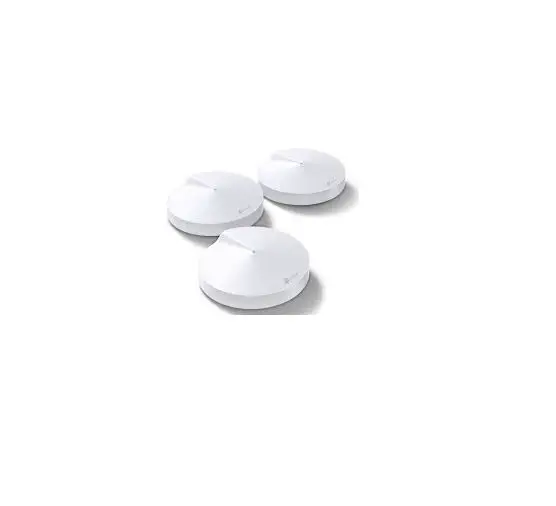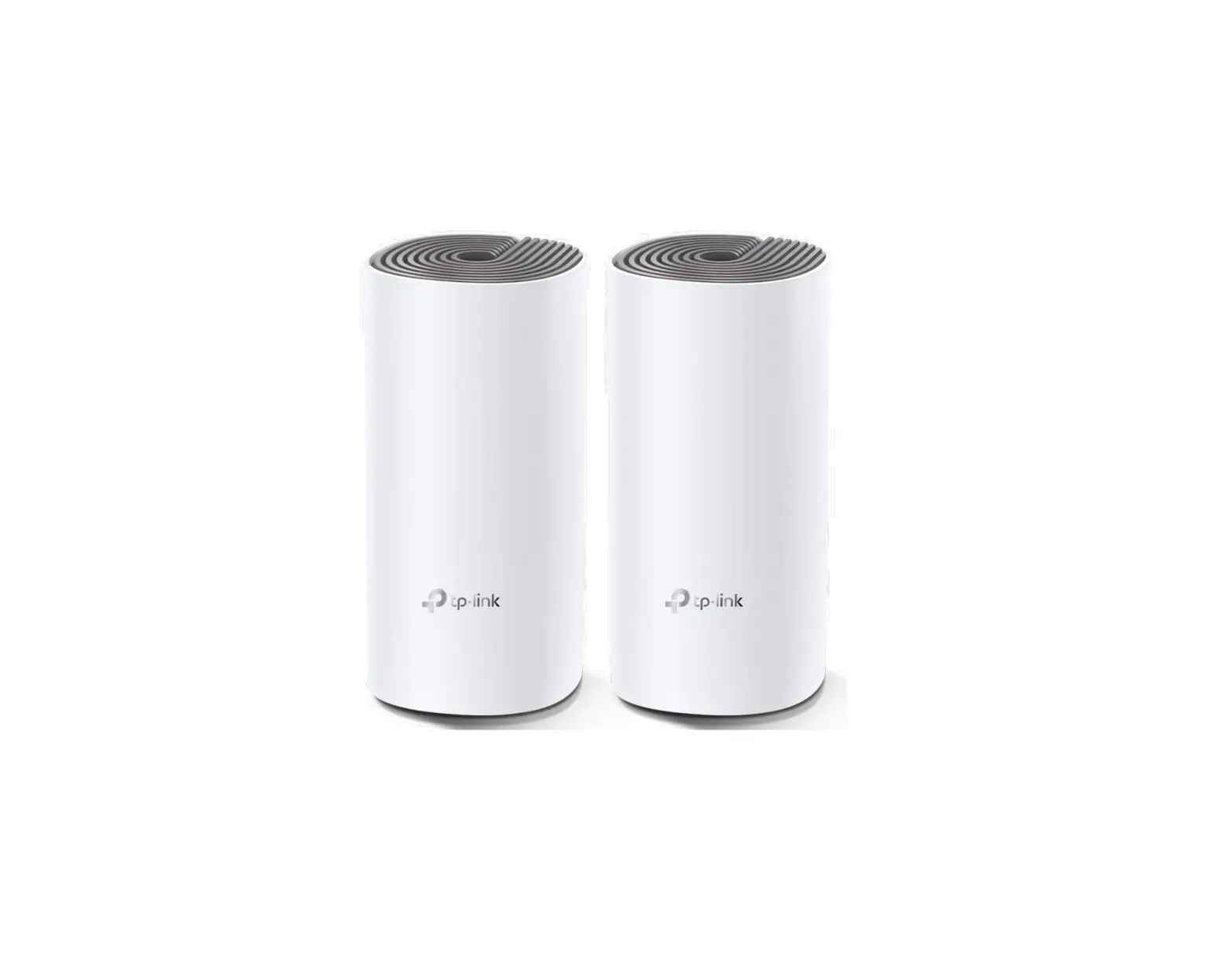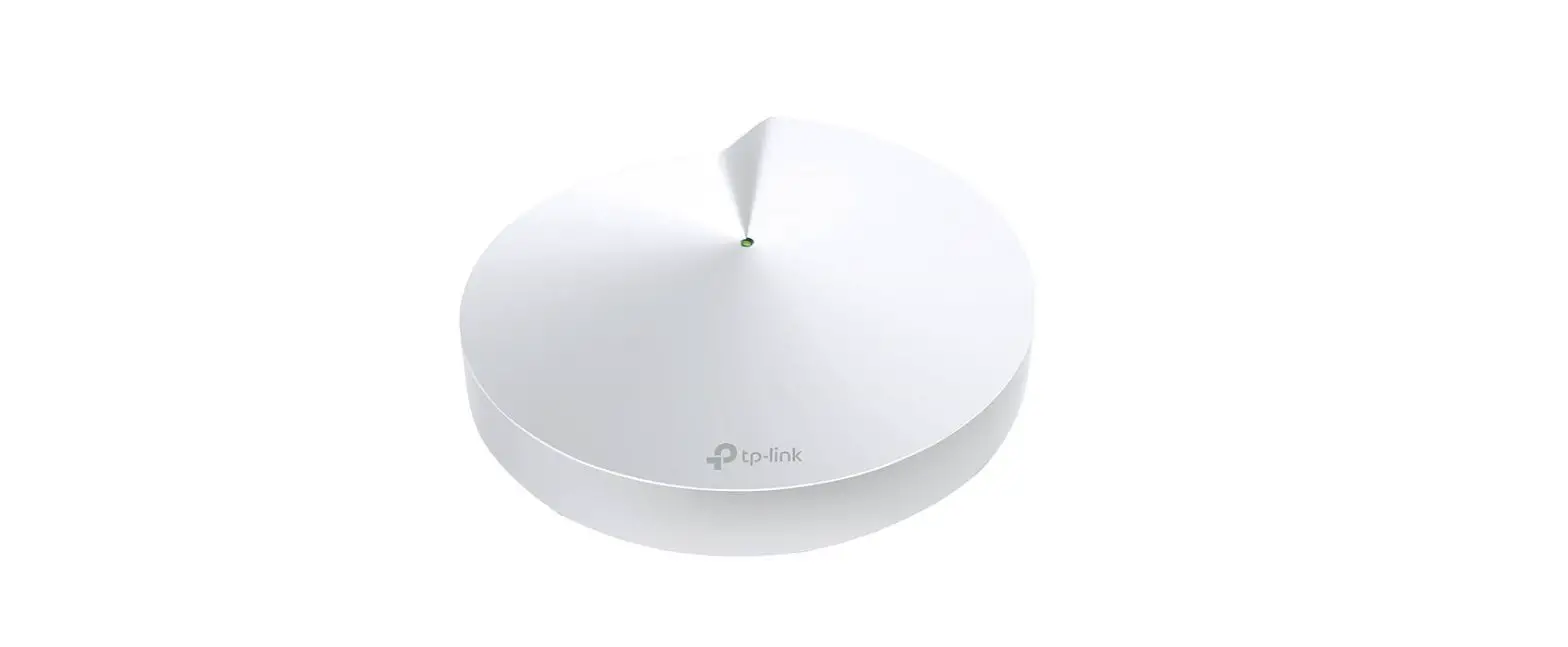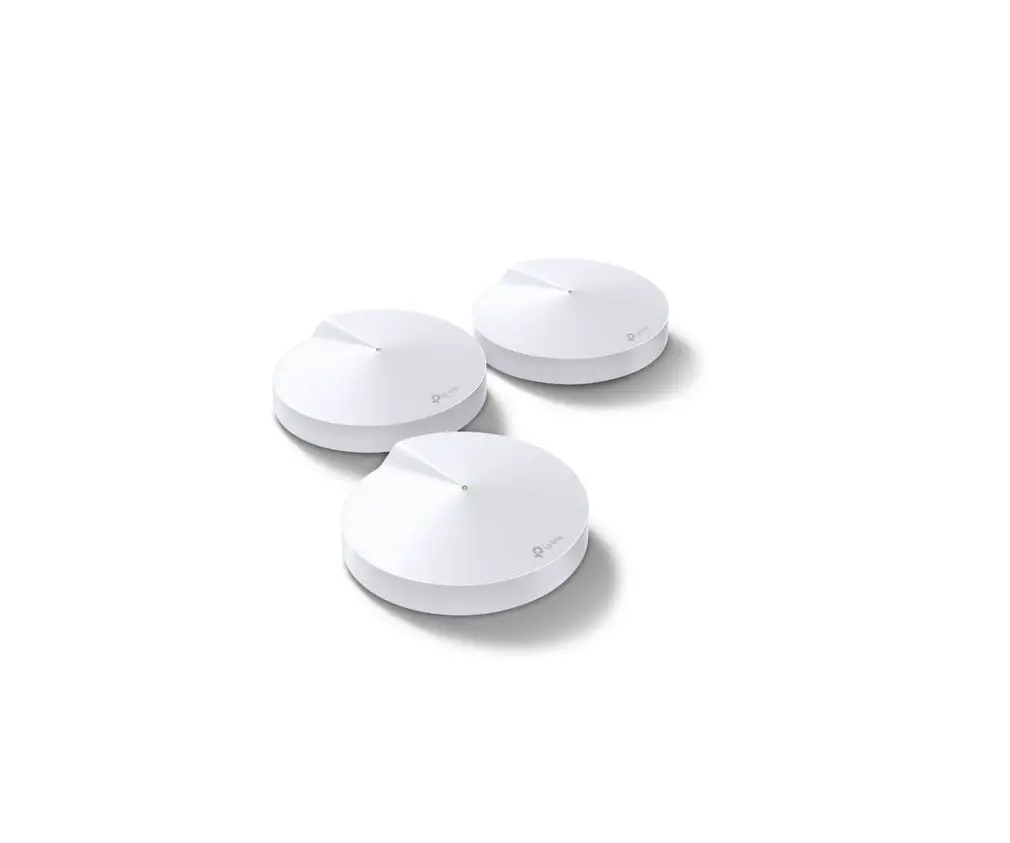
tp-link Whole-Home Wi-Fi System Deco M5 User Guide
About This Guide
This guide provides a brief introduction to Deco Whole-Home Wi-Fi System and the Deco app, as well as regulatory information. Please note that features of Deco may vary slightly depending on the model and software version you have, and on your location, language, and internet service provider. All images, parameters, and descriptions documented in this guide are used for demonstration only.
Conventions
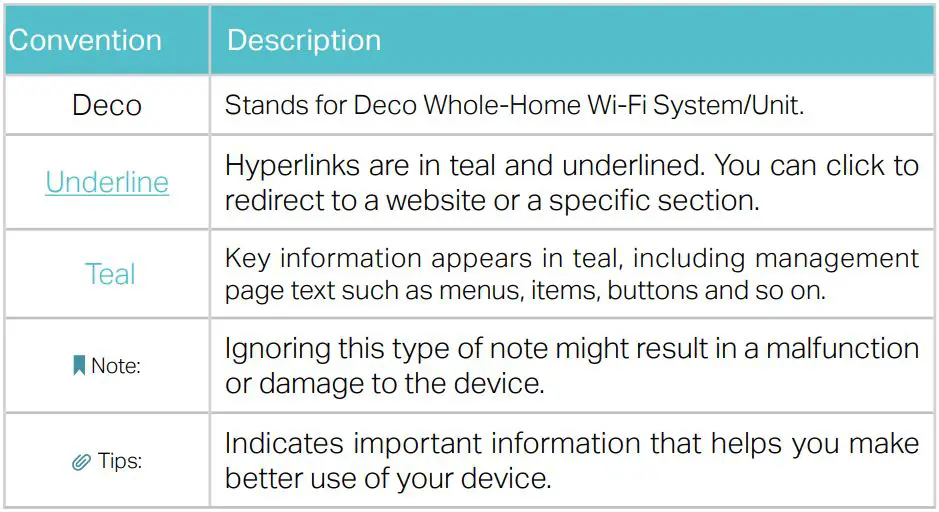
In this guide, the following conventions are used:
More Info
- Specific product information can be found on the product page at http://www.tp-link.com.
- A Technical Support Forum is provided for you to discuss our products at http://forum.tp-link.com.
- Our Technical Support contact information can be found at the Help Center of the Deco app and the Contact Technical Support page at http://www.tp-link.com/support.
Appearance
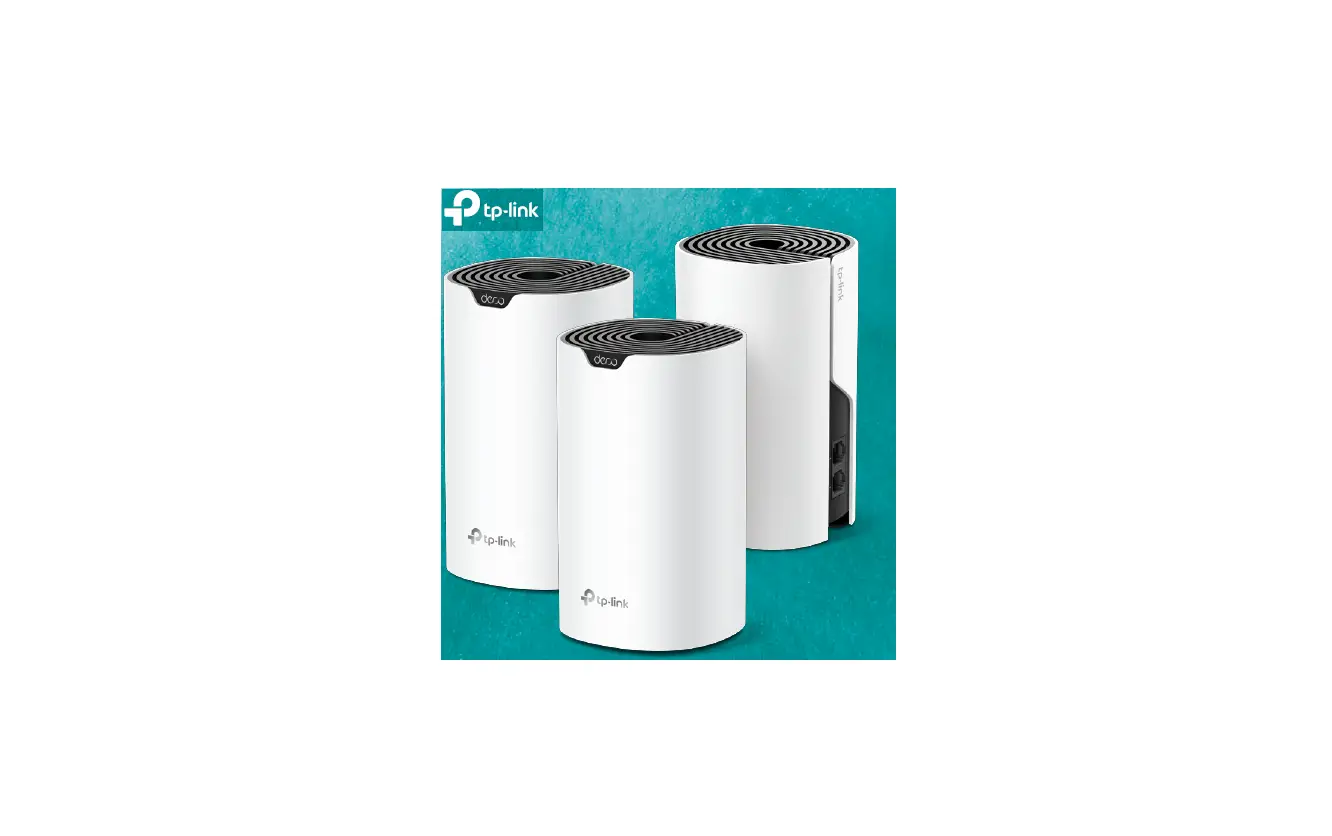
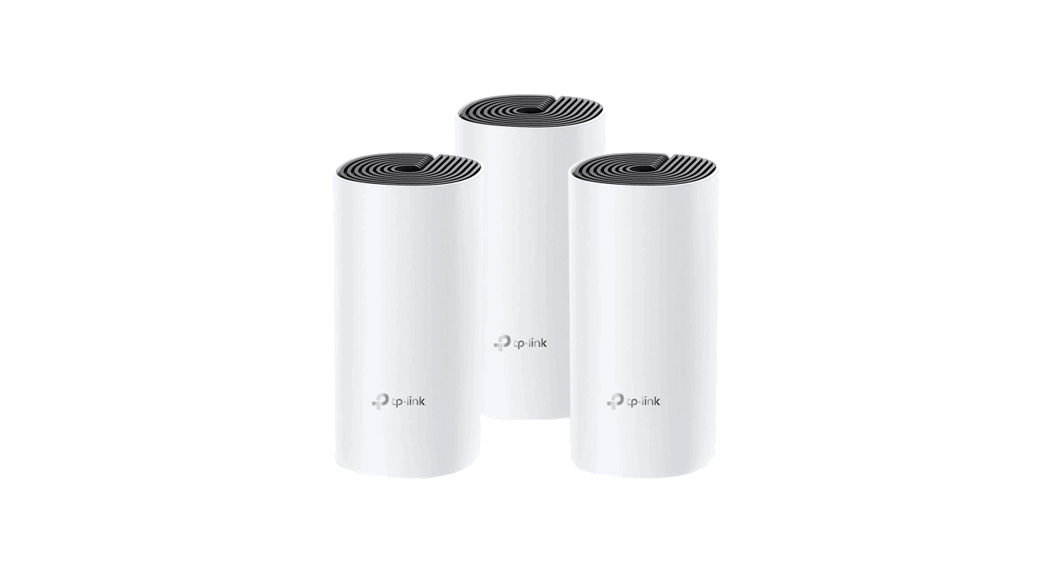
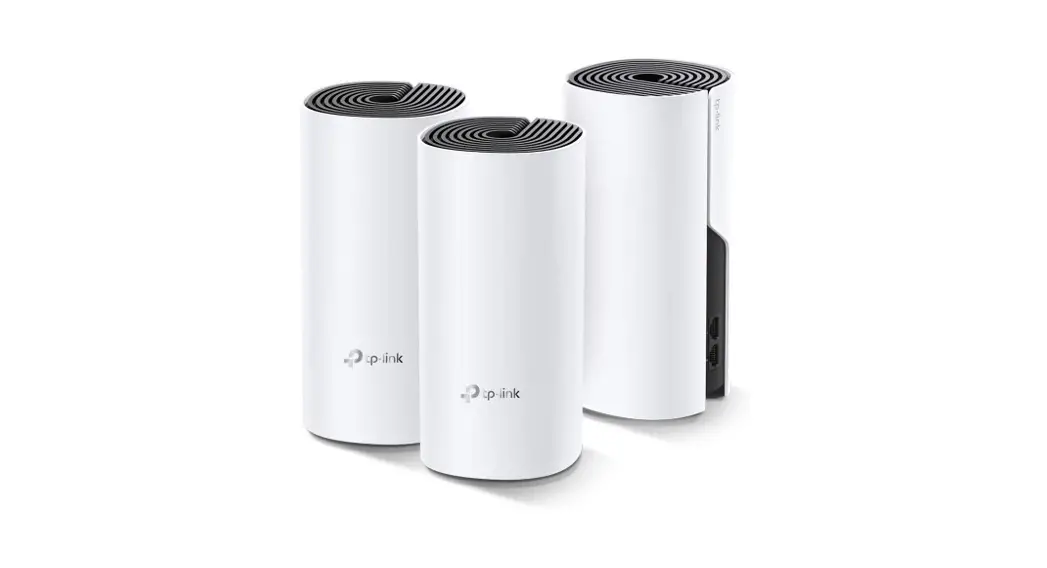
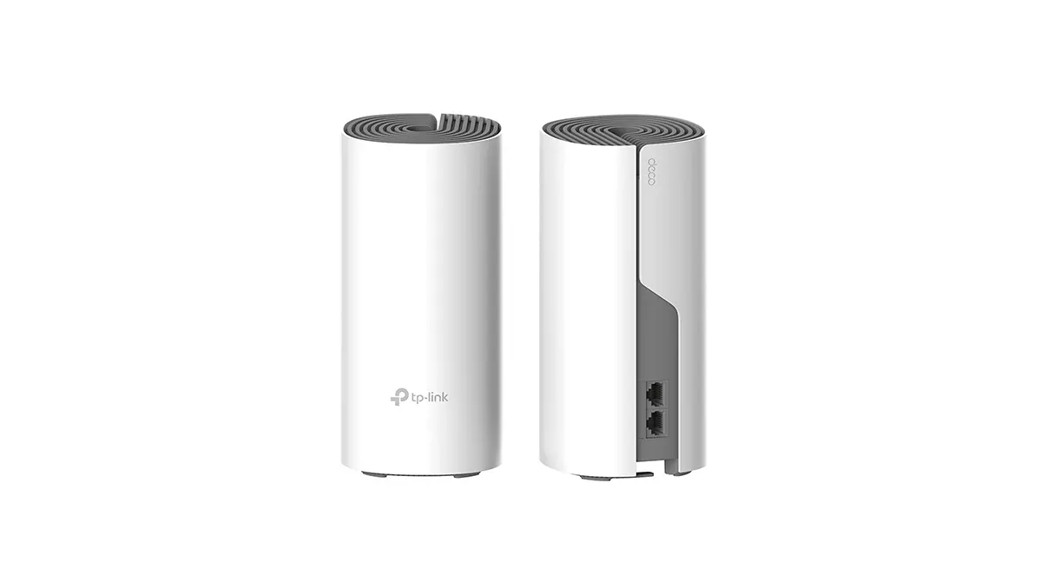
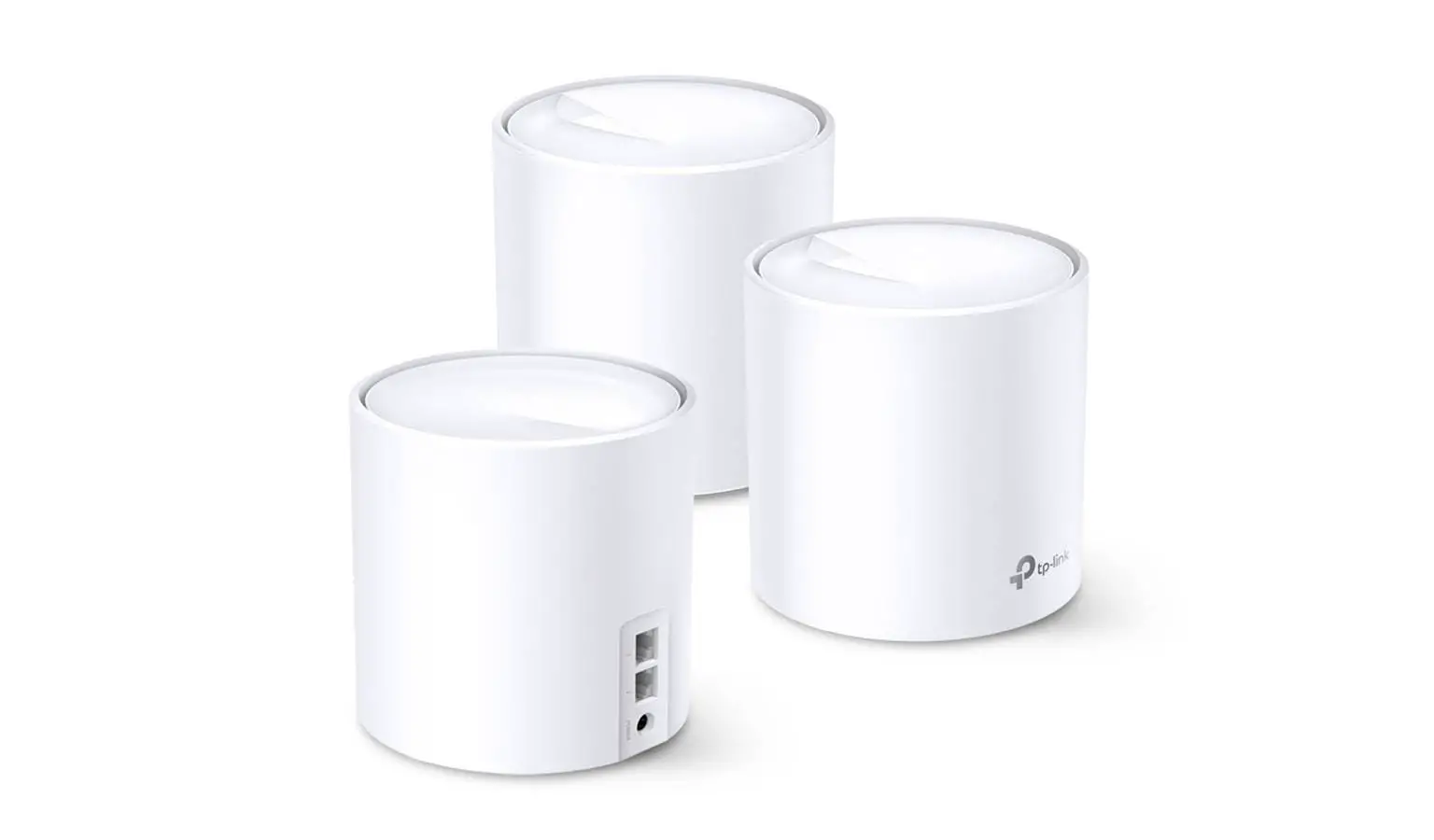
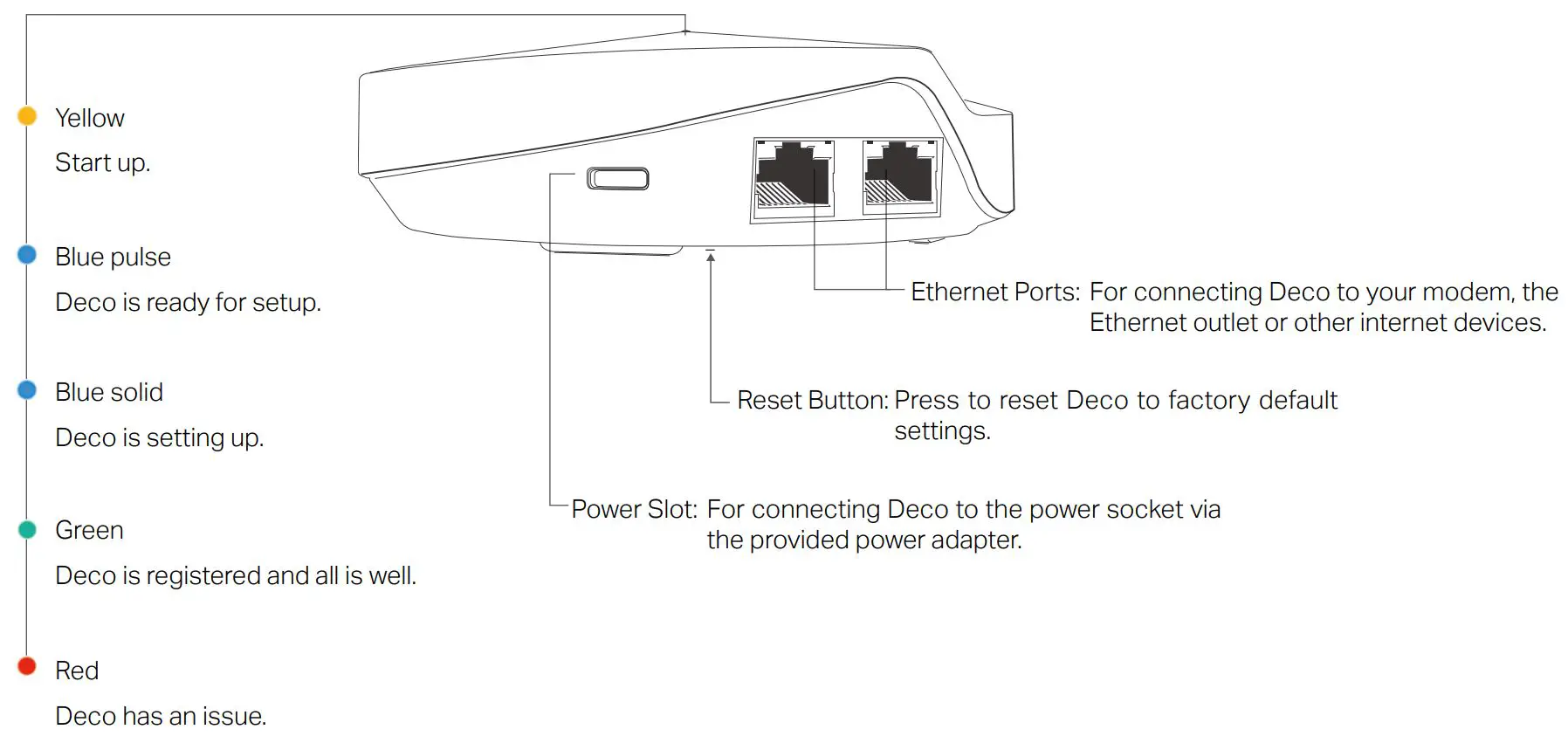
Each Deco has an LED that changes color according to its status, two RJ-45 Ethernet ports, and a power slot. See the explanation below:
Set Up Your Deco
Follow the steps below to set up your Deco Whole-Home Wi-Fi system.
1. Download and install the Deco app
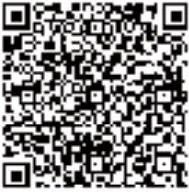
Scan the QR code below or go to Google Play or the Apple App Store to download the Deco app.
Install the app on your Android or iOS smartphone or tablet.
2. Login or sign up with TP-Link ID
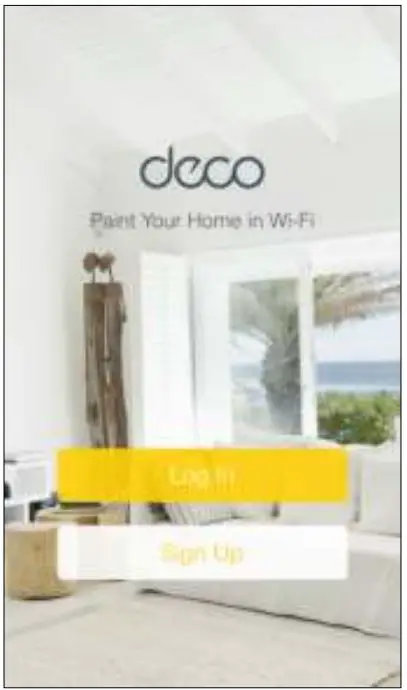
Open the app. Use your TP-Link ID to log in. If you don’t have a TP-Link ID, tap Sign Up. The Deco app will guide you through the rest.
3. Connect your modem to Deco
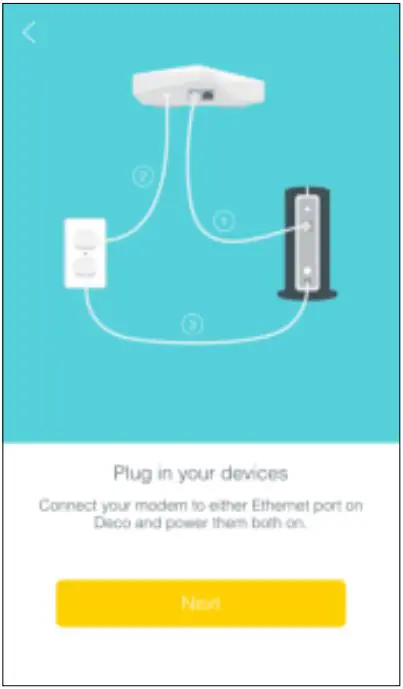
Find and power off your modem. Connect your Deco to the modem and power them both on. If you don’t have a modem, connect the Ethernet outlet directly to your Deco.
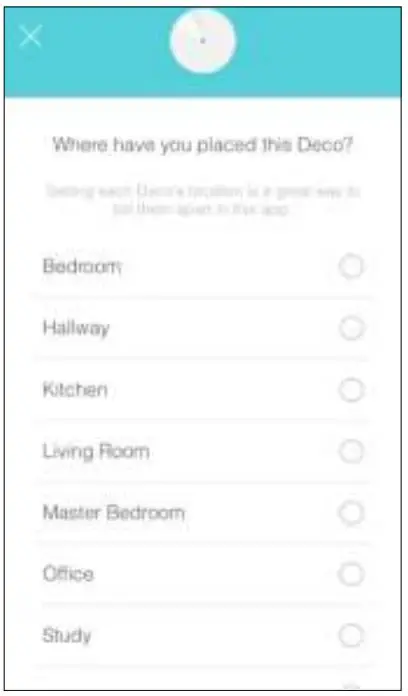
4. Select a location
Select a location for this Deco. If its location is not listed, you can create a new one by choosing Custom.
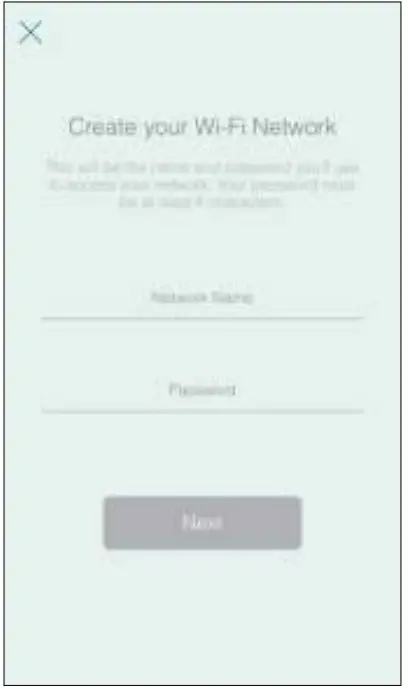
5. Create your Wi-Fi network
Set a network name and a password. These will be the name and passwords you use to connect your devices to Wi-Fi.
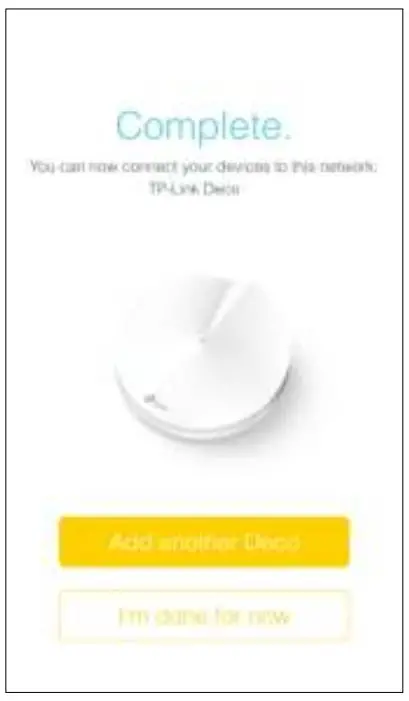
6. Add more Decos
You can add more Decos to expand Wi-Fi coverage. The app will guide you through the process of adding more Decos one by one.
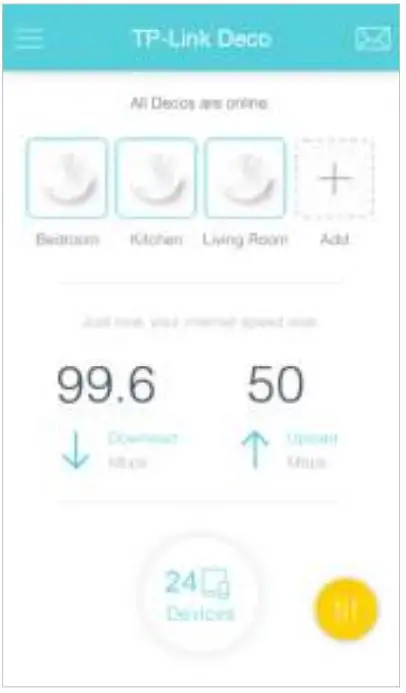
Dashboard
After you successfully set up your Deco network, you will see the dashboard of the Deco app. Here you can view the working status of all Decos, test the internet speed, check the connected devices and manage your network.
Deco Status, Speed Test & Devices
Swipe Right
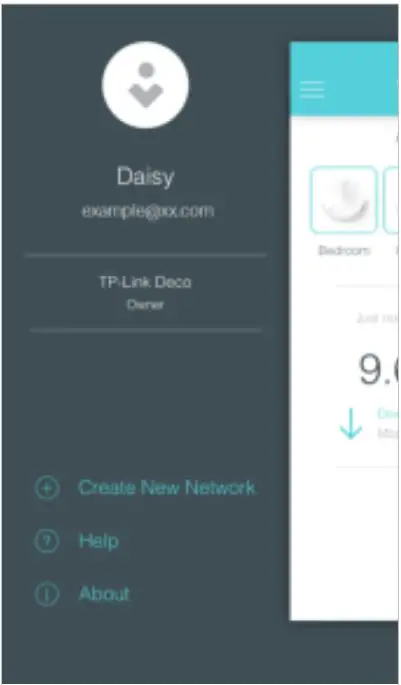
Tap the Main Menu
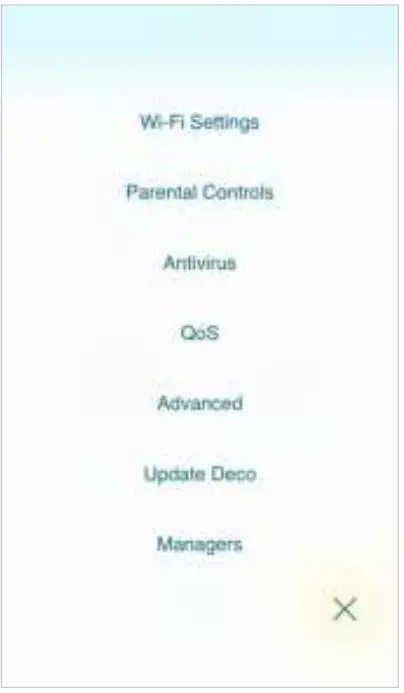
Wi-Fi Settings
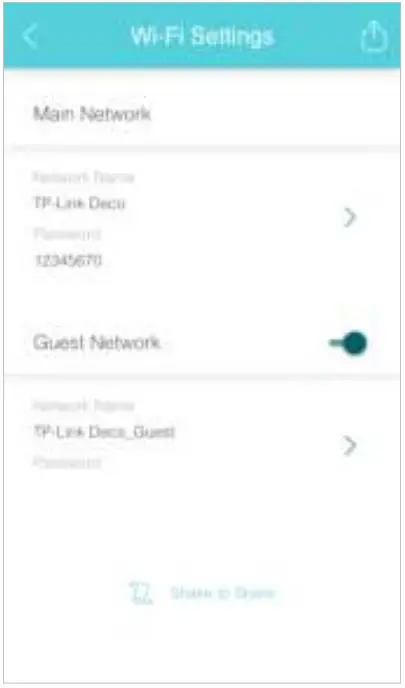
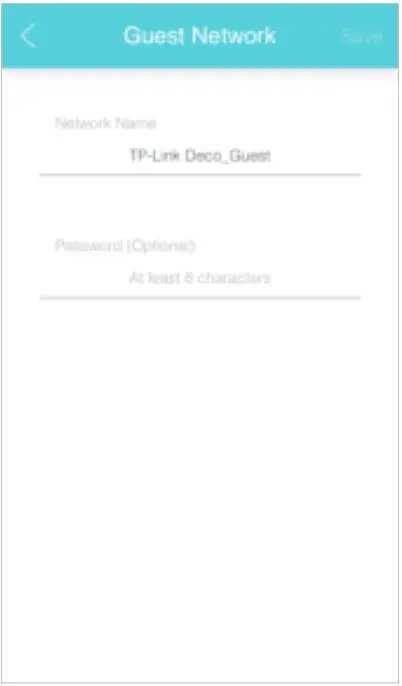
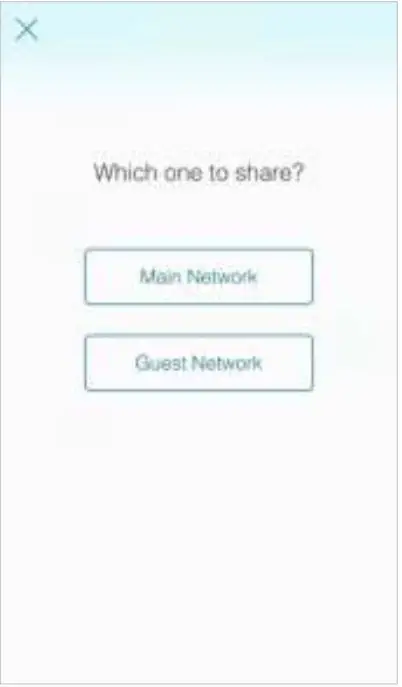
Customize the network name and password of your main network or create a separate network just for guests. You can set a guest network name and an easy-to-remember password. You can shake your device to share the network details easily with family and friends.
Enable Guest Network
Create Network Name and Password
Shake to Share
Parental Controls
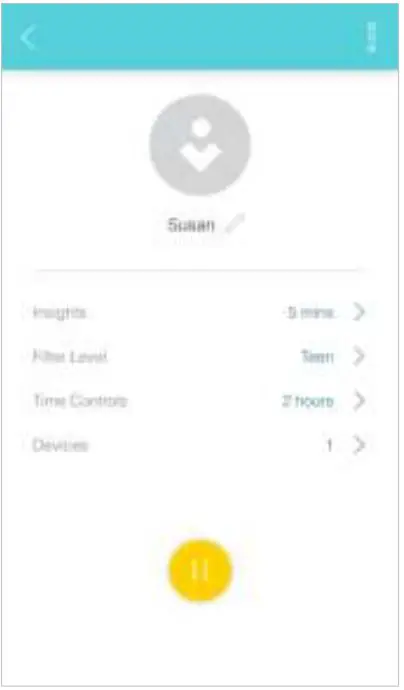
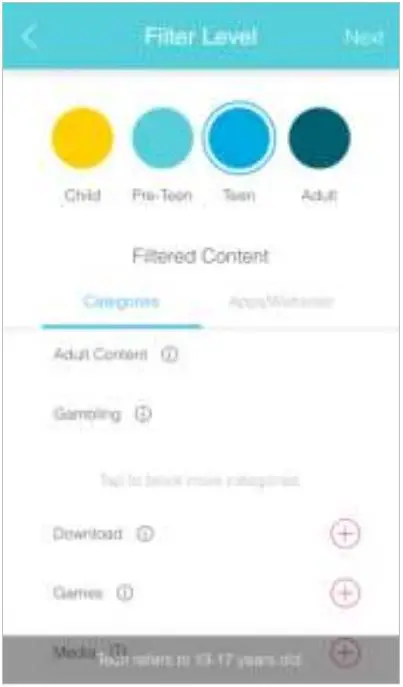
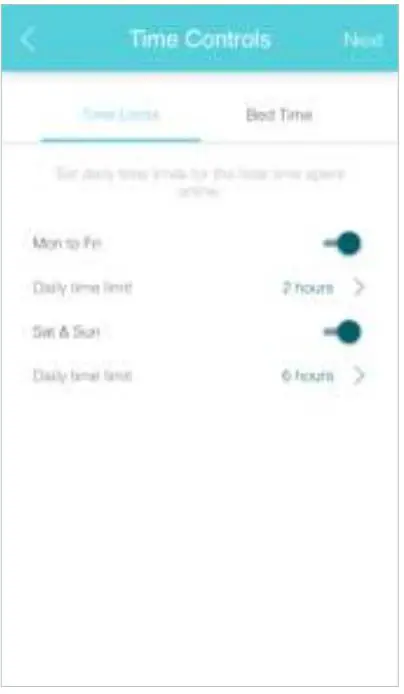
Create profiles for family members and specify the devices that belong to each. Set individualized parental controls including when and for how long each person can access the internet. Block inappropriate content and pause the internet if necessary.
Insights
Filter Level
Time Controls
Antivirus
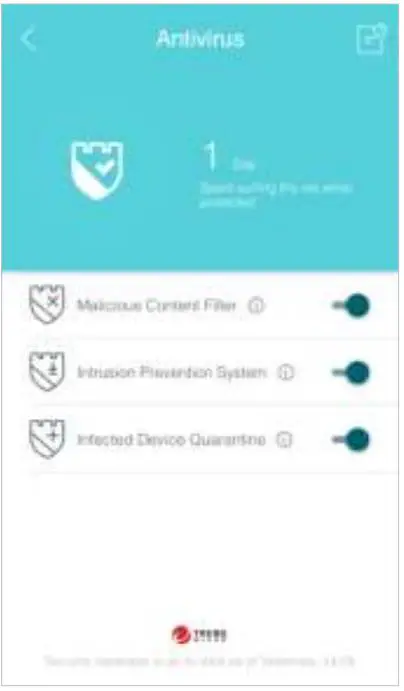
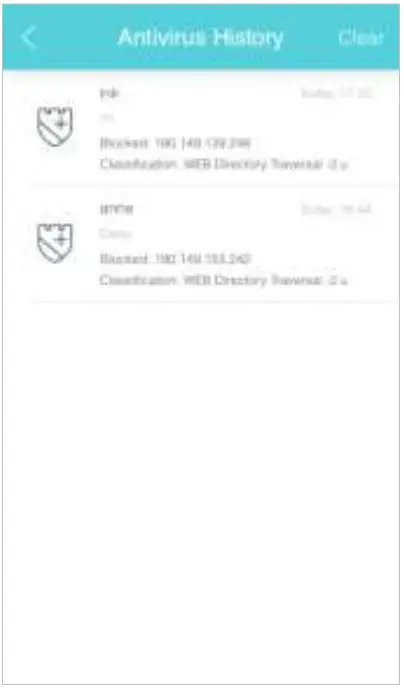
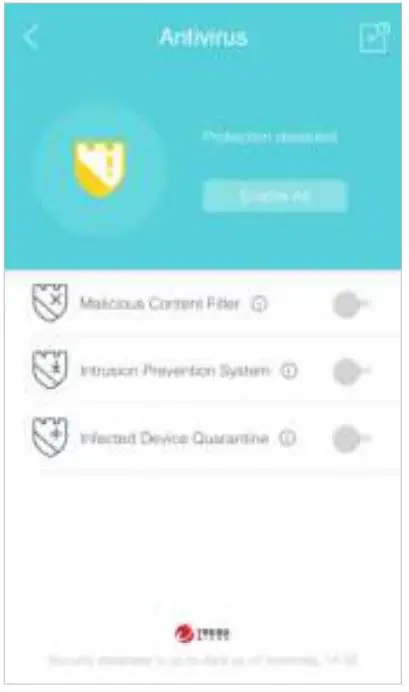
There are three ways Deco ensures your home network remains safe: by blocking malicious websites, by protecting the system and applications against external attacks and eliminating vulnerabilities, and by preventing infected devices from sending sensitive information outside your network.
Protection Enabled
Alert History
Protection Disabled
QoS
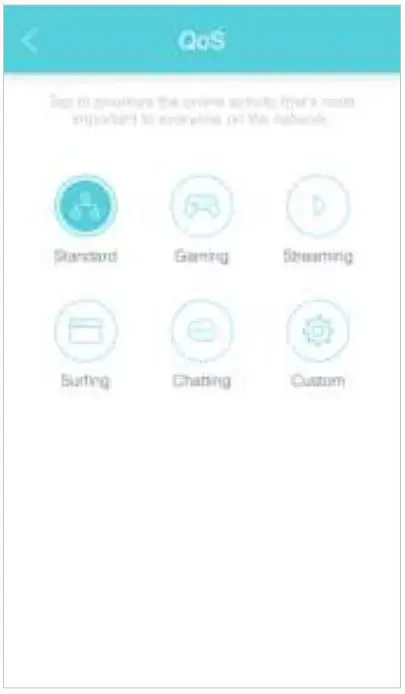
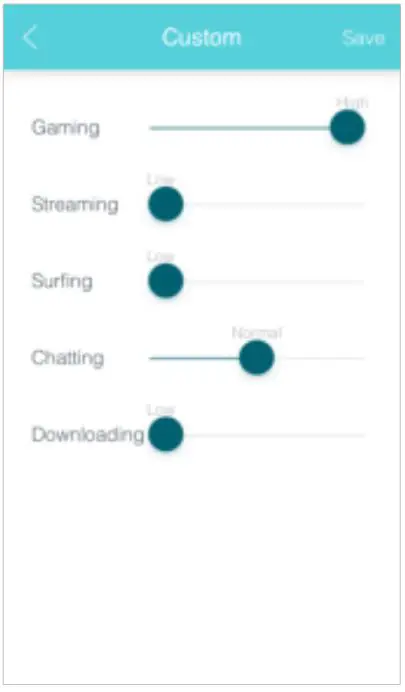
There are two ways to use the QoS (Quality of Service) function. You can prioritize the connection of a particular device for a set duration, such as a family member’s laptop for one hour during a video call. You can also prioritize the online activity that’s most important to the whole family, such as Streaming or Gaming.
Prioritize a Device
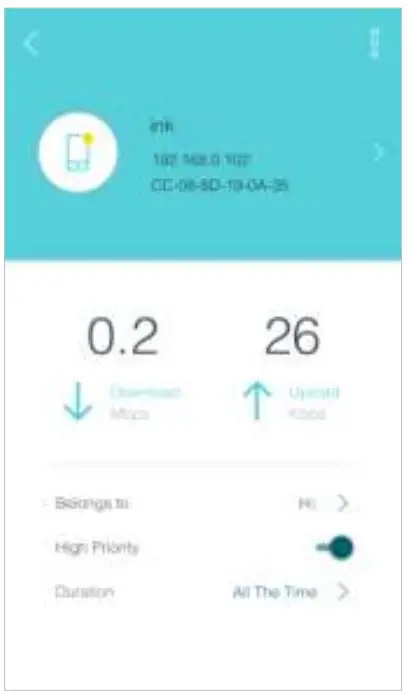
Prioritize an Activity
Customize
Advanced Features
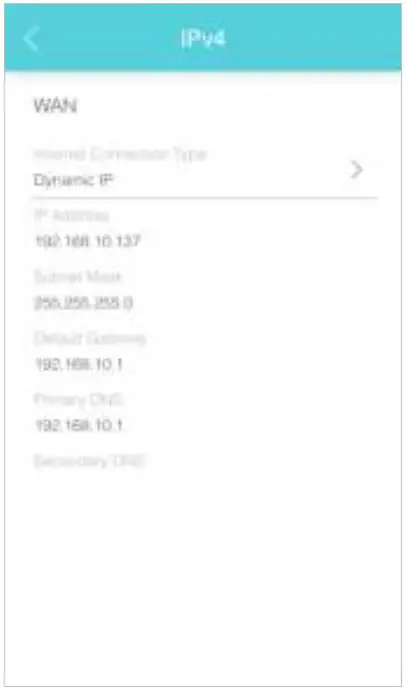
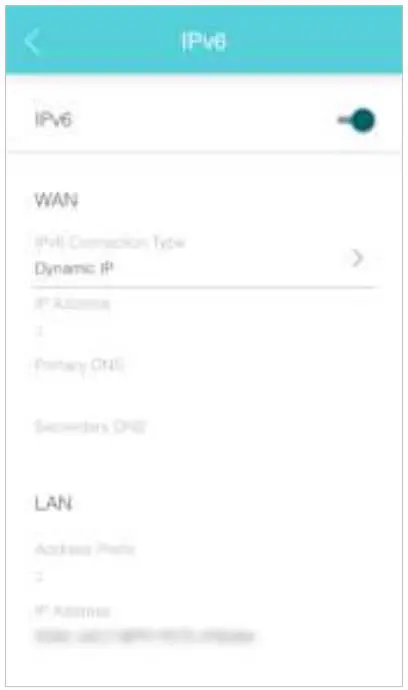
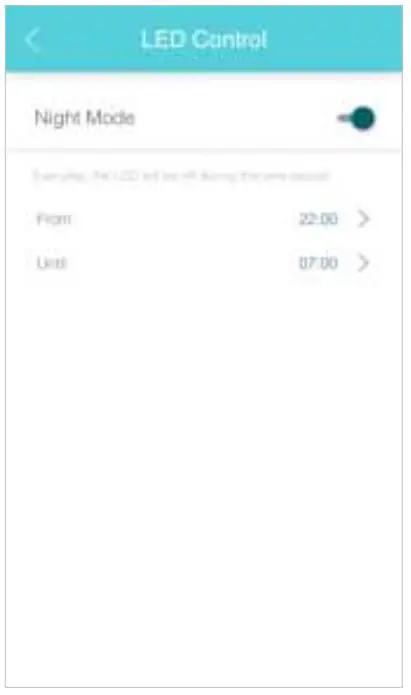
Additional features are available under the Advanced menu. Modify WAN settings (IPv4 & IPv6), control Deco’s LED, and turn notifications off and on.
IPv4
IPv6
LED Control
Online Upgrade
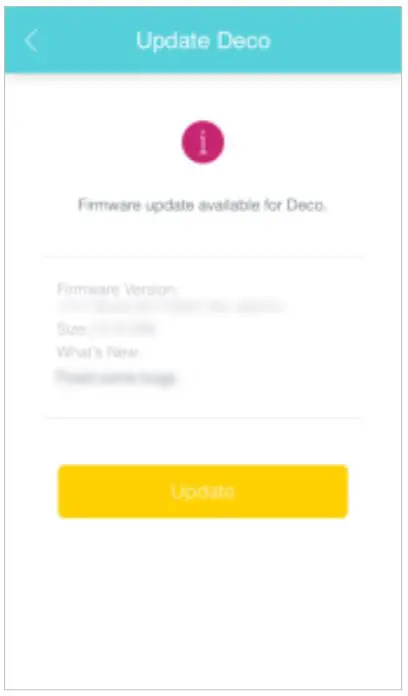
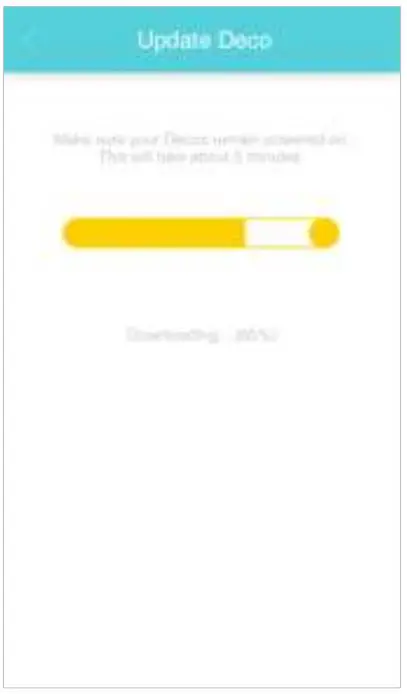
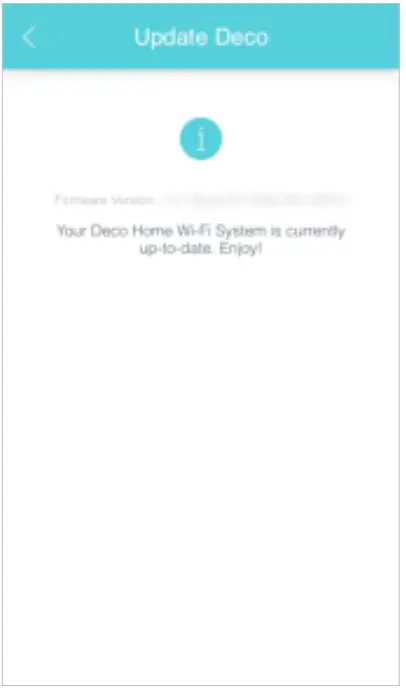
TP-Link is dedicated to improving product features and providing a better customer experience. Update Deco when prompted in the Deco app.
Update Available
Updating Deco
Up-to-date
Managers
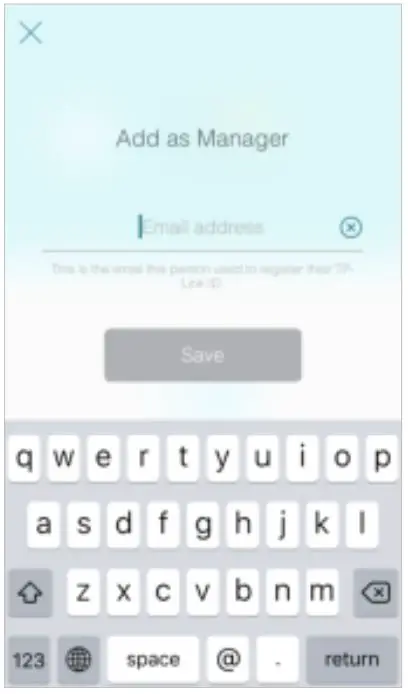
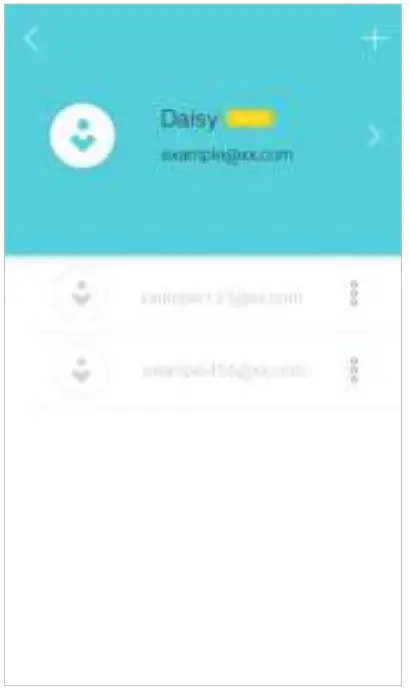
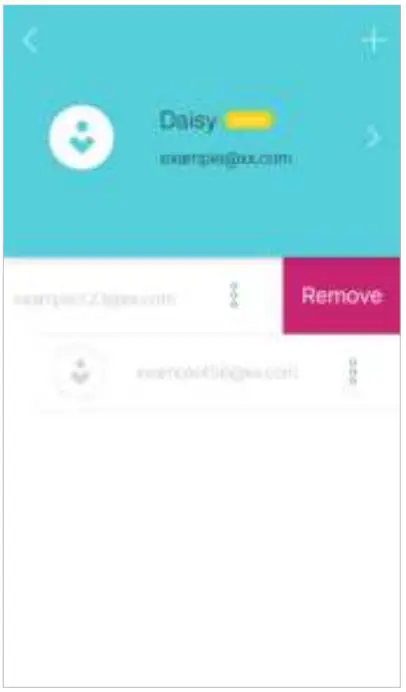
Add friends and family members to help manage your network. Each manager should have their own TP-Link ID.
Add as Manager
Manager List
Remove a Manager
Authentication
COPYRIGHT & TRADEMARKS
Specifications are subject to change without notice. is a registered trademark of TP-Link Technologies Co., Ltd. Other brands and product names are trademarks or registered trademarks of their respective holders.
No part of the specifications may be reproduced in any form or by any means or used to make any derivative such as translation, transformation, or adaptation without permission from TP-Link Technologies Co., Ltd. Copyright © 2017 TP-Link Technologies Co., Ltd. All rights reserved.
FCC STATEMENT

This equipment has been tested and found to comply with the limits for a Class B digital device, pursuant to part 15 of the FCC Rules. These limits are designed to provide reasonable protection against harmful interference in a residential installation. This equipment generates, uses, and can radiate radio frequency energy and, if not installed and used in accordance with the instructions, may cause harmful interference to radio communications. However, there is no guarantee that interference will not occur in a particular installation. If this equipment does cause harmful interference to radio or television reception, which can be determined by turning the equipment off and on, the user is encouraged to try to correct the interference by one or more of the following measures:
• Increase the separation between the equipment and receiver.
• Connect the equipment into an outlet on a circuit different from that to which the receiver is connected. This device complies with part 15 of the FCC Rules. Operation is subject to the following two conditions:
1. This device may not cause harmful interference.
2. This device must accept any interference received, including interference that may cause undesired operation. Any changes or modifications not expressly approved by the party responsible for compliance could void the user’s authority to operate the equipment. Note: The manufacturer is not responsible for any radio or TV interference caused by unauthorized modifications to this equipment. Such modifications could void the user’s authority to operate the equipment.
FCC RF Radiation Exposure Statement
This equipment complies with FCC RF radiation exposure limits set forth for an uncontrolled environment. This device and its antenna must not be co-located or operating in conjunction with any other antenna or transmitter. “To comply with FCC RF exposure compliance requirements, this grant is applicable to only Mobile Configurations. The antennas used for this transmitter must be installed to provide a separation distance of at least 20 cm from all persons and must not be co-located or operating in conjunction with any other antenna or transmitter.”
CE Mark Warning
This is a class B product. In a domestic environment, this product may cause radio interference, in which case the user may be required to take adequate measures.
RF Exposure Information
This device meets the EU requirements (2014/53/EU Article 3.1a) on the limitation of exposure of the general public to electromagnetic fields by way of health protection. The device complies with RF specifications when the device used at 20 cm from your body. Restricted to indoor use.
Canadian Compliance Statement
This device complies with Industry Canada license-exempt RSS standard(s). Operation is subject to the following two conditions:
1. This device may not cause interference, and
2. This device must accept any interference, including interference that may cause undesired operation of the device. Le présent appareil est conforme aux CNR d’Industrie Canada applicables aux appareils radio exempts de licence.
Caution:
1. The device for operation in the band 51505250 MHz is only for indoor use to reduce the potential for harmful interference to co-channel mobile satellite systems;
2. For devices with detachable antenna(s), the maximum antenna gain permitted for devices in the band 5725-5850 MHz shall be such that the equipment still complies with the e.i.r.p. limits specified for point-to-point and non-point-to-point operation as appropriate; and
The high-power radars are allocated as primary users (i.e. priority users) of the bands 5250-5350 MHz and 5650-5850 MHz and that these radars could cause interference and/or damage to LE-LAN devices.
Radiation Exposure Statement:
This equipment complies with IC radiation exposure limits set forth for an uncontrolled environment. This equipment should be installed and operated with a minimum distance of 20cm between the radiator & your body.
Industry Canada Statement
CAN ICES-3 (B)/NMB-3(B)

Safety Information
- When a product has a power button, the power button is one of the ways to shut off the product; when there is no power button, the only way to completely shut off power is to disconnect the product or the power adapter from the power source.
- Don’t disassemble the product, or make repairs yourself. You run the risk of electric shock and voiding the limited warranty. If you need service, please contact us.
- Avoid water and wet locations.
- The adapter shall be installed near the equipment and shall be easily accessible.
 Use only power supplies which are provided by the manufacturer and in the original packing of this product. If you have any questions, please don’t hesitate to contact us.
 Use only power supplies which are provided by the manufacturer and in the original packing of this product. If you have any questions, please don’t hesitate to contact us.
For EU/EFTA, this product can be used in the following countries:

Explanation of the symbols on the product label
Symbol


Explanation
DC voltage
RECYCLING This product bears the selective sorting symbol for waste electrical and electronic equipment (WEEE). This means that this product must be handled pursuant to European directive 2012/19/EU in order to be recycled or dismantled to minimize its impact on the environment. The user has the choice to give his product to a competent recycling organization or to the retailer when he buys new electrical or electronic equipment.
 TP-Link Community
 WiFi Networking Equipment for Home & Business | TP-Link