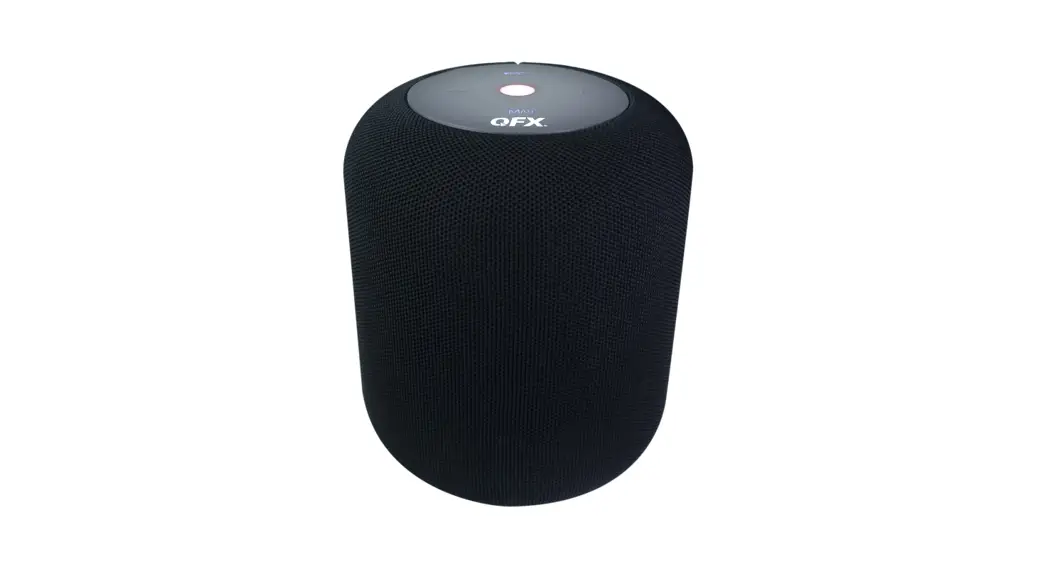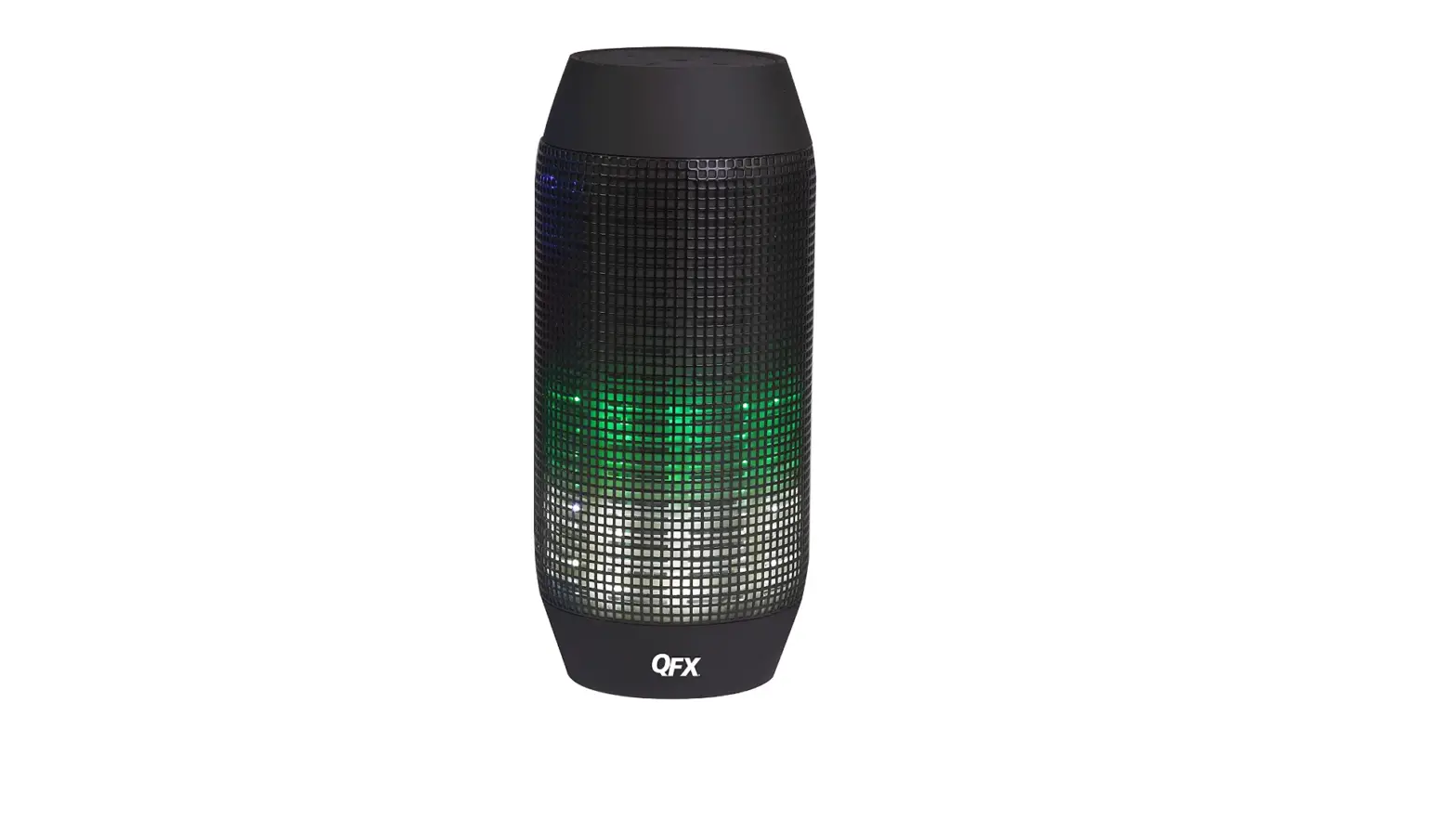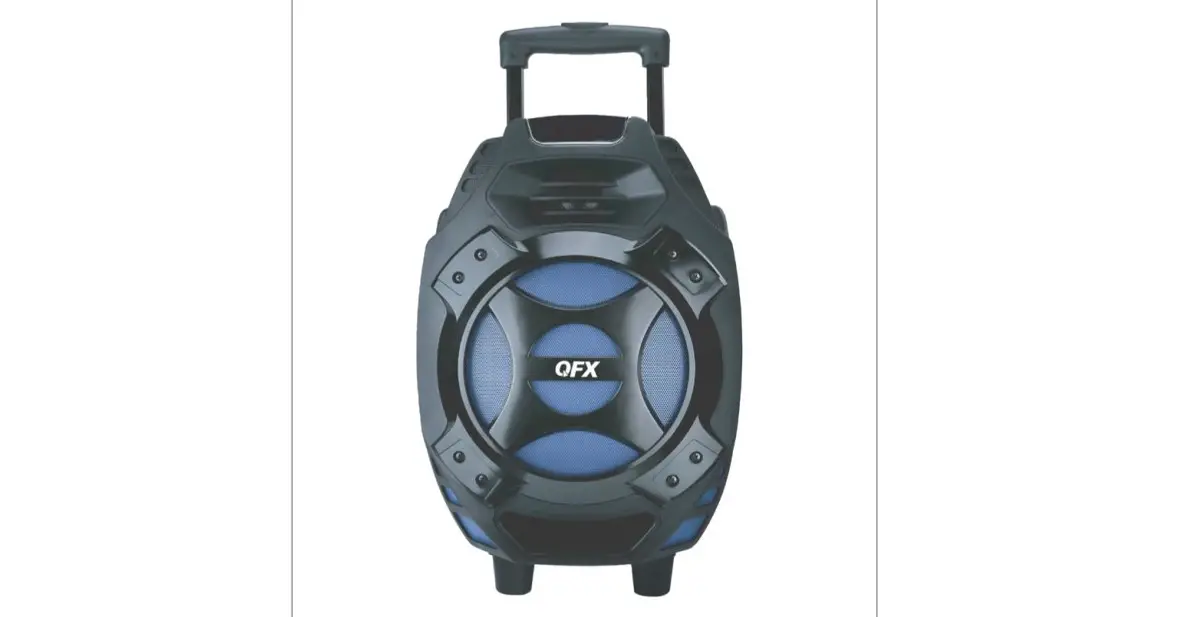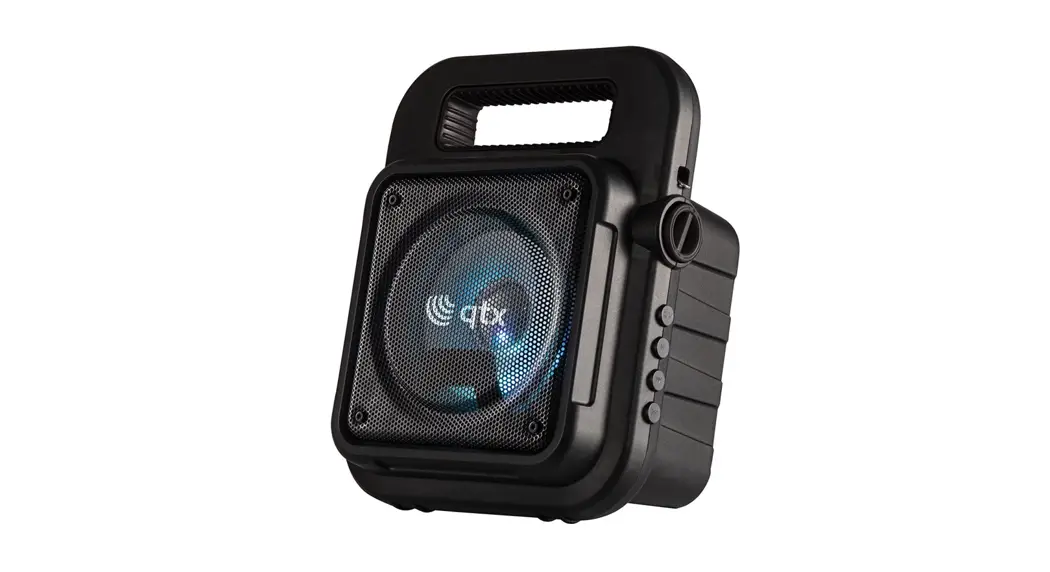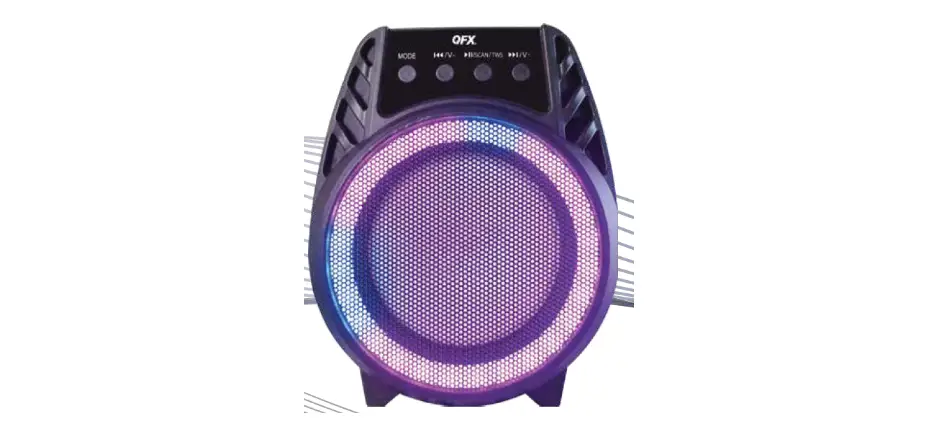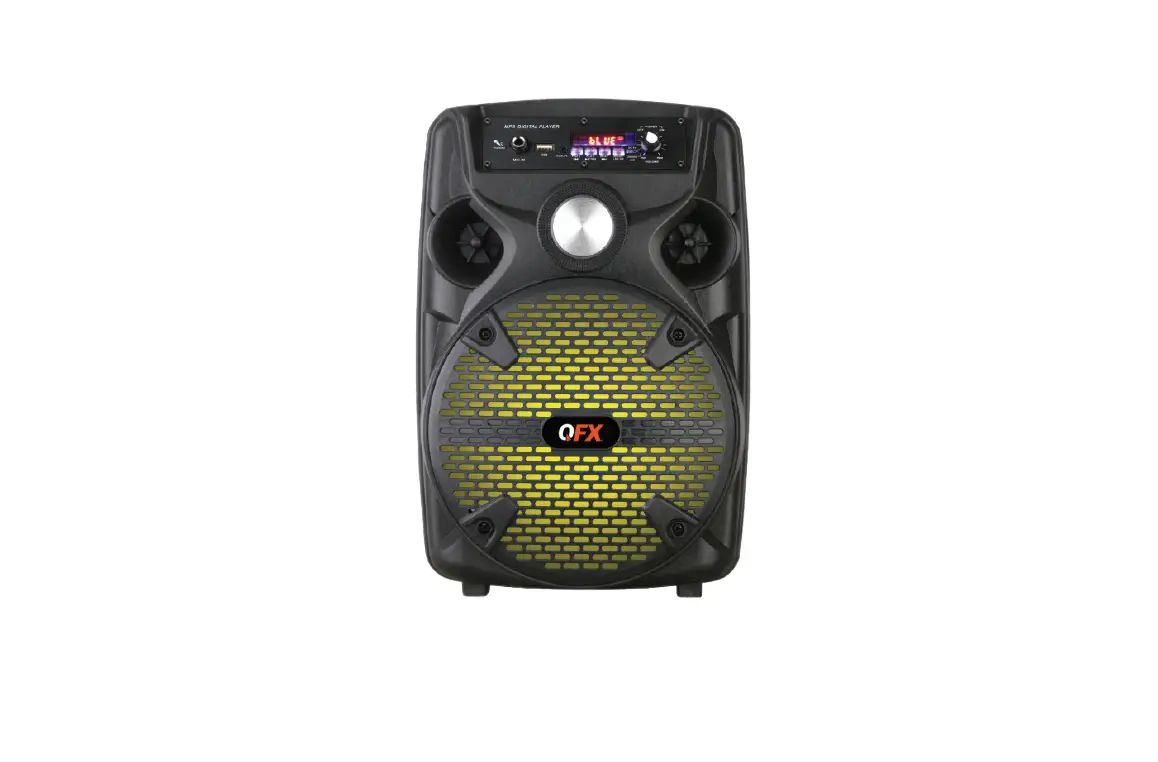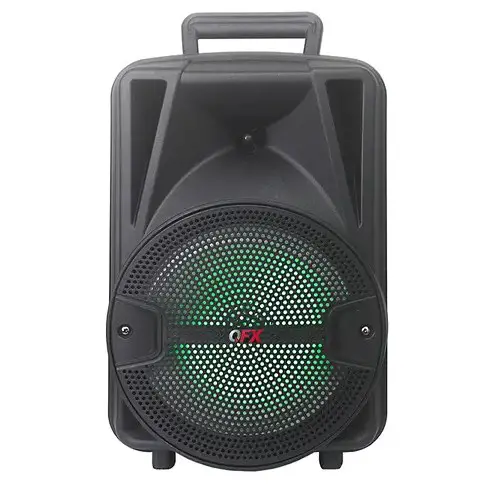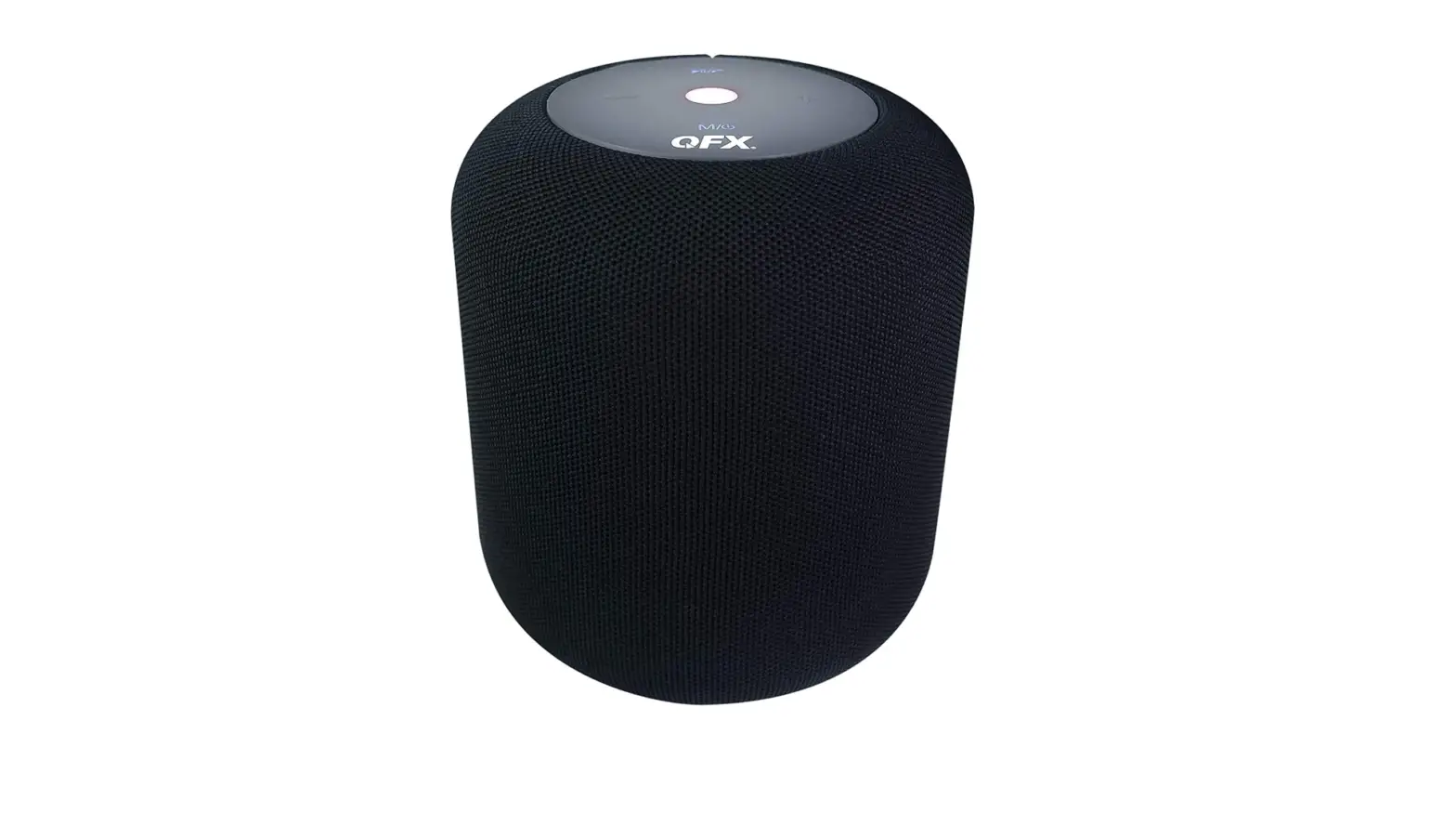

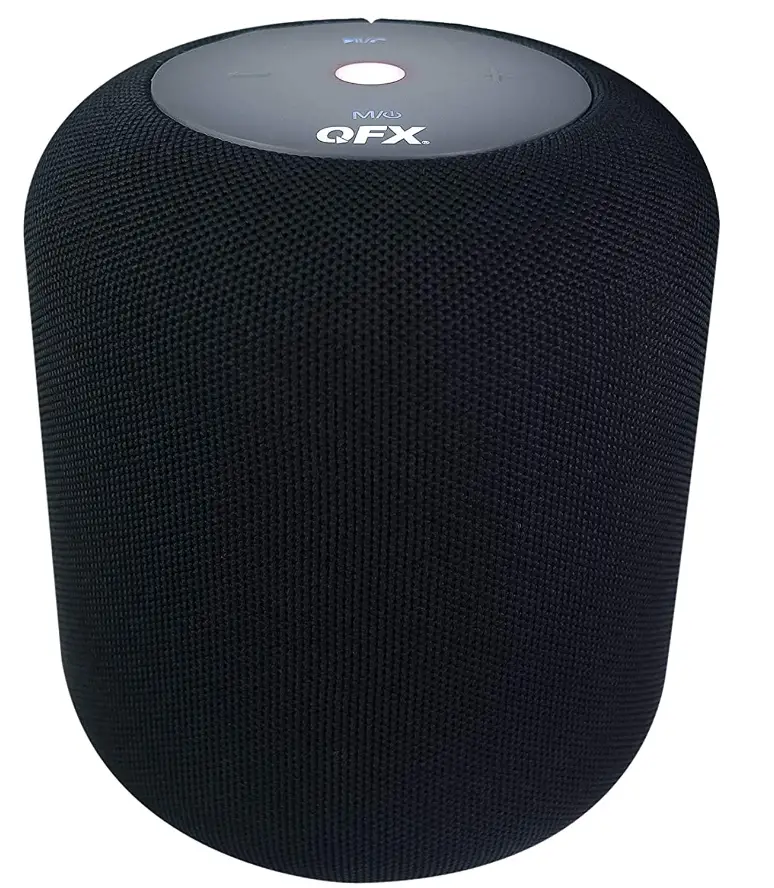
QFX BT-600 Portable Bluetooth MusicPod Speaker
Specifications
- Product Dimensions
8.2 x 5.8 x 5.6 inches - Item Weight
1 pound - Batteries
1 Product Specific batteries - Connectivity Technology
Bluetooth, Auxiliary, USB - Brand
QFX
Introduction
Big sound is delivered by the QFX BT-600 Bluetooth MusicPod via wireless streaming, USB, microSD Card, or FM radio playback! Through its aux input, it can also play back audio from MP3 players or other electronics with 3.5 mm output. You may also accept calls from your connected smartphone thanks to its built-in speakerphone! This sturdy and rechargeable MusicPod speaker is prepared for every occasion and any location where the party may go.
Operate Instruction
The speaker must be turned on (Long Push the switch“ using any of the following modes.
Bluetooth Mode
- Turn the speaker on, a tone will be emitted to signal that it is ready to be paired with a Bluetooth-compatible device.
- Setting the Bluetooth of your phone and tablet PC (Please set it according to your own device)then begin searching Bluetooth mode and find the paring name “QFX BT-600” to pair.
- When the match is finished, there will be warned, that you can play the music as you like by then, the search time is different for the different branded devices, it takes about the one-minute general condition.
- To unpair or remove a Bluetooth-compatible device from the speaker, turn off the Bluetooth function on the device, and the speaker can be paired with a new compatible device now.
Note: Once connected, sound can be controlled using either the speaker or the relevant controls on the Bluetooth-compatible device.
USB/ TF card Mode
- To use TF mode, insert a TF card (not included) into the TF card slot on the back of the speaker. The speaker will automatically change to TF mode.
- To use USB mode, insert a compatible USB drive into the USB port on the back of speaker. The speaker will automatically change to USB mode.
- To add or minus the volume by pressing the”+” button and “-“button without moving your finger away.
- To switch the next song by pressing the button “+ ”and last song by the ” – ” button shortly.
Note
If the speaker does not automatically change to TF or USB mode, press “M” until the desired operation is selected.
Hand free Mode
- To make sure your mobile phone and the speaker is connected.
- When there is calls get in, please press“
 ”to answer the call.
 - When you want to hand up the phone, press ” again.
 ”to answer the call.
Aux in Mode
Connect one end of the line in the Aux port on the speaker and the other end to an MP3 player or another compatible audio source. The speaker will automatically switch to Aux mode once the aux cable has been inserted. To change different functions, press the button“M”.
FM radio Mode
Connect the micro 5-pin end of the supplied USB charging cable to the unit and FM radio function. To scan the FM frequency, press the “ ” button.
Note
Remove the USB/TF card while using the FM radio function.
To charge
Please insert the micro USB end of the charging cable into the port “DC 5V” on the back of the speaker. The light keeps on when charging. The light turns off once fully charged. Carefully disconnect both ends of the USB charging cable and store it safely for future use.
Things need to be careful
- Please read the manual carefully to make sure safe you and the speaker.
- Do not use the speaker in an environment of hot, dusty or moist.
- Please avoid falling or strong bumps to keep the surface and Other hardware in good condition. When do not use the device for a long time, please push the switch to “off”.
- Please turn off the device when inserting and extracting the TF card, this may destroy the device and lose the data on the TF card.
Dimension and Features
- Output Power:10W (THD=10%)
- Battery capacity: 1200mA
- Frequency:20HZ-20KHZ
- Transferring distance: ≥10meter (let depends on the Bluetooth device and the environment)
Frequently Asked Questions
To select Bluetooth mode, lightly click the MODE/LIGHT button on the control panel. Open the Bluetooth settings on your phone, tablet, or other Bluetooth-enabled audio device simultaneously, then select “BT-87” (there is no need to provide a matching code), and the device and unit will connect through Bluetooth.
Your portable device’s Bluetooth capability should be enabled. 3. Find your “QFX PBX-800” speaker and link it with it. 4. To start playback, click the PLAY/PAUSE button. JACK IN MIC Connect the wired headset microphone (not included). After that, the connected microphone is ready for use.
Go to Settings > System > Advanced> Reset Options > Reset Wi-fi, mobile, & Bluetooth on Android devices. For iOS and iPadOS devices, you’ll need to unpair every device first, then restart your phone or tablet by going to Settings > Bluetooth, selecting the info icon, then selecting Forget This Device for each device.
Instead of an internet connection, short-range radio waves are how Bluetooth operates. This means you don’t need a data plan or even a cellular connection for Bluetooth to function anywhere you have two compatible devices.
There are two potential causes for your Bluetooth speaker to stop charging: software or hardware problems. While hardware problems include a defective micro USB cable, an undervoltaged lithium-ion battery, and a broken solder joint on the USB charging socket, software problems are caused by faults in software.
You should only need to do this briefly with most Bluetooth speakers. The power and Bluetooth buttons must be pressed and held simultaneously in order for almost every Bluetooth speaker to be reset.
In a word, yes. WiFi is not necessary for Bluetooth headphones, and they function perfectly without it.
One of the speakers’ TWS buttons should be pushed and held for three seconds. A beep will be heard. It will be possible to link the speakers. The next time you simultaneously put both speakers in Bluetooth mode, they will instantly connect.
If the battery is fully charged, the CHARGE indicator won’t turn on. Depending on the model, the speaker’s CHARGE indication could not turn on while it is being charged. The CHARGE indicator will turn on if the battery is charging while the speaker is off.
Turn the Bluetooth speaker’s bottom downwards, remove the anti-slip mat, reveal the maintained screw, remove and unscrew it, and then heat the battery on the audio motherboard with a soldering iron until it falls off. Finally, solder fresh wires and complementary plugs together.