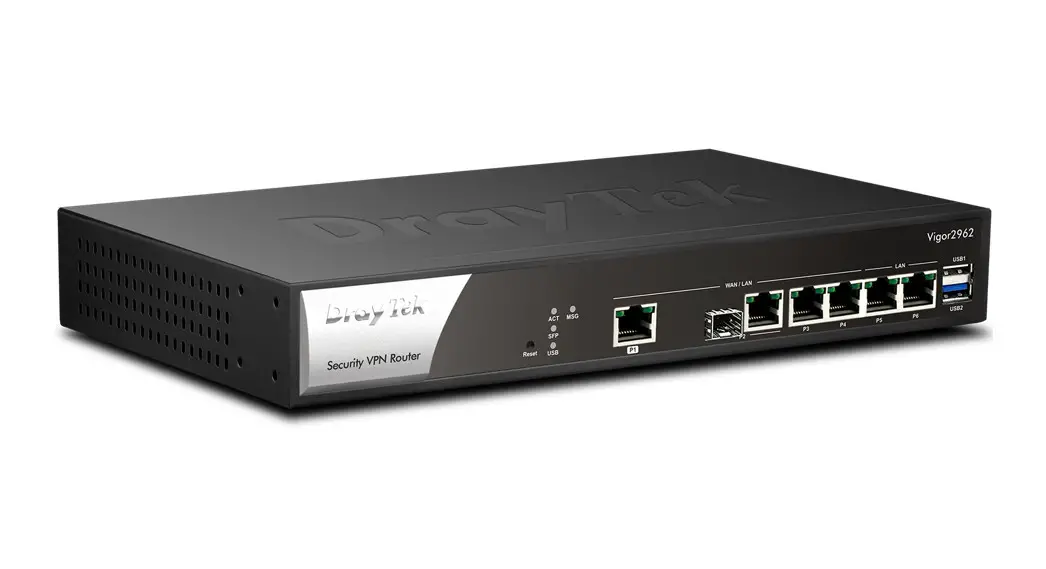
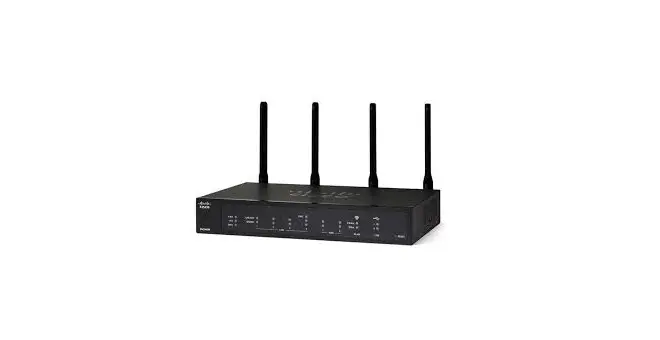
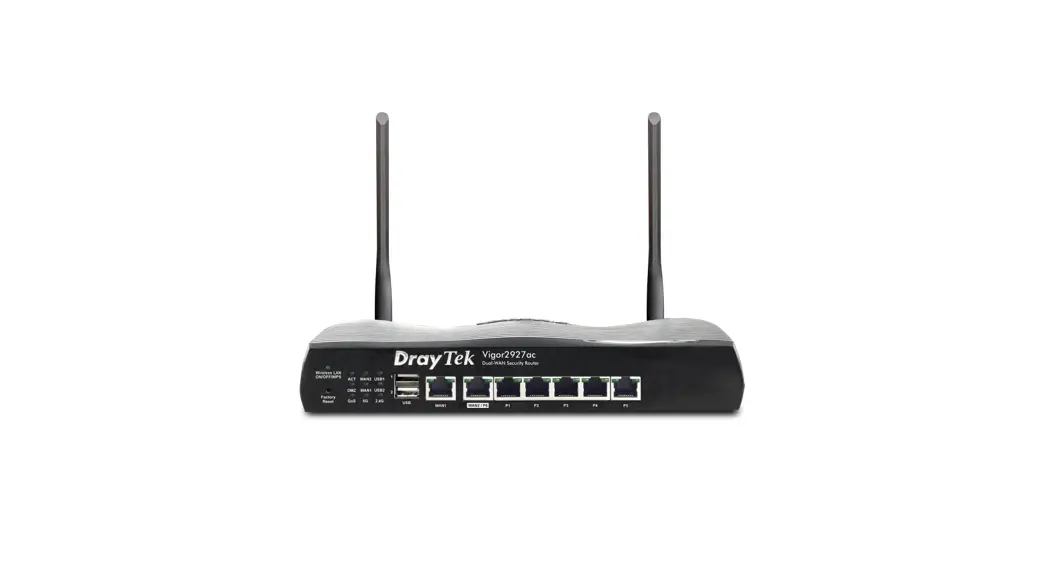
520 Dual WAN Multi Gigabit VPN Router
Araknis 520 Router
Welcome to Araknis NetworksTM! The Araknis 520 Router is a
top-of-the-line networking device that comes with multi-gigabit
connectivity, multi-WAN capability, VPN support, and advanced
networking functionality (QoS, VLANs, port forwarding). It is
designed for serious networking applications.
Features
- 10/100/1000Base-T
- Fanless
- OvrC enabled
- Embedded OvrC Pro Hub
Product Usage Instructions
Unboxing
When you unbox the Araknis 520 Router, you will find the
following:
- Router
- Rubber feet (4)
- Rack-mount kit
- Documentation QR card
- Power cable
Installation
The router can be installed in three ways:
- Rack mount
- Shelf mount
- Wall mount
Caution: Do not stack other equipment on top of
the router to avoid possible interference or damage.
Wall mount caution: Use wall anchors when
fixing the router to the wall. When using M4*L8 screws, screw the
router’s mount directly to the wall. When using M3*L8 screws, fix
the screws to the wall and hang the router off the wall.
Connections
Caution: Power off all other network devices
before connecting the router.
The router has the following ports:
- A. Power input — Connect the supplied power cable.
- B. LAN/WAN SFP port — LAN/WAN combo port. Configure this port
in the local interface. - C. LAN/WAN RJ45 port — LAN/WAN combo port. Configure this port
in the local interface. - D. LAN port — Connect a client device such as a network
switch, computer, etc. - E. WAN port — Connect the internet gateway (modem).
- F. Console port — Not currently in use.
- G. Reset button — Refer to LEDs & reset procedures.
Caution: Connect the supplied power cable to
the router after making all other network connections.
LEDs & reset procedures
The router has the following LEDs:
- Power
- 2.5 Gbps
- 1 Gbps
- Link/Act
- WAN LED
The reset button is on the back of the router and can be used in
the following ways:
| Reset button action | Front LED State | Description |
|---|---|---|
| Hold the reset button for 1-9 seconds | Blinking slowly | Restarts the router |
| Hold the reset button for 10-19 seconds | Blinking moderately | Resets the username and password* |
| Hold the reset button for 20 or more seconds | Blinking rapidly | Factory defaults the router |
*The Password Reset function must enabled in the router’s local
interface for this to work.
Configuration
The Araknis 520 Router can be configured through OvrC or the
local interface. The local interface is accessible using OvrC’s
WebConnect feature, or typing the router’s default IP address,
192.168.1.1, into your browser’s address bar.
Configuring the router in OvrC:
OvrC provides remote device management, real-time notifications,
and intuitive customer management, right from your computer or
mobile device. Setup is plug-and-play, with no port forwarding or
DDNS address required. To add this device to your OvrC account:
- Connect the router to the internet
- Log into OvrC (www.ovrc.com)
- Create a customer in OvrC or select an existing one.
- Click the Add Device button, then enter the router’s MAC
address and Service Tag. - Click the WebConnect icon to connect to the router’s local
interface.
Welcome to Araknis NetworksTM
Thank you for choosing our new line of Araknis 520 Routers. With multi-gigabit connectivity, multi-WAN capability, VPN support, and advanced networking functionality (QoS, VLANs, port forwarding), these routers are top of the line and meant for some serious networking applications!
Features
l Multi-mounting design l 1× 2.5 Gigabit WAN port l 1× 2.5 Gigabit LAN port l 1× LAN/WAN combo port (RJ45/SFP
10/100/1000Base-T) l Fanless l OvrC enabled l Embedded OvrC Pro Hub
1
Unboxing
Router
Rubber feet (4)
Rack-mount kit
Documentation QR card
Power cable
2
Installation
Rack mount
Shelf mount
Caution: -.Do not stack other equipment on top of the router to avoid possible interference or damage.
3
Wall mount
Caution: -.Use wall anchors when fixing the router to the wall.
When using M4*L8 screws, screw the router’s mount directly to the wall.
When using M3*L8 screws, fix the screws to the wall and hang the router off the wall.
4
Connections
Caution: -.Power off all other network devices before connecting the router.
A. Power input — Connect the supplied power cable. B. LAN/WAN SFP port — LAN/WAN combo port. Configure this port in the local
interface. C. LAN/WAN RJ45 port — LAN/WAN combo port. Configure this port in the local
interface. D. LAN port — Connect a client device such as a network switch, computer, etc. E. WAN port — Connect the internet gateway (modem). F. Console port — Not currently in use. G. Reset button — Refer to LEDs & reset procedures. Connect the supplied power cable to the router after making all other network connections.
5
LEDs & reset procedures
LED Power 2.5 Gbps 1 Gbps Link/Act
WAN LED
LED State On Off On Off On Off On Blinking Off On Off
Description Router is powered on Router is powered off Connection speed is 2.5 Gbps Connection speed is 10/100/1000 Mbps Connection speed is 1 Gbps Connection speed is 10/100 Mbps A device is connected to the port Packets are running through the port No device is connected to the port Combo port is in WAN mode Combo port is in LAN mode
6
Reset procedures
The reset button is on the back of the router.
Reset button action
Hold the reset button for 1-9 seconds Hold the reset button for 10-19 seconds Hold the reset button for 20 or more seconds
Front LED State
Description
Blinking slowly Restarts the router
Blinking moderately Blinking rapidly
Resets the username and password*
Factory defaults the router
*The Password Reset function must enabled in the router’s local interface for this to work.
7
Configuration
Araknis routers can be configured through OvrC or the local interface. The local interface is accessible using OvrC’s WebConnect feature, or typing the router’s default IP address, 192.168.1.1, into your browser’s address bar.
Configuring the router in OvrC
OvrC provides remote device management, real-time notifications, and intuitive customer management, right from your computer or mobile device. Setup is plug-andplay, with no port forwarding or DDNS address required. To add this device to your OvrC account: 1. Connect the router to the internet 2. Log into OvrC (www.ovrc.com) 3. Create a customer in OvrC or select
an existing one. 4. Click the Add Device button, then
enter the router’s MAC address and Service Tag. 5. Click the WebConnect icon to connect to the router’s local interface.
8
Logging in to the local interface
1. Log into the AP using the default credentials:
Username Password
araknis araknis
2. You must update the password after initial login.
Pro Tip: -_Strong passwords are long and unrelated to the client’s public details. For example, thepepperonipizzas is stronger and easier to remember than P@ssword or thesmiths.
Next steps
Click on Settings to expand configuration options, such as:
l System — Configure the System name, IP address, time zone, and Daylight Saving Time.
l WAN — Configure the WAN connection type, speed, and DNS servers.
l LAN — Configure the default DHCP server settings and/or add another DHCP server for a VLAN.
9
Technical Support For chat and telephone, visit snp1.co/techsupport · Email: [email protected]. Visit snp1.co/tc for discussions, instructional videos, news, and more.
Warranty and Legal Notices Find details of the product’s Limited Warranty and other resources such as regulatory notices and patent and safety information, at snapone.com/legal or request a paper copy from Customer Service at 866.424.4489.
Copyright© 2023, Snap One, LLC. All rights reserved. Snap One and its respective logos are registered trademarks or trademarks of Snap One, LLC (formerly known as Wirepath Home Systems, LLC), in the United States and/or other countries. 4Store, 4Sight, Control4, Control4 My Home, SnapAV, Araknis Networks, BakPak, Binary, Dragonfly, Episode, Luma, Mockupancy, Nearus, NEEO, Optiview, OvrC, Pakedge, Sense, Strong, Strong Evolve, Strong VersaBox, SunBriteDS, SunBriteTV, Triad, Truvision, Visualint, WattBox, Wirepath, and Wirepath ONE are also registered trademarks or trademarks of Snap One, LLC. Other names and brands may be claimed as the property of their respective owners. Snap One makes no claim that the information contained herein covers all installation scenarios and contingencies, or product use risks. Information within this specification subject to change without notice. 230615 200-AN-520-RT_QSG-A
10
 ctrl4.co/techsupport
 Policies
 snp1.co/tc
 tech.control4.com/
 OvrC Cloud Management for Residential & IT Integrators