
HOCOM Plate Vision One Plate APK
How to start
- Connect ePlus One and Plate or Smart phone by a type C cable
- Press
 to Open “ePlus One Plate” APK and then press OK on first screen to complete connection. Then, the temperature readings and thermal image will be shown on the screen
 to Open “ePlus One Plate” APK and then press OK on first screen to complete connection. Then, the temperature readings and thermal image will be shown on the screen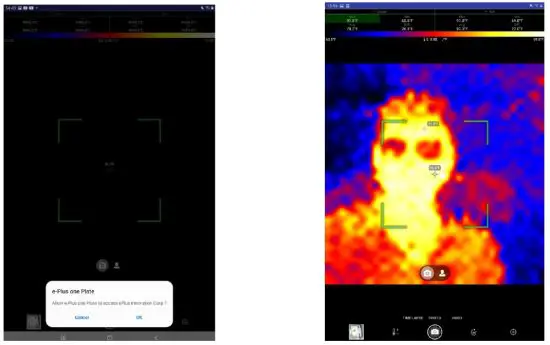
Icon descriptions
- Change mode
- Turn Image
- Setting
- Rotate screen

- Take Photo
- Take Video
- Time-lapse video
- Temperature Lock


How to change Mode
Press icon to change mode from Regular Mode and backward.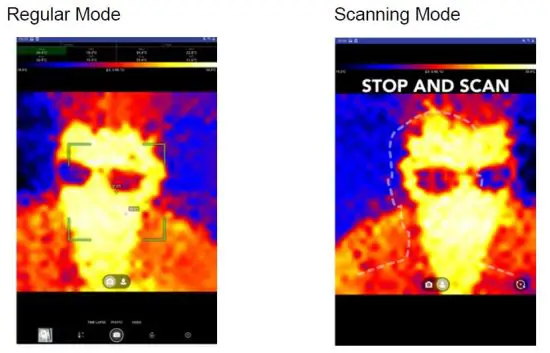
How to Measure Temperatures in regular mode
Point ePlus One to target object to get the temp. readings and images
The Max, Min, Avg. and Diff readings of whole screen will be shown on the left-top. The Max, Min, Avg. and Diff readings of the box will be shown on the right -top.
How to track the MAX and MIN point
Tap MAX or MIN of screen/box on readings area..
The MAX/MIN reading will be revered and  will be always shown on the highest/lowest temp. point together with its real-time reading.
How to read the temperature of a specified point
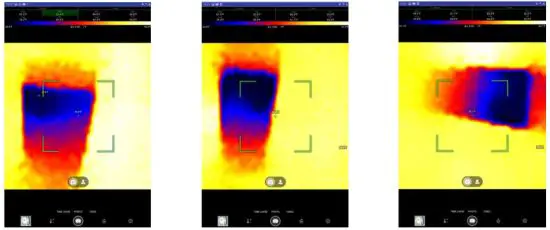
You can tap any point on screen to see its real-time temperature.
Tap  to turn the image 90degree.
 How to select palettes and Scale.
Tap  to get into setting page.
You can select the color palette that the camera uses to display different temperatures. The color options include Ironbow, Hot metal, Rainbow, Jet (Ice) and the grey options include White-hot and Black-hot. A different palette can make it easier to analyze an image. And Tap C or F to select Scale. 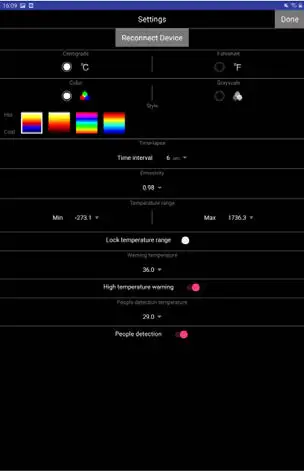
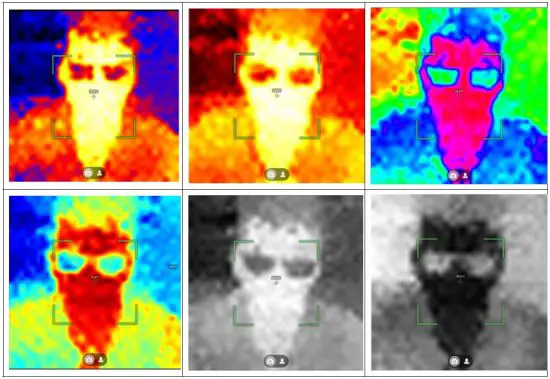
How to adjust Emissivity
You can roll the emissivity table to select the correct emissivity by material name to get accurate temperature measurements.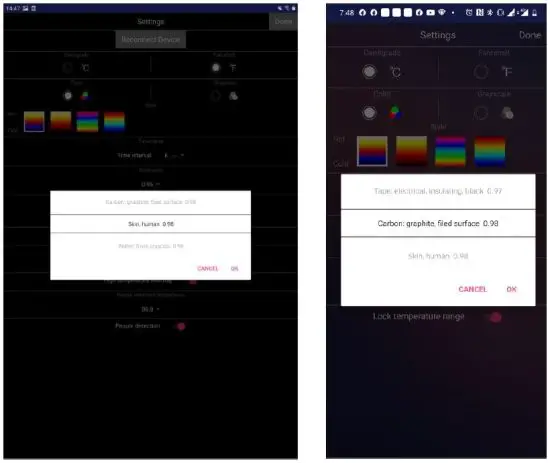
How to set High-Temperature Warning for Scanning Mode
Tap the High Warning on, Input the warning temperatures and select proper emissivity of target.
If the people detection function is On, ePlus One will start a scanning automatically, when the average temp. in the central box is higher than the preset people detection temp. The recommend people detection temperature is 30°C /86°F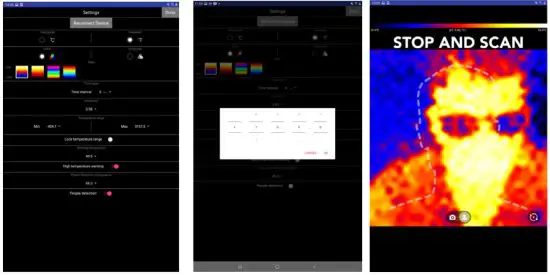
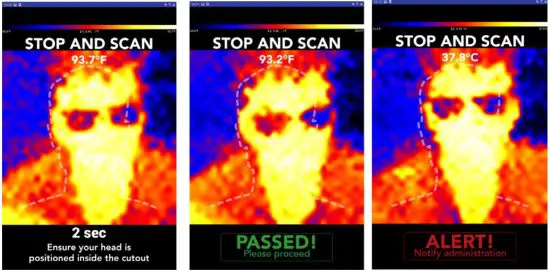 Setting recommendation
- Select 0.98 emissivity to measure Skin temperature and 0.96 or 0.95 emissivity for to measure reference Core temperature.
- For Skin temperature scanning, the recommended high alert point is 36°C /97°F For Core temperature scanning, the recommended high alert point is 38.°C /100°F
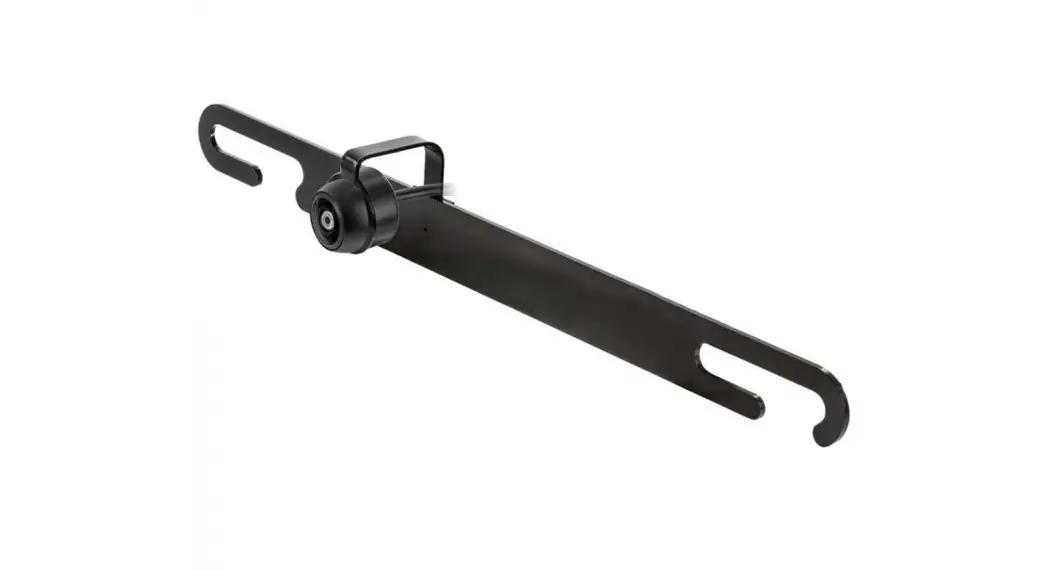
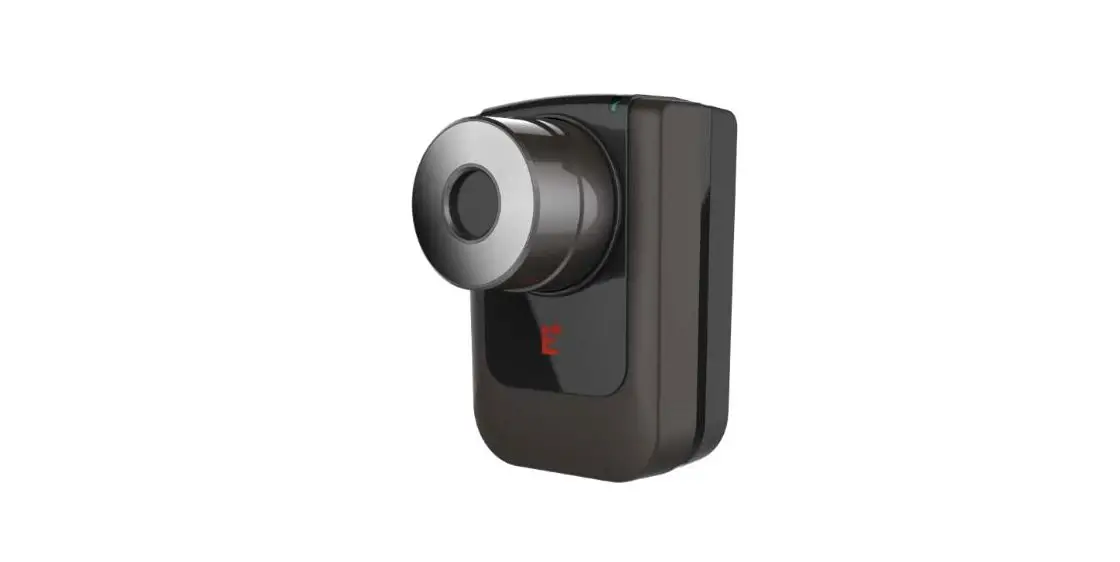
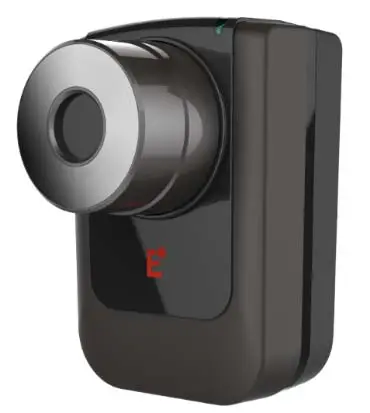
Parts description 
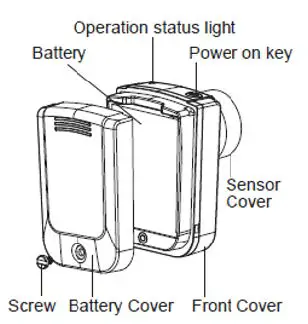
ePlus One Specifications
| Description | Smart phone operation Thermal Imager by “Thermal Array” |
| Measurements | |
| Infrared Measurement Range | -40~700°C (-40~1292°F) |
| Infrared Accuracy (Tamb=20~26°C) | ±0.5°C @34~42°C Others ±2% of reading, or 2°C(4°F) whichever is greater |
| Thermal Sensitivity | 0.1°C (0.1°F) |
| Emissivity | 0.95 default adjustable 0.1 to 1.0 step .01 |
| Spectral Range | 8~14um |
| Hardware | |
| Thermal Image Resolution | 32 x 32 pixels |
| Image Resolution | 640 x 640 pixels |
| Field of View | 33*33 degree |
| Frame Rate | 8Hz |
| Dimension/Weight | 64*42*28 mm/55g |
| Operation temperature | 0 to 65oC; < 90RH% |
| Storage Temperature | -40 to 85 oC ; < 70RH% |
| Focus | Focus free |
| Encapsulation | IP54 |
| Certificate | CE, RoHS, FCC |
| Mount (Accessory) | 1/4”-20 standard tripod mount (67.5*50*37mm, 16g) Compatible with sport DV accessories |
| Software | |
| Smart Phone | Android 4.1 and above |
| Software and features update | Via Google Play |
| APP Function | Take Photo, Record Video, Time Lapse, Lock Temp. Range, Emissivity adjust |
| Image Presentation | |
| Palette | Ironbow, Hot metal, Rainbow, Jet (Ice), Grey (White-hot, Black-hot) |
| Temperature | MAX, MIN, AVG., DIFF of Box and Full Screen |
| Longest distance | 3 meters |
| Minimum Focus Distance | 15cm |