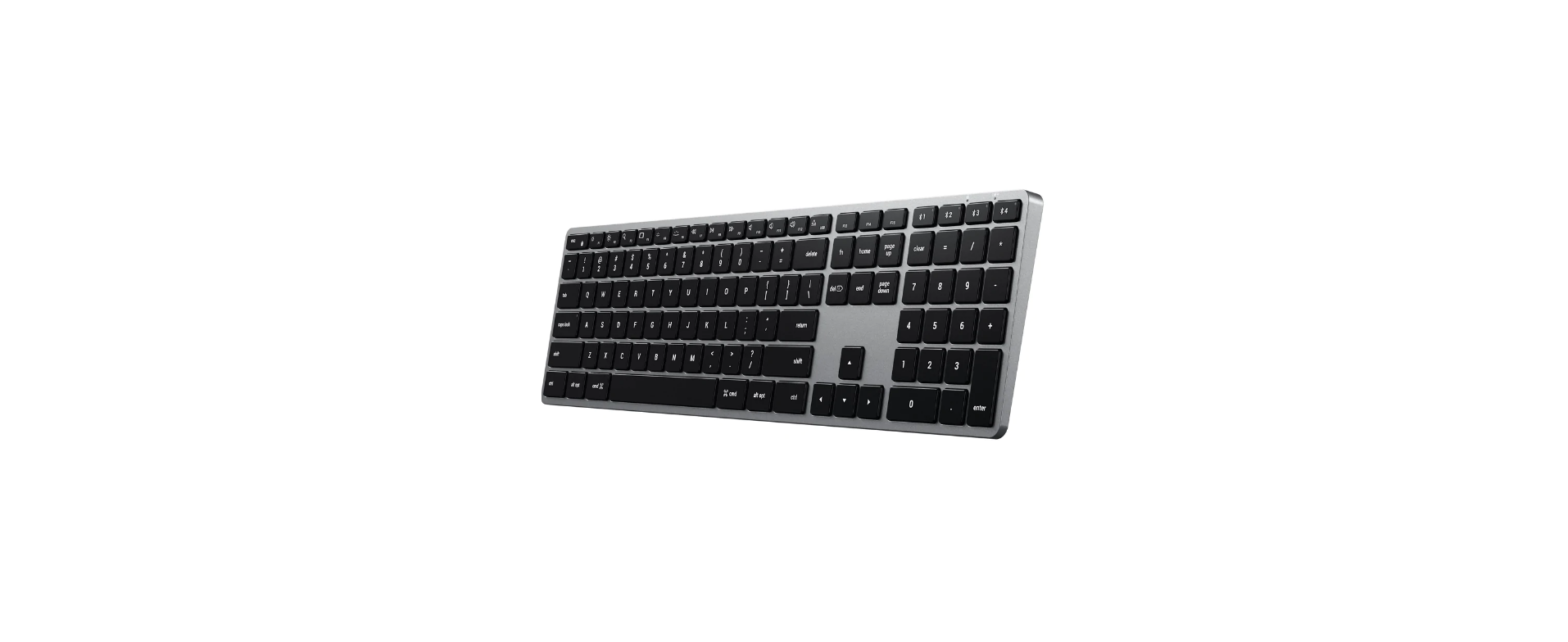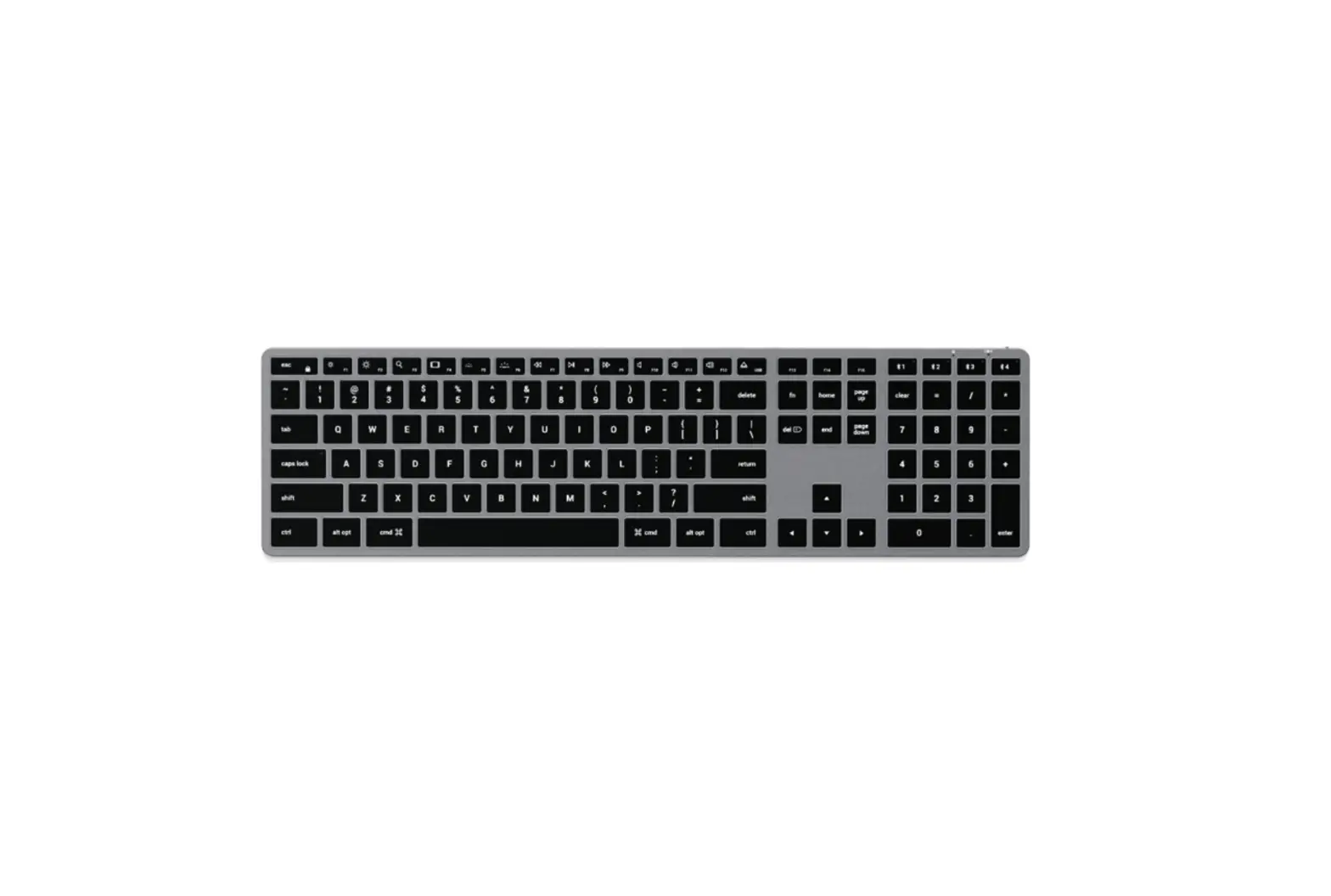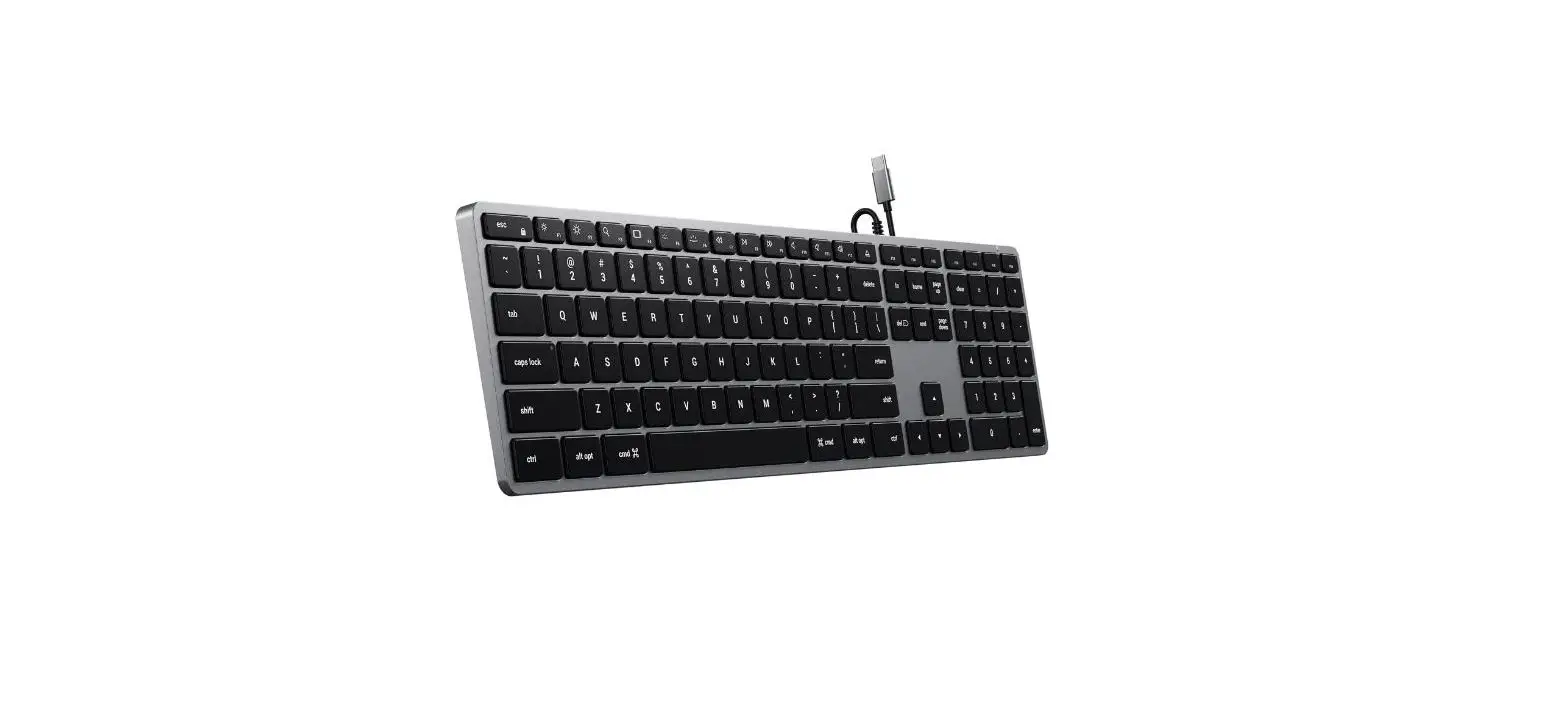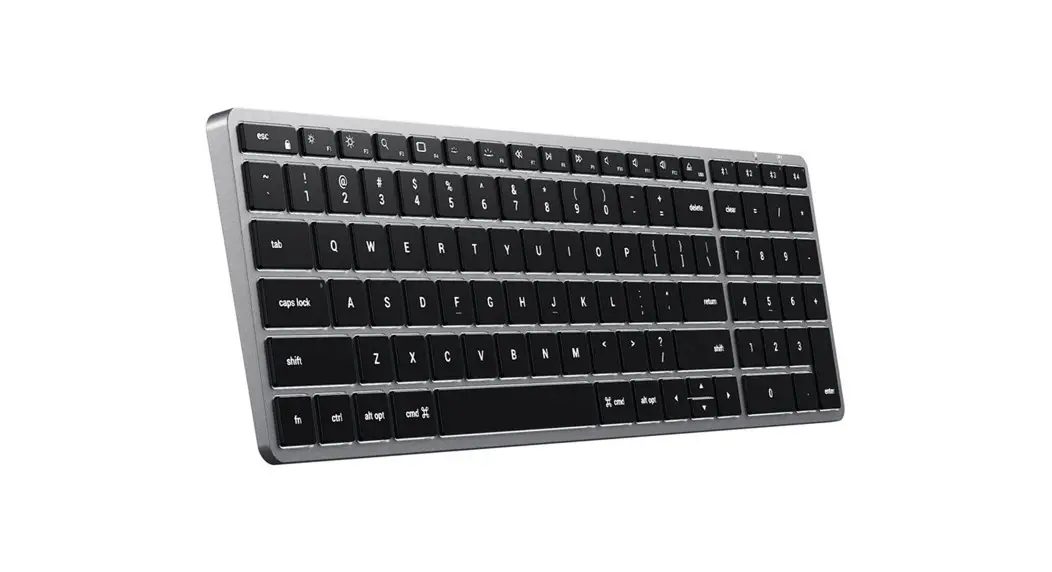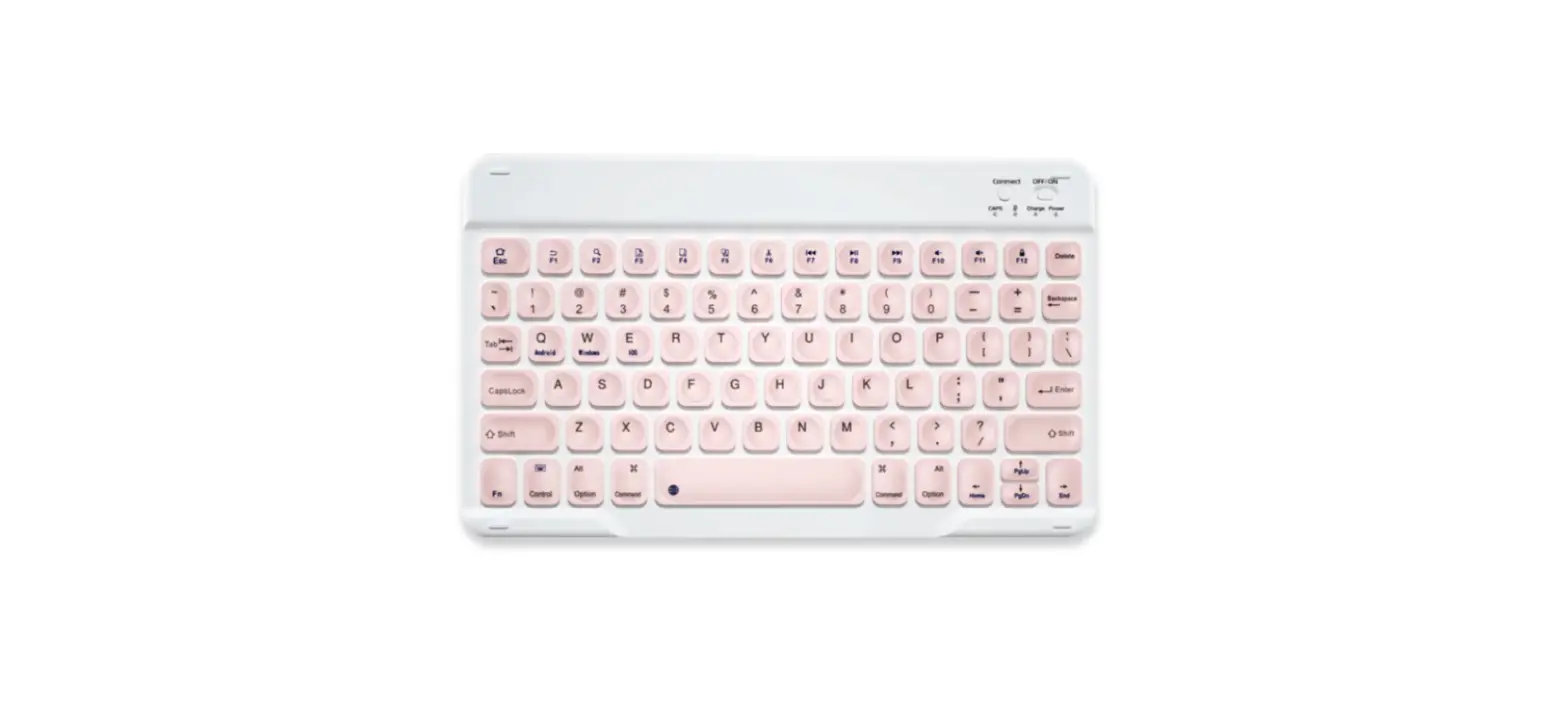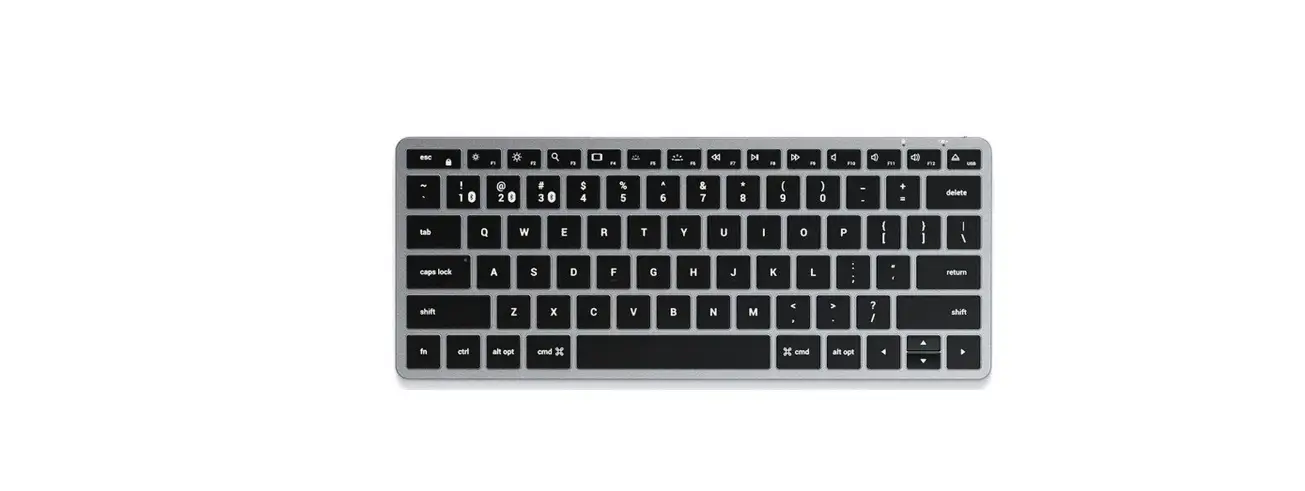

SAATCHI Slim X1 Bluetooth Backlit Keyboard
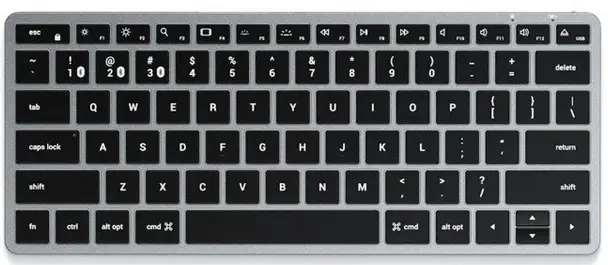
SLIM X1 BLUETOOTH BACKLIT KEYBOARD
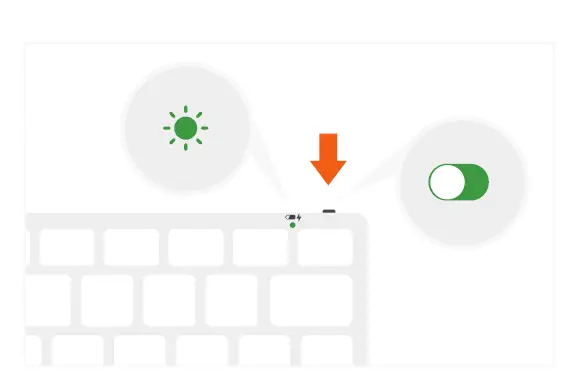
- To turn on the keyboard, move the switch on the top of the keyboard to the “on” position. The power indicator light should turn green for ~3 seconds, then turn off

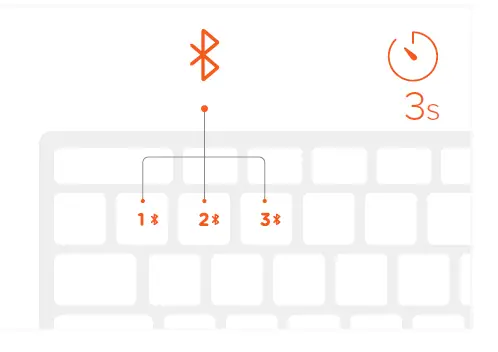
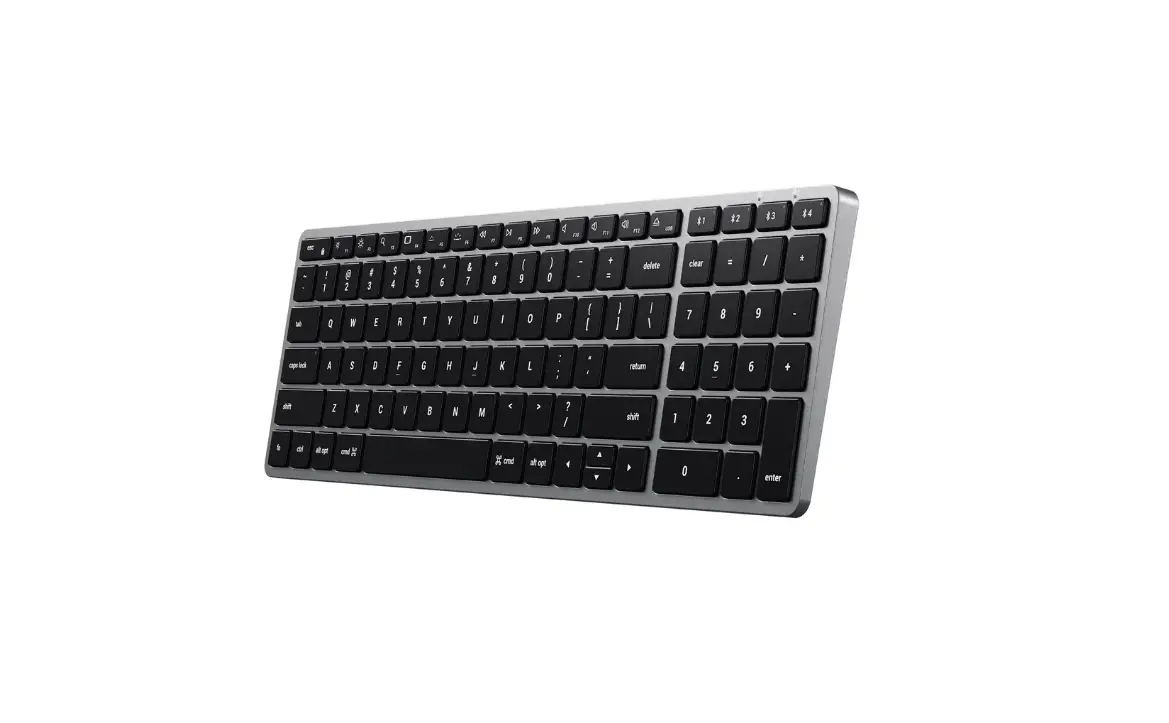
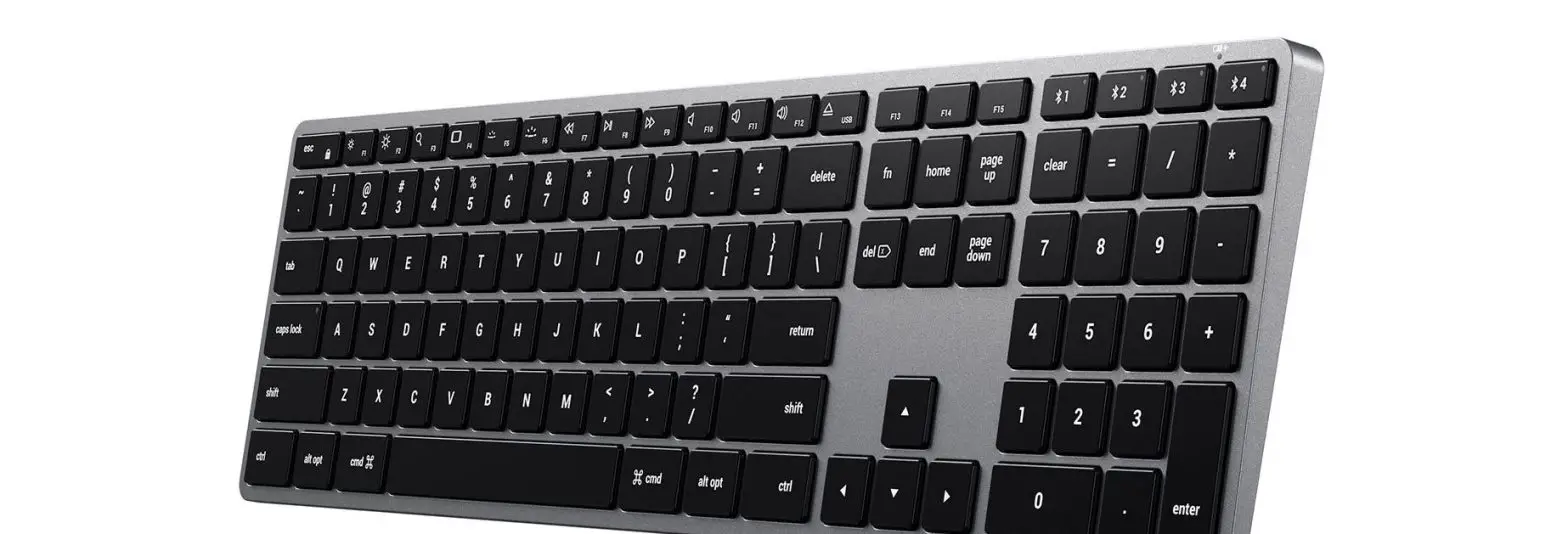
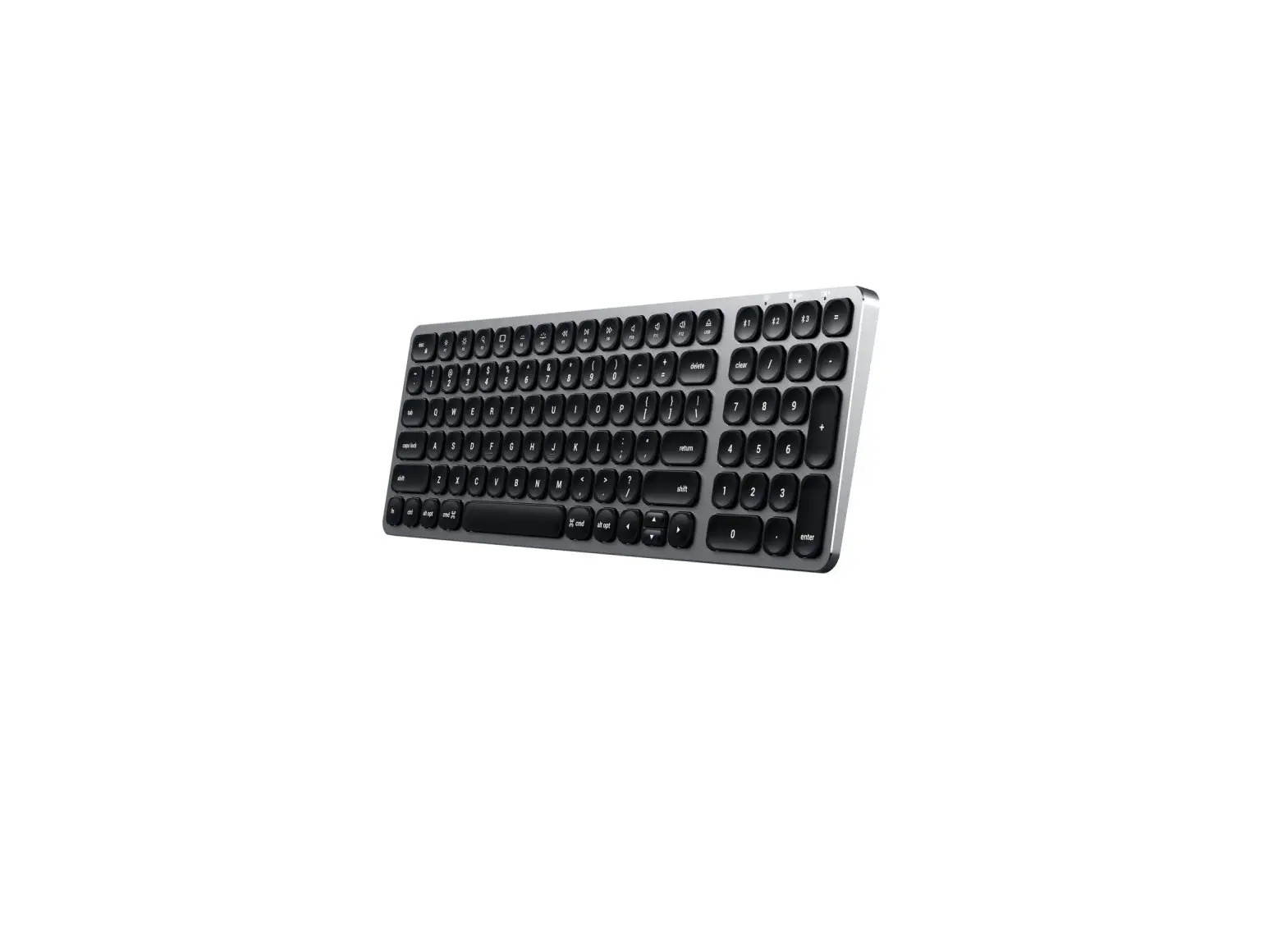
- Press and hold one of the keyboard’s Bluetooth keys for ~3 seconds, until the LED light starts to blink. Select “Slim X1 Keyboard” on the host device’s Bluetooth settings to complete the pairing process. Repeat for each button to connect up to three devices

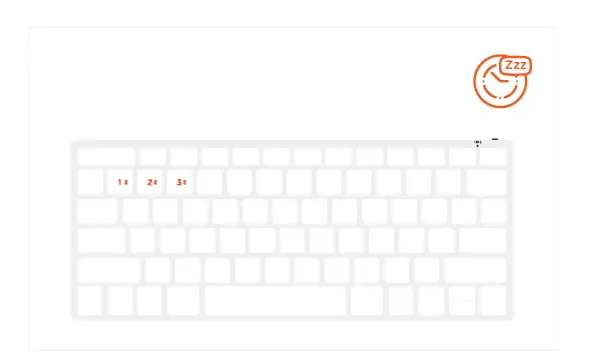
- After 30 minutes of inactivity, the keyboard will go into sleep mode to preserve battery. Press any key to wake and the keyboard will automatically connect.

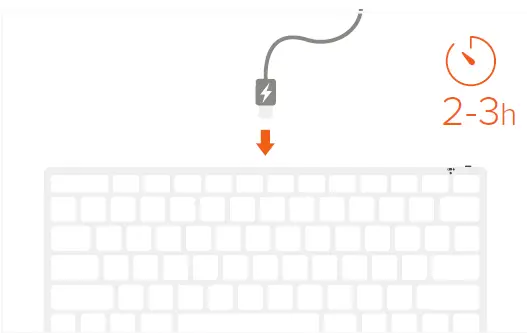
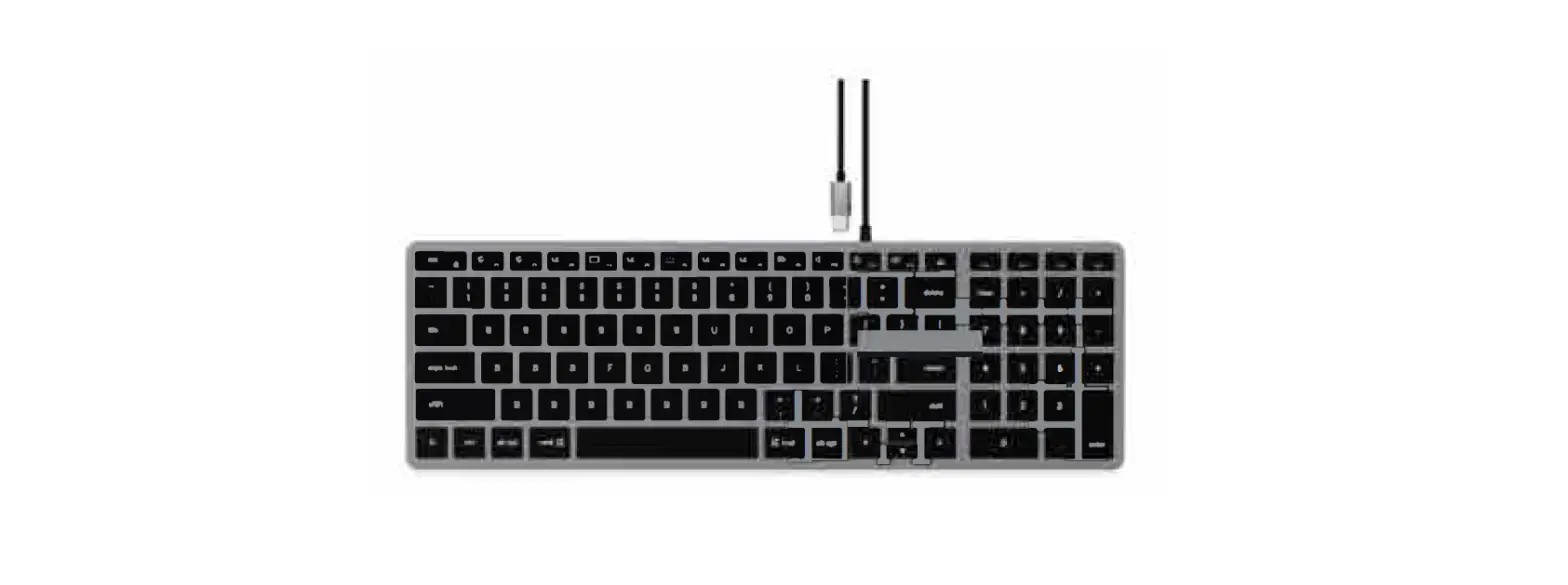
- To recharge, connect the keyboard to a powered USB-C port using the included cable. Charge for 2-3 hours or until the red charging light turns green. Power indicator light will flash green when on low battery

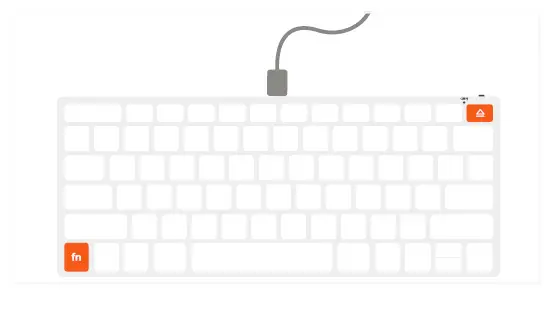
- The keyboard can be used in wired mode by pressing “Fn + Eject” while the cable is connected. Press “Fn + Bluetooth key” to switch back to wireless mode

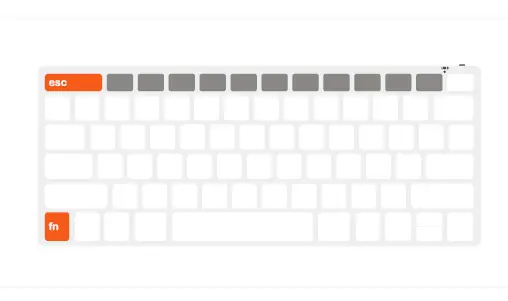
- Press “Fn + Esc” to swap between Media and Fn keys.