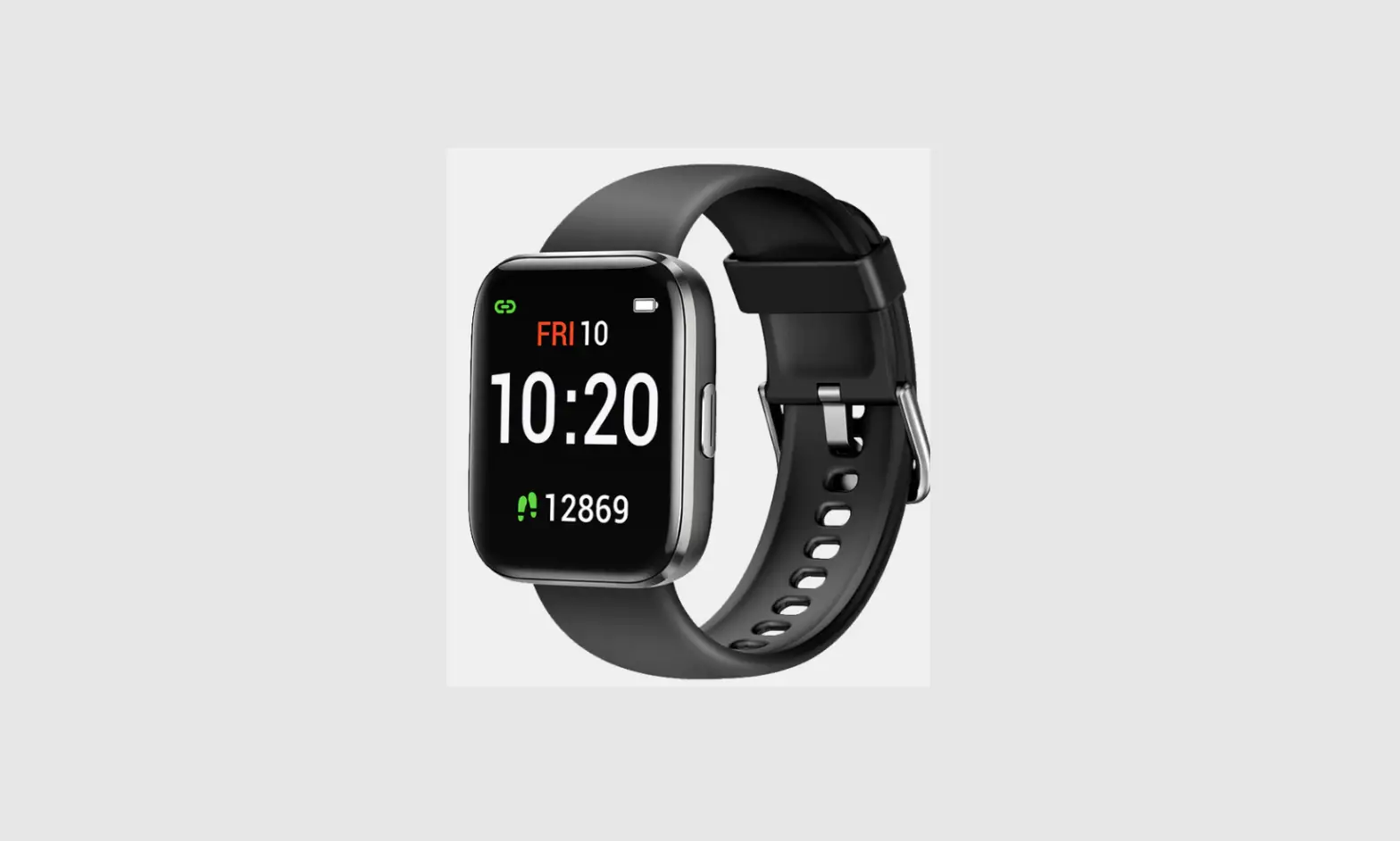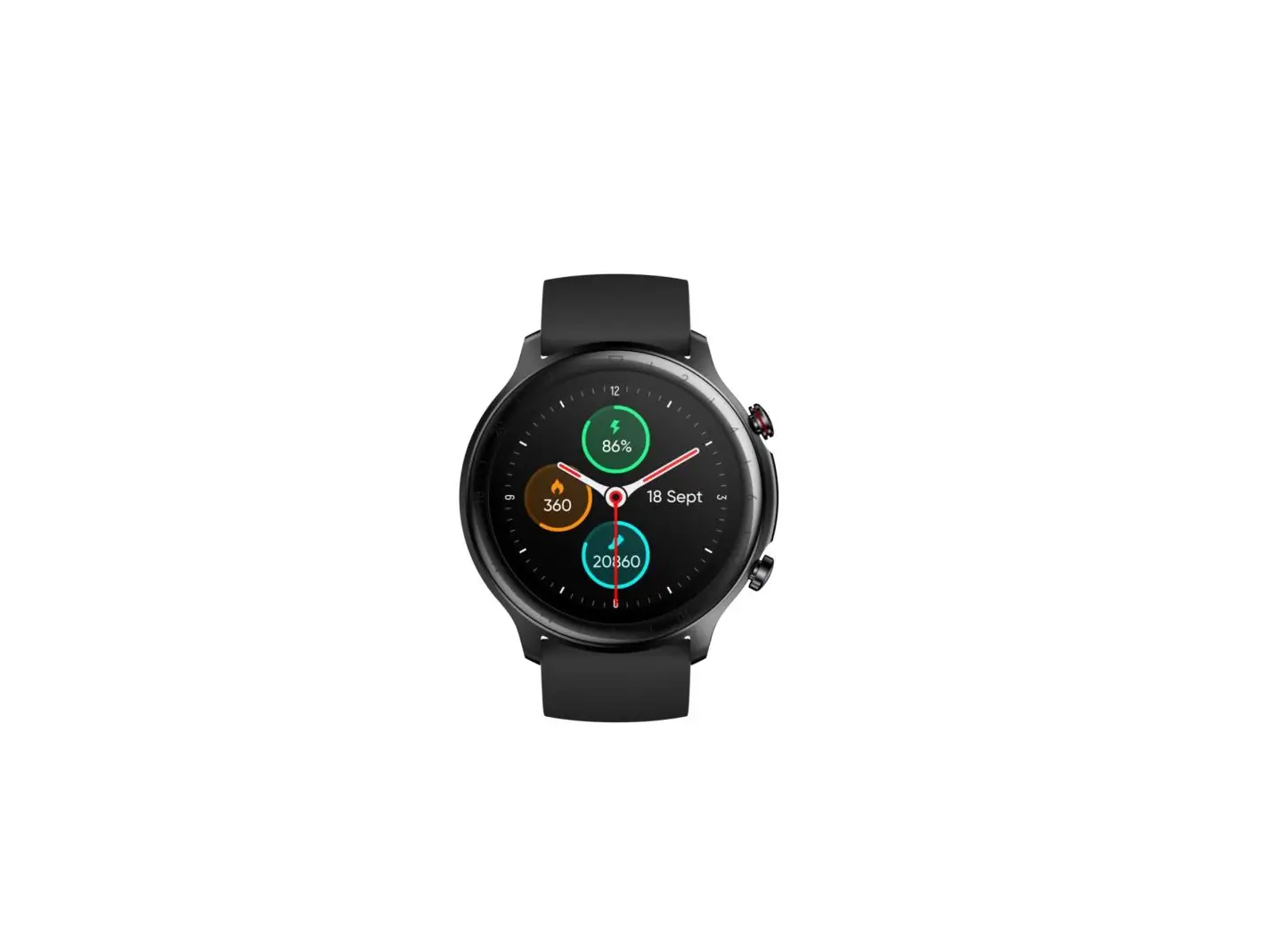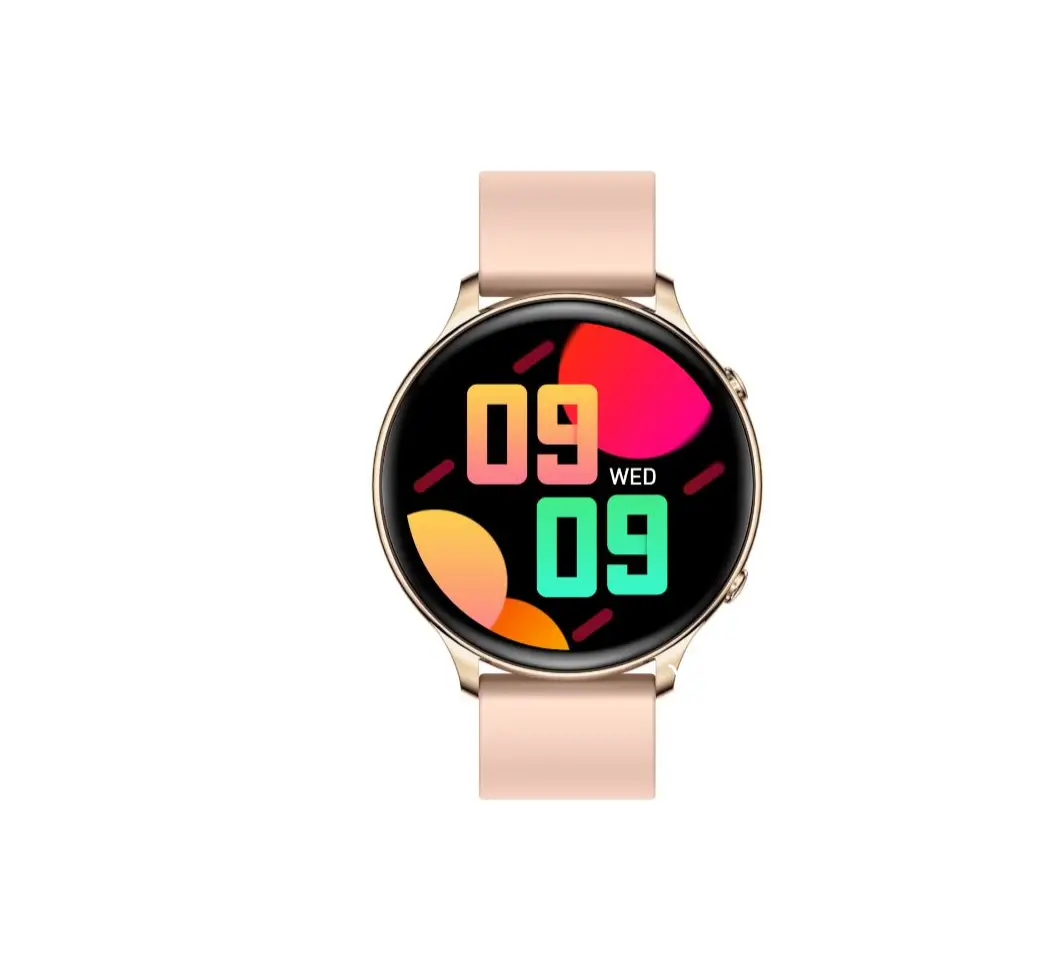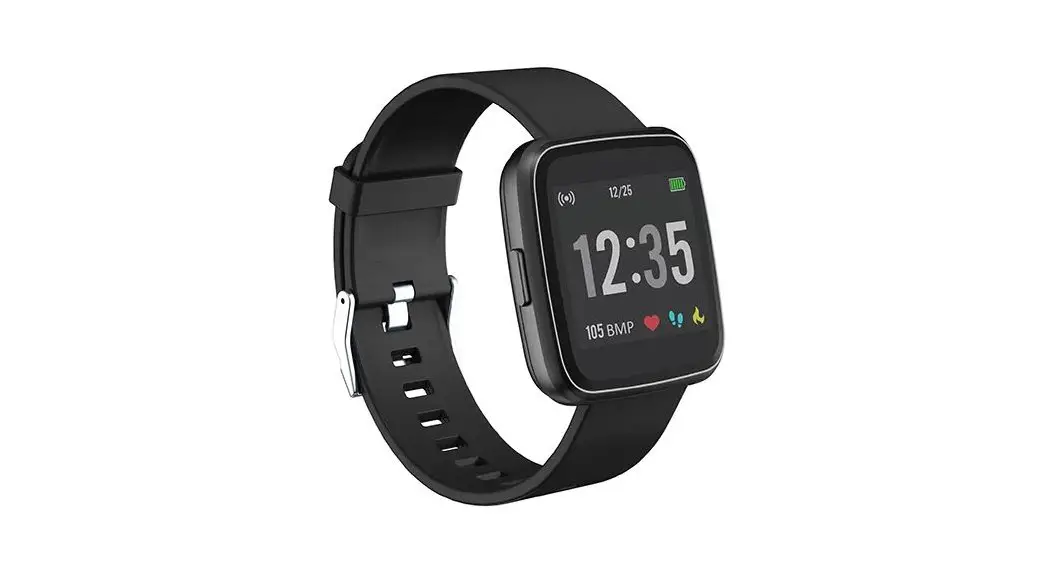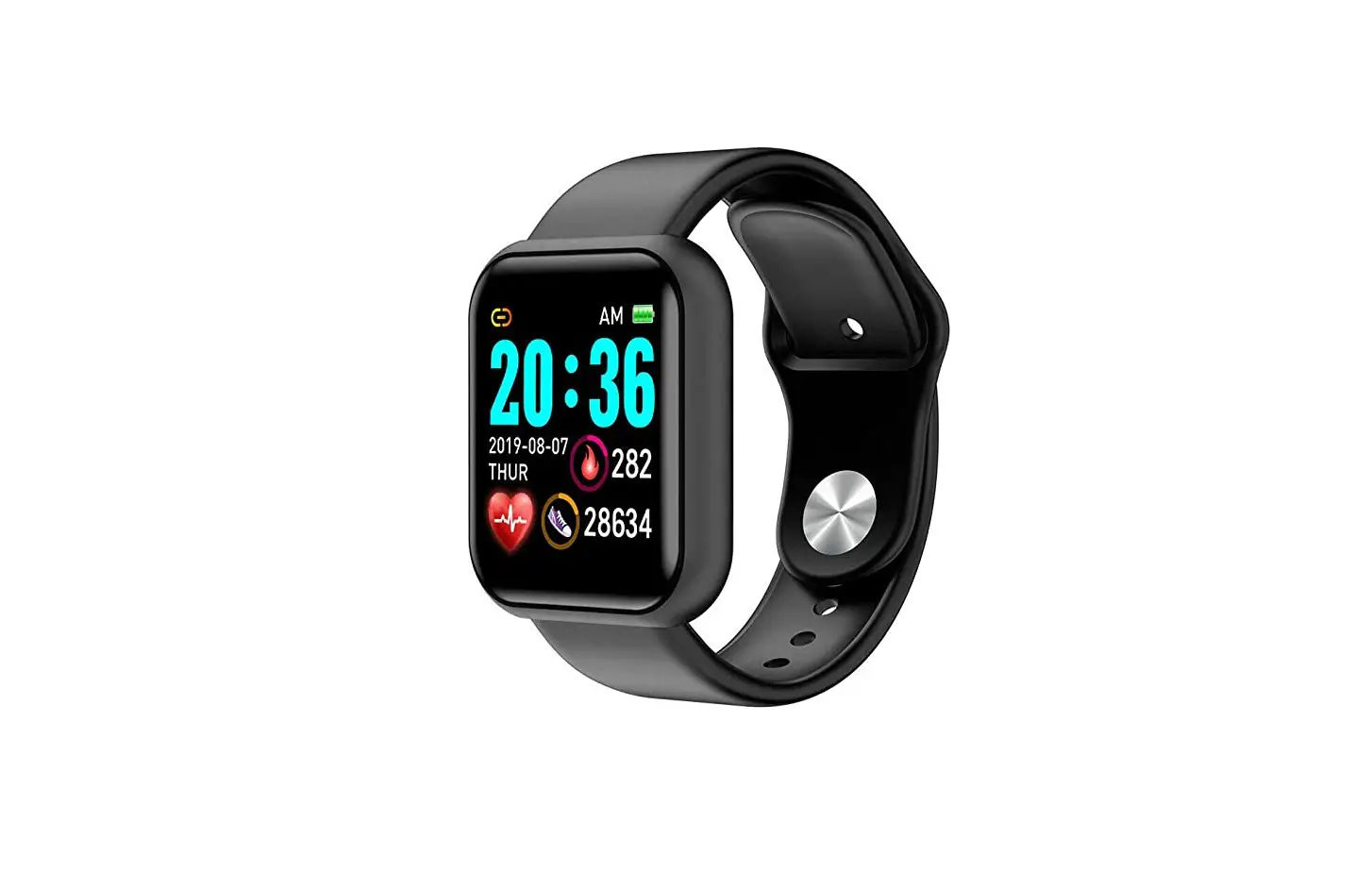

SOUYIE L1 Smart Watch
User Guide
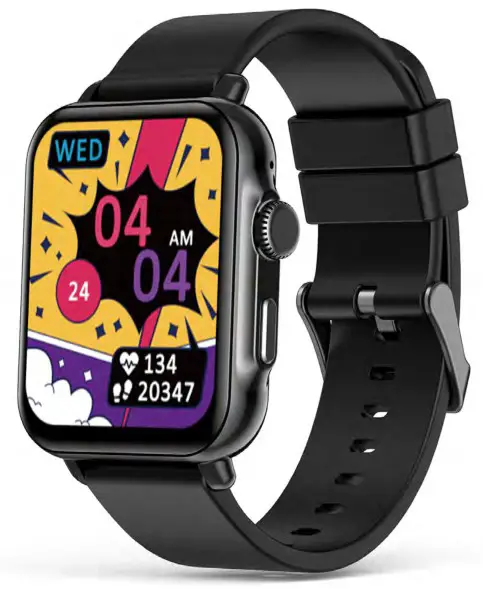
Introduction
- What’s in the box
• SOUYIE L1 BT smart watch
• User Manual
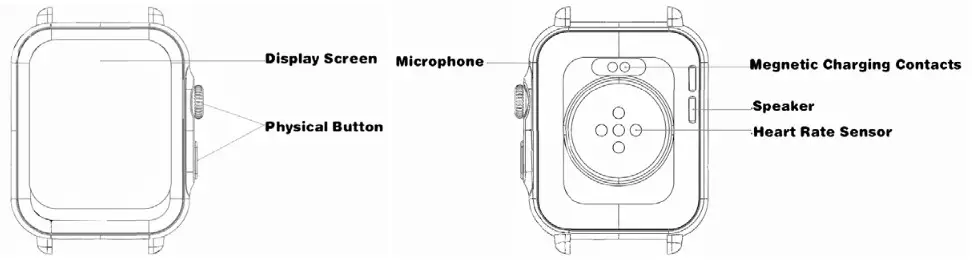
• Original Charging Dock (Please charge for 2 hours to activate the watch before first use.) - Watch Structure Diagram
Getting started
- Long stress the round physical button to turn on the watch.
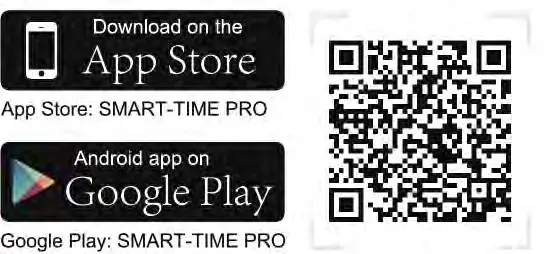
- Search for “SMART-TIMEPRO” in the App Store, Google Play or scan the QR code to download and install the app.
 https://api.iot-solution.net/smart-time-pro/
 - Log in to the app and Please fill in the correct gender, birthday, height, weight. (*Incorrect information can affect the accuracy of data.)
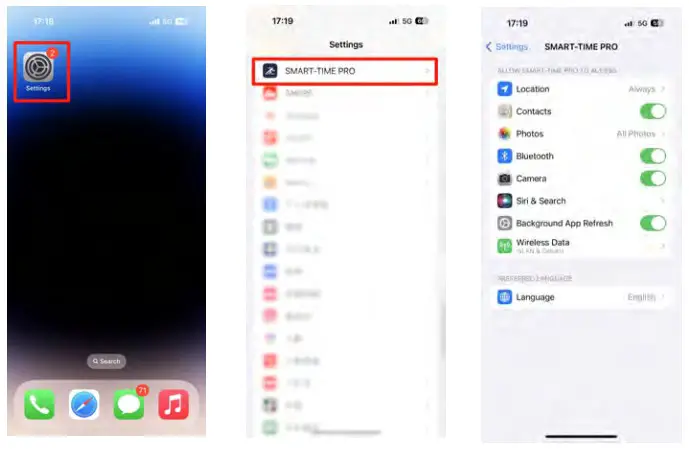
For iOS: - Open the various permissions of the APP
1 The usefulness of each permission Location: After it is turned on, the app can obtain the local weather conditions and synchronize it to your watch.
Contacts: After it is turned on, you can download contacts to your watch for quick calls in SMART-TIMEPRO.
Photos: After it is turned on, you can choose any photo of your phone as the watch face.
Bluetooth: After it is turned on, the app can be ready for pairing with the watch.
Camera: After it is turned on, the watch can control the phone to take photos remotely.
Siri & Search: After it is turned on, you can use the watch to wake up siri to perform quick operations.
Background App Refresh: After it is turned on, the system will update the latest version of SMART-TIMEPRO synchronously.
2 How to open permissions
• Enter 【Settings】, scroll down to find 【SMARTWATCHPRO】 APP and click to enter, open Contacts,
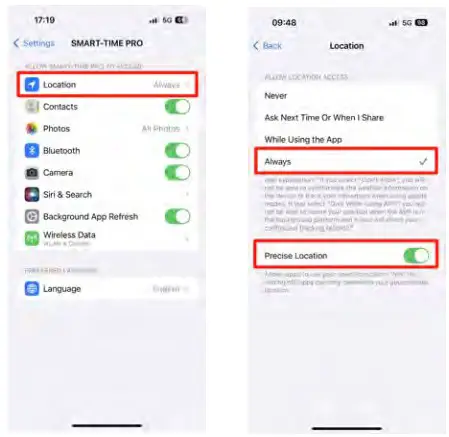
Bluetooth, Camera, Background App Refresh permissions. • Enter 【Location】,choose 【Always】,open【Premise Location】
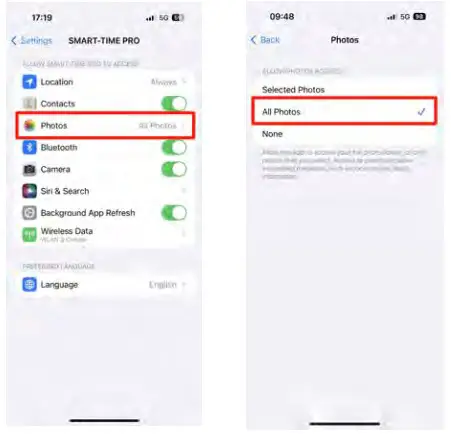
 • Enter 【Photos】,choose 【All photos】
 • Enter 【Siri & Search】,open all permissions.
 • Enter 【Wireless Date】, choose 【WLAN &Cellulor Data】
- Bluetooth connection between phone and watch
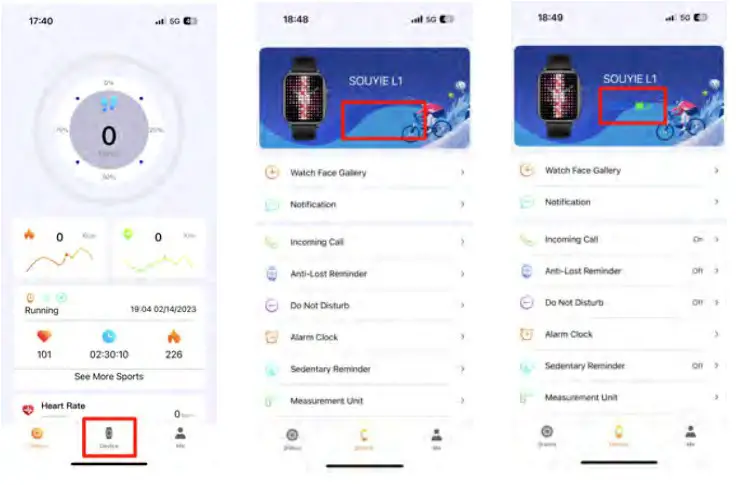
• Turn on the bluetooth of your phone, enter 【SMARTTIMEPRO】 , click【Device】,【Add device】, 【SOUYIE L1】 • When the following interface appears on your phone interface, accept the pairing on the watch.
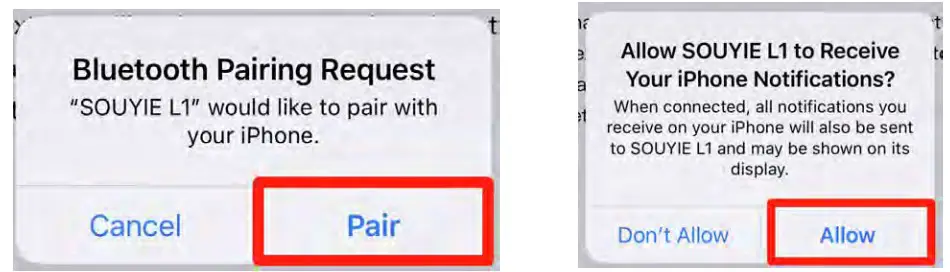
 • The Bluetooth pairing request and notifications request appear on your phone, please click 【Pair】and【Allow】
 • Click 【Next】until select push app appears, turn on the APP you want to receive messages from. If the list does not have an app that you often use and want to receive messages from, please remember to turn on【Other APP】.Then click next until done.
(Please always keep the SMART-TIMEPRO running in the background, do not delete SMART-TIMERPRO running in the background)
- Check if the Bluetooth connection is successful.
6.1 How to check if your bluetooth connection is successful Our watch has two bluetooths. You can take out your watch, turn on the screen, and swipe down to see if the Bluetooth connection is successful. • Blue: App Bluetooth. You can normally receive information, display the weather, watch monitoring data can be synchronized to the app normally.
• Orange: Voice Bluetooth. Once connected, you can use the voice assistant, make calls, and play music on the watch. The blue + orange connection status is displayed on the watch, which means the connection is successful. If only blue or only orange is displayed, the watch can only perform the corresponding function, and the other function cannot be used normally.
6.2 What to do when Bluetooth connection only shows blue/ orange.
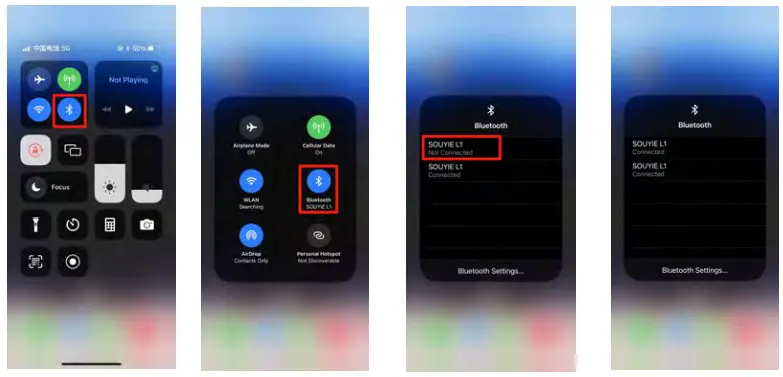
6.2.1 When the bluetooth connection only shows blue Slide down the phone screen, long press the bluetooth icon, long press the bluetooth icon again, you can see one SOUYIE L1 is connected, and the other one is not connected. Click the not connected one.Two connected SOUYIE L1 means the connection is successful. Then you can check that the connection status of your watch has changed to blue + orange.
 6.2.2 When the bluetooth connection only shows orange
It may be that SMART-TIMEPRO is deleted from the background running, please enter 【SMART-TIMEPRO】, click 【Device】, wait for a few seconds, SOUYIE L1 shows the blue connection and the green battery.Then you can check that the connection status of your watch has changed to blue + orange.
 • Enter 【Location】,choose 【Always】,open【Premise Location】
 • Enter 【Photos】,choose 【All photos】
 • Enter 【Siri & Search】,open all permissions.
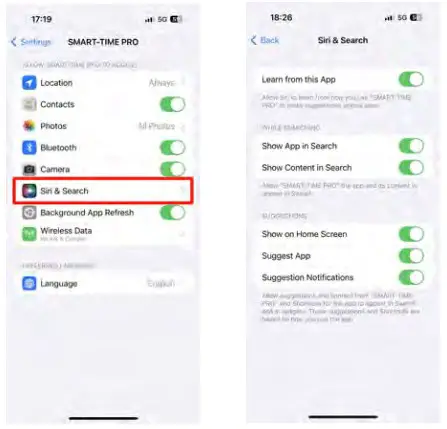 • Enter 【Wireless Date】, choose 【WLAN &Cellulor Data】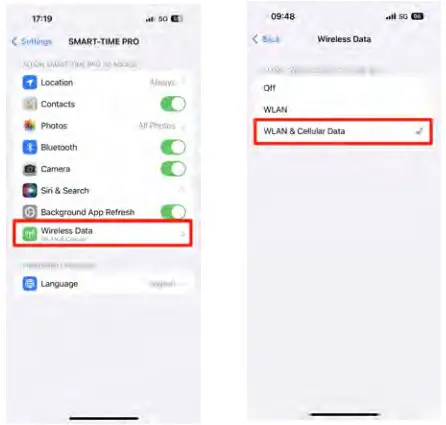
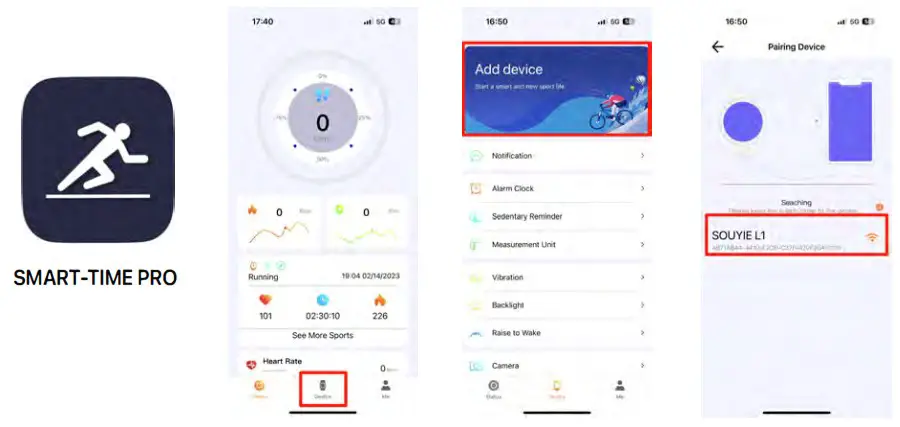 • When the following interface appears on your phone interface, accept the pairing on the watch.
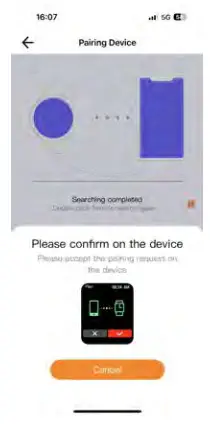 • The Bluetooth pairing request and notifications request appear on your phone, please click 【Pair】and【Allow】
 • Click 【Next】until select push app appears, turn on the APP you want to receive messages from. If the list does not have an app that you often use and want to receive messages from, please remember to turn on【Other APP】.Then click next until done.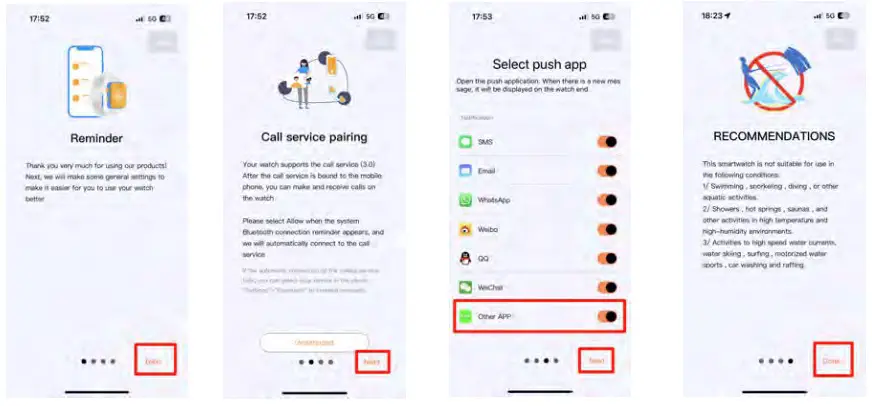
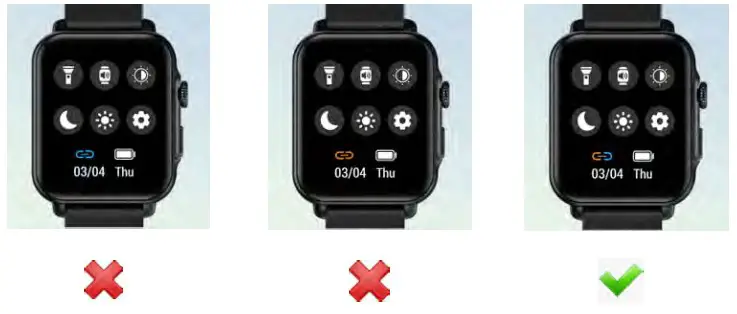 • Blue: App Bluetooth. You can normally receive information, display the weather, watch monitoring data can be synchronized to the app normally.
 Slide down the phone screen, long press the bluetooth icon, long press the bluetooth icon again, you can see one SOUYIE L1 is connected, and the other one is not connected. Click the not connected one.Two connected SOUYIE L1 means the connection is successful. Then you can check that the connection status of your watch has changed to blue + orange.
 6.2.2 When the bluetooth connection only shows orange