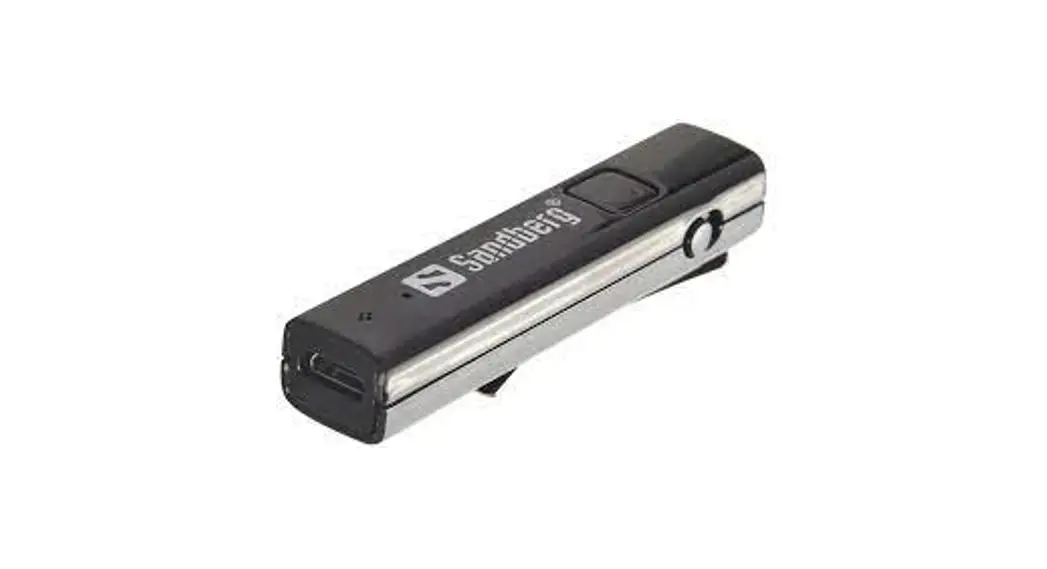

Bluetooth Office Headset Pro+
User guide
126-18

Follow these instructions for easy installation and operation of your new Sandberg product.
Overview
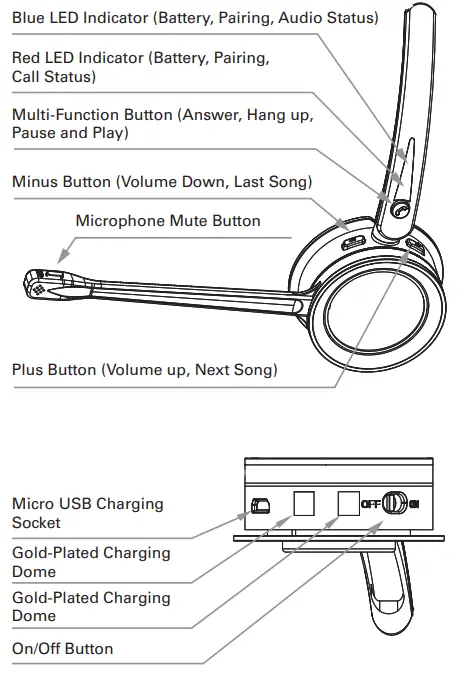
Introduction
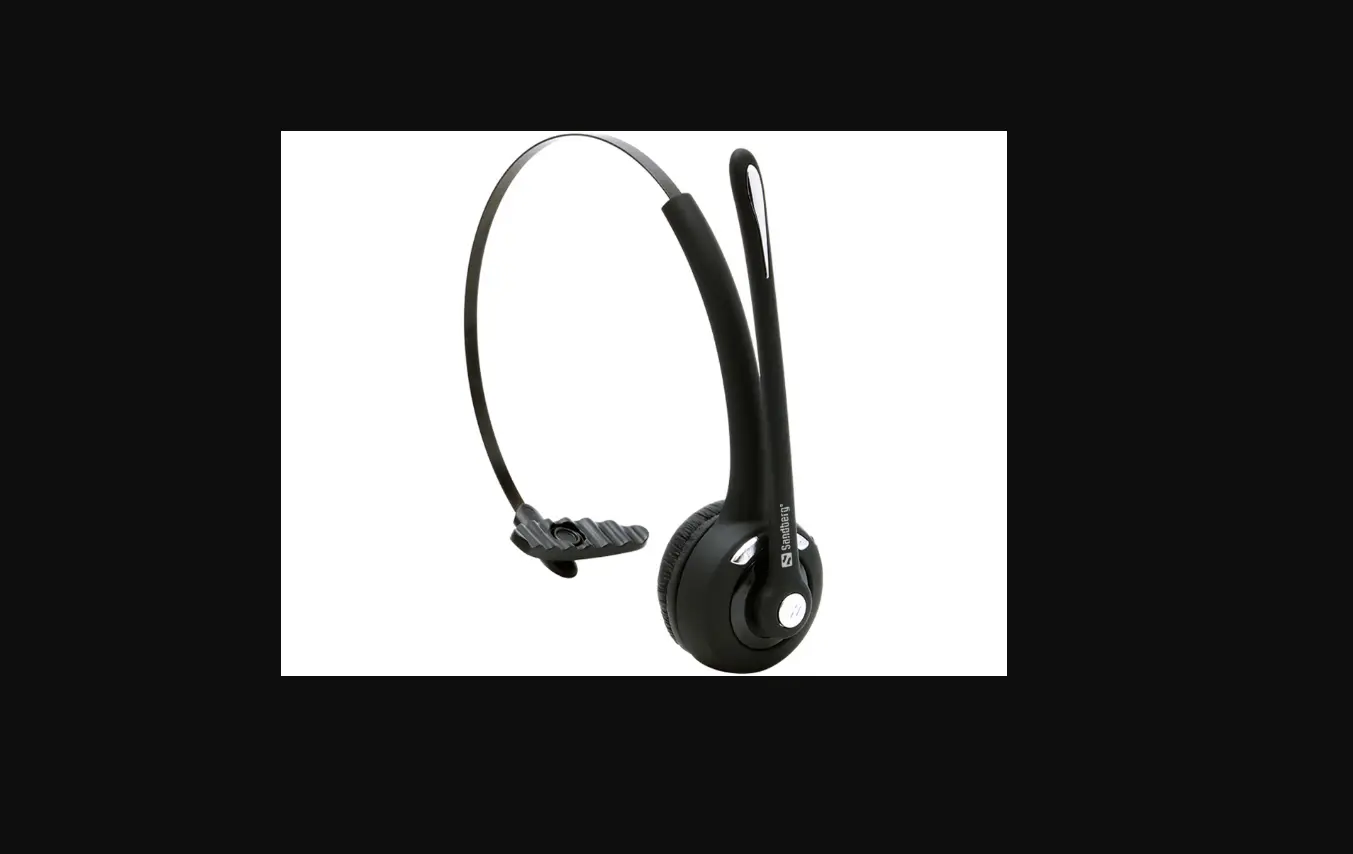
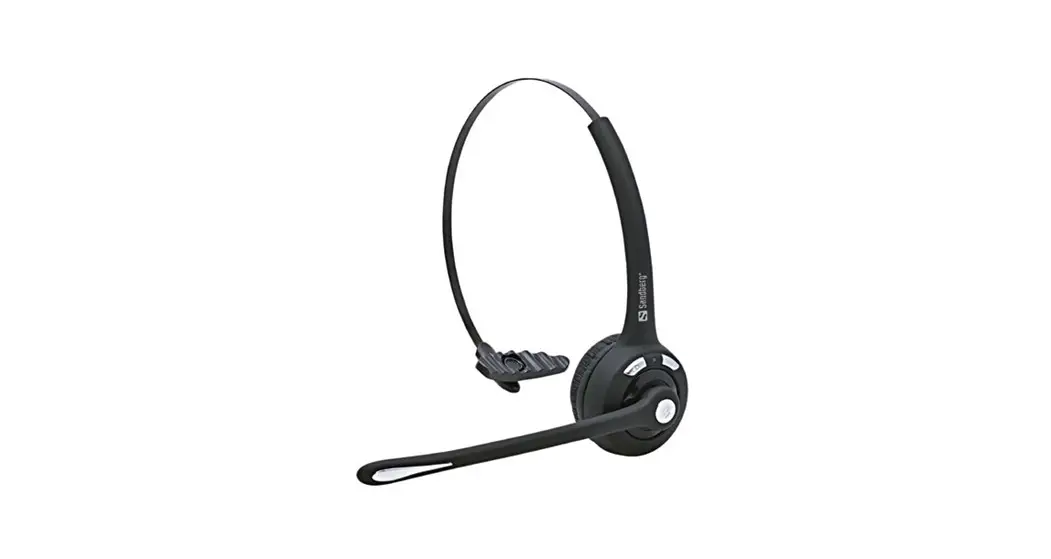
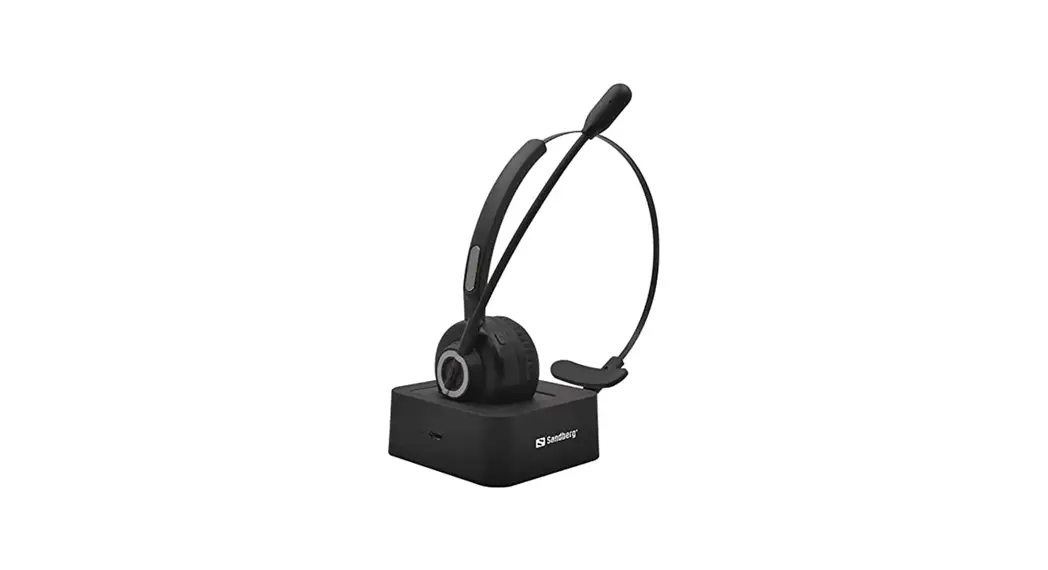
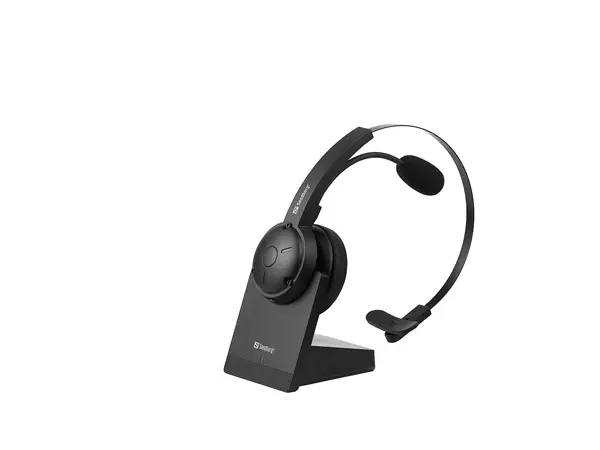
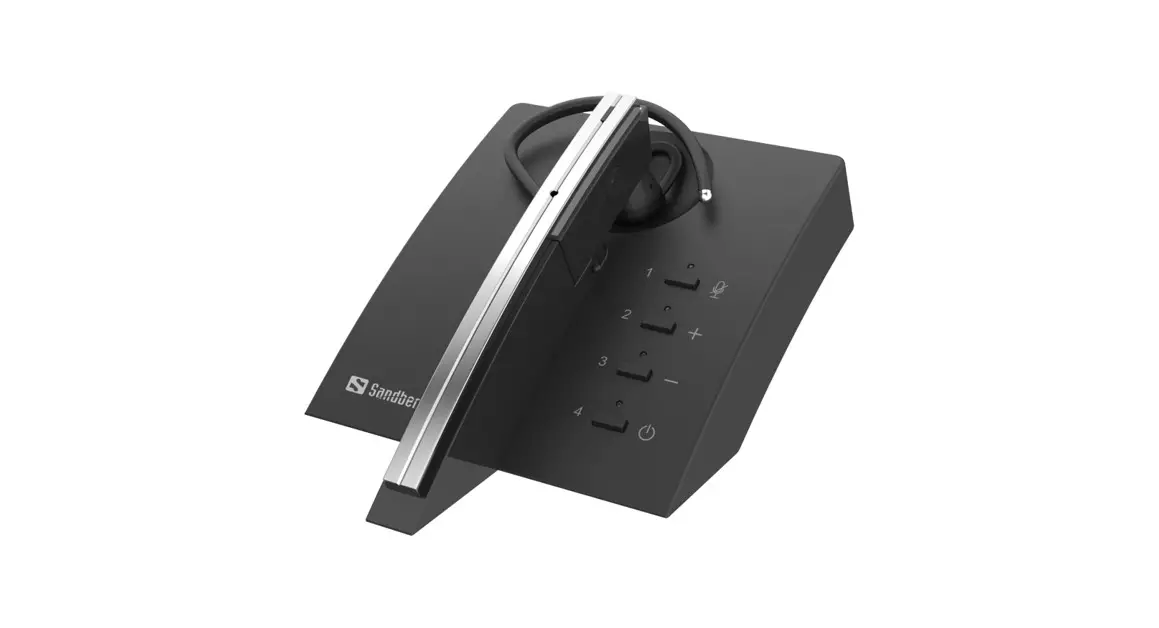
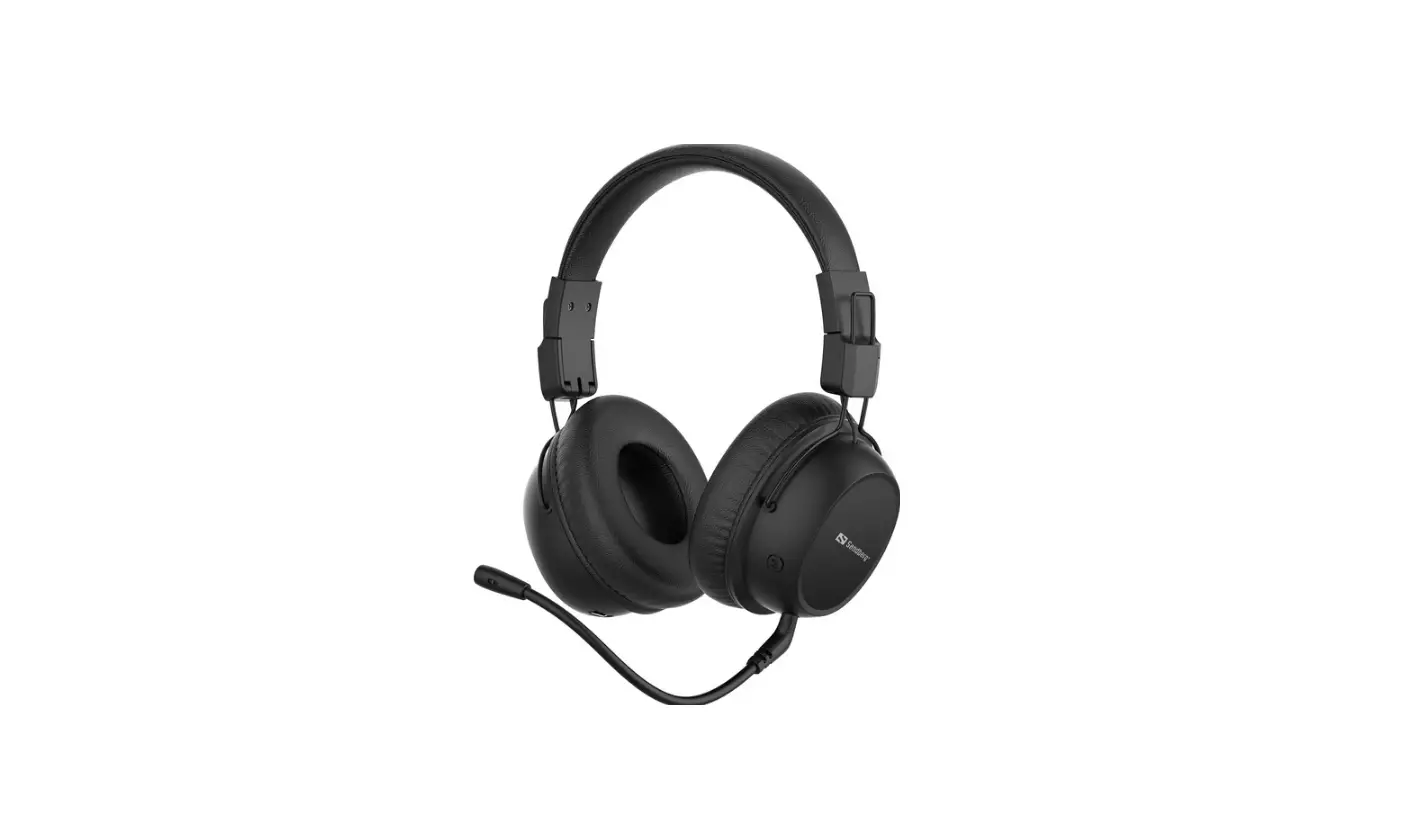
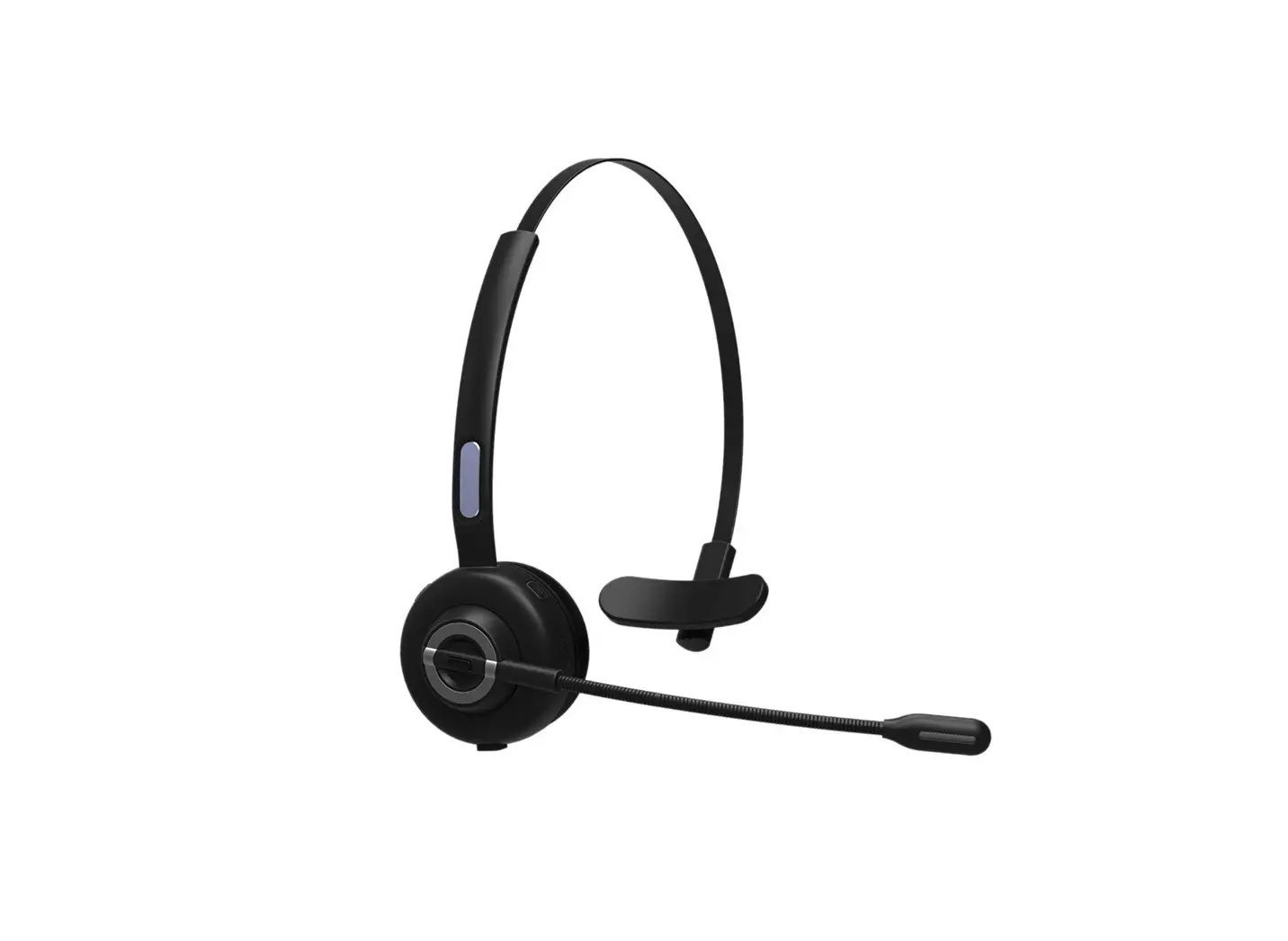
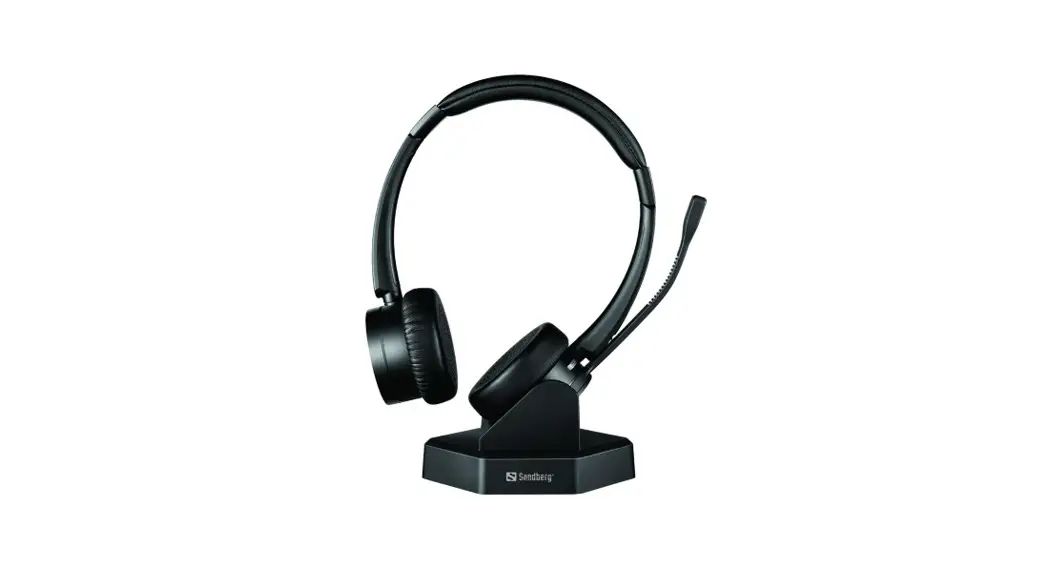
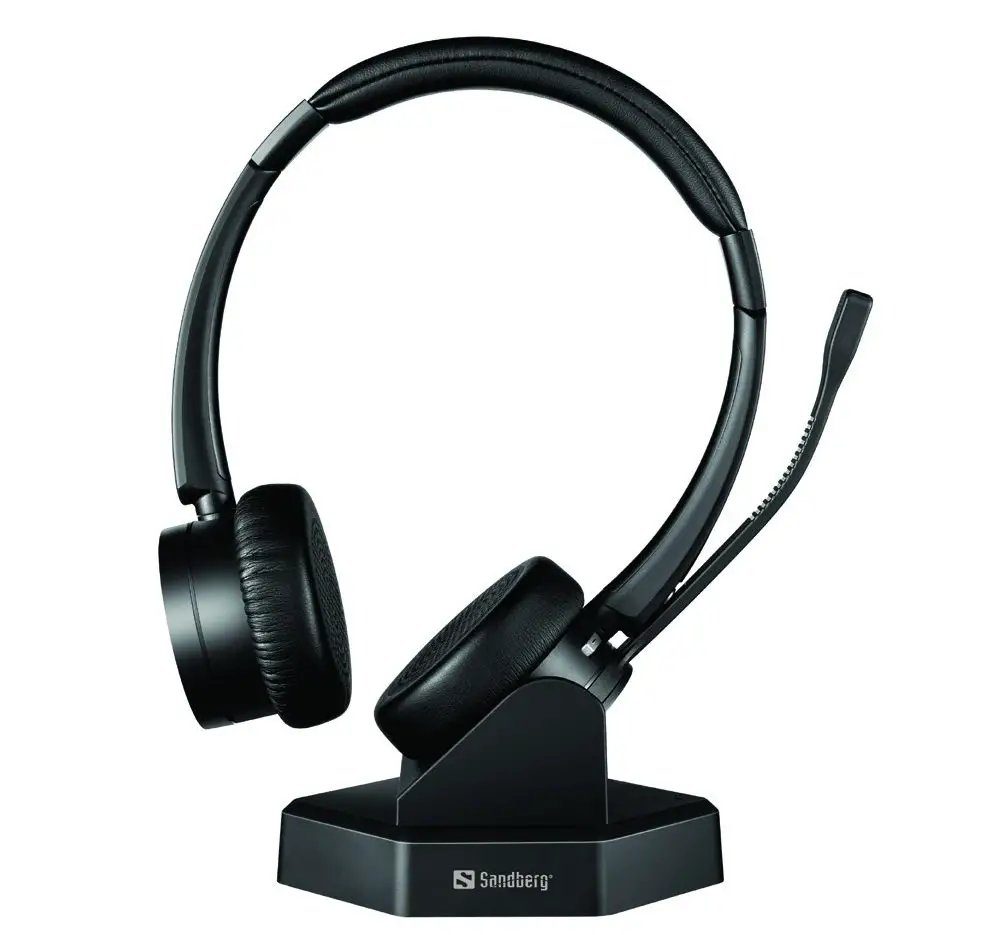
Sandberg Bluetooth Office Headset Pro+ is a stylish and exceptionally comfortable wireless stereo headset, optimized for use with a mobile phone or for online conversations on your PC. It ensures crystal-clear voice reproduction. The headset can be connected with two devices simultaneously; for example, both your PC and your mobile phone. With an integrated “busy” light-emitting diode, enabling your colleagues to easily see whether you are busy with a conversation in the headset. The package includes an elegant base, in which the headset can be recharged when it is not in use.
Connecting the charging base stand
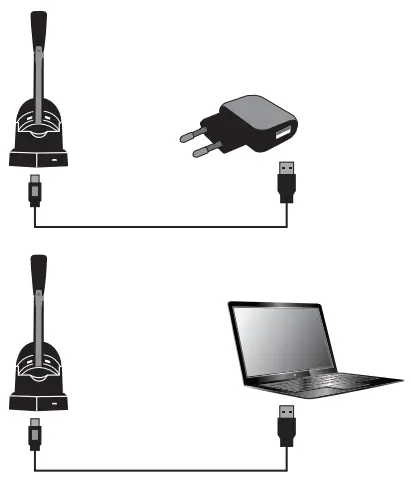
A magnetic charging base stand is included with your Sandberg Bluetooth Office Headset Pro. Use it to charge the headset when not in use. The magnetic holding function ensures correct positioning over the charging contacts, and easy retrieval when the phone rings. Connect the base stand to a USB power source using the Micro USB cable supplied as shown in the illustration:
| Button | Function | Action |
| On/Off Button | Headset on | Slide switch to icon “ON” |
| Headset off | Slide switch to icon “Of” | |
| Plus Button | Volume up | Tap the Plus button to increase the speaker volume |
| Next song | Hold the Plus button to switch to the next song when playing music | |
| Mic Mute | Mic mute | Press the mute button to activate the mic mute during a call. There will be a “toot” every 3 seconds while muted. Press the mute button again to cancel the mic mute. |
| Minus Button | Volume down | Tap the Minus button to decrease the speaker volume |
| Last song | Hold the Minus button to switch to the last song when playing music | |
| Multi-function Button | Pause | Tap the Plus button to increase the speaker volume |
| Answer /end call | Hold the Plus button to switch to the next song when playing music | |
| Reject call | Hold the Plus button to switch to the next song when playing music |
Prompt Tone Introduction
| Headset Status | Tone |
| Power on | Power on |
| Power off | Power off |
| Pairing Successfully | Connect |
| Volume up/down | “toot” |
| Battery Low | “toot” every 5 minutes |
| Mic Mute | “toot” every 3 seconds |
Headset LED Indicators
| Headset Status | LED Status |
| Pairing Mode | Light flashes blue and red alternately |
| Pairing Successful | Light flashes blue repeatedly every 5 seconds |
| Battery Low | Light flashes red rapidly |
| Charging Mode | Red light continuously on |
| Fully Charged | Blue light continuously on |
| Audio Status | Blue light slowly brightening and dimming alternately and the red light off |
| Call(Busy) Status | Red light slowly brightening and dimming alternately and the blue light off |
Pairing with Bluetooth Device
- Be sure that your smartphone, laptop, or desk phone has Bluetooth functionality.
- Activate the Bluetooth function on your smartphone, laptop, or desk phone.
- Turn on your headset (slide switch to “ON”), you will hear a prompt tone “power on”.
The LED indicator will flash red and blue alternately, which indicates the headset is in pairing mode. - (If pairing fails, the headset will power off automatically after indicator flashes for 5 mins, with prompt tone “power off” heard.)
- Pair headset to your smartphone, laptop, or desk phone.
1) Search for Bluetooth devices on your smartphone, laptop, or desk phone.
2) Open the “Bluetooth” menu and press “discover” or “add” to search “Sandberg Office Pro+” on your smartphone, laptop, or desk phone.
3) When “Sandberg Office Pro+” is displayed on your Bluetooth devices list, please click it to start pairing. Prompt tone “connect” will be heard when pairing is successful, and the LED indicator will repeatedly flash blue every 5 seconds.
4) This headset can remember devices with which it has previously been paired. When powered on, the headset will automatically connect to the first two remembered devices.
Additional functions
- Pair with 2 devices simultaneously
The headset can pair with 2 devices simultaneously.
1) Connect the first device with “Sandberg Office Pro+”
2) Turn off the Bluetooth functionality of the first device
3) Connect the second device with “Sandberg Office Pro+”
4) Turn on the first device’s Bluetooth functionality, then “Sandberg Office Pro+” is paired with both devices. - Redial function
Quickly press the multi-function button twice to redial the last call. - One-touch play function
Quickly press the multi-function button once, the default music player of the mobile phone will play automatically (some mobile phones cannot implement this function). - Automatic re-connection function
Bluetooth connection can be automatically re-connected if the headset is brought back into Bluetooth range within 5 minutes after disconnect. If reconnect fails, please turn off the headset, and turn it on again to reconnect. - Mic mute function on mobile call
Press the mute button to activate the mic mute during a phone call, repress the mute button to cancel the mic mute. The “toot” tone will be heard every 3 seconds during mic mute status.
Specifications:
– Bluetooth 5.0, CSR chipset
– Frequency range: 2.4 GHz-2.4835 GHz
– Multiple-points technology for Dual Device connection
– Supports A2DP, AVRCP, HFP, HSP, AAC
– Up to 30 meters wireless range
– Speaker frequency: 20Hz – 20KHz
– Speaker Sensitivity: 118dB ± 3dB
– Microphone frequency: 100Hz – 20KHz
– Microphone sensitivity: -38dB ± 3dB
– Blue/Red indicator LEDs
– 1 Multi-function button
– Vol +/- buttons, Mute button
– Charging time: Approx. 2 hours
– Talking time: Approx. 20 hours
– Stand-by time: Approx. 200 hours
– Charging input: Micro USB DC 5V
– Battery capacity: 320 mAh / 3.7V
http://helpdesk.sandberg.world
Warranty
There is a five-year warranty on your Sandberg product.
Please read the warranty terms and register your new Sandberg product at www.sandberg.world/warranty
For information on handling electronic waste, see www.sandberg.world/weee

 Helpdesk - Sandberg A/S