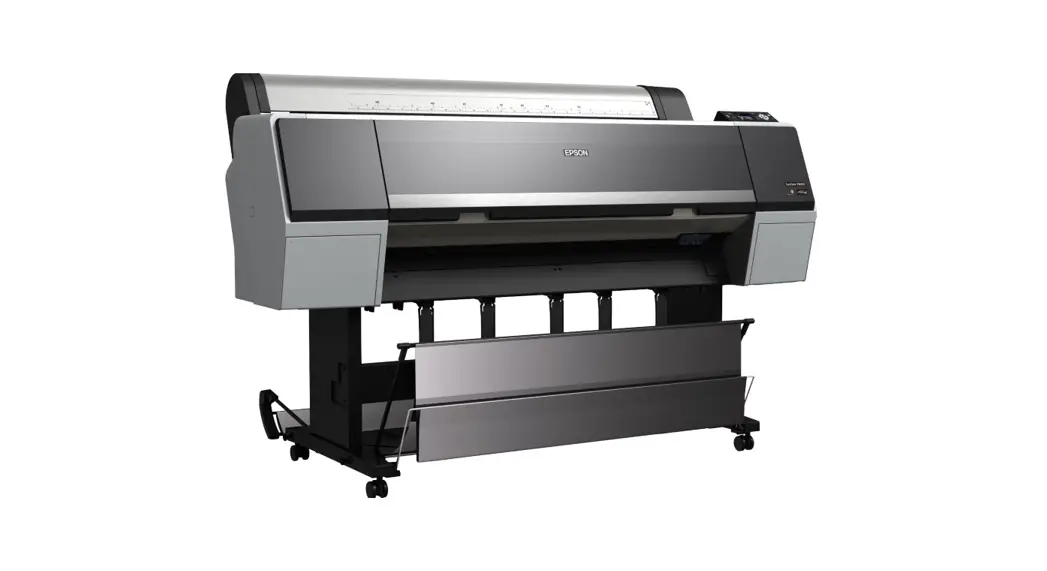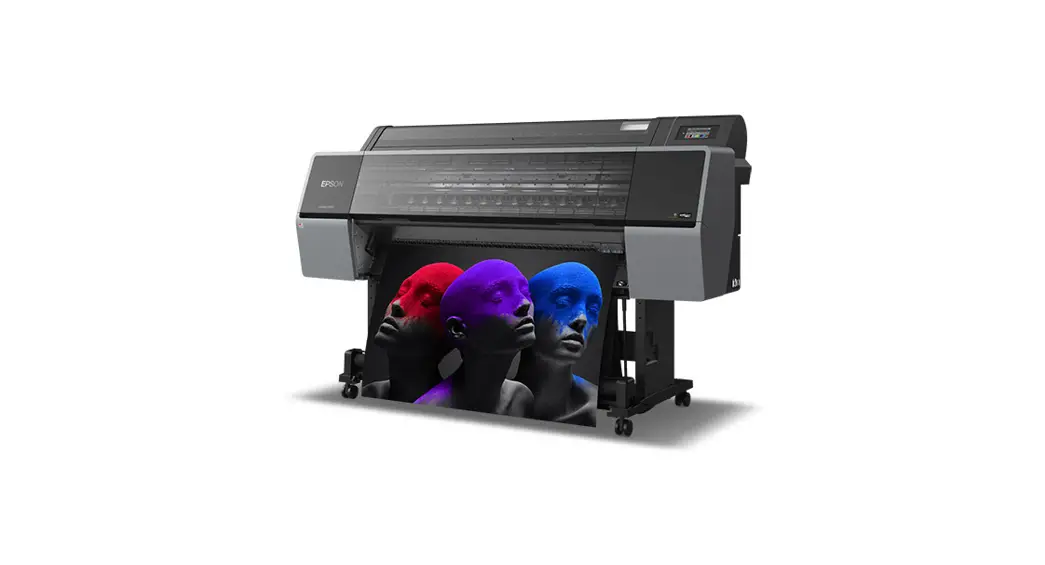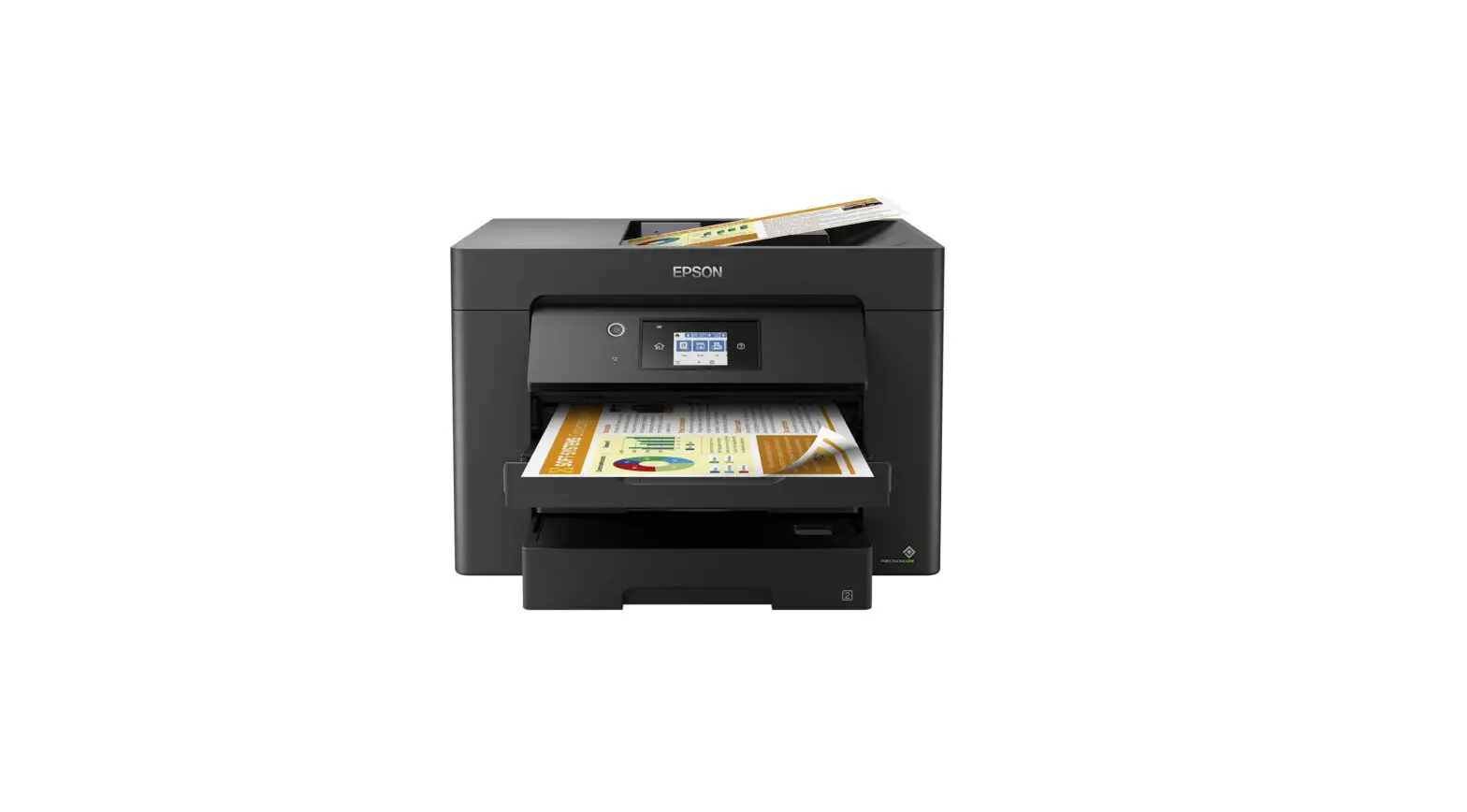

SC -P900 Series
SC-P700 Series
Start Here
 Do not open the ink cartridge package until you are ready to install it in the printer. The cartridge is vacuum-packed to maintain its reliability.
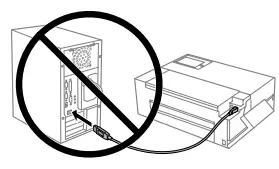
 Do not connect a USB cable unless instructed to do so.
Unpacking
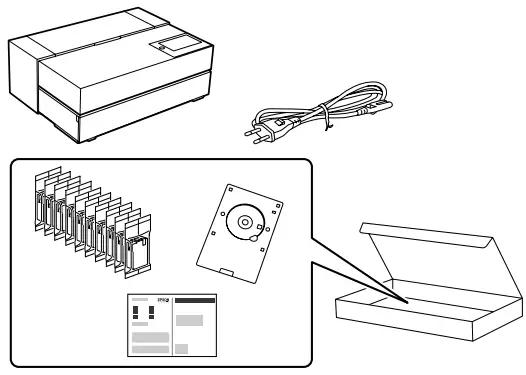 Additional items may be included depending on the location.
Printer setup and software installation
For the initial setup, make sure you use the ink cartridges that came with this printer. These cartridges cannot be saved for later use. The initial ink cartridges will be partly used to charge the print head. These cartridges may print fewer pages compared to subsequent ink cartridges.

Visit the website to start the setup process, install the printer driver or application, and configure network settings. An internet connection is required to view the setup procedure and obtain product software.

Ink Cartridge Codes
| SC-P700 | SC-P900 | ||
| PK | Photo Black | T46S1 | T47A1 |
| C | Cyan | T46S2 | T47A2 |
| VM | Vivid Magenta | T46S3 | T47A3 |
| Y | Yellow | T46S4 | T47A4 |
| LC | Light Cyan | T46S5 | T47A5 |
| VLM | Vivid Light Magenta | T46S6 | T47A6 |
| GY | Gray | T46S7 | T47A6 |
| MK | Matte Black | T46S8 | T47A7 |
| LGY | Light Gray | T46S9 | 747A8 |
| V | Violet | 746SD | T47AD |
Guide to Control Panel
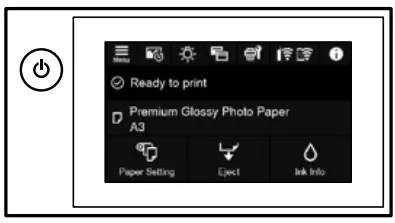
 Turns the printer on or off
 Displays the Menu screen
 Displays the Print Information Sheet screen.
 Lights up the inside of the printer.
 Switches screens.
 Displays the network connection status.
 Displays the additional information.
 Indicates a problem with the items. lap the icon to check how to solve the problem.
Loading paper
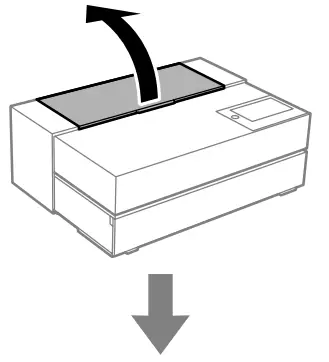
- open, slide-out

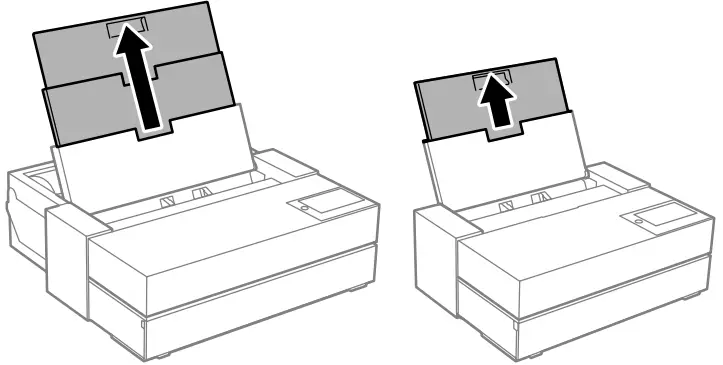
SC-P900 Series
SC-P700 Series
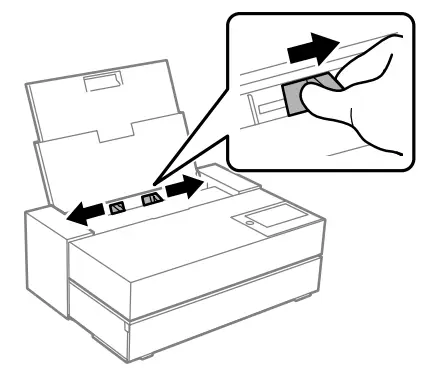
- slide

- Lord paper with the printable side facing up.

- Fit

- Open

- pull out

- The paper setup screen is displayed on the LCD screen. Select the paper size and paper type you loaded in the printer.
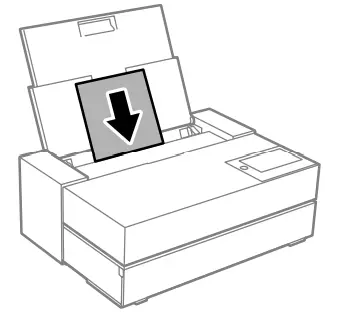
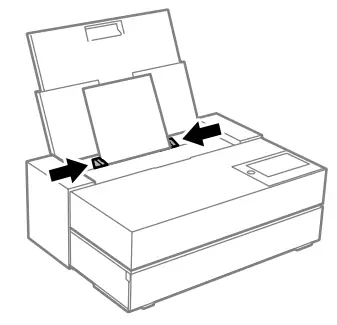
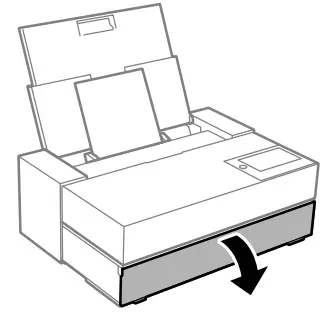
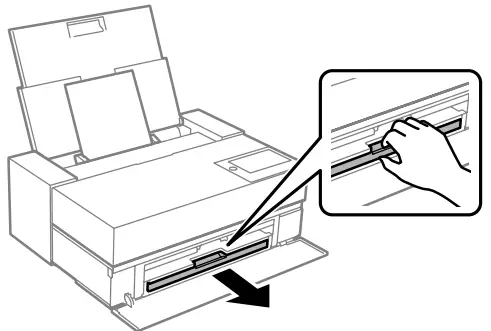
Replacing Ink Cartridges
When you are prompted to replace an ink cartridge, prepare a new ink cartridge.
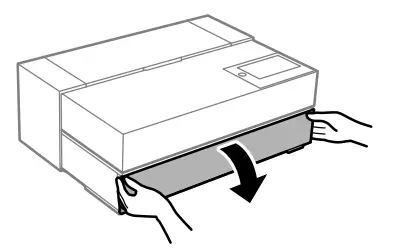
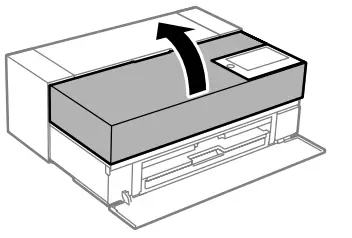
- Open

- open

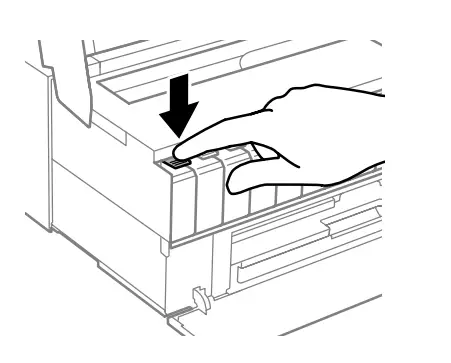
- Push

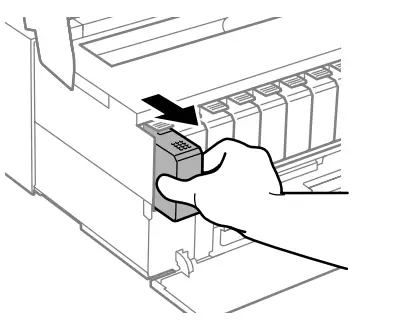
- Remove

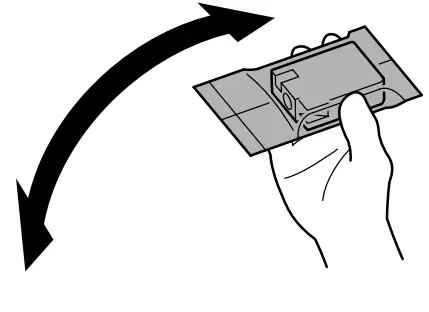
- Shake the new ink cartridge approximately 15 times within 5 seconds as shown in the illustration.

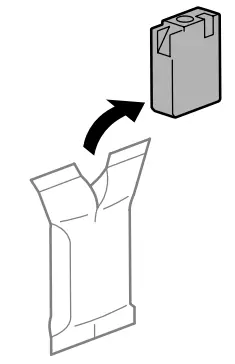
- Unpack

 Do not touch the sections shown in the illustration. Doing so may prevent normal operation and printing.
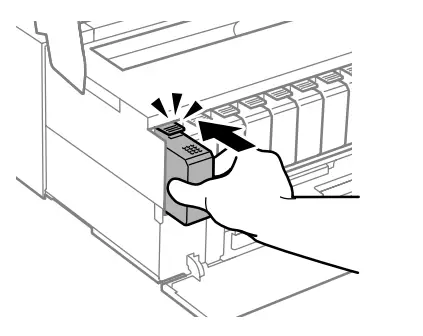
- Push(click)

- Close

- Close
 Do not touch the sections shown in the illustration. Doing so may prevent normal operation and printing.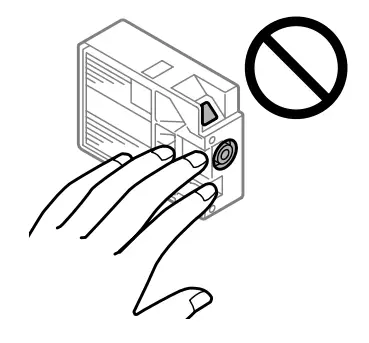
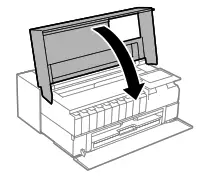
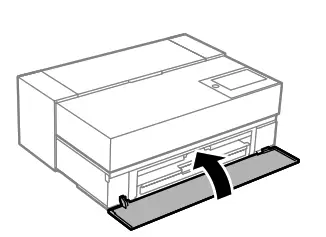
Clearing the paper jam
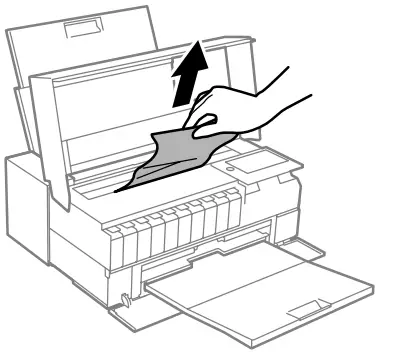
Form the Rear paper feeder
- Remove the jammed paper carefully

- Open
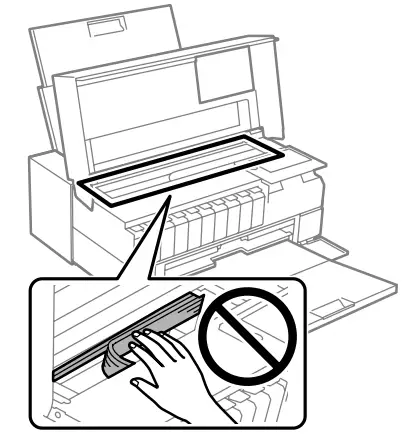
 Do not touch the parts shown in the illustration
- Remove the jammed paper carefully
- Close the printer cover
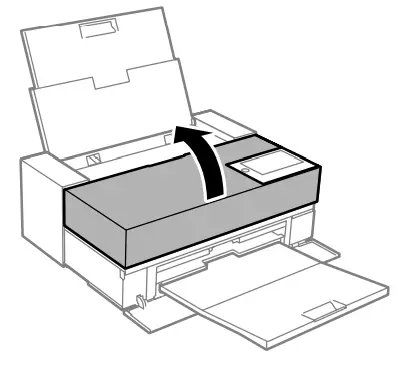
Print Quality help
Print a nozzle check pattern. Select  > Settings > Maintenance > Print Head Nozzle Check. If the pattern looks like “B”, perform Print Head Cleaning. If it looks like”C”, perform Power Cleaning.

Safety instructions
Use only the power cord that comes with the printer. Use of another cord may cause fire or shock. Do not use the cord with any other equipment.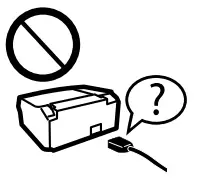 Be sure your AC power cord meets the relevant local safety standard.
 Except as specifically explained in your documentation, do not attempt to service the printer yourself.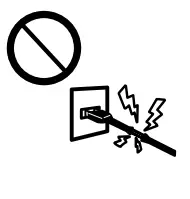
Place the printer near a wall outlet where the power cord can be easily unplugged.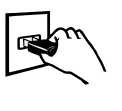
Do not place or store the product outdoors, near excessive dirt or dust, water, heat sources, or in locations subject to shocks, vibrations, high temperature, or humidity. Take care not to spill liquid on the product and not to handle the product with wet hands.
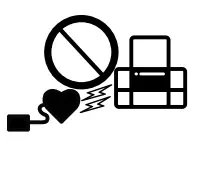
 Keep this product at least 22 cm away from cardiac pacemakers. Radio waves from this product may adversely affect the operation of cardiac pacemakers.
 If the LCD screen is damaged, contact your dealer. If the liquid crystal solution gets on your hands, wash them thoroughly with soap and water. If the liquid crystal solution gets into your eyes, flush them immediately with water. If discomfort or vision problems remain after a thorough flushing, see a doctor immediately.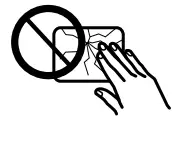
Always keep this guide handy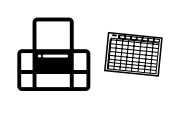 Keep ink cartridges and maintenance boxes out of the reach of children.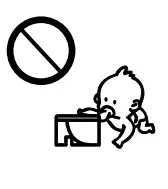
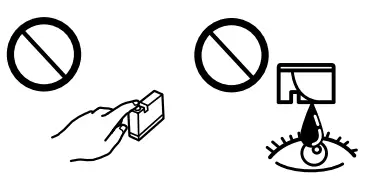 Be careful when you handle used ink cartridges, as there may be some ink around the ink supply port If ink gets on your skin, wash the area thoroughly with soap and water. If ink gets into your eyes, flush them immediately with water. If discomfort or vision problems continue after a thorough flushing, see a doctor immediately. If ink gets into your mouth, see a doctor right away.
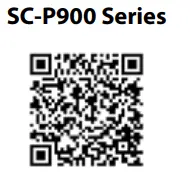
https://support.epson.net/p_doc/785/
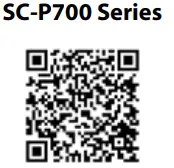
https://support.epson.net/p_doc/784/
This guide includes basic information about your product and troubleshooting tips. See the Users Guide (digital manual) for more details. You can obtain the latest versions of guides from the following website.
http://www.epson.eu/Support
Windows° is a registered trademark of the Microsoft Corporation. Manufacturer: SEIKO EPSON CORPORATION Address: 3-5, Owa 3-chome, Suwa-shi, Nagano-ken 392-8502 Japan Web site: http://www.epson.com/ Importer: EPSON EUROPE B.V. Address: Atlas Arena, Asia Building, Hoogoorddreef 5,1101 BA Amsterdam Zuidoost The Netherlands Web site: http://www.epson.com/europe.html


The contents of this manual and the specifications of this product are subject to change without notice.