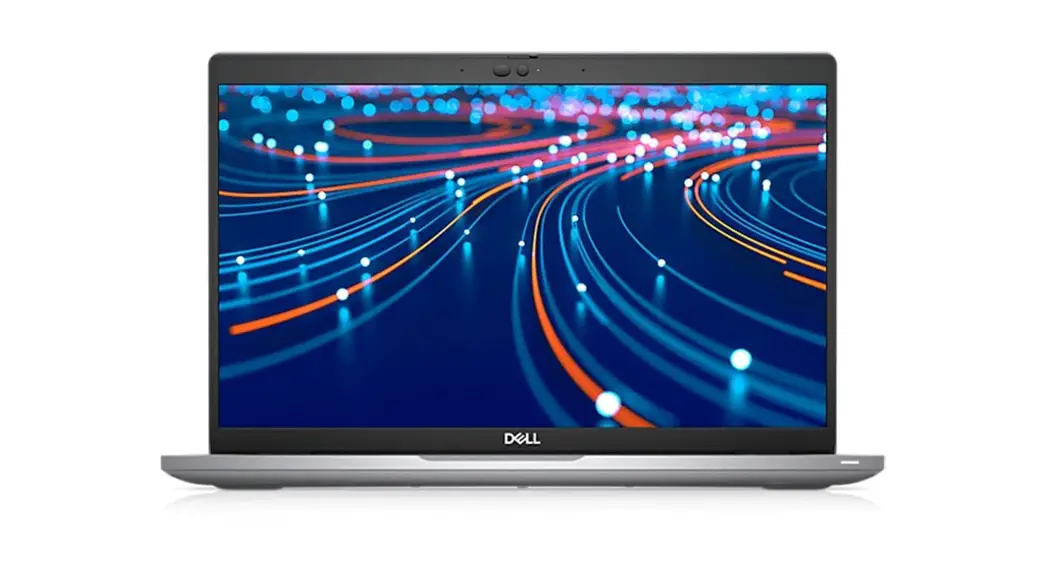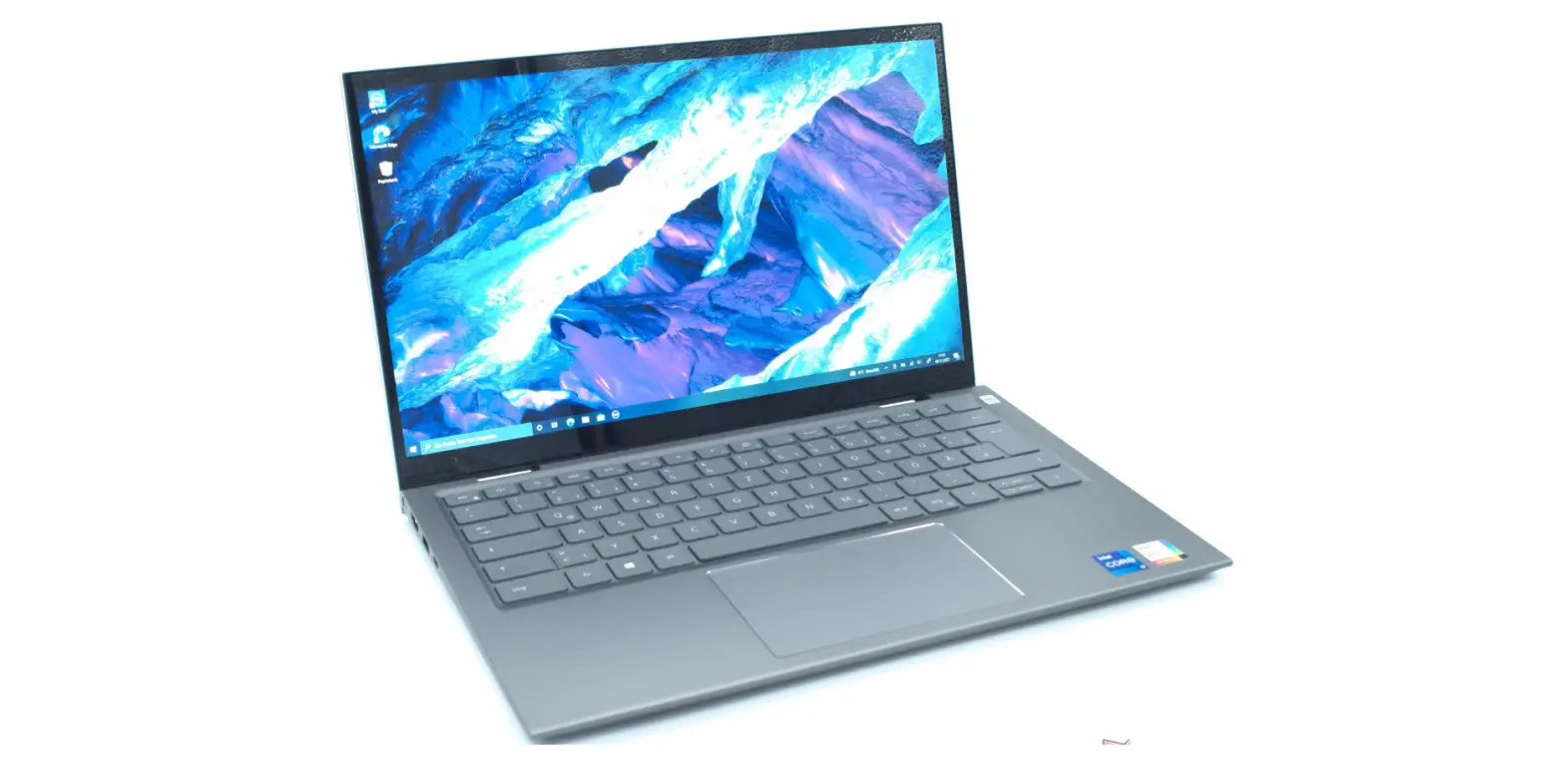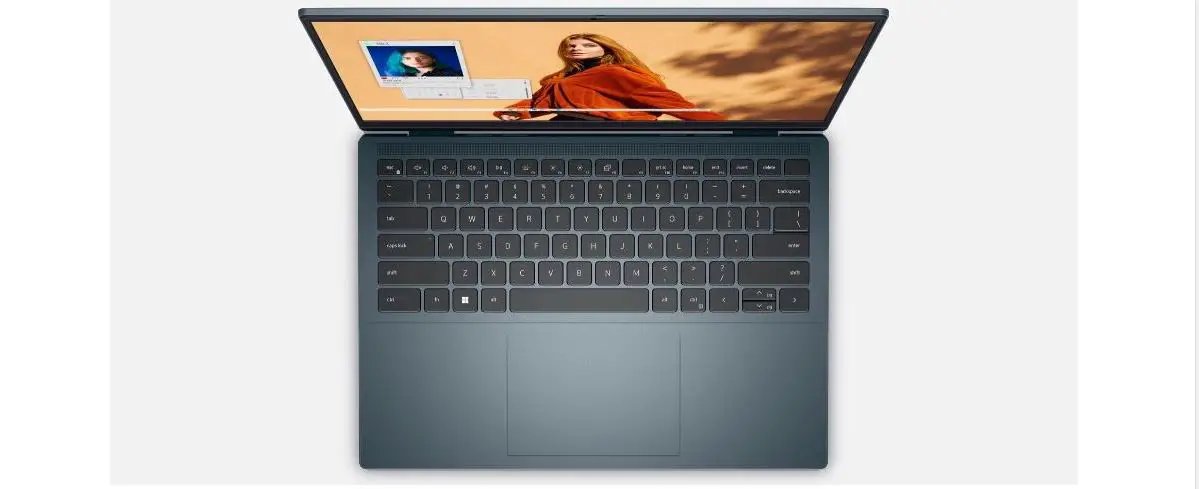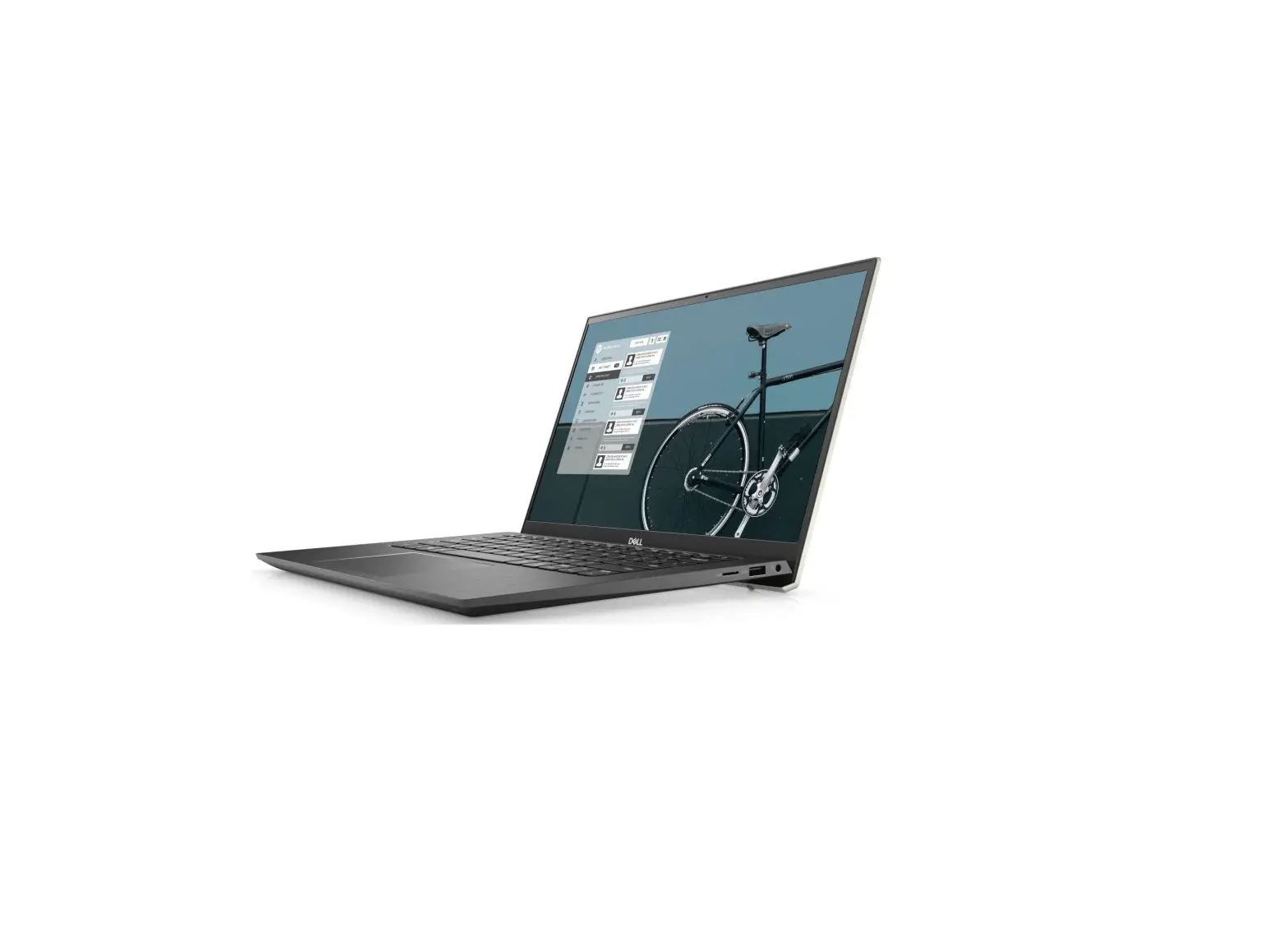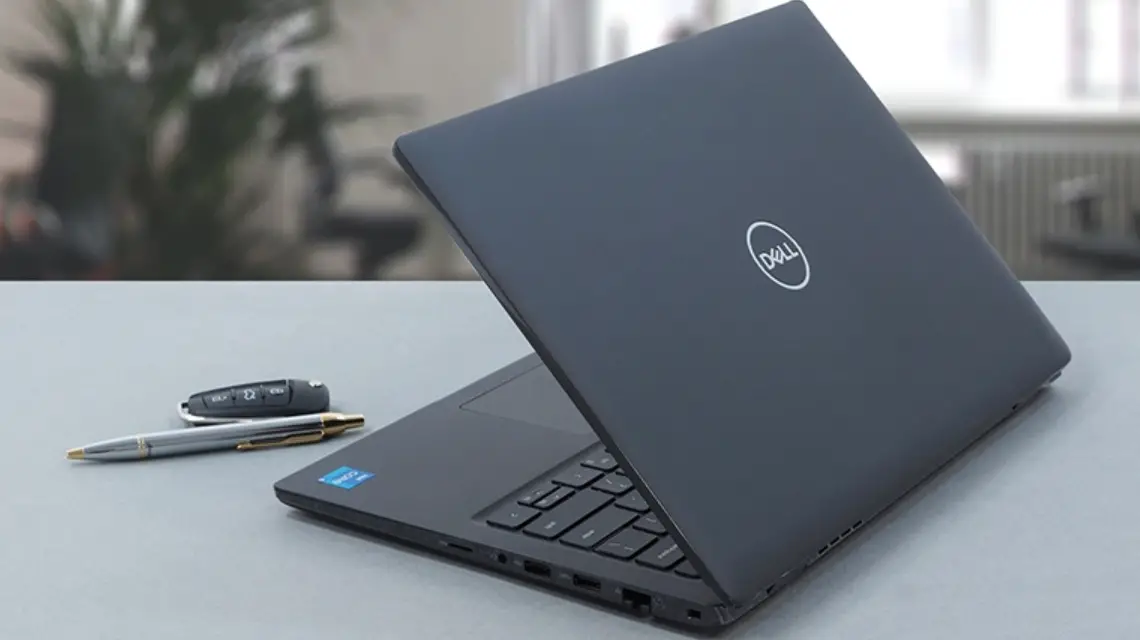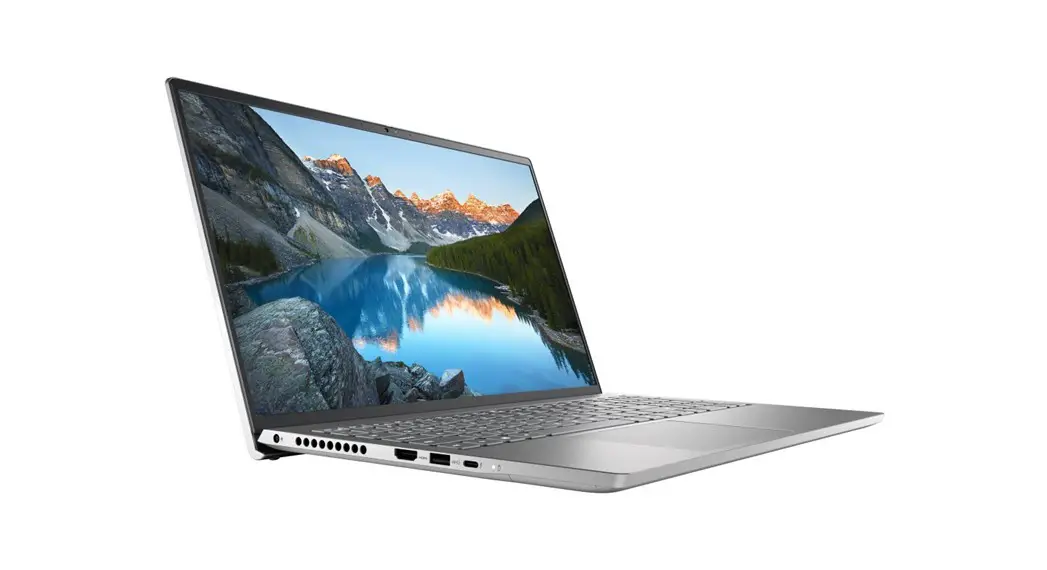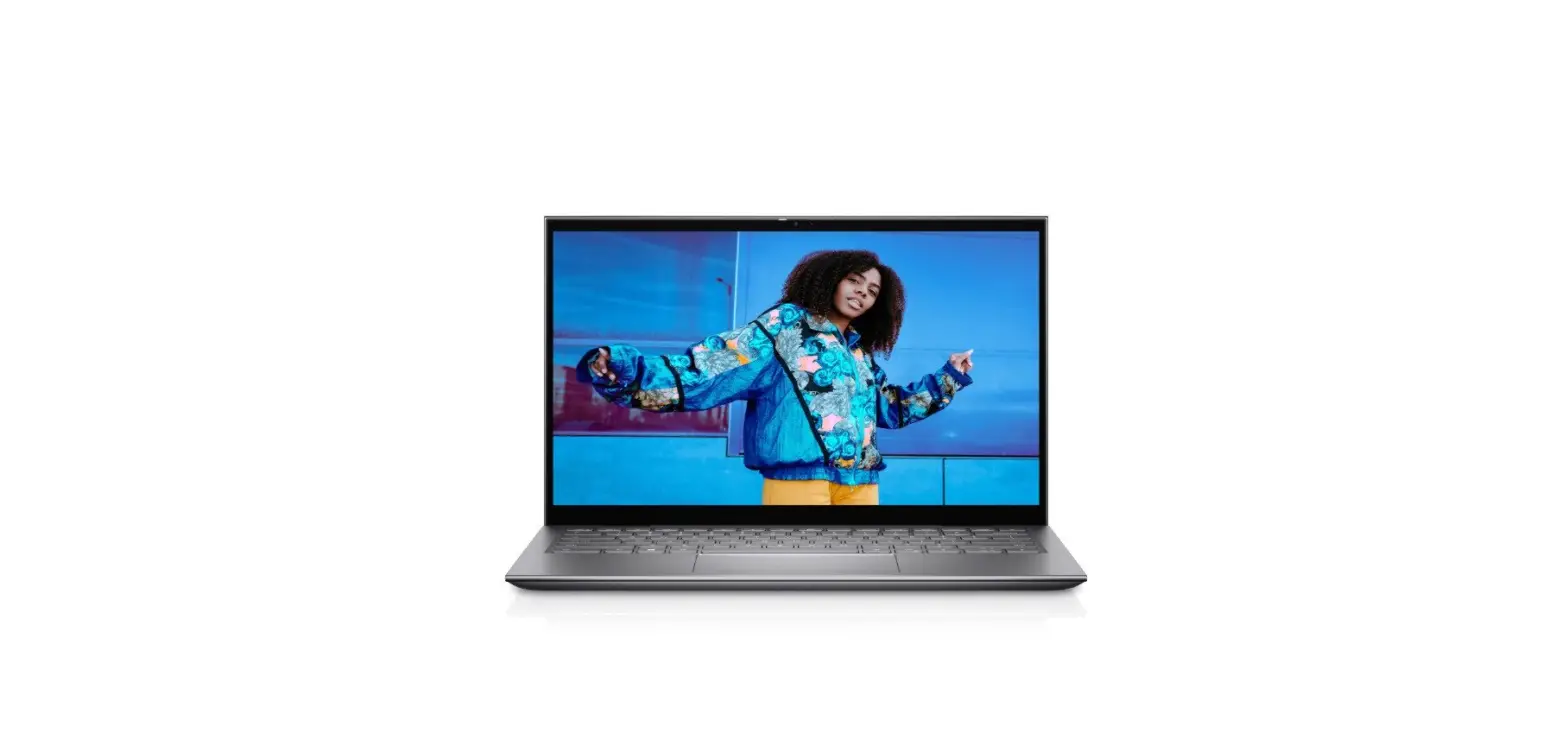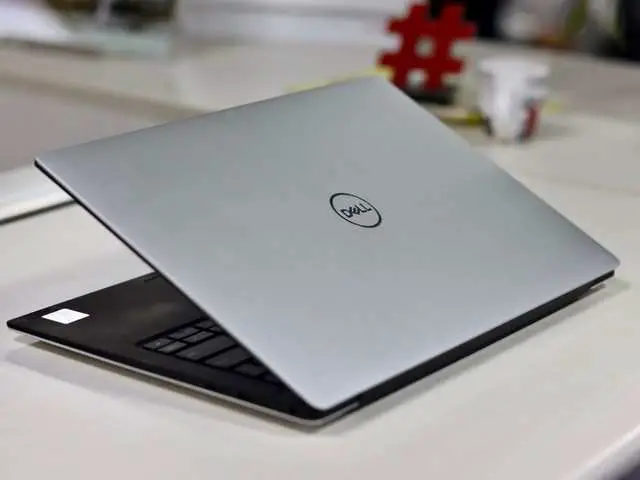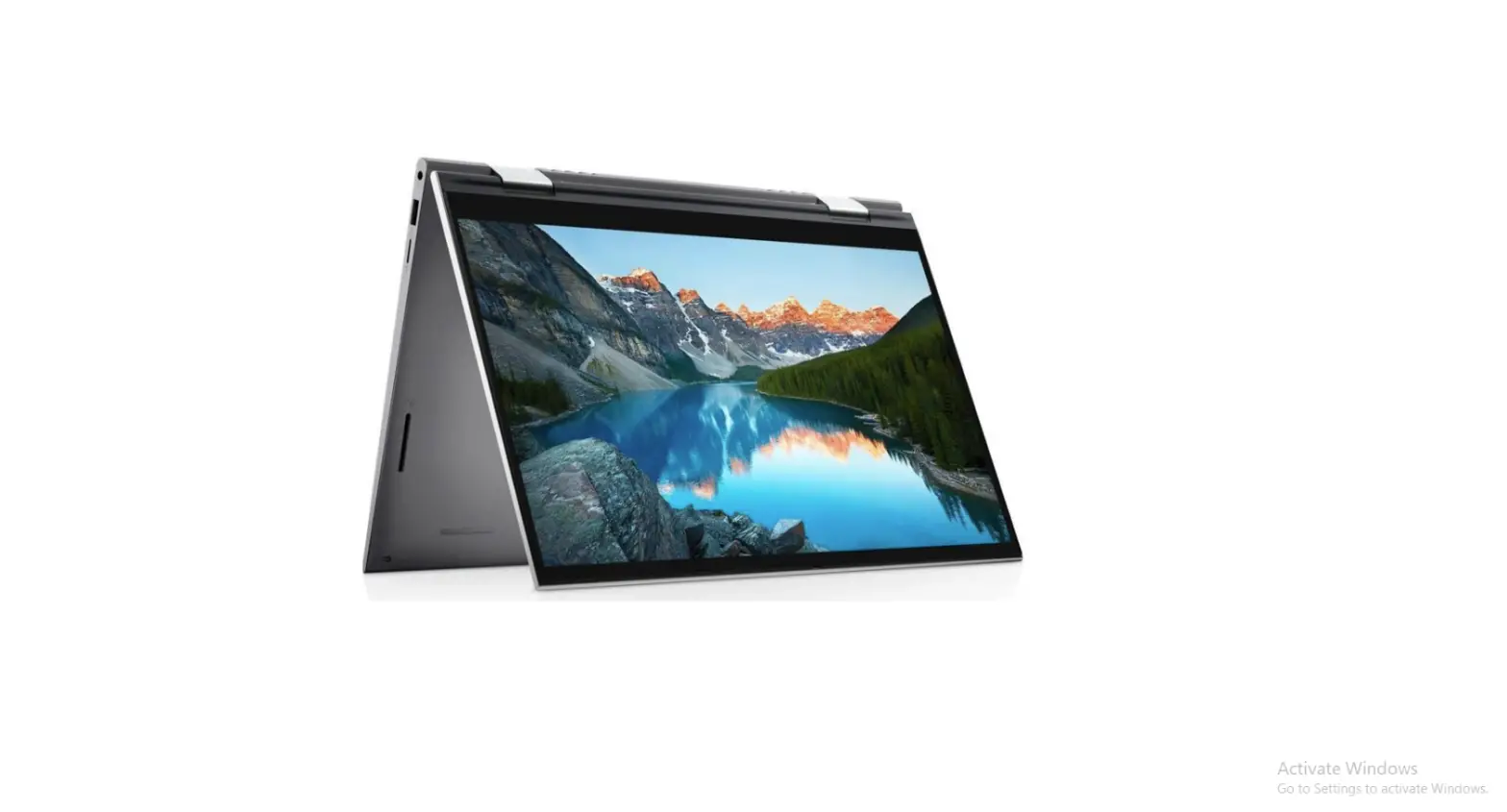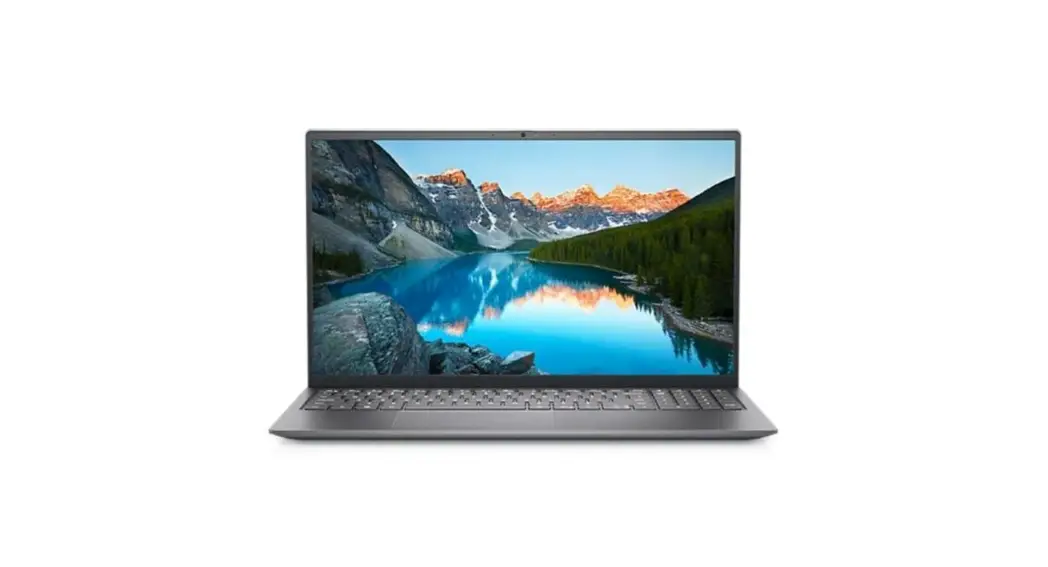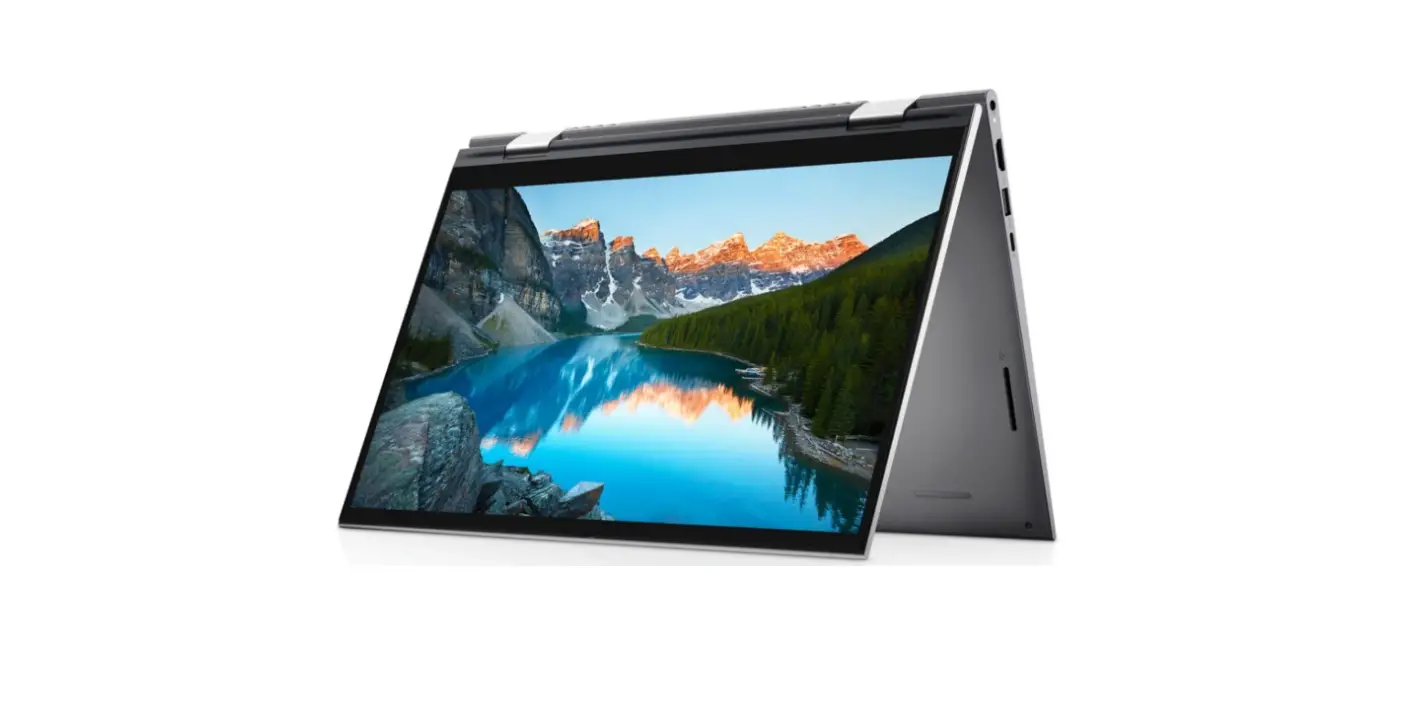
DELL Inspiron 14 5410 14 Inch Laptop User Guide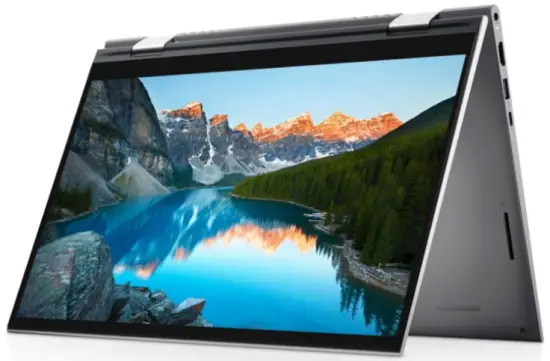
 Read the safety information that shipped with your computer. For additional safety best practices information, see the Regulatory Compliance Homepage at
Dell.com/regulatory_compliance.
 Do not remove the computer cover unless you need to install internal accessories for your computer. For instructions on removing and replacing parts, see the Owner’s or Service Manual at Dell.com/support.
Retain the filler brackets or cards that ship with your computer. Installing filler brackets or filler cards over empty card-slot openings is necessary to maintain FCC certification of the computer. The filler brackets and filler cards keep dust and dirt out of your computer and maintain the airflow that cools your computer.
Power Adapter
| Input voltage | 100-240 V AC |
| Input current (maximum) | 1.7A |
| Input frequency | 50-60 Hz |
| Output current | 3.34A |
| Output voltage | 9.5 V DC |
Maximum operating temperature
35°C
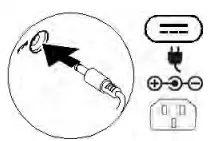
Connect the power adapter or the power cable to your computer and to the display, if required.
Power on the computer (and the display, if connected).

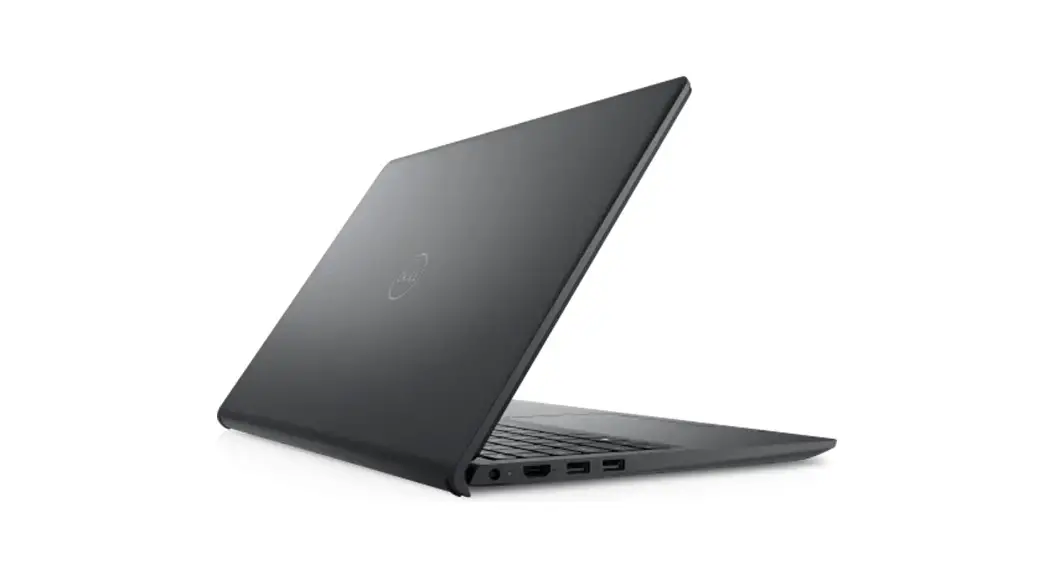
 Depending on your computer configuration, some ports or connectors may not be available.
Icons
| Power adapter |
|
| USB 2.0 |
|
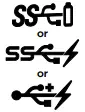
| USB 3.0/USB 3.1 Gen 1 |
|
| USB 3.0/USB 3.1 with PowerShare |
|
| USB 3.1 Type-C |
|
| eSATA |
|
| Thunderbolt |
|
| Thunderbolt 3 port with Power delivery (USB-C) |
|
| Network |
|
| VGA |
|
| DVI |
|
| HDMI |
|
| DisplayPort |
|
| Mini DisplayPort |
|
| TV-in |
|
| External Graphics Port |
|
| Infrared (IR) emitter |
|
| Headphone/Audio-out |
|
| Headset |
|
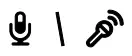
| Microphone |
|
| Line-in |
|
| Line-out/Speakers: front left-right |
|
| Speakers: rear left-right |
|
| Speakers: side left-right |
|
| Speakers: Audio center/subwoofer |
|
| S/PDIF |
|
| Screen-rotation lock |
|
| SIM-card slot |
|
| ExpressCard slot |
|
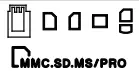
| Media-card reader |
|
| Security-cable slot |
|
| Power/Battery-status light |
|
| Battery-status light |
|
| Hard-drive activity light |
|
| Wi-Fi light |
|
| Bluetooth light |
|













Regulatory Model/Type
MCMC certification mark
Windows
In Windows Search, type System. In the search results, click System.
Ubuntu
On the desktop, click  → About This Computer
Di impor oleh:
PT Dell Indonesia
Menara BCA Lantai 48 Unit 4804
Jalan M.H Thamrin No. 1 Jakarta Pusat,
10310 Indonesia
Connection and use of this communications equipment is permitted by the Nigerian Communications Commission.