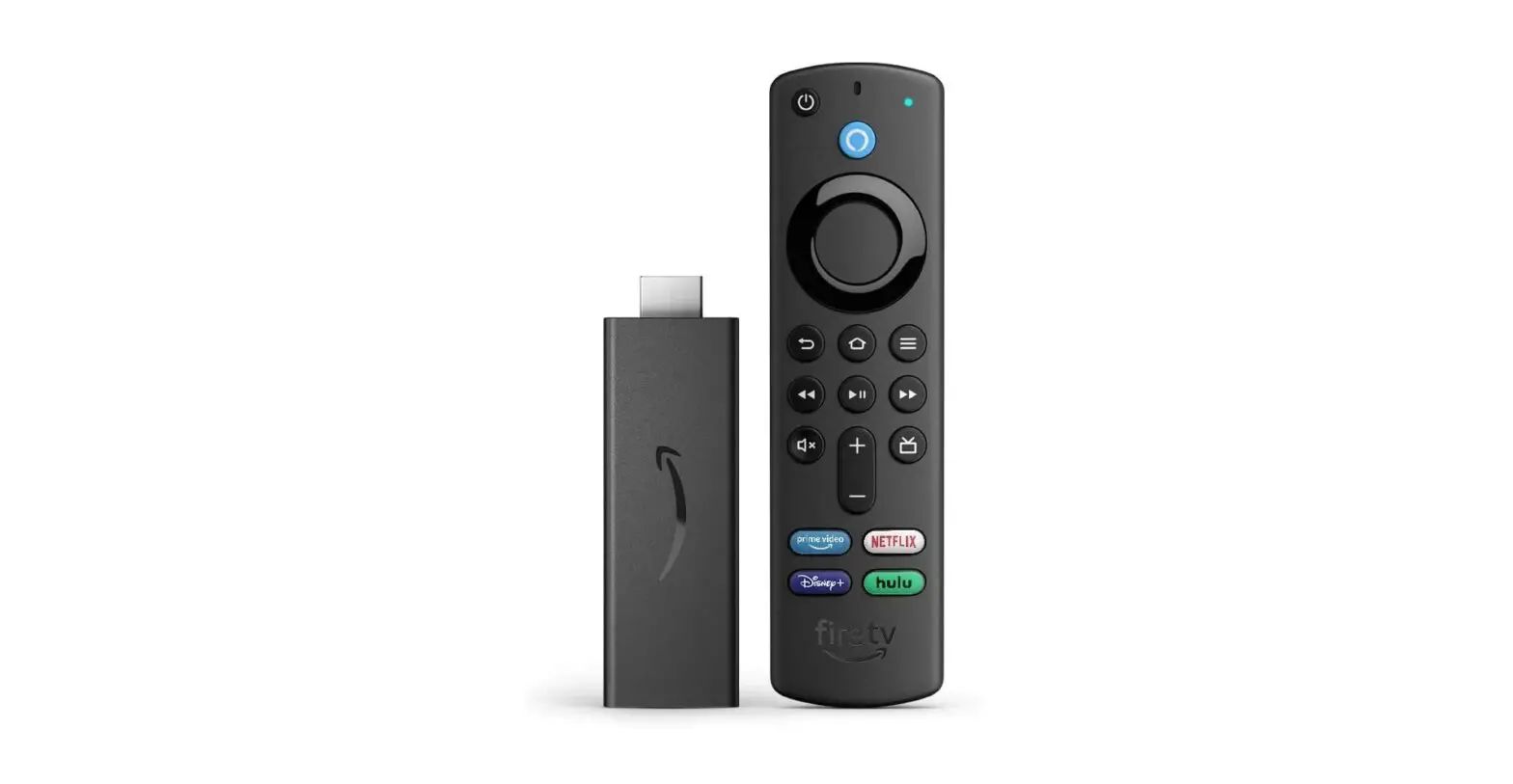
Amazon Fire TV User Manual
Learn how to set up, watch, and troubleshoot video with Alexa.
Getting Started:
Link Your Fire TV and Alexa Device
To link your compatible Alexa-enabled device to your Fire TV, use the Alexa app. You can also say, “Play [movie title] on Fire TV” and confirm that you want your Alexa device to control your Fire TV.
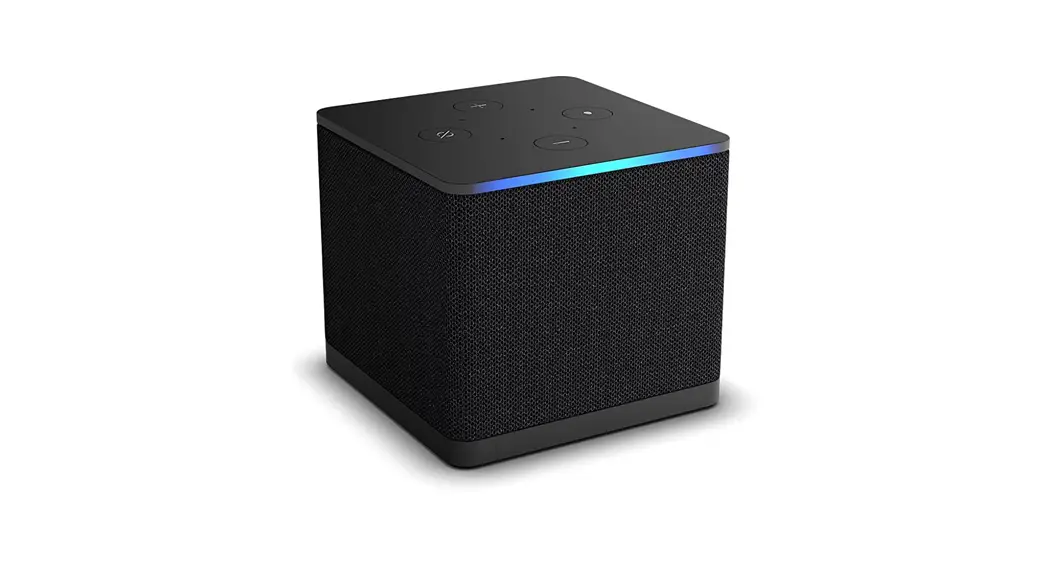
For the devices to pair properly and work together, your Alexa device and Fire TV must be registered to the same account. You can link multiple Alexa devices to the same Fire TV. Not all features are supported on Echo Show devices or for a paired Fire TV Cube.
- Open the Alexa app
 .
. - Open More
 and select Settings
  .
. - Select TV & Video.
- Select Fire TV.
- Select Link Your Alexa Device and follow the on-screen instructions.
 .
. and select
  .
.Play Audio from Your Fire TV on Your Echo Devices
Play audio on your compatible Echo device from a Fire TV device after setting up a home theater group.
- Open the Alexa app .
- Open Devices .
- Select Plus
 and scroll to the bottom of the screen.
 - Select Combine speakers.
- Select Home Theater.
- Select your compatible Fire TV device.
- Select up to two compatible Echo devices to use as speakers, along with an optional Echo Sub.
- Select left and right speakers when using two Echo devices.
- Name your home theater and assign it to a room in your house.
- Devices in your speaker group should be in the same room as your television.
- Follow the directions on your TV to finish set up.
 .
. and scroll to the bottom of the screen.
Amazon Devices that Support Fire TV and Echo Device Speaker Systems
Check if your Fire TV device and Echo speakers can pair for home theater sound during video streaming.
| Fire TV Device | Compatible Echo Devices* | HDMI-In and TV Sources |
|---|---|---|
|
| Supported by Home Theater |
|
| Not Supported by Home Theater |
Link Your TV or Video Service Provider to Alexa
Use the Alexa app to link supported TV and video service providers to Alexa.
- Open the Alexa app .
- Open More and select Settings.
- Select TV & Video and select your TV or video service provider.
- Select Enable Skill and follow the on-screen instructions.
Link Video Streaming Services on Echo Show
To get started, say “Go to video home” and select from the available video providers.
On Echo Show 15, use your device settings to add apps and providers to Fire TV.
- On your Echo Show 15, swipe down from the top edge of the screen and select Settings, or say “Open Settings.”
- Open Fire TV Settings, then select Content.
- Select whether to find apps on Silk Browser or in the Fire TV Appstore, or to manage apps you already have.
- When you find the apps you want, follow the instructions provided for installing them.
How To:
Play Videos with Alexa Using Your Voice
Use your voice to play movies, videos, or TV shows from Prime Video and supported streaming services on Alexa devices and Fire TV devices.
Find & Watch
- “Search for [movie / TV show].”
- “Find [title / genre / actor].”
- “Go to channel guide.”
- “Play [title].”
- “Open [app].”
- “Go Home.”
Control Playback
- “Play” or “Resume.”
- “Stop” or “Pause.”
- “Rewind” or “Fast Forward.”
- “Next” or “Watch from beginning.”
Live TV Channels
- “Go to [channel / network].”
- “Change to [channel / network].”
- “Watch [channel / network].”
Equipment Control
- “Turn [on / off] the TV.”
- “Volume [up / down] on receiver.”
- “Volume [up / down] on soundbar.”
- “Tune to [channel] on cable/satellite.
Actions on Lists*
- “Search for [genre].”
- “Scroll [right/left].”
- “Select/Play [number on list].”
- “Show more.”
- “Go back.”
Video Search*
After searching for video content, say “Select
” or “Play [number]” to choose a video from the results.
Actions on Detail Page* (Fire TV Only)
- “Play this.”
- “Add this to my Watchlist.”
- “Play the trailer.”
Note: * Not all features are supported from a paired Echo Show or for a paired Fire TV Cube (2nd Generation).
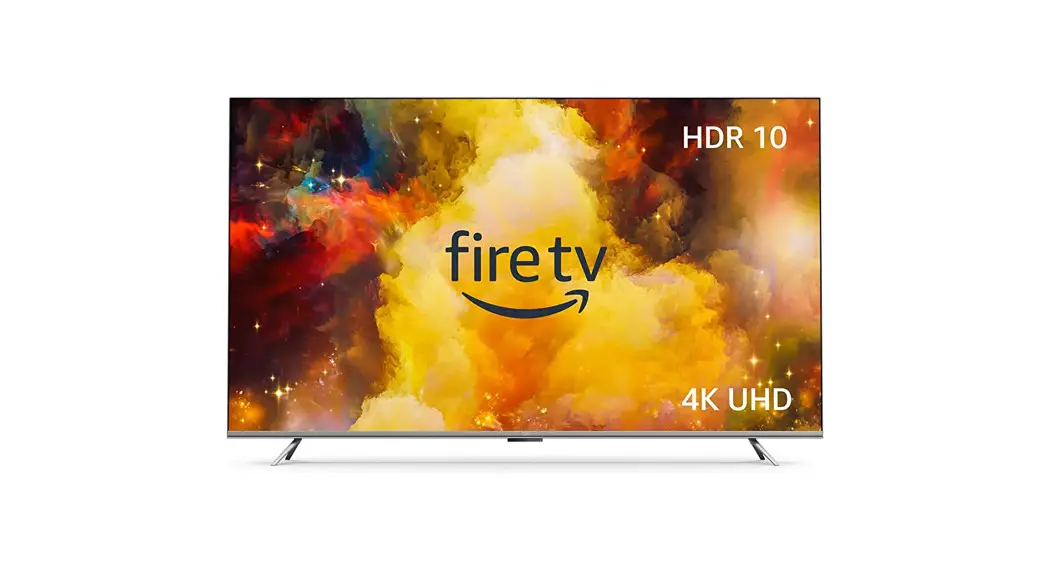
Control Amazon Fire TV Smart TVs with Alexa
Use your Alexa-enabled device to control features and settings on your Amazon Fire TV Smart TV.
- “Set the volume to [1 – 10] on Fire TV.”
- “Turn [up / down] the volume on Fire TV.”
- “Mute Fire TV.”
- “Switch to [device / input].”
- “Turn Fire TV [on / off].”
Tip: To turn your Amazon Fire TV Smart TV on or off with Alexa, check that the option is enabled in your Fire TV settings.
Control Amazon Fire TV Smart TVs with Alexa
Use your Alexa-enabled device to control features and settings on your Amazon Fire TV Smart TV.
- “Set the volume to [1 – 10] on Fire TV.”
- “Turn [up / down] the volume on Fire TV.”
- “Mute Fire TV.”
- “Switch to [device / input].”
- “Turn Fire TV [on / off].
Watch Video Streaming Services on Echo Show
Use your voice to play movies, videos, or TV shows from Prime Video and supported streaming services. These steps also work with Echo Spot. .”
Troubleshooting:
Can’t Link Your Fire TV and Alexa Device
Your Alexa-enabled device doesn’t connect to your Fire TV.
- Make sure that your Alexa-enabled device and Fire TV are registered to same account.
- Check that your Alexa-enabled device and Fire TV are on the same Wi-Fi network.
- Make sure that your Fire TV and Alexa app have the latest software version.
- Force close the Alexa app.
- Restart your Fire TV and Alexa-enabled device.
Can’t Create Fire TV and Echo Audio System
If you can’t connect your Fire TV and Echo device, try these steps.
- Make sure that your Echo and Fire TV devices are compatible with the home theater feature.
- Make sure that your devices are registered to the same account.
- Check that your devices are on the same Wi-Fi network and frequency band.
- Make sure that the Alexa app is up to date.
- Force close the Alexa app and restart it before trying to create your home theater.
- Make sure that your devices are on the latest software version. For Echo devices, say “Check for software updates.” For Fire TV, go to Settings > My Fire TV > About > Check for Updates.
- Restart your devices. For Echo devices, temporarily unplug them from power. For Fire TV, go to Settings > My Fire TV > Restart. Wait a few minutes before playing content.
Can’t Play Your Fire TV Audio on Your Echo Devices
One or more paired Echo speakers not playing sound in home theater mode? Use these suggestions.
- Verify that your devices are compatible with home theater mode.
- Verify that your Echo speakers are “online” in the Alexa app.
- Connect all devices to the same Wi-Fi network.
- Turn up the volume on your speakers.
- Play a video title from a different streaming media app.
- Make sure to select the home theater audio option on your Fire TV device to match your activity. When watching video with your Alexa Home Theater, turn off Gaming Audio (default). For gaming, turn on Gaming Audio.
- Restart devices in your home theater group. For Echo devices, temporarily unplug them from power. For Fire TV, go to Settings > My Fire TV > Restart. Wait a few minutes before playing content.
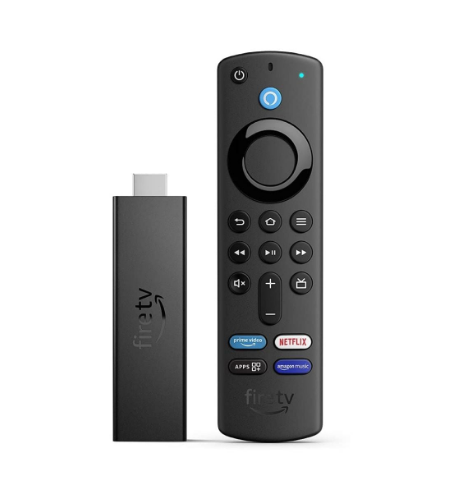
- For audio issues with your Fire TV Stick 4K Max, there are additional troubleshooting steps on Alexa Home Theater on Fire TV Stick 4K Max Isn’t Working. Or for audio issues with your Fire TV Cube 3rd Generation, go to Alexa Home Theater on Fire TV Cube Isn’t Working.
If the issue persists, delete the home theater group in the Alexa app and set it up again.
Your TV or Video Service Provider Doesn’t Work with Alexa
Alexa commands don’t work with your TV or video service provider or setup fails.
- Check that you have the latest version of the Alexa app.
- Make sure that you’ve completed setup for your service provider’s Alexa Video Skill. Some providers require additional authentication steps before you can connect with Alexa.
- Make sure that you’re using compatible equipment from your TV or video service providers.
- Check that your equipment is on the latest software or firmware version.Tip: The Dish TV Alexa Skill requires an Internet-connected Hopper satellite box on the latest software version.
- Check that the device you use to access your TV or video service is on the same Wi-Fi network as your Alexa-enabled device.
- Unlink your TV or video service provider and relink it in the Alexa app.
Unlink Your TV or Video Service Providers from Alexa
Use the Alexa app to disable your connected TV or video service skills.
- Open the Alexa app .
- Open More and select Settings.
- Select TV & Video and select your TV or video service provider.
- Select Disable Skill.