
Watch free HD TV: Check the TV Signal
IMMEDIATELY Check the TV Signal Quality in your area
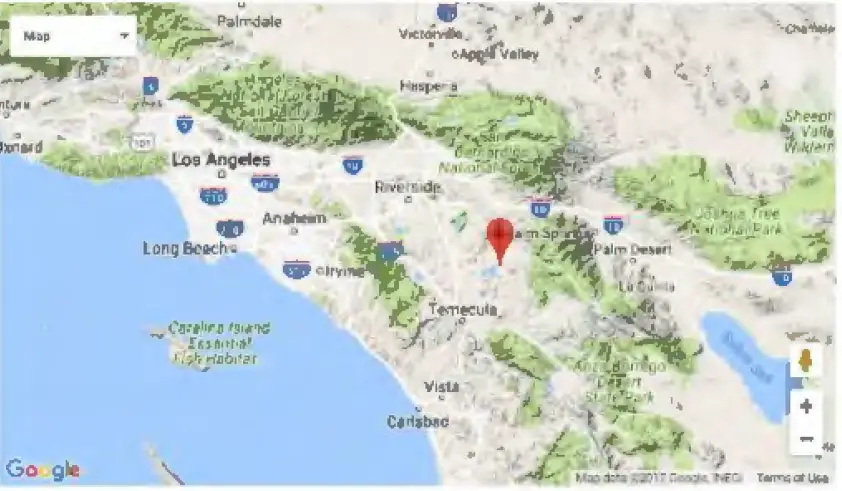
- Use the Link Below to determine the TV Signal quality in your area. Simply input your zip code or full address https://www.fcc.gov/media/engineering/dtvmaps
- Your results will tell you how many channels you can receive at your home.

- Results like this means you can receive many channels
TV STATION STORAGE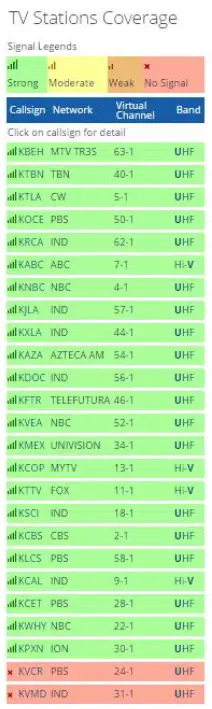
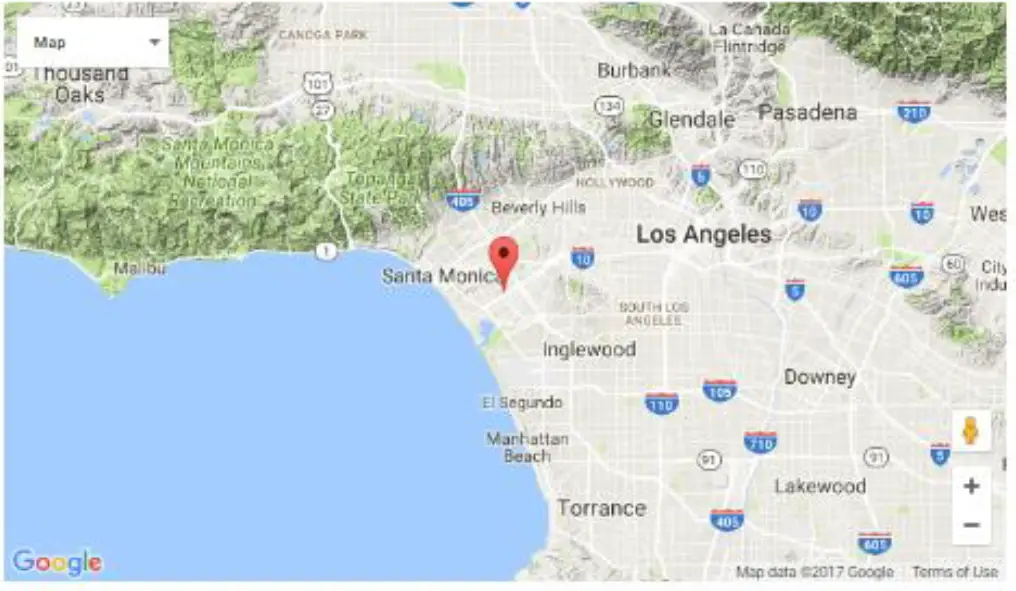
- Results like this means you can receive some channels. Check to make sure the channels you want to watch are Green
TV STATION STORAGE
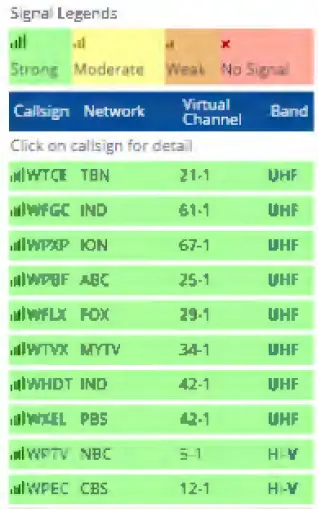
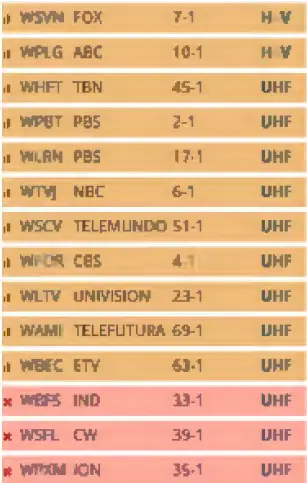
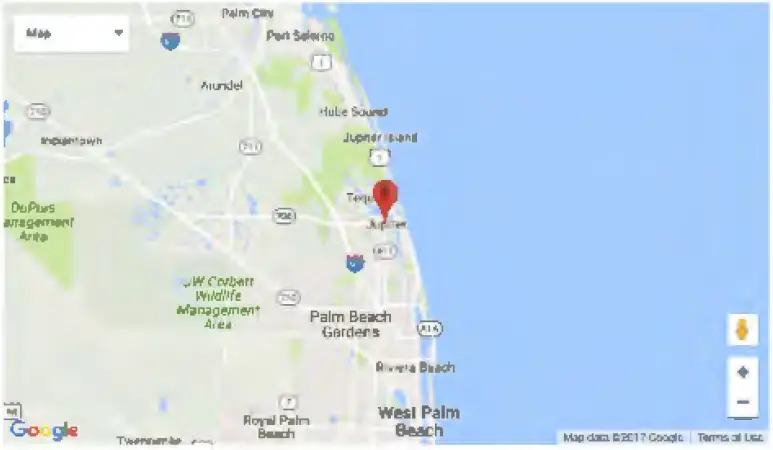
How to check the TV Signal Quality in your area, if you don’t have a good signal you may want to simply return the product, you may require an outdoor antenna
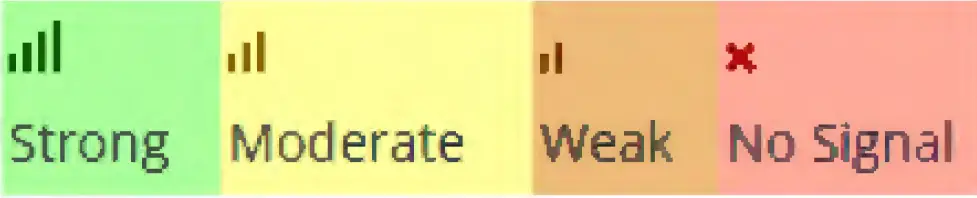
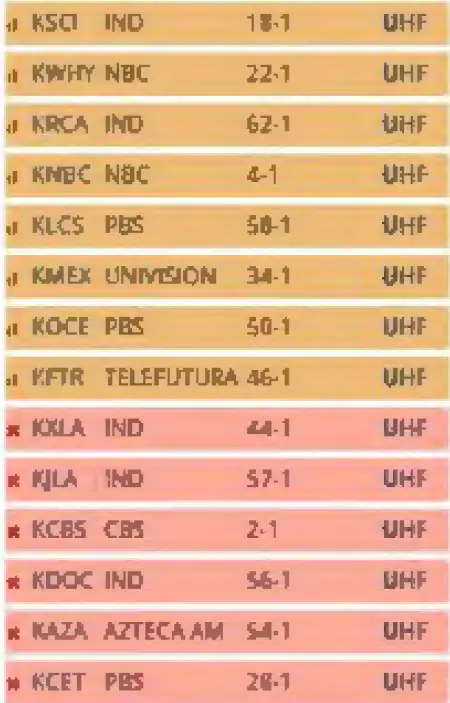
- Results like this means you may receive only a few channels and may want to request a refund. *This type of result may require you to use an outdoor antenna
TV STATION STORAGE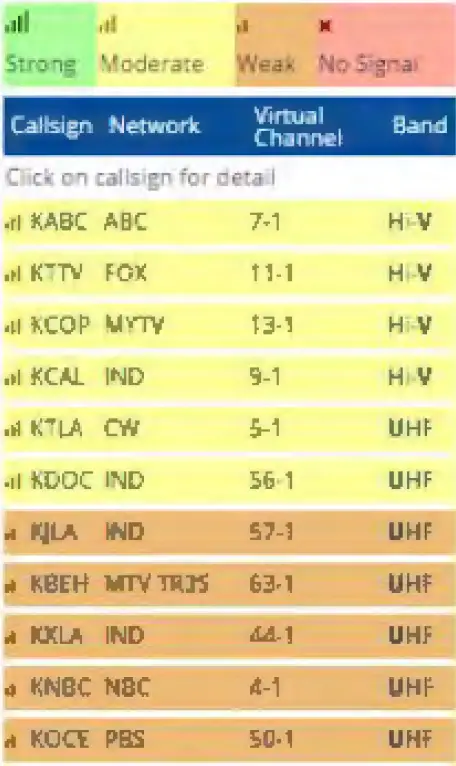
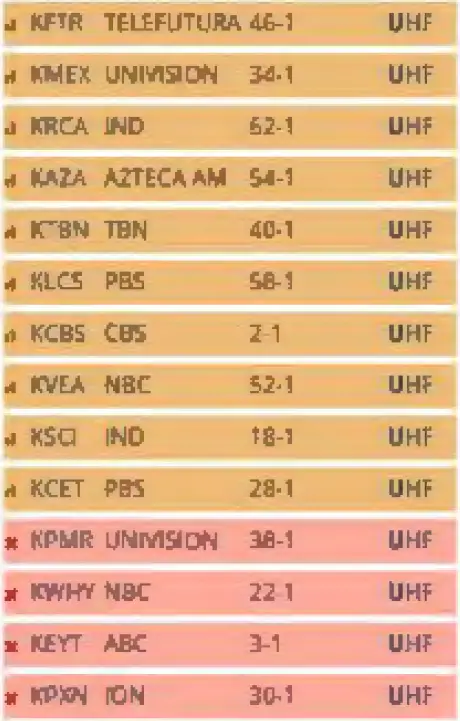
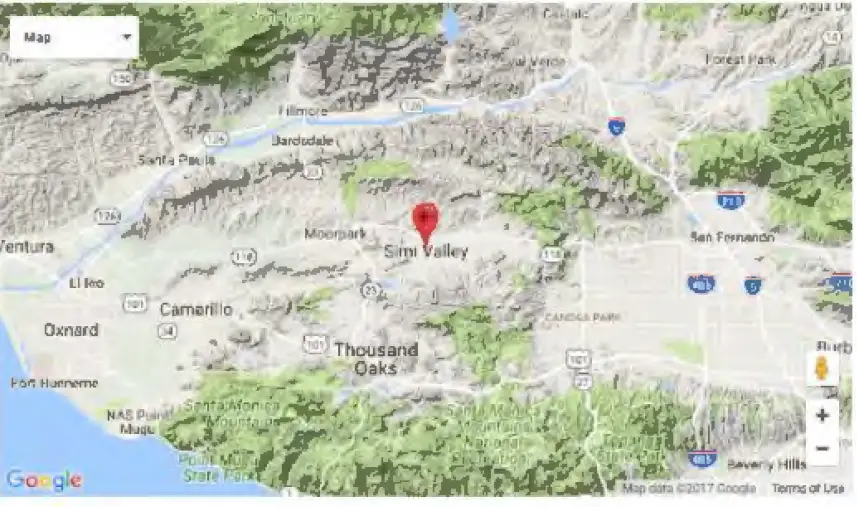
- Results like this means you cannot receive most channels and should immediately request a refund. *This type of results may require you to use an outdoor antenna
TV STATION STORAGE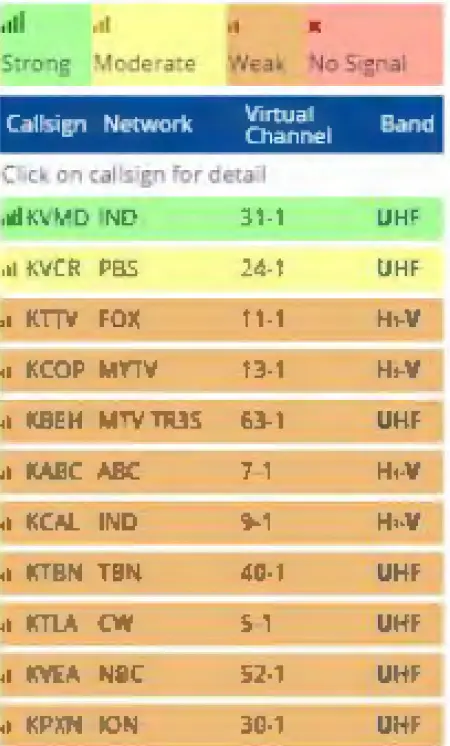
How to set your TV up to receive an Antenna Signal
- Get the original TV Remote

- Find the original TV Manual or download the TV manual by searching the Brand and Model Number click below for a TV Manual download site: http://tv.manualsonline.com/
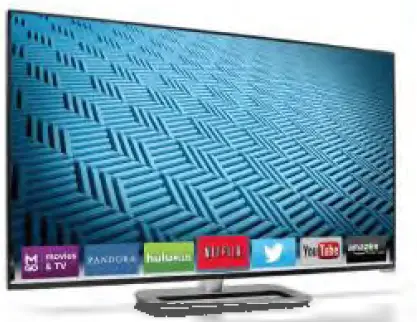
- Once you have your TV Manual in your hand or downloaded-go to the section in your TV manual called “Tuner’ or “ TV Setup ” or Source”
- You are looking for information on setting up the “Tuner or Source”. Once you find this section follow your manuals instructions to set your TV to receive a signal from an “Antenna” or “Air”.
Note: Your TV is probably set to receive a signal from “Cable” if the TV was previously connected to a Cable Box. It is not possible to use the Antenna if you do not switch your TV from “Cable” Input/Source to “Antenna/Air”
- Once you have switched to “Antenna” you should “ Scan for Channel’s ”, make sure to place your antenna in your desired location before scanning for channels.
How to set your TV up to receive an Antenna Signal
If you cannot find your TV Manual or download it please use these basic instructions
- Get the original TV Remote
- Navigation The On Screen Menu
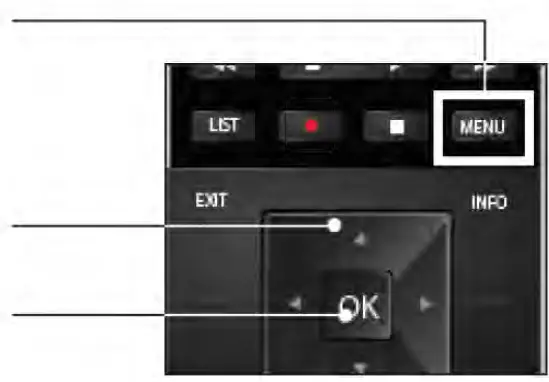
- Press the menu button on the remote to open the on screen menu
- use the arrow buttons to highlight menu options
- press the Ok button to select the highlighted option

- Navigation The On Screen Menu
- Press “Menu” then find the “Settings” or “TV Settings” Navigate to the “Tuner” or “Source” Section

- In the Tuner section set the Tuner to “
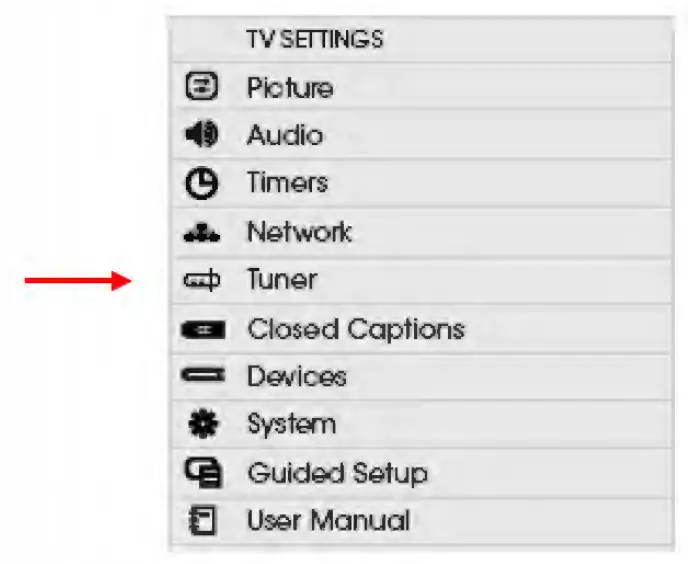
Selecting a Tuner Input
Select the type of tuner input you will be using. You can select either Antenna (Over the air) or Cable (Cable Company) connections. You want Antenna or Air
- From the TUNER menu, highlight Tuner Mode and press OK. The TUNER MODE menu displays.

- Highlight Antenna and press OK . Press EXIT
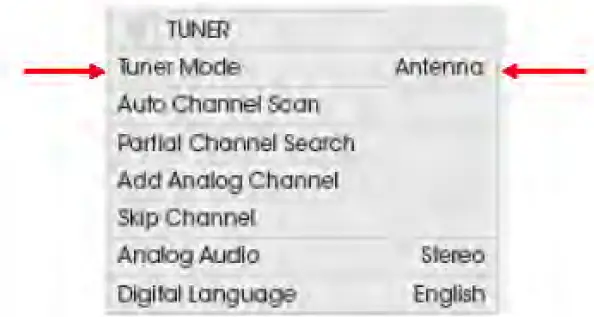
NOTE: The TUNER Section may be called the SOURCE section on your TV menu.
Scanning for Channels
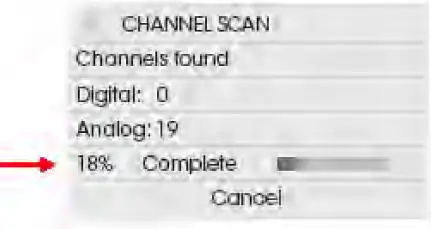
Before the TV can detect and display channels and their associated information, you must scan for channels. A channel scan may also be necessary when the TV or Antenna has been moved to a new location.
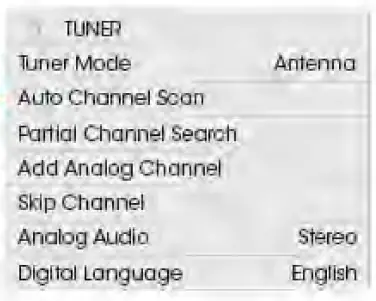
To perform an Auto Channel Scan:
- From the TUNER menu, highlight Auto Channel Scan , and press OK . The auto channel scan begins.

- Wait until the channel scan is 100% complete.
- Press the EXIT button on the remote.

Suggestions if you have problem with reception
- Place the Antenna as high as possible
- Place the Antenna in a Window (best signal)
- Stand the Antenna up
- If you live within 10 miles of the TV Towers you may need to unplug the signal amplifier ” as it can overpower the
- Use the WatchFreeHDTV Antenna Pointer APP to determine which direction the Towers are from you TV Room and make sure the Antenna is facing that direction.
- Search “ WatchFreeHDTV ” in Apps
- Common problems and solutions include:
- TV reception has not been changed from Cable input to Antenna/Air input. What to do: Input is changed through the TV setup process in the main TV menu. The TV will not scan for channels if this is not changed, so if you can scan for channels see more info below.
- Antenna reception and picture quality may be affected by local terrain and obstructions such as hills, mountains, buildings, and even trees. What to do: Use our App to determine the direction of your nearest broadcast tower and see if there are obstructions in that direction. Try repositioning the antenna in different locations, re scanning for channels afterwards. Try mounting the antenna up as high as you can, like a window.
- Channel reception and picture quality may also be affected by the range and direction of your nearest broadcast tower. What to do: Use our App to see the exact direction of the nearest broadcast tower and face the antenna towards this tower.
- Bad weather can affect signal quality. What to do: Try scanning when the weather is clear.
- The amplifier may be causing self oscillation, affecting signal reception. What to do: Removing the power from the amplifier can improve signal strength in some cases. You can do this by unplugging the USB power cable and then rescanning.
- If problems persist, please contact us through Amazon or by email at [email protected] (include your Amazon order ID in the email) and we will get back to you within 24 hours. You can also call our customer help line which is printed on the packaging and installation manual.