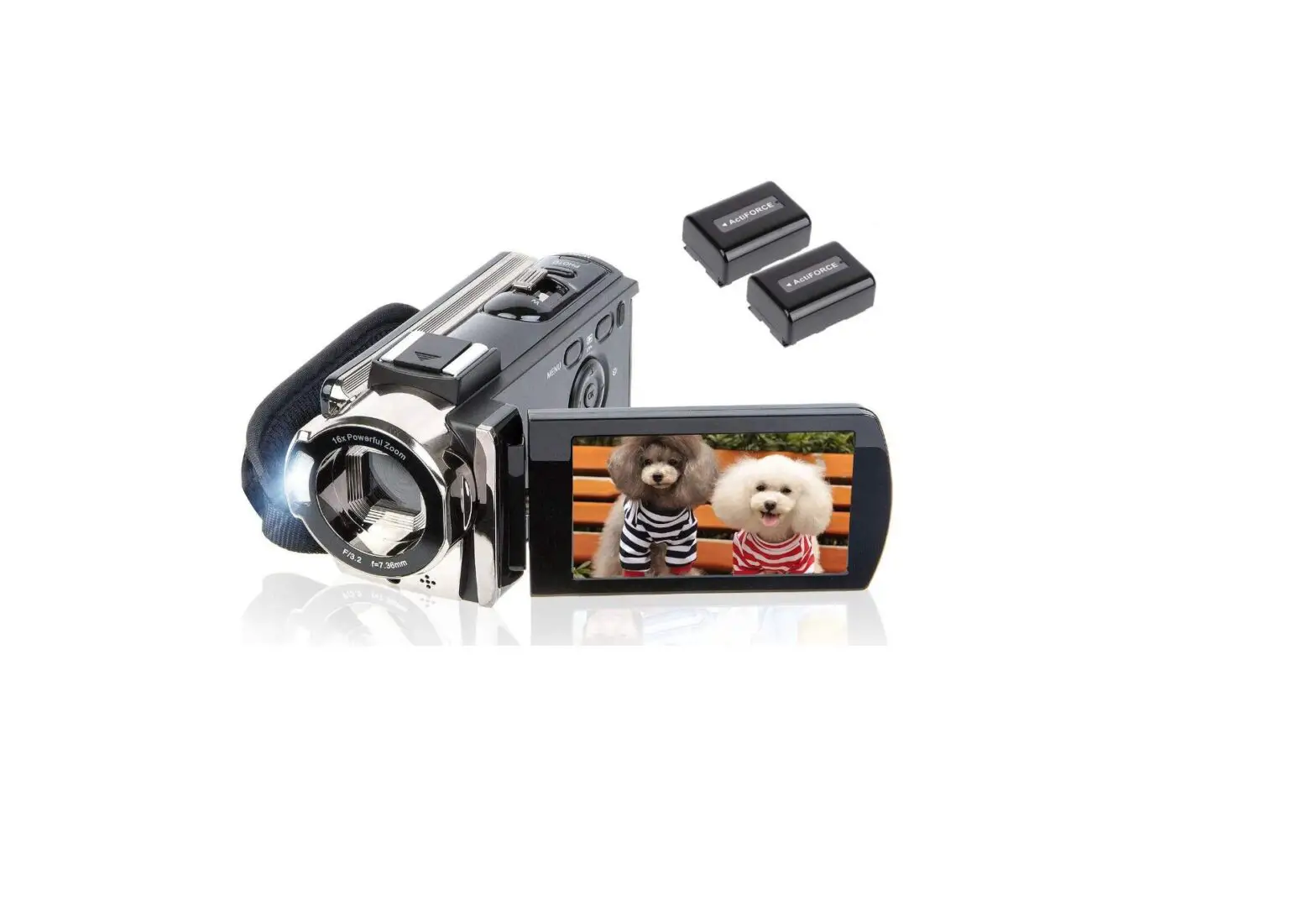

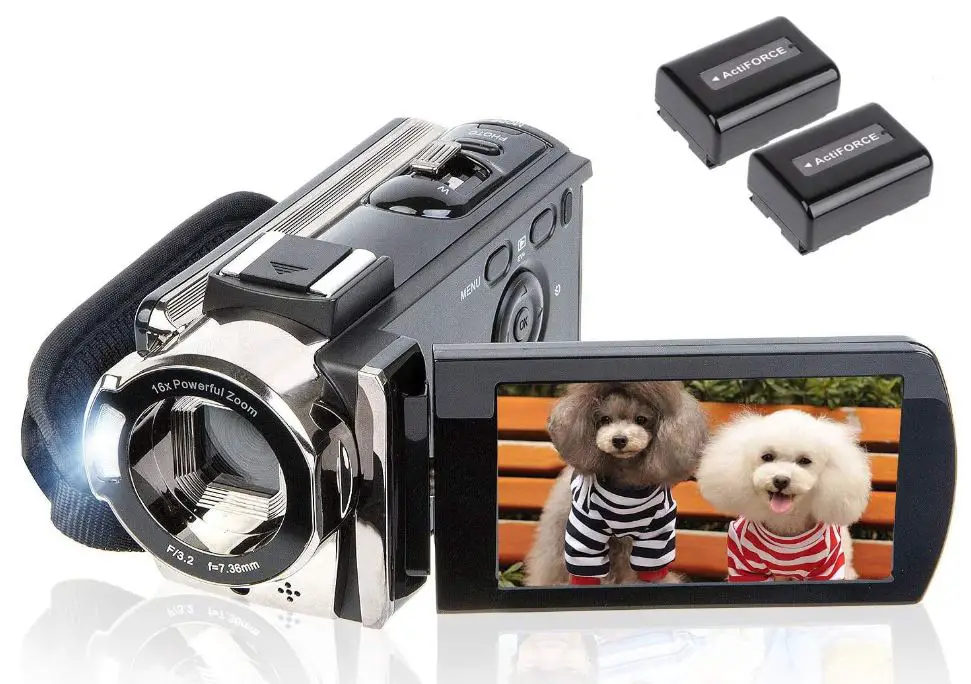
kicteck NP-FV5 Full HD 1080P Video Camera
SPECIFICATION
- BRAND: Kicteck
- CONNECTIVITY TECHNOLOGY: USB
- FLASH MEMORY TYPE: SD
- COLOR: Black
- SPECIAL FEATURE: Lightweight, Anti-Shake
- SCREEN SIZE: 3 Inches
- OPTICAL ZOOM: 1 x
- CAMCORDER TYPE: Video Camera
- MODEL NAME: NP-FV5
- VIDEO RESOLUTION: FHD 1920×1080(15FPS), HD 1280×720(30FPS), 640×480(30FPS).
- FILE FORMAT: image format (JPEG), video format(AVI).
- IMAGE SENSOR: CMOS image sensor, max 24.0 mega pixels.
- DISPLAY SCREEN: 0-inch TFT LCD(16:9), supports 270° rotation.
- OPERATION MODES: Photo/Video. Anti-shaking: Support.
- DIGITAL ZOOM: 16X(Auto focus is not supported; optical zoom is not supported.)
- FACE DETECT: On/Off. Smile Capture: On/Off. Factory Reset: Yes/No.
- VIDEO SOUND: TV Output: NTSC/PAL. Pause function: Support.
- ISO: Auto, ISO100, ISO200, ISO400. Auto Review: Off/1sec/3sec.
- POWER SAVE: Auto-power off in 1min/3min/5min/Off. Multi-Languages: Support.
- CAMERA LENS: Fixed lens, Aperture F/3.2, Focal distance f=7.36mm.
- LED FILL LIGHT: Fill light can’t be used under Playback mode.
PRODUCT DESCRIPTION
The highest resolutions supported by this video camera are 24M (6000×4500) JPEG and 1080P (15 frames per second) AVI. A 3.0-inch LCD screen with 270° rotation, 16X digital zoom, built-in fill light, anti-shake, face capture, beauty function, self-timer, webcam function, pause function, USB 2.0, TV output, and other features is available. There is a webcam feature on the digital camera. Select the “PC CAM” webcam mode after plugging in the computer with a USB cord. Before using the “PC CAM” function, please download the “AMCAP” program. After entering the video interface, you can start a video chat with your pals. The pause feature is supported by the camcorder. Without starting a new one, you can continue the recording in the same file. Afterward, you can use a USB to download the video to your computer.
There are two 1500mAh 3.7V rechargeable batteries included with the digital camera (Model: NP-FV5). One battery can be used continuously for 60 to 90 minutes. Alternatively, you can record videos while they’re charging. In this instance, you can record as many long enough videos as you like without having to worry about the battery running out. SD cards 4GB to 128GB are compatible with the digital camera (The SD card is not included in the package, and please format the SD card before using this camera). You may easily carry the compact, lightweight camcorder around with you. The camcorder can support a regular tripod and an external LED light, but not an external microphone (LED light and tripod are not included in the package).
WHAT’S IN THE BOX
- 1*Digital Video Camera
- 1*USB Charger
- 2*Batteries
- 1*AV&USB Cable
- 1*Dust bag
- 1*User Manual
WARM TIPS
- Before using this camcorder for the first time, please format the memory card (an SD card is not included in the package).
- The camcorder does not accept an external microphone and only supports LED video lights as a light supplement (not included).
- The camcorder is not intended for professional users; it is designed for amateurs.
(Optical zoom is not supported, nor is autofocus.)
INSTRUCTIONS ON USING THE CAMERA
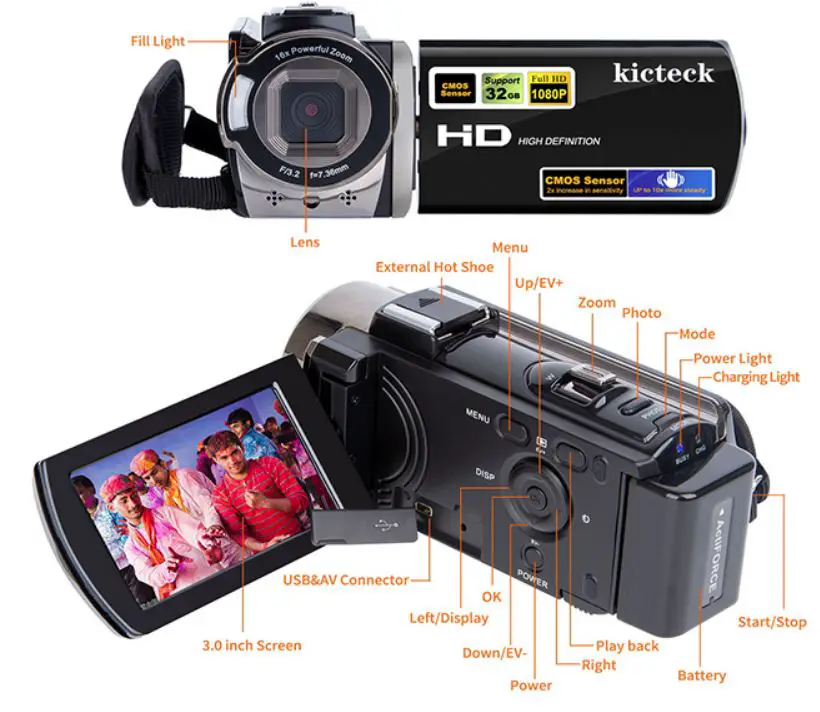
- Insert the memory card and fully charged battery into the camera, then power on the camera by pressing the “POWER” button.
- To access the “Setup” screen and format the memory card, please hit the “Mode” button. Select “Format” and then click “OK” to confirm.
- To move between “Photo/Video/Setup” and other modes, press the “Mode” button.
- Pressing the “Mode” button will switch to the “Photo” mode. To snap a photo, click the “Photo” button.
- To record videos, switch to the “Video” mode by pressing the “Mode” button. To begin the recording, click the “START/STOP” button. The “Photo” button can be used to stop recording. Additionally, click the “START/STOP” button.
- Press the “Playback” button (next to the Menu button) to start playing back photos or videos, and then use the Left/Right arrows to navigate. To playback a video, press the “START/STOP” button; to pause it, press the “Photo” button.
- Press the “Playback” button (next to the Menu button) and then select the photo or video you wish to remove. Then, press the “Menu” button, select “Delete,” and then press the “Delete” button to finalize the deletion.
- How to change the volume: Playback must be active in order to change the volume. To change the volume, use the zoom toggle.
- Press the “OK” button to turn on the fill light, and then press it again to turn it off.
HOW TO CONNECT TO COMPUTER
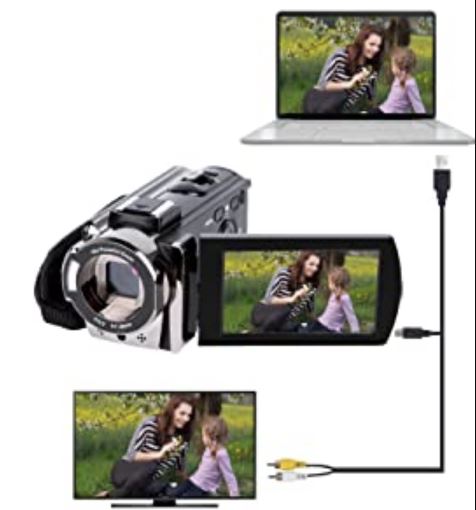
- Be sure to switch on the camera and individually plug the AV and USB cables into the camera and computer ports.
- When the driver installation is finished, the computer will automatically install the necessary software.
- Please press the “MODE” button on the camera to select the “MSDC” mode, then access the U disc to view the camera files.
HOW TO CONNECT TO TV
- Be sure to separate the AV and USB cables and place them into the TV and camera ports.
- Please enter this mode and select AV as the TV signal source.
- The TV screen will be utilized as the camera screen when the camera screen automatically turns off (normal behavior, no malfunction).
Please press the camera button so that it can be shown on the TV.
HOW TO USE THE CAMERA AS THE WEBCAM
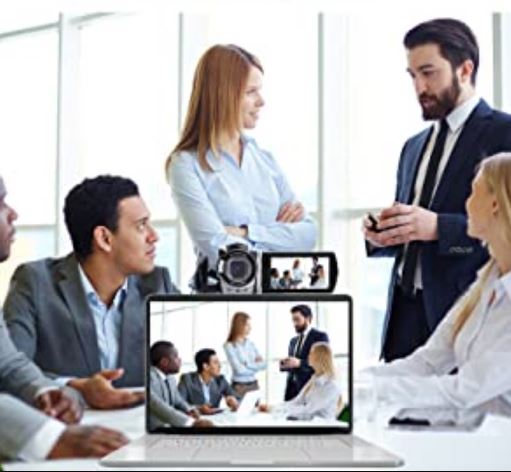
- Ahead of using the PC CAM function, please download the “AMCAP” program from the Internet.
- Please use the AV&USB cable to connect the camera to the computer. Press the camera’s “MODE” button to enter “PC CAM” mode.
- After you have opened “AMCAP,” you can utilize the camera as a webcam.
FAQs
No.
Yes.
No.
No.
No.
No. Overall, it’s too small.
Memory Card: Support SD memory card and MMC card, 4GB up to 32GB.(The SD card is not included in the package, need to purchase separately)
Video Resolution: FHD 1920×1080(15FPS), HD 1280×720(30FPS), 640×480(30FPS).
Make sure you remove the lens cap.
The camera can record videos of about 7.38GB per hour.
This is an amateurs camera, no recommend for high speed recording.
Operating system requirements: Windows 7/8/10/2002/XP/Vista/macOS.
This camera does not support en external mic.
the driver should be downloaded automatically when you connect it to your computer.
You don’t need to buy any software to use it as a webcam, you just need to finish the set, and then you can use it.