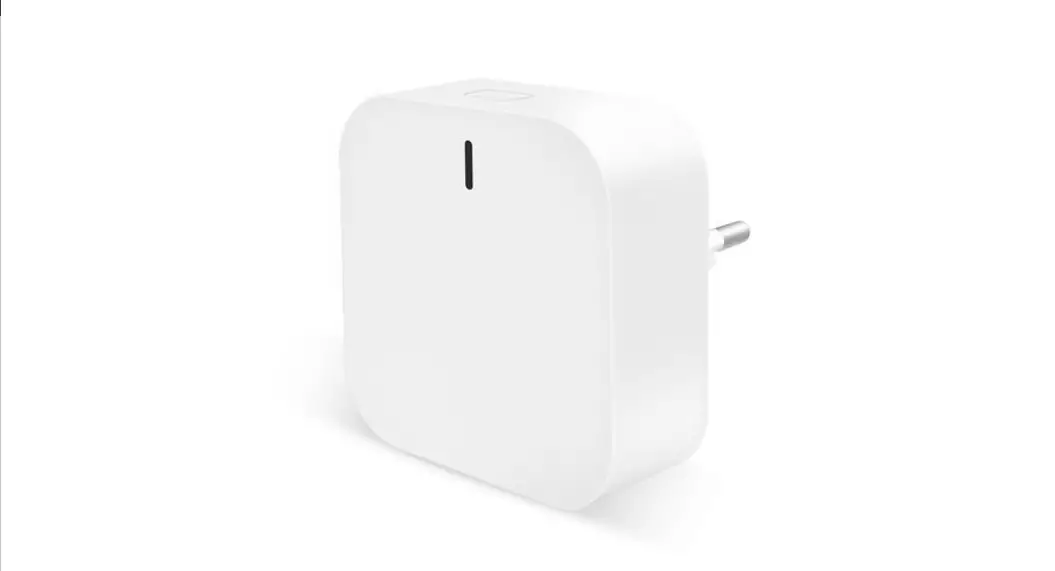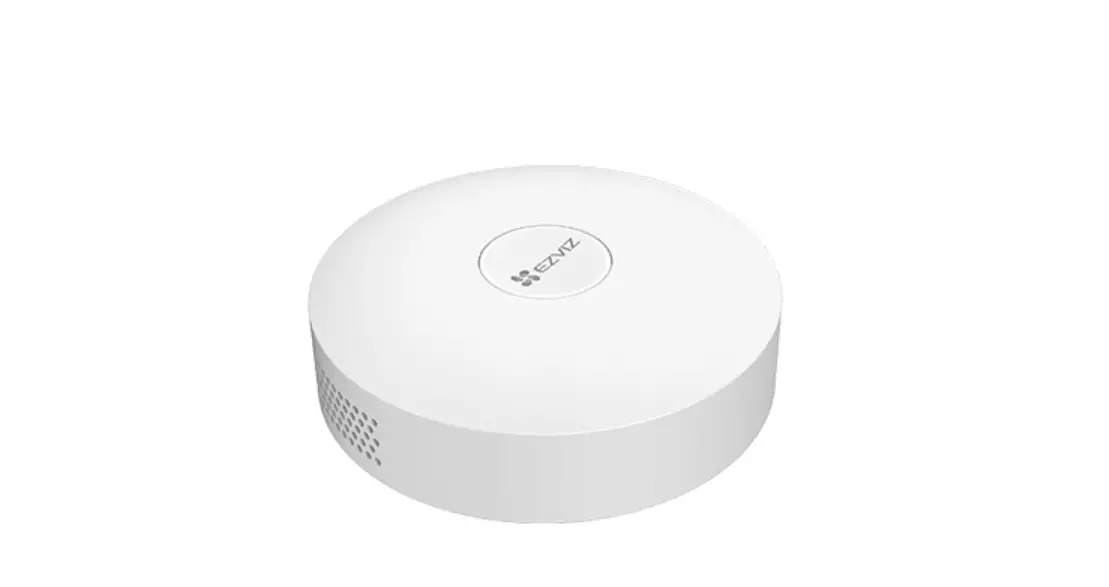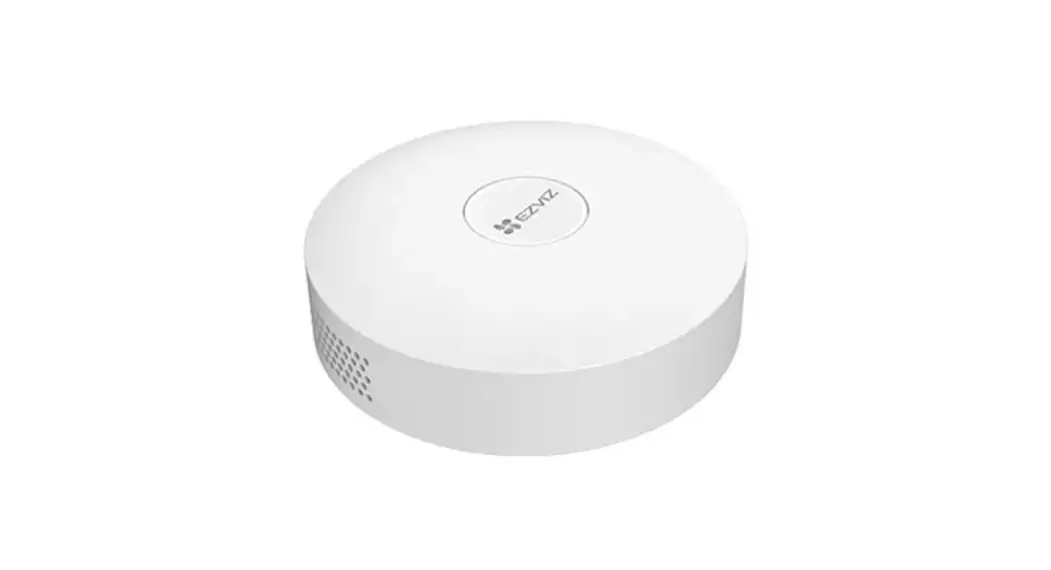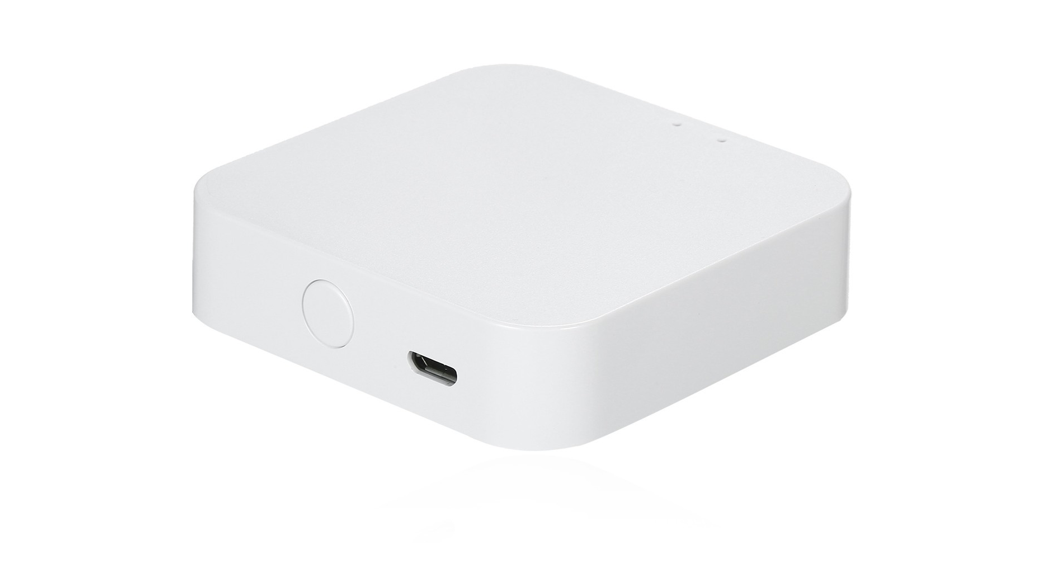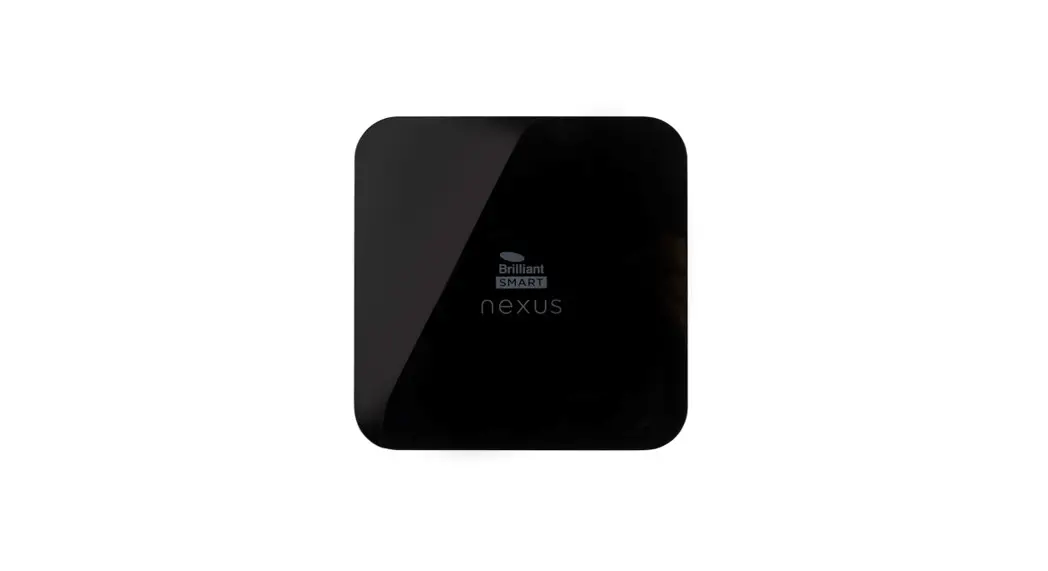



Nexus Gateway Home Lite 21463
QUICK START GUIDE
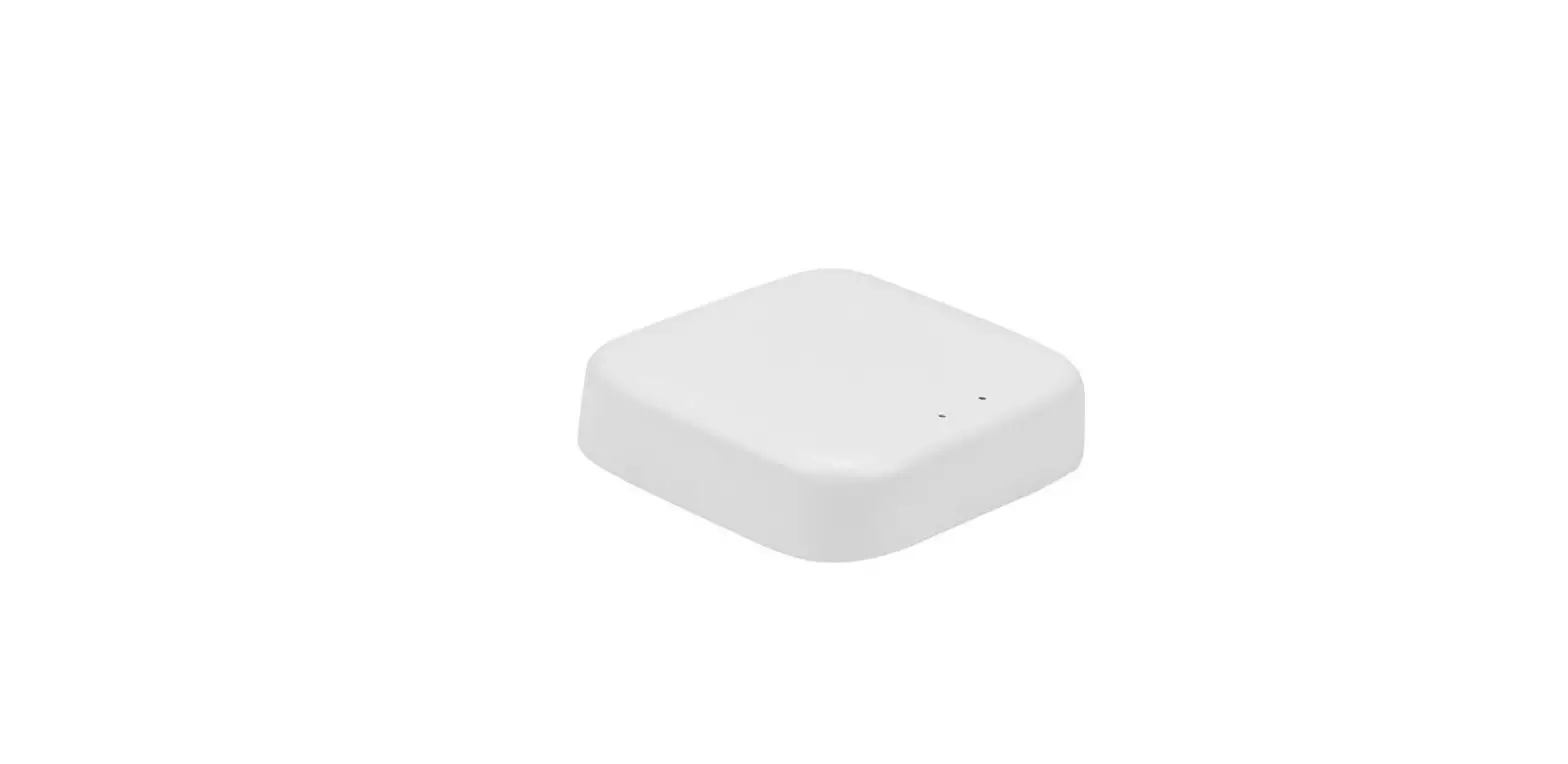
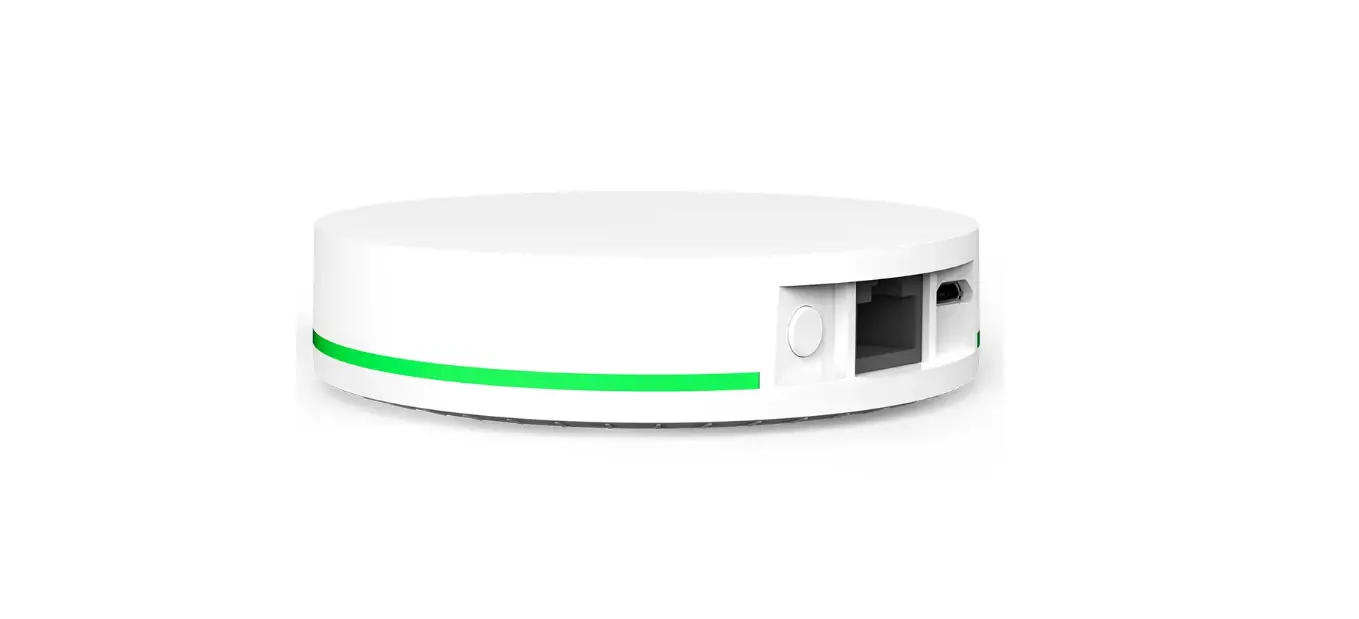
Nexus Gateway Home Lite is a universal remote and automation gateway that allows total control of all your BrilliantSmart devices, compatible Infrared (IR) controllable devices, and selected WiFi-enabled smart home devices through a simple and easy to use mobile APP.
Nexus Gateway Home Lite Supported Devices:
- IR Devices: Most brands of Air Conditioners, Televisions, and other A/V devices.
- WiFi Devices: BrilliantSmart devices, lighting, security, sensors, air-movement, garage doors, curtains/blinds, irrigation, plus many more devices.
- Smart Speakers: Amazon Alexa & Google Assistant smart device range.
Nexus Gateway can be used for voice control with
Amazon and Google control your smart devices.
Box content
Nexus Home Lite universal gateway (model 21463) x 1
Power Adaptor x 1
USB Cable x 1
Mounting plate x 1
Mounting screws x 3
Quick Start Guide x 1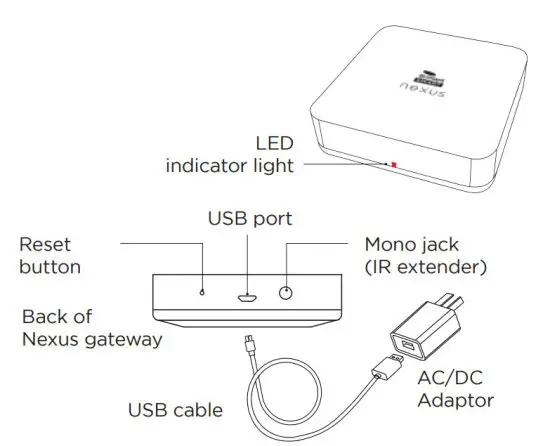
BEFORE INSTALLATION, PLEASE CHECK THAT THE LOCATION OF THE BRILLIANTSMART NEXUS GATEWAY IS WITHIN RANGE OF YOUR HOME WIFI AND SIGNAL IS STRONG.
The Nexus gateway requires a line of sight to your infra-red devices. This means the Nexus is ideally mounted on your ceiling or wall for the best range. Alternatively, it can be placed on a shelf or entertainment unit as long as there is an uninterrupted line of sight to the infrared devices intended to be controlled.
Note: Nexus must run on its own power source. The power socket distance is no more than 1m.
Mounting plate installation:
If you are mounting onto the wall/ceiling, mark the location. Drill the holes and use the screws provided to fix the mounting plate at the desired location. Mount the gateway onto the mounting plate hooks. 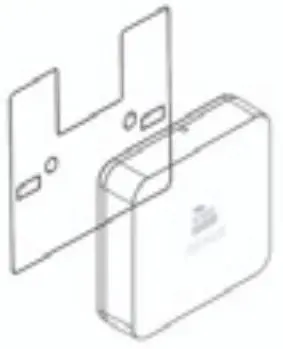
Alternatively, you can purchase a downlight ceiling mount kit (model 21575/06) and attach your Nexus gateway to this kit and replace one of your existing downlights with the gateway. We recommend you use a licensed electrician as the Nexus Gateway requires its own power source (separate from your existing downlights).
Installation
- Ensure you have installed & registered the BrilliantSmart Nexus App on your mobile device. Ensure your mobile device is connected to your 2.4GHz WiFi network.
- Unpack the fixture carefully and dispose of the packaging material thoughtfully.
- Place your BrilliantSmart Nexus Home Gateway into the desired location (either mount to the ceiling or wall or place in a location with a power socket within 1m range).
- Ensure your power socket is switched off.
- Plug the USB cable into the gateway USB port, then plug the other end of the USB cable into the AC/DC power adaptor. Ensure the plug is firm.
- Plug the AC/DC power adaptor into the power outlet.
- Turn on the power and your Nexus gateway will be ready for WiFi pairing.
NEXUS GATEWAY LED INDICATOR LIGHT STATUS
| Solid Red | Ready to connect/pair to your BrilliantSmart Nexus App via WiFi |
| Blinking Red | Unable to connect to your WiFi network |
| Blinking Blue | Not able to connect to your WiFi internet |
| Solid Blue | Connected/paired with the BrilliantSmart Nexus App and WiFi |
If you need to reset your Nexus Gateway, please press and hold the restart button for 10 seconds.
Your Nexus Gateway LED indicator light should change to solid red ready for pairing.
Connect to your WiFi
Ensure your mobile phone is connected to your 2.4GHz WiFi network. Your mobile phone and smart device need to be within the 2 bar range of your WiFi router. We suggest for the initial connection, you remove your mobile device’s protective cover to ensure a strong WiFi signal.
Download the BrilliantSmart Nexus App
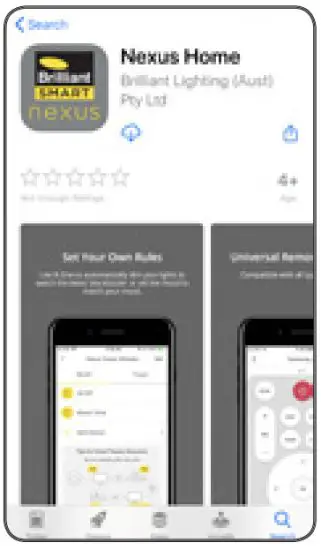
Please download the free
BrilliantSmart Nexus App from the
App Store or Google Play Store, or scan the QR code below.
https://www.brilliantsmart.com.au/nexus/downloadapp.html
Register the BrilliantSmart Nexus App
Open the BrilliantSmart Nexus App.
Register a new account or if existing user, log in with your user name and password.
For new users – create your new account and press ‘Sign Up. The App will send you an email to verify your email address.
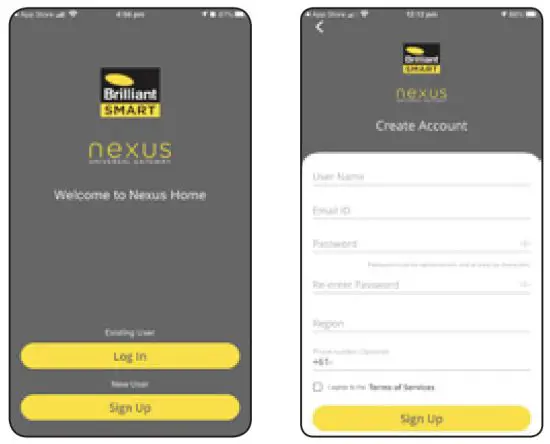
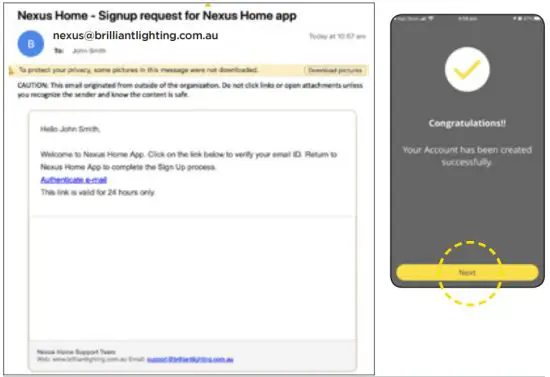
Go to your email account and select the Nexus home – signup request email.
Select ‘Authenticate email’ and this will open your browser and ‘Verify’ your account.
Go back to the BrilliantSmart Nexus App where you will receive a ‘Congratulations’ notification. Press ‘Next’.
Add your BrilliantSmart Nexus gateway to your App
- Select the correct Nexus Gateway. You can rename the Nexus Gateway to one of your choosing – eg: Smith downstairs. Smith downstairs Press ‘Next’.

- Ensure your mobile device is connected to your 2.4GHz WiFi network. Your mobile device and Nexus Gateway needs to be within the 2 bar range of your WiFi router. We suggest for the initial connection, you remove your mobile device’s protective mobile phone cover to ensure a strong WiFi signal.

- Power on your Nexus Gateway.
- The LED indicator light should be SOLID RED which means it’s ready to pair with your BrilliantSmart Nexus App. Select ‘Next’.
 Ensure your mobile device and your Nexus Gateway are within 5m of your WiFi router. Smith downstairs.
- Select the Nexus Lite Gateway.
- Ensure the correct WiFi network is listed or press‘Select Wi-Fi’ to select another network. Enter your WiFi network password and press ‘Connect Wi-Fi’. Your gateway will start connecting to the WiFi.

- Your Nexus Gateway connects to your WiFi network, Cloud, and the BrilliantSmart Nexus App. You will receive a ‘Congratulations’ screen when successfully connected to your WiFi network and your BrilliantSmart App.

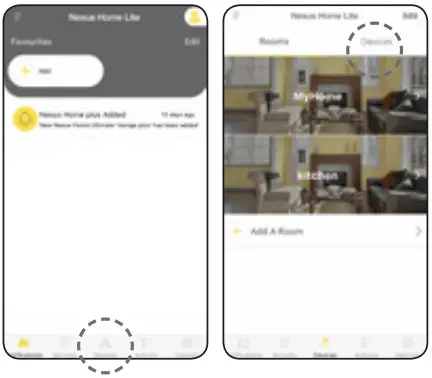
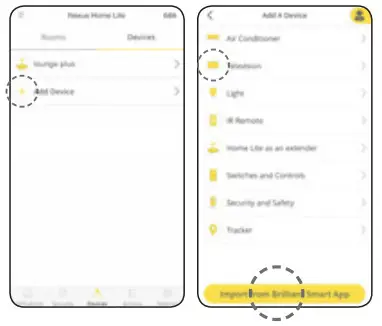
- Select devices to add to the Nexus App. Select ‘Rooms’ You can add rooms to the App with a photo. Select ‘Devices’ To add your devices to the App select ‘Add a Device’.

- Select the device you want to add and follow the instructions.

- To import all your BrilliantSmart devices, select ‘Import from Brilliant Smart App’ and follow the instructions.
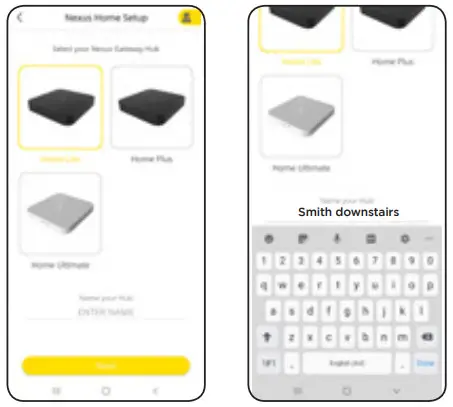
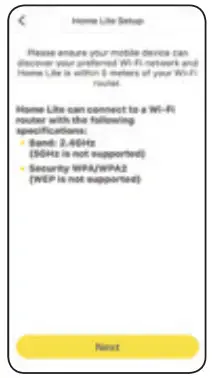
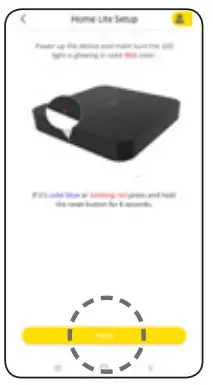 Ensure your mobile device and your Nexus Gateway are within 5m of your WiFi router. Smith downstairs.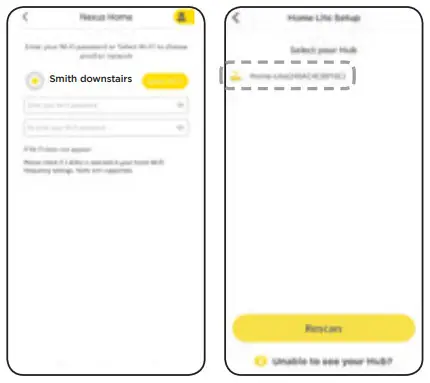
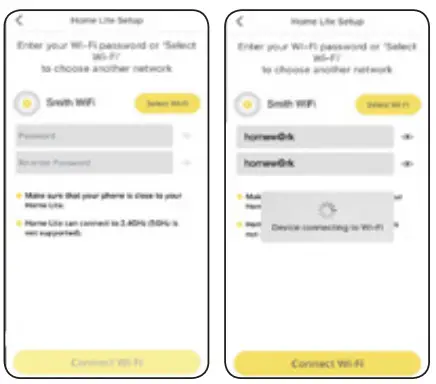
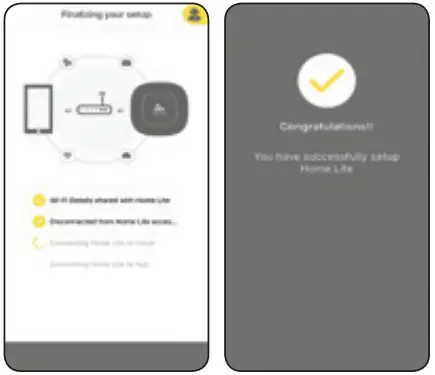
For full instructions on how to pair, add devices, add voice control, and for more features – you can download the full user manual from our website. Please go to: www.brilliantsmart.com.au/nexus
Warning
- To prevent injury DO NOT open or tamper with the internals of this device.
- Power surge/power loss could possibly reset the nexus gateway. If this happens follow setup instructions.
- Disconnect the nexus gateway from the power supply before cleaning. Clean with a damp cloth, do not use detergents under any circumstances.
- Keep out of reach of children.
- Do NOT touch the nexus gateway with wet hands due to the risk of electric shock.
- Do NOT place the nexus gateway near heat sources such as ovens, microwaves, hot pans
- BrilliantSmart Nexus App screens may differ due to application updates and improvements.
Disposal
Please dispose of this packaging and product thoughtfully once it has passed its useful life. When your smart device comes to the end of its life or you choose to update or upgrade it, please do not dispose of it with your normal household waste. Please recycle where facilities exist. When disposing of this fitting, check with your local authority for suitable options.
Warranty
Brilliant Lighting warrants this product against defects in manufacture and workmanship for a period of 12 months from the date of purchase. Warranty does not include damage or loss arising from incorrect installation, operation, or maintenance of this product, damage caused through modification, or incorrect installation.
Our goods come with guarantees that cannot be excluded under the Australian Consumer Law. You are entitled to a replacement or refund for a major failure and compensation for any other reasonably foreseeable loss or damage. You are also entitled to have the goods repaired or replaced if goods fail to be of acceptable quality and the failure does not amount to a major failure.
Any claim under this warranty must be made within 12 months of the date of purchase of the product.
Refer to our website brilliantlighting.com.au for terms and conditions and warranty claims.
This warranty is given by:
Brilliant Lighting (Aust) Pty. Ltd.
(ABN 37 006 203 694)
956 Stud Road Rowville, VIC 3178
Phone: 03 9765 2555
Email: [email protected]
MADE IN CHINA
Troubleshooting
| Problem: Nexus Gateway does not switch ON | |
| Possible Cause | Suggested Solution |
| No Mains Power | Check connections, fuses, and switches |
| Problem: Cannot link the smart device with BrilliantSmart Nexus App | |
Possible Cause | Possible Cause |
| 1. Modem signal weak | Place Nexus Gateway and modem closer together |
| 2. Router/modem/smartphone firewall is enabled | Disable firewalls on all devices |
| 3. Internet connection is down | Contact your provider |
| 4. BrilliantSmart Nexus App not installed correctly | Remove App and re-install |
For any other problems connecting your Nexus Gateway to the BrilliantSmart Nexus App please visit: www.brilliantsmart.com.au/faqs
Brilliant Lighting
956 Stud Road
Rowville Vic 3178 Australia
www.brilliantlighting.com.au
Australian Sales
T 03 9765 2555
T 1800 817754 (interstate only)
F 039763 0277
E [email protected]
New Zealand Sales
T 09 974 9618
E [email protected]
 brilliantlighting.com.au
 brilliantlighting.com.au
 Brilliant Smart