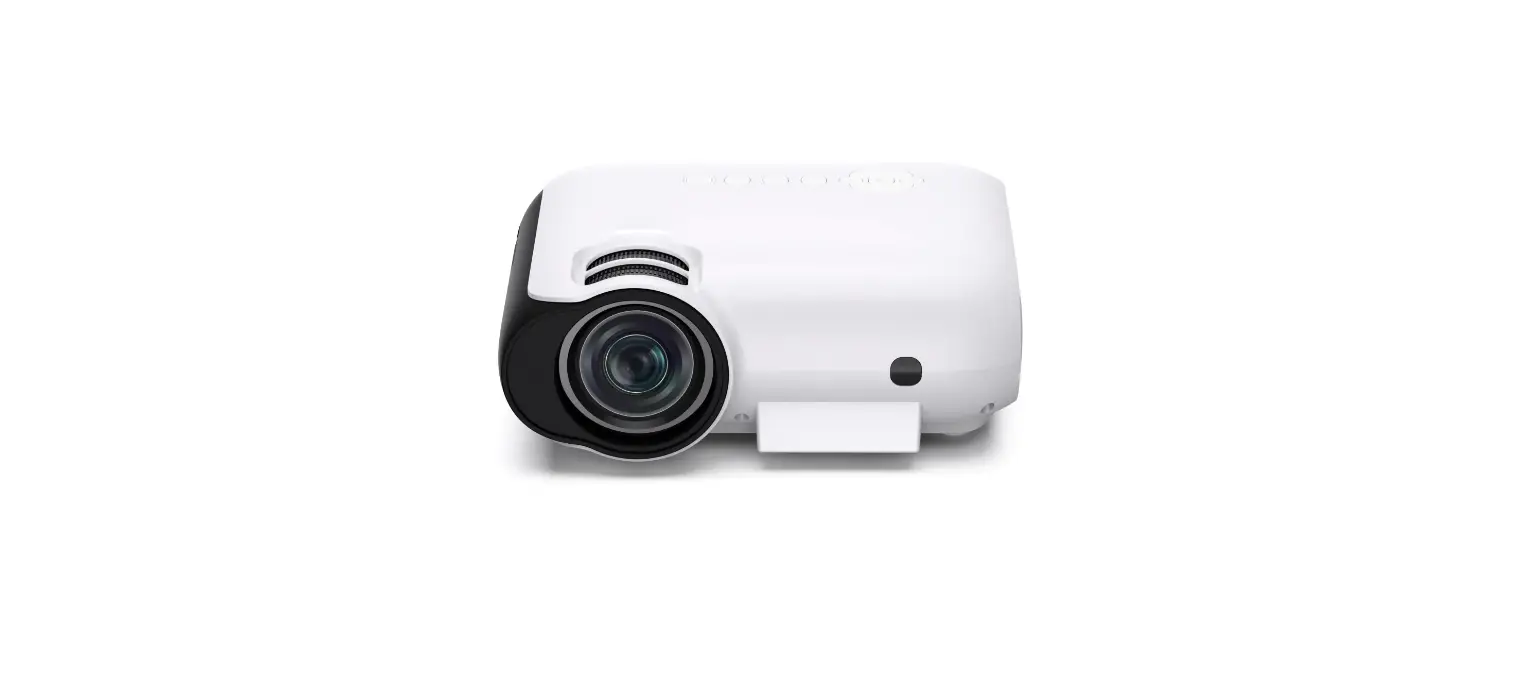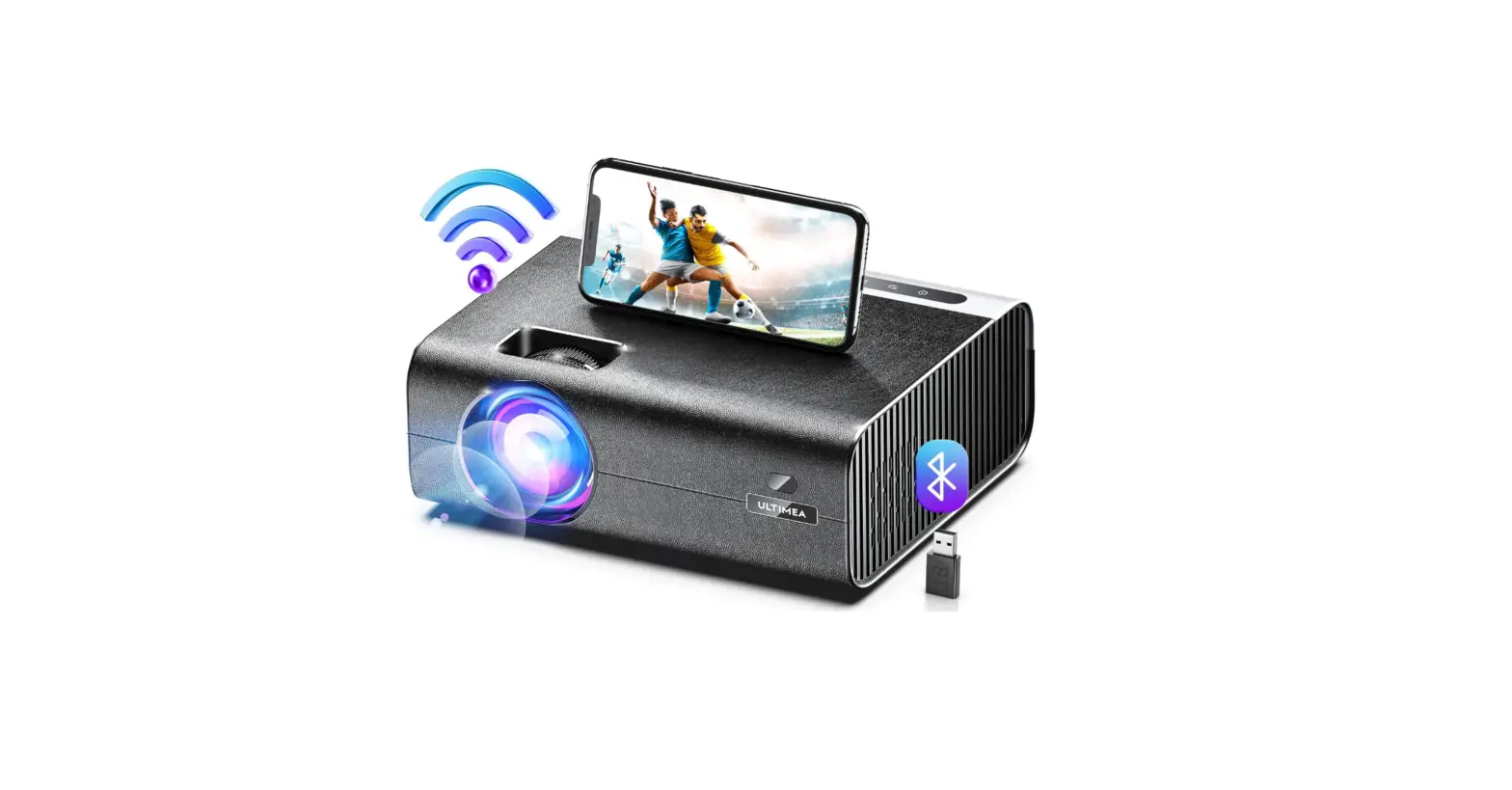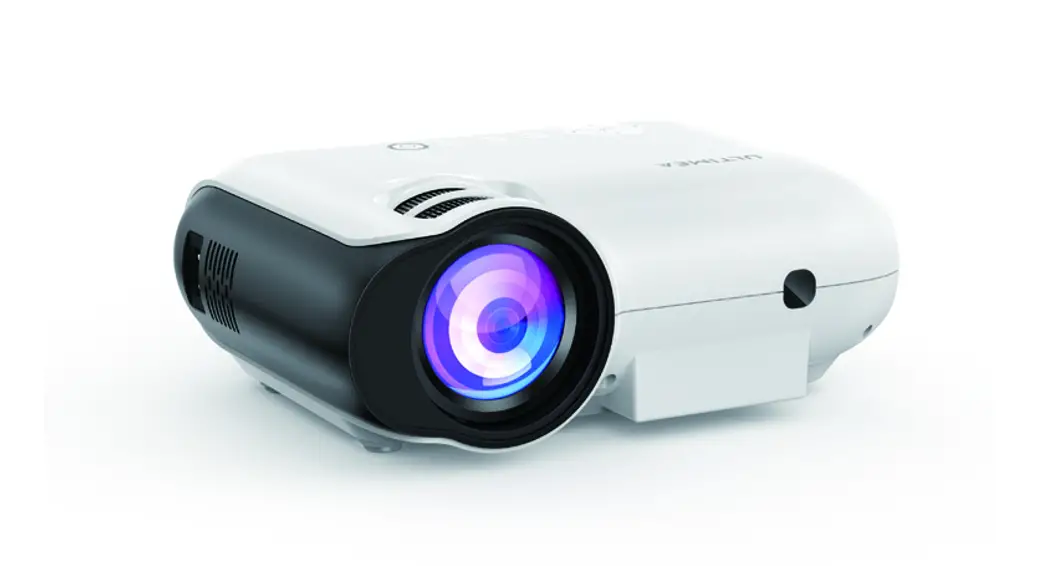
 FULL HD PROJECTOR
QUICK START GUIDE
Apollo P20
Model No: U0321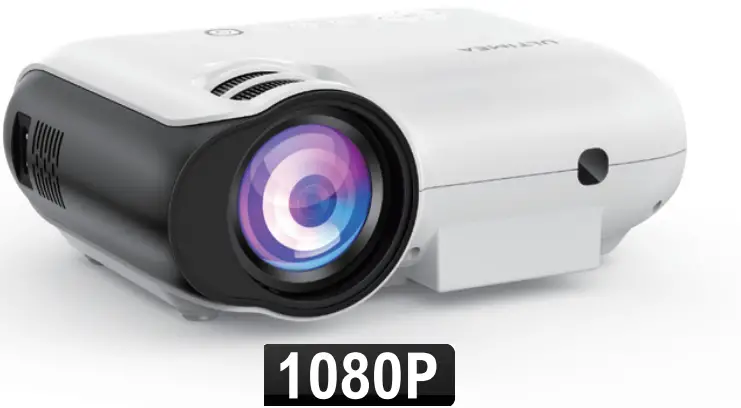
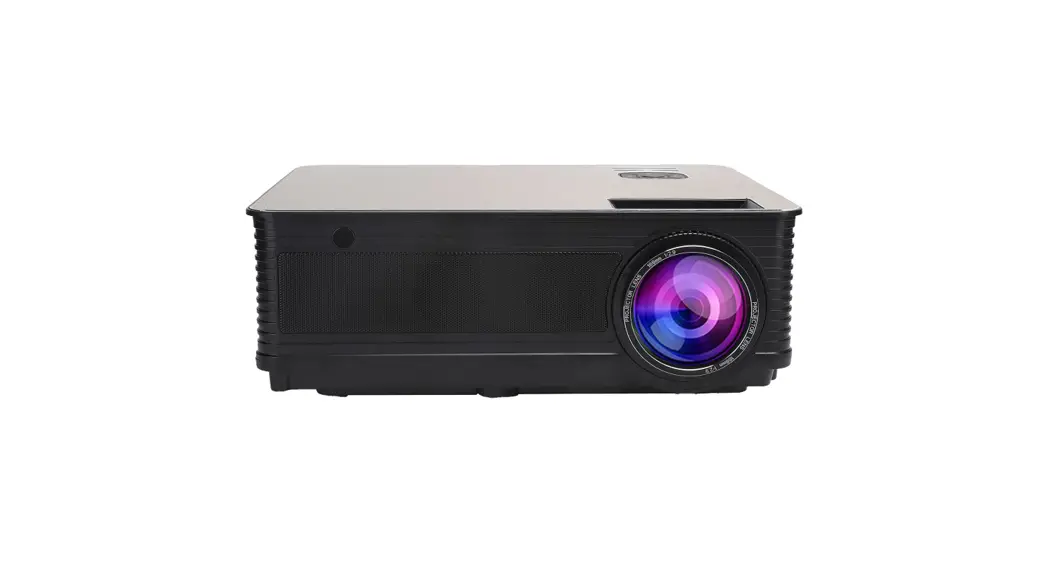
Apollo P20 Portable Projector
WE ARE READY TO HELP
Prefer video tutorial?
Setup guidance video and User Manuals on ULTIMEA website.

@Ultimea_Official
 | +1 888-598-8875 (US) Mon-Fri gam-5pm (PST) |
| +49 89-628-25828 (EU) Mon-Fri gam-5pm (CET) |
IMPORTANT: Before using the projector, please read these set up guide, for more detailed instruction, please go to check the online User Manual. Your product may differ from the illustrations on this sheet, but the instructions are the same.
Note: Due to Type-C protocols, android phone/pad can not be played by USB or HD cable connection.
Accessories List
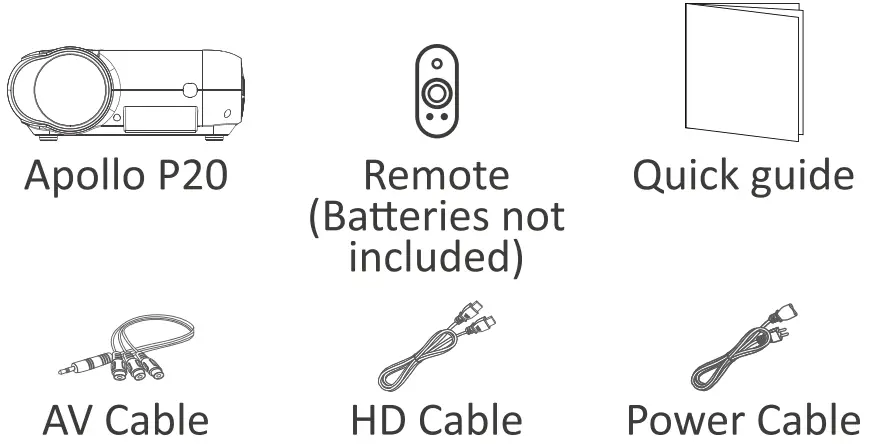
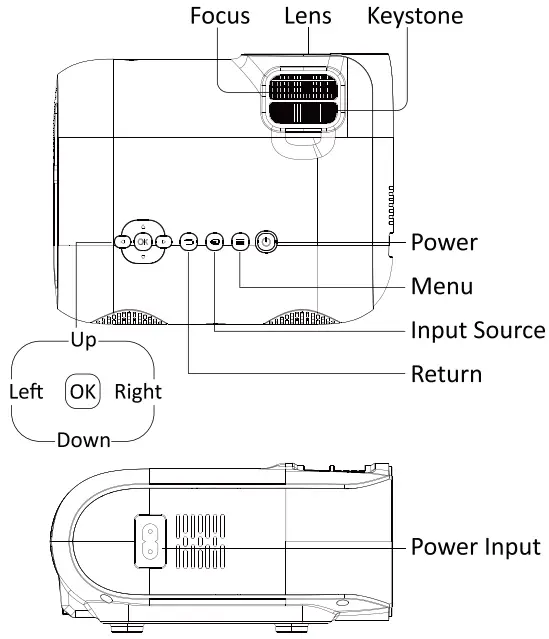
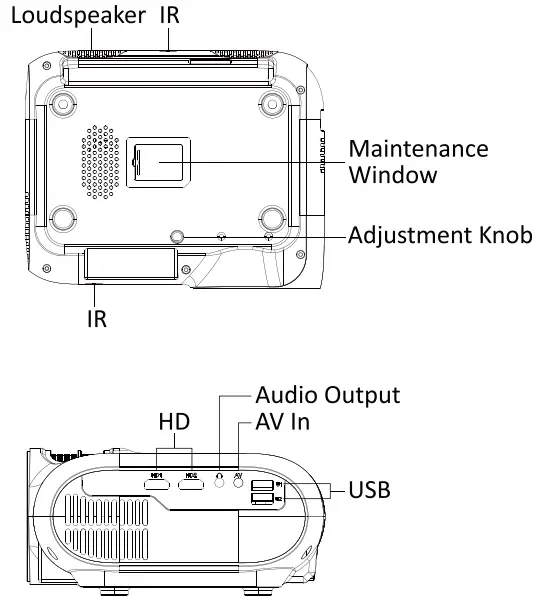
Product
 |  |
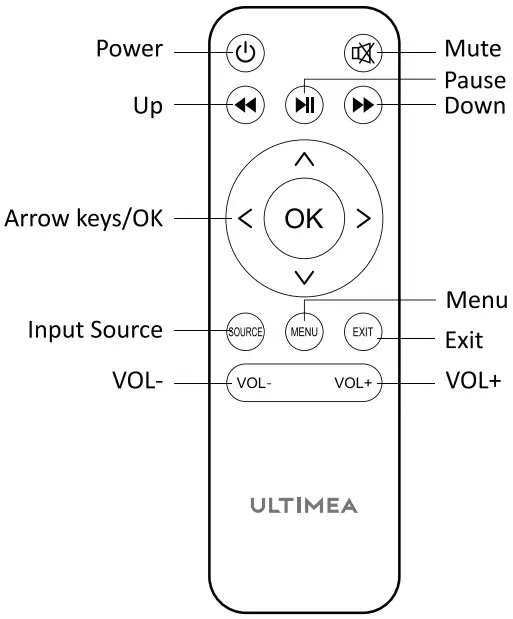
Remote Control
Quick Setup
4.1 Power On / Power Off
Plug in the AC power cord, click the power button on the operation panel of the machine or on the remote control and the projector will start to work. 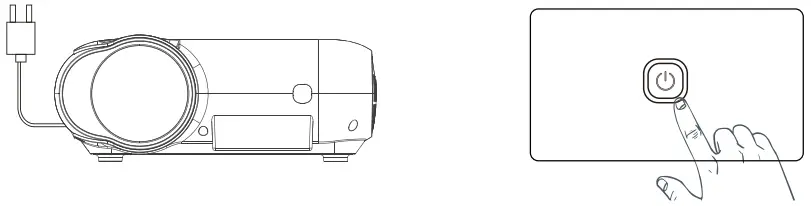 4.2 Projector Installation
You can choose horizontal placement or hanger installation. 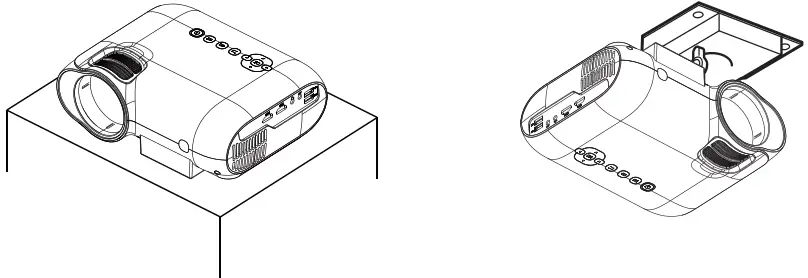
- Horizontal placement
- Hanger installation
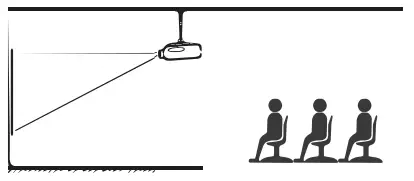 | 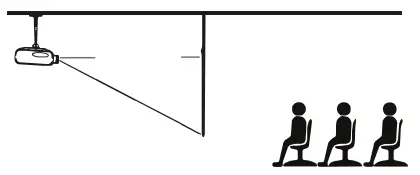 |
| 1. Front projection ceiling mount | 3. Rear projection ceiling mount |
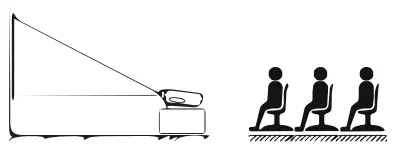 | 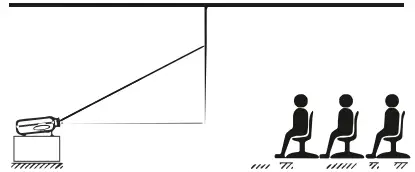 |
| 2. Front projection table mount | 4. Rear projection table mount |
The projection screen can be played from 35″ to 120″. The recommended projection screen i s 40″ to 80”. Ambient darkness will improve the clarity of the projected images.
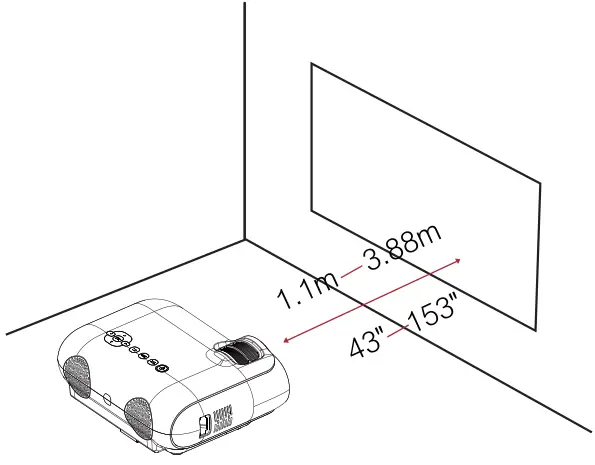 The distance between Apollo P20 and the projection surface must be a miniumun of 1.1 meters (43 inches) and maximum of 3.88 meters (153 inches).
Adjusting the projector image
5.1 Please adjust the dial slowly to bring the picture into focus  5.2 Adjust the Image Projected On the Screen
Check the horizontal and vertical settings of the projector till the image on the screen is balanced. 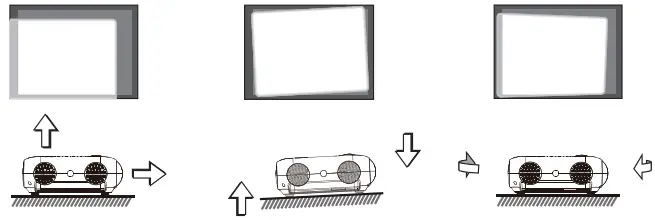
Keystone correction
- Adjust the keystone on the projector to adjust the images shape.

- Adjust the placement of the projector.
When the left side of the picture is wider, move the left side of the projector corresponding to the picture forward; when the right side of the picture is wider, move the right side of the projector corresponding to the picture forward.


Input Source
7.1 Wired Connection to Devices 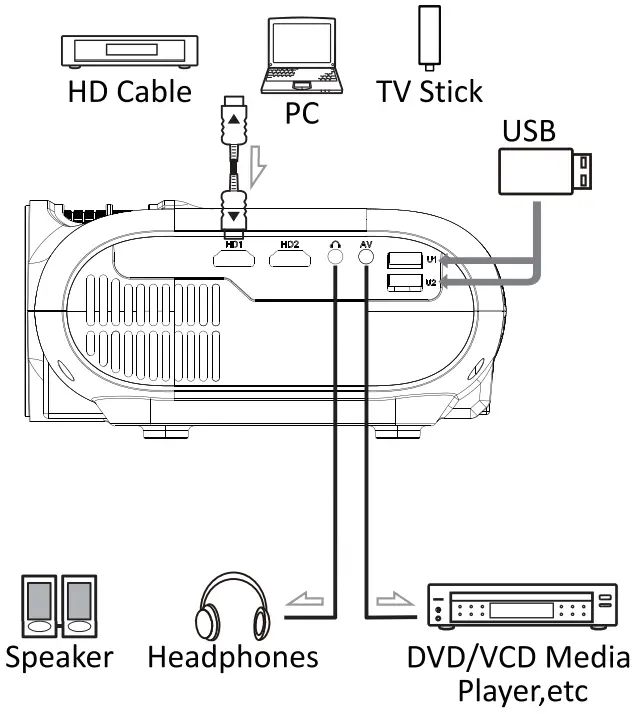 7.2 Fire TV Stick Connection
How to connect the Fire TV stick to the projector:
- Connect the TV stick to power using the USB cable.
- Plug the TV stick to one the HD port on the projector.
- Select the HD option in the settings on the projector.
The content of the Fire TV stick will be displayed on the projection screen. Use the Fire stick’s remote to select and stream your content.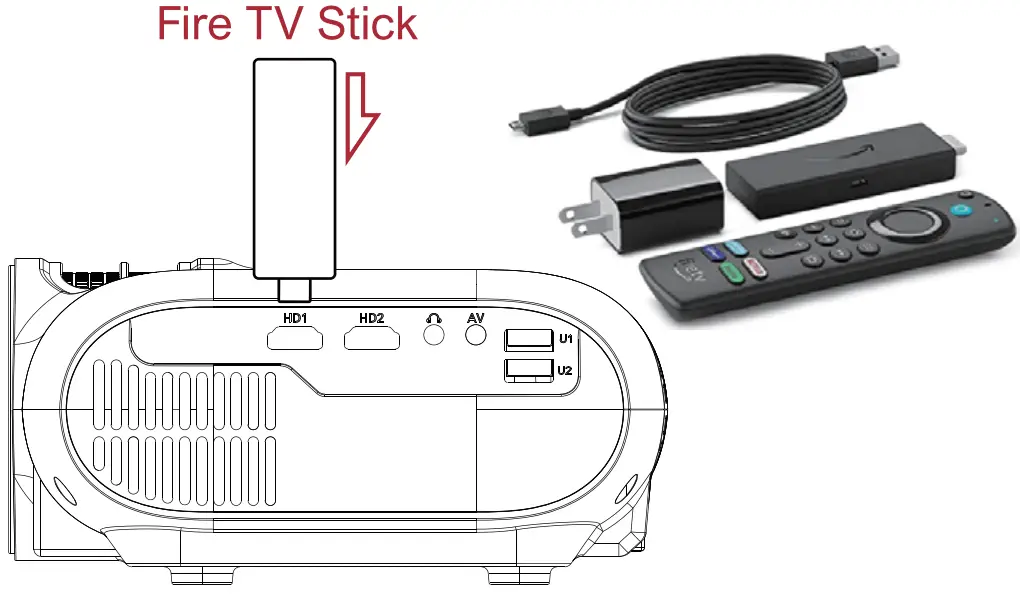 7.3 HD mode
Step 1: Connect the projector and device with HD cable.
Step 2: Press and hold the Source button  of the projector or remote control to enter the input source interface.
Step 3: Select HD1 or HD2 that you had connected, press OK to enter, press return key to exit and return to the main interface of the projector. 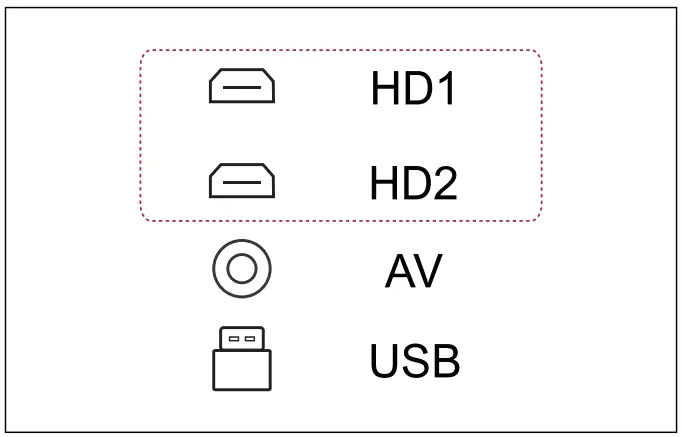 7.4 USB mode
Step 1: Connect the projector to the USB.
Step 2: Press and hold the Source button of the projector or remote control to enter the input source interface.
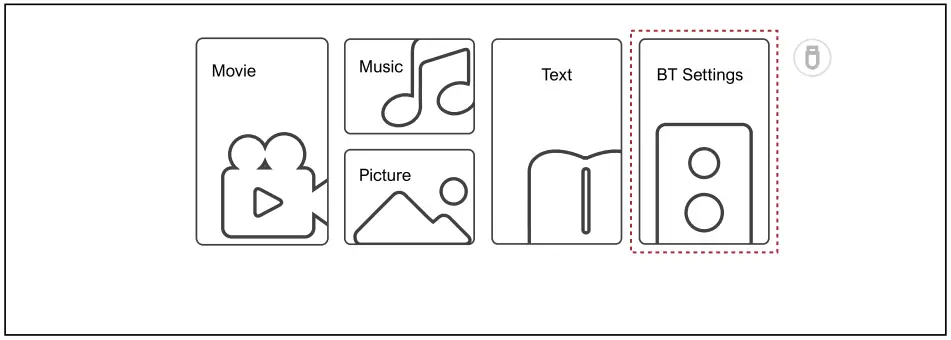
Step 3: Select USB and press OK to enter the module interface (the same of home page).
Step 4: Select the corresponding Movie, Music, Picture and text modules of the file type, and press OK to enter the file interface
Step 5: Select the file to be played in the file interface and press OK to select play.
Step 6: Press the return key to exit and return to the main interface of the projector.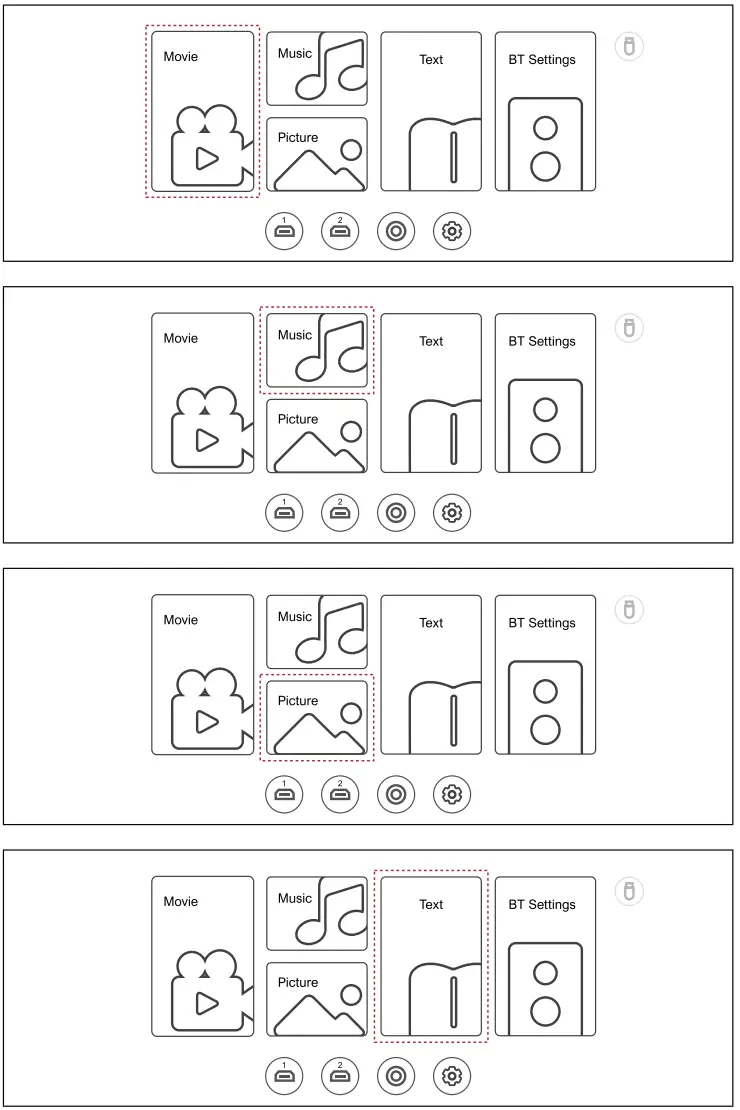
7.5 AV mode
Step 1: Connect the projector and the device with the AV cable.
Step 2: Press and hold the Source button of the projector or remote control to enter the input source interface.
Step 3: Select AV, press OK to enter, press return key to exit and return to the main interface of the projector. 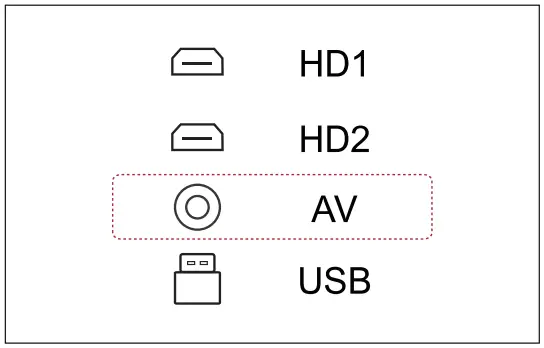
BT settings
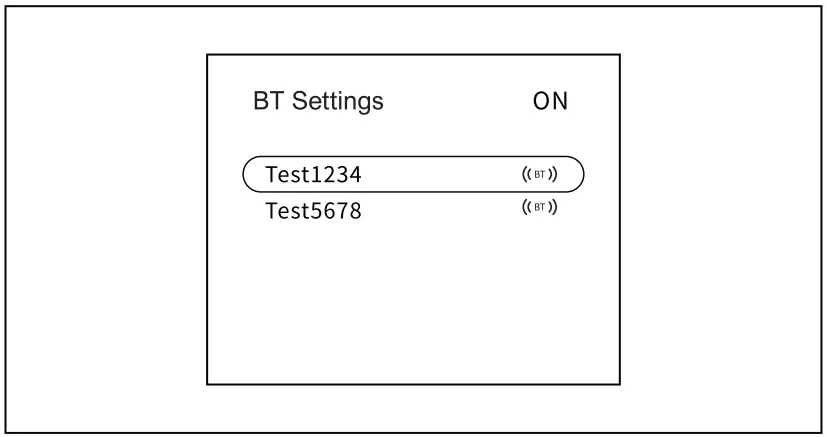
- Power on and enter the projector’s main menu, select BT and click OK button to confirm.

- Turn on BT and select the BT signal that needs to be connected.

Enjoy your new projector!