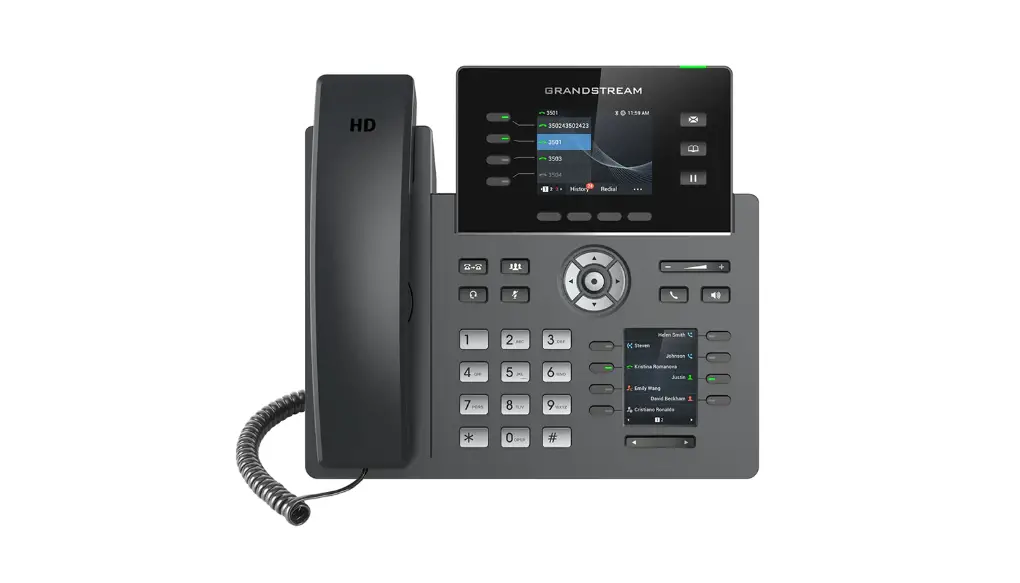

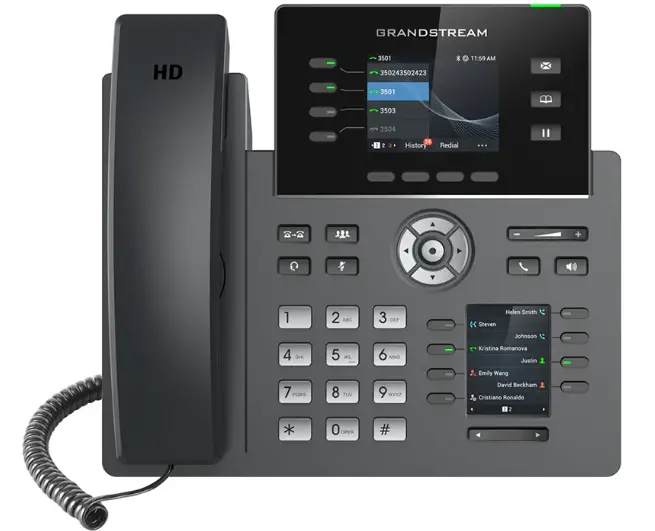
SUNCO Grandstream 3CX Handset
About Sunco Communication
HOW TO PLACE A SERVICE TICKET
Sunco is your Trusted Telecom Systems Integrator Making business communication easier for you
From modest beginnings as a home-based, family-run business, Sunco has grown over the past 20 years into the trusted telecommunications partner for over 1,600 businesses across Canada. We are a proud, Canadian company with the love of business communication at the very core of what we do.
Our team lives, breathes and works with these technologies on a daily basis, and understands how complex they can be. That’s why we’re committed to making business communication easier for your organization. How do we do this? By being an Integrator. We fit all the pieces of your voice/data systems together into a unified whole – giving you superior design, support and management all through one point of contact. This strategy ensures you get the technology and services your business needs, delivered in a way that is coordinated, convenient and just easier.
No more confusing network service contracts, overseas call centers, long wait times and impersonal service. We promise honest advice and personal support delivered in a way that reflects our core values:
- We Embrace Change
- We Do What It Takes
- We are Accountable to the Outcome
- We do the Right Thing
- We Bring Out the Best in Each Other
The Suncor team is ready to help. Leverage our Integrator strategy to help make business communication easier for your organization. Optimize your time to focus on what matters most – growing your business.

Need to reach us? We’re ready to help!
Service: To enter a service call, please email [email protected] and a ticket will be auto-generated in our system.
Client Portal: To receive log-in credentials for our self-service payment and service portal, please call Tammy Klemmer at (780) 809-1786 or 1 (888) 782-9357
After-hours Emergency Service: To reach our after-hours on-call technician, please call (780) 809-1786 or 1 (888) 782-9357 and leave a message. Accounting: For questions regarding invoicing, please call Tammy Klemmer at (780) 809-1786 or [email protected]
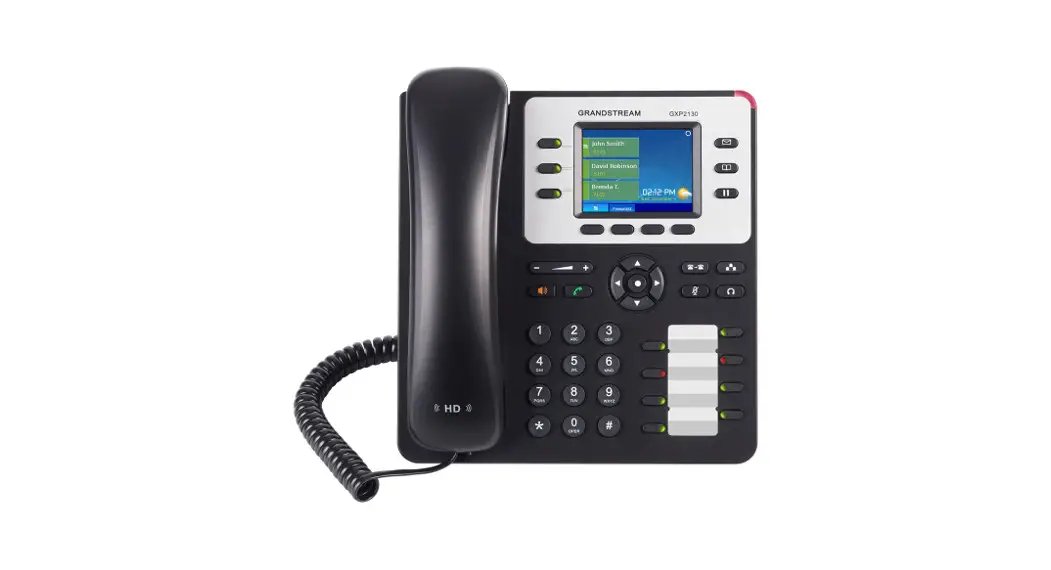
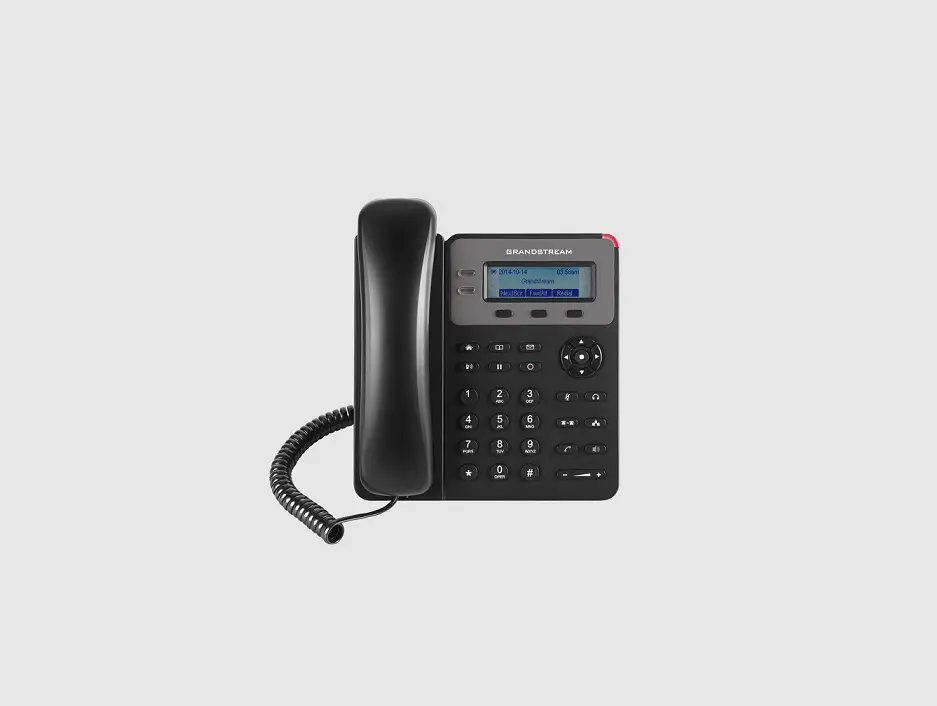
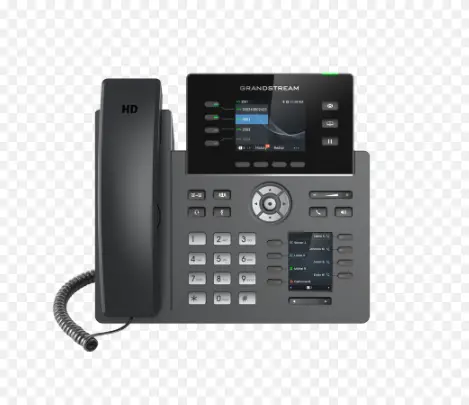
GRANDSTREAM GXP2170
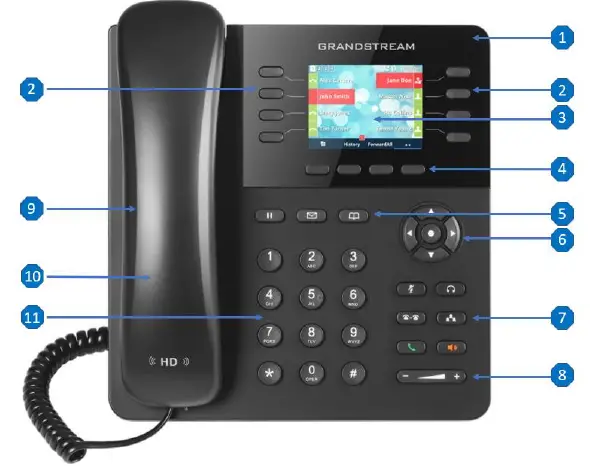
| Key | Name | Description |
| 1 | Message Indicator | Indicates a message is waiting when flashing red. |
| 2 | Line Keys with LED Indicator | Accesses your phone lines and features. |
| 3 | Phone Screen | Shows a screen with backlight that enables you to view menus and data. |
| 4 | Soft Keys | Accesses the functions displayed on the screen, context sensitive. |
| 5 | Navigation Keys | Scroll through information or options displayed on the screen. |
| Menu/OK Key | Accesses menu, confirms actions or answers incoming calls. | |
|
6 | Message Key | Accesses your message. |
| Contacts Key | Accesses contacts. | |
| Transfer Key | Transfers a call. | |
| Conference Key | Initiates a conference call. | |
| Hold Key | Places a call on hold or resumes a held call. | |
| Headset Key | Toggles the headset mode on or off. | |
| Mute Key | Toggles the microphone on or off. | |
| 7 | Volume Key | Adjusts the volume of handset, headset, and speaker. |
| 8 | Speaker Key | Toggles the speaker (hands-free) mode on or off. |
| Send Key | Dials number out. | |
| 9 | Speaker | Provides hands-free audio output. |
| 10 | Handset | Provides audio output, answers or ends calls. |
| 11 | Keypad | Allows you to enter numbers, letters, and special characters. |
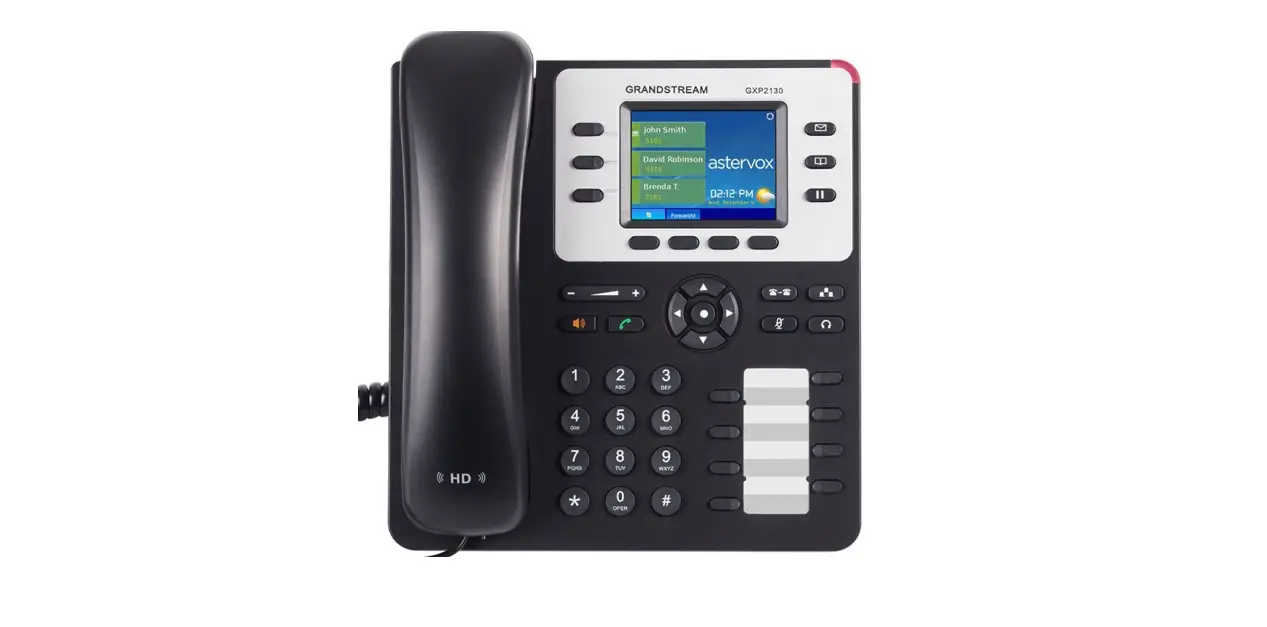
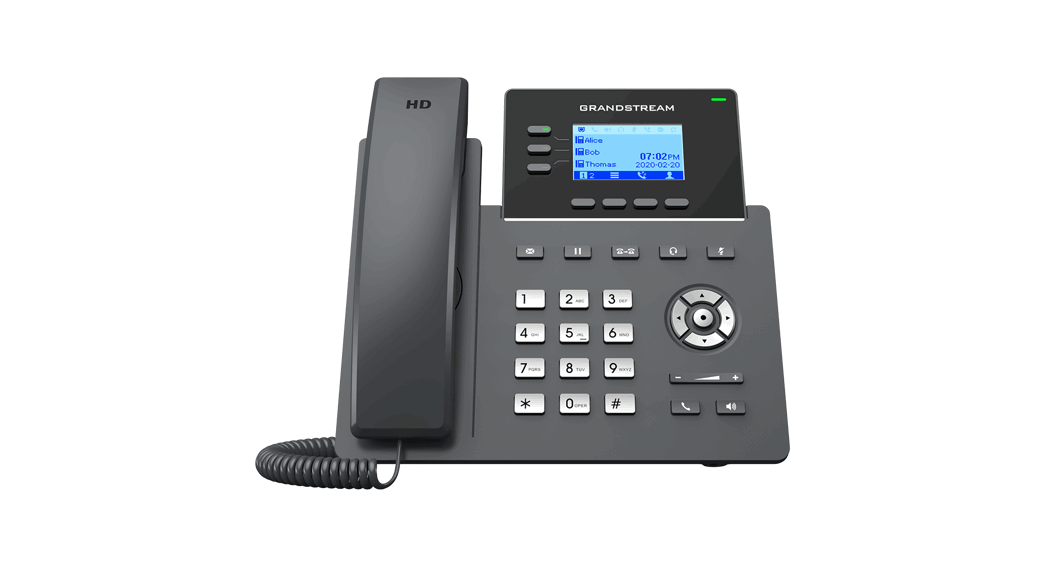
GRANDSTREAM GXP2135
| Key | Name | Description |
| 1 | Message Indicator | Indicates a message is waiting when flashing red. |
| 2 | Line Keys with LED Indicator | Accesses your phone lines and features. |
| 3 | Phone Screen | Shows a screen with backlight that enables you to view menus and data. |
| 4 | Soft Keys | Accesses the functions displayed on the screen, context sensitive. |
| 5 | Hold Key | Places a call on hold or resumes a held call. |
| Message Key | Accesses your message. | |
| Contacts Key | Accesses contacts. | |
| 6 | Navigation Keys | Scroll through information or options displayed on the screen. |
| Menu/OK Key | Accesses menu, confirms actions or answers incoming calls. | |
|
7 | Mute Key | Toggles the microphone on or off. |
| Headset Key | Toggles the headset mode on or off. | |
| Transfer Key | Transfers a call. | |
| Conference Key | Initiates a conference call. | |
| Send Key | Dials number out. | |
| Speaker Key | Toggles the speaker (hands-free) mode on or off. | |
| 8 | Volume Key | Adjusts the volume of handset, headset, and speaker. |
| 9 | Speaker | Provides hands-free audio output. |
| 10 | Handset | Provides audio output, answers or ends calls. |
| 11 | Keypad | Allows you to enter numbers, letters, and special characters. |
Calling & Programming
MAKING A CALL
- Lift the handset or press the Speaker or Headset key for handsfree.
- At the dial tone, enter the number you wish to call.
- Press the Send key or Dial soft key.
- Place the handset on its cradle or press the End-all softkey.
REDIALING A NUMBER
- Take the phone off-hook.
- Press the Redial soft key to dial the most recent number. Or press Send key to view the call history and select the desired number and press Send key again to dial out.
ANSWERING THE INCOMING
CALL Single Incoming Call:
- Lift the handset off hook for handset operation, or press the Speaker key to access handsfree mode, or Headset key to use the headset.
Multiple Incoming Calls:
- When there is a call waiting, users will hear a call waiting tone.
- The next available line will flash red.
- Press the corresponding Line key to answer the call. The current call will be put on hold.
- Press the Hold key to place a call on hold.
- Press the Resume soft key or Hold key again to resume a held call.
TRANSFERRING A CALL
To complete a blind transfer:
- Press the Transfer key.
- Enter the desired number you want to transfer to.
- Press the Blind Tern soft key to complete the blind transfer.
To complete an attended transfer:
- Press the Transfer key.
- Enter the desired number you want to transfer to.
- Press the Attorn soft key to talk to the 3rd party.
- Once the 3rd party agrees to take the call, press the Transfer soft key or Transfer key to complete the attended transfer.
CONFERENCE CALL
To create a conference call when on an active call:
- Press the Conference key to bring up conference dialing screen.
- Dial the 3rd party followed by Send key or Dial soft key.
- When the 3rd party answers the call, press the Confocally soft key to create a conference.
To cancel a conference call:
- Press End-all soft key.
CHECKING VOICEMAIL
Press Message key, enter your personal ID number (2580 as default) followed by the #, then you will have the following options:
- Press * to play.
- Press 9 for options.
- Press # to exit.
If you press 9, the following prompts will play:
- To play message, press *.
- To change your profile status, press 1.
- To dial a number, press 3.
- To delete all read message, press 4.
- To change your identification message, press 5.
- To play mailbox information, press 6.
- To change voicemail pin number, press 7.
- To change your greeting message, press 8.
- To repeat this prompt, press 9.
- To exit, press #.
Your trusted telecom systems integrator
- We do the right thing
- We embrace change
- We do what it takes
- We are accountable to the outcome
- We bring out the best in each other
- DIALED INTO YOUR BUSINESS SUNCO.CA