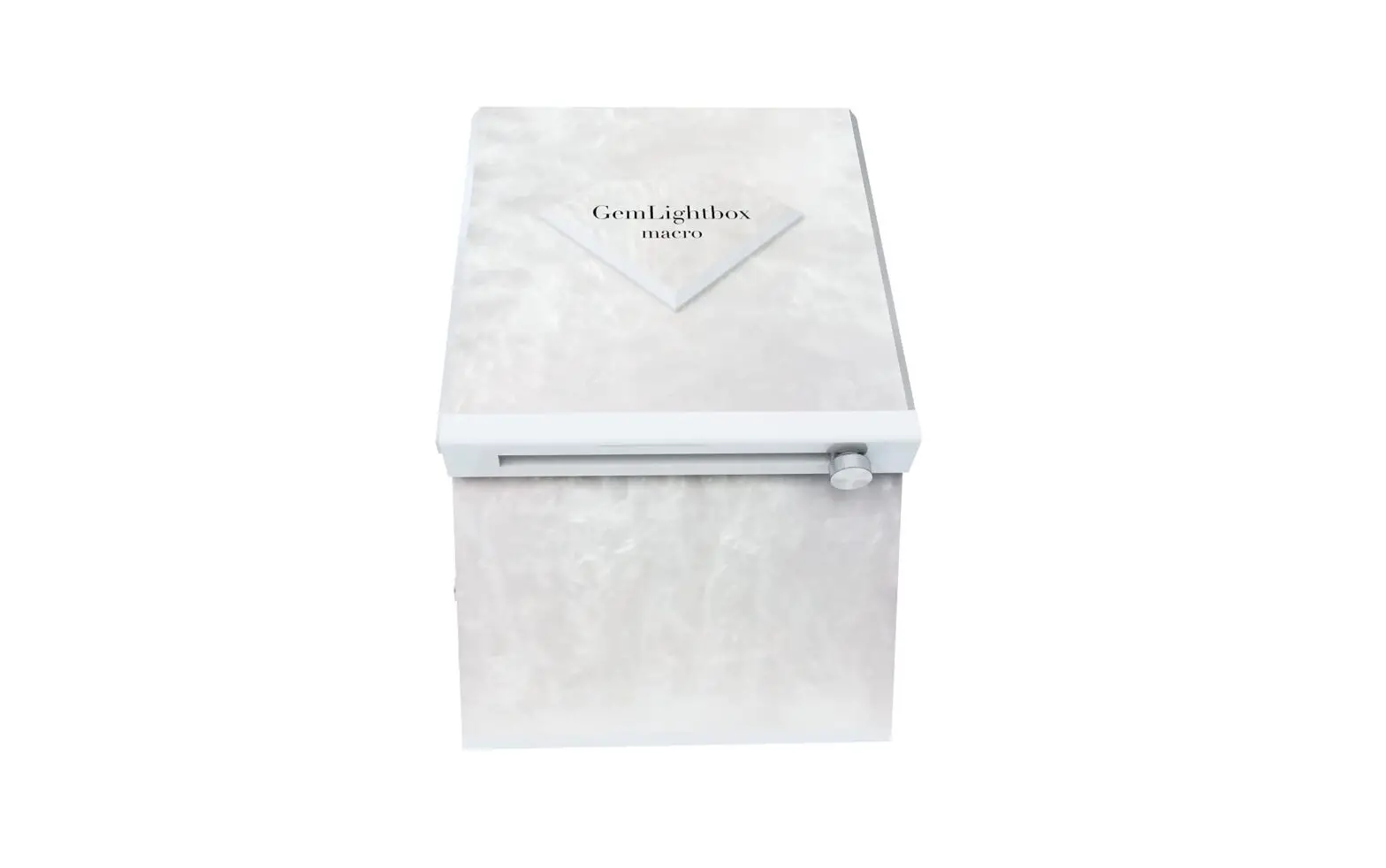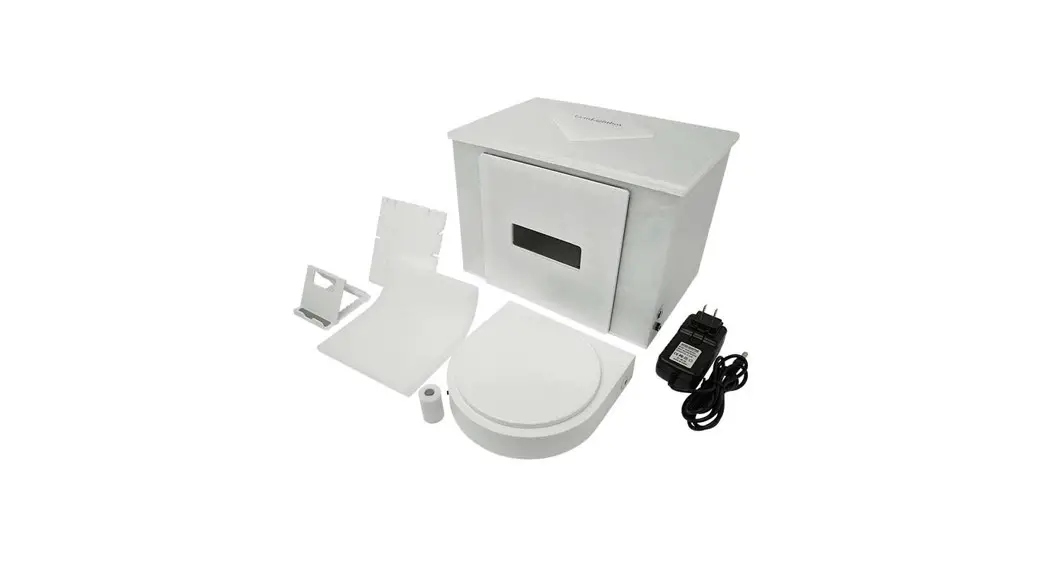

GemLightbox
Aerial
User Manual
Welcome to the GemLightbox Family
SUPPORT.PICUPMEDIA.COM
 Introduction
 Introduction
We are thrilled to guide you on your first steps to effortless jewelry photography.
At Picup Media, we’ve helped over 5,000+ jewelers enter the digital world and hope to share the same experience with you.
This user manual will teach you how to set up and use the GemLightbox Aerial, and provide useful tips and tricks to help you capture perfect jewelry images and videos.
We recommend reading our full tutorial on the following pages to make the most of your GemLightbox Aerial experience.
 Getting Started
 Getting Started
The GemLightbox Application is your all-in-one jewelry photography companion, and is essential to capturing amazing jewelry images and videos. Simply follow the steps below to get started:
 Google Play Store Google Play Storehttps://play.google.com/store/apps/details?id=com.gemlightbox&hl=en_US |  iOS App Store https://apps.apple.com/au/app/gemlightbox/id1348230536 |
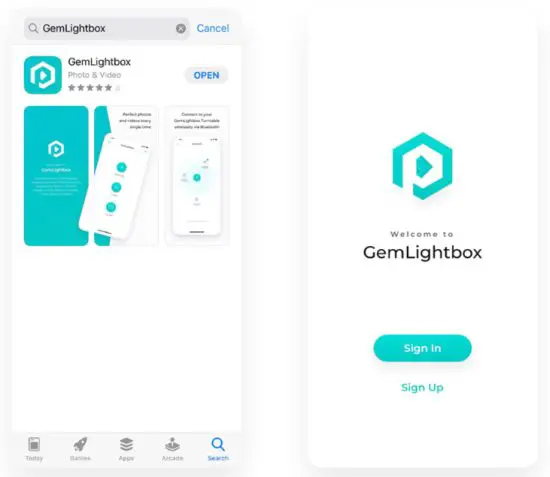
- Download the Application
The GemLightbox Application is available to download on both the iOS App Store and Google Play Store. To download, simply search for “GemLightbox” and follow the download instructions, or scan the QR code.
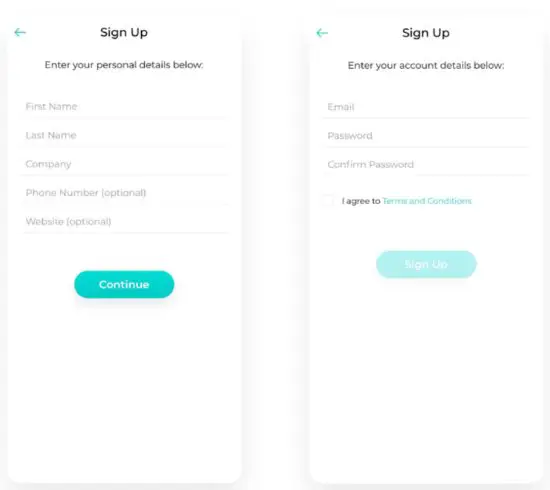
- Create an Account
Click “Sign Up”, then follow the steps to create your GemLightbox Application account. Please note that only one device may be logged into an account at any time.
 GemLightbox Application
 GemLightbox Application
Setting Up
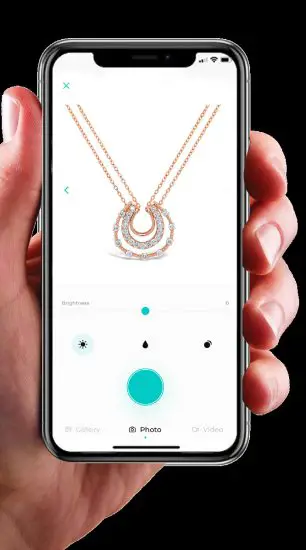
The GemLightbox Application optimizes your smartphone camera settings for jewelry photography, meaning that you’ll capture the best results every time.
The GemLightbox Application connects with your Turntable or Aerial unit directly via Bluetooth. Please ensure that the Bluetooth setting on your smartphone is enabled in order to successfully connect with the GemLightbox Turntable or GemLightbox Aerial.
To learn more about the GemLightbox Application functions and its newest updates, simply visit our online knowledge base at https://support.picupmedia.com for more information.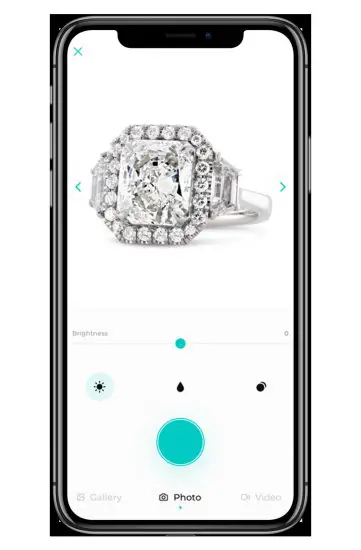
 GemLightbox Aerial
 GemLightbox Aerial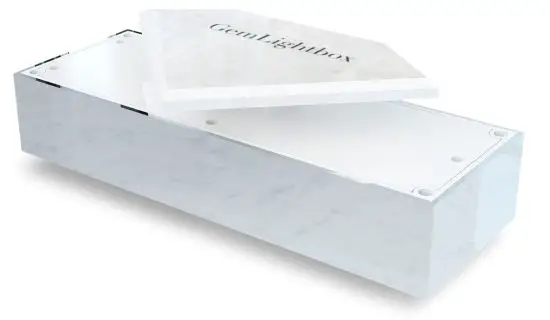
 What’s Included
 What’s Included
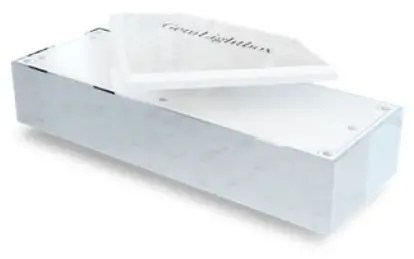 GemLightbox Aerial 1pc | 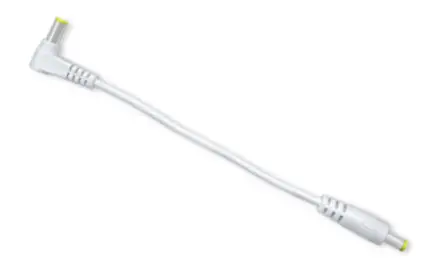 Aerial Power Cord 1pc | 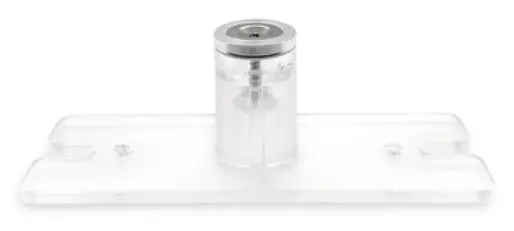 Necklace & Pendant Holder 1pc |
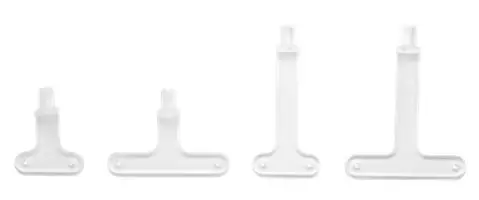 Dangle Earring Holders (clear) |  Dangle Earring Holders (black) | 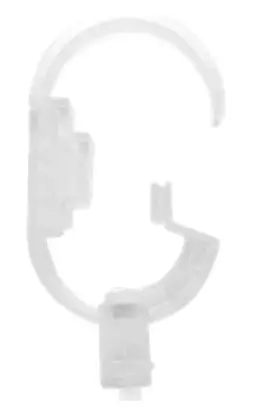 Watch & Bangle Holder Watch & Bangle Holder1pc |
 Watch How to Setup the GemLightbox Aerial here:
https://support.picupmedia.com/hc/en-us/articles/360045779614-Setting-Up-Your-GemLightbox-Aerial-Set
 Setting Up
 Setting Up
- Set up the GemLightbox Aerial
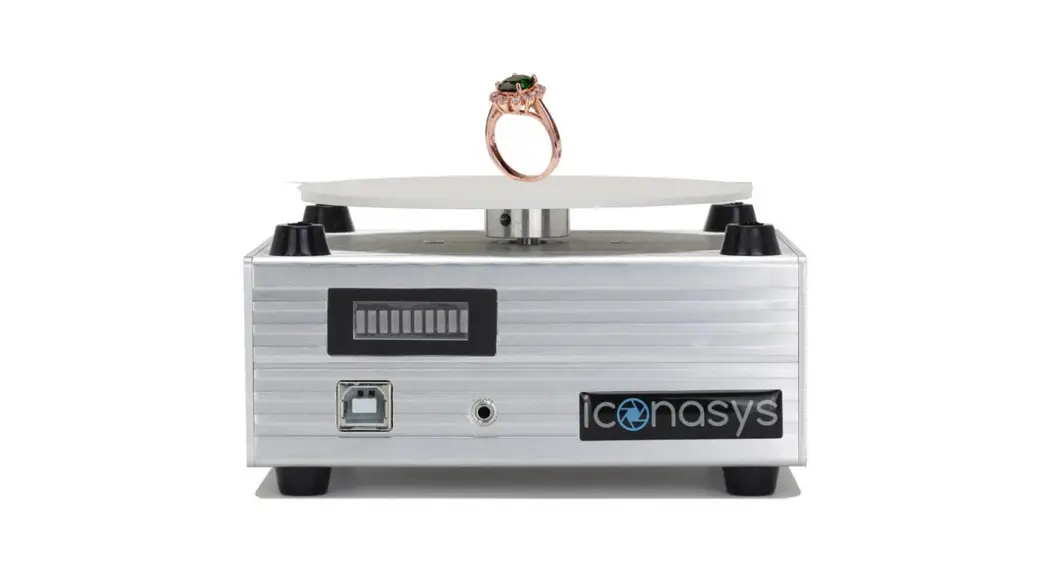
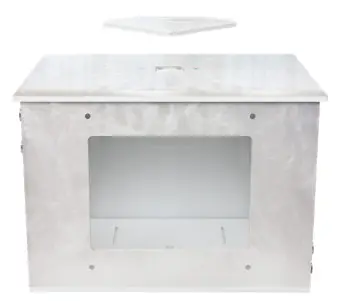
Remove the existing diamond top lid. Position your GemLightbox Aerial below the lid and attach the Aerial diamond piece magnetically to the Aerial turntable from the top of the GemLightbox lid. The Aerial will power on automatically, denoted by the LED light lighting up on the top of the Aerial.
- Switch on the GemLightbox Aerial
Connect the GemLightbox Aerial to the GemLightbox with the supplied power cord. It is safe to leave your Aerial on and plugged into your GemLightbox unit. Simply power off the entire GemLightbox unit after each photography session. When you next turn on the GemLightbox, the Aerial will remain switched on and ready for use.
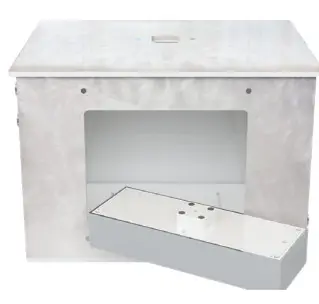
 Features
 Features
3. Connect the GemLightbox Aerial via Bluetooth
Open the GemLightbox Application and connect the GemLightbox Aerial via Bluetooth. The GemLightbox Aerial is designed for full compatibility and function with the GemLightbox Application.
The GemLightbox Application allows you to control Aerial with options to capture your jewelry at 360, 90 or 45 degrees at a fast or slow speed.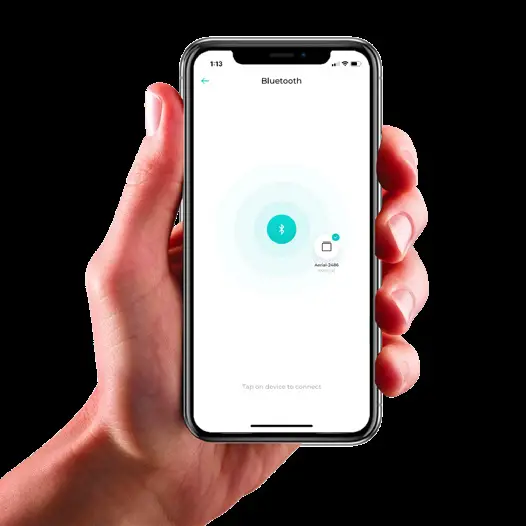
4. Plug-in the GemLightbox Aerial accessories
Attach the Necklace & Pendant Holder to the magnetic base of the GemLightbox Aerial. The Dangle Earring Holders or Watch Stand can also be inserted into the base of Necklace & Pendant Holder as required.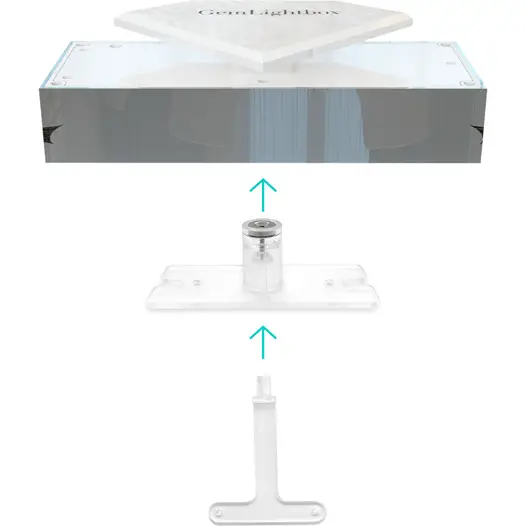
Capture dangling jewelry images & videos in style with the GemLightbox Aerial
The GemLightbox Aerial is designed for full compatibility and function with the GemLightbox Application. You will be able to control the Aerial manually via the Application, allowing you to capture your jewelry at any angle. Additionally, there are options to capture a 360, 90 or 45 degree video at a fast or slow speed.
Frequently Asked Questions

How can I contact support?
You can access our support channel and knowledge base at
https://support.picupmedia.com/
If you wish to speak to a Picup Media team member, please visit
https://picupmedia.com/contact-us/
How can I clean my GemLightbox?
The GemLightbox is extremely durable. You can use a wet cloth and any household cleaner to clean your GemLightbox.
Please ensure your GemLightbox is switched off and that the power cable is detached before cleaning.
 Please observe the country- specific disposal requirements
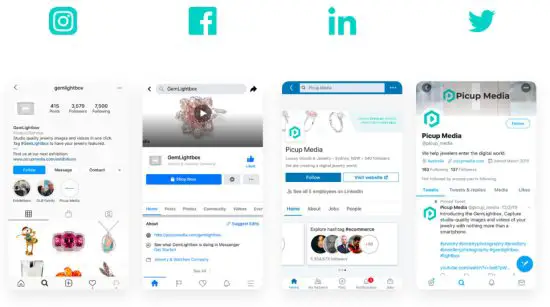
 Join Our Community
 Join Our Community
Share your beautiful jewelry images with thousands of
other GemLightbox users on our fan pages:
Join our #GemLightbox family
FCC Statement
This equipment has been tested and found to comply with the limits for a Class B digital device, pursuant to Part 15 of the FCC Rules. These limits are designed to provide reasonable protection against harmful interference in a residential installation. This equipment generates uses and can radiate radio frequency energy and, if not installed and used in accordance with the instructions, may cause harmful interference to radio communications. However, there is no guarantee that interference will not occur in a particular installation. If this equipment does cause harmful interference to radio or television reception, which can be determined by turning the equipment off and on, the user is encouraged to try to correct the interference by one or more of the following measures:
- Reorient or relocate the receiving antenna.
- Increase the separation between the equipment and receiver.
- Connect the equipment into an outlet on a circuit different from that to which the receiver is connected.
- Consult the dealer or an experienced radio/TV technician for help.
This device complies with FCC PART15 Rules. Operation is subject to the following two conditions:(1) This device may not cause harmful interference, and (2) this device must accept any interference received, including interference that may cause undesired operation.
Changes or modifications not expressly approved by the party responsible for compliance could void the user’s authority to operate the equipment.
Thank you
for choosing GemLightbox
 Help Center
 bit.ly/35uzgOr
 Contact Us, Jewelry Photo & Video Retouching- Picup Media