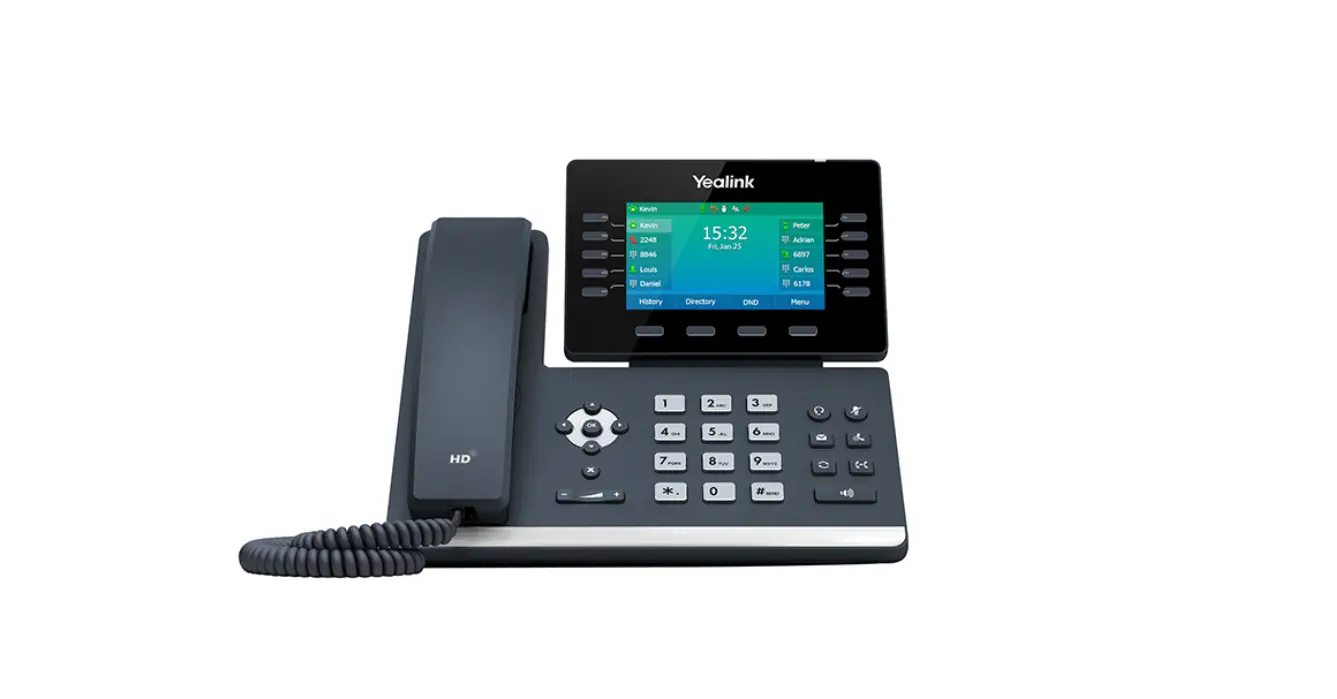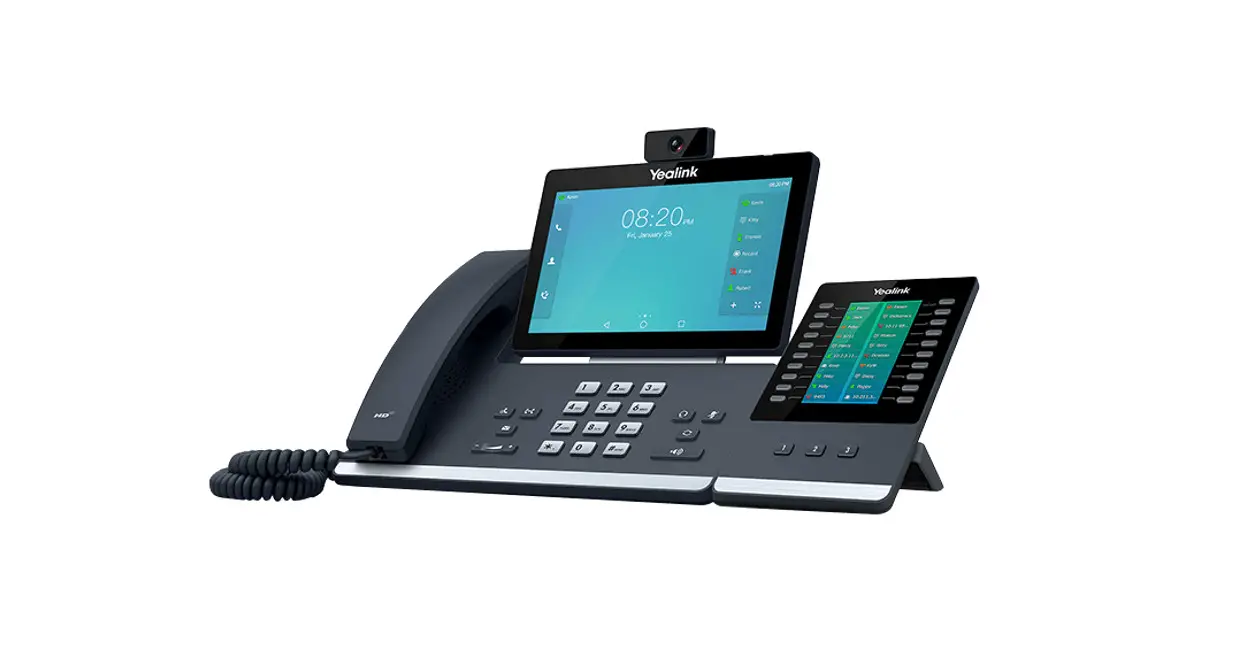
 T58A SIP Phone with Cam50 USB Camera
User Manual
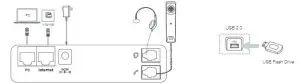
KEY:
 | HEADSET: Plug your headset into this port. |
 | INTERNET: Plug into this port to connect to your network. |
 | DC5V: If your network does not provide Power Over Ethernet (P.O.E.), a separate power supply will accompany your phone. |
 | PC: Plug your PC into this port if your PC is connecting through your phone. |
 | HANDSET: Plug your handset into this port. |
 | USB Ports: Two USB ports, one on the top of the phone for optional USB camera or other USB devices and one on the back of the phone. |
CONNECT THE CAMERA
Connect the camera as shown below.
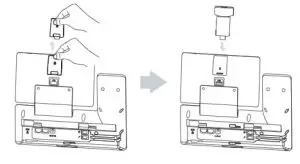
- Remove the USB cover on the top of the phone.
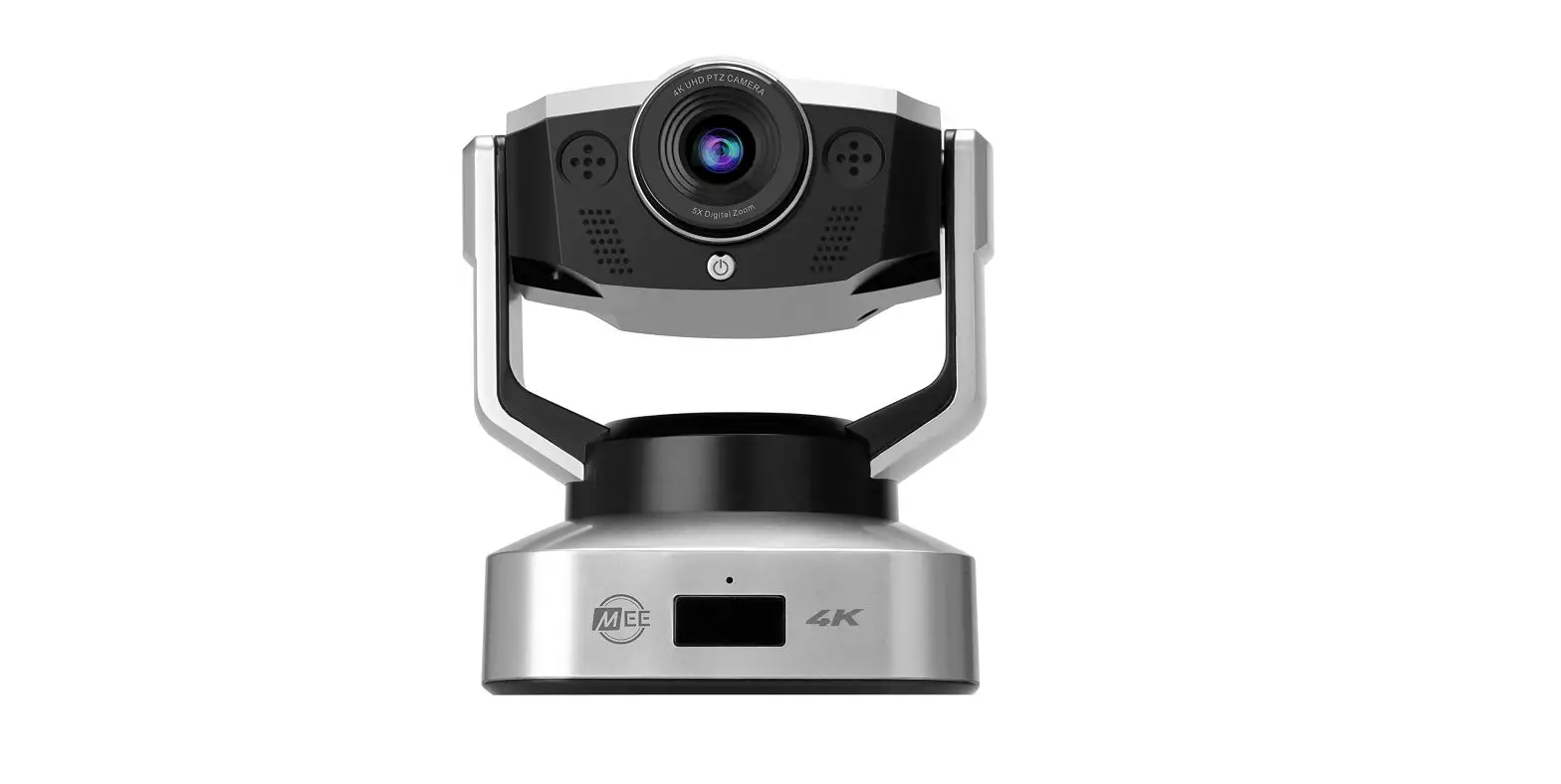
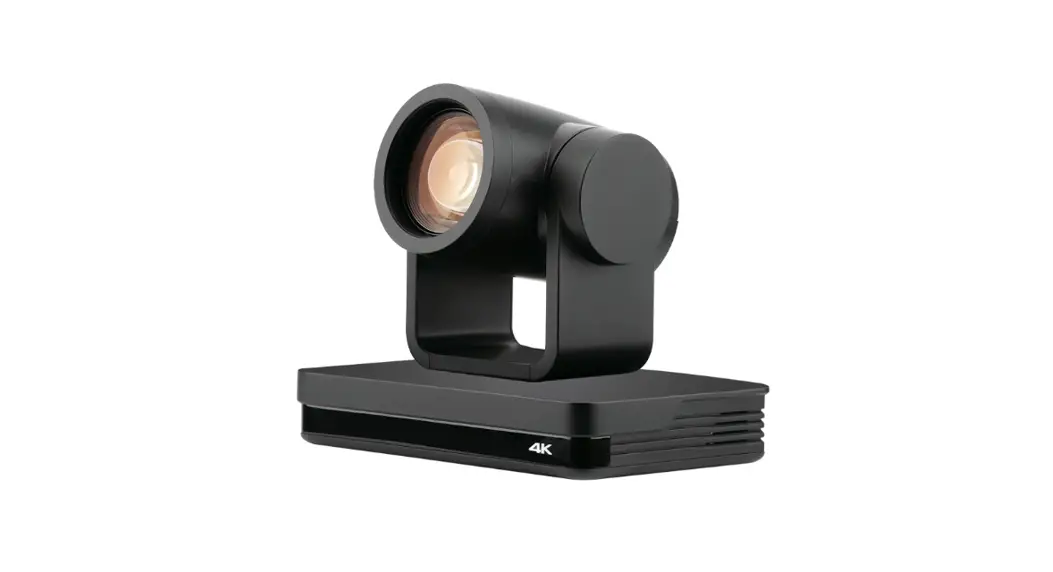
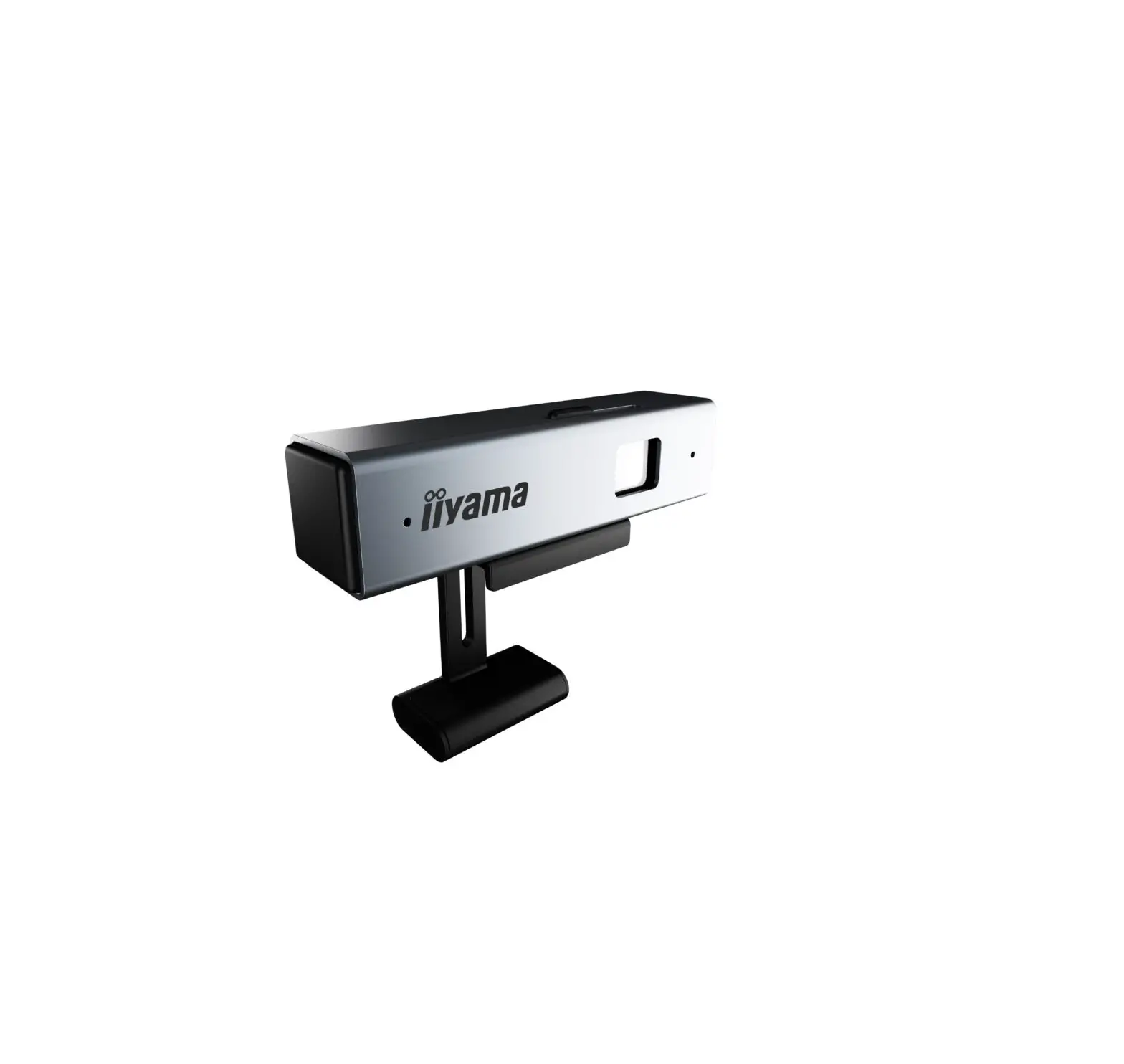
- Insert the USB camera (CAM50) in the USB port on the top of the phone.
- Adjust the shutter switch. It covers/uncovers the camera’s shutter. It should be covered when not in use
 .
.
 .
.NOTE: The camera can only be connected to the USB port on the top of the phone. The T58A only supports the Yealink CAM50 USB camera.
GETTING TO KNOW YOUR YEALINK T58A SIP PHONE
PHONE FRONT KEYS AND INDICATORS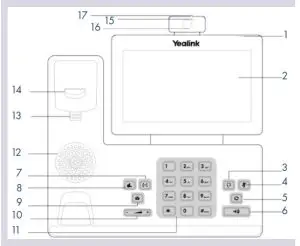
- POWER LED Indicator: Indicates call status, message status, and phone’s system status.
- TOUCH SCREEN: This allows you to view items and navigate menus on the touch-sensitive screen.
Displays information about calls, messages, time, date, and other relevant data. - HEADSET KEY: Toggles and indicates the headset mode.
The LED glows green when the headset mode is activated. - MUTE KEY: Toggles and indicates mute ON/OFF.
LED glows red when MUTE is activated. - REDIAL KEY: Redials the last dialed number.
- SPEAKERPHONE KEY: Toggles and indicates the hands-free (speakerphone) mode.
The LED glows green when hands-free is activated. - TRANSFER KEY: Transfers a call to another party. (Internal or External).
- HOLD KEY: Places an active call on “exclusive” hold. The call can only be retrieved from the phone that placed it on hold.
- MESSAGE KEY: Accesses your voicemail.
Captures screenshots during a video call. - VOLUME KEY: Adjusts the volume of the headset, handset, or speakerphone.
- KEYPAD: Provides digits and special characters in context-sensitive applications.
- SPEAKER: Provides hands-free (speakerphone) audio output.
- REVERSIBLE TAB: Secures the handset in the handset cradle when the phone is mounted vertically. Slide-out and rotate 180 degrees for wall-mounted phones.
- HOOKSWITCH: Picking up the handset cradle, the hookswitch bounces and the phone connects to a line.
Laying the handset down on the handset cradle, it disconnects from the line. - CAMERA LENS: Two-megapixel cameras. Provides near-site video. The best distance between the camera and images is one to six feet.
- CAMERA LED LENS: Indicates video call status and camera status.
- PRIVACY SHUTTER: Covers and uncovers the camera. Leave covered when not in use.
POWER LED INDICATOR
The power LED indicator provides call and message status.
| Solid red | The phone is initializing. |
| Fast-flashing red | The phone is ringing. |
| Slow-flashing red | There are new voicemail messages. |
| Solid red for .5 seconds and off for .3 seconds | The phone entered the power-saver mode. |
SCREEN + ICONS
The user screens and icon indicators help you navigate and understand the information on the phone’s status.
CONTROL AND NOTIFICATION CENTER
The Control Center or Notification Center provides access to certain features or notifications quickly. To access this screen swipe down from the top of the display.
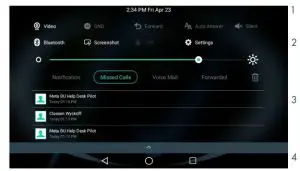
| No. | Name | Description | |
| 1 | Time and Date | Displays the current time and date. | |
| 4 | Control Center | Video | + Tap to access the optional camera when the phone is idle. + Tap to stop transmitting video during a video call. |
| DND | Tap to turn DND on/off. | ||
| Forward | Tap to enter the Call Forward setting screen. | ||
| Auto Answer | Tap to enter the Auto Answer setting screen. | ||
| Silent | Tap to turn Silent on/off. Silences sound such as ring tones. | ||
| Bluetooth | + Tap to turn Bluetooth on/off. + Long tap to enter the Bluetooth setting screen. | ||
| Screenshot | + Tap to capture a screenshot. | ||
| USB | Tap to access the File Manager to manage the files in the USB flash drive. | ||
| Settings | Tap to enter the Settings screen. | ||
| Backlight | Drag the slider to adjust the screen brightness. | ||
| 3 | Notification Center | -i Tap Notification/Missed Calls/Voicemail/Forwarded to view the corresponding notification list. These can also be viewed from the Calls List Key. + Tap a notification message to view details. + Swipe left o right to delete a specific notification. + Tap the trash can to delete all notifications. | |
| 4 | Android Keys |  | Previous Screen: Tap to return to the previous screen. Idle Screen: Tap to return to the idle screen. Recent Applications: Tap to view and manage a list of recent applications. |
SCREENS
The phone has three idle screens by default, the HOME Screen which is condensed when the phone is idle, and two additional idle screens. You can see additional buttons on the Home Screen by tapping the EXPAND Icon. Swipe left or right to switch from the HOME Screen to the other idle screens.
HOME SCREEN
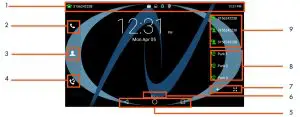
No. | Name | Description | |
| 1 | Status Bar | Displays the phone s default subscriber account information, icons and time. | |
| Time | The phone’s time is displayed on the right of the status bar. | ||
| Icons | Status Icons are displayed in the middle of the status bar. | ||
| Default Account | The label of the default account (subscriber number) is displayed on the left of t the status bar. If there is no account registered on the IP phone, this field will display NO SERVICE. | ||
| 2 | Phone Dialer | Tap to enter the dial screen. | |
| 3 | Directory | Tap to enter the Directory screen and view contacts. | |
| 4 | History | Tap to enter and view the Call History screen. | |
| 5 | Android Keys | | Previous Screen: Tap to return to the previous screen. Idle Screen: Tap to return to the idle screen. Recent Applications: Tap to view and manage a list of recent applications. |
| 6 | Screen Indicator | Indicates which idle screen is displayed. | |
| 7 | DSS (+) EXPAND Key | Tap to add a line/feature key. The line/feature key list will be displayed on the right of the home screen. This may appear in the lower right depending on phone configuration. Tap the EXPAND key to view additional feature keys on the HOME screen. | |
| 8 | Park Keys | Places a call on a “system” hold so it can be retrieved from another phone in the business group. | |
| 9 | Line Keys | Lines used to make and receive calls. | |
EXPANDED HOME SCREEN
The first idle screen displays much of the same information as the HOME Screen with a couple of additions. When you expand the HOME Screen, the Line and Park keys move to the left to reveal additional features.
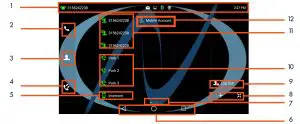
No. | Name | Description | |
| 1 | Status Bar | Displays the phone s default subscriber account information, icons and time. | |
| Time | The phone’s time is displayed on the right of the status bar. | ||
| Icons | Status Icons are displayed in the middle of the status bar. | ||
| Default Account | The label of the default account (subscriber number) is displayed on the left of t the status bar. If there is no account registered on the IP phone, this field will display NO SERVICE. | ||
| 2 | Phone Dialer | Tap to enter the dial screen. | |
| 3 | Directory | Tap to enter the Directory screen and view contacts. | |
| 4 | History | Tap to enter and view the Call History screen. | |
| 5 | Intercom | Place a speaker call to another member of your Business Group. | |
| 6 | Android Keys | Previous Screen: Tap to return to the previous screen. Idle Screen: Tap to return to the idle screen. Recent Applications: Tap to view and manage a list of recent applications. | |
| 7 | Screen Indicator | Indicates which idle screen is currently being displayed. | |
| 8 | DSS (+) Home Key | Tap to add a line/feature key. The line/feature key list will be displayed on the right of the home screen. This may appear in the lower right depending on phone configuration. Tap the Home Key to return to the condensed Home display. | |
| 9 | Log Out | Use to log out of the phone and log in as another user. (Hot Desk) | |
| 10 | Park Keys | Places a call on a “system” hold so it can be retrieved from another phone in the business group. | |
| 11 | Line Keys | Lines used to make and receive calls. | |
| 12 | Mobile Account | Connect a mobile device via Bluetooth to make and receive calls. | |
APPLICATIONS SCREEN
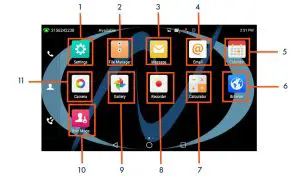
| No. | Application | Description |
| 1 | Settings | Accesses the phone settings and features. |
| 2 | File Manager | Manages files in the internal SD card as well as a USB flash drive. |
| 3 | Message | Accesses the video/voice mails or leaves video/voice mails. Video only available with the optional camera. |
| 4 | Used to send and receive emails. | |
| 5 | Calendar | This application is used to manage and arrange your calendar events or set reminders. |
| 6 | Browser | Web search engine. |
| 7 | Calculator | Built in the calculator. |
| 8 | Recorder | Records audio. |
| 9 | Gallery | Photos and videos are stored and can be viewed here. |
| 10 | User Mode | Used by the system administrator and requires an Admin Password. |
| 11 | Camera | Used to take photos and screenshots. |
THIRD IDLE SCREEN
The third idle screen displays the calendar and email widgets by default. See page 20 for how to set up an email account.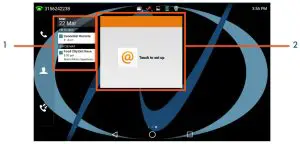
| No. | Widget | Description |
| 1 | Calendar | Displays calendar data and upcoming events. |
| 2 | +Displays the email from the specified associated account. +Tap to add an email account.C8 |
NAVIGATING MENUS + FIELDS
You can use different gestures on the touch screen to perform various operations.
| Gesture | Action |
| Tap | Touch an item on the screen and then lift your finger. |
| Long Tap | Touch an item for about 2 seconds without lifting your finger until an action occurs. |
| Swipe | Touch and move. When you want to scroll quickly, swipe your finger across the screen, either up, down, left, or right. |
| Drag | Touch and hold, then move. To stop scrolling, stop the dragging motion. |
| Pinch Open | Touch the screen with two or more fingers and then move the fingers away from each other. |
| Pinch Close | Touch the screen with two or more fingers, and then move the fingers toward each other. |
PLACING + ANSWERING CALLS
PLACE A CALL
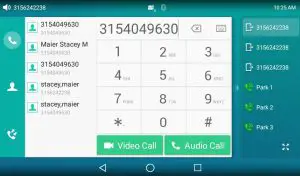
- Internal: Enter the extension number
- External: Enter 1 and the 10-digit number
- Lift Handset or tap AUDIO CALL or VIDEO CALL on the display.
Or press the SPEAKER Key.
NOTE: Video calls can only be made to others in your business group with a T58A with the camera.
PLACE AN INTERCOM CALL (within your Business Group)
Automatically bypasses ringing and opens the speaker of the party you are calling.
- Tap INTERCOM Key. (Appears on first idle screen).
- Enter intercom (extension) number.
- Lift Handset or tap AUDIO CALL or VIDEO CALL from the display.
- Party will hear a warning tone and their speaker is open for you to speak or announce.
- For privacy, their microphone is automatically muted (they must unmute to speak).
- If the called party is on another call, their phone will ring.
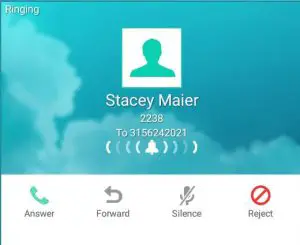
ANSWER AN AUDIO CALL
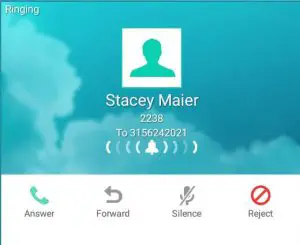
- Phone rings, indicator flashes, available commands appear on the display.
- Lift Handset or press SPEAKER Key or tap ANSWER.
- TO QUIET A RINGING CALL: Tap SILENCE.
- TO SEND RINGING CALL TO VOICEMAIL: Tap REJECT.
- TO FORWARD TO ANOTHER SUBSCRIBER: Tap FORWARD, enter the extension number and tap FORWARD again.
ANSWER A VIDEO CALL
- Phone rings, indicator flashes, available commands appear on the display.
- Tap ANSWER.
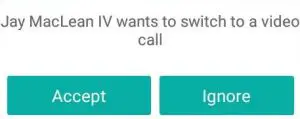
 A screen appears to tell you the sender wants to switch to a video call.
- Tap ACCEPT to accept the video call.
- Tap IGNORE to leave the call as audio-only.
CALL CONTROLS IN A VIDEO CALL
When in a video call, if you don’t see the call controls, tap BACK.
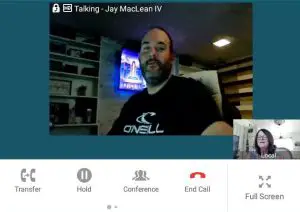
Call controls appear at the bottom of the video.
- Tap TRANSFER to send the call to another extension.
- Tap HOLD to place the call on hold.
- Tap CONFERENCE to add another person to the call.
- Tap END CALL to end the call.
- Tap FULL SCREEN to view the video call in full screen.
See Navigating A Connected Call on page 11 for more information.
MANAGE MULTIPLE CALLS
- PLACE A SECOND CALL: Tap the LINE KEY on display, the first call automatically holds, enter a number.
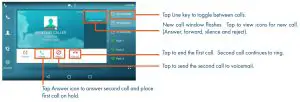
- ANSWER A SECOND CALL: Hear Call Waiting Tone, second call flashes on display (see below).
Tap LINE KEY or ANSWER on display (first call automatically holds). You are connected to the second call.
Tap the flashing new call window to see call icons (answer, forward, silence, and reject) for the second call. - TOGGLE BETWEEN CALLS: Tap the LINE KEY. This toggles the calls on the screen.
Tap the applicable key. (ie: RESUME to take the call off hold).
HUNT GROUPS LOG IN/OUT
When you are a member of a group (Hunt group or SACD), your account phone is programmed to ring when a choice is made by an automated attendant or when the hunt group number is dialed. You may be required to log in to the hunt group to receive calls. Your telephone will be programmed with a Hunt Group or ACD Key. You will also see Softkeys related to group functionality.
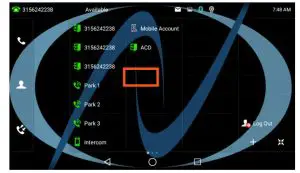
- Tap the ACD / HUNT GROUP Key.
This will show you the groups you are a member of and whether you are logged in or out of the group. (See below).
ACD/HUNT GROUP SCREEN
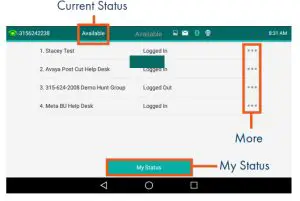
- Your current state appears at the top of the screen.
- Tap MY STATUS to change your state if you use “States” or reason codes as part of an ACD Group. (See the ACD Agent User Manual for more information).
- Tap More to see the following additional group options.
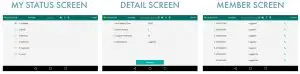
DETAIL: Displays calls average wait time, number of callers waiting, how many members are logged in and your login status. (See below). MEMBER: Displays the members of the group and their login status.
(See below). - Tap MY STATUS to view and change your state. (See the ACD Agent User Manual for more information).
SPEAKER: Press to make or answer any call without lifting the Handset.
- TO SWITCH TO SPEAKER FROM HEADSET/HANDSET: Press the SPEAKER Key, replace handset in cradle.
- TO RESUME PRIVACY: Lift the Handset or Press the HEADSET Key.
MUTE: Turn off your Microphone (Speaker, Handset + Headset) to allow you to speak privately. The caller cannot overhear office/background noise or conversations.
- TO USE: Press the MUTE key. A mute symbol appears on the display, speak privately.
- TO RESUME CONVERSATION: Press the MUTE Key again.
HOLD: This is an exclusive hold to your telephone. No one else can retrieve it.
- TO HOLD A CALL: Tap HOLD on display or the HOLD Key on phone.
- TO RETURN TO CALLER: Tap the LINE KEY or Tap the RESUME Key or Press the HOLD Key again.
VIDEO: Turns an audio call into a video call with another subscriber in your business group.
- On the In-Call Screen, scroll to the left and tap Add Video.
- The screen says “Requesting Video Call”. The caller can accept or decline the video invitation.
INCALL SCREENS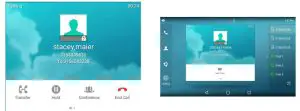
TRANSFER
TRANSFER allows you to connect your call to someone else (with call on line)
Announced: Tap either the TRANSFER Key on the display or Press the TRANSFER Key on the phone.
The current call is automatically placed on hold.
Enter the number you are transferring to and tap SEND.
Wait for the person to answer, announce the call.
- TO COMPLETE TRANSFER: Tap TRANSFER, call is connected, hang up.
- TO RETURN TO HELD CALL: Tap END CALL, tap the held line, tap RESUME.
Blind Transfer: Tap the TRANSFER Key on the display or press the Transfer key on the phone.
The current call is automatically placed on hold.
Enter the number and tap TRANSFER again.
TRANSFER TO VOICEMAIL: Sends a caller directly to voicemail without ringing the phone
- Tap the TRANSFER Key on the display or press the TRANSFER Key on the phone.
- The current call is automatically placed on hold.
- Press *99 and enter the Extension Number.
- Tap TRANSFER and then tap TRANSFER again immediately.
ADHOC CONFERENCE
ADHOC CONFERENCE allows you to do a multi-call conference (with call online)
- Tap the CONFERENCE Key. The first call automatically holds, listen for dial tone.
- Enter the second number (internal or external) and tap AUDIO CALL or VIDEO CALL.
IMPORTANT: Wait for an answer and announce the conference. - Tap the CONFERENCE Key again, all parties are connected.
ADDITIONAL CONFERENCE TOOLS
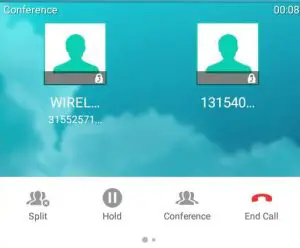
- Tap CONFERENCE to add additional parties.
NOTE: Depending on your system, there are limitations to how many parties can be added. - Tap SPLIT to speak to one party privately. This places all parties on hold.
Select the party you wish to speak privately with and tap RESUME. - Tap CONFERENCE and then tap the held callers to return to the conference.
- Swipe to the next screen and tap RECORD to record the call.
CONFERENCE MANAGEMENT
When you long-press on one of the participant icons on the display, the CONFERENCE MANAGE Screen is displayed for that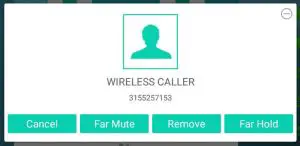
- Tap CANCEL to return to the main conference display.
- Tap FAR MUTE to mute the selected party.
- Tap REMOVE to disconnect the selected party.
- Tap FAR HOLD to place the selected party on hold.
- Tap the PREVIOUS SCREEN Icon to return to the previous screen.
CALL PARK
Call Park allows you to place a call on hold in the system and assign it to a Call Park Slot also referred to as an Orbit Code. The call can be retrieved from any telephone in the system by tapping the associated Call Park Slot Key.
- TO PARK: With the caller on the line, tap an available PARK Key, Park Key will flash red, advise person of Call Park Number.
- TO RETRIEVE: Lift the Handset, tap the applicable PARK Key. You are now connected to the call.
- TO RETRIEVE ON SPEAKER: Press the Applicable Park Key.
NOTE: If a parked call is not retrieved within a preprogrammed number of seconds, the call will “Callback” to the phone it was parked from.
REDIAL + CALL (HISTORY) LISTS
REDIAL: Displays a list of the last numbers placed, redials the last number dialed, + uses the outgoing call records stored in the call log.
- TO USE Press
 REDIAL Key. The display shows recent calls. The default list displayed is dialed calls.
You can also tap the CALL LIST Icon to view the call lists.
Scroll through the list to find the number.
Tap the number you wish to call.
Tap VIDEO CALL or AUDIO CALL. - TO REDIAL THE LAST CALL YOU PLACED: Press the REDIAL Key twice.
 REDIAL Key. The display shows recent calls. The default list displayed is dialed calls.
 to view the call lists.
GETTING TO KNOW YOUR DIRECTORY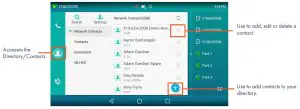
DIRECTORY: The directory is where you will find your Network Contacts. The Network Contacts consist of three lists.
NETWORK CONTACTS:
- CONTACTS: All contacts are programmed into your phone book by a system administrator or by you either in CommPortal, from this list, or by saving from Call History Lists. These will import to your other Subscriber applications during the nightly reboot.
- EXTENSIONS: All extensions in your business group.
- MLHGS (MULTI-LINE HUNT GROUPS): If you are a member of an MLHG, the extensions will appear in this directory.
- TO PROGRAM: Tap the DIRECTORY Icon.
Tap the list you want to add the contact to.
Tap the + Key in the lower right of the display.
You can program multiple numbers in one entry.
When complete, tap the
- TO SEARCH: Tap the DIRECTORY Icon.
Tap SEARCH (this will search all directories).
Begin spelling the name (first or last).
Tap the name to complete the call. - TO EDIT OR DELETE A CONTACT: Tap the DIRECTORY Icon.
Tap the by the contact you want to edit.
Edit the contact and tap
To delete the contact, tap delete and then OK.

 by the contact you want to edit.
CONVENIENCE FEATURES
PAGING: Accesses telephone speakers and/or overhead to make an announcement.
- TO USE: Lift Handset, tap the PAGE Key, wait for the tone, make an announcement, tap the END CALL Key, hang up.
GROUP PICK UP: Allows you to pick up another phone you hear ringing in your group (you must be programmed in a group by a System Administrator).
- TO USE: Hear another phone ringing in your pre-programmed group.
Tap the PICKUP Key or dial * 11 to connect a call.
DIRECTED PICK UP: Allows you to pick up a “specific” extension you hear ringing.
- TO USE: Hear another phone ringing that is not in your preprogrammed group.
Tap the DIRECTED PICKUP Key or dial * 12 .
Enter the EXTENSION number you wish to pick up.
DO NOT DISTURB (DND): Stops all tones and ringing to your phone and sends all calls to voicemail.
- TO USE: Swipe down from the top of the display.
Tap DND.
DND Mode is enabled is displayed on the screen. - TO EXIT: Tap Exit DND Mode that appears on your display.
NOTE: You can program features such as DND available keys. See the CommPortal User Manual for more information.
CALL FORWARD: Forwards your phone to ring at a different number.
- TO USE: Press the CALL FORWARD Key. The display indicates CALL FORWARD is OFF.
Press the arrow next to Always Forward, Forward on Busy, or Forward on No Answer.
Tap ON and enter the contact number or tap the directory icon to choose from the directory.
If you choose the NO ANSWER FORWARD option, choose the desired ring time to wait before forwarding.
Tap the three dots in the top right of the display.
Choose ALL LINES if applicable.
Tap SAVE. The display indicates that Call Forward is active and a Call Forward icon appears.

NOTE: Call Forward status is indicated across all MaX UC applications and CommPortal and can be updated from any application.
- TO CANCEL: Tap the Close Forward icon on the display.
HOT DESK: Allows you to log in/out of other telephones within your business group.
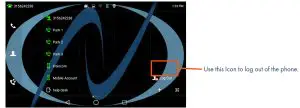
- Tap the LOG OUT Icon on the main screen. Tap OK to confirm. The phone will reboot and the current
subscriber will be logged out. - When the phone completes the reboot, you will see a login icon.
- Tap the LOG IN Icon and enter your subscriber number and
your EAS Password. - When the phone comes back up, you will be logged in.
RINGS + INDICATORS
RINGS
Your telephone rings differently for different types of calls.
EXTERNAL: Two short rings repeated (a new external call or a transferred external call).
INTERNAL: Single ring repeated.
ADJUST RING VOLUME
You can adjust the volume while phone is ringing or idle.
Leave handset in place
Press the PLUS/MINUS VOLUME CONTROL Key to adjust the ring volume when your phone is idle.
RING TONES
You can select from several preprogrammed ring tones so that your phone rings differently than someone who sits near you.
Ring Tones can be programmed through the CommPortal User Interface.
Refer to the CommPortal User Manual at www.northland.net.
SETTINGS + FEATURES
The SETTINGS Icon on the Second Idle Screen consists of four areas of information: Status, Features, Basic Settings and Advanced Settings (see below). This guide will cover basic features and settings.
Features and Settings covered in this guide are indicated with an *.
For more information on other settings, please refer to the Yealink User Guide at https://support.yealink.com.
| Features | |
| * Call Forward | Forwards all calls that ring at your phone to another telephone. |
| Call Waiting | Toggles call waiting and associated tone on/off. |
| Auto Answer | Phone automatically answers when it is idle and a call is received. Toggles on/off. |
| Key As Send | Displays the key designated to send a call. |
| Hot Line | Program a number to be dialed automatically after a delay when handset is lifted. |
| Anonymous | Reject anonymous calls on/off. Off is the default. |
| Auto Redial | When set to ON will redial to a busy number. |
| *DND | Stops all tones and ringing to your phone and sends calls to voicemail. |
| Intercom | Provides options for the intercom feature. |
| Call Completion | Acts as ringback feature when the called party is unavailable. (not available on all servers). |
| Default Account | Displays the subscriber information for this account. |
| Diagnostics | Displays Network information. |
| Basic Setting | |
| Language and Input | Sets the default Language. |
| Time & Date | Change the date and time format. |
| Display | Settings for Backlight, wallpaper, and screen saver. |
| *Sound | Settings for a ring tone, key tone, touch tone, etc. |
| Change PIN | Changes the existing PIN. |
| Bluetooth | Toggles Bluetooth on/off and adds devices. |
| APP Accounts | Adds exchange and personal email accounts. |
| Update Configuration | When requested by a System Admin, this will apply changes to system settings without restarting the device. |
| Reboot | Performs a complete reboot. Restarts the device. |
STATUS INDICATORS
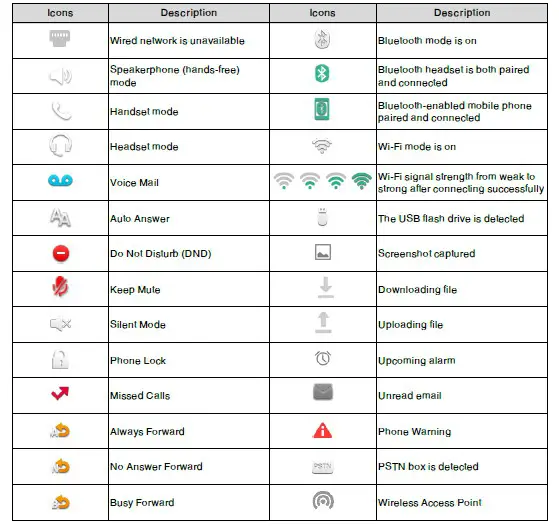
STATUS BAR ICONS
The icons in the Status Bar help you easily get the current phone status, such as call and message status.
LINE KEY FEATURE ICONS
The line key icons show the function of the line key. Icon indicators associated with line key features are shown in the chart below.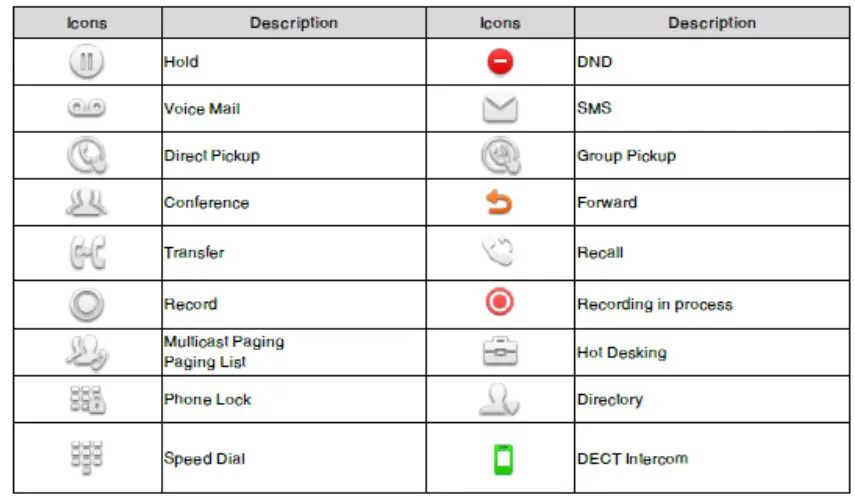
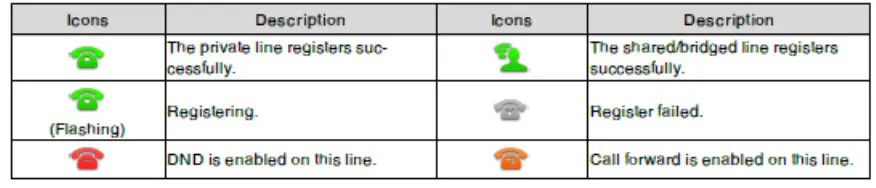
ICON INDICATORS (ASSOCIATED WITH A LINE)
BUSY LAMP FIELD KEYS
If your Yealink Phone is equipped with a Busy Lamp Field (BLF) the following indicators appear when keys are programmed with internal users.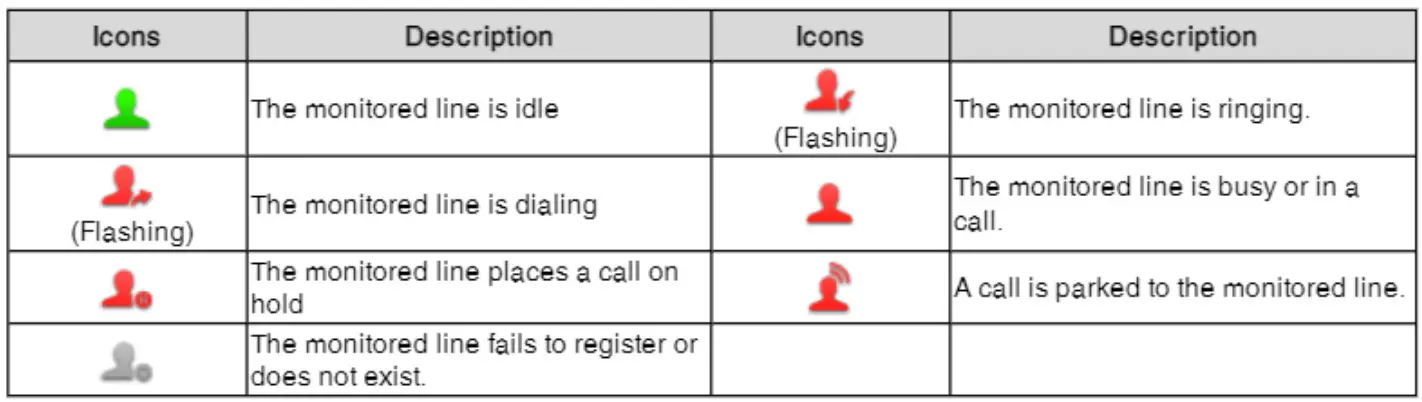
CAMERA LED INDICATORS
| LED STATUS | DESCRIPTION |
| Solid Green | + The phone is powered on and the camera is properly connected. + The camera is idle. + The phone receives an audio-only call. |
| Flashing Green | +The phone receives a video call. |
| Solid Red | + There is an active video call. + The video call is muted. + The video call is held. |
| Slow-flashing Red | + The shutter switch is open, but the near-site video has stopped during a video call. + The video call is placed on hold. |
| Off | + The phone is powered off. + The camera is not properly connected to the phone. + The shutter switch is closed. |
ADDITIONAL CAMERA FUNCTIONS
TAKING PICTURES
You can take pictures with the camera when the phone is idle. You can easily take pictures with the Camera when the phone is on an idle screen.
- Ensure the camera is inserted into the phone and the lens cover is open. (Red camera light is on).
- Swipe to the second idle screen.
- Tap
 to launch the camera.
 - Tap
 to take a photo.
 to launch the camera.
 to take a photo.
NOTE: You can swipe left to view all pictures taken by the camera.
TAKING VIDEOS
- Ensure the camera is inserted into the phone and the lens cover is open. (Red camera light is on).
- Swipe to the second idle screen.
- Tap to launch the camera.
- Tap
 to start a video.
 - Tap
 to stop the video.
 to start a video.
 to stop the video.
NOTE: You can swipe left to view all videos taken by the camera.
CAPTURING A SCREENSHOT
- Swipe down from the top of the screen.
- Tap SCREENSHOT.
NOTE: If the screenshot is successfully saved, a notification “Screenshot captured.” displays in the notification center. If there is not enough space in the internal SD card, you cannot save the screenshot, and the notification center will display a notification “Couldn’t capture a screenshot.”
VIEWING THE MOST RECENT SCREENSHOT
If multiple screenshots are successfully saved, you can view the latest screenshot via the notification center.
- Swipe down from the top of the screen.
- Tap the notification “Screenshot captured.”
YOUR VOICEMAIL
VOICEMAIL: The voicemail system is voice prompted with easy to follow instructions and commands
FIRST TIME VOICEMAIL SET UP
- Dial *99.
- Enter your 10 digit subscriber number and press #.
- Enter the EAS Pin that you were given by your System Administrator.
- Follow the audio instructions to create a password, record your name + record your personal greeting.
NOTE: The above steps can also be completed in CommPortal. This is an important part of identifying you in the system.
There are multiple greeting types available for you to choose from:
- PERSONAL GREETING: Plays to everyone that calls you
- EXTENDED ABSENCE: Plays when you will be away from your office or phone for meetings/vacation, etc.
You can turn off message acceptance when using the extended absence greeting
The system will remind you extended absence greeting is playing - SYSTEM GENERATED: A synthesized greeting that’s set up to include your phone number or recorded name.
- BUSY: Plays when you have active calls on all available lines.
- OUT OF HOURS: Can be set to play outside of your normal business hours, weekends and holidays.
- FORWARDED TO VM: Plays when you have your phone set to forward to voicemail.
NOTES: Through the Self Service CommPortal, you are able to:
- Use a wizard to set up your voicemail for the first time.
- Record and change greetings.
- Choose your voicemail to email options.
LOG IN TO VOICEMAIL FROM ANY TELEPHONE
Log in to voicemail from any account phone or external phone to listen to messages, work with personal greetings and other voicemail settings.
LOG IN FROM YOUR OWN PHONE (VISUAL VOICEMAIL):
- Press the VOICEMAIL (Envelope) Key.
- Messages are displayed on the screen.
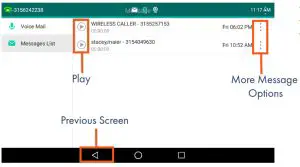
- Tap the PREVIOUS SCREEN Icon to return to the Idle Screen.
- Select a message and tap the PLAY Icon to listen to the message.
- Tap the MORE OPTIONS Icon next to the message, to see additional message options. (See below).
MESSAGE OPTIONS
| Option |
| Send |
| Mark as new |
| Add to Contact |
| Add to Metaswitch Contact |
| Delete |
- Tap SEND to call the number displayed in the message.
- Tap MARK AS NEW to keep the message as new after you have listened to it.
If you have not listened to the message this option will read MARK AS READ. - Tap ADD TO CONTACT to add to your personal contacts list.
- Tap ADD TO METASWITCH CONTACT to add to the Metaswitch Contacts list.
- Tap DELETE to delete the message.
LOG IN FROM ANY EXTERNAL TELEPHONE:
- Dial: 315-671-0031
- Enter your 10 digit telephone number and press the # key
- Enter your pin and press the # key.
- Press 1 to listen to your messages.
LOG IN FROM ANY PHONE IN YOUR BUSINESS GROUP:
- Dial: *99
- Enter your 10 digit telephone number and press the # key
- Enter your pin and press the # key.
- Press 1 to listen to your messages.
YOUR VOICEMAIL
Main Menu
- Listen to messages
- Send a message to another user
- Work with personal greetings
- Mailbox settings
- Work with Reminder Messages
- Access deleted messages
- Switch Account (log into another account)
- Access Help
Exit Voicemail or return to the previous menu.
Listening to Messages
Listening to Messages
| 1 Repeat | 7 Slows the message playback down |
| 2 Save | 8 Pause / Resume |
| 3 Erase | 9 Speeds the message playback up |
| 4 Reply | # Next Message |
| 5 Send a copy | 11 Previous Message |
| 6 Increases the message volume | 77 Skip backward 5 seconds |
| 99 Skip forward 5 seconds |
NOTES: Star (*) will always back you up to the previous menu Pound (#) will bypass a user’s personal greeting
ADDITIONAL VOICEMAIL SETTINGS
There are additional voicemail settings available in the main menu. Some settings are only available when you log in through a telephone. See page 21 for how to log in from any telephone. See the CommPortal User Guide for settings that are available through CommPortal.
WORK WITH GREETING SETTINGS
From the Main Menu, press 3 to work with Greetings. The following greeting settings are available.
Press 1 to work with the personal greeting
Press 2 to work with the extended absence greeting
Press 3 to choose a system-generated greeting or to work with your recorded name
Press 5 to work with the greeting that plays when your phone is busy
Press 6 to work with your out-of-hours greeting (this allows to set a schedule for a greeting that plays outside of your normal business hours). See also the CommPortal User Guide.
Press 9 to work with the greeting callers hear when your phone is set to forward all calls to voicemail
WORK WITH TIMESAVER AND CONVENIENCE SETTINGS
From the Main Menu, press 4 to work with Settings. The following settings are available.
Press 1 to work with group lists – add / edit / delete group lists.
Press 2 to work with timesaver settings – turn autoplay on / off, work with Urgent Message settings and change your message header and body settings.
Press 3 to work with Security – change the pin, set fast login, or set skip pin.
Press 5 to work with Notifications – message waiting for indicator, email notifications, and phone notifications.
Press 6 for Additional Settings – Check the Operator number or turn Marketing broadcasts on / off.
Press 0 to hear helpful hints.
TRANSFER TO VOICEMAIL: Sends a caller directly to voicemail without ringing the phone.
- Tap TRANSFER, call automatically held
- Press *99 and enter EXTENSION Number
- Tap TRANSFER and then tap TRANSFER again immediately
LEAVE A MESSAGE FOR ANOTHER USER WITHOUT RINGING THE PHONE:
- Press *99
- Enter Extension Number and Press SPEAKER or tap AUDIO CALL.
SET UP AN EMAIL ACCOUNT
You can add an email account to the telephone just as you would to any device such as a tablet.
TO BEGIN: Swipe to the second idle display and tap SETTINGS.
Tap APP ACCOUNTS.
Tap + ADD ACCOUNT.
Select the type of email: EXCHANGE OR PERSONAL (IMAP).
Enter your email address and tap NEXT.
Enter your password and tap NEXT.
Set your preferences and tap NEXT.
Select an Optional name for the account and tap NEXT.
SET UP AN OFFICE 365 EMAIL ACCOUNT
WITH MULTI-FACTOR AUTHENTICATION (MFA)
When using MFA, you must create an APP PASSWORD before setting up the account on your phone.
TO BEGIN: Sign in to your work account from your PC, go to MY ACCOUNT PAGE and select SECURITY INFORMATION.
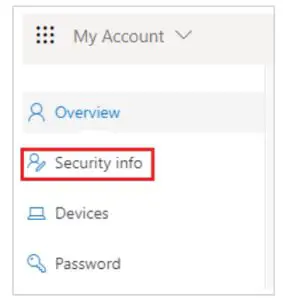
- Select ADD A METHOD.
- Select APP PASSWORD from the dropdown list.
- Click ADD.
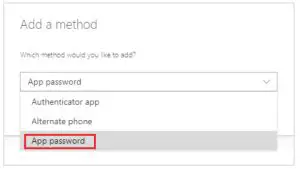
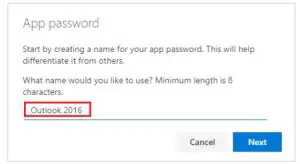
- Enter a name for the App password and select NEXT.
- Copy the password from the App password page and select DONE.
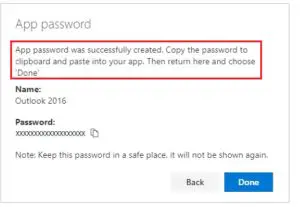
- Return to the Security Infor page and be sure your app password is listed.
- Open the app you created the app password for (for example Outlook 2016) and paste the app password when asked for it.
- You should only have to do this once per app.
Need support? Connect with us at www.northland.net/support or
Dial 4357 (HELP) or 315-671-6262 to speak to a Northland Training Representative