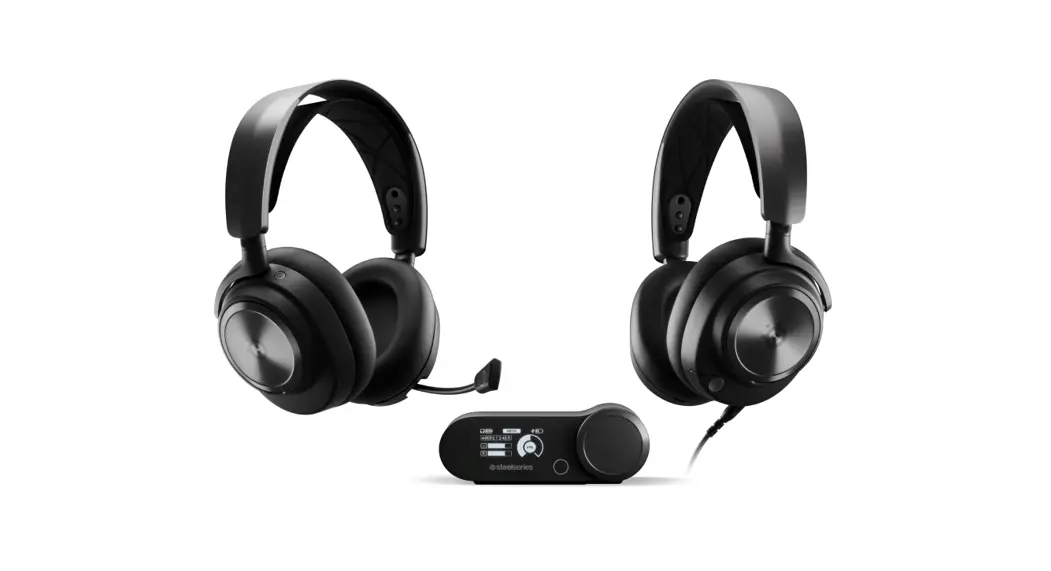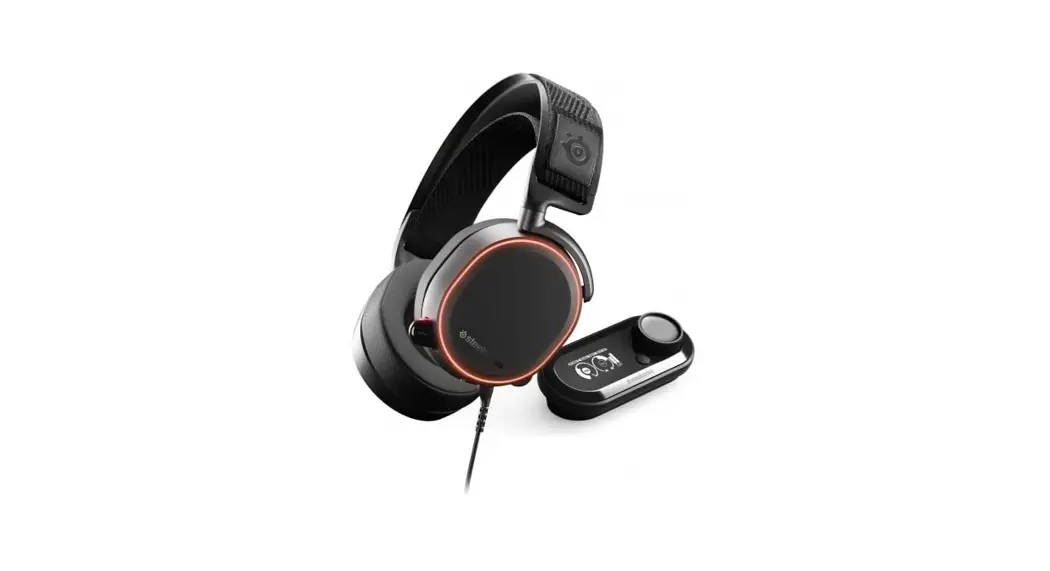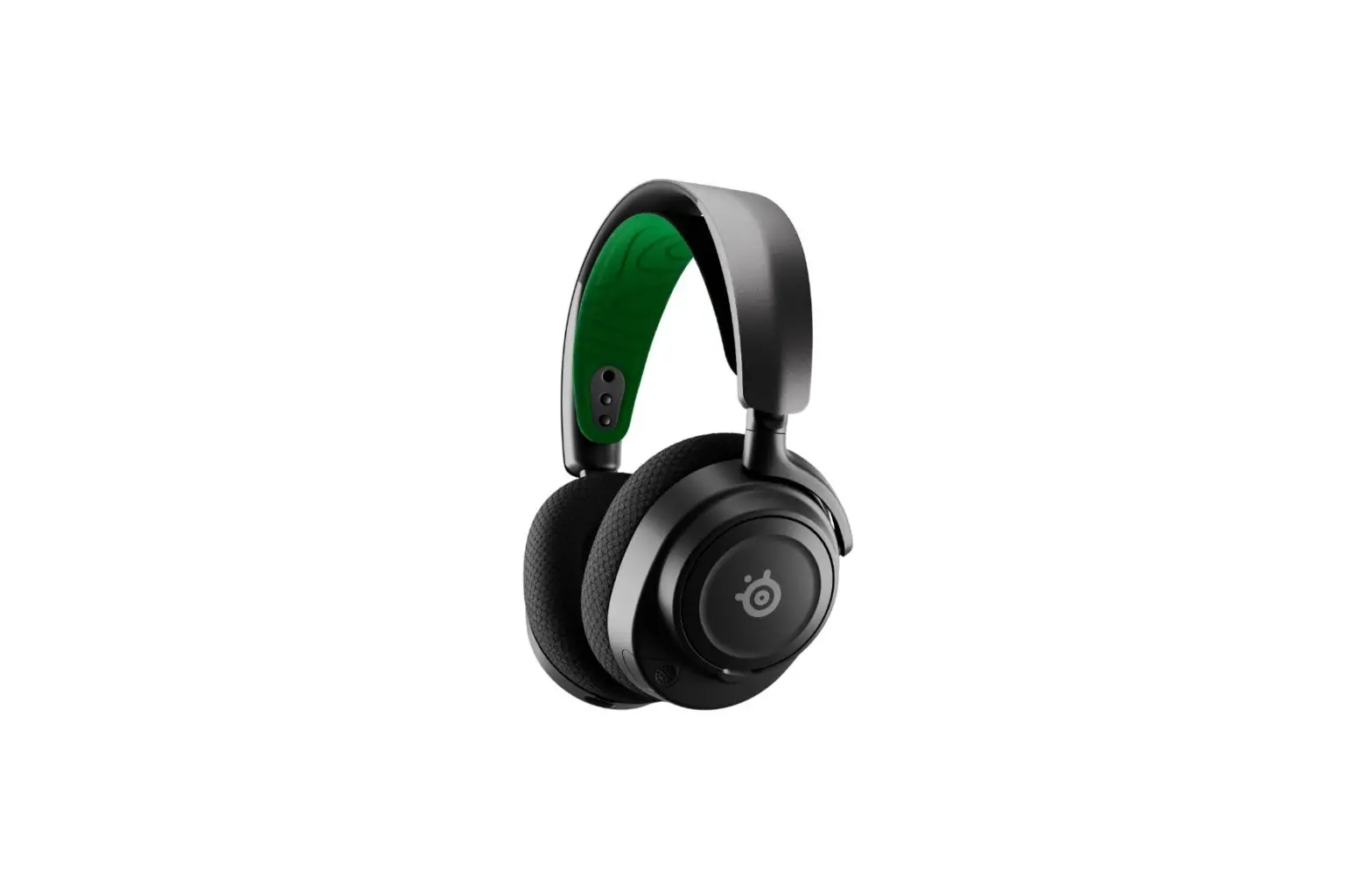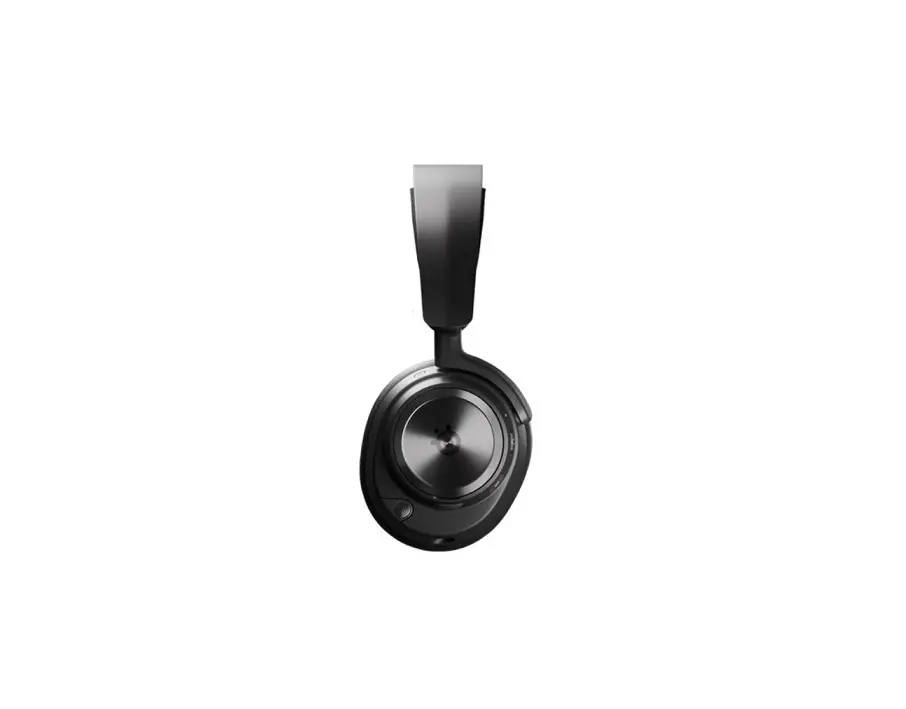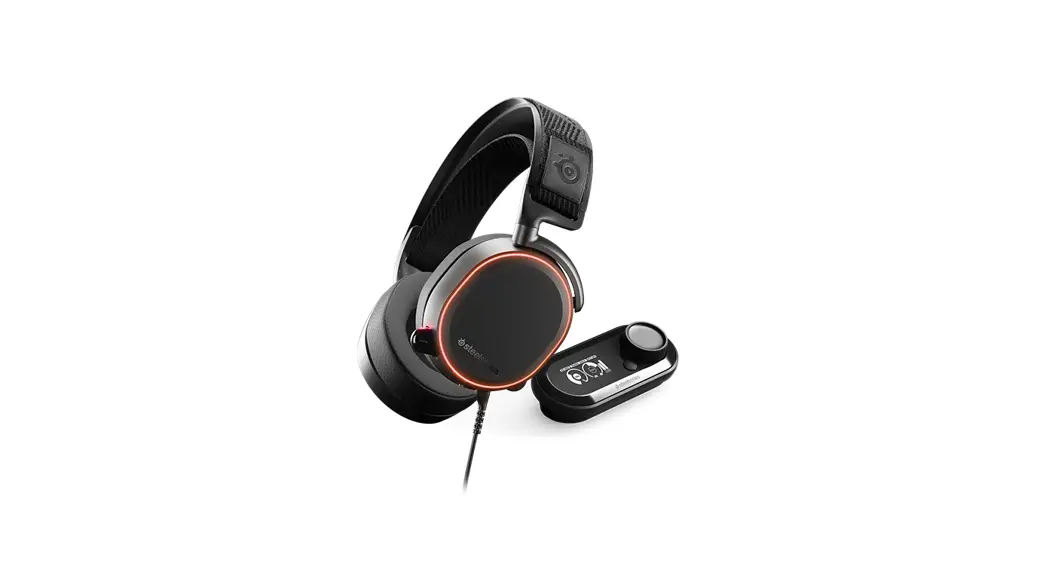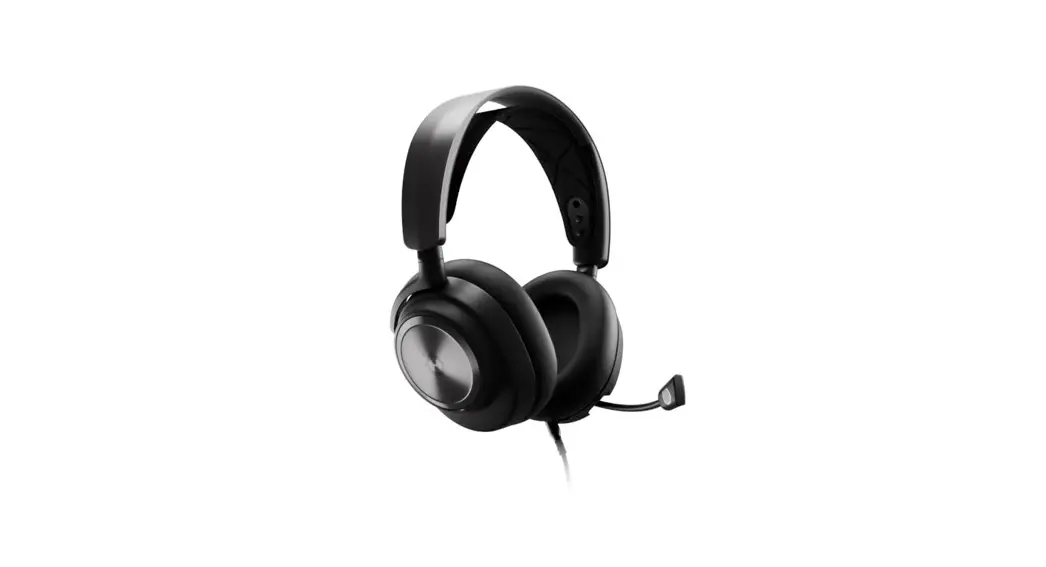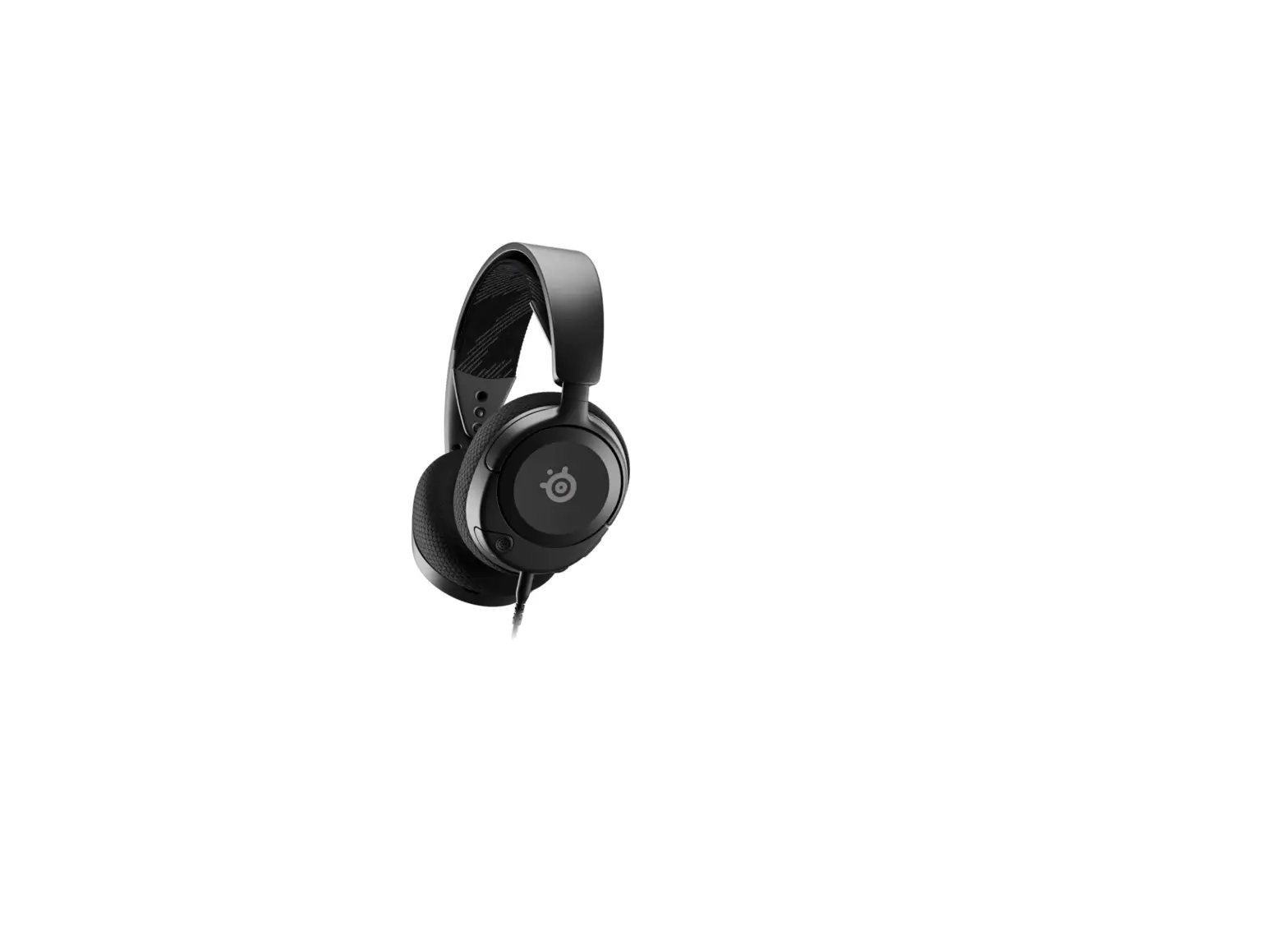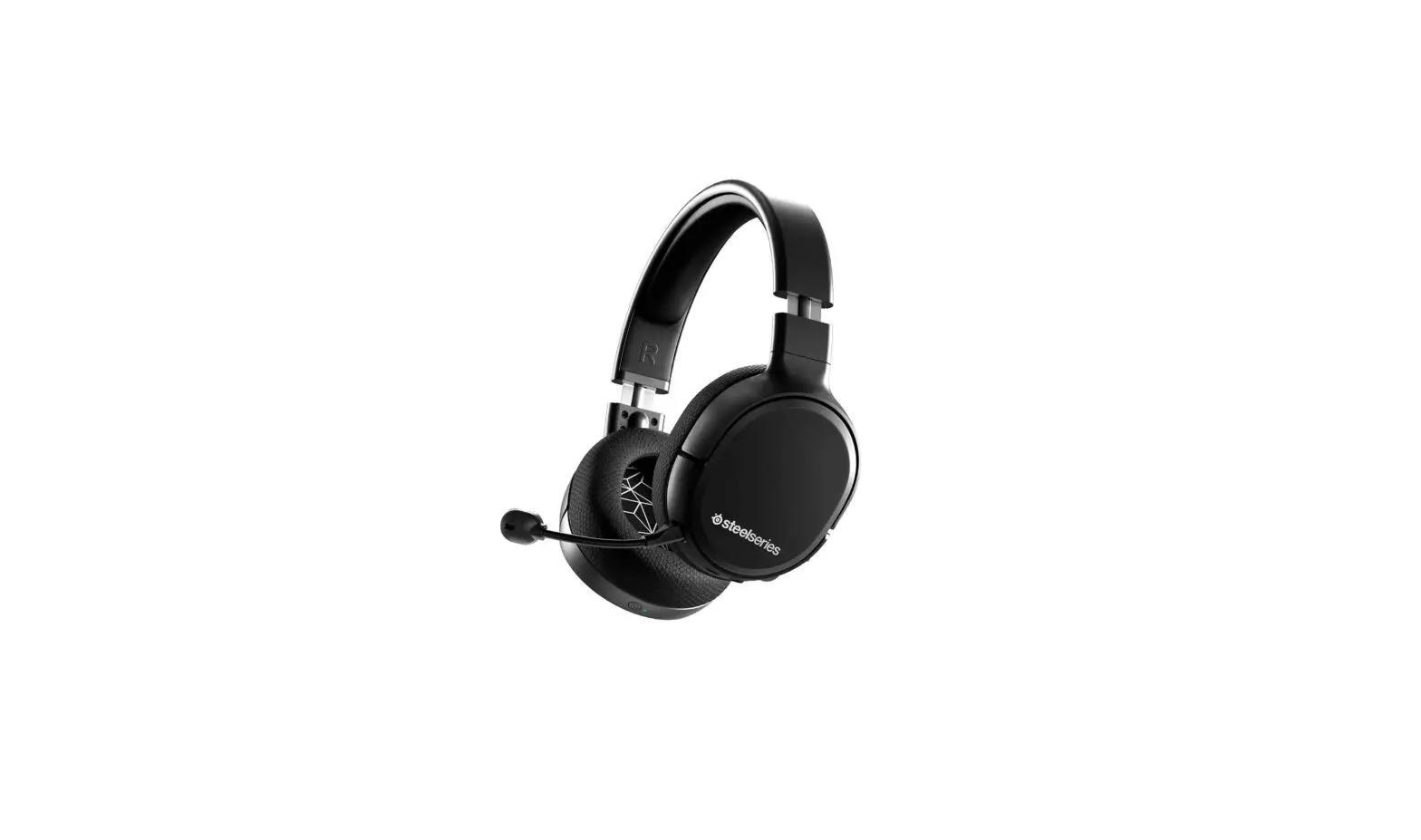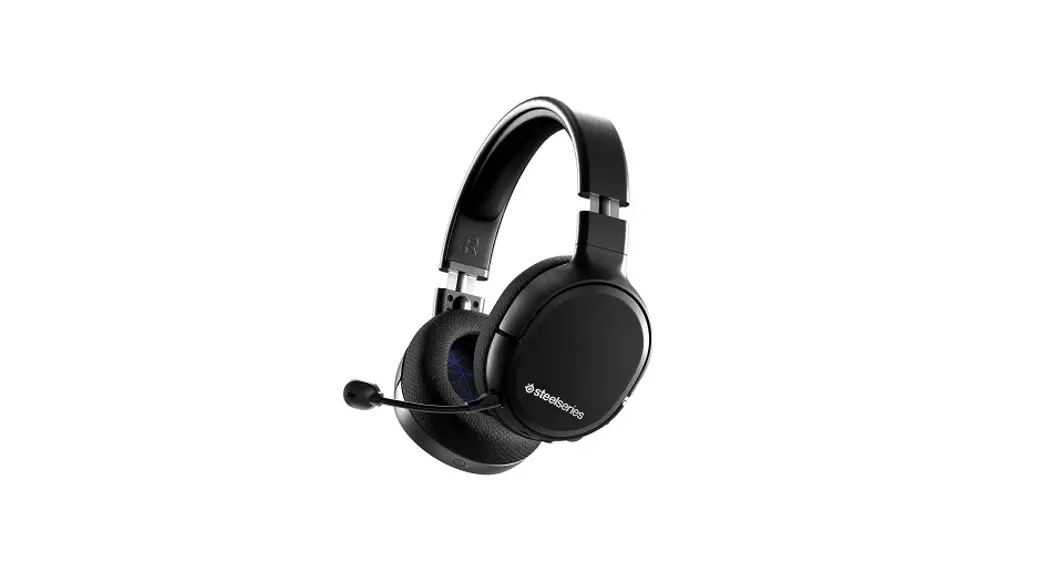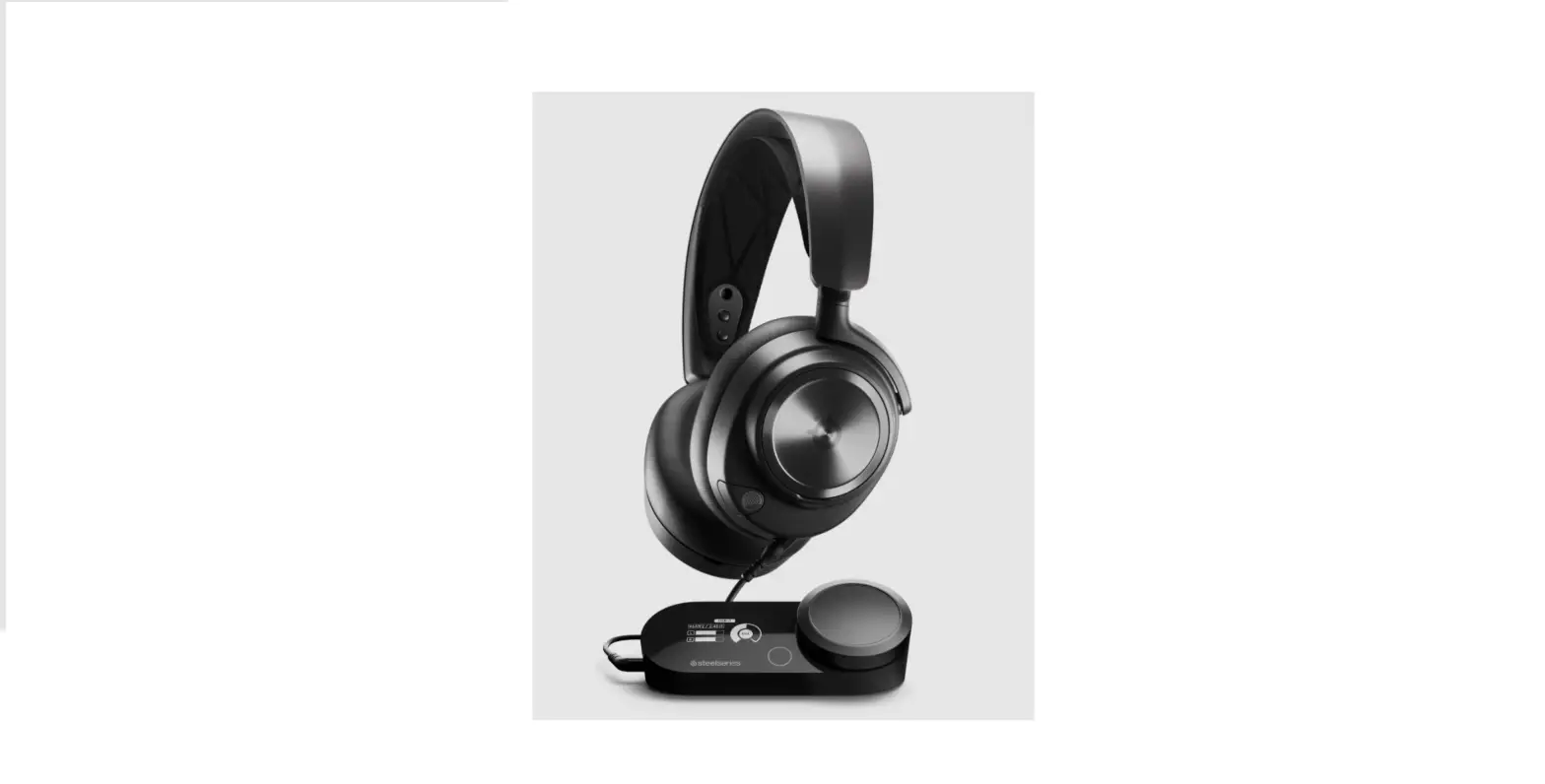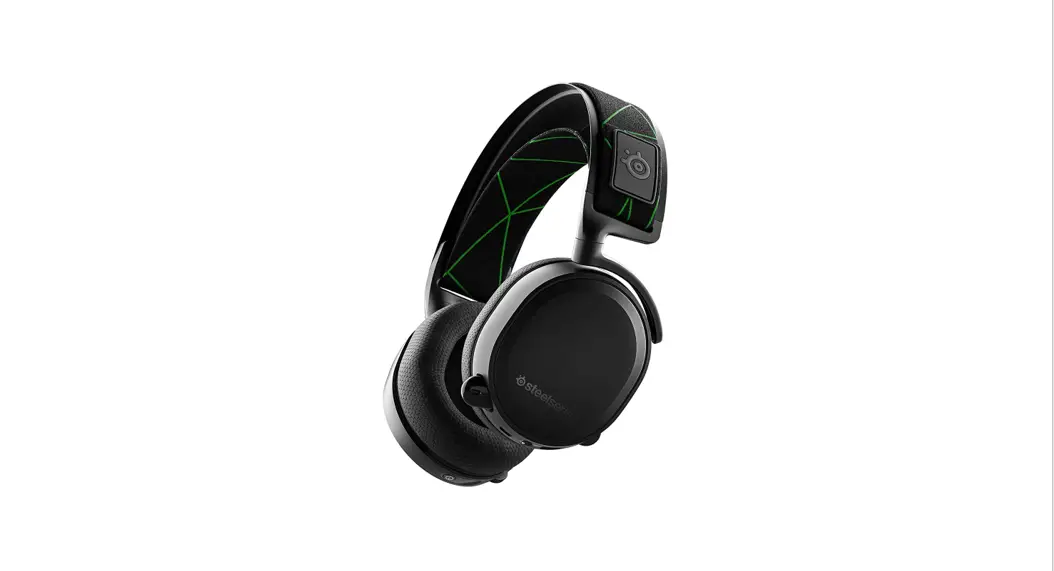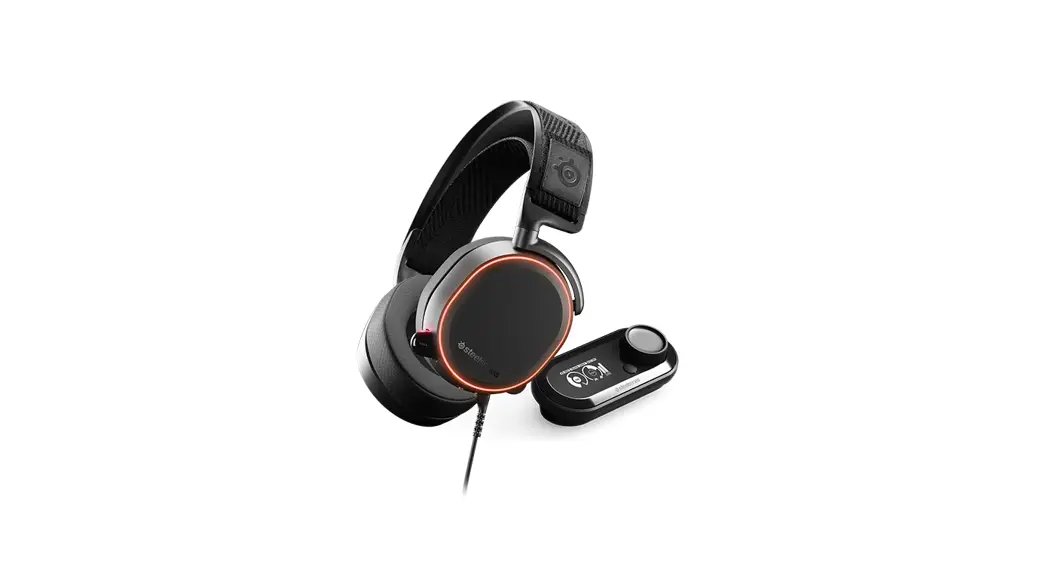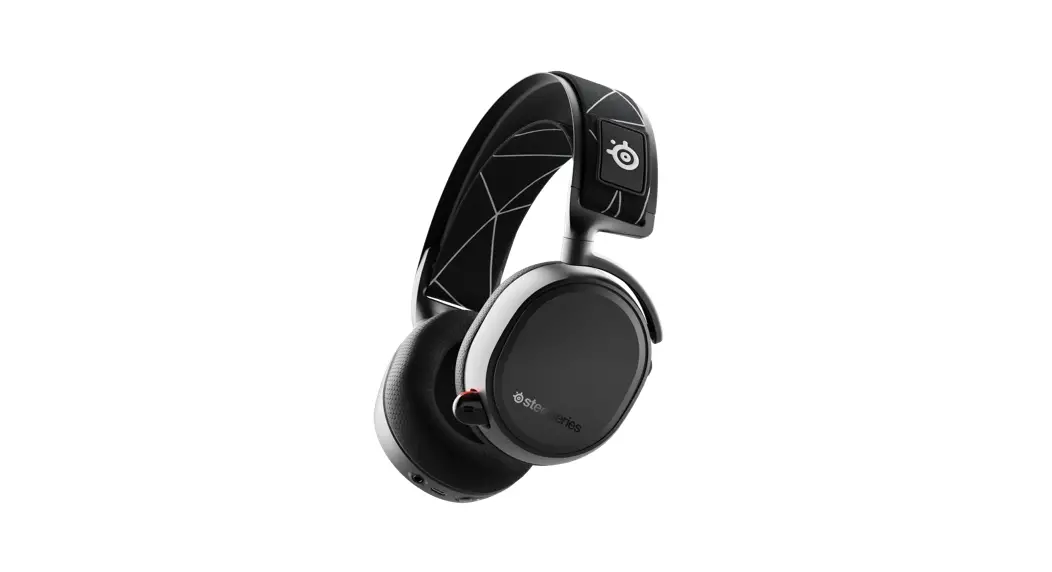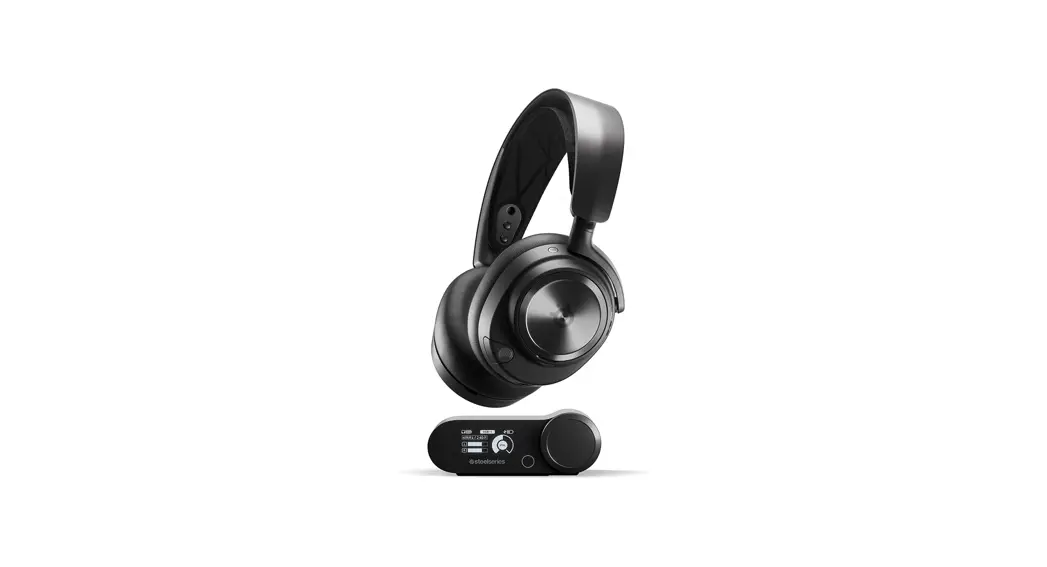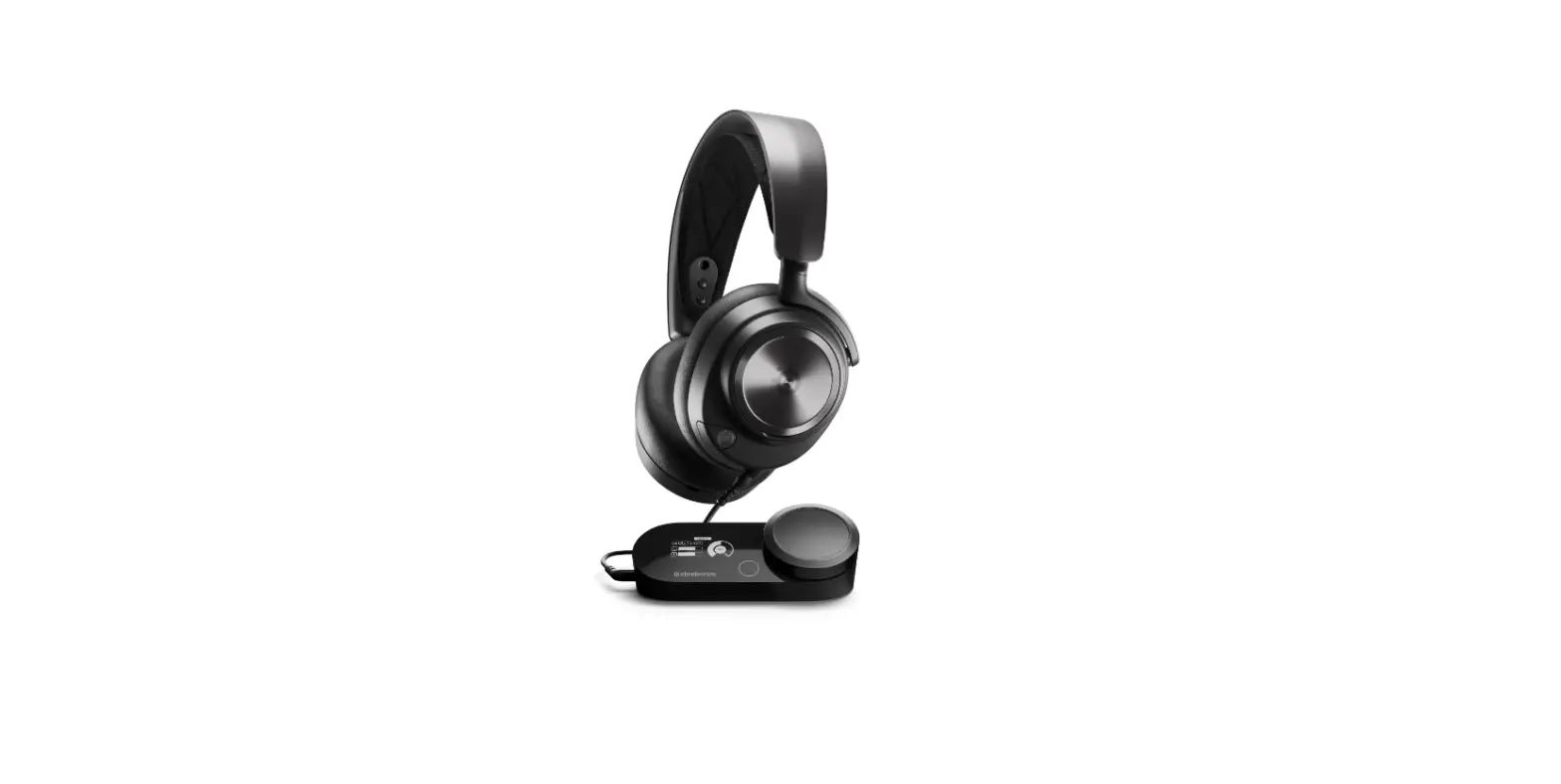

steelseries Arctis Nova Pro High-Res Gaming Headset 
GENERAL
PACKAGE CONTENTS
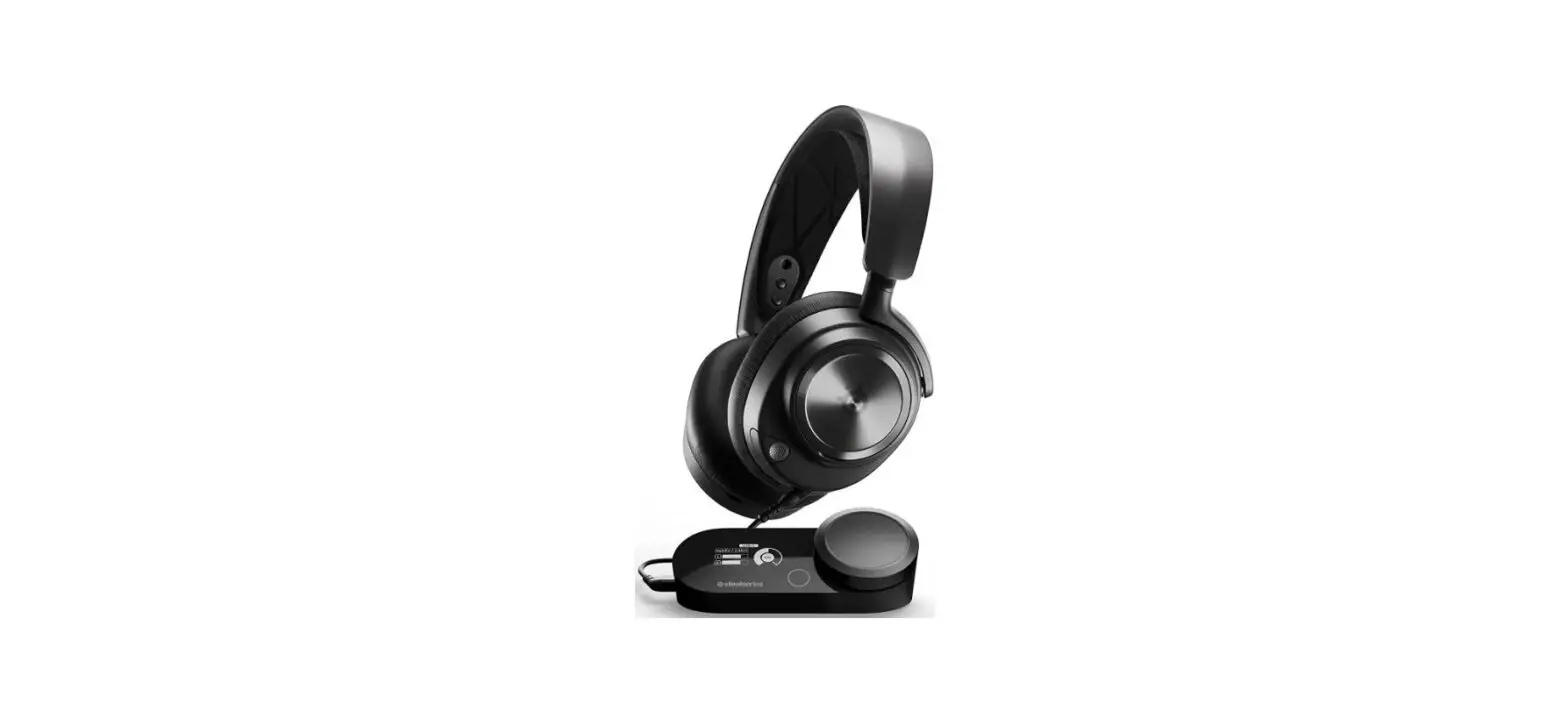
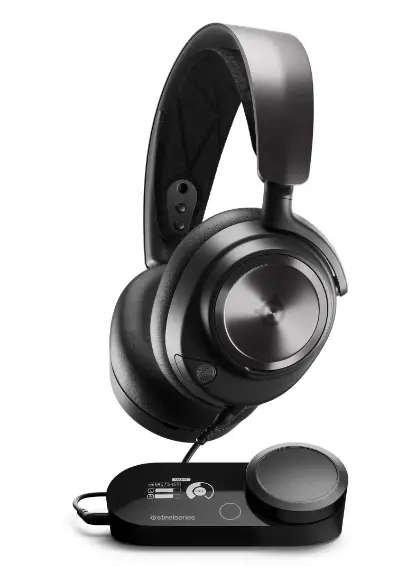
- Arctis Nova Pro Headset GameDAC
- Main Audio Cable
- 2x USB-C to USB-A Cable Microphone Pop Filter
- Product Information Guide
SYSTEM COMPATIBILITY
- PC
- PlayStation 5
- PlayStation 4
- Nintendo Switch
- Android
SOFTWARE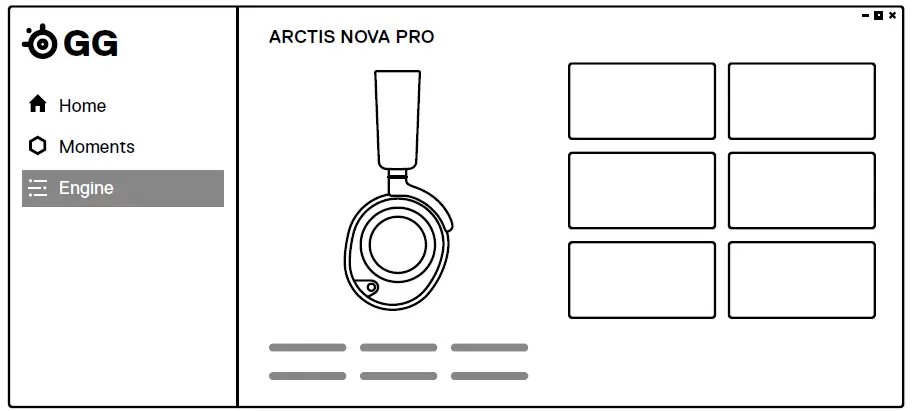
Use Engine inside SteelSeries GG to set custom equalizer settings and control your mic.
GG also has other amazing apps like Sonar, a breakthrough in gaming sound, that allows you to hear what matters most, through cutting-edge audio tools.
DOWNLOAD NOW
steelseri.es/gg
PRODUCT OVERVIEW
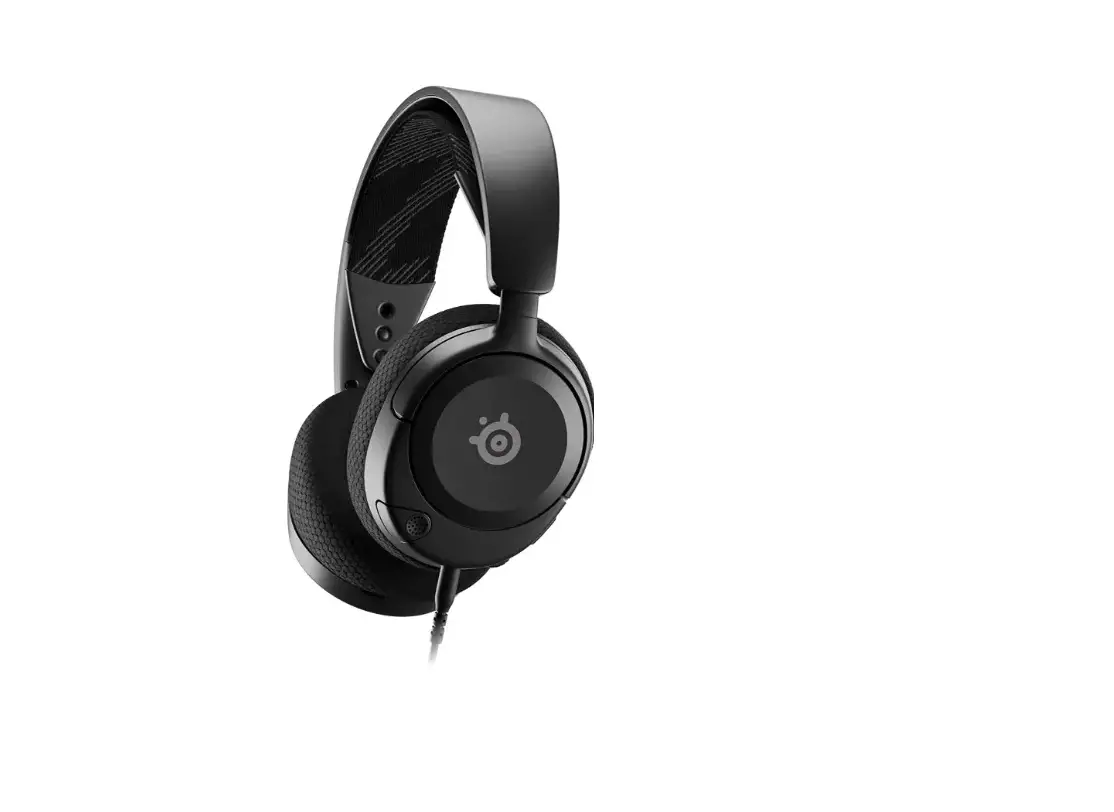
HEADSET
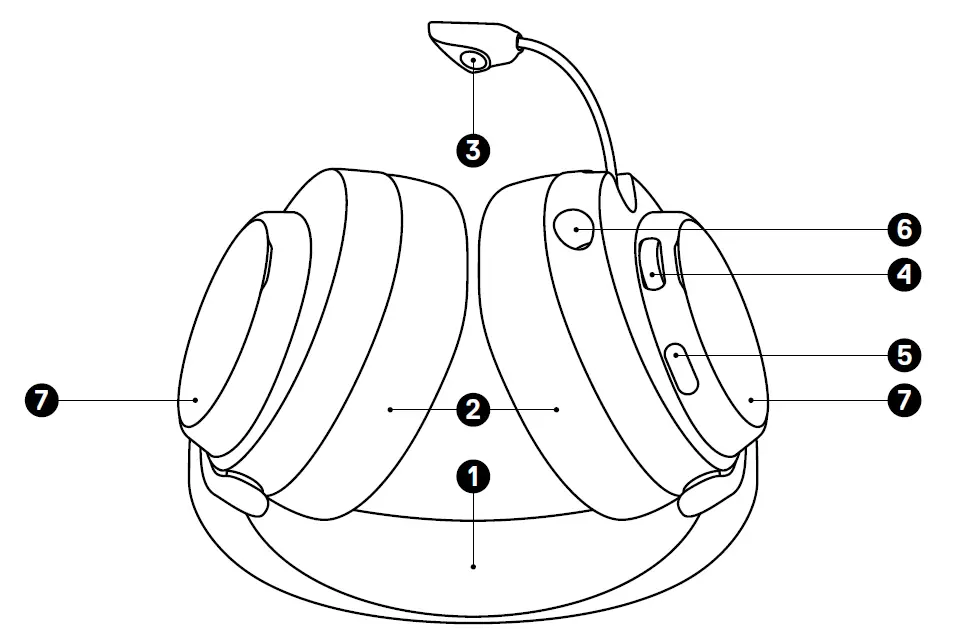
- Elastic Headband
- Premium Leatherette Ear Cushions*
- Retractable ClearCast Microphone
- Volume Wheel
- Microphone Mute Button
- 3.5 mm Audio Jack
- Removable Speaker Plates*

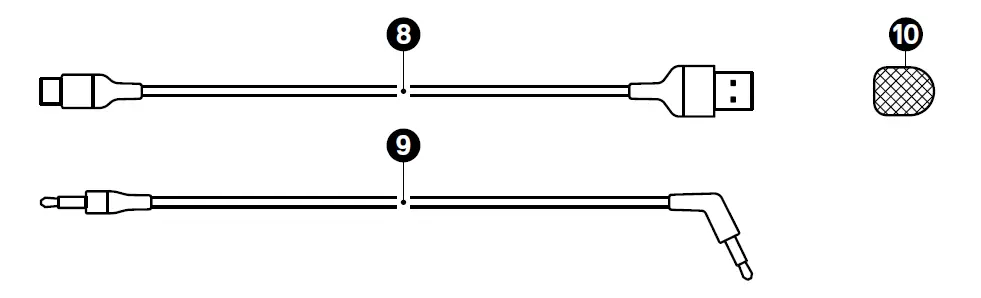
ACCESSORIES* - USB-C to USB-A Cable (×2)
- Main Audio Cable
- Microphone Pop Filter

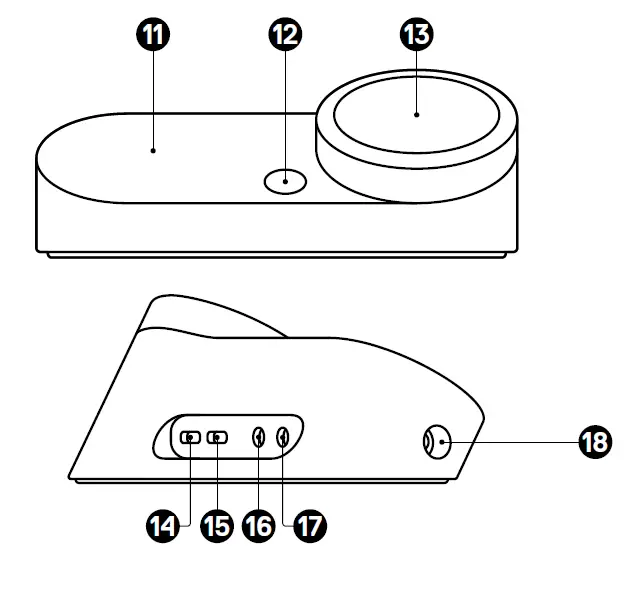
GAMEDAC - OLED Screen
- Secondary Button
- Control Wheel
- USB-1 Jack
- USB-2 Jack
- Line Out Jack
- Line-In Jack
- Headset Jack

SETUP
CONNECTIONS
Plug one of the USB-C to USB-A Cables (8) into the USB-1 Jack (14), and connect the other end to your PC or console. Optionally connect the second USB cable from the GameDAC’s USB-2 Jack (15) to a second PC or console. Change input sources via the OLED display menu.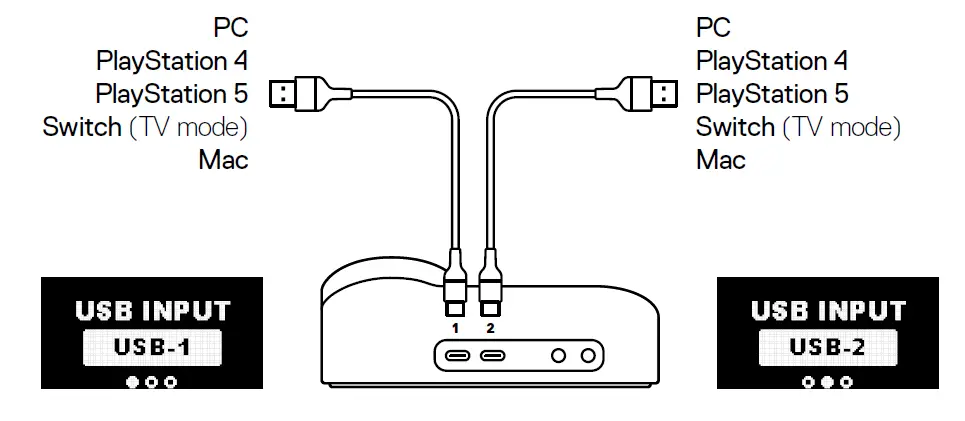
HEADSET TO DAC
Plug the kinked end of the Main Audio Cable (9) into the Headset Jack (18) on the left side of the GameDAC and the straight end into the Headset’s 3.5 mm Audio Jack (6).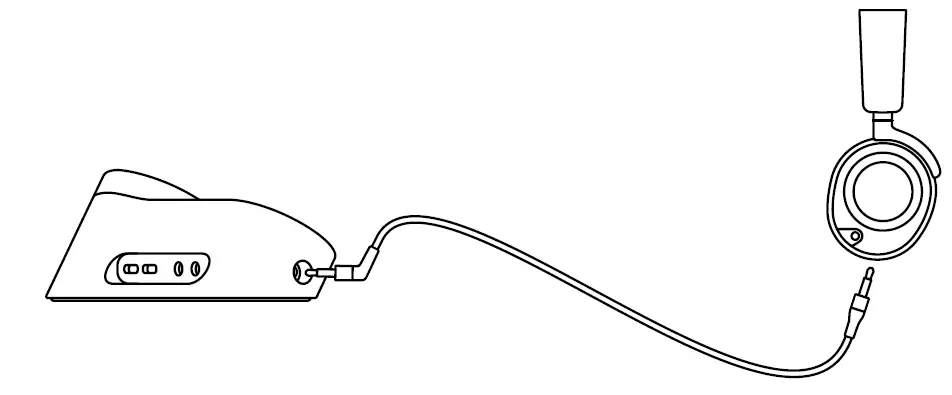
GAMEDAC OPERATION
HOME SCREEN
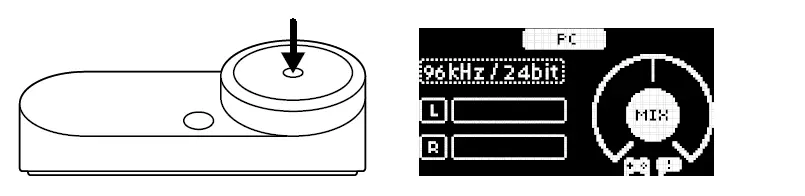
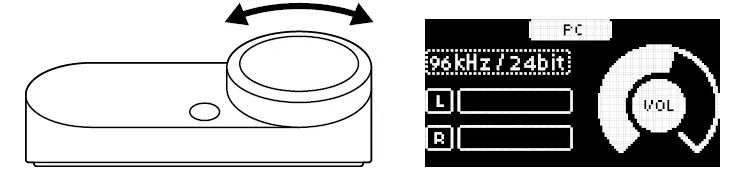
- Press and release the Control Wheel (13) to toggle between Volume and ChatMix (*available on PC with software installed).

- Rotate the Control Wheel (13) to adjust the selected parameter.

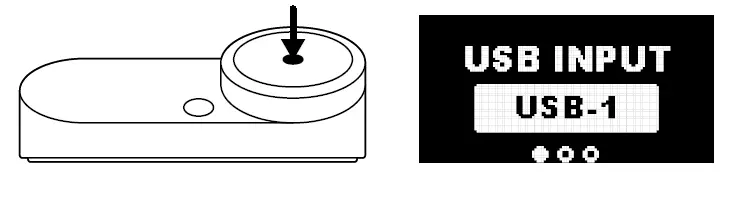
- Press and hold the Control Wheel (13) to bring up the main menu

MAIN MENU
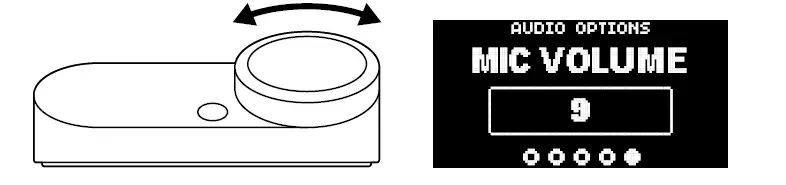
- Rotate the Control Wheel (13) to cycle menu items.

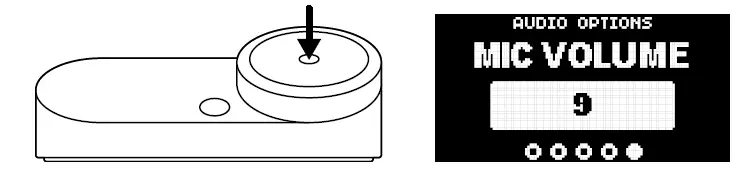
- Press and release the Control Wheel (13) to select

- Press and release the Secondary Button (12) to move back in the menu.

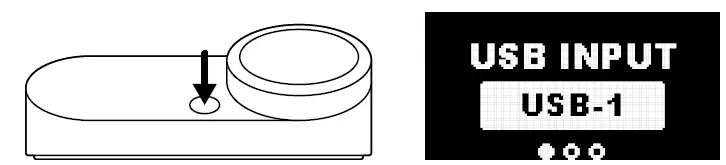
AUDIO OPTIONS
SURROUND
Toggle Software Surround Sound On/Off
(PC only, requires software install)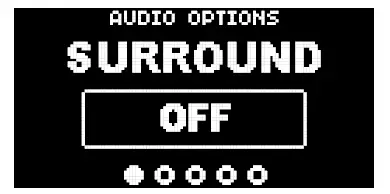
EQUALIZER
Customize your sound with included presets or fully adjustable 10-band EQ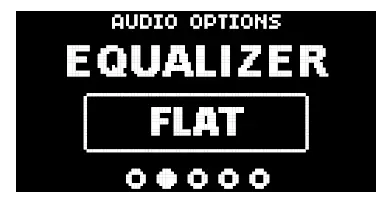
GAIN
Changes the maximum output level of the GameDAC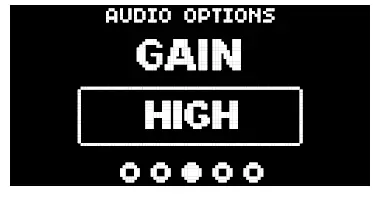
SIDETONE
Select the amount of your own voice you wish to hear in the headphones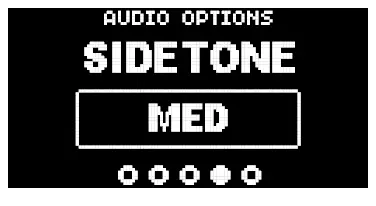
MIC VOLUME
Optimize the level of the microphone for your system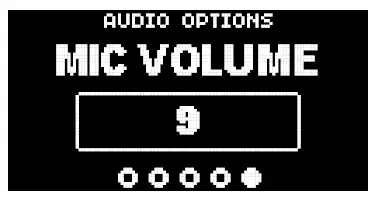
MIC MUTE
When enabled, the Secondary Button (12) toggles microphone mute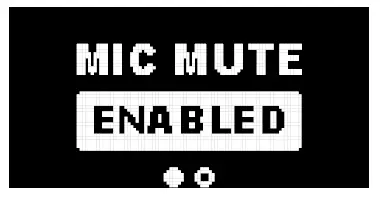
AUDIO OUTPUT SETTINGS
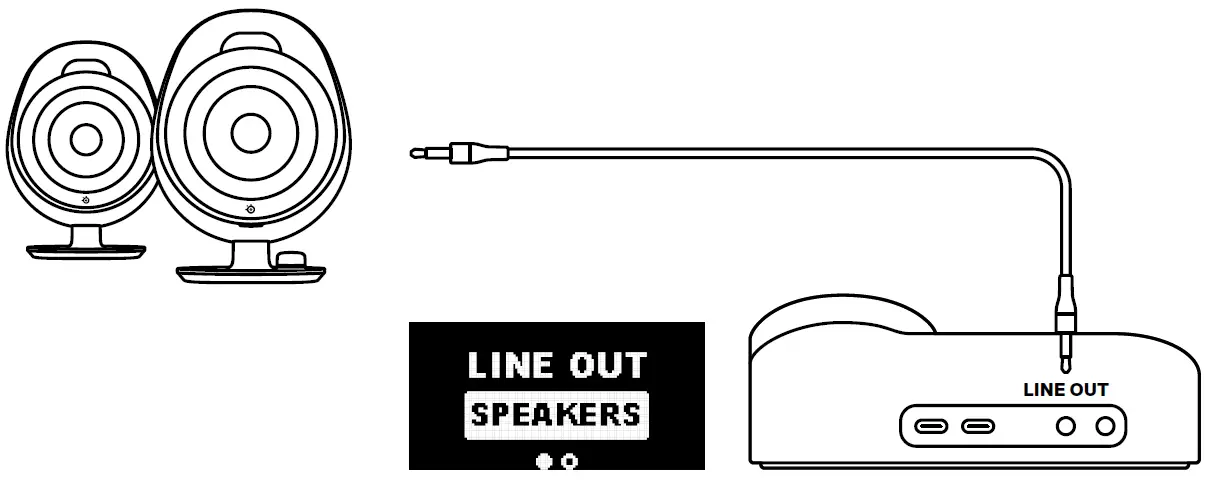
SPEAKERS
Play game and chat audio through a pair of external speakers.
- Connect a 3.5 mm cable (not included) from the GameDAC Line Out Jack (16) to your speakers.
- In the OLED menu set the Line Out option to ‘Speakers’.

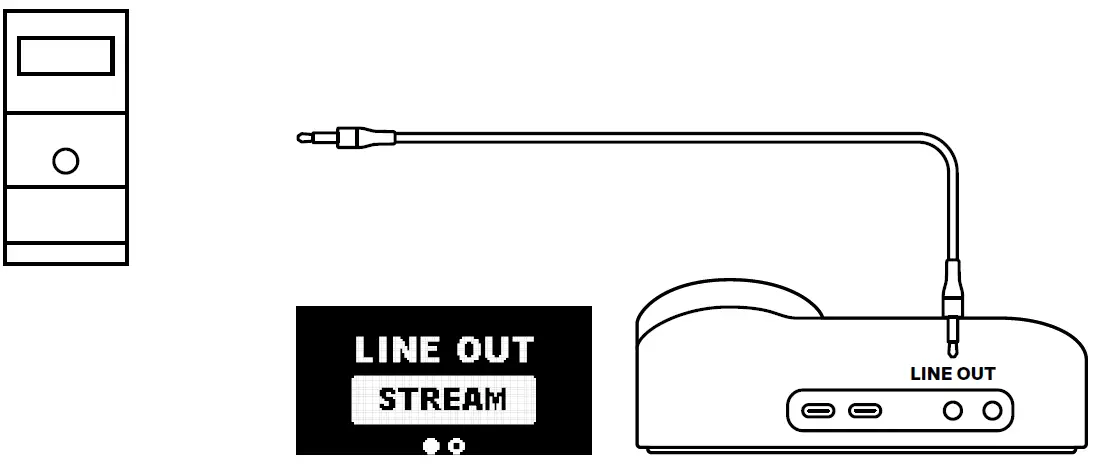
STREAM
Mix your Main, Aux, and Mic audio together to send to a PC for streaming.
- Connect a 3.5 mm cable (not included) from the GameDAC Line Out Jack (16) to your stream PC’s Soundcard input.
- In the OLED menu set the Line Out option to ‘Stream’.
- Adjust your custom mix via the Stream Mixer on the OLED screen.

MICROPHONE
RETRACTABLE MICROPHONE
Out of the box, the Retractable ClearCast Microphone (3) is retracted To use the microphone, slide it away from the headset until it reaches full extension.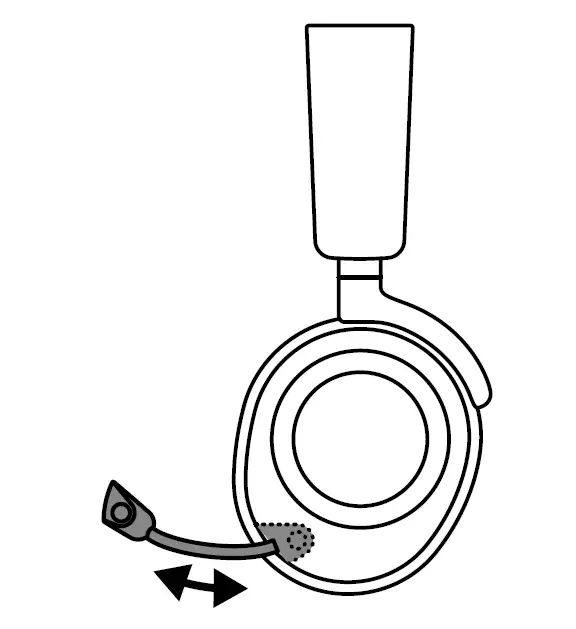
POSITIONING
Position the Retractable ClearCast Microphone (3) close to the corner of your mouth with the front surface facing you.
Note: The microphone should not be used when retracted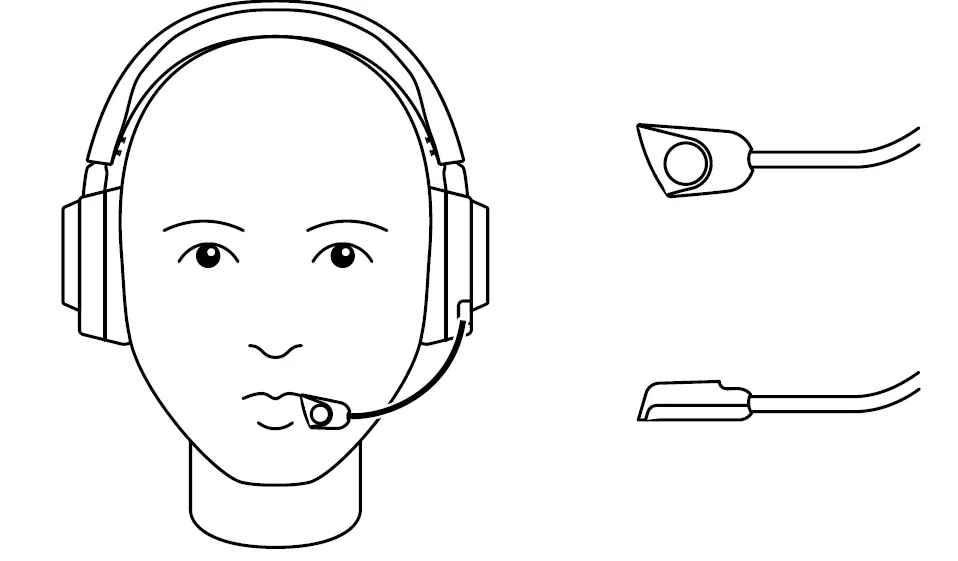
PERFECT FIT
EARCUP ADJUSTMENT
Slide the Earcups up or down to change the overall height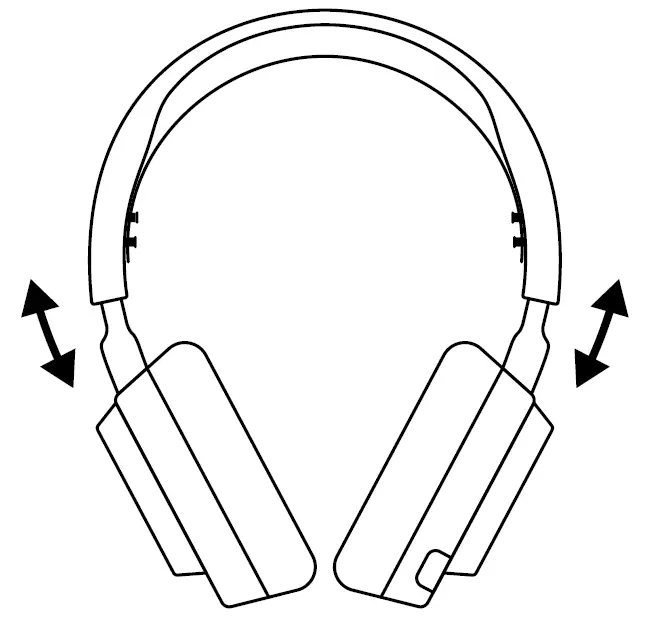
HEADBAND ADJUSTMENT
Change the position of the Elastic Headband (1) on one or both sides to achieve the desired tension and flex.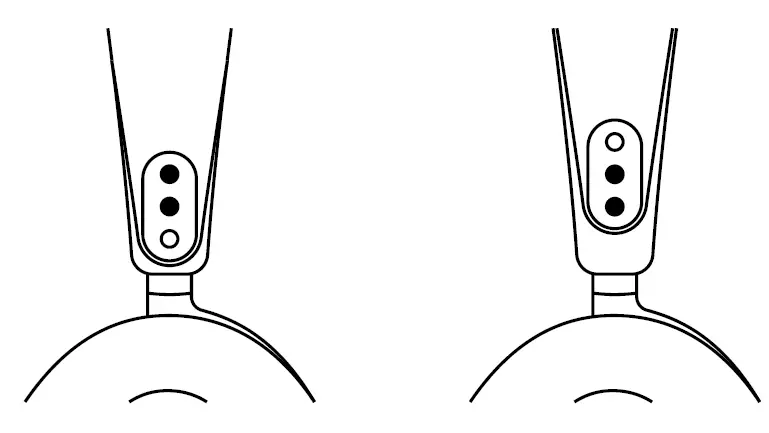
SPEAKER PLATES
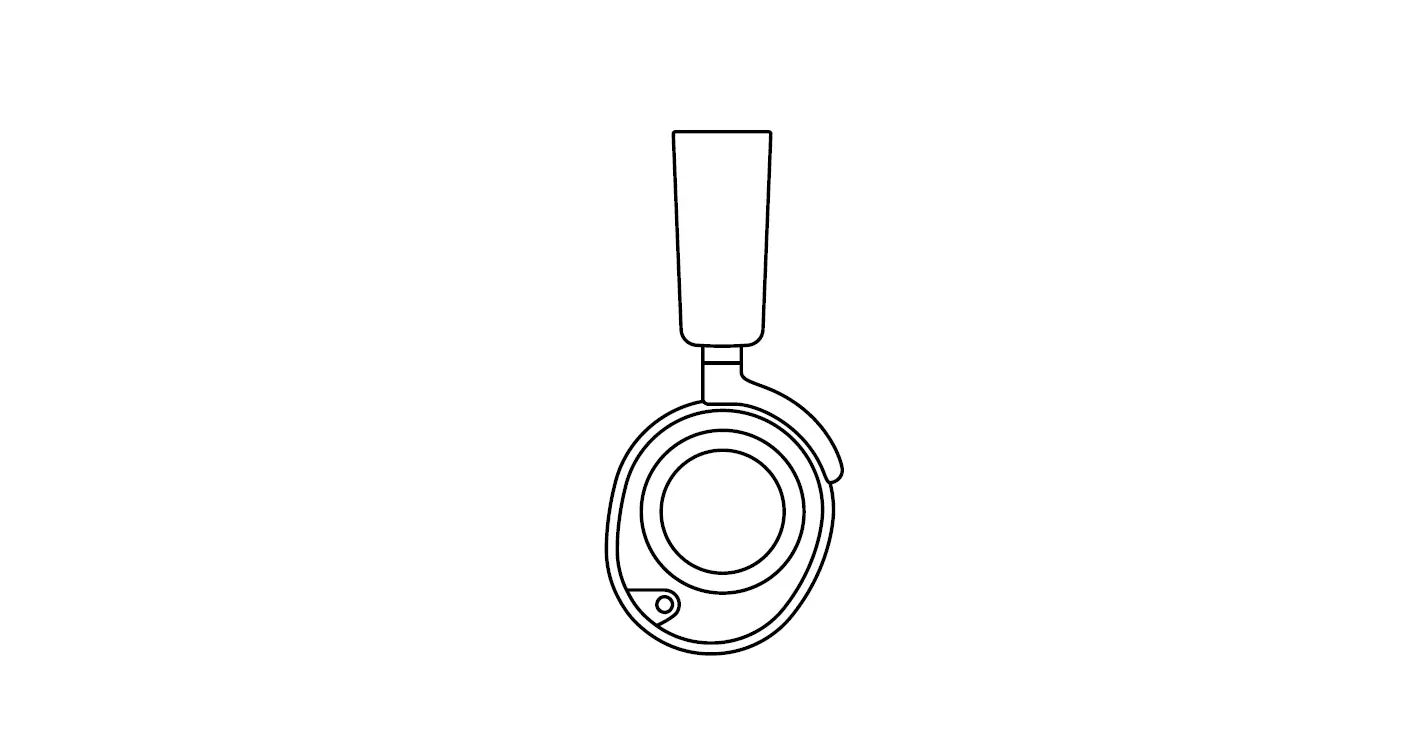
The Removable Speaker Plates (7) are attached with magnets. To remove for replacement, place your fingernail in the groove at the bottom of the plate and gently lift.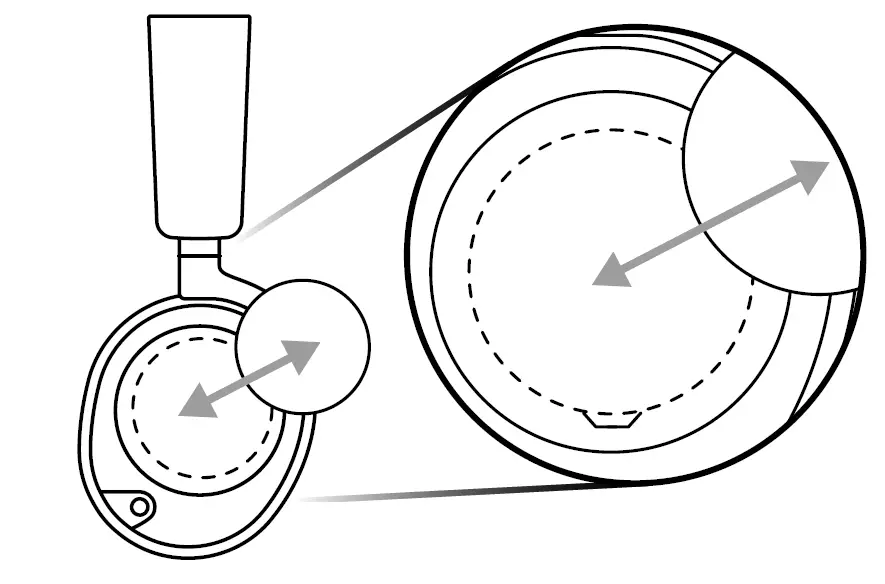
learn more at steelseries.com
 SteelSeries GG | Connect with your people, gear and game | SteelSeries