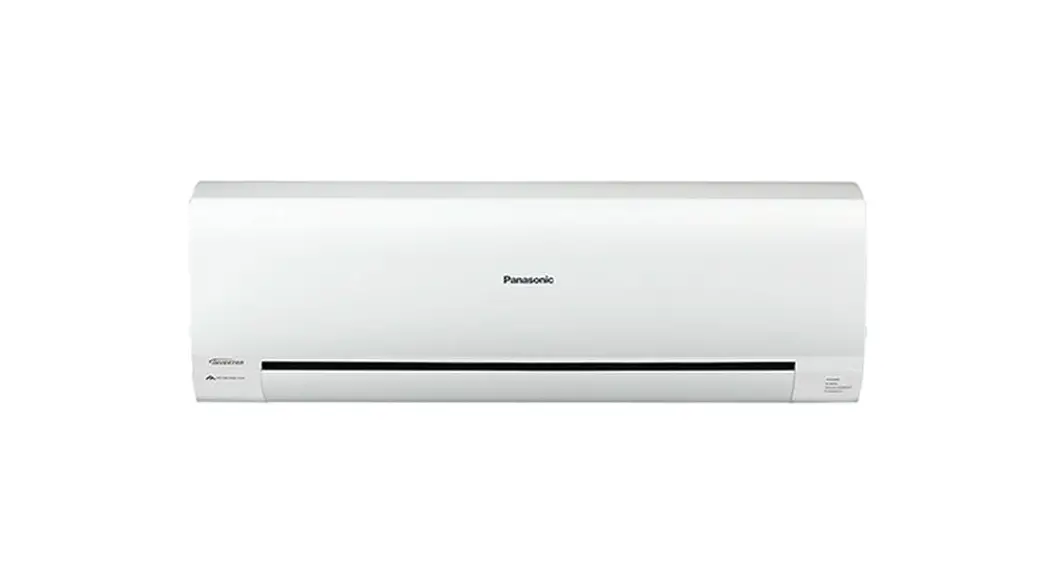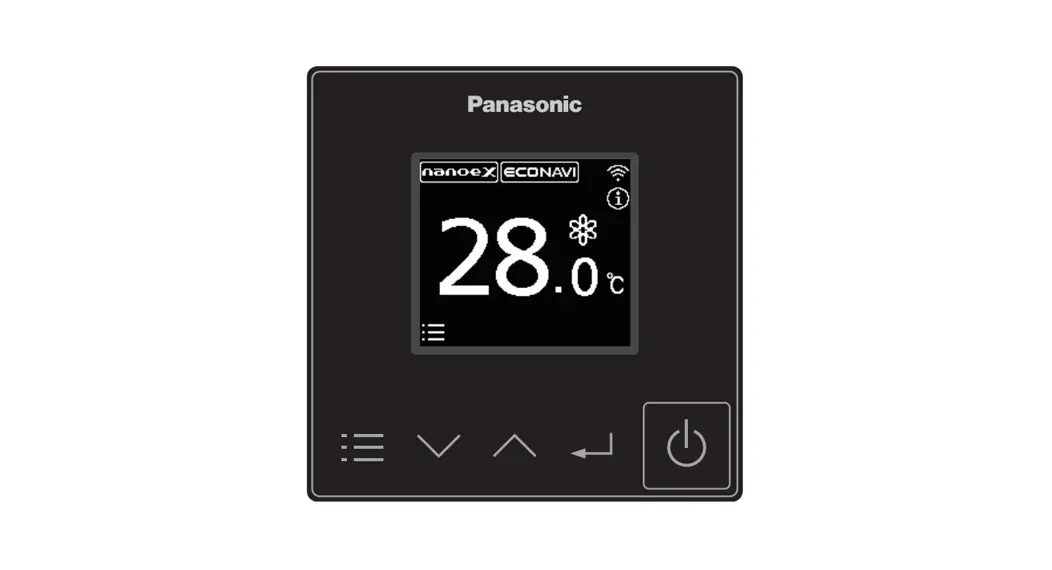
 P136-139 Commercial Air Conditioners
Instruction Manual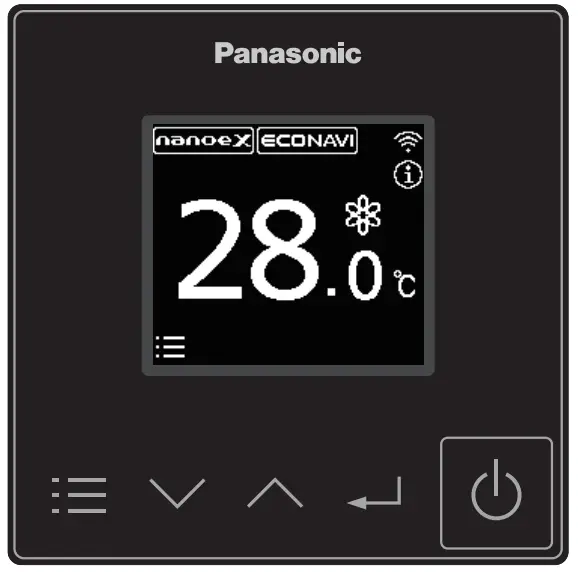
P136-139 Commercial Air Conditioners
Commercial Air Conditioners (CAC)
4.2 Add New Units to Groups
Add New Air Conditioner Units (Wired Remote Controller).
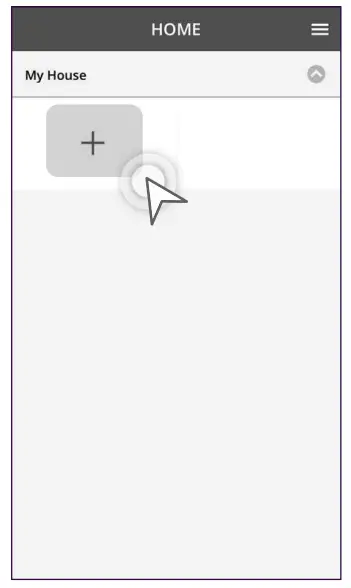 | 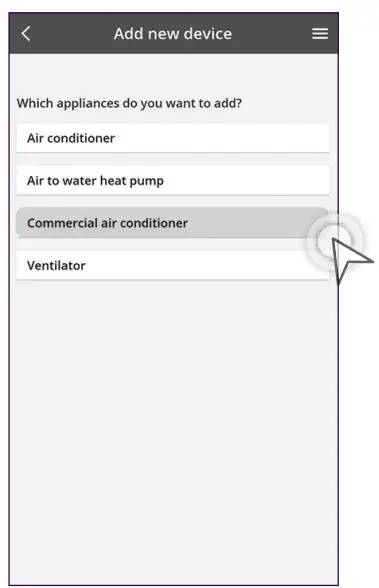 |
| STEP1 Tap the “+” icon. | STEP 2 Select “Commercial air conditioner”. |
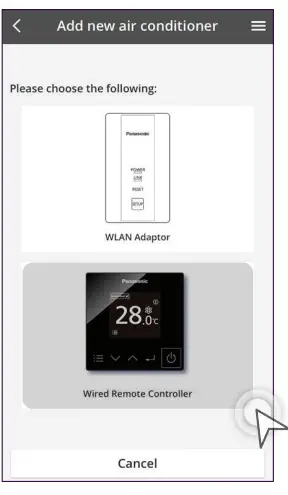 | 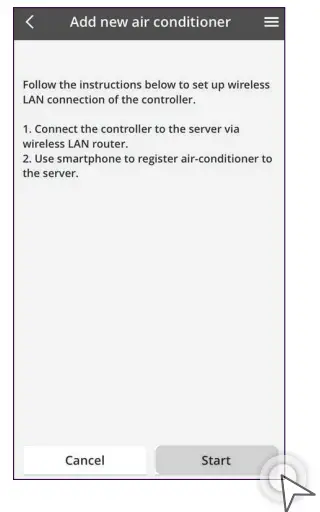 |
| STEP3 Select “Wired Remote Controller”. | STEP4 Tap “Start”. |
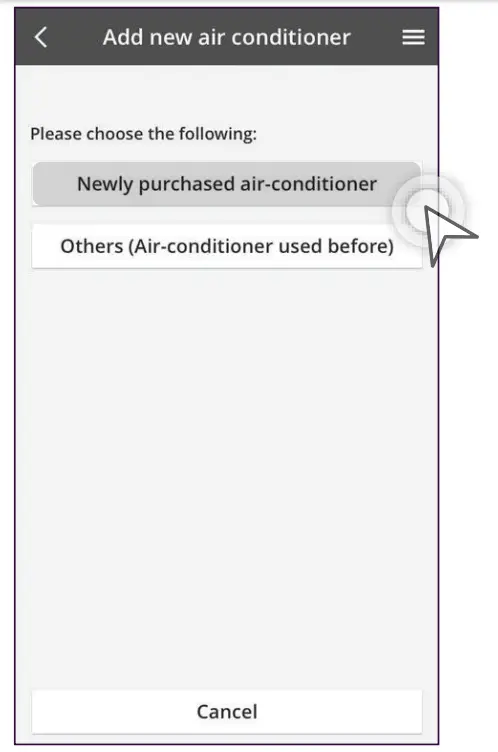 | 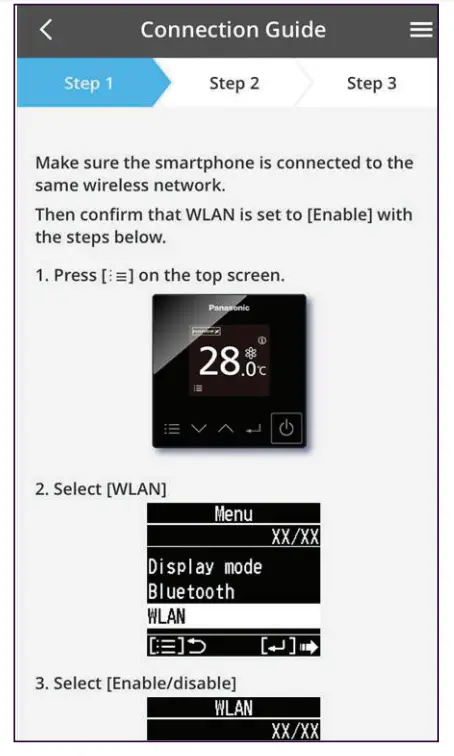 |
| STEP 5 Select “Newly purchased air-conditioner”. | STEP 6 Make sure the smartphone is connected to the same wireless network. Follow the instructions listed on the screen. |
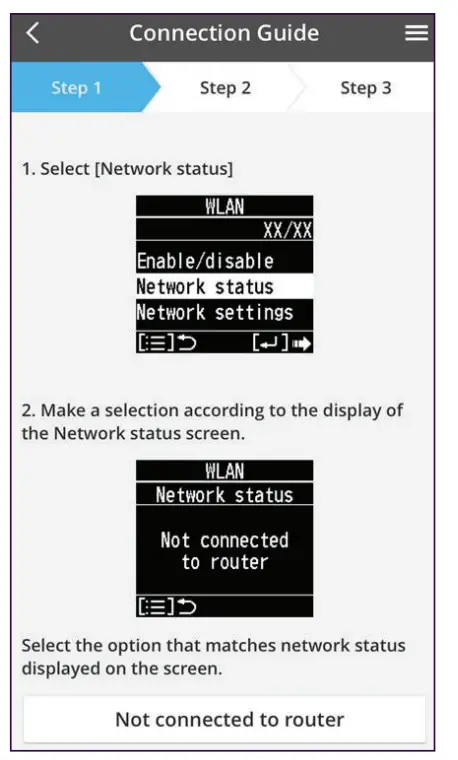 | 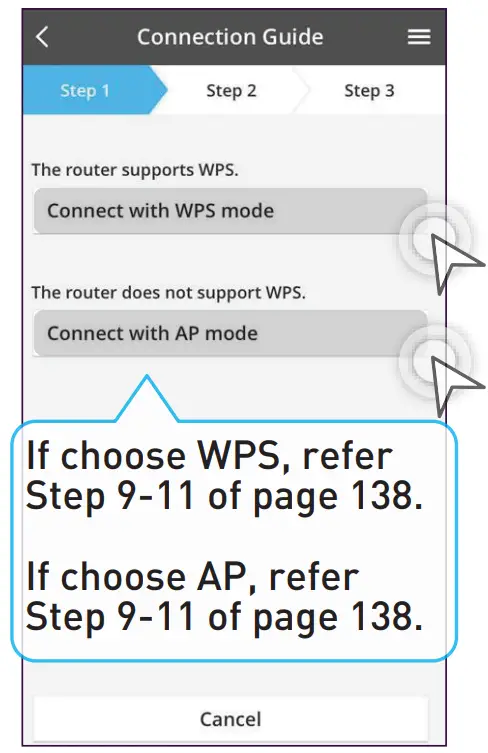 |
| STEP 7 Select your [Network status] and make a selection according to the display. | STEP 8 Choose to connect using WPS or AP. **AP mode can only use with (Android 5.0 & IOS 11.0) and above. |
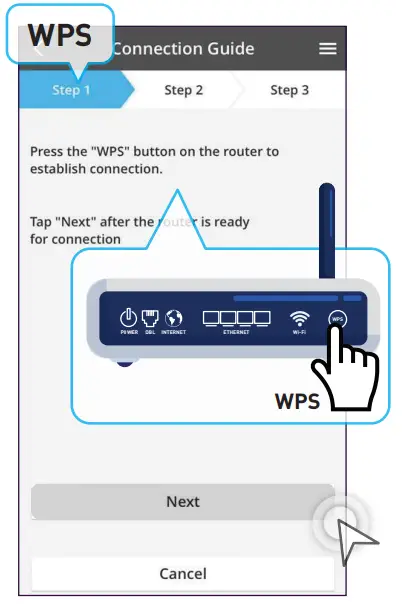 | 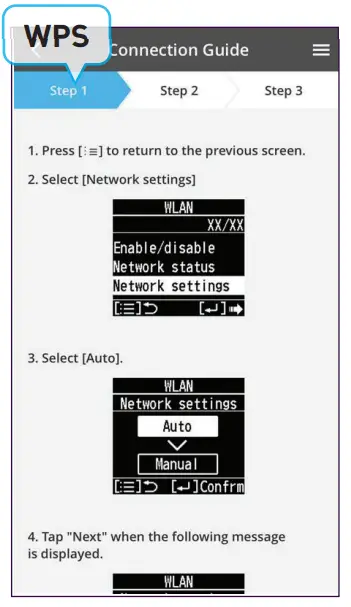 |
| STEP 9 Press the WPS button on the router then tap “Next”. | STEP 10 Select [Network settings] and choose [Auto] then tap “Next” to continue. |
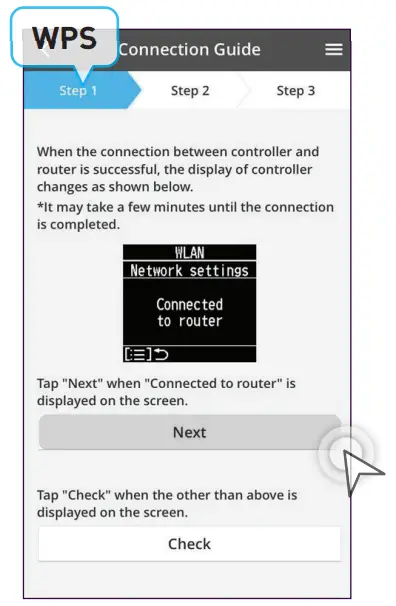 | 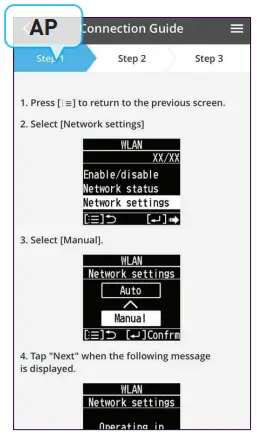 |
| STEP 11 If the connection is successful the display of the controller will show “Connected to router”. Tap “Next” when connected. Go to Step 12. | STEP 9 Select [Network Settings] and choose “Manual”. Tap “Next” when the text reads “Operating in Manual”. |
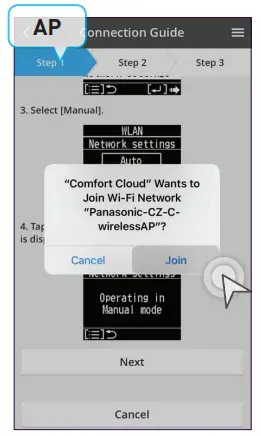 | 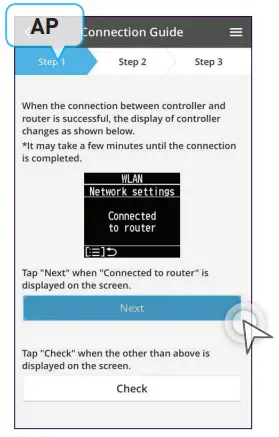 |
| STEP 10 Tap “Join” when prompt Comfort Cloud wants to join Network. | STEP 11 If the connection is successful the display of the controller will show “Connected to router”. Tap “Next” when connected. Go to Step 12. |
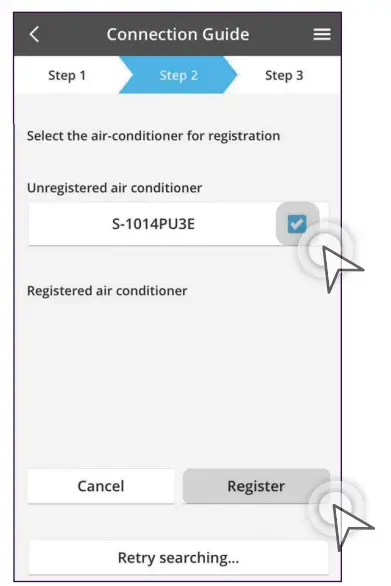 | 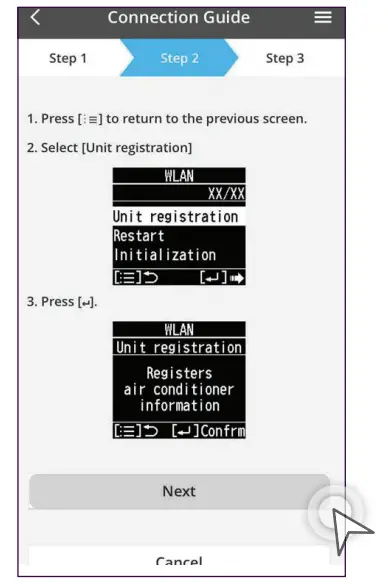 |
| STEP 12 Select the air conditioner then tap “Register”. | STEP 13 Select [Unit Registration] then tap “Next”. |
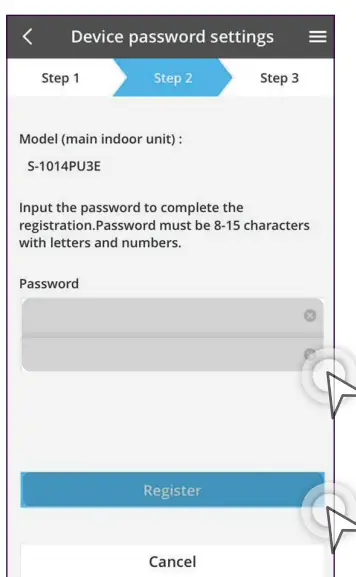 | 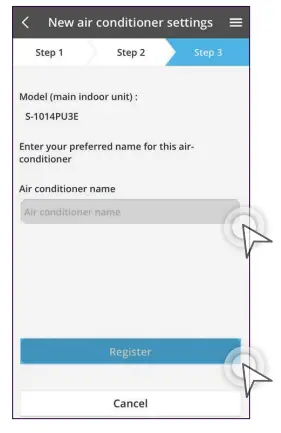 |
| STEP 14 Key in Password then tap “Register”. | STEP 15 Set air conditioner name then tap “Register”. |
| STEP16 The air conditioner has been registered. | 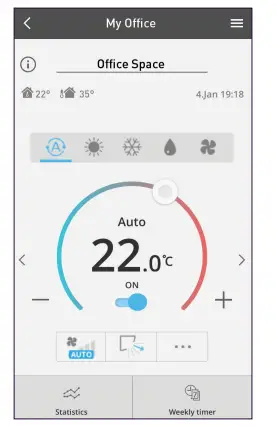 |