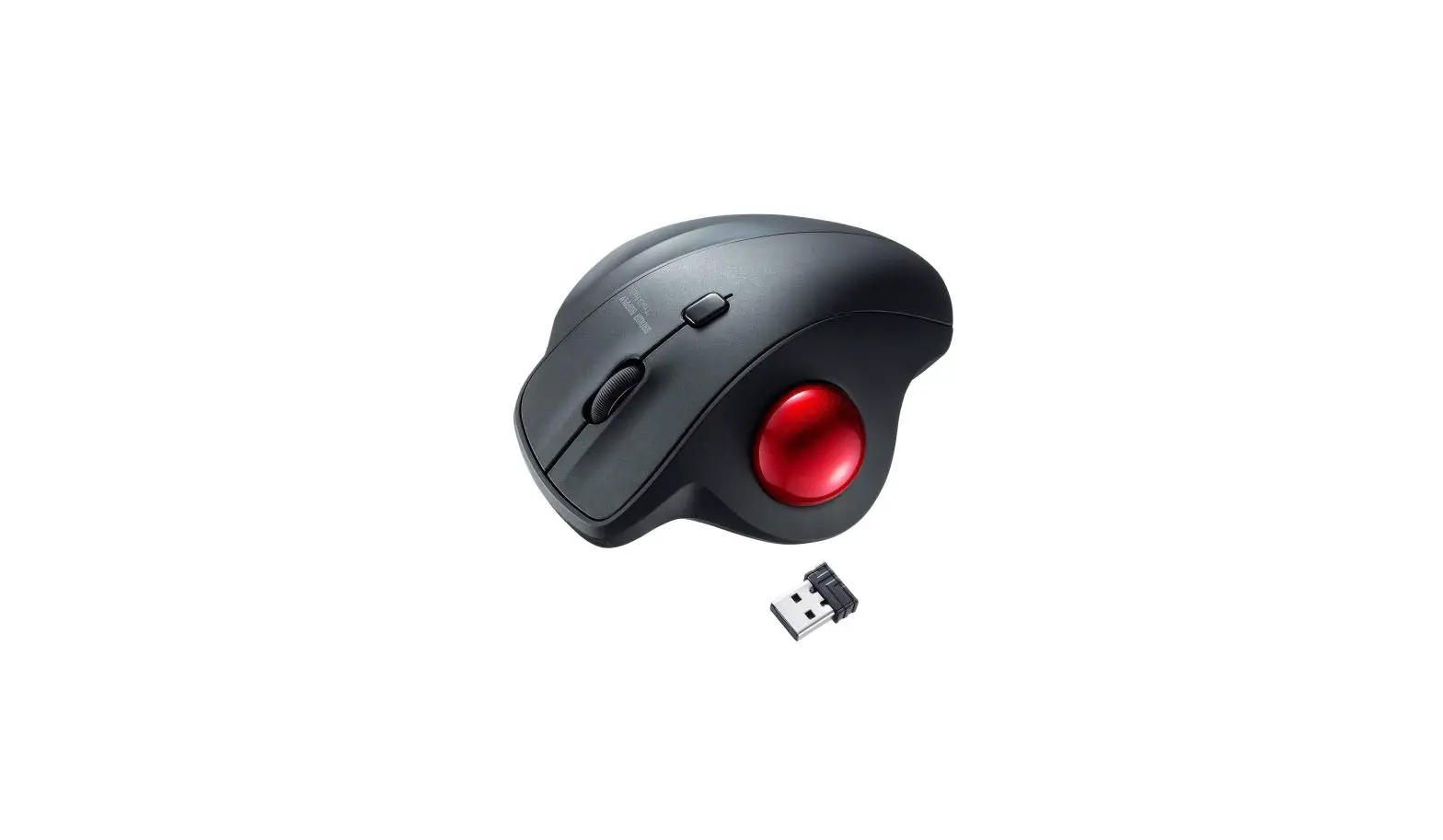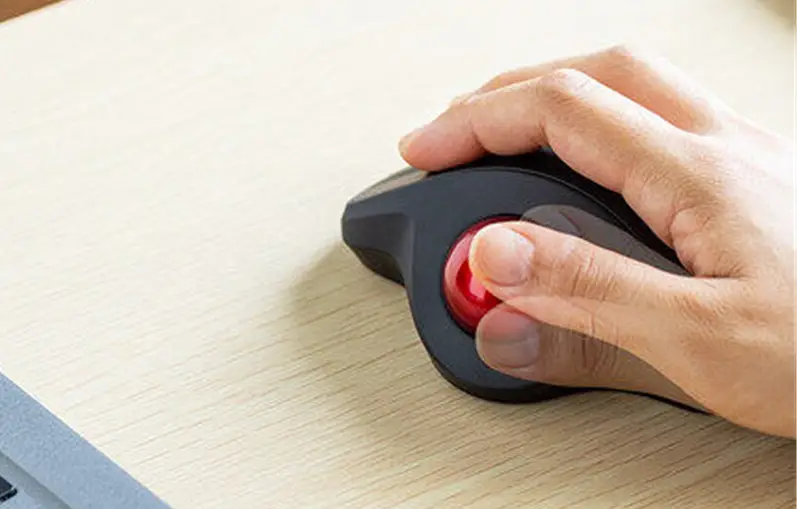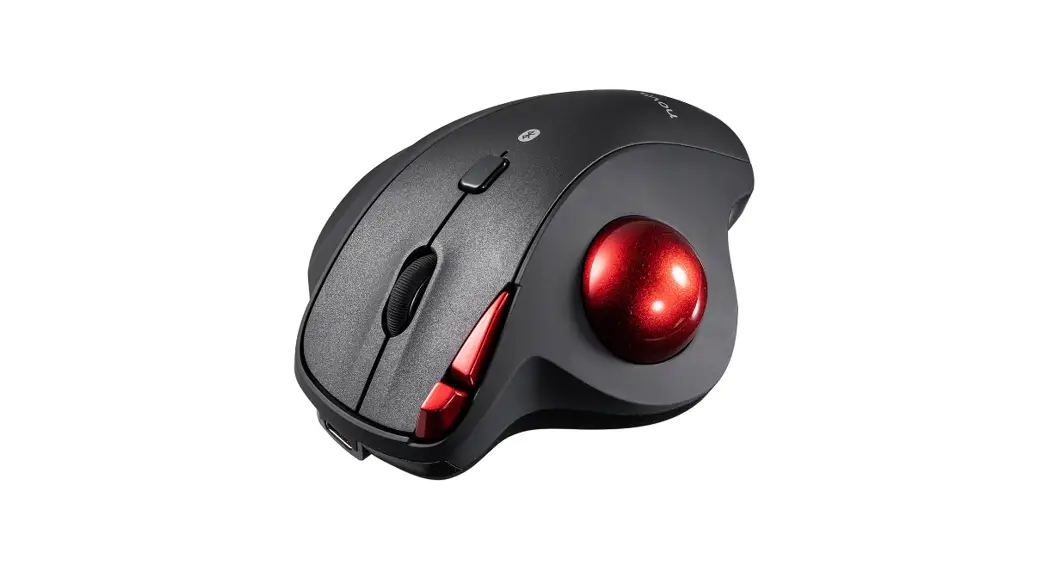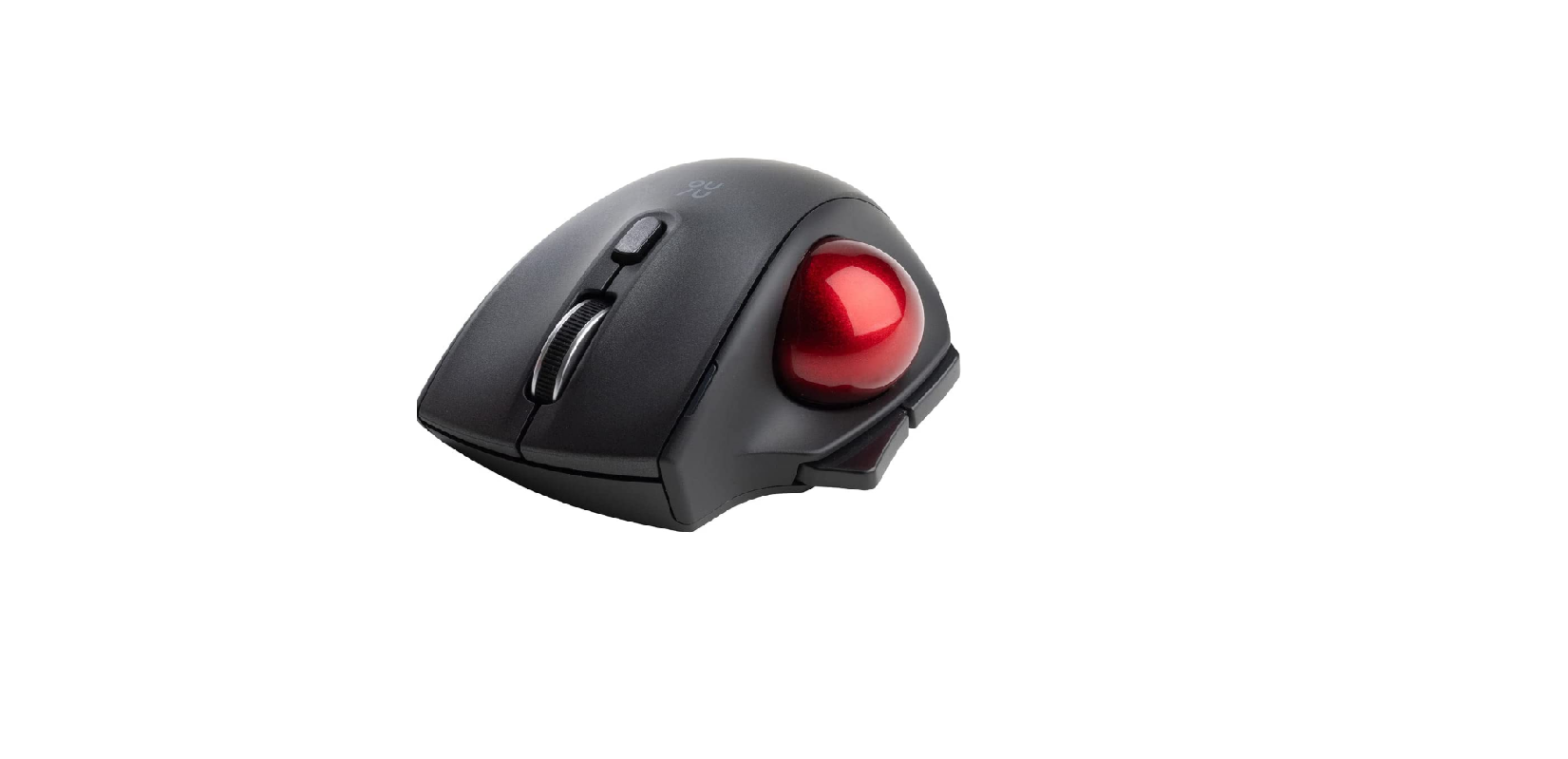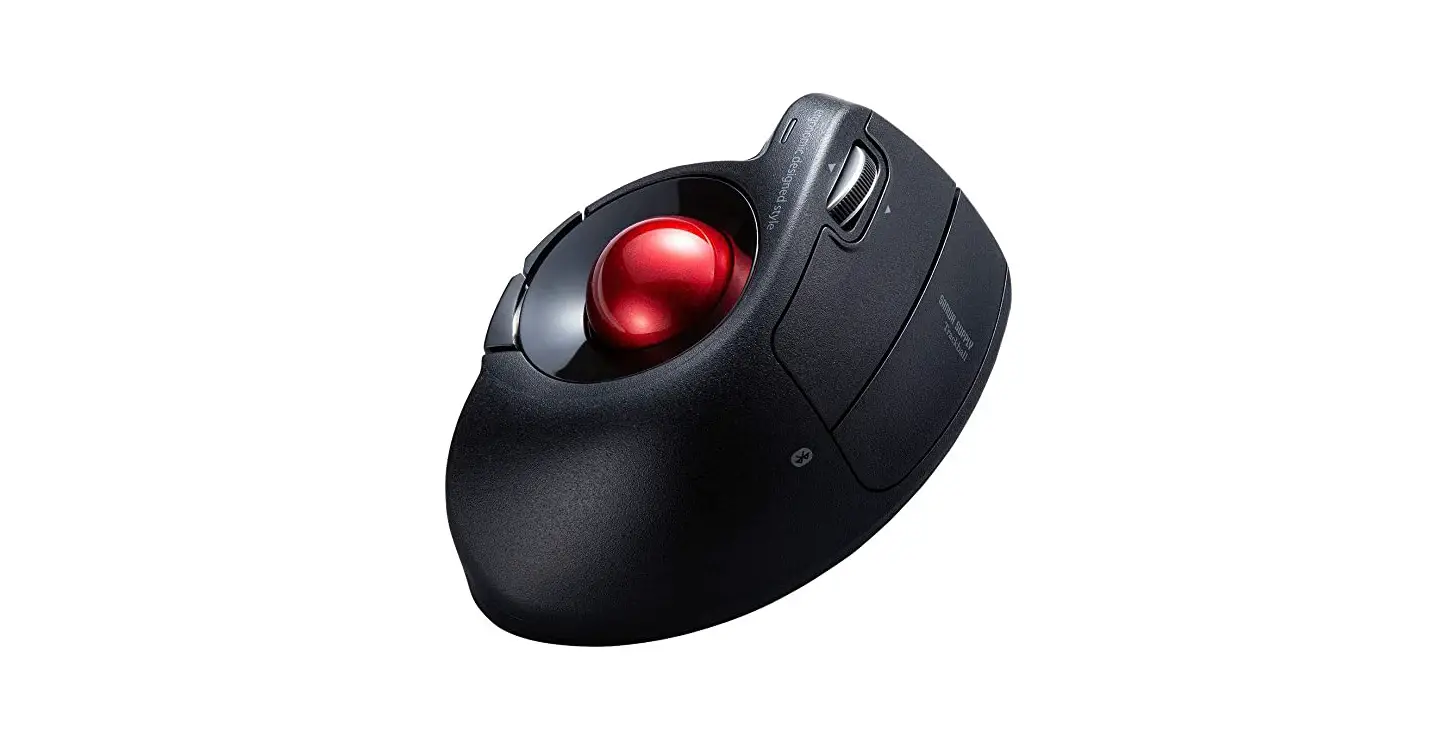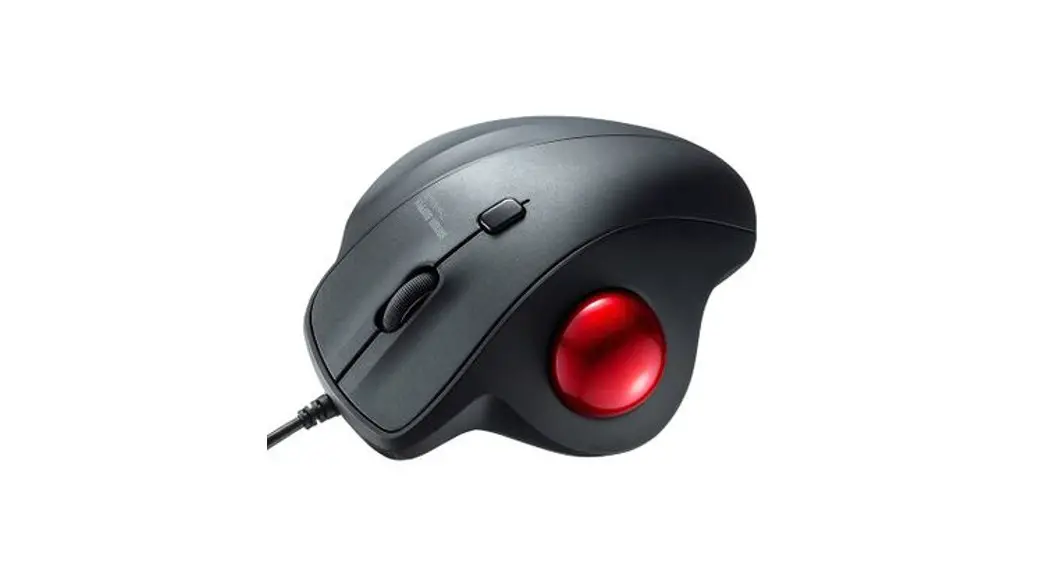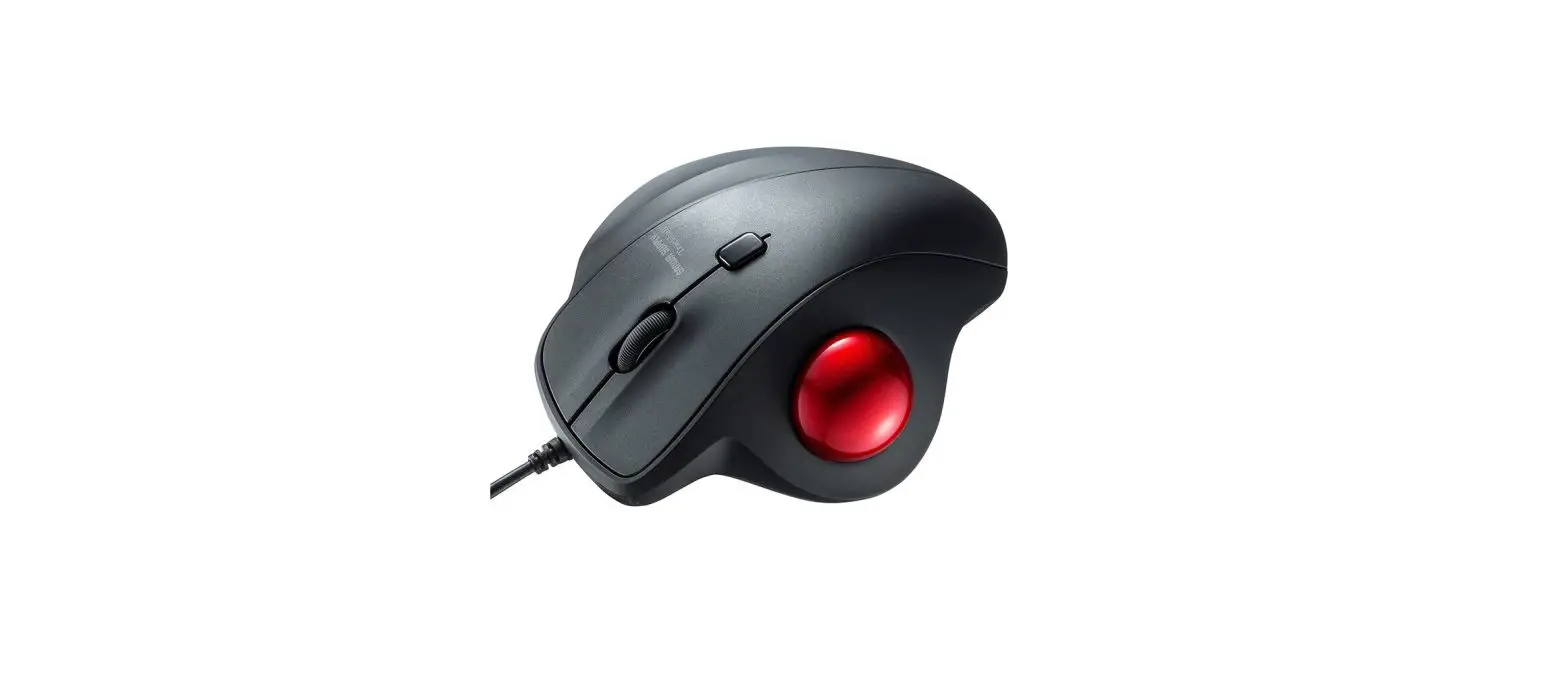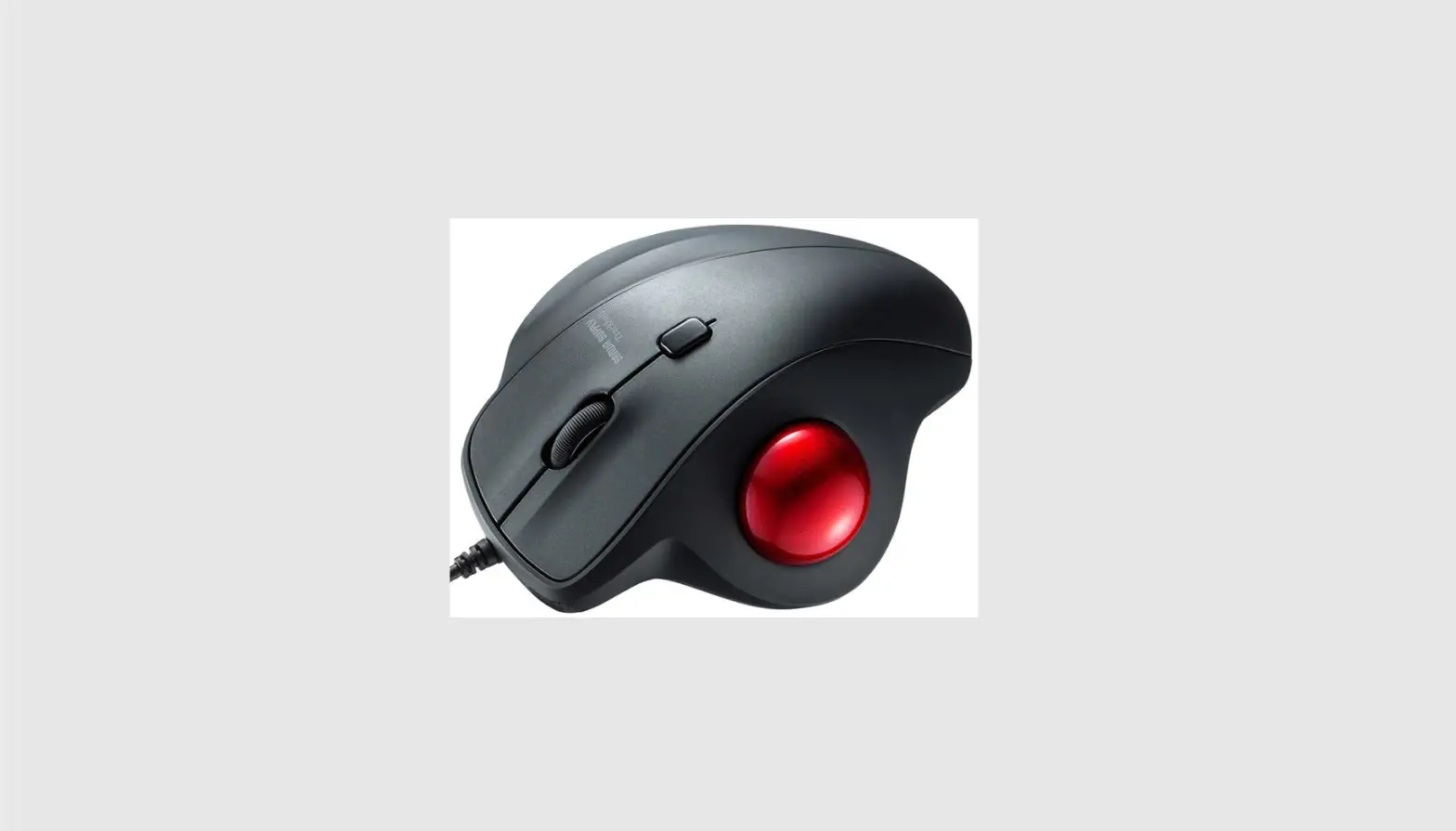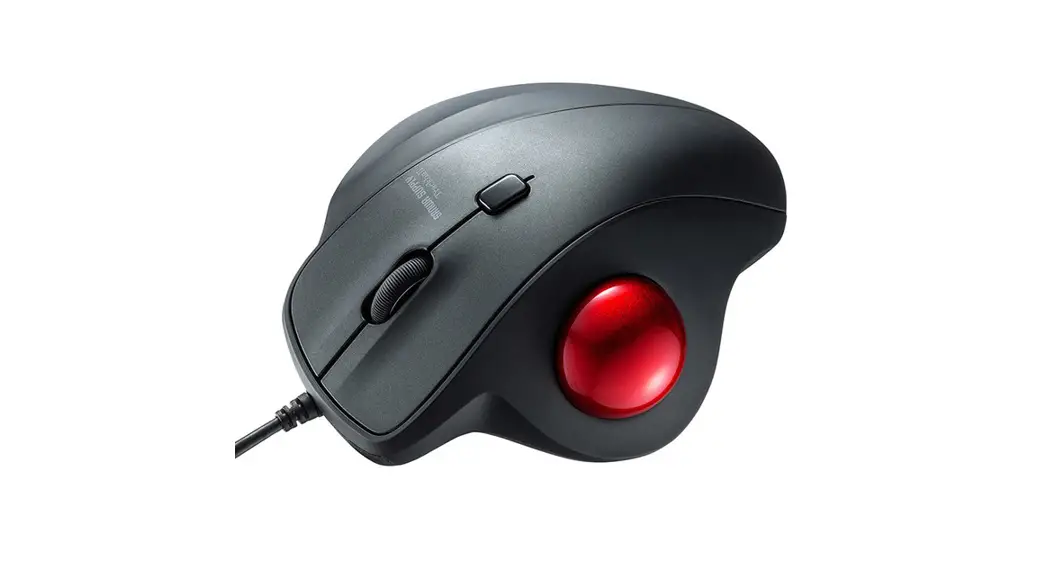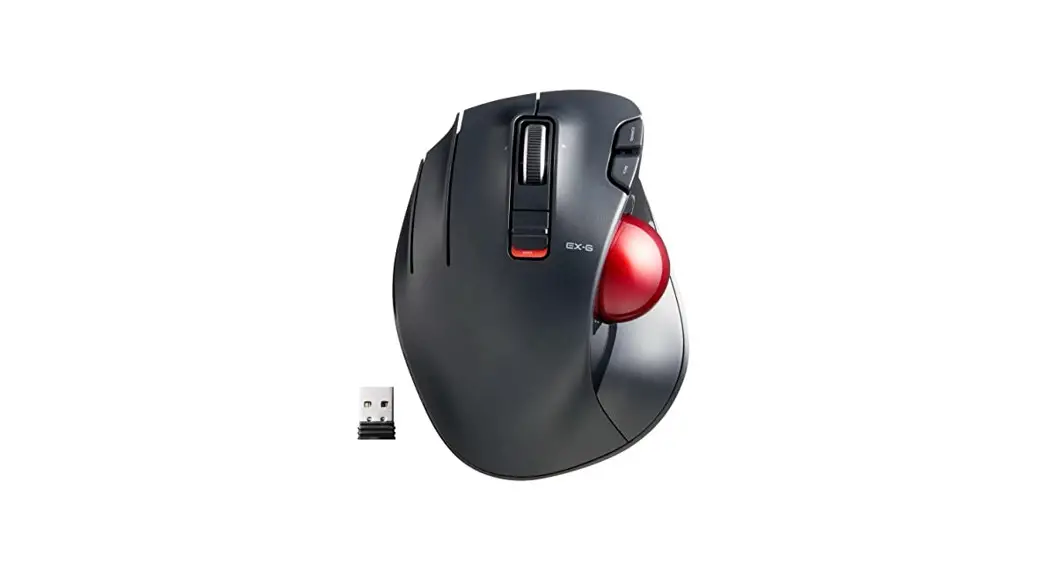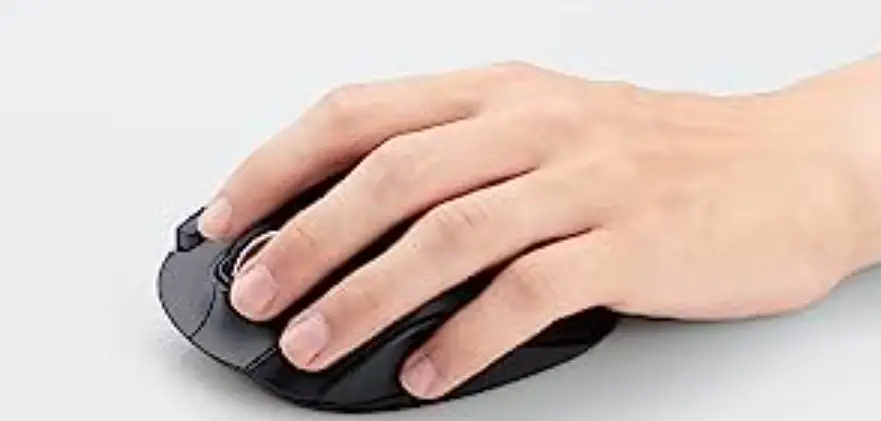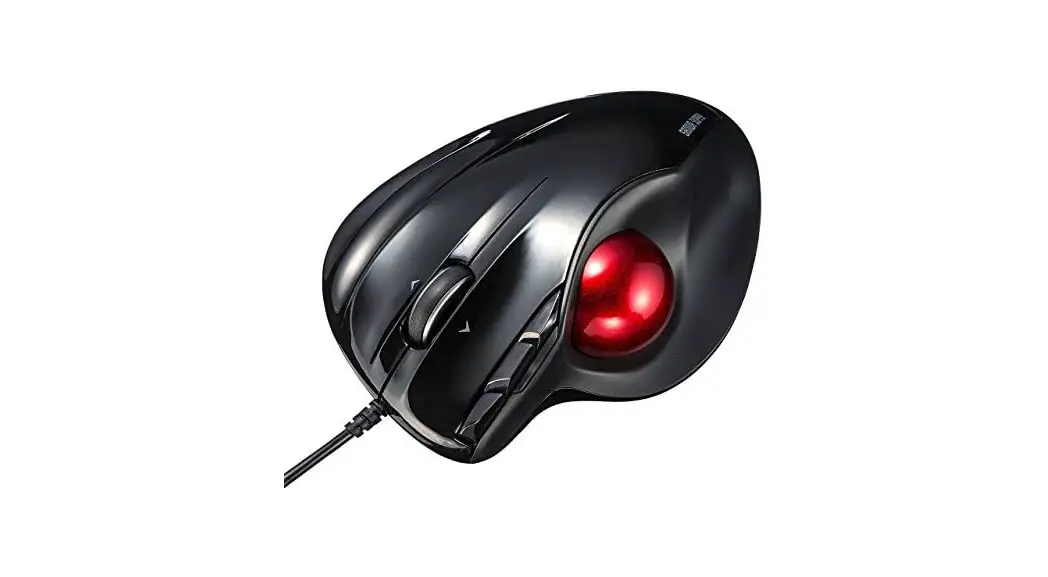

400-MATB39 TrackBall Mouse
User Manual
400-MATB39 TrackBall Mouse

Opening
Thank you for purchasing this Trackball Mouse.
Caution
- The company is not liable for any damages, such as live motion defects, data loss, etc., caused by using this product or software.
- This product is intended for use in general workplaces and homes. The company does not assume responsibility in the event of damages caused by using in any other places.
- Refrain from using in environments where medical instruments and systems directly or indirectly related to human life are required, and where a high level of safety and responsibility isrequired.
- Refrain from using directly or indirectly with equipment and computer systems in which a high level of safety and responsibility are required.
- Do not use this product on airplanes as it may interfere with the airplane communication system.
- Please consult your doctor before using this product if you use a pacemaker or other medical device.
Warnings Regarding Health
Operating the mouse, trackball, and keyboard for long periods of time can lead to pain or numbness in hands, arms, neck, shoulders, etc. Serious damage may be incurred if such use is repeated. If you feel pain or numbness while operating the mouse or keyboard, stop using it immediately and consult a doctor if necessary. Take regular breaks from daily computer work to avoid strain on hands, arms, neck, shoulders, etc.
Specifications
| Interface | USB 3.2/3.1/3.0/2.0/1.1 |
| Connector Shape | USB A |
| Resolution Reading | 600-800-1200-1600 DPl |
| Method | Optical sensor system |
| Buttons | 2 buttons, wheel button (scroll), count switch button |
| Size/Weight | W107.9Xx0155.1 XH6.1mm; approx.212g |
| Cable Length | Approx.1.8m |
Compatible Models
Windows (DOS/V) PC
Apple Mac series
Chrome OS PC
Models with a USB port (A-type connector).
Compatible OS
Windows 11-10-8.18.7
macOS 12·11, 10.12-10.15
Chrome OS
Name of Parts
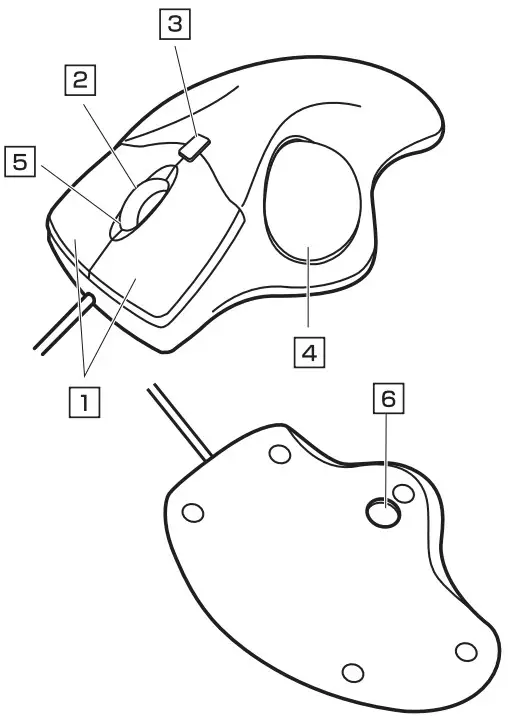
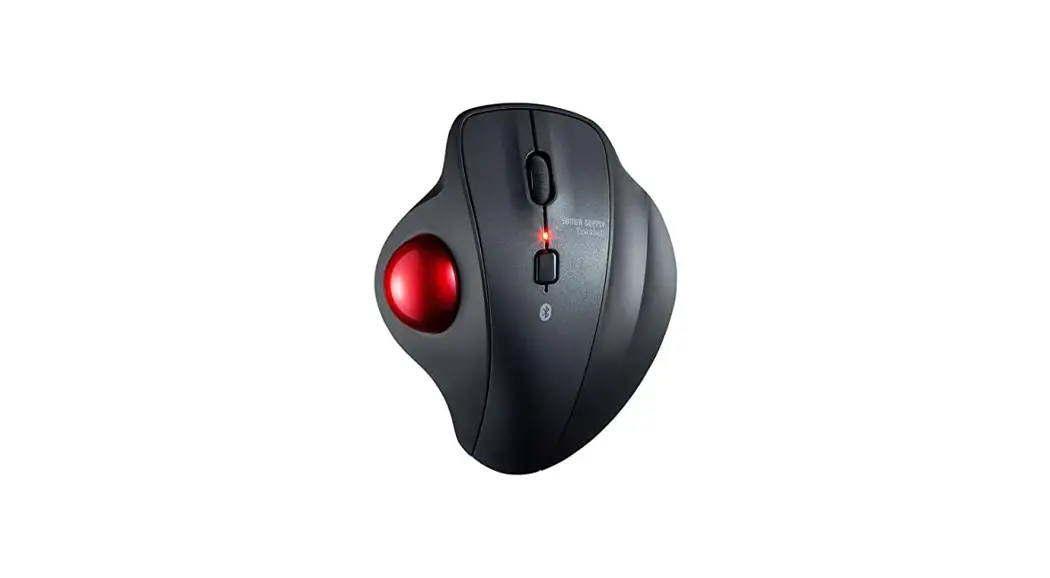
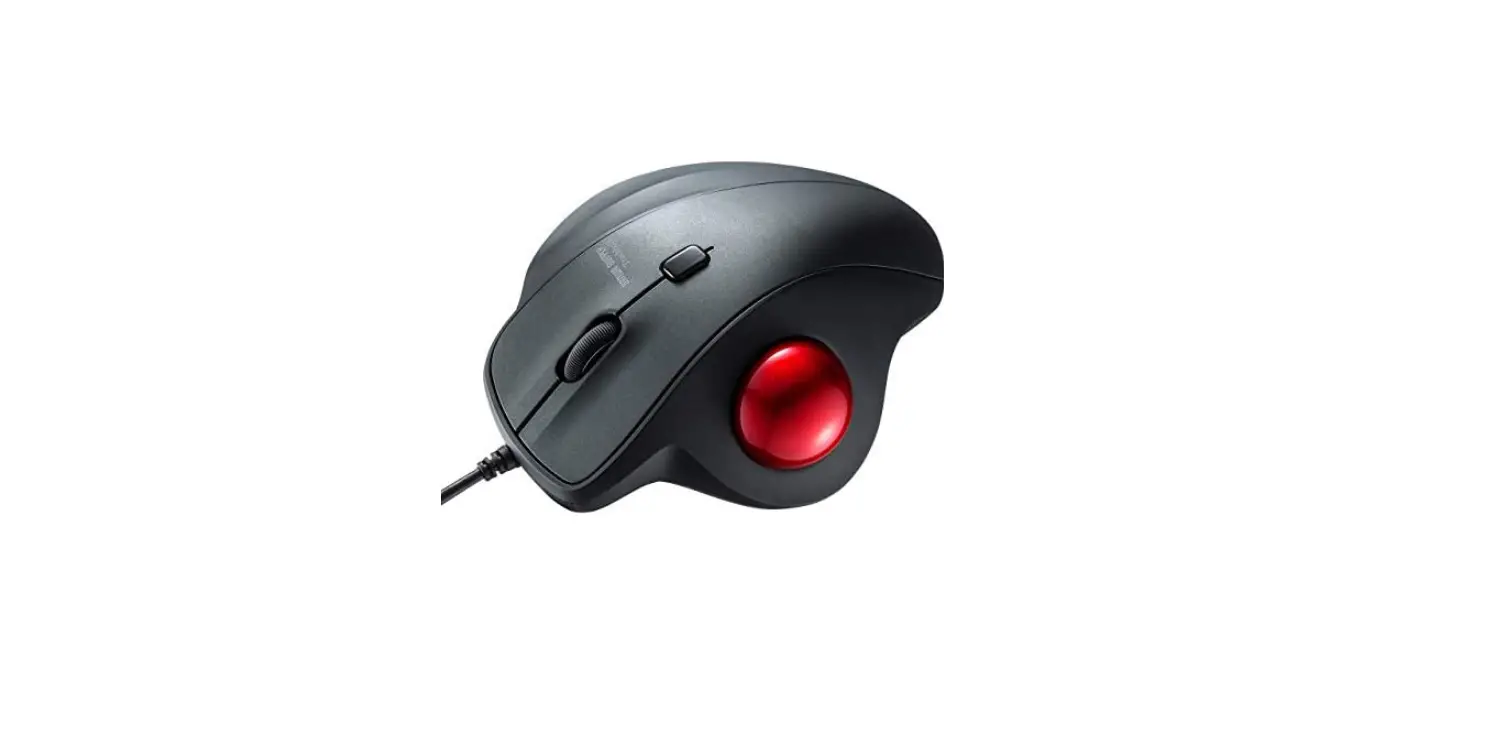
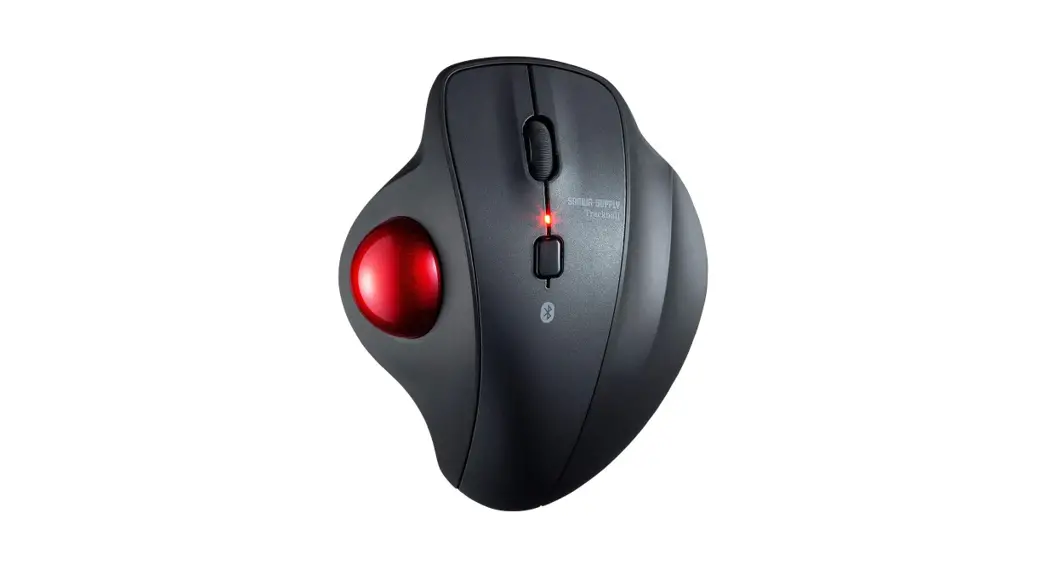
- Left button/ Right button
- Wheel button (scroll button)
- Count switch button
- Trackball
- LED
Check count status:
blinks 1 time: 600count/inch
blinks 2 times: 800count/inch
blinks 3 times: 1200count/inch
blinks 4 times: 1600count/inch - Trackball removal hole
How to Connect the Trackball
*Warning: It is recommended that other apps are closed before connecting the trackball mouse.
- Turn on the PC and wait until OS starts up completely.
- Connect this product to the USB port of the computer.
- Hardware detection will start automatically and a wizard will launch to update the device driver.(installation is automatically completed for Mac and Chrome OS products)
Setting Deceleration Mode
You can slow down the cursor speed by setting it to the deceleration mode.
How to set: Press and hold the count switch button and the right button simultaneously for at least 3 seconds. The LED will blink and enter the deceleration mode.
How to cancel: Press and hold the count switch button and the left button simultaneously for at least 3 seconds. The LED will blink and the deceleration mode will be canceled.
Once you download the driver software from the website, you can use the button programming function.
※ To use custom keystrokes, you need to keep the software enabled.
- “https://www.sanwa.com/download/tbx.exe“
Please access. The download will start as soon as you access it. - Save and open the file.
- Please follow the installation wizard to install the driver.
※ In the process of installation or use of any problem, please contact us. - Confirm the agreement on the software specification license, click “Yes” and start the download.
- Follow the instructions and click “Next” and “Install”.
- The driver is installed. Click “Finish”.
Troubleshooting
– A.Please check if this product is correctly connected to the USB port.
– (See “8. How to Connect the Trackball”)
– A.Remove the ball and clean it.
Warranty Term
1 year
Inquiries
This equipment has been tested and found to comply with the limits for a Class B digital device, pursuant to part 15 of the FCC Rules. These limits are designed to provide reasonable protection against harmful interference in a residential installation. This equipment generates uses and can radiate radio frequency energy and, if not installed and used in accordance with the instructions, may cause harmful interference to radio communications. However, there is no guarantee that interference will not occur in a particular installation. If this equipment does cause harmful interference to radio or television reception, which can be determined by turning the equipment off and on, the user is encouraged to try to correct the interference by one or more of the fol lowing measures: