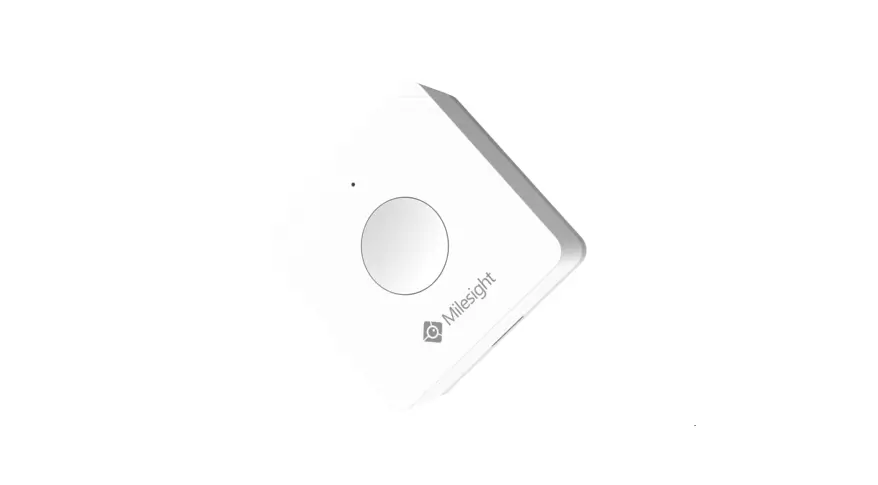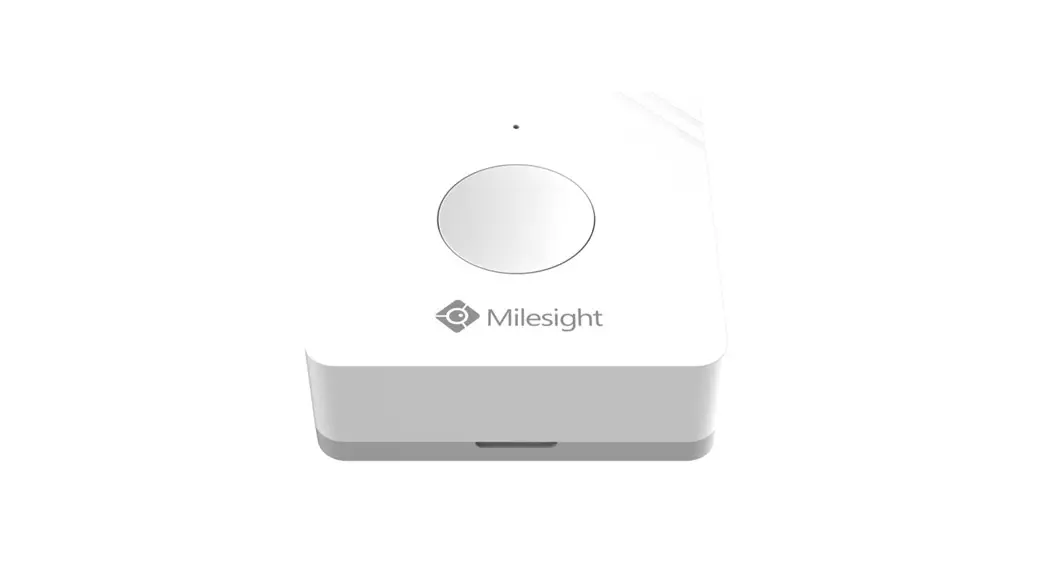

Smart Button
Featuring LoRaWAN®
WS101
User Guide
Safety Precautions
Milesight will not shoulder responsibility for any loss or damage resulting from not following the instructions of this operating guide.
- The device must not be modified in any way.
- Do not place the device close to objects with naked flames.
- Do not place the device where the temperature is below/above the operating range.
- When installing the battery, please install it accurately, and do not install the reverse or wrong model.
- Remove the battery if the device will not be used for a period of time. Otherwise, the battery will leak and damage the device.
- The device must never be subjected to shocks or impacts.
Declaration of Conformity
WS101 is in conformity with the essential requirements and other relevant provisions of the CE, FCC, and RoHS.
FCC Warning
This device complies with Part 15 of the FCC Rules. Operation is subject to the following two conditions
- this device may not cause harmful interference, and
- this device must accept any interference received, including interference that may cause undesired operation. Changes or modifications not expressly approved by the party responsible for compliance could void the user’s authority to operate the equipment.
Note 1: This equipment has been tested and found to comply with the limits for a Class B digital device, pursuant to part 15 of the FCC Rules. These limits are designed to provide reasonable protection against harmful interference in a residential installation. This equipment generates, uses and can radiate radio frequency energy and, if not installed and used in accordance with the instructions, may cause harmful interference to radio communications. However, there is no guarantee that interference will not occur in a particular installation. If this equipment does cause harmful interference to radio or television reception, which can be etermined by turning the equipment off and on, the user is encouraged to try to correct the interference by one or more of the following measures:
- Reorient or relocate the receiving antenna.
- Increase the separation between the equipment and receiver.
- Connect the equipment into an outlet on a circuit different from that to which the receiver is connected.
- Consult the dealer or an experienced radio/TV technician for help.
Note 2:
- Changes or modifications to this unit not expressly approved by the party responsible for compliance could void the user’s authority to operate the equipment.
- The minimum separation generally be used is at least 20 cm.
Copyright © 2011-2021 Milesight. All rights reserved.
All information in this guide is protected by copyright law. Whereby, no organization or individual shall copy or reproduce the whole or part of this user guide by any means without written authorization from Xiamen Milesight loT Co., Ltd.
For assistance, please contact
Milesight technical support:
Email: [email protected]
Tel: 86-592-5085280
Fax: 86-592-5023065
Address: 4/F, No.63-2 Wanghai Road, 24 Software Park, Xiamen, China
Revision History
| Date | Doc version | Desctription |
| 12-Jul-21 | V 1,0 | initial version |
OPERATING FREQUENCY:
863.1MHzZ ~ 869.9MHz for LORA 13.56MHz for NFC EIRP (MAX.):
13.55dBm for LORA (Maximum) -37.50dBuA/m at 10m, or 39.50dBuV/m at 3m for NFC (Maximum)
Product Introduction
Overview
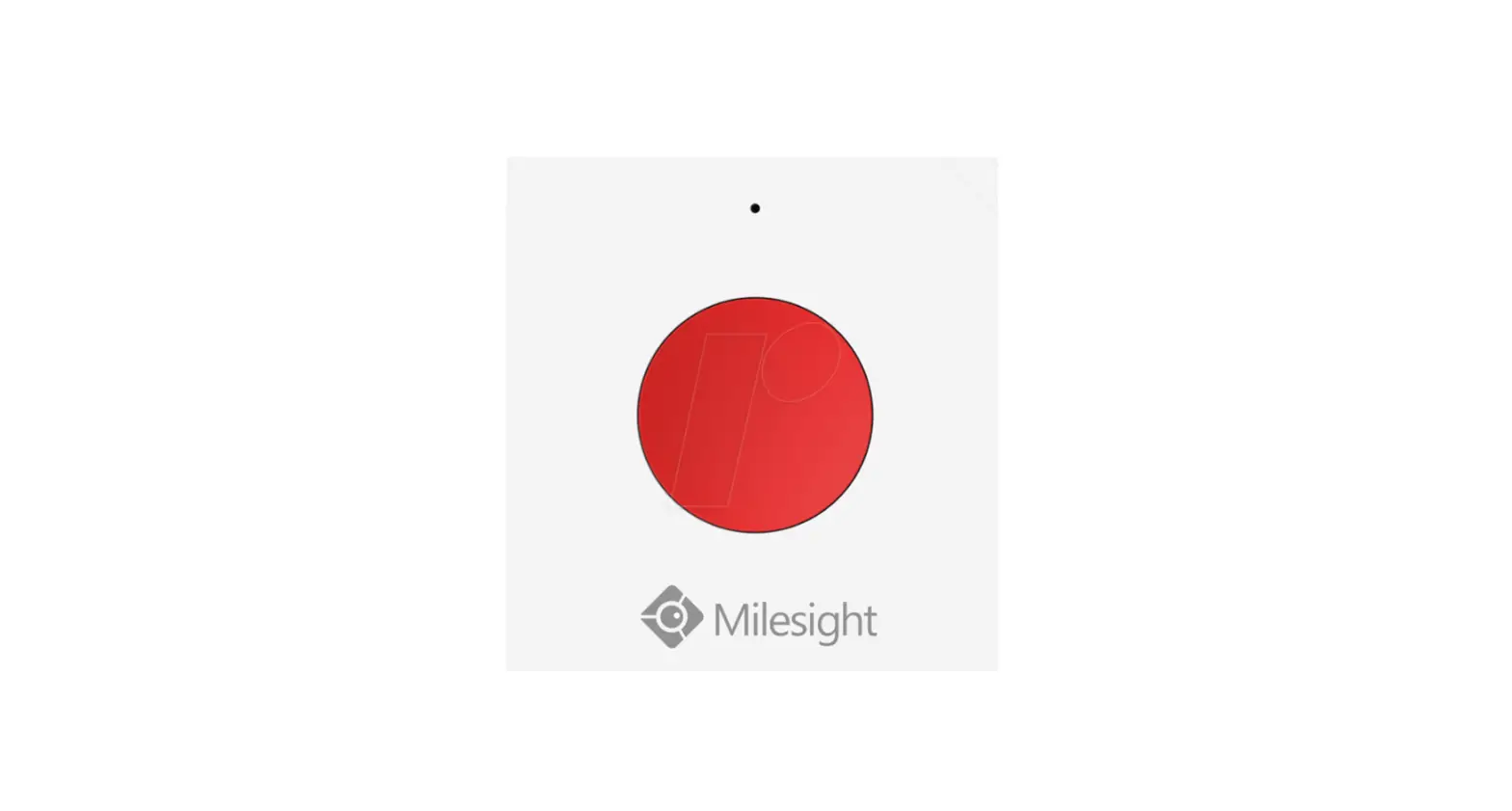
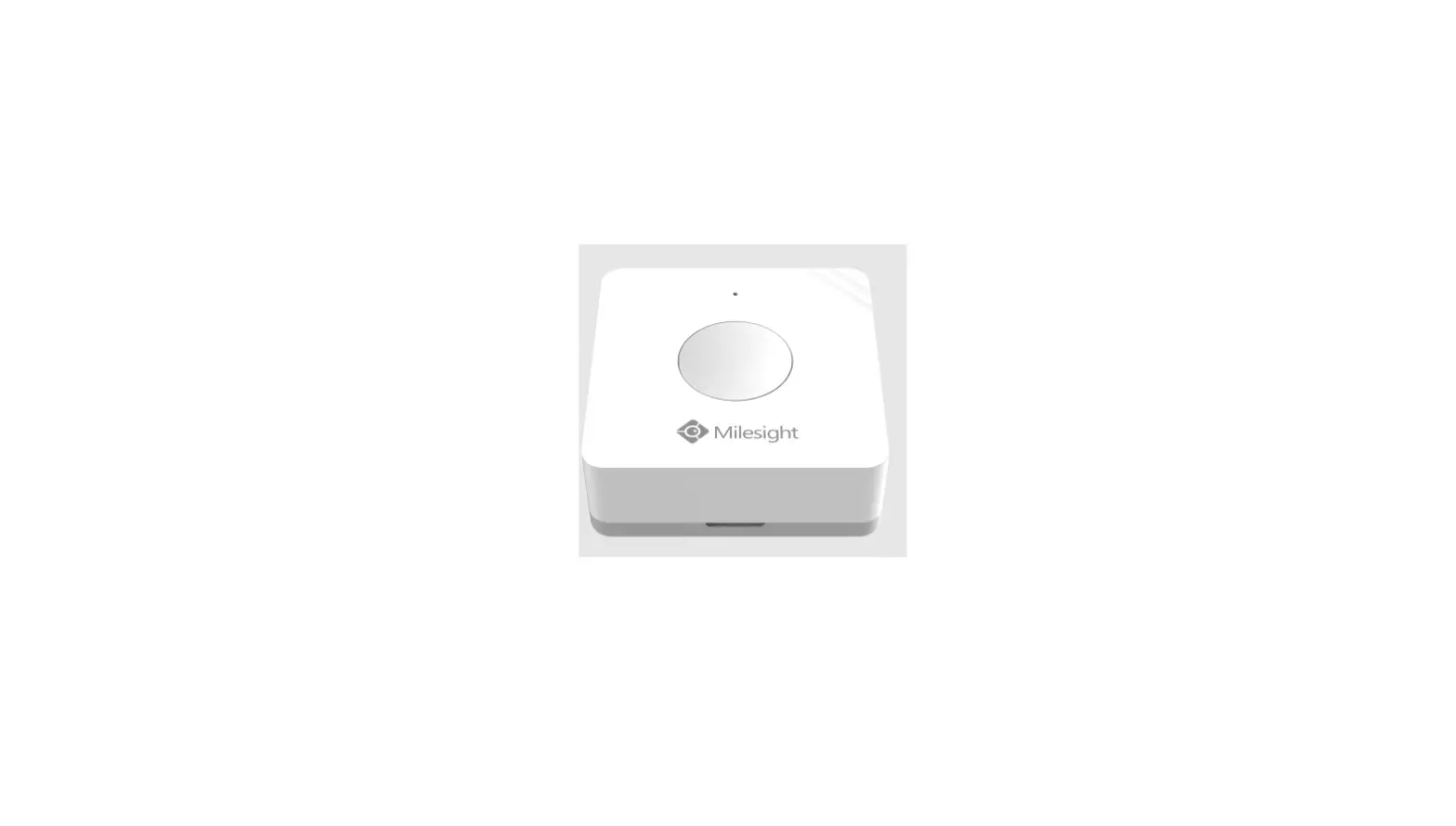
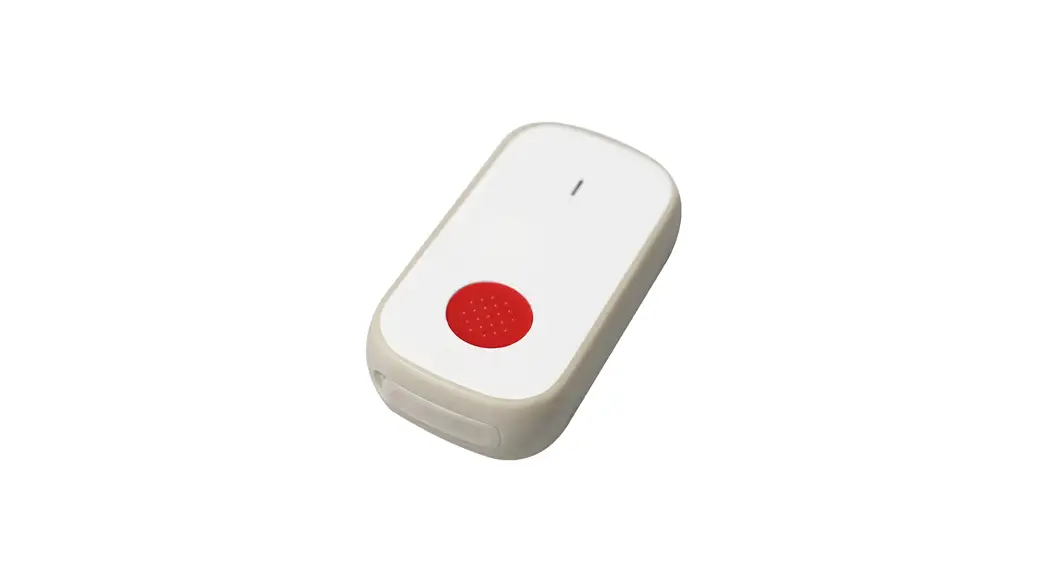
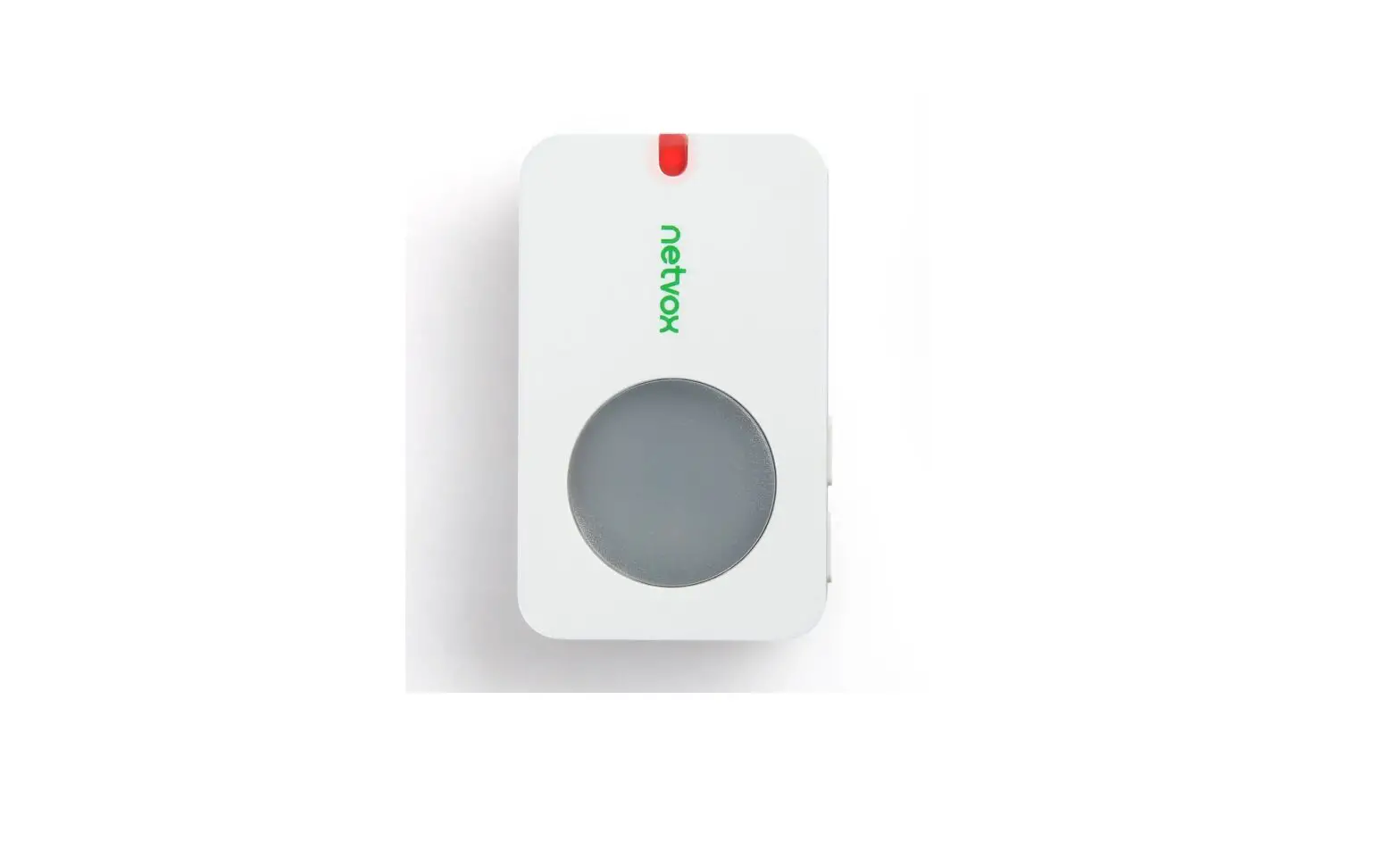
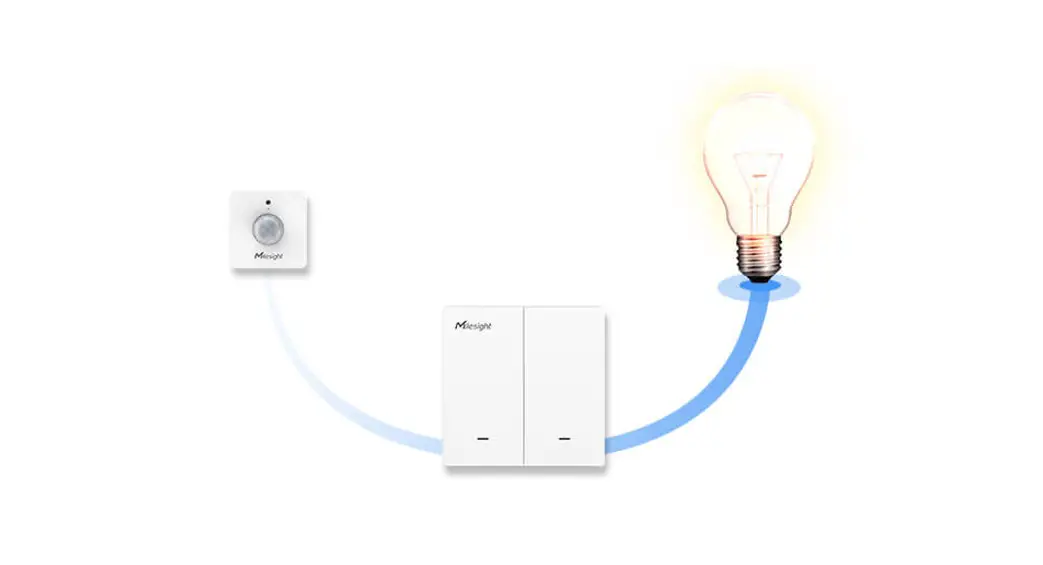
WS101 is a LORaWAN® based smart button for wireless controls, triggers, and alarms. WS101supports multiple press actions, all of which can be defined by the user to control devices or trigger scenes. Besides, Milesight also provides a red button version that is primarily used for emergency situation. Compact and battery-powered, WS101 is easy to install and carry everywhere. WS101 can be widely used in smart homes, smart offices, hotels, schools, etc. Sensor data are transmitted in real-time using the standard LoRaWAN® protocol. LoRaWAN® enables encrypted radio transmissions over long distances while consuming very little power. The user can get alarm through Milesight loT Cloud or through the users own Application Server.
Features
- Upto 15 km communication range
- Easy configuration via NFC
- Standard LoRaWAN® support
- Milesight loT Cloud compliant
- Support multiple press actions to control devices, trigger a scene or send emergency alarms
- Compact design, easy to install or carry
- Built-in LED indicator and buzzer for press actions, network status, and low battery indication
Hardware Introduction
Packing List
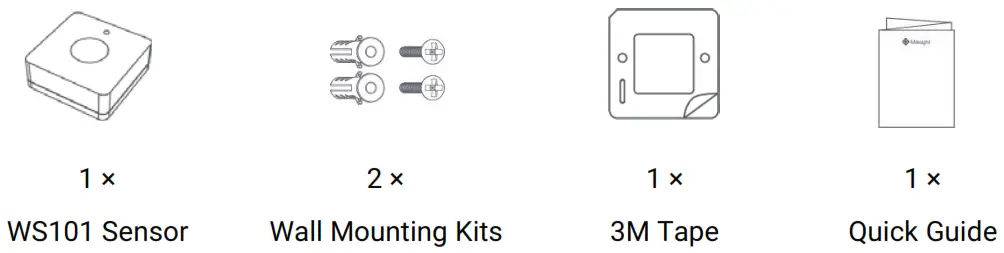
 If any of the above items is missing or damaged, please contact your sales representative.
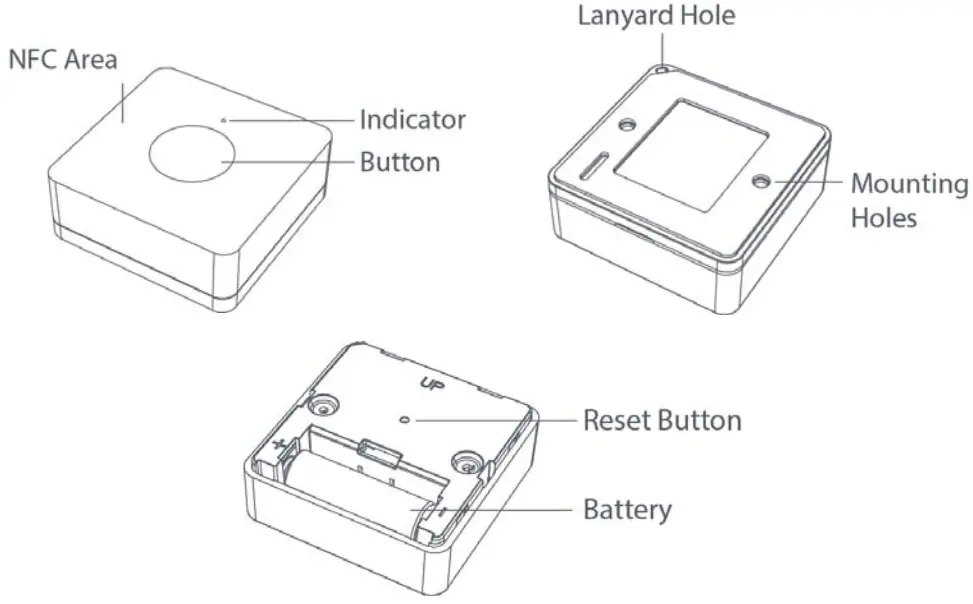
Hardware Overview
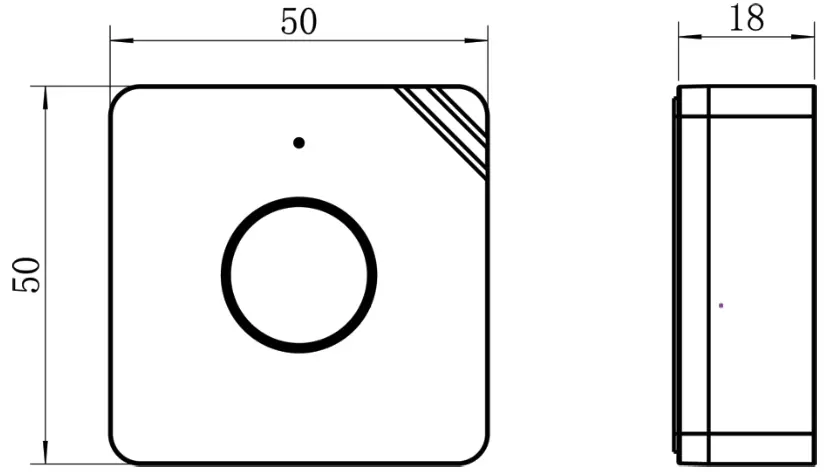
Dimensions (mm)
LED Patterns
WS101 equips with a LED indicator to indicate the network status and reset button features. Besides, when button is pressed, the indicator will light up at the same time. Red indicator means network is unregistered, while green indicator means device has registered on network.
| Function | Action | LED Indicator |
| Network Status | Send join network requests | Red, blinks once |
| Joined the network successfully | Green, blinks twice | |
| Reboot | Press and hold the reset button for more than 3s | Slowly blinks |
| Reset to Factory Default | Press and hold the reset button for more than 10s | Quickly blinks |
Operation Guide
WS101 provides 3 kinds of pressing actions allowing users to define different alarms. Please refer to chapter 5.1 for detailed message of every action.
| Mode | Action |
| Mode 1 | Short press the button (<3 seconds). |
| Mode 2 | Long press the button (>3 seconds). |
| Mode 3 | Double press the button. |
NFC Configuration
WS101 can be configured via NFC-enabled smartphone.
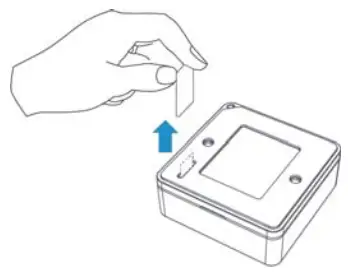
- Pull out the battery insulating sheet to power on the device. The indicator will light up in green for 3 seconds when device turns on.

- Download and install “Milesight ToolBox” App from Google Play or App Store.
- Enable NFC on the smartphone and open Milesight ToolBox.
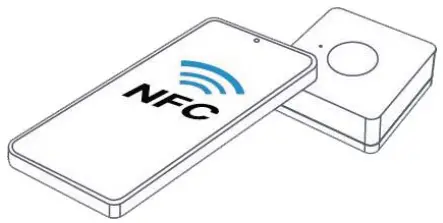
- Attach the smartphone with NFC area to the device to read device information.

Basic information and settings of devices will be shown on ToolBox if it’s recognized successfully. You can read and configure the device by tapping the Read/Write button on the App. In order to protect the security of devices, password validation is required when configuring via a new smartphone. Default password is 123456.
Note:
- Ensure the location of smartphone NFC area and it’s recommended to take off phone case.
- If the smartphone fails to read/write configurations via NFC, move the phone away and back to try again.
- WS101 can also be configured by ToolBox software via dedicated NFC reader provided by Milesight loT, you can also configure it via TTL interface inside the device.
LoORaWAN Settings
LoRaWAN settings are used for configuring the transmission parameters in LoORaWAN® network.
Basic LoRaWAN Settings:
Go to Device -> Setting -> LoRaWAN Settings of ToolBox App to configure join type, App EUI, App Key and other information. You can also keep all settings by default.
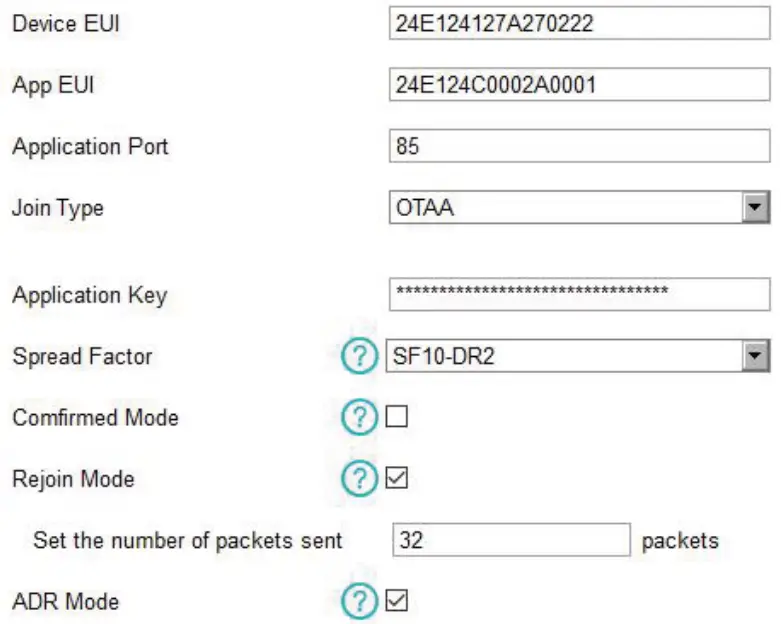
| Parameters | Description |
| Device EUI | Unique ID of the device which can also be found on the label. |
| App EUI | Default App EUI is 24E124C0002A0001. |
| Application Port | The port used for sending and receiving data, default port is 85. |
| Join Type | OTAA and ABP modes are available. |
| Application Key | Appkey for OTAA mode, default is 5572404C696E6B4C6F5261 3230313823. |
| Device Address | DevAddr for ABP mode, default is the 5 to 12″ digits of SN. |
| Network Session Key | Nwkskey for ABP mode, default is 5572404C696E6B4C6F52613230313823. |
| Application Session Key | Appskey for ABP mode, default is 5572404C696E6B4C6F52613230313823. |
| Spread Factor . | [If ADR is disabled, the device will send data via this spread factor. |
| Confirmed Mode , | If the device does not receive ACK packet from network server, it will resend data 3 times at most. |
| Rejoin Mode | Reporting interval s 30 mins: device will send specific mounts of LoRaMAC packets to check connection status ever’, 30 mins; If no reply after specific packets are being sent, the device will re-join. Reporting interval > 30 mins: device will send specific mounts of LoRaMAC packets to check connection status at every reporting interval; If no reply after specific packets are being sent, the device will re-join. |
| ADR Mode 0- | Allow network server to adjust datarate of the device. |
| Tx Power | Transmit power of device. |
Note:
- Please contact sales representative for device EUI list if there are many units.
- Please contact sales representative if you need random App keys before purchase.
- Select OTAA mode if you use Milesight loT Cloud to manage devices.
- Only OTAA mode supports rejoin mode.
LoRaWAN Frequency Settings:
Go to Setting->LoRaWAN Settings of ToolBox App to select supported frequency and select channels to send uplinks. Make sure the channels match the LoORaWAN® gateway.
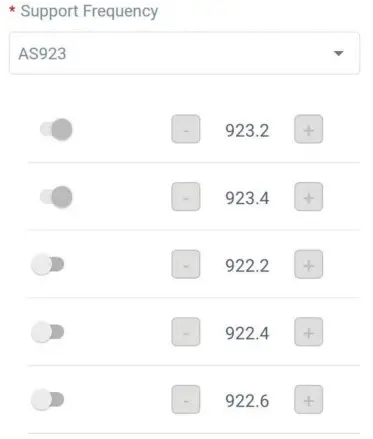
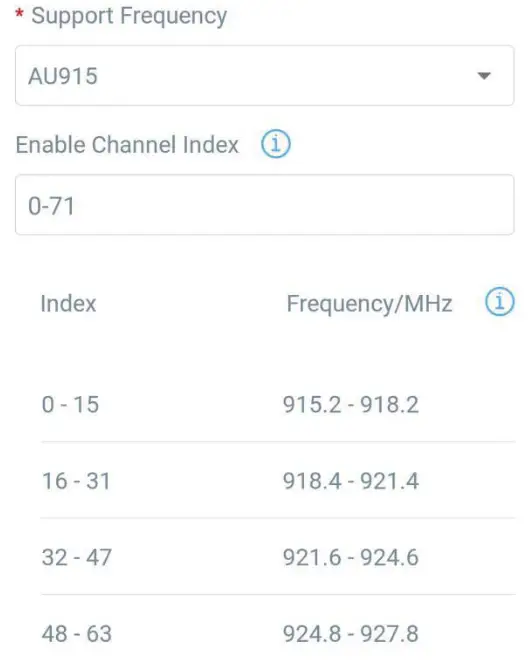
If device frequency is one of CN470/AU915/US915, you can enter the index of the channel that you want to enable in the input box, making them separated by commas.
Examples:
1, 40: Enabling Channel 1 and Channel 40
1-40: Enabling Channel 1 to Channel 40
1-40, 60: Enabling Channel 1 to Channel 40 and Channel 60
All: Enabling all channels Null: Indicates that all channels are disabled
Note:
For -868M model, default frequency is EU868;
For -915M model, default frequency is AU915.
General Settings
Go to Device->Setting->General Settings of ToolBox App to change the reporting interval, etc.

| Parameters | Description |
| Reporting Interval | Reporting interval of battery level to network server. Default: 1080min |
| LED Indicator | Enable or disable the light indicating in chapter 2.4. Note: The indicator of reset button is not allowed to disable. |
| Buzzer | The buzzer will be triggering together with indicator if the device is registered to network. |
| Low Power Alarm Interval | The button will report low power alarms according to this interval when the battery is lower than 10%. |
| Change Password | Change the password for ToolBox App to write this device. |
Maintenance
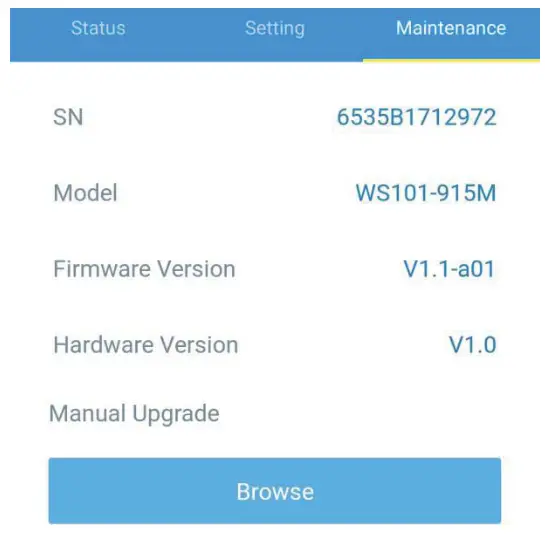
Upgrade
- Download firmware from Milesight website to your smartphone.
- Open ToolBox App and click “Browse” to import firmware and upgrade the device.
Note:
- Operation on ToolBox is not supported during upgrade.
- Only Android version ToolBox supports the upgrade feature.
Backup
WS101 supports configuration backup for easy and quick device configuration in bulk. Backup is allowed only for devices with the same model and LoRa frequency band.
- Go to “Template” page on the App and save current settings as a template. You can also edit the template file.
- Select one template file that saved in the smartphone and click “Write”, then attach it to another device to write configuration.
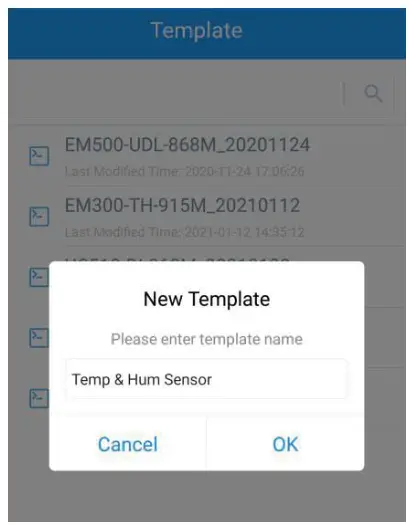
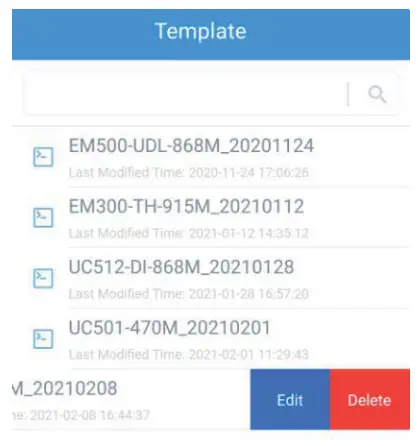
Note: Slide the template item to the left to edit or delete the template. Click the template to edit the configurations.
Reset to Factory Default
Please select one of the following methods to reset device:
Via Hardware: Hold on the reset button for more than 10s. After reset complete, the indicator will blink in green twice and device will reboot.
Via ToolBox App: Go to Device -> Maintenance to tap “Reset”, then attach smartphone with NFC area to device to complete reset.
Installation
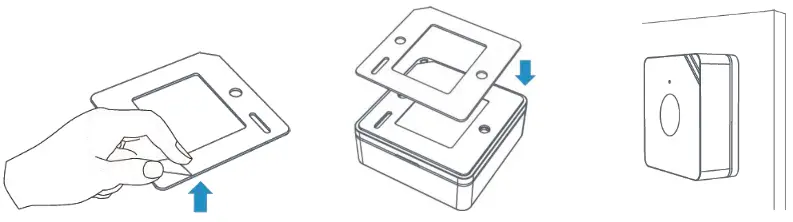
3M Tapes Fix:
Paste 3M tape to the back of the button, then tear the other side and place it on a flat surface.
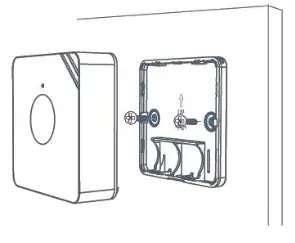
Screw Fix:
Remove the back cover of the button, screw the wall plugs into the wall and fix the cover with screws on it, then install back the device.
Lanyard:
Pass the lanyard through the aperture near the edge of the button, then you can hang the button onto keychains and the like.
Device Payload
All data are based on the following format(HEX):
| Channel1 | Type1 | Data1 | Channel2 | Type2 | Data2 | Channel 3 | … |
| 1 Byte | 1 Byte | N Bytes | 1 Byte | 1 Byte | M Bytes | 1 Byte | … |
For decoder examples you can find at https://github.com/Milesight-loT/SensorDecoders.
Basic Information
WS101 reports basic information of button every time joining the network.
| Channel | Type | Data Example | Description |
| ff | 01(Protocol Version) | 1 | V1 |
| 08 (Device SN) | 61 27 a2 17 41 32 | Device SN is 6127a2174132 | |
| 09 (Hardware Version) | 01 40 | V1.4 | |
| Oa (Software Version) | 0114 | V1.14 | |
| Of(Device Type) | 00 | Class A |
Example:
ff 09 01 00 ff 0a 01 02 ff Of 00
| Channel | Type | Value | Channel | Type | Value |
| ff | 09 (Hardware version) | 0100 (V1.0) | ff | Oa (Software version) | 0102 (V1.2) |
| Channel | Type | Value | |||
| ff | Of (Device Type) | 00 (Class A) |
WS101 reports battery level according to reporting interval (1080 mins by default) and button message when button is pressed.
| Channel | Type | Description |
| 01 | 75(Battery Level) | UINTS8, Unit: % |
| ff | 2e(Button Message) | 01: Mode 1(short press) 02: Mode 2 (long press) 03: Mode 3 (double press) |
Example:
| 017564 | ||
| Channel | Type | Value |
| 01 | 75 ( Battery) | 64=>100% |
| ff 2e 01 | ||
| Channel | Type | Value |
| ff | 2e(ButtonMessage) | 01=>Short Press |
Downlink Commands
WS101 supports downlink commands to configure the device. Application port is 85 by default.
| Channel | Type | Data Example | Description |
| ff | 03(Set Reporting Interval) | b0 04 | 130 04 => 04 130 = 1200s |
END
 GitHub - Milesight-IoT/SensorDecoders