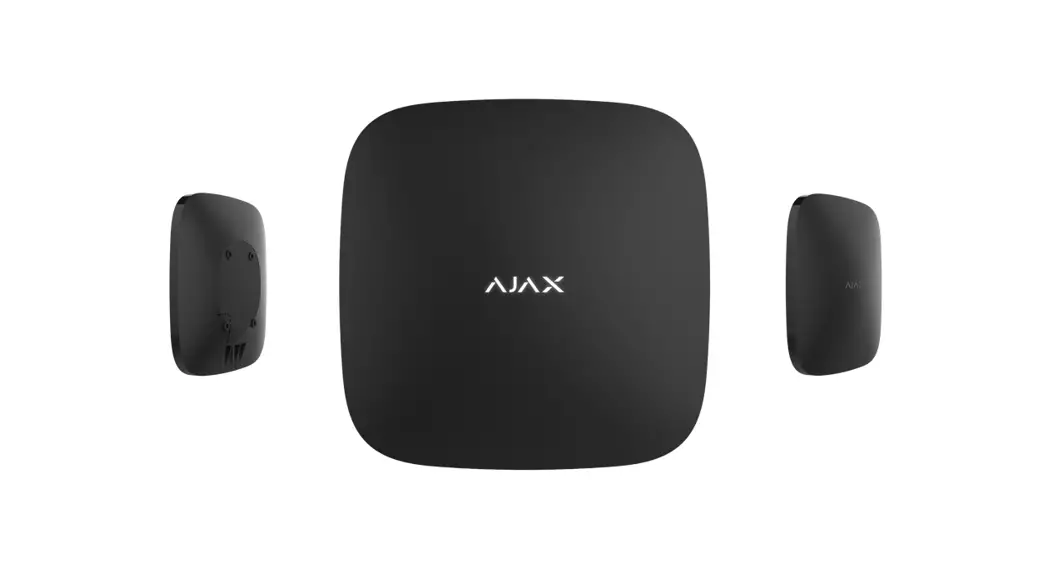
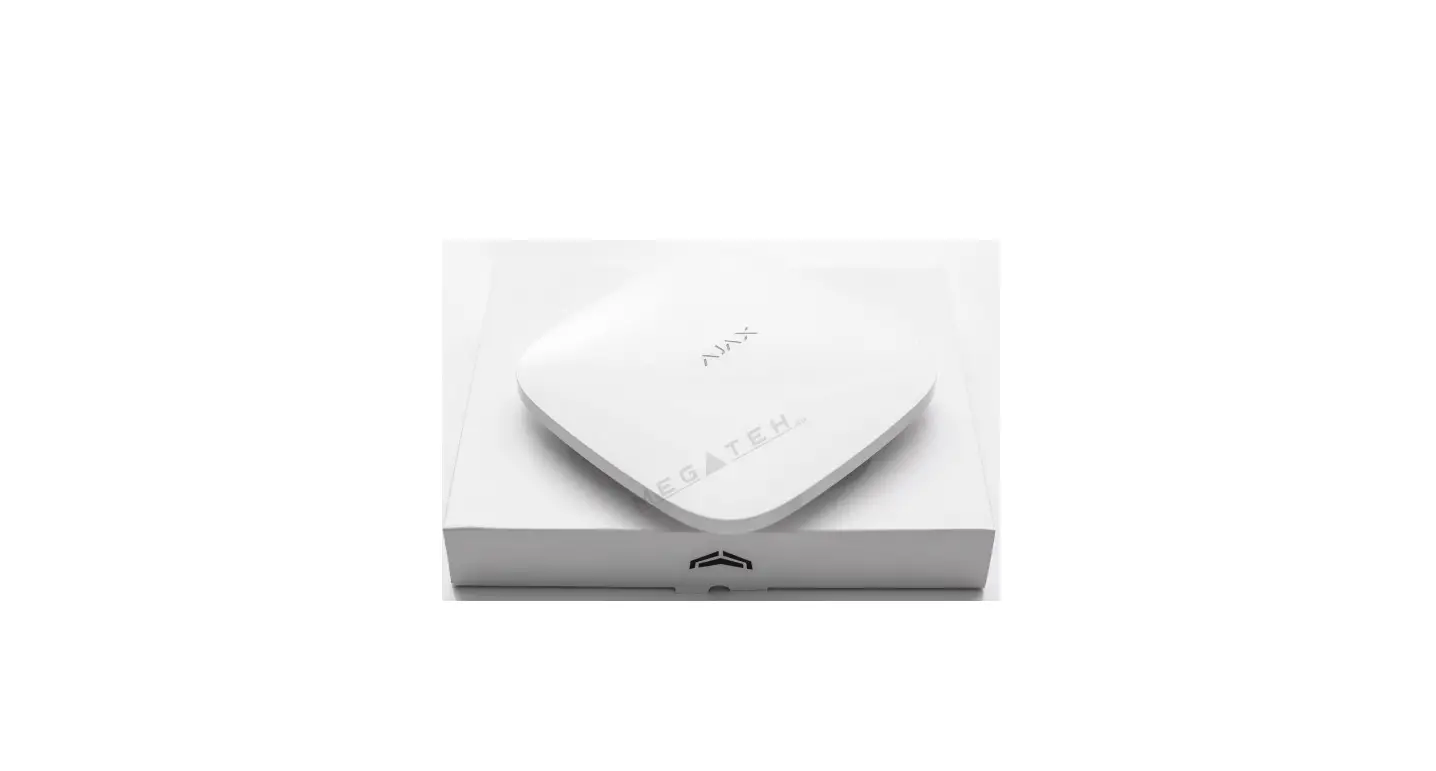
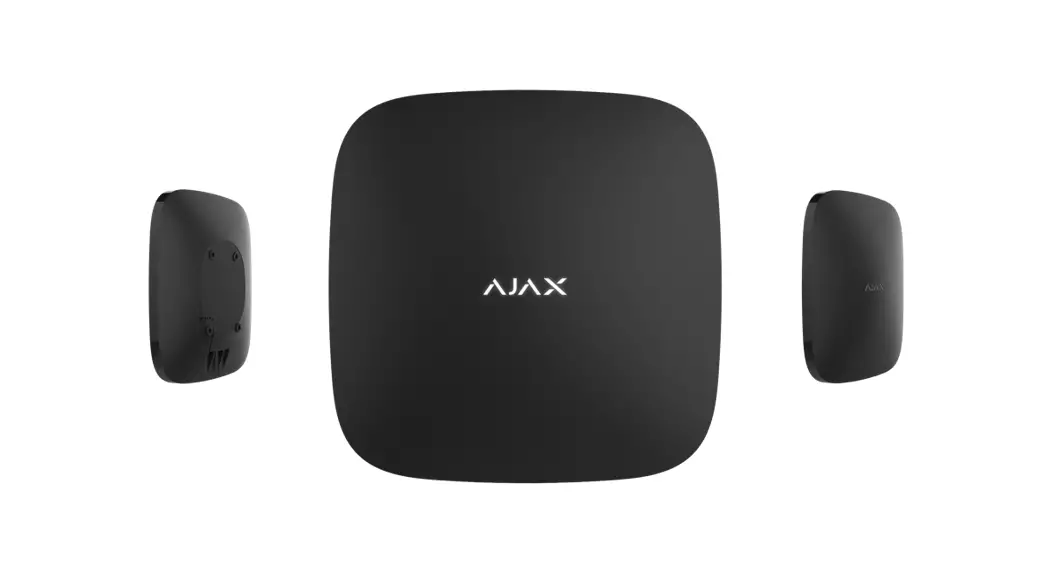
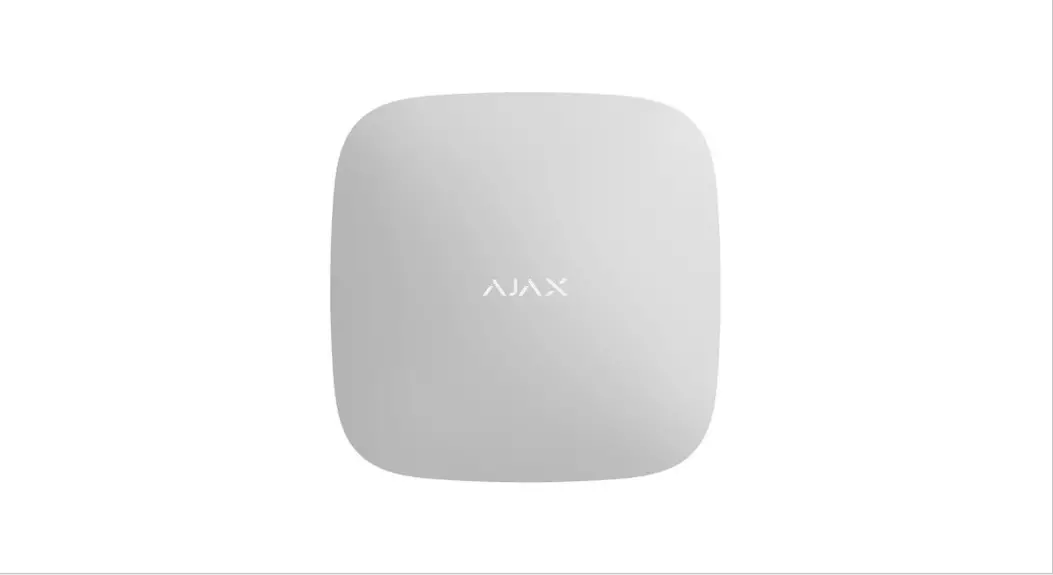
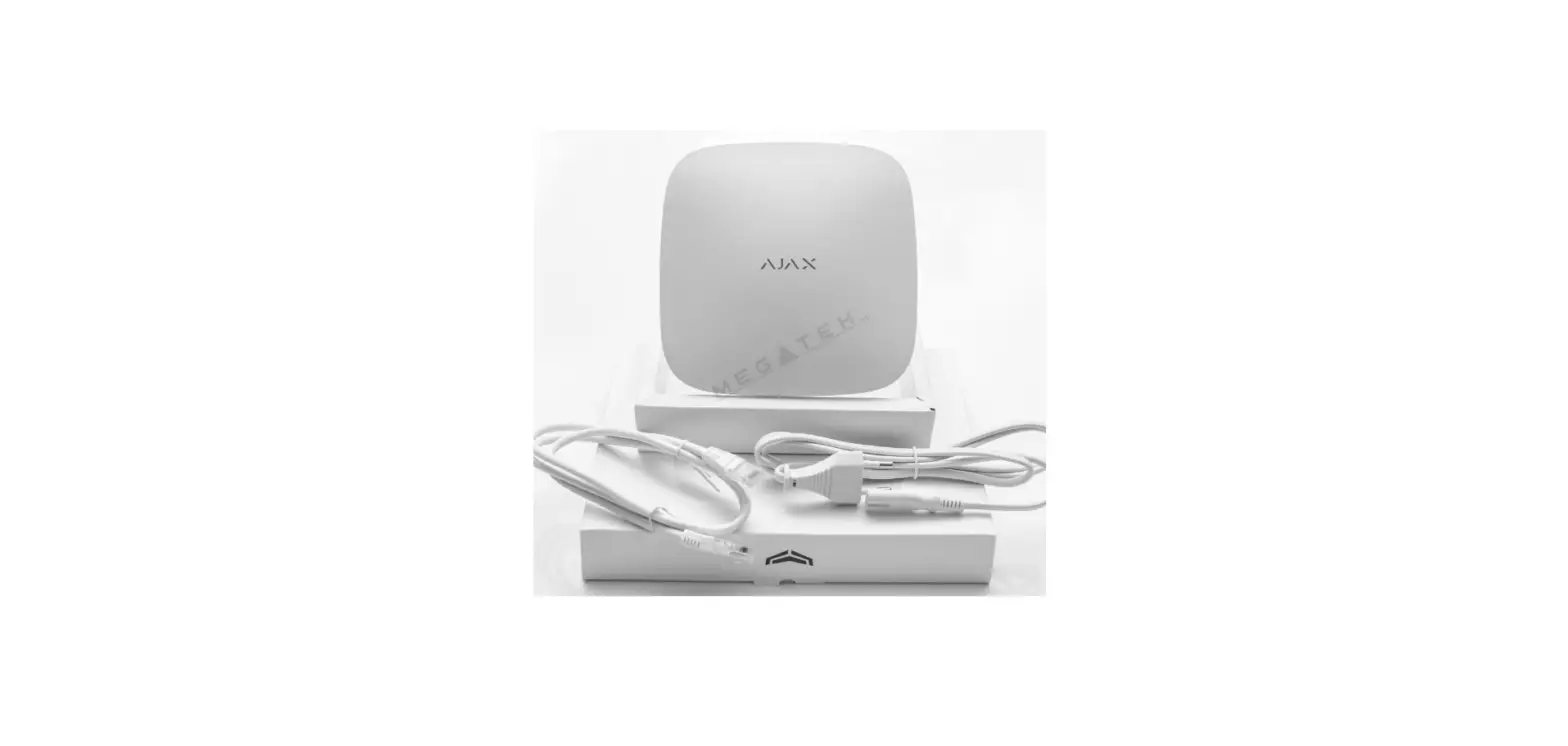
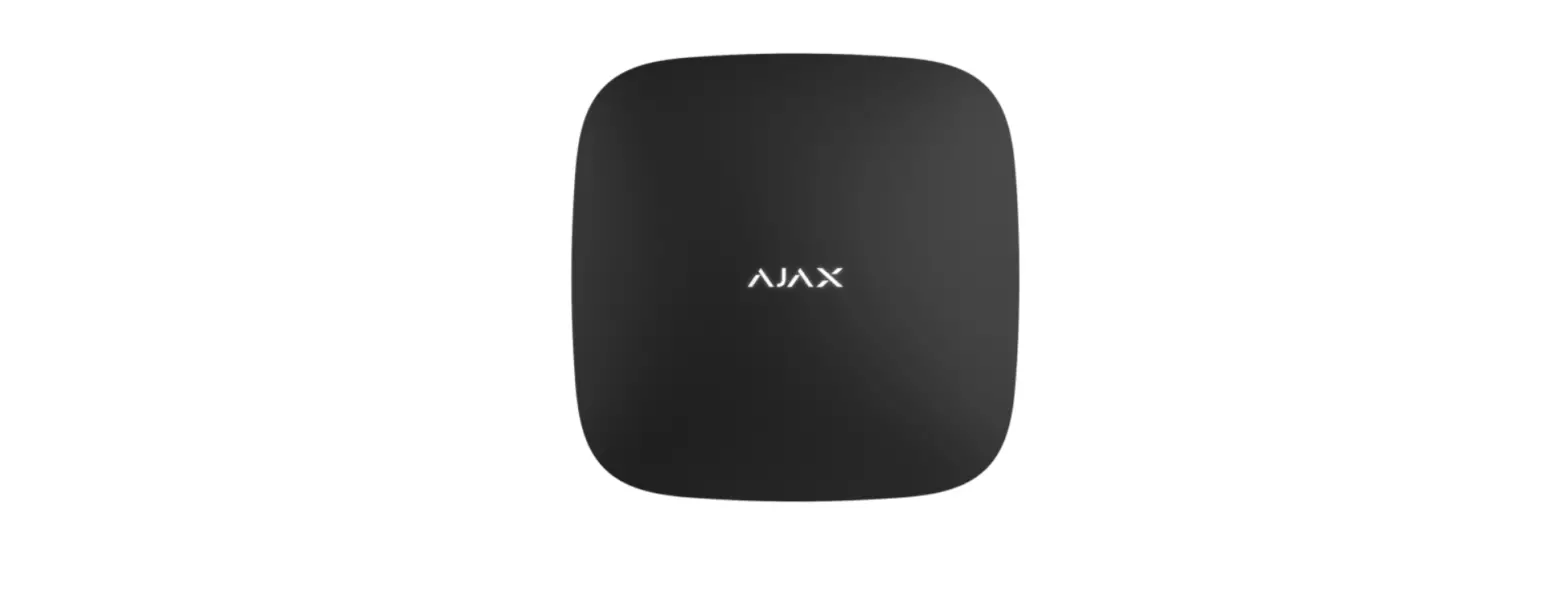
Hub 2 Plus Central Device Alarm System
Product Information:
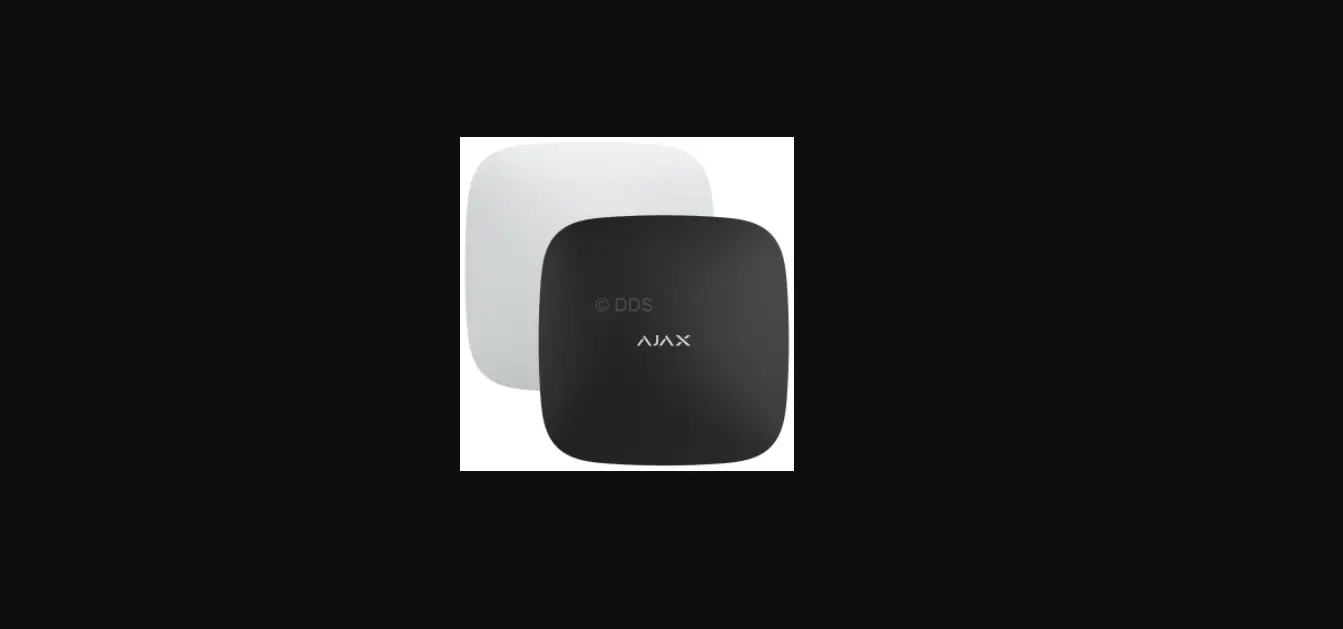
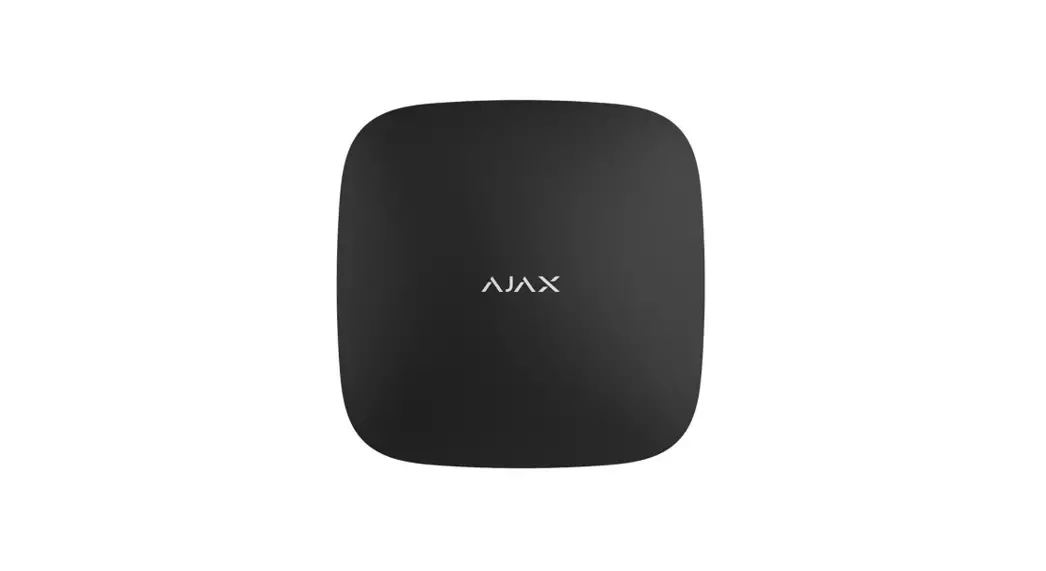
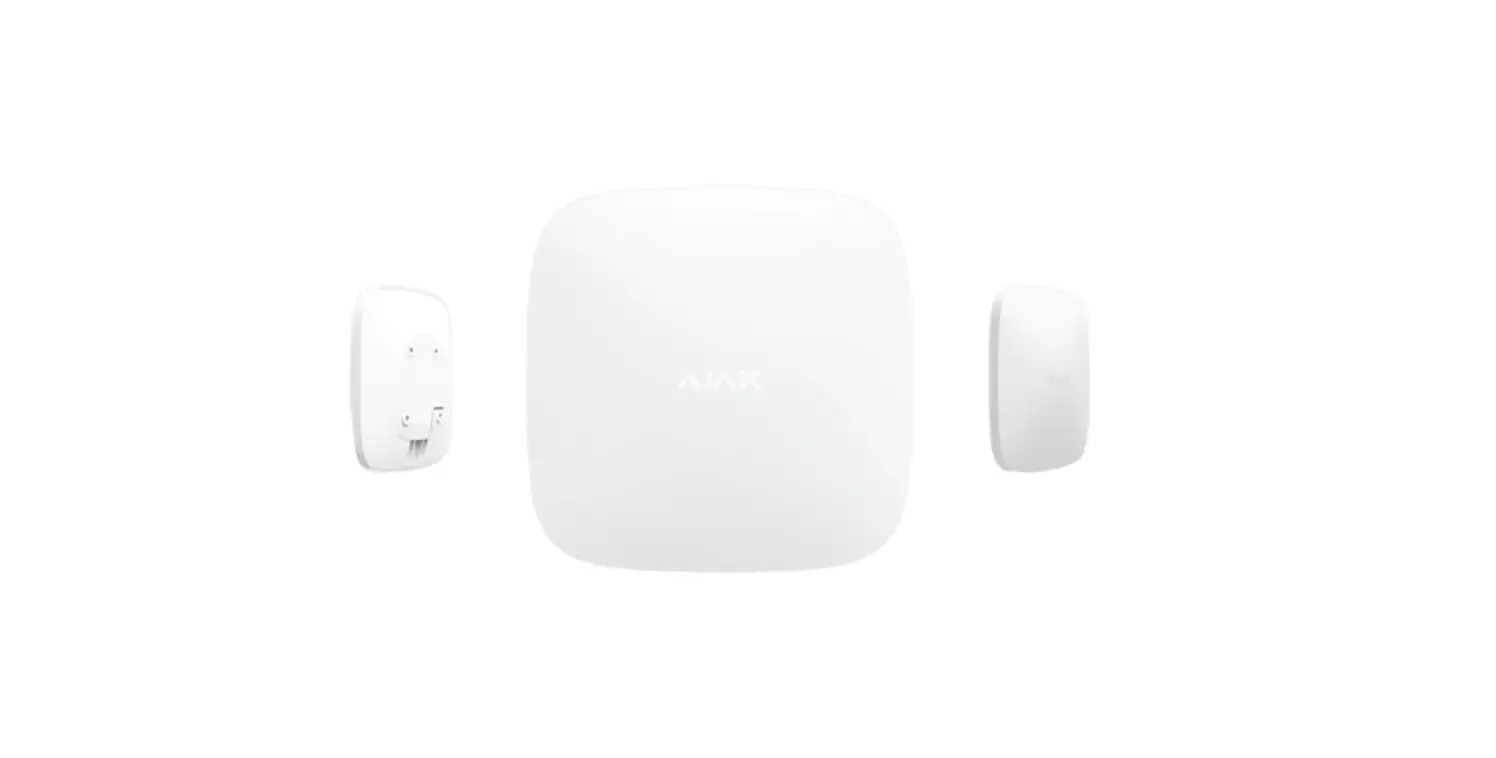
The Hub 2 Plus is a central device in the Ajax security system.
It controls the operation of all connected devices and interacts
with the user and the security company. The hub reports various
security events such as door openings, window breakage, fire or
flood threats, and automates routine actions using scenarios. It
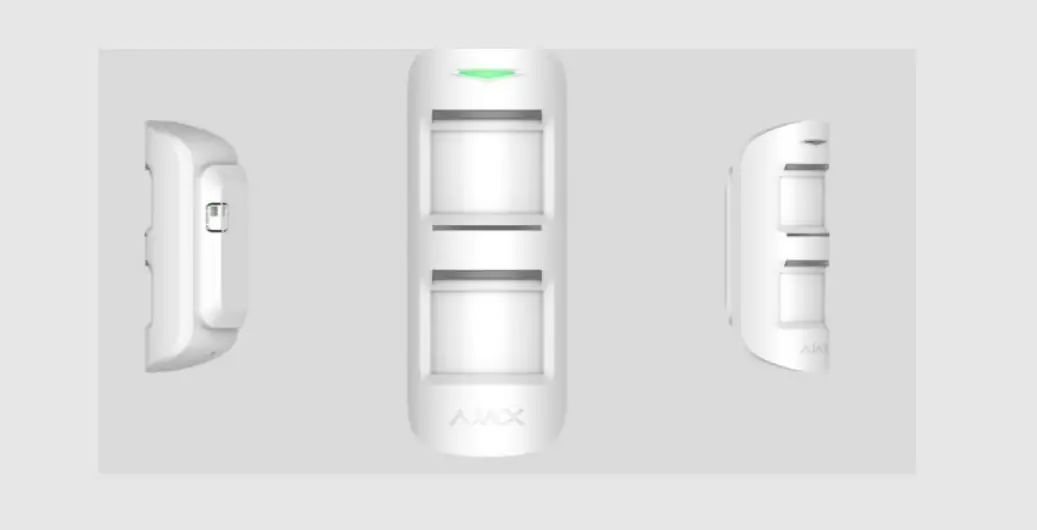
can send photos from MotionCam / MotionCam Outdoor motion detectors
and notify a security company patrol if outsiders enter a secure
room.
The Hub 2 Plus central unit must be installed indoors only. It
requires Internet access to connect to the Ajax Cloud service. The
central unit can be connected to the Internet via Ethernet, Wi-Fi,
and two SIM cards (2G/3G/4G). Connecting to Ajax Cloud is necessary
for configuring and managing the system through Ajax apps,
transmitting notifications about alarms and events, and updating
the OS Malevich. All data on Ajax Cloud is stored under multilevel
protection, and information is exchanged with the hub via an
encrypted channel. It is recommended to connect all communication
channels to ensure a more reliable connection with Ajax Cloud and
to secure against interruptions in the work of telecom
operators.
The security system can be managed and alarms can be responded
to quickly through apps for iOS, Android, macOS, and Windows. Users
can choose how they want to be notified of events, such as push
notifications, SMS, or calls. If the system is connected to a
security company, events and alarms will be transmitted directly
and/or through Ajax Cloud to the monitoring station.
The Hub 2 Plus supports up to 200 Ajax devices connected, which
protect against intrusion, fire, and flooding. It also allows for
the control of electrical appliances automatically according to
scenarios or manually from an app.
Product Usage Instructions:
- Ensure the Hub 2 Plus central unit is installed indoors
only. - Connect the central unit to the Internet using Ethernet, Wi-Fi,
or two SIM cards (2G/3G/4G). - Connect all communication channels to ensure a reliable
connection with Ajax Cloud and to secure against interruptions in
the work of telecom operators. - Download and install the Ajax app on your iOS, Android, macOS,
or Windows device. - Configure the push notifications settings on your device
according to the instructions provided in the user manual. - If the system is connected to a security company, ensure proper
setup for transmitting events and alarms to the monitoring
station. - To add devices to the security system, follow the instructions
provided in their respective user manuals. - To control electrical appliances, use the scenarios feature in
the Ajax app or manually control them from the app.
Hub 2 Plus User Manual
Updated January 17, 2022
Hub 2 Plus is a central device in the Ajax security system, which controls the operation of all connected devices and interacts with the user and the security company. The hub reports the opening of doors, breaking of windows, threat of re or ood, and automates routine actions using scenarios. If outsiders enter the secure room, Hub 2 Plus will send photos from MotionCam / MotionCam Outdoor motion detectors and notify a security company patrol.
Hub 2 Plus central unit must be installed indoors only.
Hub 2 Plus needs Internet access to connect to the Ajax Cloud service. The central unit is connected to the Internet via Ethernet, Wi-Fi, and two SIM cards (2G/3G/4G).
Connecting to Ajax Cloud is necessary for con guring and managing the system through Ajax apps, transmitting noti cations about alarms and events, as well as for updating OS Malevich. All data on Ajax Cloud is stored under multilevel protection, information is exchanged with the hub via an encrypted channel.
Connect all communication channels to ensure a more reliable connection with Ajax Cloud and to secure against interruptions in the work of telecom operators.
You can manage the security system and quickly respond to alarms and noti cations through apps for iOS, Android, macOS, and Windows. The system allows you to choose of what events and how to notify the user: by push noti cations, SMS, or calls.
How to set up push noti cations on iOS How to set up push noti cations on Android If the system is connected to a security company, events and alarms will be transmitted to the monitoring station — directly and/or through Ajax Cloud.
Buy Hub 2 Plus central unit
Functional elements
1. Ajax logo featuring LED indicator 2. SmartBracket mounting panel. Slide it down with force to open
Perforated part is required for actuating the tamper in case of any attempt to dismantle the hub. Do not break it off!
3. Power cable socket 4. Ethernet cable socket 5. Slot for micro SIM 2 6. Slot for micro SIM 1 7. QR Code 8. Tamper button 9. Power button
Operating principle
The hub monitors the security system operation by communicating with connected devices via the Jeweller encrypted protocol. The communication range is up to 2000 m without obstacles (for example, walls, doors, inter- oor constructions). If the detector is triggered, the system raises the alarm in 0.15 seconds, activates the sirens, and noti es the central monitoring station of the security organization and the users.
If there is interference at the operating frequencies or when jamming is attempted, Ajax switches to a free radio frequency and sends noti cations to the central monitoring station of the security organization and to system users.
What jamming of a wireless security system is and how to resist it
Hub 2 Plus supports up to 200 Ajax devices connected, which protect against intrusion, re, and ooding, as well as control electrical appliances automatically according to scenarios or manually from an app.
To send photos from MotionCam / MotionCam Outdoor motion detector, a separate Wings radio protocol and a dedicated antenna are used. This ensures the
delivery of visual alarm veri cation even with an unstable signal level and interruptions in communication.
All Ajax devices Hub 2 Plus is running under a real-time operating system OS Malevich. Similar OS control spacecraft systems, ballistic missiles, and car brakes. OS Malevich expands the capabilities of the security system, automatically updating by air without user intervention. Use scenarios to automate the security system and decrease the number of routine actions. Set up the security schedule, program actions of automation devices (Relay, WallSwitch, or Socket) in response to an alarm, pressing of the Button or by schedule. A scenario can be created remotely in the Ajax app.
How to create and con gure a scenario in the Ajax security system
LED indication
The Ajax logo on the hub front lights up red, white, or green depending on the status of the power supply and Internet connection.
Event At least two communication channels — Wi-Fi, Ethernet, or SIM card — are connected A single communication channel is connected The hub is not connected to the Internet or there is no connection with the Ajax Cloud server
No power
LED indicator
Lights up white
Lights up green
Lights up red
Lights up for 3 minutes, then blinks every 10 seconds. The color of the indicator depends on the number of the connected communication channels
Ajax account
The security system is con gured and controlled through Ajax apps. Ajax applications are available to professionals and users on iOS, Android, macOS, and Windows.
The settings of Ajax security system users and the parameters of connected devices are stored locally on the hub and are inextricably linked with it. Changing the hub administrator does not reset the settings of the connected devices.
To con gure the system, install the Ajax app and create an account. One phone number and email address may be used to create only one Ajax account! There is no need to create a new account for each hub — one account can manage multiple hubs.
Your account can combine two roles: the administrator of one hub and the user of another hub.
Security requirements
When installing and using Hub 2 Plus, strictly adhere to the general electrical safety regulations for using electrical appliances, as well as the requirements of regulatory legal acts on electrical safety.
It is strictly forbidden to disassemble the device under voltage! Also, do not use the device with a damaged power cable.
Connecting to the network
1. Remove the SmartBracket mounting panel by sliding it down with force. Avoid damaging the perforated part — it’s essential for the tamper activation in case of hub dismantling!
2. Connect the power supply and Ethernet cables to the appropriate sockets, install SIM cards.
1 — Power socket 2 — Ethernet socket 3, 4 — Slots for installing micro-SIM cards
3. Press and hold the power button for 3 seconds until the Ajax logo lights up. It takes about 2 minutes for the hub to upgrade to the latest rmware and connect to the Internet. The green or white logo color indicates that the hub is running and connected to Ajax Cloud.
If the Ethernet connection is not established automatically, disable proxy and MAC address ltration and activate DHCP in the router settings. The hub will automatically receive an IP address. After that, you will be able to set up a static IP address of the hub in the Ajax app.
4. To connect to the cellular network, you need a micro SIM card with a disabled PIN code request (you can disable it using a mobile phone) and a su cient amount on your account to pay for the services at your operator’s rates. If the hub does not connect to the cellular network, use Ethernet to con gure the network parameters: roaming, APN access point, username, and password. Contact your telecom operator for support to nd out these options.
Adding a hub to the Ajax app
1. Turn on the hub and wait until the logo lights up green or white. 2. Open the Ajax app. Give access to the requested system functions to fully use the capabilities of the
Ajax app and not to miss alerts about alarms or events.
How to set up noti cations on iOS How to set up noti cations on Android
3. Open the Add hub menu Select the way of registering: manually or step-by-step guidance. If you are setting the system up for the rst time, use step-by-step guidance.
4. Specify the name of the hub and scan the QR code located under the SmartBracket mounting panel or enter it manually.
5. Wait until the hub is added. The linked hub will be displayed in the Devices tab .
After adding a hub to your account, you become the administrator of the device. Administrators can invite other users to the security system and determine their rights. Hub 2 Plus central unit can have up to 200 users.
Changing or removing the administrator does not reset the settings of the hub or connected devices.
Ajax security system user rights
Hub statuses
Icons
Icons display some of Hub 2 Plus statuses. You can see them in the Ajax app, in the Devices menu .
Icons
2G connected 3G connected
Meaning
LTE connected SIM card is not installed The SIM-card is defective or has a PIN-code on it
Hub 2 Plus battery charge level. Displayed in 5% increments
Hub 2 Plus malfunction is detected. The list is available in hub states list The hub is directly connected to the central monitoring station of the security organization The hub have lost connection with the central monitoring station of the security organization via direct connection
States
States can be found in the Ajax app: 1. Go to the Devices tab . 2. Select Hub 2 Plus from the list.
Parameter
Malfunction
Meaning
Click to open the list of Hub 2 Plus malfunctions. The eld appears only if a malfunction is detected
Cellular Signal Strength Battery Charge
Shows the signal strength of the mobile network for the active SIM card. We recommend installing the hub in places with the signal strength of 2-3 bars. If the signal strength is weak, the hub will not be able to dial-up or send an SMS about an event or alarm
Battery level of the device. Displayed as a percentage
How battery charge is displayed in Ajax apps
Lid
External power Connection
Cellular Data Active SIM SIM 1 SIM 2
Status of the tamper that responds to hub dismantling:
Closed — the hub lid is closed Opened — the hub removed from SmartBracket holder
What is a tamper?
External power supply connection status:
Connected — the hub is connected to external power supply Disconnected — no external power supply
Connection status between the hub and Ajax Cloud:
Online — the hub is connected to Ajax Cloud O ine — the hub is not connected to Ajax Cloud
The hub connection status to the mobile Internet:
Connected — the hub is connected to Ajax Cloud via mobile Internet Disconnected — the hub is not connected to Ajax Cloud via mobile Internet
If the hub has enough funds on the account or has bonus SMS/calls, it will be able to make calls and send SMS messages even if the Not connected status is displayed in this eld
Displays the active SIM card: SIM card 1 or SIM card 2 The number of the SIM card installed in the rst slot. Copy the number by clicking it The number of the SIM card installed in the
Wi-Fi
Ethernet
Average Noise (dBm)
Monitoring Station
Hub model Hardware version Firmware ID
second slot. Copy the number by clicking it Internet connection status of the hub via Wi-Fi.
For greater reliability, it is recommended to install the hub in places with the signal strength of 2-3 bars
Internet connection status of the hub via Ethernet:
Connected — the hub is connected to Ajax Cloud via Ethernet Disconnected — the hub is not connected to Ajax Cloud via Ethernet
Noise power level at the hub installation site. The rst two values show the level at Jeweller
frequencies, and the third — at Wings frequencies.
The acceptable value is -80 dBm or lower
The status of direct connection of the hub to the central monitoring station of the security organization:
Connected — the hub is directly connected to the central monitoring station of the security organization Disconnected — the hub is not directly connected to the central monitoring station of the security organization
If this eld is displayed, the security company uses a direct connection to receive events and security system alarms
What is a direct connection?
Hub model name Hardware version. Unable to update Firmware version. Can be updated remotely ID/serial number. Also located on the device box,
on the device circuit board, and on the QR code under the SmartBracket panel
Rooms
Prior to linking a detector or device to a hub, create at least one room. Rooms are used to group detectors and devices, as well as to increase the information content of noti cations. The name of the device and room will be displayed in the text of the event or alarm of the security system.
To create a room in the Ajax app: 1. Go to the Rooms tab . 2. Click Add Room. 3. Assign a name for the room, and optionally attach or take a photo: it helps to nd the needed room in the list quickly. 4. Click Save.
To delete the room or change its avatar or name, go to Room settings by pressing .
Connection of detectors and devices
The hub doesn’t support uartBridge and ocBridge Plus integration modules.
When adding a hub to your account using the step-by-step guidance, you will be prompted to connect devices to the hub. However, you can refuse and return to this step later. To add a device to the hub, in the Ajax app:
1. Open the room and select Add device. 2. Name the device, scan its QR code (or enter it manually), select a group (if group mode is enabled). 3. Click Add the countdown for adding a device will begin. 4. Follow the instructions in the app to connect the device.
Please note that in order to link to the hub, the device must be located within the hub’s radio communication range (at the same protected object).
Hub settings
Settings can be changed in the Ajax app: 1. Go to the Devices tab . 2. Select Hub 2 Plus from the list. 3. Go to Settings by clicking on the icon .
Note that after changing the settings, you should click the Back button to save them.
Avatar Hub name Users Ethernet Wi-Fi Cellular Geofence Groups Security Schedule Detection Zone Test Jeweller Service Monitoring Station Installers
Security companies
User Guide
Data Import
Unpair hub
Settings reset
Resetting the hub to the factory settings: 1. Turn on the hub if it is off. 2. Remove all users and installers from the hub. 3. Hold the power button for 30 s — the Ajax logo on the hub will start blinking red. 4. Remove the hub from your account.
Resetting the hub does not delete connected users!
Events and alarms noti cations
The Ajax security system informs the user about alarms and events in three ways: push noti cations, SMS, and phone calls. The noti cation settings can be changed only for registered users.
Hub 2 Plus does not support calls and SMS transmission using VoLTE (Voice over LTE) technology. Before buying a SIM card, please make sure that it only supports the GSM standard.
Types of events Malfunctions
Alarm Events Arming/Disarming
Purpose
Types of noti cations
Loss of connection between the device and the hub
Jamming
Low battery charge in device or hub
Push noti cations SMS
Masking
Tampering alarm
Intrusion Fire Flood
Calls Push noti cations
Loss of connection between the hub and the Ajax Cloud server
SMS
Activation of WallSwitch, Relay, Socket
Push noti cations SMS
Arming/Disarming entire object or group
Turning on Night mode
Push noti cations SMS
The hub does not notify users of opening detectors triggering in the Disarmed mode when the Chime feature is enabled and con gured. Only the sirens connected to the system notify about the opening.
What is Chime
How Ajax noti es users of alerts
Video surveillance
00:00
00:10
You can connect third-party cameras to the security system: seamless integration with Dahua, Hikvision, and Sa re IP cameras and video recorders has been implemented. You can also connect third-party cameras supporting RTSP protocol. You can connect up to 100 video surveillance devices to the system.
How to add a camera to the Ajax security system
Connecting to a security company
The list of companies that accept the system to the central monitoring station is in the Security companies menu (Devices Hub Settings Security companies):
Select a security company and click Send Monitoring Request. After that, the security company will contact you and discuss the connection conditions. Or you can contact them yourself (contacts are available in the app) to agree upon a connection.
Connection to the Central Monitoring Station (CMS) is implemented via the Contact ID or SIA protocol.
Installation
Prior to installing the hub, make sure that you have selected the optimal location and that it complies with the requirements of this manual! It is desirable that the hub be hidden from direct view.
Make sure that the communication between the hub and all connected devices is stable. If the signal strength is low (a single bar), we cannot guarantee a stable operation of the security system. Implement all potential measures to improve the signal quality! At the very least, relocate the hub as even repositioning by 20 cm can signi cantly improve the signal reception.
If the device has a low or unstable signal strength, use a radio signal range extender.
When installing and using the device, follow the general electrical safety regulations for using electrical appliances, as well as the requirements of regulatory legal acts on electrical safety. It is strictly forbidden to disassemble the device under voltage! Do not use the device with a damaged power cable. Hub installation:
1. Fix the SmartBracket mounting panel with bundled screws. When using other fasteners, make sure they do not damage or deform the panel.
We do not recommend using double-sided adhesive tape for installation: it can cause a hub to fall in case of an impact.
2. Attach the hub to the mounting panel. After installation, check the tamper status in the Ajax app and then the quality of the panel xation. You will receive a noti cation if an attempt is made to tear the hub off the surface or remove it from the mounting panel.
3. Fix the hub on the SmartBracket panel with bundled screws.
Do not ip the hub when attaching vertically (for example, on a wall). When properly xed, the Ajax logo can be read horizontally.
Do not place the hub:
Outside the premises (outdoors). Nearby or inside any metal objects or mirrors causing attenuation and screening of the signal. In places with high radio interference level. Close to radio interference sources: less than 1 meter from the router and power cables. Inside any premises with the temperature and humidity beyond the range of permissible limits.
Maintenance
Check the operational capability of the Ajax security system on a regular basis. Clean the hub body from dust, spider webs and other contaminants as they appear. Use soft dry napkin suitable for equipment maintenance.
Do not use any substances containing alcohol, acetone, gasoline and other active solvents for cleaning the hub.
How to replace hub battery
The package includes
1. Hub 2 Plus 2. SmartBracket mounting panel 3. Power cable 4. Ethernet cable 5. Installation kit 6. Starter pack — not available in all countries 7. Quick Start Guide
Technical Speci cations
Classi cation
Support of detectors with photo veri cation of alarms Number of connected devices Number of connected ReX Number of connected sirens Number of security groups Number of users Video surveillance Number of rooms
Number of scenarios
Security system control panel with Ethernet, Wi-Fi, and dual SIM card support
Available
Up to 200 Up to 5 up to 10 Up to 25 Up to 200 Up to 100 cameras or DVRs Up to 50 Up to 64
Learn more
Central Monitoring Station communication protocols
Contact ID, SIA (DC-09)
CMS software supporting visual alarms veri cation
Power supply
Built-in back-up battery
Energy consumption from the grid Tamper proof Radio communication protocols with Ajax detectors and devices
110-240 V with pre-installed battery
6 V with alternative 6V PSU power supply
Li-Ion 3 ·h Ensures up to 15 hours of operation when using SIM card only Up to 10 W Available, tamper Jeweller — for transmitting events and alarms.
Learn more
Wings — for transmitting photos.
Learn more
Radio frequency band
RF output power Radio signal range
Communication channels
Operating temperature range Operating humidity Size Weight Service life
866.0 866.5 MHz 868.0 868.6 MHz 868.7 869.2 MHz 905.0 926.5 MHz 915.85 926.5 MHz 921.0 922.0 MHz Depends on the region of sale. 10.4 mW (max 25 mW) Up to 2000 m 2 SIM cards
2G (GSM900/DCS1800 (B3/B8)) 3G (WCDMA 850/900/2100 (B1/B5/B8)) LTE (FDD B1/B3/B5/B7/B8/B20/B28)
Wi-Fi (802.11 b/g/n)
Ethernet
From 10°C to +40°C Up to 75% 163 × 163 × 36 mm 367 g 10 years
Compliance with standards
Warranty
The warranty for the “AJAX SYSTEMS MANUFACTURING” LIMITED LIABILITY COMPANY products is valid for 2 years after the purchase and does not apply to the bundled rechargeable battery.
If the device does not function properly, we recommend that you rst contact the support service as technical issues can be resolved remotely in half of the cases!
Warranty obligations User agreement
Technical support: [email protected]
Subscribe to the newsletter about safe life. No spam
Subscribe
References
 How to set up alarm push notifications on Android | Ajax Systems Blog
-
How OS Malevich updates | Ajax Systems Blog
-
OS Malevich — how we made a system that embodies the idea of absolute simplicity | Ajax Systems Blog
-
What jamming of a wireless security system is and how to resist it | Ajax Systems Blog
-
Connecting Ajax to CMS
-
End user agreement - Ajax Systems
-
How to connect security cameras to the Ajax security system
-
Current product lines of the Ajax security system
-
Wireless panic button with control mode | Ajax Systems
-
Hub 2 Plus — Advanced control panel with 4 communication channels
-
MotionCam Outdoor — Wireless outdoor motion detector with photo
-
MotionCam - Motion sensor with photo verification of alarms
-
ocBridge Plus — Module for Ajax devices integration with wired systems
-
Signal range extenders in the security system | Ajax Systems
-
Relay — Low current remote control relay with dry contact
-
Socket (type F) — Wireless smart plug with energy monitor
-
uartBridge — Module for Ajax devices integration with third-party wireless alarms systems
-
Ajax WallSwitch — Wireless power relay with energy monitor
-
Automation scenarios | Your Ajax security automation
-
Software | Ajax Systems
-
Ajax devices standards compliance list
-
Warranty - Ajax Systems
-
User account types and rights | Ajax Systems Support
-
How to set up notifications for the Ajax app on iPhone | Ajax Systems Support
-
How battery charge is displayed in Ajax apps | Ajax Systems Support
-
What is the direct connection? | Ajax Systems Support
-
How to create the Ajax account? | Ajax Systems Support
-
What is a tamper | Ajax Systems Support
-
Features of alarm photo verification by MotionCam detectors | Ajax Systems Support
-
How Ajax notifies users of alerts | Ajax Systems Support
-
How to replace Hub battery? | Ajax Systems Support
-
Jeweller radio protocol: technology and capabilities | Ajax Systems Support
-
6V PSU for Hub 2/Hub 2 Plus/ReX 2 User manual | Ajax Systems Support
-
How to create and configure a scenario in the Ajax system | Ajax Systems Support
-
Ajax Translator User manual | Ajax Systems Support
 How to set up alarm push notifications on Android | Ajax Systems Blog
 User account types and rights | Ajax Systems Support