PCAN-USB CAN USB Adapter
PCAN-USB User Manual
Product Information
The PCAN-USB interface enables simple connection to CAN
networks. Its compact plastic casing makes it suitable for mobile
applications. The opto-decoupled version guarantees galvanic
isolation of up to 500 Volts between the PC and the CAN side.
The monitor software PCAN-View and the programming interface
PCAN-Basic for the development of applications with CAN connection
are included in the scope of supply and support CAN FD.
Device drivers exist for different operating systems, so
programs can easily access a connected CAN bus.
This manual describes the use of the CAN interface with Windows.
Device drivers and application information for Linux: www.peak-system.com/quick/DL-Driver-E
Product Usage Instructions
1 Introduction
The PCAN-USB interface is designed for simple connection to CAN
networks. It is ideal for mobile applications due to its compact
plastic casing. The opto-decoupled version provides galvanic
isolation of up to 500 Volts between the PC and the CAN side.
1.1 Properties at a Glance
- CAN interface for the USB connection (Full-Speed mode,
compatible with USB 1.1, USB 2.0, and USB 3.0) - (only PCAN-USB opto-decoupled) CAN termination can be activated
through a solder jumper - 5-Volt supply to the CAN connection can be connected through a
PCAN-USB connection - Programming interfaces for standardized protocols from the
automotive sector
1.2 System Requirements
No specific system requirements mentioned in the user
manual.
1.3 Scope of Supply
The following items are included in the scope of supply:
- PCAN-USB interface
- Monitor software PCAN-View
- Programming interface PCAN-Basic
2 Settings
2.1 Voltage Supply of External Devices
No specific instructions provided in the user manual.
2.2 Internal Termination
No specific instructions provided in the user manual.
3 Installation
3.1 Install Device Driver Setup
No specific instructions provided in the user manual.
3.2 Connecting the CAN Interface
No specific instructions provided in the user manual.
3.3 Check Operational Readiness
No specific instructions provided in the user manual.
4 Connecting the CAN Bus
4.1 Connection over D-Sub Connector
No specific instructions provided in the user manual.
4.2 Cabling
No specific instructions provided in the user manual.
4.3 Example Application under Windows
No specific instructions provided in the user manual.
5 Operation
5.1 Status LED
No specific instructions provided in the user manual.
5.2 Unplugging the USB Connection
No specific instructions provided in the user manual.
5.3 Distinguishing several PCAN-USB Interfaces
No specific instructions provided in the user manual.
6 CAN Monitor PCAN-View
6.1 Initialize CAN interface
No specific instructions provided in the user manual.
6.2 Transmit CAN message
No specific instructions provided in the user manual.
6.3 Additional Tabs
No specific instructions provided in the user manual.
7 API PCAN-Basic
7.1 Features of PCAN-Basic
No specific instructions provided in the user manual.
7.2 Principle Description of the API
No specific instructions provided in the user manual.
8 Technical Specifications
No specific technical specifications mentioned in the user
manual.
Appendix A CE Certificate
No specific information provided in the user manual.
Appendix B Dimension Drawings
No specific information provided in the user manual.
Appendix C Quick Reference
No specific information provided in the user manual.
Appendix D Linux
No specific information provided in the user manual.
PCAN-USB
User Manual
User Manual 3.0.2 © 2022 PEAK-System Technik GmbH
Relevant Products
Product name PCAN-USB PCAN-USB opto-decoupled
Model Galvanic isolation for CAN interface
Part number IPEH-002021 IPEH-002022
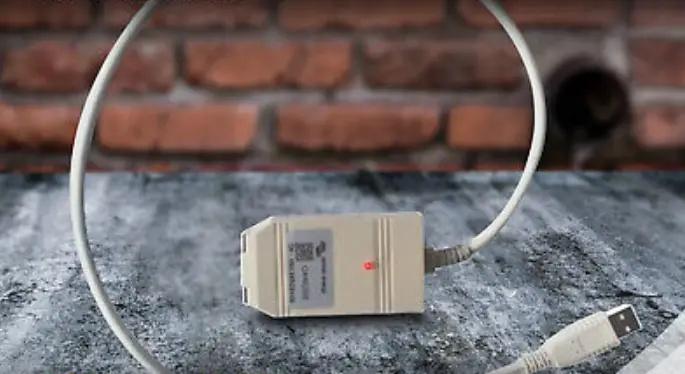
The cover picture shows both products, the PCAN-USB with the red and the PCAN-USB opto-decoupled with the grey cable strain relief.
Imprint
PCAN is a registered trademark of PEAK-System Technik GmbH. CiA® is a registered community trade mark of CAN in Automation e.V.
All other product names in this document may be the trademarks or registered trademarks of their respective companies. They are not explicitly marked by TM or ®.
© 2022 PEAK-System Technik GmbH
Duplication (copying, printing, or other forms) and the electronic distribution of this document is only allowed with explicit permission of PEAK-System Technik GmbH. PEAK-System Technik GmbH reserves the right to change technical data without prior announcement. The general business conditions and the regulations of the license agreement apply. All rights are reserved.
PEAK-System Technik GmbH Otto-Röhm-Straße 69 64293 Darmstadt Germany
Phone: +49 6151 8173-20 Fax: +49 6151 8173-29
www.peak-system.com [email protected]
Document version 3.0.2 (2022-10-24)
Relevant Products PCAN-USB
2
User Manual 3.0.2 © 2022 PEAK-System Technik GmbH
Contents
Imprint
2
Relevant Products
2
Contents
3
1 Introduction
4
1.1 Properties at a Glance
5
1.2 System Requirements
6
1.3 Scope of Supply
6
2 Settings
7
2.1 Voltage Supply of External Devices
7
2.2 Internal Termination
11
3 Installation
13
3.1 Install Device Driver Setup
13
3.2 Connecting the CAN Interface
14
3.3 Check Operational Readiness
14
4 Connecting the CAN Bus
15
4.1 Connection over D-Sub Connector
15
4.2 Cabling
16
4.3 Example Application under Windows
17
5 Operation
18
5.1 Status LED
18
5.2 Unplugging the USB Connection
18
5.3 Distinguishing several PCAN-USB Interfaces
18
6 CAN Monitor PCAN-View
19
6.1 Initialize CAN interface
20
6.2 Transmit CAN message
22
6.3 Additional Tabs
23
7 API PCAN-Basic
27
7.1 Features of PCAN-Basic
28
7.2 Principle Description of the API
29
8 Technical Specifications
30
Appendix A CE Certificate
32
Appendix B Dimension Drawings
33
Appendix C Quick Reference
34
Appendix D Linux
35
Relevant Products PCAN-USB
3
User Manual 3.0.2 © 2022 PEAK-System Technik GmbH
1 Introduction
The PCAN-USB interface enables simple connection to CAN networks. Its compact plastic casing makes it suitable for mobile applications. The opto-decoupled version guarantees galvanic isolation of up to 500 Volts between the PC and the CAN side.
The monitor software PCAN-View and the programming interface PCAN-Basic for the development of applications with CAN connection are included in the scope of supply and support CAN FD.
Device drivers exist for different operating systems, so programs can easily access a connected CAN bus.
This manual describes the use of the CAN interface with Windows. Device drivers and application information for Linux: www.peak-system.com/quick/DL-Driver-E
At the end of this manual you can find a Quick Reference with brief information about the installation and operation of the PCAN-USB interface.
1 Introduction PCAN-USB
4
User Manual 3.0.2 © 2022 PEAK-System Technik GmbH
1.1 Properties at a Glance
CAN interface for the USB connection (Full-Speed mode, compatible with USB 1.1, USB 2.0, and USB 3.0)
High-speed CAN connection (ISO 11898-2) Compliant with CAN specifications ISO 11898-1 for CAN Bit rates from 5 kbit/s up to 1 Mbit/s Time stamp resolution 42 µs NXP CAN controller SJA1000, 16 MHz clock frequency NXP CAN transceiver PCA82C251 Galvanic isolation on the CAN connection up to 500 V
(only PCAN-USB opto-decoupled) CAN termination can be activated through a solder jumper 5-Volt supply to the CAN connection can be connected through a
solder jumper, e.g. for external bus converter Voltage supply via USB Extended operating temperature range from -40 to +85 °C (-40 to +185 °F)
1 Introduction PCAN-USB
5
User Manual 3.0.2 © 2022 PEAK-System Technik GmbH
1.2 System Requirements
Computer with operating system Windows® 11 (64 bit), 10 (32/64 bit) or Linux (32/64-bit) a vacant USB port (USB 1.1, USB 2.0, or USB 3.0) or a vacant USB port at a self-powered USB hub
1.3 Scope of Supply
PCAN-USB
Downloads Device drivers for Windows® 11 (64 bit), 10 (32/64 bit) and Linux (32/64-bit) CAN monitor PCAN-View for Windows Programming interface PCAN-Basic for developing applications with CAN
connection Programming interfaces for standardized protocols from the automotive sector
1 Introduction PCAN-USB
6
User Manual 3.0.2 © 2022 PEAK-System Technik GmbH
2 Settings
The following describes the settings for the power supply of external devices and the internal termination. If you do not need any of these settings, skip this chapter.
2.1 Voltage Supply of External Devices
Optionally, an external power supply can be connected via the D-Sub connector using solder bridges at pin 1 and/or pin 9 on the D-Sub connector. This allows external devices to be supplied with a voltage of 5 V DC, such as the PCAN-TJA1054 bus converter for Low-speed CAN. Pin 1 and pin 9 are not assigned at delivery and with the PCAN-USB opto-decoupled only pin 1 is available up to S/N 199999. The opto-decoupled model of the CAN interface contains an interconnected DC/DC converter. Therefore, the current output is limited to 50 mA.
2.1.1 Activate Power Supply
Risk of short circuit! Soldering on the CAN interface may only be performed by qualified electrical engineering personnel.
Attention! Electrostatic discharge (ESD) can damage or destroy components on the card. Take precautions to avoid ESD.
2 Settings PCAN-USB
7
User Manual 3.0.2 © 2022 PEAK-System Technik GmbH
1. Open the CAN interface casing. Push the latches on both sides cautiously with a slotted screwdriver.
2. Remove the circuit board. 3. Set the solder bridges according to the model of the PCAN-USB on the intended
position on the circuit board (see below). 4. For assembly, place the circuit board on the upper half of the housing. The
strain relief and the LED must be in the corresponding recesses. 5. Press the lower half of the housing onto the upper half of the housing until the
latches engage.
PCAN-USB (IPEH-002021) to S/N 199999, solder field JP3
PCAN-USB (IPEH-002021) from S/N 200000, solder field JP3
2 Settings PCAN-USB
8
User Manual 3.0.2 © 2022 PEAK-System Technik GmbH
PCAN-USB opto-decoupled (IPEH-002022) to S/N 199999, solder field R11
PCAN-USB opto-decoupled (IPEH-002022) from S/N 200000, solder field JP3
PCAN-USB model
Solder field
IPEH-002021 to S/N 199999
JP3
IPEH-002021 from S/N 200000
JP3
IPEH-002022 (opto-dec.) to S/N 199999
R11
IPEH-002022 (opto-dec.) from S/N 200000
JP3
5 V supply on the D-Sub connector
Without Pin 1 (default)
Pin 9
Pin 1 and Pin 9
not applicable
not applicable
2 Settings PCAN-USB
9
User Manual 3.0.2 © 2022 PEAK-System Technik GmbH
Attention! The voltage supply for external devices is not protected separately. Therefore, turn off the computer before you connect and disconnect CAN cables or peripheral systems. Consider that some computers still supply the USB ports with power even when they are turned off (standby operation).
2 Settings PCAN-USB
10
User Manual 3.0.2 © 2022 PEAK-System Technik GmbH
2.2 Internal Termination
Only applicable from S/N 200000 The internal termination can be activated by solder jumpers on the circuit board to terminate one end of the CAN bus. At delivery the termination is not activated.
Tipp: We recommend to do termination at the CAN cabling, for example with the terminating resistors PCAN-Term (IPEK-003002) or PCAN-MiniTerm (IPEK-003002-Mini). Thus, CAN nodes can be flexibly connected to the bus.
2.2.1 Activate Internal Termination
Risk of short circuit! Soldering on the CAN interface may only be performed by qualified electrical engineering personnel.
Attention! Electrostatic discharge (ESD) can damage or destroy components on the card. Take precautions to avoid ESD.
1. Open the CAN interface casing. Push the latches on both sides cautiously with a slotted screwdriver.
2. Remove the circuit board. 3. Set the solder bridges according to the model of the PCAN-USB on the intended
position on the circuit board (see below). 4. For assembly, place the circuit board on the upper half of the housing. The
strain relief and the LED must be in the corresponding recesses. 5. Press the lower half of the housing onto the upper half of the housing until the
latches engage.
2 Settings PCAN-USB
11
User Manual 3.0.2 © 2022 PEAK-System Technik GmbH
PCAN-USB (IPEH-002021) from S/N 200000, solder fields for the CAN bus termination
PCAN-USB opto-decoupled (IPEH-002022) from S/N 200000, solder fields for the CAN bus termination
PCAN-USB model
IPEH-002021 from S/N 200000
Termination High-speed CAN bus 120
Without (default)
Activated
IPEH-002022 (opto-dec.) from S/N 200000
2 Settings PCAN-USB
12
User Manual 3.0.2 © 2022 PEAK-System Technik GmbH
3 Installation
This chapter covers the software setup for the PCAN-USB interface under Windows and the connection of the CAN interface to the computer.
Note: For installation on Linux, see Appendix D Linux.
Install the driver before you connect the CAN interface.
3.1 Install Device Driver Setup
1. Download the device driver setup from our website: www.peak-system.com/quick/DL-Driver-E
2. Unpack the file PEAK-System_Driver-Setup.zip 3. Double-click the file PeakOemDrv.exe
The driver setup starts. 4. Follow the program instructions.
3 Installation PCAN-USB
13
User Manual 3.0.2 © 2022 PEAK-System Technik GmbH
3.2 Connecting the CAN Interface
Malfunction! Do not use a USB extension cable to connect the CAN interface to the computer. Extension cables does not comply with the USB specification.
1. Connect the CAN interface to a USB port of the computer or of a connected USB hub. The computer can remain powered on. Windows detects the new hardware and completes the driver installation.
2. Check the LED on the CAN interface. If the LED is on, then the driver was initialized successfully.
3.3 Check Operational Readiness
1. Open the Windows Start menu. 2. Type Peak Settings and press |Enter|.
The window PEAK Settings appears. 3. Select CAN Hardware.
The connected CAN interface is displayed.
3 Installation PCAN-USB
14
User Manual 3.0.2 © 2022 PEAK-System Technik GmbH
4 Connecting the CAN Bus
4.1 Connection over D-Sub Connector
After the CAN interface is connected, a CAN bus can be connected to the D-Sub connector. The pin assignment for CAN corresponds to the specification CiA® 106:
Assignment CAN_V+ (optional) CAN_Low CAN_High CAN_GND Not connected
Pin 1, 9 2 7 3, 6 4, 5, 8
D-Sub plug
Low power devices can be supplied directly with 5 Volts over pin 1 and pin 9 of the CAN connector, for example bus converters. Pin 1 and/or pin 9 are not in use at the delivery state. For more information see section 2.1 Voltage Supply of External Devices.
Tip: Connect a CAN bus with a different transmission standard via a bus converter. PEAK-System offers different bus converter modules like the PCAN-TJA1054 for a Low-speed CAN bus according to ISO 11898-3.
4 Connecting the CAN Bus PCAN-USB
15
User Manual 3.0.2 © 2022 PEAK-System Technik GmbH
4.2 Cabling
4.2.1 Termination
The High-speed CAN bus (ISO 11898-2) must be terminated with 120 on both ends. The termination prevents interfering signal reflections and ensures the proper operation of the transceivers of the connected CAN nodes (CAN interfaces, control devices). The PCAN-USB interface to S/N 199999 does not have an internal termination. From S/N 200000 it has an optional internal termination with 120 . See the previous section 2.2 Internal Termination for information about activation.
4.2.2 Example of a Connection
This example shows a connection between the PCAN Interface and a control unit (ECU). The upper example shows a connection with a cable which is terminated with 120 at both ends. At the lower example the connection is made with termination adapters.
4 Connecting the CAN Bus PCAN-USB
16
User Manual 3.0.2 © 2022 PEAK-System Technik GmbH
4.2.3 Maximum Bus Length
The maximum bus length depends primarily on the bit rate:
Nominal bit rate 1 Mbit/s
500 kbit/s 250 kbit/s 125 kbit/s 50 kbit/s 20 kbit/s 10 kbit/s
5 kbit/s
Buslength 40 m 110 m 240 m 500 m 1.3 km 3.3 km 6.6 km 13 km
The listed values have been calculated on the basis of an idealized system and can differ from reality.
4.3 Example Application under Windows
As an example application for accessing the CAN interface, run the CAN monitor PCAN-View from the Windows Start menu.
4 Connecting the CAN Bus PCAN-USB
17
User Manual 3.0.2 © 2022 PEAK-System Technik GmbH
5 Operation
5.1 Status LED
The LED can be in the following states:
Status
On Slow blinking Quick blinking
Meaning
There is a connection to the driver of the operating system. A software application is connected to the CAN interface. Data is transmitted via the connected CAN bus.
5.2 Unplugging the USB Connection
The PCAN-USB interface can be disconnected from the computer without further actions. In Windows, the interface is not listed under “Safely Remove Hardware”.
5.3 Distinguishing several PCAN-USB Interfaces
You can operate several PCAN-USB interfaces on a single computer at the same time. The supplied program PCAN-View allows the assignment of device IDs in order to distinguish the CAN interfaces in a software environment.
5 Operation PCAN-USB
18
User Manual 3.0.2 © 2022 PEAK-System Technik GmbH
6 CAN Monitor PCAN-View
The CAN monitor PCAN-View is a Windows software for viewing, sending, and recording CAN and CAN FD messages. The software is installed with the installation of the device driver package under Windows.
In the following the initialization of a CAN interface is described as an example.
Detailed information about using PCAN-View can be found in the program window under the menu item Help.
6 CAN Monitor PCAN-View PCAN-USB
19
User Manual 3.0.2 © 2022 PEAK-System Technik GmbH
6.1 Initialize CAN interface
1. Open the program PCAN-View via the Windows Start menu. Depending on the CAN interface the Connect dialog is displayed with or without settings for CAN FD.
CAN
CAN FD
CAN-Interface USB Interface, 1-channel USB Interface, 2-channel
PCIe Interface, 2-channel
List entry in Available Hardware see example above
6 CAN Monitor PCAN-View PCAN-USB
20
User Manual 3.0.2 © 2022 PEAK-System Technik GmbH
2. If there are several CAN interfaces, select the desired interface. For multiple channels, select the desired channel from the list.
3. Enter the bit rate(s) and other settings according to the connected CAN bus. 4. Confirm the entries with OK. The main window appears and displays the
Receive / Transmit tab.
5. For initializing another channel or CAN interface, open another instance of PCAN-View.
6 CAN Monitor PCAN-View PCAN-USB
21
User Manual 3.0.2 © 2022 PEAK-System Technik GmbH
6.2 Transmit CAN message
1. Select the menu command Transmit / New Message. Depending on the CAN interface, the dialog box New Transmit Message is displayed with or without settings for CAN FD.
CAN
CAN FD
1. Enter the ID, Length and Data of the message. Other settings can be made according to the connected CAN bus.
2. Enter a value into the Cycle Time field to choose manually or periodically message transmission.
To transmit periodically enter a value greater than 0.
To transmit only manually enter the value 0.
3. Confirm the entries with OK.
The created transmit message appears on the Receive / Transmit tab.
4. To send the message manually, select the menu command Transmit > Send or press the |space| bar.
The manual transmission process is performed additionally for periodically transmitted CAN messages.
6 CAN Monitor PCAN-View PCAN-USB
22
User Manual 3.0.2 © 2022 PEAK-System Technik GmbH
6.3 Additional Tabs
Depending on the CAN-Interface, additional tabs are available.
6.3.1 Trace Tab
The tracer (data logger) records the communication of the CAN bus in linear or ring buffer mode. The trace data can be saved to a file.
6.3.2 CAN-Interface Tab
6 CAN Monitor PCAN-View PCAN-USB
23
User Manual 3.0.2 © 2022 PEAK-System Technik GmbH
The CAN-Interface tab shows information about the hardware and the used Windows device driver. In this case exemplary for the PCAN-miniPCIe FD. Depending on the CAN-Interface, a hardware ID can be determined to distinguish several interfaces of the same type. For interfaces with CAN FD a transmission according to “ISO” or “Non-ISO” can be set as default of the hardware.
6.3.3 Bus Load Tab
The Bus Load tab displays the current bus load, its time history and statistical information of the connected CAN channel.
6 CAN Monitor PCAN-View PCAN-USB
24
User Manual 3.0.2 © 2022 PEAK-System Technik GmbH
6.3.4 Error Generator Tab
Via the Error Generator tab the communication on the CAN bus in test environments or during the development of CAN buses can be disturbed in a controlled way by 6 consecutive dominant bits. This is a violation of the CAN protocol on the CAN bus which must be recognized as an error by the connected CAN nodes.
Note: The Error Generator should only be used by experienced users and in the development environment. For further information, please contact our customer support: [email protected]
You can destroy CAN frames with the error generator by one of two methods: once after activation repeatedly at specific intervals related to a CAN ID
6 CAN Monitor PCAN-View PCAN-USB
25
User Manual 3.0.2 © 2022 PEAK-System Technik GmbH
Destroy Single CAN Frame
The Destroy Single Frame area refers to the next CAN frame that is recognized by the plug-in card after activation. 1. Enter the Bit Position where in the CAN frame the error is to be generated. The
bit position must start after the identifier. The count includes the stuff bits. 2. Execute the destroy action with Do it.
The next received or transmitted CAN frame will be destroyed at the selected bit position.
Destroy Multiple CAN Frames 1. Enter the CAN ID of the CAN frame that is intended to be destroyed multiple
times. The following specifications refer to this ID. 2. Enter the Bit Position where in the CAN frame the error is to be generated. The
bit position must start after the identifier. The count includes the stuff bits. 3. If CAN messages are to be sent unharmed before being destroyed, specify the
Number of Frames to ignore. 4. Determine the Number of Frames to destroy. 5. Confirm the entries with Apply to activate the error generator. 6. Stop destroying further CAN frames with Disable.
6 CAN Monitor PCAN-View PCAN-USB
26
User Manual 3.0.2 © 2022 PEAK-System Technik GmbH
7 API PCAN-Basic
The intended use of PCAN-Basic requires compliance with the license rights. Read the license agreement for end users at: https://www.peak-system.com/quick/eula
The programming interface (API) PCAN-Basic provides basic functions for the connection of own programs to the CAN-Interface of PEAK-System. PCAN-Basic is the interface between the program and the device driver. In Windows operating systems this is a DLL (Dynamic Link Library) and in Linux operating systems an SO (Dynamic Shared Object). PCAN-Basic is designed to be cross-operating system compatible. Software projects can be ported between supported systems with little effort.
With the installation of the device driver package under Windows the DLL files of the API PCAN-Basic are placed in the system folder. Examples for all common programming languages as well as libraries and help files are available as download package at: www.peak-system.com/quick/DL-Develop-E
7 API PCAN-Basic PCAN-USB
27
User Manual 3.0.2 © 2022 PEAK-System Technik GmbH
For Linux a download of the API is available under this link. For a use of PCAN-Basic another driver package with chardev driver is needed, because an access under SocketCAN is not possible. The “Driver Package for Proprietary Purposes”, the user manual, and further information about the implementation can be found at www.peak-system.com/linux
7.1 Features of PCAN-Basic
Thread-safe API for developing applications with CAN and CAN FD connections Supports CAN specifications ISO 11898-1 for CAN and CAN FD Supports the operating systems:
Windows® 11 (64 bit), 10 (32/64 bit) Linux (32/64-bit) Multiple PEAK-System applications and your own can be operated on a physical channel at the same time Single DLL (Win) / SO (Linux) for all supported hardware types Use of up to 16 channels for each hardware type Simple switching between channels Access to the CAN channels of a PCAN-Gateway via the PCAN-LAN device type Driver-internal buffering under Windows of up to 32,768 CAN messages per CAN channel Precision of time stamps on received messages up to 1 s (depending on the PEAK CAN interface used) Supports PEAK-System`s trace formats v1.1 for CAN and v2.0 for CAN FD applications Access to specific hardware parameters, such as Listen-only mode Notification of the application through Windows events when a message is received Support of CAN error frames Confirmation of physical transmission by CAN echo frames Extended system for debugging operations Multilingual debugging output Output language depends on operating systems Debugging information can be defined individually
7 API PCAN-Basic PCAN-USB
28
User Manual 3.0.2 © 2022 PEAK-System Technik GmbH
7.2 Principle Description of the API
The sequence of accessing the CAN interface is divided into three phases:
Initialization
A CAN channel must be initialized before using it. This is done by the simple call of the function CAN_Initialize for CAN and CAN_InitializeFD for CAN FD. Per CAN interface type the API allows the simultaneous use of up to 16 CAN channels. After a successful initialization the CAN channel is ready. No further configuration steps are required.
Interaction
For receiving and transmitting messages the functions CAN_Read and CAN_ Write as well as CAN_ReadFD and CAN_WriteFD are available depending on the initialization mode. Additional settings can be made, such as setting up message filters to confine to specific CAN IDs or setting the CAN controller to Listen-only mode.
For the receiving CAN messages, events can be configured for automatic notification of an application (client). This offers the following advantages: The application no longer needs to check for received messages periodically
(no polling). The response time at reception is reduced.
Completion
To end the communication the function CAN_Uninitialize is called in order to release the reserved resources for the CAN channel, among others. In addition the CAN channel is marked as “Free” and is available to other applications.
7 API PCAN-Basic PCAN-USB
29
User Manual 3.0.2 © 2022 PEAK-System Technik GmbH
8 Technical Specifications
Connectors Computer CAN USB
USB plug type A
D-Sub (m), 9 pins, pin assignment according to CiA® 106
to S/N 199999 USB 1.1, from S/N 200000 USB 2.0, Full-Speed mode (compatible with USB 1.1, USB 2.0, and USB 3.0)
CAN Protocols on OSI layer 2 Physical transmission, OSI layer 1 CAN Bit rates Controller Transceiver Galvanic isolation
Supply for external devices via D-Sub pin 1 / pin 9
Internal termination
Time stamp resolution
1 Pin 9 only from S/N 200000
CAN ISO 11898-1:2015, 2.0 ISO 11898-2 (High-speed CAN)
Nominal:
5 kbit/s to 1 Mbit/s
NXP SJA1000 NXP PCA82C251
PCAN-USB: PCAN-USB opto:
none up to 500 V
PCAN-USB: PCAN-USB opto1:
5 V, max. 100 mA 5 V, max. 50 mA not activated at delivery
to S/N 199999 not available, from S/N 200000 via solder bridges, not activated at delivery
42 µs
Power supply Supply voltage Power consumption
Measures Size (w/o cable)
Length (connection cable) Weight (with cable)
+5 V DC (via USB port) max. 200 mA
PCAN-USB: PCAN-USB opto:
approx. 0.75 m
PCAN-USB: PCAN-USB opto:
75 x 43 x 22 mm 87 x 43 x 22 mm
78 g 83 g
8 Technical Specifications PCAN-USB
30
User Manual 3.0.2 © 2022 PEAK-System Technik GmbH
Environment Operating temperature Temperature for storage and transport Relative humidity Ingress protection (IEC 60529)
Conformity RoHS
EMC
-40 to +85 °C / -40 to +185 °F -40 to 100 °C / -40 to +212 °F 15 to 90 %, not condensing IP20
EU Directive 2011/65/EU (RoHS 2) + 2015/863/EU DIN EN IEC 63000:2019-05 EU Directive 2014/30/EU DIN EN 55032:2022-08 DIN EN 55035:2018-04
8 Technical Specifications PCAN-USB
31
User Manual 3.0.2 © 2022 PEAK-System Technik GmbH
Appendix A CE Certificate
Appendix A CE Certificate PCAN-USB
32
User Manual 3.0.2 © 2022 PEAK-System Technik GmbH
Appendix B Dimension Drawings
PCAN-USB
PCAN-USB opto-decoupled
Appendix B Dimension Drawings PCAN-USB
33
User Manual 3.0.2 © 2022 PEAK-System Technik GmbH
Appendix C Quick Reference
Software/Hardware Installation under Windows
Download the device drivers installation package from our website www.peak-system.com/quick/DL-Driver-E. Install the driver before you install the CAN interface.
After driver installation connect the CAN interface to a USB port of the computer or of a connected USB hub. The new hardware is recognized by Windows and the driver is initialized. The LED on the interface then is lit.
Check the operational readiness. Open the Windows Start menu. Type Peak Settings and press |Enter|. The window PEAK Settings appears. The connected USB interface is displayed under CAN Hardware.
Getting Started under Windows
Run the CAN monitor PCAN-View from the Windows Start menu as a sample application for accessing the CAN interface. For initialization of the CAN interface select the desired CAN channel and CAN bit rate.
Status LED
Status On Slow blinking Quick blinking
Meaning There’s a connection to a driver of the operating system. A software application is connected to the CAN interface. Data is transmitted via the connected CAN bus.
High-speed CAN connector (D-Sub, 9 pins)
Assignment CAN_V+ (optional) CAN_Low CAN_High CAN_GND Not connected
Pin 1, 9 2 7 3, 6 4, 5, 8
D-Sub plug
Appendix C Quick Reference PCAN-USB
34
User Manual 3.0.2 © 2022 PEAK-System Technik GmbH
Appendix D Linux
Depending on the Kernel version, device drivers for the CAN interfaces from PEAKSystem are already included in the operating system. The CAN interfaces are treated as network devices (SocketCAN, netdev). You can find the documentation for SocketCAN under: https://www.kernel.org/doc/Documentation/networking/can.txt
The command grep PEAK_ /boot/config-`uname -r` lists the available drivers. The following table shows the PCAN-Interfaces and from which kernel version they are supported.
PCAN-Interface PCAN-PCI PCAN-PC/104-Plus PCAN-USB PCAN-PCI Express PCAN-PCI/104-Express PCAN-USB FD PCAN-Chip USB PCAN-PCI Express FD PCAN-PCI/104-Express FD PCAN-M.2 PCAN-Chip PCIe PCAN-USB X6
PCAN-PCI Express PCAN-PCI/104-Express PCAN-USB Pro PCAN-miniPCIe
PCAN-USB Pro FD
PCAN-miniPCIe FD
PCAN-miniPCI PCAN-ExpressCard
PCAN-Chip PCIe FD
Kernel version
3.2
3.4
3.7 4.0 4.11 4.12
4.12
4.3 4.9
Whether the required driver for the PCAN-Interface is present and loaded can be checked with the following command: lsmod | grep ^peak check. If the initialization was successful, the response line starts with peak_usb or peak_ pci.
If the required drivers are not listed, install the “Driver Package for Proprietary Purposes”. The download, the user manual for the driver, and the corresponding “Implementation Details” can be found under: www.peak-system.com/linux
This driver package is also needed to use the APIs based on the chardev driver, for example PCAN-Basic, libpcan, or libpcanfd.
Appendix D Linux PCAN-USB
35
User Manual 3.0.2 © 2022 PEAK-System Technik GmbH
References
 System is a free, open, and living public resource that aims to explain how anything in the world is related to everything else.
 kernel.org/doc/Documentation/networking/can.txt
-
Home: PEAK-System
-
peak-system.com/linux
-
Development: PEAK-System
-
Drivers: PEAK-System
-
kernel.org/doc/Documentation/networking/can.txt
-
Home: PEAK-System
-
Drivers: PEAK-System
-
EULA: PEAK-System
 System is a free, open, and living public resource that aims to explain how anything in the world is related to everything else.
 kernel.org/doc/Documentation/networking/can.txt
 Home: PEAK-System