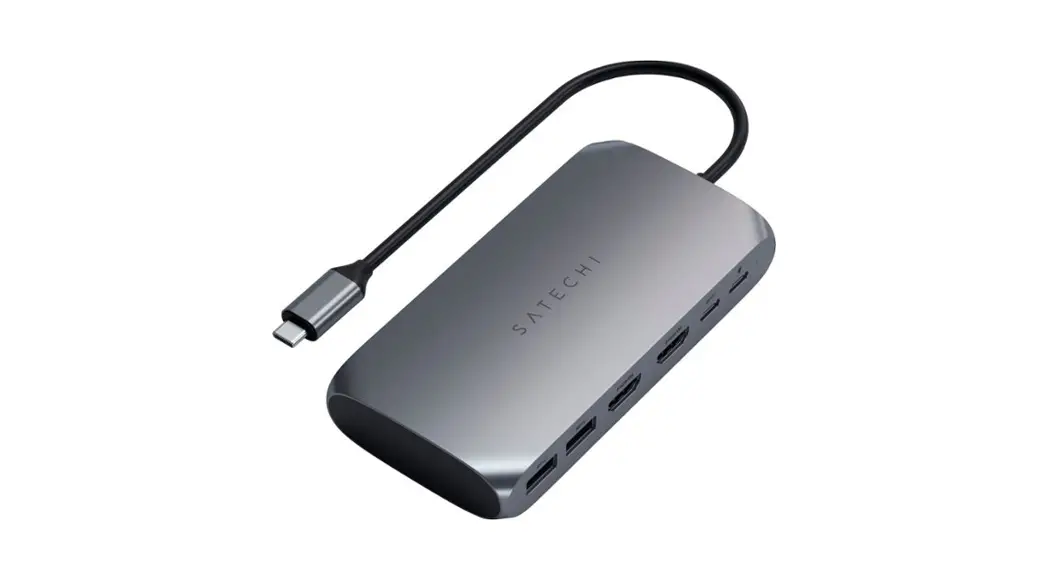
 ST-UCM1HM USB-C Multimedia M1 Adapter
User Manual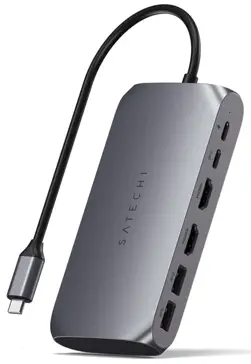
PLUG & PLAY
- Download and install the instantview app

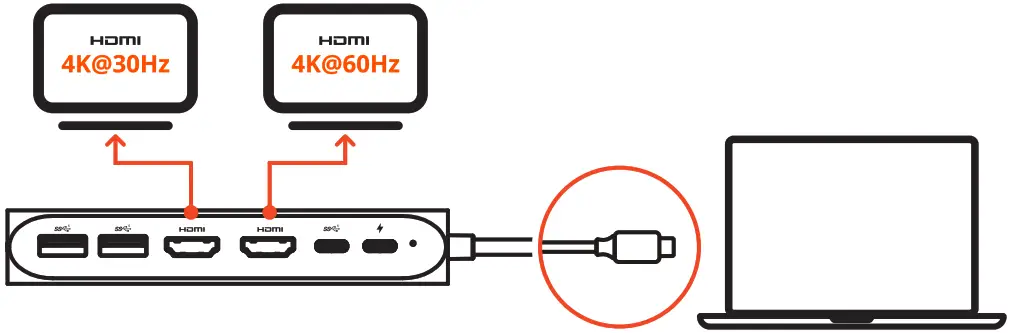
- Connect your screens

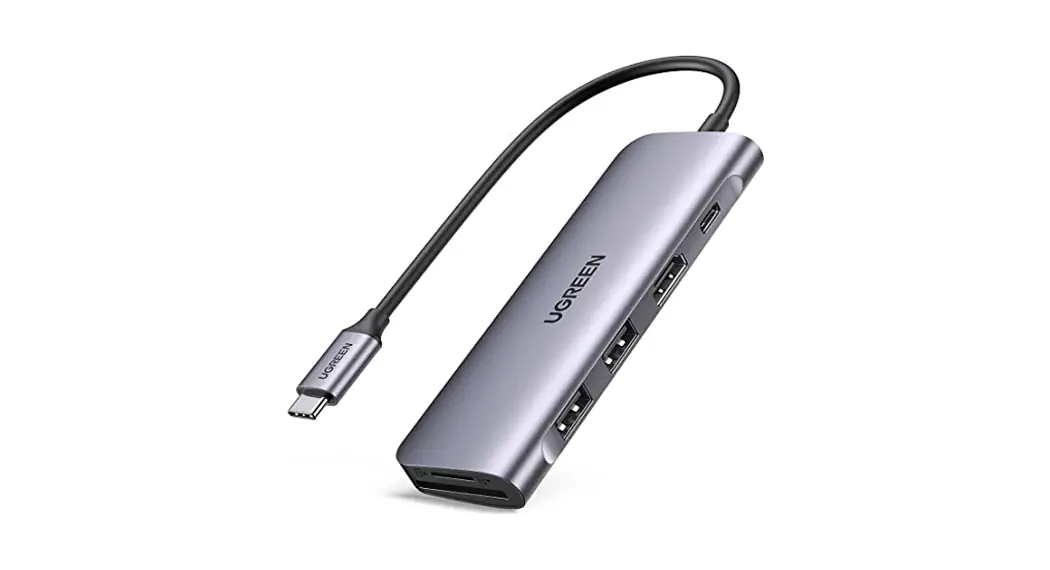
FUNCTIONS
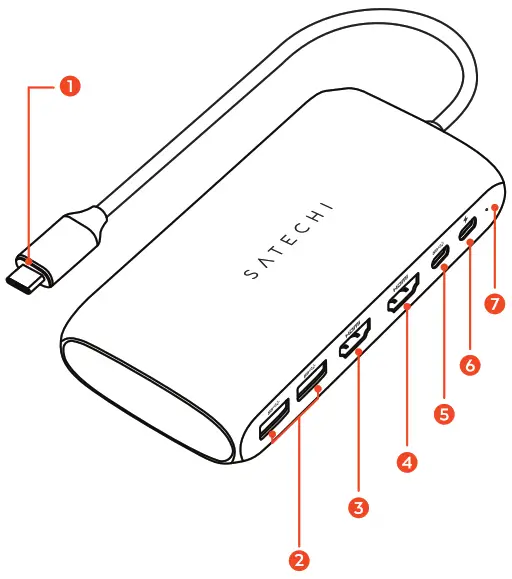
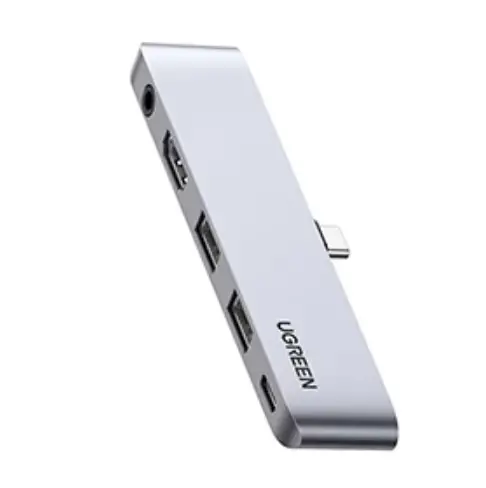
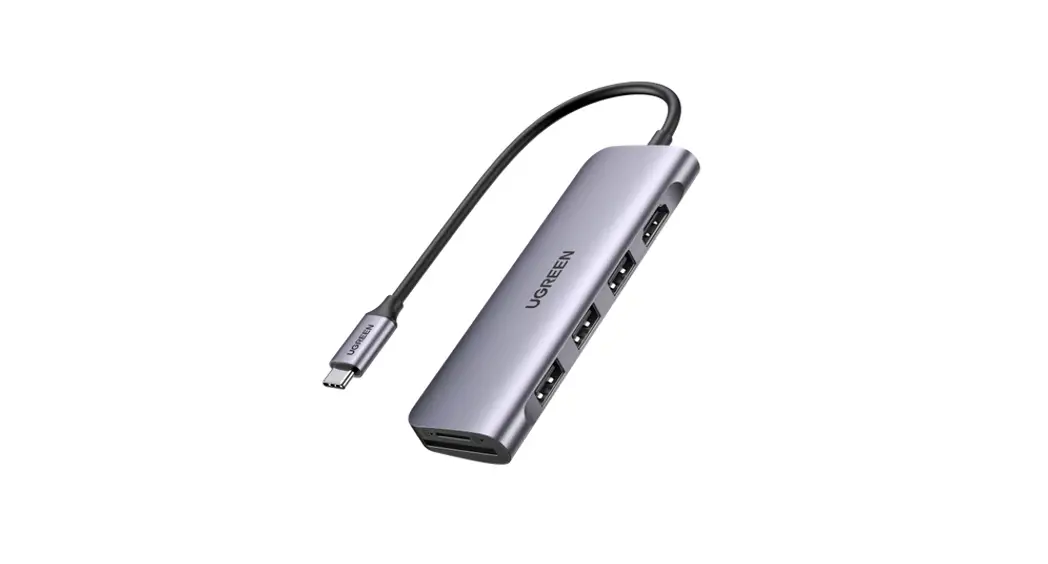
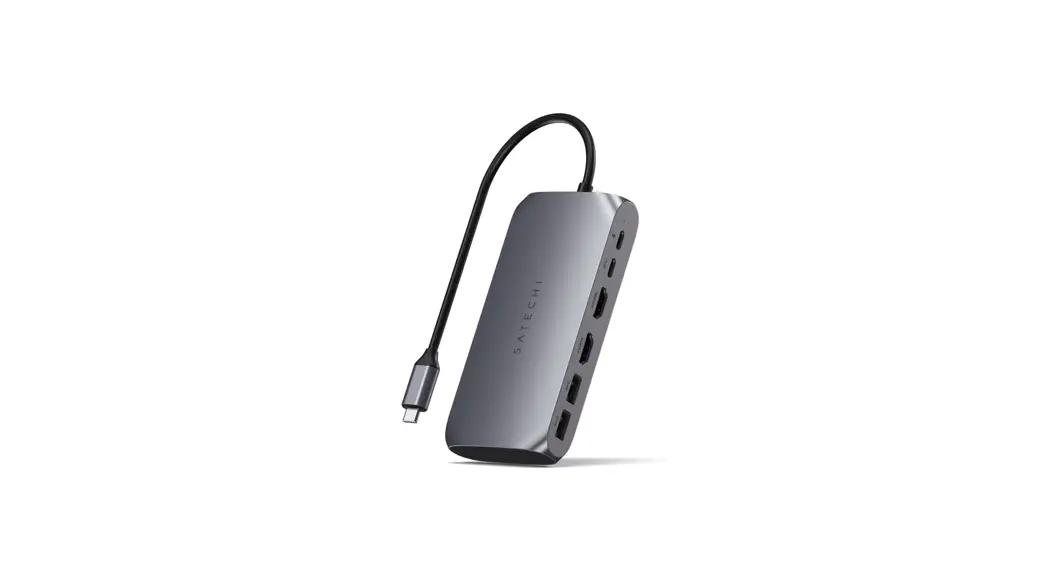
- USB-C Cable
- 2X USB-A 3.0 Ports
- 4K@30Hz HDMI Video Port
- 4K@60Hz HDMI Video Port
 USB-C Data Port
 USB-C PD Port (up to 100W)
- LED Indicator
 USB-C Data Port
 USB-C PD Port (up to 100W)
IMPORTANT
- Siliconemotion software must be installed for both HDMI ports to function.
How to install the App
- Download the InstantView app using link: https://sate-chi.net/pages/downloads
- Open the downloaded .dmg file and move to the Applications folder.
- Close the window and eject the InstantView drive from Finder.
- Connect the Satechi Multimedia M1 Adapter.
- Once connected, open the InstantView app on your device.
- Upon initial startup, InstantView will ask for permission to the following:
a. Files and Folder -> Access to files on removable drives, this is needed for accessing Instant View Support files on the M1 Adapter itself.
b. Recording the screen -> this is needed for activating HDMI2
c. Click to restart the App to activate the setting. - When connecting to HDMI2, there will be an InstantView pop-up. To disable, right-click on the App in menu bar and select “No Pop-up App at Plugin.”
PKG TEAM
Designer: Jane Lin
Product: M1 Hub Basic ( Space Gray)
Project: Product Manual Design
Date: AUG /18 / 2021
Scale: 100%
 COMMENTS
Please do not print this layer!!!
- 100% actual size
- All print should be matte except where indicated
SPECIFICATIONS
 Printing Information
 CMYK
CMYK Paper Material + Specs
 128g paper
Matt Laminations on Both Sides Folding
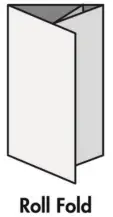
4-PANEL
ROLL FOLD
 Product Info
SKU: ST-UCM1HM
FCC ID: N/A
 FCC
FCC
 FCC
FCCThis device complies with part 15 of the FCC results.
Operation is subject to the following two conditions:
- This device may not cause harmful interference and
- This device must accept any interference received, including interference that may cause undesired operation.
Note: This Equipment has been tested and found to comply with the limits for a class B digital device, pursuant to Part 15 of the Federal Communications Commission (FCC) rules. These limits are designed to provide reasonable protection against harmful interference in a residential installation. This equipment generates, uses, and can radiate radio frequency energy and, if not installed and used in accordance with the instructions, may cause harmful interference to radio communications. However, there is no guarantee that interference will not occur in a particular installation. If this equipment does cause harmful interference to radio or television reception, which can be determined by turning the equipment off and on, the user is encouraged to try to correct the interference by one or more of the following measures:
1.1. Reorient or relocate the receiving antenna
1.2. Increase the separation between the equipment and receiver
1.3. Connect the equipment into and outlet on a circuit different from that to which the receiver is connected
1.4. Consult the dealer or an experienced radio/TV technician for help Changes or modifications not expressly approved by the manufacturer could void the user’s authority operate the equipment. CE DECLARATION OF CONFORMITY
Satechi declares that this product is in compliance with the essential requirements and other relevant provisions of applicable EC directives. For Europe, a copy of the Declaration of Conformity for this product may be obtained by visiting www.satechi.net/doc WEEE Information
According to the WEEE (Waste Electrical and Electronic Equipment) Directive, do not dispose of this product as household waste or commercial waste. Waste electrical and electronic equipment should be appropriately collected and recycled as required by practices established for your country. For information on recycling of this product, please contact your local authorities, your household waste disposal service, or the shop where you purchased the product.
 +1 858 268 1800
 [email protected]