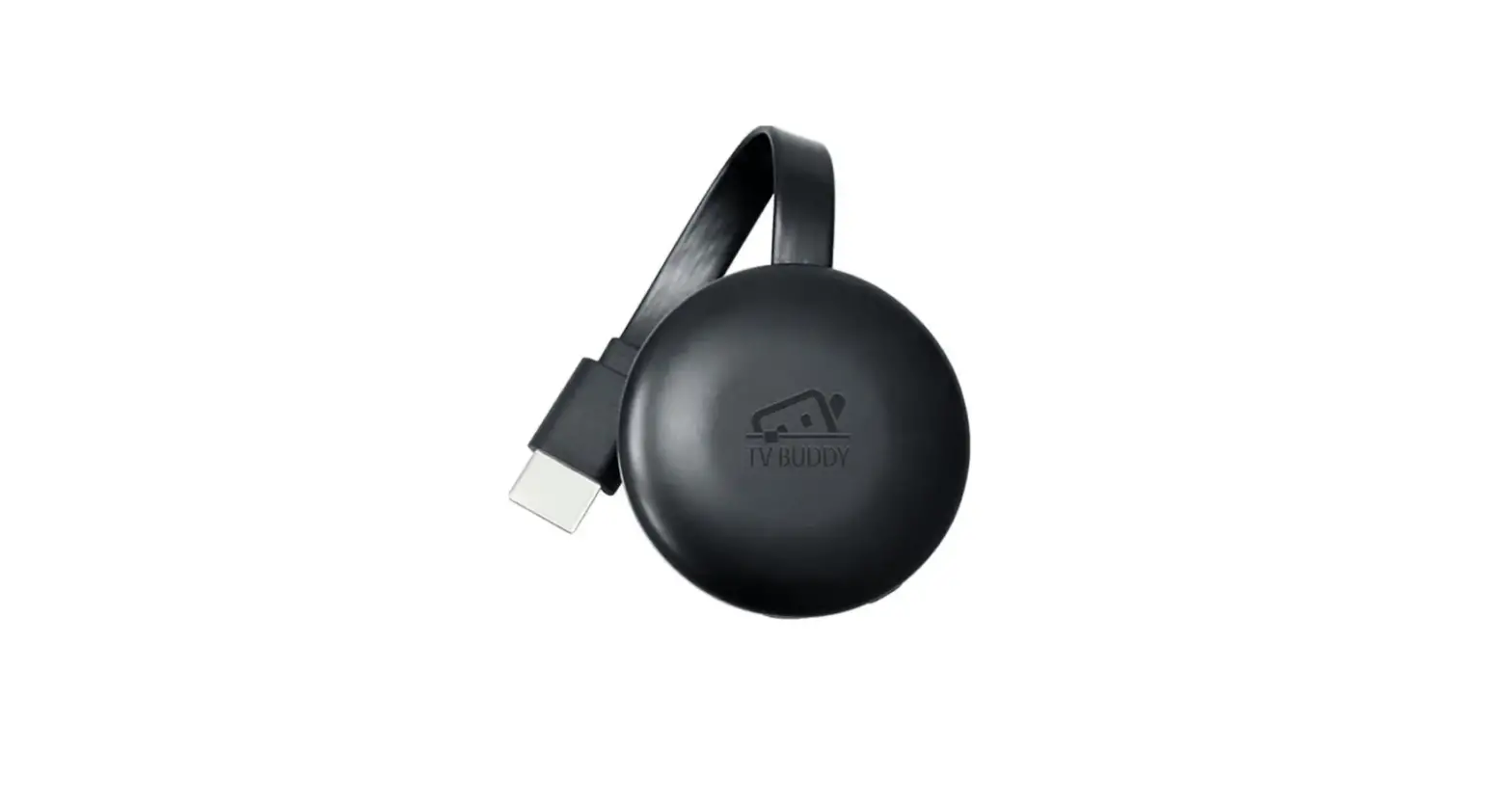
TV Buddy Caster Wireless Streaming
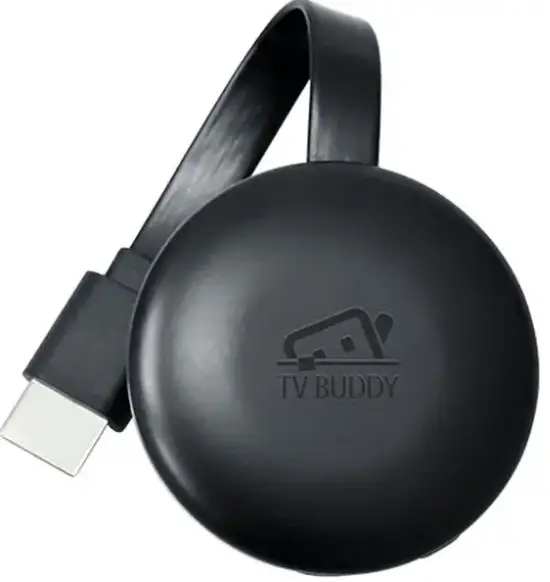
Hardware Installation
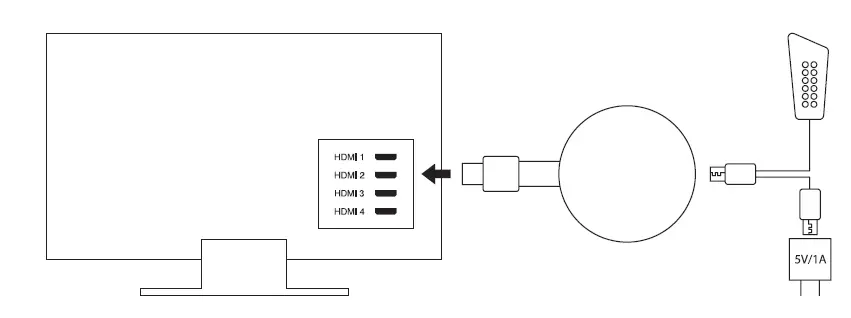
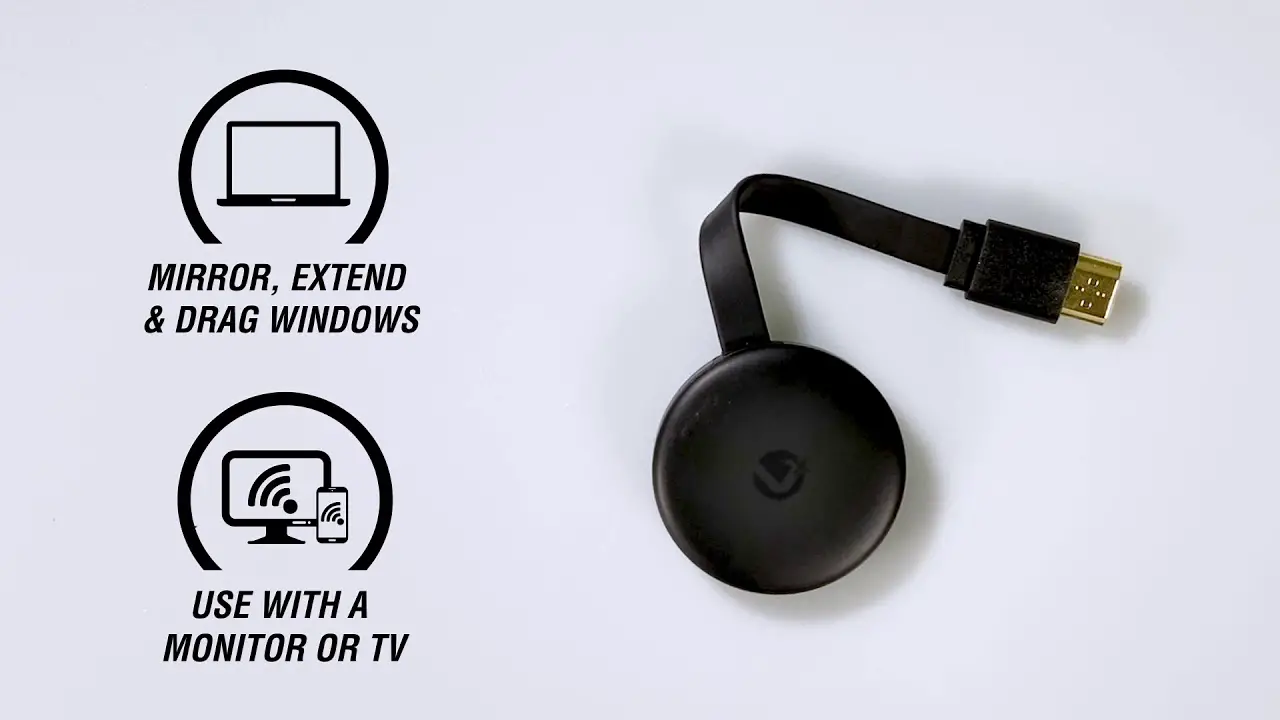
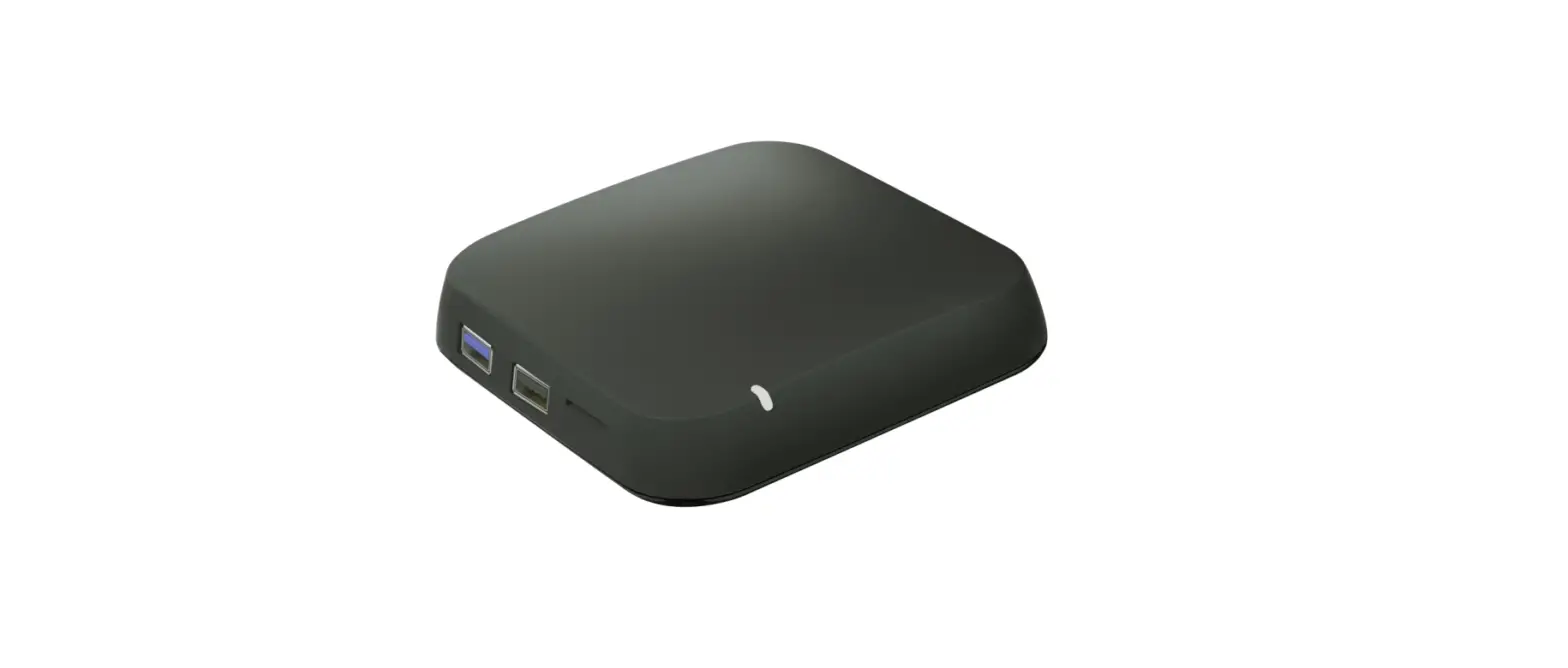
- Plug the provided Wifi adapter to your Screen Caster via the MicroUSB port.
- Plug the USB port to an external 5V/1A power adapter (not included).
Tip: If your TV has a USB port, you can use this if it provides at least 1A power. If not, then use a wall power adapter. - Plug the Screen Caster HDMI port into your TV, projector or monitor HDMI input.
- Select Source: Select the correct HDMI source on your TV, projector or monitor. Once connected correctly, you will see the main setup screen.
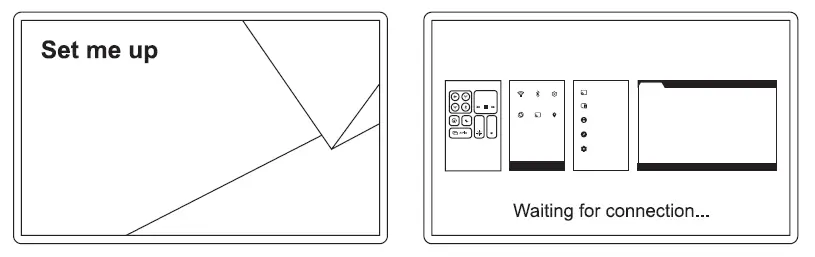
Screen Caster to Internet:
- Connect your Screen Caster to WiFi.
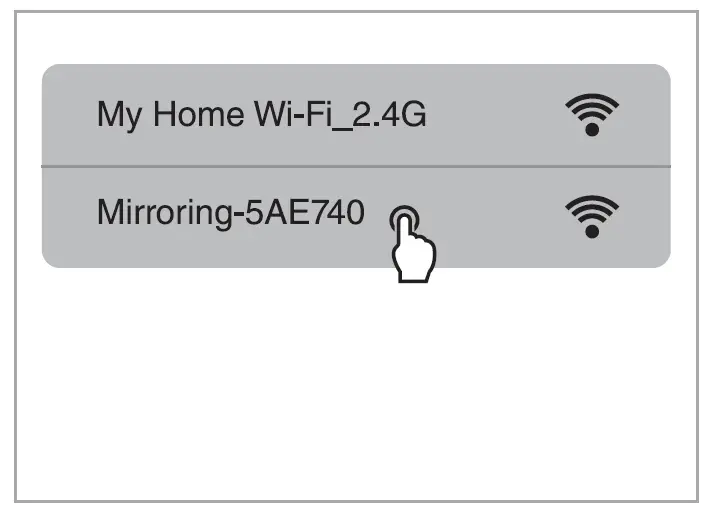
- Using your phone, tablet, PC or Mac’s WiFi, search for the WiFi network SSID ‘Mirroring-5AE740’
- Enter the the password 12345678 when prompted.

- Connect Screen Caster WiFi to Internet
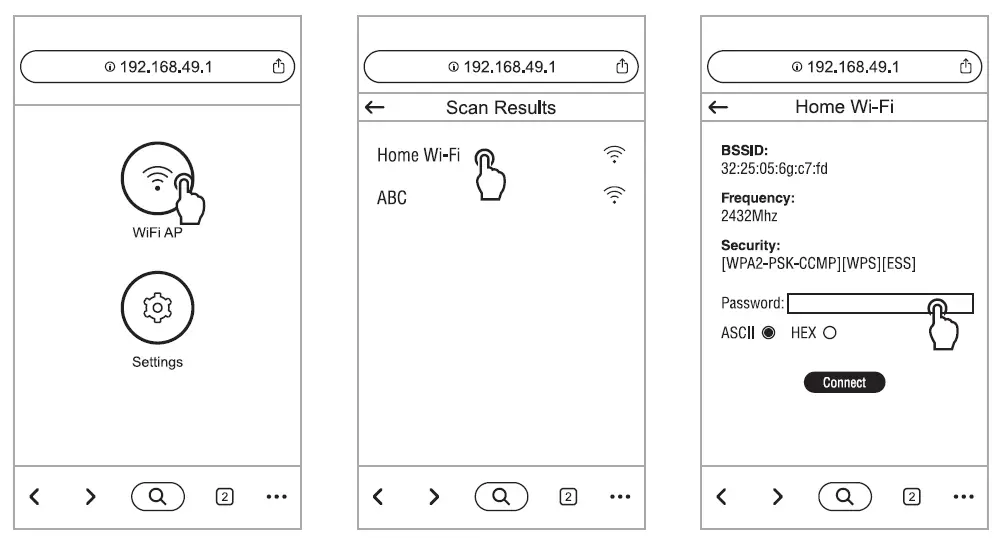
- Open your Internet browser and go to http://192.168.49.1
- Select your home WiFi network and enter your home WiFi password to connect.
- Once Screen Caster is successfully connected to the internet, it will automatically disconnect from your mobile device.

Android Mirror
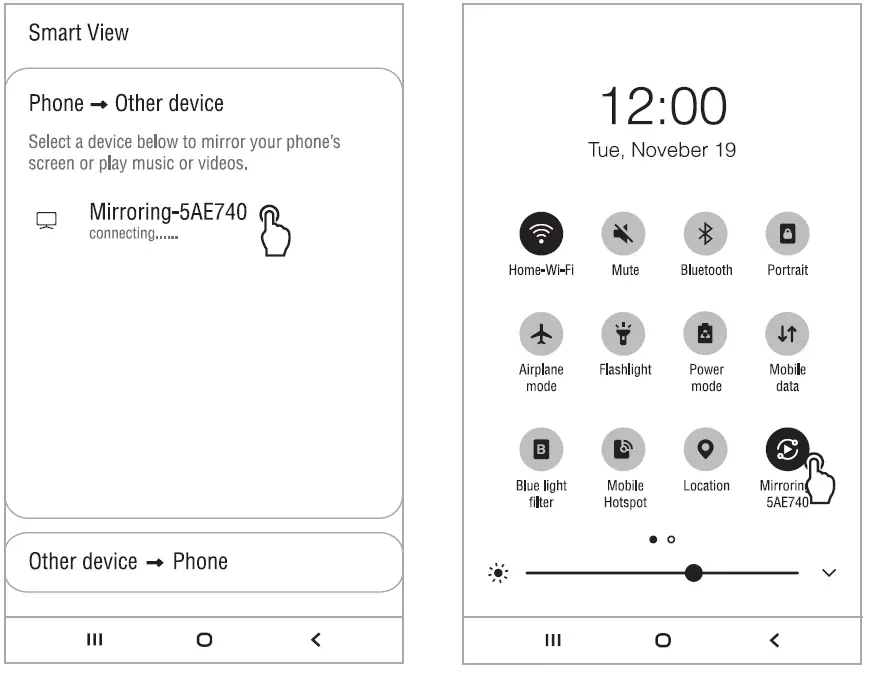
- Locate the Mirroring or Casting Function
- Samsung: Settings > ‘Smart View’ function
- Huawei: Settings > ‘Multi-Screen’ function
- LG: Settings > ‘MiraCast’ function
- Motorola: Settings > Display > ‘Cast’ or ‘Mirror’ function
- Sony Xperia: Settings > Xperia Connectivity > Cast Screen settings
- XiaoMi: Settings > More > Wireless Display
- Other brands: Sometimes the ‘Wireless Display’ or ‘Cast’ function may be located under the ‘More’ or ‘Additional Settings’ option of your smartphone settings.
You may also cast using many free apps such as EZMira, located in your device app store.
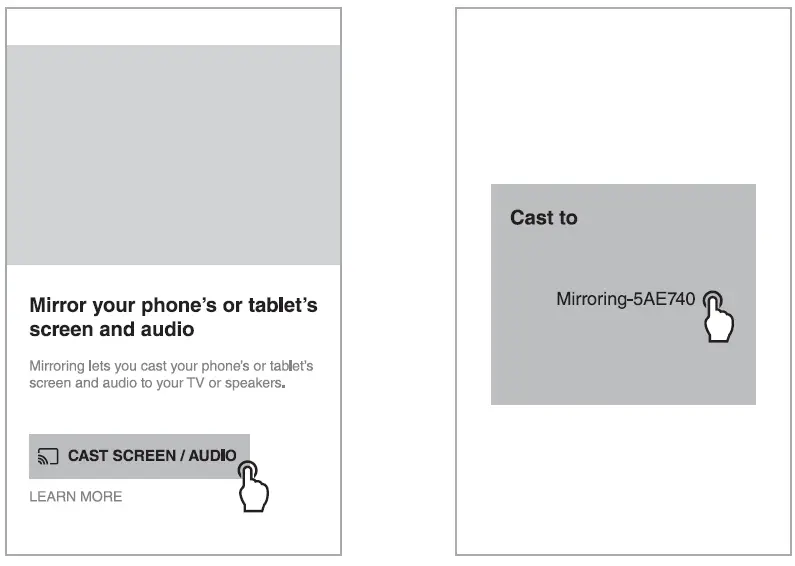
- Google Home App mirroring
- Make sure your mobile device and Screen Caster are connected to the same WiFi network.
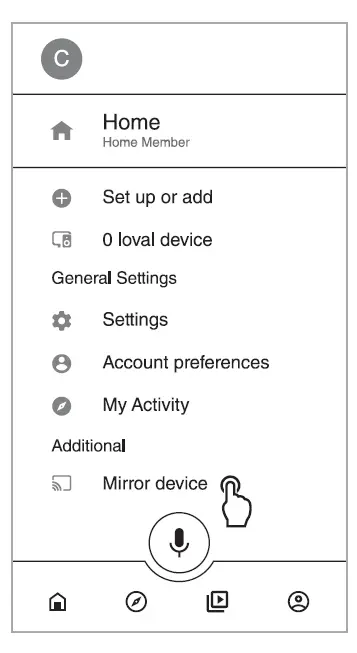
- Open the Google Home app.
- Tap “Mirror device” on the account page.
- Select Mirroring-5AE740 to connect.


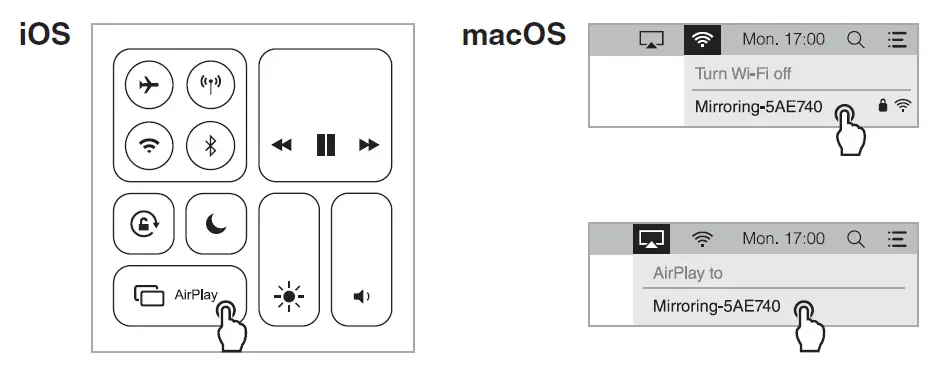
iOS/macOS Mirror
- Connect iOS/macOS device to Screen Caster SSID via wifi.
- Turn on Screen Mirroring/AirPlay mirroring and tap Mirroring-5AE740 to stream from your Screen Caster.
- iOS/macOS device screen will mirror to the TV

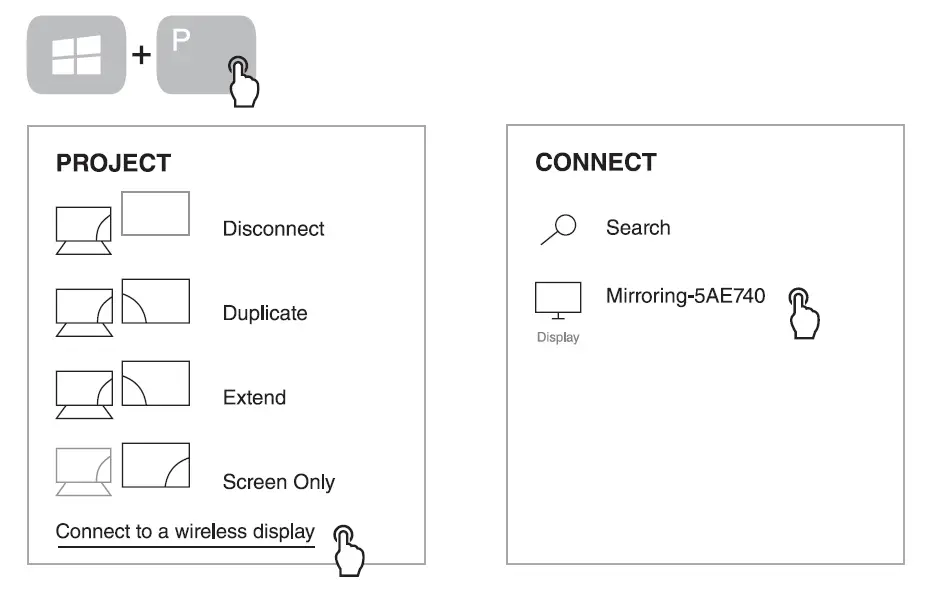
Windows Mirror
- Project function (available for Windows 8.1 and Windows 10)
- Press short keys “Win+P” on your keyboard.
- Select “Connect to a wireless display”.
- Select Mirroring-5AE740 to connect.

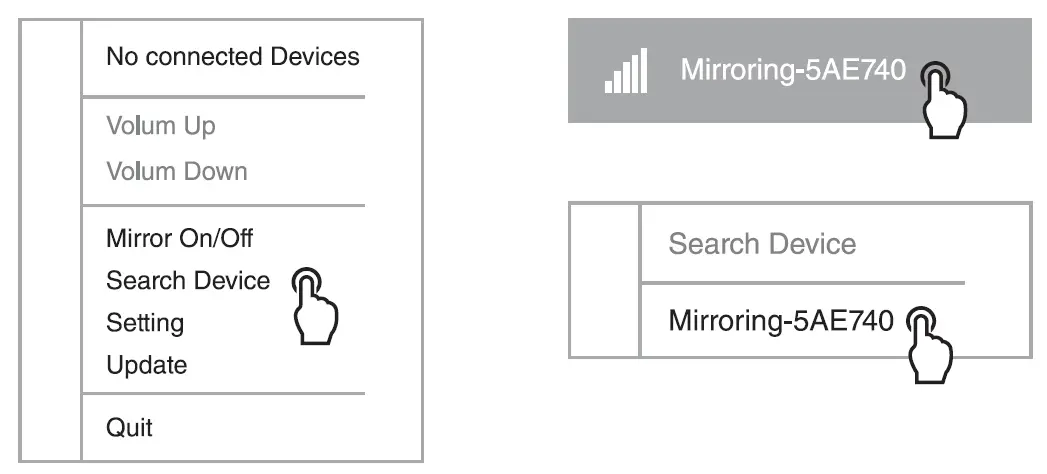
- EZMira Mirroring (for Windows 7 and 8.0)
- Download EZMira from https://mirascreen.com/pages/download-ezmira-for-windows and install EZMira app to your PC.
- Turn on Windows WiFi and connect to Mirroring-5AE740 SSID. Enter the password 12345678 when prompted.
- Open the EZMira app and select the “Search Device” option.
- Select Mirroring-5AE740 and the Windows PC screen will mirror to the TV automatically.
Note: Please turn off the Windows firewall/anti-virus software/computer housekeeper if the searching device failed.
Technical Specifications
| Product Size | 170mm x 55mm |
| Product Weight | 54g |
| Material | ABS |
| Power | 5V/2A max. |
| Frequency | 2.4GHz |
| Wi-Fi speed | Up to 150Mbps |
| Resolution | Support H.265/HEVC, 4K, 1080p |
| Video Format | AVI, FLV, MKV, MOV, RM, TS, VOB |
| Radio Format | AAC, APE, FLAC, MP3, OGG, WAV, WMA |
| Image Format | BMP, GIF, JPEG, JPG, PNG |
DISPOSAL
- At the end of its service life, this product may not be disposed of in the normal household waste, but rather must be disposed of at a collection point for recycling electrical and electronic devices.
- The materials are recyclable according to their labelling. You make an important contribution to protecting our environment by reusing, recycling, or utilizing old devices in other ways. Please ask the municipal administration where the appropriate disposal facility is located.
- Subject to change
FCC
This device complies with part 15 of the FCC rules. Operation is subject to the following two conditions:
- this device may not cause harmful interference
- this device must accept any inte reference received, including interference that may cause undesired operation.
Changes or modifications not expressly approved by the party responsible for compliance could void the user’s authority to operate the equipment
NOTE: This equipment has been tested and found to comply with the limits for a Class B digital device, pursuant to part 15 of the FCC Rules. These limits are designed to provide reasonable protection against harmful interference in a residential installation. This equipment generates uses and can radiate radio frequency energy and, if not installed and used in accordance with the instructions, may cause harmful interference to radio communications. However, there is no guarantee that interference will not occur in a particular installation. If this equipment does cause harmful interference to radio or television reception, which can be determined by turning the equipment off and on, the user is encouraged to try to correct the interference by one or more of the following measures
- Reorient or relocate the receiving antenna.
- Increase the separation between the equipment and receiver.
- Connect the equipment into an outlet on a circuit different from that to which the receiver is connected.
- Consult the dealer or an experienced radio/TV technician for help.
Radiation Exposure Statement
To comply with FCC RF exposure compliance requirements, this grant is applicable to only mobile configurations. The antennas used for this transmitter must be installed to provide a separation distance of at least 20cm from all persons and must not be co-located or operating in conjunction with any other antenna or transmitter