RainPoint IK10PW Wifi Automatic Watering Pump Kit Instruction Manual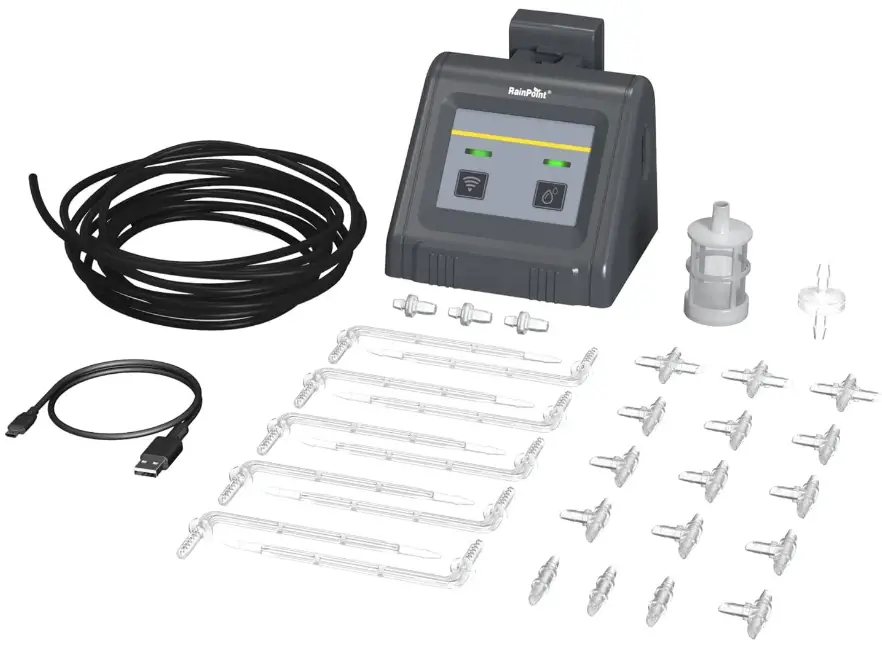
WELCOME TO RAINPOINT
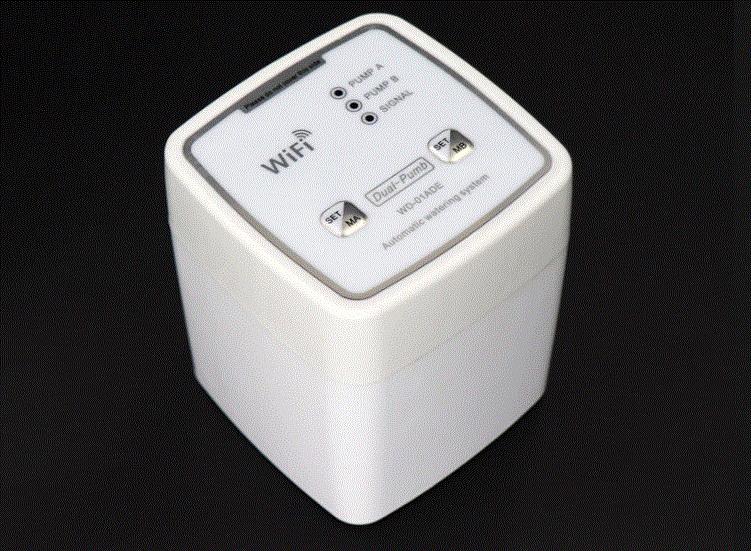
The IK10PW is a WiFi automatic watering pump kit, like any other Wi-Fi device: if you have access to the Internet, you can connect to your pump from anywhere, perfect for business trips, travel or any busy person; also works well in indoor, balcony, office, and so on scenarios where there are no water faucets.
As the device requires wifi pairing and simple assembly before first use, it may be challenging. please take 3-5 minutes to read the instructions and operation guide before using it, which will help you use it better.
PLEASE NOTE!!! If you make into trouble during use, please contact us by the following, we will do our best to solve them. (PS. All RainPoint products also have the contact ways for support on the back.) www.rainpointus.com
 [email protected]
 1 833 3815659
PRODUCT OVERVIEW
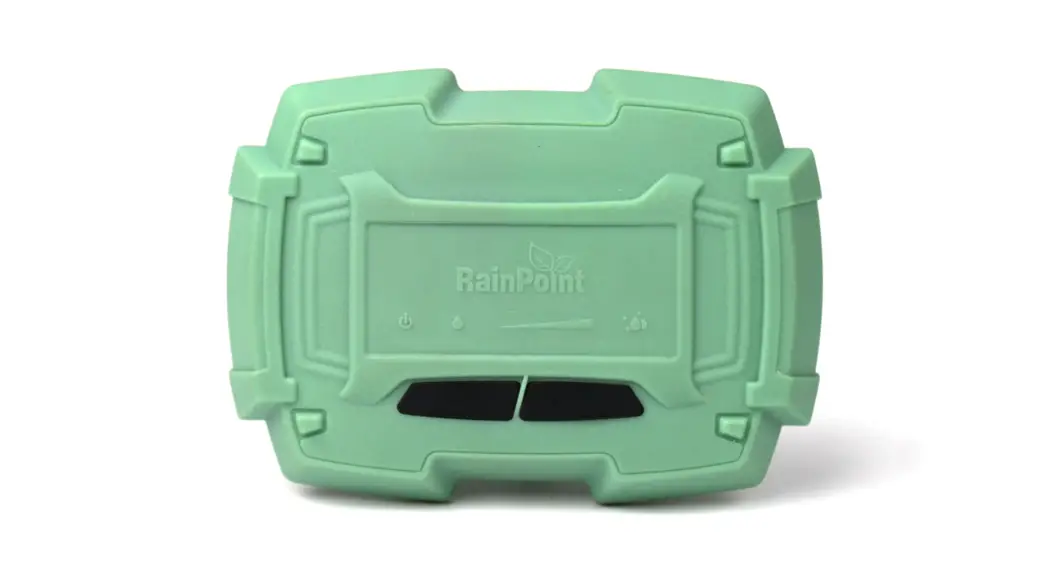
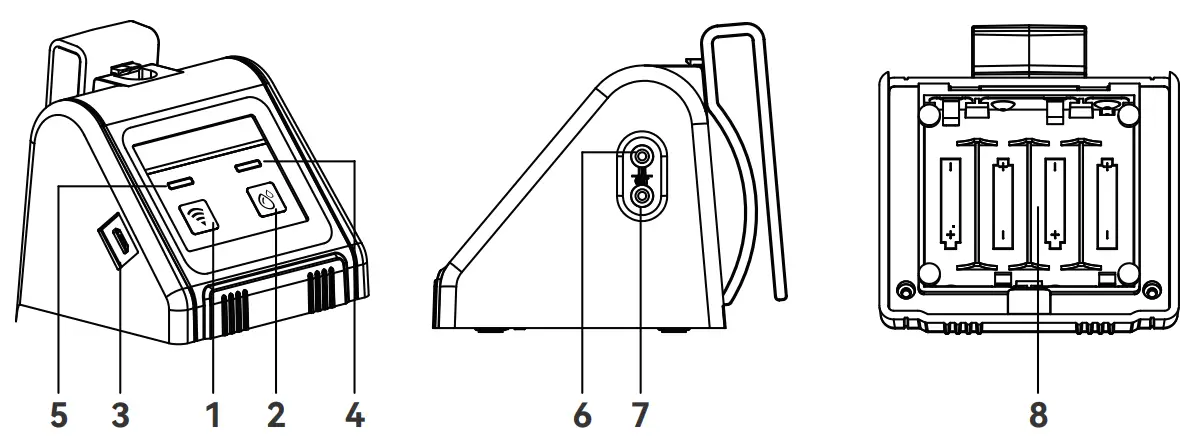
Product Appearance
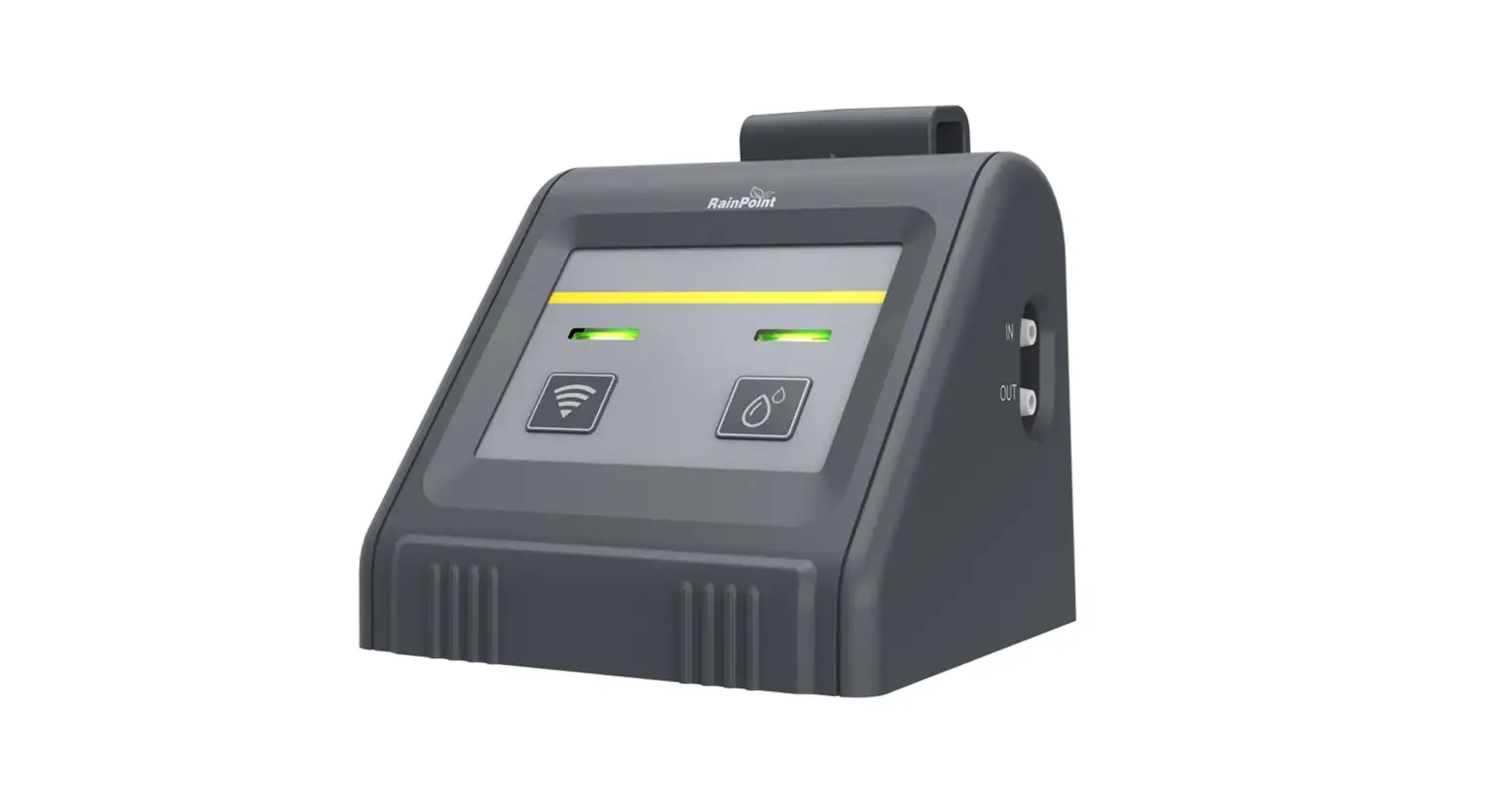
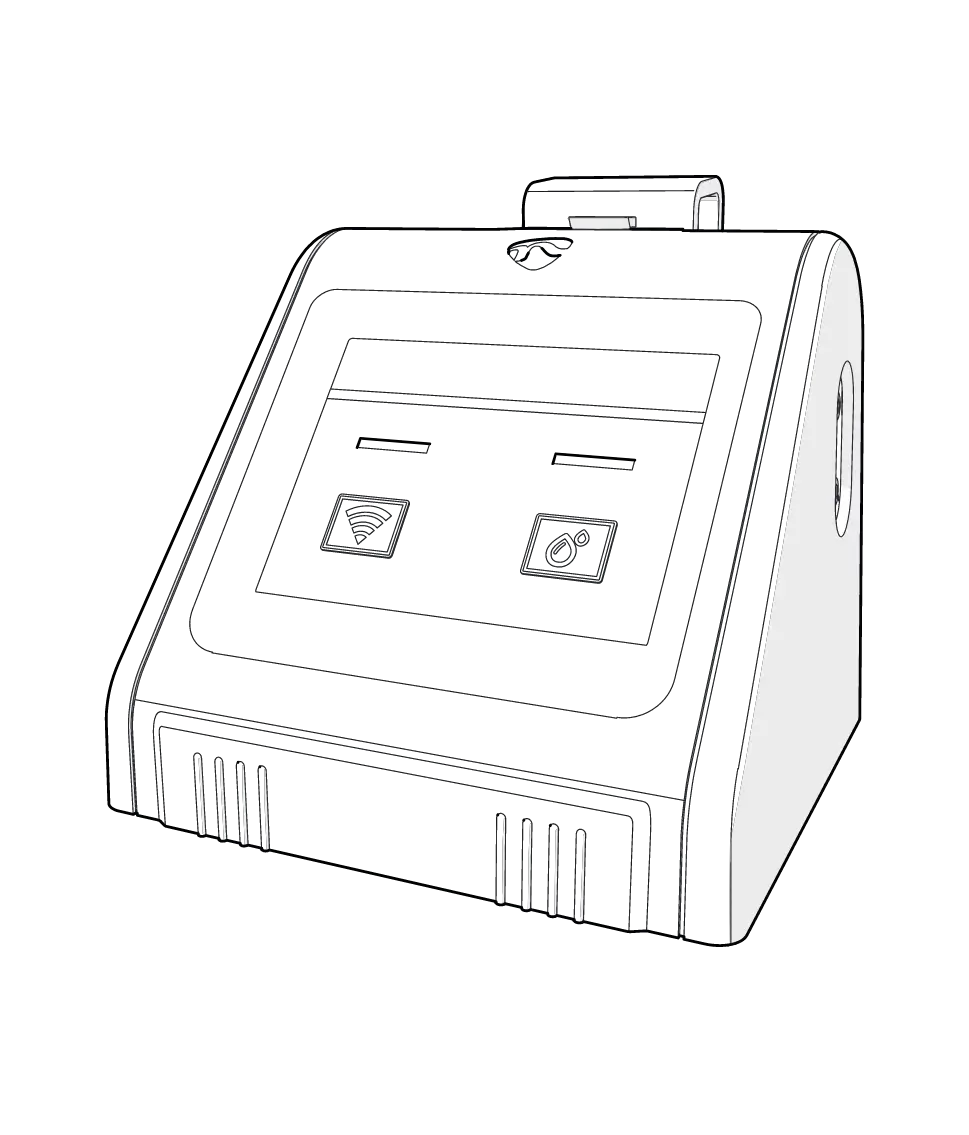
| No. | Name | Function |
| 1 | WiFi Button | Pair WiFi or reset |
| 2 | Manual Button | Manual or pause watering |
| 3 | USB Port | Manual or pause watering |
| 4 | Pair WiFi or power supply | Indicates the status of WiFi disconnected, connected or completed |
| 5 | Watering Indicator Light | Indicates the status of WiFi disconnected, connected or completed |
| 6 | Inlet Port | Water conveying to the pump |
| 7 | Outlet Port | Water conveying to plants |
| 8 | Battery Compartment | Power supply |
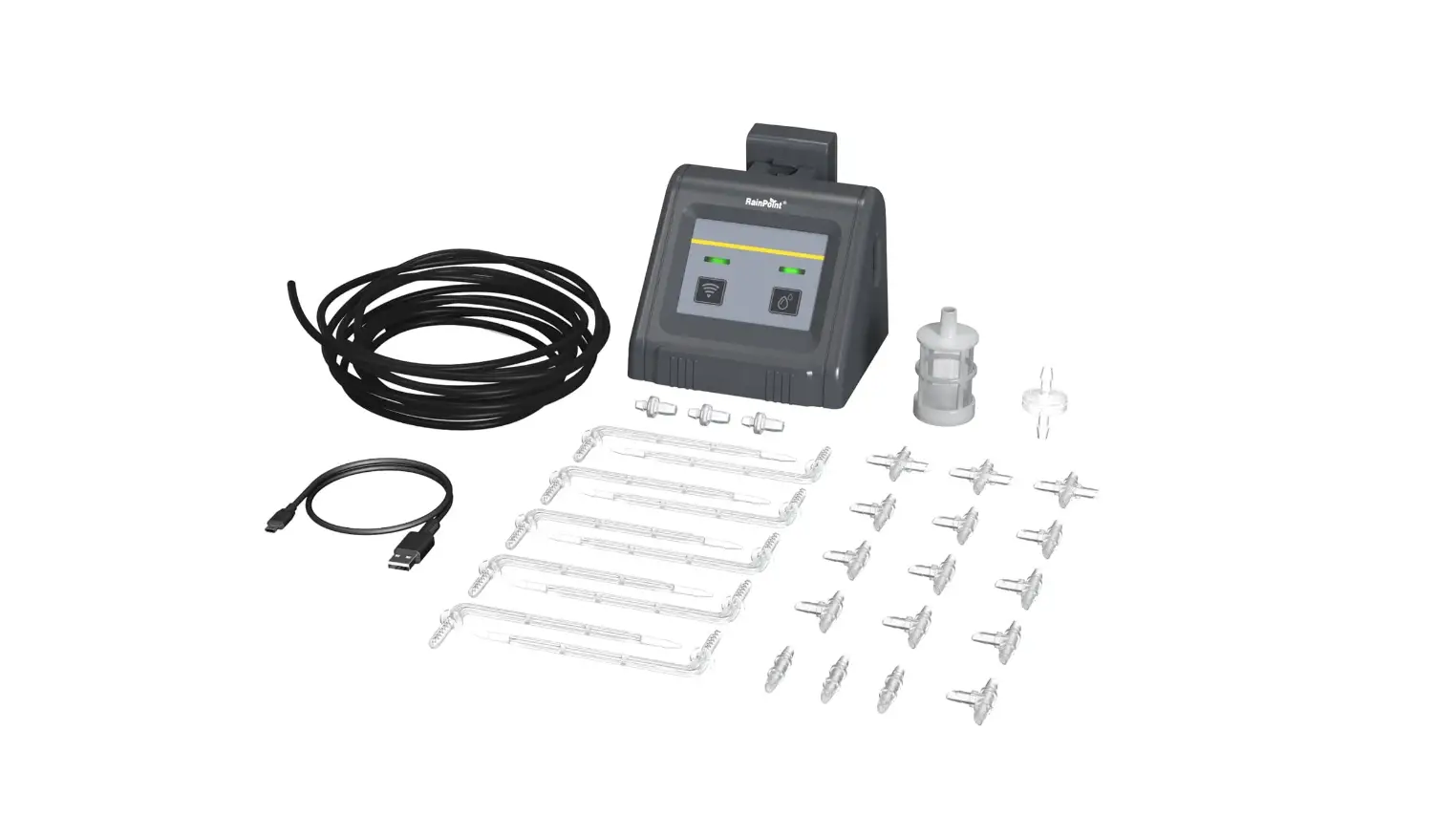
Package Includes
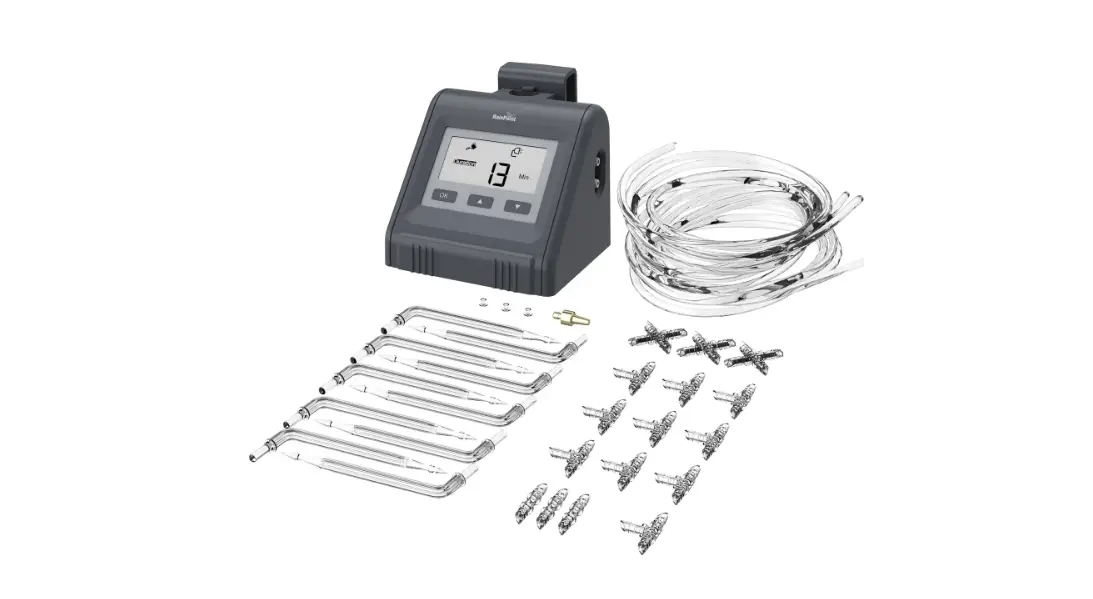
| Accessories Included | Name | PCS | Function |
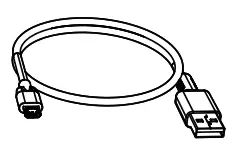 | USB Cable | 1 | *Pair WiFi or power supply |
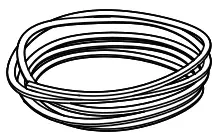 | Tubing | 1 | LEN: 10m/32.8Ft Inner diameter of pipe:0.17”(>1/6”) Outside diameter of pipe: 1/4” |
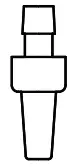 | Filter | 1 | *Filtering impurities from water |
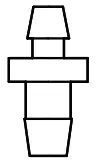 | Tubing End Caps | 3 | *Stop water flow at the end of the pipe |
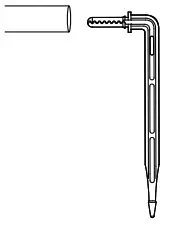
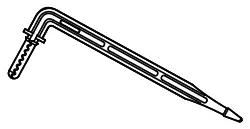 | Micro Drip Emitters | 10 | *Inserted into the soil to water the plant root directly |
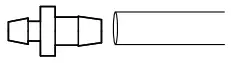
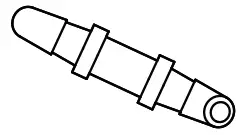 | Straight Barb Fitting | 10 | *Connecting water pipes |
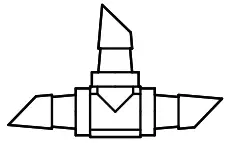 | T Barb Fitting | 10 | *Split water and connect pipes |
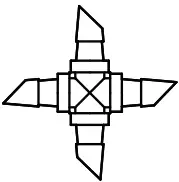 | Cross Barb Fitting | 3 | *Split water and connect pipes |
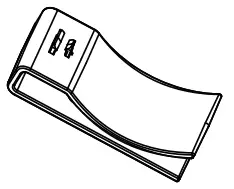 | Detachable Hook | 1 | Put it on the timer to make the timer hangable |
Specification
| Working Pressure | 0.3Bar |
| Water Flow | 30L/H |
| Water Proof | IPX2 |
| Pumping Head | 2-3m |
| Pumping Distance | 2-3m |
| Maximum Water Pressure | ≥200kPa |
| Working Temperature | 0°C to 50°C(37°F-122°F) |
| Power By | USB cable (included)or 4*AA batteries(excluded) |
| Material | ABS |
EASY TO INSTALL
2 Ways to apply power for activating the pump
1 Insert 4*AA 1.5V alkaline batteries
- Remove the battery tray back of the pump.
- Inset 4 brand new AA (1.5V) alkaline batteries (not included) as the marked “-“, “+” direction.
- Firmly reinstall the battery cover back into the pupm.
- Once the battery is powered on, the indicator will light up when you press
 button.
 Note:
Note:
- Firmly restore the battery cover to ensure water resistance.
- When it is idle, please remove the battery and store it properly.
- Used up or dead batteries must be removed from the timer.
- Do not dispose of batteries in the fire,which it may explode or leak.
2 Plug in the cable of the UBS port
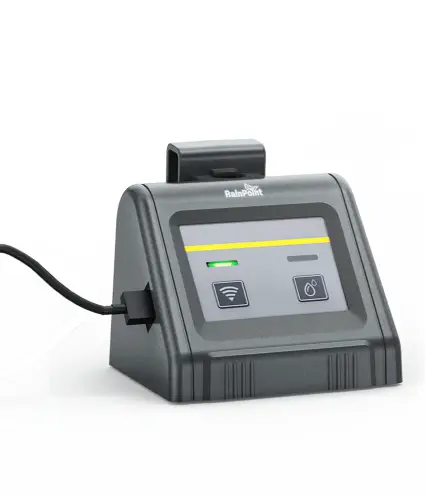
- Plug in the USB cable (included)
- When the power is on, the
 indicator will light up
 indicator will light up
 Note:
- High current support is required for pairing WiFi and accessing APP, so it is only available in USB cable-powered mode.
- WiFi pairing and APP access are not available in battery-powered mode only.
- Only manual watering is supported in battery-powered mode.
- When both power modes are used simultaneously, it will match the USB cable power first; when the USB cable is disconnected, the battery-powered mode is activated.
Determine the correct placemen
- Please put the pump below the water level of the reservoir to effectively avoid the siphoning phenomenon.(The siphoning effect will cause the water leaking and over-watering problem)

- The lift length of the water pump: the vertical distance of 2-3m, because the water pipe can not be placed 100% straight, we recommend that the height of the plants than the pump should not exceed 2.5m.

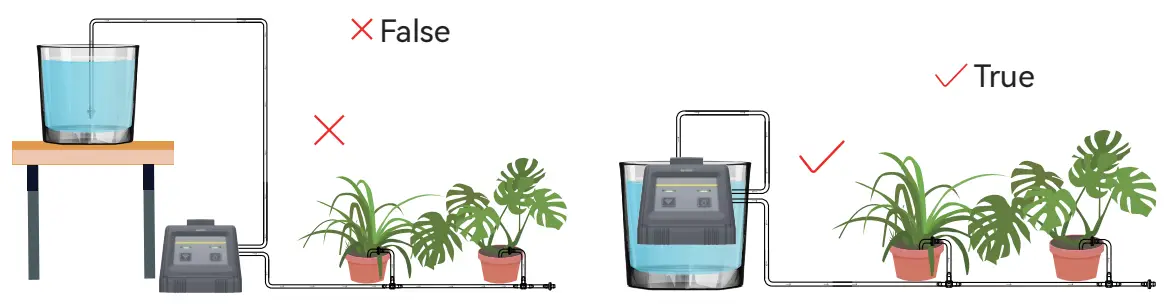
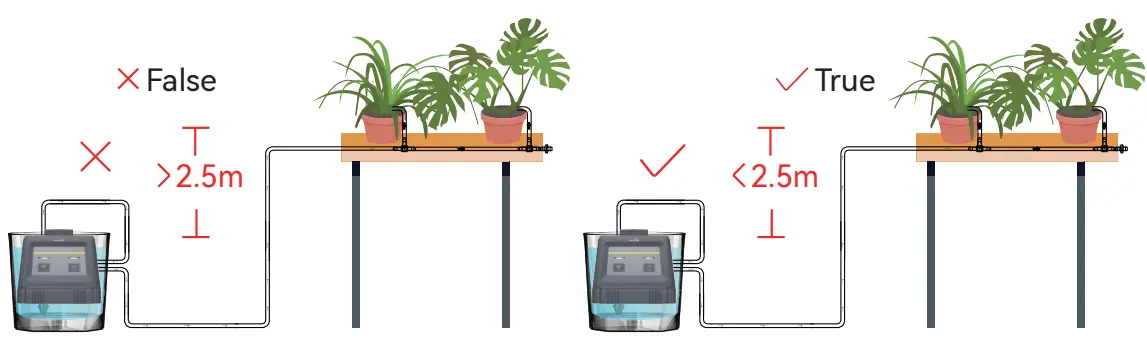
Connect the hose correctly
- Cut the hose according to the distance of the device, the plant or you need

- Put the head of hose into hot water for 10s or Put a little veggie oil on the end of the hose before connecting

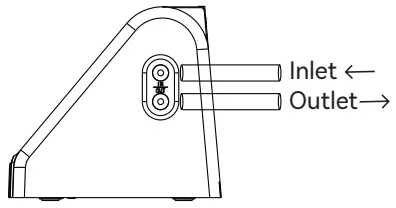
- Connect the hose to water inlet and outlet

- Insert the other end of the hose connected to the water let of the pump into the filter, and then put it into the container.

- Connecting the suitable barb fitting
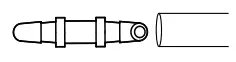
- If only the hose needs to be connected, you can use straight barb fitting

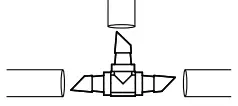
- When you need to connect the hose while splitting a hose, you can use the “T” barb fitting

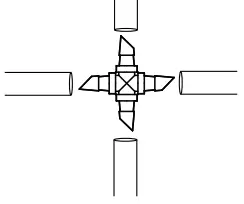
- When you need to connect a hose while splitting 2 hoses , you can use the cross barb fitting

- If only the hose needs to be connected, you can use straight barb fitting
- When water needs to be delivered to the soil, you need to use the micro drip emitte
Tips:
Loosen the soil first, then insert the drips at least 3 inches deep, which will help water enter the plant roots.
- Connect a tubing end cap when you finished a branch installation

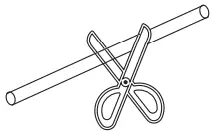
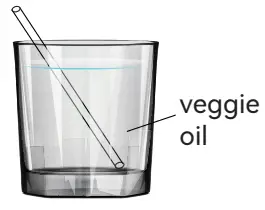

Installation completed and tested
- Press the button to activate the pump, then the water will pumped to your plants.
- Check if there is any leakage in the connection part of the hose. if so, it means no tightening, please keep tightening until there is no water leakage.
- After testing with no usage problems, go to the next step: WiFi pairing and programming plans.
SIMPLE TO PAIR WIFI
Initial RainPoint App Setup
- Search for “RainPoint”and download Android version or iOS version App for free. Or scan the QR code to download Rainpoint APP.


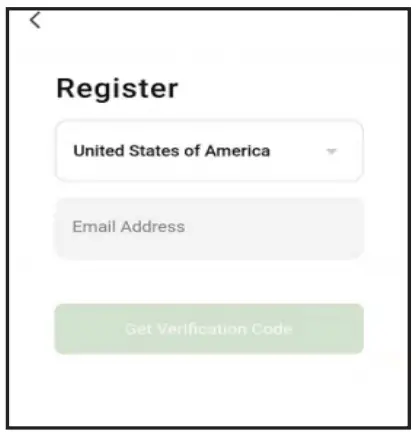
- Create an account and login Create an account or login with an existing account to begin pairing with Wi-Fi water pump.




Pair the water pump
- Click the button
 or
or  on the home page of the APP.
- Choose”Add Manually”and “Smart rrigation”, and then click “Wi-Fi Water ”

- Select 2.4GHz Wi-Fi Network and enter password. Then click “Next”.
Note :
RainPoint Wi-Fi water pump only pairing with a 2.4GHz WiFi, for a dual-band router, please independently enable 2.4GHz WiFi band and name it differently from 5GHz WiFi band. Please click and follow the “Common Router Setup Methods” to separate them. - Powered the pump with USB cable and follow the instructions on the APP to reset first. Then click “
 ” to confirm indicator rapidly blink and click “Next” to enter the pair mode.
Note :- Pairing WiFi and accessing APP requires high current support, so make sure the USB cable is powered on before pairing.
- Press and hold button until the indicator light blinks quickly
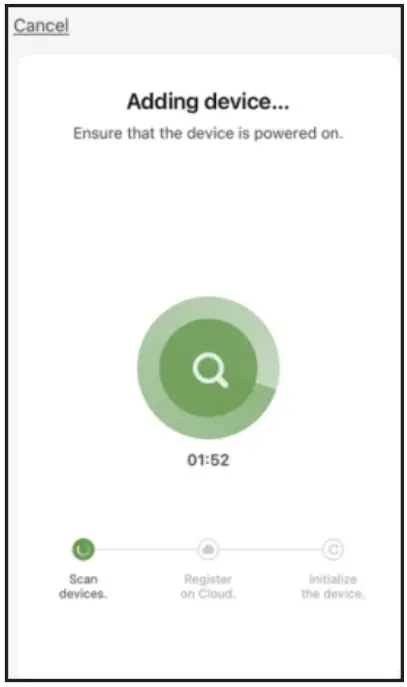
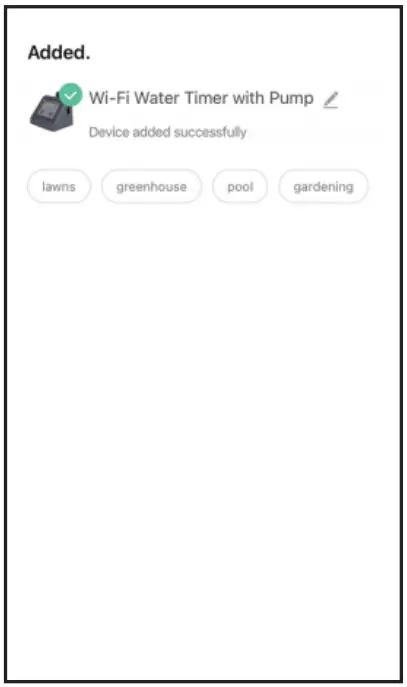
- Wi-Fi pairing requires about 1-2 mins, once the device is paired successfully, the APP will show “Device added successfully”.

Note :- You can customize the name of the device as required.
If you have not been able to pair for over 2 mins, please go to page 9 and follow the instructions to fully reset the device and start pairing again from the beginning.
- You can customize the name of the device as required.
 or
or  on the home page of the APP.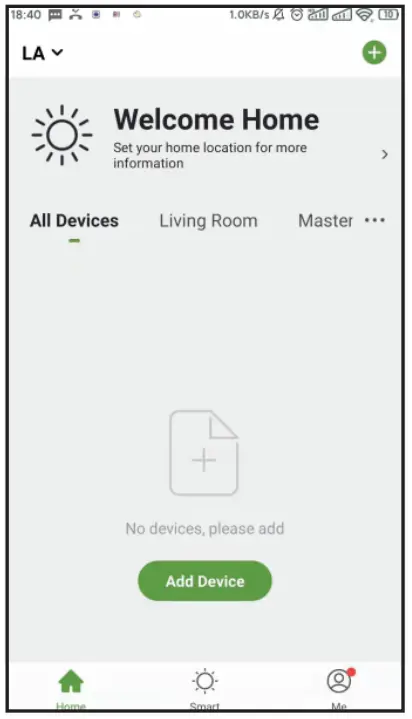
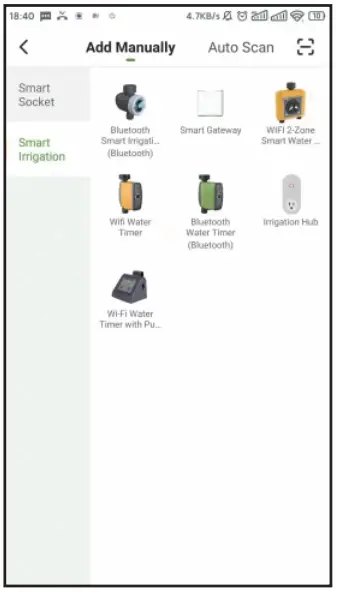
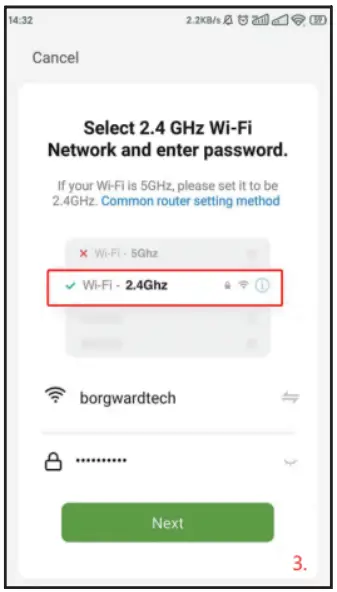
 ” to confirm indicator rapidly blink and click “Next” to enter the pair mode.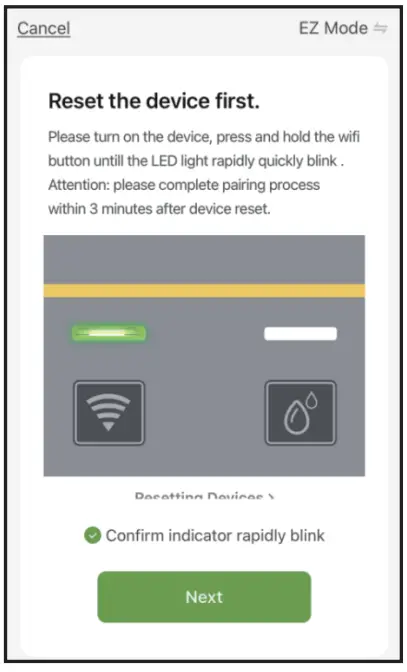
APP INTERFACE OVERVIEWI
Home Interface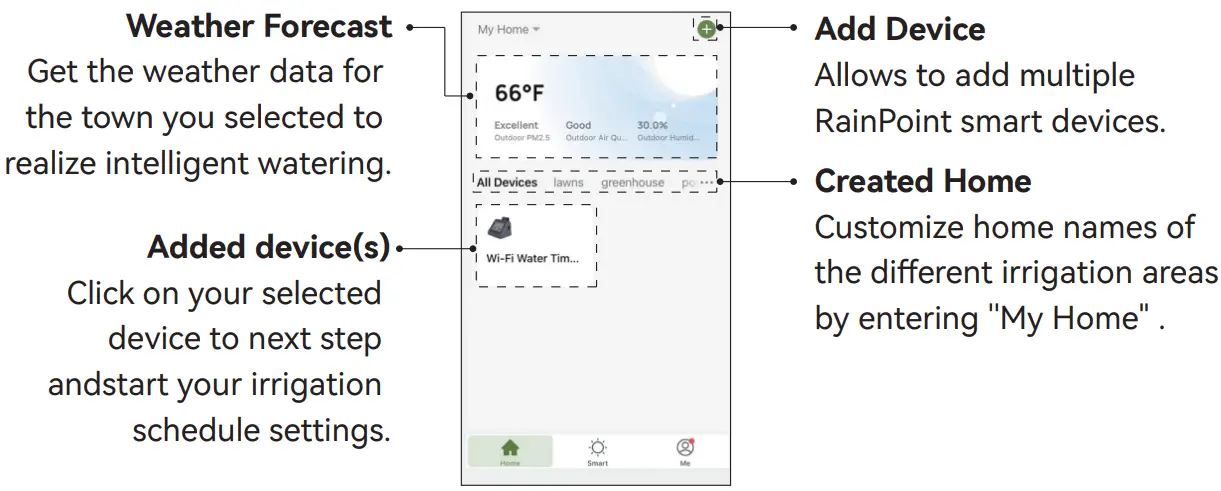
- Weather Forecast
Get the weather data for the town you selected to realize intelligent watering. - Added device(s)
Click on your selected device to next step and start your irrigation schedule settings. - Add Device
Allows to add multiple RainPoint smart devices. - Created Home
Customize home names of the different irrigation areas by entering ”My Home” .
Irrigation Schedule Settings
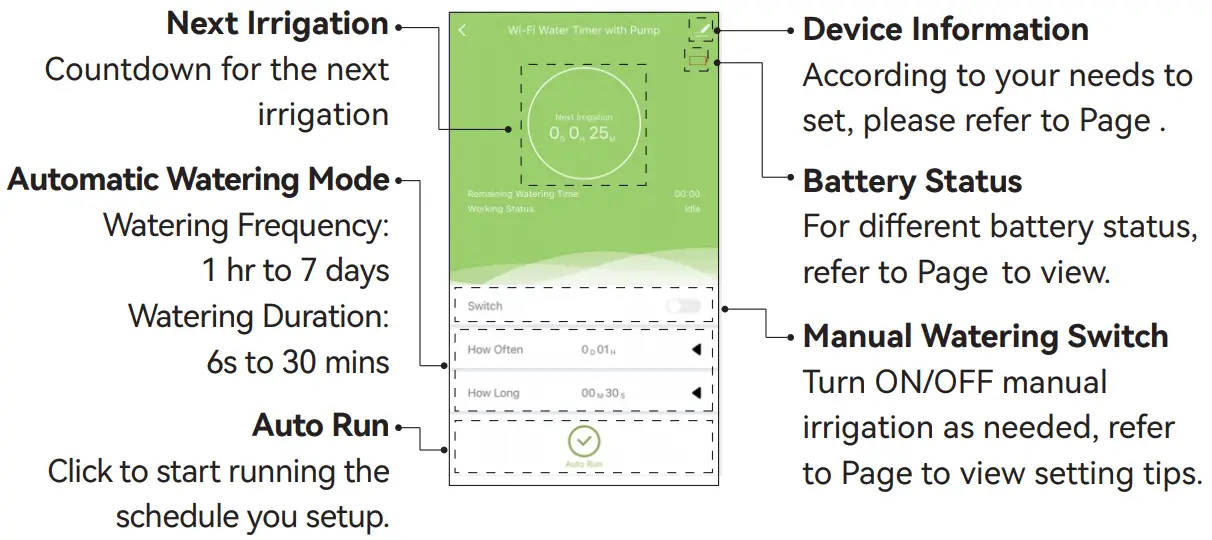
- Next Irrigation
Countdown for the next irrigation - Automatic Watering Mode
Watering Frequency: 1 hr to 7 days
Watering Duration: 6s to 30 mins - Auto Run
Click to start running the schedule you setup. - Device Information
According to your needs to set, please refer to Page . - Battery Status
For different battery status, refer to Page to view. - Manual Watering Switch
Turn ON/OFF manual irrigation as needed, refer to Page to view setting tips.
Device Information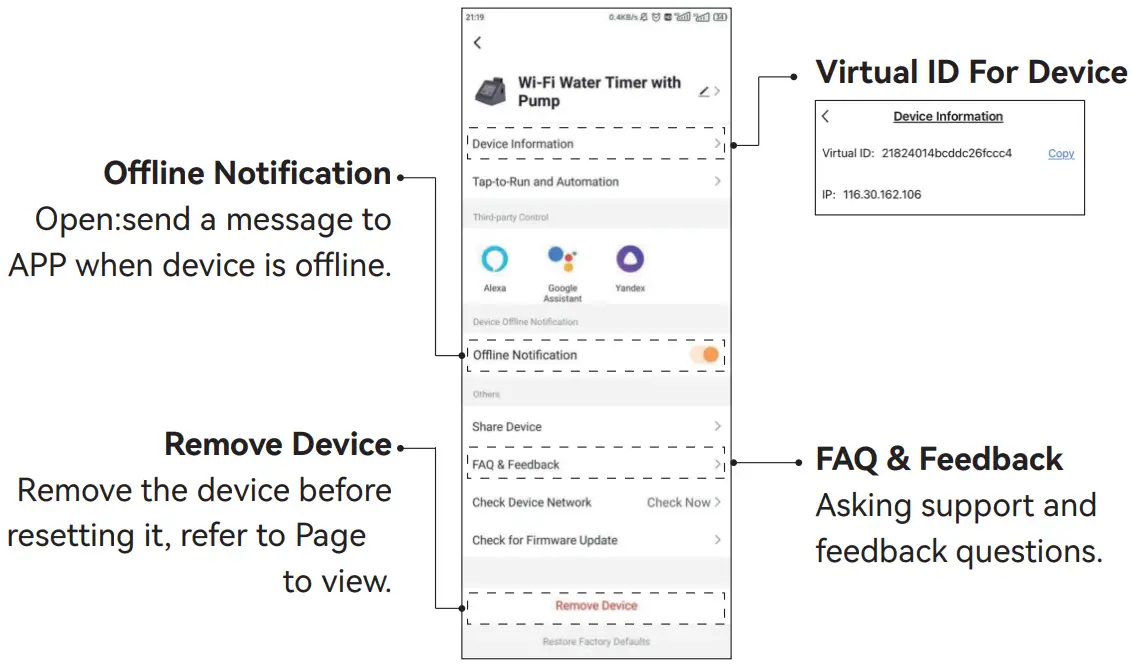
- Offline Notification
Open:send a message to APP when device is offline. - Remove Device
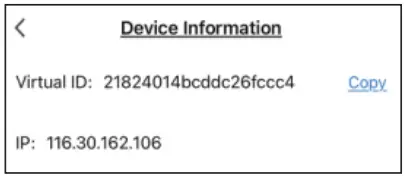
Remove the device before resetting it, refer to Page to view. - Virtual ID For Device

- FAQ & Feedback
Asking support and feedback questions.
Smart Function Interface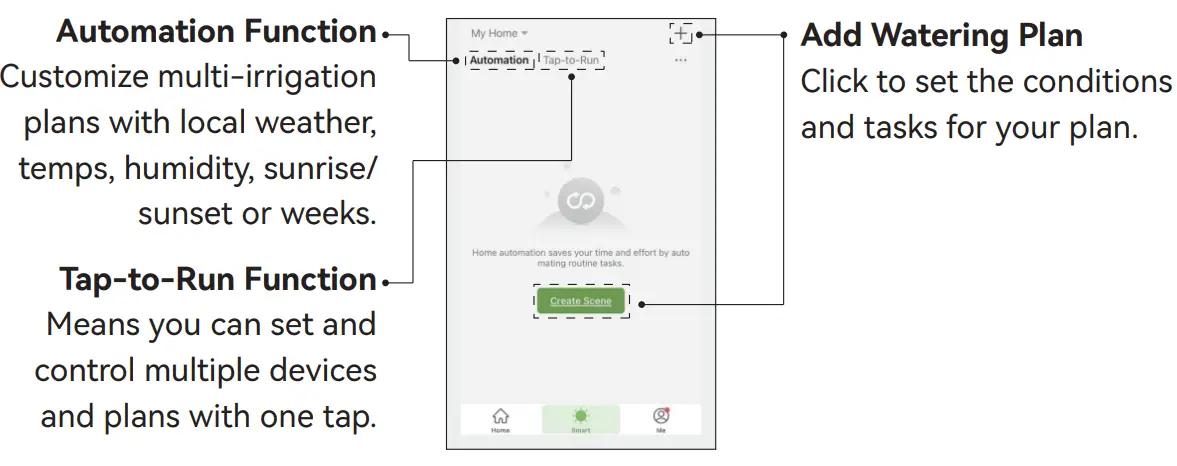
- Automation Function
Customize multi-irrigation plans with local weather, temps, humidity, sunrise/ sunset or weeks. - Tap-to-Run Function
Means you can set and control multiple devices and plans with one tap. - Add Watering Plan
Click to set the conditions and tasks for your plan.
Notice:
- “Automation” and “Tap-to-Run” are different on function and setting. “Automation” is mainly for the new smart plan setup, while “Tap-to-Run” is mainly for easy control on the smart plans.
- Make sure your device is always connecting and staying online to run
Automation as normal. Please keep the USB cable charging the device to keep the timer connecting online. - The “notice” function in Automation is ON only if you set it up in task.
Condition Settings
Setup arguments and add conditions as your required.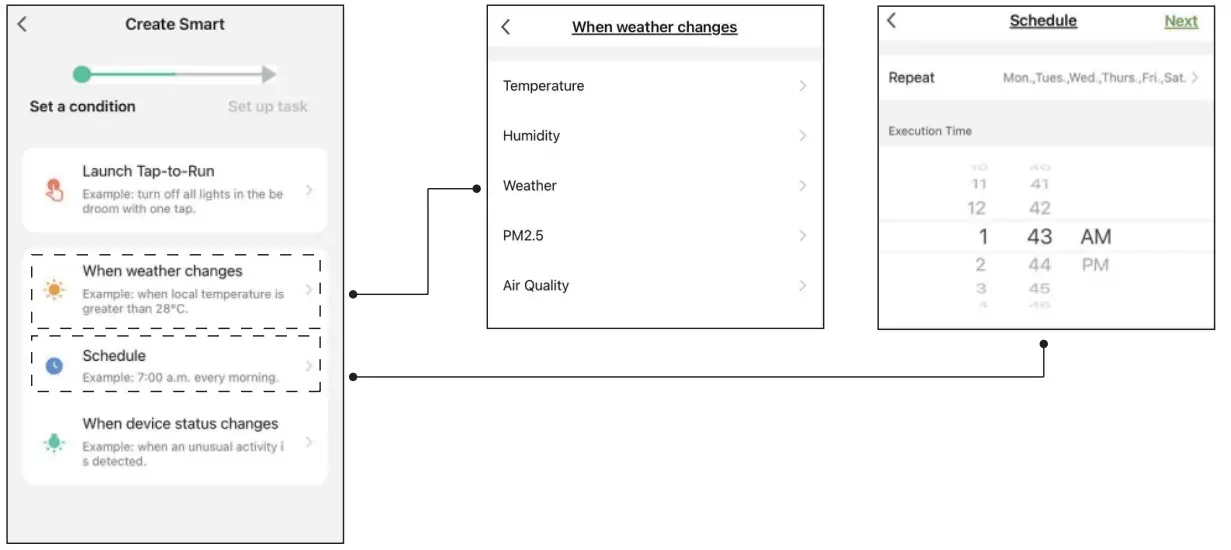
Task Settings
Set up tasks as your required, then trigger task if conditions are met.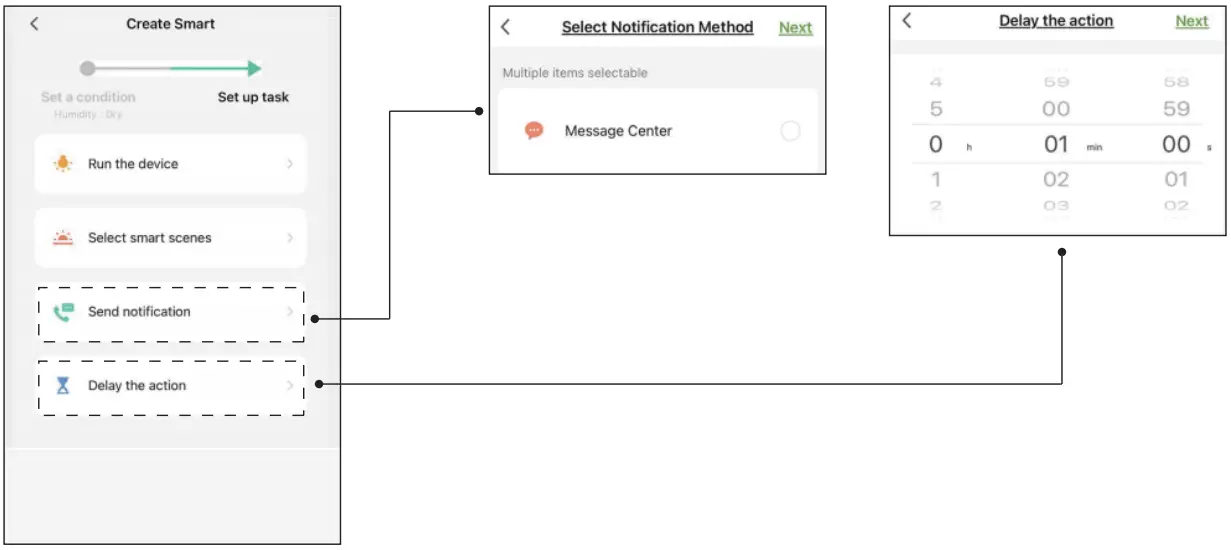
Personal Date Interface
Setup arguments and add conditions as your required.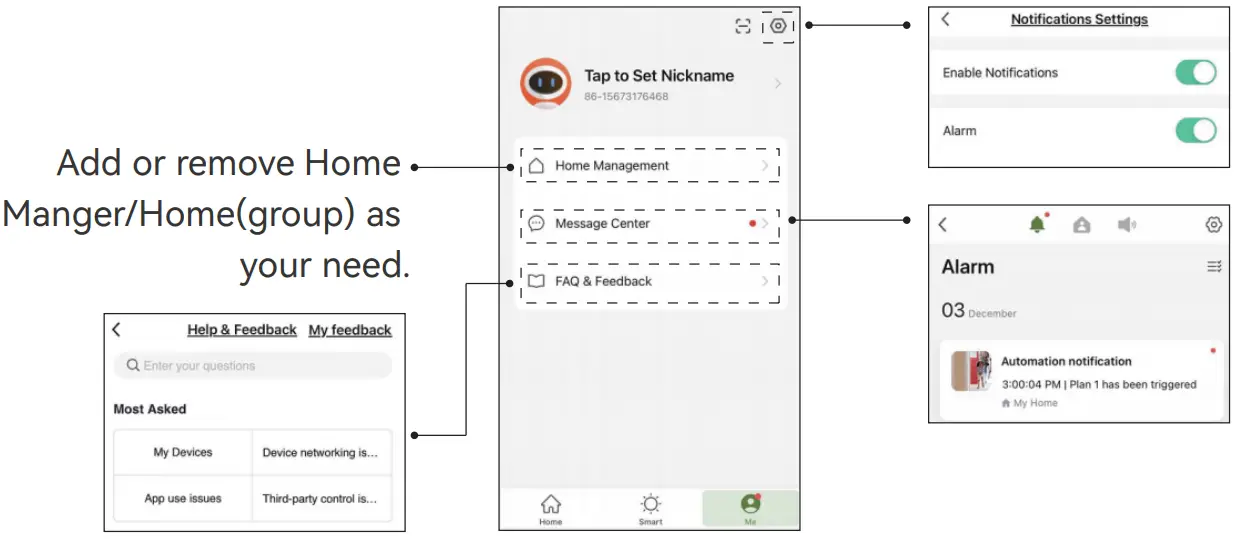
AUTOMATIC WATERING MODE
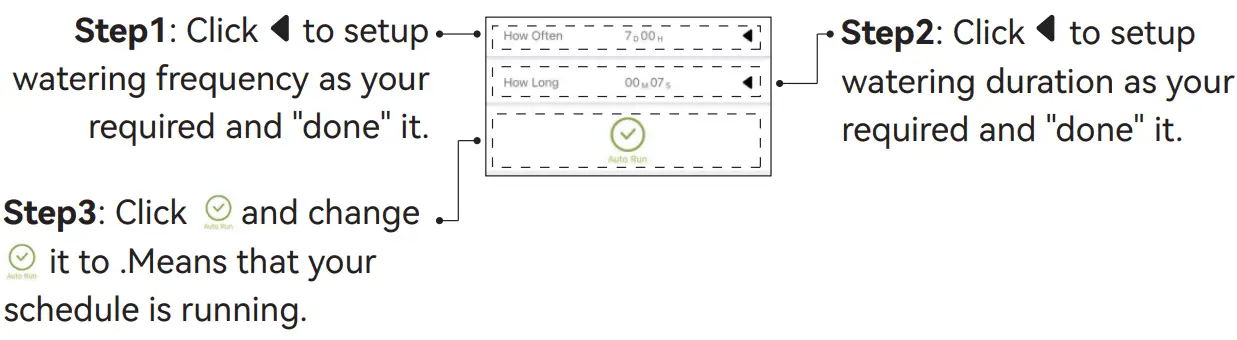
Note:
Please remember to action step 3 after the setup is completed, otherwise the program won’t run.
MANUAL WATERING MODE
Manual Operation Via App
Click the switch to turn ON / OFF manual watering, manual water run time you choose will be the duration your cycle will run for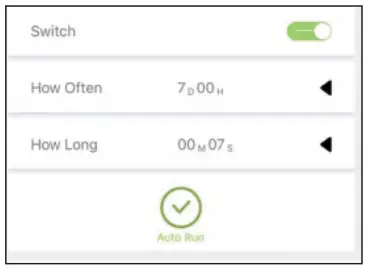
Note:
If you want to change the manual irrigation time, please adjust the “How Long” option, and your original watering time also will be overwritten.
Manual Operation Via Device
Click the button to turn ON / OFF manual watering, manual water run time you choose will be the duration your cycle will run for.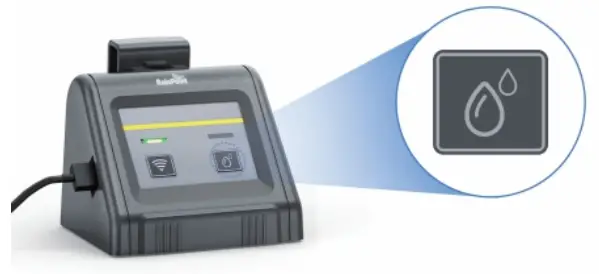
RESET THE DEVICE
Remove the device and wipe data on the APP, and then cut power supply to reset the device.
TROUBLESHOOTING
| Problem | Possible Cause | Possible Solution |
| WiFi can’t be connected | Not in 2.4GHz wifi channel connection | Reset the router for a 2.4G channel and reconnect. |
| Too far between the pump and router, causing the signal unstable | Move the pump to a closer socket near the router and reconnect. | |
| Not in the correct connecting mode | Unplug the USB cable and battery first and wait 10 Sec. Charge the pump with USB cable again, then hold down WiFi button until the indicator light flashes rapidly and enter pairing mode. | |
| Uneven water flow | Too far away from pots and water containers or too long pipes can reduce the pump’s pumping efficiency. | The further away from the pump the potted plant is, the weaker the water flow will become. Please use some clamps to hold the first few branches so that the mainstream water can be delivered quickly and for a long time. |
| Hard to insert and remove water pipes | Because of the material, in order to make the pipe more durable. | Put the head of hose into hot water for 10s or Put a little veggie oil on the end of the hose before connecting. |
| Watering schedule not on time | The lack of water at the inlet resulted in the plan not being implemented on time. | Check that there is no lack of water in the container at the water inlet and that the pump does not carry out the watering schedule when there is a lack of water. |
| There is no auto-run schedule set up on the APP side. | Once the plan parameters have been set, the plan will be executed automatically according to the parameters set by checking “Auto Run”. | |
| The water pump unexpectedly lost power and the plan was emptied. | The watering schedule needs to be reset. | |
| If your Rainpoint product does not operate properly after trying the troubleshooting steps, please contact us by phone or email : 1-833-3815659 (US Hotline) | [email protected] | ||
WARRANTY
Rainpoint provides a 1-year limited warranty on this product against manufacturing defects in materials and workmanship.
CUSTOMER SUPPORT
If you find it difficult to set up and want to watch the setting tutorial video, please subscribe to our channel: RainPoint on YouTube.
If the app and the user manual don’t have what you’re looking for, and you need some help, please prepare the Model NO. and LOT NO. of your device and contact us before returning the Rainpoint to the store.
US Free Hotline: 1-833-3815659
Email: [email protected]
Model NO.: xxxxxxxxxx(On the timer label)
LOT NO.: xxxxxxxxxxxxxxxx(On the timer label)
Please contact us at the above for support with any questions about use.
WEB: www.rainpointus.com
Email:[email protected]
Free Hotline (US): 1 833 3815659

 Smart Watering, Sprinkler & Drip Systems | RainPoint Irrigation ... – Rainpoint
 Digital Hose Timers and Water Meter – Rainpoint