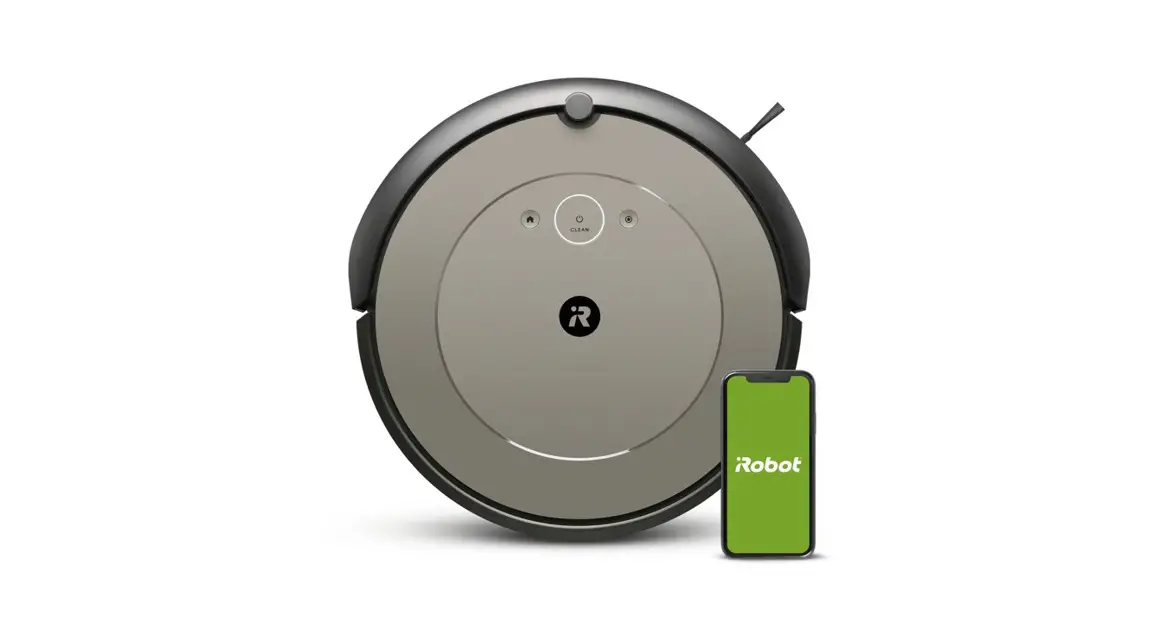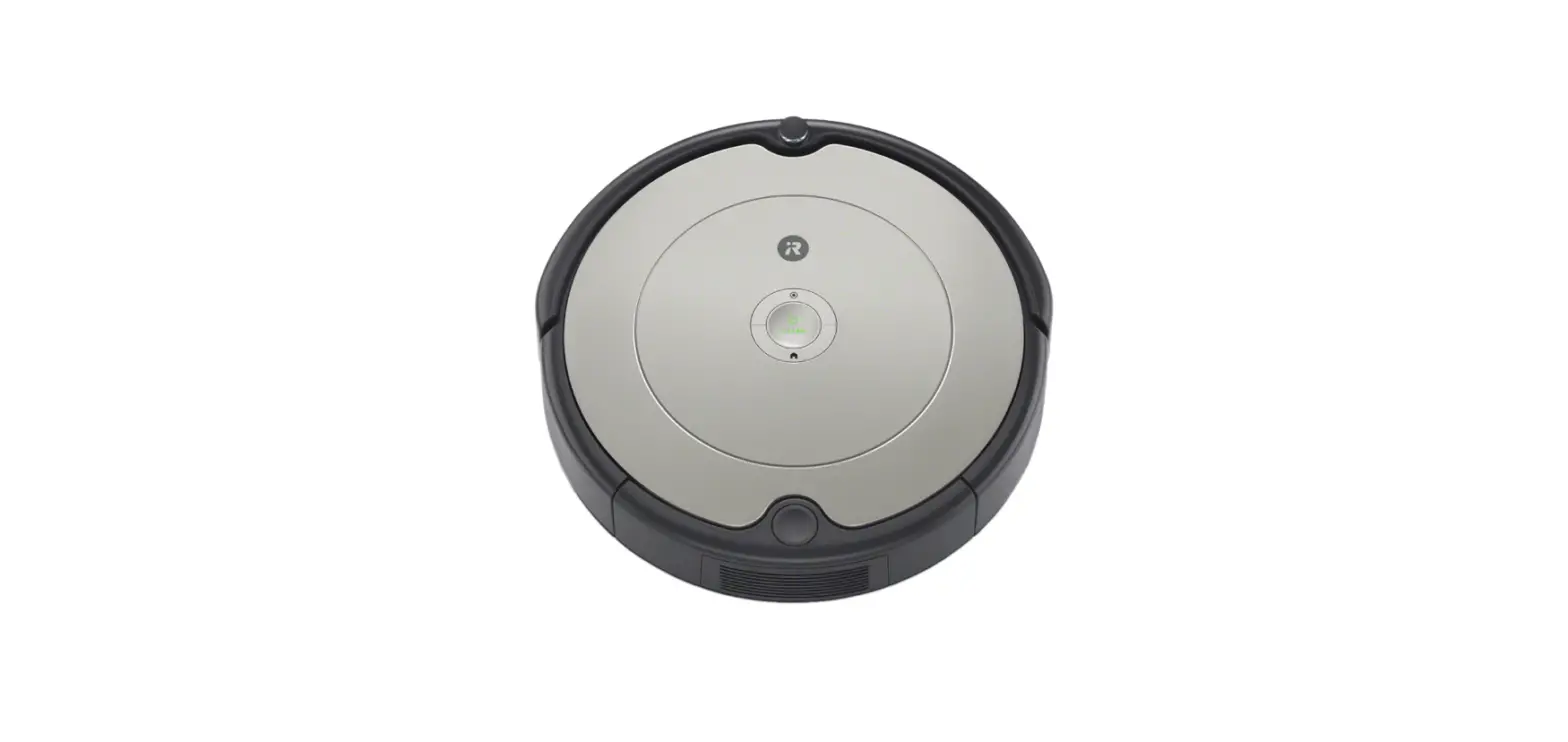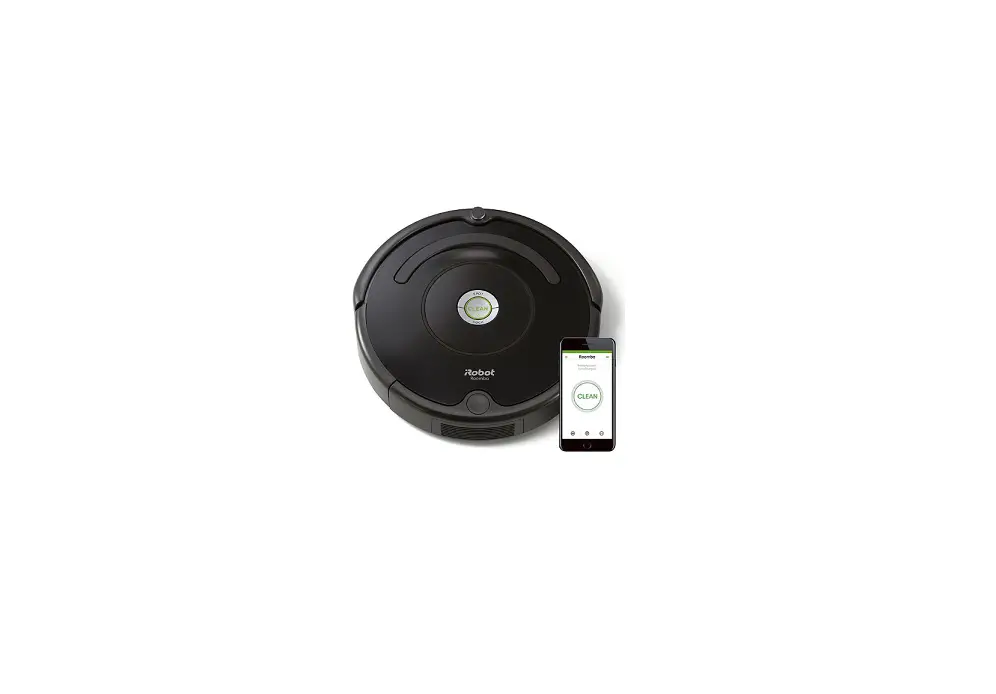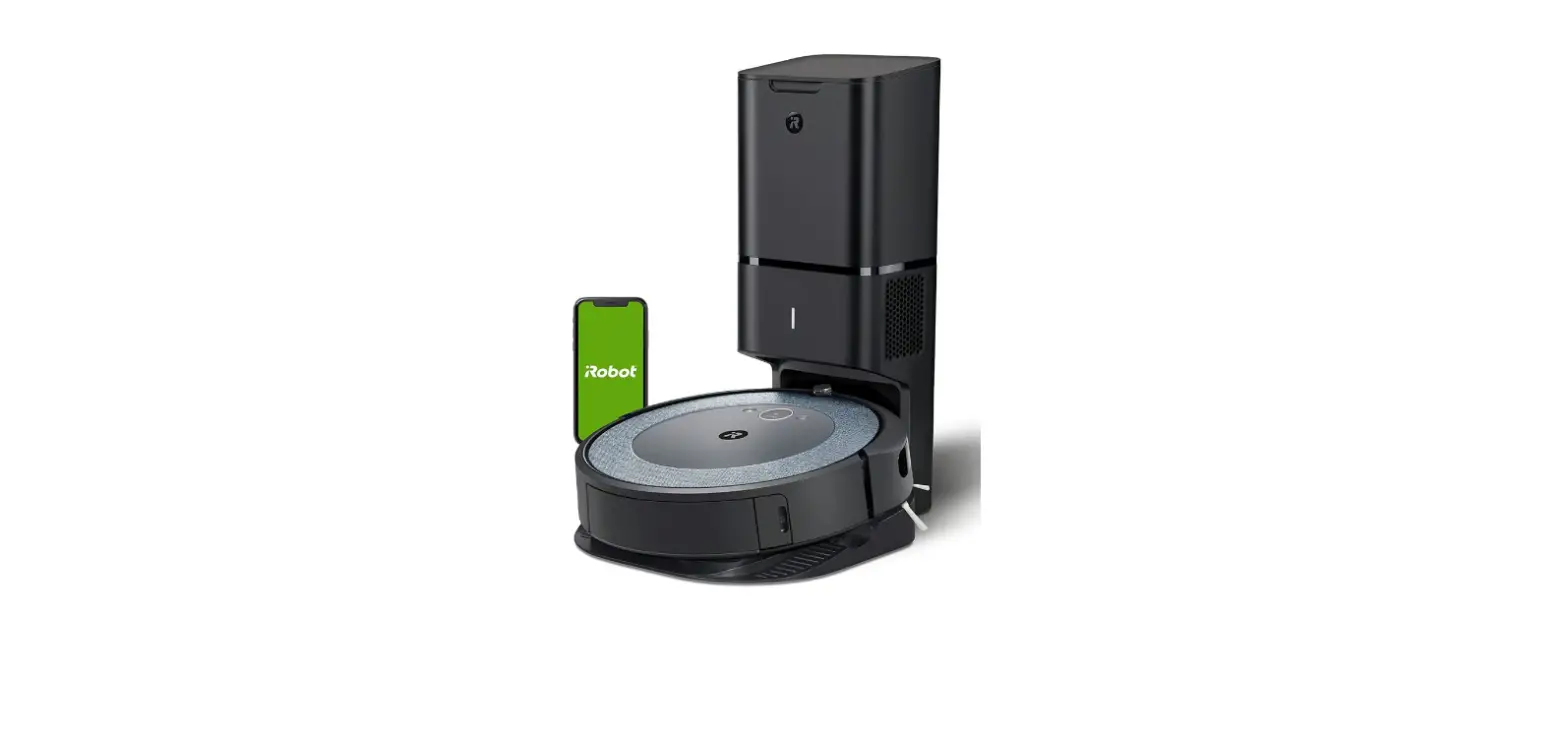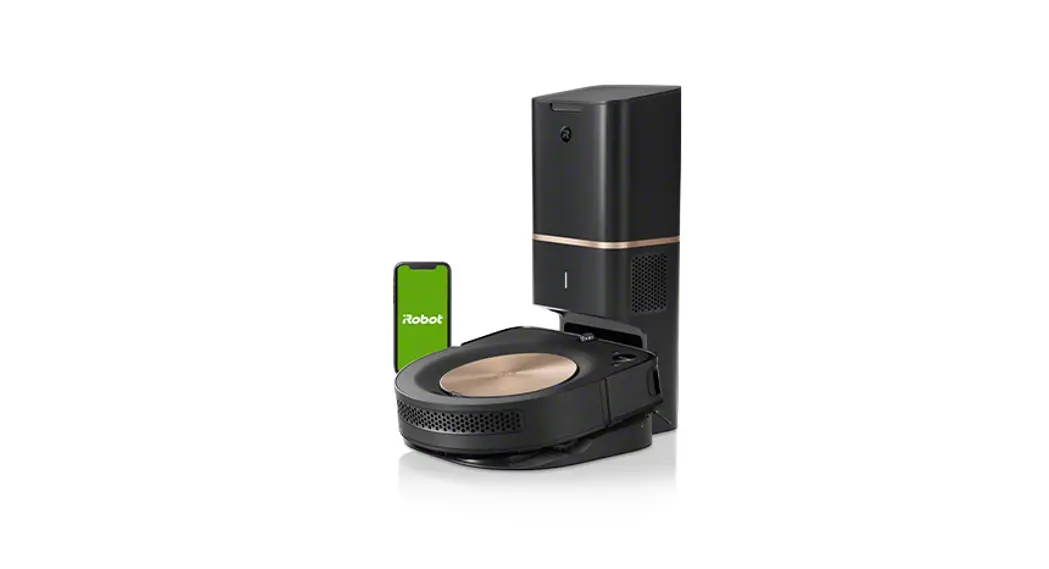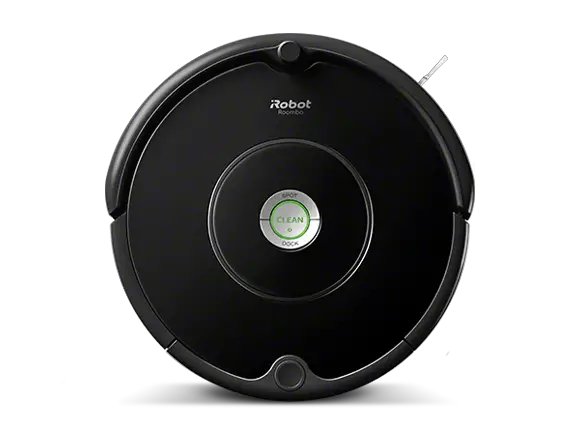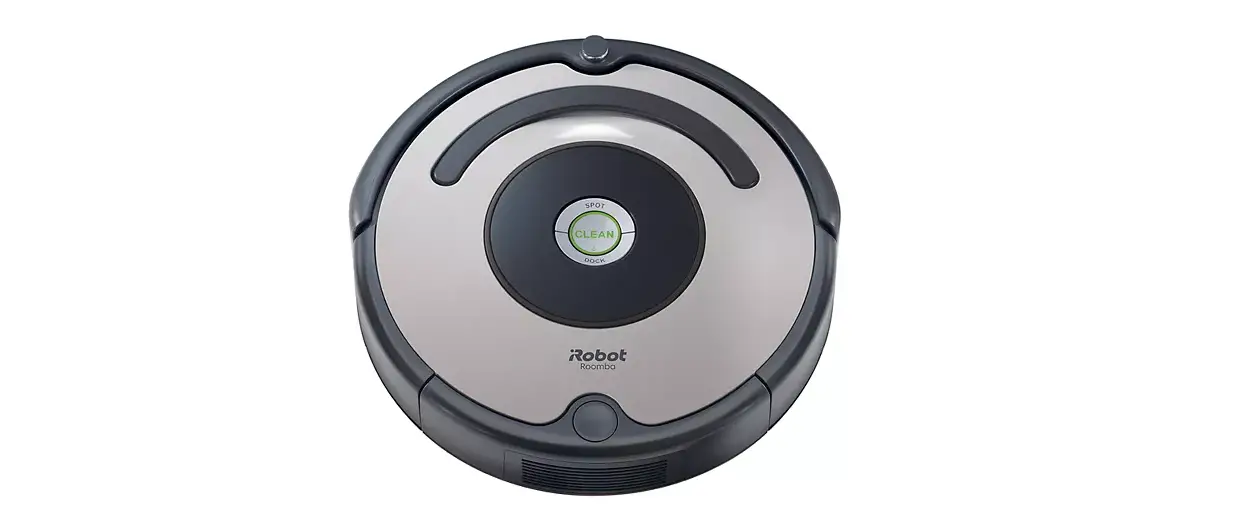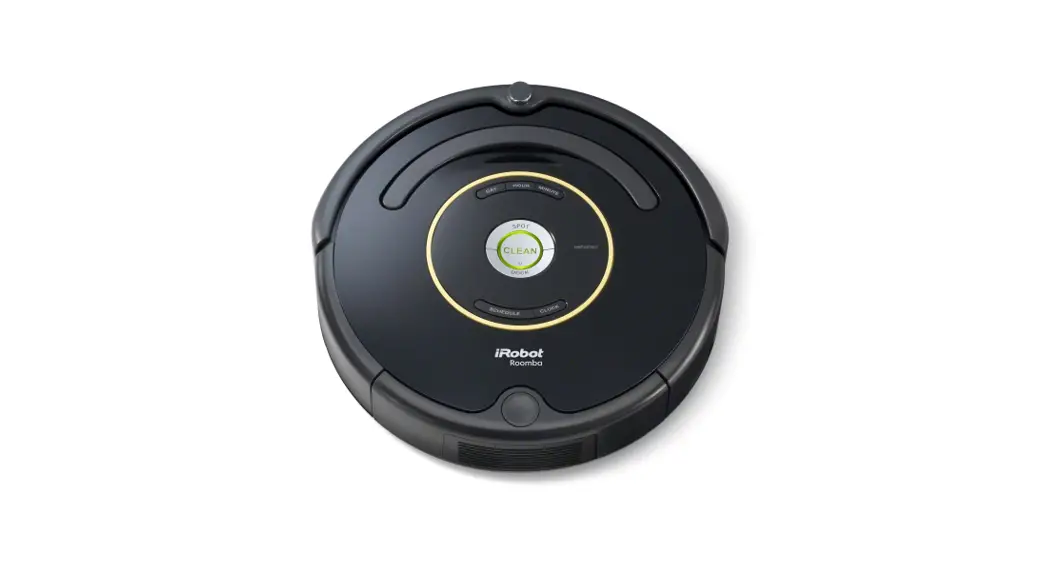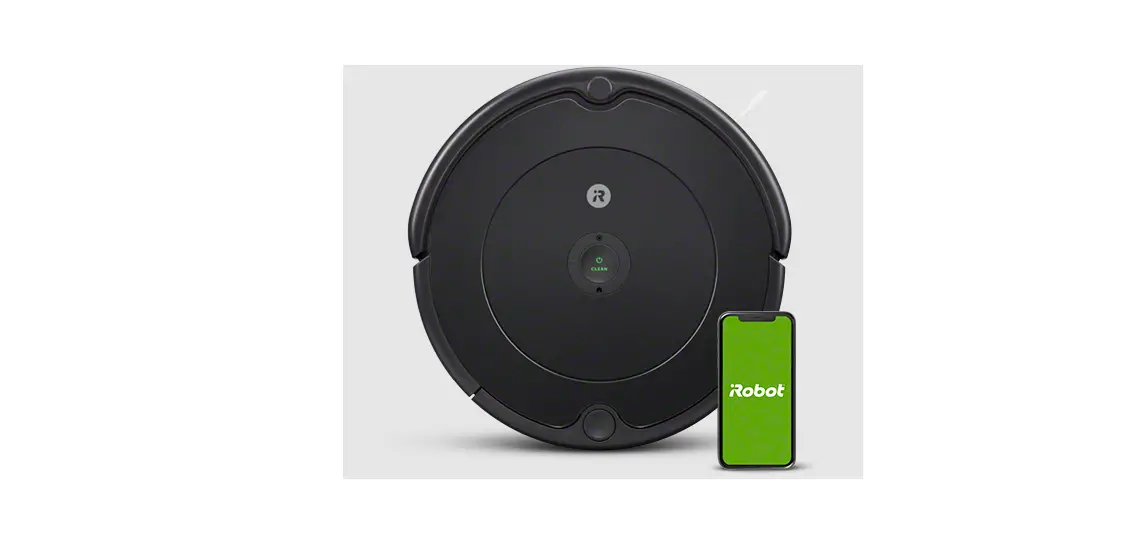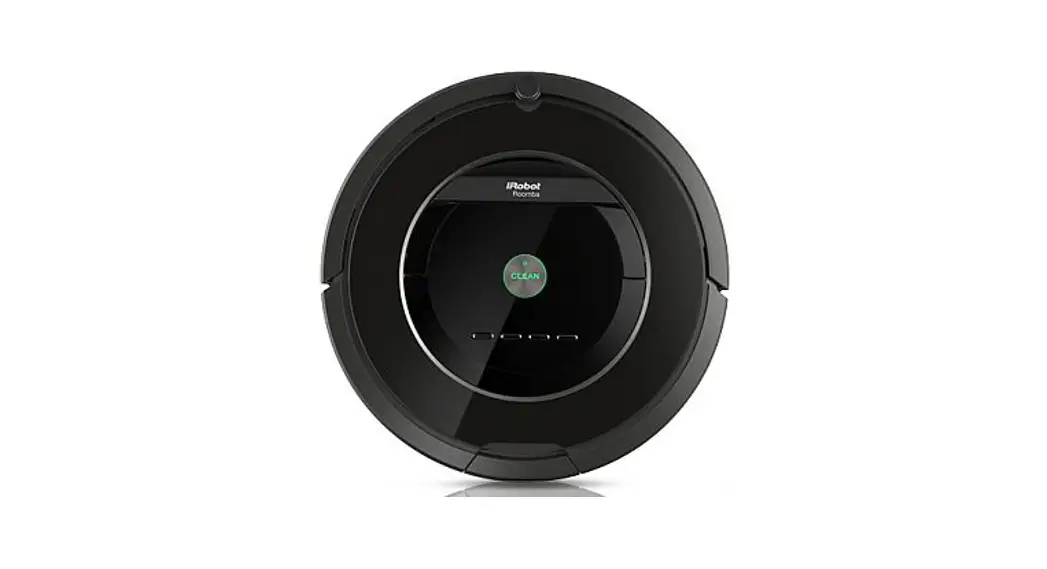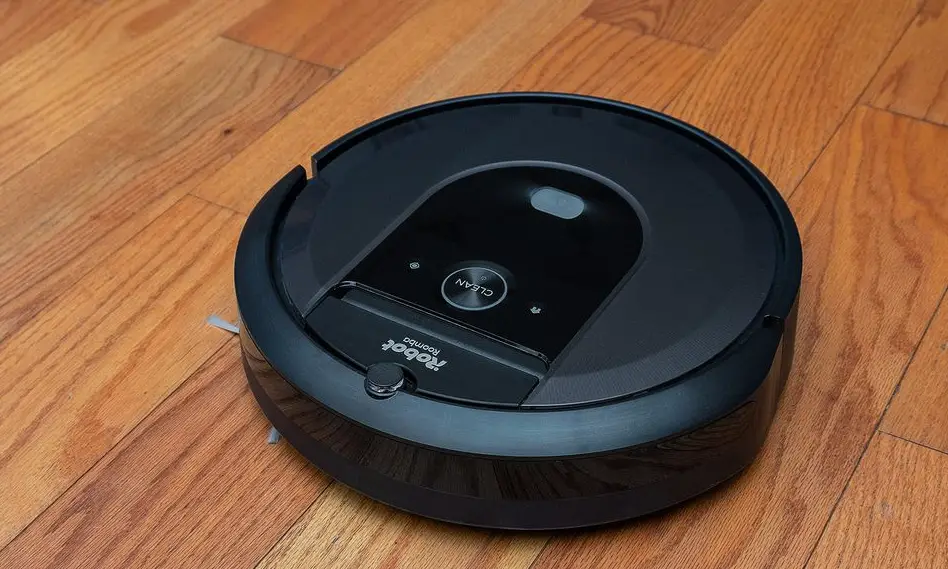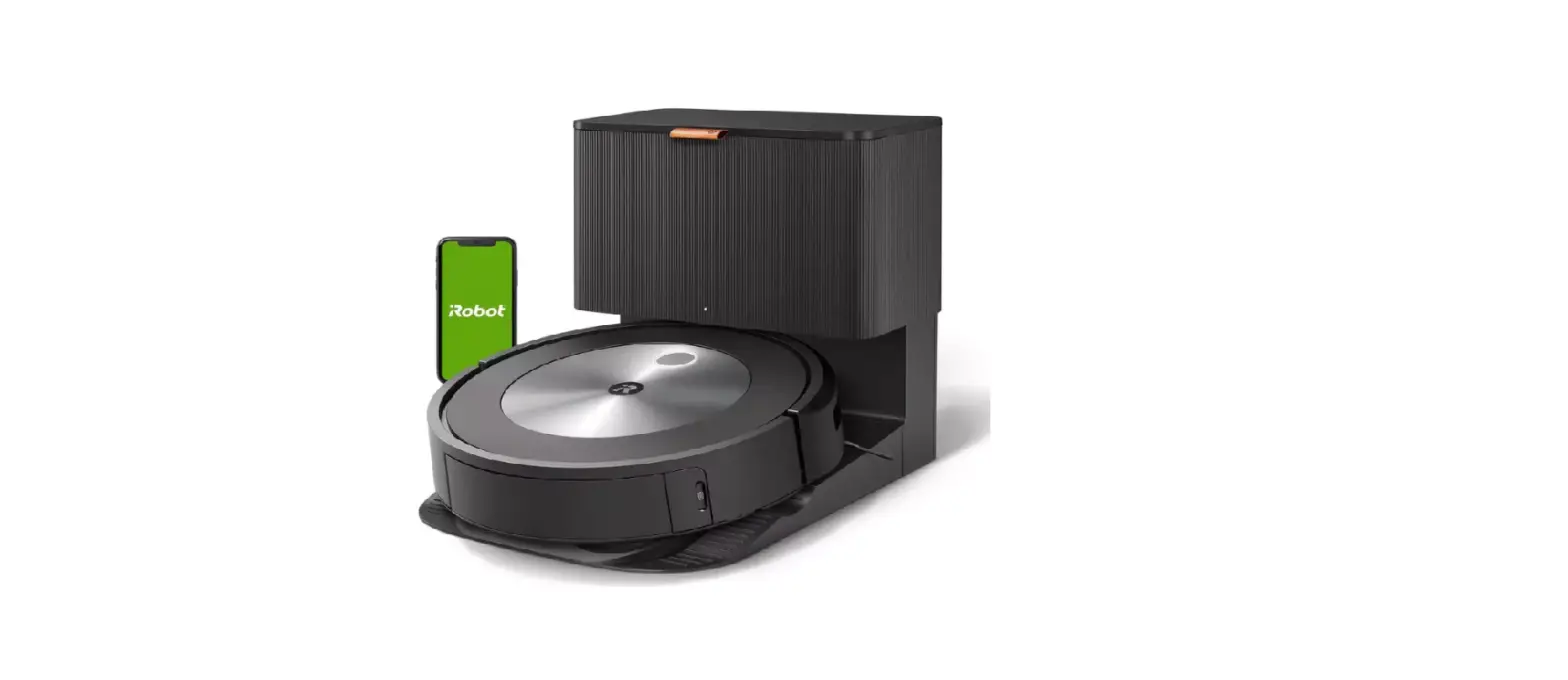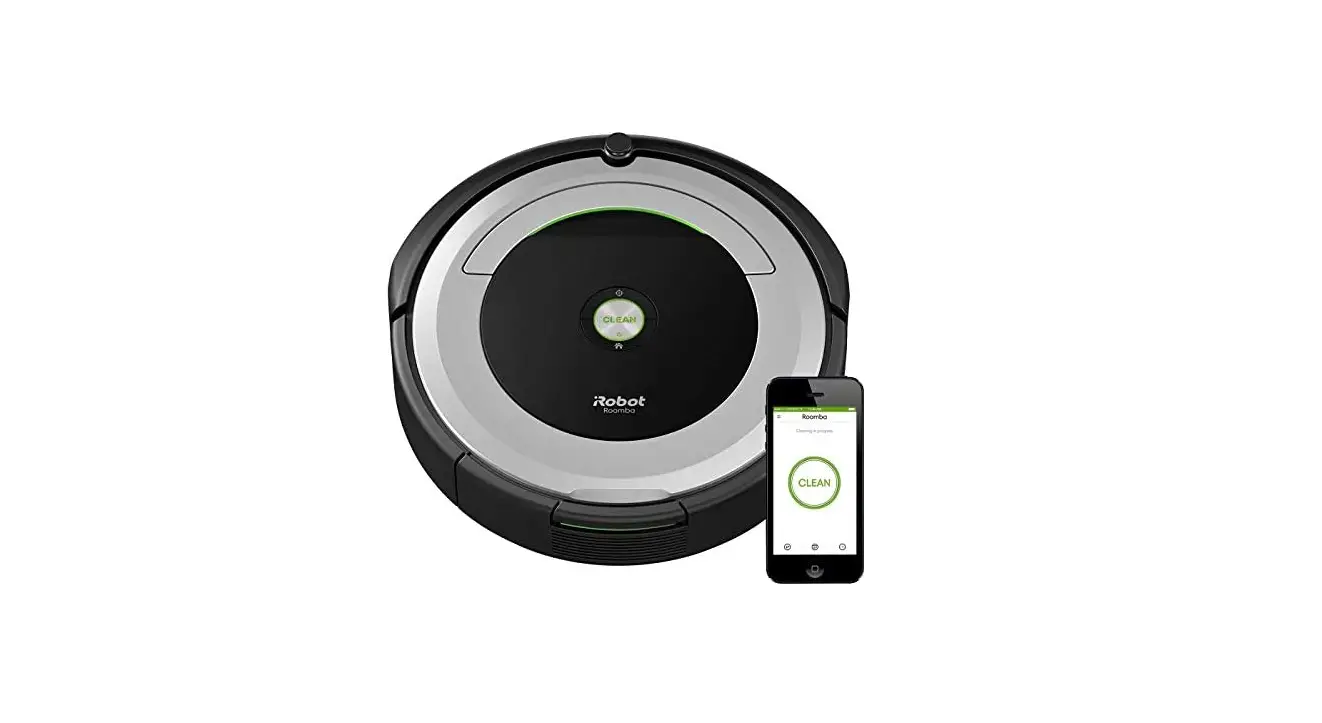

iRobot Roomba 690 Wi-Fi Robot Vacuum Cleaner
Important Safety Instructions
WARNING
TO REDUCE THE RISK OF INJURY OR DAMAGE, READ THE FOLLOWING SAFETY PRECAUTIONS WHEN SETTING UP, USING, AND MAINTAINING YOUR ROBOT. THIS APPLIANCE CAN BE USED BY CHILDREN AGED FROM 8 YEARS AND ABOVE AND PERSONS WITH REDUCED PHYSICAL, SENSORY OR MENTAL CAPABILITIES OR LACK OF EXPERIENCE AND KNOWLEDGE IF THEY HAVE BEEN GIVEN SUPERVISION OR INSTRUCTION CONCERNING THE USE OF THE APPLIANCE IN A SAFE WAY AND UNDERSTAND THE HAZARDS INVOLVED. CHILDREN SHALL NOT PLAY WITH THE APPLIANCE.
CLEANING AND USER MAINTENANCE SHALL NOT BE MADE BY CHILDREN WITHOUT SUPERVISION. TO AVOID ELECTRIC SHOCK DO NOT EXPOSE THE ELECTRONICS OF YOUR ROBOT, OR THE INTEGRATED DOCK CHARGER KNOWN AS THE HOME BASE. THERE ARE NO USER SERVICEABLE PARTS INSIDE. REFER SERVICING TO QUALIFIED SERVICE PERSONNEL. DO NOT HANDLE YOUR ROBOT AND HOME BASE™ WITH WET HANDS.
- Heed all warnings on your robot, and it’s
- WARNING: Risk of electric shock, use indoors in a dry location only.
- Your robot is not a toy. Do not sit or stand on this device. Small children and pets should be supervised when your robot is operating.
- Store and operate your robot in room-temperature environments
- Do not use this device to pick up sharp objects, glass, or anything that is burning or
- Do not use this device to pick up spills of water bleach, paint, other chemicals, or anything wet.
- Do not spray or pour liquids on your
- Before using this device, pick up objects like clothing, loose papers, pull cords for blinds or curtains, power cords, and any fragile If the device passes over a power cord and drags it, there is a chance an object could be pulled off a table or shelf.
- If the room to be cleaned contains a balcony, a physical barrier should be used to prevent access to the balcony and ensure safe operation.
- Do not place anything on top of your
- Be aware that the robot moves on its own. Take care when walking in the area that the robot is operating in to avoid stepping on it.
- Do not operate the robot in areas with exposed electrical outlets in the
- WARNING Shock Hazard: Your robot comes with a region-approved power supply cord. Do not use any other power supply cord. For replacement cords, please contact Customer Care to ensure the proper selection of country-specific power supply cords.
- This robot is intended for dry floor use
- WARNING Shock and Fire Hazard: This product is designed to be plugged into a standard outlet only. The product may not be used with any type of power converter. The use of power converters will immediately void the warranty.
- Do not use non-rechargeable Use only the rechargeable battery supplied with the product. For replacement, purchase an identical iRobot battery or contact iRobot Customer Care for alternative battery options.
- CAUTION: Only charge one of the following iRobot batteries: maximum 14.8V, max 3000mAh Ni-MH or maximum 3300mAh Li-ion battery. Another type of battery may burst to cause injury. Always contact Customer Care for the correct replacement of your battery.
- WARNING Shock Hazard: Do not use a Home Base with a damaged cord or plug if the cord or plug is damaged, it must be replaced.
- Always charge and remove the battery from your robot and accessories before long-term storage or transportation.
- If you live in an area prone to electrical storms, it is recommended that you use additional surge Your robot’s Home Base may be protected with a surge protector in the event of severe electrical storms.
- WARNING Shock Hazard: Always disconnect your robot from the Home Base before cleaning or maintaining it.
- Before every use, check the battery pack for any sign of damage Do not charge damaged or leaking battery packs.
- WARNING Chemical Exposure: If the battery pack is leaking, do not allow the liquid to come in contact with skin or eyes. If contact has been made, wash the affected area with copious amounts of water and seek medical advice. Place the battery in a sealed plastic bag and dispose of it safely according to local environmental regulations. return it to your local authorized iRobot Service Center for disposal.
- The battery pack must be removed from the robot before
- WARNING Fire or Explosion Hazard: Do not crush or dismantle battery packs.
- Do not heat or place the battery pack near any heat source or direct sunlight. Do not incinerate or short-circuit the battery pack. Do not subject batteries to mechanical shock.
- Do not immerse the battery pack in any liquid.
- Contact your local waste management authority for battery recycling and disposal regulations in your area.
The symbol on the product or its packaging indicates:
Do not dispose of electrical appliances or batteries as unsorted municipal waste, use separate collection facilities. Contact your local authority for information regarding the collection systems available. If electrical appliances are disposed of in landfills or dumps, hazardous substances can leak into the groundwater and get into the food chain, damaging your health and well-being. Please contact your local or regional waste authority for more information on the collection, reuse, and recycling programs.
About your Roomba
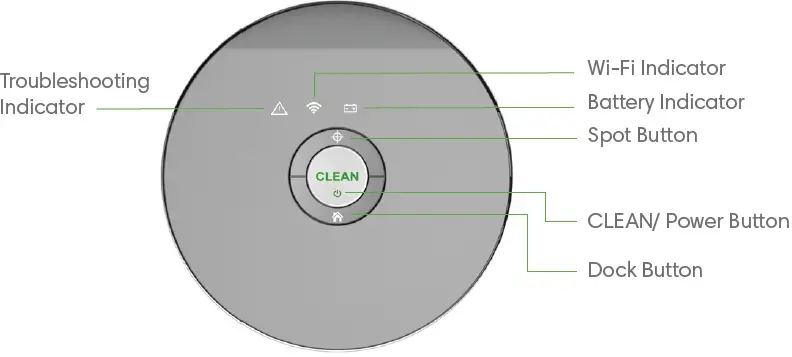
Top View
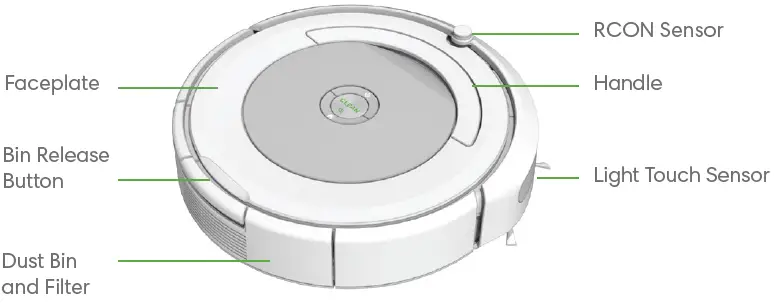
Buttons & Indicators
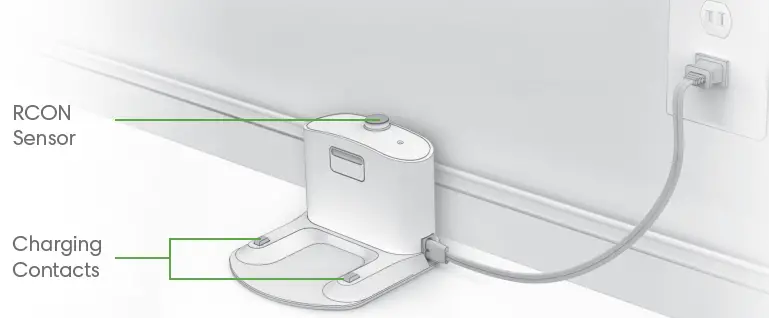
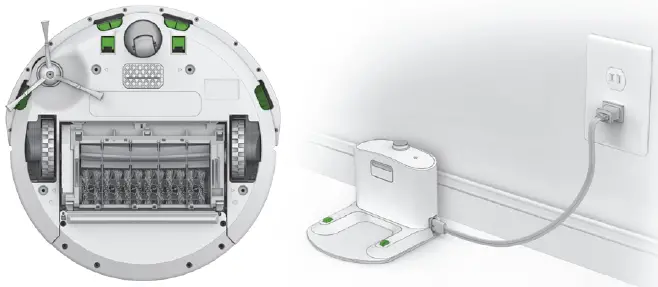
Home Base
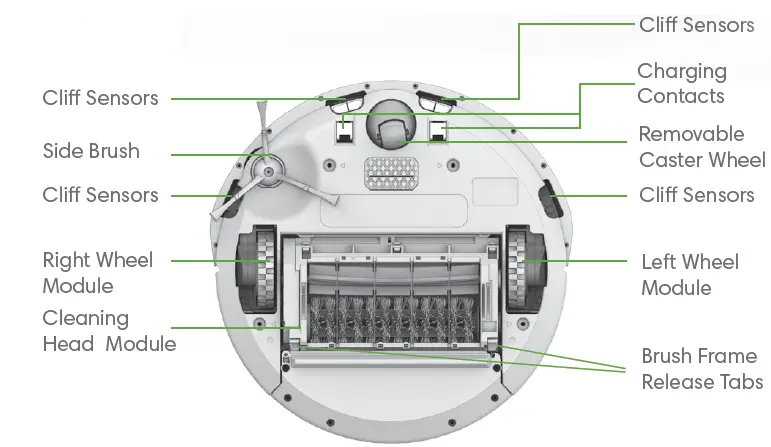
Bottom View
Using your Roomba
Positioning the Home Base
Place the Home Base in an open, uncluttered area leaving the following distances around the Home Base:
- At least 5 feet (0.5 meters) on each side of the Home Base
- At least 4 feet (1.2 meters) in front of the Home Base, and at least 4 feet (1.2 meters) away from the stairs
- At least 8 feet (2.4 meters) from Virtual Wall Barriers
Always keep the Home Base plugged in and make sure it is in an area with consistent Wi-Fi® coverage to allow Roomba to receive information via the iRobot HOME App.
Download the iRobot HOME App and connect to Wi-Fi
- Watch an overview video with instructions on how to set up and use your Roomba
- Set an automatic cleaning schedule (up to 7 times per week)
- Enable automatic Software updates
- Access to tips, tricks, and answers to commonly asked questions
Use Instructions
- Turn your robot over and remove the bin insert and battery pull tabs. Then place Roomba on the Home Base to activate the battery.
- Roomba has a partial battery charge, so it’s ready to start
Note Roomba ships with a partial battery charge. If you start a cleaning cycle before charging the battery fully, Roomba may return to the Home Base to recharge sooner than it will during future cleaning cycles. To fully charge the battery before the first cleaning cycle, allow Roomba to charge on the Home Base for 3 hours.
Note: Remove excess clutter from floors before cleaning (e.g. clothing, toys, etc.). Use Roomba frequently to maintain well-conditioned floors.
- To begin a cleaning cycle, press CLEAN on the robot or in the iRobot HOME
- Pre-set your robot to automatically vacuum up to seven times per week using the Scheduling feature in the iRobot HOME App.
- When Roomba returns to the Home Base after completing a cleaning cycle, it will play a series of tones to indicate the successful completion of the cleaning cycle.
- To pause Roomba during a cleaning cycle, press To resume the cleaning cycle, press CLEAN again.
- To end the cleaning cycle and put Roomba in standby mode, press and hold CLEAN until Roomba’s indicators turn off.
- To send Roomba back to its Home Base during a cleaning cycle, press CLEAN and then (DOCK) on Roomba or press CLEAN on the iRobot HOME App main This will end the cleaning cycle.
- If Roomba encounters an area of high debris concentration, it will move in a spiral motion to clean the area more When Roomba does this, the CLEAN button will blink.
- To use SPOT Cleaning, place Roomba on top of the localized debris and press (SPOT) on the Roomba will intensely clean the area by spiraling outward about 3 feet (1 meter) in diameter and then spiraling inward to where it started.
Note: After each use, empty the bin and clean the filter.
- Always store Roomba on the Home Base so it’s charged and ready to clean when you need it. If storing off of the Home Base, remove the battery first and then store Roomba and the battery in a cool, dry place.
Battery and Charging
Charge Roomba using the Home Base. Indicator lights will turn off after 60 seconds to conserve energy while Roomba is charging. Check the status of the battery by pressing the CLEAN button to illuminate the Battery Indicator. The indicator will appear amber while the battery is charging and solid green when fully charged.
Accessories
The Dual Mode Virtual Wall Barrier (optional accessory for all models)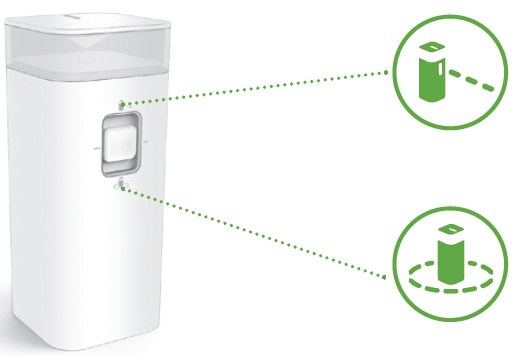
The Dual Mode Virtual Wall barrier keeps Roomba in the places you want to be cleaned — and out of the ones you don’t. In between cleaning cycles, you can leave the device operating in its position on the floor. You can set your device to one of two modes to fit your home’s cleaning needs:
Note: Under normal use, batteries will last 8-10 months. If you are not planning on using your Virtual Wall device for an extended period of time and you would like to store it, be sure to switch it to the “Off ” (middle) position.
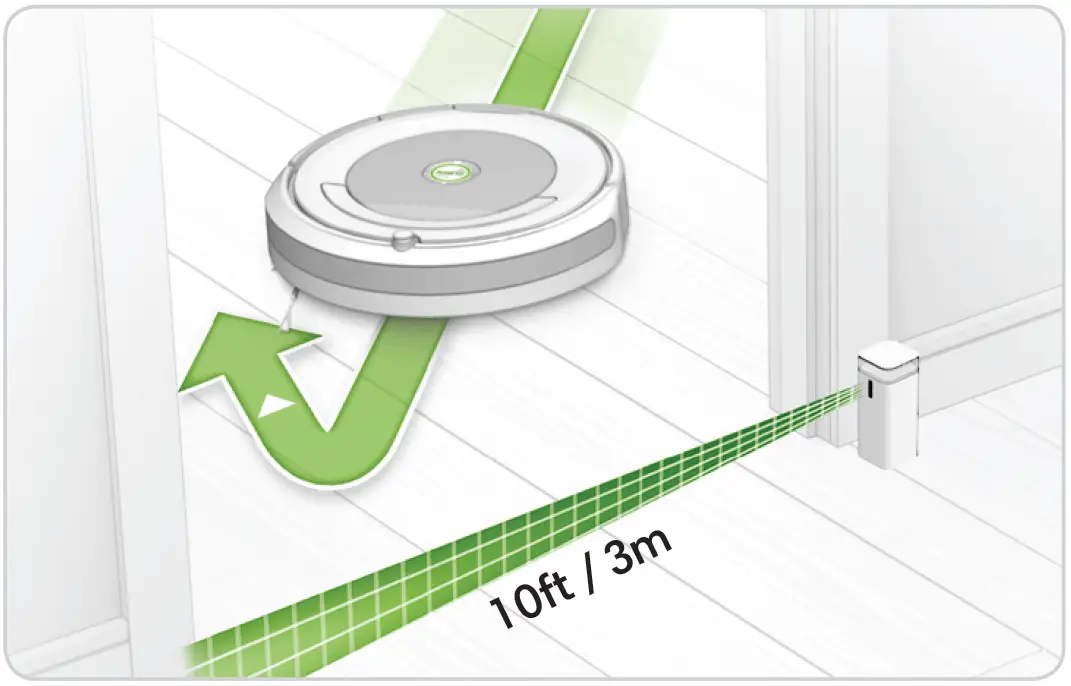
Virtual Wall Mode: When the switch is in the “up” position ( ), the device functions as a Virtual Wall. This means that you can set it to block openings of up to 10 feet
(3 meters). It creates an invisible, cone-shaped barrier that only Roomba can see.
Note: This barrier gets wider as it gets further from the device (refer to illustration).
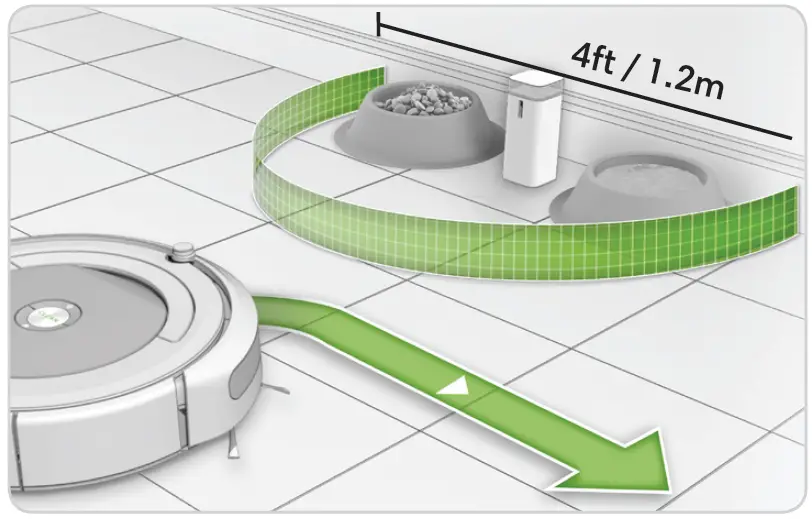
Halo Mode: When the switch is in the “down” position ( ), the device creates a protective zone that Roomba will not enter. This prevents Roomba from bumping into items you want to protect (e.g. a dog bowl or vase) or crossing into undesired areas (e.g. a corner or under a desk). The Halo is invisible and reaches approximately 24 inches (60 centimeters) from the center of the device.
Regular Robot Care
Recommended Robot Care
To keep Roomba running at peak performance, perform the following care procedures. Instructional care videos can also be viewed in the iRobot HOME App. If you notice Roomba picking up less debris from your floor, then empty the bin, clean the filter and clean the extractors.
| Robot Part | Care Frequency | Replacement Frequency |
| Bin | After each use | – |
| Filter | Once per week (twice per week in homes with pets) | Every 2 months |
| Brushes | Once per week (twice per week in homes with pets) | Every 6-12 months |
| Front Caster Wheel | Once every two weeks | Every 12 months |
| Side Brush Cliff Sensors
Charging Contacts |
Once per month |
Note: iRobot manufactures various replacement parts and assemblies. Purchase replacement parts through the iRobot HOME App or by visiting www.irobot.com/Roomba600. If you think you need a replacement part, please contact iRobot Customer Care for more information.
Emptying the Bin
Press the bin release button and pull to remove the bin.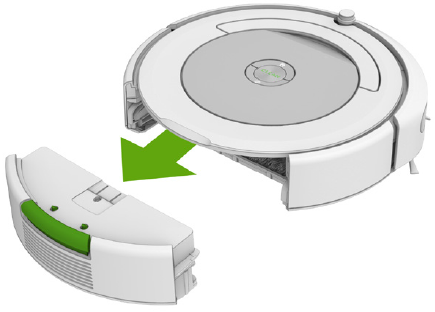
Open the bin door to empty the bin.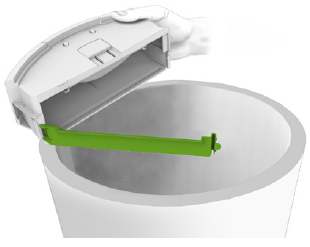
Cleaning The Filter
Important: Empty the bin before cleaning the filter. Pull the filter to remove it. Tap the filter against the rubbish container to clear the debris. Reinstall the filter.
Replace the filter every two months
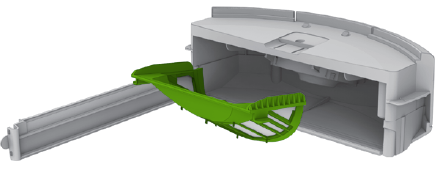
Cleaning the Brushes
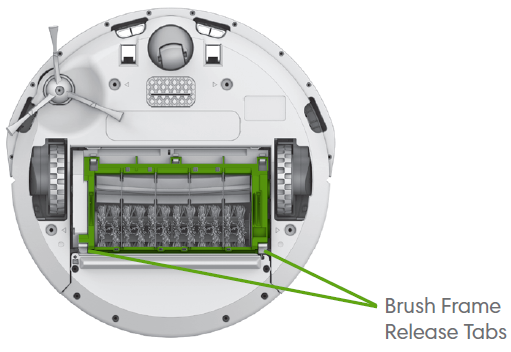
- Open the brush guard by lifting both tabs.

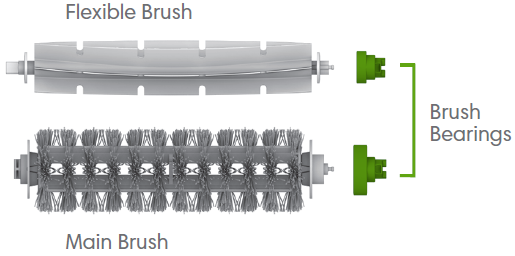
- Remove and clean any hair and debris from the Brushes and brush bearings.

- Reinstall brush bearings and brushes, and close the brush guard. (Replace the brushes every 6-12 months)
Cleaning the Front Caster Wheel
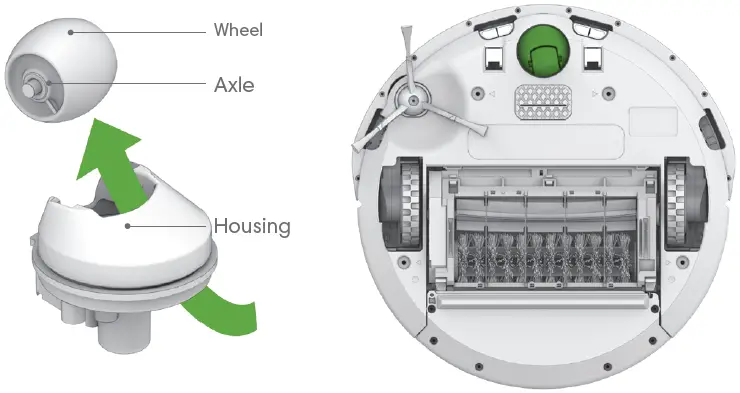
- Pull firmly on the front wheel to remove it from the front caster assembly.
- Remove any debris from inside the wheel cavity.
- Spin the wheel by hand. If the rotation is restricted, remove the wheel from its housing and push firmly to remove the axle and clear any debris or hair wrapped around it.
- Reinstall all parts when finished. Make sure the wheel clicks back into place.
Important: A front wheel clogged with hair and debris could result in floor damage.
Cleaning the Cliff Sensors and Charging Contacts
Wipe all sensors and charging contacts with a clean, dry cloth.
Cleaning the Side Brush
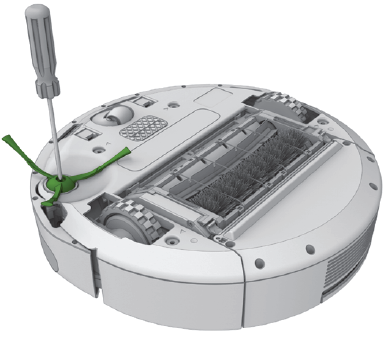
Use a small screwdriver to remove the screw. Pull the side brush to remove it from the robot. Remove any hair and/or debris and reinstall the side brush.
Troubleshooting
Roomba will tell you something is wrong with a two-tone distress sound followed by a spoken message. The troubleshooting indicator will also blink. More detailed support and videos are available through the iRobot HOME App as well as online. If the problem is not resolved, visit www.irobot.com/Roomba600.
Rebooting Instructions
For some errors, rebooting Roomba may resolve the problem.
- To reboot Roomba, press, and hold the (DOCK) and (SPOT) buttons for 10 seconds until all indicators shut off, then release.
- When you release the buttons, you will hear an audible tone signifying a successful reboot.
Note: If you use Roomba’s scheduling feature, open the iRobot HOME App after rebooting to confirm that Roomba’s schedule remains intact.
Reduced Power Standby Mode
Roomba consumes a small amount of power any time it is on the Home Base to ensure that it is ready for its next cleaning job as well as to maintain Wi-Fi connectivity. It is possible to put Roomba in a further-reduced power state when not in use. For instructions and more details on this Reduced Power Standby Mode, refer to the iRobot HOME App.
Lithium Ion Battery (available for select models)
Important: Lithium-ion batteries and products that contain lithium-ion batteries are subject to stringent transportation regulations. If you need to ship this product (with the battery included) for service, travel, or any other reason, you MUST comply with the following shipping instructions:
- Remove the lithium-ion battery from the product
- Please visit the iRobot HOME App or www.iRobot.com/Roomba600 to view an instructional video on how to remove the battery.
- Place a piece of tape over the battery’s metal charging contacts
- Reinstall the battery (with the tape on it) in the product and secure the battery door
- Package the product in its original packaging or in your own packaging that prevents any movement during transportation.
- Ship via ground transportation only (no air shipping)
iRobot Customer Care
USA & Canada
If you have questions or comments about your Roomba, please contact iRobot before contacting a retailer. You can also find additional information such as maintenance tips and information about accessories on the iRobot HOME App or on our website at www.irobot.com/Roomba600.
Should you still need assistance, call our Customer Care team at (877) 855-8593
iRobot Customer Care Hours
- Monday to Friday, 9 AM – 7 PM Eastern Time
- Saturday, 9 AM – 6 PM Eastern Time
Outside USA & Canada
Visit global.irobot.com to:
- Learn more about iRobot in your
- Get hints and tips to improve your Roomba
- Get answers to
- Contact your local support
For EU Declaration of Conformity information, visit www.irobot.com/compliance.
FAQ’s
It can pull itself over it, but if you have a pet, beware—pet hair tends to gather along that lip. My Roomba, “Ruby,” is not very good at picking up debris in the transition zones where carpet turns into hardwood and vice versa.
I have a black area rug with white swirls and Brazilian cherry hardwood floors. I haven’t had any issues at all switching to the 690.
Fantastic for pet hair it collects so much more than a typical vacuum does!
My Roomba has only been here for a week. It’s not designed to take the place of a regular vacuum, in my opinion. I’ll still do a once-weekly vacuum, but this IRobot is incredible. The day before I first used the Roomba, I had vacuumed. The amount of cat fur and grime that I still discovered on my carpet shocked me. When you move chairs or other obstructions, the cleaning is better since the carpet and floors are more thoroughly cleaned.
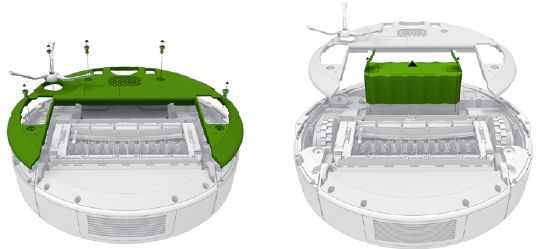
Yes, the battery is accessible by removing the bottom five screws. It can be changed.
It does go between rooms in a very deliberate manner. We had a 650 that seemed to wander aimlessly through the entire house, finally sucking most of its contents. The back-and-forth vacuuming pattern of the 690 is much more deliberate, thoroughly cleaning one room before going on to the next. If programmed to do so, it will even clean every room twice before returning to the base to recharge.
I use my Android to use it.
It performs admirably! I acquired it mostly because I have three long-haired cats. Being free of hair tumbleweeds is a nice feeling.
Our hopes were exceeded by this robot vacuum, which is our first one. We can set up programmers to run while we are away and check on progress thanks to Wi-Fi. You will be aware if it becomes stuck. Our three pets—two dogs and a cat—keep the floor tidy. Definitely worth the extra $10 compared to the 652 and 680.
A two-year warranty was purchased.
Your robot is designed to be cleaned with a vacuum cleaner. Your robot is not waterproof and should not be used in wet environments.
Your Home Base is designed to be cleaned with a damp cloth. Do not immerse the Home Base in water or other liquids.
If your robot stops operating correctly, you may need to reset it. To reset your robot, unplug the Home Base from the electrical outlet and press the Reset button on the underside of the Home Base for at least 5 seconds. Plug the Home Base back into an electrical outlet and wait for your robot to fully charge before using it again.
To clean your robot’s bumper sensors, use a dry soft cloth or a lint-free cloth with water only. Do not use any chemicals or abrasive materials on your bumper sensors.
To clean your robot’s dust bin, remove it from your robot and empty its contents into a trash receptacle that is sealed against dust entry. Do not use any chemicals or abrasive materials on your dustbin.
Your robot may stop operating correctly if it is exposed to liquids or moisture if it comes into contact with sharp objects if it is dropped if it is damaged, if its bumper sensors are dirty, if its filters are clogged, or if its battery level becomes too low. If any of these things happen, please follow the instructions in this guide for cleaning and resetting your robot before using it again.