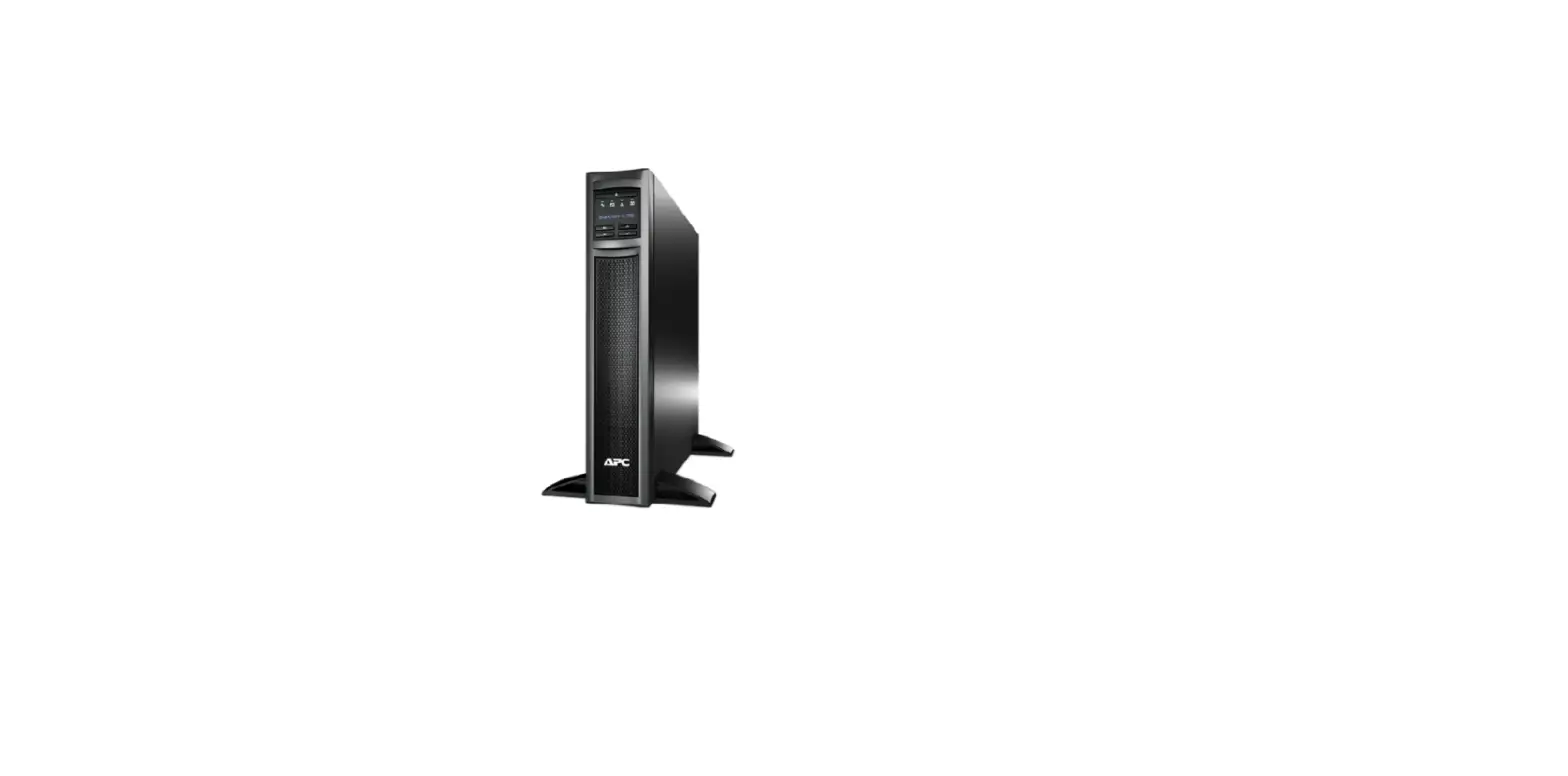
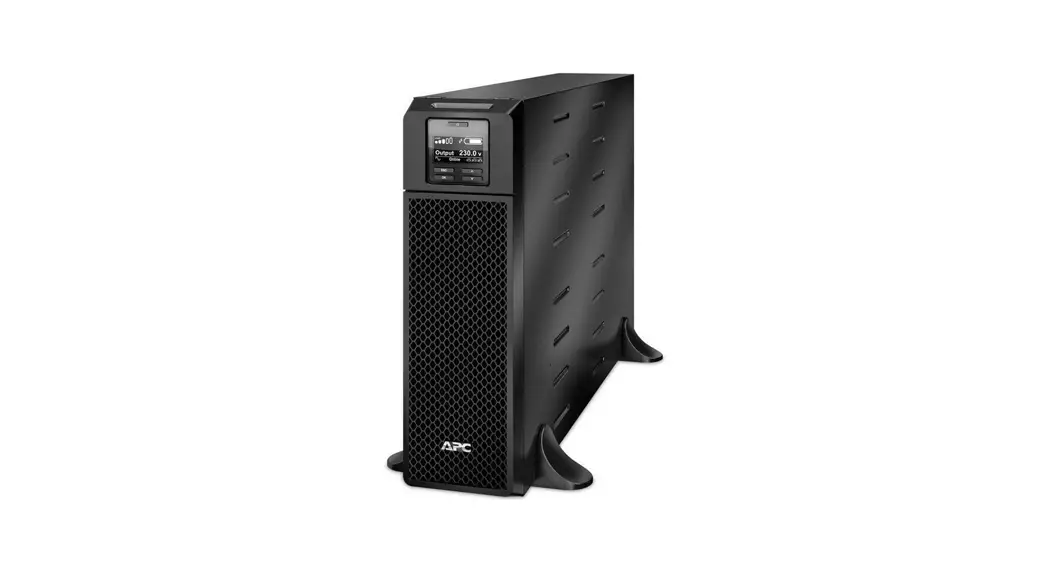
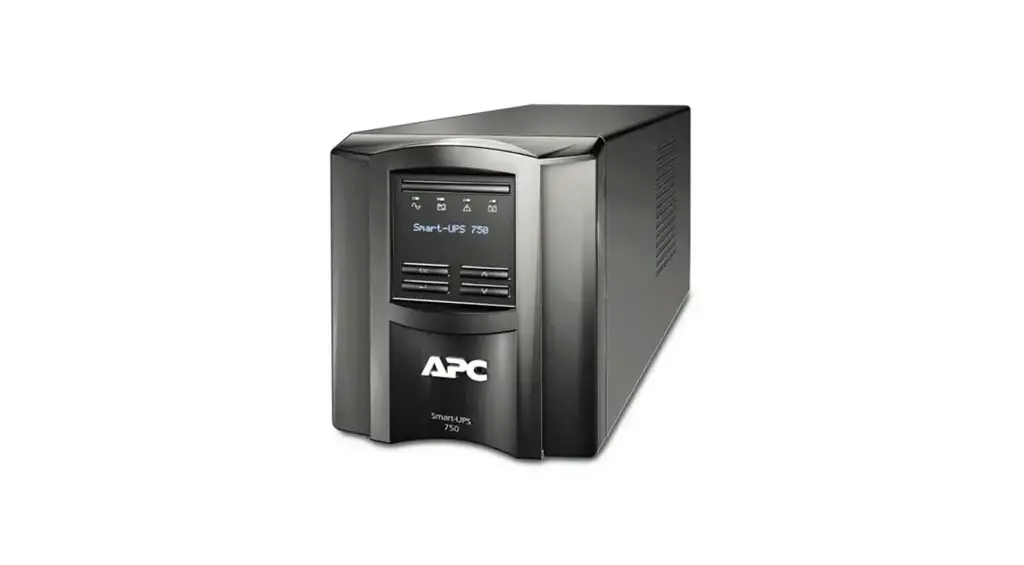
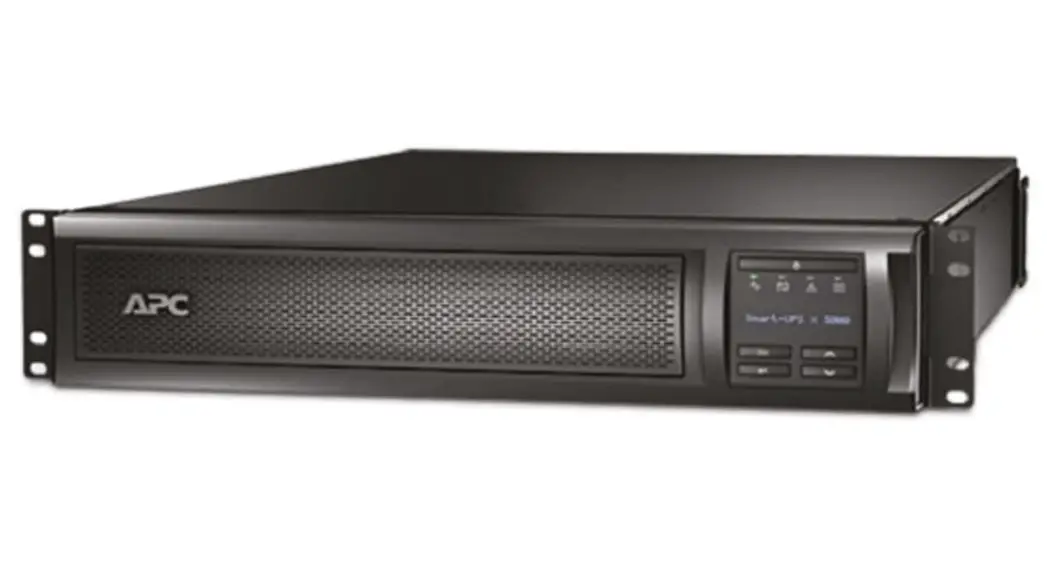
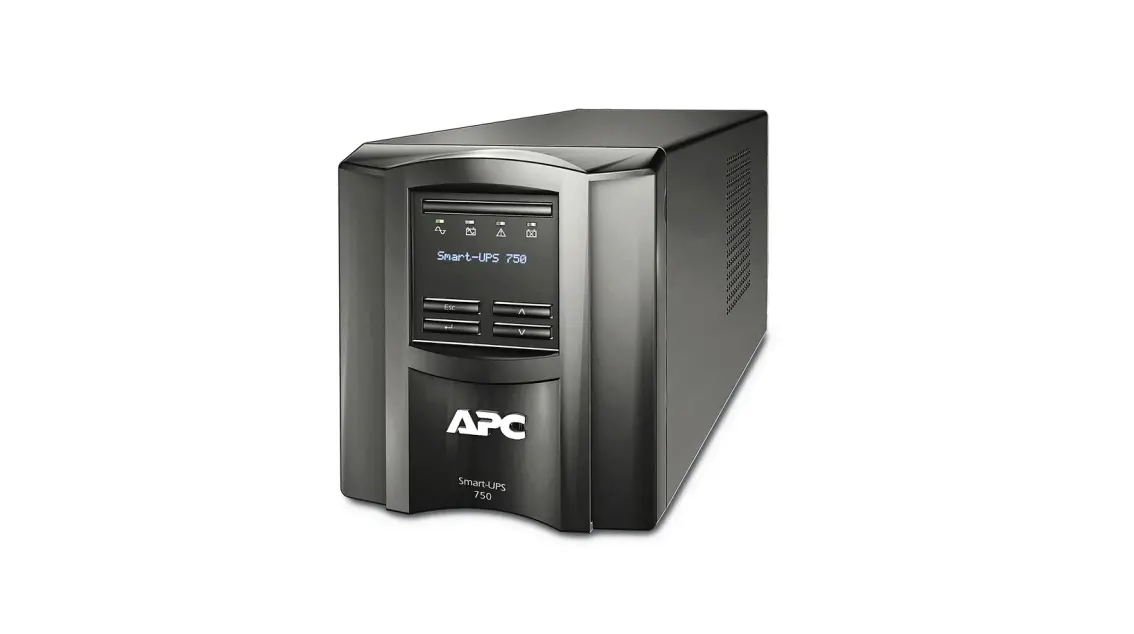
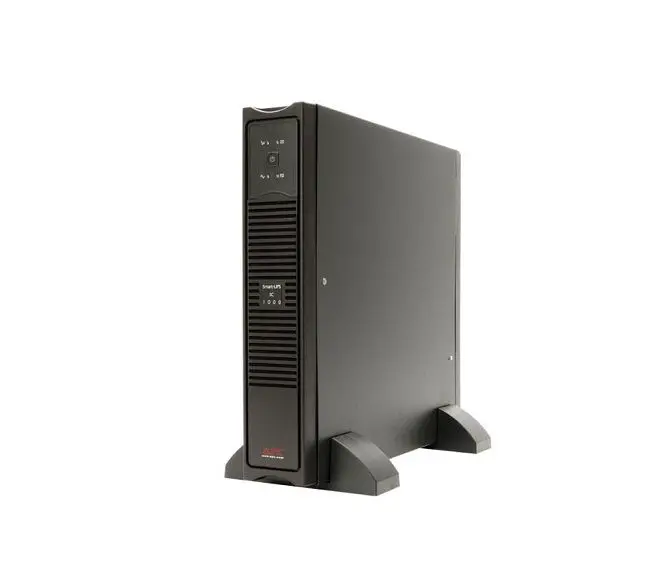
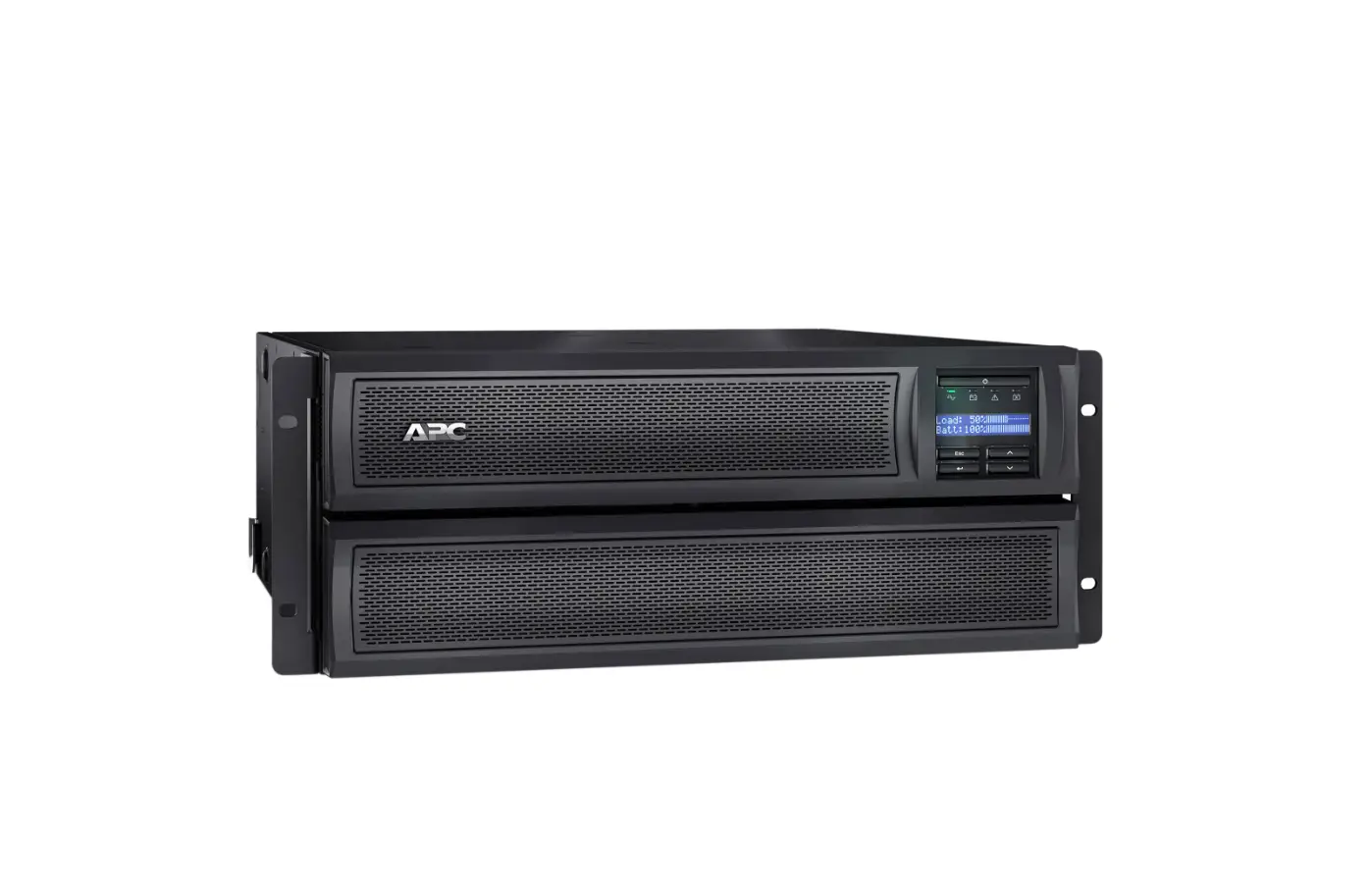
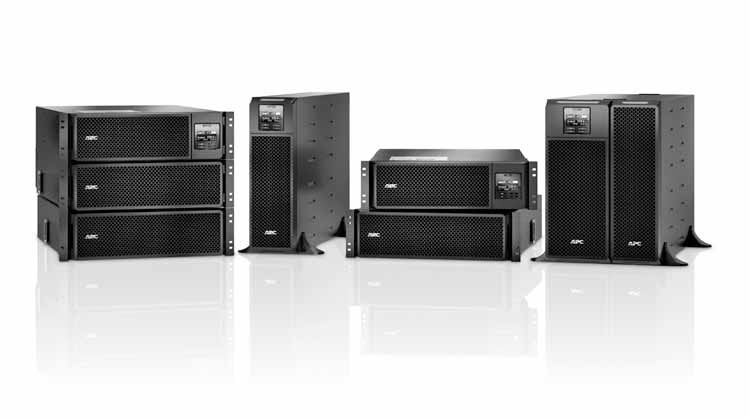
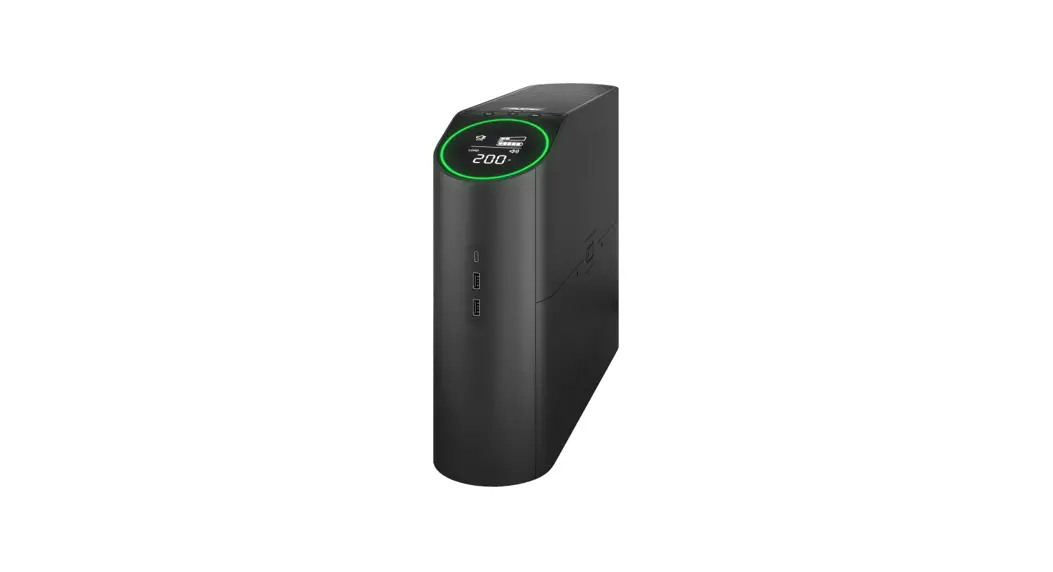
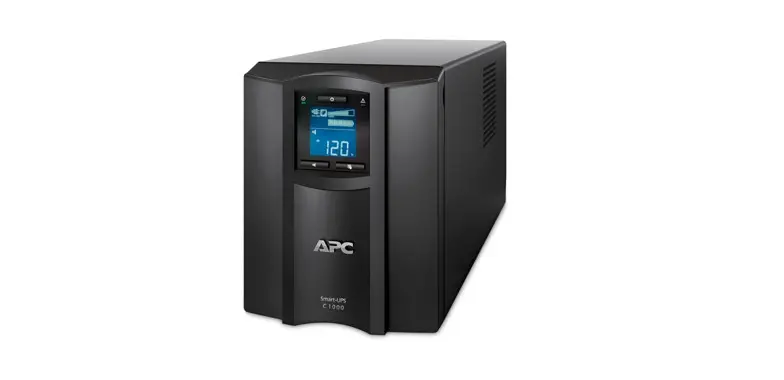
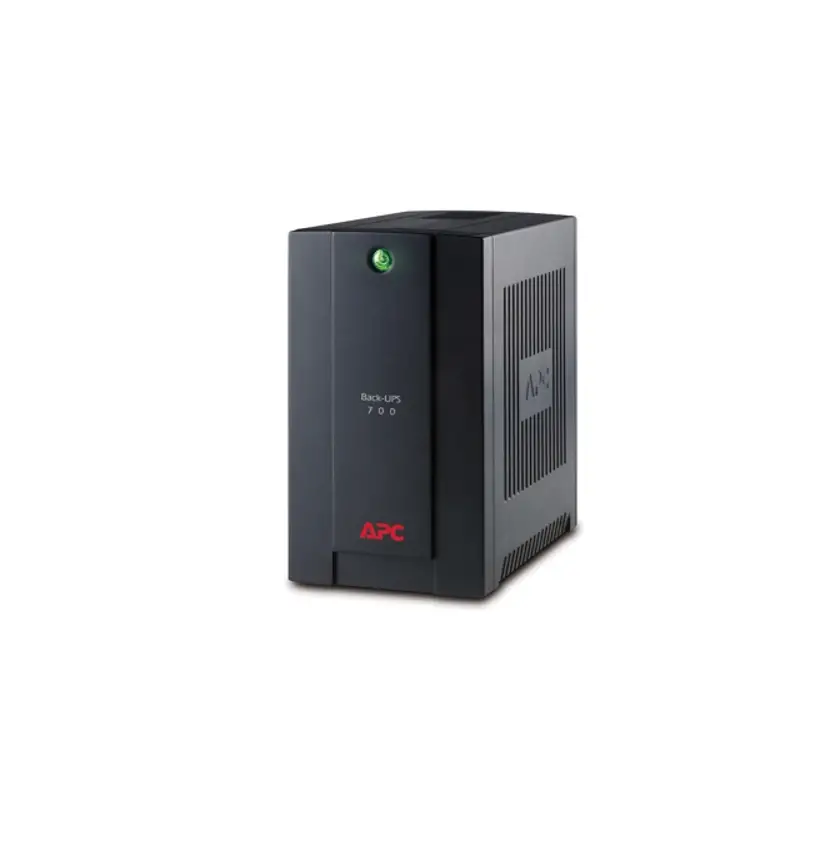
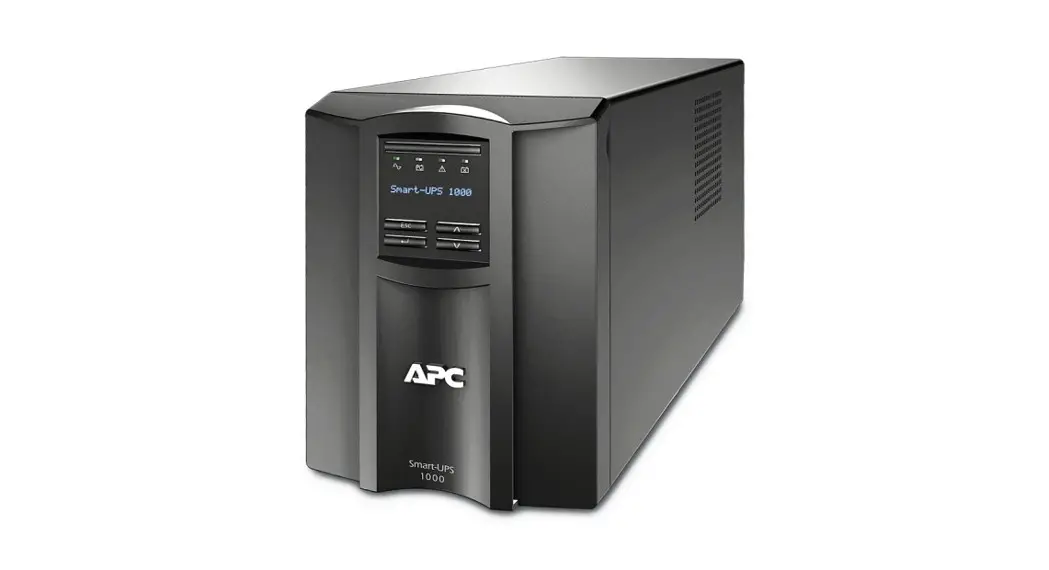
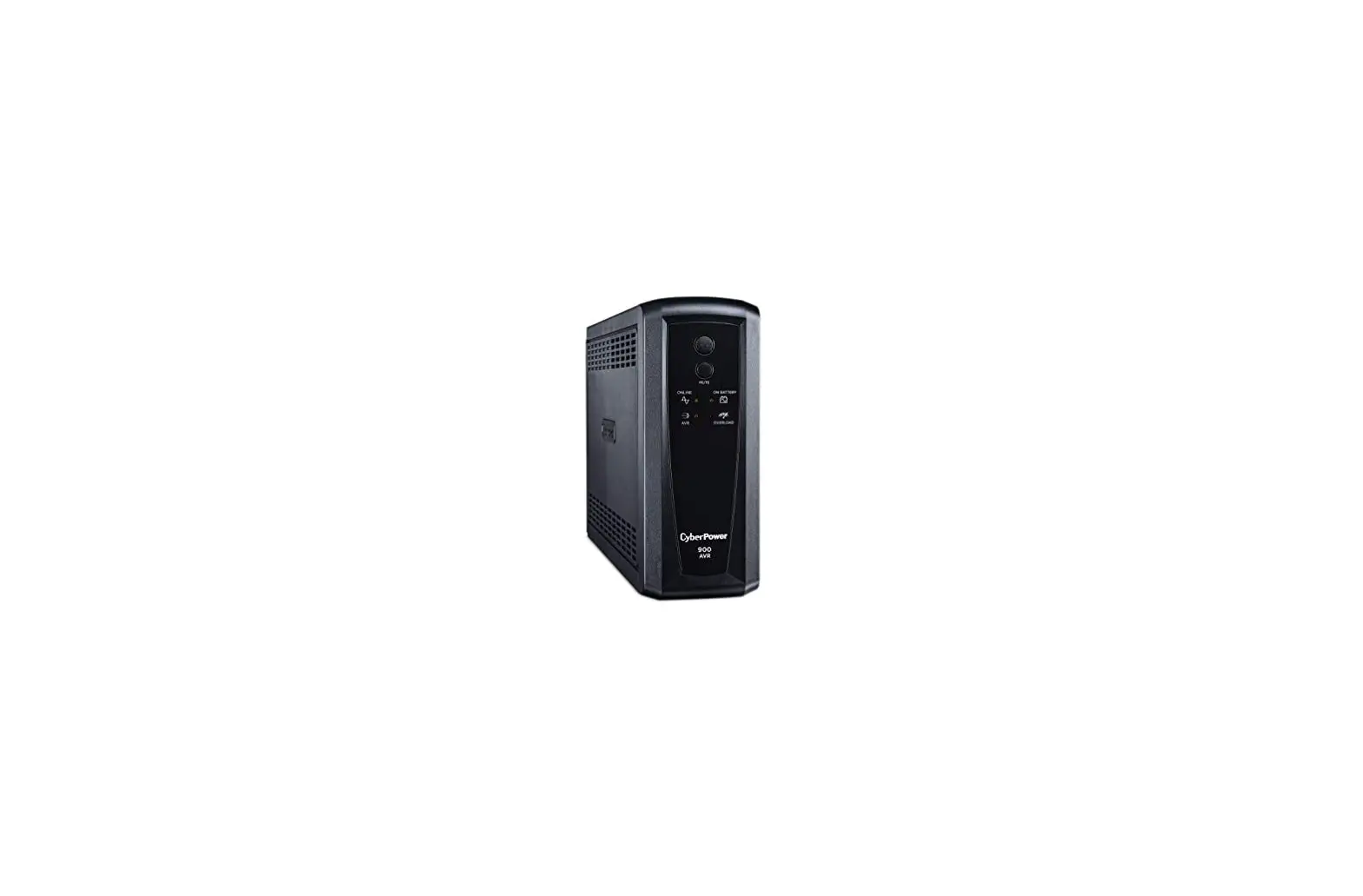
SMT700X167 Interactive Tower Smart-UPS
Smart-UPSTM Uninterruptible Power Supply
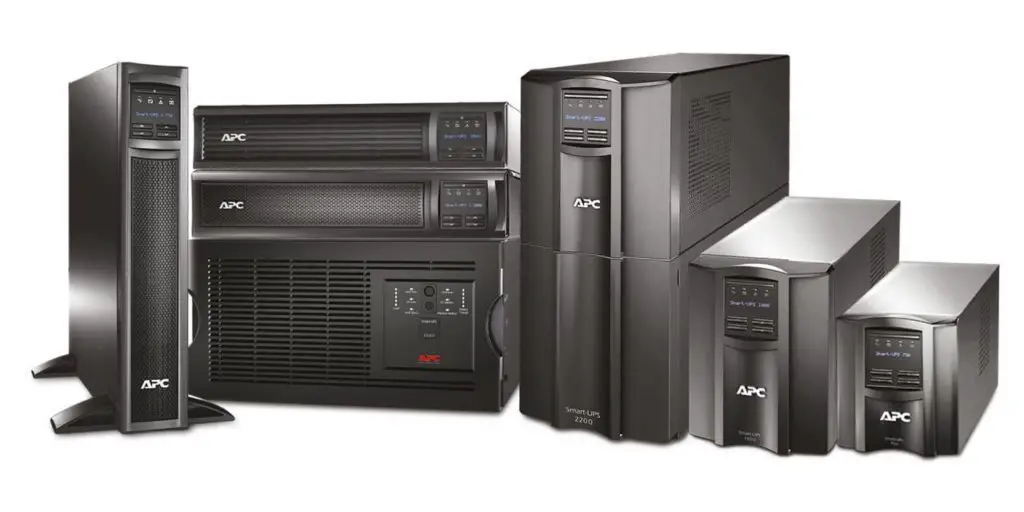
The Smart-UPS is a dual input voltage uninterruptible power
supply that provides 120 Vac output. It is available in two models,
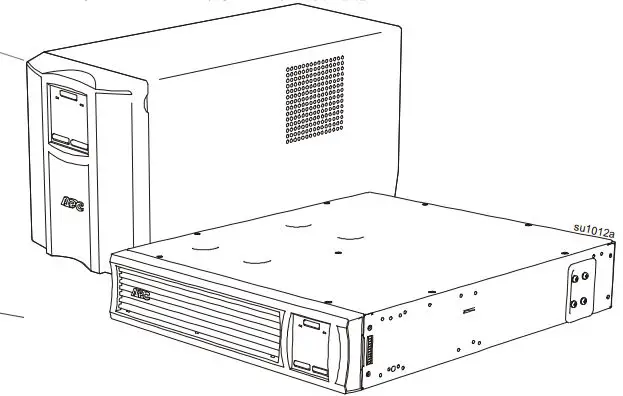
the 700 VA Tower/Rack-Mount 2U and the 2200 VA Tower/Rack-Mount 2U.
The UPS contains internal batteries and may present a shock hazard
even when disconnected from the branch circuit (mains). The AC
output connectors may be energized by remote or automatic control
at any time. It is important to read the instructions carefully and
become familiar with the device before trying to install, operate,
service or maintain it.
Important Safety Instructions
It is important to save the instructions as they contain
important information that should be followed during installation
and maintenance of the UPS and batteries. The following special
messages may appear throughout the document or on the equipment to
warn of potential hazards or to call attention to information that
clarifies or simplifies a procedure:
- DANGER: indicates a hazardous situation which,
if not avoided, will result in death or serious injury. - WARNING: indicates a hazardous situation
which, if not avoided, could result in death or serious
injury. - CAUTION: indicates a hazardous situation
which, if not avoided, could result in minor or moderate
injury. - NOTICE: is used to address practices not
related to physical injury.
Product Handling Guidelines
Inspect the package contents upon receipt and notify the carrier
and dealer if there is any damage. Before installing or servicing
the equipment, check that the electrical and hardwire safety
guidelines are followed. Use caution when handling the UPS as it
contains internal batteries that may present a shock hazard even
when disconnected from the branch circuit (mains). The AC output
connectors may be energized by remote or automatic control at any
time.
Package Contents
The package contents include a serial cable, USB cable,
installation guide, PCBE insert, input power cord for US/Canada,
input power cord for Europe, input power cord for UK, bezel,
rack-mount brackets (1 pair), rail kit, and screws for fixing
rack-mount EPO terminal brackets to the UPS.
Specifications
It is important to follow the specifications of the UPS and not
operate it outside specified limits to avoid equipment damage. For
additional specifications, refer to the APC website at
www.apc.com.
Product Usage Instructions
- Inspect the package contents upon receipt and notify the
carrier and dealer if there is any damage. - Before installing or servicing the equipment, check that the
electrical and hardwire safety guidelines are followed. - Connect the appropriate input power cord based on the local
electrical outlet. - Connect the serial or USB cable to a computer or other device
as needed. - Install the bezel, rack-mount brackets, and rail kit as needed
for your setup. - Turn on the UPS using the power button and follow any
additional setup instructions provided in the user manual. - Use caution when handling the UPS as it contains internal
batteries that may present a shock hazard even when disconnected
from the branch circuit (mains). The AC output connectors may be
energized by remote or automatic control at any time. - If you need to service or maintain the UPS, refer to the user
manual for instructions and follow all safety guidelines.
Operation Manual
Smart-UPSTM
Uninterruptible Power Supply
700/2200 VA Tower / Rack-Mount 2U Dual Input Voltage: 120 Vac and 230 Vac
120 Vac Output
Important Safety Instructions
SAVE THESE INSTRUCTIONS – This manual contains important instructions that should be followed during installation and maintenance of the UPS and batteries.
Read the instructions carefully. Become familiar with the device before trying to install, operate, service or maintain it. The following special messages may appear throughout this document or on the equipment to warn of potential hazards or to call attention to information that clarifies or simplifies a procedure.
The addition of this symbol to either a “Danger” or “Warning” safety label indicates that an electrical hazard exists that will result in personal injury if the instructions are not followed.
This is the safety alert symbol. It is used to alert you to potential personal injury hazards. Obey all safety messages that follow this symbol to avoid possible injury or death.
DANGER
DANGER indicates a hazardous situation which, if not avoided, will result in death or serious injury.
WARNING
WARNING indicates a hazardous situation which, if not avoided, could result in death or serious injury.
CAUTION
CAUTION indicates a hazardous situation which, if not avoided, could result in minor or moderate injury.
NOTICE
NOTICE is used to address practices not related to physical injury.
Product Handling Guidelines
<18 kg <40 lb
18-32 kg 40-70 lb
32-55 kg 70-120 lb
>55 kg >120 lb
Smart-UPS 700/2200 VA 120/230 VAC Tower/Rack-mount 2U
1
Safety and General Information
Inspect the package contents upon receipt. Notify the carrier and dealer if there is any damage.
· Adhere to all national and local electrical codes. · All wiring must be performed by a qualified electrician. · Changes and modifications to this unit not expressly approved by APC by Schneider Electric could void the
warranty. · This UPS is intended for indoor use only. · Do not operate this unit in direct sunlight, in contact with fluids, or where there is excessive dust or humidity. · Be sure the air vents on the UPS are not blocked. Allow adequate space for proper ventilation. · For a UPS with a factory installed power cord, connect the UPS power cable directly to a wall outlet. Do not use
surge protectors or extension cords. · The equipment is heavy. Always practice safe lifting techniques adequate for the weight of the equipment.
Deenergizing safety
The UPS contains internal batteries and may present a shock hazard even when disconnected from the branch circuit (mains).
The AC output connectors may be energized by remote or automatic control at any time.
Before installing or servicing the equipment check that the:
· Input wall circuit breaker is in the OFF position. · Internal UPS batteries are removed. · XLBP battery modules are disconnected
Electrical safety
· Use tools with insulated handles. · Do not handle any metallic connector before power has been disconnected. · For models with a hardwired input, the connection to the branch circuit (mains) must be performed by a qualified
electrician. · 230 V models only: In order to maintain compliance with the EMC directive for products sold in Europe, output
cords attached to the UPS must not exceed 10 meters in length. · The protective earth conductor for the UPS carries the leakage current from the load devices (computer
equipment). An insulated ground conductor is to be installed as part of the branch circuit that supplies input power to the UPS. The conductor must have the same size and insulation material as the grounded and ungrounded branch circuit supply conductors. The conductor will typically be green, with or without a yellow stripe. · Leakage current for a pluggable, Type A UPS may exceed 3.5 mA when a separate ground terminal is used. · The UPS input ground conductor must be properly bonded to protective earth at the service panel. · If the UPS input power is supplied by a separately derived system, the ground conductor must be properly bonded at the supply transformer or motor generator set.
Hardwire safety
· Check that all branch circuit (mains) and low voltage (control) circuits are de-energized, and locked out before installing cables or making connections, whether in the junction box or to the UPS.
· Wiring by a qualified electrician is required. · Check national and local codes before wiring. · Strain relief is required for all hardwiring (supplied with select products). Snap in type strain reliefs are
recommended. · All openings that allow access to UPS hardwire terminals must be covered. Failure to do so may result in personal
injury or equipment damage. · Select wire size and connectors according to national and local codes.
2
Smart-UPS 700/2200 VA 120/230 VAC Tower/Rack-mount 2U
Battery safety
CAUTION
RISK OF HYDROGEN SULPHIDE GAS AND EXCESSIVE SMOKE · Replace the battery at least every 5 years or at the end of its service life, whichever is earlier. · Replace the battery immediately when the UPS indicates battery replacement is necessary.
· Replace batteries with the same number and type of batteries as originally installed in the equipment.
· Replace the battery immediately when the UPS indicates a battery over-temperature condition, or when there is evidence of electrolyte leakage. Power off the UPS, unplug it from the AC input, and disconnect the batteries. Do not operate the UPS until the batteries have been replaced.
· *Replace all Battery packs which are older than one year, when installing additional battery packs. Failure to follow these instructions can result in minor or moderate injury and equipment damage.
* Contact APC by Schneider Electric Customer Support to determine the age of the installed battery modules. · The batteries typically last for three years. Environmental factors impact battery life. Elevated ambient
temperatures, poor quality utility power, and frequent short duration discharges will shorten battery life. The battery should be replaced before end of life. · APC by Schneider Electric uses sealed lead acid batteries. Under normal use and handling, there is no contact with the internal components of the battery. Over charging, over heating or other misuse of batteries can result in a discharge of battery electrolyte. Released electrolyte is toxic and may be harmful to the skin and eyes. · Servicing of batteries should be performed or supervised by personnel knowledgeable about batteries and the required precautions. · CAUTION: A battery can present a risk of electric shock and burns by high short-circuit current. Contact with any part of a grounded battery can result in electrical shock. The following precautions should be observed when working on batteries:
Wear rubber gloves and boots.
Do not lay tools or metal parts on top of batteries.
Disconnect charging source and load prior to installing or maintaining the battery.
Remove battery grounds during installation and maintenance to reduce likelyhood of shock.
Remove the connection from ground if any part of the battery is determined to be grounded. · CAUTION: Before installing or replacing the batteries, remove jewelry such as wristwatches and rings.
High short circuit current through conductive materials could cause severe burns. · CAUTION: Do not dispose of batteries in a fire. The batteries may explode. · CAUTION: Do not open or mutilate batteries. Released material is harmful to the skin and eyes and may be toxic. · CAUTION: Failed batteries can reach temperatures that exceed the burn thresholds for touchable surfaces.
General information
· The model and serial numbers are located on a small, rear panel label. For some models, an additional label is located on the chassis under the front bezel.
· Always recycle used batteries. · Recycle the package materials or save them for reuse.
FCC Class A radio frequency warning
This equipment has been tested and found to comply with the limits for a Class A digital device, pursuant to part 15 of the FCC Rules. These limits are intended to provide reasonable protection against harmful interference when the equipment is operated in a commercial environment. This equipment generates, uses, and can radiate radio frequency energy and, if not installed and used in accordance with the instruction manual, may cause harmful interference to radio communications. Operation of this equipment in a residential area is likely to cause harmful interference in which case the user will be required to correct the interference at his own expense.
Smart-UPS 700/2200 VA 120/230 VAC Tower/Rack-mount 2U
3
Package Contents
Common to all models
Serial cable
USB cable
Installation guide
PCBE insert
Input power cord for US/Canada
Input power cord for Europe Input power cord for UK
TM DeCaroFnsoCgrruyiasntPscstostLotuwoeonalmemeveafhatlrtrtrelw,Csnniahhtitoruupehnttmnsedsoeertoo:elonw/cannTot,/ManyawneolBdtsliwrtutwudorsslviin.o,AesawePrenrsvplmsCsehooiriEcnoSg.aidshdnmictaplitooororyfrftonmoi-r/nterUepgPccfStocraebmenmddeee
p ucrha es .
safe nded
oper that
ating you
by your Smart -UP fro m
S.
990 -6189
Input power cord for Italy
NOTE: Use the appropriate power cord based on the local electrical outlet. SMT700X167
UPS
SMT2200R2X167 UPS
Bezel
Rack-mount brackets (1 pair)
Railkit
Screw for fixing rack-mount EPO terminal brackets to the UPS (4X)
123 4
gen1079a
4
Smart-UPS 700/2200 VA 120/230 VAC Tower/Rack-mount 2U
Specifications
NOTICE
RISK OF EQUIPMENT DAMAGE · UPS must be used indoors only. · The installation location should be sturdy to withstand the weight of the UPS. · Do not operate UPS where there is excessive dust or where the temperature or humidity are
outside specified limits. Failure to follow these instructions can result in equipment damage.
For additional specifications, refer to the APC Web site at www.apc.com.
Environmental specifications
Temperature
Operating Storage
Maximum Elevation
Operating Storage
Humidity
International Protection Code
0 to 40 °C (32 to 104 °F) -15 to 45 °C (5 to 113 °F) charge UPS battery every six months 2,000 m (6,600 ft) 15,000 m (50,000 ft) 0% to 95% relative humidity, non-condensing IP20
Physical specifications
Model
SMT700X167
SMT2200R2X167
Dimensions H x W x D 8.6 x 6.7 x 17.3 in (219 x 171 x 439 mm) 3.4 x 17 x 26.9 in (86 x 432 x 683 mm)
Weight
44.3 lb (20.1 kg)
97.2 lb (44.1 kg)
Electrical specifications
Model
SMT700X167
SMT2200R2X167
Input
Voltage
120 Vac for low voltage utility
Frequency
230 Vac for high voltage utility 60 Hz for low voltage utility
Output
50 Hz for high voltage utility
Capacity Low voltage utility High voltage utility On-battery mode
Voltage (On Battery) Frequency (On Battery)
700 VA / 450 W
1920 VA/1920 W
700 VA / 450 W
2200 VA/1980 W
700 VA / 450W
2200 VA/1980 W
120 Vac ± 5%
47 – 53 Hz for 50 Hz nominal
Transfer Time
57 – 63 Hz for 60 Hz nominal 6 ms / 50 Hz max 10 ms
Protection
5 ms / 60 Hz max 8 ms
AC Input Circuit Breaker Single pole 10 A 250 VAC Single pole 30 A 250 VAC Branch Circuit Overcurrent Rating / Building Circuit Breaker (CB) Current Rating
Rating
Not Applicable
20 A
Smart-UPS 700/2200 VA 120/230 VAC Tower/Rack-mount 2U
5
Battery Type Rating
Model
Typical Recharge Time
SMT700X167
SMT2200R2X167
RBC6 24 V, 12 Ah Total 2 nos. x (12 V, 12 Ah) in series
3 hours to 90% capacity
RBC43 48 V, 10 Ah
Total 8 batteries: 2 groups in parallel of 4 x (12 V, 5 Ah) in series 4 hours to 90% capacity
6
Smart-UPS 700/2200 VA 120/230 VAC Tower/Rack-mount 2U
Product Overview
Front panel features
su1201a
Display (more information below) Battery
Internal battery connector
Bezel
Rear panel features
SMT700X167
su1190
SMT2200R2X167
su1192a
Battery connector (located on the front panel of rack-mount models)
Controlled outlet group Input circuit breaker
UPS input Chassis ground connection screw Outlets Smart Slot
Serial port USB port EPO connector Output circuit breaker/overload
protection
Smart-UPS 700/2200 VA 120/230 VAC Tower/Rack-mount 2U
7
Installation
For UPS installation information, refer to the Installation Guide included with the UPS.
The Installation Guide is also available on the APC by Schneider Electric Web site, www.apc.com.
Placement The UPS is intended for IT environments. Avoid placement where there is excessive dust, temperature and humidity. Note that temperature in excess of 25 °C may have an adverse effect on battery and UPS life. All vents on the side or rear of the UPS should be free of obstructions.
The UPS is heavy. For rack-mount units it is suggested that the batteries be removed for easier installation. The UPS should be placed near the bottom of the rack.
Connect to equipment and utilities Note: The UPS will charge to 90% capacity in the first three hours of normal operation. Do not expect full battery runtime capability during this initial charge period.
CAUTION
RISK OF ELECTRIC SHOCK
· Adhere to all local and national electrical codes. · Wiring should be performed by qualified electrician. · Always connect the UPS to a grounded outlet. Failure to follow these instructions can result in injury.
1. Connect equipment to the outlets in the rear of the UPS. SMT700X167 Some models are equipped with controlled outlet groups. Refer to the Configuration section of this manual for further instructions on the use of controlled outlet groups.
2. Install the appropriate power cord (supplied) on the UPS, based on the local electrical outlets.
3. Connect the UPS input to AC power. NOTE: Once power is connected, the display will be active.
4. Press the UPS ON/OFF button on the UPS display to turn
on the UPS output.
SMT2200R2X167
NOTE: The On-line LED will illuminate green when
the output is on.
5. When the UPS is powered on for the first time the LCD screen displays the Setup Wizard and asks a number of basic set-up questions. They can be answered simply by using the UP/DOWN and ENTER keys on the display.
8
Smart-UPS 700/2200 VA 120/230 VAC Tower/Rack-mount 2U
Start up Settings
When the UPS is powered on for the first time the display interface displays the Setup Wizard to configure the start up settings. Configuration can also be performed using PowerChuteTM software.
Note: If the start up settings asked by the Setup Wizard are not selected completely, turning on UPS output is inhibited. If the UPS output is turned on, the Setup Wizard will be displayed again to complete the configuration of the start up settings.
Function Language
Factory Default
English
Menu Type Standard
Today’s Date
Manufacture date
Options
Description
English French* German* Spanish* Italian* Portuguese* Standard Advanced
The language for the display interface.
*Language options will vary by model.
The standard menu displays the most commonly required menus for most users. The advanced menus include all parameters. Use the UP/DOWN arrows to enter today’s day, and the ENTER to complete the settings.
Connect and Install Management Software
Smart-UPS is provided with PowerChute management software for unattended operating system shutdown, UPS monitoring, UPS control and energy reporting. The following diagram is a representation of a typical server installation.
1. Connect the USB cable from the USB port on the rear panel of the UPS to the protected device such as a server.
2. For a server or other device with an operating system, download the PowerChute software from https://www.apc.com/pcbe, follow the on-screen instructions for installing and setting up the software. PowerChute provides for graceful shutdown in the event of an extended power outage and is a powerful management interface on the local network.
3. A built-in serial port is also available as an additional communication option using a serial cable. For more detailed information on supported protocols and options refer to application note #181 at www.apc.com.
4. More communication options are available via the built-in Smartslot. Refer to www.apc.com for more information.
Download and install the latest version of PowerChute Business Edition fr om ht tps: // www.a pc. c om/p cbe
Smart-UPS 700/2200 VA 120/230 VAC Tower/Rack-mount 2U
9
Operation
Front panel display features
Multi-lingual display screen UP/DOWN buttons ENTER button ESCAPE button Online LED On Battery LED UPS ON/OFF button Alert LED Replace Battery LED
APC By Schneider Electric
su1203a
Using the display
These Smart-UPS models are equipped with an intuitive and configurable LCD display. This display complements the software interface as they convey similar information and either may be used to configure the UPS settings.
The display consists of the following keys and indicators:
UPS ON/OFF button
Press the UPS ON/OFF button to turn the UPS output power on and off.
ESCAPE button
Press the ESCAPE key to return to the previous display screen or to exit the various display menus.
ENTER button
Press the ENTER key to confirm a selection and/or to enter a menu.
UP/DOWN buttons
Press the UP/DOWN buttons to navigate through each menu selection.
Quick status LEDs
Online LED
This LED illuminates green when UPS output is turned on and the UPS is operating on AC power.
On Battery LED
This LED illuminates orange and the unit will continue to emit a series of short beeps indicating that the UPS is operating on battery power.
Alert LED
This LED will illuminate red if any internal error is detected. The display screen may also display the message or the code of the detected internal error.
Replace Battery LED · This LED illuminates red when the UPS battery does not pass self test and requires replacement.
· This LED flashes red when the UPS battery is not connected.
The display has two main display/menu options standard and advanced.
Load: 18%
Batt: 100%
su0983a
Standard Menu Display
On Utility
Efficiency: 98%
su0984a
Advanced Menu Display
Note: The standard menu is the default setting and does not contain all of the menus and attributes of the advanced menu. The advanced menu automatically scrolls through multiple screens.
10
Smart-UPS 700/2200 VA 120/230 VAC Tower/Rack-mount 2U
Standard menus
The Standard menus are the most commonly used menus. The following is a list of some items displayed in this menu mode. Visit apc.com for additional details.
Menu Status
Configuration Test & Diags About
General Functions
View UPS information: · Operating Mode · Efficiency · Load Power · Load VA · Battery Charge state · Estimated Runtime
Configures UPS settings: · Language · Green Mode · Local Power Quality: Good, Fair, Poor · Menu Type: Standard or Advanced
Performs UPS tests and diagnostic functions: · UPS Self Test · UPS Alarms Test · Calibration Test
View UPS information: · UPS Model · UPS Part No. · UPS Serial No. · UPS Manufacture Date · Battery Part No.
· Battery Temp · Input · Output · Probe 1, Probe 2, when NMC and sensor
probes are installed
· Audible Alarm · Display (Auto Dim, Auto Off, Always On) · Reset to Factory Default · Install FW?
· Battery Install Date · Replace Battery by · Running UPS FW · Available UPS FW · SmartSlot Card (if installed)
Advanced menus
The Advanced menus provide additional options for the UPS and are available only if the display interface is configured to use the Advanced menus.
Menu
General Functions
Status
View detailed UPS information:
· Operating Mode
· Estimated Runtime
· Efficiency
· Battery Voltage
· Load Power
· Battery Temp
· Load VA
· Input
· Load Amps
· Output
· Load Energy
· Outlet Groups
· Battery Charge State
· Probe 1, Probe 2, when NMC and sensor probes are installed
Control
Controls the Main and Controlled Outlet Group to turn on, turn off, shutdown, or reboot:
· UPS Control
· Outlet Group Control
Configuration Configure advanced UPS settings:
· Language
· Auto Self Test
· Green Mode
· Reset Energy Meter
· Local Power Quality
· Enter Setup Wizard
· Menu Type
· Reset to Factory Defaults
· Audible Alarm
· Site Wiring Fault
· Display
· Configuration – Main Group Outlets
· Sensitivity
· Configuration – Group Outlets (if Controlled Outlet is available)
· Low Transfer
· ModBus Settings
· High Transfer
· NMC IP Address Settings (if NMC is available)
· Low Battery Setting
· Install FW? (only available if a firmware update is available)
Smart-UPS 700/2200 VA 120/230 VAC Tower/Rack-mount 2U
11
Menu Test & Diag
Logs About
General Functions
Perform UPS tests and diagnostics functions: · UPS Self Test · UPS Alarms Test · Calibration Test View the logs of the internal errors detected for information about the internal errors detected.
View UPS information: · UPS Model · UPS Part No. · UPS Serial No. · UPS Manufacture Date · Battery Part No.
· Battery Install Date · Replace Battery by · Running UPS FW · Available UPS FW · SmartSlot Card (if installed)
12
Smart-UPS 700/2200 VA 120/230 VAC Tower/Rack-mount 2U
Configuration
General configuration settings
Configuration settings may be changed at any time using the LCD interface or PowerChute software. This table provides a brief description of the general settings, for more detailed information on each of these parameters consult application note 80 at www.apc.com.
Setting
Factory Default
Options
Description
High Transfer 120 V: 127 Vac 230 V: 254 Vac
120 V: 127 Vac – 136 Vac 230 V: 254 Vac – 272 Vac
To avoid unnecessary battery usage, set the transfer point higher if the AC voltage is chronically high and the connected equipment is known to work under this condition. The Power Quality setting will automatically change this setting.
Low Transfer 120 V: 106 Vac 230 V: 212 Vac
120 V: 97 Vac – 106 Vac 230 V: 194 Vac – 212 Vac
Note: Use the Advanced Menus to configure this setting. Sets the transfer point lower if the AC voltage is chronically low and the connected equipment can tolerate this condition. This setting may also be adjusted using the power quality setting.
Sensitivity
Normal
· Normal · Reduced · Low
Note: Use the Advanced Menus to configure this setting.
Selects the level of sensitivity to power events that the UPS will tolerate. · Normal: The UPS will go on battery power more
often to provide the cleanest power supply to the connected equipment. · Low: The UPS will tolerate more fluctuations in power and will go on battery power less often.
If the connected load is sensitive to power
Date of Last Battery Replacement
Date set at factory
disturbances, set the sensitivity to Normal. Reset this date when the battery module is replaced.
Audible Alarm Auto Self Test
On
On start-up and every 14 days since the last test
· On · Off
· Never · Start-up only · Frequency of test (every
7 to 14 days)
The UPS will mute all audible alarms if this is set to Off or when the display buttons are pressed. The interval at which the UPS will execute a selftest.
Reset to
No
Factory
Default
Yes/No
Restores the UPS factory default settings.
Site Wiring Fault
Enable
Enable/Disable/ Can Ack
Sets the Site Wiring Fault detection to Enable, Disable or User Can Acknowledge
Green Mode Enable
Low Battery 150 sec Setting
· Enable · Disable
Set the value in seconds
This will enable or disable Green mode function. Green Mode conserves energy while the UPS is operating on line. The UPS will emit an audible alarm when the remaining runtime has reached this level.
Smart-UPS 700/2200 VA 120/230 VAC Tower/Rack-mount 2U
13
Setting Install FW?
Factory Default
Don’t Install
Options
Description
· Next off (Updates the Firmware update: this only appears when new UPS Firmware next time firmware is available in the flash memory of the UPS that the UPS is turned and is ready to be installed. off)
· Now (Updates the UPS firmware immediately without interrupting operations)
· Don’t Install
Outlet group configuration settings
The Main Outlet Group and the Controlled Outlet Group can be configured to independently turn off, turn on, shut down, and reboot connected equipment.
The Main and Controlled Outlet Groups can be configured to do the following:
· Turn off: Disconnect from power immediately and restart only with a manual command. · Turn on: Connect to power immediately. · Shutdown: Disconnect power in sequence, and automatically reapply power in sequence when AC power
becomes available. · Reboot: Shut down and restart.
In addition, the Main Outlet Group and the Controlled Outlet Group can be configured to do the following:
· Turn on or off in a specified sequence · Automatically turn off or shut down when various conditions occur
Note: If the Main and Controlled Outlet Groups are not configured, all of the outlets on the unit will still provide battery back-up power.
Note: The Main Outlet Group functions as a master switch. It will turn on first when power is applied, and shut off last when there is a power outage and battery run-time has been exhausted. The Main Outlet Group must be turned on for the Controlled Outlet Group to turn on.
Setting Name String Outlet Group UPS Name String Turn On Delay
Turn Off Delay
Reboot Duration Minimum Return Time
Factory Default Outlet Group 1
UPS Outlets
Options
Description
Edit these names using an external interface, such as the Network Management Card Web interface.
0 sec
Set the value in seconds
· 0 sec (UPS Outlets) Set the value in · 90 sec (Controlled seconds
Outlet Groups)
8 sec 0 sec
Set the value in seconds
Set the value in seconds
The amount of time the UPS or the Controlled Outlet Group will wait between receiving the command to turn on and the actual startup. The amount of time the UPS or the Controlled Outlet Group will wait between receiving the command to turn off and the actual shut down. The amount of time that the UPS or the Controlled Outlet Group must remain off before it will restart.
The amount of battery runtime that must be available before the UPS or the Controlled Outlet Group will turn on.
14
Smart-UPS 700/2200 VA 120/230 VAC Tower/Rack-mount 2U
Setting
Load Shed On Battery
Factory Default Disabled
Load Shed Time when On Battery
Load Shed On Runtime
Disabled Disabled
Load Shed On Runtime Remaining
Load Shed on Overload
Disabled Disabled
Modbus settings
Options
· Shutdown with Delay
· Shutdown immediately
· Turn off immediately
· Turn off with delay · Disabled
Set the value in seconds
Description When the unit switches to battery power, the UPS can disconnect power to the Controlled Outlet Group to save runtime.
The amount of time the outlets will function on battery power before they will turn off.
· Shutdown with delay When the battery runtime falls below the specified
· Shutdown immediately
value, the Controlled Outlet Group will turn off.
· Turn off
immediately
· Turn off with delay
· Disabled
Set the value in seconds
When the remaining runtime reaches this level, the Controlled Outlet Group will turn off.
· Disabled · Enabled
In the event of an overload (greater than 100% output power), the Controlled Outlet Group will immediately turn off to conserve power for essential loads. The Controlled Outlet Group will only turn on again with a manual command.
Setting
Slave ID Ser+USB
Factory Default
1
Disable
Options
1- 223 · Enable · Disable
Description
Sets the Modbus slave address of UPS Enables or disables UPS Modbus protocol over serial and USB ports
Smart-UPS 700/2200 VA 120/230 VAC Tower/Rack-mount 2U
15
Emergency Power Off
Note: Emergency Power Off feature is available only in SMT2200R2X167 Overview
The Emergency Power Off (EPO) option is a feature that will immediately shut off power to all connected equipment. When the EPO button is pushed, all connected equipment will immediately turn off and will not switch to battery power.
Connect each UPS to the EPO switch. In configurations where multiple units are connected in parallel, each UPS must be connected to the EPO switch.
The UPS must be restarted for power to return to connected equipment. Press the ON/OFF button on the front panel of the UPS.
CAUTION
RISK OF ELECTRIC SHOCK
· Adhere to all local and national electrical codes. · Wiring should be performed by a qualified electrician. · Always connect the UPS to a grounded outlet.
Failure to follow these instructions can result in minor or moderate injury.
Normally open contacts 1. If the EPO switch or relay contacts are normally open, insert the wires from the switch or contacts at pins 1 and 2 of the EPO terminal block. Use 16-28 AWG wire. 2. Secure the wires by tightening the screws.
If the contacts are closed, the UPS will turn OFF and power will be removed from the load.
Normally closed contacts 1. If the EPO switch or relay contacts are normally closed, insert the wires from the switch or contacts at pins 2 and 3 of the EPO terminal block. Use 16-28 AWG wire. 2. Insert a wire jumper between pins 1 and 2. Secure the wires by tightening the three screws at positions 1, 2, and 3.
If the contacts are opened, the UPS will turn OFF and power will be removed from the load. Note: Pin 1 is the power source for the EPO circuit, it provides a few milliAmps of 24 V power.
If the normally closed (NC) EPO configuration is used, the EPO switch or relay should be rated for dry circuit applications, the rating should be for low voltage and low current applications. This normally implies the contacts are gold plated. The EPO interface is a Safety Extra Low Voltage (SELV) circuit. Connect the EPO interface only to other SELV circuits. The EPO interface monitors circuits that have no determined voltage potential. SELV circuits are controlled by a switch or relay properly isolated from utility power. To avoid damage to the UPS, do not connect the EPO interface to any circuit other than a SELV circuit.
Use one of the following cable types to connect the UPS to the EPO switch. · CL2: Class 2 cable for general use. · CL2P: Plenum cable for use in ducts, plenums, and other spaces used for environmental air. · CL2R: Riser cable for use in a vertical run in a floor-to-floor shaft. · CLEX: Limited use cable for use in dwellings and for use in raceways. · Installation in Canada: Use only CSA certified, type ELC, (extra low voltage control cable). · Installation in countries other than Canada and the USA: Use standard low voltage cable in accordance with
national and local regulations.
16
Smart-UPS 700/2200 VA 120/230 VAC Tower/Rack-mount 2U
Battery Replacement
Always recycle used batteries. For information on recycling a used battery, refer to the Battery Disposal Information sheet included with the replacement battery.
Battery life is highly dependent on temperature and use. To identify when to replace batteries, Smart-UPS have a predictive battery replacement date indicator in the “About” menu and automatic (and configurable) self-tests.
Proactively replace batteries to maintain the highest availability. To ensure protection and high performance, use only genuine APC replacement battery cartridges (RBCTM). The APCRBC contains instructions for battery replacement and disposal. To order a replacement battery go to the APC by Schneider Electric Web site, www.apc.com.
UPS Model
Replacement Battery
SMT700X167
RBC6
SMT2200R2X167 RBC43
Smart-UPS 700/2200 VA 120/230 VAC Tower/Rack-mount 2U
17
Troubleshooting
Problem and Possible Cause
Solution
The UPS will not turn on or there is no output.
The unit has not been turned on. Press the UPS ON/OFF key once to turn on the UPS.
The UPS is not connected to AC Be sure the power cable is securely connected to the unit and to the AC power
power.
supply.
The input circuit breaker has
Reduce the load on the UPS. Disconnect nonessential equipment and reset the
tripped.
circuit breaker.
The unit shows very low or no
Check the AC power supply to the UPS by plugging in a table lamp. If the light is
input AC voltage.
very dim, check the AC voltage.
The battery connector plug is not Be sure that all battery connections are secure.
securely connected.
There is an internal UPS error
Do not attempt to use the UPS. Unplug the UPS and have it serviced immediately.
detected.
The UPS is operating on battery, while connected to input AC power.
The input circuit breaker has
Reduce the load on the UPS. Disconnect nonessential equipment and reset the
tripped.
circuit breaker.
There is very high, very low, or Move the UPS to a different outlet on a different circuit. Test the input voltage
distorted input line voltage.
with the AC voltage display. If acceptable to the connected equipment, reduce the
UPS sensitivity.
UPS is emitting intermittent beeps.
The UPS is operating normally. None. The UPS is helping to protect the connected equipment. UPS does not provide expected backup time.
The UPS battery is weak due to a Charge the battery. Batteries require recharging after extended outages and wear
recent power outage or is near the out faster when put into service often or when operated at elevated temperatures. If
end of its service life.
the battery is near the end of its service life, consider replacing the battery even if
the replace battery indicator has not illuminated.
The UPS is experiencing an
Check the UPS load display. Unplug unnecessary equipment, such as printers.
overload condition.
Display interface LEDs flash sequentially.
The UPS has been shut down
None. The UPS will restart automatically when AC power is restored.
remotely through software or an
optional accessory card.
The Alert LED is illuminated. The UPS displays detected error message and emits a constant beeping sound.
Internal UPS error detected.
Do not attempt to use the UPS. Turn the UPS off and have it serviced immediately.
The Replace Battery icon is illuminated and the UPS beeps for one minute every five hours.
The battery has a weak charge. Allow the battery to recharge for at least four hours. Then, perform a self-test. If the detected problem persists after recharging, replace the battery.
The Replace Battery icon is flashing and the UPS beeps for once every 2 seconds.
The replacement battery is not
Be sure that the battery connector is securely connected.
properly connected.
The UPS displays a site wiring error message.
Wiring errors detected include missing ground, line-neutral polarity reversal, and overloaded neutral circuit.
If the UPS indicates a site wiring error, have a qualified electrician inspect the building wiring.
18
Smart-UPS 700/2200 VA 120/230 VAC Tower/Rack-mount 2U
Limited Factory Warranty
Schneider Electric IT Corporation (SEIT), warrants its products to be free from defects in materials and workmanship for a period of three (3) years excluding the batteries, which are warranted for two (2) years from the date of purchase. The SEIT obligation under this warranty is limited to repairing or replacing, at its own sole option, any such defective products. Repair or replacement of a defective product or parts thereof does not extend the original warranty period.
This warranty applies only to the original purchaser who must have properly registered the product within 10 days of purchase. Products may be registered online at warranty.apc.com.
SEIT shall not be liable under the warranty if its testing and examination disclose that the alleged defect in the product does not exist or was caused by end user’s or any third person’s misuse, negligence, improper installation, testing, operation or use of the product contrary to SEIT’s recommendations or specifications. Further, SEIT shall not be liable for defects resulting from: 1) unauthorized attempts to repair or modify the product, 2) incorrect or inadequate electrical voltage or connection, 3) inappropriate on site operation conditions, 4) Acts of God, 5) exposure to the elements, or 6) theft. In no event shall SEIT have any liability under this warranty for any product where the serial number has been altered, defaced, or removed.
EXCEPT AS SET FORTH ABOVE, THERE ARE NO WARRANTIES, EXPRESS OR IMPLIED, BY OPERATION OF LAW OR OTHERWISE, APPLICABLE TO PRODUCTS SOLD, SERVICED OR FURNISHED UNDER THIS AGREEMENT OR IN CONNECTION HEREWITH.
SEIT DISCLAIMS ALL IMPLIED WARRANTIES OF MERCHANTABILITY, SATISFACTION AND FITNESS FOR A PARTICULAR PURPOSE.
SEIT EXPRESS WARRANTIES WILL NOT BE ENLARGED, DIMINISHED, OR AFFECTED BY AND NO OBLIGATION OR LIABILITY WILL ARISE OUT OF, SEIT’S RENDERING OF TECHNICAL OR OTHER ADVICE OR SERVICE IN CONNECTION WITH THE PRODUCTS.
THE FOREGOING WARRANTIES AND REMEDIES ARE EXCLUSIVE AND IN LIEU OF ALL OTHER WARRANTIES AND REMEDIES. THE WARRANTIES SET FORTH ABOVE CONSTITUTE SEIT’S SOLE LIABILITY AND PURCHASER’S EXCLUSIVE REMEDY FOR ANY BREACH OF SUCH WARRANTIES. SEIT WARRANTIES EXTEND ONLY TO ORIGINAL PURCHASER AND ARE NOT EXTENDED TO ANY THIRD PARTIES.
IN NO EVENT SHALL SEIT, ITS OFFICERS, DIRECTORS, AFFILIATES OR EMPLOYEES BE LIABLE FOR ANY FORM OF INDIRECT, SPECIAL, CONSEQUENTIAL OR PUNITIVE DAMAGES, ARISING OUT OF THE USE, SERVICE OR INSTALLATION OF THE PRODUCTS, WHETHER SUCH DAMAGES ARISE IN CONTRACT OR TORT, IRRESPECTIVE OF FAULT, NEGLIGENCE OR STRICT LIABILITY OR WHETHER SEIT HAS BEEN ADVISED IN ADVANCE OF THE POSSIBILITY OF SUCH DAMAGES. SPECIFICALLY, SEIT IS NOT LIABLE FOR ANY COSTS, SUCH AS LOST PROFITS OR REVENUE, WHETHER DIRECT OR INDIRECT, LOSS OF EQUIPMENT, LOSS OF USE OF EQUIPMENT, LOSS OF SOFTWARE, LOSS OF DATA, COSTS OF SUBSTITUANTS, CLAIMS BY THIRD PARTIES, OR OTHERWISE.
NOTHING IN THIS LIMITED WARRANTY SHALL SEEK TO EXCLUDE OR LIMIT SEIT’S LIABILITY FOR DEATH OR PERSONAL INJURY RESULTING FROM ITS NEGLIGENCE OR ITS FRAUDULENT MISREPRESENTATION OF TO THE EXTENT THAT IT CANNOT BE EXCLUDED OR LIMITED BY APPLICABLE LAW.
To obtain service under warranty you must obtain a Returned Material Authorization (RMA) number from customer support. Customers with warranty claims issues may access the SEIT worldwide customer support network through the SEIT Web site: www.apc.com. Select your country from the country selection drop down menu. Open the Support tab at the top of the web page to obtain information for customer support in your region. Products must be returned with transportation charges prepaid and must be accompanied by a brief description of the problem encountered and proof of date and place of purchase.
Smart-UPS 700/2200 VA 120/230 VAC Tower/Rack-mount 2U
19
Transport the Unit
1. Shut down and disconnect all connected equipment. 2. Disconnect the unit from utility power. 3. Disconnect all internal and external batteries (if applicable). 4. Follow the shipping instructions outlined in the Service section of this manual.
Service
If the unit requires service, do not return it to the dealer. Follow these steps:
1. Review the Troubleshooting section of the manual to eliminate common problems. 2. If the problem persists, contact APC Customer Support through the APC by Schneider Electric web site,
www.apc.com. a. Note the model number and serial number and the date of purchase. The model and serial numbers are located on the rear panel of the unit and are available through the LCD interface on select models. b. Call APC Support and a technician will attempt to solve the problem over the phone. If this is not possible, the technician will issue a Returned Material Authorization Number (RMA#). c. If the unit is under warranty, it will be repaired or replaced at no cost. d. Service procedures and returns may vary internationally. Refer to the APC by Schneider Electric web site for country specific instructions.
3. Pack the unit properly to avoid damage in transit. Never use foam beads for packaging. Damage sustained in transit is not covered under warranty.
4. Before shipping, always disconnect all battery modules in a UPS or external battery pack. 5. Write the RMA# provided by Customer Support on the outside of the package. 6. Return the unit by insured, prepaid carrier to the address provided by Customer Support.
20
Smart-UPS 700/2200 VA 120/230 VAC Tower/Rack-mount 2U
APC by Schneider Electric
Worldwide Customer Support
Customer support for this or any other APC by Schneider Electric product is available at no charge in any of the following ways:
· Visit the APC by Schneider Electric web site to access documents in the APC by Schneider Electric Knowledge Base and to submit customer support requests.
www.apc.com (Corporate Headquarters) Connect to localized APC by Schneider Electric web sites for specific countries, each of which provides customer support information.
www.apc.com/support/ Global support searching APC by Schneider Electric Knowledge Base and using e-support.
· Contact the APC by Schneider Electric Customer Support Center by telephone or e-mail.
Local, country specific centers: go to www.apc.com/support/contact for contact information.
For information on how to obtain local customer support, contact the APC by Schneider Electric representative or other distributor from whom you purchased your APC by Schneider Electric product.
© 2022 APC by Schneider Electric. APC, the APC logo, Smart-UPS, SmartConnect, and PowerChute are owned by Schneider Electric Industries S.A.S. or their affiliated companies. All other trademarks are property of their respective owners.
EN 990-91433
01/2022
References
 APC, a flagship brand of Schneider Electric - APC USA
-
APC, a flagship brand of Schneider Electric - APC USA
-
APC, a flagship brand of Schneider Electric - APC USA
-
APC, a flagship brand of Schneider Electric - APC USA
-
APC, a flagship brand of Schneider Electric - APC USA
-
APC, a flagship brand of Schneider Electric - APC USA
 APC, a flagship brand of Schneider Electric - APC USA
 APC, a flagship brand of Schneider Electric - APC USA
 APC, a flagship brand of Schneider Electric - APC USA