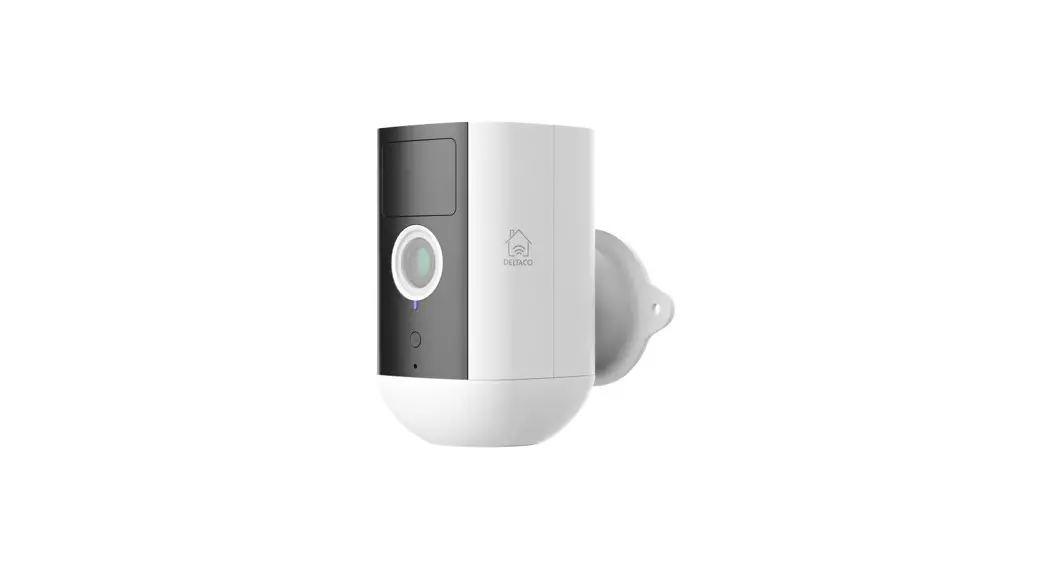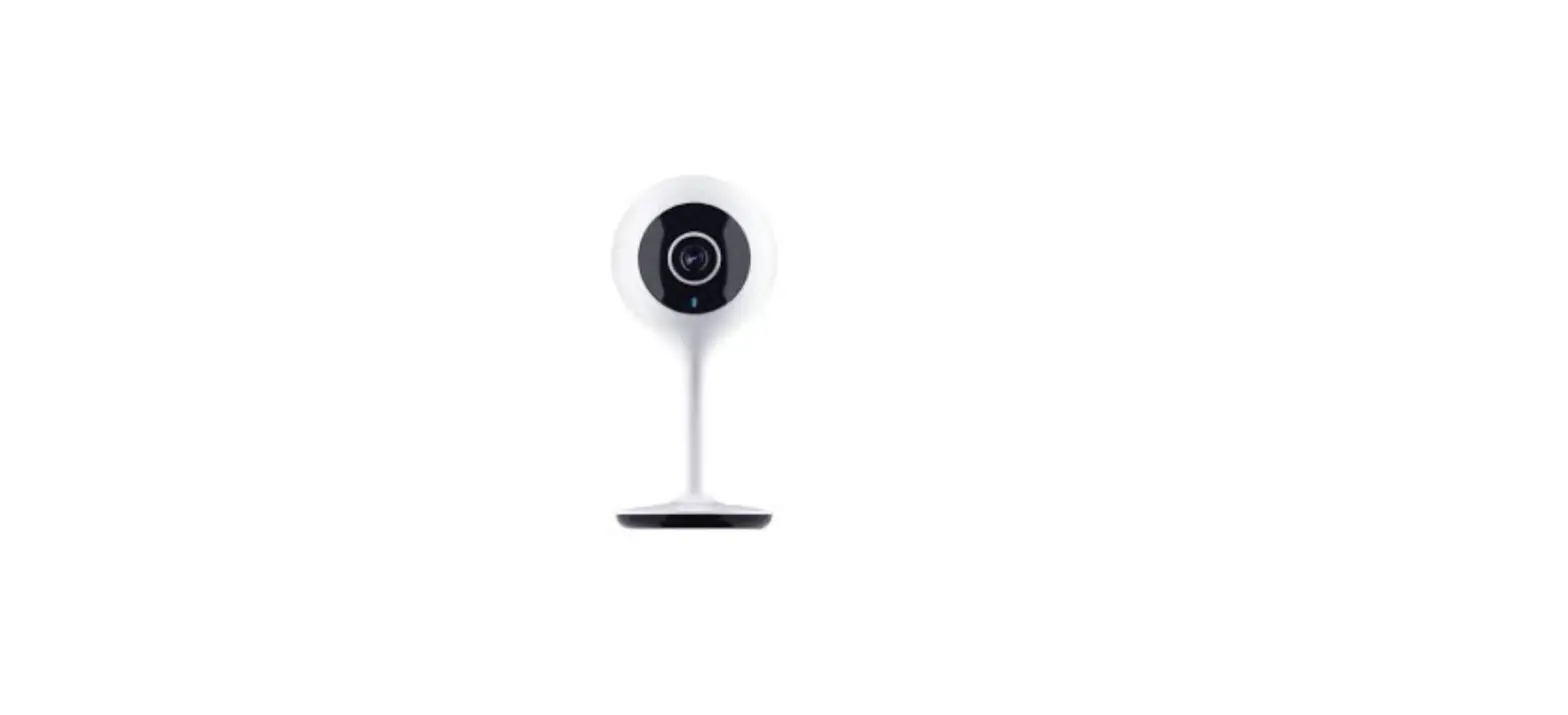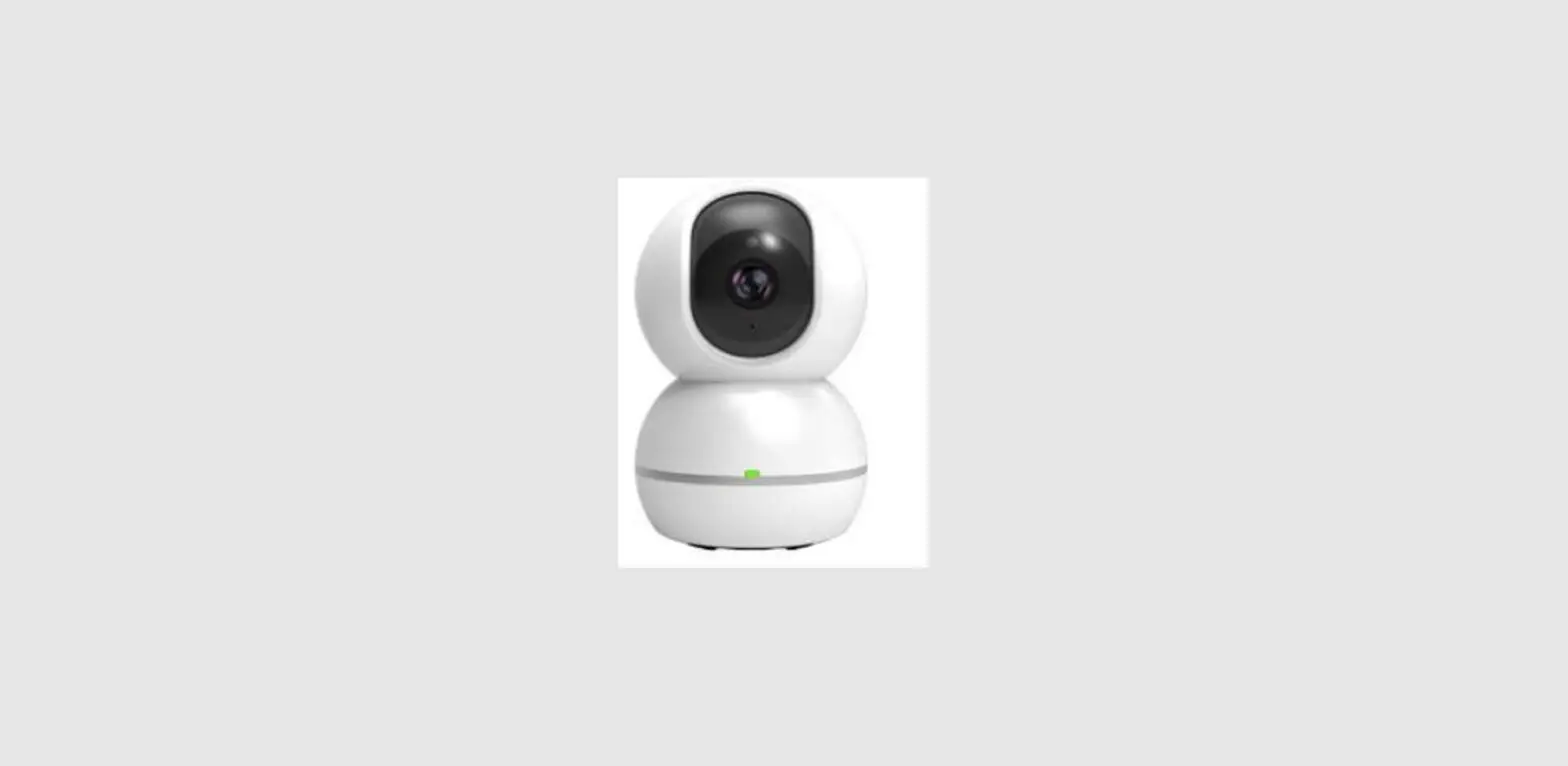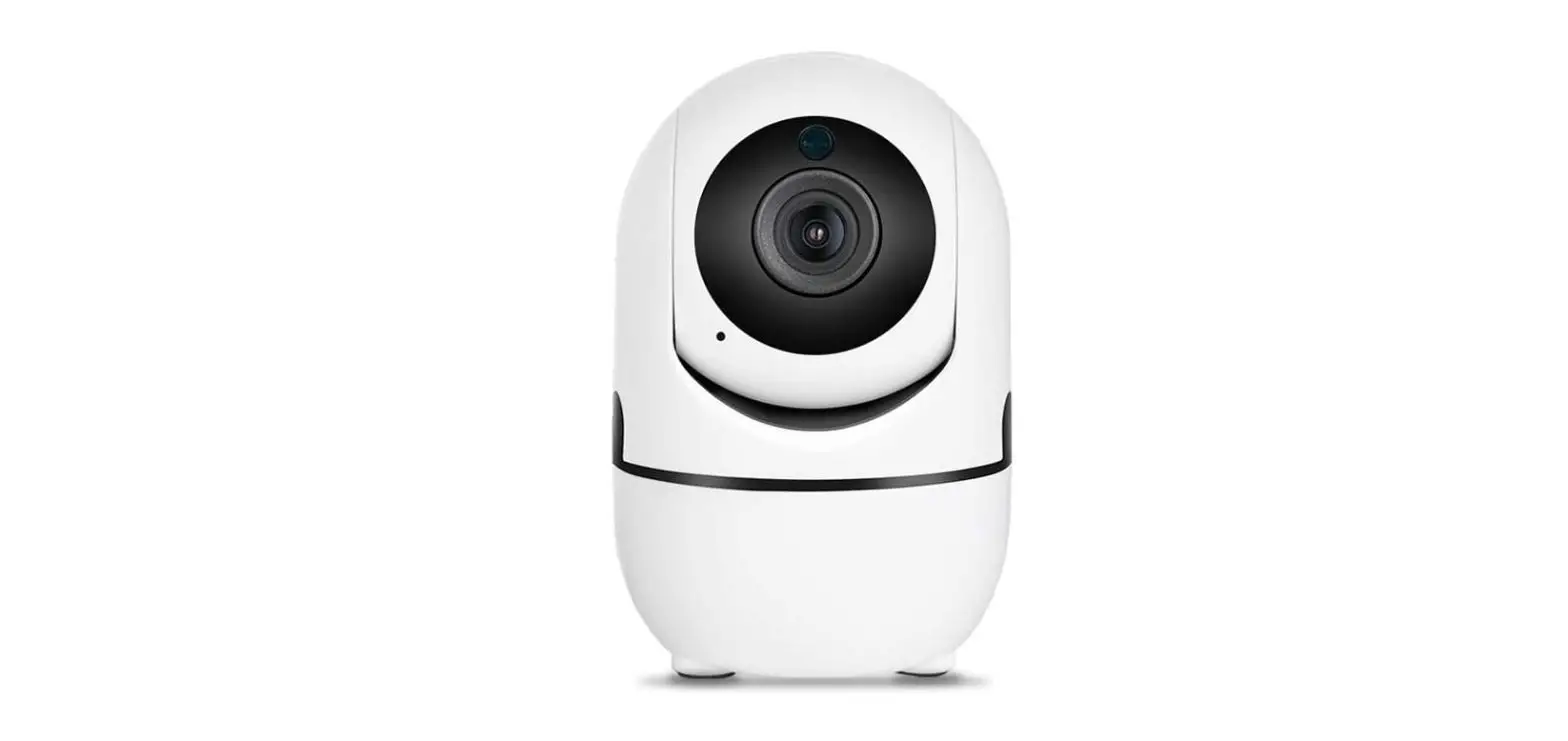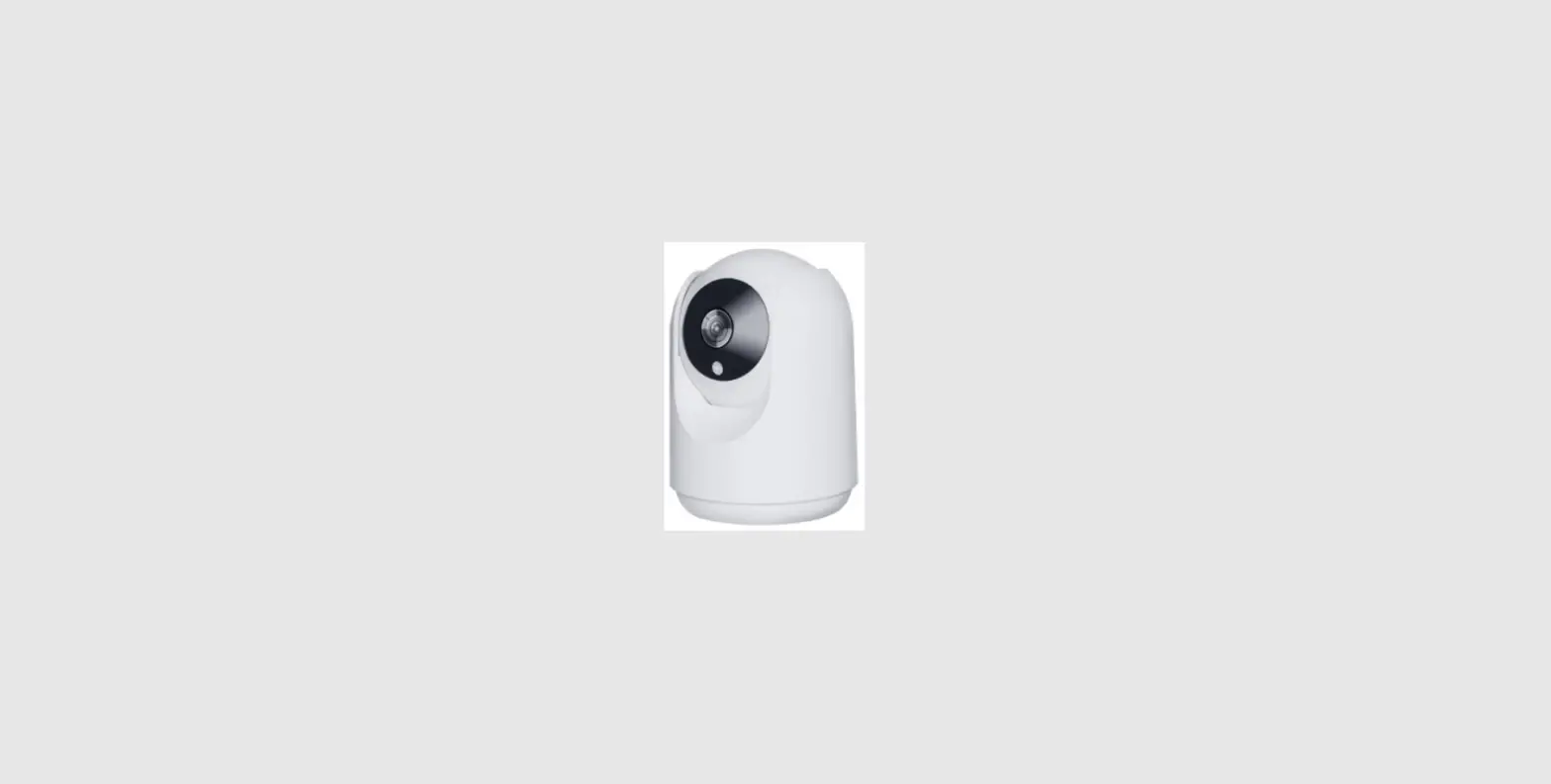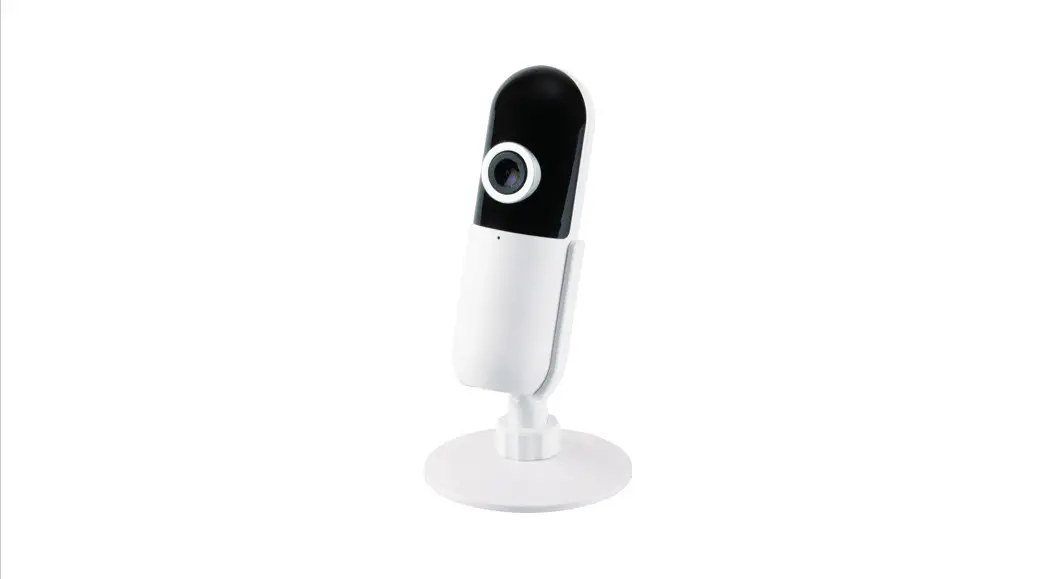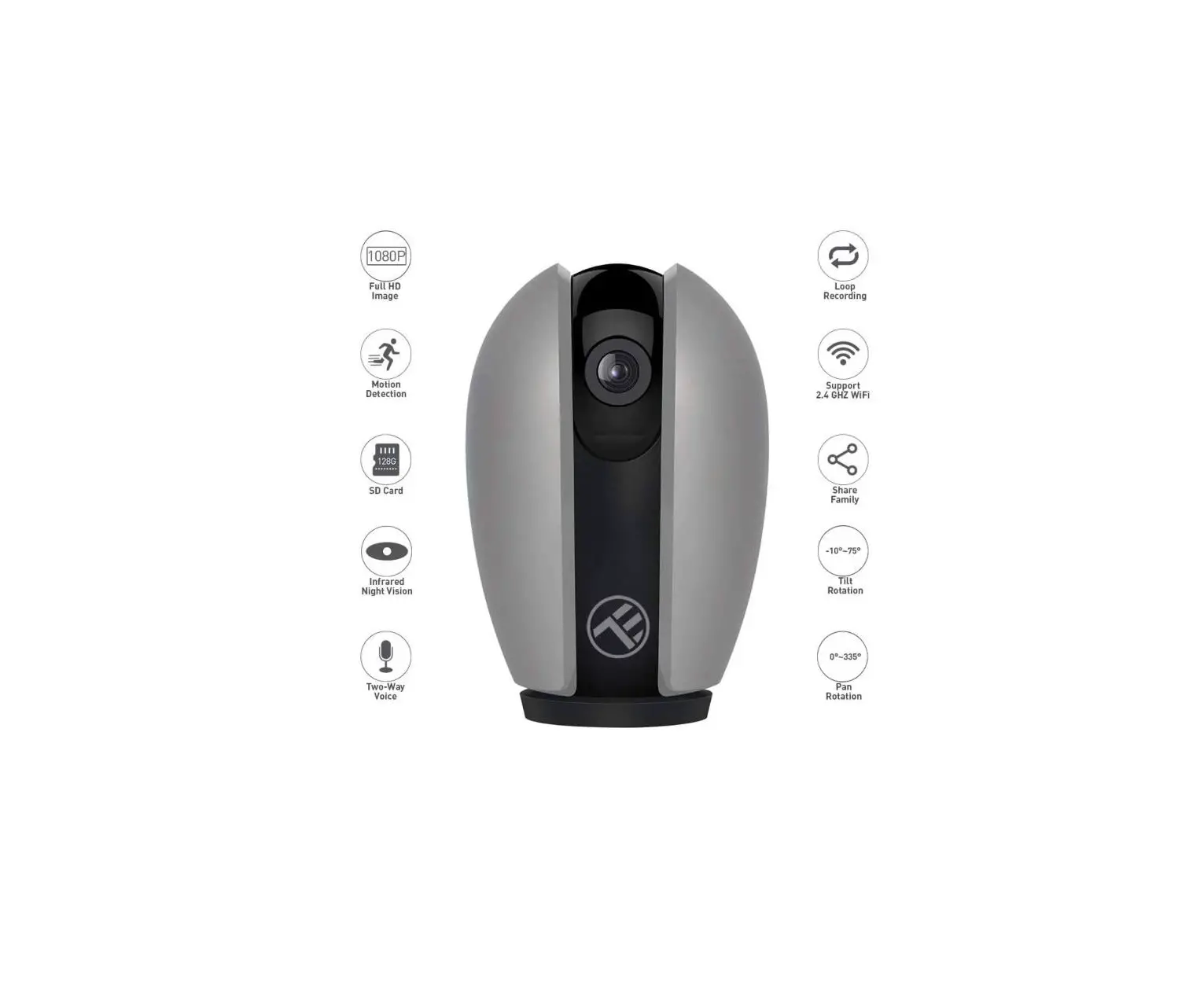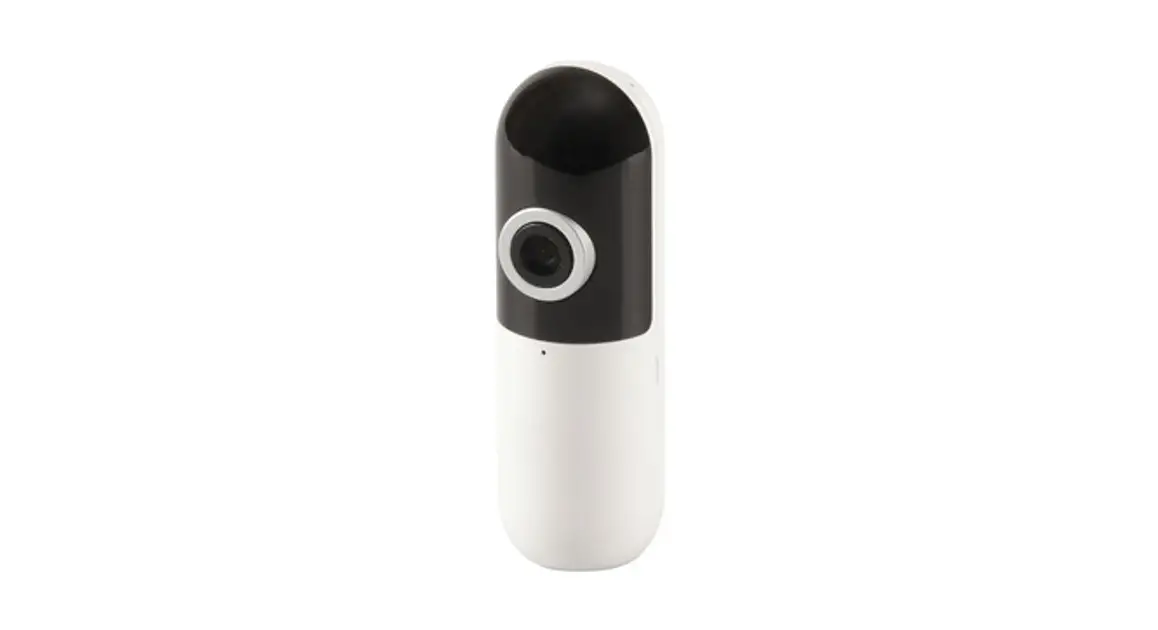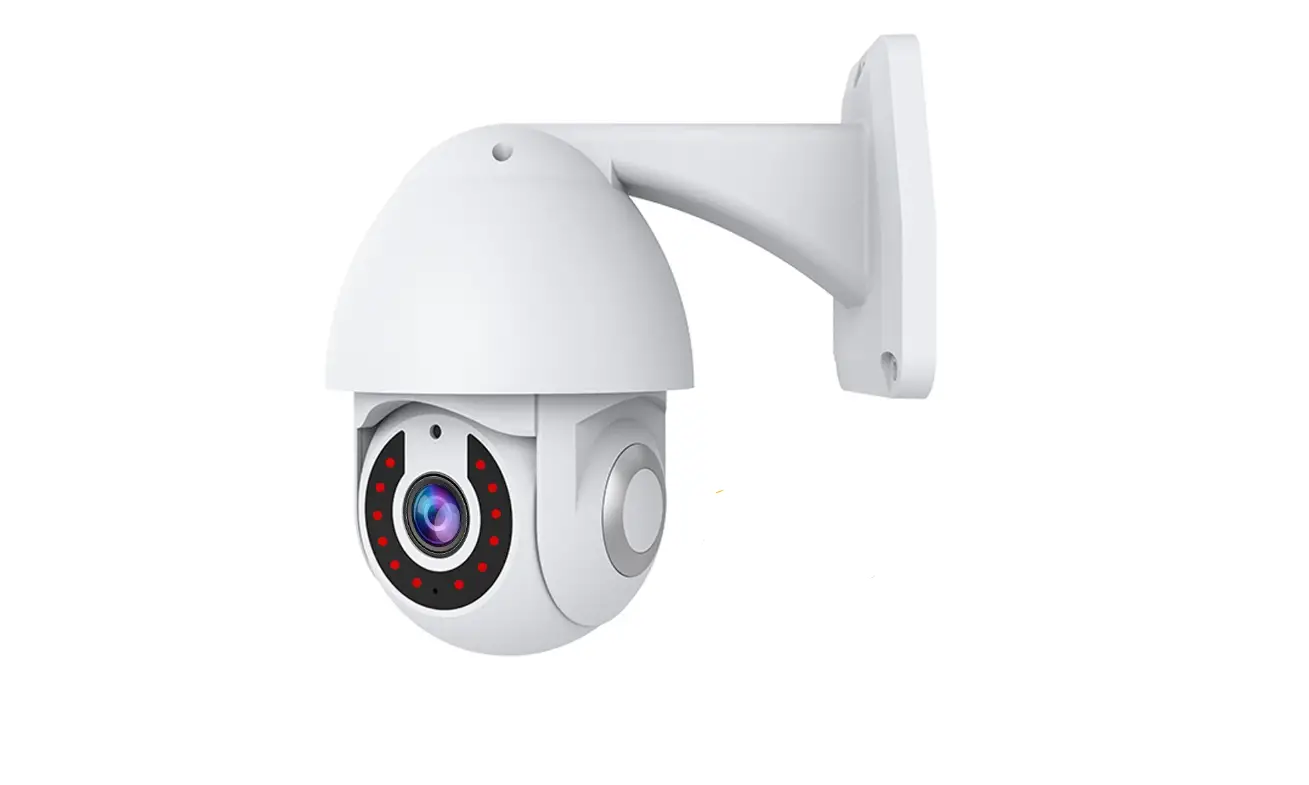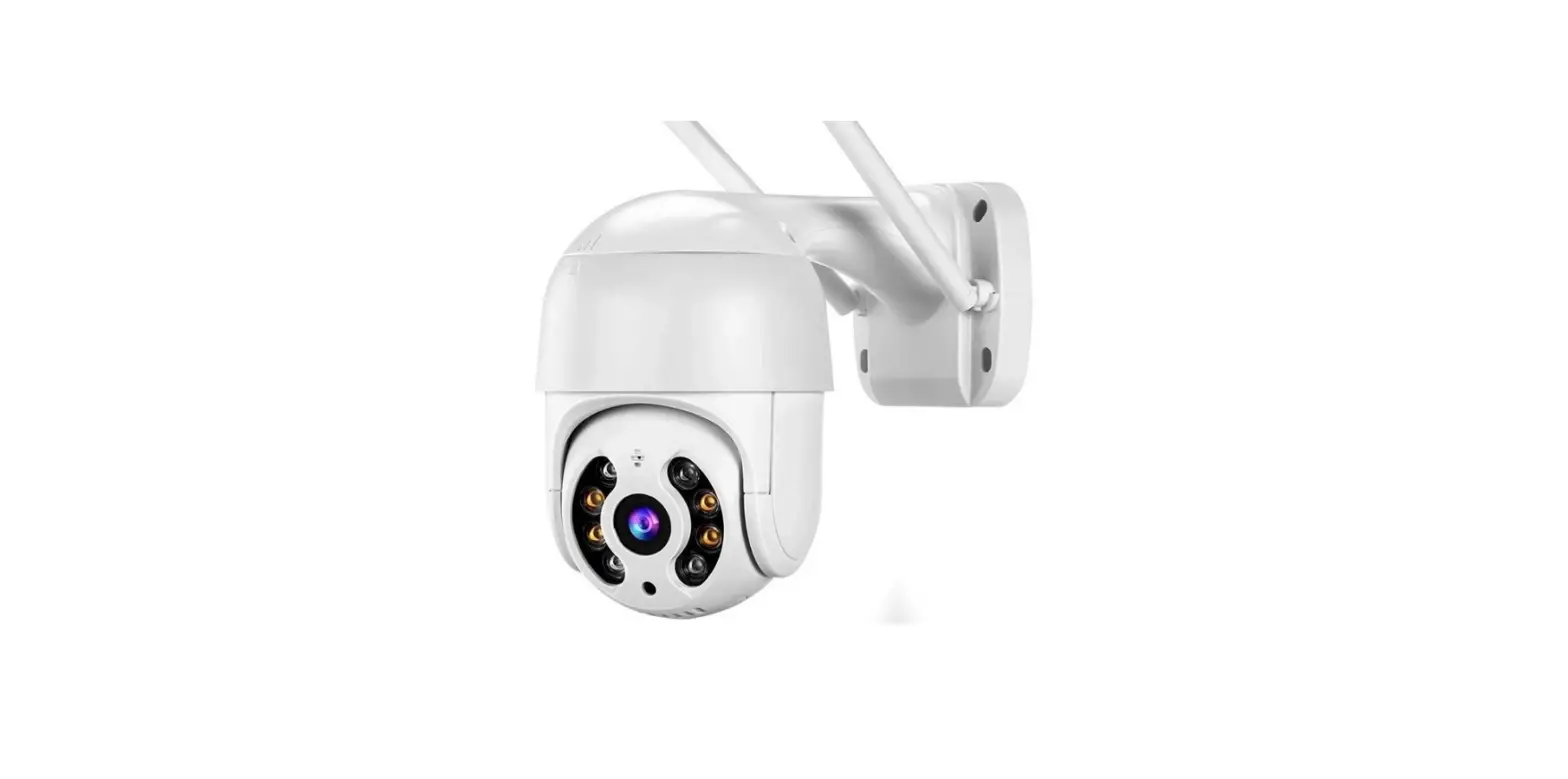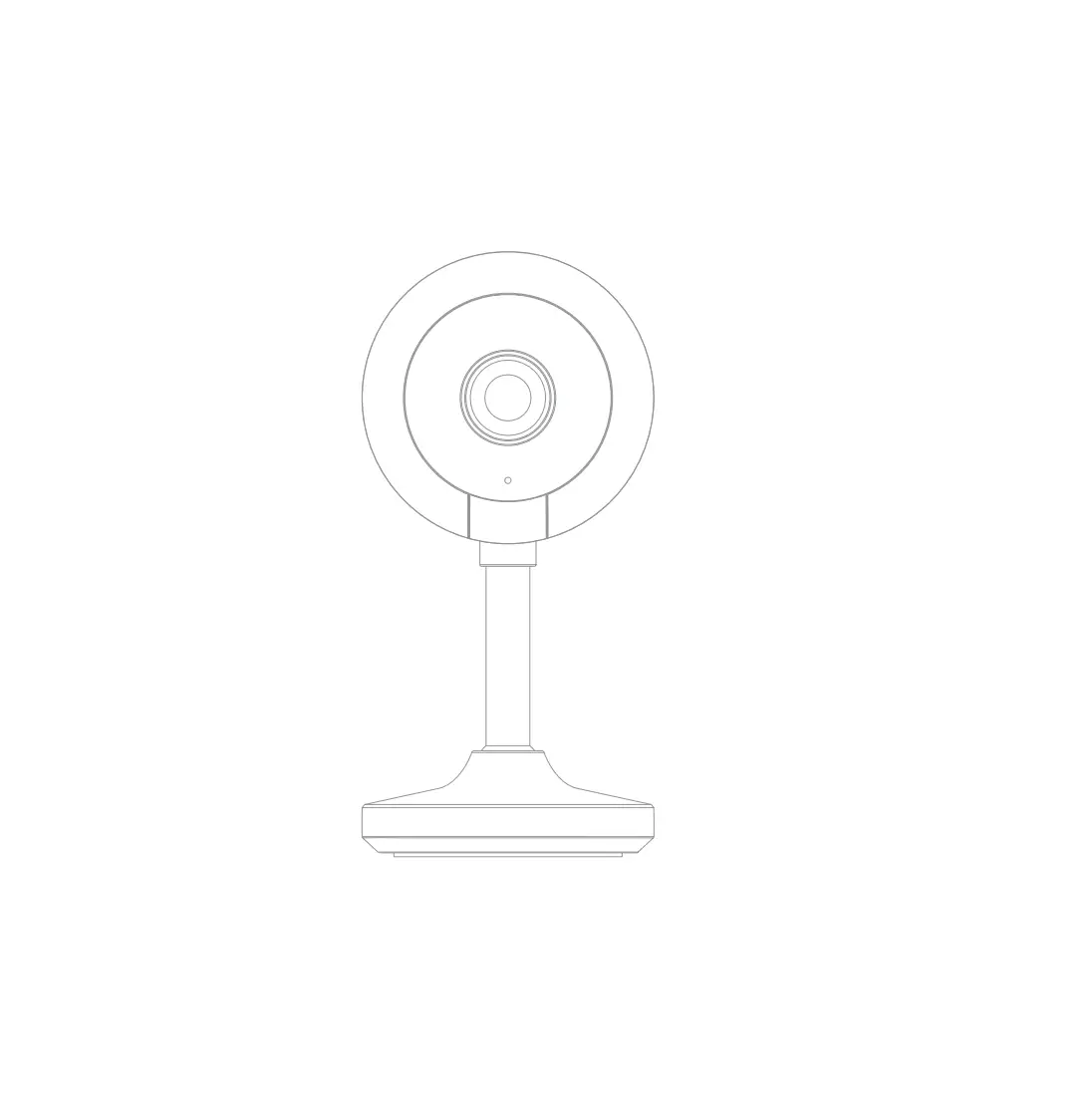
BF-MC01 Smart Wifi Camera
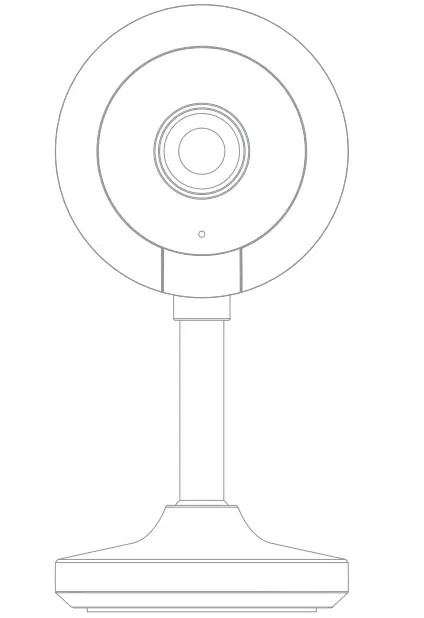
What’s in the box
Please consult this checklist for all parts.
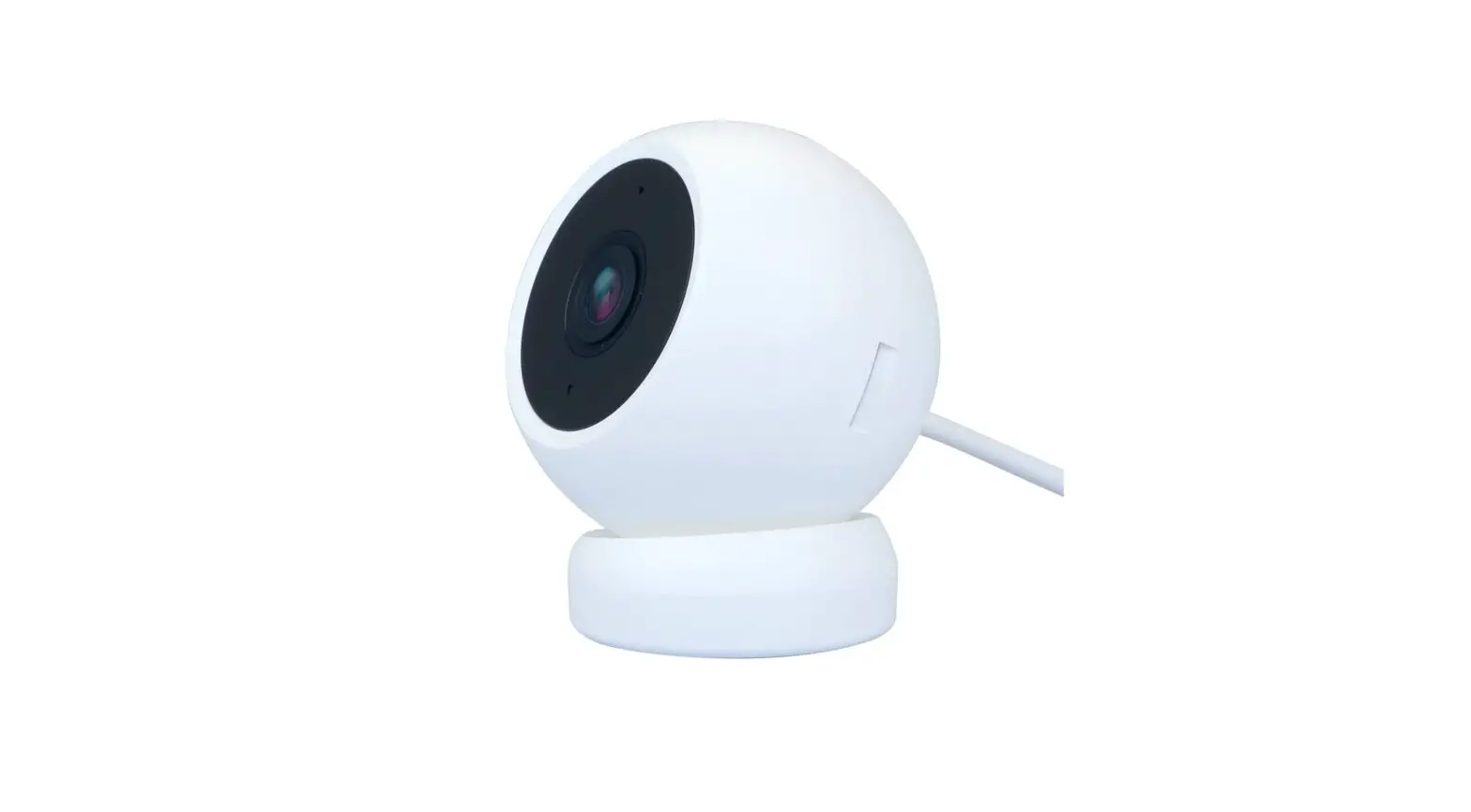
- Camera

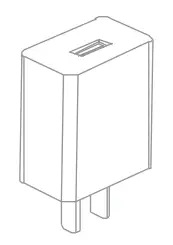
- Power adapter

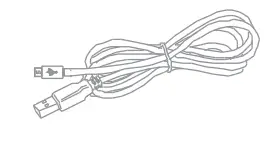
- USB cable

- Adhesive tape

- Manual


Description
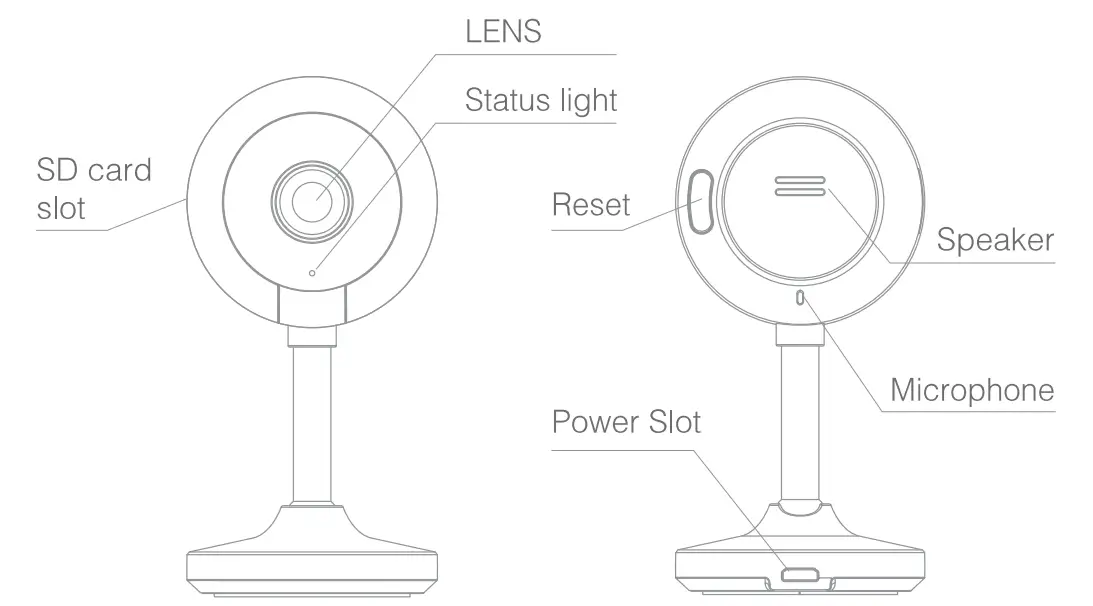
| Power Slot | DC5V ± 10% |
| Status light |
|
| Microphone | Captures sounds for your video |
| SD card slot | Supports local SD Card storage (Max.128G) |
| Reset | Press and hold the ‘RESET’ for 5 seconds to reset the device (if you have modified settings, they will return to factory defaults) Pressing for 1 second will activate manual WiFi setup mode |
Installation Method
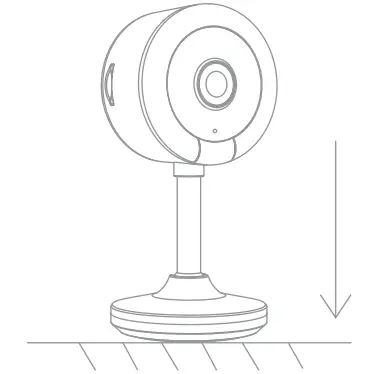
- Put the product directly on a clean and flat table;

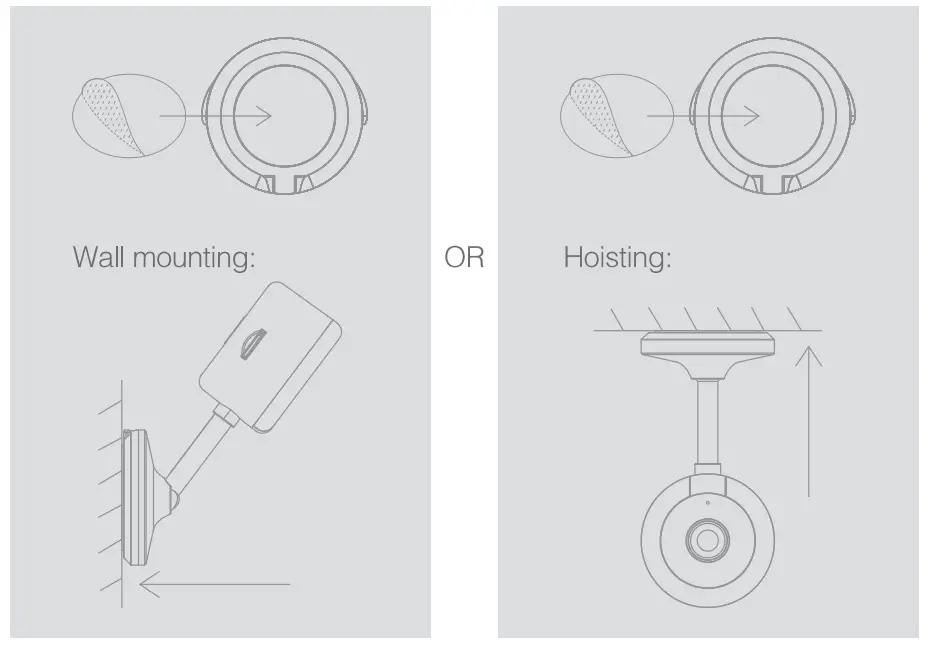
- Choose and wipe clean the flat area to be installed, stick the double-sided tape on the bottom bracket of the product. then wall mount or hoist the device.

Hoisting Notes: The inverted camera causes the image to be reversed, so you need to select the reverse in the view angle option of the APP settings (Setting – Image Setting – Screen Flip).
Connect
Download
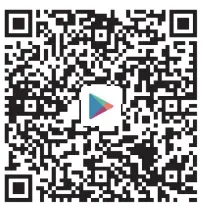
CloudEdge is available for both iOS and Android OS. Search the name ‘CloudEdge’ in App Store or Android Market, or scan upper QR-Code to download the App.
- Support
 |  |
 |  |
Download App ( iOS & Android) | |
Set up router
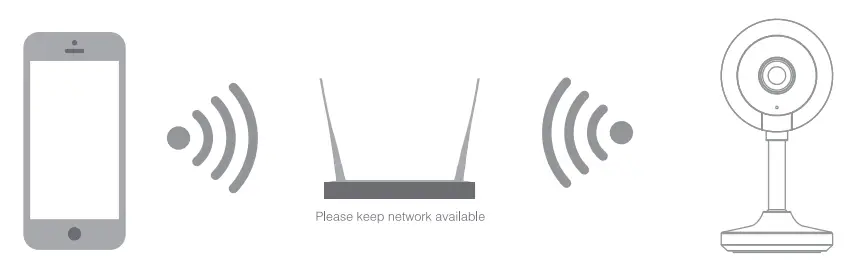
This product only supports 2.4GHz frequency band router, does not support 5GHz frequency band router, please set the relevant parameters of the router before WiFi configuration, WiFi passwords do not include special characters such as ~!@#$%A&*(). When the device is configured in WiFi, the mobile phone and device are as close as to the router, which can speed up the configuration of the device.
Registration process
Step 1 Open the CloudEdge App, click ‘SIGN UP’, input a valid email address and select ‘registration means agreement with user agreement privacy agreement’ then click ‘NEXT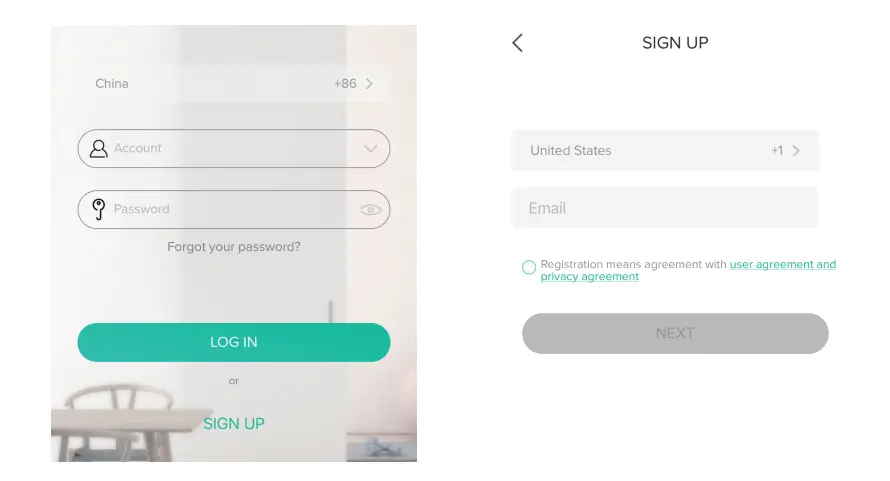
Step 2 Enter the email address and click ‘OK’, create a nickname and login password.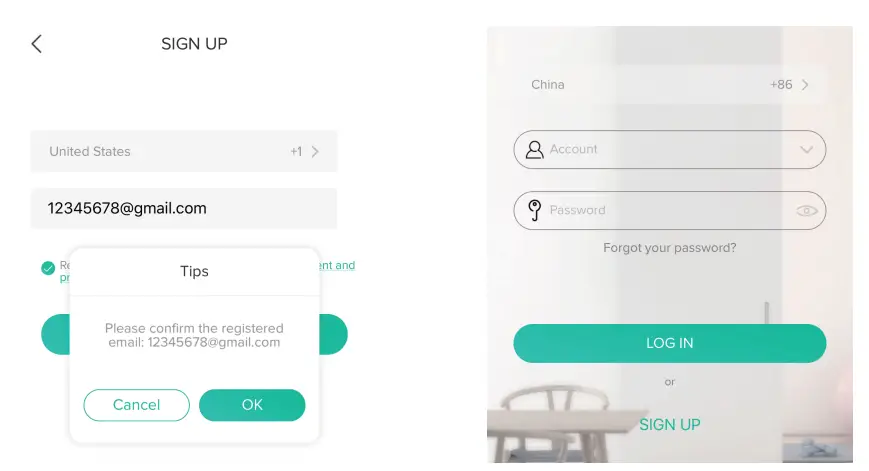
Note: Make sure your router, device, and mobile phone are nearby.
QR Code Configuration
Few notices before adding the device
- This device only supports 2.4GHz WiFi router, please make sure you are using a 2.4GHz WiFi router.
- Please follow the instructions and make sure the password is inputed correctly.
- One device can only be added with one App account, if the device has been added with another account already, then it can’ t be added to any another account again.
Process
Step 1 Open the CloudEdge App, click’+’, and select the type of device to add.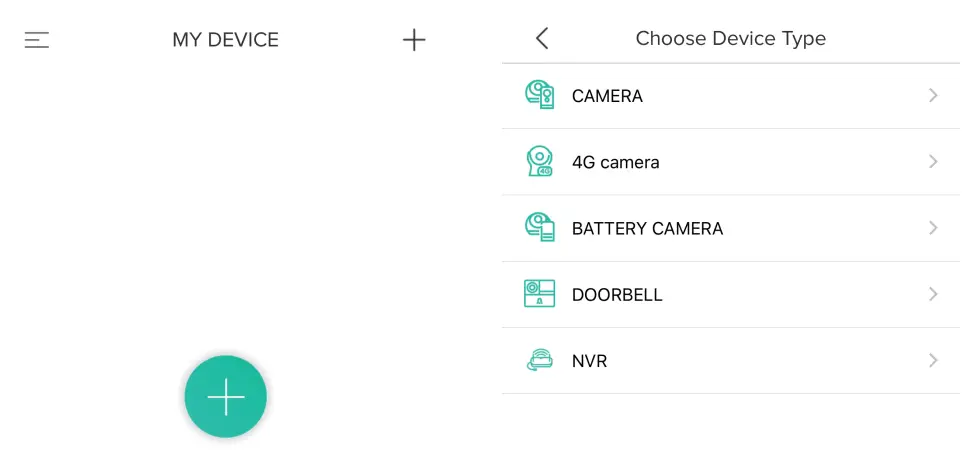
Step 2 Please confirm the red LED light blinks, select ‘The device has flashed red slowly or you hear a tone’, click ‘Next’. Then input the wireless password, click ‘Next’.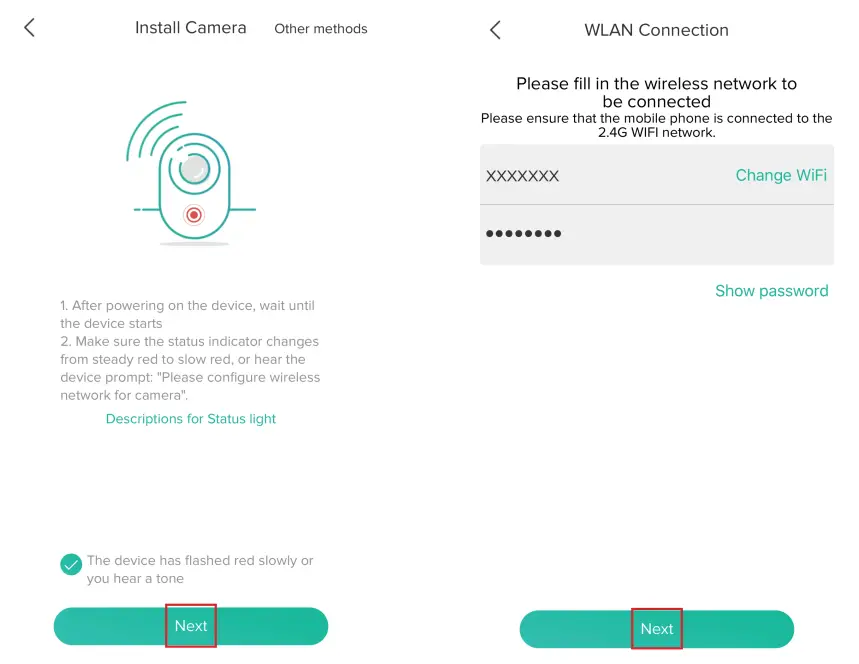
Step 3 The device is scanning the QR code at a distance of 15~25cm (you can click the ‘operation’ to view the scanning mode). After the device scans successfully, click ‘Hear tone’.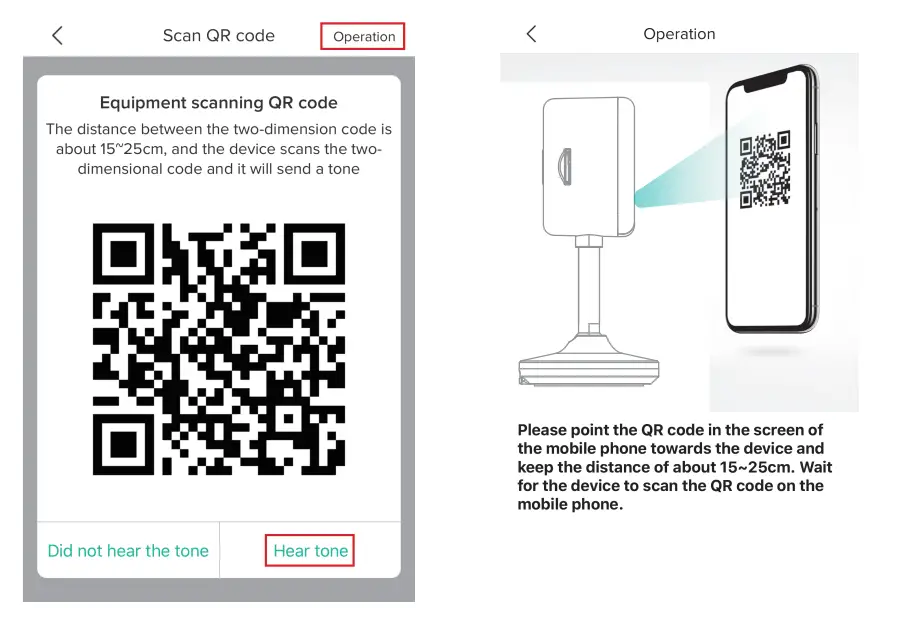
Step 4 The device is successfully connected to the network. After the configuration is completed, the App automatically adds the successfully scanned device, and return to the device list. The configuration is completed.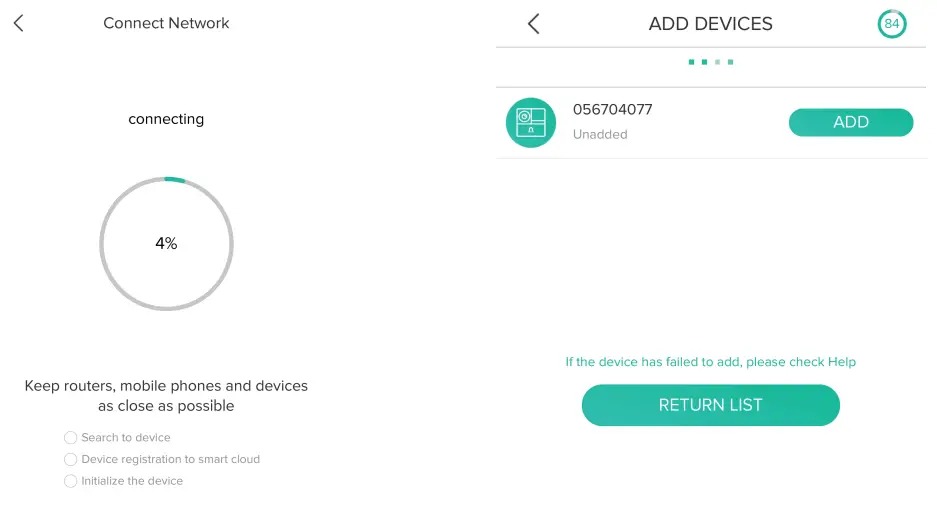
Step 5 Click the play button to complete the preview. (Remind: long press the image to be previewed to remove the device, add device again to reset the device)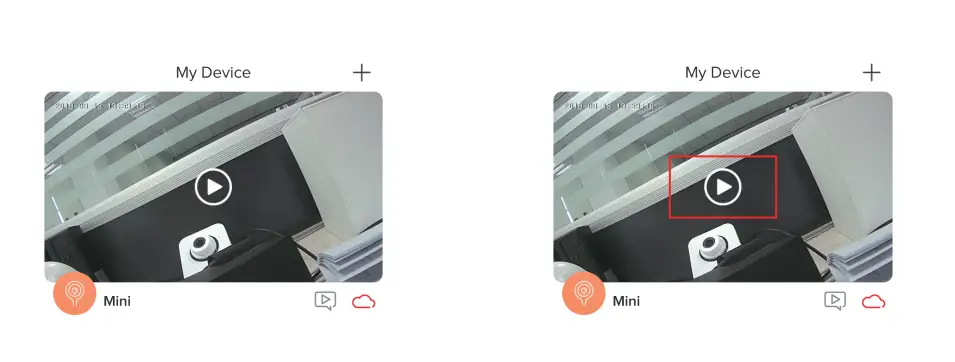
Functions
Video flip
Flip your video stream vertically anytime for maximum flexibility.
Motion detection
Motion sensors will notify you when movement is detected.
Record
Record every moment using high capacity SD card storage.
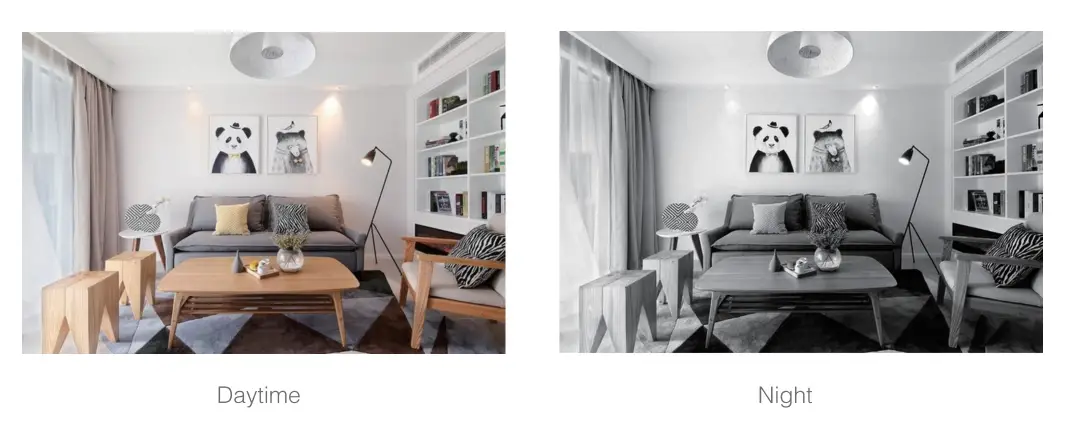
Day & Night
Powerful night vision means no interruptions, even in complete darkness.

FAQ
A: Check whether the network is normal, you can place the camera close to the router, and if not, it is recommended to reset the device and add it again.
A: The reset device only resets the network configuration of the camera, but cannot change the configuration on the App, remove the camera, and must be deleted by the App.
A: First remove and reset the device on the App and then configure the device again by the App.
A: It is recommended to plug in SD card after power cut. Confirm whether the SD card is normally available and the format is FAT32. And the TF card can’t be identified when the internet environment is not good.
A: Please confirm that the App has been running on the phone, and the relevant reminder function has been opened; Message notification and authority confirmation in the mobile phone system have been opened.