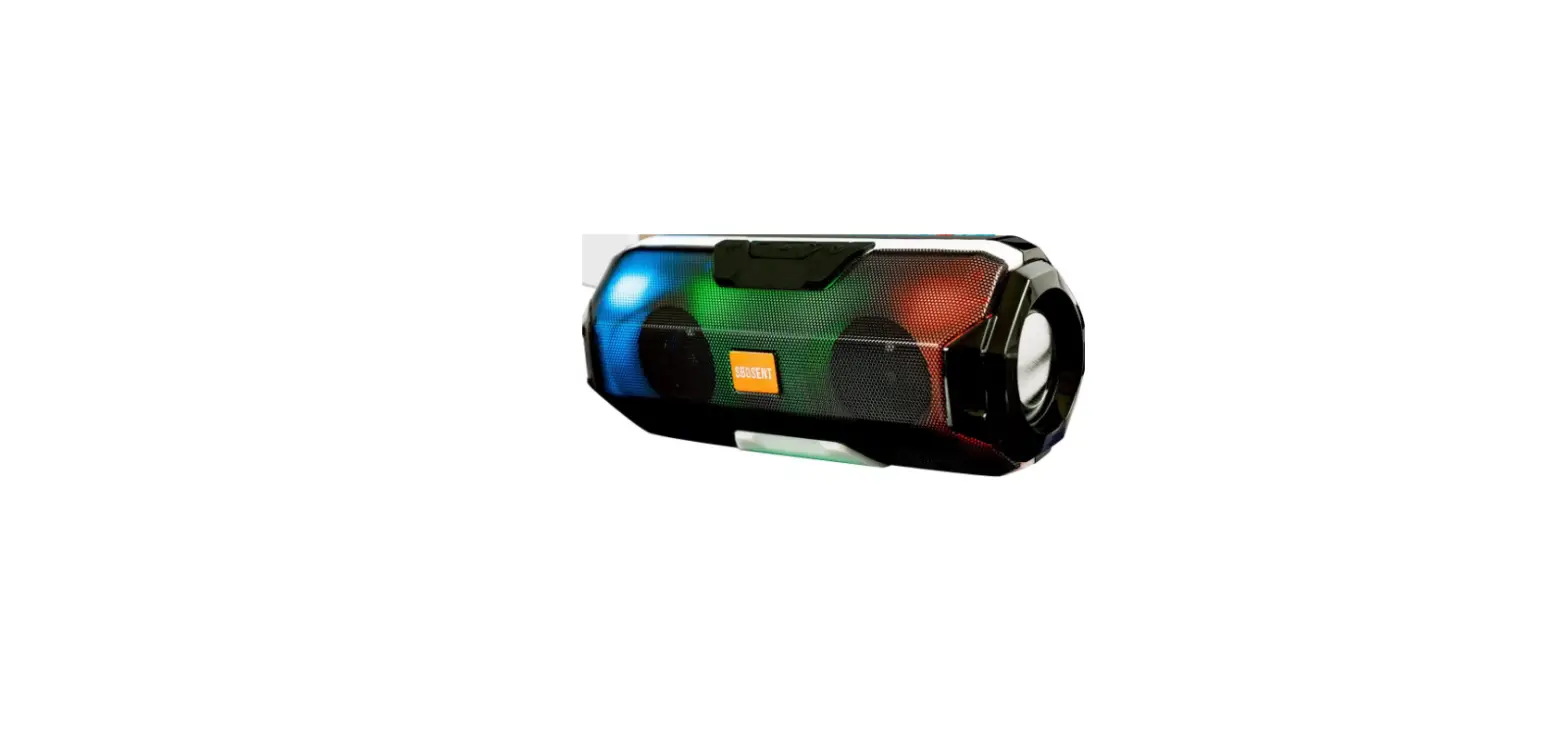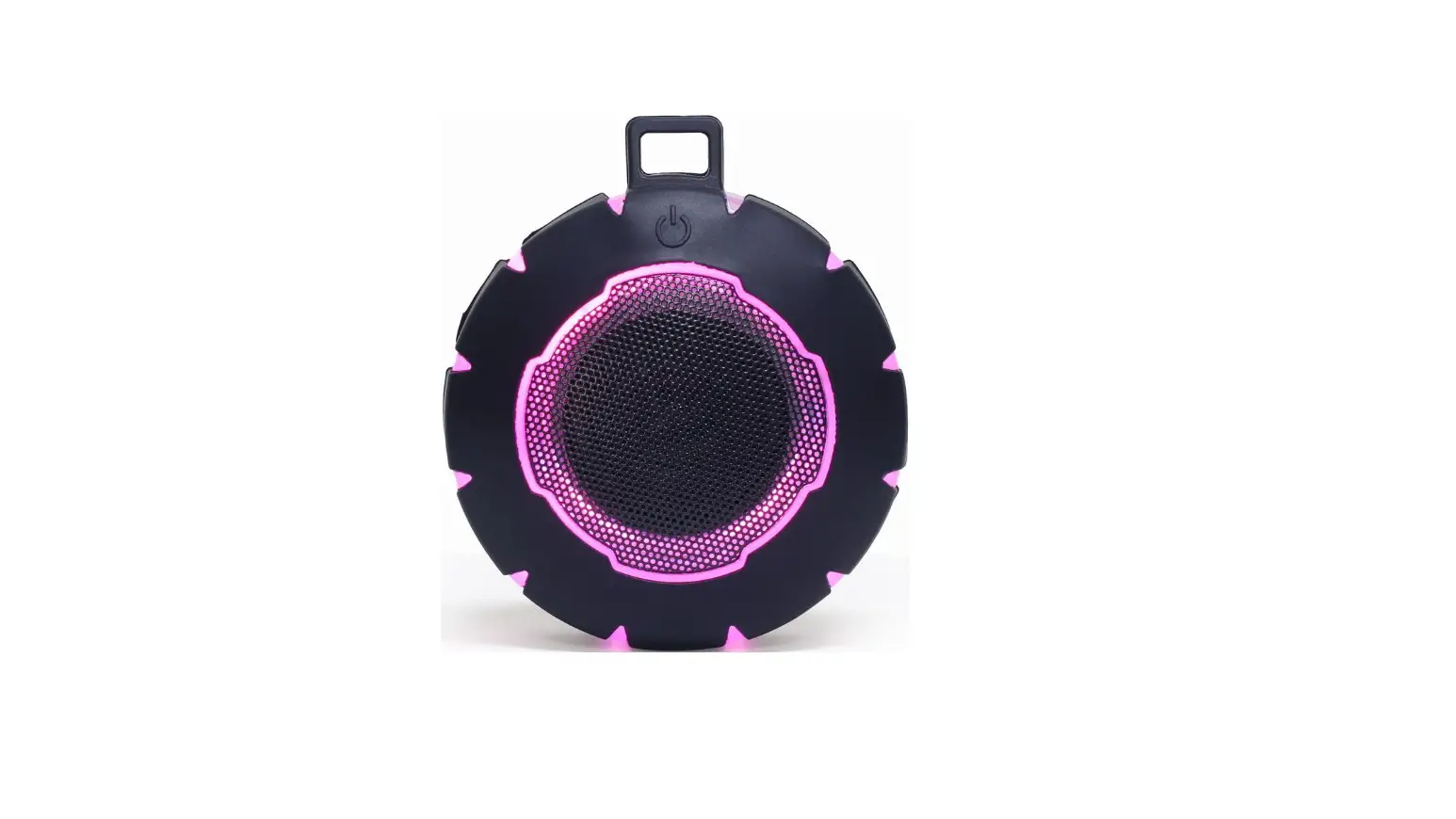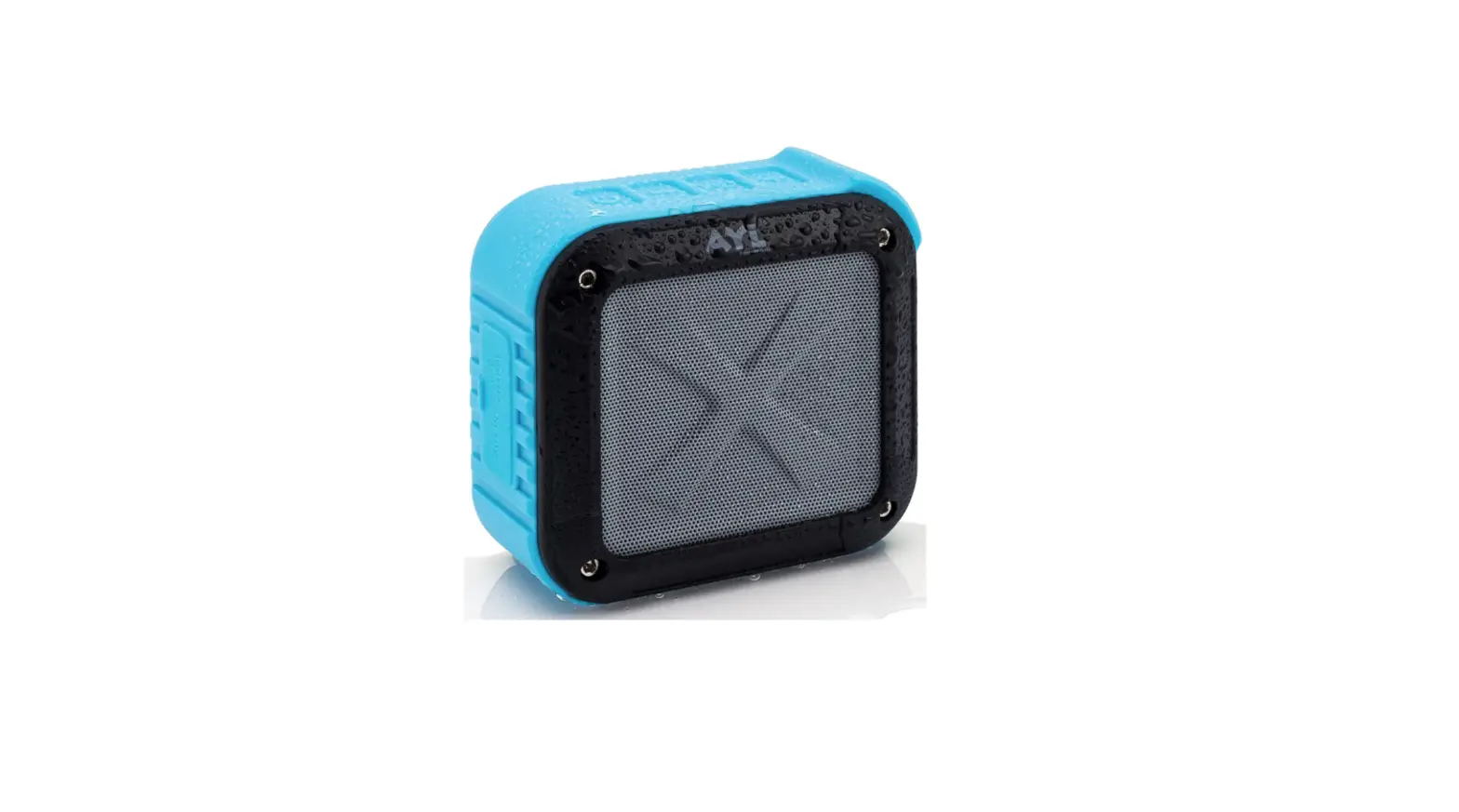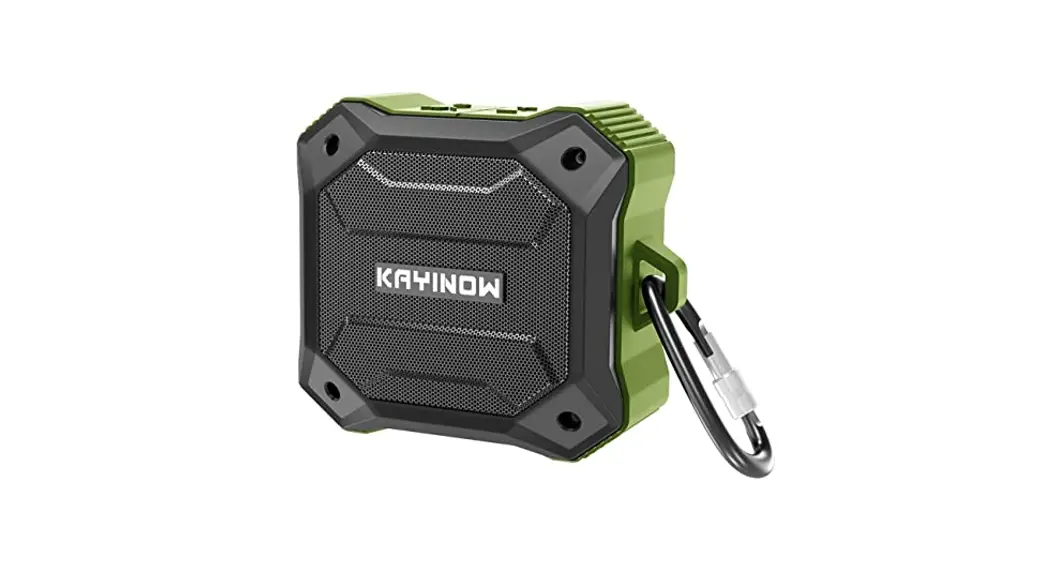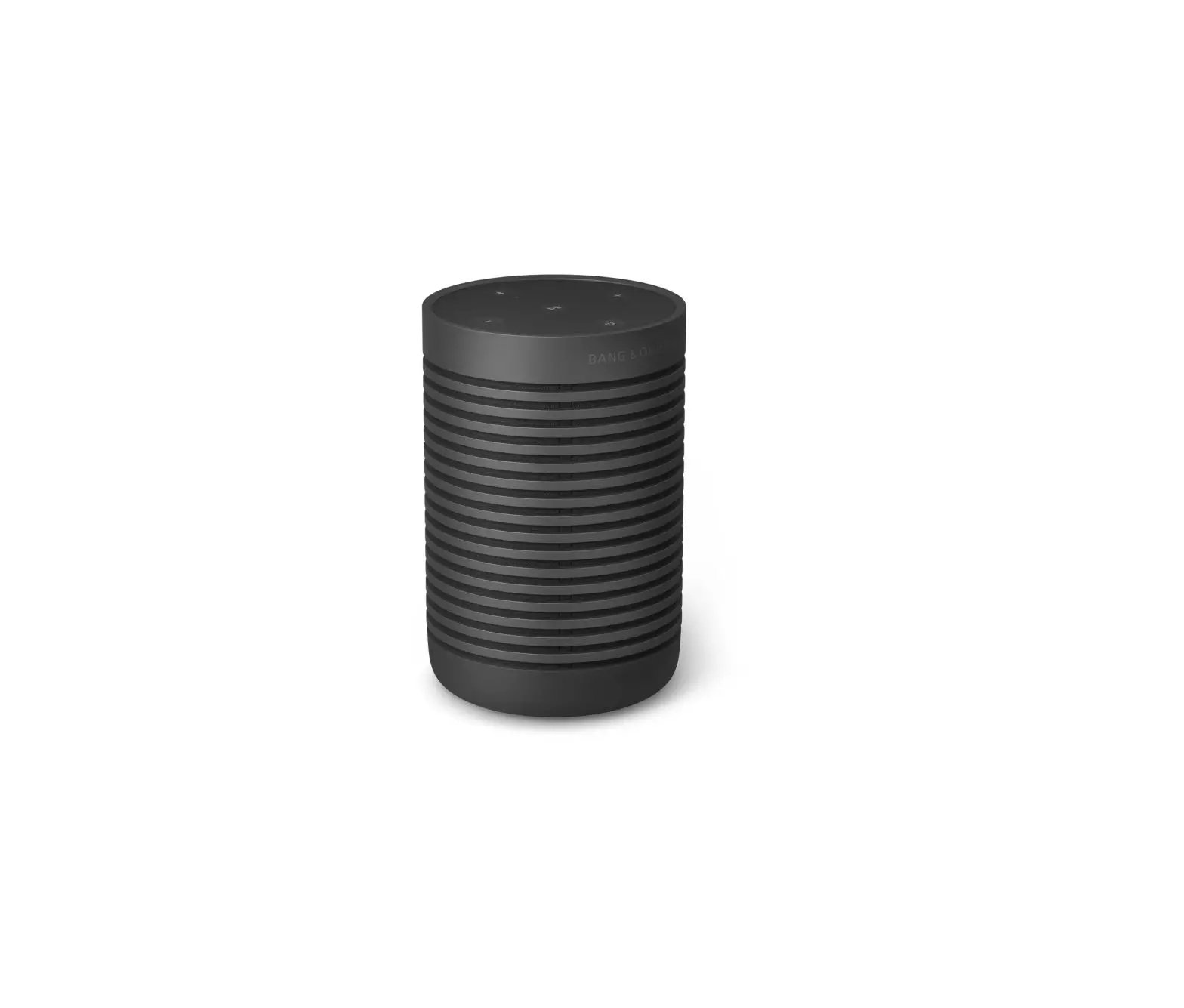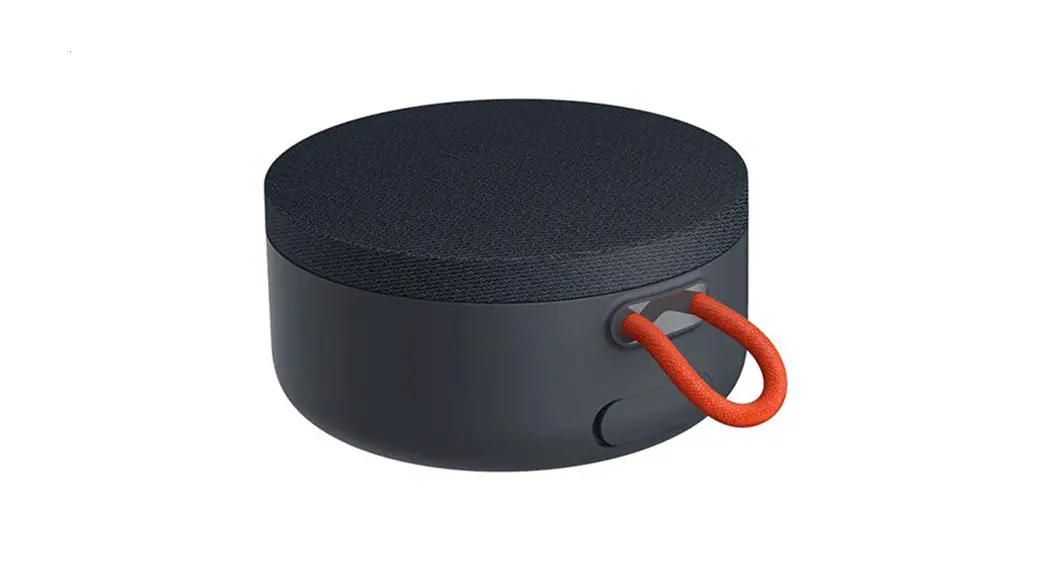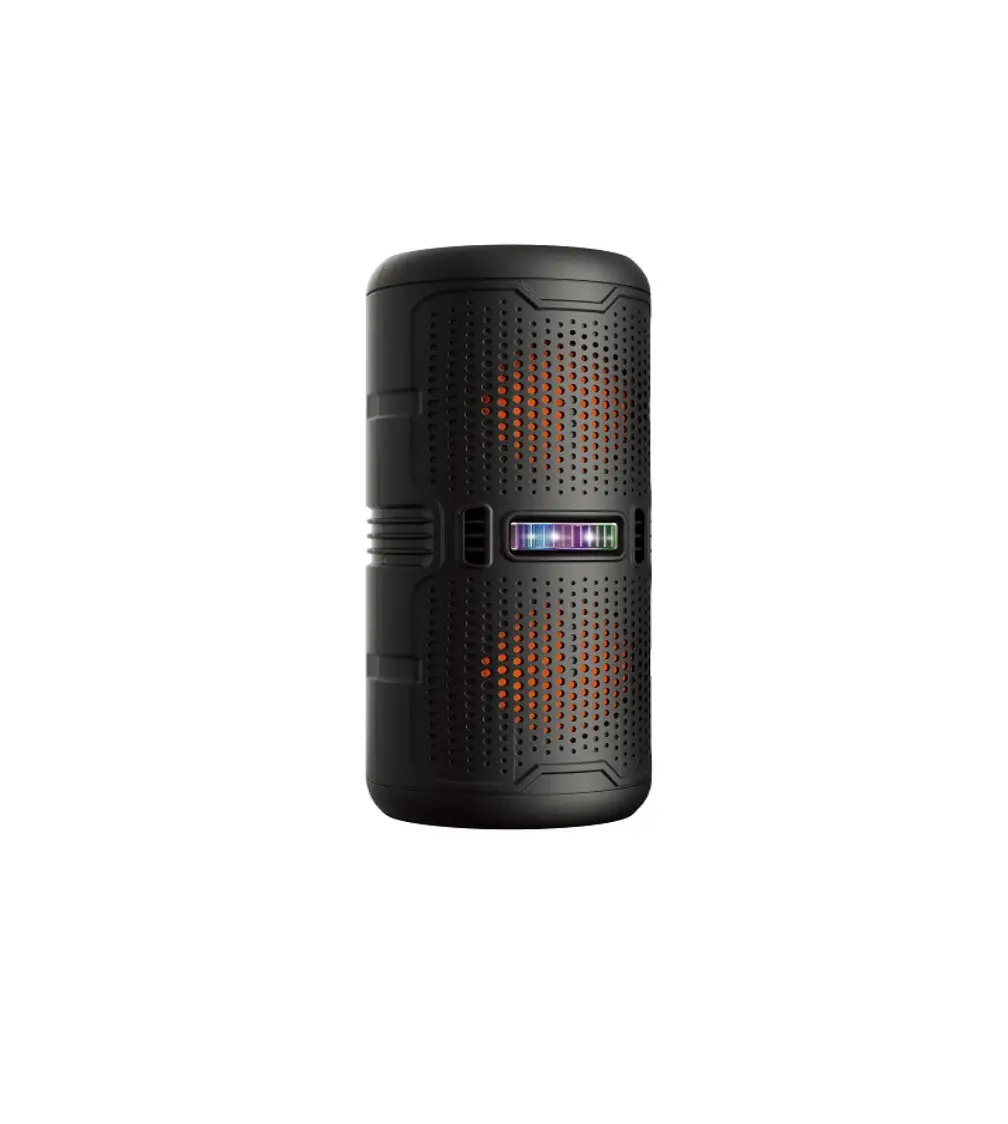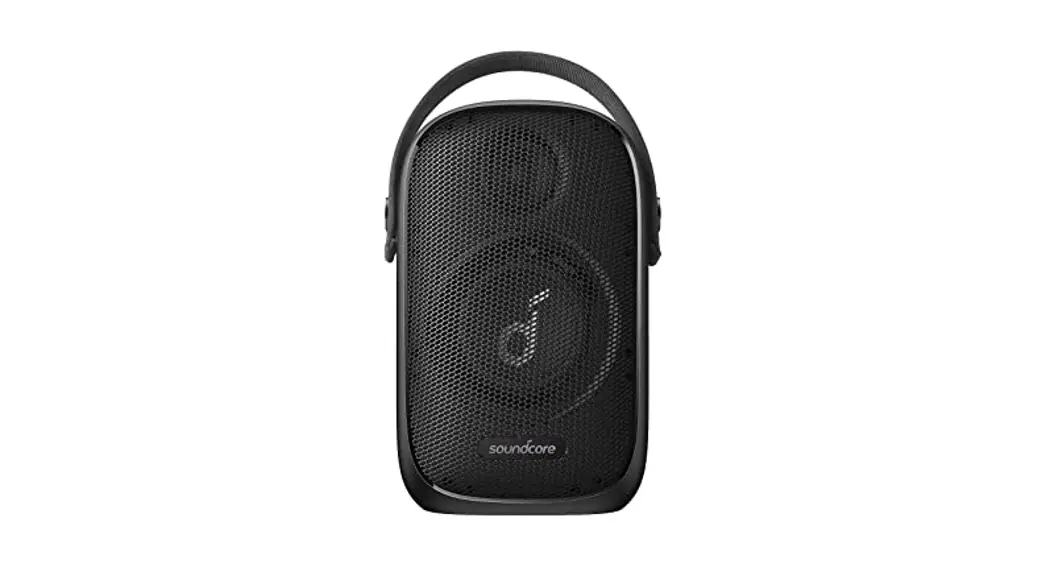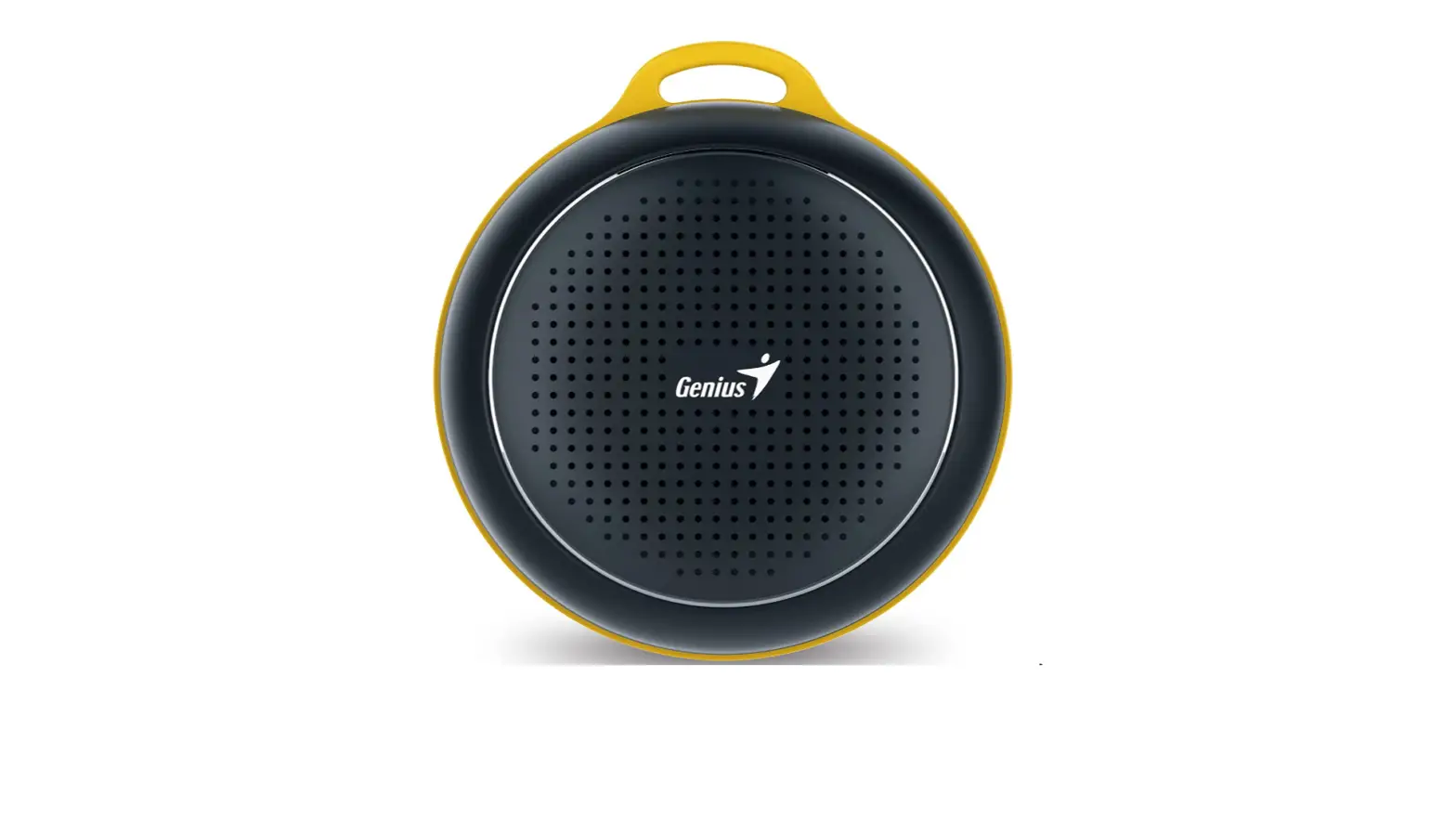

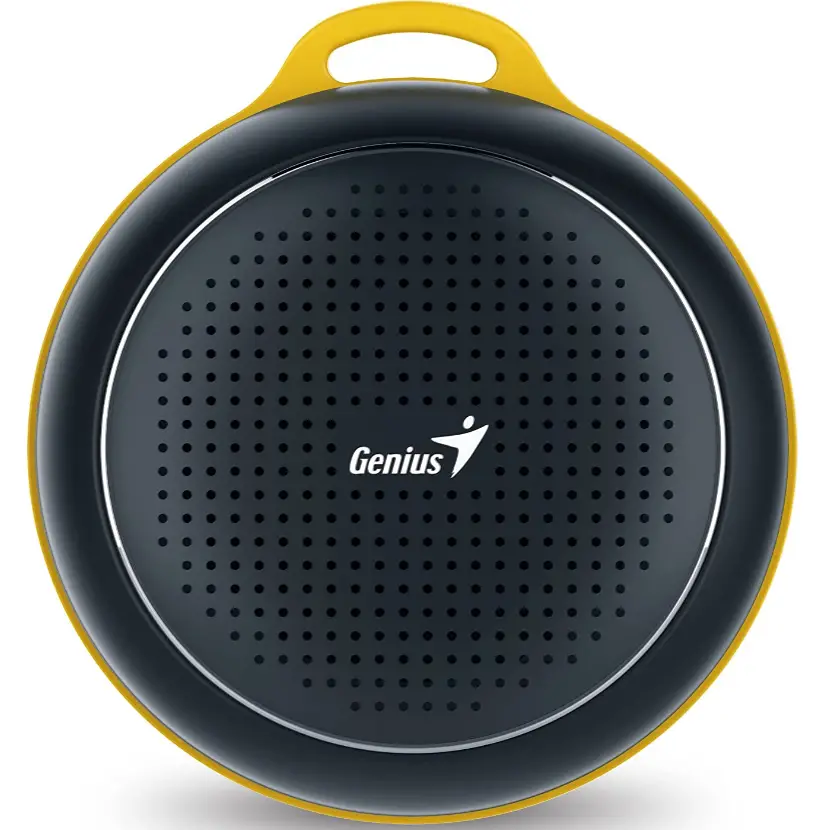
Genius SP-906BTBlack Outdoor Portable Bluetooth Speaker
Specifications
- Product Dimensions
3.15 x 1.78 x 3.45 inches - Item Weight
6.5 ounces - Batteries
1 Lithium Polymer batteries - Speaker Type
Single Speaker - Connectivity Technology
Bluetooth - Brand
Genius
Introduction
The ideal companion for when you are engaged in outdoor activities. You can have fun outside of your home while listening to music at its best with our Bluetooth speaker.
What’s in the box
- Speaker
- USB charging cable
- Multi-language quick guide
General Functions
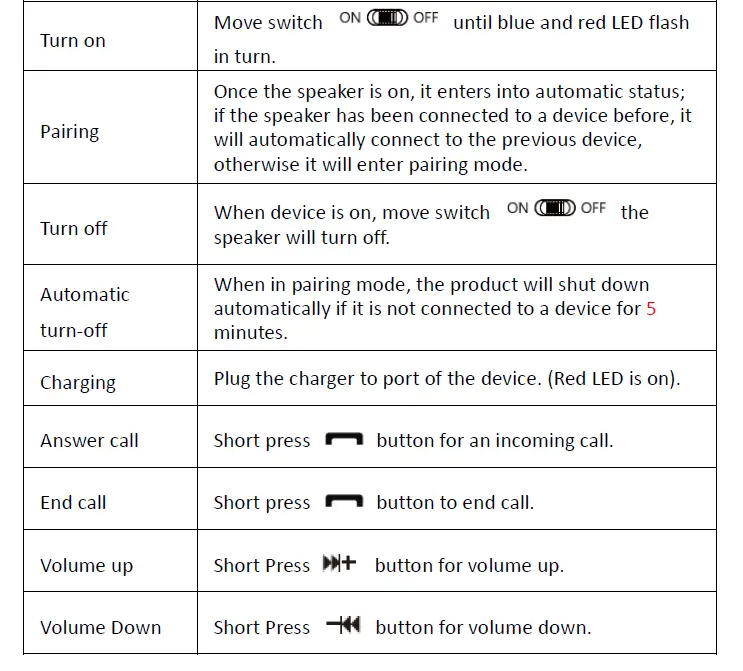
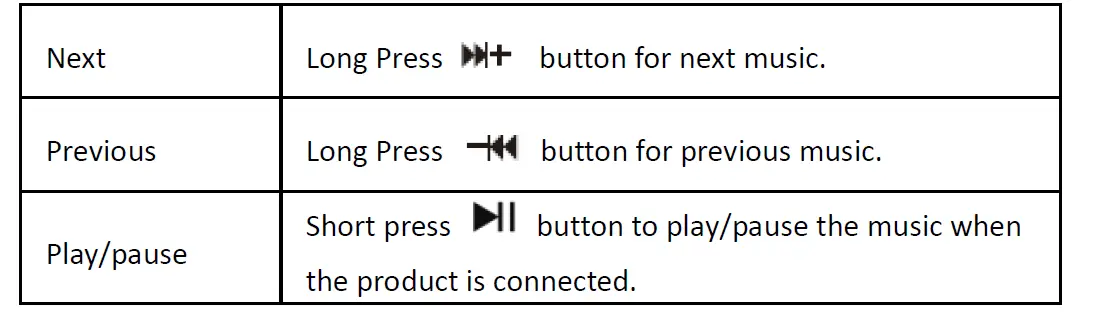
Pairing to a phone or entertainment device
- Turn on your phone and ensure its Bluetooth function is activated.
- Turn on the Bluetooth speaker and go to pairing mode.
- Search for Bluetooth devices on your phone by following the phone’s instructions. Refer to your phone’s user manual for more information.
- After a few seconds, the phone will list the device as a “discover device”.
- Select it and follow your phone instruction to select this pairing.
- Your phone will confirm the pairing, and then press Yes/Ok.
- Finally, select “connect with device” from your phone.
Note
The device is convenient to connect to an AC charger or a USB charger with the Micro USB cable. Make sure that your device is fully charged for at least six hours before initial use.
How can I pair a Bluetooth speaker with my phone?
- Pair a Bluetooth device in the first step.
- From the top of the screen, swipe downward.
- Touch Bluetooth and hold it.
- To pair a new device, tap. If Pair new device isn’t there, go under “Available devices” or hit More. Refresh.
- Select the Bluetooth device you want to associate with your device by tapping its name.
- Observe any directions displayed on the screen.
Frequently Asked Quesstions
The total output is 3W
Yes for it’s size you will be amazed of this sound
Go to Settings > System > Advanced> Reset Options > Reset Wi-fi, mobile, & Bluetooth on Android devices. For iOS and iPadOS devices, you’ll need to unpair every device first, then restart your phone or tablet by going to Settings > Bluetooth, selecting the info icon, then selecting Forget This Device for each device.
Android users must go to Bluetooth Settings and pair each Bluetooth speaker or set of headphones individually. After connecting, click on Advanced Settings by tapping the three-dot icon on the right. If the “dual audio” option is not already selected, switch it on. Users should be able to connect to two devices at once thanks to this.
There is a tiny, pinhole button with the word “reset” on it in the device’s control section, frequently hidden by a rubber cover. To press this button, use a pencil or another pointed object. When you hear the gadget turn off, hold down the “volume down” and “power” keys simultaneously for around 6 seconds.
When partnering with another Bluetooth® device, use the code 0000. Depending on the Bluetooth device being used, the passcode may display as Pass key, PIN code, PIN number, or Password.
On your device, look for the Settings app, then choose it. Select Bluetooth or the Bluetooth icon by scrolling down and clicking. Switch Bluetooth on.
Instead of an internet connection, short-range radio waves are how Bluetooth operates. This means you don’t need a data plan or even a cellular connection for Bluetooth to function anywhere you have two compatible devices.
To connect Media Audio to a device through Bluetooth, select Settings > Bluetooth, click the gear symbol next to the device, and then check the box next to the Media Audio icon.
Make sure Bluetooth is turned on before attempting to connect your device in Bluetooth settings. If your iPhone still has trouble connecting to Bluetooth, you can try updating your iOS software, clearing your network settings, or completely restarting your phone.