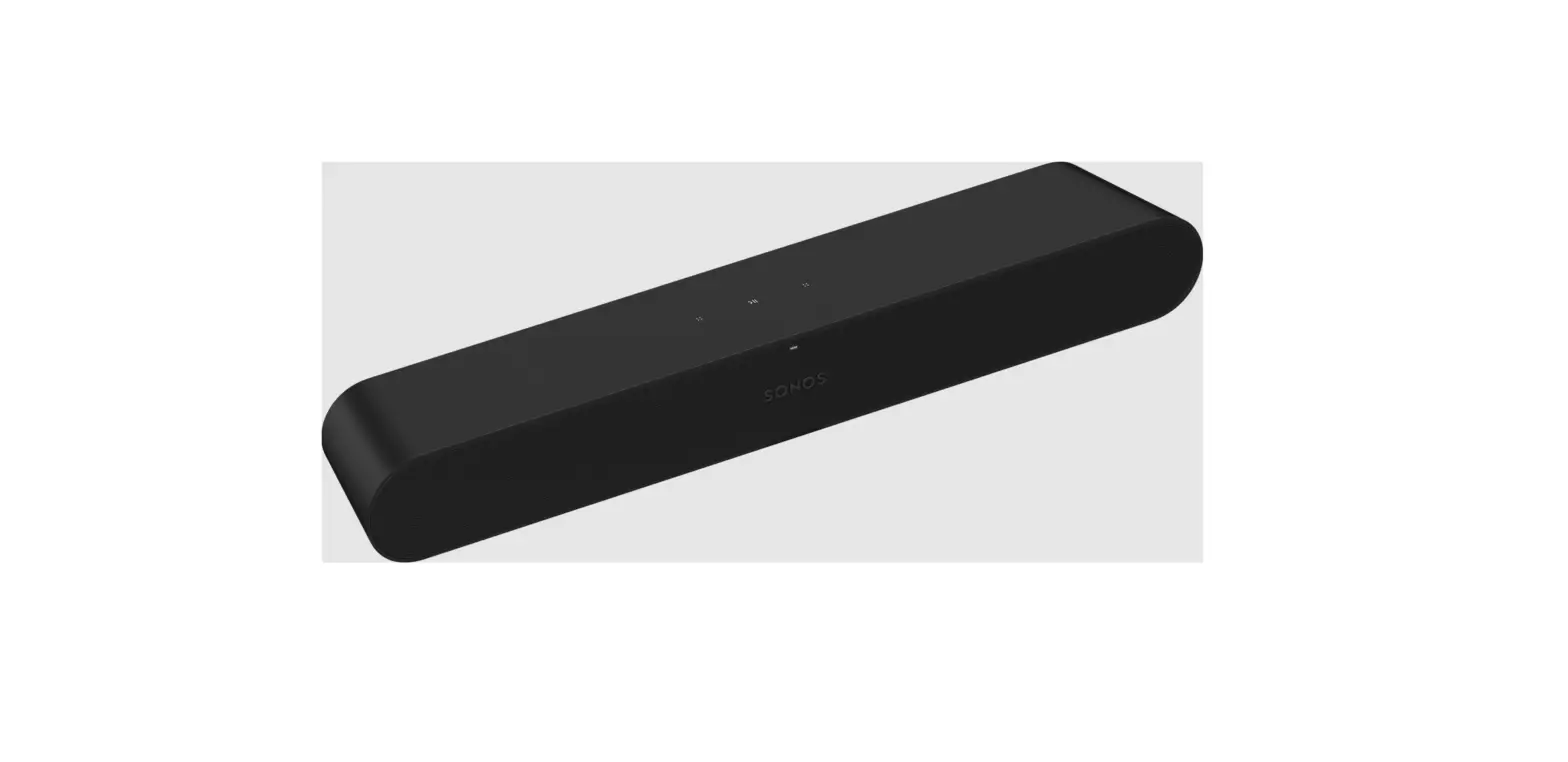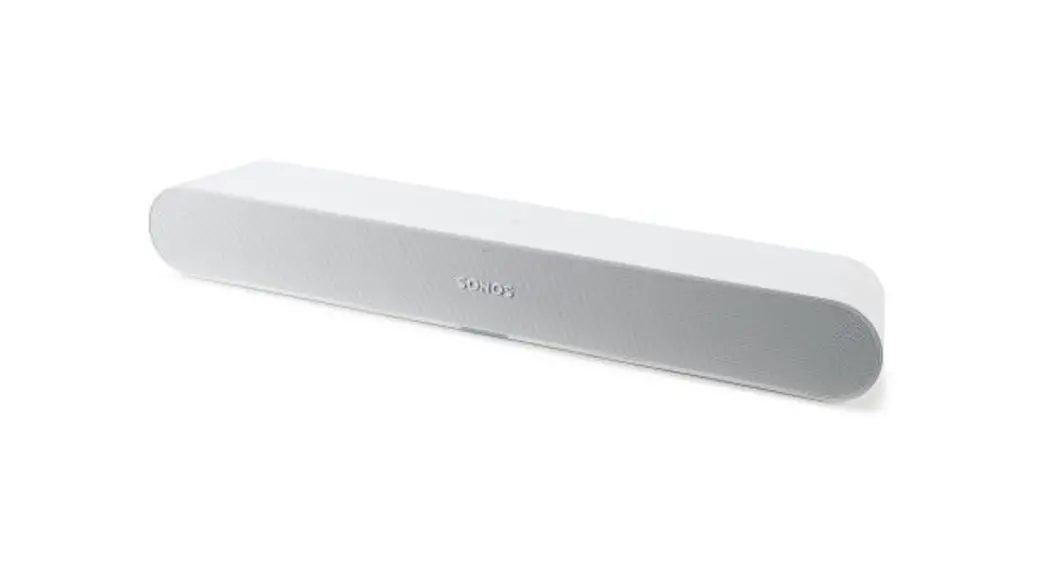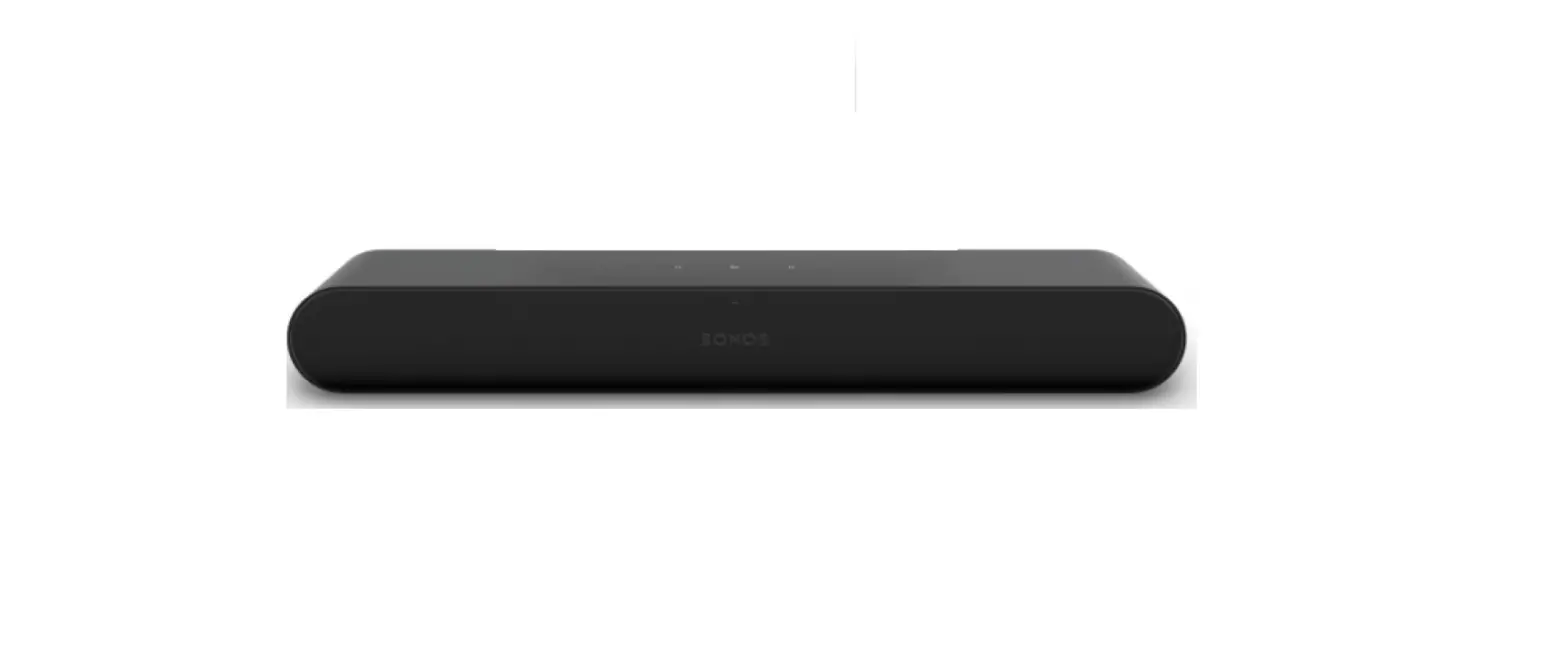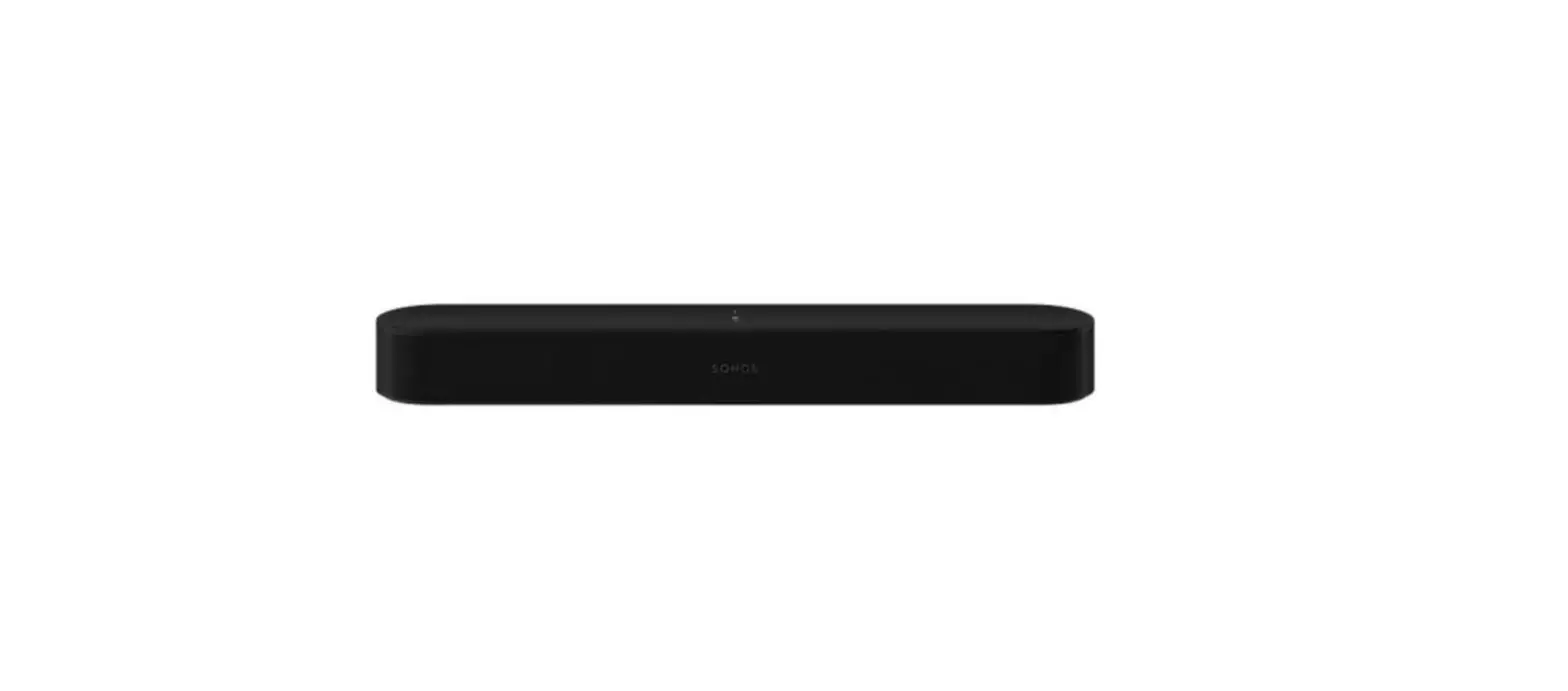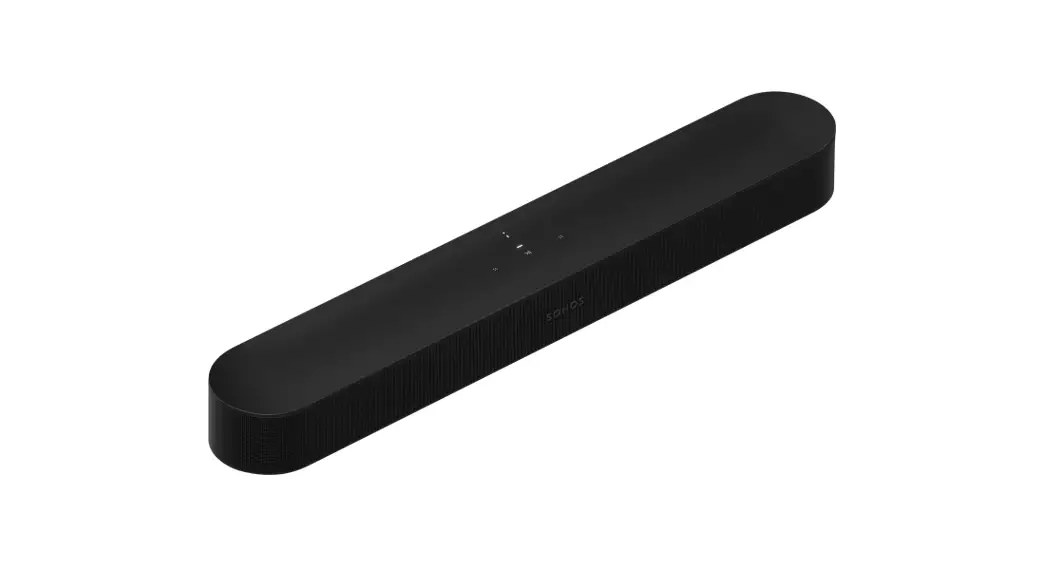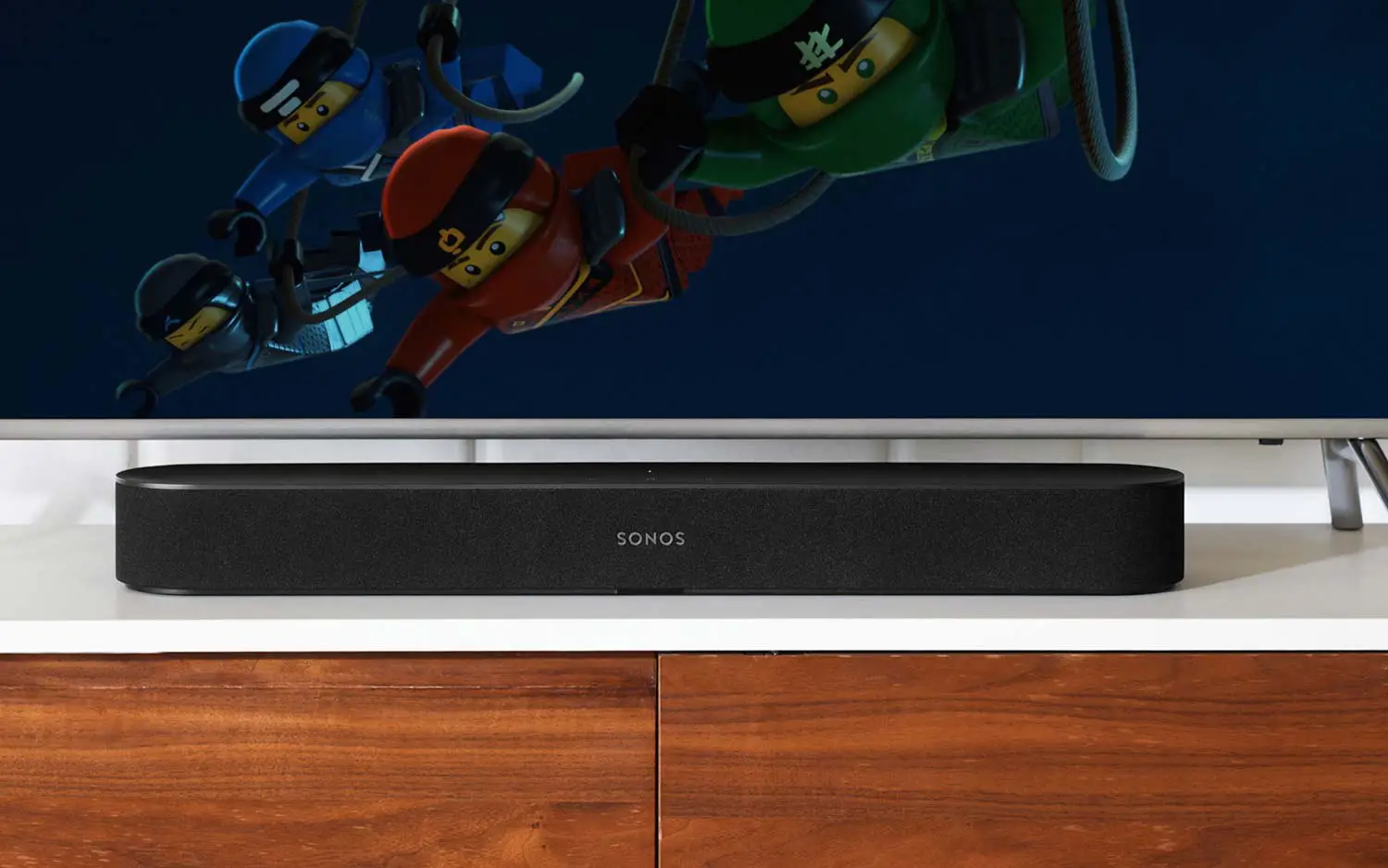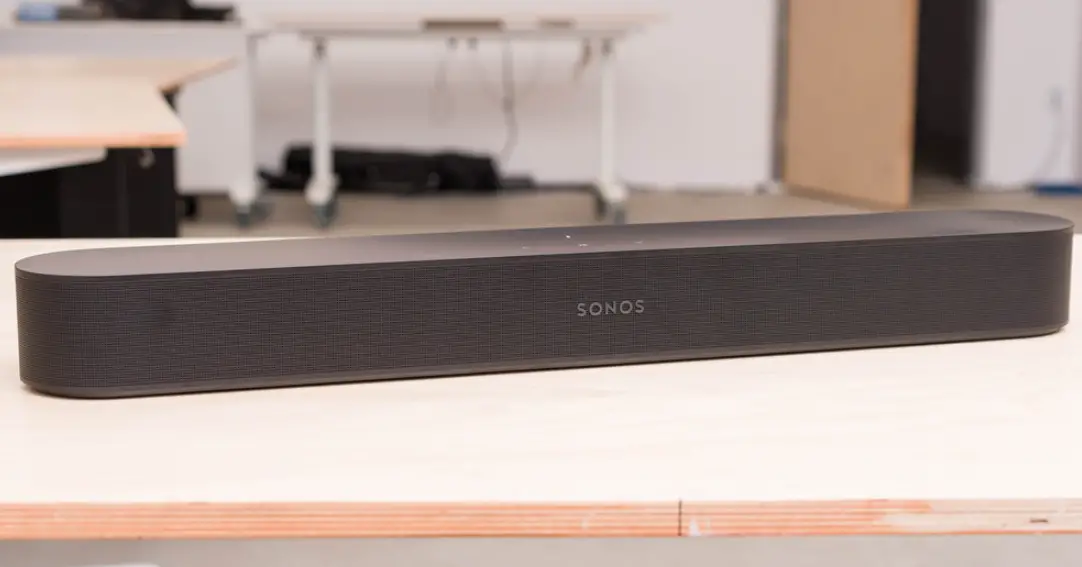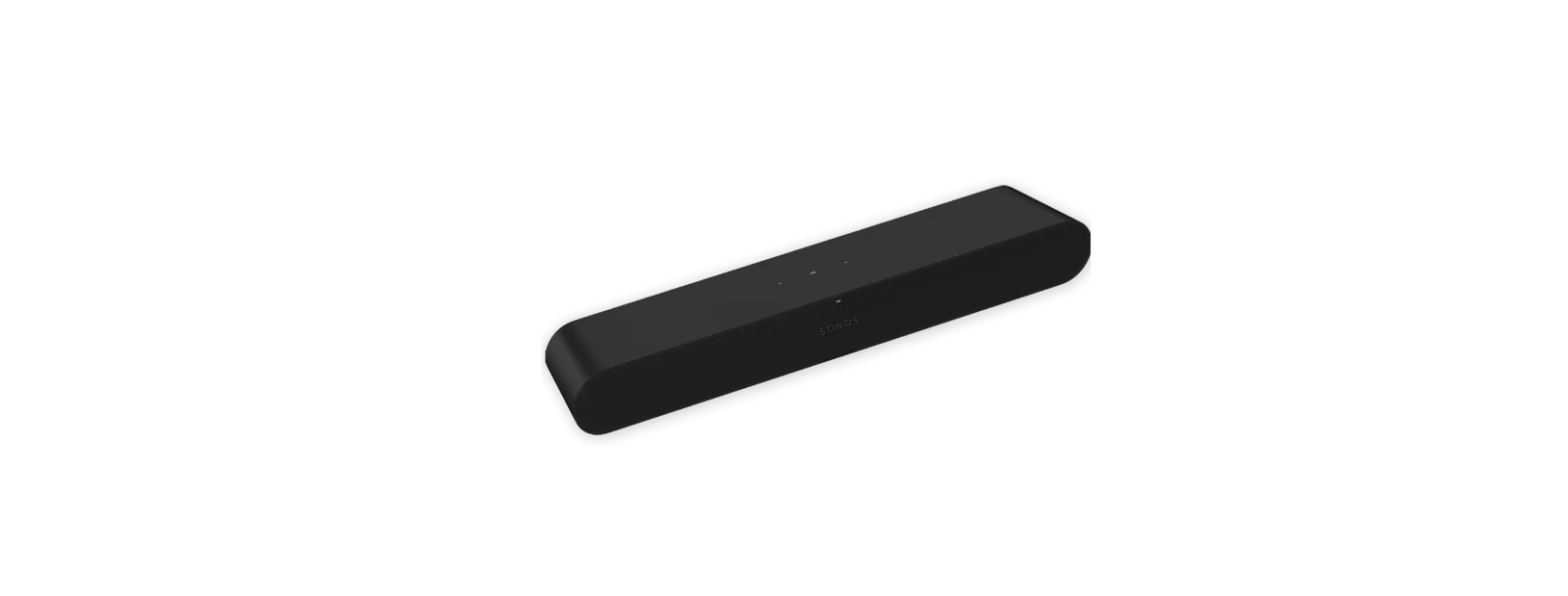

SONOS RAY Small HD Gaming Soundbar
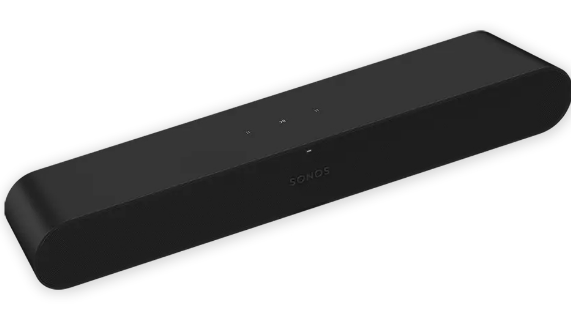
- Connect the audio and power cables
- Connect the optical audio cable (included) from your TV’s optical audio OUT to Ray’s optical port.
- Download the Sonos app
Already have Sonos?
Open the Sonos app and tap Add, or go to Settings> System> Add Product.
- Connect the optical audio cable (included) from your TV’s optical audio OUT to Ray’s optical port.
Ata glance
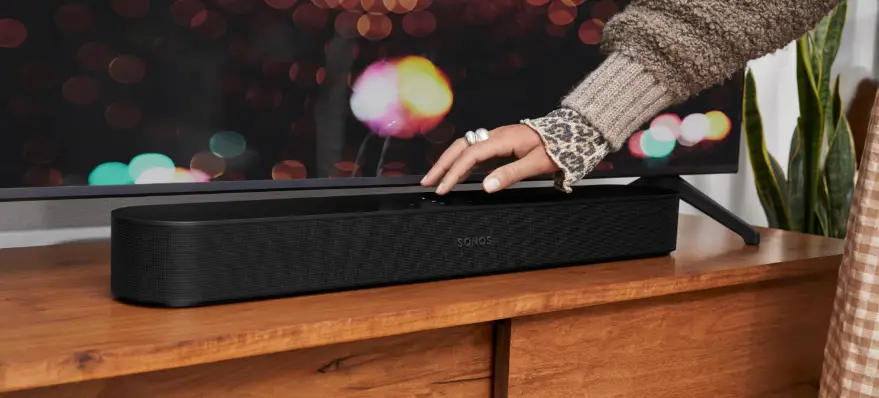
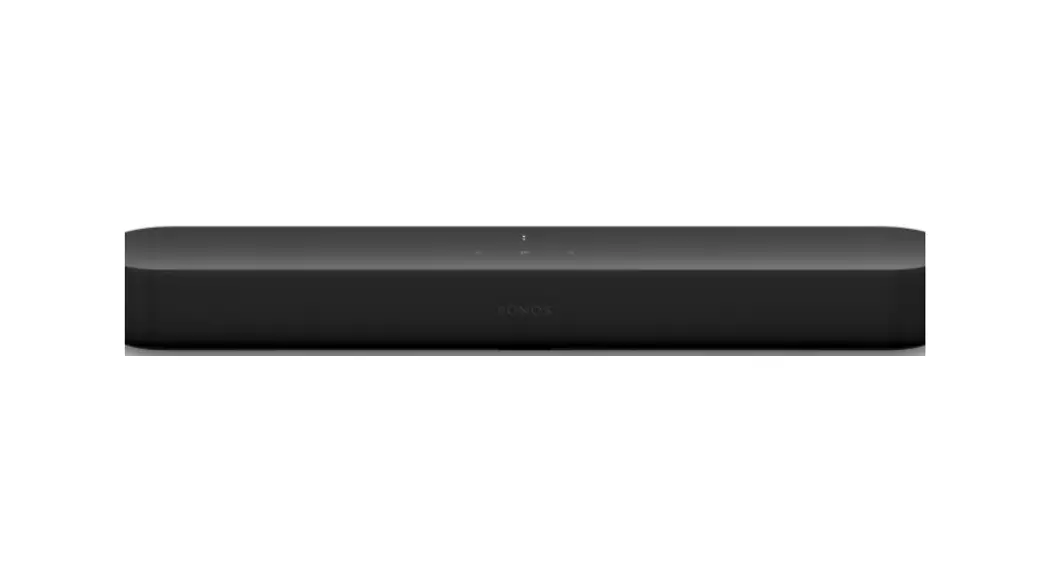
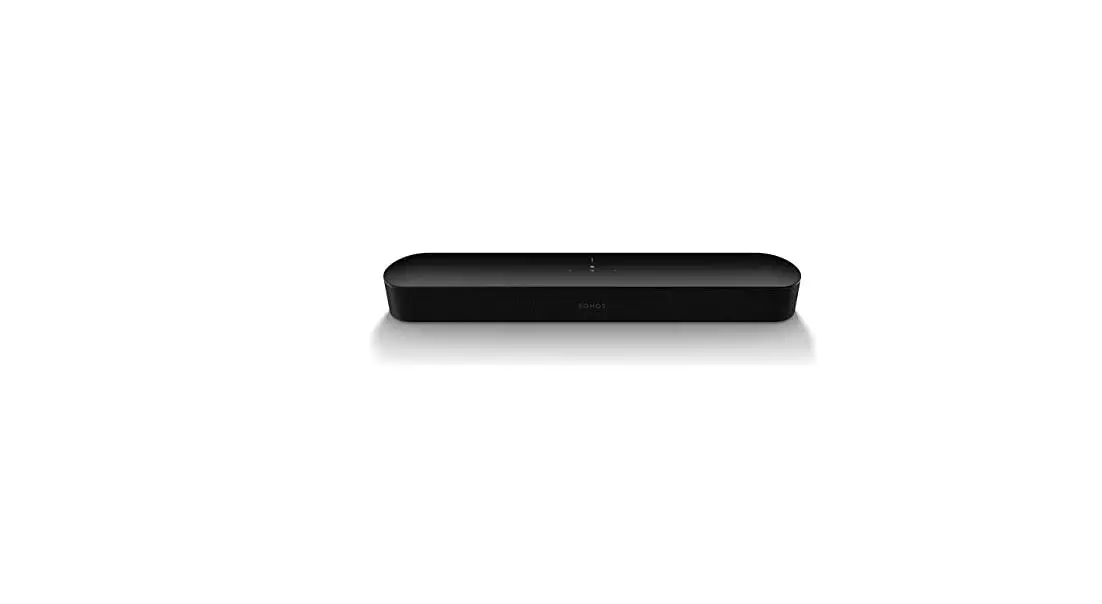
Play and control audio using the Sonos app, your TV remote, or the touch controls on Ray.
 Play/Pause
- Single press
 Group
Group- Press and hold to group Sonos products
 Volume
- Press left to decrease, right to increase
- Next Track
- Swipe right

- Swipe right
- Previous Track
- Swipe left

- Swipe left
 Play/Pause
 Group
Group Volume

Customer Support
User Guide
Terms of Use, License and Warranty www.sonos.com/legal/terms-of-use 2022 Sonos, Inc. All rights reserved. Sonos Sonos Ray, and Ray are trademarks or registered trademarks of Sonos, Inc. “Reg. U.S. Pat & TM Off.