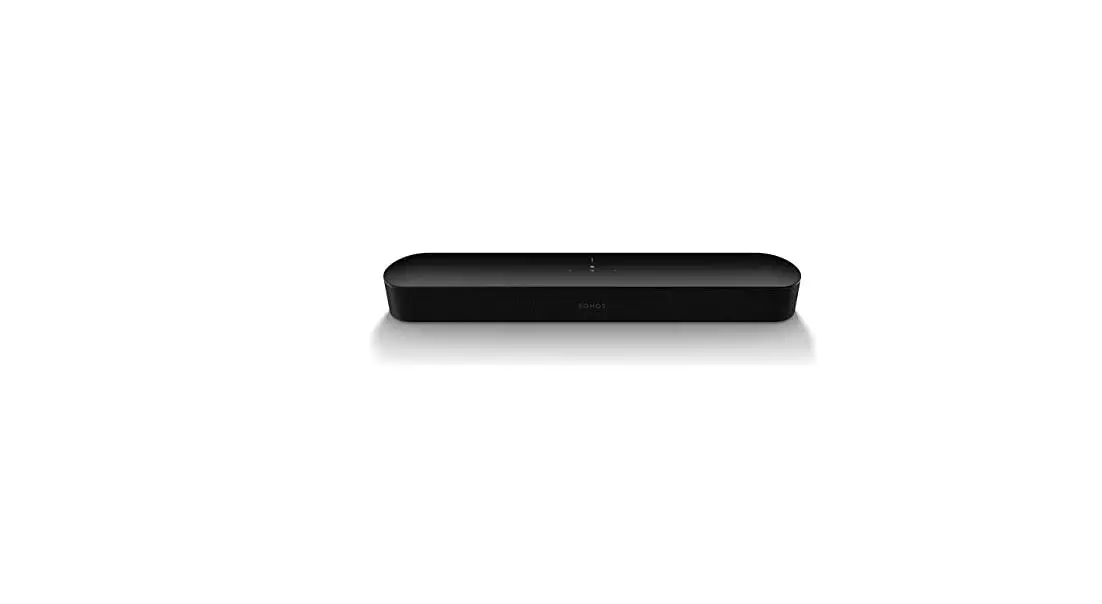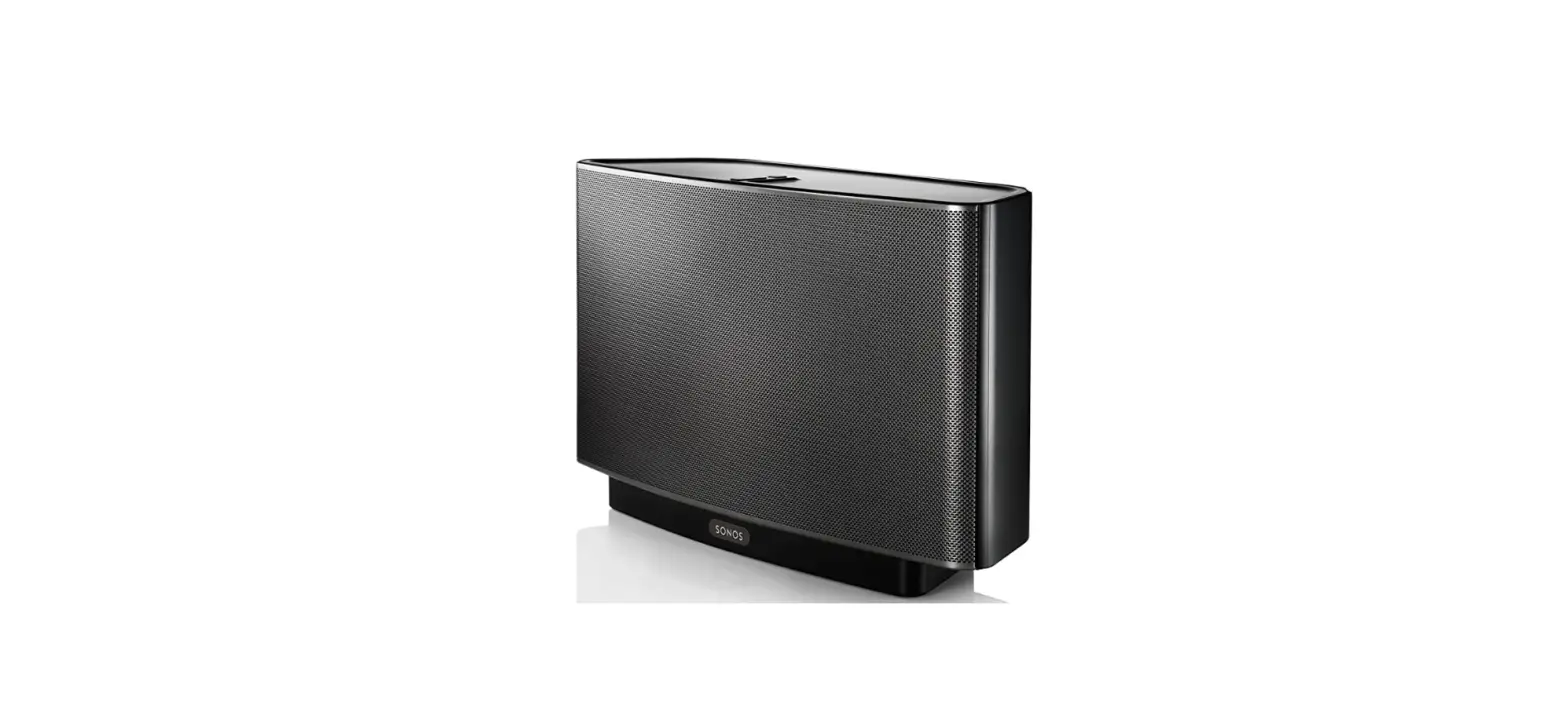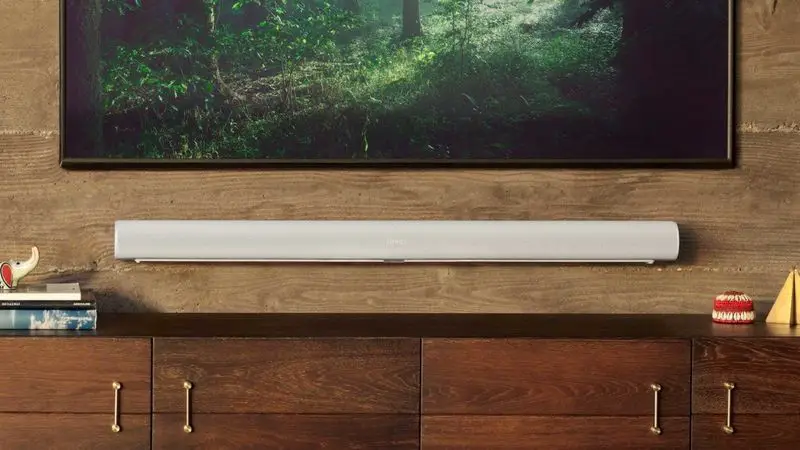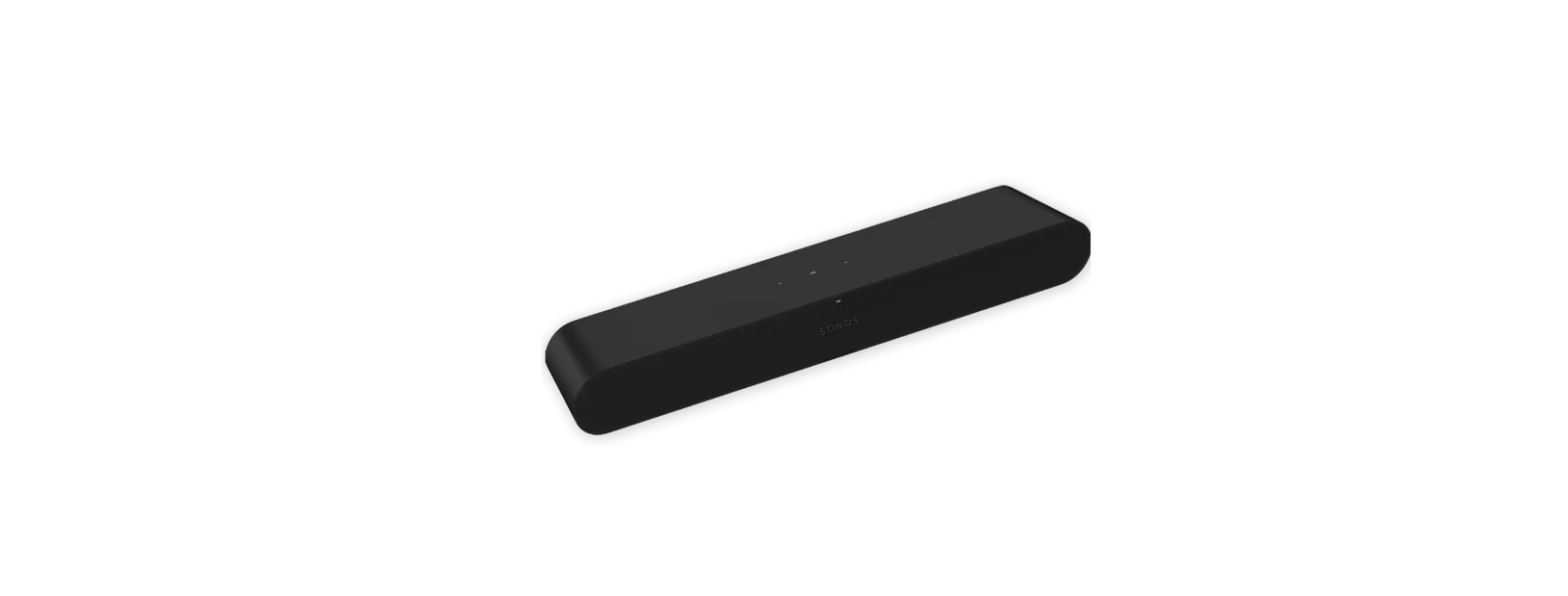
 Sonos PBASEUS1 Playbase Sleek Soundbase for TV
 Sonos PBASEUS1 Playbase Sleek Soundbase for TV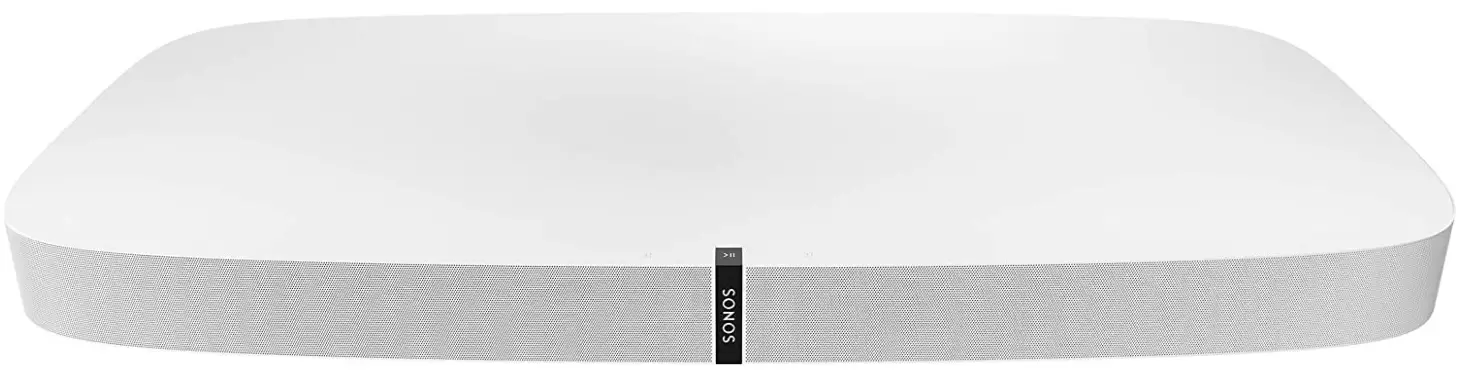
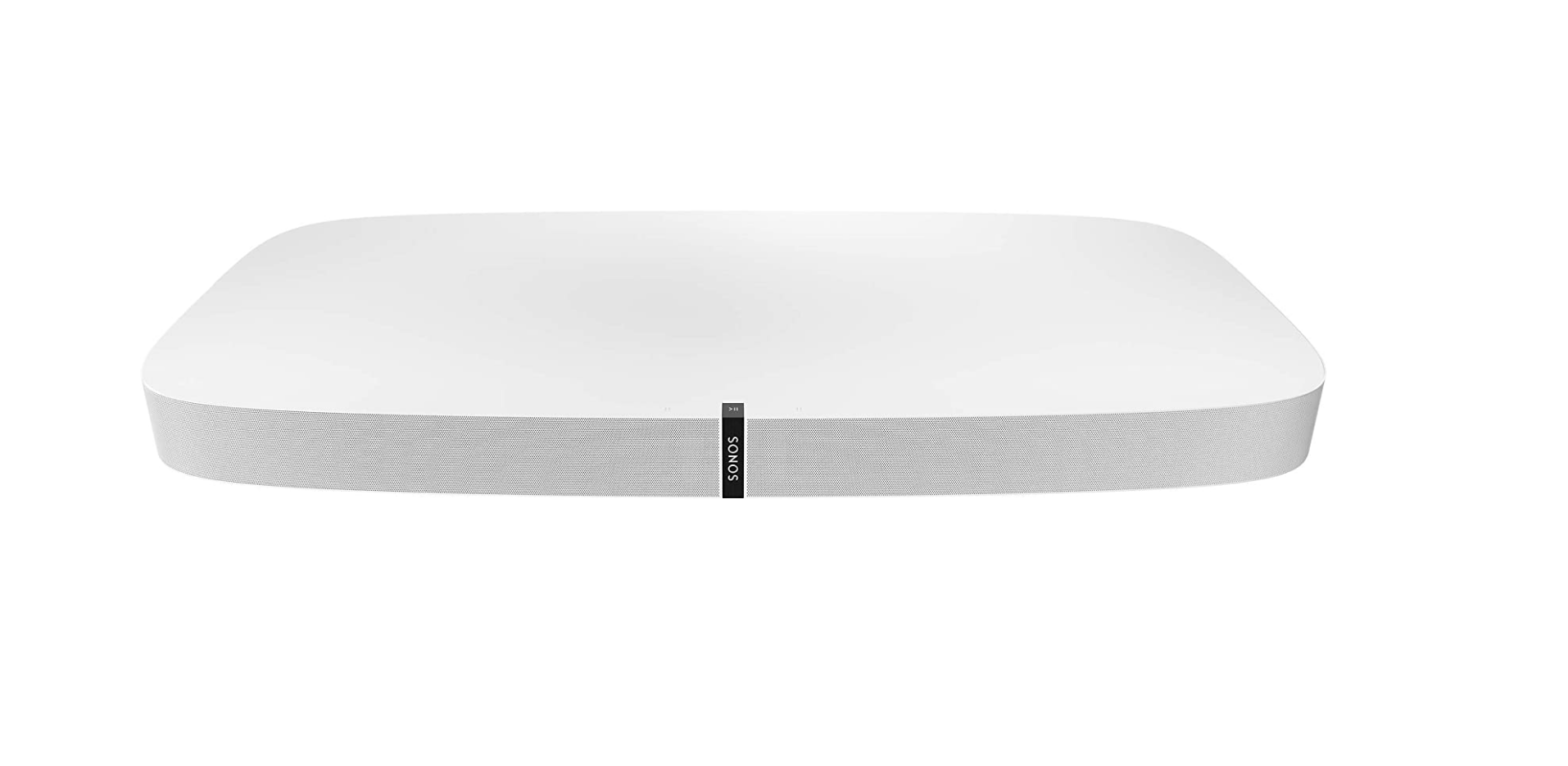
Sonos PLAYBASE
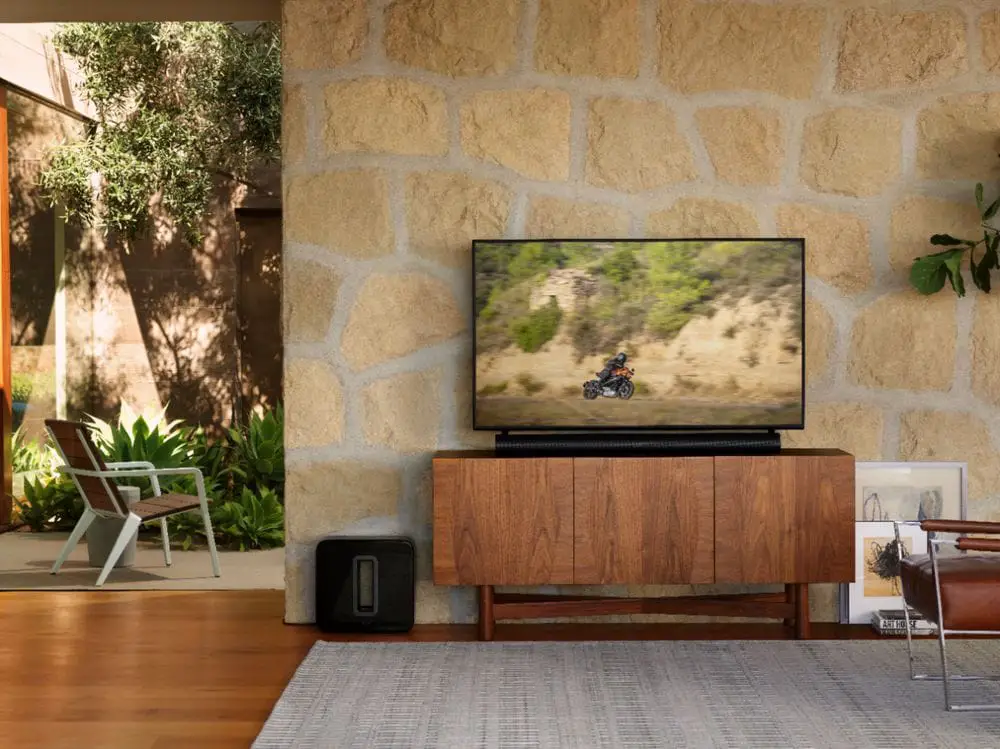
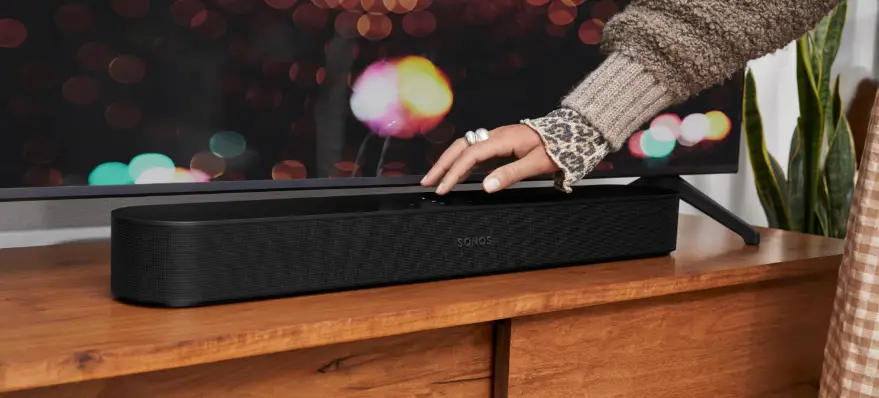
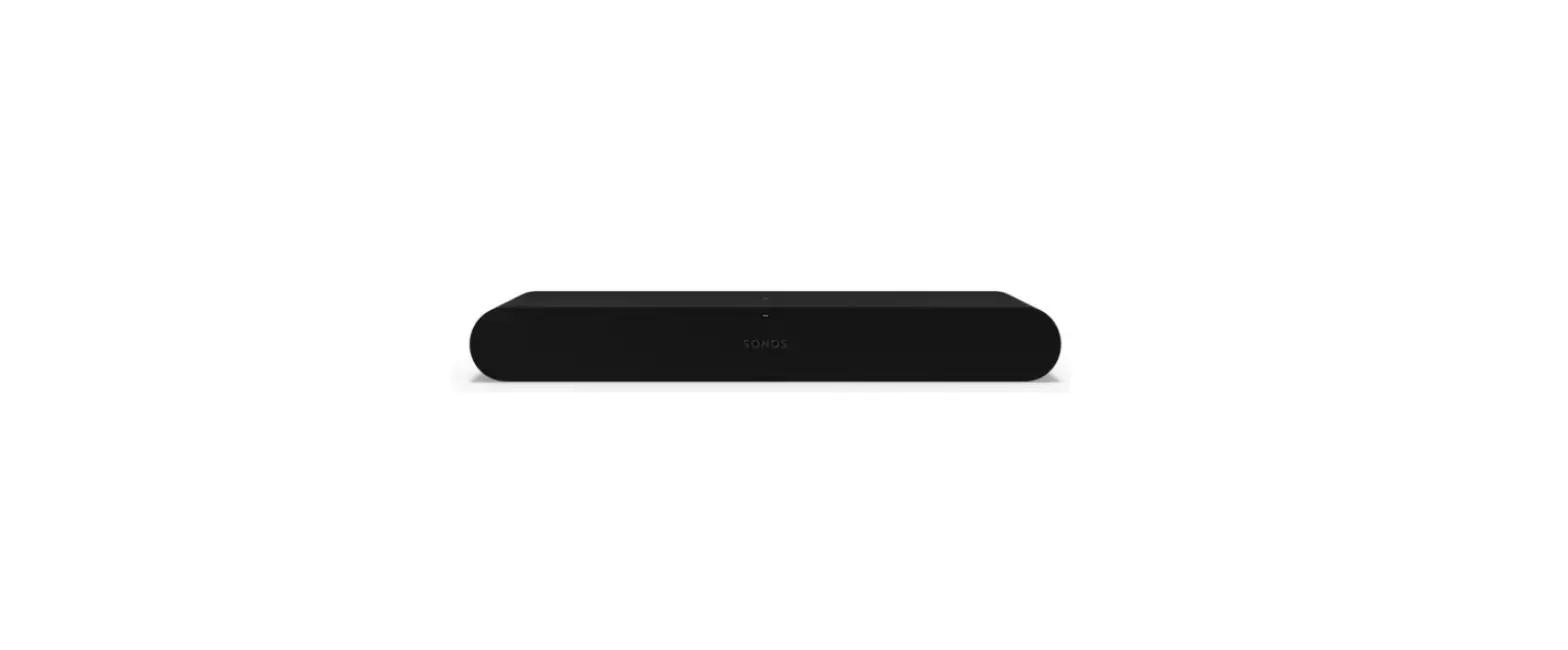
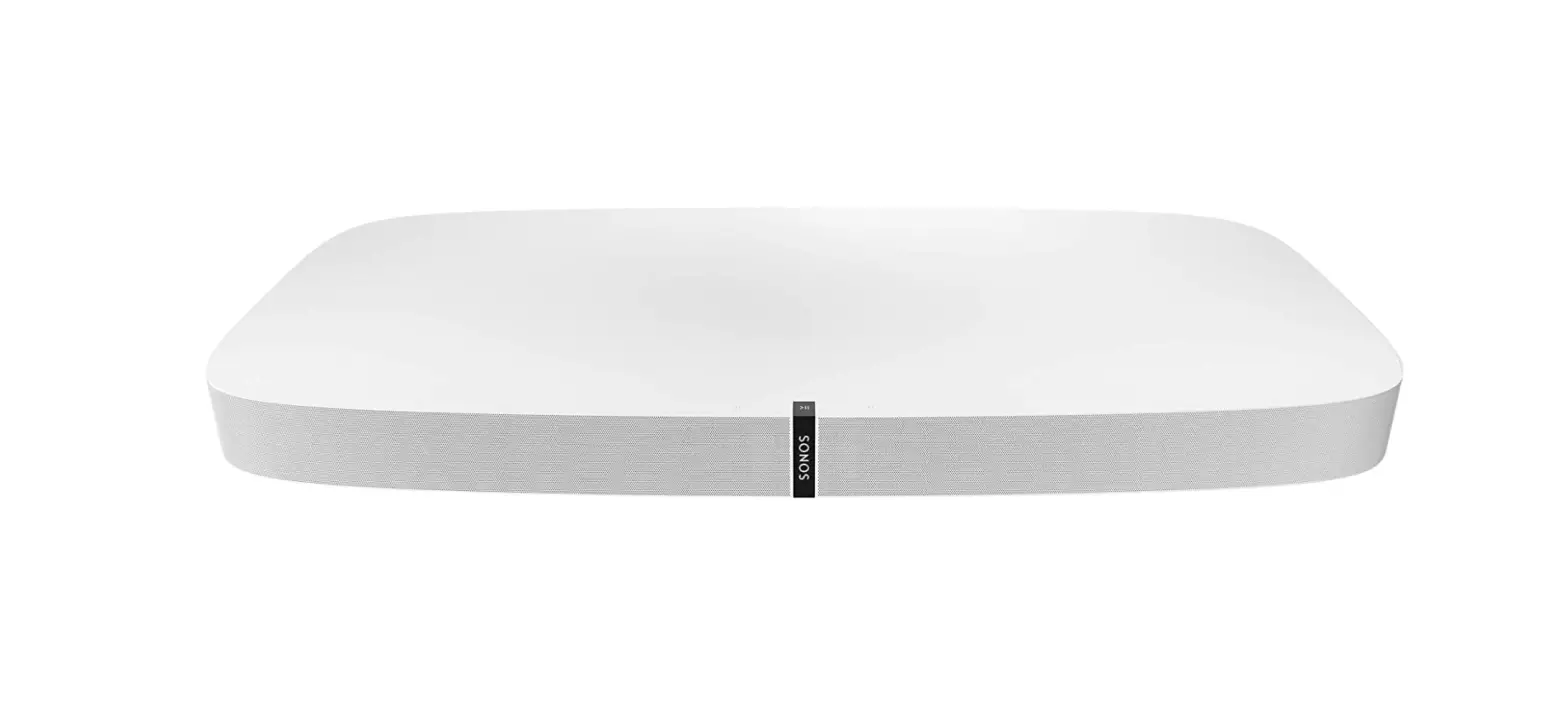
The PLAYBASE adds full-theater sound to all your movies, TV shows, sports and games—and wirelessly streams your favorite music, too.
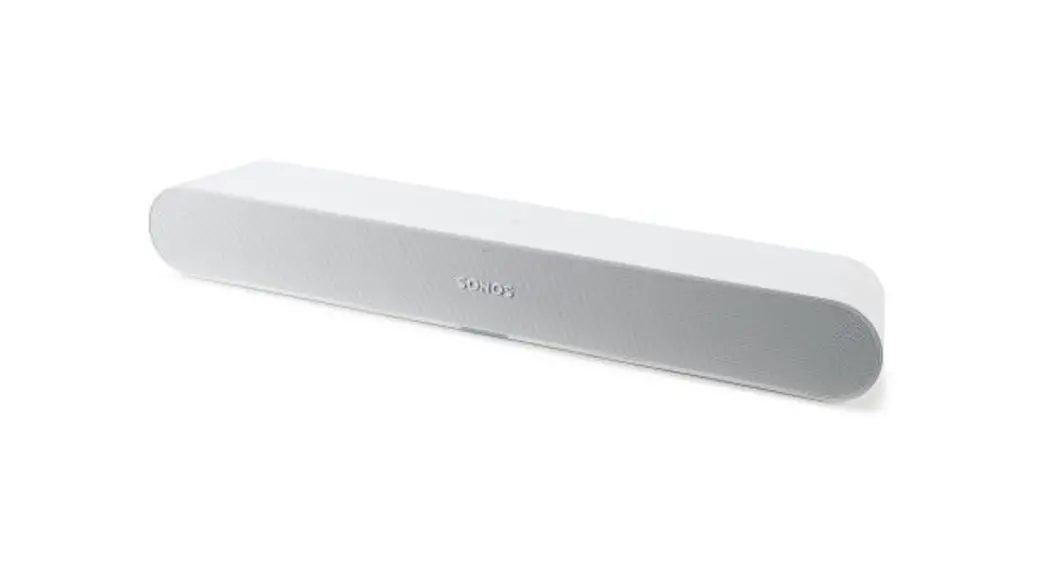
- Slim tabletop design practically disappears under your TV.
- Simple two-cord setup—one for power, one for your TV.
- Connects wirelessly to Sonos speakers in your other rooms to create a whole home sound system.
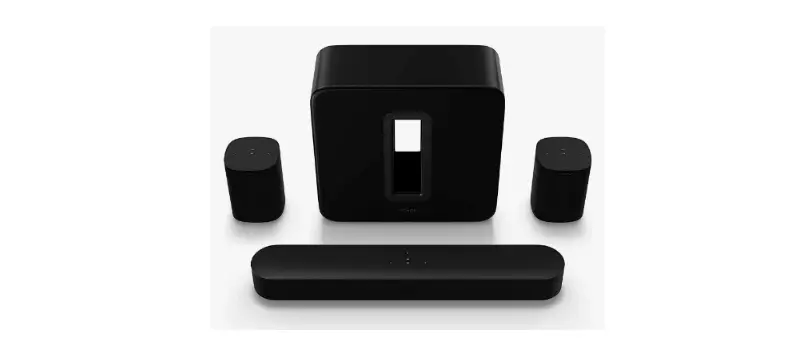
- Syncs wirelessly with SUB and two Sonos speakers, such as two PLAY5s, for 5.1 surround sound.
- Securely supports TVs up to 75 lbs (34 kg).
It takes just a few minutes to get your PLAYBASE® up and running. Once you’ve set it up, you can add more Sonos speakers any time.
What’s in the box?
- Sonos PLAYBASE
- Power cord
- 5 ft. /1.5m TOSLINK optical audio cable
- Ethernet cable
- Quick Start Guide
- Important Product Information booklet
What’s required?
Television
The PLAYBASE is compatible with any television that has an optical digital audio output.
Home network
To use the Sonos app, your device must be on the same network as Sonos. If you need help, please go to http://faq.sonos.com/notfound.
Requirements
To access music services, Internet radio, and music stored on your computer or Network-Attached Storage (NAS) device, make sure your network meets these requirements.Note:Make sure your network has a high-speed Internet connection because Sonos is designed to provide you with free, online software updates. Your Sonos system must be registered to receive these updates so be sure to register during the setup process. We do not share your e-mail address with other companies.
- High-speed DSL/cable modem, or fiber-to-the-home broadband connection for proper playback of music services. (If your Internet service provider only offers satellite Internet access, you may experience playback issues due to fluctuating download rates.)
- If your modem isn’t a modem/router combination and you want to take advantage of Sonos’ automatic online updates or use a streaming music service, you’ll need to install a wireless router before setting up Sonos.
Note: Sonos communicates over a 2.4GHz home network supporting 802.11 b/g/n wireless technology. 802.11n only network configurations are not supported—you can either change the router settings to 802.11 b/g/n or connect a Sonos product to your router. - Connect a Sonos BOOST or speaker to your router if:
- You have a larger home where the Wi-Fi performance isn’t reliable and you want to strengthen the wireless performance of your Sonos system.
- Your Wi-Fi network is already in high demand with streaming video and web surfing and you want to create a separate wireless network exclusively for your Sonos speakers.
- Your network is 5GHz only (not switchable to 2.4GHz).
- You have configured your router to support only 802.11n and can’t change the settings to support 802.11 b/g/n.
- For best results, you should connect the computer or NAS drive that contains your personal music library collection to your network router using an Ethernet cable.
Sonos App
Download the free Sonos app to any compatible device:
- Sonos app (iOS)—iPhone, iPad and iPod touch running iOS 9.0 or later
- Sonos app (Android)—Android 4.3 and higher
- Sonos app (PC)—Windows® 7 and higher
- Sonos app (Mac)—Macintosh® OS X 10.10 or later
Get the app for your computer at www.sonos.com/support/downloads.
For the latest system requirements and compatible audio formats, go to http://faq.sonos.com/specs.
PLAYBASE front
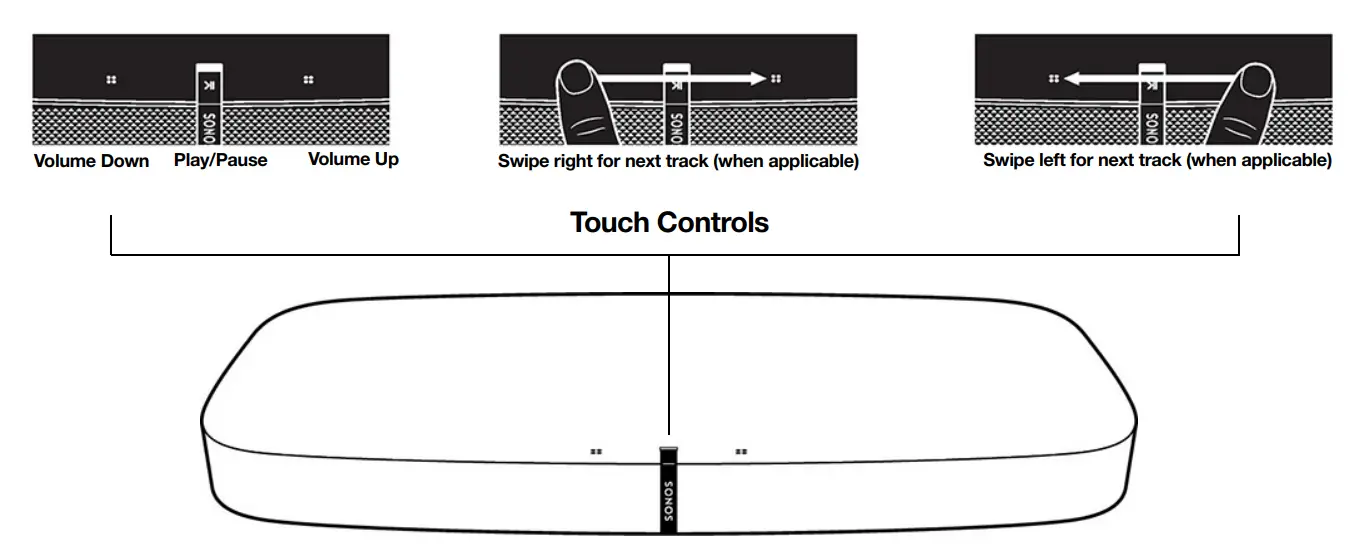
| On/Off:Your Sonos system is designed to stay on; when you’re not using it, |
| • To quickly stop the music everywhere, open the Sonos app, go to the Now Playing screen, and tap Pause.
• To stop the audio in just one room, you can touch the Play/Pause button on the speaker. |
| Play/Pause: Toggles between playing and pausing the audio. |
| • When the TV is on, touch once to mute the sound.
• When the TV is off, touch once to restart the music that was playing before the TV was turned on. Press and hold to add the music playing in another room. |
| Status Indicator Light: Indicates the current status. During normal operation the white light is
dimly lit, brightening when touch controls are activated. If you don’t want to see it, you can turn the white light off from Room Settings. |
| Volume Up (+): The Volume Up touch control is on the right; Volume Down on the left.
Volume Down (-):To change the volume quickly when you’re listening to music, you can touch and hold. |
| Next track:Swipe left to right between the touch controls to get to the next track;
Previous track:swipe right to left to hear the previous track. (Next/Previous touch controls don’t work when you’re listening to a radio station.) |
| IR (InfraRed) Sensors / Signal Lights The IR sensor receives the signals sent by a remote control. |
PLAYBASE back
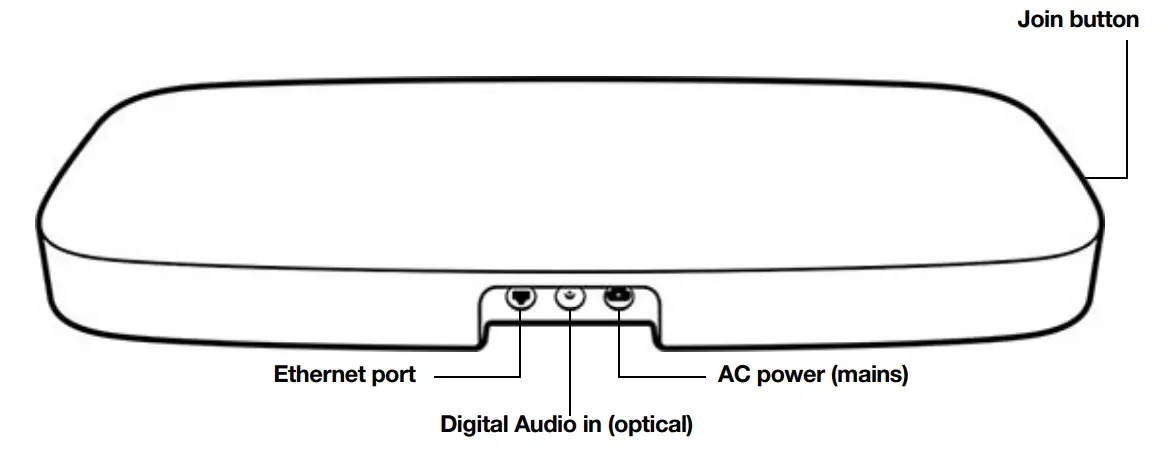
| Ethernet Port You can use an Ethernet cable to connect the PLAY network. You should only use this port to plug in either |
| or a Sonos BRIDGE or BOOST.
Digital Audio In (Optical) Use an audio optical cable (supplied) to connect the PLAYBASE’s digital audio input to the optical digital |
| television.
• Take care not to bend or twist the cable. • Align the ‘D-shaped’ ends for proper insertion. |
| AC Power (Mains) Input Use only the supplied power cord to connect to a po third party power cord will void your warranty). Push |
| firmly into the PLAYBASE until it is flush with the sur
Join button:Press the round Join button on the side of the unit |
TV placement guidelines
The PLAYBASE can be placed either under your TV or on a shelf.
Under TV with single foot stand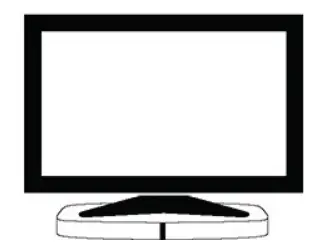
- Lift the TV and put PLAYBASE under it with the Sonos logo facing front.
- Make sure the TV stand rests com-pletely on the PLAYBASE with no overhang.
- Your TV should not weigh more than 77 lbs.
- Allow at least 1” between PLAYBASE and other surfaces, such as walls or cabinets.
Under TV with split foot stand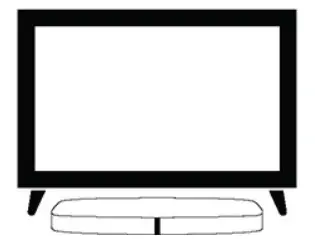
- PLAYBASE accommodates most TVs with separate feet near the edges of the screen. It will fit securely between the feet, below the screen.
- Feet must be at least 2.3” (58mm) tall to allow for PLAYBASE clearance.
- If the feet are too close together or they’re not quite high enough, don’t try to force your PLAYBASE to fit.
On a TV cabinet shelf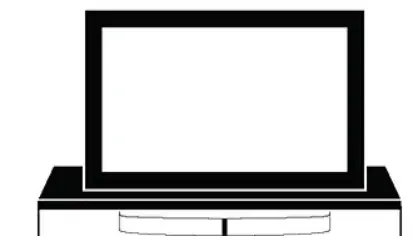
- For the best sound, place PLAYBASE toward the front of the furniture but DON’T let it hang over the edge.
- Allow at least 2” all around the PLAY-BASE.
Note:Don’t place objects lighter than 5 lbs. (2.3 kgs) on top of your PLAYBASE or the sound may send them flying.
Before you get started
Before you start setting up the Sonos PLAYBASE, make sure any external components, like your cable box, DVD player, etc. are connected directly to your TV.
If you have any existing home theater or surround sound equipment, disconnect it from your television.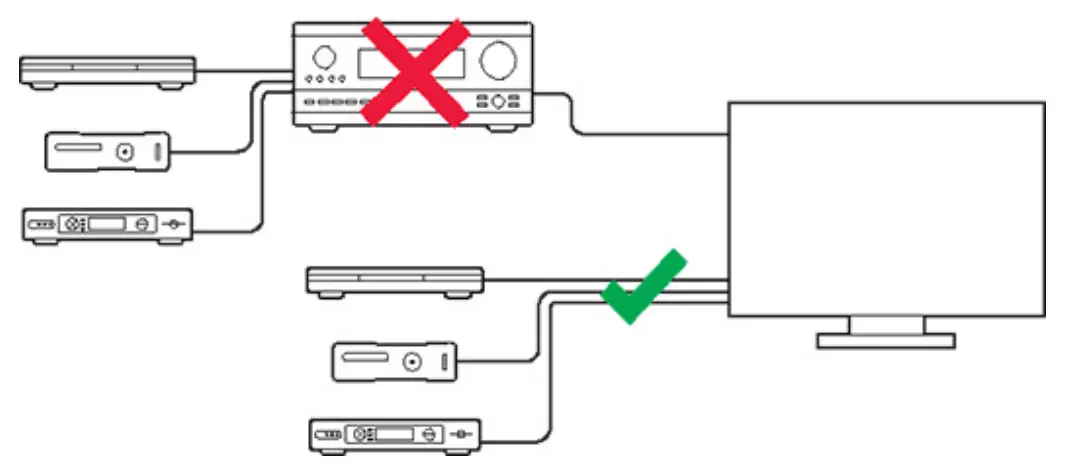
Set it up
PLAYBASE is compatible with Sonos software versions 7.2 and later. If you are adding the PLAYBASE to an existing Sonos system, be sure to check for software updates before adding the PLAYBASE.
- Carefully unpack the box.
- Choose a location for the PLAYBASE (refer to the TV placement guidelines for help).
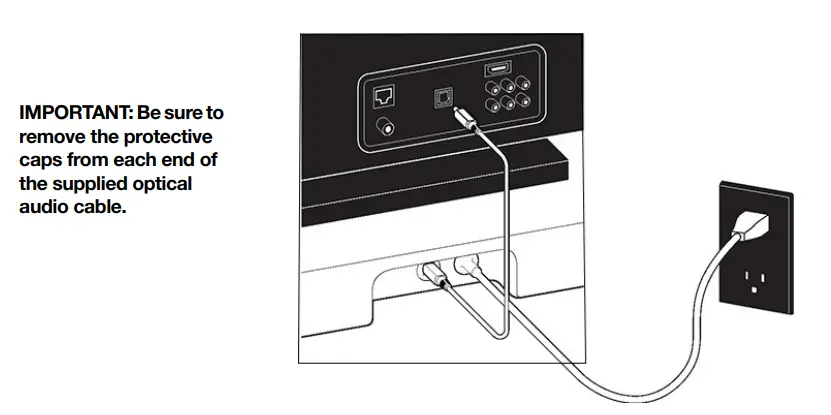
- Remove the protective cap from each end of the optical audio cable.
- Connect the optical audio cable (supplied) from your TV’s digital audio out (optical) to the PLAYBASE’s digital audio in (optical) being careful not to twist or bend the cable. The PLAYBASE digital audio in and the optical cable are ’D-shaped’—make sure they align for proper insertion.

- Attach the power cord to the PLAYBASE and plug it in, making sure to push the power cord all the way into the PLAYBASE. The status indicator light on top will begin to flash.
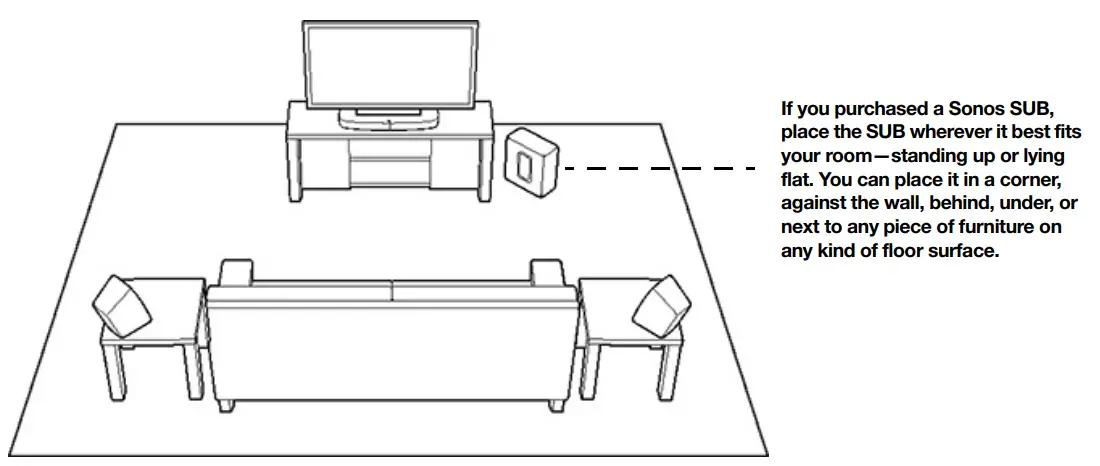
- (OPTIONAL) If you are setting up your PLAYBASE with a SUB and/or surround speakers, put them where you want them and plug them in. (You’ll be prompted to add these after you’ve got the PLAYBASE set up.)

Note:Expandable PLAYBASE home theater setup
For a 3.1 home theater experience, pair a SUB with your PLAYBASE.
For a 5.0 home theater experience, set up two speakers, such as two PLAY:5s, as surround speakers with your PLAYBASE.
For a 5.1 home theater experience, pair a SUB and two speakers, such as two PLAY:5s, with your PLAYBASE. - Open the Sonos app (see Sonos App for download information).
Note: Sonos recommends you use the Sonos app on a mobile device instead of a computer to set up your PLAYBASE.
If you’re setting up a new Sonos system, add your Sonos products in the following order:- If you have a Sonos product connected to your router, add it first.
- Add the PLAYBASE.
- Add any additional Sonos products you purchased.
If you’re adding to an existing Sonos system:
- Check to see if there’s a Sonos software update available. If you see one, please update your Sonos system before adding the PLAYBASE. (PLAYBASE is compatible with Sonos software versions 7.2 and later).
- Go to More -> Settings -> Add a Player or SUB.
- Add any other Sonos products you purchased.
You may be prompted to update the new Sonos product(s) after you add them.
Note: Thick walls, 2.4 GHz cordless telephones, or the presence of other wireless devices can interfere with or block the wireless network signals from Sonos. If you’re experiencing difficulty, you can try one of these—relocate the Sonos product; change the wireless channel your music system is operating on; or connect a Sonos product to your router if your setup is currently wireless.
If you need help- Turning off your television’s speakers, see Turn off your television’s speakers.
- Configuring a remote control to work with your PLAYBASE, see Set up a remote control.
- Getting rid of the message that appears when you adjust the volume, see Eliminate annoying messages on your TV when using a cable, satellite, or set top box remote or Eliminate annoying messages on your TV when using a universal remote.
- Playing music through the PLAYBASE, see Play music
SUB
Add a Sonos SUB
You can pair a SUB with the PLAYBASE to add to your cinematic experience.
If you’re using a mobile device
- Go to More -> Settings -> Room Settings.
- Select the room the PLAYBASE is located in.
- Tap Add SUB.
- Follow the prompts to add the SUB to your Sonos system.
If you’re using a computer
- Select Manage -> Settings (PC) or Sonos -> Preferences (Mac).
- Select Room Settings if it is not already highlighted on the left.
- From the Basic tab, select Add SUB.
- Follow the prompts to add the SUB to your Sonos system.
SUB settings
Follow the steps below if you wish to make any changes to the SUB settings.
If you’re using a mobile device
- Go to More -> Settings -> Room Settings.
- Select the room the PLAYBASE and SUB are located in. It appears as Room (+SUB) in Room Settings.
- Tap Advanced Audio -> SUB Settings.
- Choose one of the following:
- SUB: Choose On or Off to turn the sound from the SUB on and off.
- SUB Level: Drag your finger across the slider to increase or decrease the volume of the SUB. (You can use this setting to match the subwoofer level to the level of your main speakers.)
- Placement Adjustment (phase): Select On or Off.
If you’re using a computer
- Select Manage -> Settings (PC) or Sonos -> Preferences (Mac).
- Select Room Settings if it is not already highlighted on the left.
- Choose the room the PLAYBASE and SUB are located in from the Room Settings drop-down. It appears as Room (+SUB).
- Select the SUB tab.
- Choose one of the following:
- SUB: Check to turn the sound from the SUB on; uncheck to turn it off.
- SUB Level: Click and drag the slider to increase or decrease the volume of the SUB. (You can use this setting to match the subwoofer level to the level of your main speakers.)
- Placement Adjustment (phase): Check to turn on; uncheck to turn it off.
Remove a SUB
If you’re using a mobile device
- Go to More -> Settings -> Room Settings.
- Select the room the SUB is associated with. It appears as Room (+SUB) in Room Settings.
- Tap Remove SUB.
- Choose one of the following settings:
- If you want to associate the SUB with a different Sonos speaker, select Choose Room for SUB and then select another room.
- If you are not going to use the SUB right now, select Don’t use SUB. It will appear in Rooms as SUB (unused) until you select it and associate it with another Sonos speaker.
If you’re using a computer
- Select Manage -> Settings (PC) or Sonos -> Preferences (Mac).
- Select Room Settings if it is not already highlighted on the left.
- Choose the room the PLAYBASE is located in from the Room Settings for drop-down list.
- From the Basic tab, click Remove SUB.
- Choose one of the following settings:
- If you want to associate the SUB with a different Sonos speaker, select Choose Room for SUB and then select another room.
- If you are not going to use the SUB right now, select Don’t use SUB. It will appear in Rooms as SUB (unused) until you select it and associate it with another Sonos speaker.
Surround speakers
You can easily pair two speakers, such as two PLAY:5s, with a Sonos home theatre product to function as left and right surround channels in your Sonos surround sound experience.
- Make sure the Sonos products are the same—you can’t combine two different speaker types to function as surround speakers.
- Be sure to follow these instructions to set up your surround speakers. Do not create a room group or stereo pair as these will not achieve the left and right surround channel functionality.
Add surround speakers
If you’re using a mobile device
- Go to More -> Settings -> Room Settings.
- Select the room the PLAYBASE is located in.
- Tap Add Surrounds.
- Follow the prompts to add first a left and then a right surround speaker.
If you’re using a computer
- Select Manage -> Settings (PC) or Sonos -> Preferences (Mac).
- Select Room Settings if it is not already highlighted on the left.
- Choose the room the PLAYBASE is located in from the Room Settings for drop-down list.
- From the Basic tab, select Add Surrounds.
- Follow the prompts to add first a left and then a right surround speaker.
Remove surround speakers
If you’re using a mobile device
- Go to More -> Settings -> Room Settings.
- Select the room the surround speakers are associated with. The room name appears as Room (+LS+RS) in Room Settings.
- Tap Remove Surrounds.
- Tap Next to drop the surround sound speakers from your surround system. If these were newly purchased speakers they will appear as Unused in Rooms. If these speakers existed in your household previously, they revert back to their previous state.
You can now move them to another room for individual use.
If you’re using a computer
- Select Manage -> Settings (PC) or Sonos -> Preferences (Mac).
- Select Room Settings if it is not already highlighted on the left.
- Choose the room the PLAYBASE is located in from the Room Settings for drop-down list. The room name appears as Room (+LS+RS).
- From the Basic tab, click Remove Surrounds. If these were newly purchased speakers, they will appear as Unused in the Rooms pane. If these speakers existed in your household previously, they revert back to their previous state.
Change the surround settings
The default setting is determined by the calibration process. If you wish to make a change, you can follow the steps below.
If you’re using a mobile device
- Go to More -> Settings -> Room Settings.
- Select the room the PLAYBASE and surround speakers are located in. It appears as Room (+LS+RS) in Room Settings.
- Tap Advanced Audio -> Surround Settings.
- Choose one of the following:
- Surrounds: Choose On or Off to turn the sound from the surround speakers on and off.
- TV Level: Drag your finger across the slider to increase or decrease the volume of the surround speakers for playing TV audio.
- Music Level: Drag your finger across the slider to increase or decrease the volume of the surround speakers for playing music.
- Music Playback: Choose Ambient (default; subtle, ambient sound) or Full (enables louder, full range sound). This setting applies only to music playback, not TV audio.
- Balance Surround Speakers (iOS): Select Balance Surround Speakers and follow the prompts to manually balance your surround speaker levels.
If you’re using a computer
- Select Manage -> Settings (PC) or Sonos -> Preferences (Mac).
- Select Room Settings if it is not already highlighted on the left.
- Choose the room the PLAYBASE and surround speakers are located in from the Room Settings for drop-down.
- Select the Surrounds tab.
- Choose one of the following:
- Surrounds: Check to turn the sound from the surround speakers on; uncheck to turn it off.
- TV Level: Click and drag the slider to increase or decrease the volume of the surround speakers for playing TV audio.
- Music Level: Click and drag the slider to increase or decrease the volume of the surround speakers for playing music.
- Music Playback: Choose Ambient (default; subtle, ambient sound) or Full (enables louder, full range sound). This setting applies only to music playback, not TV audio.
Play Music
The PLAYBASE streams all your favorite music even when the TV is off. Just open the Sonos app on your mobile device or computer and choose the music you want to hear. Note:If TV Autoplay is set to On, the PLAYBASE automatically stops playing music and switches to TV audio whenever the TV is turned on. Go to TV autoplay for more information.
Radio by TuneIn
Sonos has over 100,000 free radio stations, shows, and podcasts from around the world. Select Browse -> Radio by TuneIn to start exploring.
- Sonos currently supports MP3, HLS/AAC, and WMA streaming audio formats.
- If you can’t find your favorite radio station or show, go to http://faq.sonos.com/radio for additional information.
Music services
A music service sells audio on a per-song, per audiobook, or subscription basis. Sonos is compatible with many music services, like Pandora, Spotify and Apple Music. Add your own or discover something new. See the latest list at www.sonos.com/music.
Some music services may not be available in your country. Please check the music service’s website for more information.
If you’re currently subscribed to a music service, just add your music service login and password information to Sonos and you’ll have instant access to the music service from your Sonos system.
(If you haven’t subscribed yet, first go to the music service’s website to sign up. Once you become a subscriber, follow the steps below to add your account information to Sonos.)
- To add a music service, tap More -> Add Music Services.
- Select a music service.
- Select Add to Sonos, and then follow the prompts. Your login and password will be verified with the music service. As soon as your credentials have been verified, you will be able to select the music service from Browse (on mobile devices) or the MUSIC pane (on a Mac or PC).
Music on your computer
Sonos can play music from any computer or Network-Attached Storage (NAS) device on your home network where you have shared music folders. Once it’s set up, just choose Browse -> Music Library to browse and play your personal collection.
- Open the app on your computer, and go to Manage -> Settings -> Music Library.
- On the Folders tab, select Add and follow the prompts to add your music folder. Note:If your music collection is big, it may take up to 15 minutes to sync it with your Sonos app.
Music on your mobile device
You can play music and podcasts stored on any mobile device that’s on the same network as Sonos. Just choose Browse -> On this [mobile device].
Google Play Music (Android devices)
You can play music to Sonos directly from the Google Play Music app on any Android device. This feature is available for both Standard and All Access Google Play Music customers.
To play music directly from the Google Play Music app to Sonos, you must have both the Google Play Music app and the Sonos app installed on your mobile device.
Simply open the Google Play Music app and connect to a Sonos room or room group to start the music.
Control Sonos from your Spotify app
You can enjoy the Spotify features you love without ever opening the Sonos app (Spotify premium subscribers only).
While you’re listening to music in the Spotify app, select DEVICES AVAILABLE to connect to a Sonos room or room group.
To use this feature you need to have a Sonos account. If you don’t have one, choose one of the following options:
- On a mobile device: Go to More -> Settings -> Advanced Settings -> Control Sonos from Spotify.
- On a PC: Go to Manage -> Settings and choose Advanced. From the Music Sources tab, choose Control Sonos from Spotify.
- On a Mac: Go to Sonos -> Preferences and select Advanced. From the Music Sources tab, choose Control Sonos from Spotify.
Note: Once a Sonos account has been created, the option no longer appears.
PLAYBASE settings
Follow the steps below if you want to change any PLAYBASE settings, or change the way the PLAYBASE works with your television.
- Remote Control Setup
- Trueplay™
- Equalization
- Recalibrating the Audio
- TV Dialog Settings
- Speech Enhancement
- Night Sound
- TV Autoplay
- IR Signal Light
- IR Repeater
- White Indicator Light
- Room Nam
- Add SUB / Remove SUB (if SUB is present)
- Add / Remove Surround Speakers (if surround speakers are present)
Set up a remote control
If you didn’t set up a remote control during PLAYBASE setup, or you want to use a different remote, follow the steps below.
If you’re configuring a new remote because a distracting message appears on the TV when you adjust the volume, please go to Eliminate annoying messages on your TV when using a cable, satellite, or set-top box remote, or Eliminate annoying messages on your TV when using a universal remote for additional information.
Note:You can use IR remote controls with PLAYBASE—Bluetooth, Wi-Fi Direct, or RF-only remotes are not supported.
If you’re using a mobile device
- Tap More -> Settings -> Room Settings.
- Choose the room your PLAYBASE is located in.
- Tap TV Setup and Control -> Remote Control Setup.
- Point the remote at the PLAYBASE and press the Volume Up button.
- if the remote control is recognized, you can start using it right away to control volume and mute on your PLAYBASE.
- If the remote control isn’t recognized, you’ll be asked to try some different button presses.
If you’re using a computer
- Select Manage -> Settings (PC) or Sonos -> Preferences (Mac).
- Select Room Settings.
- Choose the room the PLAYBASE is located in from the Room Settings for drop-down.
- Select the TV Setup tab.
- Click Remote Control Setup.
- Pick up the remote control you wish to begin using with the PLAYBASE, and then click Next.
- Point the remote at the PLAYBASE and press the Volume Up button on the remote control.
- If the remote control is recognized, click Done. You can now use that remote to control volume and mute on your PLAYBASE.
- If the remote control is not recognized, you will be prompted to make additional button presses to complete the setup process.
If a message appears on the TV whenever you adjust the volume, go to Eliminate annoying messages on your TV when using a cable, satellite, or set top box remote or Eliminate annoying messages on your TV when using a universal remote for more information.
Tune Your Room with Trueplay™
Go ahead, put your Sonos speakers wherever you want. Trueplay listens to your room and tunes your speakers so you hear the sound you love, custom tuned to the room where you’re listening (works on mobile devices running iOS 8 or later).
- Choose More -> Settings -> Room Settings.
- Pick a room and tap Trueplay Tuning to get started.Note:Trueplay tuning is not available if VoiceOver is enabled on your iOS device. If you want to tune your speakers, turn off VoiceOver on your device first.
Equalization (EQ)
During the PLAYBASE setup process you were guided through the audio calibration process. If desired, you can change the sound settings (bass, treble or loudness) for the Sonos PLAYBASE. Bass boosts lower frequencies, treble boosts higher frequencies, while loudness boosts certain frequencies, including bass, to improve the sound at low volume.
Any manual EQ changes you make will be reset whenever you go through the audio recalibration process (go to Recalibrate the audio for more information).
If you’re using a mobile device
- Go to More -> Settings -> Room Settings.
- Select a room.
- Tap EQ.
- Choose one of the following options:
- drag your finger across the bass or treble sliders to make adjustments.
- Select On or Off to adjust the Loudness setting.
If you’re using a computer
- Select Manage -> Settings (PC) or Sonos -> Preferences (Mac).
- Select Room Settings if it is not already highlighted on the left.
- Choose the room the PLAYBASE is located in from the Room Settings for list, and then select the EQ tab.
- Choose one of the following options:
- click and drag the bass or treble sliders to make adjustments.
- Click the Loudness checkbox to turn the loudness setting on or off.
- Close Settings when changes are complete.
Recalibrate the audio
If you have a SUB and/or Sonos surround speakers associated with your PLAYBASE, you may wish to make some adjustments after initial setup. You will likely wish to recalibrate the audio if you move any Sonos products in the room.
If you made any manual adjustments to EQ settings, these will be reset during the recalibration process.Note:If you have an iOS device and want to custom tune your speaker, see Tune Your Room with Trueplay™.
If you’re using an Android device
- Go to More -> Settings -> Room Settings.
- Select the room that has the surround components. It appears as Room (+SUB) or Room (+LS+RS) or Room (+SUB+LS+RS) in Room Settings.
- Tap Advanced Audio -> Recalibrate Audio.
- Follow the prompts to optimize your audio performance.
- If you have a SUB associated with your PLAYBASE, you will be asked to choose between 2 test sounds:
- Press Play to compare the volume of two test sounds, A and B, and then select No Difference, A is louder or B is louder. If you don’t hear a noticeable difference, select No Difference.
- Press Play to listen to a test sound, and then select the level you prefer.
- If you have surround speakers associated with your PLAYBASE, you will be asked to answer some room configuration questions.
If you’re using a computer
- Select Manage -> Settings (PC) or Sonos -> Preferences (Mac).
- Select Room Settings.
- Select the room that is associated with the surround components. It appears as Room (+SUB) or Room (+LS+RS) or Room (+SUB+LS+RS) in Room Settings.
- Select the Basic tab, and then select Recalibrate Audio.
- Follow the prompts to optimize your audio performance:
- If you have a SUB associated with your PLAYBASE, you will be asked to choose between 2 test sounds:
- press Play to compare the volume of two test sounds, A and B, and then select No Difference, A is louder or B is louder. If you don’t hear a noticeable difference, select No Difference.
- press Play to listen to a test sound, and then select the level you prefer.
- If you have surround speakers associated with your PLAYBASE, you will be asked to answer some room configuration questions.
TV dialog settings
If you’re using a mobile device
- Go to More -> Settings -> Room Settings.
- Select the room the PLAYBASE is located in.
- Tap Advanced Audio -> TV Dialog Settings.
- Audio Delay (Lip Sync). Drag your finger across the slider to increase or decrease the sound delay if the image and the sound are not in sync.
If you’re using a computer
- Select Manage -> Settings (PC) or Sonos -> Preferences (Mac).
- Select Room Settings if it is not already highlighted on the left.
- Choose the room the PLAYBASE is located in from the Room Settings for drop-down.
- Select the TV Dialog tab.
- Click and drag the Audio Delay (Lip Sync) slider to increase or decrease the sound delay if the image and the audio are not in sync.
- Close the Settings window when changes are complete.
Additional TV sound options
 Speech Enhancement
Makes the TV dialog easier to hear. Touch the icon on the Now Playing screen to turn this setting on or off. (If the setting isn’t visible, make sure the room with the PLAYBASE is selected.)
 Night Sound
Adjusts the audio for night time viewing so you can reduce the volume and still experience proper balance and range. At lower volumes, quiet sounds are enhanced and the intensity of loud sounds is reduced. Touch the icon on the Now Playing screen to turn this setting on or off. (If the setting isn’t visible, make sure the room with the PLAYBASE is selected.)
TV autoplay
When TV Autoplay is set to On, TV audio automatically plays through the PLAYBASE when you turn on your television—if music is playing when the TV is turned on, the music immediately stops and the PLAYBASE switches to TV audio. Additionally, if the PLAYBASE is in a room group when the TV is turned on, it automatically drops from the group. This setting is On by default.
If you’re using a mobile device
- Go to More -> Settings -> Room Settings.
- Select the room the PLAYBASE is located in.
- Tap TV Setup and Control -> TV Autoplay.
- Select On or Off.
If you’re using a computer
- Select Manage -> Settings (PC) or Sonos -> Preferences (Mac).
- Select Room Settings if it is not already highlighted on the left.
- Choose the room the PLAYBASE is located in from the Room Settings for drop-down.
- Select the TV Setup tab.
- Check the TV Autoplay checkbox to turn this setting on, uncheck to turn it off.
- Close the Settings window when changes are complete.
Ungroup on autoplay
As with any Sonos speaker, you can group and ungroup the PLAYBASE with other rooms. If ungroup on autoplay is checked, any Sonos rooms that are grouped with the PLAYBASE when the TV is turned on will automatically drop from the group. This setting is Yes by default.
If you’re using a mobile device
- Go to More -> Settings -> Room Settings.
- Select the room the PLAYBASE is located in.
- Tap TV Setup and Control -> Ungroup on Autoplay.
- Select Yes or No.
If you’re using a computer
- Select Manage -> Settings (PC) or Sonos -> Preferences (Mac).
- Select Room Settings if it is not already highlighted on the left.
- Choose the room the PLAYBASE is located in from the Room Settings for drop-down.
- Select the TV Setup tab.
- Check the Ungroup on Autoplay checkbox to turn this setting on, uncheck to turn it off.
- Close the Settings window when changes are complete.
White status light
A white light displays on top of the PLAYBASE to indicate that the unit is functioning in normal operation. If desired, you can turn this indicator light off so that when the PLAYBASE is in normal operation the white light does not display. This setting is On by default.
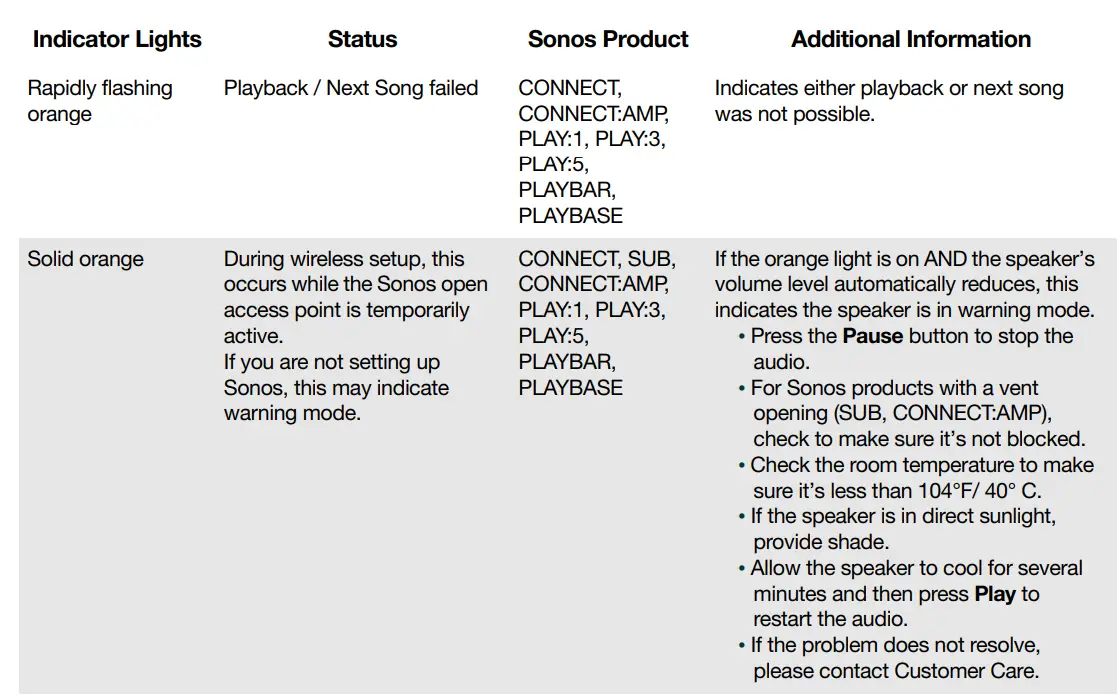
If the Status indicator light begins to flash orange, go to http://faq.sonos.com/led for additional information.
If you’re using a mobile device
- Go to More -> Settings -> Room Settings.
- Select a room.
- Tap White Indicator Light.
- Select On or Off.
If you’re using a computer
- Select Manage -> Settings (PC) or Sonos -> Preferences (Mac).
- Select Room Settings if it is not already highlighted on the left.
- Choose the room you want to change from the Room Settings drop-down.
- From the Basic tab, click the White Status Light On checkbox to turn the light on or uncheck to turn it off.
Disable speaker touch controls
You can disable the buttons on your speaker so they won’t respond to touch. You may want to do this so your child can’t accidentally start and stop playback or change the volume.
- Choose an option:
- If you’re using a mobile device, tap More -> Settings -> Room Settings.
- If you’re using a PC, select Manage -> Settings.
- If you’re using a Mac, select Sonos -> Preferences.
- Choose a room (on a Mac or PC, select the room from the Room Settings for drop-down list).
- Turn off Speaker Touch Controls.
Change room names
If you’re using a mobile device
- Go to More -> Settings -> Room Settings.
- Select a room.
- Tap Room Name.
- Select a name from the list, or enter a new name, and tap Done.
If you’re using a computer
- Select Manage -> Settings (PC) or Sonos -> Preferences (Mac).
- Select Room Settings if it is not already highlighted on the left.
- Choose the room you wish to change from the Room Settings for drop-down list.
- From the Basic tab, enter a new name or choose one from the Room Name list.
Basic troubleshooting
If a problem occurs, you can try the troubleshooting suggestions listed below. If one of these doesn’t remedy the problem, or you are not sure how to proceed, please contact the Sonos Customer Support team and we’ll be happy to help.
Warning: Do not open the product as there is a risk of electric shock. Under no circumstances should the product be repaired by anyone other than an authorized Sonos repair center, as this will invalidate the warranty. Please contact Sonos Customer Support for more information.
- customer Support
- Visit our PLAYBASE reference section at http://moreinfo.sonos.com/PLAYBASE
- visit our website at www.sonos.com/support
- Email us at [email protected]
PLAYBASE not detected during setup - Did you allow Sonos to check for updates? The Sonos PLAYBASE requires software version 7.2 or later.
- Is the power cord properly seated? Be sure to push the power cord firmly into the PLAYBASE until it is flush with the surface.
- If either of these is not the problem, a network issue may be preventing the PLAYBASE from connecting to your Sonos system. Try moving the Sonos products closer together.
Eliminate annoying messages on your TV when using a cable, satellite, or set top box remote
After you disable your TV speakers, your television might display an annoying or confusing message when you adjust the volume on the PLAYBASE. This could be a message reminding you that your TV speakers are off, or a volume indicator unrelated to the sound from your PLAYBASE. If you have a programmable remote control, you can try the steps below. These steps will configure your remote control to send volume commands that are only recognized by the PLAYBASE so the message no longer appears when you increase or decrease the volume.
You will need to refer to the printed instructions that came with your remote control, or browse the on-screen help menu on your cable/satellite/set-top box as the specific details will vary. If you can’t find what you’re looking for, please contact your cable service provider for additional help.
Identify an unused device key
Your remote control can likely control a variety of devices. The device keys are usually located at the top of the remote and labeled TV/Cable/CBL/STB/DVD/AUX. Identify a device key that is not currently being used (for example, the AUX key).
If your remote will not allow additional devices to be programmed, you might wish to purchase a universal remote to make it easier to control all your devices. Sonos recommends a Logitech® Harmony® universal remote. See If you are using a Logitech universal remote for more information.
Program the unused device key
Programming the unused device key will add new volume commands to your remote control.
To perform this step you will need to refer to the printed instructions that came with your remote control or browse the on-screen help menu on your cable/satellite/set-top box as the specific details will vary by manufacturer. If you cannot locate the instructions, contact your cable service provider for additional help.
- From the list of codes that can be programmed, select a Sonos code if it appears in the list.
- if Sonos does not appear in the list, select a code for any manufacturer brand other than your TV or other devices connected to the TV. For example if you own a Vizio TV and a Samsung Blu-ray player, choose a Panasonic code from the list.
- DO NOT initiate an automated search for a code.
Lock your remote control to the new volume commands
Locking volume control to the new device will ensure your remote always sends the new volume commands.
This feature is likely referred to as volume lock or volume punch through in the instructions that accompanied your remote control. Configure your PLAYBASE to work with these new volume commands
Go to Set up a remote control for help with this step.
Verify that the problem is solved
If the problem persists, try repeating the steps above, and choosing a different manufacturer brand when programming the unused device key.
Eliminate annoying messages on your TV when using a universal remote
After you disable your TV speakers, your television might display an annoying or confusing message whenever you adjust the volume on the PLAYBASE. This could be a message reminding you that your TV speakers are off, or a volume indicator unrelated to the sound from your PLAYBASE. Try the steps below to configure your universal remote so this message no longer appears when you increase or decrease the PLAYBASE’s volume.
If you do not own a universal remote, Sonos recommends you purchase a Logitech® Harmony® remote.
If you are using a Logitech universal remote
If this remote is a new purchase, you will first need to set up a Logitech user account and install the Harmony Remote software. Then follow the steps below to add the PLAYBASE as a new device.
- Use the USB cable provided by Logitech to connect your Harmony remote to your computer.Note:If this remote is a new purchase, you will need to set up a Logitech user account and install the Harmony Remote software before proceeding.
- Launch the Logitech Harmony Remote software or go to www.logitech.com/myharmony and login to your account. (Where you are directed depends on the Logitech universal remote model you purchased.)
- Select the Add Device setting.
- Choose one of the following options:
- If you are using Logitech Harmony Remote software:
- Select Sonos as the manufacturer, and enter PLAYBASE as the model name/number. If the Sonos PLAYBASE is not in their database, you will be asked to add it.
- Confirm that you’ve entered the information correctly, and then save your changes.
- If you are using My Harmony website:
- Type Sonos as the manufacturer and PLAYBASE as the model name. If the Sonos PLAYBASE is not in their database, you will be asked to confirm your entry or make another choice.
- Confirm that you’ve entered the information correctly, and then save your changes.
If you are using another universal remote
Please follow the instructions on Eliminate annoying messages on your TV when using a cable, satellite, or set top box remote.
Turn off your television’s speakers
During the setup process you are prompted to turn off your TV speakers so the sound comes only through the PLAYBASE. While Sonos cannot provide instructions for every television model, please try the steps below.
If you cannot find the correct setting to turn off your TV speakers, please consult the owner’s guide that was packaged with your television.
- Select the Menu or Setup button on your television’s remote control (not your cable remote control).
An on-screen menu will appear. - Select the menu option that controls your television’s audio functions.
Note: This menu selection is most often labeled Audio, Sound, Tools, or Options or may display as a musical note icon. - Select the appropriate setting to turn off your TV speakers. Depending on your TV make and model, choices may include:
- Off / On
- External Speaker / Television Speaker
- Audio System / Television Speaker
The choice in bold will turn the TV speakers off.
- If none of these are applicable to your television, look for a setting that switches your TV output between variable and fixed and try switching the setting.
Can’t turn off TV speakers
You should make every effort to turn off your TV’s internal speakers. However some brands, including Toshiba and Dynex, may not include this setting. If you are unable to turn off the TV speakers, follow the steps below.
- Using the volume control buttons on your television, turn the TV volume all the way down. Do not use the Mute button.
- From this point forward use only the volume buttons on your Sonos app to adjust the PLAYBASE’s volume.
I have a new router
If you purchase a new router or change your ISP (Internet service provider), you will need to restart all your Sonos products after the router is installed. Note: If the ISP technician connects a Sonos product to the new router, you only need to restart your wireless Sonos products.
- Disconnect the power cord from all of your Sonos products for at least 5 seconds.
- Reconnect them one at a time, starting with the Sonos product that is connected to your router (if one is usually connected).
Wait for your Sonos products to restart. The status indicator light will change to solid white on each product when the restart is complete.
If your Sonos setup is completely wireless (you don’t keep a Sonos product connected to your router), you will also need to change your wireless network password. Follow the steps below: - Temporarily connect one of your Sonos speakers to the new router with an Ethernet cable.
- Select More -> Settings -> Advanced Settings -> Wireless Setup.
Sonos will detect your network.
- Enter the password for your wireless network.
- Once the password is accepted, unplug the speaker from your router and move it back to its original location.
- want to change my wireless network password
If your Sonos system is set up wirelessly and you change your wireless network password, you will also need to change it on your Sonos system.
- Temporarily connect one of your Sonos speakers to your router with an Ethernet cable.
- Choose one of the following options:
- Using the Sonos app on a mobile device, select More -> Settings -> Advanced Settings -> Wireless Setup.
- Using the Sonos app on a PC, select Settings -> Advanced from the Manage menu. On the General tab, select Wireless Setup.
- Using the Sonos app on a Mac, select Preferences -> Advanced from the Sonos menu. On the General tab, select Wireless Setup.
- Enter the new wireless network password when prompted.
- Once the password is accepted, you can unplug the speaker from your router and move it back to its original location.Note: Don’t see Advanced Settings?
Your Sonos system may need to be updated. Tap Update Now if it appears.
Are you part of our Sonos Beta program and using an iOS device? If you are, you’ll need to open the app on a device that’s not running iOS.
I want to change my wireless network password
If your Sonos system is set up wirelessly and you change your wireless network password, you will also need to change it on your Sonos system.
- Temporarily connect one of your Sonos speakers to your router with an Ethernet cable.
- Choose one of the following options:
- Using the Sonos app on a mobile device, select More -> Settings -> Advanced Settings -> Wireless Setup.
- Using the Sonos app on a PC, select Settings -> Advanced from the Manage menu. On the General tab, select Wireless Setup.
- Using the Sonos app on a Mac, select Preferences -> Advanced from the Sonos menu. On the General tab, select Wireless Setup.
- Enter the new wireless network password when prompted.
- Once the password is accepted, you can unplug the speaker from your router and move it back to its original location.
Note: Don’t see Advanced Settings?
Your Sonos system may need to be updated. Tap Update Now if it appears.
Are you part of our Sonos Beta program and using an iOS device? If you are, you’ll need to open the app on a device that’s not running iOS.
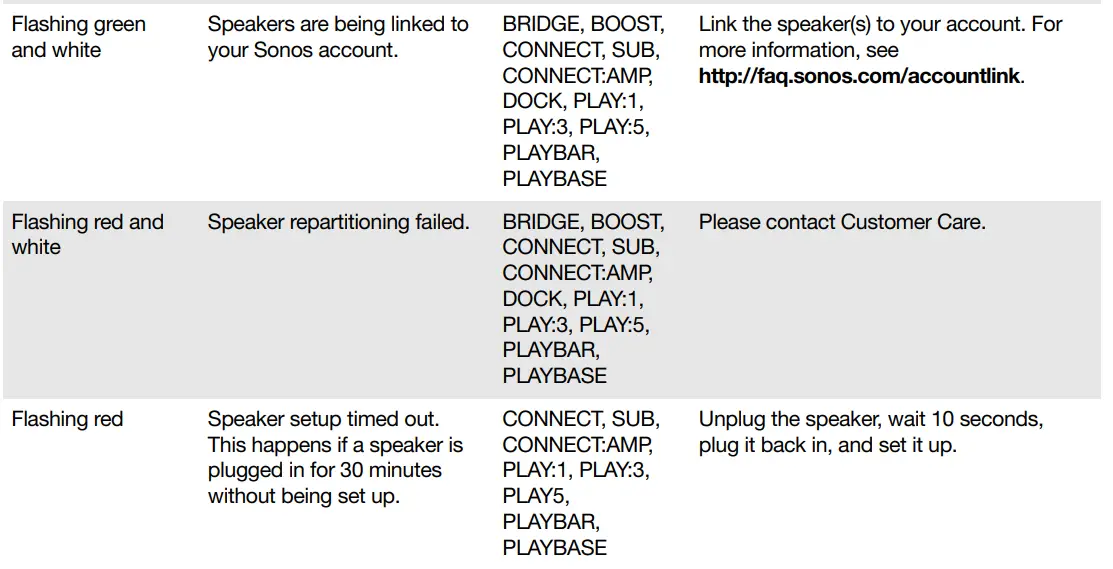
Status indicators

Important safety information
Please read these instructions and heed all warnings. Keep them in a convenient location and make sure everyone in the household is aware of them.
Location
- Do not place the unit where it will be exposed to excessive heat (e.g., radiators, heat registers, stoves), direct sunlight, or a dusty environment (e.g., woodworking shop.)
- Do not place the unit where it will be exposed to flammable liquids and/or fumes.
- Allow at least 1” between the PLAYBASE and any walls or surfaces.
- Protect the power cable from being walked on or pinched, particularly at plugs, convenience receptacles, and the point where it exits the product. The mains cord should be readily available to disconnect the power.
- The product should not be used near water—avoid close proximity to a bathtub, kitchen sink, laundry tub, wet basement, swimming pool, etc.
- The PLAYBASE is for indoor use only. Do not expose to rain or snow.
Proper Ventilation
- Leave one inch of open space around the sides and above the unit to ensure proper ventilation.
- Ventilation should not be impeded by covering the ventilation openings with items such as tablecloths, curtains, or papers.
- Do not let foreign objects into the unit. If a foreign object should get into the unit, unplug the unit and contact Sonos for servicing guidance.
Usage
- Do not operate or handle the product with wet hands.
- Only use attachment/accessories specified by Sonos.
- Unplug the power cord during lightning storms or when unused for long periods of time.
- Never disassemble or modify the product in any way.
Cleaning & Maintenance
- Dust with a dry, soft cloth. A cloth moistened with water or gentle household cleaner may be used to clean dirt or stains, but unplug the product first. Do not spray liquids directly onto the product.
- Do not use chemical solvents (e.g. alcohol, benzene, paint thinner) or other flammable cleaning liquids.
- Refer all servicing to Sonos qualified service personnel. Servicing is required when the unit or the power cord has been damaged in any way, if liquid or other foreign matter has fallen into the ventilation openings, or the unit has been exposed to rain or moisture.
Warning: To reduce the risk of fire or electric shock, do not expose this apparatus to rain or moisture.
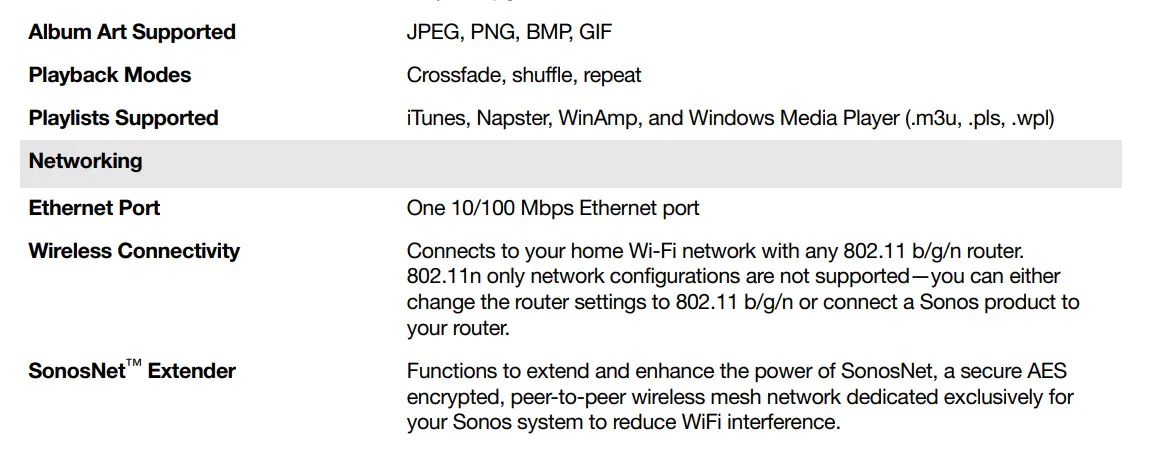
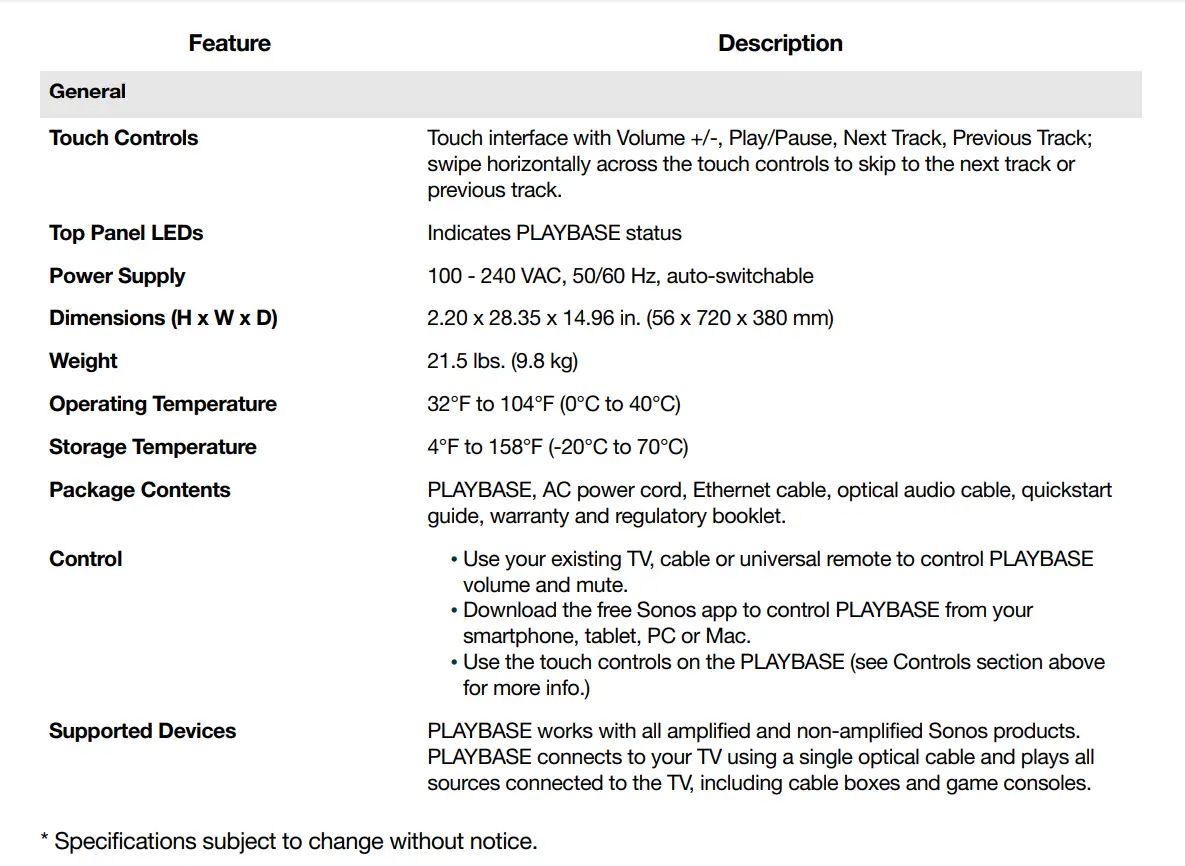
PLAYBASE specs
Product guide feedback?
We’d love to hear from you! We’ll read your feedback carefully and use it to help us improve our product guides. Write to us at: [email protected]
If you’re having a problem with your Sonos system, please contact Customer Care so they can help. Email them at http://www.sonos.com/emailsupport.
Need more help?
- Tap More -> Help & Tips for simple tips for getting the most out of your speakers.
- Visit our Frequently Asked Questions (FAQ) pages at www.sonos.com/support.
- Ask us a question at http://www.sonos.com/emailsupport.
FAQS
I have used both. Playbar is designed for a wall mounted TV. Playbase is for one that just stands on a TV stand. Both sound great. Playbar can be just set in front of a TV that has a TV stand, too, it will still sound great, but it is a bit in the way and why not just get the Playbase? I also have a sub and two Play 1’s with it.
While it still sounds exceptional from close range, it is definitely intended for filling a whole room and would not be performing at its maximum from that close.
Sonos speakers were designed to be used with a wireless router that has a connection to a High-speed DSL/Cable modem, or fiber-to-the-home broadband. Jetpacks and hotspots can have a delay with their Internet connectivity, which in turn can cause audio playback issues. Our system requirements can be found here: https://sonos.custhelp.com/app/answers/detail/a_id/127
Playbase is for one that just stands on a TV stand. Both sound great. Playbar can be just set in front of a TV that has a TV stand, too, it will still sound great, but it is a bit in the way and why not just get the Playbase? I also have a sub and two Play 1’s with it.
Think you just connect phone or computer.
Both power cord and optical audio cord are black for the white unit.
accordingly
Just the TV output. Nothing from the Sonos. I wish they would.
it probably can be done but it is quite wide for a computer and is somewhat wasteful of the terrific sound this speaker can deliver for a tv for example.
I am guessing not. I have all sonos speakers and you have to add each speaker and assign them to a room. Nowhere does it ask about adding non sonos equipment.
I would expect to f the TV connects to WiFi then the playbase will pair with the TV. This is all with WiFi not Bluetooth and the tv needs to be close enough to the router to pick up the signal.
Would recommend using either the connect amp with outdoor speakers. Or bring them inside when finished. Home theater design.
Yes – it joins your Sonos network and you can group them together