
NEMESIS™
Quick Guide
About this document
This document describes the basic operation of the unit.
Turning the system ON/OFF
The unit will turn ON when power is applied.
First-time startup
When you start the unit for the first time or after a factory reset, the unit displays a setup wizard. The wizard will guide you through the set up of the screen orientation, language, and other settings.
Note: Any settings made during the first time set up can be changed later from the system settings.
Lock/unlock the screen
By default, the screen is automatically locked when the unit is idle for a period of time. This screen lock feature can be changed in the system settings.
When the dashboard bar is shown, press the lock button to lock the screen.
To unlock the screen, if installed in landscape orientation swipe from the right edge of the display. If installed in portrait orientation swipe from the bottom of the display.
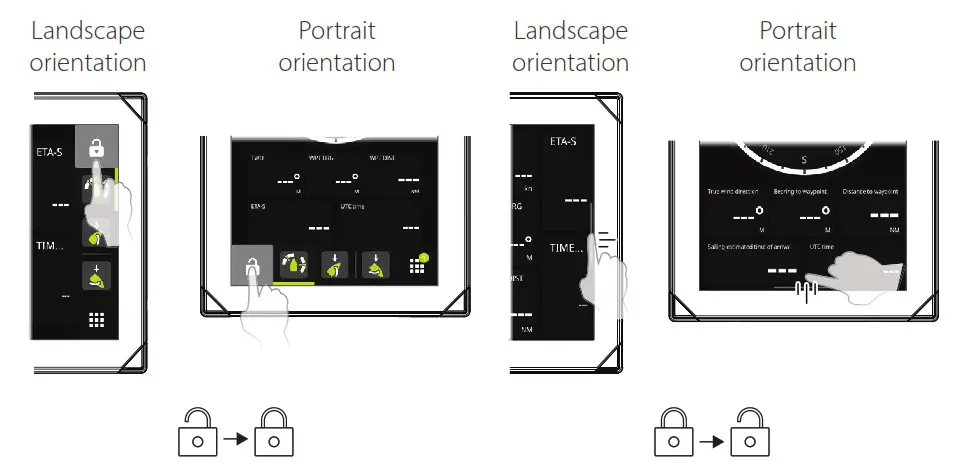
Home screen
The Home screen is accessed by selecting the Home button.
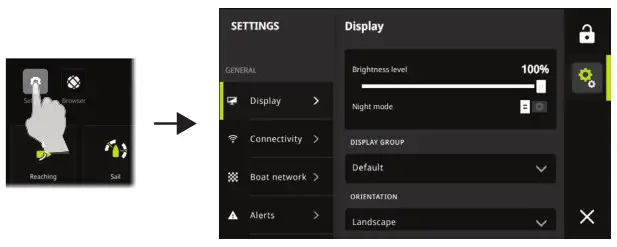
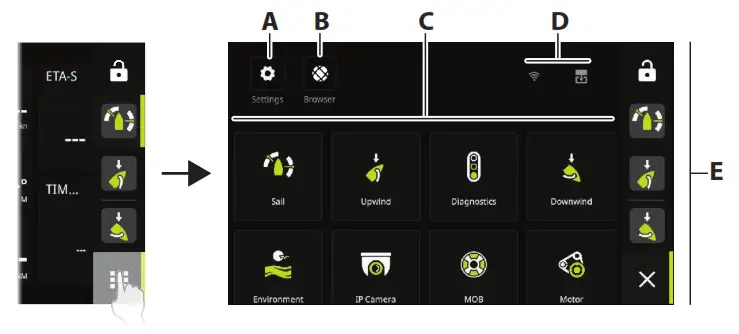 A Settings button – gives access to the system settings.
B Browser button – can be used to access the B&G® CPU web server or for browsing the internet.
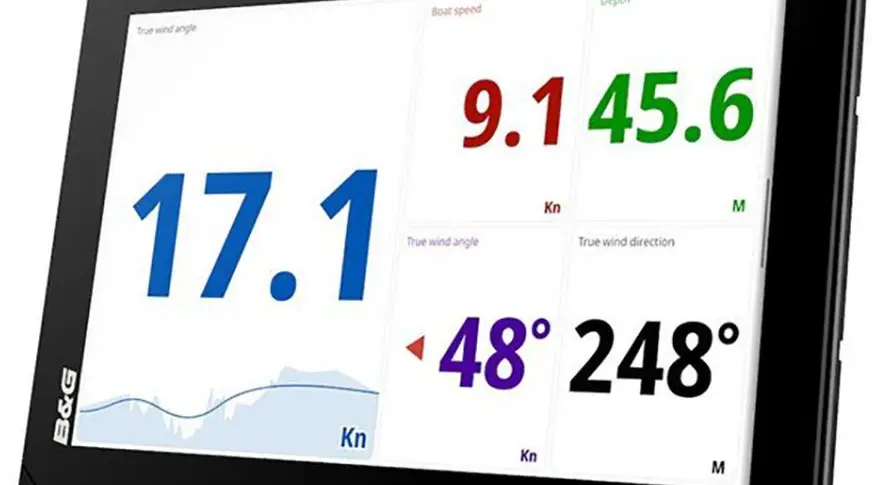
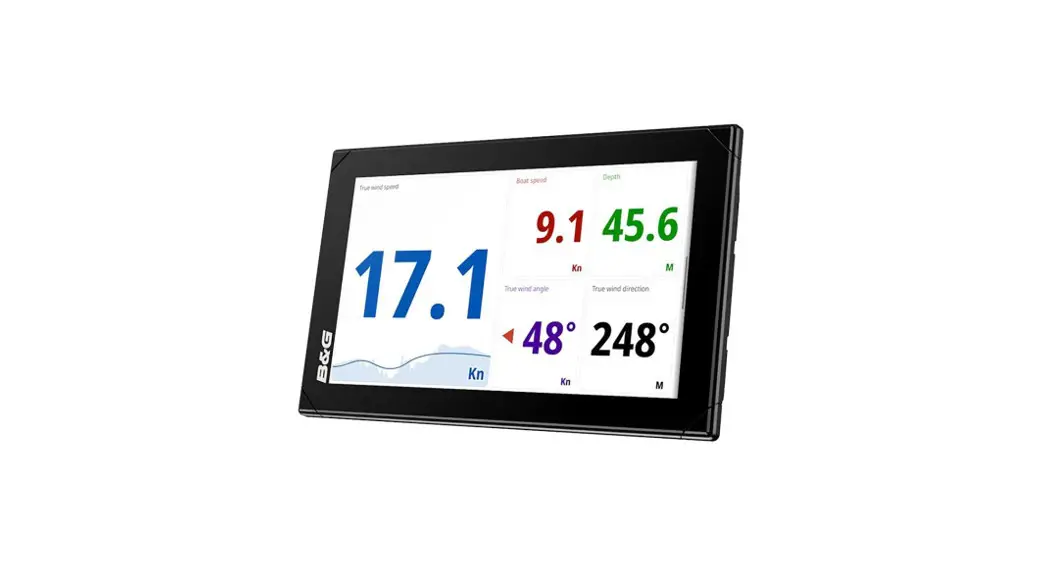
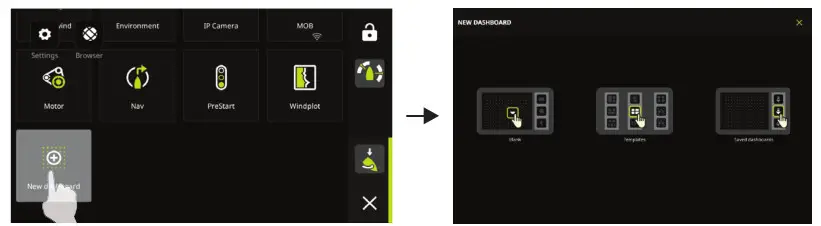
C Dashboards – select the dashboard that you want to activate, or select the new dashboard option to create a custom dashboard.
D Status bar
E Dashboard bar – pinned and recently used dashboards.
Dashboard bar
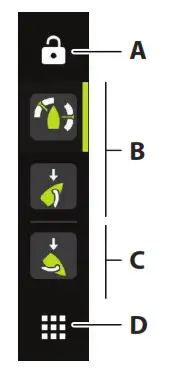
A Lock button
B Pinned dashboards – user favorite dashboards.
C Recently used dashboard.
D Home button
Note: The active item in the dashboard bar will be highlighted.
Pin/unpin a dashboard
Pin a dashboard
On the home screen, press and hold on the dashboard that you want to pin to the dashboard bar. You can pin a dashboard to a new position or overwrite an existing position on the dashboard bar.
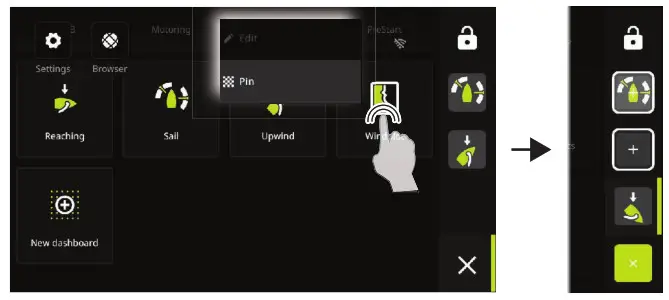
Unpin a dashboard
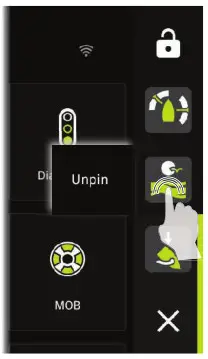
From the dashboard bar, press and hold to display the unpin option.
Dashboards
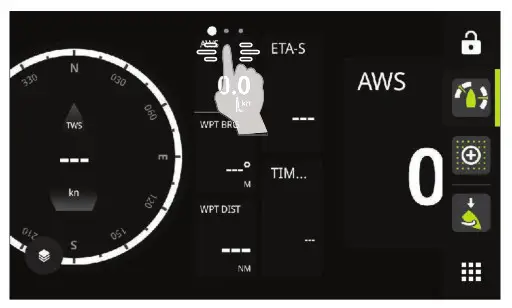
Swipe left/right to change between pinned dashboards.
Edit and delete a dashboard
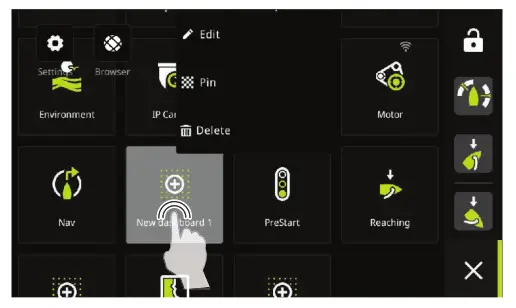
On the home screen, press and hold on to the dashboard you want to edit or delete.
Note: Some options might not be available depending on the selected dashboard.
Customize gauge settings
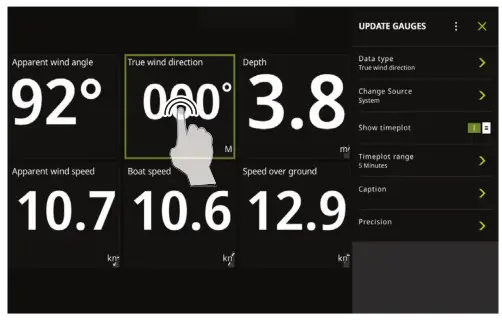
Gauges included in a dashboard can be customized. Press and hold on to the gauge to display the edit options.
Create a new dashboard
Note: You can start from a blank dashboard, a template, or from a saved dashboard. A saved dashboard is one of the previous dashboards you have created.
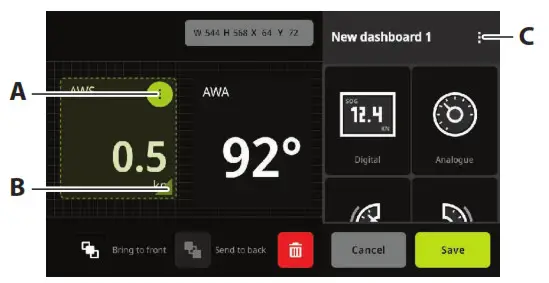 A Change gauge settings, choose data to be shown on the gauge.
B Resize gauge.
C Change dashboard attributes.
System settings
The system settings is accessed from the home screen.
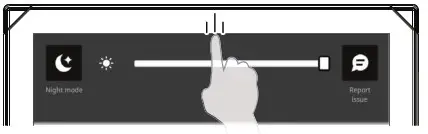
Use the Quick access menu to change the screen brightness, activate night/day mode, or to report an issue.
Access the menu by swiping from the top edge of the display.
Product manuals
For the latest information and updated documentation refer to the website: www.bandg.com.