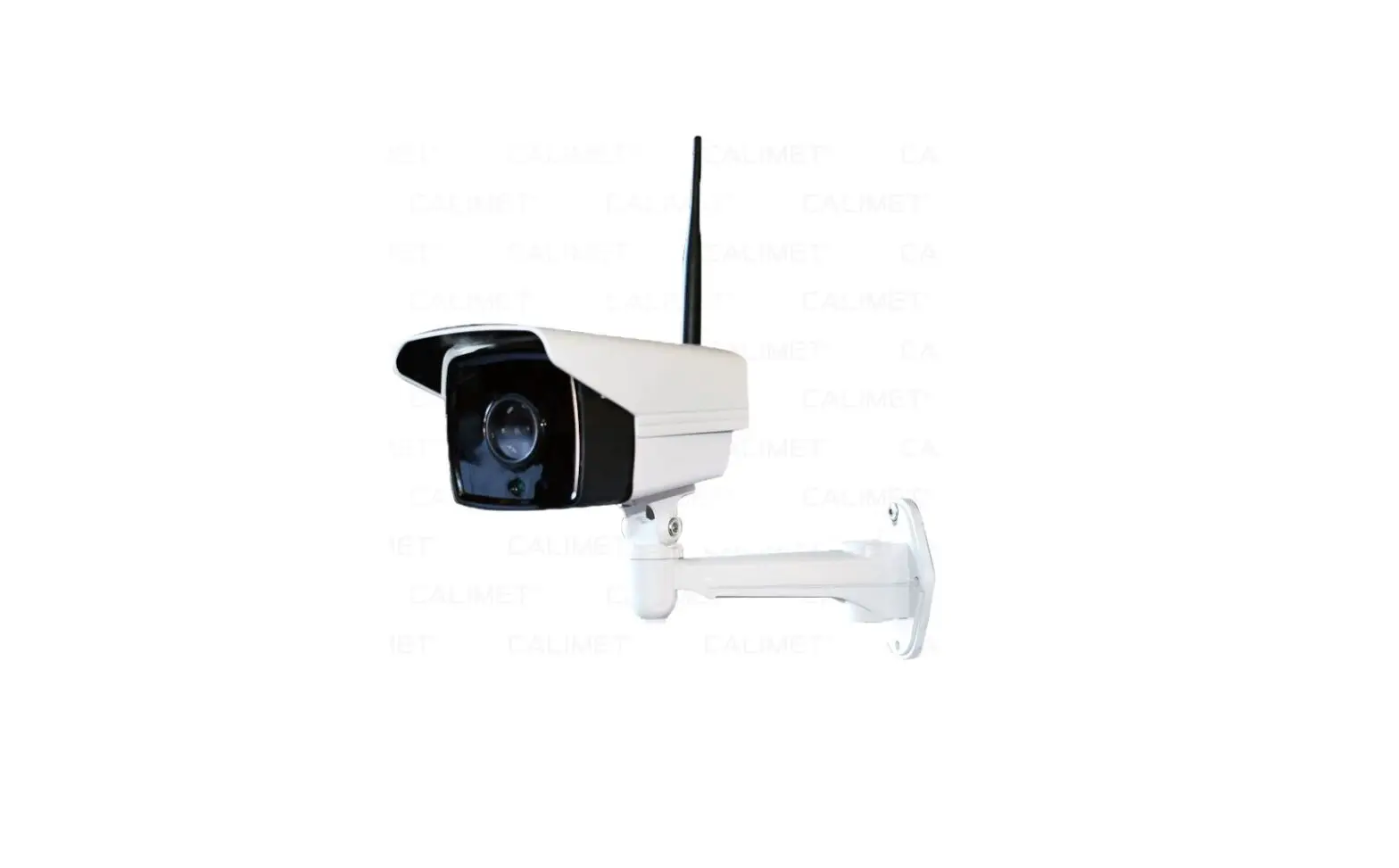
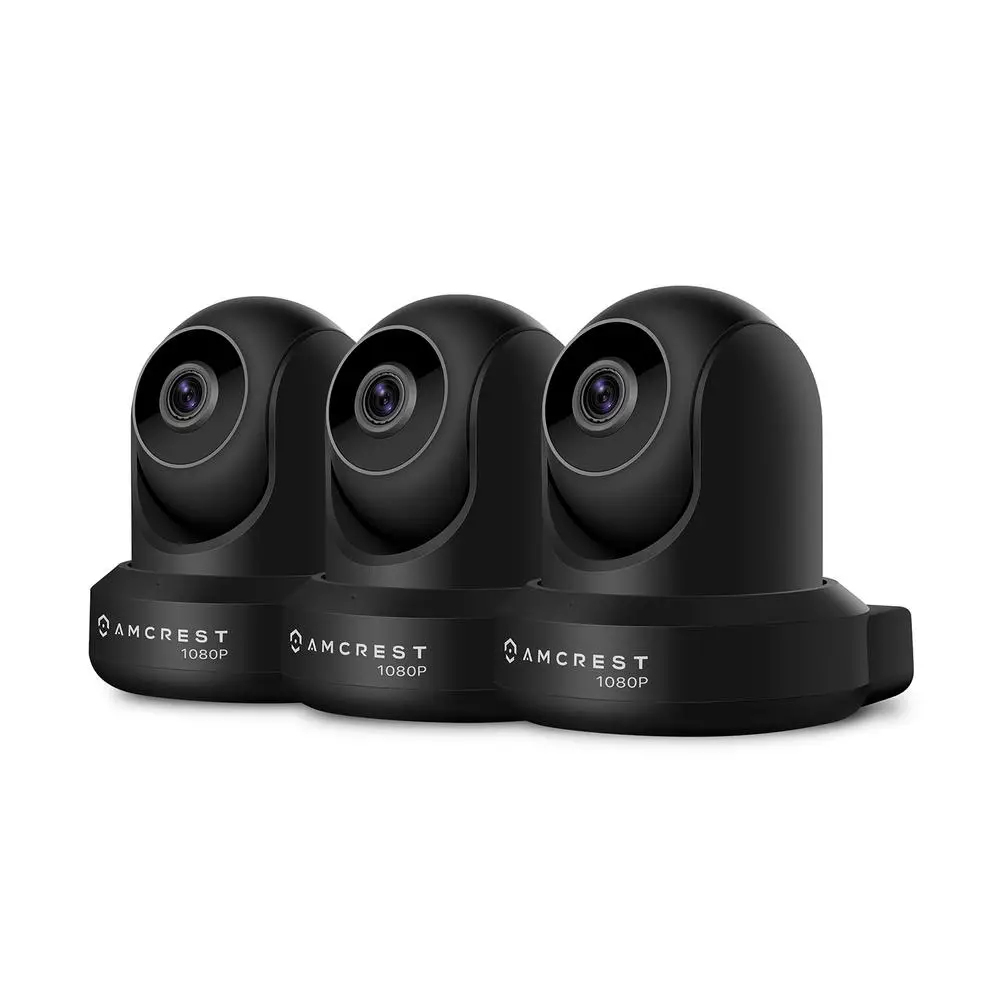
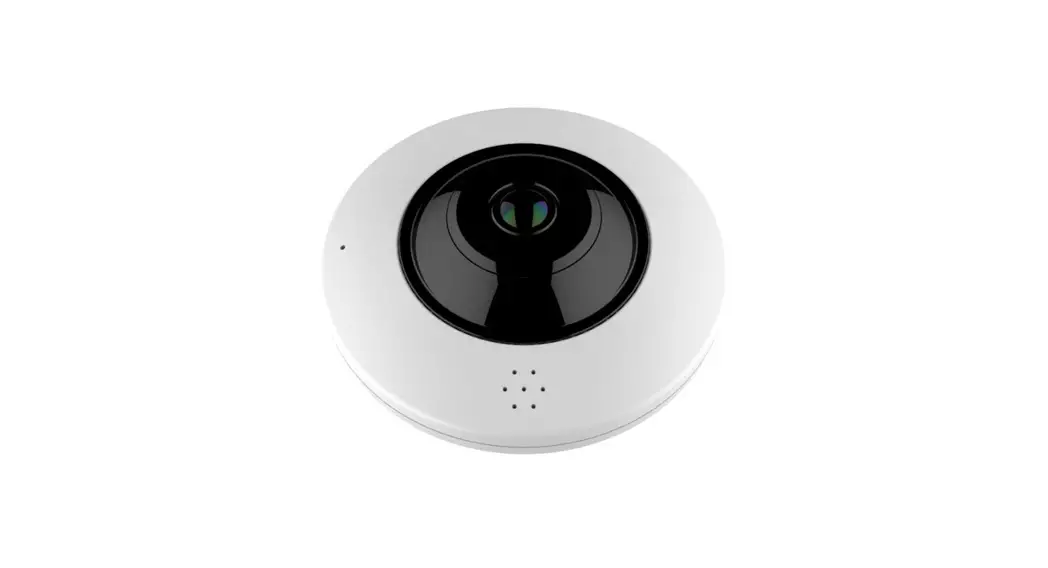
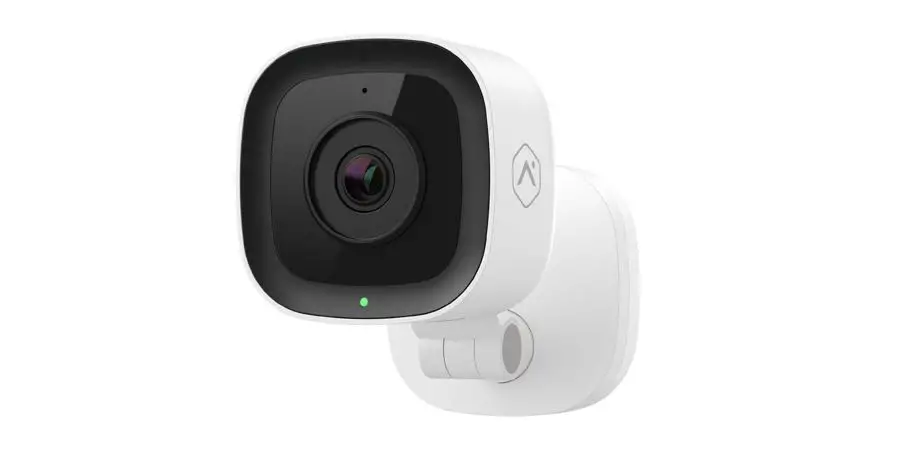
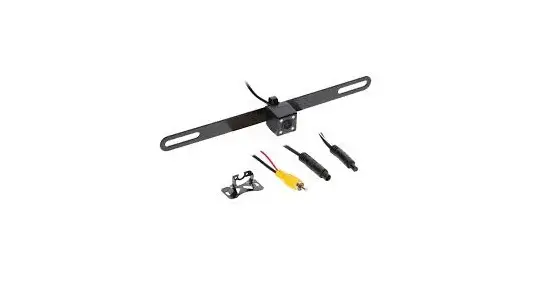
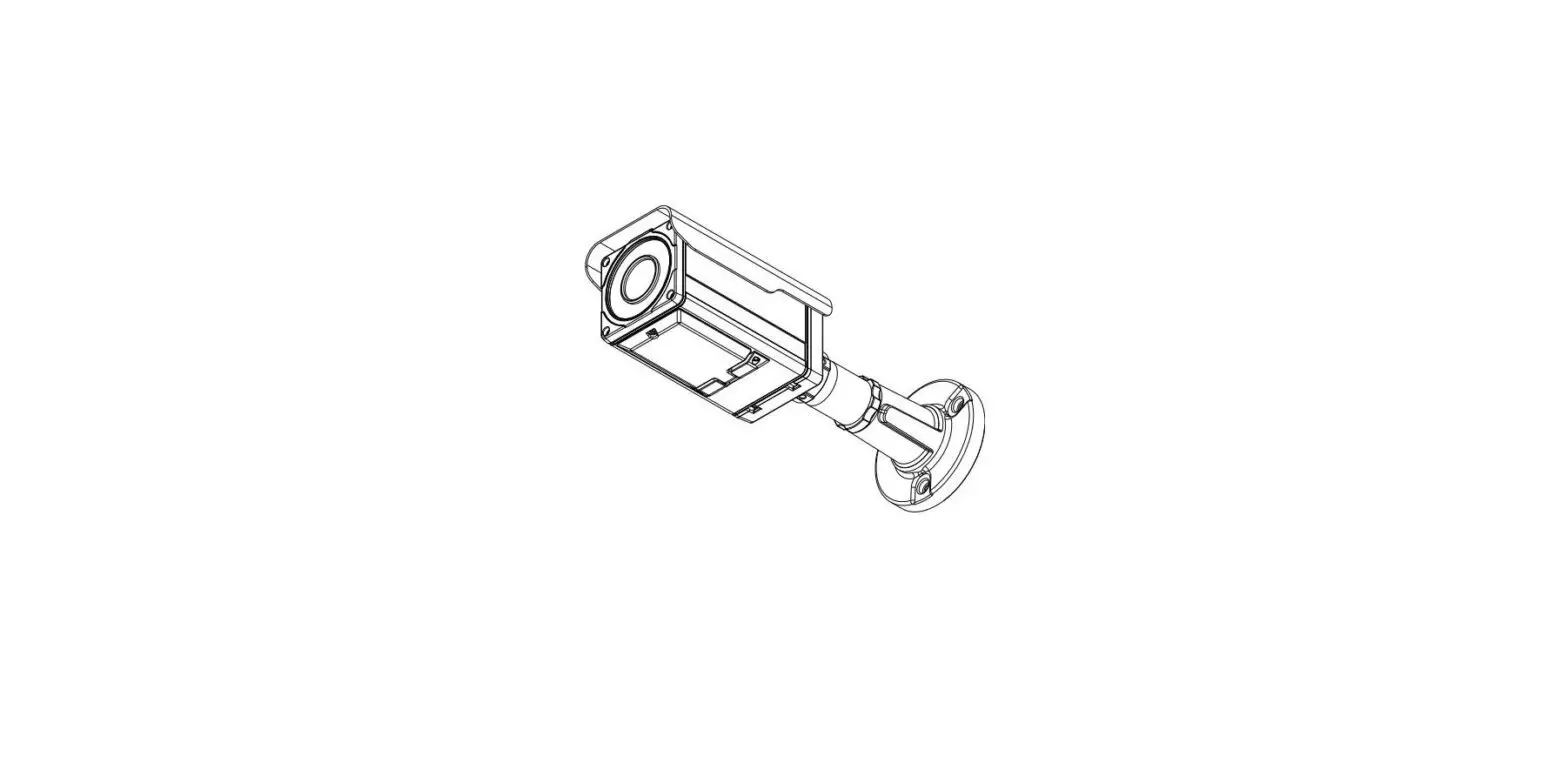
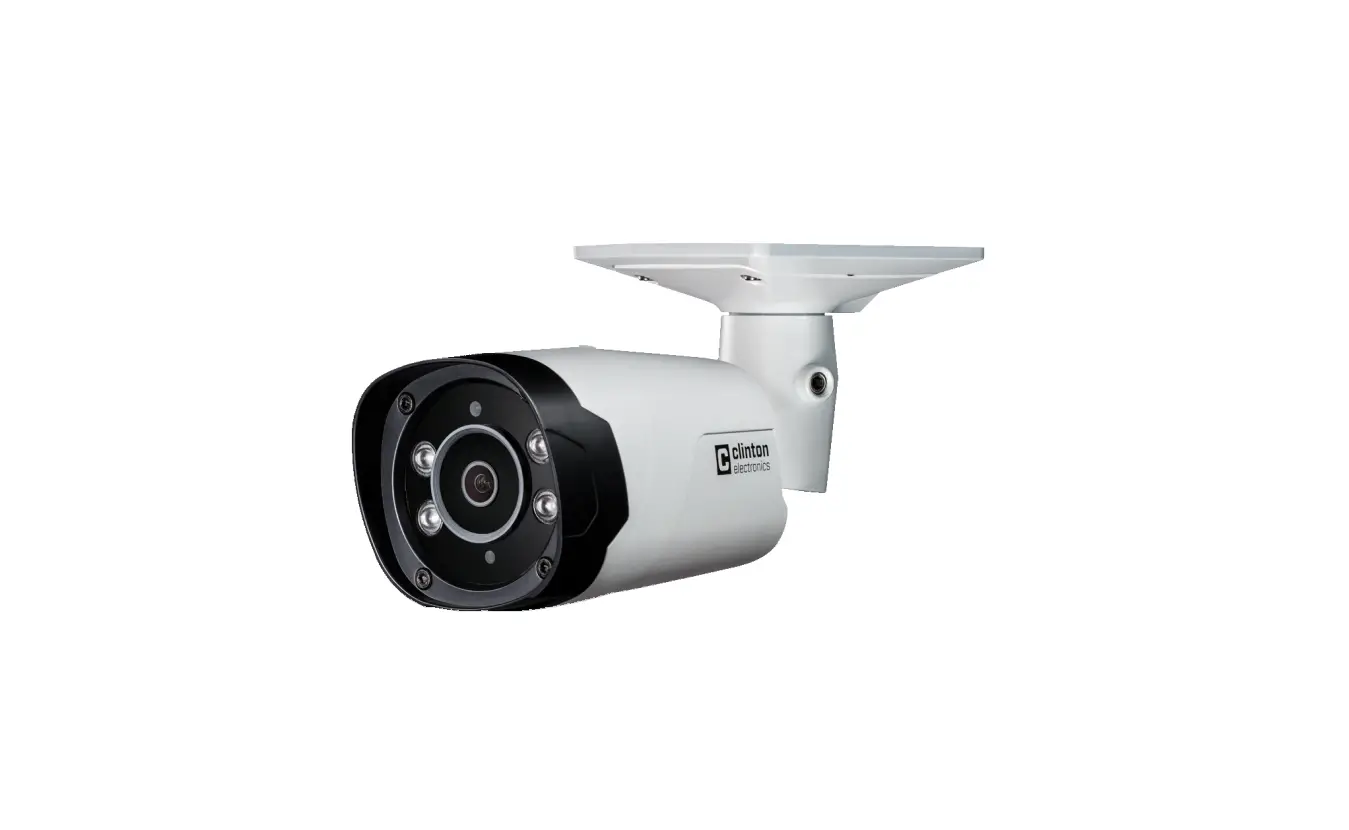
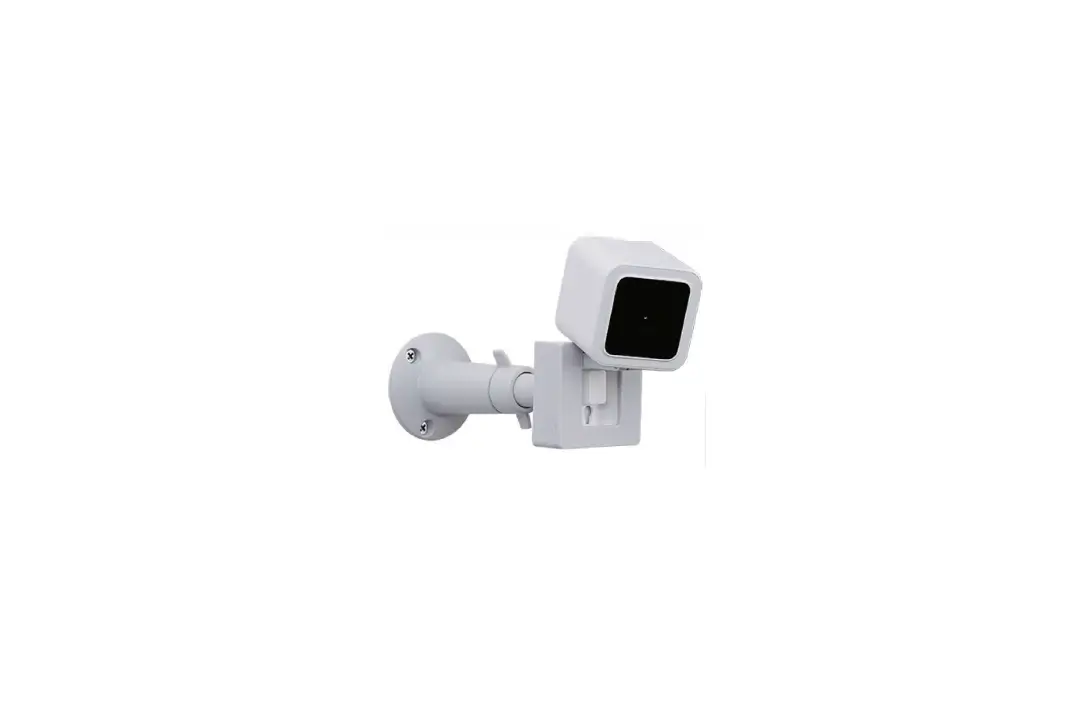
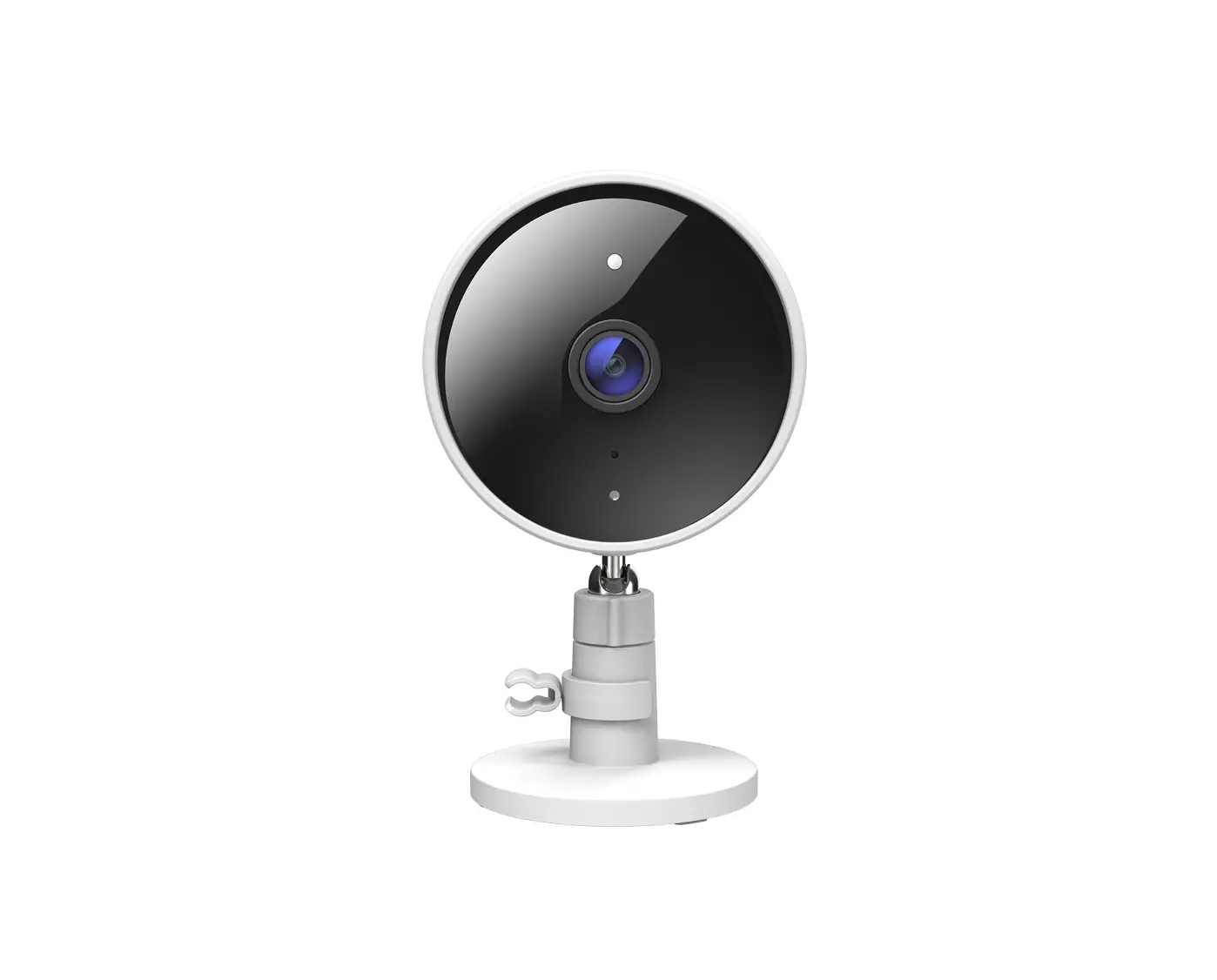
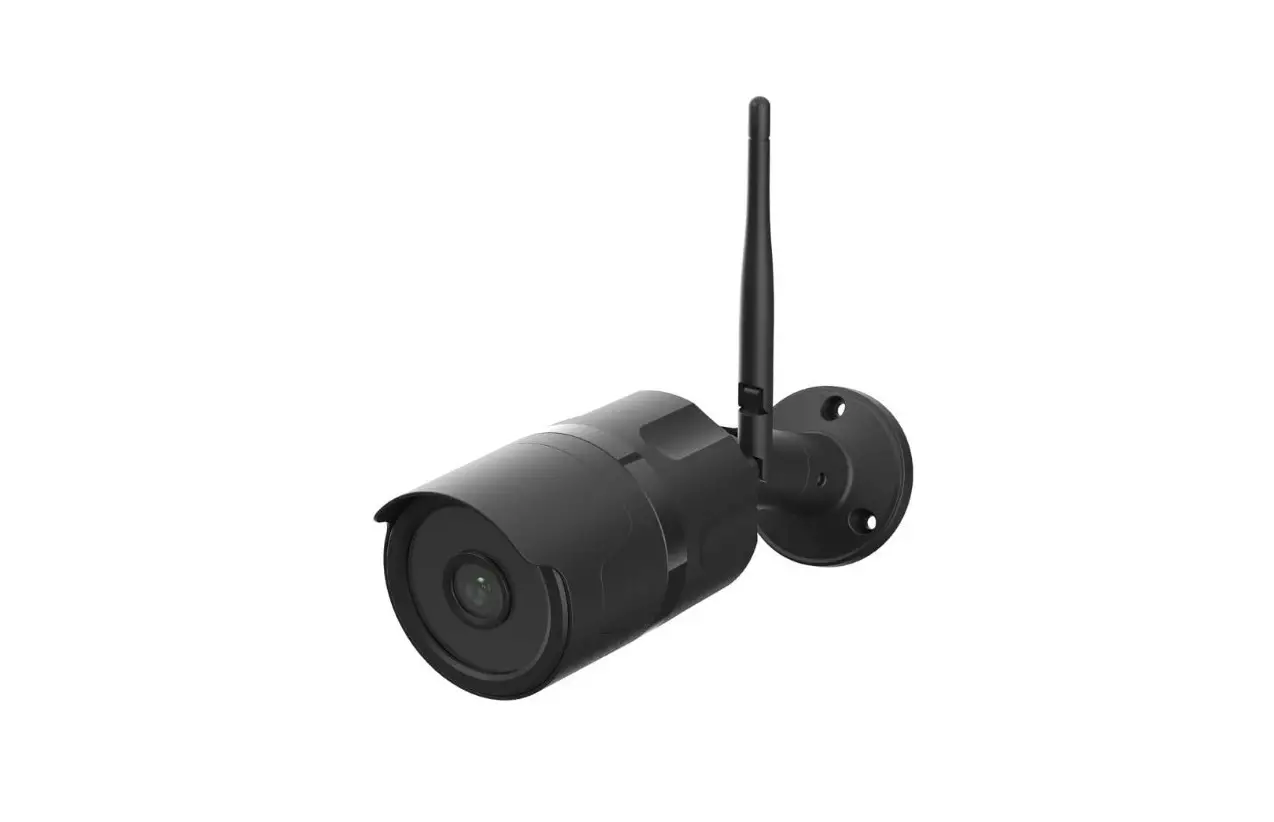
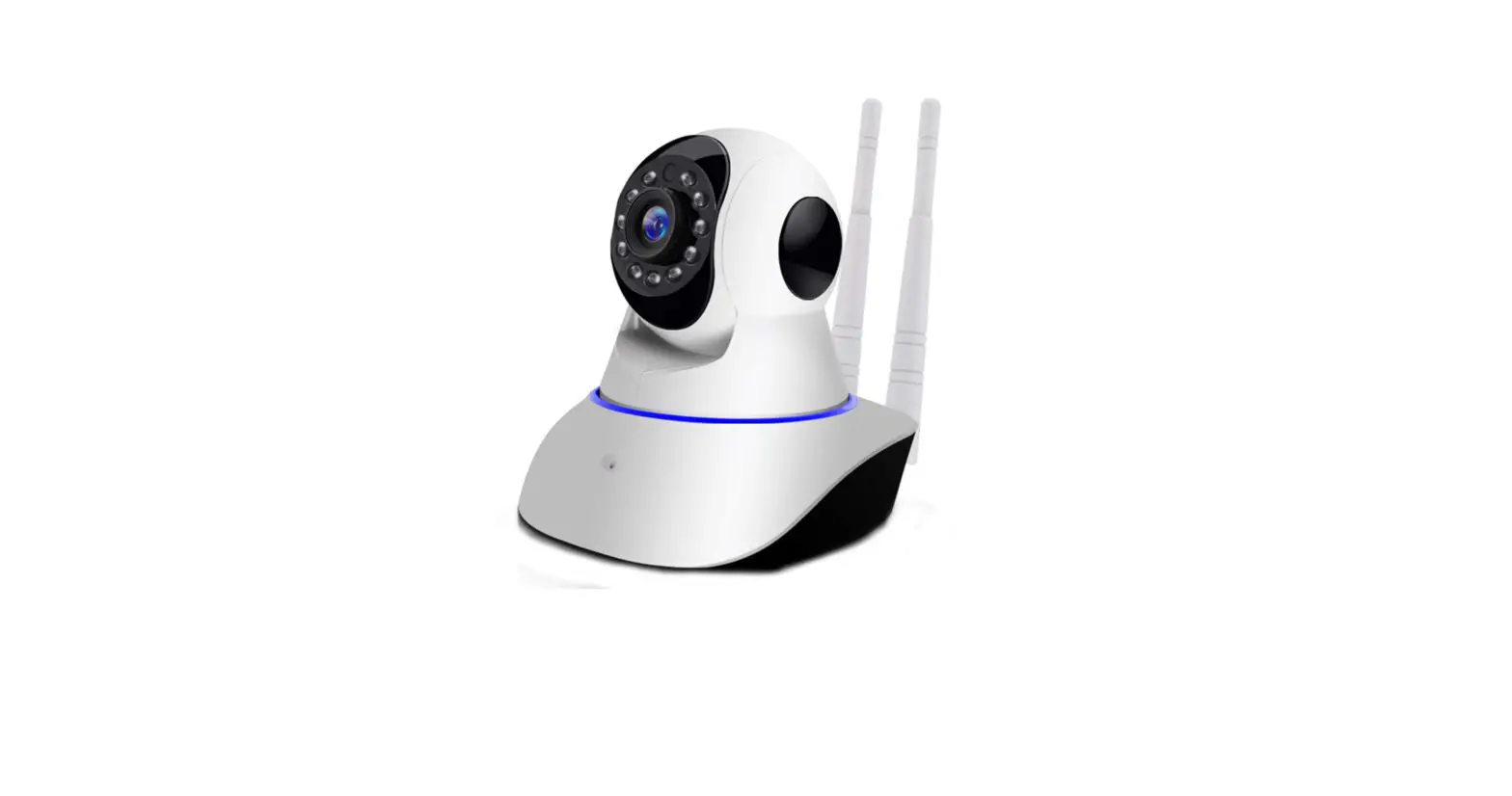
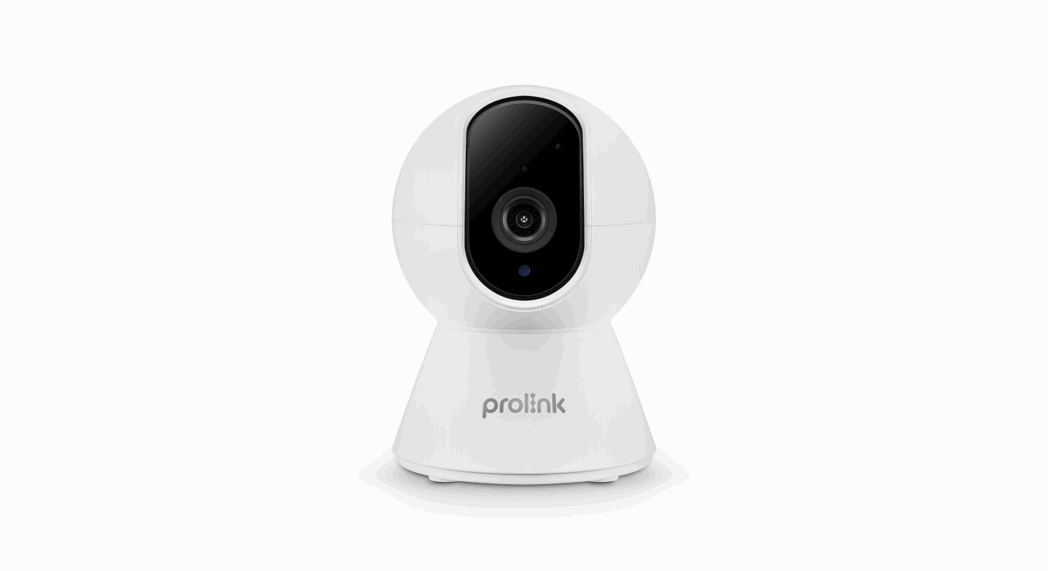
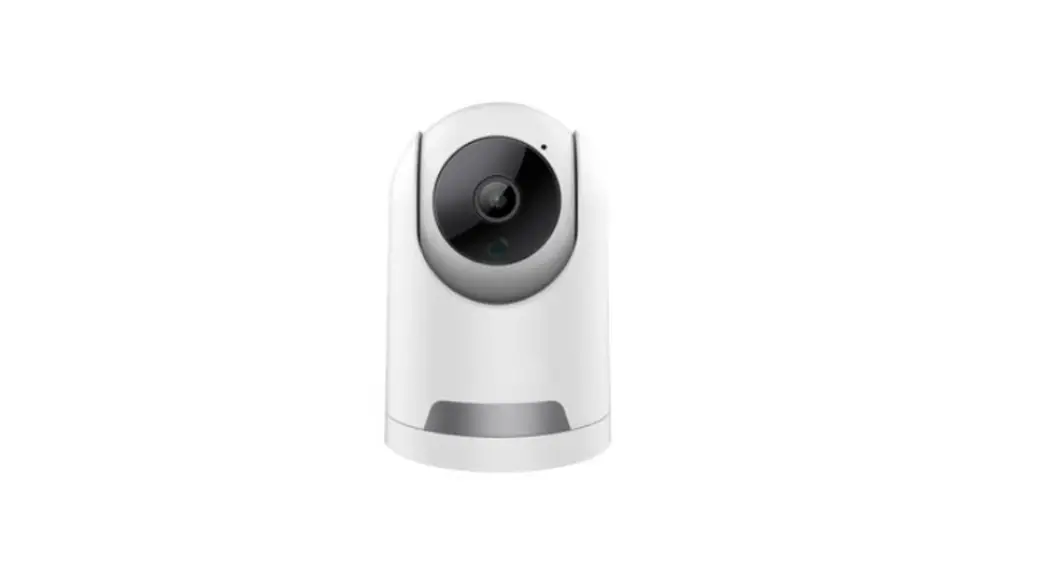
BW-300A Access Camera
Product Information: BW-300A Access Camera
The BW-300A Access Camera is an advanced access control system
designed to provide secure monitoring and control of your property.
With its high-quality camera and smart features, it allows you to
remotely manage access to your premises using the Smartgate App.
The camera comes with a range of accessories and is easy to
install.
Items Included:
- Camera
- Transformer
- Bracket
- Antenna
- Screw kit
- Instruction manual
Step 1: Camera Installation
- Attach the antenna to the back of the camera and turn it
clockwise. - Plug the cable into an electric outlet with a voltage range of
100V-250V AC.
Step 2: Download the Smartgate App
To control and monitor the camera, you need to download the
Smartgate App on your smartphone:
- For Apple phones, search for “Smartgate” on the Apple Store and
download the app. - For Android phones, search for “Smartgate” on Google Play and
download the app.
Step 3: Create an Account with the Smartgate App
- Click on “Register” on the login screen of the Smartgate
App. - Enter your email or phone number and password, then click on
“Get Verification Code”. - Enter the verification code that was sent to your email address
or phone number. - Click on “Register” to complete the registration process.
- Log in using the account you just created.
Step 4: Connect the Camera to the Smartgate App
There are two methods to connect the camera to the Smartgate
App: using Wi-Fi or an Ethernet cable.
Connect using Wi-Fi:
- Use a pen to press the reset button on the back side of the
camera transformer for 8 seconds. - Go to “Settings” on your phone, turn on Wi-Fi, and in the Wi-Fi
section, search and connect with the Wi-Fi name “SmartDoor”. - Open the Smartgate App and click the plus button on the top
right corner. - The camera will connect automatically and take you to the
wireless network settings page. - Enter your camera name or choose “My Door” as the default
name. - Enter your Wi-Fi name and password, then press “Binding
Device”. - If your Wi-Fi name and password were entered correctly, you
should see a binding success popup message. Press “OK”. - Press the back button on the top left to return home.
Connect using an Ethernet Cable:
Follow the same Wi-Fi procedures mentioned above for an Ethernet
connection.
Troubleshooting Connection Issues
If you encounter any connection issues, refer to the
troubleshooting section in the user manual for further
assistance.
Step 5: Connect your Camera to your Calimet Gate Opener
- Open the black cover of your gate opener and locate the circuit
board. - In the Smartgate App, click on the camera to open the live
video. - On your gate opener circuit board, look for and press the study
button for about 2 seconds until the flashing light becomes
solid. - Stop pressing the study button.
- Press the open button on the Smartgate App multiple times (and
fast) until the gate starts moving. - The study light on the circuit board should be a solid color
while you’re pressing the open button. If not, repeat step 3. - Connection complete.
Smartgate App Control Panel
The Smartgate App provides a control panel with various
features:
- Live video feed
- Switch Gates
- Open/Close Gate Button
- Screenshot
- Record Video
- Delete Gate
- Add Gate
- 180-degree rotation
- Gate 1 (connected gate)
- Rewind
- Settings
- Files
Adding Multiple Users
- Go to the Home Screen of the Smartgate App.
- Press the Rewind Button.
- Select a time frame by clicking on the desired button (it
becomes blue when selected). - Press the Start button (there may be a delay based on your
Wi-Fi speed). - The camera comes with a 32GB memory card, which can be upgraded
to a 64GB memory card.
Access Control Systems
BW-300A Access Camera
www.calimetco.com 9949 Hayward Way South El Monte, CA, 91733 Tel: (626) 452-9009
Installation Manual
Ver 2.0 / 2022-01-18
Items Included
Camera, transformer, bracket, antenna, screw kit, instruction manual
Step 1: Camera Installation
A. Attach antenna to the back of the camera and turn clockwise
B. Plug cable into an electric outlet. Voltage range: 100V-250V AC
Step 2: Download the Smartgate App
For apple phones, search Smartgate on Apple Store, and then download For Android phones, search Smartgate on Google Play, and then download
Step 3: Create an Account with the Smartgate App
1. Click register on the login screen 2. Enter email or phone number and password then click “get verification code” 3. Enter verification code that was sent to the email address or phone number 4. Click register to complete the registration process 5. Log in using the account you just created
Step 4: Connect the Camera to the Smartgate App
Connect using WIFI 1. Use a pen to press the reset button on the back side of the camera transformer for 8 seconds.
Reset
3. Go to Settings on your phone, turn on Wi-Fi, and in the wifi section, search and connect with the wifi name “SmartDoor”.
4. Open the Smartgate APP and click the plus button on the right upper corner
5. It will connect automatically and take you to the wireless network settings page 6. Enter your camera name, or choose “My Door” as default 7. Enter WIFI name and WIFI password then press binding device. 8. You should see a “binding success” popup message if your wifi name and password was entered correctly. Press the “OK” button. 9. Press the back button the top left to return home.
Binding Device
10. Your camera will appear. To prevent a mismatch, wait a few seconds until the status message says “Connected”. Once connected, tap on the picture of the house to view the camera.
Connect using an Ethernet Cable Instead of WIfi
Follow the same WIFI procedures above for an ethernet connection.
Troubleshooting Connection Issues
· If you are having trouble connecting the Smartgate app to the camera, check to make sure your firewall or router is not blocking the connection. Certain routers have built-in security features that you may need to configure to allow the camera to connect. · This camera is not compatible with 5Ghz routers. · Make sure bluetooth and wifi (local network) are granted permission on the Smartgate App
Step 5: Connect your Camera to your Calimet Gate Opener
1. Open the black cover of your gate opener, look for the circuit board.
2. In the smartgate APP, click on the camera to open the live video 3. On your gate opener circuit board, look for and press the study button for about 2 seconds
until the flashing light becomes solid and then stop pressing it. 4. Press the open button on the Smartgate app multiple times (and fast), until the gate is
moving.
Note: The study light on the circuit board should be a solid color (not flashing) while you’re pressing the open button. If not, repeat step 3.
Gate
5. Connection complete.
OPEN
Smartgate App Control Panel
Live video feed
Gate
Switch Gates
Open/Close Gate Button
Home N/A N/A Screenshot Record Video Delete Gate Add Gate
180 degree rotation
Gate 1
Connected
· One Camera can control up to 8 gates · Camera can be used as an access control (418 Mhz)
Rewind Settings Files
Adding Multiple Users
1. Open the menu on the upper left corner, then press “My Circle”. 2. Press “Add” on upper right corner, enter friend’s account information. 3. Friend’s account appears when complete. 4. Go back to the home screen and choose the camera that you would like to share, then click settings. 5. Click on the gray circle next to the user’s account that you would like to give access to. The blue check mark means account now has access. · The account that is being added can open/close gate and view live video, but is not authorized to share the video with others. · Click the blue check button to disable the sharing option.
View Past Video Footage
1. Go to the Home Screen 2. Press the Rewind Button 3. Select time frame, the selected button becomes blue 4. Press Start button (delay may occur based on your wifi speed) 5. The camera comes with 32gb memory card. It can be upgraded to a 64gb memory card.
Delete the Camera
1. Go to home screen and click on the settings icon 2. Press the “Remove Device” Button
Smartgate App Troubleshooting Instructions
If the camera and app were working fine before, but is now experiencing problems, follow the instructions below: 1. Sign out sign out of the app and sign back in
2. Force close the app On the Iphone home screen, swipe from the bottom left to the top, and locate the smartgate app, and swipe up to force close the app. In android phones, go to setting apps locate the smartgate app force stop. After force closing, re-open the app and see if the problems resolve.
3. Check that Wifi and Bluetooth are turned on In your settings, check that wifi and Bluetooth are turned on, and airplane mode is turned OFF.
4. Update to the latest version Go to the app store or google play store and update the Smartgate app to the latest version if you haven’t already. Alternatively, you can visit the links below to update: a. Iphone: https://apps.apple.com/us/app/smart-gate/id1440418448 b. Android: https://play.google.com/store/apps/details?id=www.calimet.com.calimet
5. Delete the camera – Delete the camera from the smartgate app and then re-add. Cameras can be deleted by pressing the gear icon in the home screen, and then press the Remove Device button. Follow the instructions starting from STEP 4 to re-add the camera to the Smartgate app.
 Calimet® Gate Openers - Electric Gate Operators