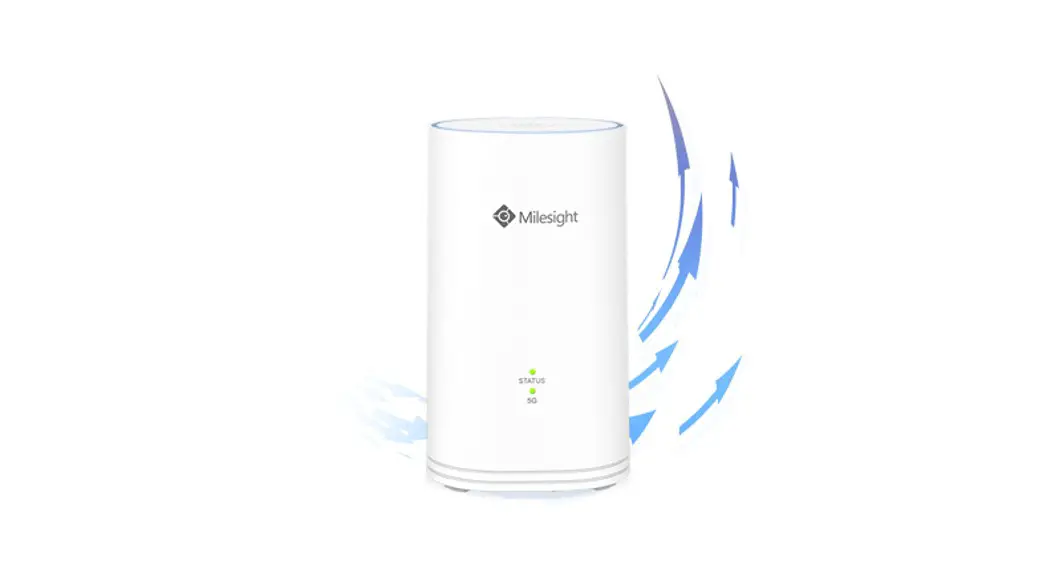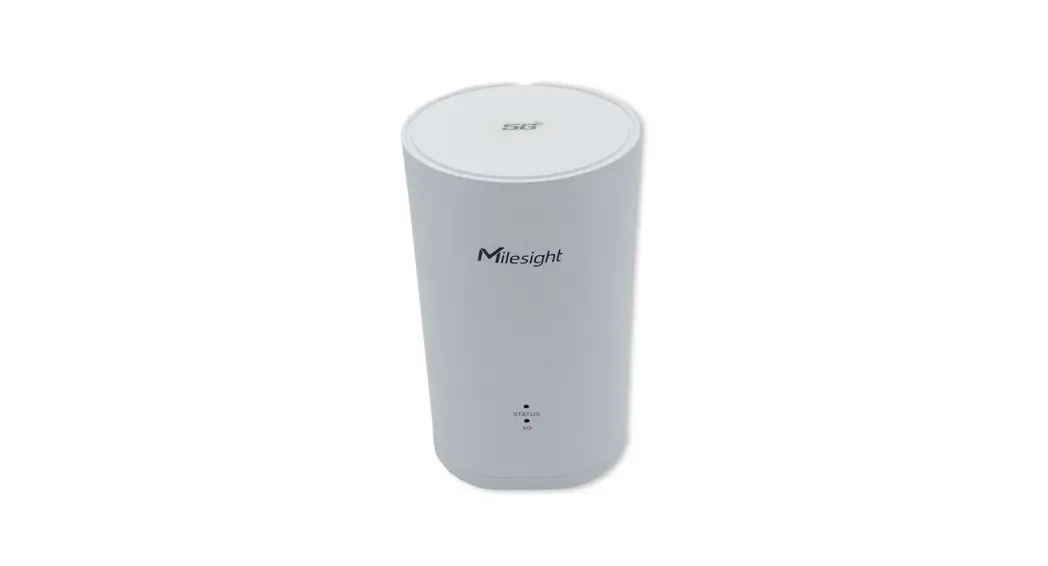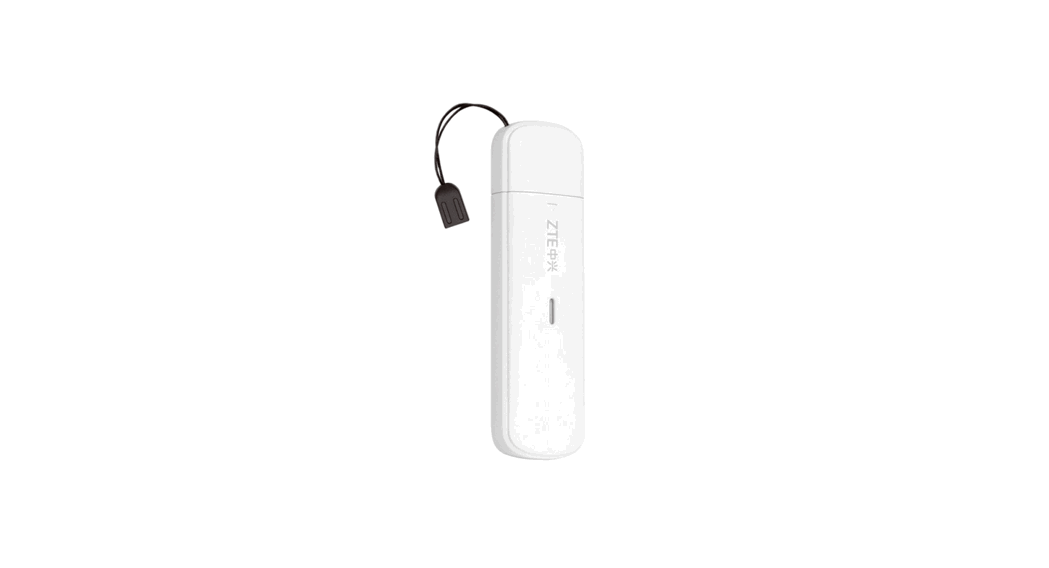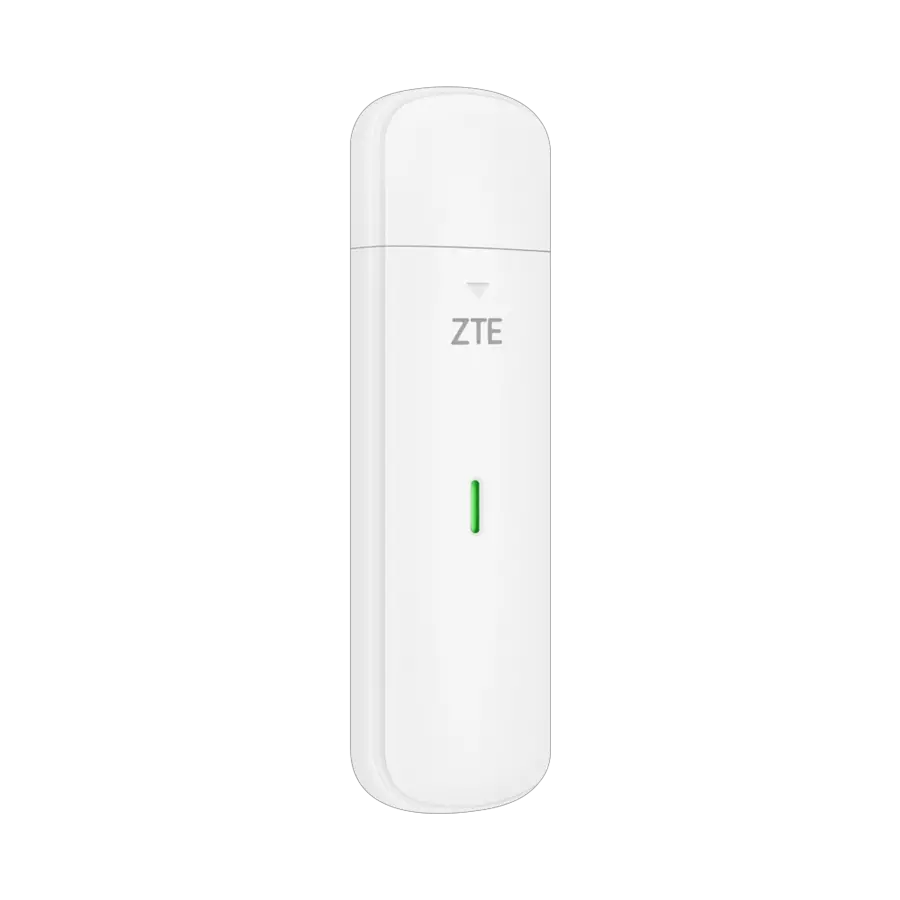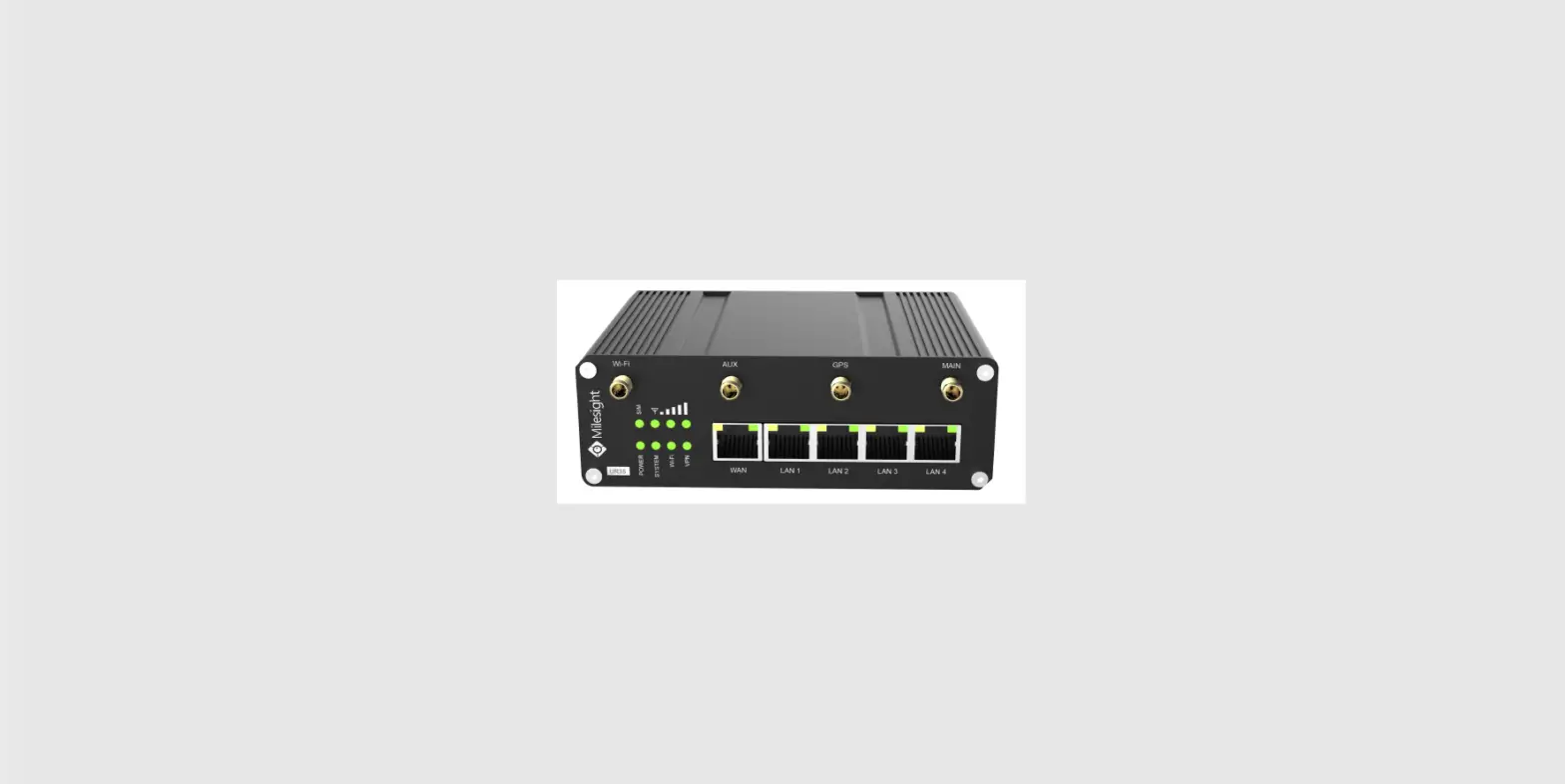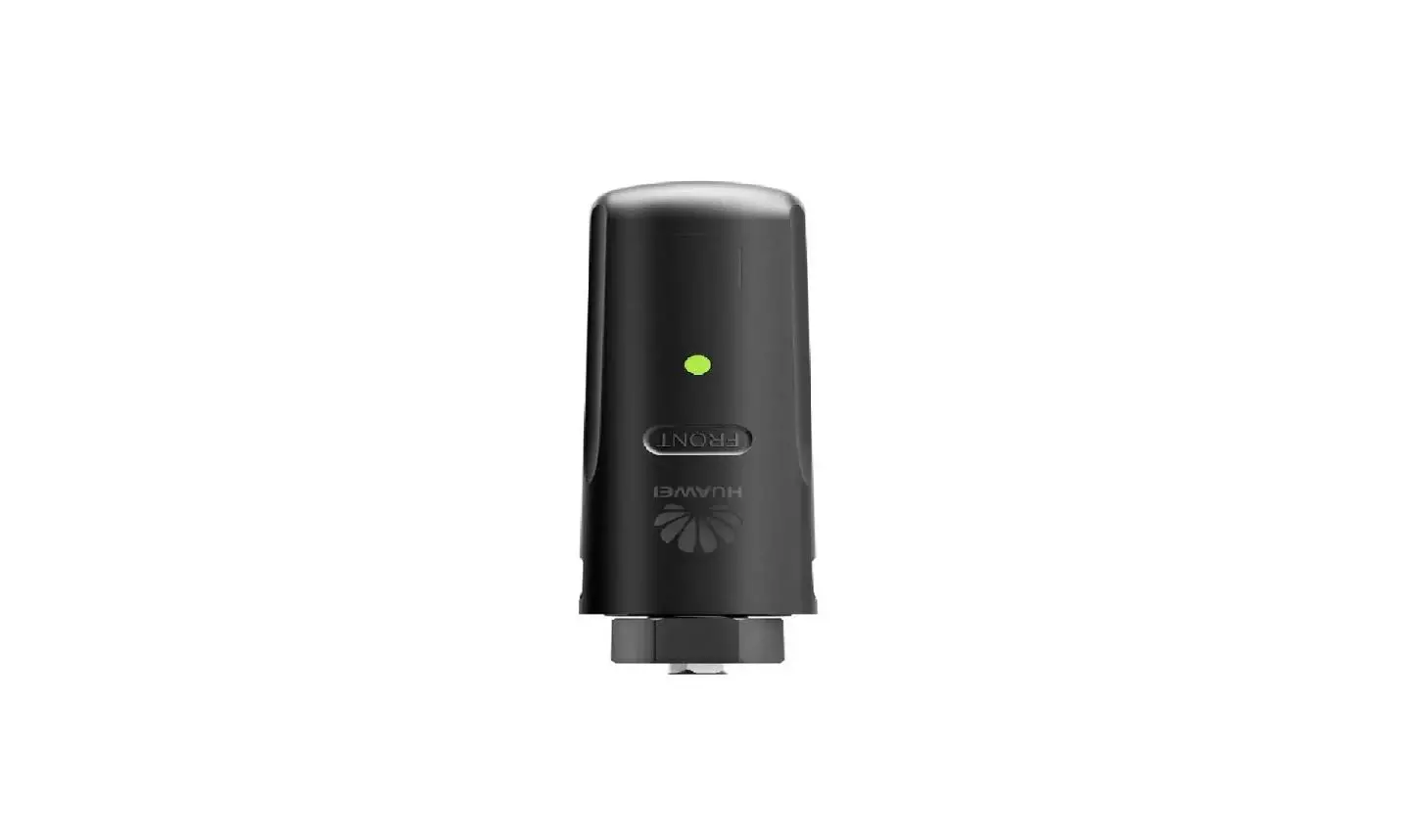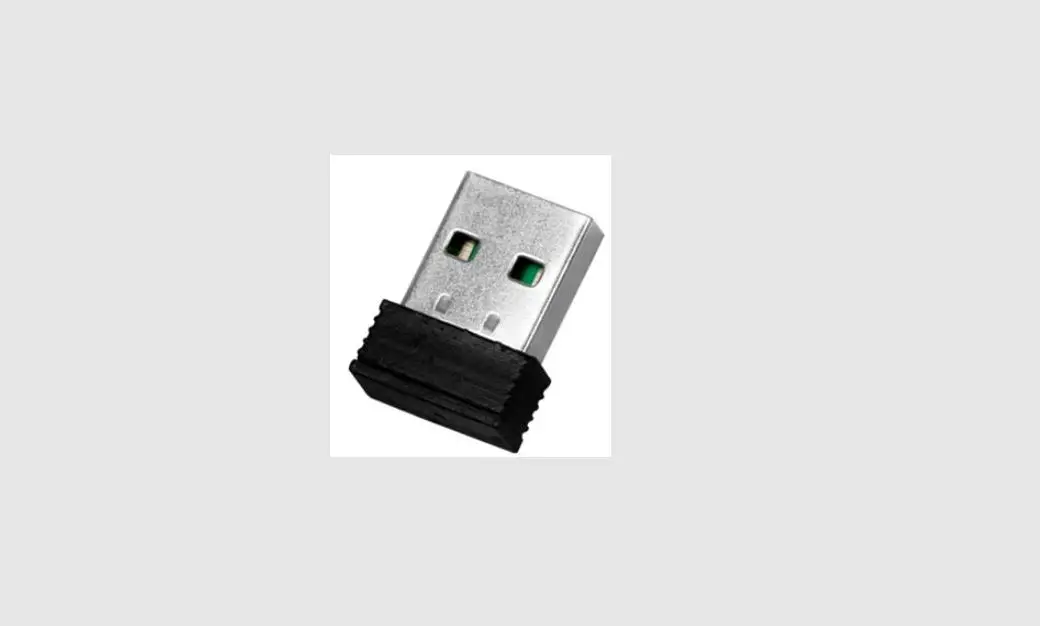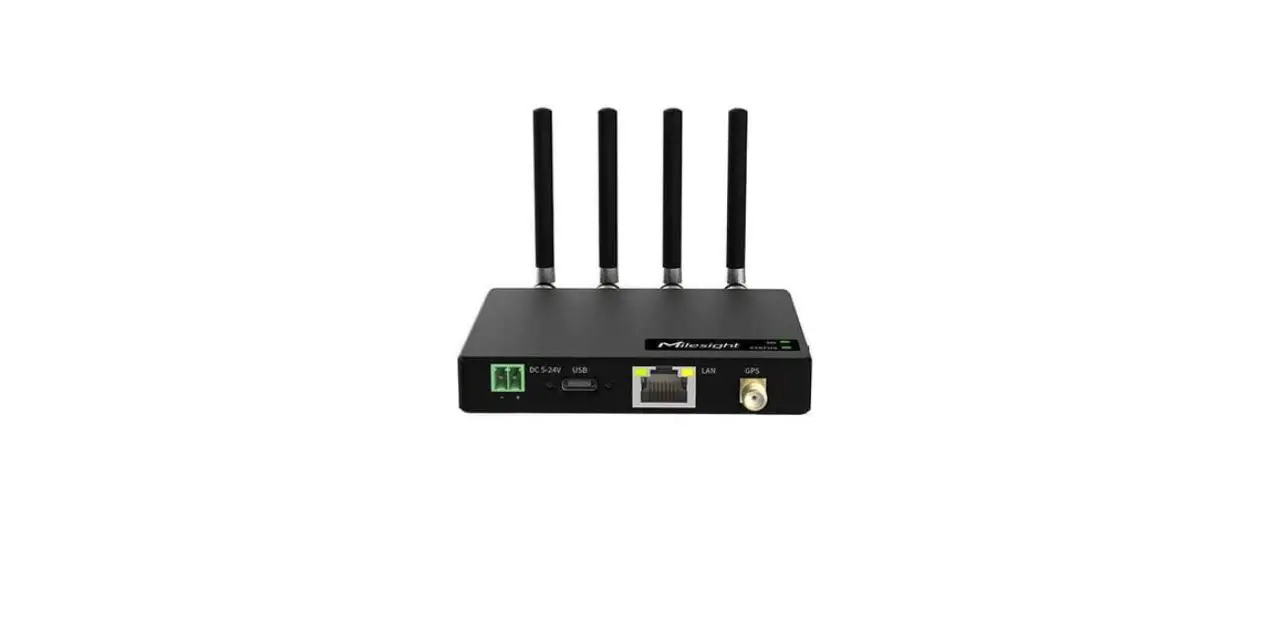

Milesight UF31 5G Dongle Modem
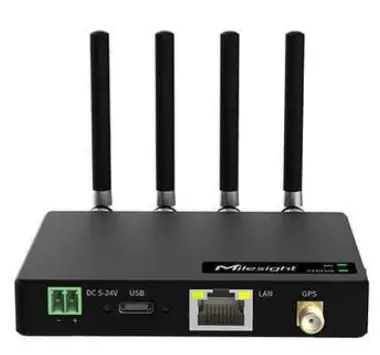
Product Information
The 5G Dongle UF31 is a network device that supports the global 5G NSA&SA/4G LTE/WCDMA network, enabling high-speed download with up to 4.13 Gbps download speeds. It provides lightning transmission via Gigabit Ethernet port or USB 3.0 and has an embedded hardware watchdog to automatically recover from various failures, ensuring the highest level of environment. It can be powered by USB or DC power supply, making it easy to deploy anywhere with its compact size, suitable for embedded installation. The device also features iptables firewall and VPN tunnels to ensure secure data transmission. It comes with a WEB GUI and CLI for simple management and quick configuration.
Product Usage Instructions
Before using the 5G Dongle UF31, please read the safety precautions in the user guide carefully:
- Milesight will not shoulder responsibility for any loss or damage resulting from not following the instructions of this operating guide.
- The device must not be disassembled or remodeled in any way.
- To avoid risk of fire and electric shock, keep the product away from rain and moisture before installation.
- Do not place the device where the temperature or humidity is below/above the operating range.
- The device must never be subjected to drops, shocks, or impacts
- Make sure the device is firmly fixed when installing.
- Make sure the plug is firmly inserted into the power socket.
- Do not pull the antenna or power supply cable, detach them by holding the connectors.
To use the 5G Dongle UF31
- Connect the device to a power source using either USB or DC power supply.
- Make sure the device is firmly fixed in place during installation.
- Connect the device to your computer or network using the Gigabit Ethernet port or USB 3.0.
- Access the Web GUI for configuration and management.
- Use the CLI for simple management and quick configuration.
If you encounter any issues or require assistance, please contact Milesight technical support via email at [email protected] or by phone at 86-592-5085280. You can also reach them by fax at 86-592-5023065 or by mail at Building C09, Software Park III, Xiamen 361024, China.
Safety Precautions
Milesight will not shoulder responsibility for any loss or damage resulting from not following the instructions of this operating guide.
- The device must not be disassembled or remodeled in any way.
- To avoid risk of fire and electric shock, do keep the product away from rain and moisture before installation.
- Do not place the device where the temperature or humidity is below/above the operating range.
- The device must never be subjected to drops, shocks or impacts.
- Make sure the device is firmly fixed when installing.
- Make sure the plug is firmly inserted into the power socket.
- Do not pull the antenna or power supply cable, detach them by holding the connectors.
2011-2022 Xiamen Milesight IoT Co., Ltd. All rights reserved.
All information in this user guide is protected by copyright law. Whereby, no organization or individual shall copy or reproduce the whole or part of this user guide by any means without written authorization from Xiamen Milesight IoT Co., Ltd.
Declaration of Conformity
UF31 is in conformity with the essential requirements and other relevant provisions of RoHS.
For assistance, please contact Milesight technical support: Email: [email protected] Tel: 86-592-5085280 Fax: 86-592-5023065 Address: Building C09, Software Park III, Xiamen 361024, China
Revision History
| Date | Doc Version | Description |
| May 11, 2022 | V 1.0 | Initial version |
Product Introduction
Overview
Milesight UF31 5G Dongle is designed as an easy-to-use solution providing for 5G wireless networking application. It supports 5G NSA & SA, 4G LTE and 3G networks from telecom service providers of most countries in the world. The USB type-C port and Ethernet port are adopted to provide high-speed internet access for field devices. With a compact size and industrial design, UF31 is easy to carry out or embed to any equipment, which is particularly suitable for smart offices, video surveillance, digital media implementations, industrial automation, traffic applications, robots and so on.
Key Features
- Support global 5G NSA&SA/4G LTE/WCDMA network, enables up to 4.13 Gbps download speeds
- Plug and play, provide lightning transmission via Gigabit Ethernet port or USB 3.0
- Embeds hardware watchdog to automatically recover from various failure, ensure highest level of availability
- Wide operating temperature range from -20°C to 50°C and industrial design for harsh environment
- USB or DC power supply optional
- Easy to deploy anywhere with compact size, suit for embedded installation
- Iptables firewall and VPN tunnels to ensure secure data transmission
- WEB GUI and CLI enable the admin to achieve simple management and quick configuration among a large quantity of devices
- DeviceHub provides remote monitoring, bulk configuration, and centralized management
Hardware Introduction
Packing List
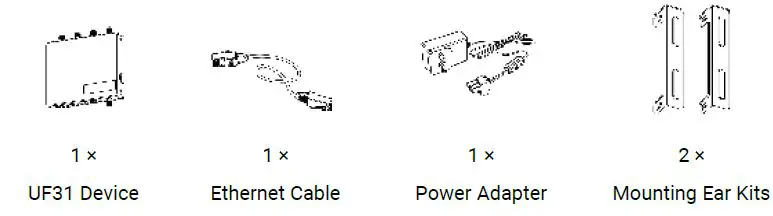
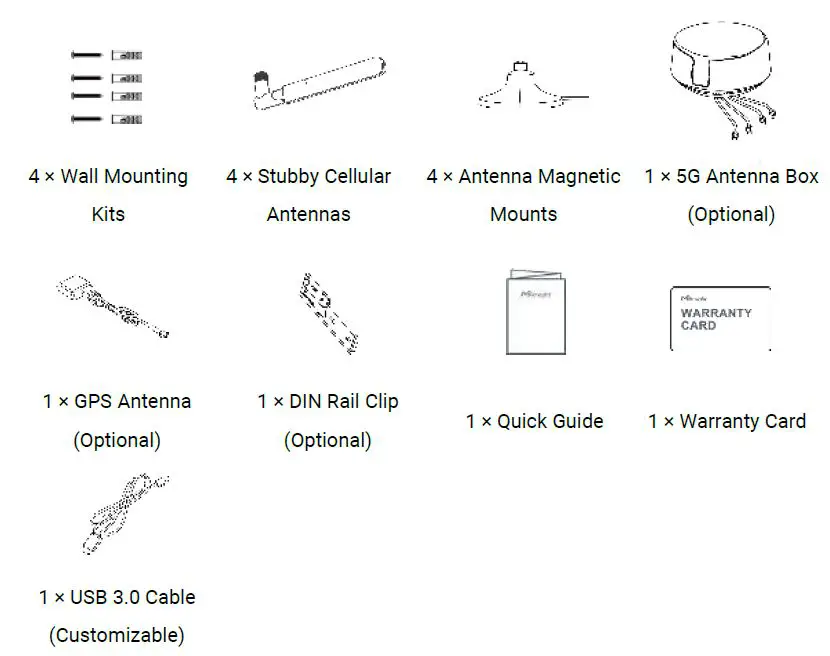
If any of the above items is missing or damaged, please contact your sales representative.
Hardware Overview
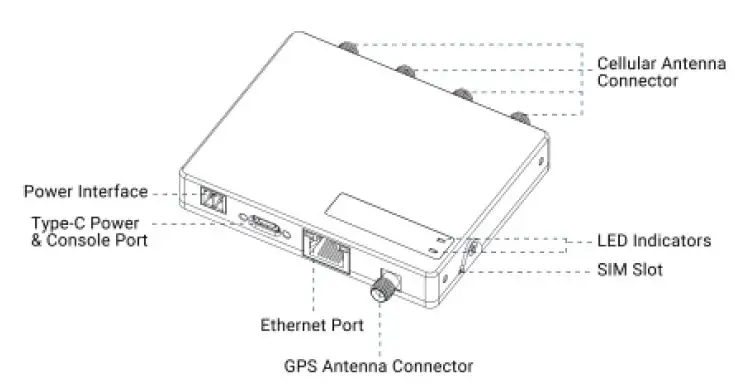
LED Indicators
| LED | Indication | Status | Description |
| STATUS | Power & System Status | Off | The power is switched off |
| Orange | Static: The system is startup | ||
| Green | Static: The system is running properly |
| Red | Static: The system goes wrong | ||
|
5G |
Cellular Status | Off | SIM card is registering or fails to register (or there are no SIM cards inserted) |
| Green | Blinking rapidly: SIM card has been registered and is dialing up now | ||
| Static: SIM card has been registered and dialed up to 5G network | |||
| Orange | Static: SIM card has been registered and dialed up to 4G network | ||
|
Ethernet Port | Link Indicator (Orange) | Off | Disconnected or connect failure |
| On | Connected | ||
| Blinking | Transmitting data | ||
| Rate Indicator (Green) | Off | 100 Mbps mode | |
| On | 1000 Mbps mode |
Dimensions (mm)
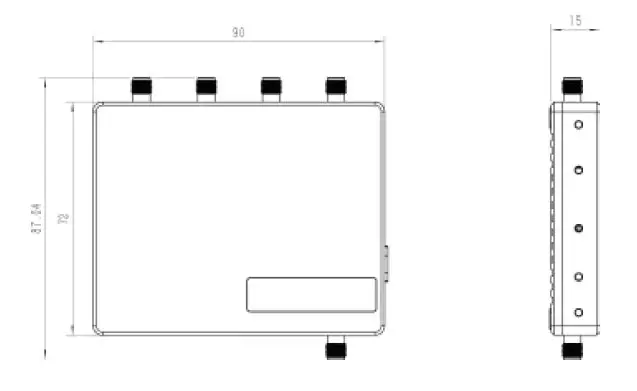
Reset Button
The reset button is inside the device.
| Function | Description | |
| STATUS & 5G LED | Action | |
| Reset | Static | Press and hold the reset button for more than 5 seconds. |
| Static → Blinking | Release the button and wait. | |
| Off → Static Green | The device resets to factory default. | |
Hardware Installation
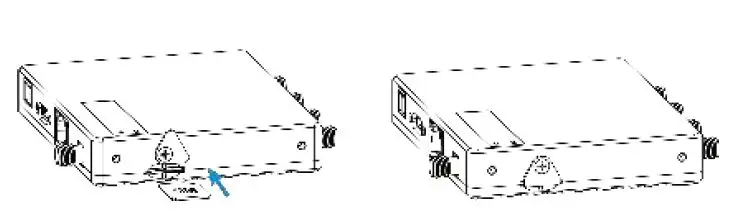
SIM Installation
Remove the sheet on the SIM slot, insert the SIM card into the slot according to the direction icon on the device, then fix the sheet on the slot with screw.
Antenna Installation
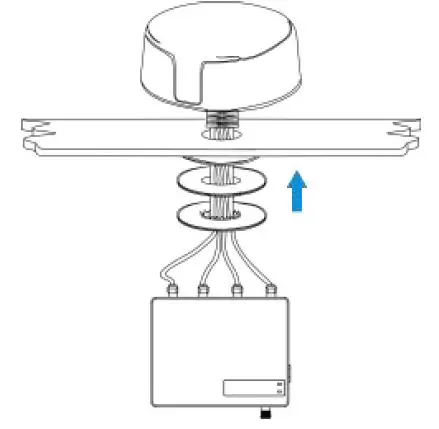
Rotate the antenna into the antenna connector accordingly. Antennas should be installed vertically always on a site with a good signal.
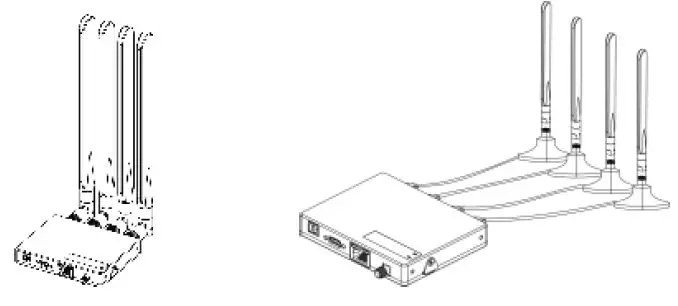
If an antenna box is being used, the installation position should be drilled a hole to fix the antenna box.
- Recommended hole size: ф28.0 ± 0.5 mm
- Recommended thickness size: 3.0 ± 1.0 mm

Device Installation
UF31 device can be placed on a desktop or mounted to a wall or a DIN rail.
Wall Mounting
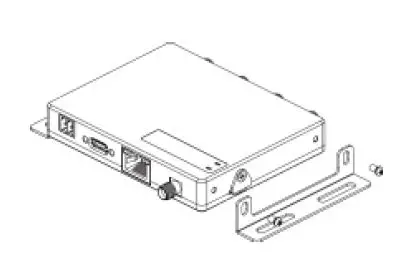
- Fix the two mounting ears to both side of the device with screws.

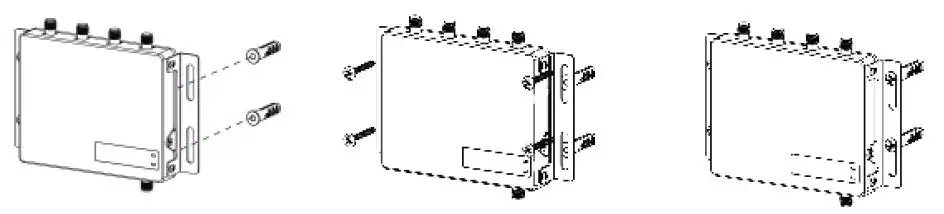
- Drill 4 holes on the wall according to the mounting ear’s hole and fix the wall plugs into the wall holes, then fix the device to the wall plugs with mounting screws. When installation, it’s suggested to fix the two screws on the top at first.

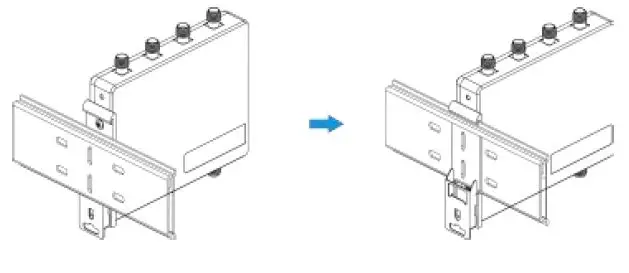
DIN Rail Mounting
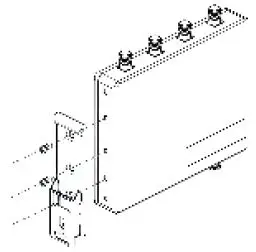
- Fix the mounting clip to the device with 3 screws.

- Hang the device to the DIN rail. The width of DIN rail is 3.5 cm.

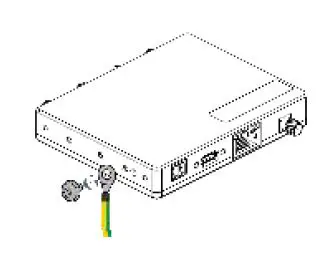
Protective Grounding Installation
Connect the grounding ring of the cabinet’s grounding wire onto the grounding stud and screw up the grounding nut.
Access to Web GUI
UF31 provides user-friendly web GUI for configuration and users can access it via LAN port or USB. This chapter explains how to access to Web GUI of the UF31 device.
- Username: admin
- Password: password
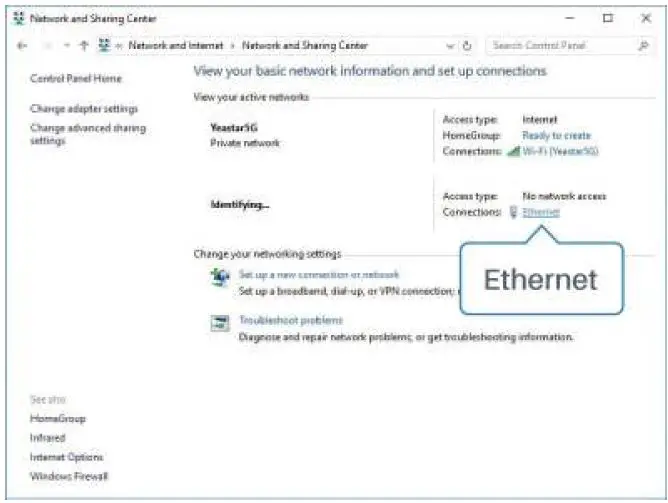
Connect PC to the LAN port or USB port directly to access the web GUI of device. The following steps are based on Windows 10 operating system for your reference.
- Go to “Control Panel” → “Network and Internet” → “Network and Sharing Center”, then click “Ethernet” (May have different names).

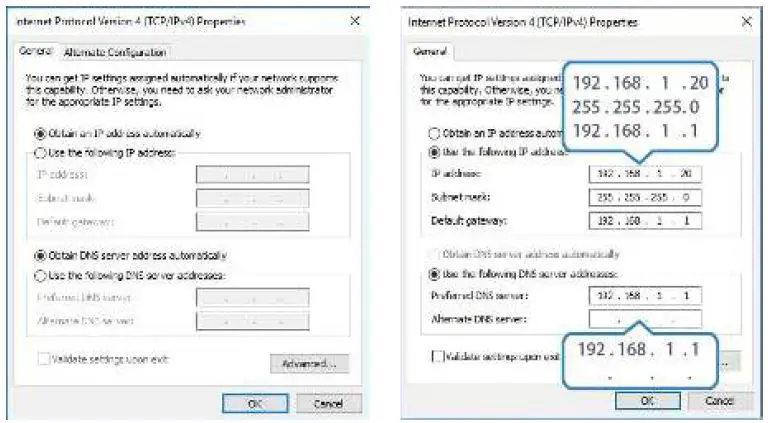
- Go to “Properties” → “Internet Protocol Version 4(TCP/IPv4)”, select “Obtain an IP address automatically” or “Use the following IP address”, then assign a static IP manually within the same subnet of the device.

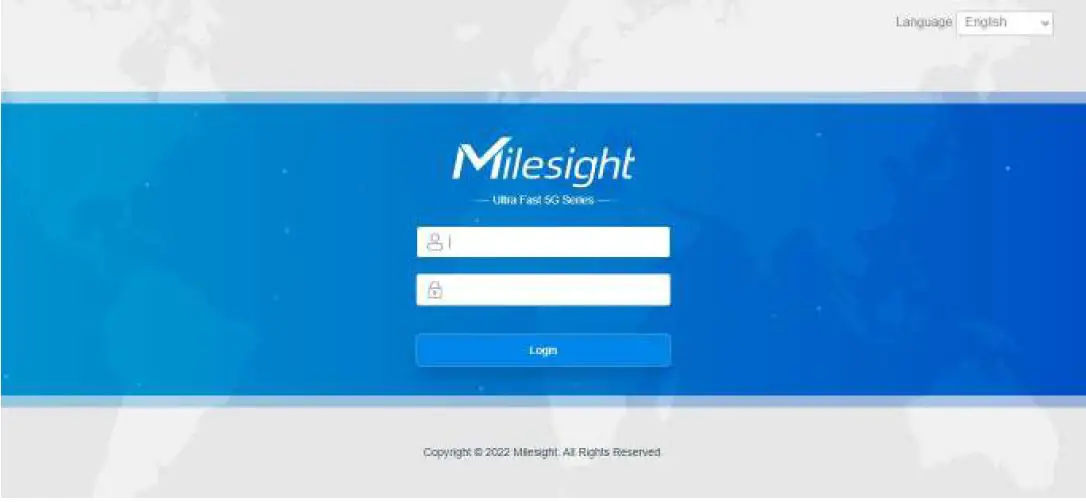
- Open a Web browser on your PC (Chrome is recommended) and type in the IP address 192.168.1.1 to access the web GUI.
- Enter the username and password, click “Login”.

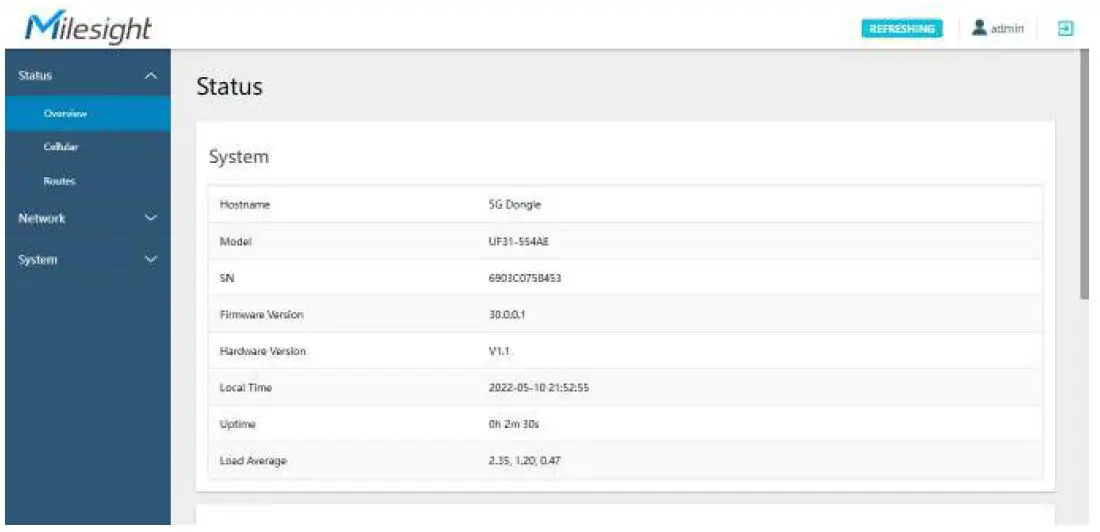
If you enter the username or password incorrectly more than 5 times, the login page will be locked for 10 minutes. - After logging in the web GUI, you can view system information and perform the configuration of the device. It’s suggested to go to the “System” → “Administration” page to change the device password for security.

Web Configuration
Status
Overview
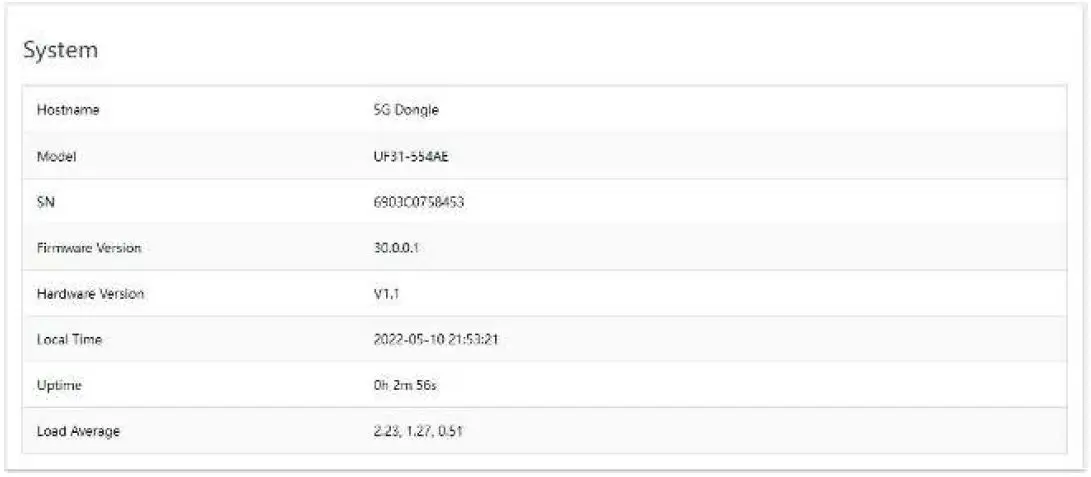
You can view the system information of the device on this page.
| System | |
| Item | Description |
| Hostname | Show the hostname of device, it can be modified on System > System > General Settings. |
| Model | Show the model name of device. |
| SN | Show the serial number of device. |
| Firmware Version | Show the current firmware version of device. |
| Hardware Version | Show the current hardware version of device. |
| Local Time | Show the current system time of device. |
| Uptime | Show the time since device has been powered and running. |
| Load Average | Averages over progressively longer periods of time (1, 5 and 15 minute averages), lower numbers are better. |

| Memory | |
| Item | Description |
| Total Available | Show the percentage of available RAM. |
| Used | Show the percentage of used RAM. |
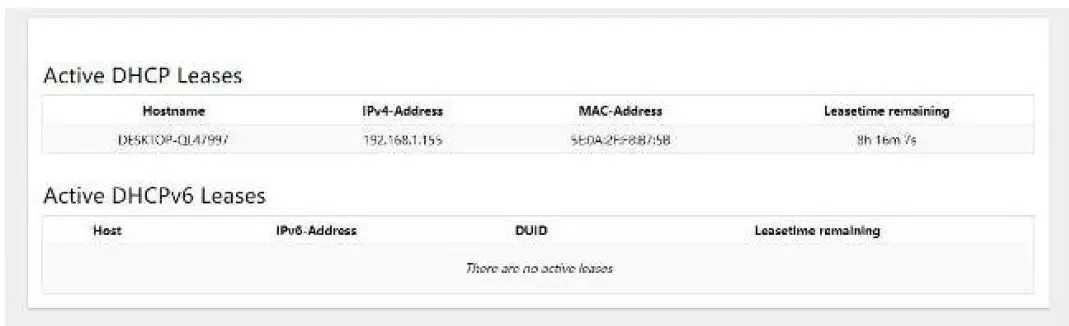
| Item | Description |
| Active DHCP Leases | |
| Hostname | Show the hostname of the connected device. |
| IPv4-Address | Show the IPv4 address of the connected device. |
| MAC-Address | Show the MAC address of the connected device. |
| Leasetime remaining | Show the time remaining for this lease. |
| Active DHCPv6 Leases | |
| Host | Show the hostname of the connected device. |
| IPv6-Address | Show the IPv6 address of the connected device. |
| DUID | Show the DHCPv6 unique Identifier of this device. |
| Leasetime remaining | Show the time remaining for this lease. |
Cellular
You can view the cellular network status of device on this page.
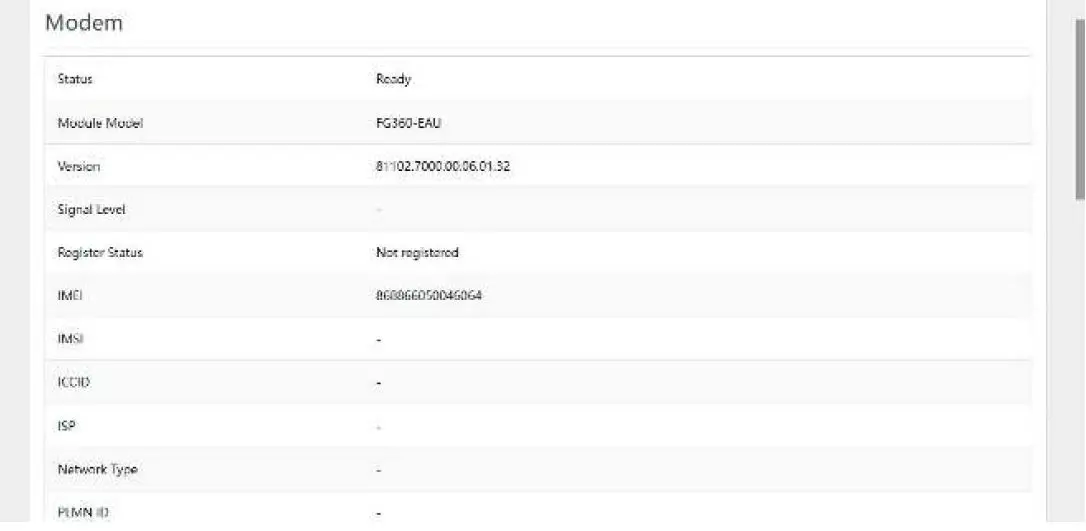
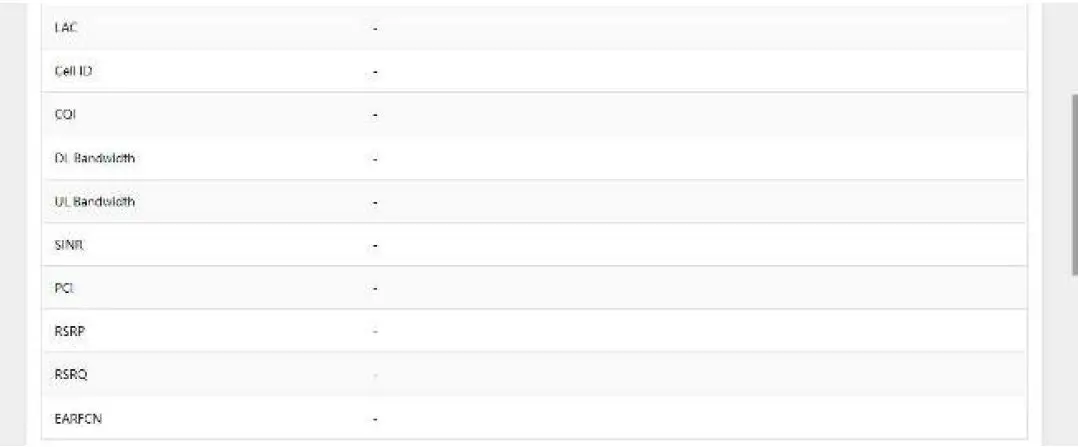
| Modem Information | |
| Item | Description |
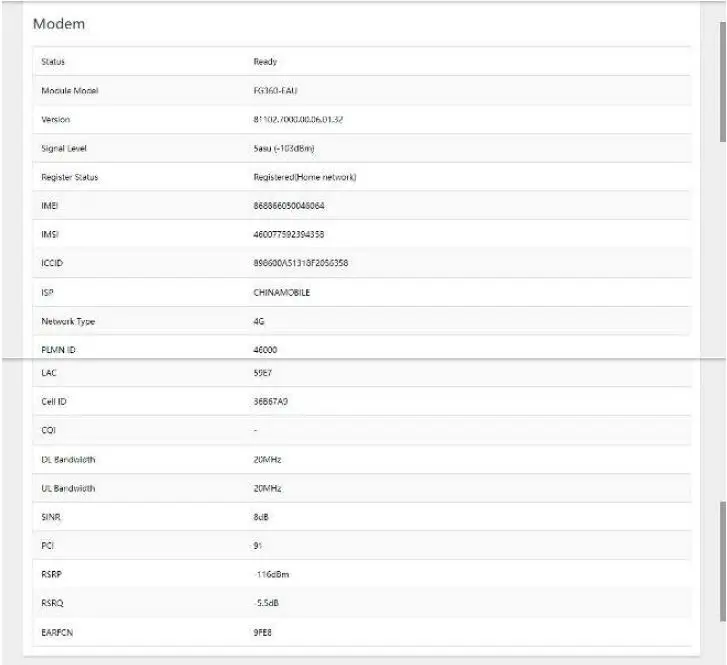
| Status | Show corresponding detection status of module and SIM card. |
| Module Model | Show the name of cellular module. |
| Version | Show the cellular module firmware version. |
| Signal Level | Show the cellular signal level. |
| Register Status | Show the registration status of SIM card. |
| IMEI | Show the IMEI of the module. |
| IMSI | Show IMSI of the SIM card. |
| ICCID | Show ICCID of the SIM card. |
| ISP | Show the network provider which the SIM card registers on. |
| Network Type | Show the connected network type, such as 5G NR, LTE, etc. |
| PLMN ID | Show the current PLMN ID, including MCC, MNC, LAC and Cell ID. |
| LAC | Show the location area code of the SIM card. |
| Cell ID | Show the Cell ID of the SIM card location. |
| CQI | Show the Channel Quality Indicator of the cellular network. |
| DL Bandwidth | Show the DL bandwidth of the cellular network. |
| UL Bandwidth | Show the UL bandwidth of the cellular network. |
| SINR | Show the Signal Interference + Noise Ratio of the cellular network. |
| PCI | Show the physical-layer cell identity of the cellular network. |
| RSRP | Show the Reference Signal Received Power of the cellular network. |
| RSRQ | Show the Reference Quality Received Power of the cellular network. |
| ECGI | Show the E-UTRAN Cell Global Identifier of the cellular network. |
| EARFCN | Show the E-UTRA Absolute Radio Frequency Channel Number. |
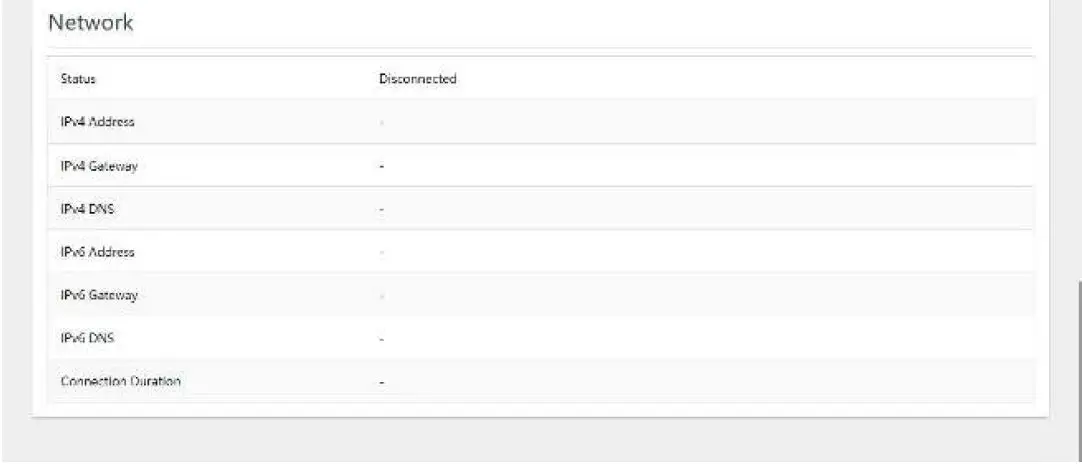
| Network | |
| Item | Description |
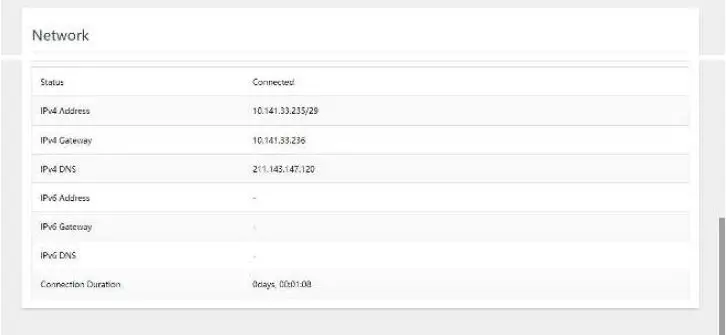
| Status | Show the connection status of cellular network. |
| IPv4/IPv6 Address | Show the IPv4/IPv6 address and netmask of cellular network. |
| IPv4/IPv6 Gateway | Show the IPv4/IPv6 gateway and netmask of cellular network. |
| IPv4/IPv6 DNS | Show the DNS of cellular network. |
| Connection Duration | Show information on how long the cellular network has been connected. |
Related Application
Cellular Application
Routes
You can check routing status on this page, including the routing table and ARP cache.
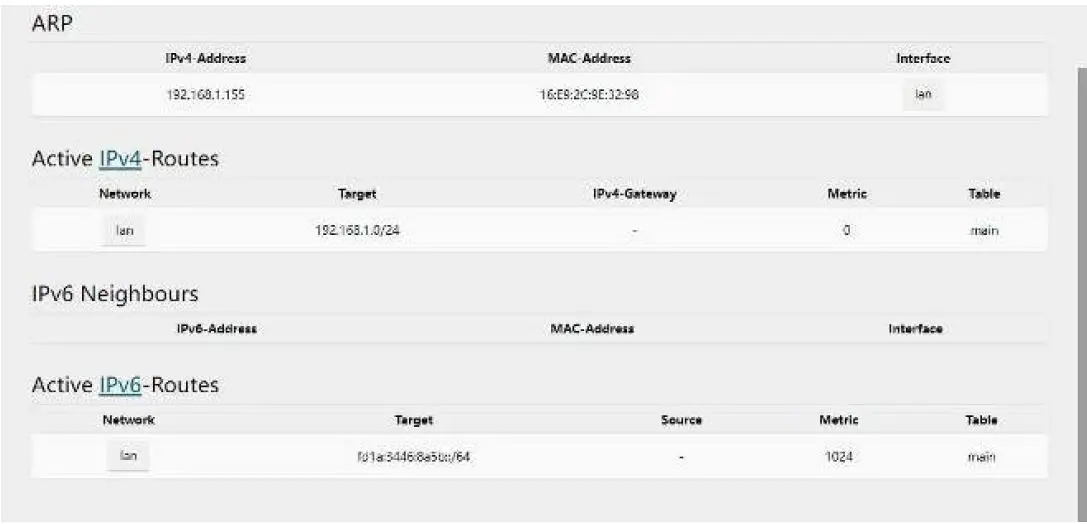
| Item | Description |
| ARP | |
| IPv4-Address | Show the IP address of ARP pool. |
| MAC-Address | Show the IP address’s corresponding MAC address. |
| Interface | Show the binding interface of ARP. |
| Active IPv4-Routes | |
| Network | Show the outbound interface of the route. |
| Target | Show the IP address of destination host or destination network. |
| IPv4-Gateway | Show the IP address of the gateway. |
| Metric | Show the metric of the route. |
| Table | Show the property of the routing table, possible values are main, local, default, etc. |
| IPv6 Neighbours | |
| IPv6-Address | Show the IP address of the pool. |
| MAC-Address | Show the corresponding MAC address of the IP address. |
| Interface | Show the binding interface. |
| Active IPv6-Routes | |
| Network | Show the outbound interface of the route. |
| Target | Show the IP address of destination host or destination network. |
| Source | Show the source of the route. |
| Metric | Show the metric of the route. |
| Table | Show the type of the routing table, possible values are main, local, default, etc. |
Network
Interfaces
This section describes the networking interfaces including cellular and LAN.
Cellular
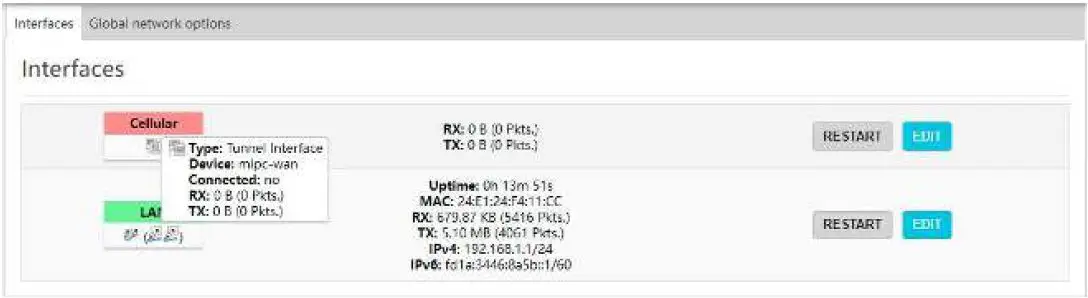
| Cellular | |
| Item | Description |
| Type | Show the connection method of this interface. |
| Device | Show the adapter used on this interface. |
| Connected | Show the connection status of this interface. |
| RX | Show the data volume and packets received in this interface. |
| TX | Show the data volume and packets transmitted from this interface. |
| RESTART | Click to restart this interface |
| EDIT | Click to edit general settings and ping detection of this interface. |
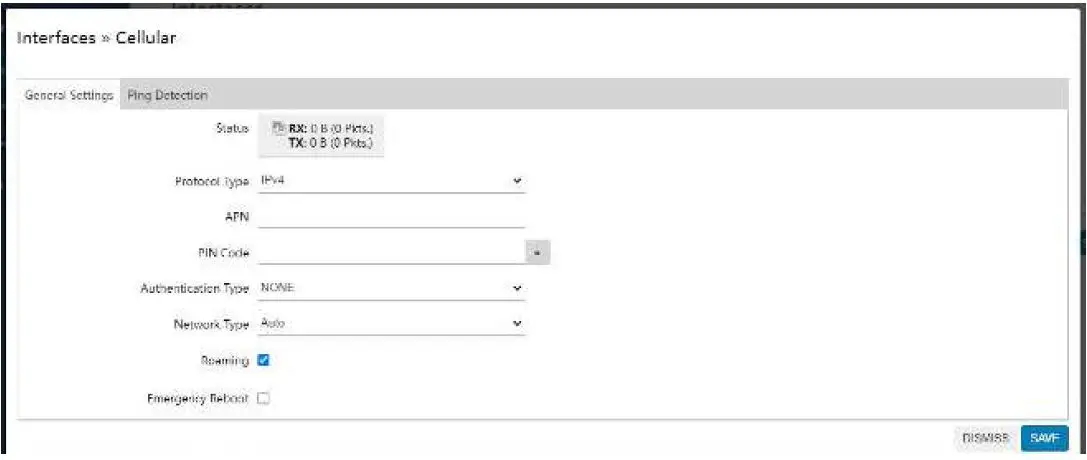
| General Settings | |
| Item | Description |
| RX | Show the data volume and packets received in this interface. |
| TX | Show the data volume and packets transmitted from this interface. |
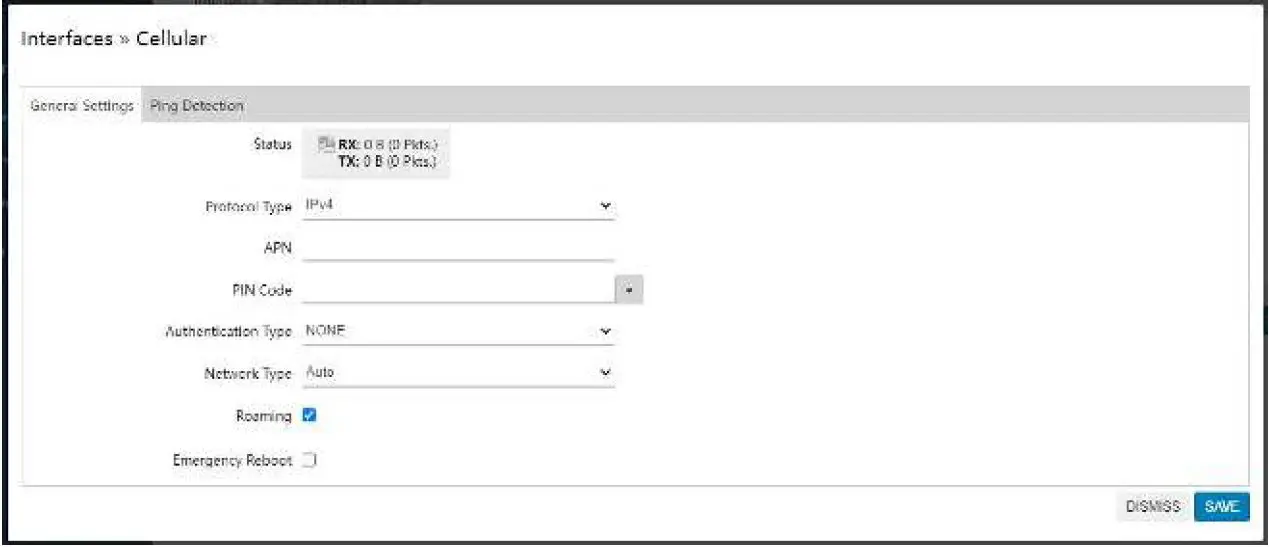
| Protocol Type | Show the Internet protocol type to use for this interface. Selectable from “IPv4”, “IPv6” and “IPv4/IPv6”. |
| APN | Enter the Access Point Name for cellular dial-up connection provided by local ISP. |
| PIN Code | Enter a 4-8 characters PIN code to unlock the SIM. |
| Authentication Type | Select from “NONE”, “PAP”, “CHAP” and “PAP/CHAP”. |
|
Network Type | Select from “Auto”, “5G Only”, “4G Only” and “3G Only”. Auto: connect to the network with the strongest signal automatically. 5G Only: connect to 5G network only. And so on. |
| Roaming | Enable or disable roaming. |
| Emergency Reboot | Enable to reboot the device if this link is unavailable. |
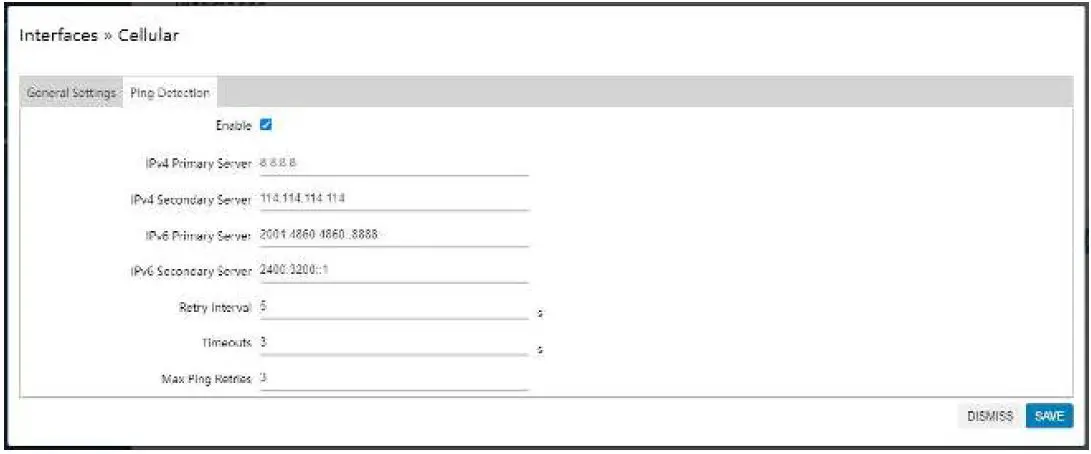
| Ping Detection | |
| Item | Description |
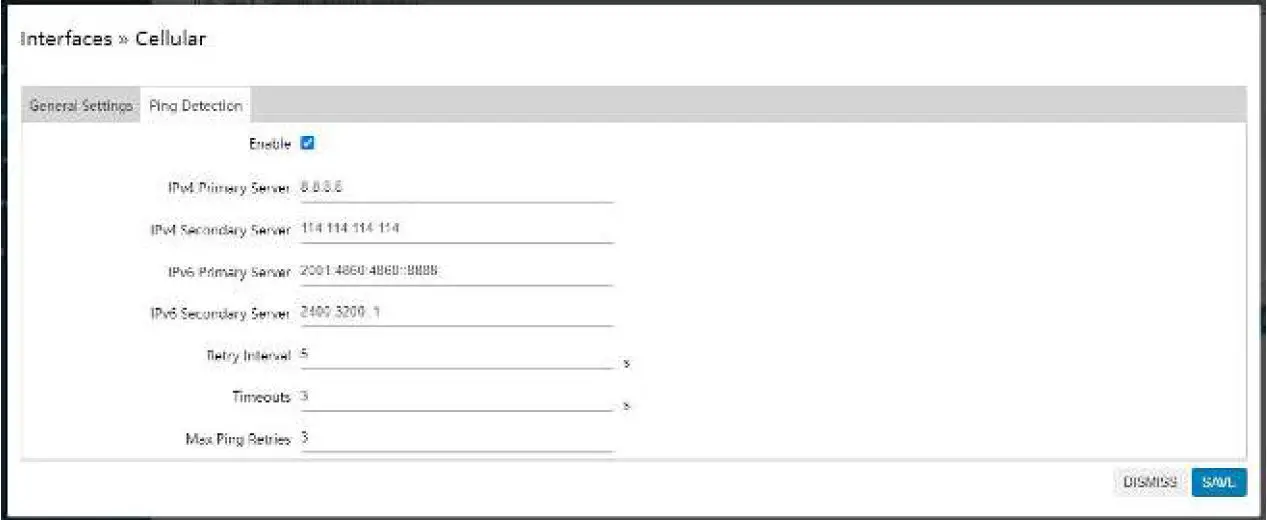
| Enable | If enabled, the device will periodically detect the connection status of the link. |
| IPv4 Primary Server | The device will send ICMP packet to the IPv4 address or hostname to determine whether the Internet connection is still available or not. |
| IPv4 Secondary Server | The device will try to ping the secondary server if primary server is not available. |
| IPv6 Primary Server | The device will send ICMP packet to the IPv6 address or hostname to determine whether the Internet connection is still available or not. |
| IPv6 Secondary Server | The device will try to ping the secondary server if primary server is not available. |
| Retry Interval | Set the ping retry interval. When ping failed, the device will ping again in every retry interval. |
| Timeout | The maximum amount of time the device will wait for a response to a ping request. If it does not receive a response for the amount of time defined in this field, the ping request will be considered to have failed. |
| Max Ping Retries | The retry times of the device sending ping request until determining that the connection has failed. |
Related Application
Cellular Application
LAN
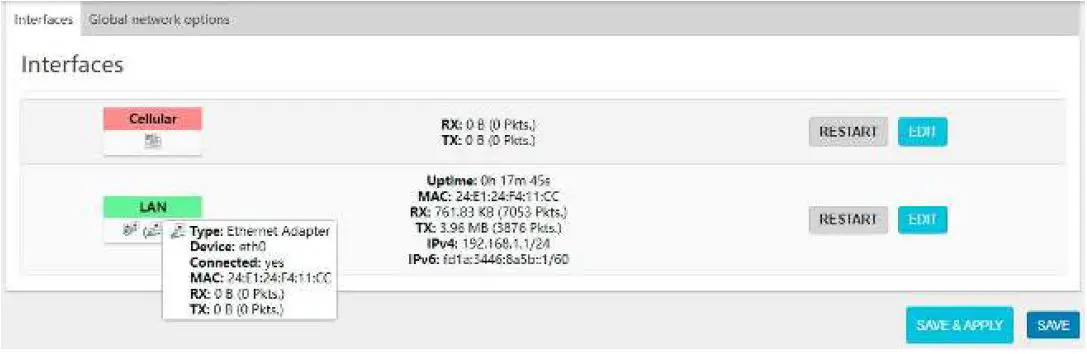
| LAN | |
| Item | Description |
| Type | Show the connection method of this interface. |
| Device | Show the adapter used on this interface. |
| Connected | Show the connection status of this interface. |
| MAC | Show the MAC address of connected device on this interface. |
| RX | Show the data volume and packets received in this interface. |
| TX | Show the data volume and packets transmitted from this interface. |
| RESTART | Click to restart this interface |
| EDIT | Click to edit general settings and ping detection of this interface. |
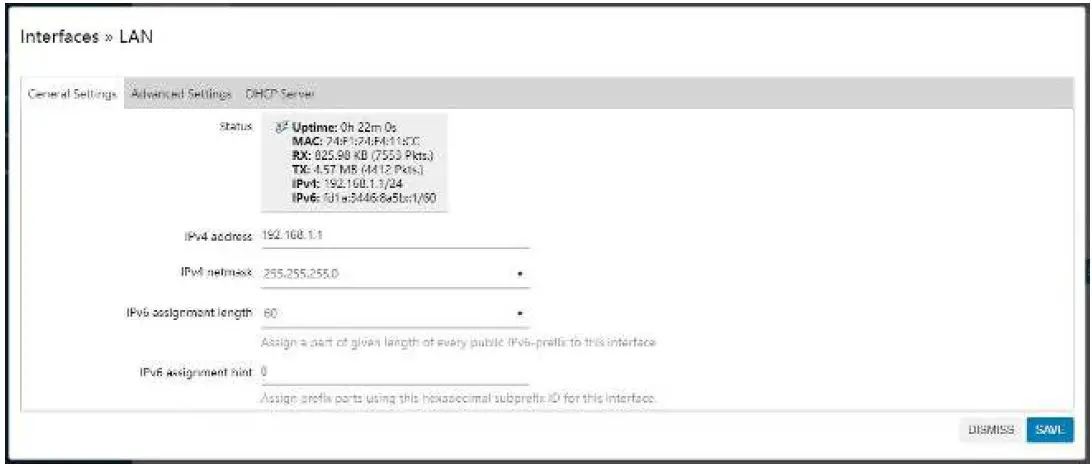
| General Settings | |
| Item | Description |
| Uptime | Show the information about how long the device has been running. |
| MAC | Show the MAC address of LAN interface. |
| RX | Show the data volume and packets received in this interface. |
| TX | Show the data volume and packets transmitted from this interface. |
| IPv4 | Show the IPv4 address of LAN interface. |
| IPv6 | Show the IPv6 address of LAN interface. |
| IPv4 Address | Set the IPv4 address of LAN interface. |
| IPv4 netmask | Set the netmask for LAN interface. |
| IPv6 assignment length | Assign a part of given length of every public IPv6-prefix to this interface. |
| IPv6 assignment hint | Assign prefix parts using this hexadecimal sub-prefix ID for this interface. |

| Advanced Settings | |
| Item | Description |
| Override MTU | Set the maximum transmission unit. Range: 68-1500. |
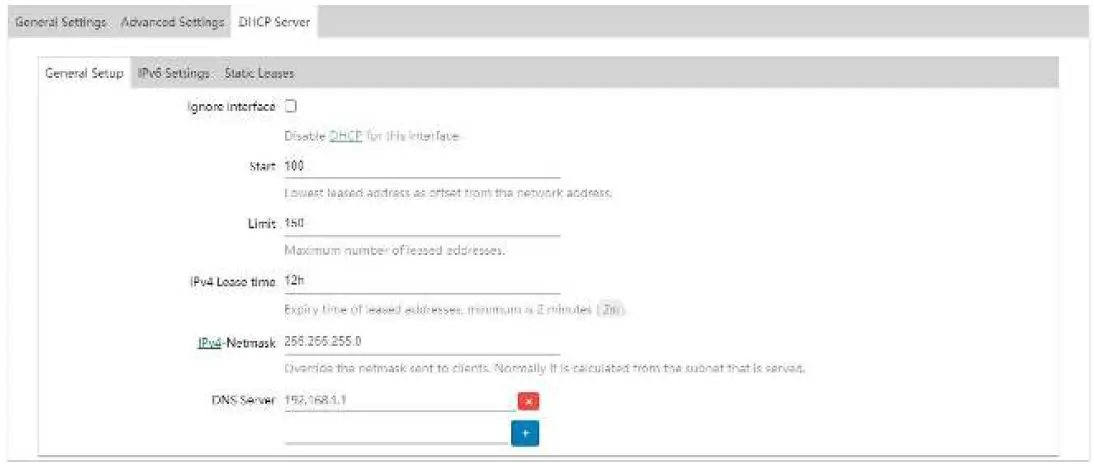
| DHCP Server-General Setup | |
| Item | Description |
| Ignore interface | Enable to disable DHCP for this interface. |
| Start | Set the lowest leased address as offset from the network address. |
| Limit | Set the maximum number of leased addresses. |
| IPv4 Lease time | Set the expiry time of leased addresses, minimum is 2 minutes (2m). |
| IPv4-Netmask | Set to override the netmask sent to clients. Normally it is calculated from the subnet that is served. |
| DNS Server | Set the DNS server list for clients. |
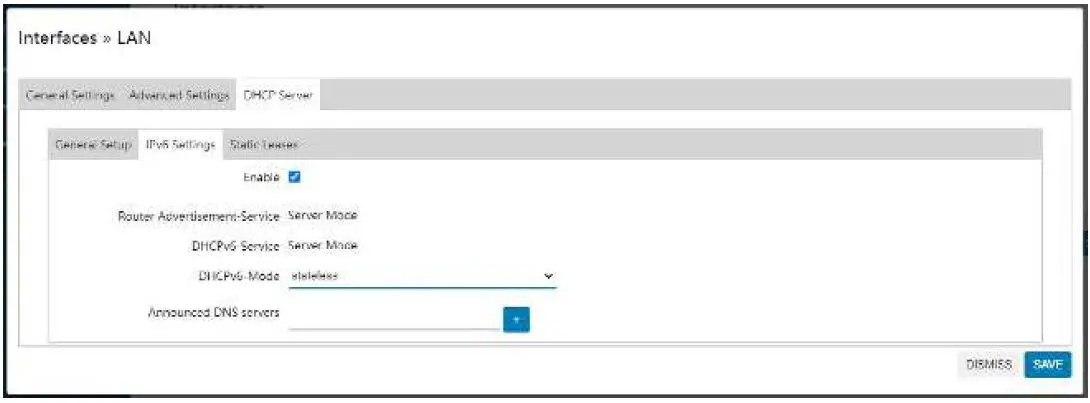
| DHCP Server-IPv6 Settings | |
| Item | Description |
| Enable | Choose to enable DHCPv6 server. |
| Router Advertisement-Service | Show the DHCPv6 gateway option. |
| DHCPv6-Service | Show the DHCPv6 service option. |
| DHCPv6-Mode | Show the DHCPv6 mode |
| Announced DNS Server | Set the DNS server list for clients. |
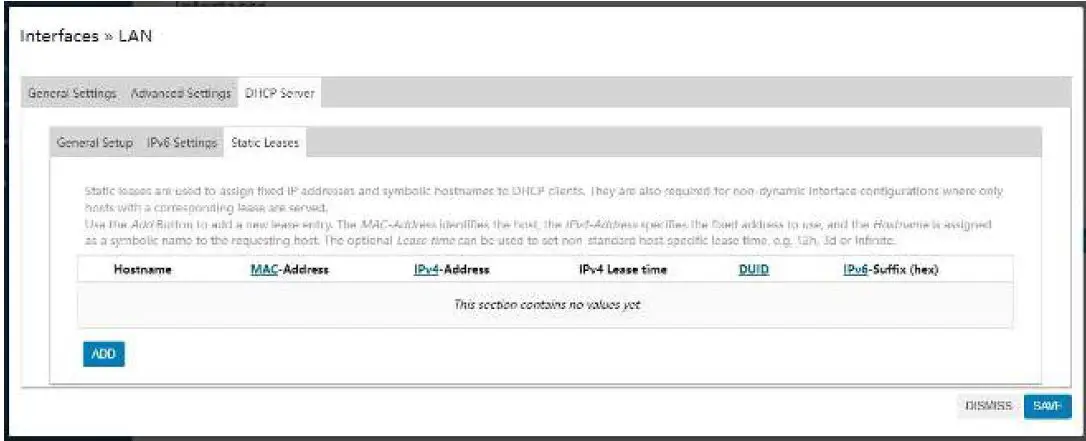
| DHCP Server-Static Leases | |
| Item | Description |
| Hostname | Show the hostname of static leases. |
| MAC-Address | Show the MAC address of the client. |
| IPv4-Address | Show the IPv4 address of the client. |
| IPv4 Lease time | Show the time remaining for the client. |
| DUID | Show the DHCP Unique Identifier of this device. |
| IPv6-Suffix (hex) | Show the IPv6 suffix of the client in hex. |
Global network options
| Global network options | |
| Item | Description |
| IPv6 ULA-Prefix | Show the IPv6 unique local address (ULA) prefix of this device. |
Device Management
You can connect the device to the Milesight DeviceHub on this page so as to manage the device centrally and remotely. For more details, please refer to DeviceHub User Guide.
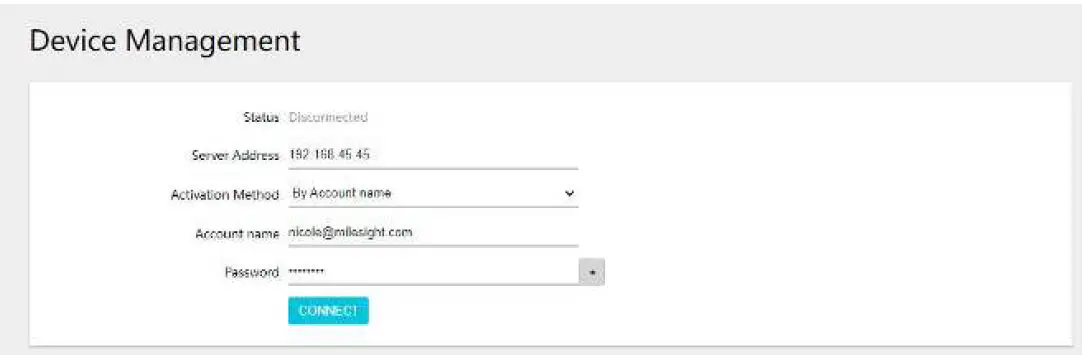
| Device Management | |
| Item | Description |
| Status | Show the connection status between the device and the DeviceHub. |
| Disconnected | Click this button to disconnect the device from the DeviceHub. |
| Server Address | IP address or domain of the device management server. |
| Activation Method | Select activation method to connect the device to the DeviceHub server, options are “By Authentication Code” and “By Account name”. |
| Authentication Code | Fill in the authentication code generated from the DeviceHub. |
| Account Name | Fill in the registered DeviceHub account (email) and password. |
| Password | |
Diagnostics
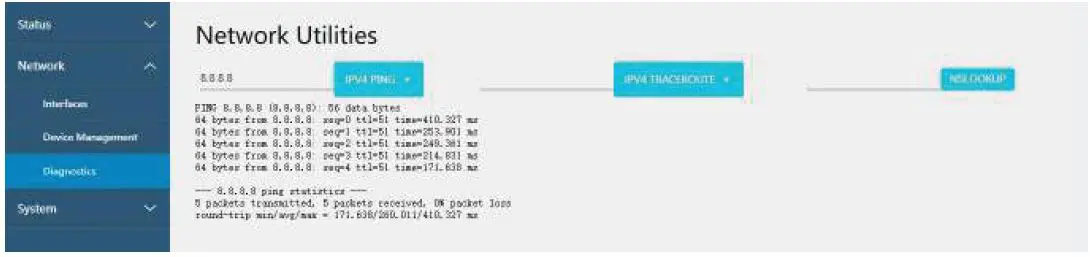
Network Utilities as troubleshooting tools includes IPv4/IPv6 ping, IPv4/IPv6 traceroute, nslookup the command-line tool.

| Network Utilities | |
| Item | Description |
| IPv4 Ping | Click to ping outer network from the device in IPv4. |
| IPv6 Ping | Click to ping outer network from the device in IPv6. |
| IPv4 traceroute | Address of the destination host to be detected in IPv4. |
| IPv6 traceroute | Address of the destination host to be detected in IPv6. |
| Nslookup | Click to obtain the mapping between domain name and IP address, or other DNS records. |
System
This section describes how to configure general settings, such as administration account, system time, system maintenance tools and management.
General Settings
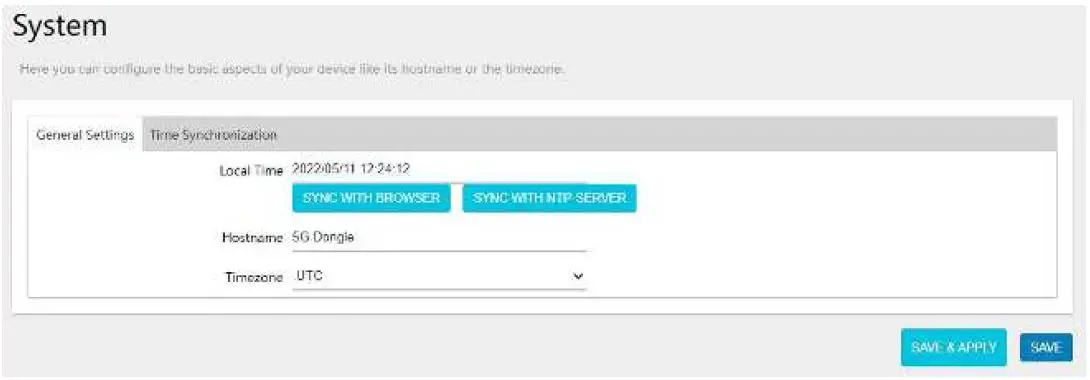
| General Settings | |
| Item | Description |
| Local Time | Show the current system time. |
| Sync with Browser | Synchronize time with browser. |
| Sync with NTP-Server | Synchronize time with NTP Server. |
| Hostname | Define the device name, needs to start with a letter. |
| Timezone | Click the drop-down list to select the time zone you are in. |
Time Synchronization
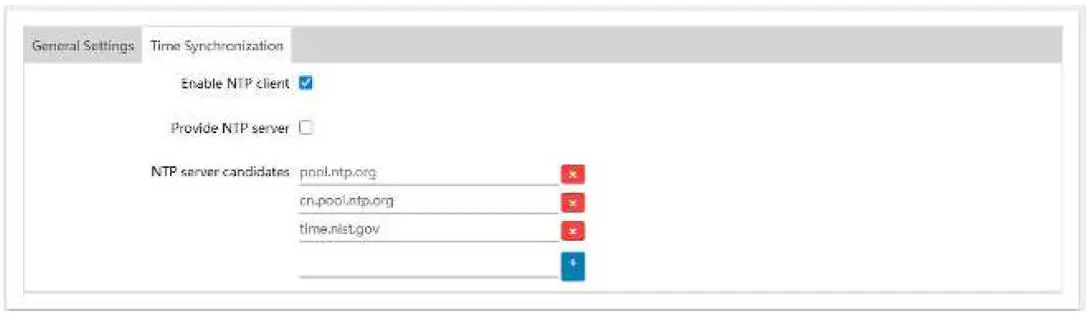
| Time Synchronization | |
| Item | Description |
| Enable NTP client | Enable to synchronize time from an external NTP server. |
| Provide NTP server | Enable to provide NTP server for connected devices. |
| NTP server candidates | Enter NTP Server’s IP address or domain name to synchronize time from, it can add 5 servers at most. |
Administration
Router Password
You can change the administrator password for accessing the device.
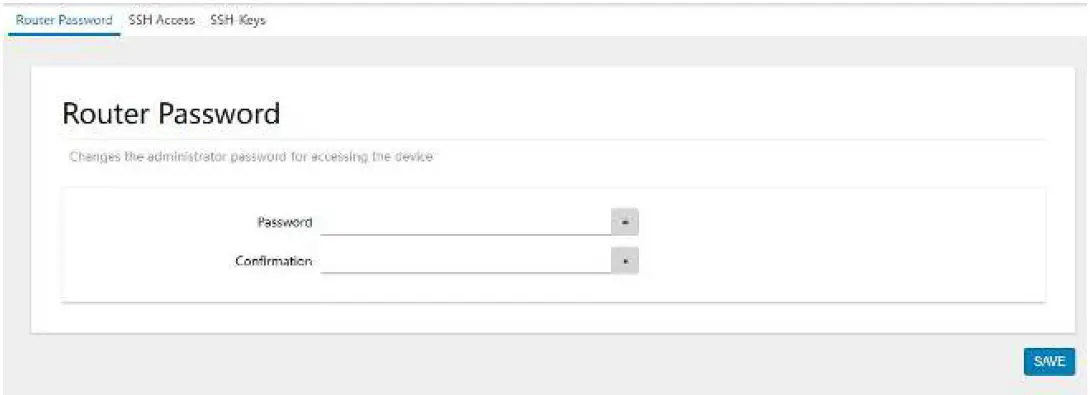
| Router Password | |
| Item | Description |
| Password | Enter a new password. |
| Confirmation | Enter the new password again |
SSH Access
UF31 adopts Dropbear to offer SSH network shell access and an integrated SCP server.
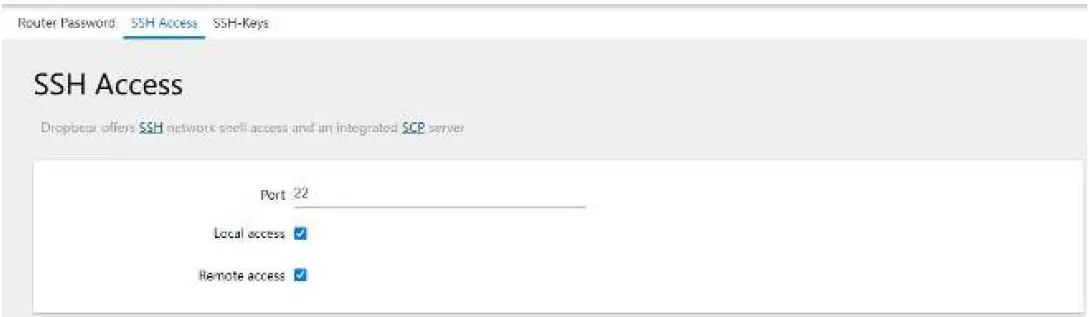
| SSH Access | |
| Item | Description |
| Port | Enter the port number for SSH service. |
| Local access | Enable to allow access from directly connected devices. |
| Remote access | Enable to allow access from remote devices. |
SSH-Keys
Public keys allow for passwordless SSH logins with a higher security compared to the use of plain passwords. In order to upload a new key to the device, paste an OpenSSH compatible public key line or drag a .pub file into the input field.
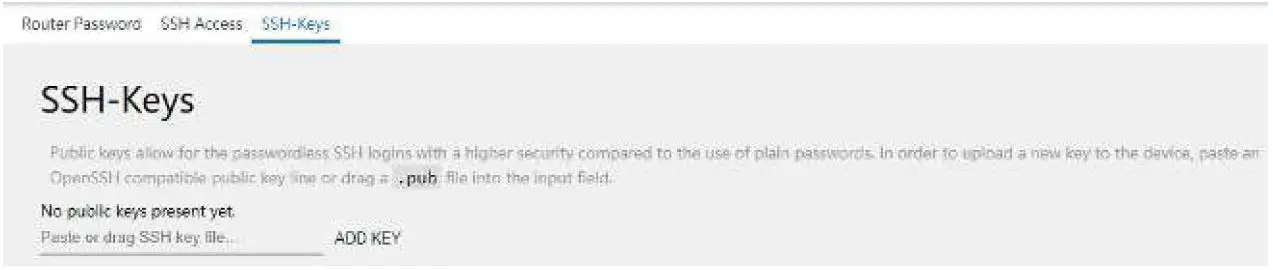
| SSH-Keys | |
| Item | Description |
| Add Key | Click to import the SSH key file. It only allows to import RSA or ECDSA keys. |
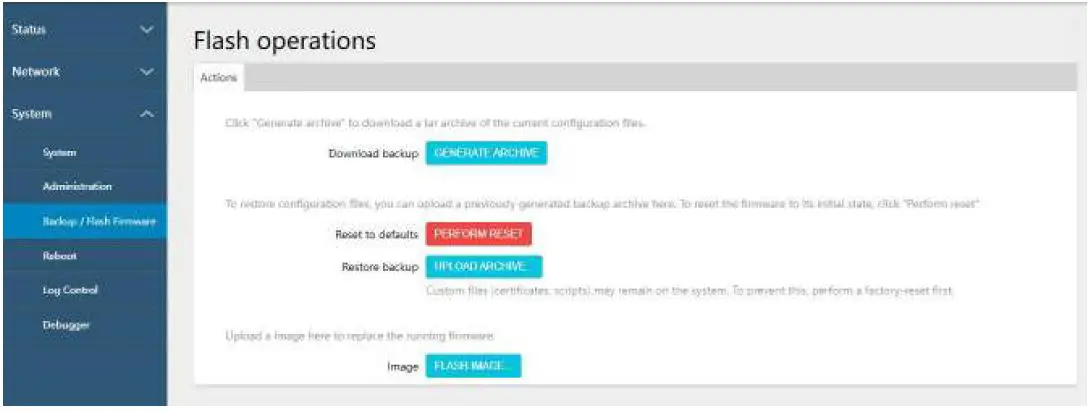
Backup / Flash Firmware
This section describes how to create a complete backup of the system configurations to a file, reset to factory defaults, restore the config file to the device and upgrade the flash image via web. Generally, you don’t need to do the firmware upgrade.
Note: any operation on web page is not allowed during firmware upgrade, otherwise the upgrade will be interrupted, or even the device will break down.
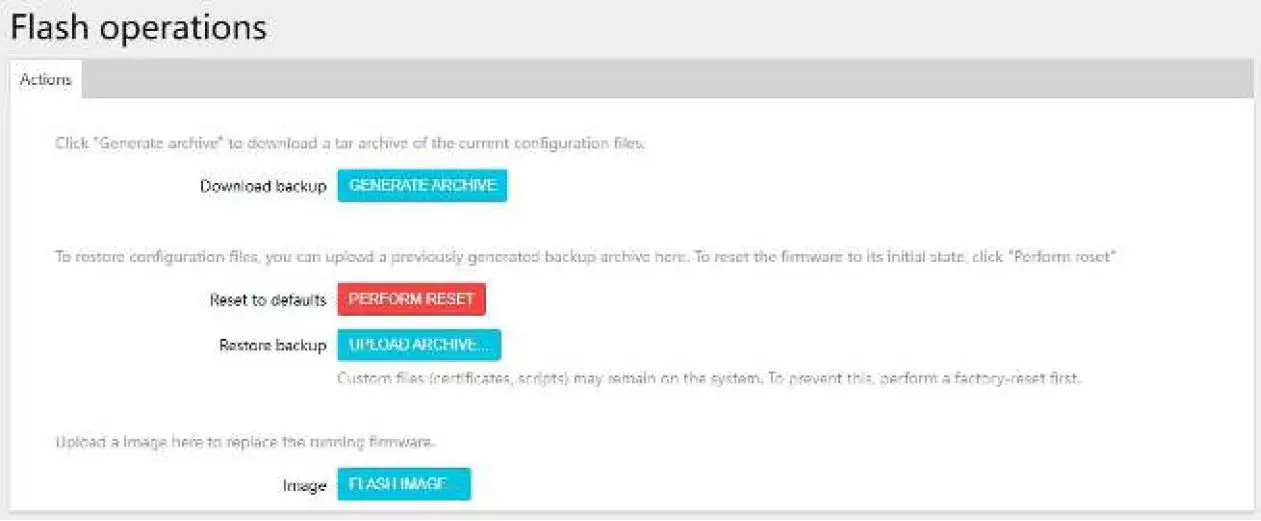
| Flash operations | |
| Item | Description |
| Generate Archive | Click to download a tar archive of the current configuration files. |
| Perform Reset | Click to reset the device to factory default. |
| Upload Archive… | To restore configuration files, you can upload a previously generated backup archive here. Custom files (certificates, scripts) may remain on the system. To prevent this, perform a factory-reset first. |
| Flash Image… | Upload an image here to replace the running firmware. |
Related Configuration Example
- Firmware Upgrade
- Restore Factory Defaults
Reboot
This page allows to reboot the device immediately or regularly.
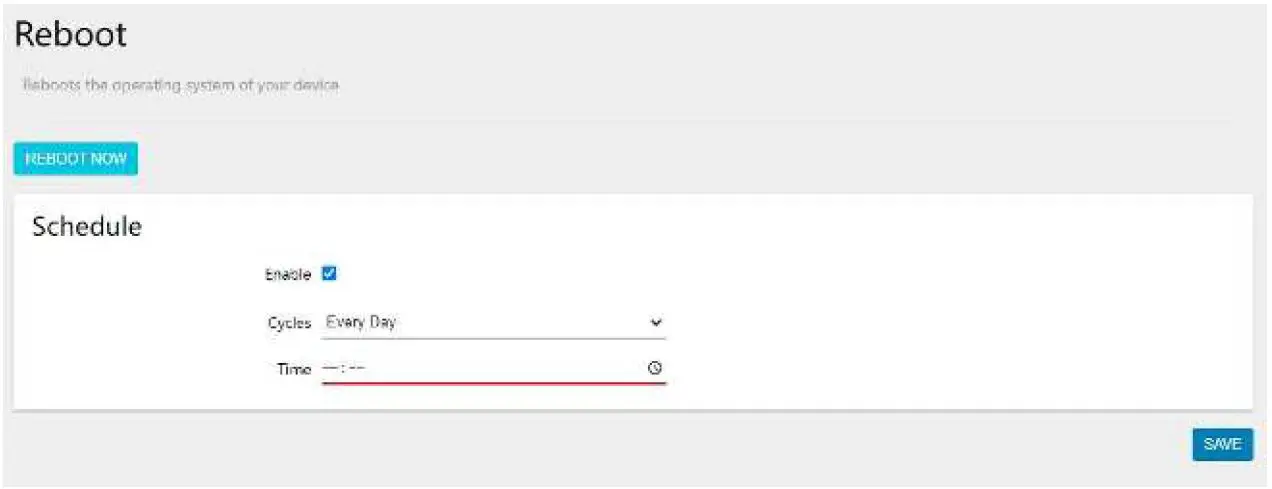
| Reboot | |
| Item | Description |
| Reboot Now | Reboot the device immediately. |
| Schedule | |
| Enable | Click to enable reboot schedule. |
| Cycles | Reboot the device at a scheduled frequency. |
| Time | Select the time to execute the schedule. |
Log Control
The system log contains a record of informational, error and warning events that indicates how the system processes. By reviewing the data contained in the log, an administrator or user troubleshooting the system can identify the cause of a problem or whether the system processes are loading successfully. Remote log server is feasible, and the device will upload all system logs to remote log server such as Syslog Watcher.
General Settings
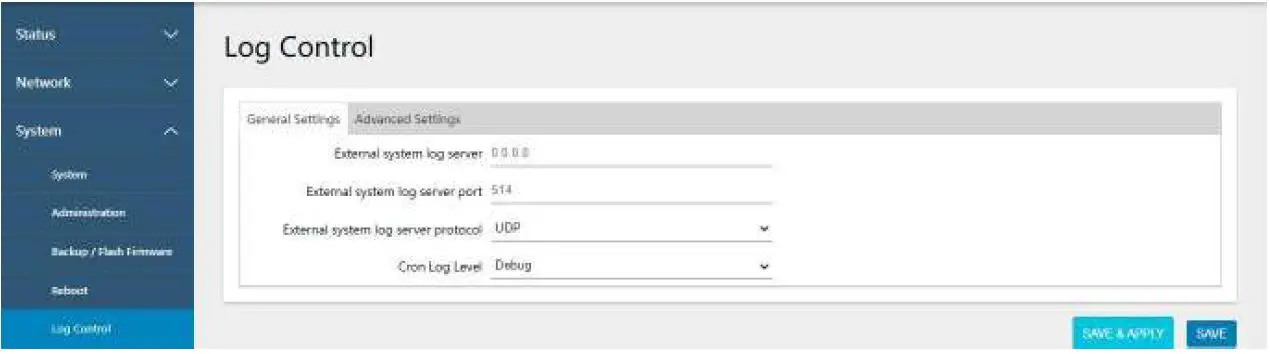
| General Settings | |
| Item | Description |
| External system log server | Fill in the remote system log server address (IP/domain name). |
| External system log server port | Fill in the remote system log server port. |
| External system log server protocol | Choose “UDP” or “TCP” from the drop-down list to transmit log file in corresponding protocol. |
| Cron Log Level | The list of severities follows the syslog protocol. |
Advanced Settings
This section describes how to download log files and tcpdump log.
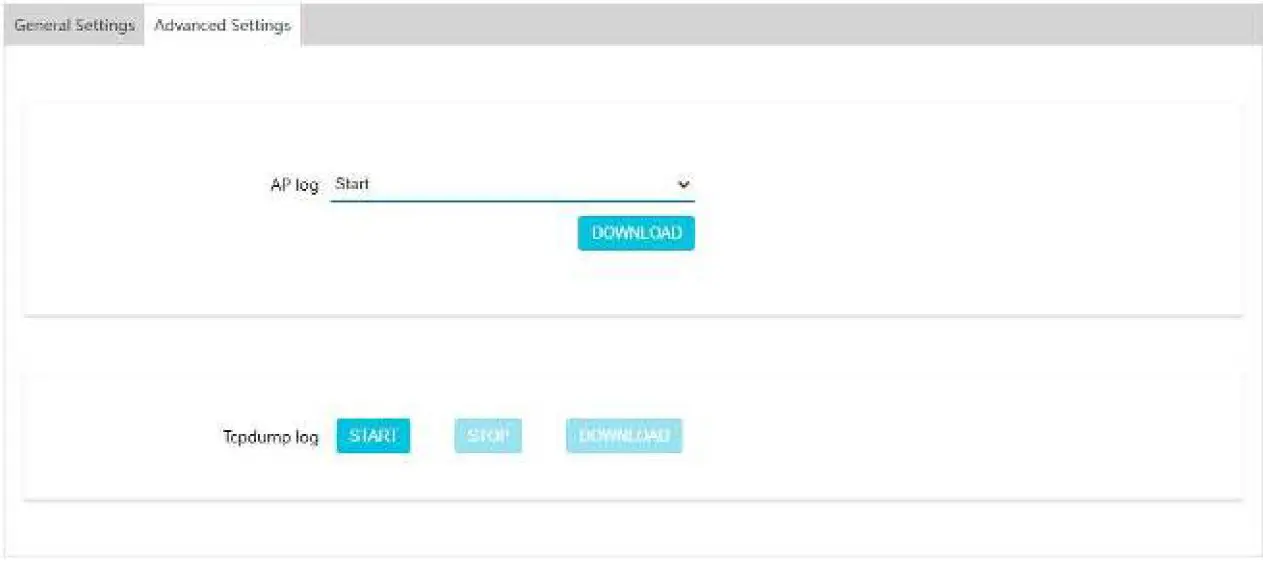
| Advanced Settings | |
| Item | Description |
| AP log | |
| Start | Click to start recording AP log. |
| Stop | Click to stop recording AP log. |
| Download | Click to download the last AP log recorded. |
| Tcpdump log | |
| Start | Click to start recording tcpdump log. |
| Stop | Click to stop recording tcpdump log. |
| Download | Click to download the last tcpdump log recorded. |
Cellular Debugger
This tool allows to use AT commands to check cellular debug information. You can press the common commands on the top of black frame directly to execute or enter the AT command that you want to send to cellular modem.
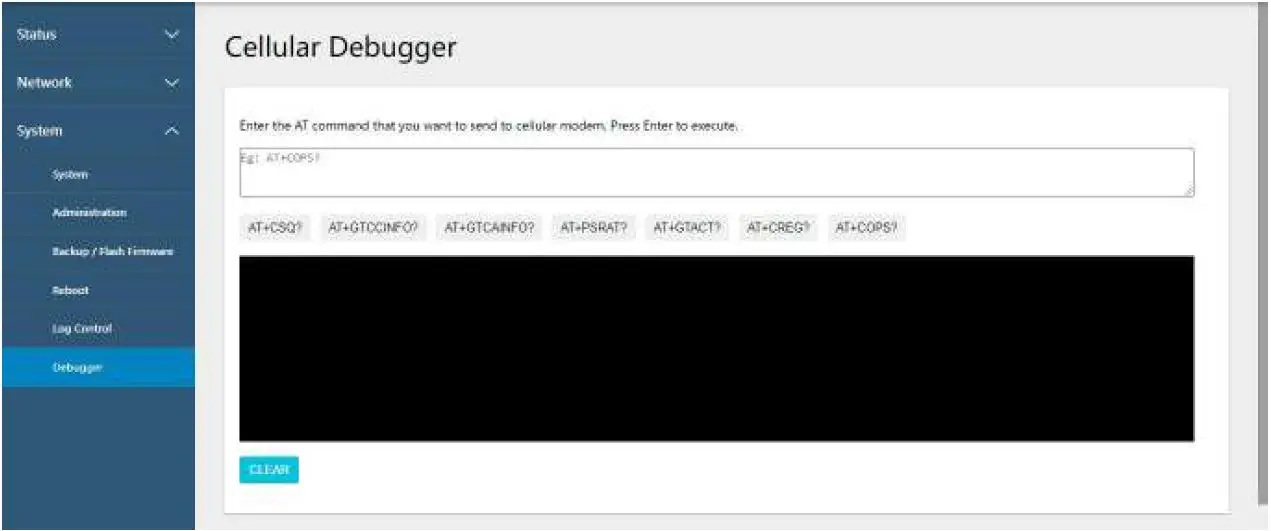
Common command description:
- AT+CSQ?—-Get cellular network signal
- AT+GTCCINFO?—-Get current cell information
- AT+GTCAINFO?—-Get CA information
- AT+PSRAT?—-Get network type
- AT+GTACT?—-Get RAT and bands
- AT+CREG?—-Get network registration status
- AT+COPS?—-Get operator and access technology info
Application Examples
Cellular Connection
- Go to “Network” → “Interfaces” → “Cellular EDIT” to configure the cellular info.

Click “Save” for configuration to take effect. - Click “Ping Detection” to configure ICMP ping detection information. UF31 will send ICMP packages to check network connection regularly.

- Go to “Status” → “Cellular” page to view the status of the cellular connection. If it shows ‘Connected’ and receives an IP address, the SIM has dialed up successfully.


- Go to “Network” → “Diagnostics” page to ping a valid address or domain to check network connection. You can also open a browser on PC, type any available web address into address bar and see if it is able to visit Internet via the UF31 device.

Related Topic
- Cellular Settings
- Cellular Status
Firmware Upgrade
It is suggested that you contact Milesight technical support first before you upgrade device. After getting image file please refer to the following steps to complete the upgrade.
- Go to “System” → “Backup/Flash Firmware” page, click “FLASH IMAGE…”.

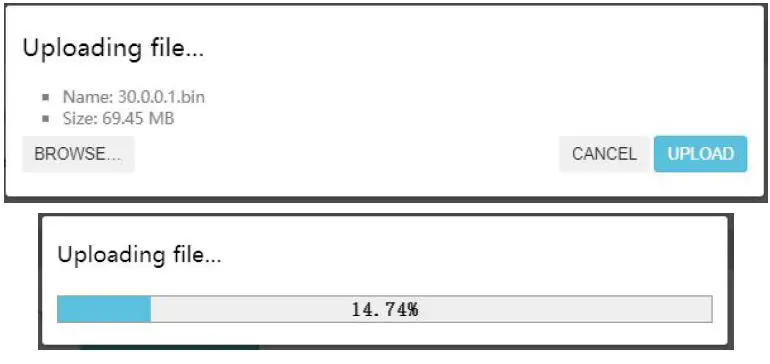
- Browse the correct firmware file from the PC, click “UPLOAD” and the device will check if the firmware file is correct. If it’s correct, the firmware will be imported to the device.

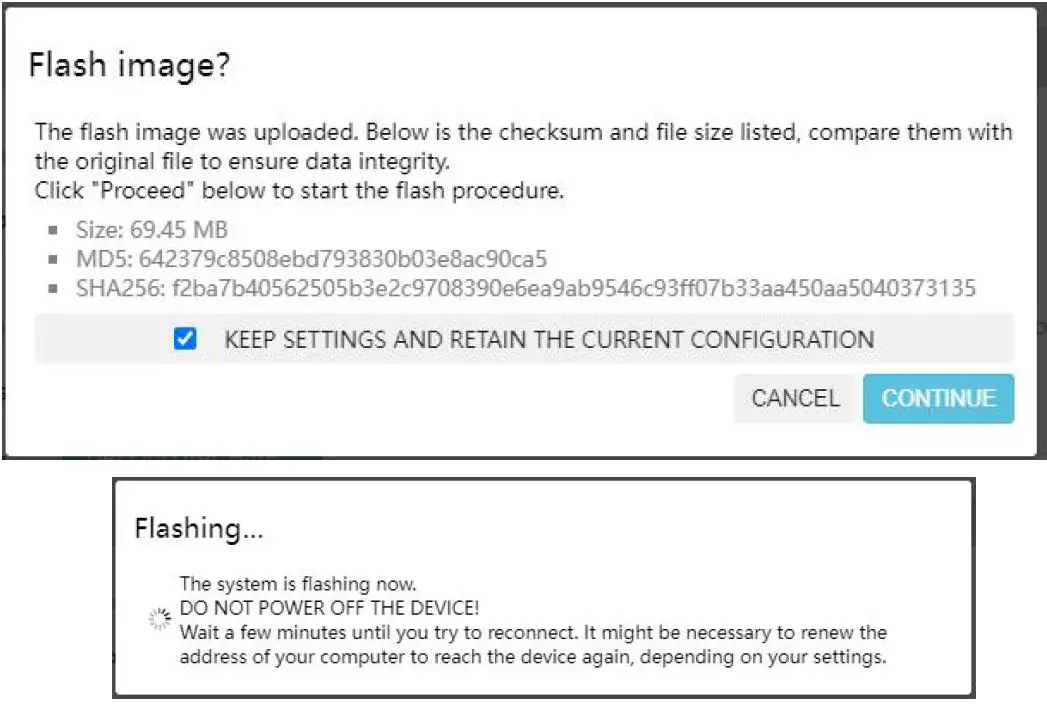
- After upload, click “CONTINUE” to upgrade the device. Do not perform any operation or disconnect the power during the upgrade.

Related Topic
Backup / Flash Firmware
Restore Factory Defaults
Method 1:
Go to “System” → “Backup/Flash Firmware” page, click “PERFORM RESET” button, you will be asked to confirm if you’d like to reset it to factory defaults. Then click “OK” button.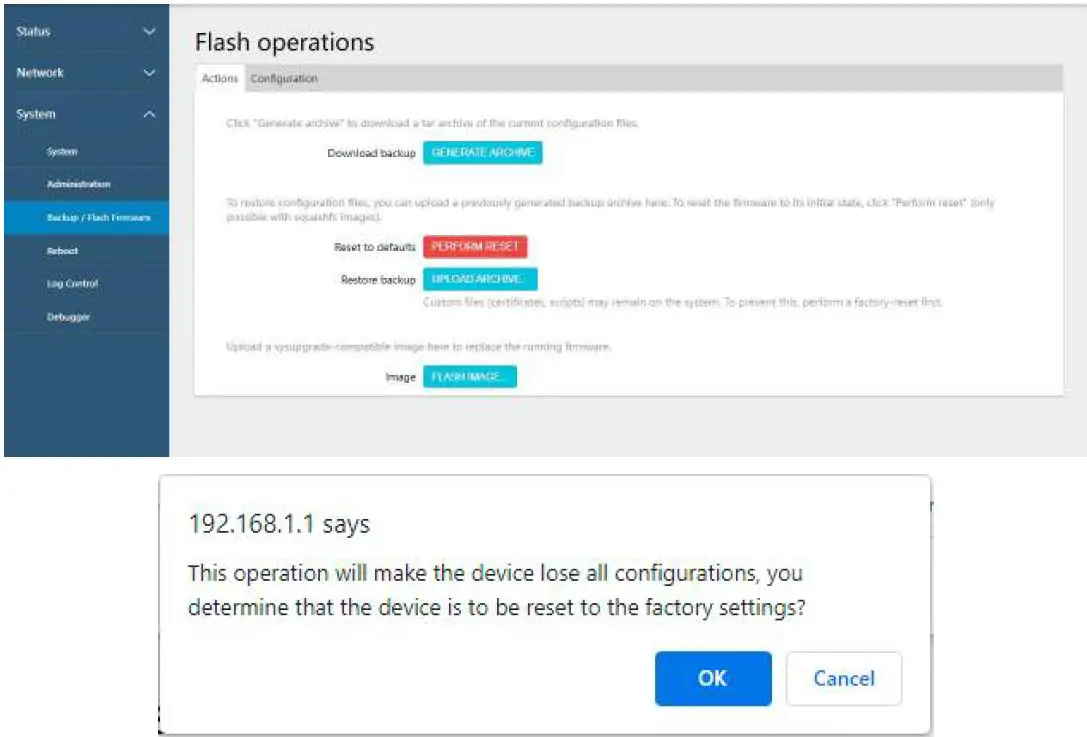
Then UF31 will reboot and restore to factory settings immediately.

Please wait till the STATUS LED shines in green, which means the device has already been reset to factory defaults successfully.
Related Topic
Backup / Flash Firmware
Method 2:
Release the metal case and find the reset button on the mainboard, press and hold the reset button for more than 5 seconds until LED blinks.