 Sub
Sub

Overview
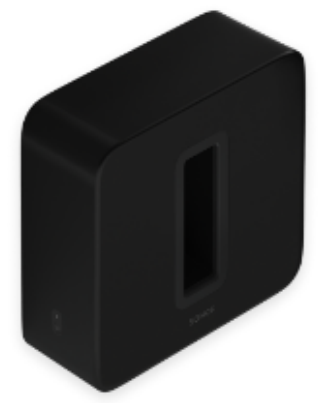
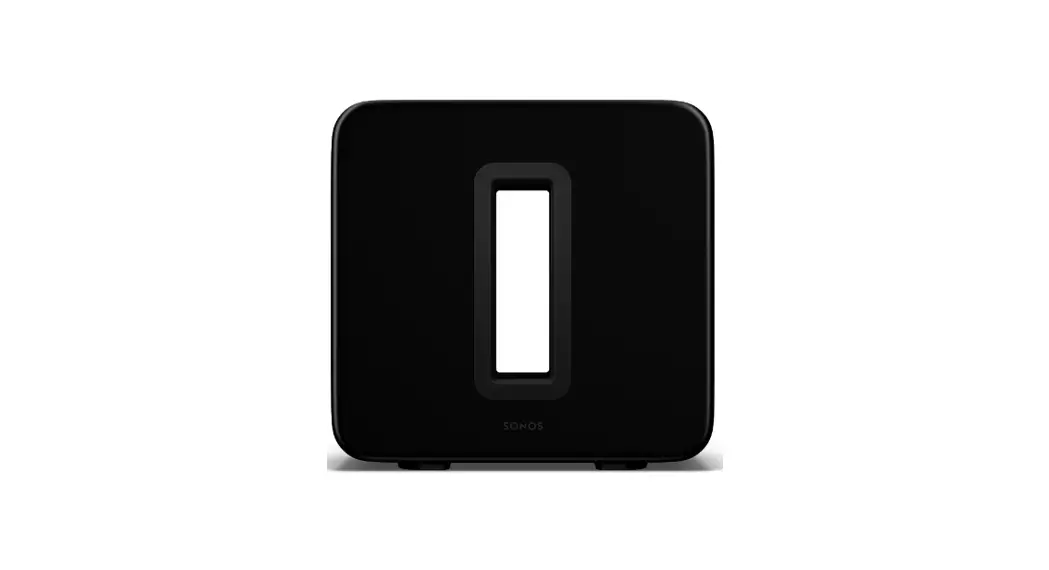
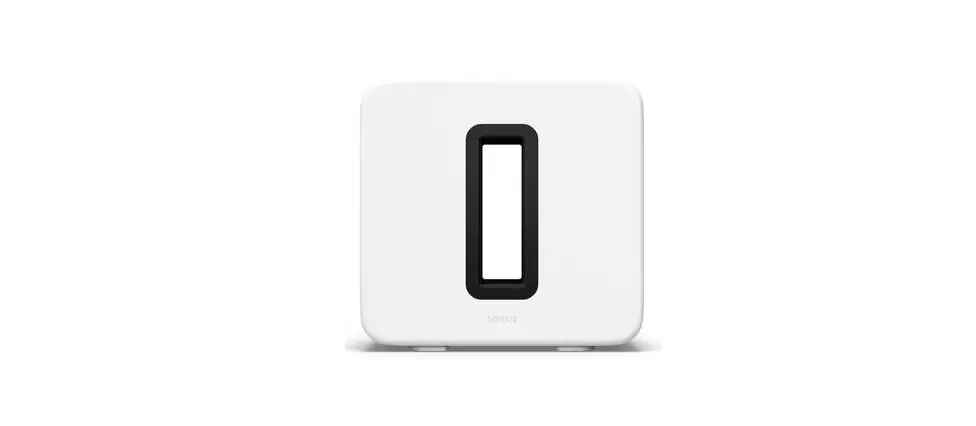
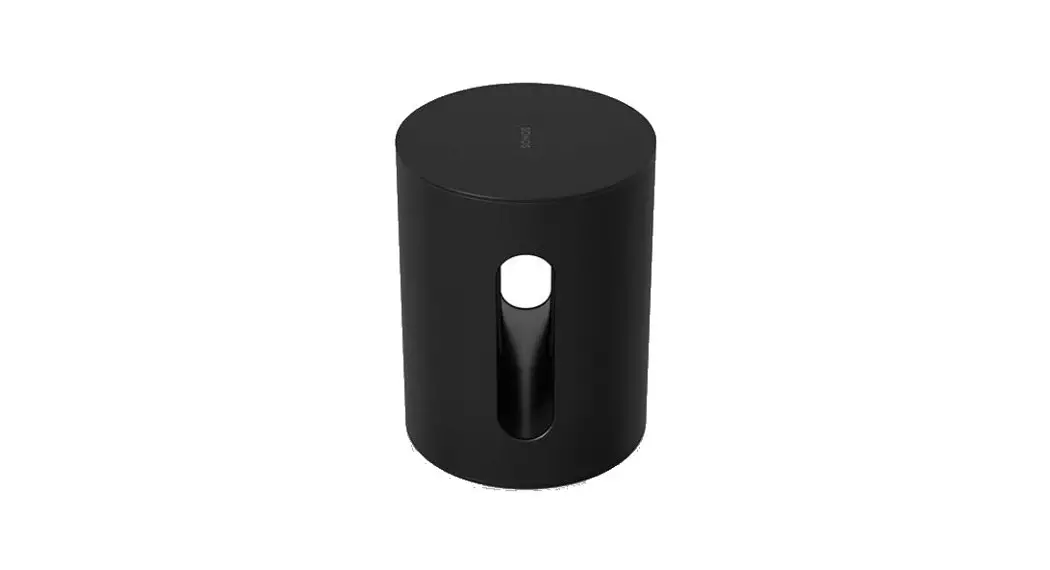
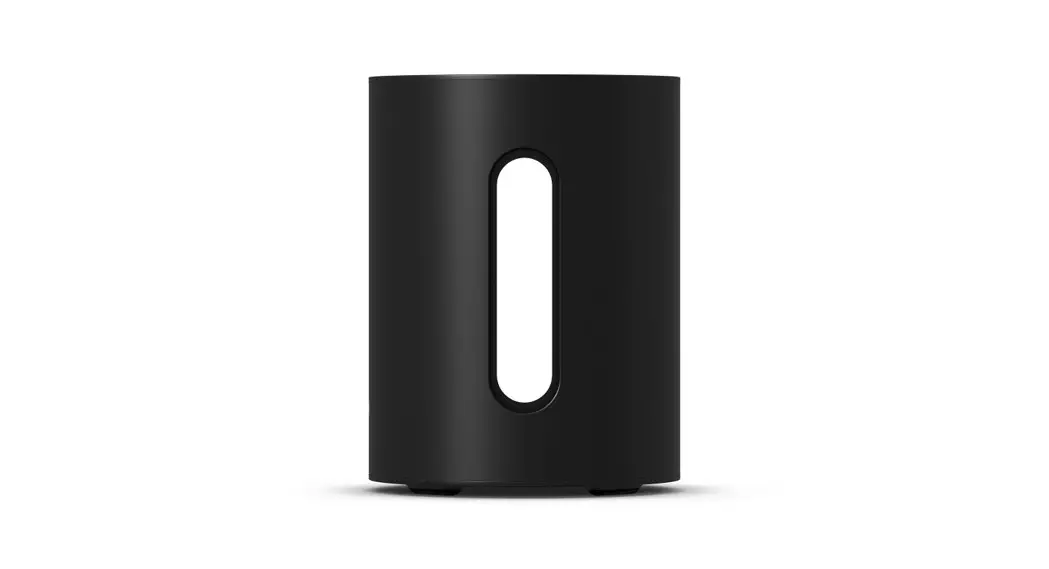
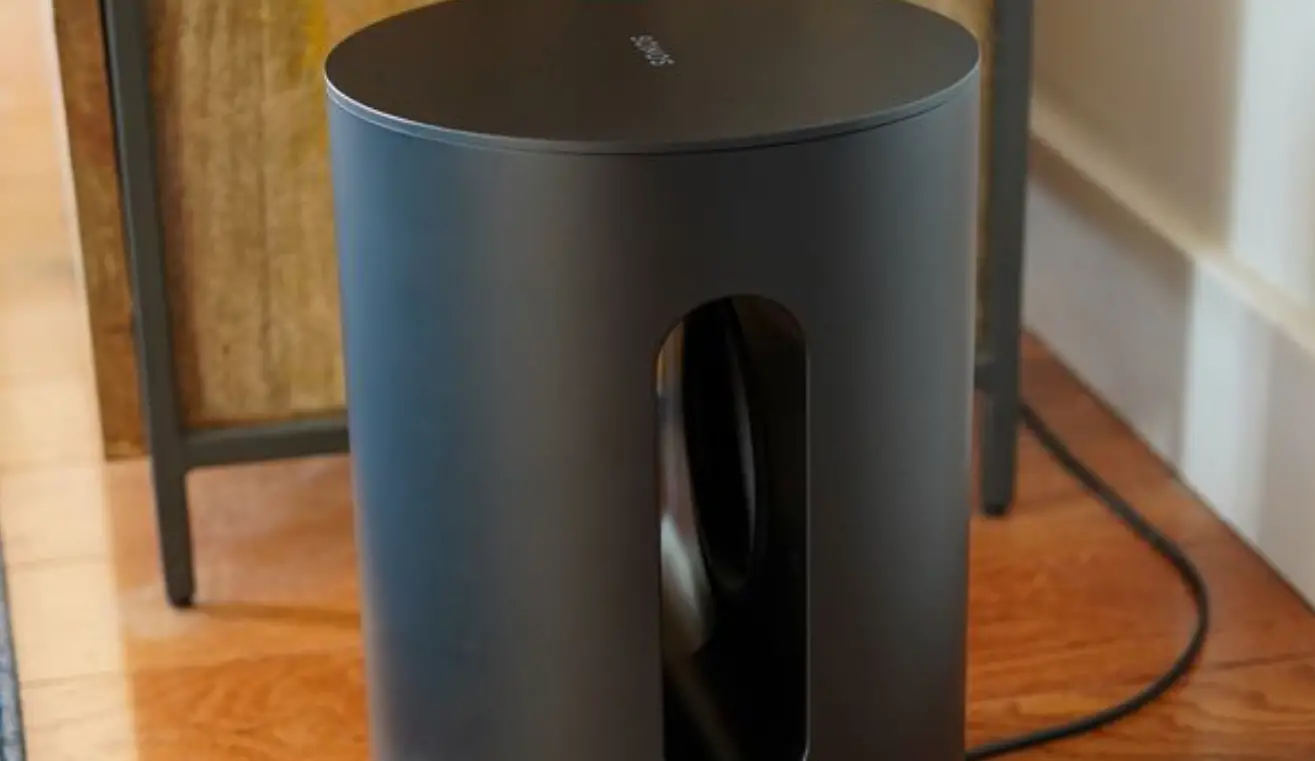
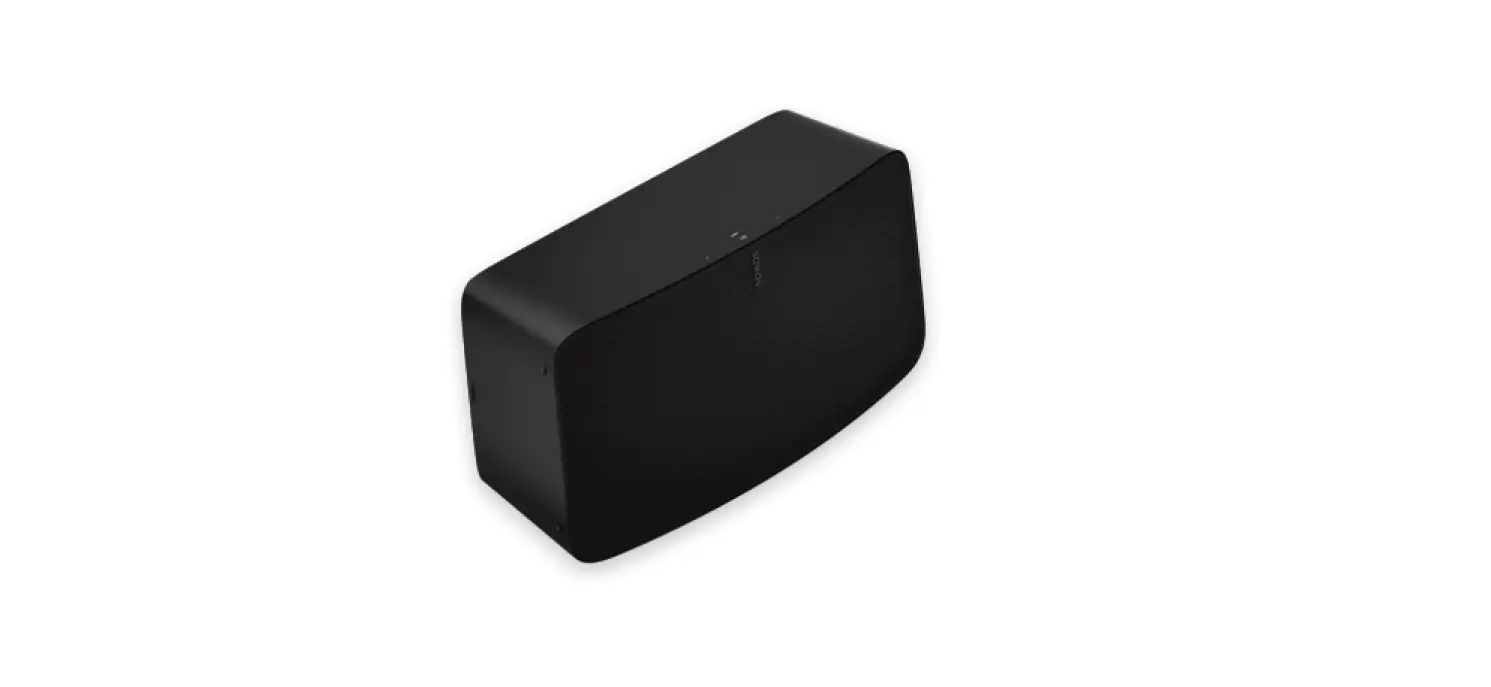
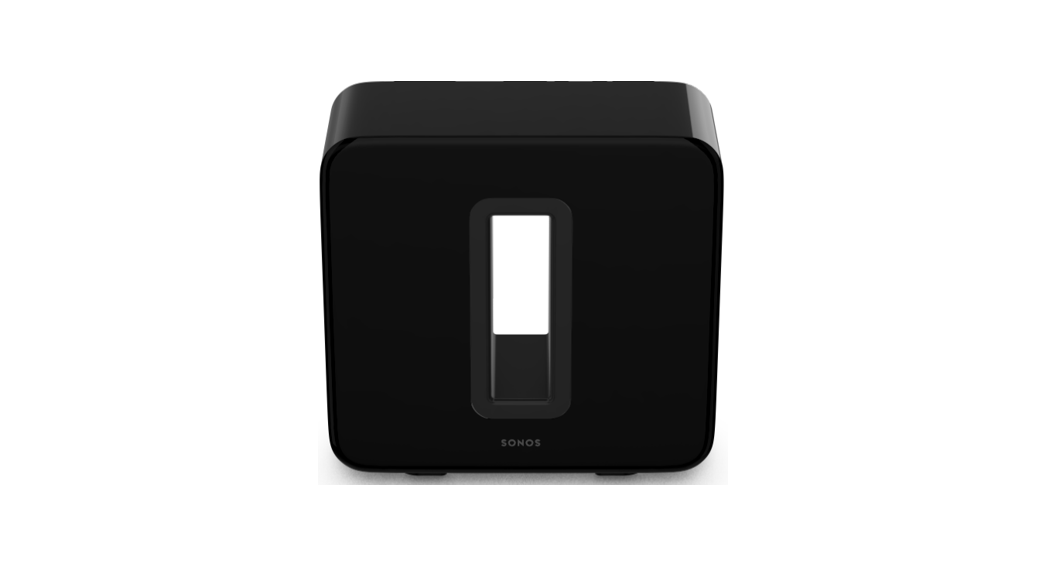
Sonos Sub takes your audio experience to the next level—
- Instantly adds a dimension of deep bass impact to your audio listening experience
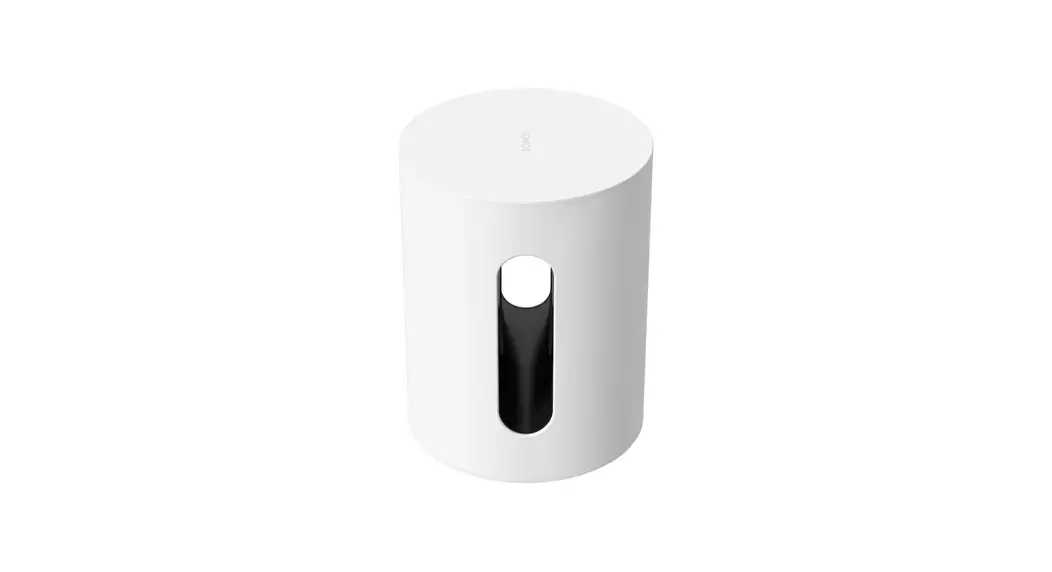
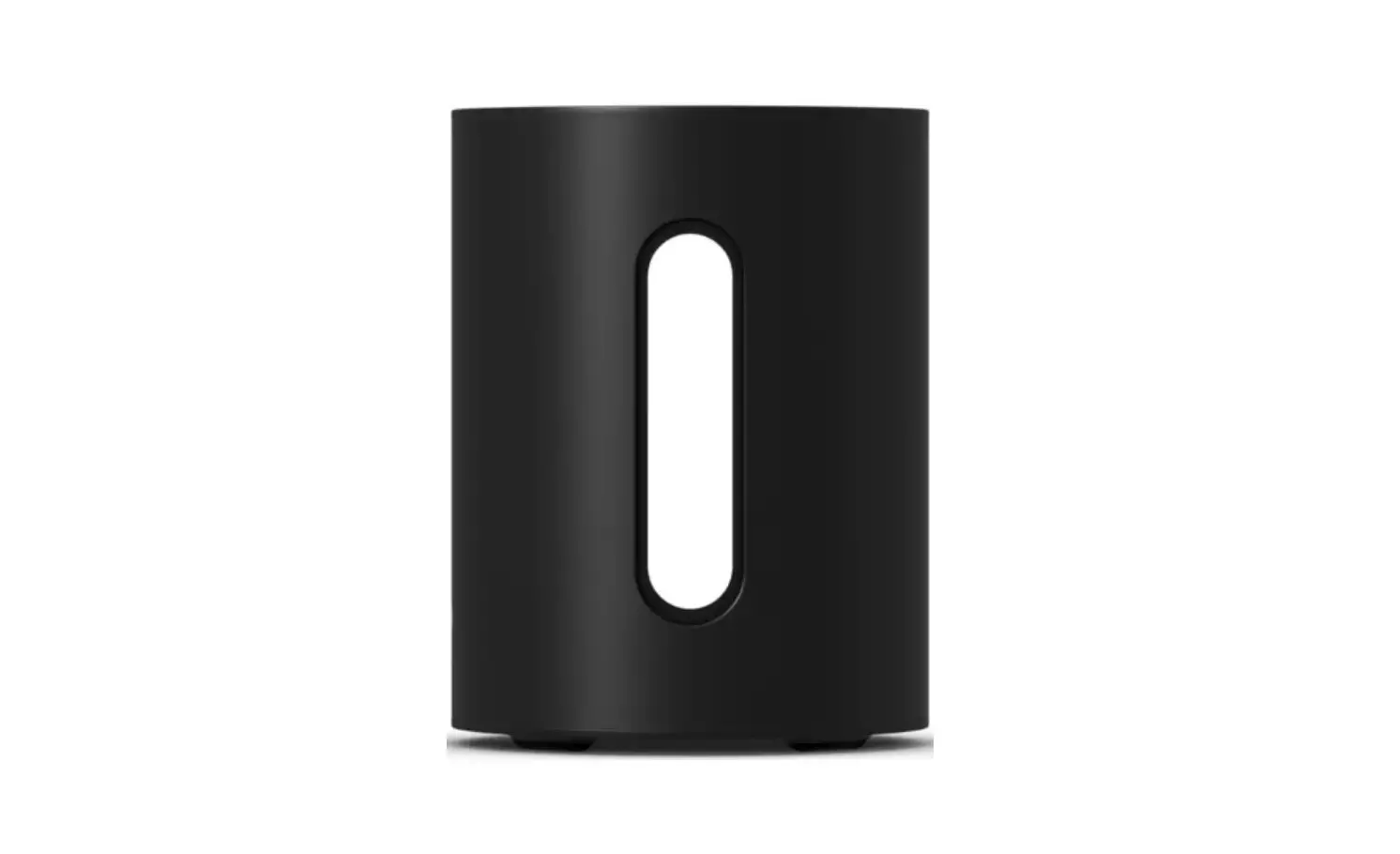
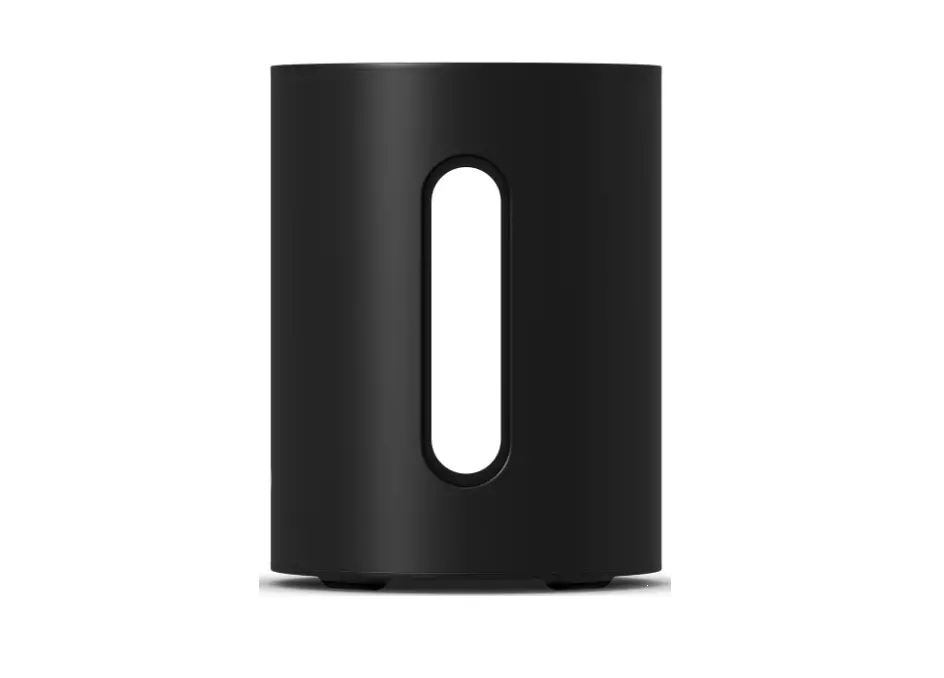
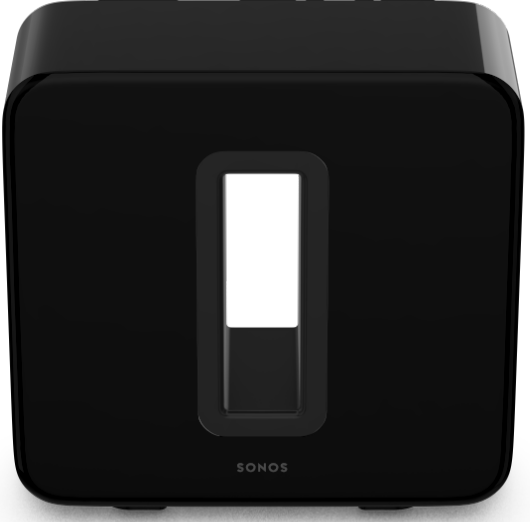
- Allows placement anywhere because it ’ s wireless and compact—position it vertically o r horizontally on any floor surface.
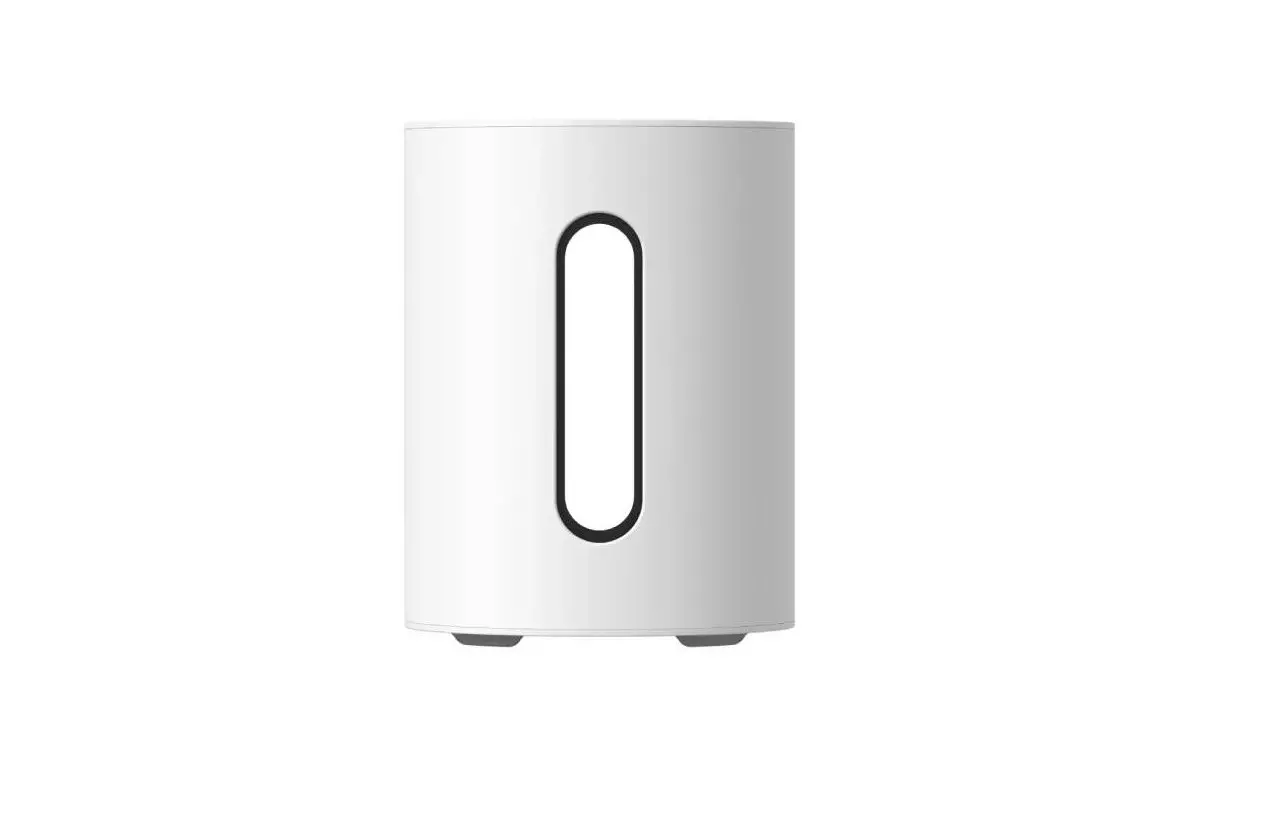
- The top o f the acoustic slot doubles as a handle so you can lift it.
- Sub (Gen. 3) is compatible with the Sonos $2 app (for Android and iOS).
Earlier Sub models are compatible with either $1 o r S2. - Pair a Sub ( G e n . 3 ) with any other Sub and feel the bass from every corner of the room.
- Sonos Sub is designed for use with most Sonos speakers, except Sonos Roam, Roam SL, Connect, Port, and Move. Make sure you set up at least one speaker before adding Sub
- See Setup when you’re ready to add a Sub to your Sonos system.
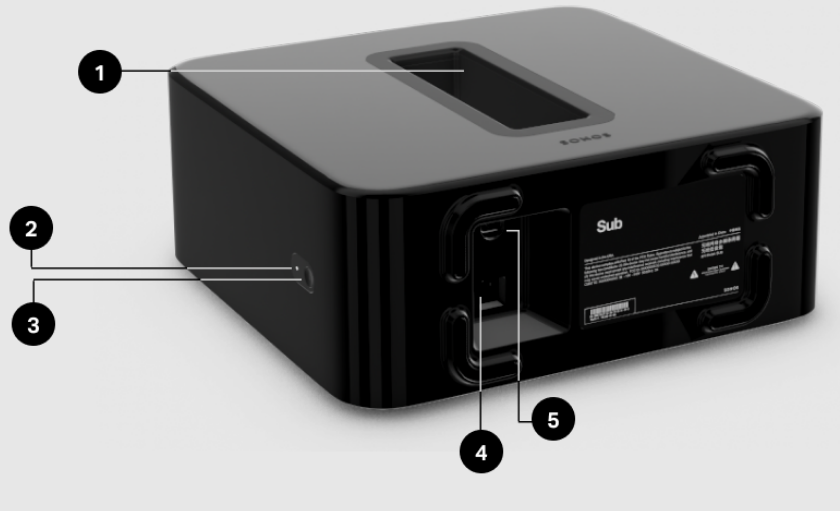
| 1 | Acoustic slot | You can use the acoustic slot as a handle to lift Sub. |
| 2 | Status light | Displays the product’s connection to WiFi, indicates when the volume is muted, and signals errors. Learn more lf the light is distracting, you can turn it off in your room’s settings . |
| 3 | Join button | Press to connect during setup. |
| 4 | Ethernet port | Use an Ethemet cable if you want to connect to a router (optional). |
| 5 | AC power (mains) input | Use only the supplied power cord to connect to a power ouilet (using a third party power cord will void your warranty). Be sure to use the proper power adapter for your country. Push the power cord firmly into Sub until it is flush with the surface. |
Select a location
Choose a location—Sub is designed to provide optimal sound wherever you place it.
- Use the acoustic slot as a handle to lift Sub out of the box. You should always bend your knees when lifting heavy objects to avoid undue stress on your back.
- Make sure at least one side of the slot is free from obstruction. If you place it vertically against a wall, don’t block the front opening.
- If you place Sub horizontally on the floor, don’t put anything on top of it. Leave at least 1″ clearance along the top of Sub if placing under furniture.
- Sub is designed to sit on the floor. You can place it in a corner, against the wall, behind, under, or next to any piece of furniture on any kind of floor surface.
- Position Sub either vertically or horizontally. If you’re going to use it horizontally, you can attach permanent felt feet. See Attach feet (optional) for more information.
Connect the cables
- Attach the power cord and plug in Sub. Be sure to push the power cord firmly into Sub until it is flush with the surface
- Download the Sonos app from the app store if you don’t already have it You’ll use it to set up and control your Sonos system. See Setup for more information.
Note Make sure you set up at least one compatible speaker before adding Sub
Note- After Sub is paired with a Sonos speaker, you won’t see it displayed separately in your system Any changes you make to the speaker it’s paired with. like volume, mute, or music selection. will also affect Sub.
Attach feet (optional)
If you’re placing Sub honzontally on a floor you can attach permanent felt feet (purchased separately) to protect your floor If you’re putting it on a rug or using it vertically no need to adhere the felt feet
Note: The felt feet are not removable—a strong adhesive will keep them permanently attached to Sub.
- Lay Sub down so the Sonos logo is facing down. Make sure you adhere the felt feet to the side that doesn’t have the Sonos logo.
- Place the enclosed guide on one corner of the unit and fold the flaps over the edge.
- Peel the backing off one of the feet.
- Press the felt foot (sticky side down) onto the unit inside the circular portion of the guide.
- Attach the other 3 felt feet the same way.
Product settings
To adjust Sub’s settings. go to  > System and select your Sub.
| Sub | Toggle On or Off to turn the sound from Sub on and off. |
| Sub level | Use the slider to increase or decrease volume. (You can use this setting to match the subwoofer level to the level of your main speakers.) |
| Phase control | Choose 0° or 180° to set the phase control for your Sonos Sub or third-party subwoofer (flip if you don’t hear enough bass in your usual listening position). When a room with a Sonos Sub is tuned using Trueplay, phase control is set and can’t be changed unless you disable Trueplay |
| Reset | Resets all Sub audio settings to their default values (0) |
Change speaker pairing
You can easily change the Sonos speaker your sub is paired with.
lf you’re moving it fo a new room, wait for the status light to stop flashing after you plug the sub back in.
- Go to
 > System and choose the speaker your sub is paired with. lt appears as [Speaker name (+5ub)] in your list of rooms.
 - Tap Remove Sub.
You can pair the sub with a different Sonos product or choose not to use it right now. It will appear as “unused” in your list o f products until you pair it with another Sonos speaker.
Connect a second Sub
You can easily connect a second Sub to your Sonos system.
Note: At least one Sub must be a Sub (Gen. 3). If the bution on the side is round instead of square, it’s a Sub (Gen 3). You cannot pair a Sub Mini with a Sub.
- Go to > System and choose the speaker Sub i s paired with. It appears as room (+Sub) in your list of rooms.
- Tap Connect Second Sub t o get started.
Specifications
| Feature | Description |
| AUDIO | |
| Amplifier | Two Class-D digital amplifiers. |
| Speakers | Two force-canceling speakers positioned face-to-face for deeper, richer sound and zero cabinet buzz or rattle. |
| Dual acoustic ports | Tuned to enhance Sub performance. |
| Frequency response | Plays down to 25 Hz. |
| All digital sound | All filter settings , active equalization, and time alignment are done digitally through state-of-the-art DSP (Digital Signal Processing) circuitry for zero-loss audio quality and energy. |
| Automatic equalization | The system automatically adjusts audio settings across all connected components. |
| NETWORKING | |
| Ethernet port | One 10/100 Mbps Ethernet port. You can plug a Sonos product directly into your router i f your WiFi i s unstable |
| Wireless connectivity | Using Sonos $2: Connects t o WiFi network with any 802. 11a/b/g/n 2.4 o r 5 GHz broadcast-capable router. Using Sonos $1: Connects t o WIFI network with any 802. 11b/g 2.4 GHz broadcast-capable router. 802.11n only network configurations are not supported—you can either change the router settings to 802.11b/g/n or connect a Sonos product to your router. |
| GENERAL | |
| Power supply | Auto-switching 100 – 240V ~ 50-60 Hz 2 AAG universal input |
| Dimensions (H x W x D) | 15.3 x 6.2 x 15.8 in. (389 x 158 x 402 mm) |
| Weight | Sub (Gen 2): 36 Ib (16 kg) Sub (Gen 3): 29 Ib (13 kg) |
| Operating temperature | 32° t o 104° F (0 t o 40 C) |
| Storage temperature | -4° to 158° F (-20 to 70° C) |
| Multiple orientations | Stand upright or lay flat for flexible placement. |
| Rubber and felt feet | Built-in rubber feet, optional felt feet. |
| Supported products | At least one amplified, non-portable product, such as Sonos One, One SL, Five, Ray, Beam, Arc, or Symfionisk. |
| Package contents | Sonos Sub, power cord, and Quickstart Guide |
* Specifications subject t o change without notice.
Important safety information
- Read these instructions.
- Keep these instructions.
- Heed all warmings.
- Follow all instructions.
- Do not use this apparatus near water.
- Clean only with dry soft cloth. Household cleaners or solvents can damage the finish on your Sonos products.
- Do not block any ventilation openings. Install in accordance with the manufacturer’s instructions.
- Do not install near any heat sources such as radiators, heat registers, stoves, or other apparatus that produce heat.
- Protect the power cable from being walked on or pinched, particularly at plugs, convenience receptacles, and the point where they exit from the apparatus.
- Only use attachments/accessories specified by the manufacturer.
- Unplug this apparatus during lightning storms or when unused for long periods of time.
- This product does not have any user-serviceable parts. Do not open or disassemble or attempt to repair it or replace any components. Refer all servicing to Sonos qualified service personnel. Servicing is required when the apparatus has been damaged in any way, such as power-supply cable or plug is damaged. liquid has been spilled or objects have fallen into the apparatus, the apparatus has been exposed to rain or moisture, does not operate normally, or has been dropped.
- The Mains plug should be readily available to disconnect the equipment.
- Warning To reduce the risk of fire or electric shock, do not expose this apparatus to rain or moisture.
- Do not expose apparatus to dripping or splashing and do not place objects filled with liquids, such as vases, on the apparatus.