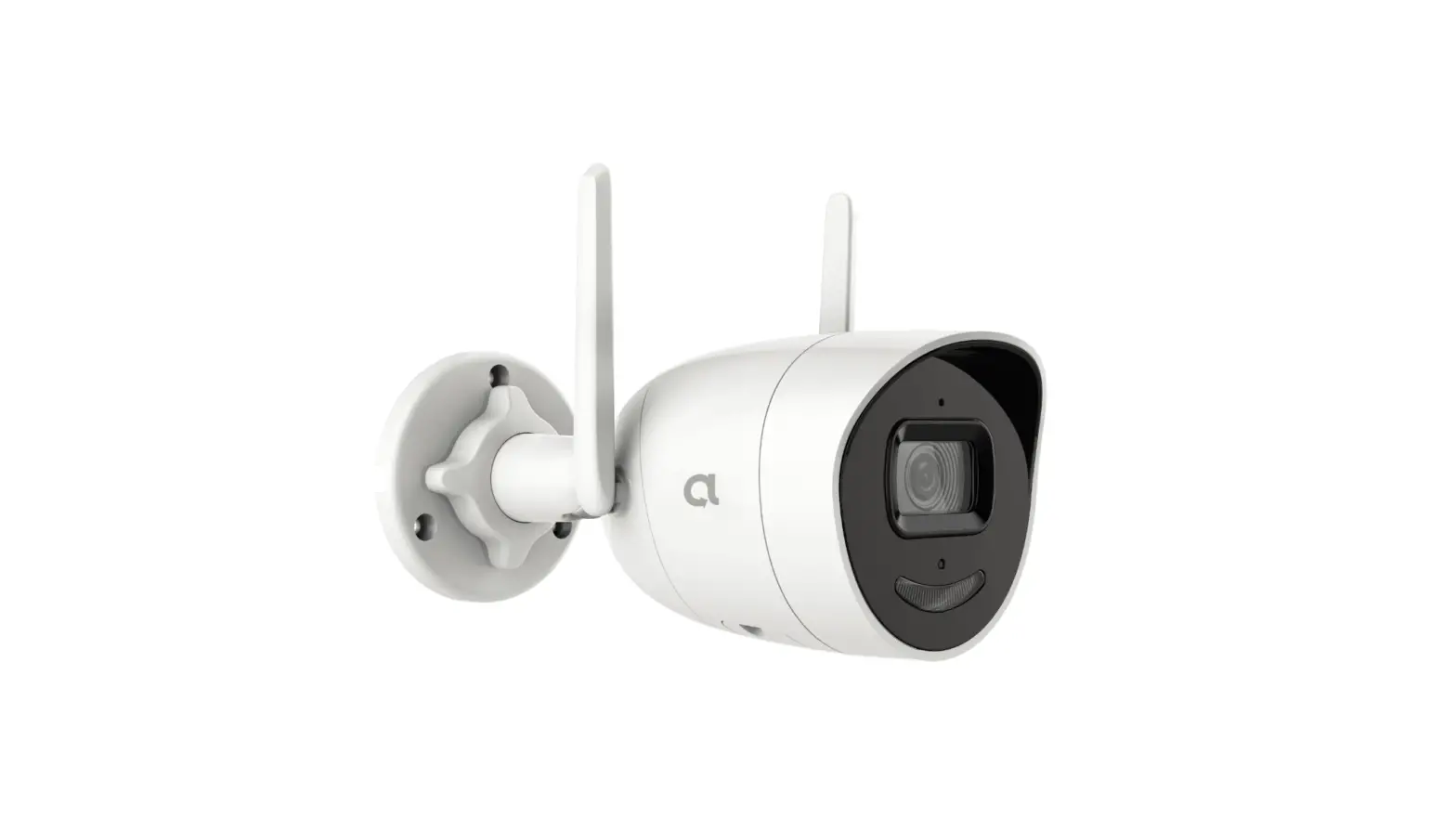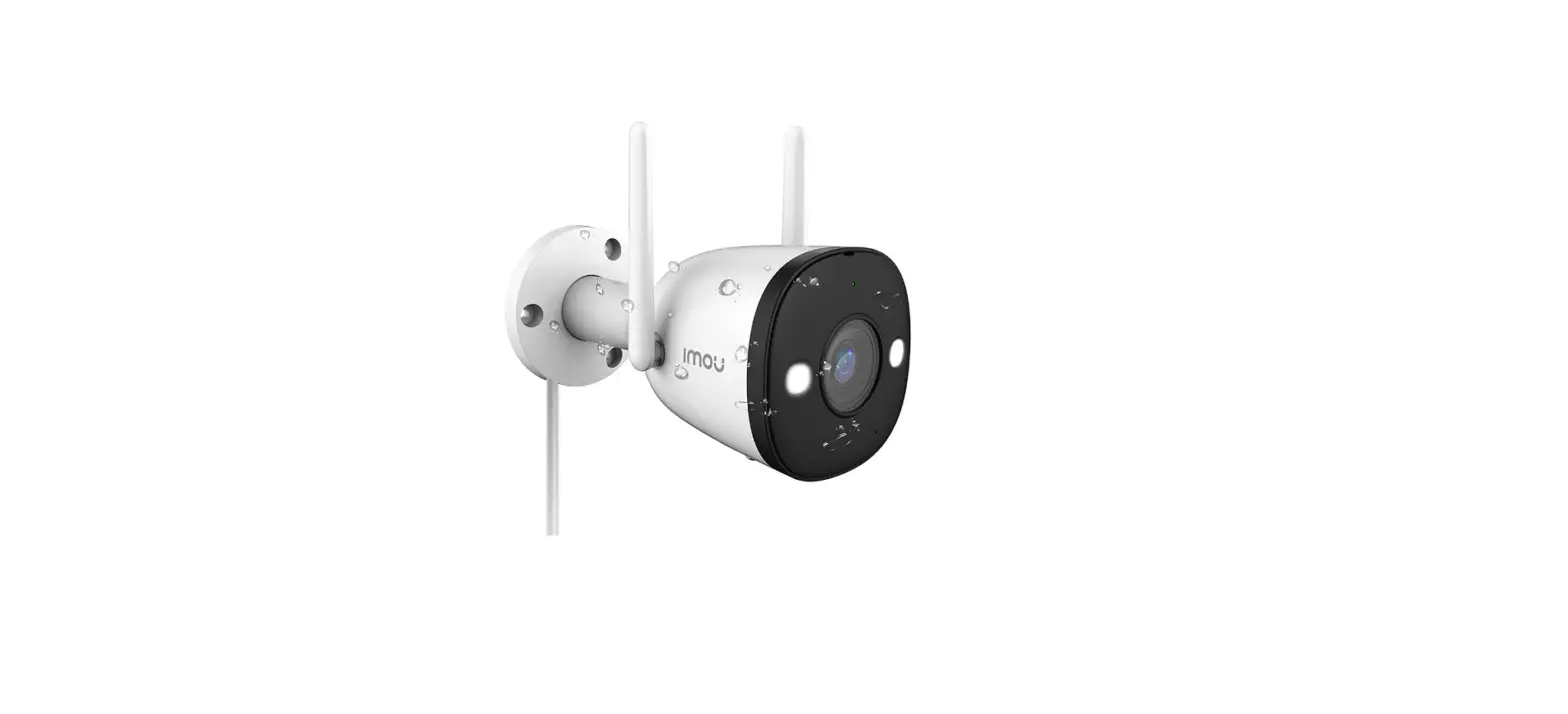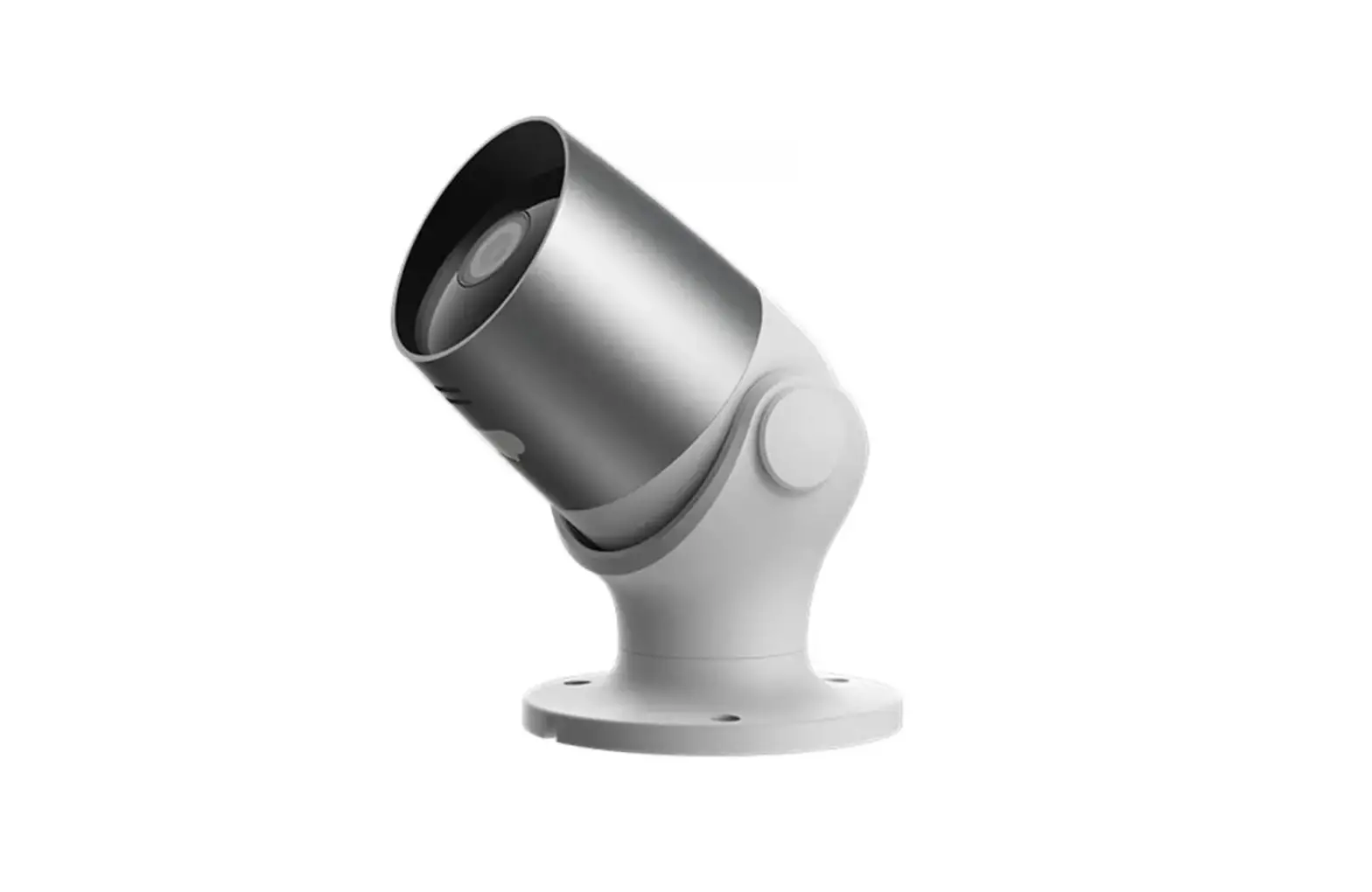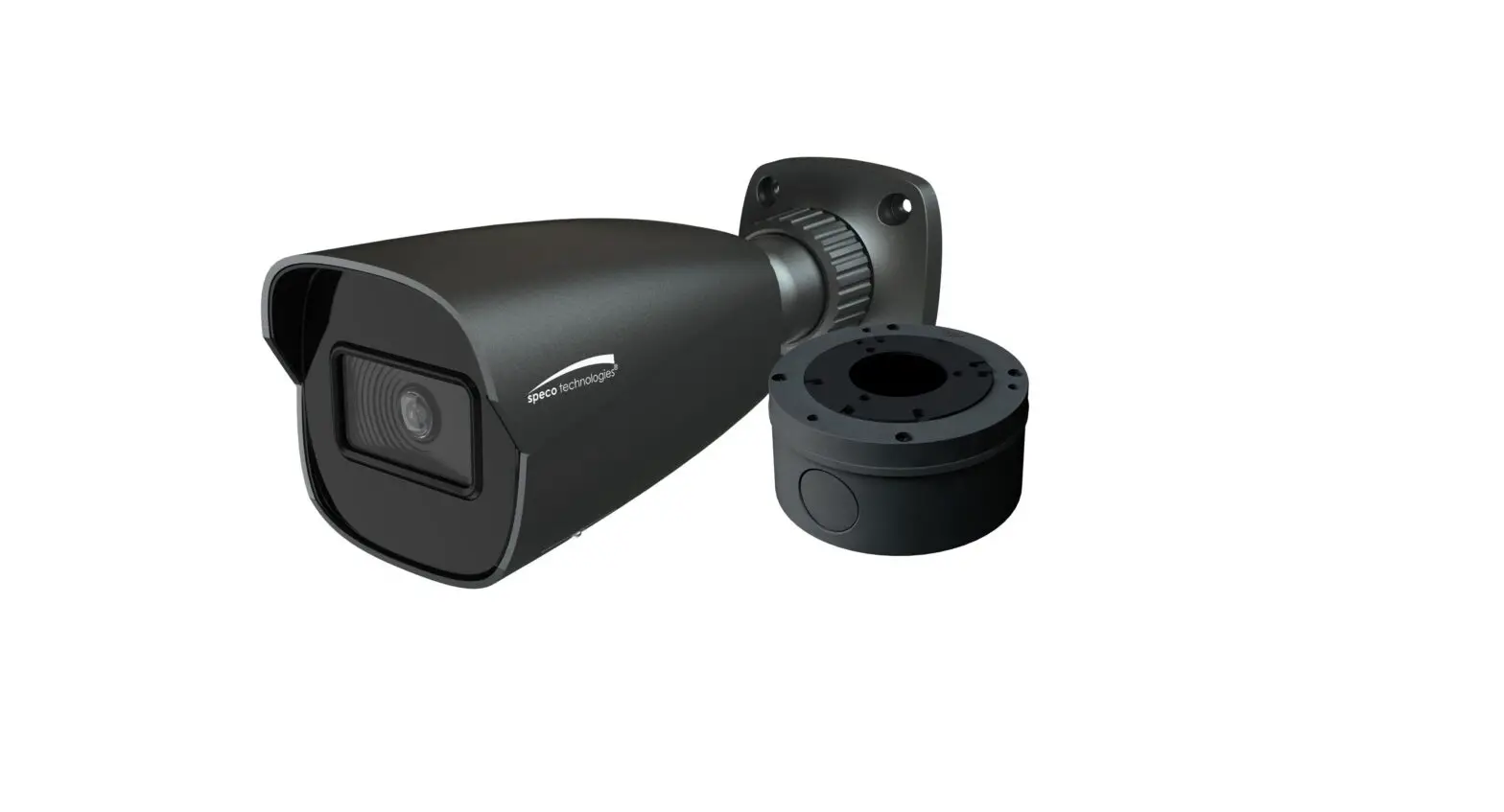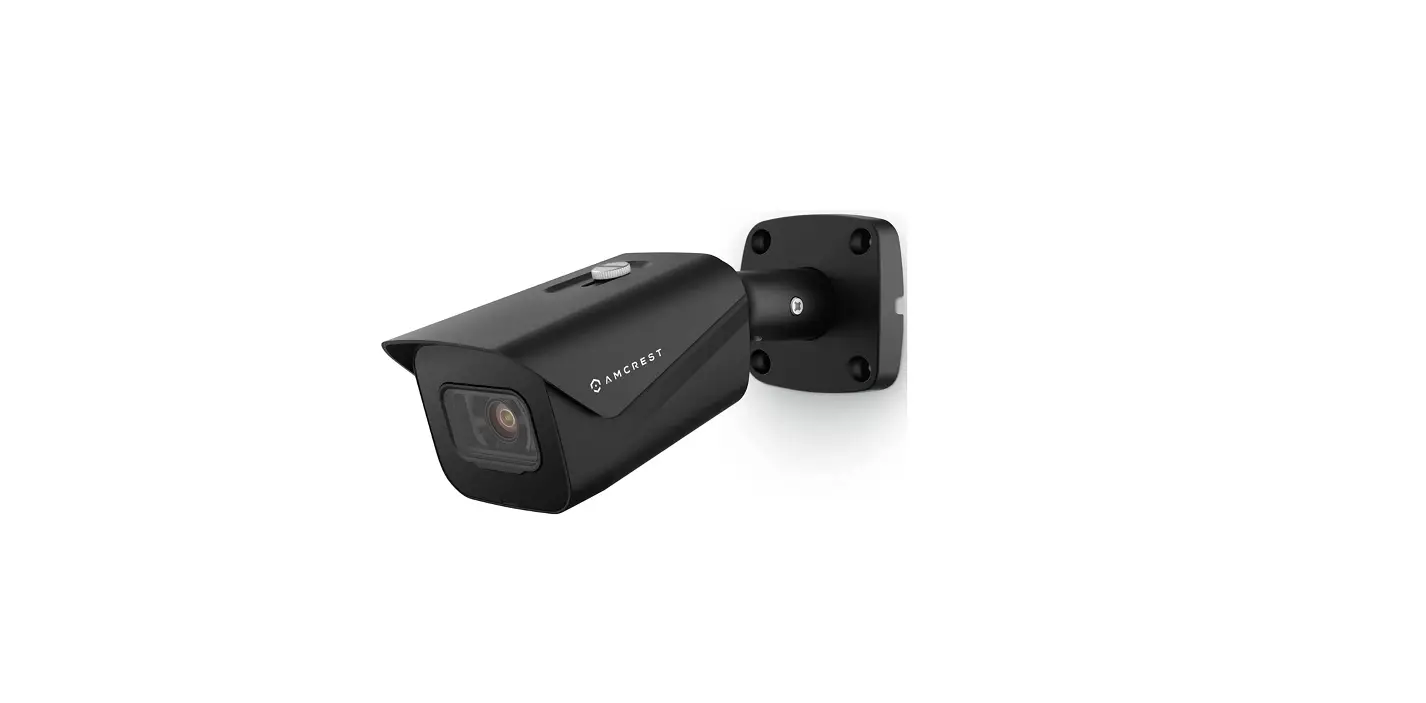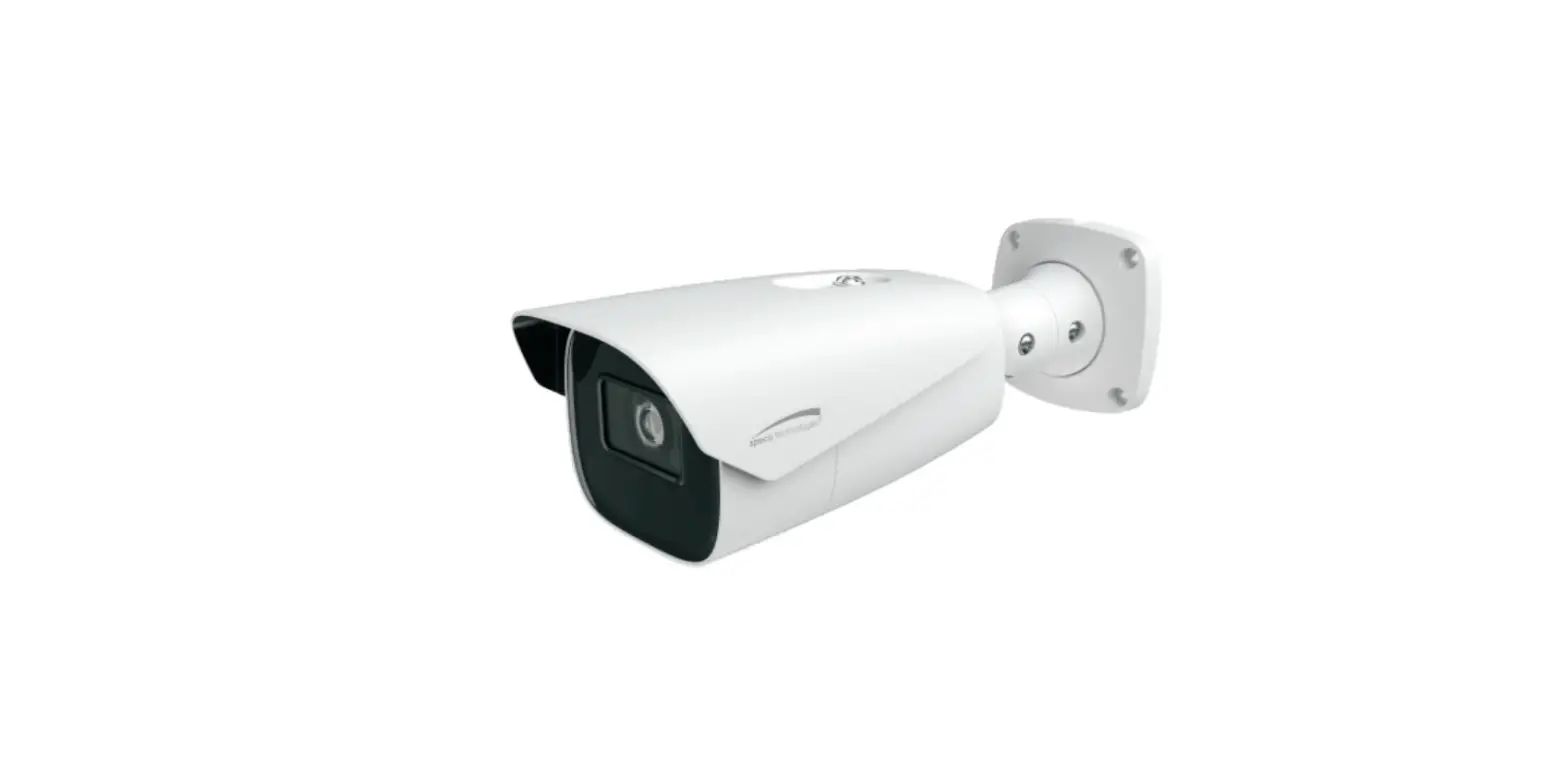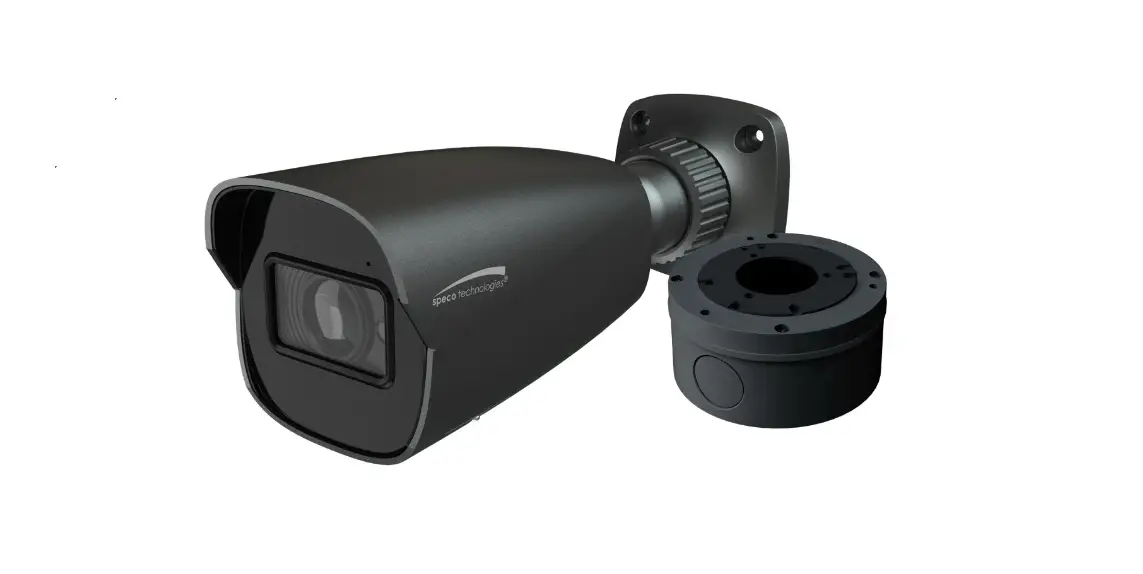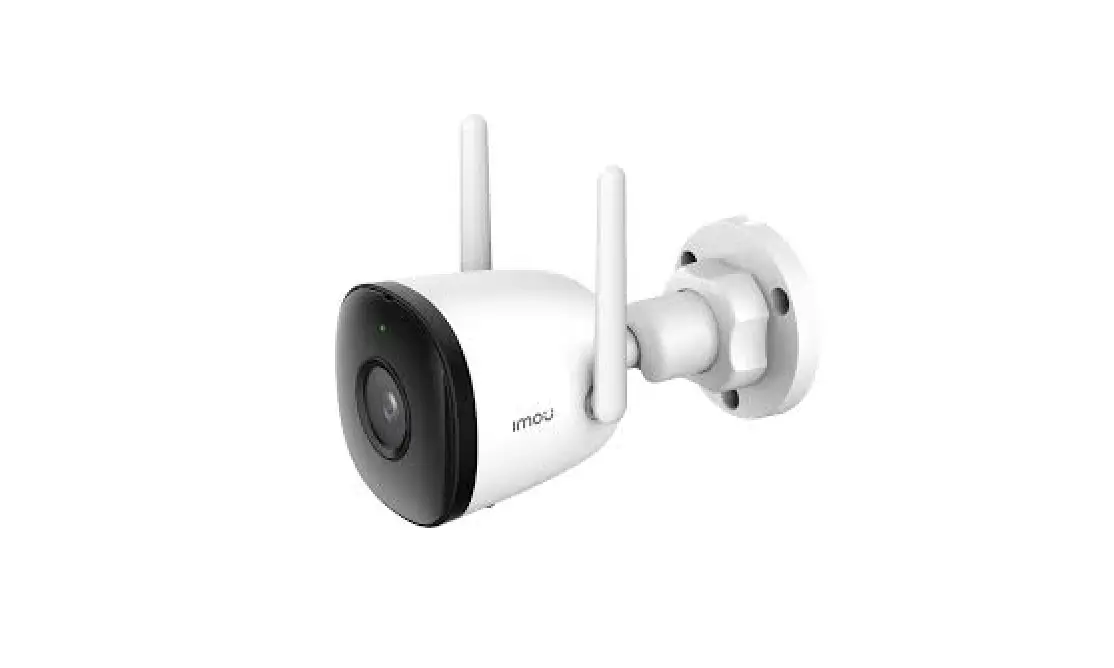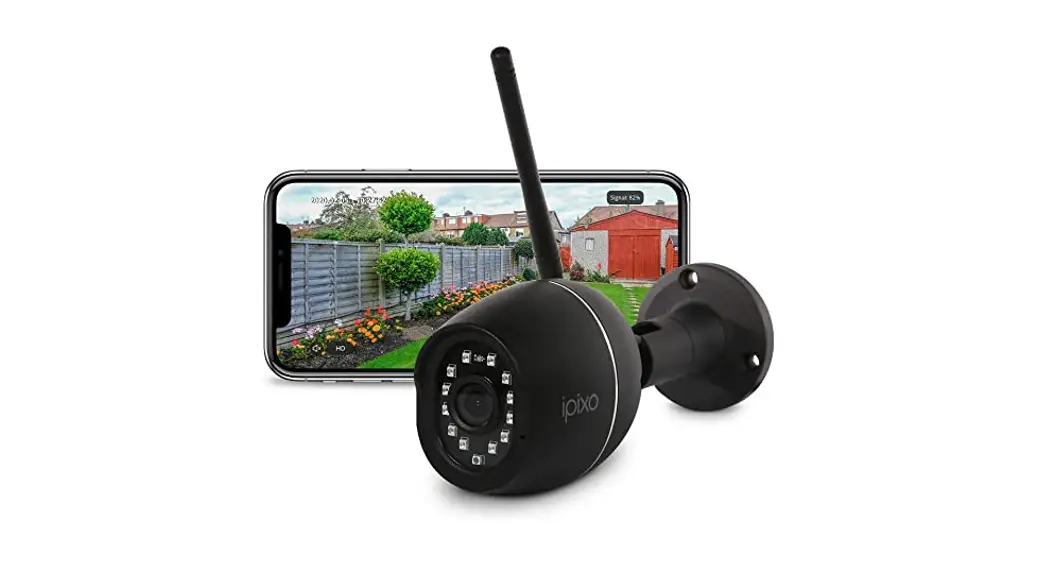
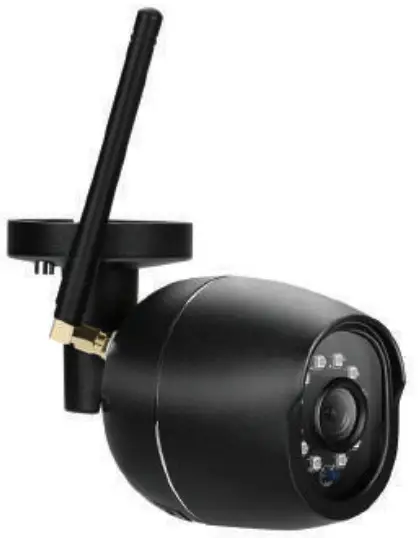
Ipixo Outdoor Bullet Camera
Start Up Guide
Struggling to read?
View this start up guide online at time2technology.com/manuals
What’s in the box
 | 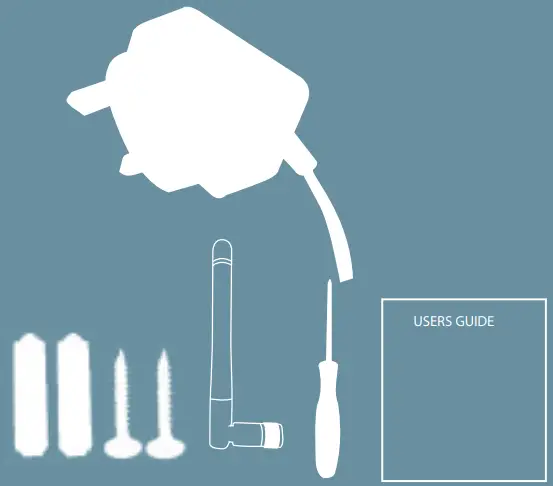 |
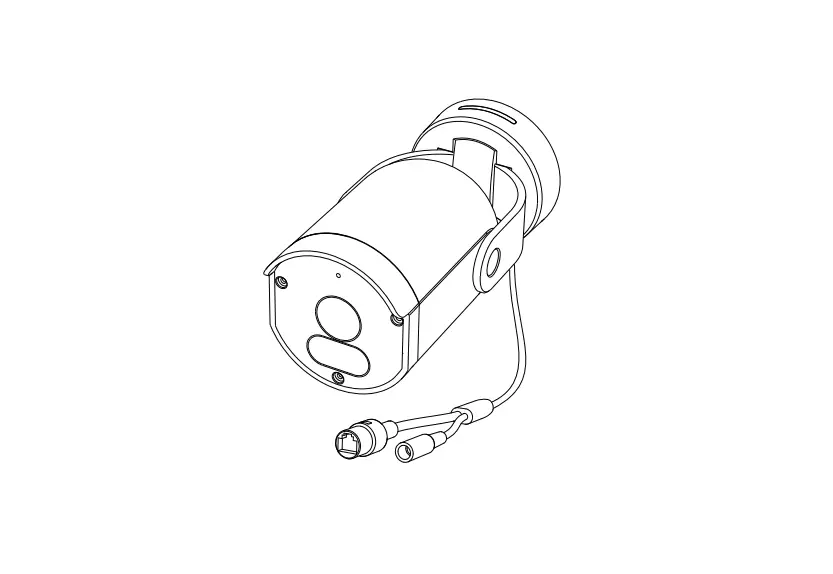
| Outdoor Camera | Screw Tool |
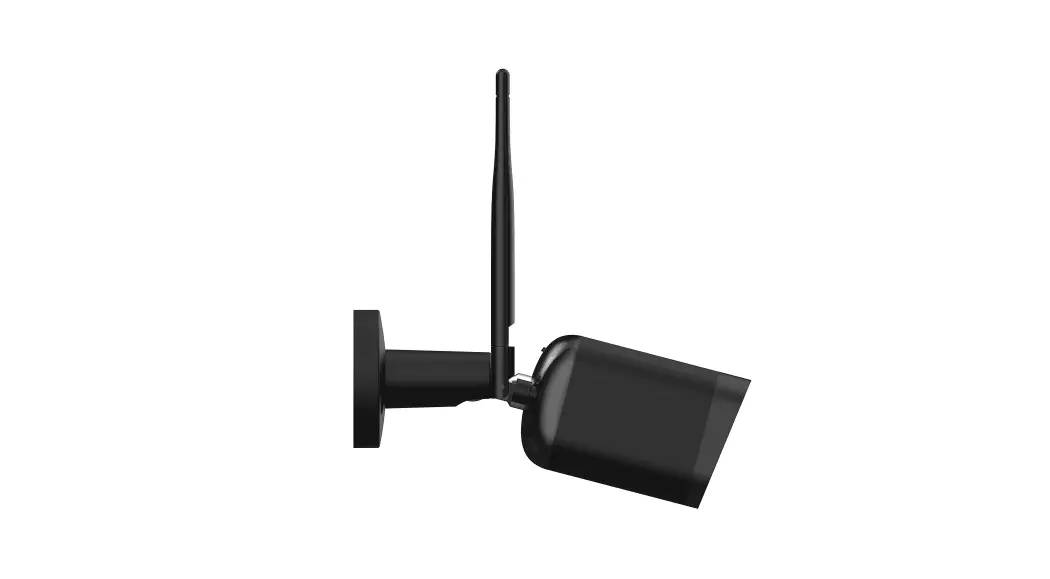
| UK Power Adapter | WiFi Antenna |
| Wall Mounting Screws | Start Up Guide |
Be ready
You will need your WiFi router password. Write it down below so it’s handy when you need it!
Get Started
Please complete setup before mounting the camera.
Connect the camera to the mains using the power adapter provided.
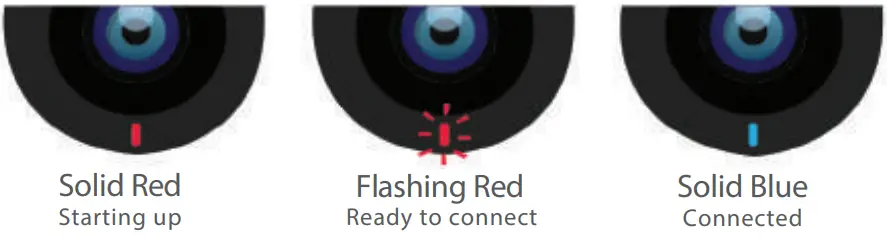
The red LED will come on once plugged in and the camera will chime before it is ready to connect.
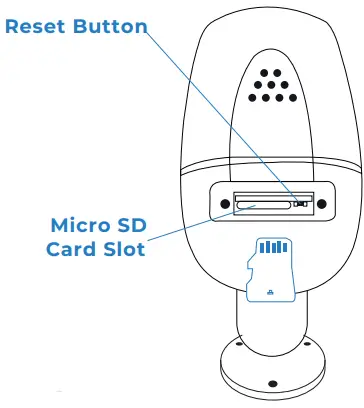
If you would like the camera to record, you will be required to insert a Micro SD card. The camera will support any sized Micro SD card up to 128 GB.
 What do the flashing lights mean?
Download App
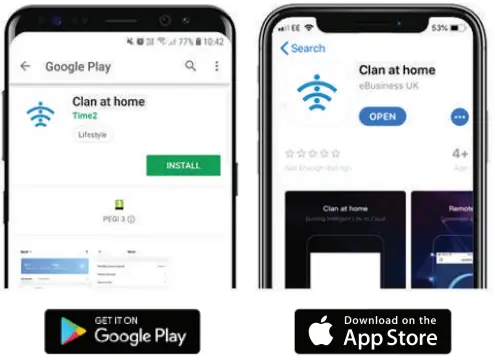
Download the “Clan at home” App on the iOS App Store or Google Play Store.
Register
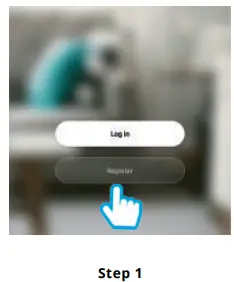
Select Register, carefully read the Privacy policy and select Agree if you would like to progress
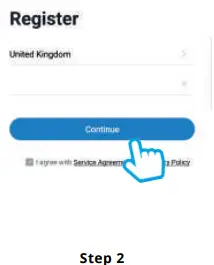
Enter your email address
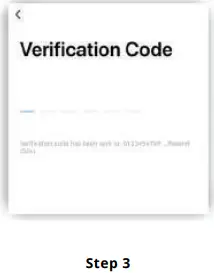
Enter the verification code sent via email
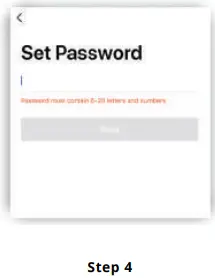
Create your password to login
Add Home
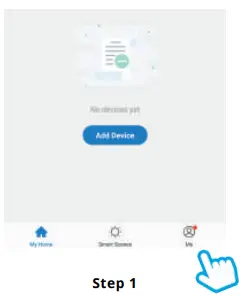
Click Me in the bottom right-hand corner
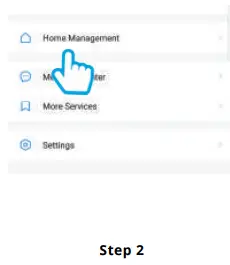
Select Home Management
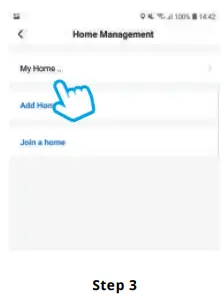 Select My Home. Enter a name for your home and a location.
Click Save
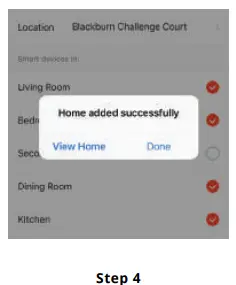 Select Complete and your home will be created.
Add Camera
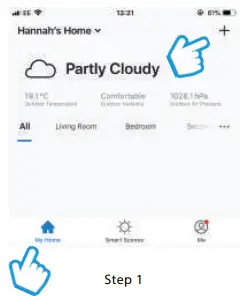 In My Home, click the (+) icon in the top right-hand corner of the screen
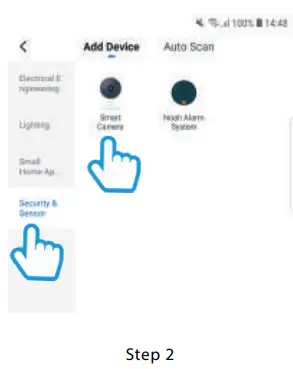 Select Security and Sensors on the left-hand side and click Smart camera
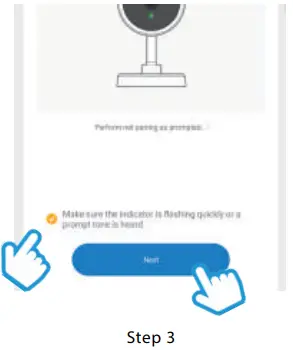 Make sure the LED indicator is flashing red, then select the tick box and press Next
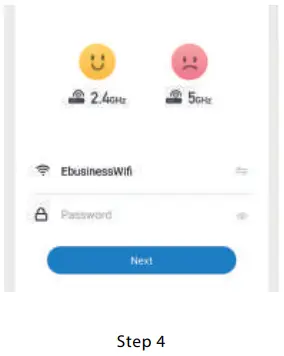 Enter your WiFi router password Then press Next →
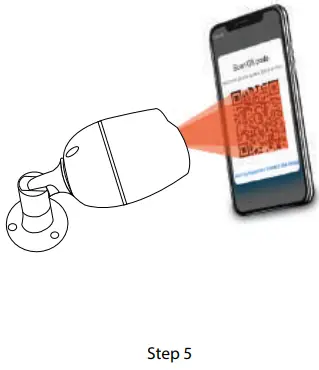 Remove the plastic film from the camera lens
Hold your phone up to the camera as described in App
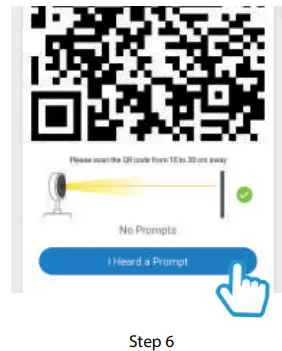
If you heard the camera chime, press I Heard a Prompt.
If you don’t hear the chime, reposition the camera in front of the phone and scan the QR code again.
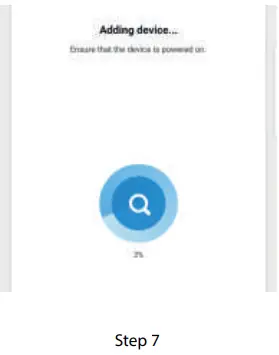 The camera will then establish a connection to Clan.
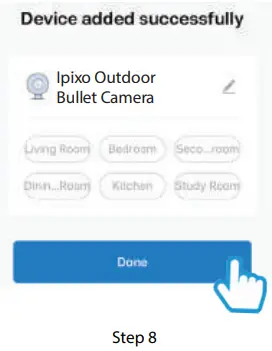 Once connected you can change the camera’s name and select the room it’s in.
Press Done
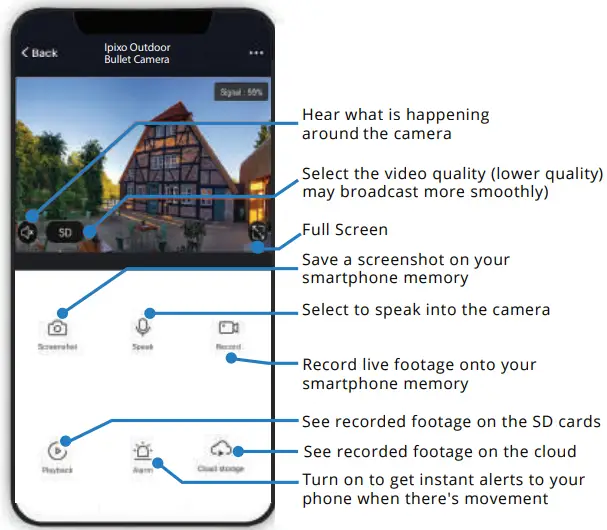
Live View
Add SD Card
If you would like the camera to record you will be required to insert a Micro SD card. The camera will support any sized Micro SD card up to 128 GB.
Step 1
Turn off the power to the camera.
Step 2
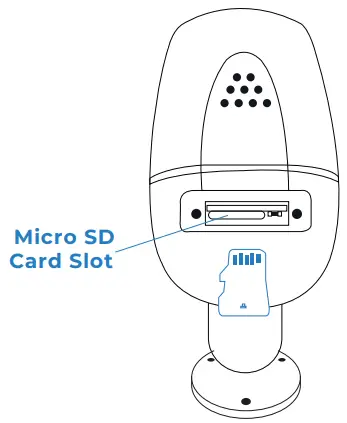
Find the Micro SD card slot on the underside of the camera and insert the card into the slot far enough for it to click into place.
Step 3
Turn the power to the camera back on.
 Format SD Card
 Format SD Card
Before the camera can start recording you will have to format the micro SD card.
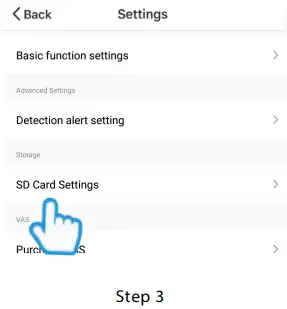
Step 3
Select your camera and click on the pencil icon in the top-right Select SD Card Settings.
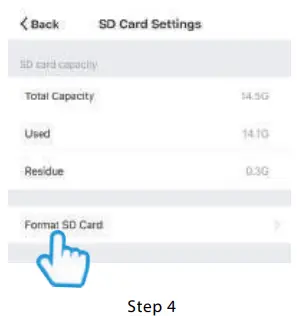
Step 4
Click Format SD Card and press confirm, the camera wilbegin to format the Micro SD card.
Please note: it will take a couple of minutes to format the card.
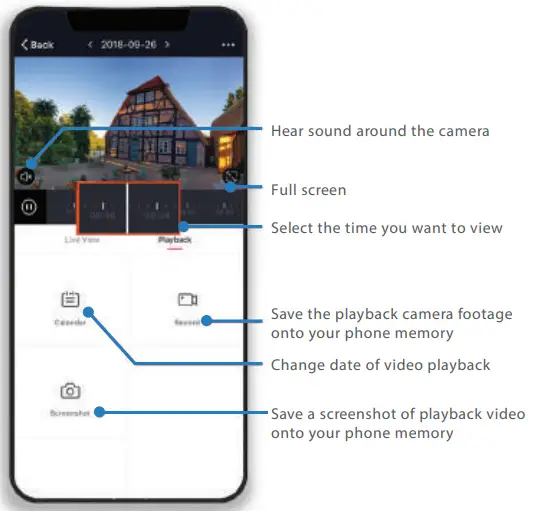
Playback
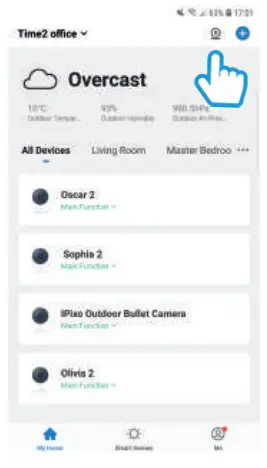
Multi-Camera View
Step 1
Click on the camera on the top right-hand corner
Web View
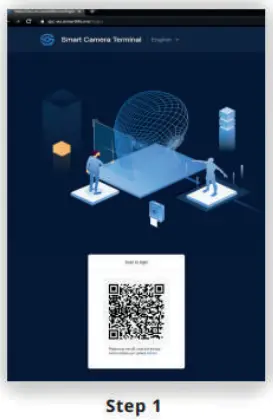
Go to the following website on your PC.
www.time2technology.com/webview and a QR Code will be displayed
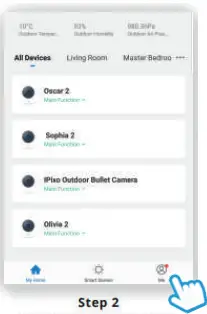 Go into the Clan at Home App and click on Me in the bottom right-hand corner
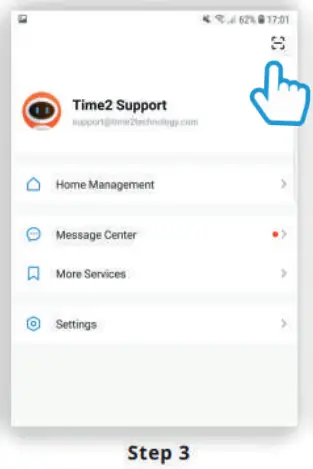 Click on the square on Using your phone scan the top right-hand corner the QR code
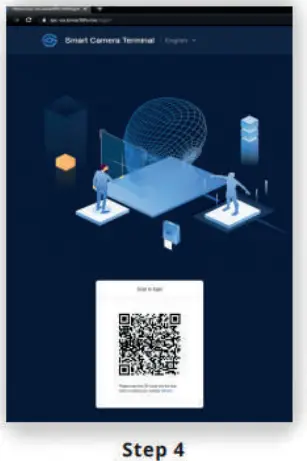
Ensure the QR code is within the Green square Then click confirm to log in
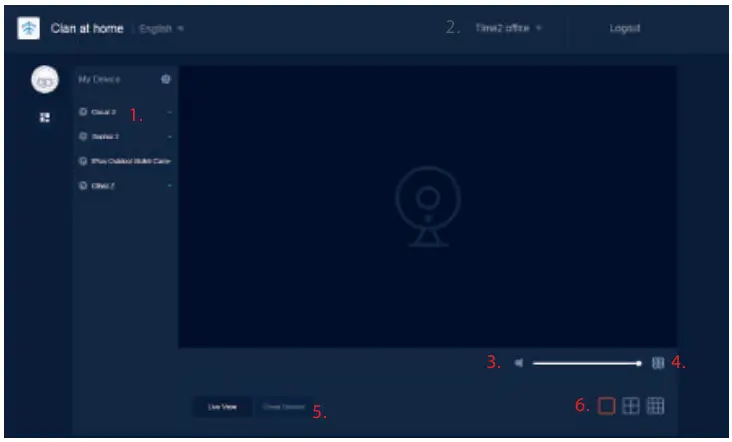
- Select the home where you would like to view your cameras.
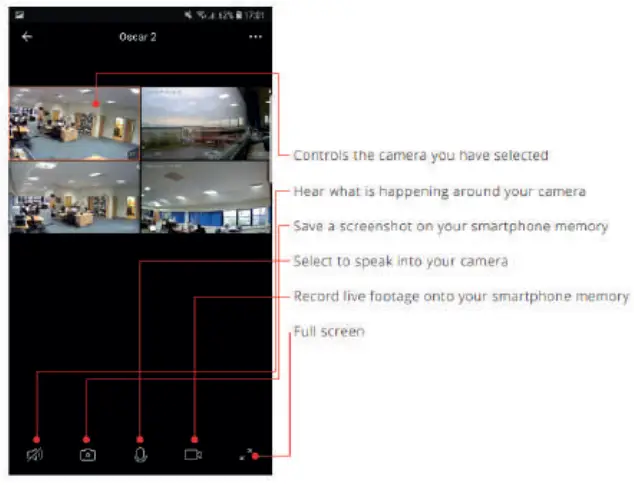
- Select your camera.
- Speaker – Listen in on what is going on around your camera.
- Fullscreen
- Cloud Service – View the recorded footage from the Cloud Service.
- Multi-Camera View – Select how many cameras you would like to see at once.
Reset
If you are having trouble connecting to the Camera you may need to do a reset.
How to reset the Camera
Hold down the button on the underside of the camera for up to 15 seconds until the camera chimes and the LED is flashing red.
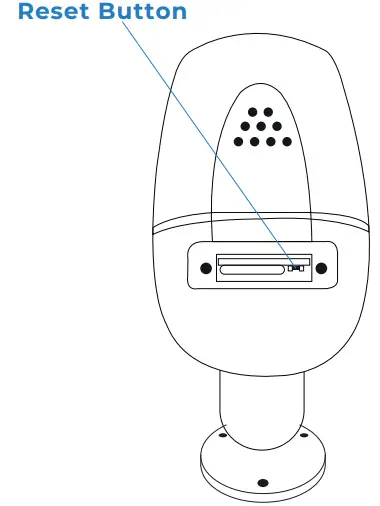
Installation
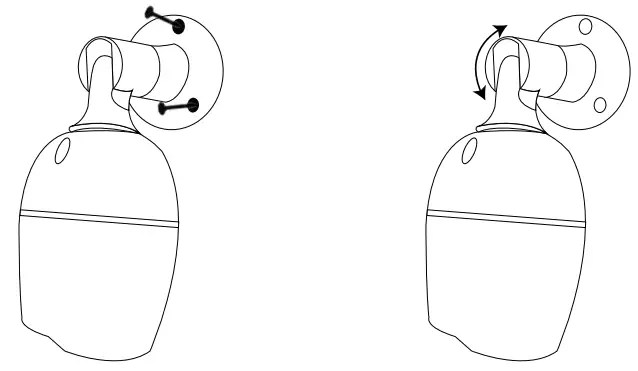
Easy Mounting
Use the provided wall screws to mount the camera onto the wall.
Adjust the camera angle according to your requirements.
 Product Support Archive - Time2
 Time2 Technology