Contents hide
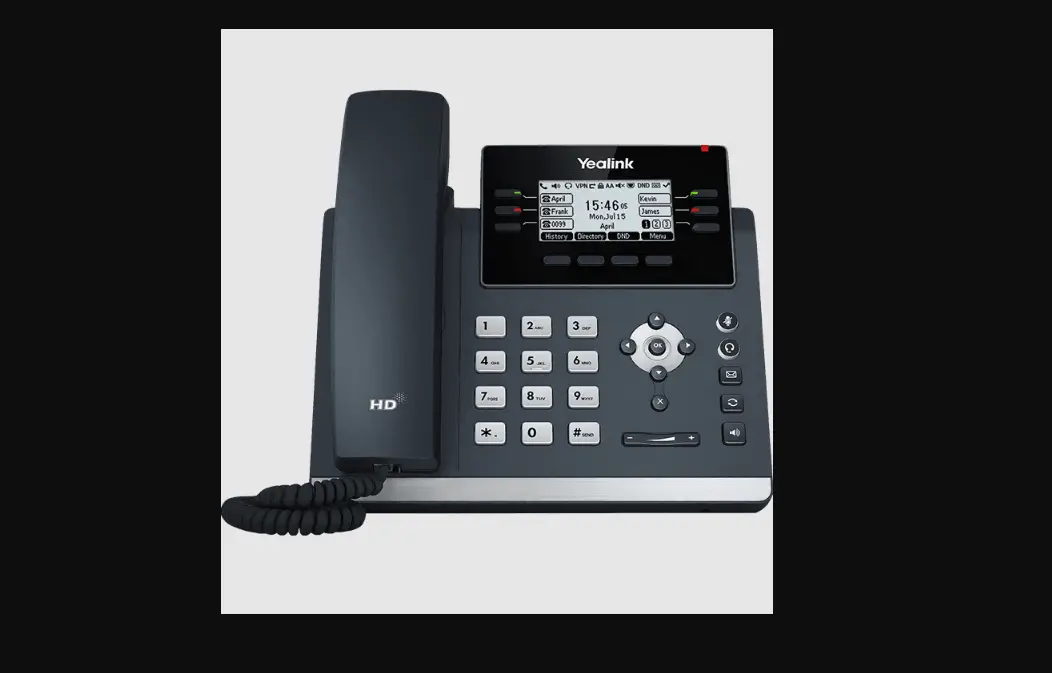
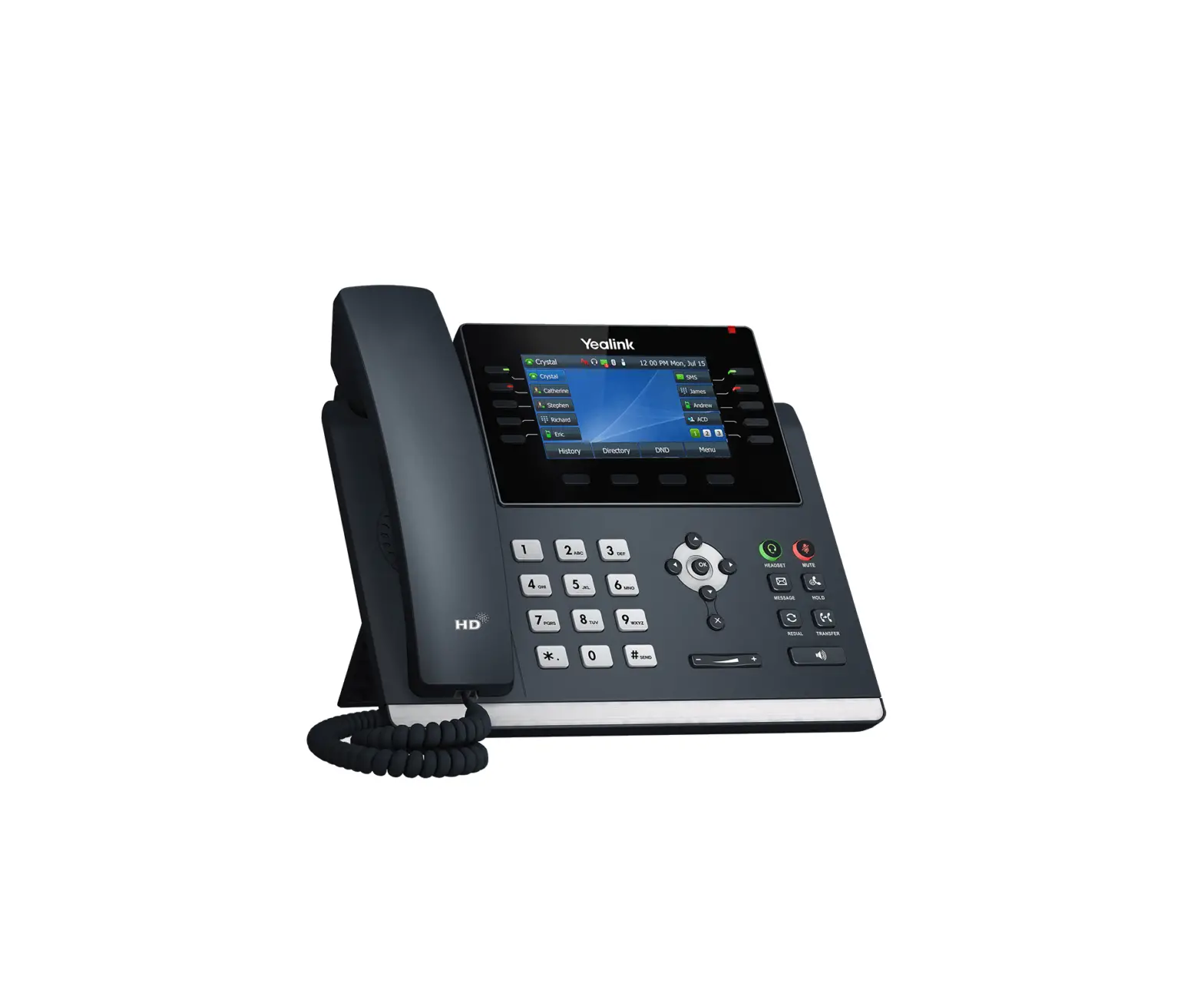
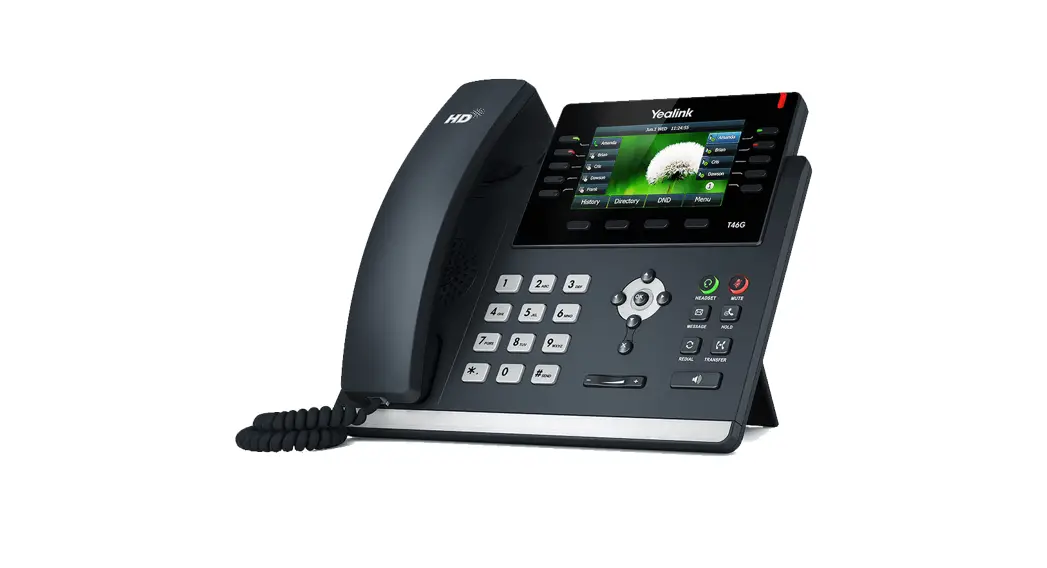
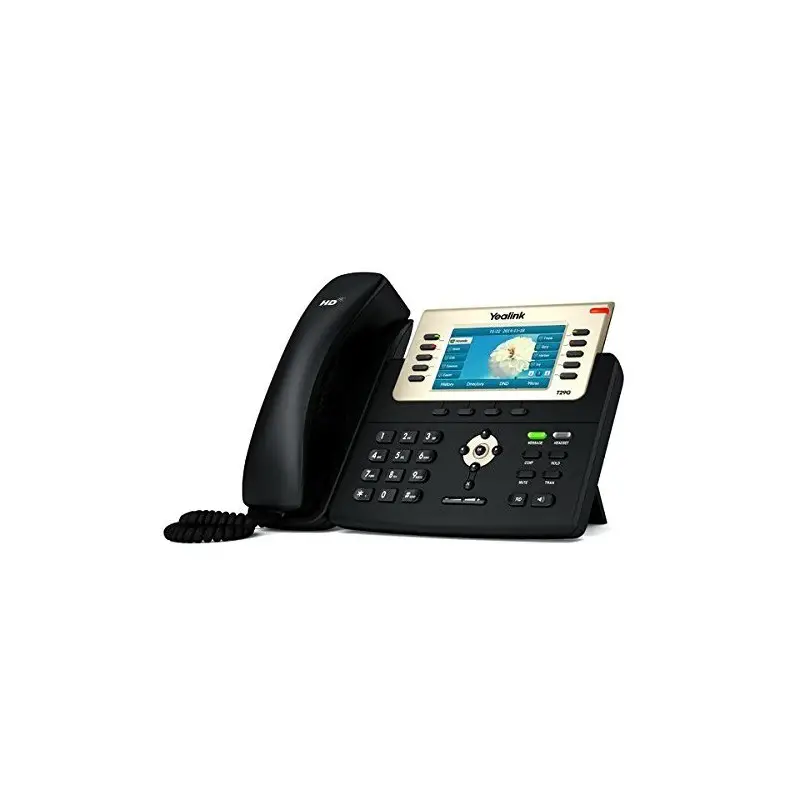
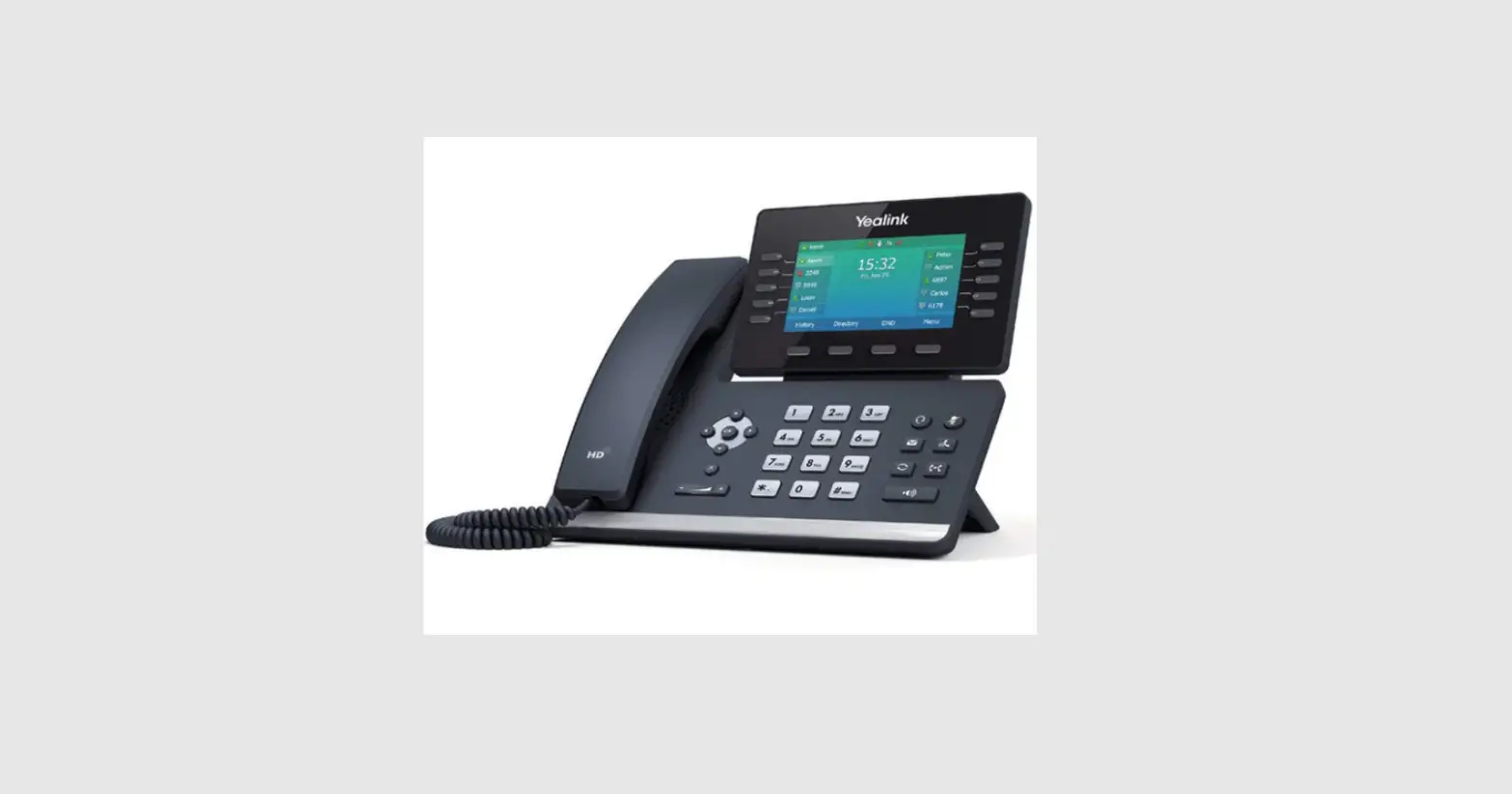
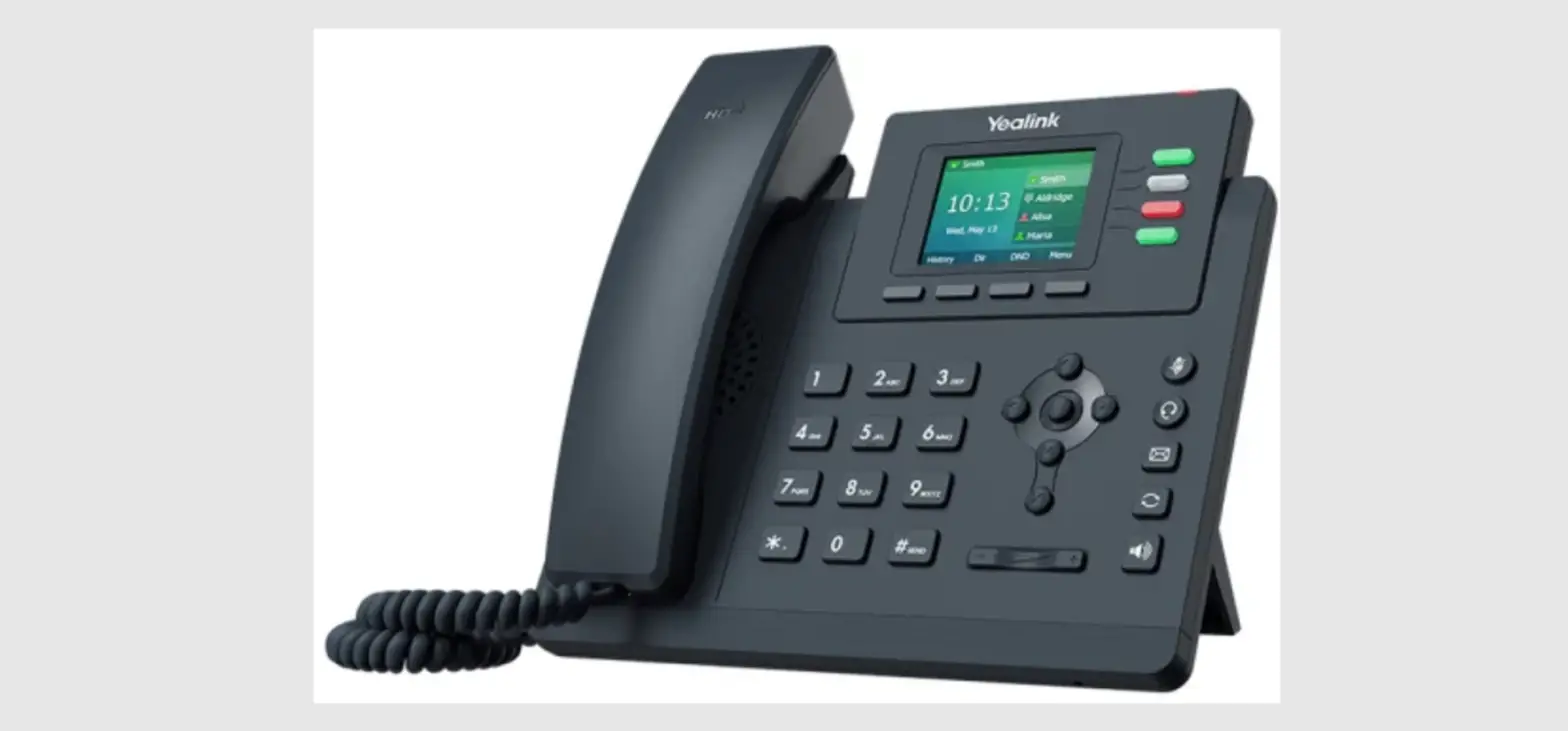
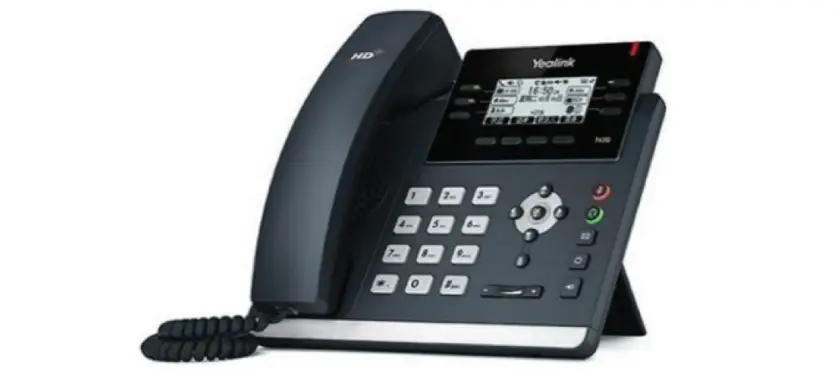
 Yealink T42S Gigabit IP Phone
 Yealink T42S Gigabit IP Phone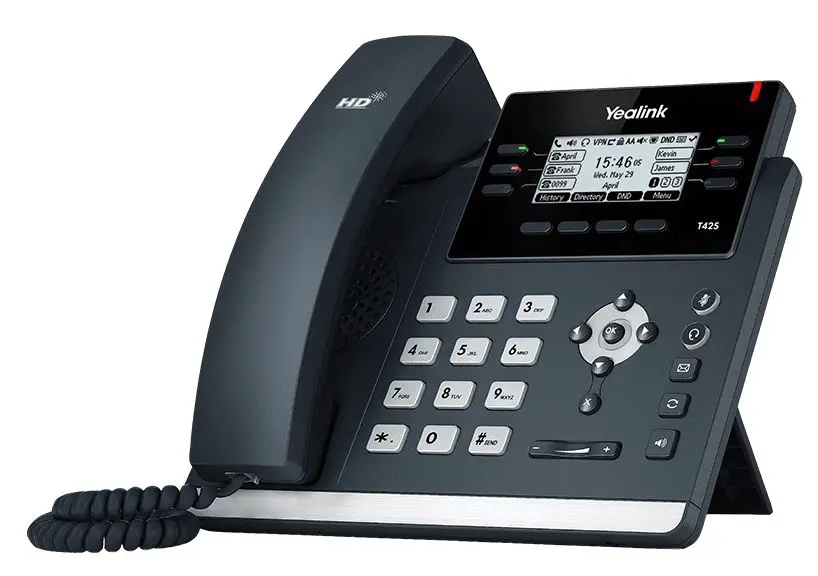
Overview
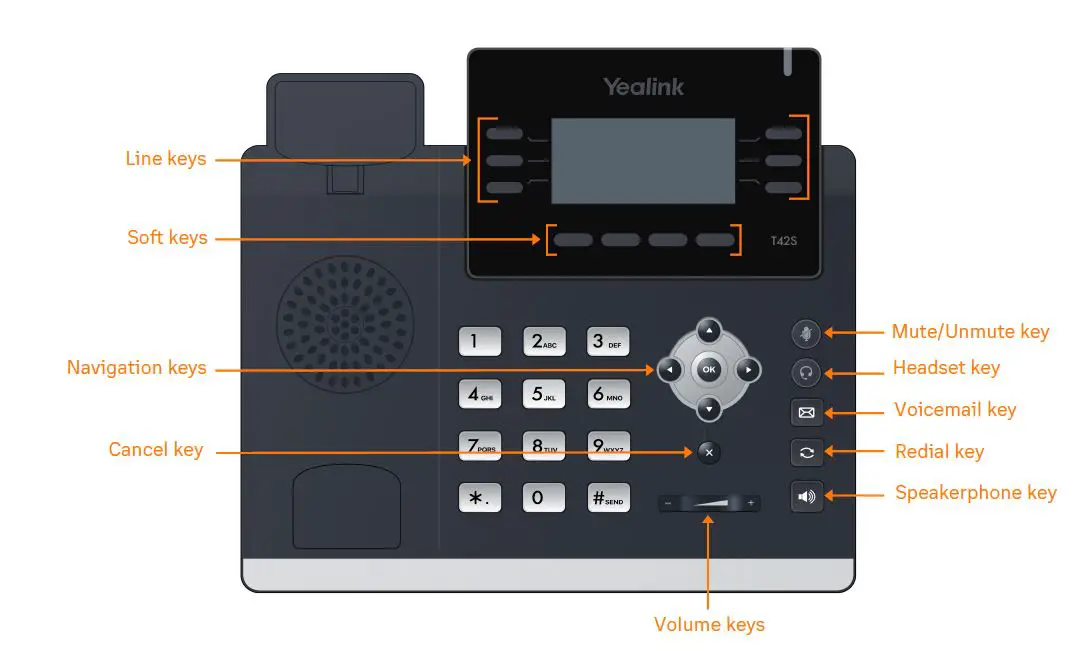
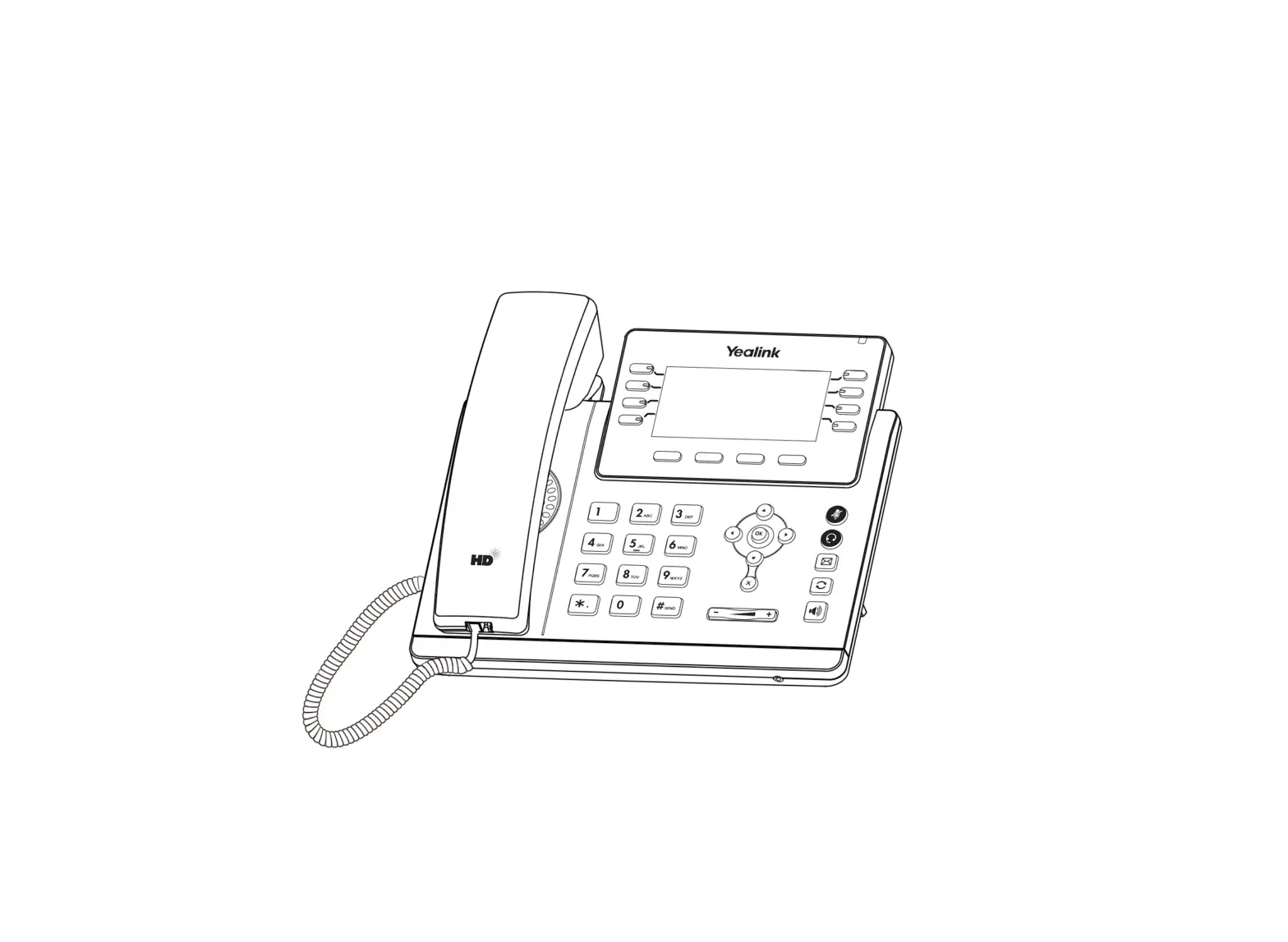
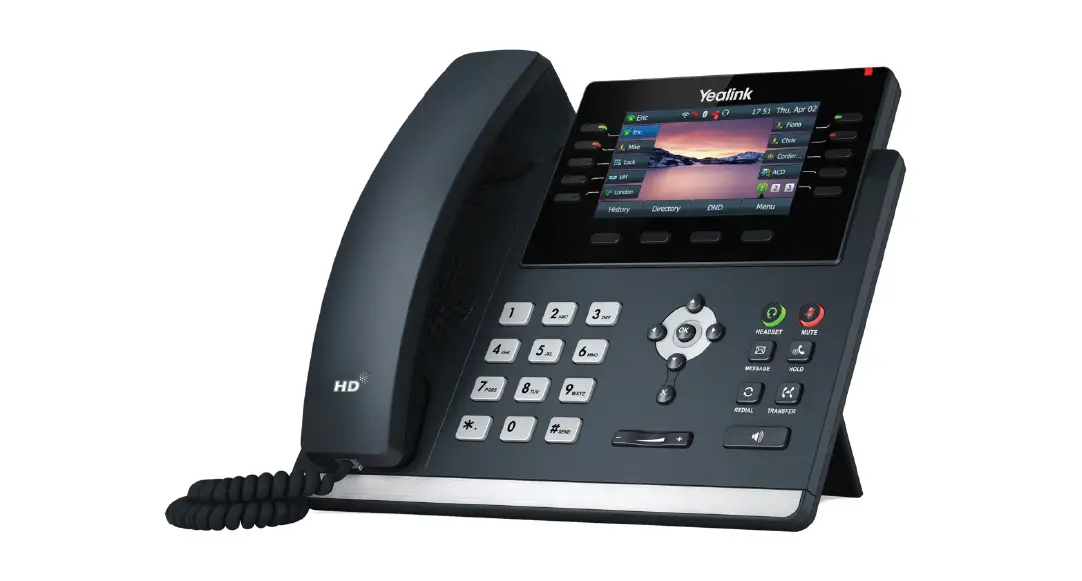
Feature Description
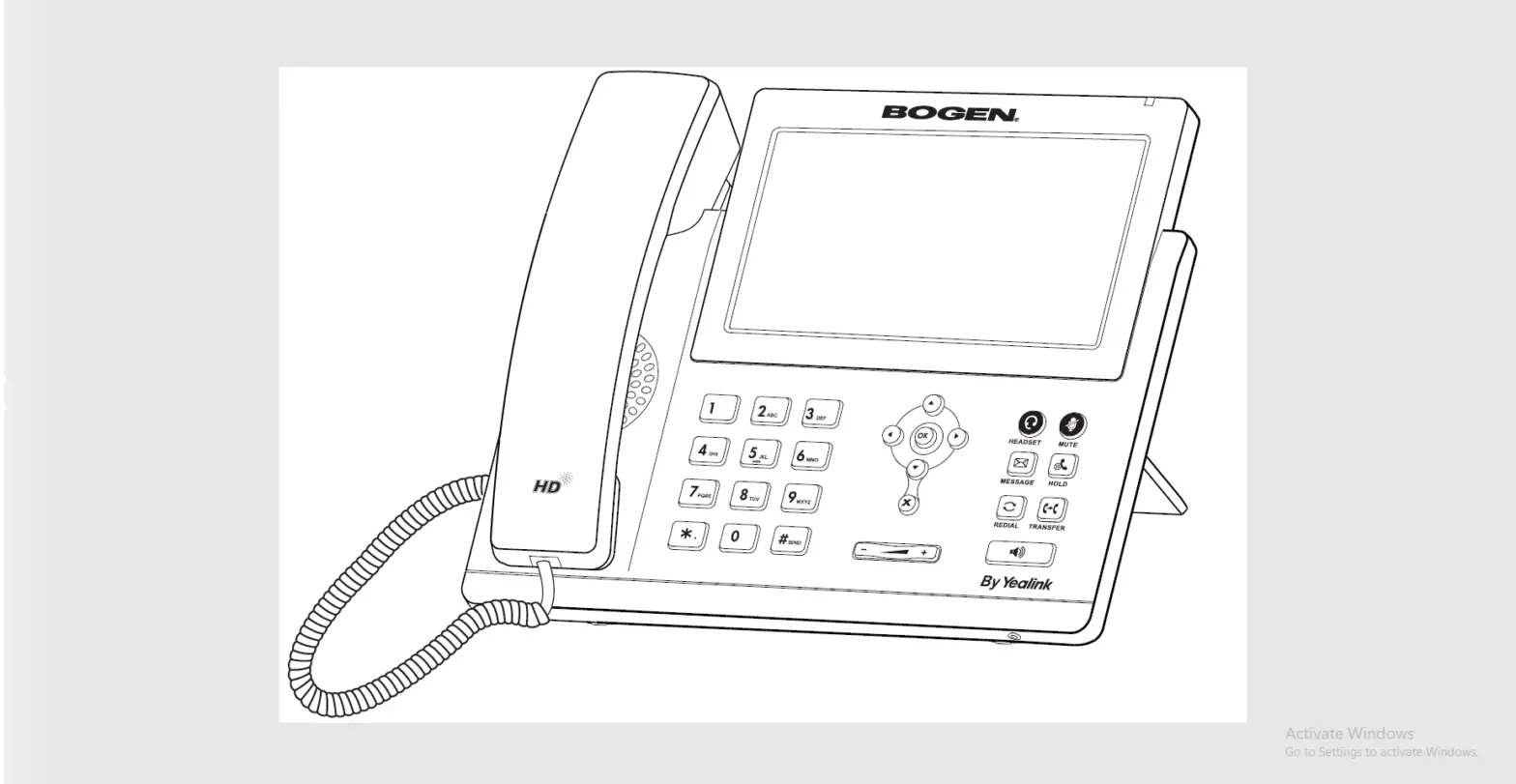
- Line keys—enables you to select a phone line, view calls on a line, or quickly call a favorite contact.
- Soft keys—enables you to select context-sensitive keys that display along the bottom of the screen.
- Navigation keys—scrolls through information and options displayed on the phone screen.
- Cancel key—cancels action or rejects incoming calls.
- Mute/Unmute key—mutes audio during calls and conferences.
- Headset key—enables you to place and receive calls through a headset.
- Voicemail key—enables you to access voicemail messages.
- Redial key— enables you to dial the last called number or extension.
- Speakerphone key—enables you to place and receive calls using the speakerphone.
- Volume keys—adjusts the volume of the handset, headset, and speaker.
Placing a call
Dial the number and do one of the following:
- Lift the receiver.
- Press
 to use the headset.
 - Press
 to use the speakerphone.
 to use the headset.
 to use the speakerphone.
Answering a call
Options:
- Lift the receiver.
- Press to answer a call via headset.
- Press to answer a call via speakerphone.
Placing a call on hold
- Press the Hold soft key or dial
 while on an active call.
 while on an active call.
Retrieving a held call
- Press the Resume soft key or
 to retrieve a held call.
 to retrieve a held call.
Starting a Conference call
- While on an active call, press the Conf soft key.
- Dial the extension of the other party that you would like to add to the call.
- Once the other party answers, press the Conf soft key to merge the two calls.
Retrieving a Parked Call
- Press
 , followed by the park location.
 , followed by the park location.
Transferring a call
Warm Transfer:
- While on an active call, press the Transfer soft key.
- Dial the number of the other party.
- When the destination party answers, provide the information and confirm that they would like to take the call.
- Press the Transfer soft key.
Blind Transfer:
- While on an active call, press the Transfer soft key.
- Press the Blind soft key.
- Dial the extension of the other party.
- Press the Transfer soft key.
Voicemail Transfer:
- Press Transfer soft key.
- Dial
 plus the extension number of the
voicemail where you want to transfer the call.
 plus the extension number of the
Parking a call
Option 1:
- While on an active call, press the More soft key until the Park soft key is displayed.
- Press the Park soft key.
- Listen to the prompt indicating that the call has been parked. The prompt will also announce the extension where the call is parked.
- Note the park location. Example *802.
Option 2:
- While on an active call, press

- Listen to the prompt indicating that the call has been parked. The prompt will also announce the extension where the call is parked.
- Note the park location. Example *802.

Paging
- Press
 , then follow the prompt.
 , then follow the prompt.
Hot Desking
- Press the Login soft key then follow the prompt.
- Enter your extension number, then press
- Enter your voicemail pin, then press
Initiating an Intercom call
- Press
 ,then follow the prompt.
 ,then follow the prompt.
Recording a call
- While on an active call, press
 to start the recording.
 to start the recording.
Recording a call
- While on an active call, press
 to start the recording.
 to start the recording.