
SV9100 WITH INMAIL
ADMINISTRATION GUIDE
** Important Note:
The extension and mailbox numbers referenced in this guide are the most commonly used configuration. It does not guarantee that your company will use the same extension and mailbox numbers due to each system’s customized configuration. If you are unsure of what numbers were used in your configuration, please call Horizons Business Service department.
Phone System Programming
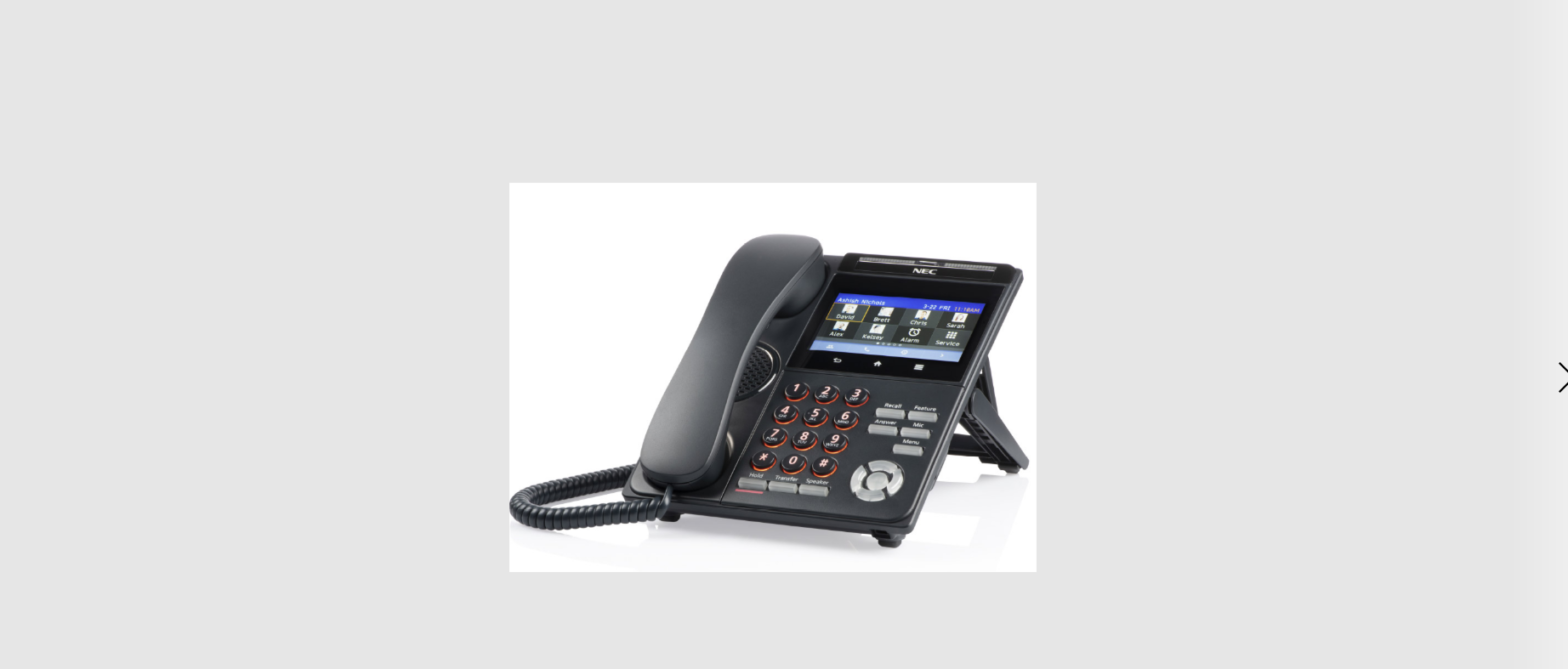
Phone Outline
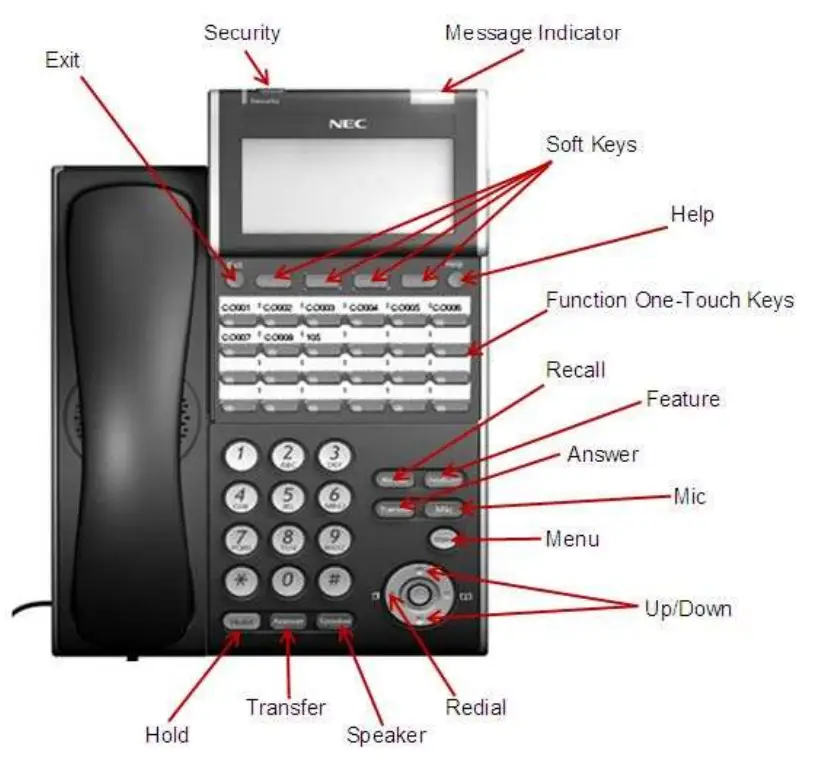
Exit………. Exit out of various programming
Security………….. Locks the phone for security purposes (If applicable, IP Phones only)
Message Indicator………….. Flashes when you have a voicemail (or a message waiting)
Soft Keys………………….. Corresponds with what the display says
Help………… Tells how a one-touch key is programmed
Function One Touch Keys ……………Used for various features, line keys, intercoms and one-touch speed dials
Recall………. Same as Flash key for various features
Feature……….. Used for programming
Answer………………. Answers the First incoming call to a specific phone
Mic………… Mutes the microphone while on speakerphone
Menu…………. Access to Company Directory, Call History and Ring Settings
Directory………… Speed Dials
Up………….. Adjusts the volume on the ringer, handset and speaker
Down………………. Adjusts the volume on the ringer, handset and speaker
Redial…………. Review the last numbers dialed
Speaker…………….. Speakerphone
Transfer……………… Transfer a call to another extension
Hold…………… Holds the call
Clock Setting
Change the Time:
- Press the SPEAKER key, enter 728
- Dial 2 digits for the hour (must be in 24-hour clock time)
- Dial 2 digits for the minutes
- Press SPEAKER
Program Set Name
- Press the SPEAKER key, enter 700
- Enter the extension number
- Spell out the name; press HOLD
NOTE: # moves the cursor to right: FEATURE key moves the cursor to left - Press SPEAKER
Program One-Touch Keys with Functions
- Press SPEAKER
- Enter 751
- Press the key you would like to program
- Enter 2 digit code below
- Press SPEAKER
| Code | Function | Brief Explanation |
| 00 | Not Defined | Clears the button and leaves it blanks |
| 1 | DSS/One Touch | Extension number or a phone number |
| 3 | DND Key | Do Not Disturb |
| 5 | Headset | Needed if you are using a corded headset |
| 10 | Call Fwd Immediate | Forwards all calls immediately to the desired destination |
| 13 | Call Fwd B/NA | Forwards calls if you are busy or do not answer the call in time to the desired destination |
| 37 | DND / Call Fwd Override | Access to a phone in DND or Call Fwd |
| 78 | Record | Records conversation into a mailbox |
Message Waiting
To Set
- Call the extension
- Press 0
- Press SPEAKER
To Clear
- Press SPEAKER
- Enter 773
- Press SPEAKER
System Speed Dial
Program a new Speed Dial
- Press the SPEAKER key
- Enter 753
- Enter a speed dial code: 000-999
- Enter the desired telephone number you want to store (up to 24 digits);
NOTE: do NOT enter a 9 before the telephone number - Press the HOLD key
- Spell out the name using the dial pad
NOTE: press # to move the cursor to the right or the FEATURE key to move the cursor to left - Press the HOLD key
- Press the SPEAKER key
Use this keypad digit . . . When you want to. . .
| 1 | Enter characters: | 1 @ [ ¥ ] ^ _ ` { | } Æ ¨ Á À Â Ã Ç É Ê ì ó |
| 2 | Enter characters: | A-C, a-c, 2. |
| 3 | Enter characters: | D-F, d-f, 3. |
| 4 | Enter characters: | G-I, g-i, 4. |
| 5 | Enter characters: | J-L, j-I, 5. |
| 6 | Enter characters: | M-0, m-o, 6. |
| 7 | Enter characters: | P-S, p-s, 7. |
| 8 | Enter characters: | T-V, t-v, 8. |
| 9 | Enter characters: | W-Z, w-z, 9. |
| 0 | Enter characters: | 0 ! “ # $ % & ’ ( ) ô Õ ú ä ö ü α ε . |
| * | Enter characters: | * + , – . / : ; < = > ? B E σ S 8 ¢ £ |
| # | # = Accepts an entry (only required if two letters on the same key are needed — ex: TOM). Pressing # again = Space. (In system programming mode, use the right arrow Soft key instead to accept and/or add a space.) | |
| FEATURE | Clear the character entry one character at a time. | |
| HOLD | Clear all the entries from the point of the flashing cursor and to the right. | |
To Use Speed Dial
- Lift the handset or press the Speaker key
- Press REDIAL key
- Enter desired code
OR: press DIR, then SPD, use arrow keys to scroll, OR press a letter on the dial pad then use arrow keys to scroll
Delete a Speed Dial
- Press SPEAKER Key
- Enter 753
- Enter the Code you would like to delete: 000-999
- When the name and number appear, press EXIT (Top left key)
- Press SPEAKER key
Voicemail Programming
Record Company Greetings
- From Ext 101 press VOICEMAIL (**see note on Table of Contents)
- Enter the security code
- Press 72 to enter system administration
- Press 4 to record an instruction greeting (main company greeting)
- Enter mailbox 001 to record the DAY greeting
OR enter 002 to record the NIGHT greeting
OR enter 003 to record a HOLIDAY greeting - Press R (7 on dial pad) to record and follow the prompts
- Press L ( 5 on dial pad) to listen to your recording and press # to exit listen mode
- Press # to back up one step to step 5 to record another greeting
- Hang up when you are finished
Example:
- Thank you for calling………Our regular business hours are….
- If you know the extension of the person you are calling please enter it now or press 4 for our company directory
- To reach reception or to leave a general message please remain on the line and wait for the beep
Record Delay Messages
- From Ext 101 press VOICEMAIL (**see note on Table of Contents)
- Enter the security code
- Press SA (72 on dial pad) to enter system administration
- Press A (2 on dial pad) to record an instruction greeting (main company greeting)
- Enter the mailbox to record the FIRST Delay Message OR enter to record the SECOND Delay Message
- Press R (7 on dial pad) to record and follow the prompts
- Press L ( 5 on dial pad) to listen to your recording and press # to exit listen mode
- Press # to back up one step to step 5 to record another greeting
- Hang up when you are finished
Example:
- Please continue to hold, someone will be right with you…
- Thank you for holding. Please stay on the line as it is quicker than re-dialing.
Holiday Greeting Activation/De-Activation
- Record a holiday greeting.. (See above for instructions)
- From Ext 101 press VOICEMAIL (**see note on Table of Contents)
- Enter the security code for this mailbox
- Press 72 for system administration
- Press 6 for an override
- When asked for the table: enter 1
- Press ON soft key on the display
- Press SPEAKER
**** NOTE: to take override OFF after the holiday follow steps 2-6 then at step 7 press OFF soft key on display, then press the speaker
Make Changes to Mailboxes
- From Ext 101 press VOICEMAIL (**see note on Table of Contents)
- Enter security code .. if required
- Press 72 for system administration
- Press 7 for subscriber mailbox maintenance
- Choose from one of the following options:
A. Press 32 to erase all messages in a mailbox
B. Press 34 to erase the greeting in a mailbox
C. Press 36 to erase the name recording for the mailbox
D. Press 7 to delete the security code for a mailbox
E. Press 6 to record the name for a mailbox
Set up Message Notification from a Mailbox
- Press the VOICEMAIL key
- Enter the security code
- Press 67
- Press 6 (or NOTIFY on display)
- Press 6 (or ON on Display)
- Enter the two digits of the hour you would like the Notification to start, followed by 2 (A) for AM or 7 (P) for PM
- Enter the two digits of the hour you would like the Notification to end, followed by 2 (A) for AM or 7 (P) for PM
- Press 6 to be notified from a number
- Enter in the telephone number

HORIZON BUSINESS PHONE SYSTEMS
For Service: 740-772-8588 / 1-866-418-8126