
Pioneer Research
Address:97 Foster Road, Suite 5, Moorestown, NJ 08057 USA.
User’s manual
summary
The SL3501 series is designed and developed by customers.
External battery design; It has 4K HD resolution. Product outline drawing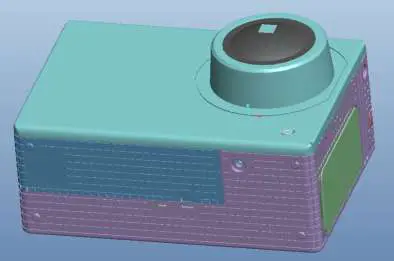
1.0 Main functional characteristics of the product
1/3 inch 4-megapixel SENSOR, MN34112; (TBD) High frame rate
HD standard supports 4K/30f, 1080P/60f, 720P/120f ;
Photography supports up to 16 million picture resolutions;
Automatic continuous shooting minimum support for 2 seconds Interval video recording can support at least 3 seconds;
Built-in WiFi, 2.4G, can support wifi remote control, 30 meters
remote control camera; Video file format: h.264 (.mov); Built-in single microphone, high-quality recording effect; Image 180 degree flip function; Support EIS;; 10 times digital zoom function; Built-in speaker, key tone prompt function; Motherboard supports internal/external TFC card design with a maximum of 128GB;.
External battery design, supporting 1100mAh, 3.8V, 720P/30f only recording time greater than 2h; Built-in 2 inch TFT IPS screen, 320(RGB)X240, key menu operation; Equipped with a waterproof shell and other accessories, enrich the application scene.
1.2 Main Application Scope of Products
Outdoor sports/extreme sports/driving records/
1.3 Definition of product structure appearance diagram, keys, interfaces, indicator lights, etc.
1.3.1 Appearance drawing of product structure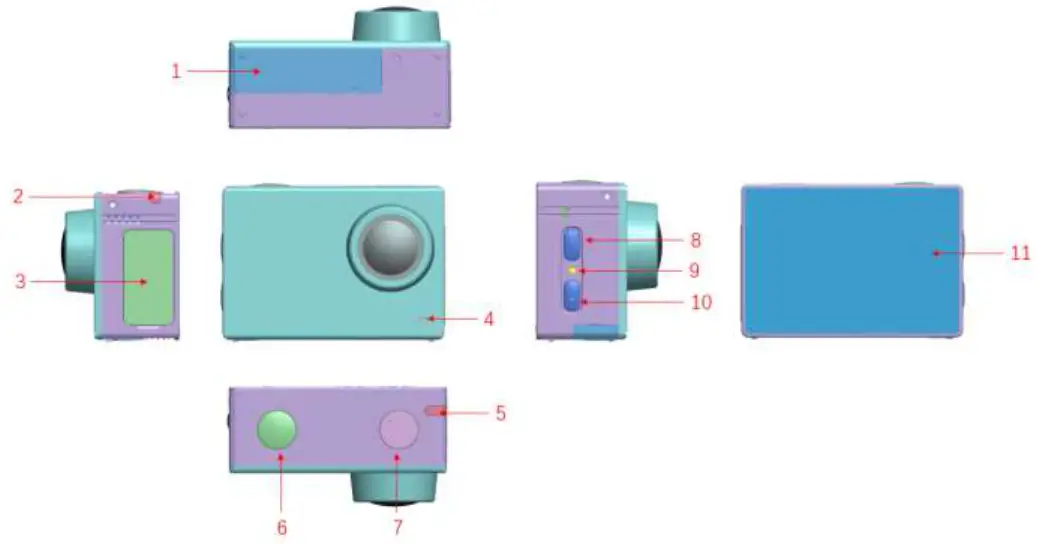
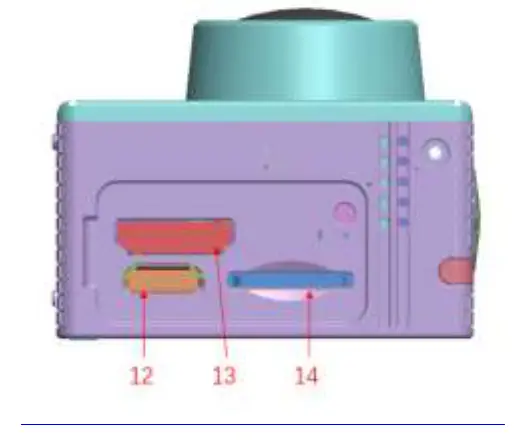
1.3.0 Key definition
| Location | category | Function |
| 6 | OK key | Press this button to record and take photos. |
| In the menu state, press short to confirm | ||
| 7 | Switch on/off key | Press 2S long to start the machine. |
| In the startup state, press briefly to enter the menu | ||
| 8 | Display button | In the preview state, press the switch briefly to switch the backlight of the display screen. |
| In the menu selection state, press up the menu briefly; | ||
| 10 | WIFI button | Press this button to control WIFI switch. |
| In the menu selection state, press down the menu for a short time. |
Indicator light definition
| 1.3.3 location | category | Color | start shooting | Video | Photograph | Sound recording | Charging | wifi | Transmitting data |
| 2 | Indic ator light 1 | Red light | Always bright | Slow flash | Flash | / | / | / | / |
| 4 | Indic ator light 2 | Blue light | / | / | / | / | Blinking when charging/always bright when full | / | / |
| 9 | Indic ator light 3 | Red light | / | / | / | / | / | Blinking/Connecting When Connecting It’s always bright at the back. | / |
Interface definition
| Location | category | Function |
| 1 | Battery cover | Location of battery mounting interface |
| 12 | Micro-B USB | Charging, data transmission, |
| 13 | HDMI Micro | High definition data interface |
| 14 | TF | Data storage |
1.3.4 Other definitions
| Location | category | Function |
| 3 | I/O cover | Dust prevention at interface position |
| 11 | Display | Preview and status display |
1.3.5 Main Performance Implementation Requirements
| Projects | Function | Performance index |
|
image
| distinguishability | 4K(3840*2160)30fps |
| 1080P(1920*1080)60fps | ||
| WVGA(1152*648)120fps | ||
| Video file format | Default MP4(H.264 compression method) | |
| Bit rate | Maximum support is 25Mbps(TBD) | |
| Static image resolution | 14M(4320*3240),10M(4320*2430),8M (3200×2400),5M(2592*1944),2M(1920*1080) | |
| Picture file format | JPEG | |
| Storage method | External TF card, maximum support 128G | |
| Automatically start shooting | 5 seconds, 10 seconds, 20 seconds | |
| Fast mode | 3/1 second, 6/1 second, 8/1 second | |
| Automatic continuous | 2 seconds, 3 seconds, 5 seconds, 10 seconds, 20 seconds |
| continuous shooting mode | |||
| Video synchronization photography | 5 seconds, 10 seconds, 30 seconds, 60 seconds, manual | ||
| Time setting | Support, Off, Date, Date/Time YYYY / MM / DD HH:MM (YY/MM/DD, MM/DD/YY, DD/MM/YY) | ||
| Key volume control | Off, 50% (Medium), 100% (Standard) | ||
| WiFi Set up | On/off via menu settings | ||
| Recording volume adjustment | Support | ||
| Language | English, German, French, Spanish, Italian, Dutch, Russian, Traditional Chinese, Simplified Chinese | ||
| Television system | N,P | ||
| Factory settings restore | Support | ||
| Close the screen and wait for the screen function | Support | ||
| Screen caption display | Support | ||
| Digital zoom | 10X | ||
|
playback | Video | Fast forward/fast reverse1/4X 1/2X 2X 4X 8X 16X 32X | |
| Pause/Play/Volume Control/Thumbnail Browsing of Video Files | |||
| Picture | Picture Flip Browse/Stop/Picture Thumbnail Browse | ||
| video/picture | Supports all sorts | ||
|
WiFi Function | WiFi remote control | Connection | Support, distance ≥ 30m |
| Main function | The host computer is controlled by the mobile phone/tablet | ||
| Synchronization delay | < 1 second | The terminal image is synchronized with the host image | |
| Support systems (cell phones and tablets) | Apple iOS | ||
| Android OS | |||
| Forced shutdown | Press the power-on key 8s to force the power off. | ||
FCC Caution: Any changes or modifications not expressly approved by the party responsible for compliance could void the user’s authority to operate this equipment.
This device complies with Part 15 of the FCC Rules. Operation is subject to the following two conditions:
(1) This device may not cause harmful interference, and
(2) this device must accept any interference received, including interference that may cause undesired operation.
This device and its antenna(s) must not be co-located or operating in conjunction with any other antenna or transmitter.
1. This equipment should be installed and operated with a minimum distance 0mm between the radiator and your body.
2. The device has been evaluated to meet general RF exposure requirements. The device can be used in portable exposure conditions without restriction.
NOTE:
This equipment has been tested and found to comply with the limits for a Class B digital device, pursuant to Part 15 of the FCC Rules.
These limits are designed to provide reasonable protection against harmful interference in a residential installation. This equipment generates, uses and can radiate radio
frequency energy and, if not installed and used in accordance with the instructions, may cause harmful interference to radio communications.
However, there is no guarantee that interference will not occur in a particular installation.
If this equipment does cause harmful interference to radio or television reception,
which can be determined by turning the equipment off and on, the user is encouraged to try to correct the interference by one or more of the following measures:
— Reorient or relocate the receiving antenna.
— Increase the separation between the equipment and receiver.
— Connect the equipment into an outlet on a circuit different from that to which the receiver is connected.
— Consult the dealer or an experienced radio/TV technician for help.