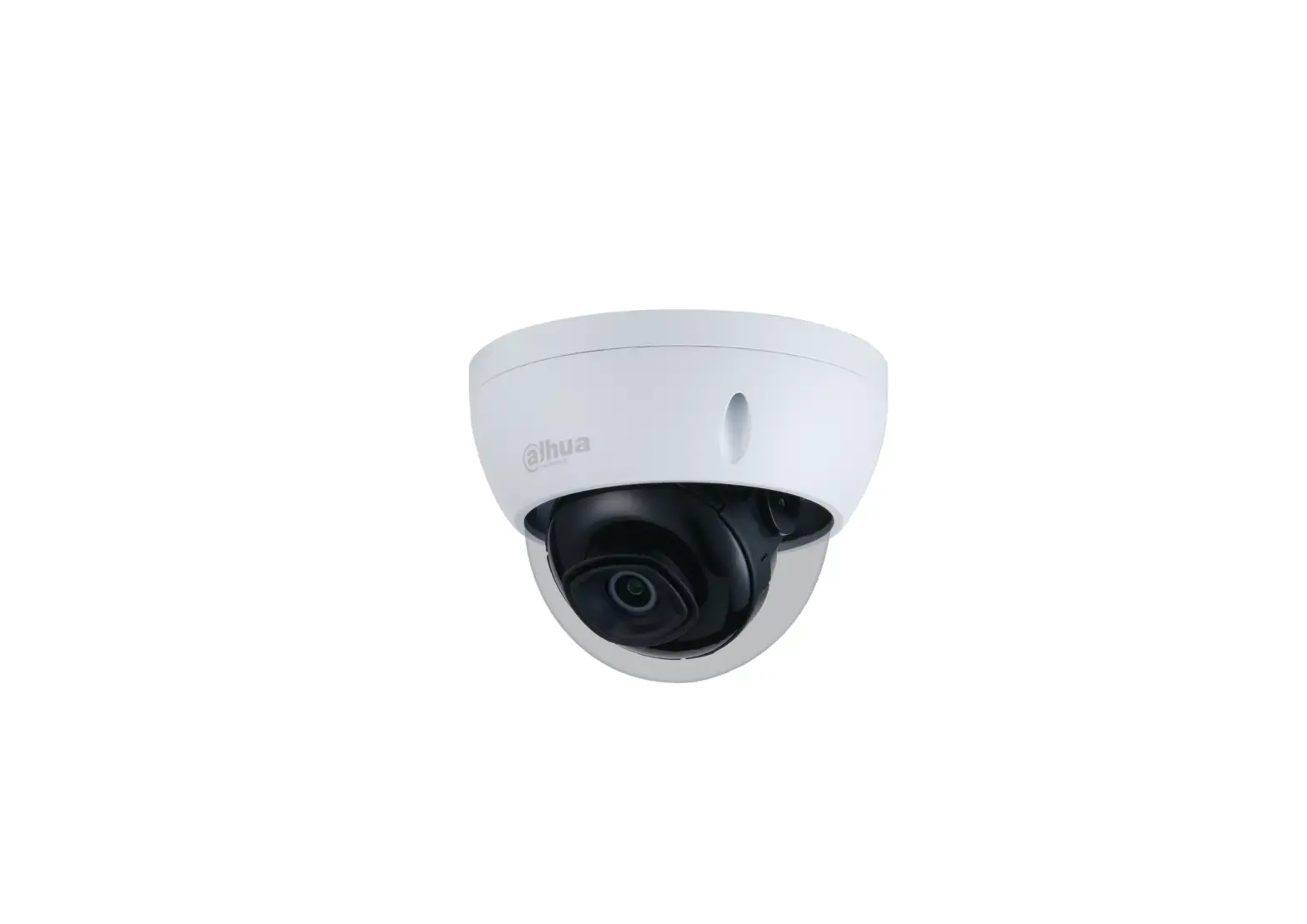
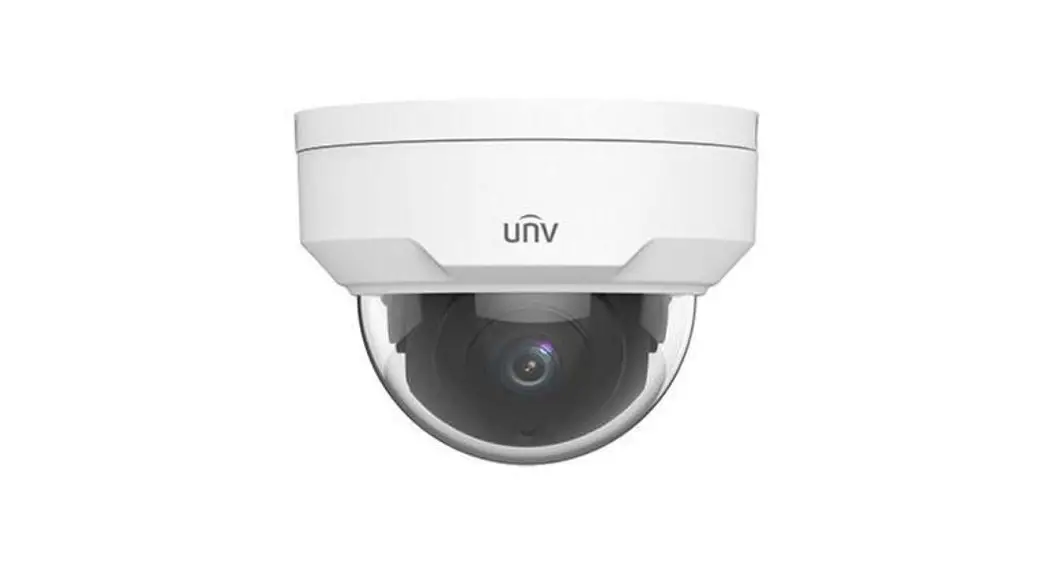
App 4K Dome Camera
Product Information
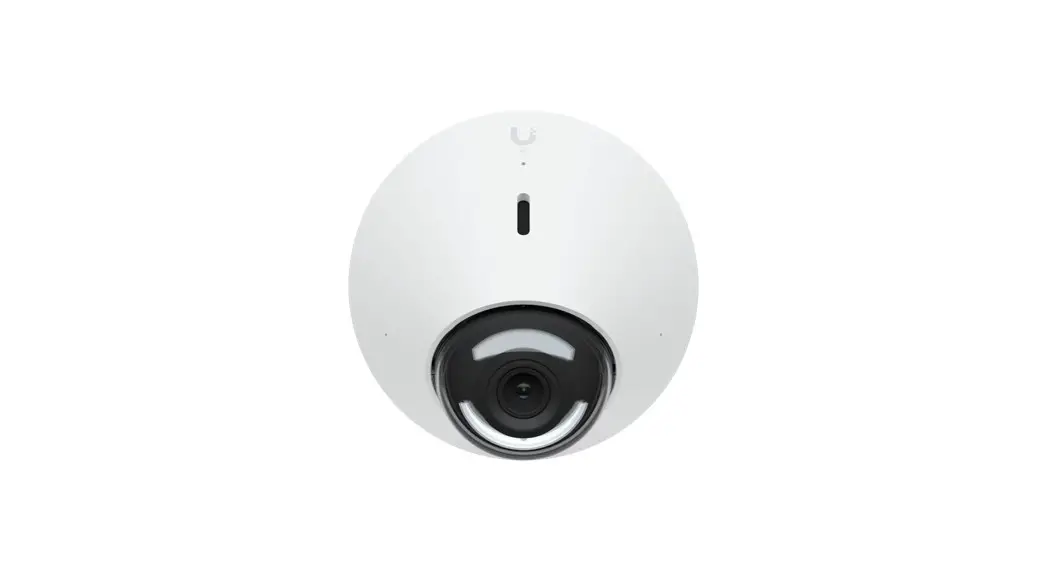
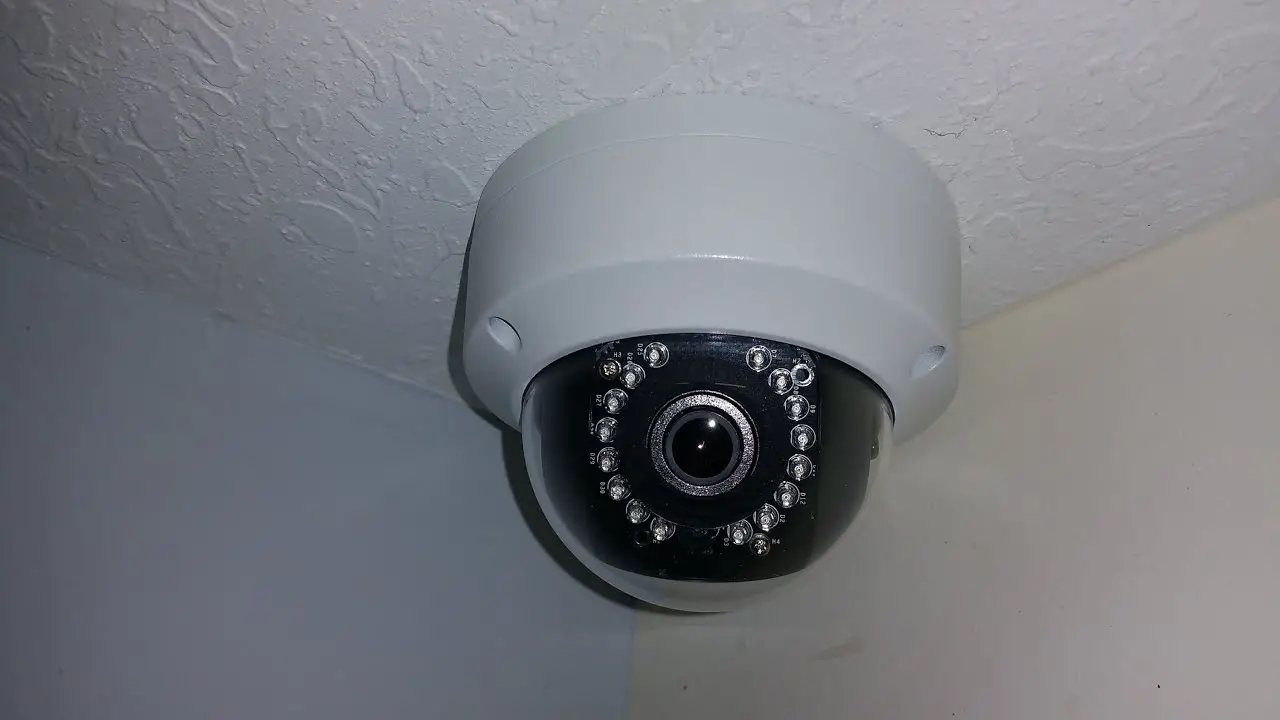
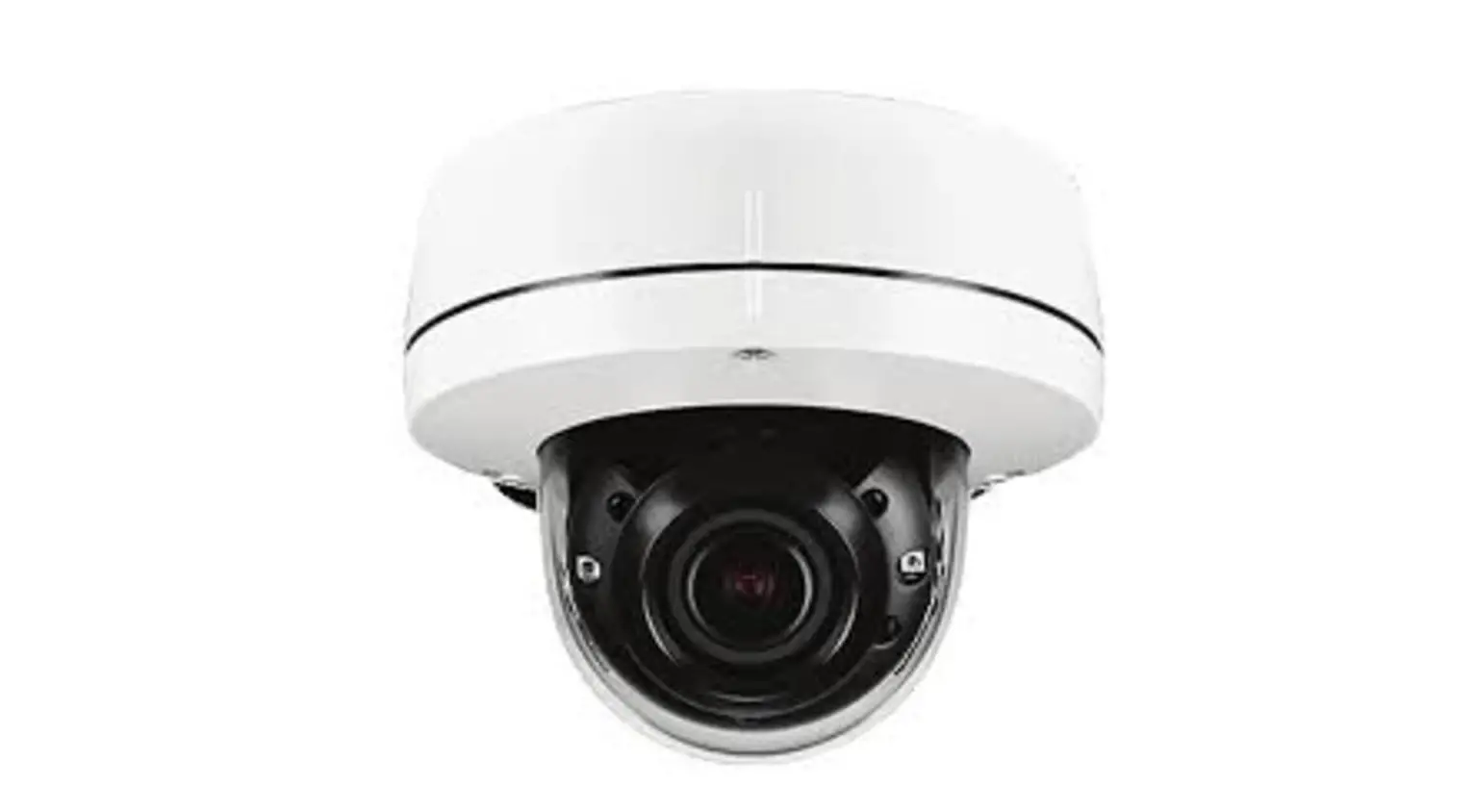
The App Cam 4K Dome is a high-resolution security camera
designed for outdoor use. It comes with a metal case and a
weatherproof lid to protect it from the elements. The camera
features a 1/2.49 CMOS sensor that can capture video at up to
3840×2160 resolution (8MP) in 4K. It has built-in infrared lights
for night vision and a daylight sensor for optimal image quality
during the day. The camera also has a built-in microphone for
two-way talk functionality.
The camera supports person detection, vehicle detection, and
motion detection, providing alerts when activity is detected. It
can be connected to an App Cam 4K NVR (not included) via an
Ethernet port for seamless integration into a surveillance
system.
Installation of the camera is straightforward, with a mounting
template provided for easy positioning. The camera can be mounted
using the included mount base and screws. The field of view can be
adjusted by loosening the adjustment knob on the security mount and
turning the camera. Once the desired position is achieved, the
adjustment knob can be tightened to lock the camera in place.
The camera can be powered by a 12V/1A power adaptor or through
Power over Ethernet (PoE) using an IEEE 802.3af compliant network
switch or injector. It supports up to a 256GB micro SD card
(minimum class 10) for local storage of recordings. The camera is
IP66 weatherproof rated, ensuring its durability in various weather
conditions.
Product Usage Instructions
- Camera Connection:
- Before using the camera, connect it to an App Cam 4K NVR using
the provided Ethernet cable. - Ensure that the camera is powered with a Uniden App Cam 4K NVR
(not included). - Set up the camera via the NVR interface.
- Drill holes in accordance with the mounting hole template
provided. - If needed, use the included drywall anchors.
- Install the mount base using the provided mounting screws.
- Run the cable through the cable notch on the mount base.
- To achieve the best field of view, loosen the adjustment knob
on the security mount and turn the camera. - Once the desired position is achieved, tighten the adjustment
knob to lock the camera in place.
Troubleshooting
If you encounter any issues with the camera, refer to the
following troubleshooting steps:
- If the camera is not turning on, ensure that it is properly
connected to power and check the power source. - If the infrared LEDs stop working, check if the night vision
mode is enabled and ensure that there are no obstructions blocking
the infrared lights.
Specifications
- Model: App Cam 4K Dome
- Image Sensor: 1/2.49 CMOS Sensor
- Video Resolution: Up to 3840×2160 (8MP) 4K at up to 25 fps
- Video Compression: H.264
- Viewing Angle: Not specified
- Night Vision: Up to 30 Meters
- Audio: Two-way talk
- Alerts: Person detection, vehicle detection, motion
detection - Network: One 10M/100Mbps Ethernet port (RJ45), IEEE 802.3af
PoE - Hardware: Can be powered by 12V/1A power adaptor
- Storage: Supports up to 256GB micro SD card (minimum class
10)* - Other Parameters: IP66 weatherproof
*Note: When the camera is connected to the NVR, the SD Card
storage option is not supported on the App and the NVR itself. Only
supports recording to fat32 SD Card when setup as a standalone
camera.
Warranty
The Uniden App Cam 4K Dome comes with a warranty provided by
Uniden Australia Pty Limited. The warranty covers defects in
materials and craftsmanship for the duration of the warranty
period. Please refer to the Uniden website for specific warranty
details and durations. The warranty does not cover user-generated
data stored on the product.
App Cam 4K
Dome
Quick Start Guide
What’s in the Box
App Cam 4K Dome x1
Weatherproof Lid x1
1m Ethernet Cable x1
Quick Start Guide x1
Screw Kit x1
1
Mounting Template x1
General Introduction
Mount
Metal Case
Lens Infrared Lights Daylight Sensor Built-in Mic Weatherproof Lid Ethernet Port Reset Button
* Press and hold for 10 seconds to restore the camera to factory settings
Power Port (Optional)
2
Camera Connection
Before using the camera, please connect the camera to App Cam 4K NVR.
DC Power
OFF
ReseONt Button
eSATA
Network (LAN)
DC48V IN
AUDIO
OUT
USB
HDMI
VGA
LAN
1
3
5
7
9
11
13
15
2
4
6
8
10
12
14
16
Note: The camera should be powered with a Uniden App Cam 4K NVR (not included in the package). Please set up the camera via the NVR interface.
3
Mount the Camera
Installation Tips
· Do not face the camera towards any light sources. · Do not point the camera towards a glass window. Or, it may result in poor image quality
because of the window glare by infrared LEDs, ambient lights or status lights. · Do not place the camera in a shaded area and point it towards a well-lit area. Or, it may
result in poor image quality. To ensure best image quality, the lighting condition for both the camera and the capture object shall be the same. · To ensure better image quality, it’s recommended to clean the lens with a soft cloth from time to time. · Make sure the power ports are not directly exposed to water or moisture and not blocked by dirt or other elements. · With IP weatherproof ratings, the camera can work properly under conditions like rain and snow. However, it doesn’t mean the camera can work underwater. · Do not install the camera at places where rain and snow can hit the lens directly.
4
Installation Tips
1 2
Step 1 Drill holes in accordance with the mounting hole template. NOTE: Use the drywall anchors included in the package if needed.
Step 2 Install the mount base with the mounting screws included in the package. NOTE: Run the cable through the cable notch on the mount base.
5
1
Step 3
To get the best field of view,
loosen the adjustment knob
2
on security mount and turn
the camera.
3
Step 4 Stiffen the adjustment knob to lock the camera.
4
6
Troubleshooting
Camera is not turning on
If your camera is not powering on, please try the following solutions: · Make sure your camera is powered properly. The camera should be powered by the Uniden App Cam 4K NVR
or a 12V power adapter. · If the camera is connected to a PoE device as listed above, connect the camera to another PoE port and see
if the camera will power on. · Try again with another Ethernet cable.
Infrared LEDs Stop Working
If the Infrared LEDs of your camera stop working, please try the following solutions: · Enable infrared lights on Device Settings page via Uniden Solo App. · Check if the Day/Night mode is enabled and set up auto infrared lights at night on Live View page via Uniden
Solo App. · Upgrade the firmware of your camera to the latest version. · Restore the camera to factory settings and check out the infrared light settings again. If there are more support needed, please contact Uniden Support.
7
Specifications
Model
Image Sensor
Video Resolution
Video Compression Video & Audio
Viewing Angle
Night Vision
Audio
Alerts
Network
Ethernet
PoE
Hardware
DC Power
Storage
Other Parameters
Temperature Operating Humidity Waterproof Level
App Cam 4K Dome 1/2.49″ CMOS Sensor up to 3840×2160 (8MP) 4K up to 25 fps
H.264/H.265 Horizontal: 87° Vertical: 44°
Up to 30 Meters Two-way talk
Person detection; vehicle detection; motion detection One 10M/100Mbps; RJ45 IEEE 802.3af
Can be powerd by 12V/1A power adaptor Supports up to 256GB micro SD card, min class 10*
Operating Temperature : -10°C~+55°C 10% to 90%
IP66 Weatherproof
*Note: When the camera is connected to the NVR, the SD Card storage option is not supported on the App and the NVR itself. Only supports recording to fat32 SD Card when setup as a standalone camera.
8
WARRANTY
Uniden App Cam 4K Dome
Important:
Satisfactory evidence of the original purchase is required for warranty service. Please refer to our Uniden website for any details or warranty durations offered in addition to those contained below.
Warrantor:
The warrantor is Uniden Australia Pty Limited ABN 58 001 865 498 (“Uniden Aust”). Terms of Warranty: Uniden Aust warrants to the original retail purchaser only that the Uniden App Cam 4K Dome (“the Product”), will be free from defects in materials and craftsmanship for the duration of the warranty period, subject to the limitations and exclusions set out below.
Warranty Period: This warranty to the original retail purchaser is only valid in the original country of purchase for a Product first purchased either in Australia or New Zealand and will expire, as indicated below, from the date of original retail sale.
Product Accessories
1 Year 90 Days
If a warranty claim is made, this warranty will not apply if the Product is found by Uniden to be: A. Damaged or not maintained in a reasonable manner or as recommended in the relevant Owner’s Manual; B. Modified, altered or used as part of any conversion kits, subassemblies or any configurations not sold by Uniden Aust; C. Improperly installed contrary to instructions contained in the relevant Owner’s Manual D. Repaired by someone other than an authorized Uniden Repair Agent in relation to a defect or malfunction covered by this warranty; or E. Used in conjunction with any equipment, parts or a system not manufactured by Uniden.
Parts Covered: This warranty covers the Product and included accessories.
User-generated Data: This warranty does not cover any claimed loss of or damage to user-generated data (including but without limitation phone numbers, addresses and images)that may be stored on your Product.
Statement of Remedy: If the Product is found not to conform to this warranty as stated above, the Warrantor, at its discretion, will either repair the defect or replace the Product without any charge for parts or service. This warranty does not include any reimbursement or payment of any consequential damages claimed to arise from a Product’s failure to comply with the warranty.
Our goods come with guarantees that cannot be excluded under the Australian Consumer Law. You are entitled to a replacement or refund for a major failure and for compensation for any other reasonably foreseeable loss or damage. You are also entitled to have the goods repaired or replaced if the goods fail to be of acceptable quality and the failure does not amount to a major failure.
This warranty is in addition to and sits alongside your rights under either the COMPETITION AND CONSUMER ACT 2010 (Australia) or the CONSUMER GUARANTEES ACT (New Zealand) as the case may be, none of which can be excluded.
Procedure for Obtaining Warranty Service: Depending on the country in which the Product was first purchased, if you believe that your Product does not conform with this warranty, you should deliver the Product, together with satisfactory evidence of your original purchase (such as a legible copy of the sales docket) to Uniden. Please refer to the Uniden website for address details. You should contact Uniden regarding any compensation that may be payable for your expenses incurred in making a warranty claim. Prior to delivery, we recommend that you make a backup copy of any phone numbers, images or other data stored on your Product, in case it is lost or damaged during warranty service.
UNIDEN AUSTRALIA PTY LTD Phone number: 1300 366 895 Email address: [email protected]
THANK YOU FOR BUYING A UNIDEN PRODUCT
© 2021 Uniden Australia Pty Limited V1.0