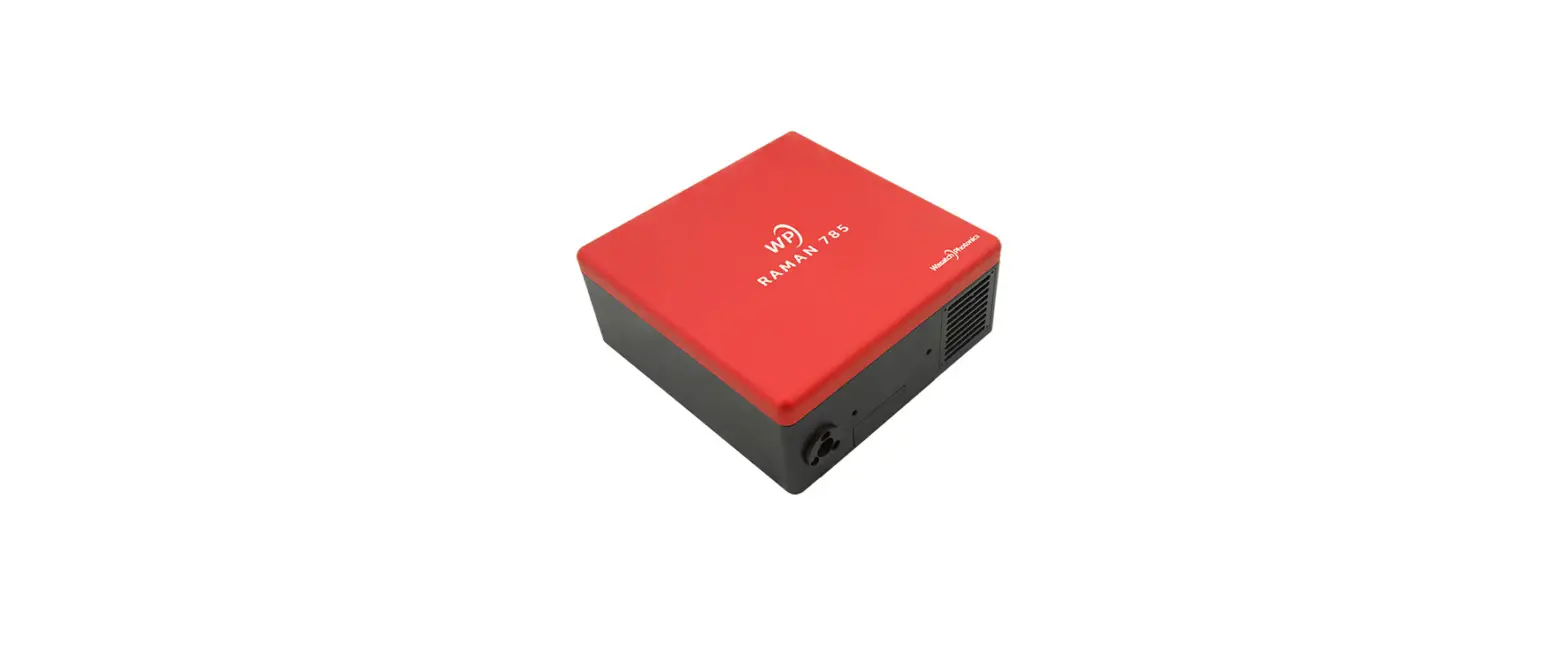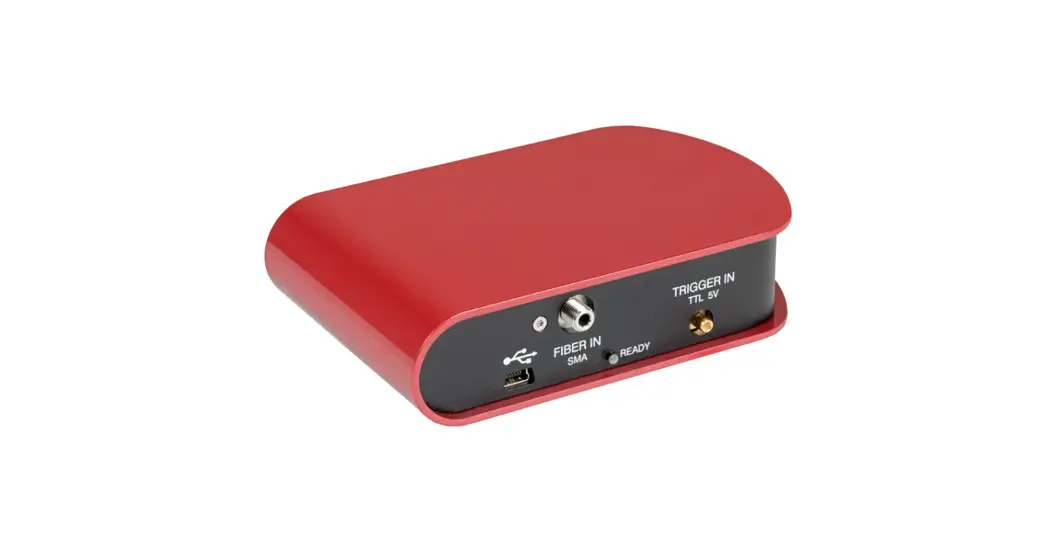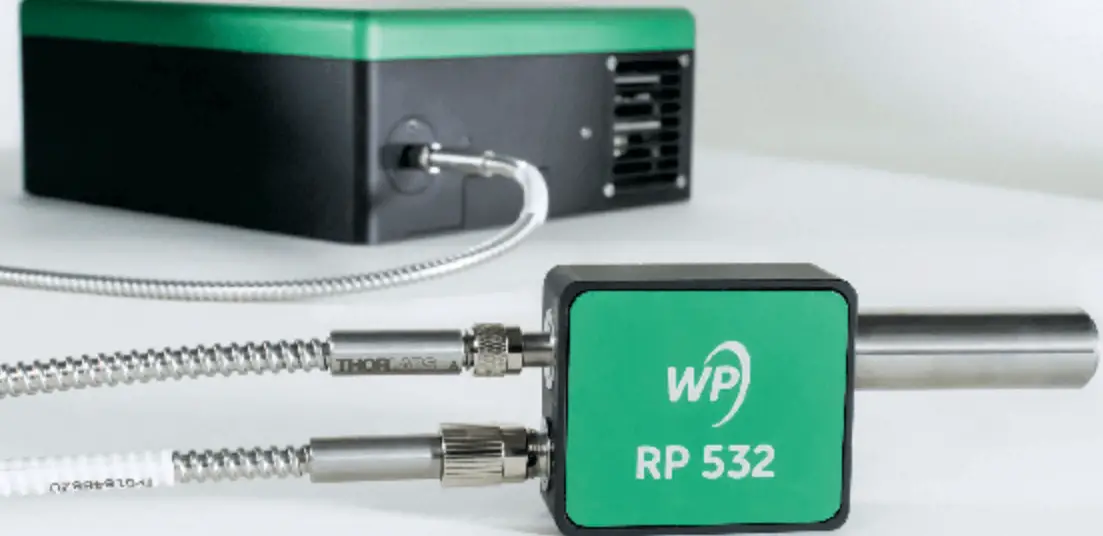

Wasatch Photonics WP Series-XL Raman Spectrometer
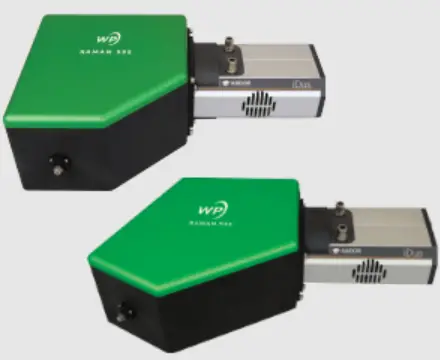
Unpacking the Spectrometer
You should find the following items when you unpack your Series-XL spectrometer:
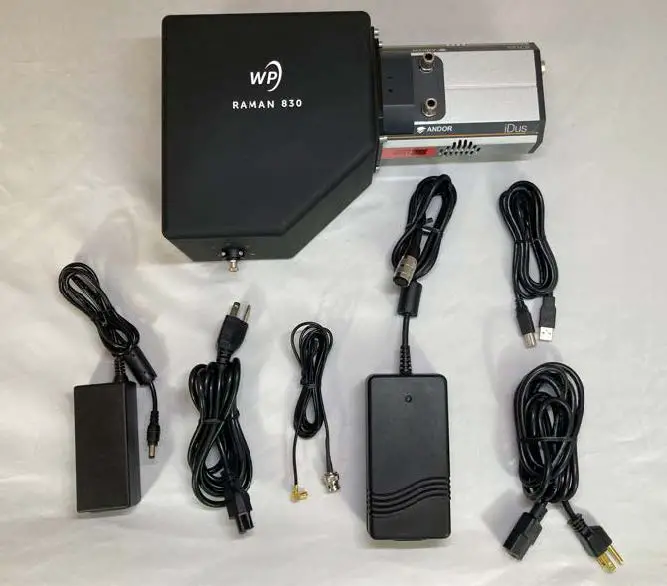 Unpacked XL components
The six cables can be identified as follows:
 Shutter Power Cable (3-pin connector)
 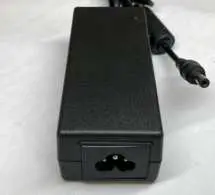 Shutter Power Supply (12V)
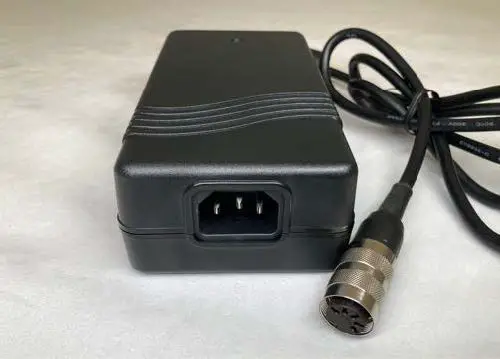 Andor Power Supply (5-pin plug, mixed voltages)
 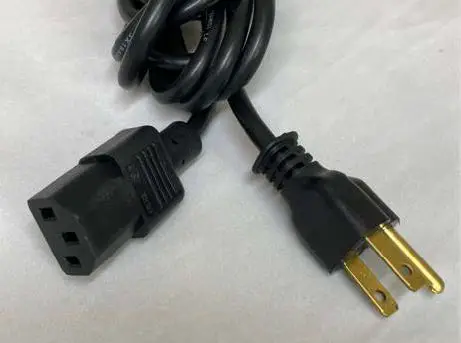 Andor Power Cable (standard PC cable)
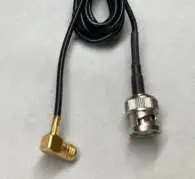 Shutter Cable
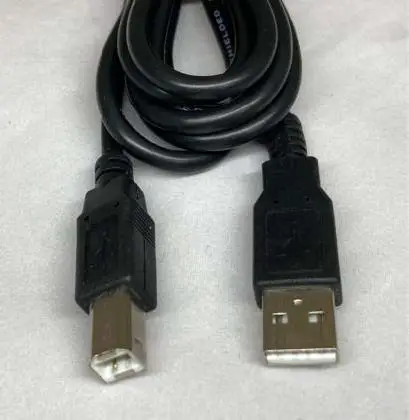 USB 2.0 Cable (standard-A to standard-B)
Also take a moment to familiarize yourself with the connectors on the spectrometer and Andor camera. 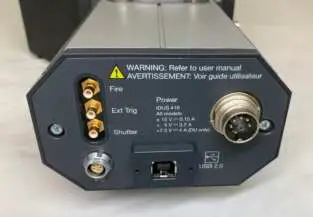 Andor camera connectors (shutter, left; power, right; USB, bottom)
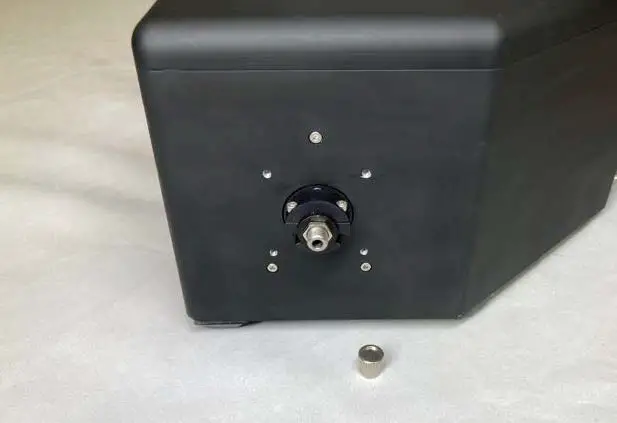 Spectrometer SMA connector and cap
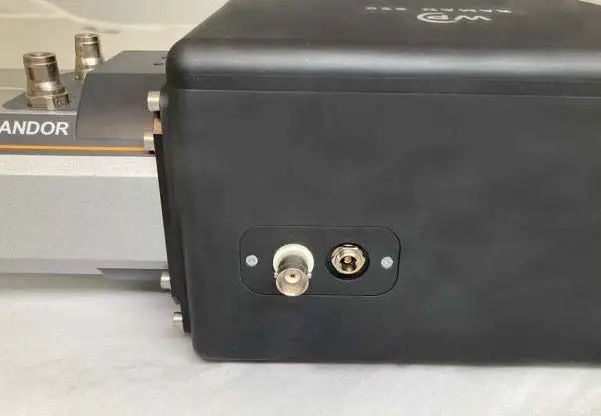 Spectrometer shutter connectors (cable, left; power, right)
Power Supply Compatibility
Note that different models of Andor camera ship with different power supplies, and those are not necessarily interchangeable, even when they share a common connector. For example:
| Camera Model | iDus 416 | Newton DU940P-BU |
| Power Supply | PCM50UT05 | T3404AD |
| Pin 1 | +5V (5A max) | +5V @ 3.5A |
| Pin 2 | N/C | +7.5V @ 4A |
| Pin 3 | 0VDC (COMMON) | 0VDC (COMMON) |
| Pin 4 | +15V (2A max) | +15V @ 100mA |
| Pin 5 | -15V (0.8A max) | -15V @ 100mA |
Assembling the Spectrometer
Now that we can identify each of the cables and connectors, let’s assemble the system.
Start by connecting the two power cables to their respective power supplies.
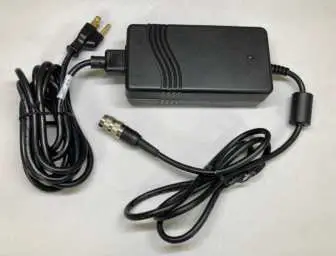 Assembled Andor Power Cable
 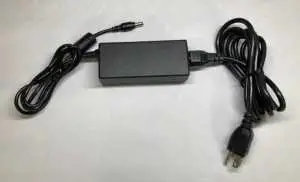 Assembled Shutter Power Cable
Now connect the Shutter Cable from the Andor camera to the spectrometer’s shutter. 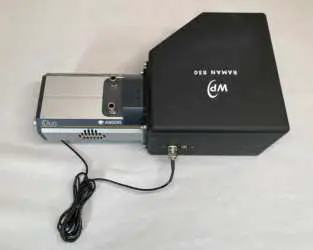 Connected Shutter Cable
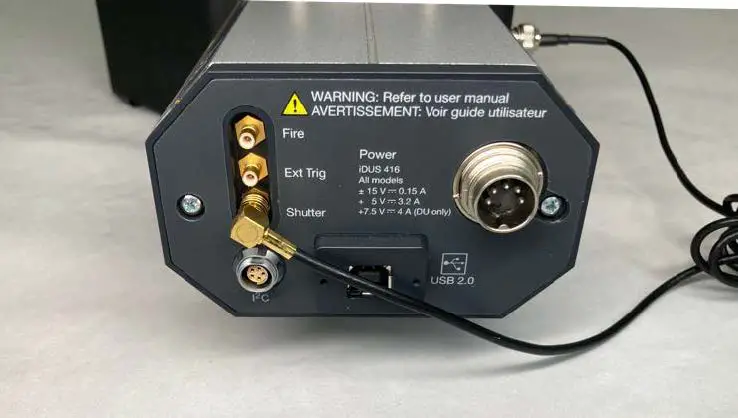 Connected Shutter Cable (camera end)
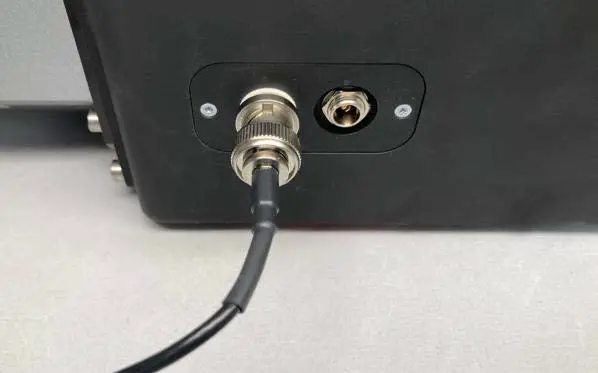 Connected Shutter Cable (spectrometer end)
Now let’s assemble the system. Connect the assembled Shutter Power Cable to the spectrometer. 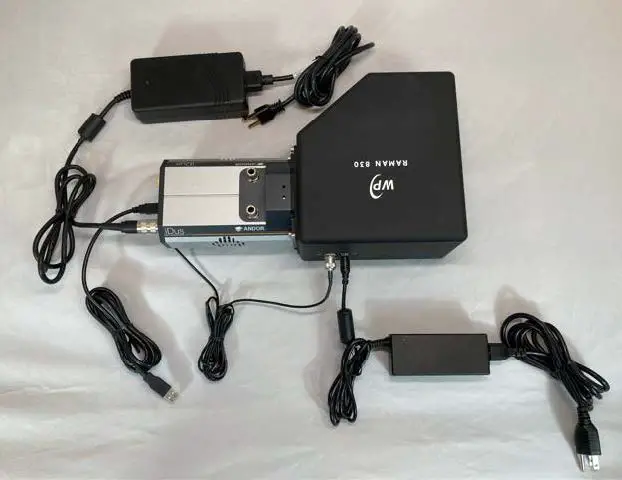 Connect Shutter Power Cable to spectrometer
Connect the assembled Andor Power Cable to the camera..
 Connect Andor Power Cable to camera
Finally, connect the USB cable’s standard-B connector to the Andor camera.
Fully-assembled Series-XL spectrometer
You now have a fully-connected Wasatch Photonics XL spectrometer ready for connection to mains power and your computer.
Installing Andor Solis
Solis-S is a commercial spectroscopy application sold by Andor, the company who produces the iDus cameras used in Wasatch Photonics XL spectrometers. To obtain a copy, contact Andor’s sales team here: https://andor.oxinst.com/products/solis-software/solis-s
The current installer may be downloaded here (site registration required):
https://andor.oxinst.com/downloads/view/andor-solis-64-bit-4.32.30065.0
Operating Andor Solis
Temperature Control
The current detector temperature is shown in the lower-left corner of the screen.
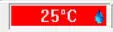 Clicking it brings up the temperature control panel.
 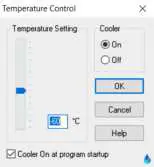 The recommended temperature setpoint (e.g. -60°C) should be displayed, and applied automatically at launch. Users are advised to allow the temperature to stabilize at the recommended value before taking data.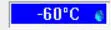
Integration Time
To set the integration time, click the “Run-time gating” button on the toolbar.
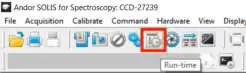 This will bring up a Run Time dialog allowing you to set the exposure time in seconds (400ms example shown).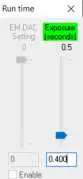
When viewing spectra, note these three icons on the button bar.
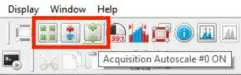 Rescale graph in both axes (show all data)
Rescale graph in Y-axis (counts)
Auto-rescale graph in Y-axis (or press F6)
Wavelength Calibration
XL spectrometers natively collect data in “pixel space.” To plot your data against a calibrated x-axis in wavelengths (nm), you’ll need to load an external configuration file providing the (pixel, wavelength)
mappings. Each XL spectrometer ships with a factory-calibrated configuration file for Andor Solis, though you can easily generate your own using emission or Raman sources.
From the Calibrate menu, select “Manual Calibration”.
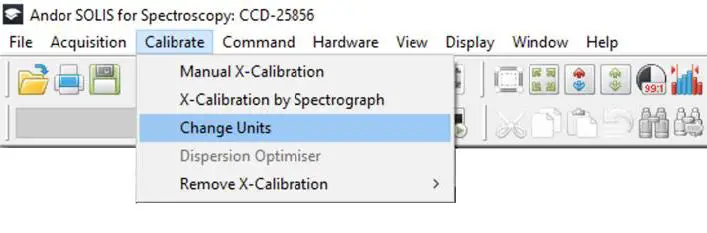 In the subsequent dialog, select “Load”.
In the subsequent dialog, select “Load”.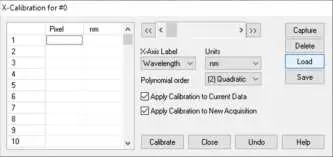 Navigate to the directory where you saved your Andor configuration file (will end in .cfg).
 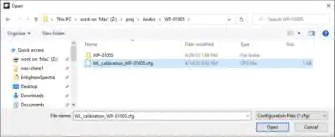 Make sure the label is set to “Wavelength” and Units “nm”. Polynomial order should be “(3) Cubic” for standard configurations. When you have verified the settings, click “Calibrate” to apply the calibration to future spectra.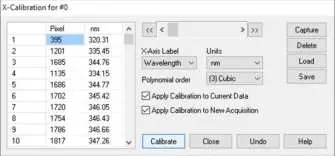
Wavenumber Axis
If you’re using a Raman system, calibrating your x-axis in wavelengths is necessary but not sufficient; what you really want is an axis in wavenumbers, measured in Raman shifts from the laser excitation wavelength.
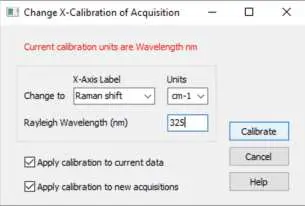
To configure that, go back to the Calibrate menu and choose “Change Units”.
Change the x-axis label to “Raman shift” and Units to “cm⁻¹”. Make sure the wavelength of your laser is entered into the “Rayleigh Wavelength (nm)” (325nm excitation shown). When the values are entered, click “Calibrate.”
Background Measurement
Take a background measurement using the Acquisition menu, or press Ctrl-B.
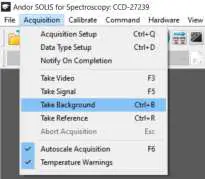 This will automatically close, then re-open the internal shutter for the duration of the measurement.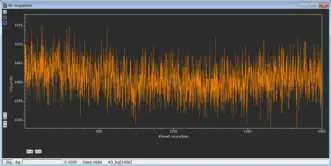
Signal Measurements
After taking a background, take “signal” measurements using the “Take Signal” toolbar button, or press F5.
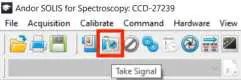 The “signal” spectrum will then be graphed (cyclohexane shown). Note that at this point, it has not yet been dark-corrected…see next section on Setting Data Type.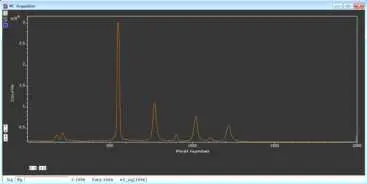
Background Correction
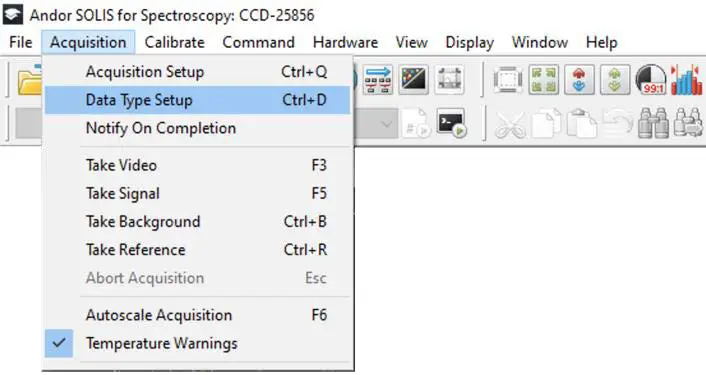
To enable background correction (i.e. dark subtraction), you need to change the “Data Type” of the Y-axis. You can do that using the Acquisition → Data Type Setup.
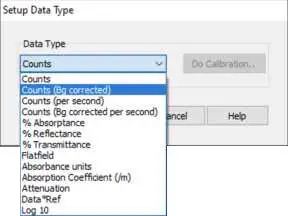
Change the current Data Type to “Counts (Bg corrected)”.
Video Mode (Continuous Acquisition)
To “stream” updated spectra continuously to screen, use “Take Video” rather than “Take Signal.” 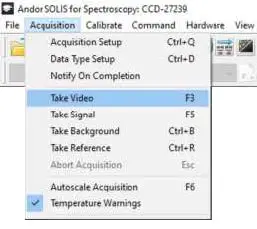
Saving Data
Solis can save data in several formats. The two most useful / convenient for data interchange with ENLIGHTEN are .asc (two-column delimited ASCII data, essentially a .csv) and .spc (GRAMS format).
To save spectra in either format from Solis, use File → Export, then select the appropriate file type.
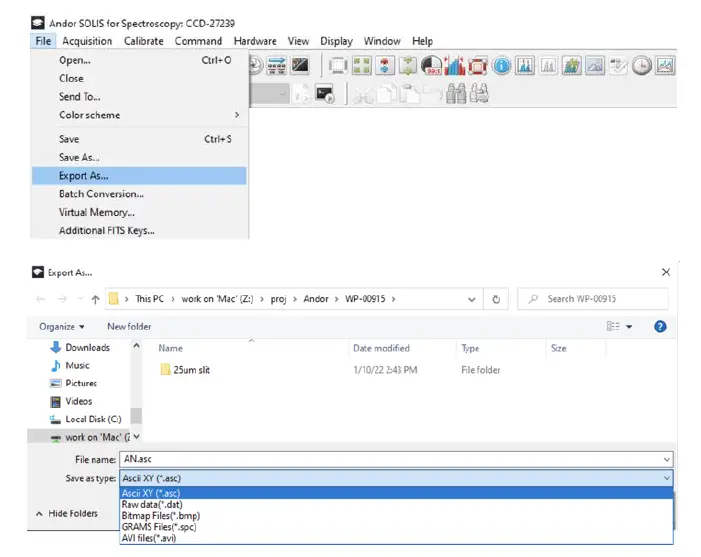
Note that Solis will store the data with the x-axis currently displayed on the chart, so if you want the data to be saved with a wavelength or wavenumber axis, be sure to configure that first using the
“Calibration” instructions above.
Troubleshooting
Some users have encountered the following error code upon installing Solis on their computer.
 A solution has been documented on the internet here, and Wasatch testing confirms this resolves the issue.
More Information
There is so much more you can do with your Wasatch Photonics Series-XL spectrometer!
For additional information, see the following resources. (links current at writing)
- ENLIGHTEN 3 Manual
- Wasatch Photonics software drivers
- Andor Solis-S Learning Centre
- Andor Solis Brochure
- Andor iDus Hardware Guide
References
 uninanotech.com/?page_id=329&pageid=1&view=read&id=474&ckattempt=2
 Andor Solis 64-bit - 4.32.30065.0 - Andor Learning Centre- Oxford Instruments
-
Solis S - Andor - Oxford Instruments
-
Solis S - Andor - Oxford Instruments
-
Spectroscopy Software | Free | Simple Data Acquisition
-
Spectroscopy software drivers: Python, C#, Delphi, LabVIEW, MATLAB etc
 uninanotech.com/?page_id=329&pageid=1&view=read&id=474&ckattempt=2
 Andor Solis 64-bit - 4.32.30065.0 - Andor Learning Centre- Oxford Instruments
 Spectroscopy Software | Free | Simple Data Acquisition