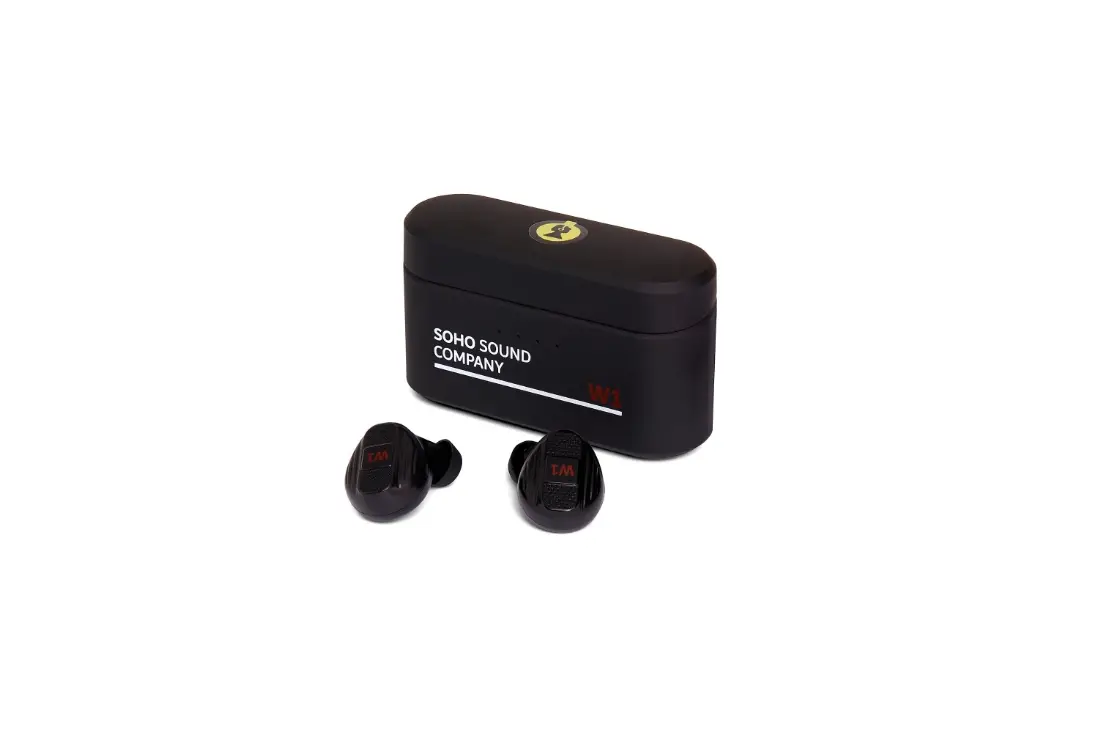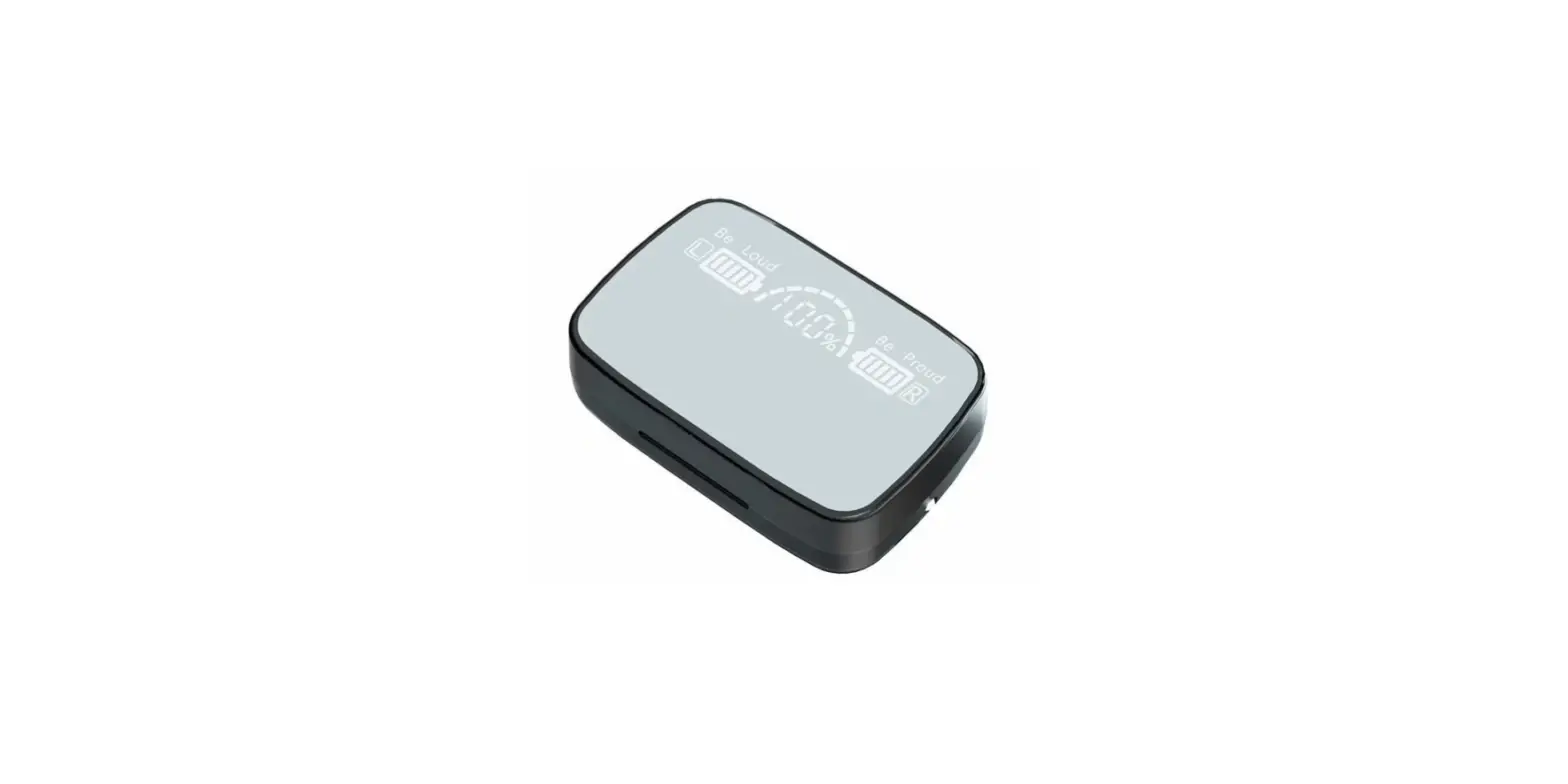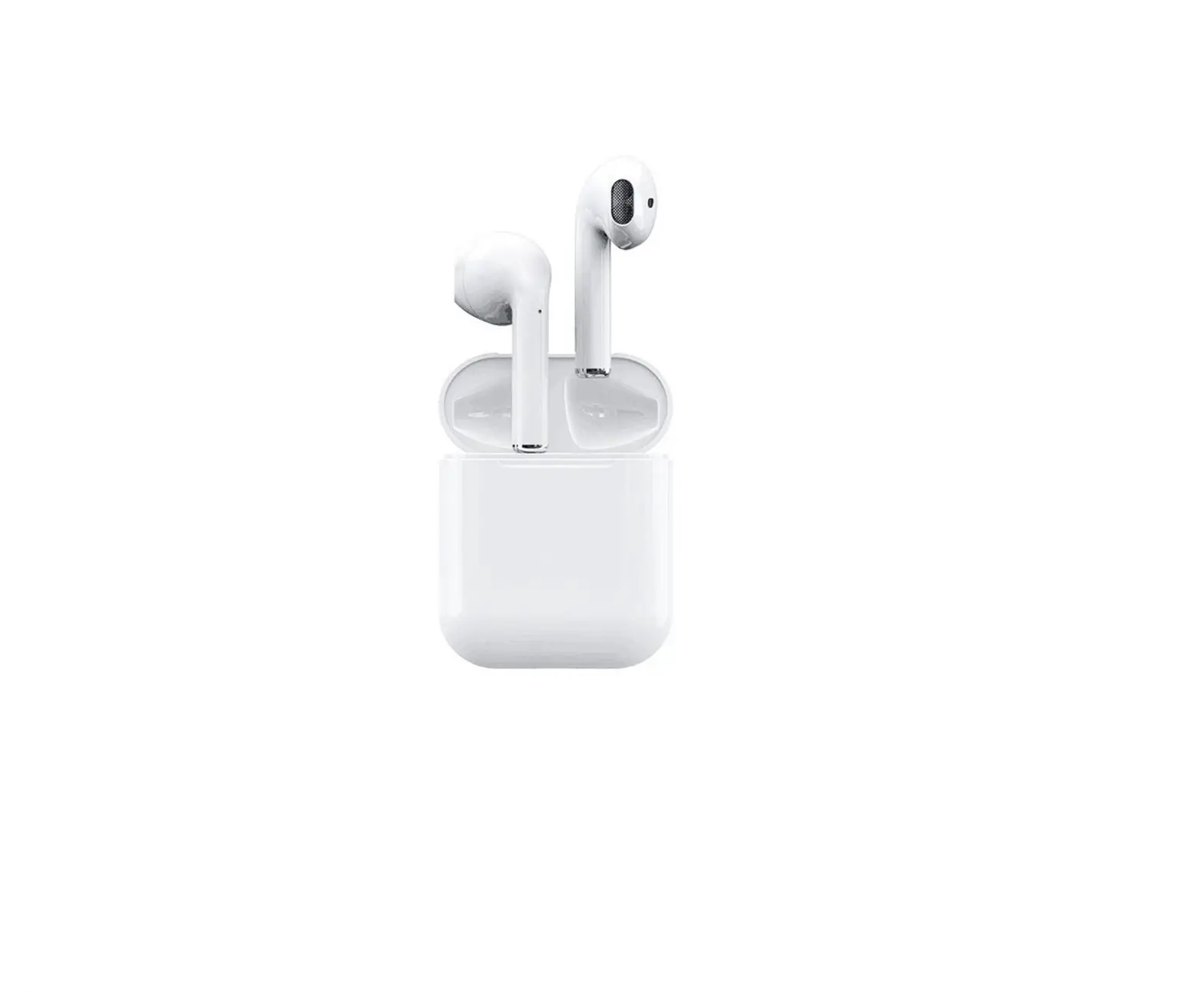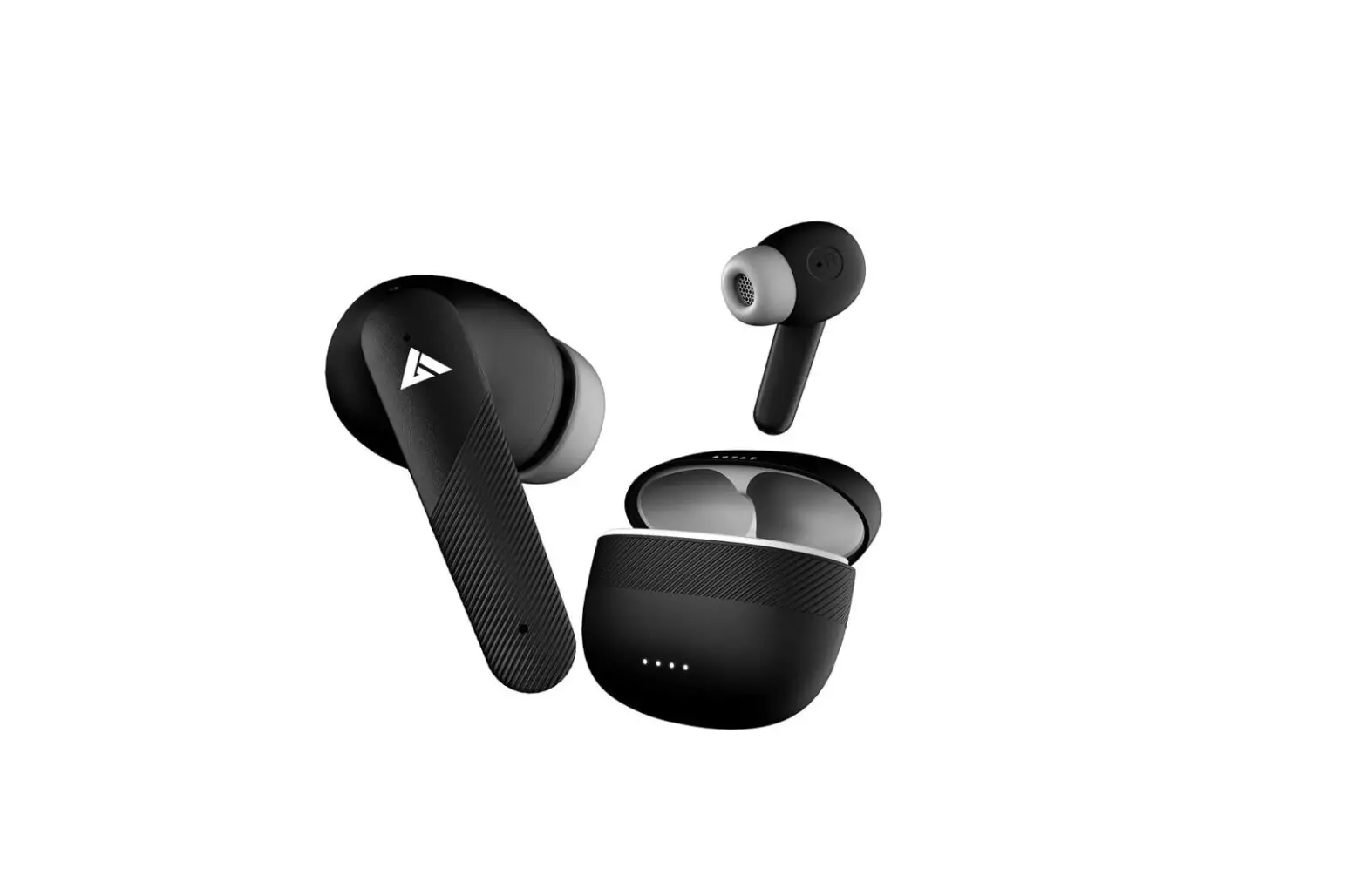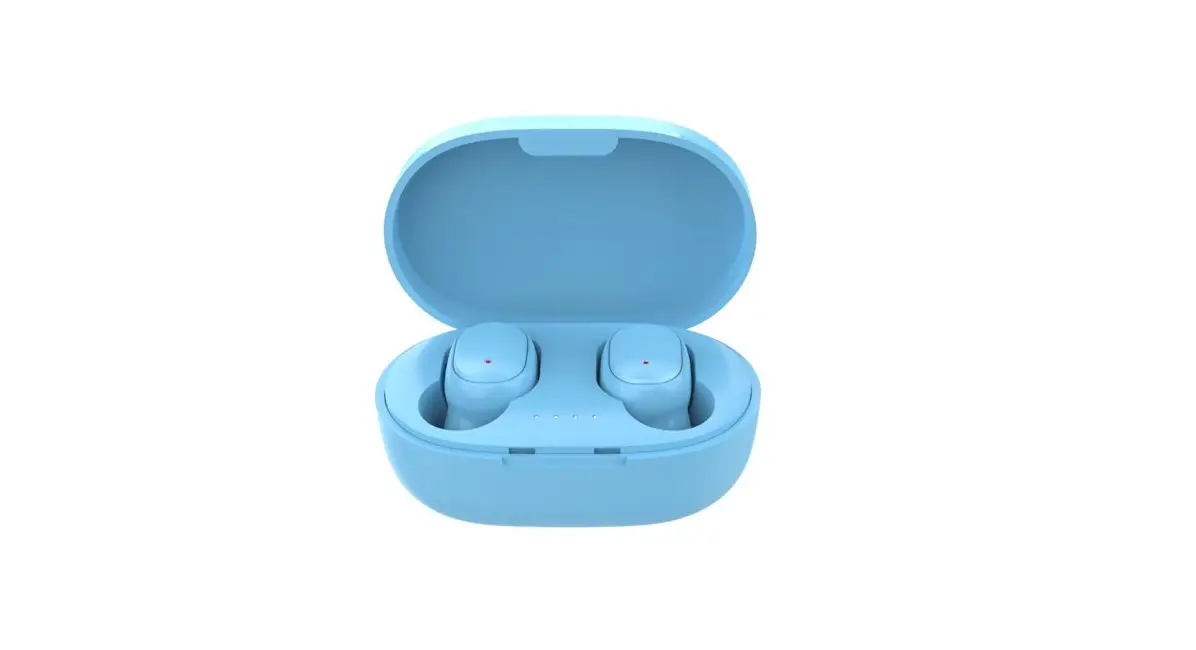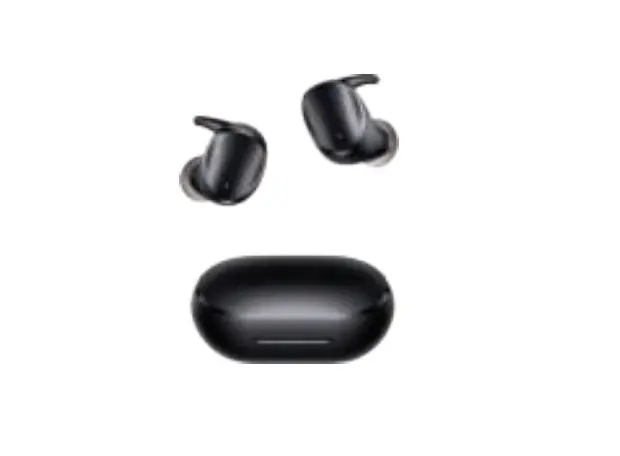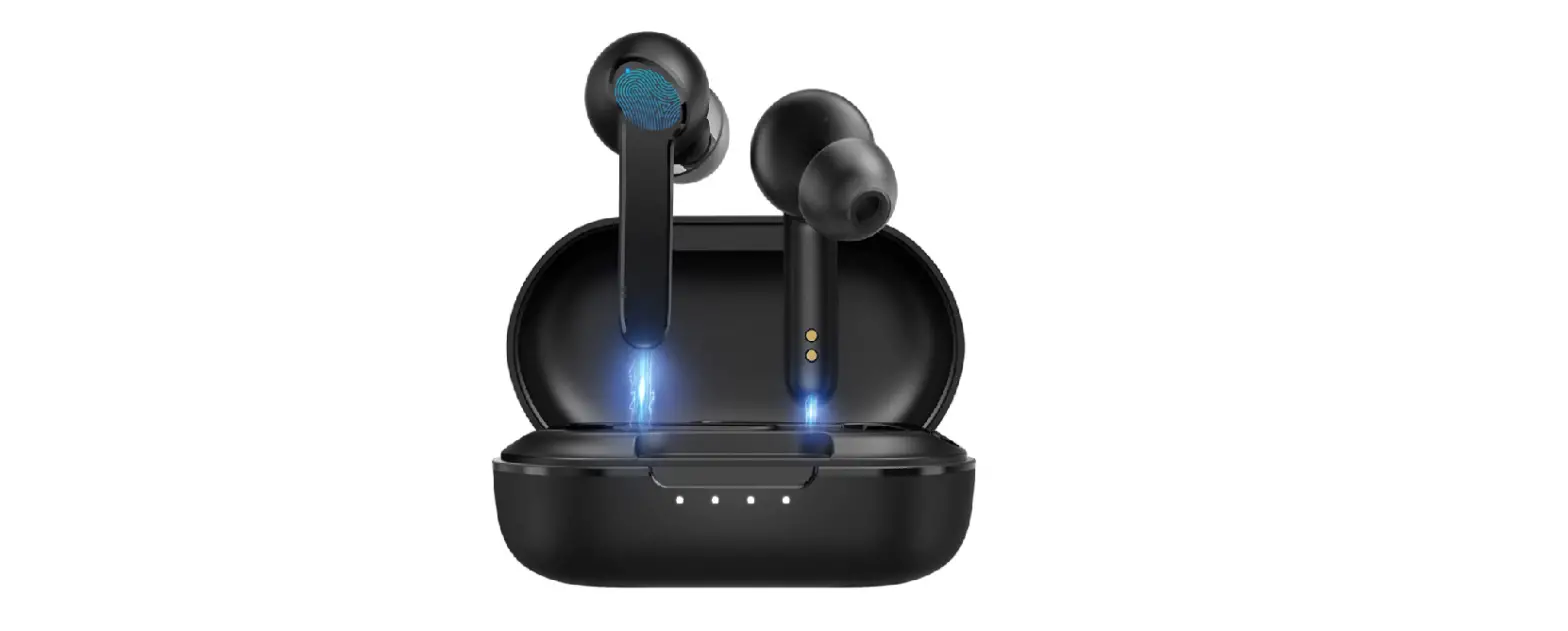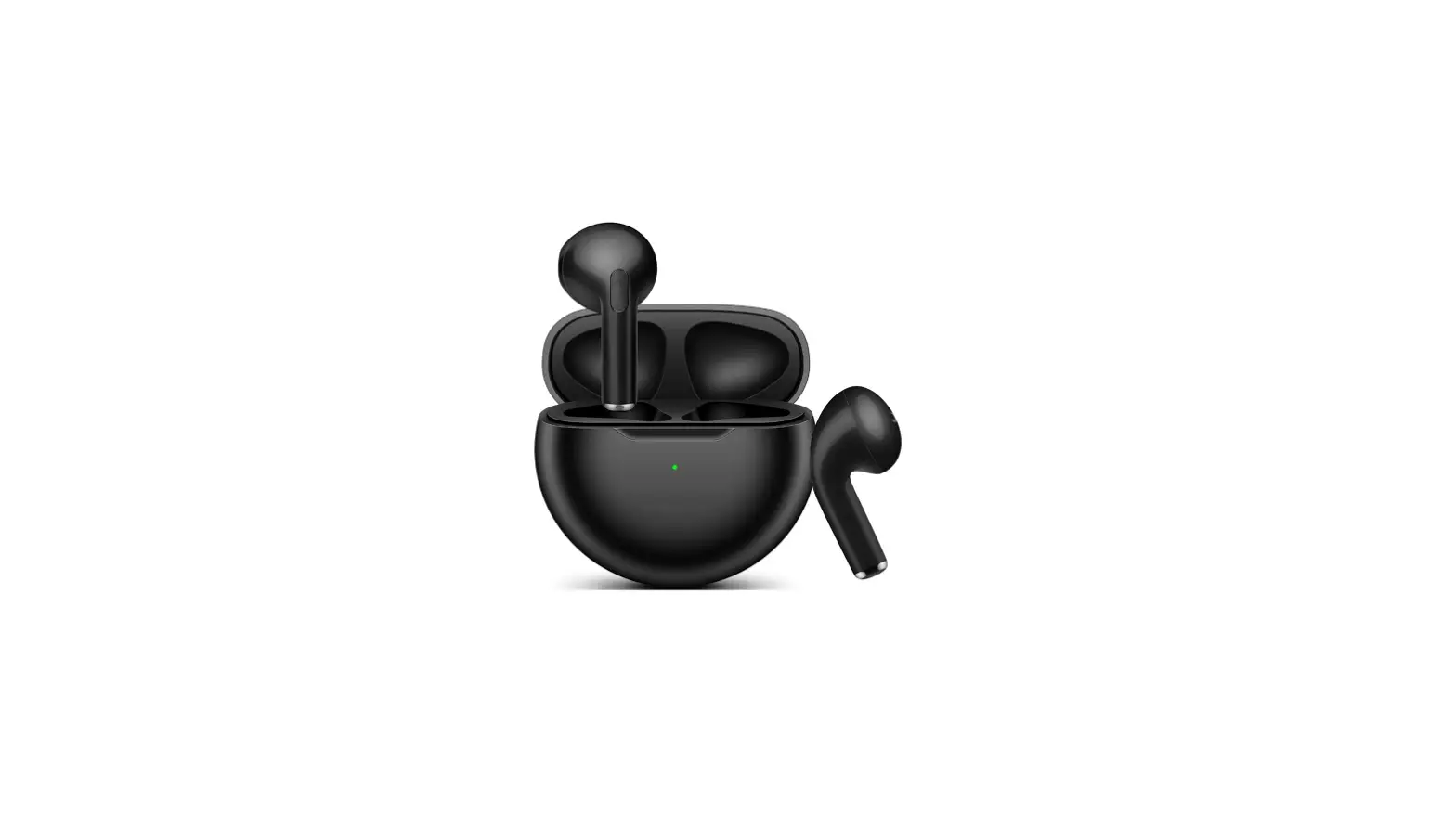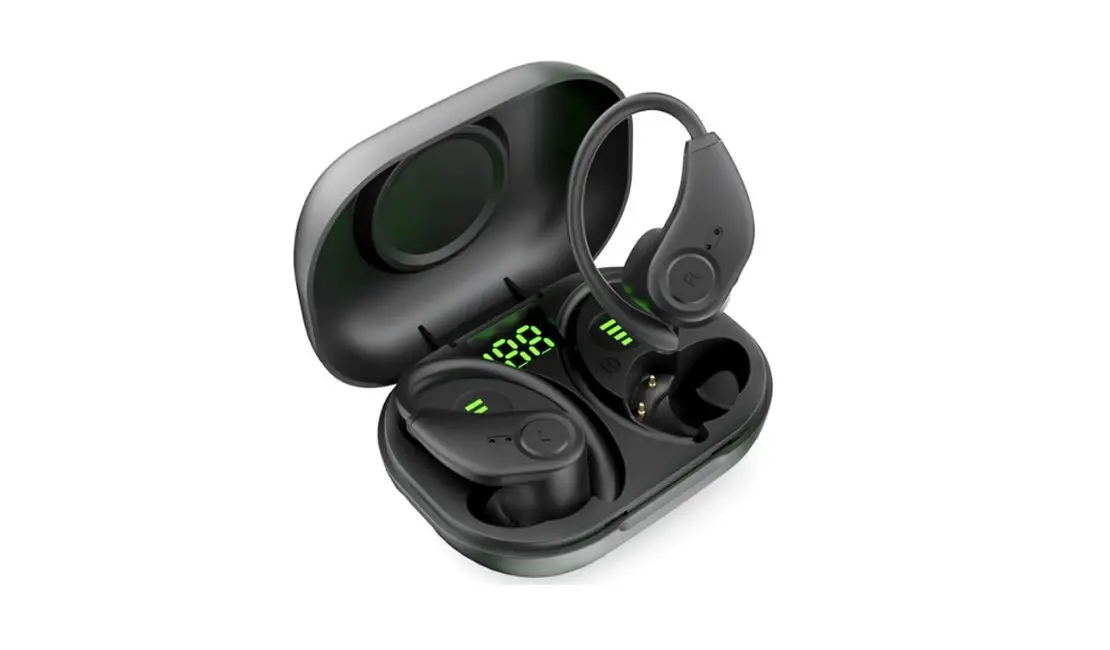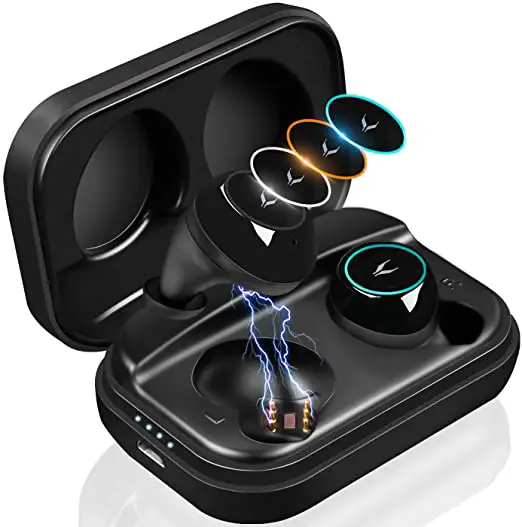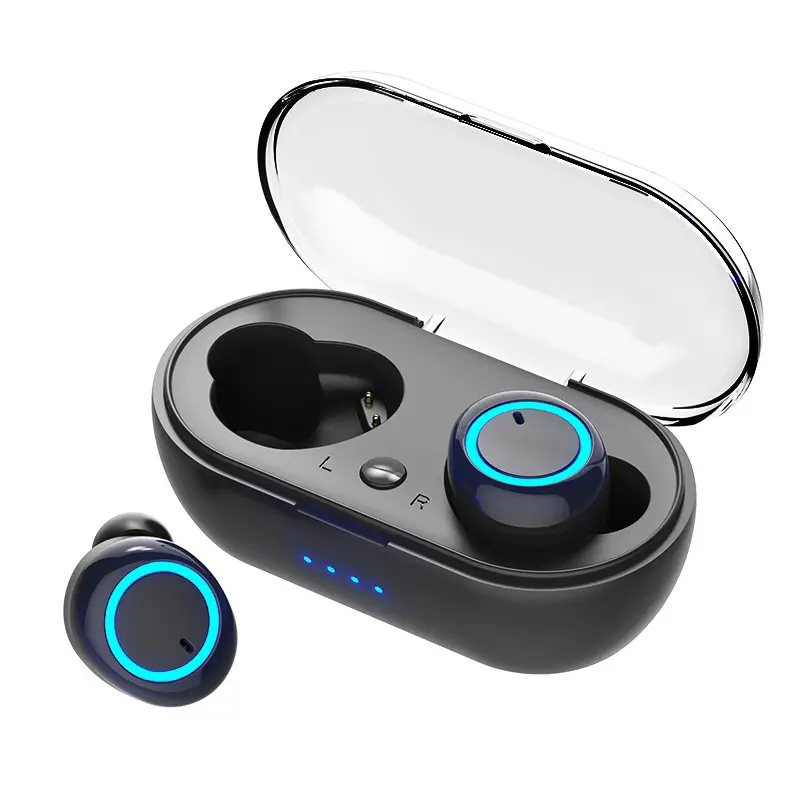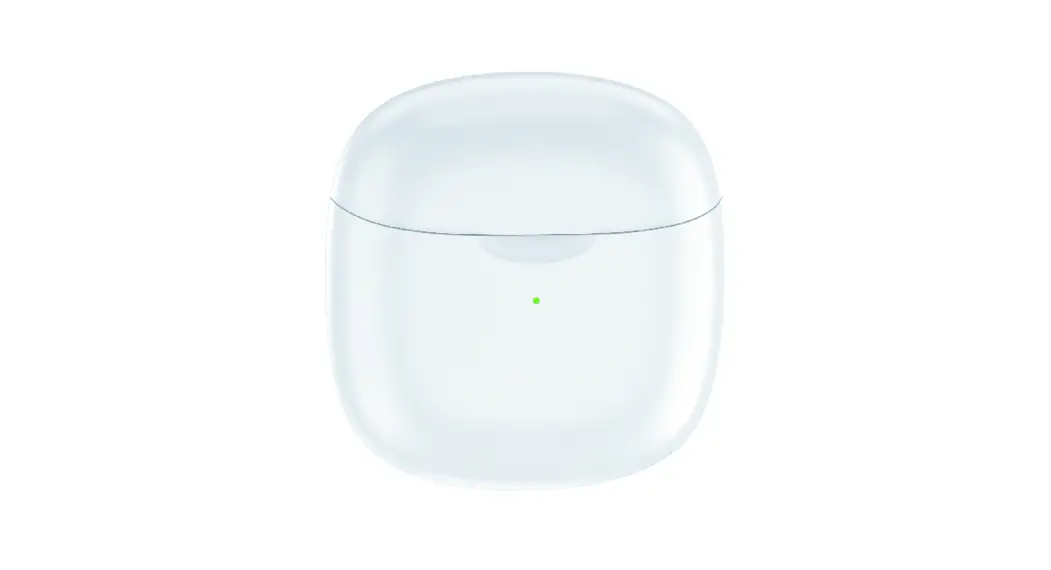

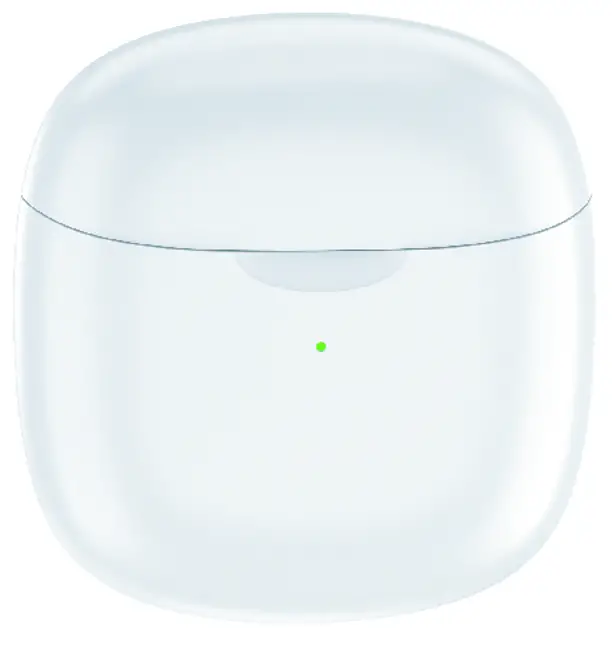
TWS Wireless BlueTooth Earbuds
Model:A608
Simple operation instructions
- Open the cover of the charging box and pair the left and right earphones automatically.

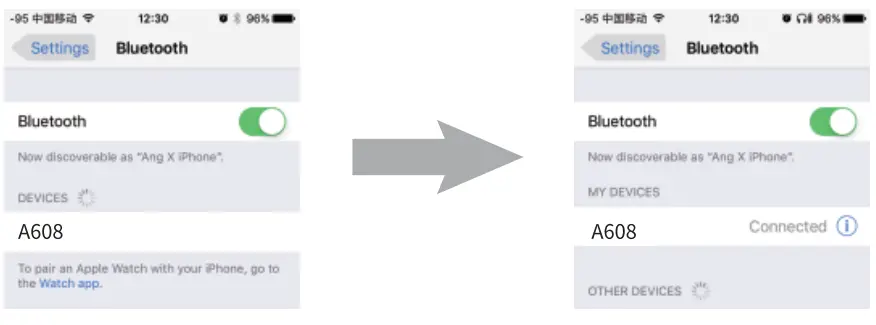
- Turn on Bluetooth on your phone, search for the Bluetooth device “A608”, you need to manually connect to the device for the first time, after successfully connecting to “A608”, the prompt sound “beep”.

- If the Bluetooth connection is not connected or disconnected after startup if there is no operation, it will automatically shut down after more than 3 minutes, and the red light flashes once.
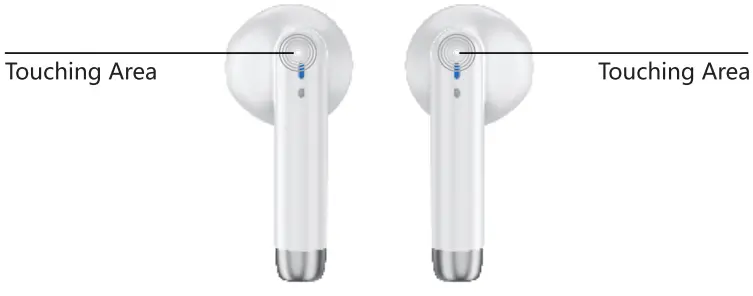
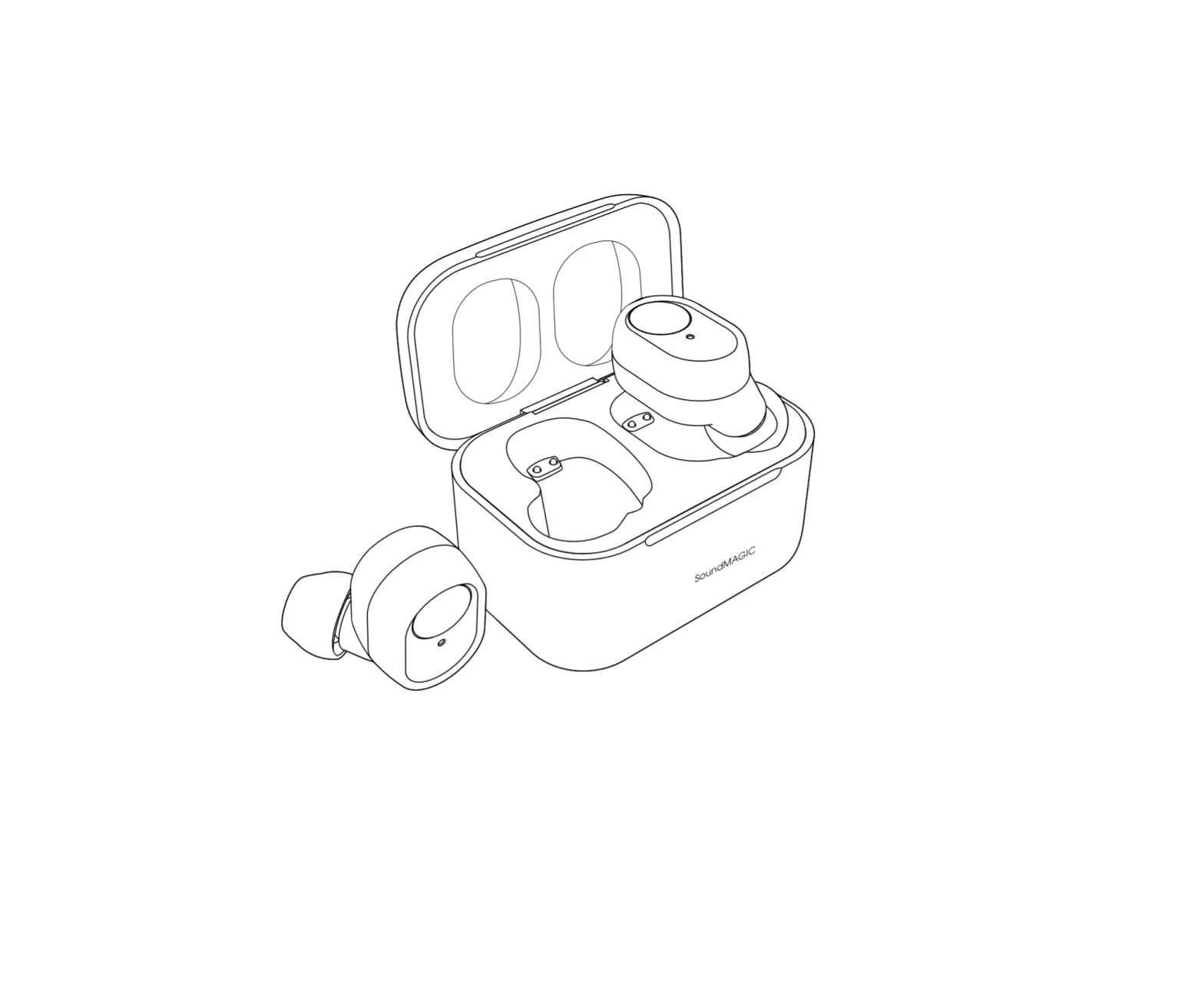
ID diagram
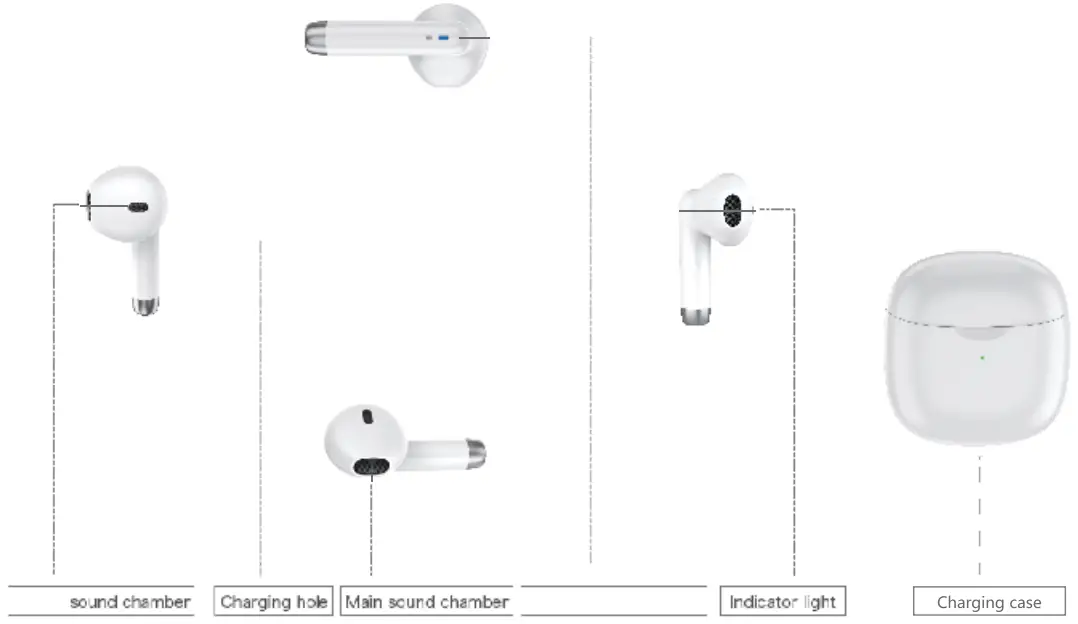
Description of the function definition
- Turn on the headphone, connect the left and right ears to each other, and then the main ear will automatically enter the matching mode and try to connect the phone back
- Bluetooth pairing /TWS pairing mode
1. After the left and right ears are connected, the main ears will automatically enter the common pairing mode, and the red and blue lights will flash alternately, “Dudu.” Beep, match successful
2. Disconnect the Bluetooth from the mobile phone, the main ear will automatically enter the normal pairing mode, and the red and blue lights will flash alternately, “toot toot”. Beep, match successful - Boot automatic reconnect/Bluetooth connection headset automatically reconnect the last connected device “Dudu.” prompt
- Switch between primary and secondary ears
1. When using the ear, but the main ear into the charging box to charge, it will automatically switch the secondary ear to the main ear without pausing the music
2. In the process of using the opposite ear, put the second ear into the charging box to charge, and the music in the main ear will not be suspended
3, open the left ear or right ear alone, can be connected to the phone - Reconnect from the phone/Bluetooth connection After disconnecting the headphone from the phone, you can reconnect the headphone “beep” prompt sound from the phone
- When the Bluetooth is out of the working range, it will automatically reconnect back to the working area (if it cannot be connected, click the Touch button to automatically connect) “Dudu” prompt sound
- Power off /TWS connection
1. If the Bluetooth connection is not connected or disconnected after startup if there is no operation, it will automatically shut down after more than 3 minutes, and the red light flashes once
2. Put the earphone into the charging box, close the cover and turn it off, and the red light flashes once
Introduction of basic functions
Long press Touch 2S to release the Siri/ Bluetooth connection, and the “drip” prompt sound will be made
To pause music/music playback click the Touch key
Double click the R or L side Touch button
Last song or next/music play three L or R side Touch key
Answer the call/call in the incoming call, click the Touch button to answer the call
Hang up the call/when the call is completed, double-click the TOUCH button to end the call
Press the TOUCH button for 1 second to reject the caller’s call
Power display/Bluetooth connection Displays power symbol on iOS device after connecting to it Enter DUT mode/Bluetooth pairing and touch it continuously for 7 times. The red and blue indicator light is always on
Low power prompt/Bluetooth connection When the battery power is lower than 3.3V, there will be a low power prompt sound every 30 seconds, and the “Dudu” prompt sound will be repeated
Low power shutdown/Bluetooth connection automatically shuts down when the battery power falls below 3.2V Put the earphone into the charging box to charge. The red light of the earphone will turn off after 10S, and the green light of the charging box will turn on long
The headset is fully charged/the charging case is not plugged into the power supply.
Charging box Low power/charging box not plugged into the power supply Charging box green light flashing Charging box Charging/Charging box Insert the power supply Charging box Orange light flashes
The charging box is full charge/the electric box is plugged into the power supply to charge the orange light of the charging box is long
Headphone pairing: red and blue lights flash in the main ear
After the headset is connected to the phone: the LED light is off
Put the headset into the charging bin: the red light goes out for 103
Charge the headset by closing the cover of the charging bin: the green light is always on
Charging bin charging: orange light flashing
When fully charged: Orange light is always on
Low charge in charging bin: green light blinks
Close the cover for about 3 seconds and turn off the headset
Charging box parameters
| NO. | ITEM | SPECIFICATION |
| 1 | Charging case battery model | 701535/3.7V/320mAh (with guard plate) |
| 2 | Charging port type | Type-C |
| 3 | Charging current | About 320 mA |
| 4 | Charging time | About 60 minutes |
| 5 | Line continuation ability (both ears) | 2-3 times |
| 6 | Indicator light | Green, orange light |
Headphone parameters
| NO. | ITEM | SPECIFICATION |
| 1 | The Bluetooth chip | AC6983 |
| 2 | Bluetooth version | 5.1 |
| 3 | Matching name | A608 |
| 4 | Bluetooth receiving distance | 12m (in the standard environment) |
| 5 | MIC specifications | Silicon microphone sensitivity – 42dB ± 3dB |
| 6 | Working time | Play music continuously for about 5H (volume80%) Standby time 25H; Talk time:3H, binaural |
| 7 | Wearing away | in-ear |
| 8 | Mode of operation | touch |
| 9 | Headphone battery model | 401010/3.7V /30mAh (with protective plate) |
| 10 | Charging port type | Gold-plated double needle |
| 11 | Charging current | About 30 mA |
| 12 | Charging time | About 60 minutes |
| 13 | Moving coil specification | ƒmm single moving coil 32Ω sensitivity 112dB ± 3dB 1kHz |
| 14 | Indicator light | Red, blue light |