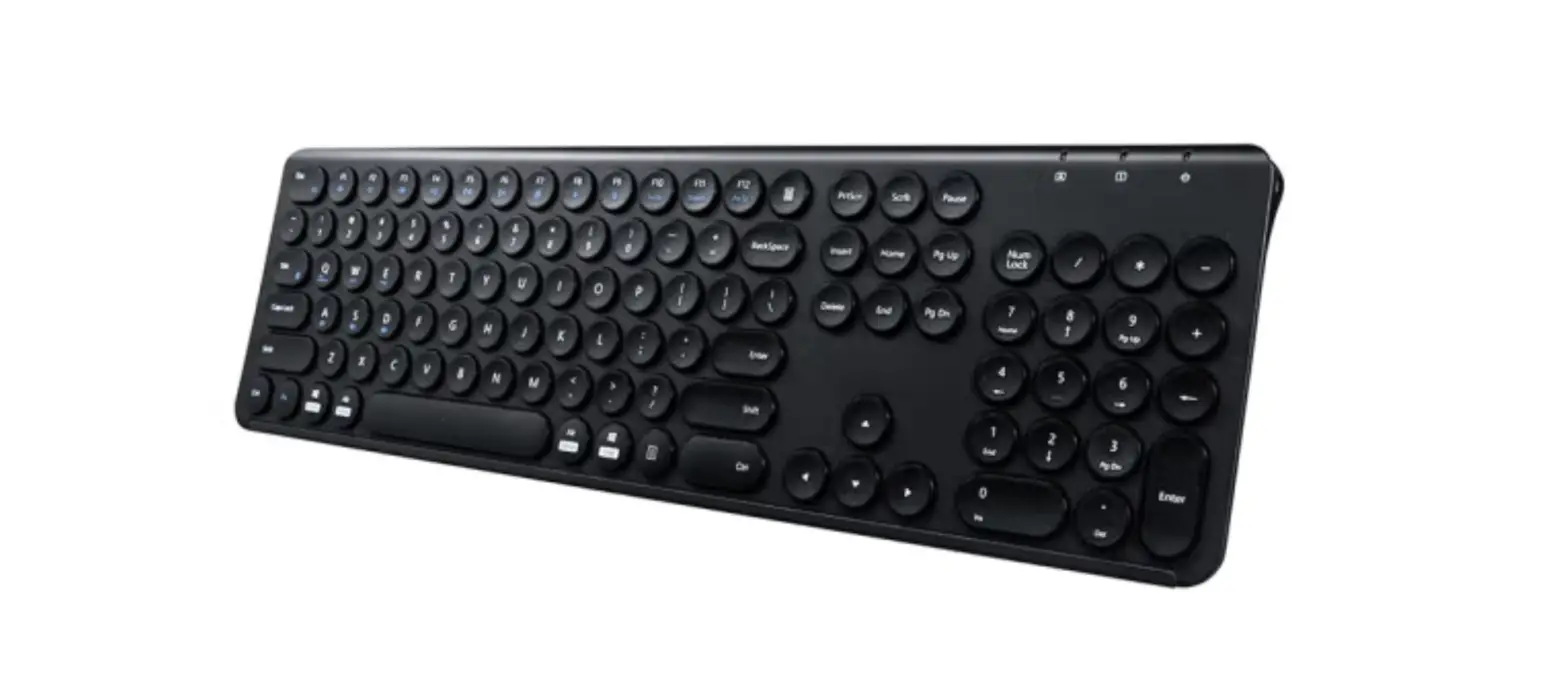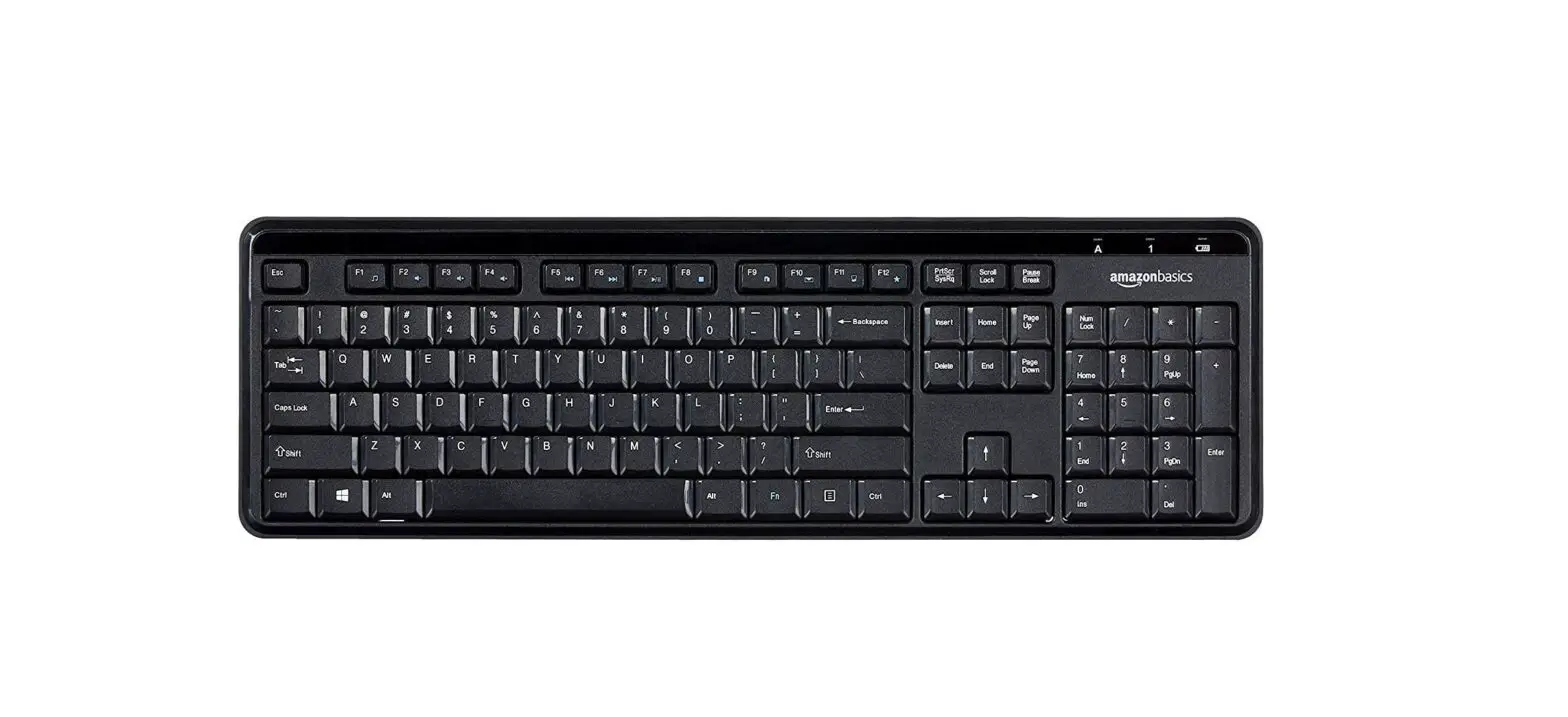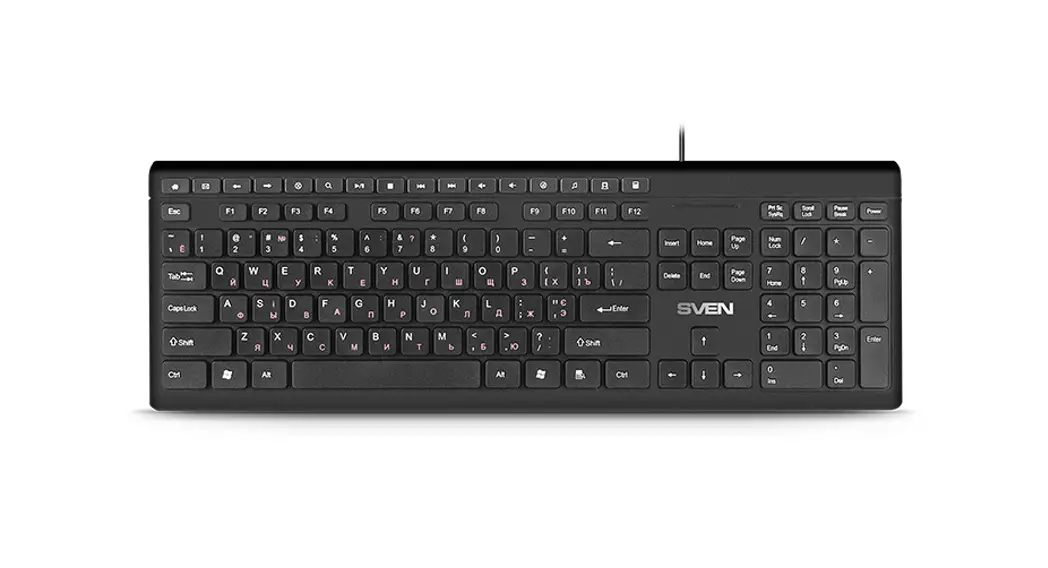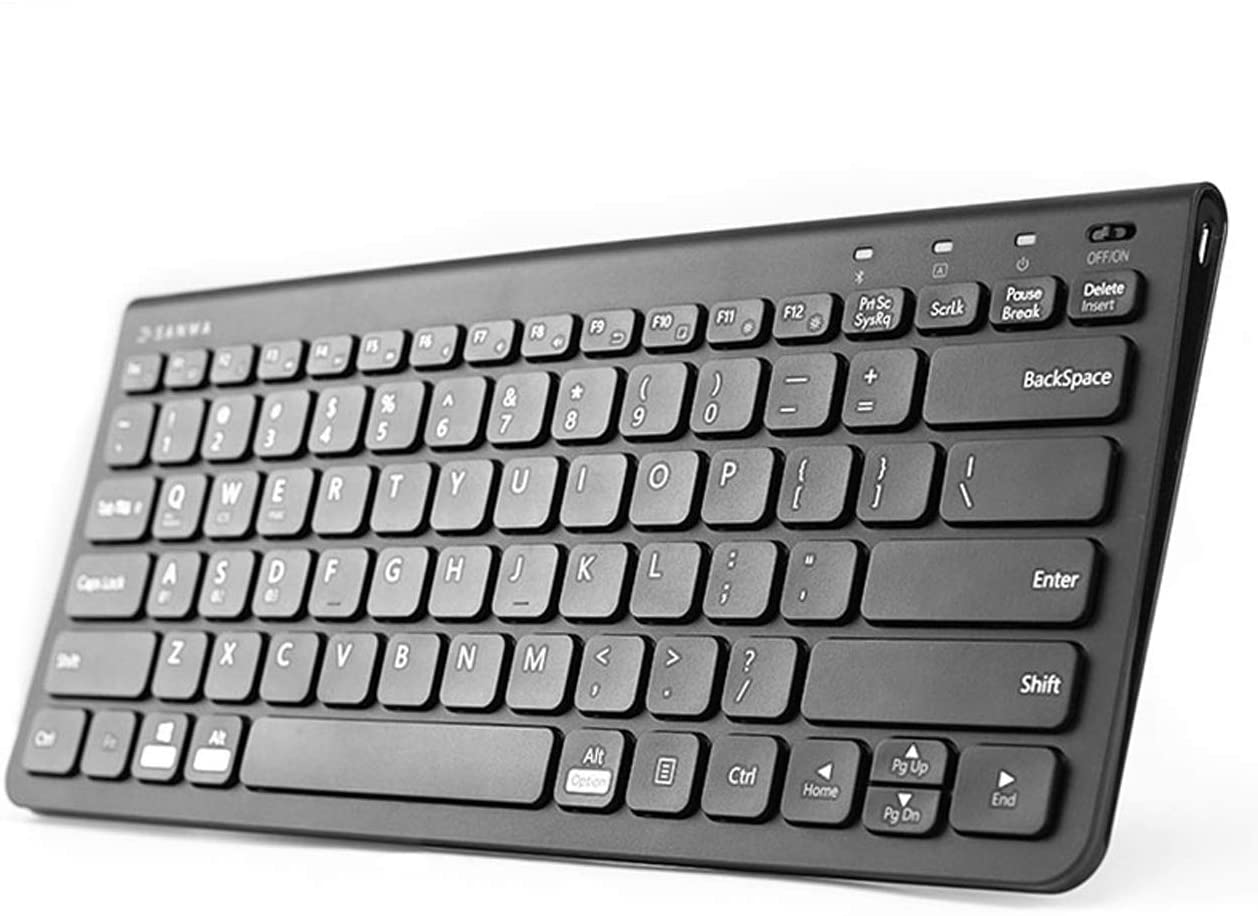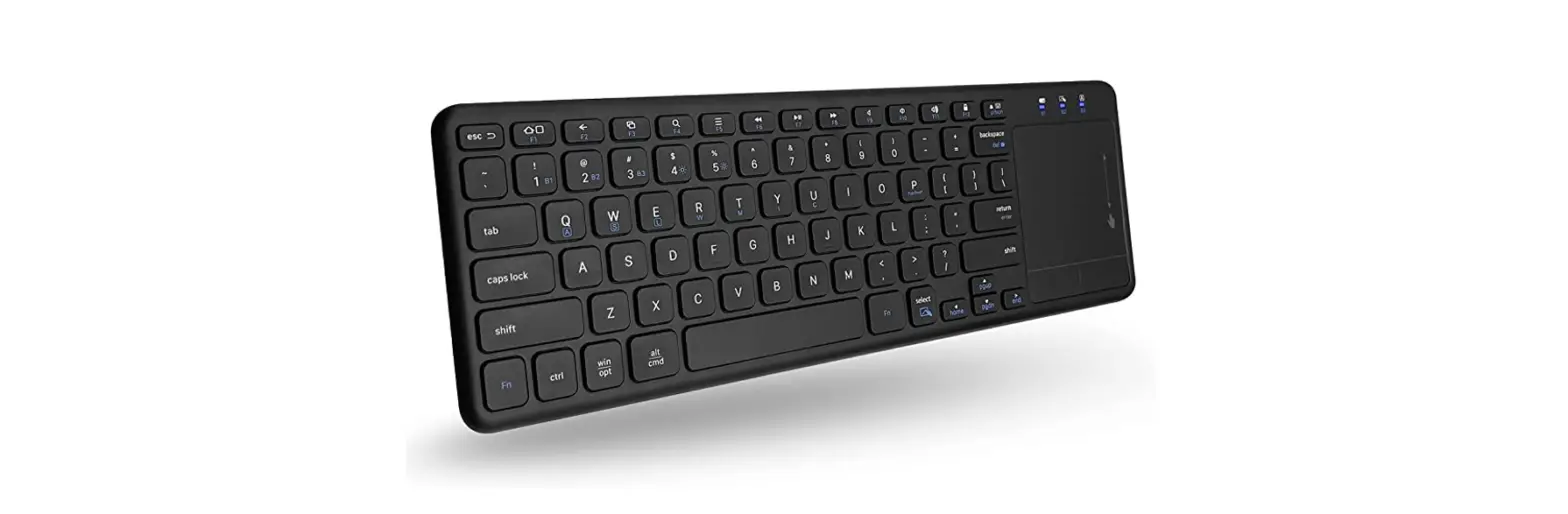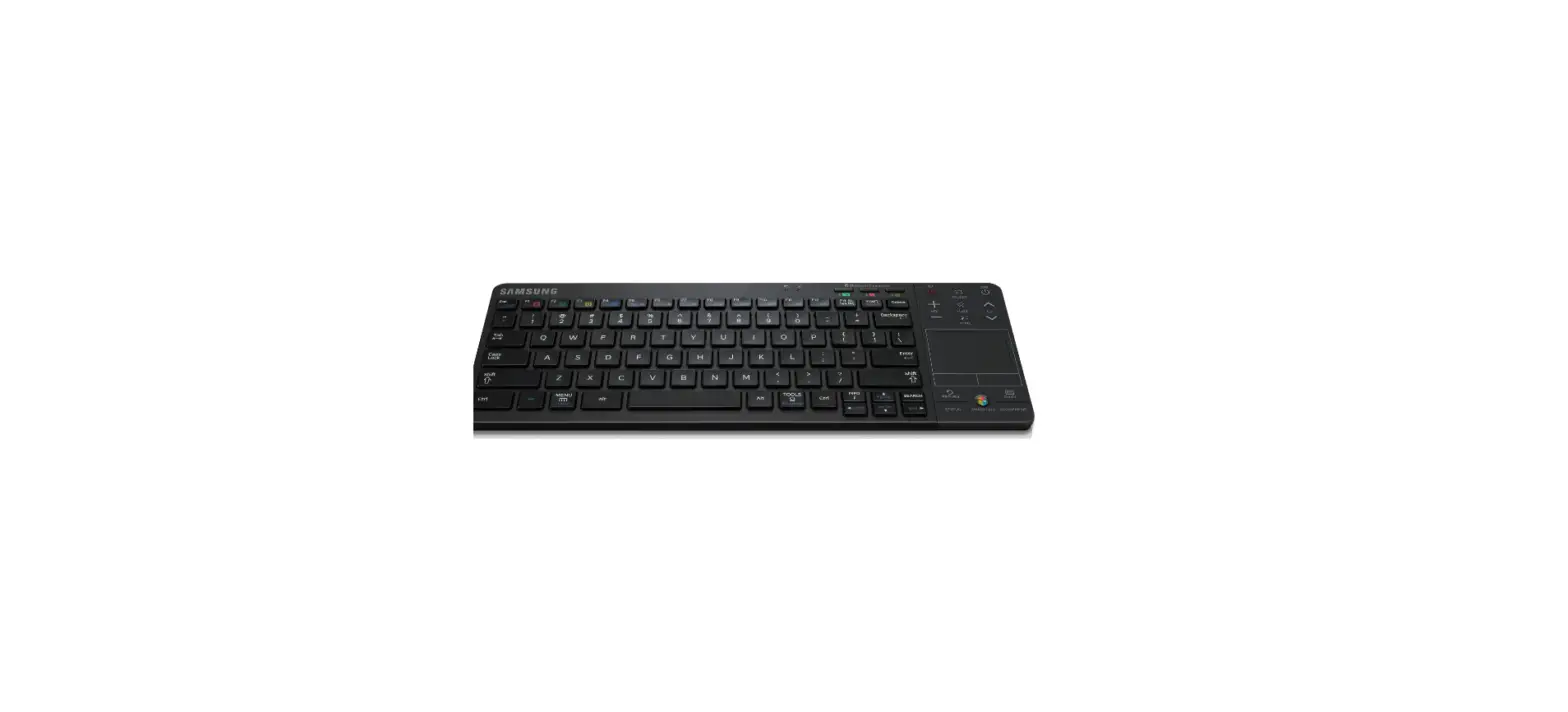

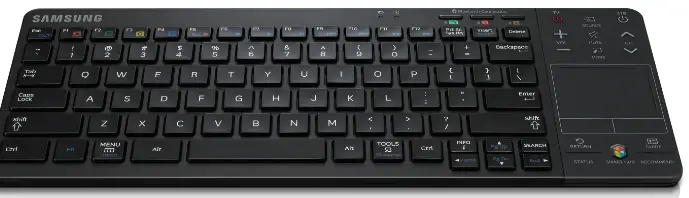
Samsung VG-KBD2000 Wireless Keyboard
Accessories
- User manual
- Batteries (AA x 2)
- Warranty card
TV Software update
By USB
- Using your PC, download the latest TV software to a USB key at www.samsung.com.
- Turn on the TV, and insert the USB into the TV’s USB port.
- On the menu, go to Support → Software Update.
Online
- Make sure your TV is connected to the Internet.
- On the menu, go to Support → Software Update.
- For more detailed information, please refer to the e-Manual.
- When the sofrware update is complete, the TV turn off and back on automatically
User manual
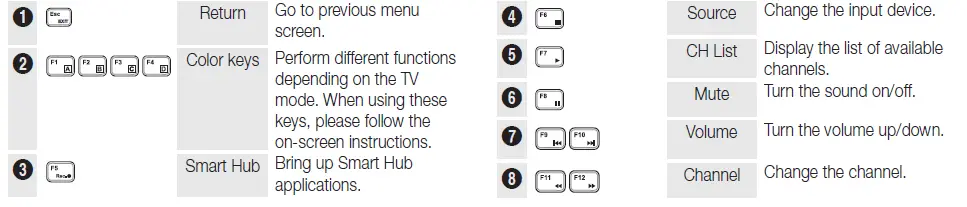
Use the wireless keyboard as a remote control as described below.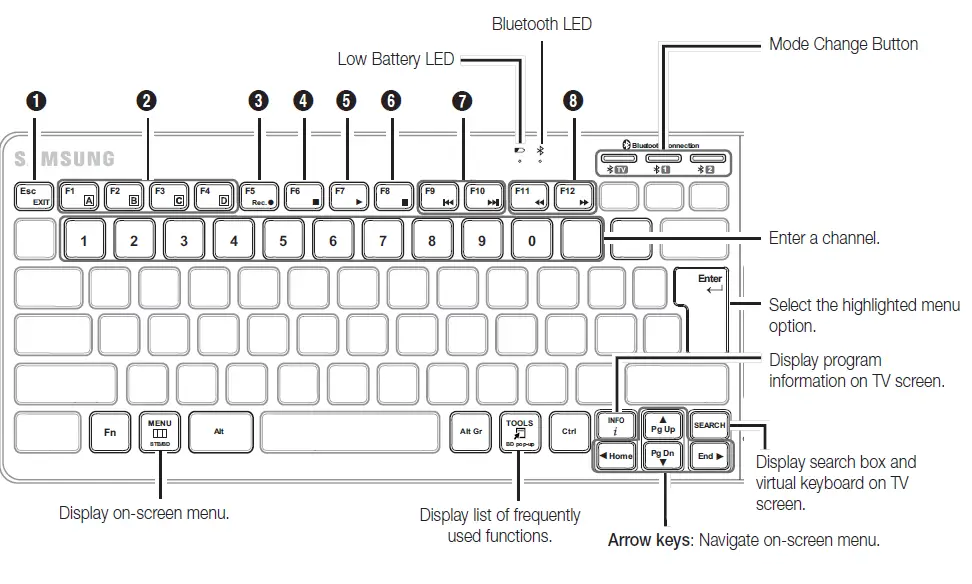
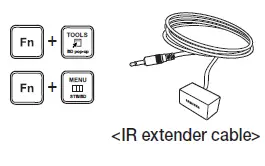
The keys shown below let you use the keyboard as an universal remote control (for a set-top box or Blu-ray Player). They are available only if you have installed an IR extender cable (or IR Blaster) with your TV. Please refer to the following table to see compatible TV models offering an IR extender cable or IR Blaster.
| 2012 IR Blaster | |
| North America | LED ES7500 and above / PDP E8000 |
| The other countries | LED ES7000 and above (except for ES7100) / PDP E8000 |
| 2013 IR extender cable | |
| Korea | LED F6330 and above / PDP F5500 and above |
| The other countries | LED F6400 and above / PDP F5500 and above |
You can use the following functions by pressing the keys shown below. A + indicates you must press the keys together. ✎✎ To control the STB (Set-Top box) and BD (Blu-ray Player) using the keys below, a TV software update and IR extender cable (or IR Blaster) are needed.
The following keys are available on the TV mode.
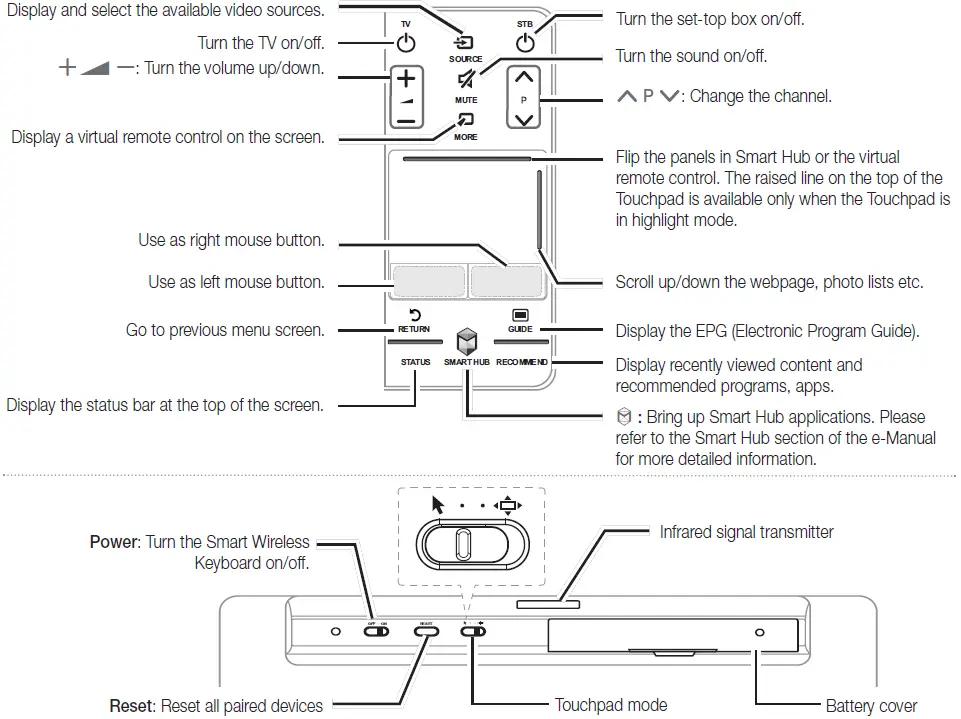
Switching the Touchpad mode
- Pointer mode : Move a finger across the touchpad to move the pointer on the TV screen, as if using a mouse. Place the pointer on an item and tap the touchpad to select it.
- Highlight mode : Move a finger across the touchpad to move the highlight between items on the TV screen, as if using the Smart Touch Control. Place the highlight on an item and tap the touchpad to select it.
Contact SAMSUNG WORLDWIDE
| Region | Contact Center | Web Site | Warranty period |
| ALBANIA | 42 27 5755 | – | 1 Years |
| AUSTRIA | 0810 – SAMSUNG (7267864, € 0.07/min) | www.samsung.com | 1 Year |
|
BELGIUM |
02-201-24-18 |
www.samsung.com/be (Dutch) www.samsung.com/be_fr (French) |
2 Years |
| BOSNIA | 05 133 1999 | – | |
| BULGARIA | 07001 33 11 | www.samsung.com | 1 Years |
| CROATIA | 062 SAMSUNG (062 726 7864) | www.samsung.com | 1 Year |
|
CZECH | 800 – SAMSUNG (800-726786) | www.samsung.com |
2 Years |
| Samsung Zrt., česká organizační složka, Oasis Florenc, Sokolovská394/17, 180 00, Praha 8 | |||
| DENMARK | 70 70 19 70 | www.samsung.com | 2 Years |
| FINLAND | 030 – 6227 515 | www.samsung.com | 2 Years |
| FRANCE | 01 48 63 00 00 | www.samsung.com | 1 Year |
| GERMANY | 01805 – SAMSUNG(726-7864 € 0,14/Min) | www.samsung.com | 1 Year |
| GREECE | 2106293100 | www.samsung.com | 1 Year |
| HUNGARY | 06-80-SAMSUNG(726-7864) | www.samsung.com | 1 Year |
| ITALIA | 800-SAMSUNG(726-7864) | www.samsung.com | 2 Years |
| KOSOVO | +381 0113216899 | – | |
| LUXEMBURG | 261 03 710 | www.samsung.com | 1 Year |
| MACEDONIA | 023 207 777 | – | |
| MONTENEGRO | 020 405 888 | – | |
| NETHERLANDS | 0900-SAMSUNG (0900-7267864)
(€ 0,10/Min) | www.samsung.com | 2 Years |
| NORWAY | 815-56 480 | www.samsung.com | 2 Years |
| POLAND | 0 801 1SAMSUNG(172678), 022-607-93-33 | www.samsung.com | 1 Year |
| PORTUGAL | 80820-SAMSUNG(726-7864) | www.samsung.com | 2 Years |
|
RUMANIA | 08010 SAMSUNG (08010 7267864) – doar din reţeaua Romtelecom, tarif local; 021.206.01.10 – din orice reţea, tarif normal |
|
1 Year |
| SERBIA | 0700 Samsung (0700 726 7864) | www.samsung.com | 1 Year |
| SLOVAKIA | 0800 – SAMSUNG(0800-726 786) | www.samsung.com/sk | 2 Years |
| SPAIN | 902 – 1 – SAMSUNG (902 172 678) | www.samsung.com | 2 Years |
| SWEDEN | 0771 726 7864 (SAMSUNG) | www.samsung.com | 2 Years |
|
SWITZERLAND |
0848 – SAMSUNG(7267864, CHF 0.08/min) | www.samsung.com/ch www.samsung.com/ch_fr/(French) |
1 Year |
| U.K | 0330 SAMSUNG (7267864) | www.samsung.com | 1 Year |
| EIRE | 0818 717100 | www.samsung.com | 1 Year |
| LITHUANIA | 8-800-77777 | www.samsung.com | 2 Years |
| LATVIA | 8000-7267 | www.samsung.com | 2 Years |
| ESTONIA | 800-7267 | www.samsung.com | 2 Years |
| CANADA | 1-800-SAMSUNG(726-7864) | www.samsung.com | 1 Year |
Inserting batteries

Pairing
This keyboard can be paired with up to three devices simultaneously, including a Samsung Smart TV. The keyboard can switch between paired devices. When turning on the keyboard, the  and
and  indicator lights blink simultaneously for 5 minutes if the keyboard is paired with no device. If it is paired with any device, the two indicator lights blink together once
Initial Pairing with a Samsung Smart TV
- Turn on the TV.
- Turn on the wireless keyboard, and then move it directly to your TV.
- Press any key except MENU, Ctrl, Alt or press the button for 3 seconds.
 and
and  indicator lights blink together twice when pairing is complete.
Re-pairing with the TV after Disconnection
- Turn on the TV.
- Turn on the wireless keyboard, and then move it in the direction of your TV.
- Press the button for 3 seconds.
- and indicator lights blink together twice when pairing is complete.
Pairing with Other Devices ,
- Press and hold the or button under Bluetooth Connection for 3 seconds.
- Scan available Bluetooth devices on the target device.
- Choose “Samsung Wireless Keyboard” from the list of detected Bluetooth devices.
- If the , or button is pressed for less than 3 seconds, pairing fails and device mode change occurs.
- The and indicator lights blink together twice when pairing is complete.
Switching between Devices
Press a Bluetooth Connection , or button to switch to the paired device. The indicator light blinks twice. The indicator light uses three different colors to indicate which device is currently paired with the keyboard.
- Green for the TV
- Red for the first device
- Amber for the second device
Reset
To disconnect the keyboard from its paired devices, press the Reset button at the back of the keyboard for 3 seconds. The and indicator lights blink together for 10 seconds.
Specification.
| Model | Smart Wireless Keyboard (VG-KBD2000) |
| Battery | AA x 2 |
| Dimension (mm)
(Length) x (Depth) x (Height) | 12.5 x .38 x 4.9 inch (317.0 x 9.6 x 123.8 mm) |
| Weight | 406g without batteries (2AA batteries: 45g) |
Compatible Models
|
2012 | Korea | LED ES6350 and higher / PDP E550 and higher / Samsung mobiles (Android-based) |
| North America | LED ES6500 and higher / PDP E550 and higher / Samsung mobiles (Android-based) | |
| The other countries | LED ES6100 and higher / PDP E550 and higher / Samsung mobiles (Android-based) | |
|
2013 | Korea | LED F6330 and higher / PDP F5500 and higher / Samsung mobiles (Android-based) |
| The other countries | LED F6400 and higher / PDP F5500 and higher / Samsung mobiles (Android-based) |
WARRANTY
This SAMSUNG brand product, as supplied and distributed by SAMSUNG and delivered new, in the original carton to the original consumer purchaser, is warranted by SAMSUNG against manufacturing defects in materials and workmanship for the limited warranty period listed for your country in the warranty table at the end of this manual. This limited warranty begins on the original date of purchase. To receive warranty service, the purchaser must contact SAMSUNG for problem determination and service procedures. Warranty service can only be performed by a SAMSUNG authorized service centre. The original dated bill of sale must be presented upon request as proof of purchase to SAMSUNG or SAMSUNG’s authorized service centre.
PROCEDURE FOR MAKING A WARRANTY CLAIM
- To make a claim under the warranty, you must contact the Samsung Contact Centre during the Warranty Period to discuss the problems you are having with the product. If a repair or replacement is required, you will be provided with a Warranty Claim Number and address of an Authorised Service Centre.
- If you are provided with a Warranty Claim Number, to obtain a repair or replacement of the product, you must send the product to the
- Authorised Service Centre advised together with:
- a copy of your completed warranty card or, if you have already provided this to Samsung, your name, address and contact telephone number;
- your original receipt, invoice or sales slip for the purchase of the product as new;
- your Warranty Claim Number.
- Samsung will then repair or replace the product and return it to you using the contact details provided
WARRANTY CONDITIONS
- The warranty is only valid if the above procedure for making a warranty claim is followed.
- Samsung’s obligations are limited to the repair or, at its discretion, replacement of the product or the defective part.
- Warranty repairs must be carried out by Samsung Authorised Service Centres. No re-imbursement will be made for repairs carried out by service centres or dealers that are not authorised by Samsung and any such repair work and damage to the products caused by such repair work will not be covered by this warranty.
- This product is not considered to be defective in materials nor workmanship by reason that it requires adaptation in order to conform to national or local technical or safety standards in force in any country other than the one for which the product was originally designed and manufactured. This warranty will not cover, and no re-imbursement will be made for such adaptation, nor any damage which may result.
- The warranty does not apply to any product that has been damaged or rendered defective as a result of any of the following excluded reasons, namely:
- as a result of accident, misuse, or abuse;
- through the failure to use this product for its normal purposes;
- by the use of parts not manufactured or sold by Samsung;
- by modification without the written permission of Samsung;
- by damage resulting from transit, neglect, power surge or failure;
- by damage resulting from lightning, water, fire, or acts of God;
- as a result of normal wear and tear; or
- difference in broadcasting methods or product standards between countries.
- This warranty is valid for any person who legally acquired possession of the product during the warranty period.
- NOTHING IN THESE WARRANTY CONDITIONS SHALL EXCLUDE OR LIMIT SAMSUNG’S LIABILITY FOR DEATH OR PERSONAL INJURY CAUSED
- BY THE PROVEN NEGLIGENCE OF SAMSUNG, UNLESS SUCH LIMITATION OR EXCLUSION IS PERMITTED BY APPLICABLE LAW.
- WITH THE EXCEPTION OF SAMSUNG’S LIABILITY WHICH CANNOT BE EXCLUDED OR LIMITED BY LAW, SAMSUNG SHALL NOT BE LIABLE
- FOR: ANY INDIRECT, INCIDENTAL, SPECIAL OR CONSEQUENTIAL DAMAGES LOSSES OR EXPENSES; OR LOST PROFITS; OR LOSS OF USE OR
- LOSS OF DATA; OR DAMAGE TO GOODWILL, REPUTATION OR LOST BUSINESS, ARISING DIRECTLY OR INDIRECTLY, FROM THE PURCHASE, USE OR SALE OF THE PRODUCT, WHETHER OR NOT SAMSUNG WAS ADVISED OR AWARE OF THE POSSIBILITY OF SUCH DAMAGES, LOSSES OR EXPENSES.
- WITH THE EXCEPTION OF SAMSUNG’S LIABILITY WHICH CANNOT BE EXCLUDED OR LIMITED BY LAW, SAMSUNG’S LIABILITY UNDER OR IN CONNECTION WITH THIS WARRANTY OR THE PURCHASE, USE OR SALE OF THE PRODUCT SHALL NOT EXCEED THE PRICE PAID FOR THE PRODUCT AS NEW.
- UNLESS PROVIDED FOR IN THIS WARRANTY, ALL CONDITIONS, WARRANTIES AND TERMS IMPLIED BY STATUTE OR OTHERWISE ARE HEREBY EXCLUDED TO THE MAXIMUM EXTENT PERMISSIBLE BY LAW.
- The above warranty conditions do not affect your statutory rights as a consumer or otherwise.
Correct Disposal of This Product (Waste Electrical & Electronic Equipment) (Applicable in countries with separate collection systems)
This marking on the product, accessories or literature indicates that the product and its electronic accessories (e.g. charger, headset, USB cable) should not be disposed of with other household waste at the end of their working life. To prevent possible harm to the environment or human health from uncontrolled waste disposal, please separate these items from other types of waste and recycle them responsibly to promote the sustainable reuse of material resources. Household users should contact either the retailer where they purchased this product, or their local government office, for details of where and how they can take these items for environmentally safe recycling. Business users should contact their supplier and check the terms and conditions of the purchase contract. This product and its electronic accessories should not be mixed with other commercial wastes for disposal.
FCC Statement
This equipment has been tested and found to comply with the limits for a Class B digital device, pursuant to Part 15 of the FCC Rules. These limits are designed to provide reasonable protection against harmful interference in a residential installation. This equipment generates, uses and can radiate radio frequency energy and, if not installed and used in accordance with the instructions, may cause harmful interference to radio communications. However, there is no guarantee that interference will not occur in a particular installation. If this equipment does cause harmful interference to radio or television reception, which can be determined by turning the equipment off and on, the user is encouraged to try to correct the interference by one of the following measures:
- Reorient or relocate the receiving antenna.
- Increase the separation between the equipment and receiver.
- Connect the equipment into an outlet on a circuit different from that to which the receiver is connected.
- Consult the dealer or an experienced radio/TV technician for help.
FCC Caution:
Any changes or modifications not expressly approved by the party responsible for compliance could void the user’s authority to operate this equipment.
This device complies with Part 15 of the FCC Rules. Operation is subject to the following two conditions:
- This device may not cause harmful interference, and
- this device must accept any interference received, including interference that may cause undesired operation.
FCC Radiation Exposure Statement:
This equipment complies with FCC radiation exposure limits set forth for an uncontrolled environment.
IC Statement
This Class B digital apparatus complies with Canadian ICES-003. This device complies with Industry Canada licence-exempt RSS standard(s). Operation is subject to the following two conditions:
- this device may not cause interference, and
- this device must accept any interference, including interference that may cause undesired operation of the device.
IC Radiation Exposure Statement:
This equipment complies with IC RSS-102 radiation exposure limits set forth for an uncontrolled environment.
FAQS
Yes it can. Actually mine is connected to almost every bluetooth device in my home. Just pair, connect and enjoy
This model supports the PN51F8500.
the same keyboard and it works fine with my tv LN-46F6400 smart tv. I would think all of the smart tv’s have the same WiFi capabilities, they just differ in size, LED, and such
The UN55HU6840 does not have Bluetooth. However, you can use a wired USB (HID-Compliant) keyboard, if you’d like.
Don’t know about Galaxy or Android compatibility but there is a general “Return” key that serves as a back button on the keyboard.
The UN55J6200 doesn’t support the Wireless keyboards, but a HID-Compliant USB keyboard can be connected to the TV’s USB port
Yes it works with all Samsung Smart TV’s that have the BlueTooth & TouchPad Remote Controll.
The manual for the KBD2000 indicates compatibility with all Samsung Smart TVs. I does not make your TV a computer.
The UN40H6203 doesn’t have the Bluetooth connection require for this Bluetooth keyboard. It won’t be compatible.
No, the keyboard works with tv models H6550, or above. Yours is model H4510.
Yes it should Samsung mentioned on their internet site it works from ES series you have an H build in 2014. I used it for UE40ES7000, UE46ES8000 and UE55UH8500
The keyboard that is compatible is the VG-KBD2000. Which I am selling on Amazon.
Yes, Models ending in 6500FXZA and higher will work with this keyboard.
It’s work will all those series TV’s as long as it has WiFi
Yes, Models ending in 6500FXZA and higher will work with this keyboard.