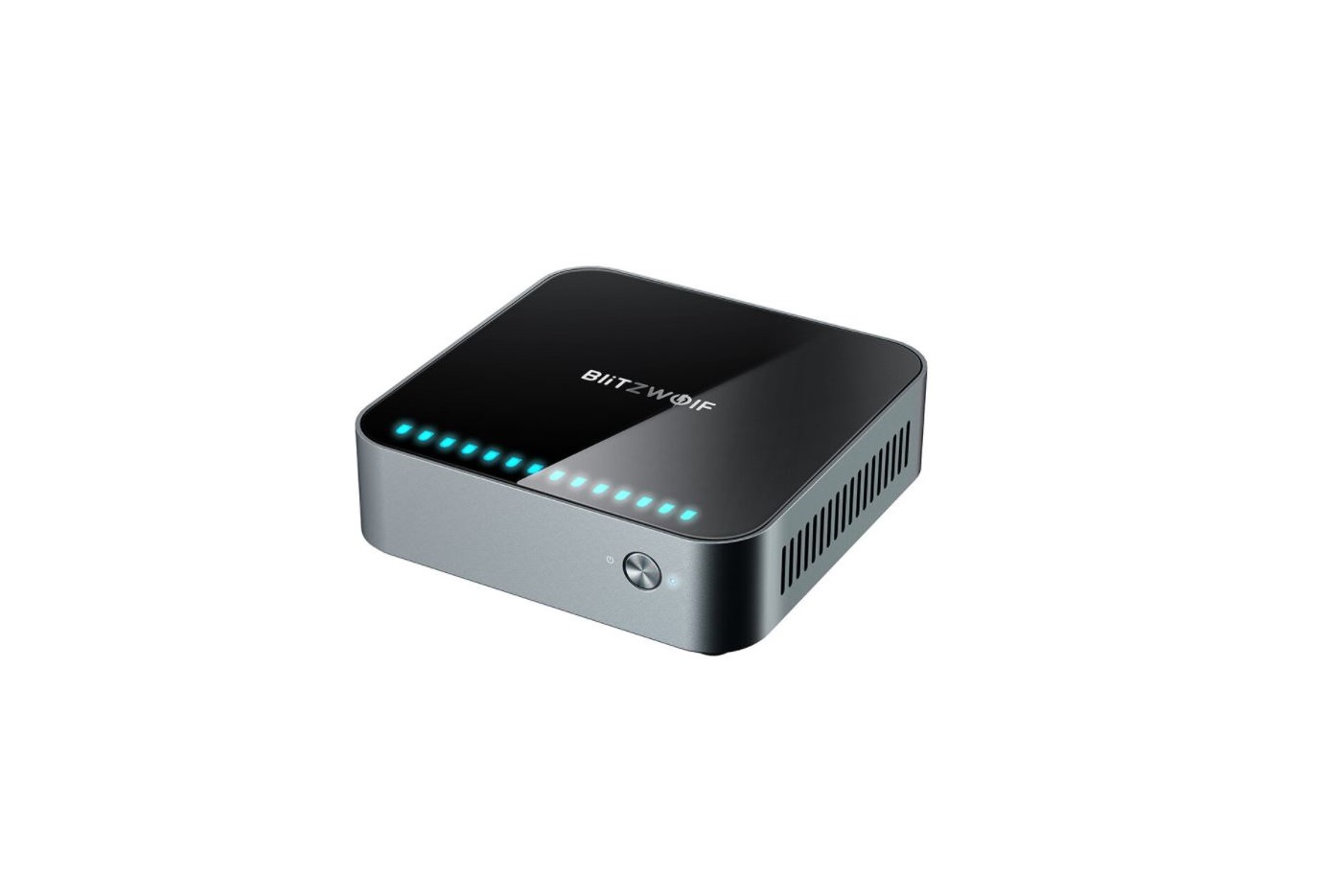
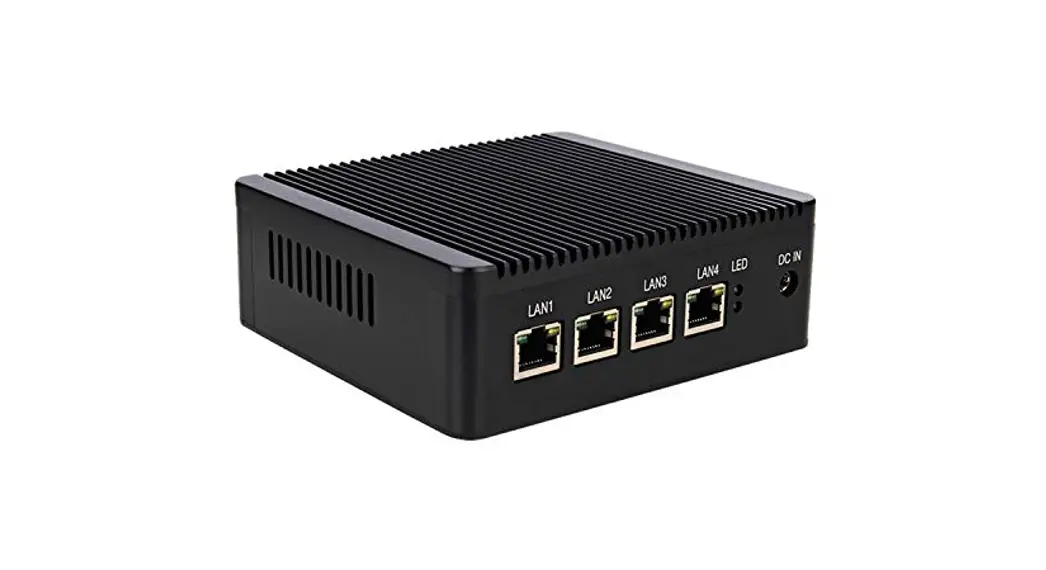
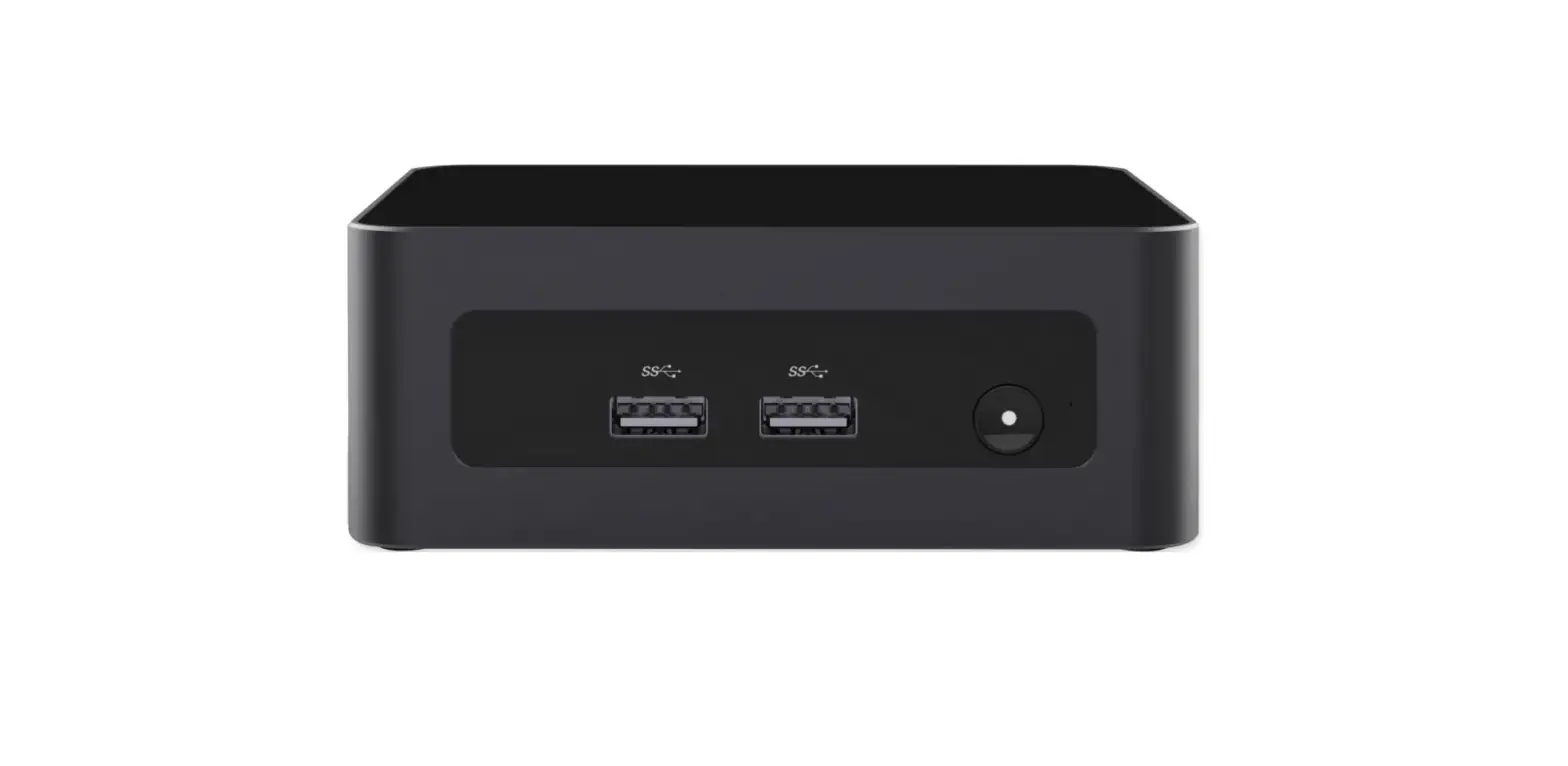
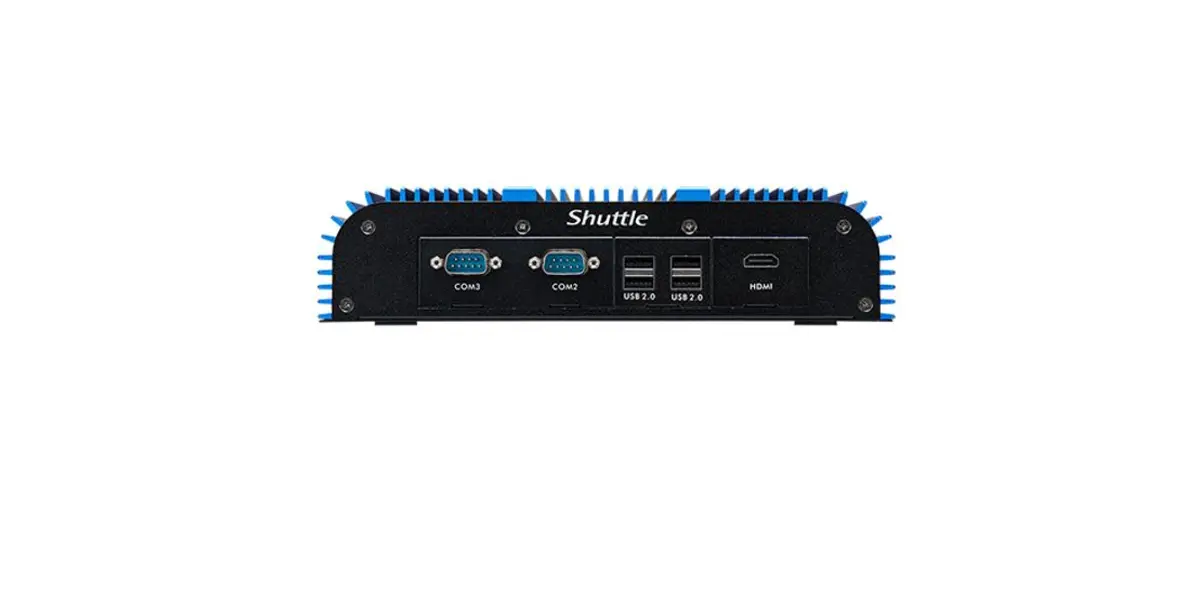
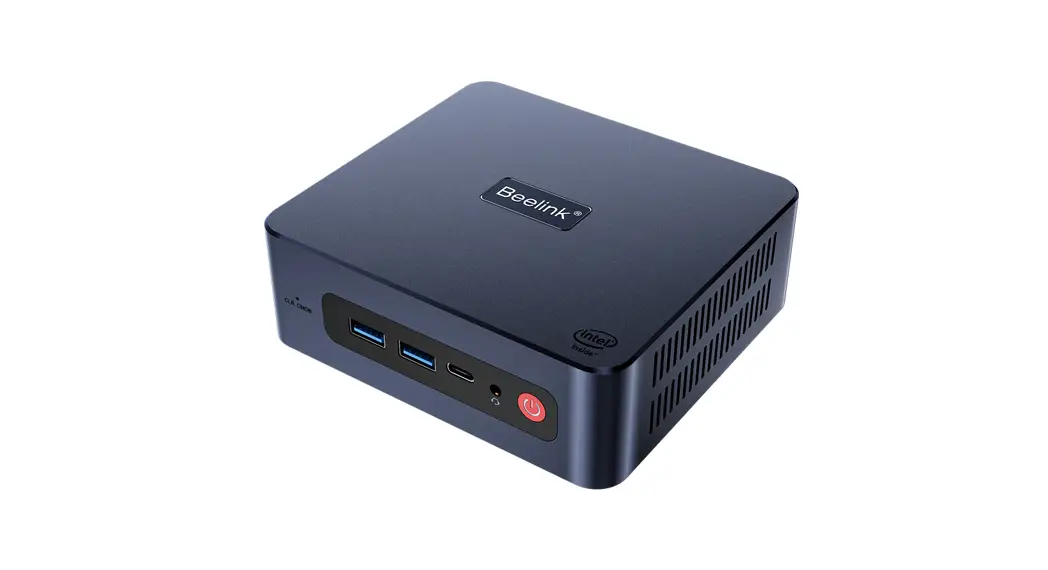
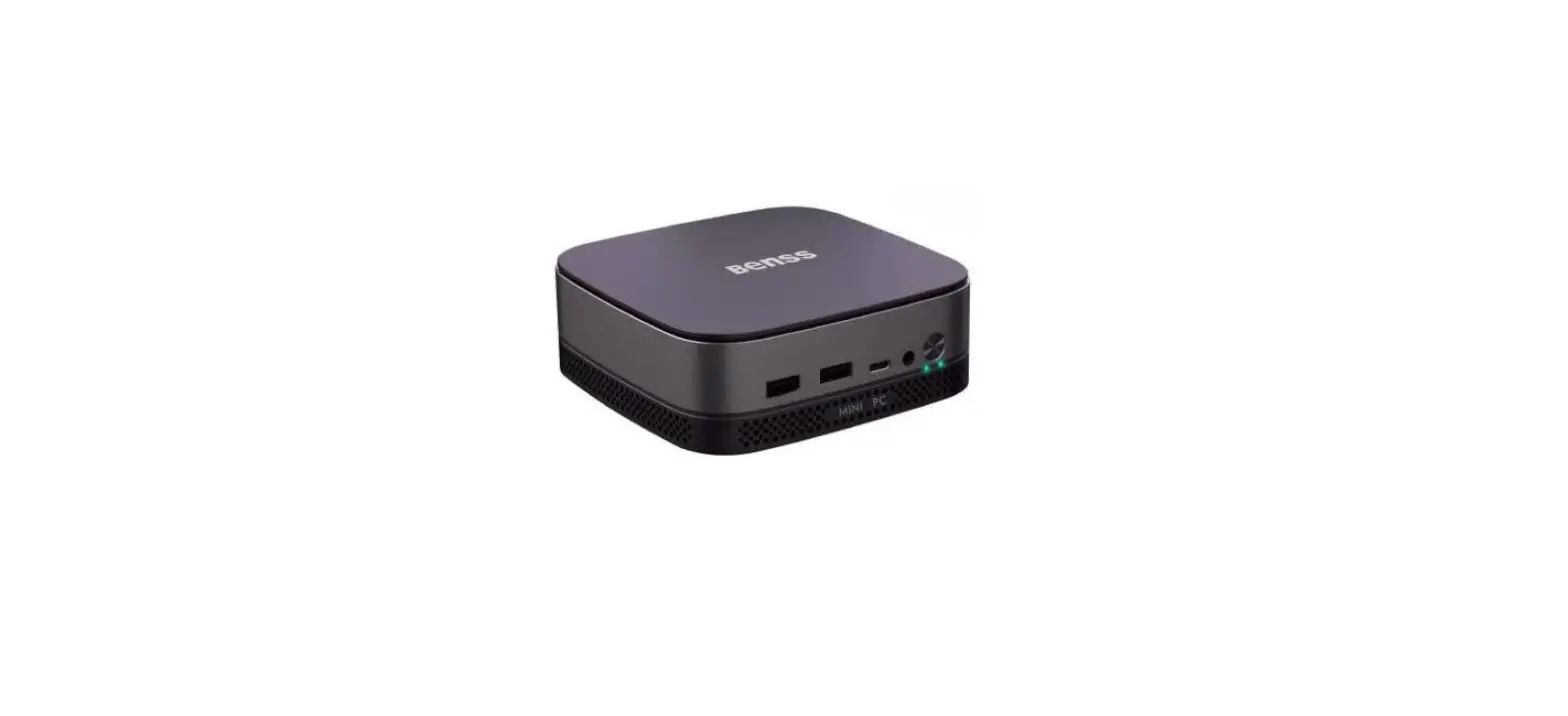
MPC43 Mini PC
Product Information
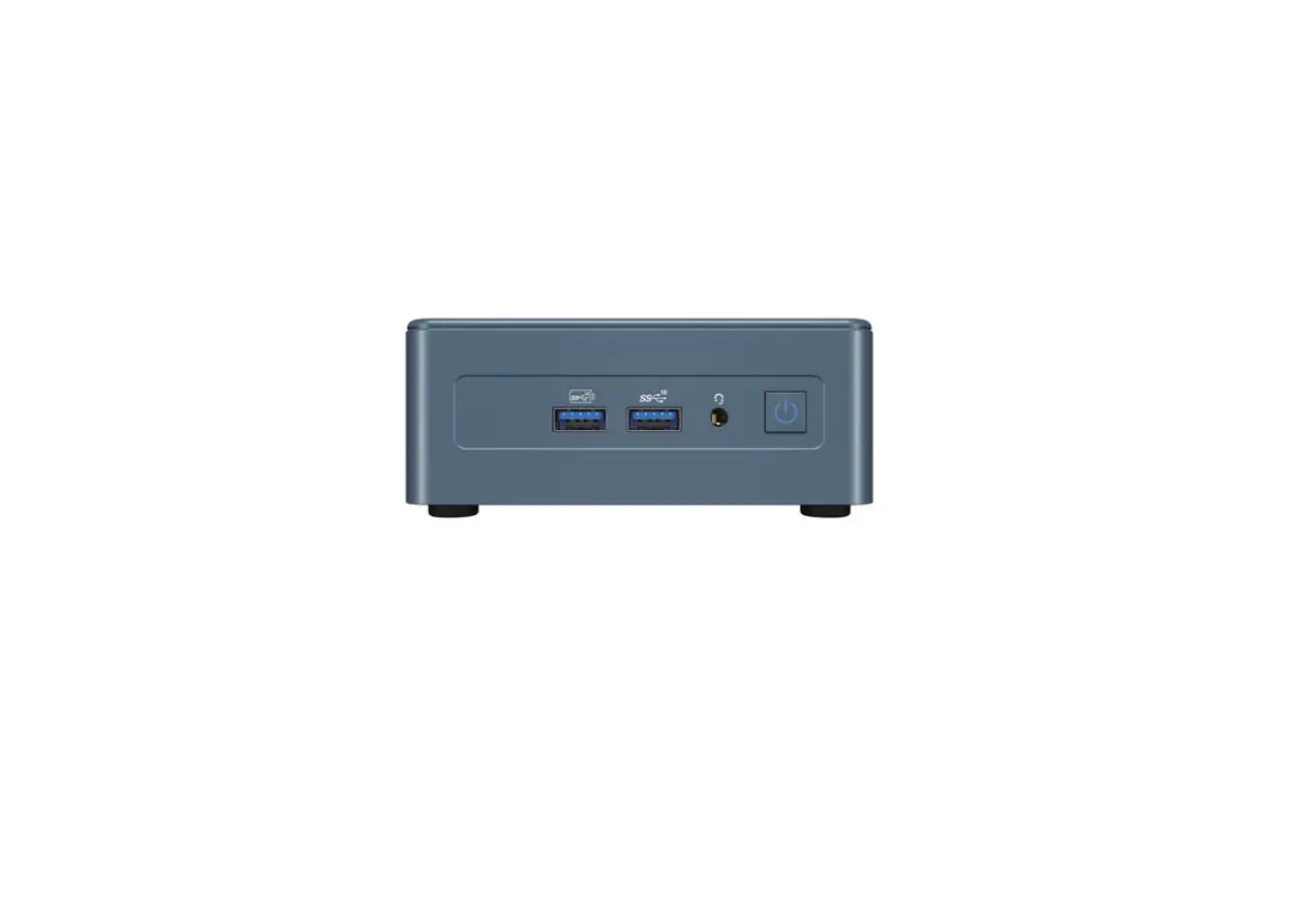
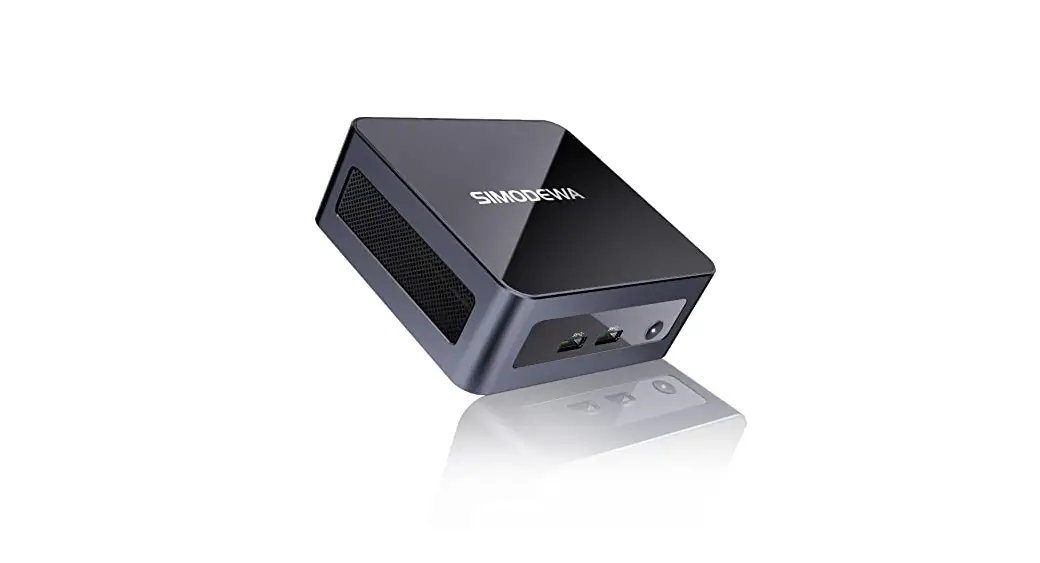
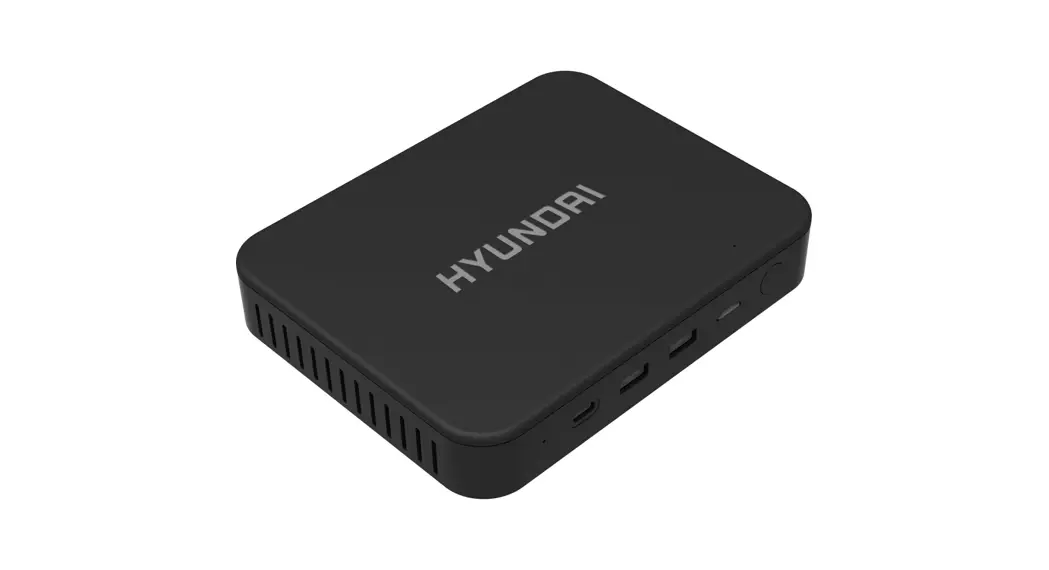
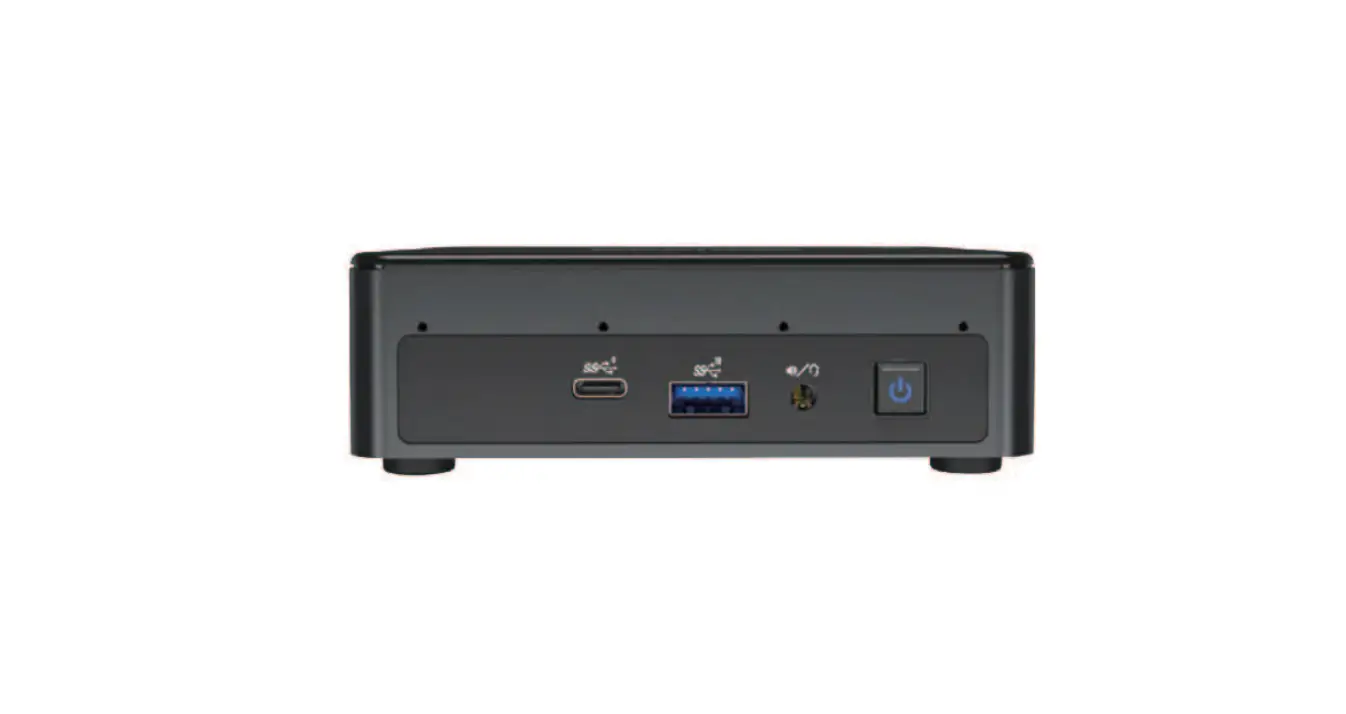
The MPC43 is a Mini PC manufactured by Shenzhen MADIGI
Electronic Technology Co., Ltd. It is designed for business clients
and digital signage applications. The Mini PC features multiple
outputs (OUTPUT 1, OUTPUT 2, OUTPUT 3, OUTPUT 4) that support
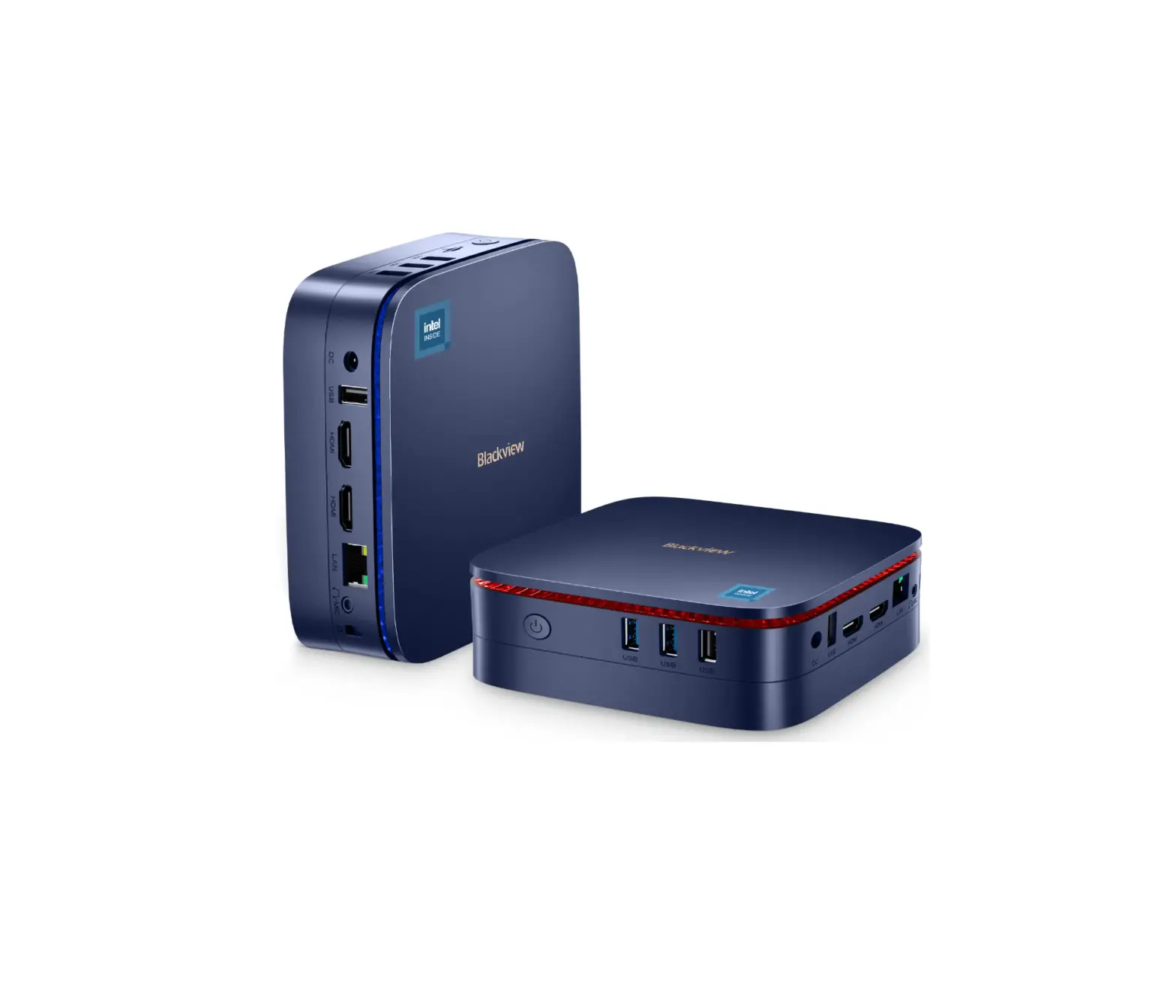
either 12V or 19V electric power. It also includes various ports
such as USB 3.2 Gen2 Port, USB 2.0 Port, Ethernet Port, HDMI Port,
and Display Port.
The device is equipped with WLAN, Bluetooth BR/EDR, Bluetooth
BLE, and RLAN technologies. It operates within specific frequency
ranges (MHz) for different functions, including 2412-2472 MHz,
2402-2480 MHz, 5150-5250 MHz, 5250-5350 MHz, 5470-5725 MHz,
5745-5825 MHz, and 5945-6425 MHz. The RF power output varies
depending on the frequency range.
The MPC43 complies with Directive 2014/53/EU and FCC Part 15
regulations. It meets FCC radiation exposure limits and maintains
frequency stability within the specified U-NII bands.
Product Usage Instructions
To connect the MPC43 to a network:
- Click the network icon in the Windows notification area.
- A list of available wireless networks will be displayed.
- Select the desired network.
- If necessary, provide the required information for network
authentication or configuration.
MPC43
OUTPUT 2
OUTPUT 1
12V OR 19V
Business Client
OUTPUT 2 OUTPUT 1
Digital Sinage
12V OR 19V
OUTPUT2
OUTPUT1
OUTPUT2 OUTPUT1
OUTPUT 4
OUTPUT 3
OUTPUT2 OUTPUT1
USB 3.2 Gen2 Port
OUTPUT1/2 Display Port
Ethernet Port
USB 2.0 Port
OUTPUT 1/2 HDMI Port
12V OR 19V Electric Power lnlet
A B
RESET
RESET
RESET RESET
Power Button/LED
Anti-Theft Key Lock Hole
Hereby, Shenzhen MADIGI Electronic Technology Co., Ltd declare that the radio equipment type Mini PC is compliance with Directive 2014/53/EU.
Technology
WLAN Bluetooth BR/EDR Bluetooth BLE RLAN RLAN RLAN SRD 6GHz RLAN
Frequency MHz
From
To
2412
2472
2402
2480
2402
2480
5150
5250
5250
5350
5470
5725
5745
5825
5945
6425
RF Power
19.7dBm 13.1dBm 10.0dBm 23.0dBm 23.0dBm 23.0dBm 13.9dBm 22.97dBm
FCC Caution
NOTE: This equipment has been tested and found to comply with the limits for a Class B digital device, pursuant to part 15 of the FCC Rules. These limits are designed to provide reasonable protection against harmful interference in a residential installation. This equipment generates, uses and can radiate radio frequency energy and, if not installed and used in accordance with the instructions, may cause harmful interference to radio communications. However, there is no guarantee that interference will not occur in a particular installation. If this equipment does cause harmful interference to radio or television reception, which can be determined by turning the equipment off and on, the user is encouraged to try to correct the interference by one or more of the following measures:
– Reorient or relocate the receiving antenna. – Increase the separation between the equipment and receiver. -Connect the equipment into an outlet on a circuit different from that to which the receiver is connected. -Consult the dealer or an experienced radio/TV technician for help.
Changes or modifications not expressly approved by the party responsible for compliance could void the user’s authority to operate the equipment.
This device complies with Part 15 of the FCC Rules. Operation is subject to the following two conditions: (1) this device may not cause harmful interference, and (2) this device must accept any interference received, including interference that may cause undesired operation.
FCC RF Exposure Warning Statements: This equipment complies with FCC radiation exposure limits set forth for an uncontrolled environment. This equipment shall be installed and operated with minimum distance 20cm between the radiator & body.
The frequency stability of all transmission frequencies of U-NII-1, U-NII-2A, U-NII-2C ,U-NII -3, U-NII 5, U-NII 6, U-NII 7 and U-NII 8 meets the 47 CFR FCC Part15.407(g) requirements, and the manufacturer states that their transmissions remain within the U-NII-1, U-NII-2A, U-NII-2C ,U-NII -3, U-NII 5, U-NII 6, U-NII 7 and U-NII 8 bands.
Connect to a Network:
1.Click the network icon in the notification area in Windows. A list of available wireless neworks will be shown. 2.Select the desired network,input the information (if needed).