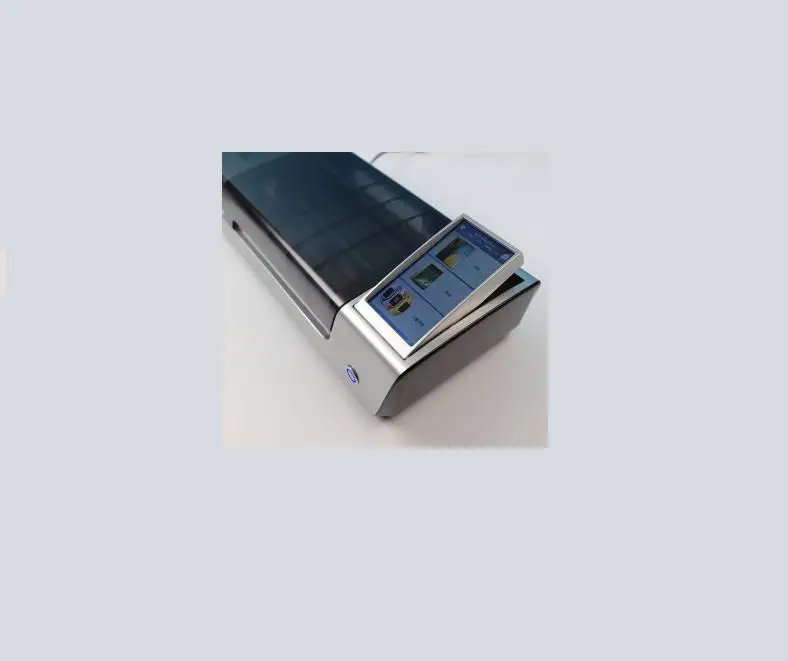
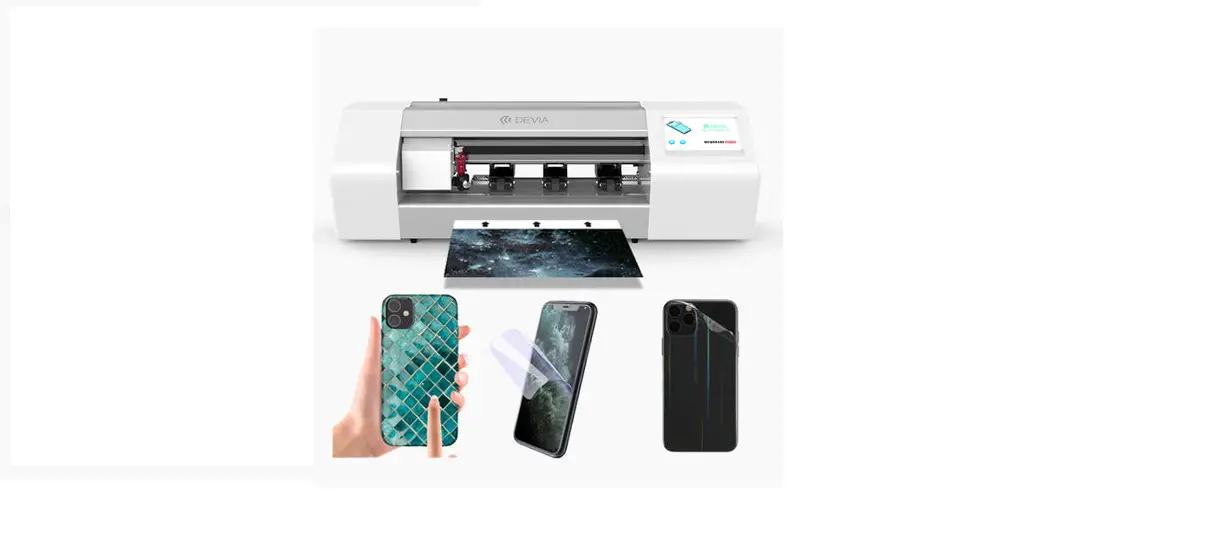
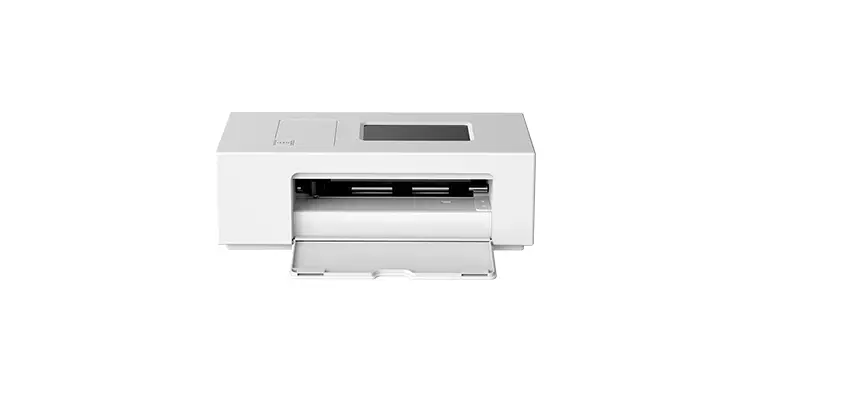
MC6 Intelligent Cloud Film Cutting Machine
Product Information
The Intelligent Cloud Film Cutting Machine is a high-tech device
designed for precise and efficient film cutting. It comes with a
range of accessories and features that enhance its usability and
performance.
Packing List:
- Smartphone
- Cutter*1
- Blade holder *1
- Blade*3
- Power adapter*1
- Scraper*1
- Power cable*1
- Warranty card*1
- Non-slip mat*1
- Cleaning cloth*1
Blade Installation:
- Press the handle to release the blade.
- Adjust the blade tip length using the gear. Twist the gear to
make the tip longer or shorter. - Fix the blade handle holder into the hole in the cutting
head. - To change the blade, press the handle and replace the old blade
with a new one.
Blade Holder Installation:
- Loosen the screw by turning it counterclockwise 8 times.
- Insert the blade holder vertically into the holder’s hole.
- Tighten the screw by turning it clockwise.
Power On / Off:
Connect the power cable and adapter to a 110-240V AC power
source. The adapter connects to the machine. Press the power button
to turn on the machine. It takes approximately 30 seconds to
start.
Material Installation:
Place the material flat on the table and align it to the left
based on the feeding guide. The cutter will automatically feed the
material once it is detected. If the film shifts, press the switch
for 1 second to automatically return the film back.
WIFI Connecting:
To connect to WIFI, turn on the wifi on the cutter and select a
wifi network to connect. If the connection is successful, the wifi
ID will be displayed. If not, ensure that you have entered the
correct password.
Login Account:
To login to the data page, choose login after connecting to
wifi. Enter your account, version, and password. Account and
password information can be found at the bottom of the cutter or
obtained from your supplier.
Choose Cutting Data:
Once logged in, enter the product page and choose the specific
data you need to cut.
Choose a Cutting Data:
Select the desired cutting data based on the type of product or
brand you are working with.
Please refer to the user manual for further details and
instructions on using the Intelligent Cloud Film Cutting
Machine.
Intelligent Cloud Film Cutting Machine
User Manual
(Please read this manual carefully before operating the machine)
1
Packing list
smart phone
Cutter*1
567
Blade holder *1 Blade*3 Power adapter*1 Scraper*1
Power cable*1 Warranty card*1 Non-slip mat*1 Cleaning cloth*1 2
Packing list
1 2 3
10 4
smart phone
8
6
5 7
9
Cutter carriage Control the blade to cut the film sheet Rubber wheels Work with steel axis to keep cutting without slip Steel axis Work with rubber wheels to fix and protect film sheet Power switch Turn on the machine . Press it lightly to turn back the films during stand-by Blade holder Install the blade to cut the film sheet Film feeding sensor Auto feeding the film after detecting it Right baffle Used along with left baffle to keep film sheet without shift Left baffle Used along with right baffle to keep film sheet without shift High definition screen 6 inch touch screen , built in operation system 10 Roller handle Press handle and the roller will put up , then the roller can be moved
3
Blade installation
smart phone
567
11 H a n d l e Press it to get the blade
12 Gear Adjust the blade tip length
13 Blade handle holder To be fixed by the hole in cutting head
14 Cutting Blade Cutting film sheet
Notes: Ajust the blade: Twist the gear to adjust the blade tip Value bigger,tip longer Value smaller, tip shorter Factory setting is gear 6 Change blade:
Press handle
take out the old blade,put a new one in it
4
Blade holder installation
smart phone
loose the screw Turn the screw counterclockwise in 8 times
45 6 7
Insert the blade holder The balde holder with the cutting blade is placed vertically into the holder’s hole
Fix the screw
45 6 7
Turn the screw in clockwise
5
Power on / off
smart phone
C o n n e c t t h e c a b l e a n d a d a p t e r. 11 0 – 2 4 0 V A C p o w e r f o r t h e p l u g c o n n e c t i o n . T h e a. d a p t e r c o n n e c t s t h e m a c h i n e . Press the power button,machine power on. It takes 30s for starting.
6
Material installation
smart phone
Put the material on the table flatly and align left based on the feeding guide The material will be feed automatically after the cutter detect it.. (I f t h e f i l m s h i f t , p r e s s t h e s w i t c h i n 1 second and the film will be returned back a u t o m a t i c a l l y)
7
WIFI Connecting
smart phone
Welcome to user phonecut systerm
Language Choose your language
90kb/s
WIFI
Connect your network
Login
Login your account
Restart
Refresh
Version
After turn on the wifi on the cutter , click and choose a wifi to connect .
phocut008 Connect ?
Don’t save
Cancel
yes
Note: Conncting succeed, the wifi ID will be showed below if not, you may need insert the correct password and connect. .
8
Login account
smart phone
Login
Account: vip003
Version: Count
Password: * * * * * *
Auto login
Register
Login Clear account
Return
After connecting wifi, choose login and insert the account and choose version , then insert your password to login the data page.. Account and password may paste on the bottom of the cutter or you can get from your supplier
9
Choose Cutting Data
smart phone
Mobile
Tablet
Watch
Custom
E-Cigarette
Computer
Game machine
POS machine
Home
Product
Statistics Manual
My Account
After enter the product page and choose the data you need to cut .
10
Choose a cutting data
smart phone
Mobile
search
Hot brands
IPHONE 13 PRO
180center cut
Y mirror
Main brands
ABCDEFGHIJKLMNOPQRSTUVWXYZ
+ 300 –
CUSTOMIZED BACK FILM
TEST
CUT
Front film
back film
Explosion -proof film
Full screen edge film
Front film -A+ is accurate data, the front screen is wrapped to the edge of the screen; -A is slightly smaller than A+ by about 0.5mm – with cover A is the data with cover; – Frosted A is the hole data,
suitable for frosted/matte materials..
Back film -B+ is back film with full cover, -B- is back film
packaging data; -B is back sticker data
The explosion-proof film is only suitable for straight screen mobile
phones, the size is similar to the tempered glass.
Full-screen film-DA full-screen half-package data ,
-DB back-stick data;-DC is the whole machine full-package data
11
Cutting finished
smart phone
The sheet will be dropped out automatically after cutting finished, please take out the finished parts and paste on the phone.
12
Parameters and precautions
smart phone
Parameters
Connection
wifi or Bluetooth
Internal Power
DC24V 1.75A
Screen size
6.0 inches
machine size machine weight
594*284*290mm 6.5kg
Don’t touch the knife tip by finger
The finger may be hurt by the knife tip
Don’t seep into liquid
This may cause fire or electric shock
Don’t use non-original power supply
This may damage the cricuit or electric shock
Don’t use in thunderstorm days
This may damage the machine
Don’t use the non-standard materials
Please cut the standard size of material to reach the perfect result
Press power switch for emergency stop during working..
Forbid moving the carriage by hand after connecting the power to avoid machine damage..
Knife is a consumable part, please change to a new one if it is dull..
Press the power switch in 3 seconds continually to turn off the cutter, forbid taking out the power
cable directly to turn off the machine because it will damage the mainboard
13
FCC Warning
This device complies with part 15 of the FCC Rules. Operation is subject to the following two conditions: (1) this device may not cause harmful interference, and (2) this device must accept any interference received, including interference that may cause undesired operation. Any changes or modifications not expressly approved by the party responsible for compliance could void the user’s authority to operate the equipment. NOTE: This equipment has been tested and found to comply with the limits for a Class B digital device, pursuant to Part 15 of the FCC Rules. These limits are designed to provide reasonable protection against harmful interference in a residential installation. This equipment generates, uses and can radiate radio frequency energy and, if not installed and used in accordance with the instructions, may cause harmful interference to radio communications. However, there is no guarantee that interference will not occur in a particular installation. If this equipment does cause harmful interference to radio or television reception, which can be determined by turning the equipment off and on, the user is encouraged to try to correct the interference by one or more of the following measures: — Reorient or relocate the receiving antenna. — Increase the separation between the equipment and receiver. — Connect the equipment into an outlet on a circuit different from that to which the receiver is connected. — Consult the dealer or an experienced radio/TV technician for help. T o m a i n t a i n c o m p l i a n c e w i t h F C C’s R F E x p o s u r e g u i d e l i n e s , T h i s e q u i p m e n t s h o u l d b e installed and operated with minimum distance between 20cm the radiator your body: Use only the supplied antenna.