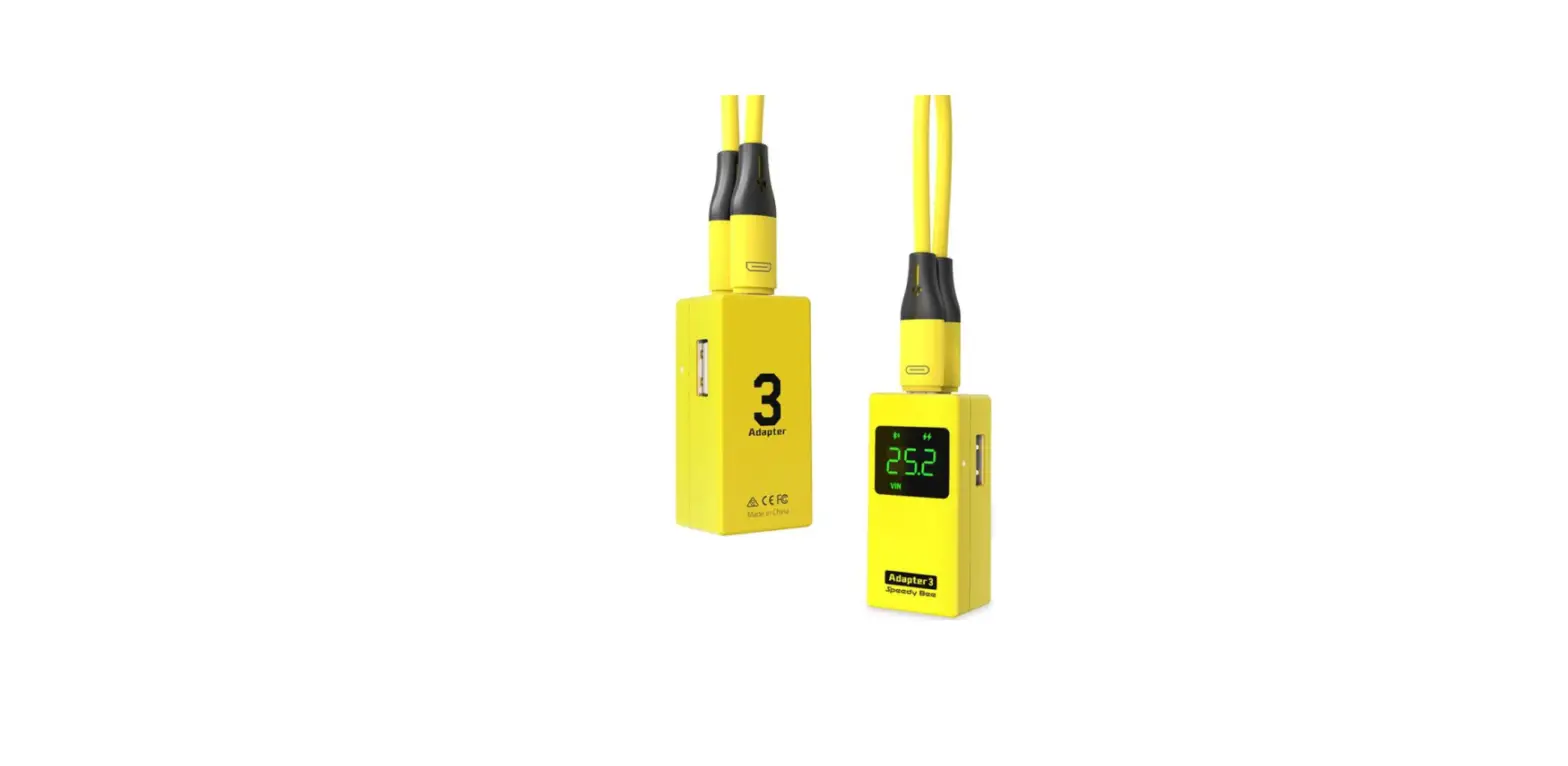

SpeedyBee 20230131 Adapter 3
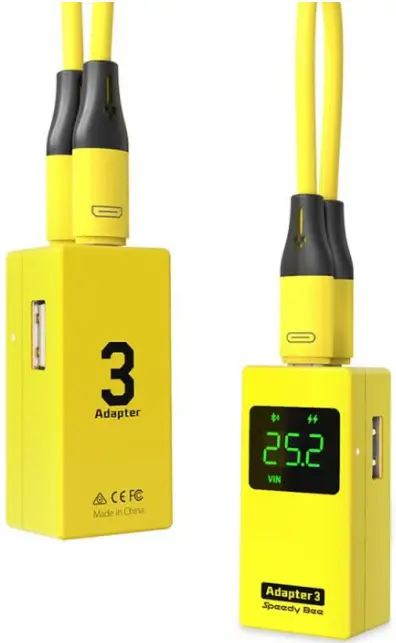
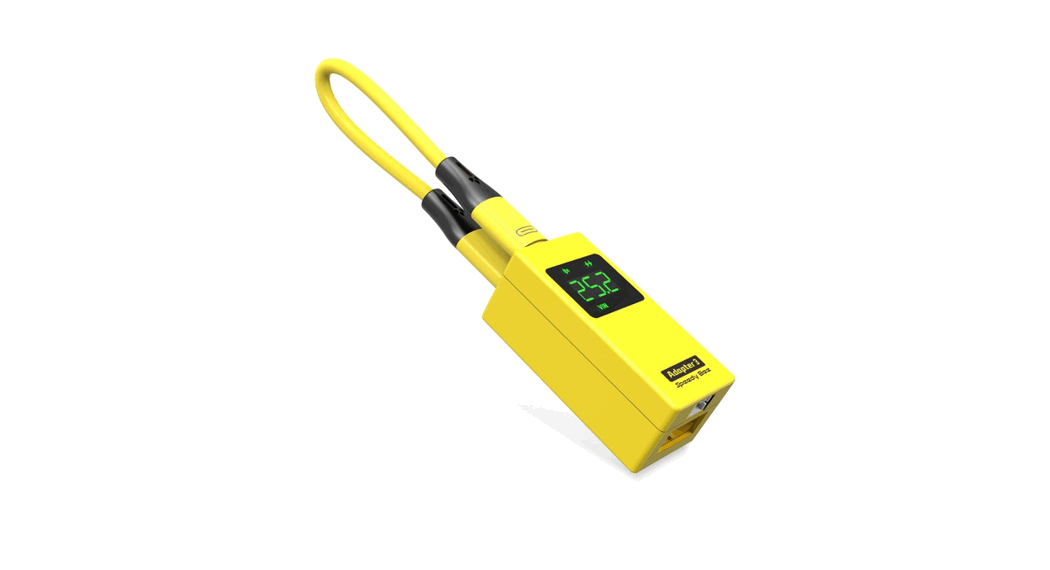
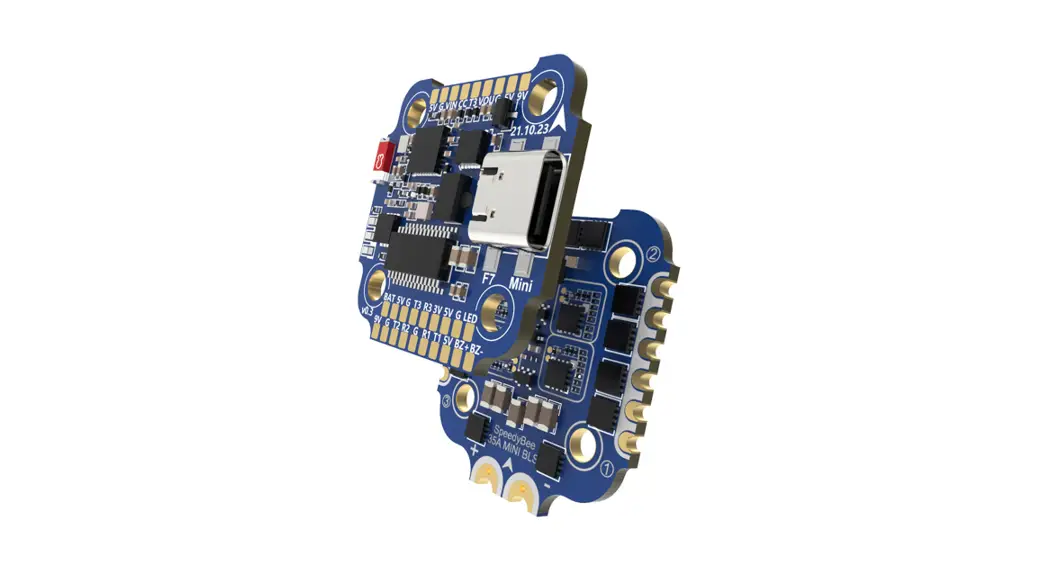
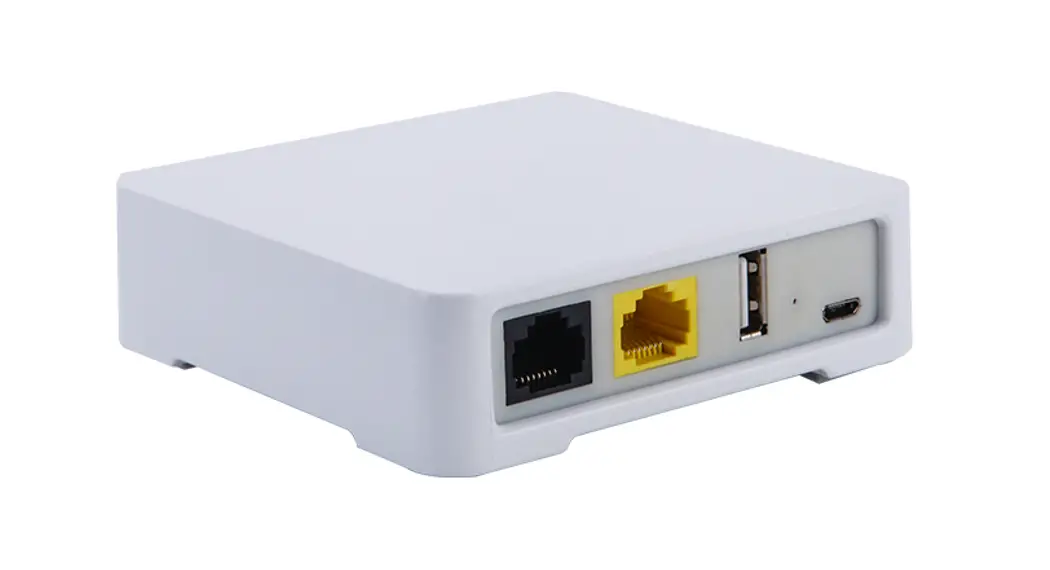
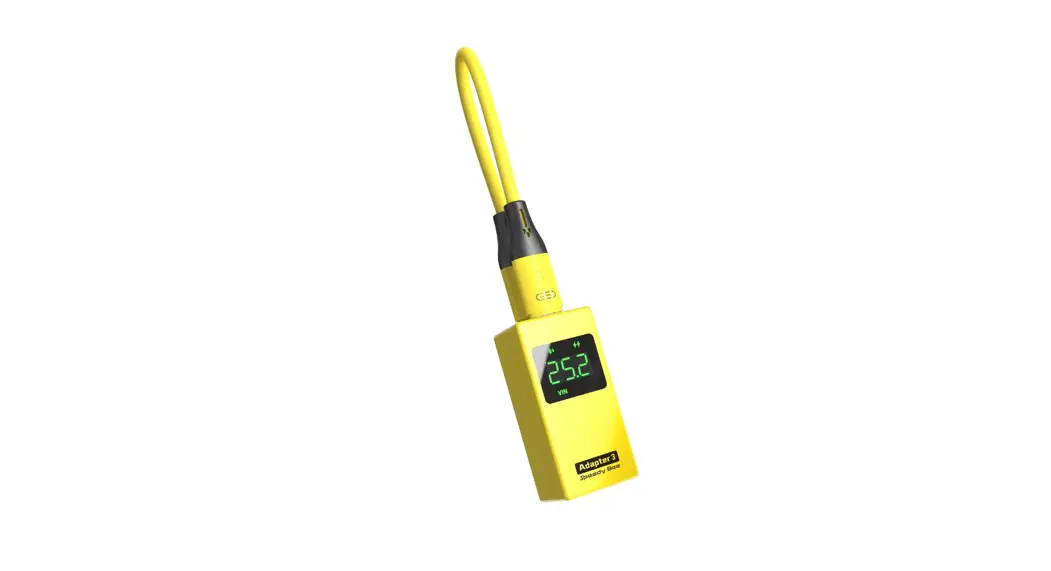
The SpeedyBee Adapter 3 is a device used to connect a flight controller to a computer. It allows for easy configuration and tuning of the flight controller.
Product Usage Instructions
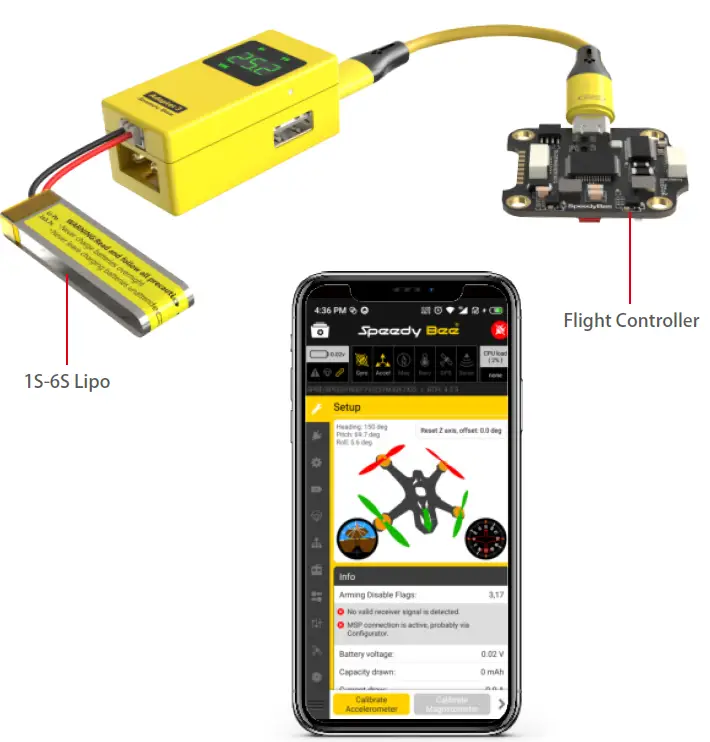
- Connect the SpeedyBee Adapter 3 to the flight controller using the provided cables.
- Connect the SpeedyBee Adapter 3 to your computer using a USB cable.
- Download and install the SpeedyBee software from the SpeedyBee website.
- Open the SpeedyBee software on your computer.
- Configure and tune your flight controller using the SpeedyBee software.
OVERVIEW
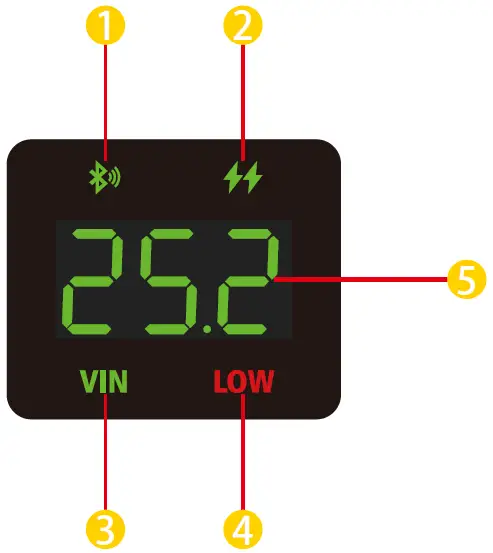
- Bluetooth/WiFi Status Light
- Quick Charge Indicator
- Input Voltage Indicator
- Low Battery Indicator
- input Voltage Value(Volt)

- Charging Indicator
- Charging Port(USB A)
- PH2.0 Port(1-6S input)
- XT60 Port(1-6S Input)

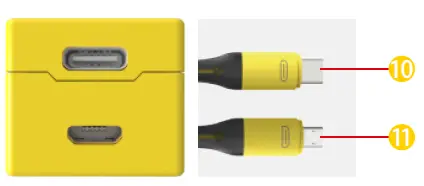
- Type C Connector( to FC )
- Micro USB Connector( to FC )

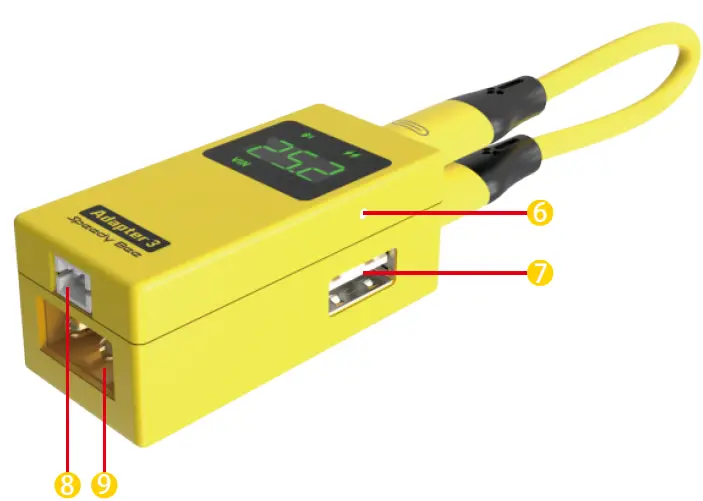
Power Input(⑧⑨)
- PH2.0(⑧) and XT60(⑨) both support 1-6S LiPo battery input.
- Please ensure the input voltage is above 3.8V when using 1S LiPo as the input power.
- For some quads(very few) may consume large currents and can significantly lower the output voltage for powering the flight controller end.
Indicator Definition(①②③④⑥)
Bluetooth/WiFi Status Light
 Blinking RED indicates that Adapter 3 has recognized the flight controller connection but has not connected to the app.
 Solid GREEN indicates that Adapter 3 has recognized the flight controller and also has connected to the app.
- Blinking GREEN indicates that Adapter 3 has connected to the Bluetooth of a mobile device but has not recognized the flight controller.
 Blinking RED indicates that Adapter 3 has recognized the flight controller connection but has not connected to the app.
 Solid GREEN indicates that Adapter 3 has recognized the flight controller and also has connected to the app.
Quick Charge Indicator
 Solid GREEN indicates that Adapter 3 is now executing quick charge for a device.
 Solid GREEN indicates that Adapter 3 is now executing quick charge for a device.
Input Voltage Indicator
 Solid RED indicates the input battery level is lower than 40%(Voltage per cell < 3.79V)
 Solid White indicates the input battery level is between 40%-80%(Voltage per cell is between 3.79V-3.98V)
 Solid Green indicates the input battery level is higher than 80%(Voltage per cell > 3.98V)
 Solid RED indicates the input battery level is lower than 40%(Voltage per cell < 3.79V)
 Solid White indicates the input battery level is between 40%-80%(Voltage per cell is between 3.79V-3.98V)
 Solid Green indicates the input battery level is higher than 80%(Voltage per cell > 3.98V)
Low Battery Indicator
 Blinking RED indicates the voltage of each cell of the battery is lower than the set threshold (the default threshold is 3.7V).
 Blinking RED indicates the voltage of each cell of the battery is lower than the set threshold (the default threshold is 3.7V).
Charging Indicator
 Solid RED indicates the Adapter is now charging for a device and the charging power is lower than 6 Walts.
 Solid GREEN indicates the Adapter is now charging for a device and the charging power is higher than 6 Walts
 Solid RED indicates the Adapter is now charging for a device and the charging power is lower than 6 Walts.
 Solid GREEN indicates the Adapter is now charging for a device and the charging power is higher than 6 Walts
Silicone Data Cable
- When you receive this product, please install the silicone data cable inside the package to the Adapter 3. The two ends of this data cable are a Type C connector and a MicroUSB connector. Please choose the corresponding connector to connect to the flight controller according to the type of the flight controller’s USB interface.

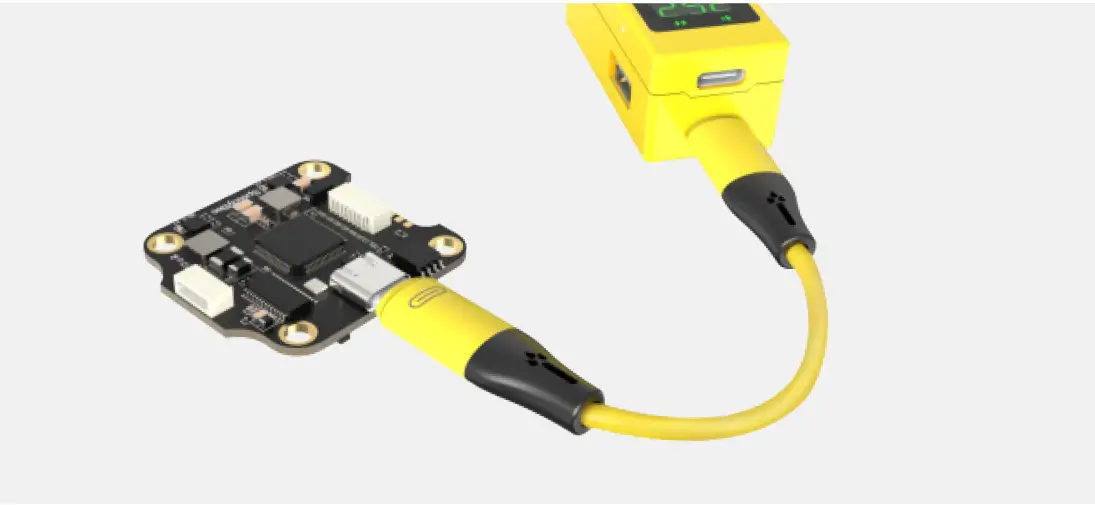
NOTE 1 – It’s safe to power Adapter 3 even if the data cable is connected to the main body on both ends.
NOTE 2 – Plug the cable back after use for better storage.
Physical Connection
App
Getting the app
- Search ‘SpeedyBee’ on Google Play or App Store. Or download the Android .apk file on our website: https://www.speedybee.com/download.
Parameter settings for flight controller
- When you receive this product, please install the silicone data cable inside the package to the Adapter 3. The two ends of this data cable are a Type C connector and a MicroUSB connector. Please choose the corresponding connector to connect to the flight controller according to the type of the flight controller’s USB interface.
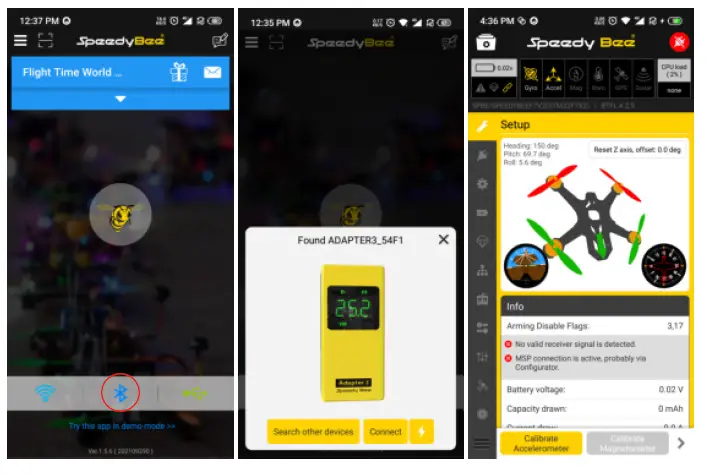
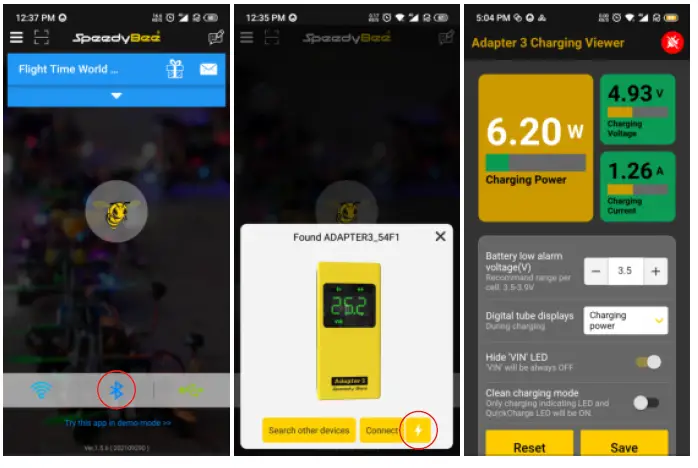
View the charging status
- App > Click the ‘Bluetooth’ button > Click the lightning icon on the device display page.
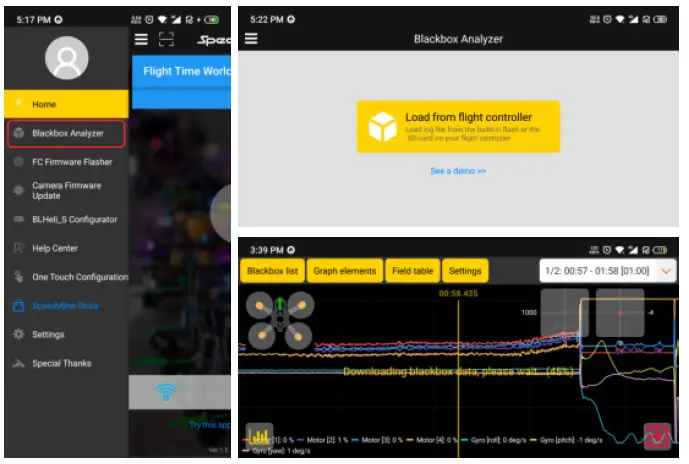
Black box data analyzing
- Click the left-side sliding menu bar to enter this function.
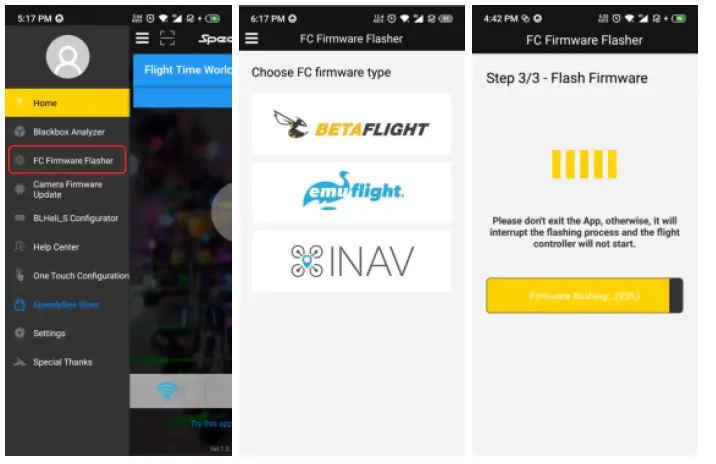
Firmware Flashing for Flight Controller
- Click the left-side sliding menu bar to enter this function.
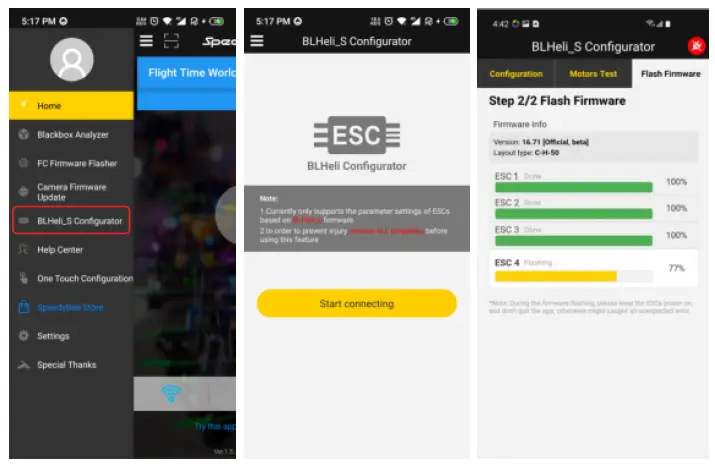
8-bit BLHeli_S firmware Flashing
- Click the left-side sliding menu bar to enter this function.
 SpeedyBee - Simplifying FPV