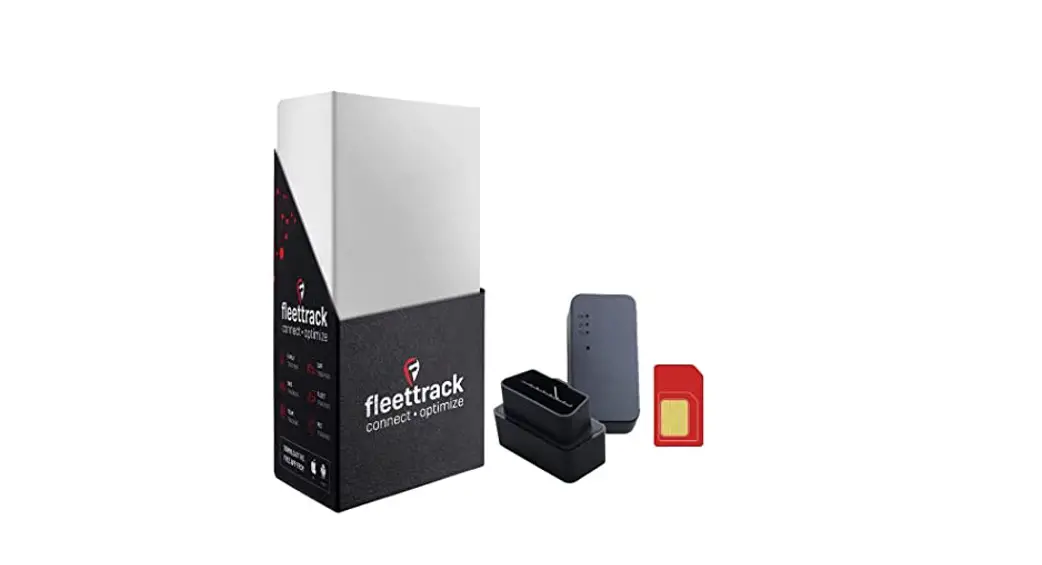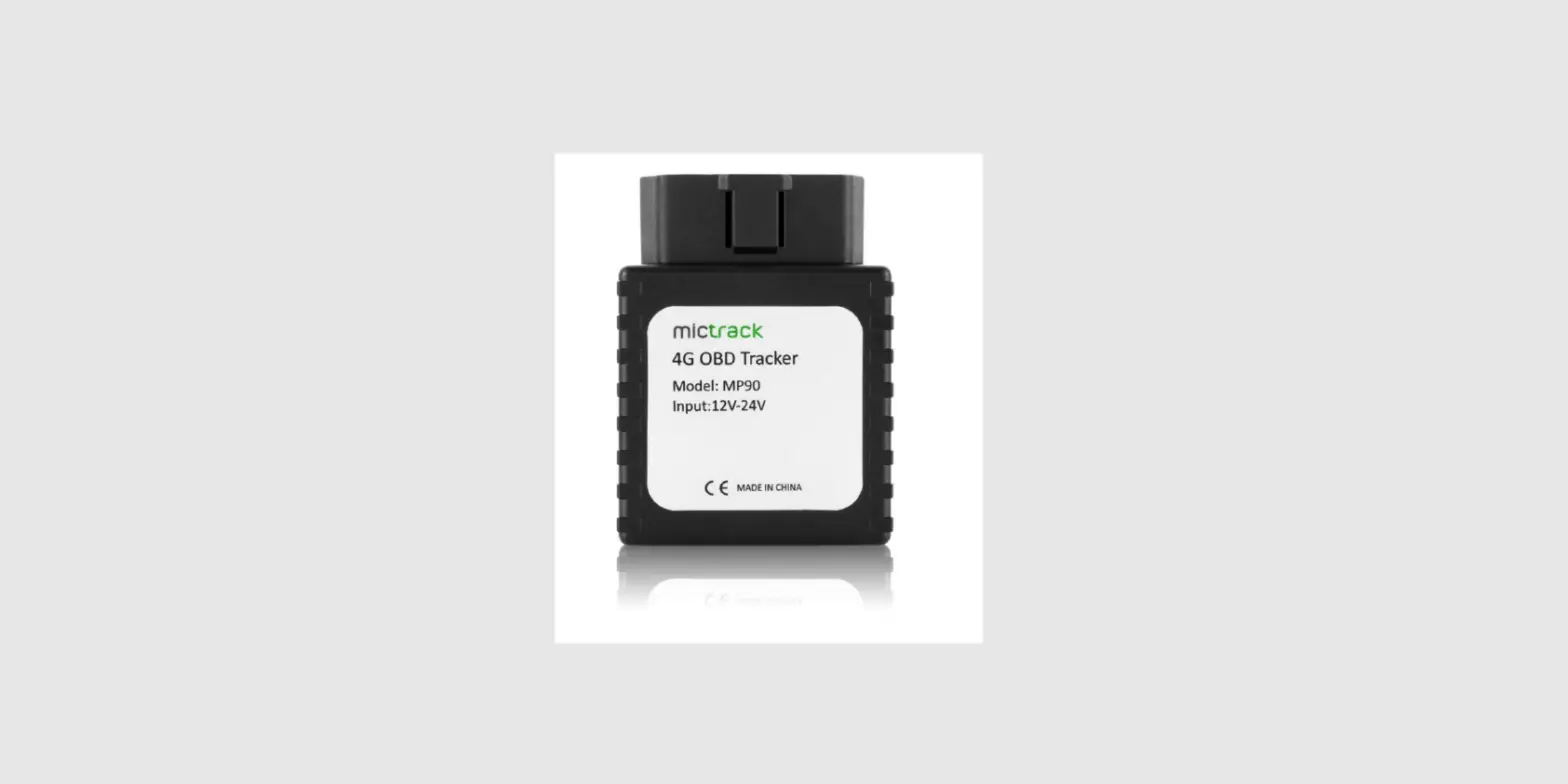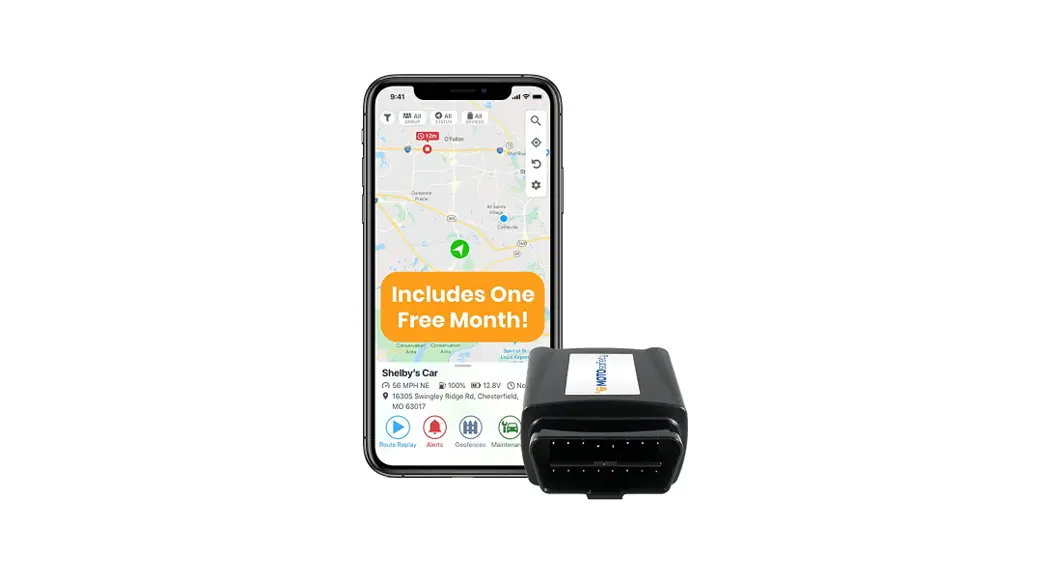

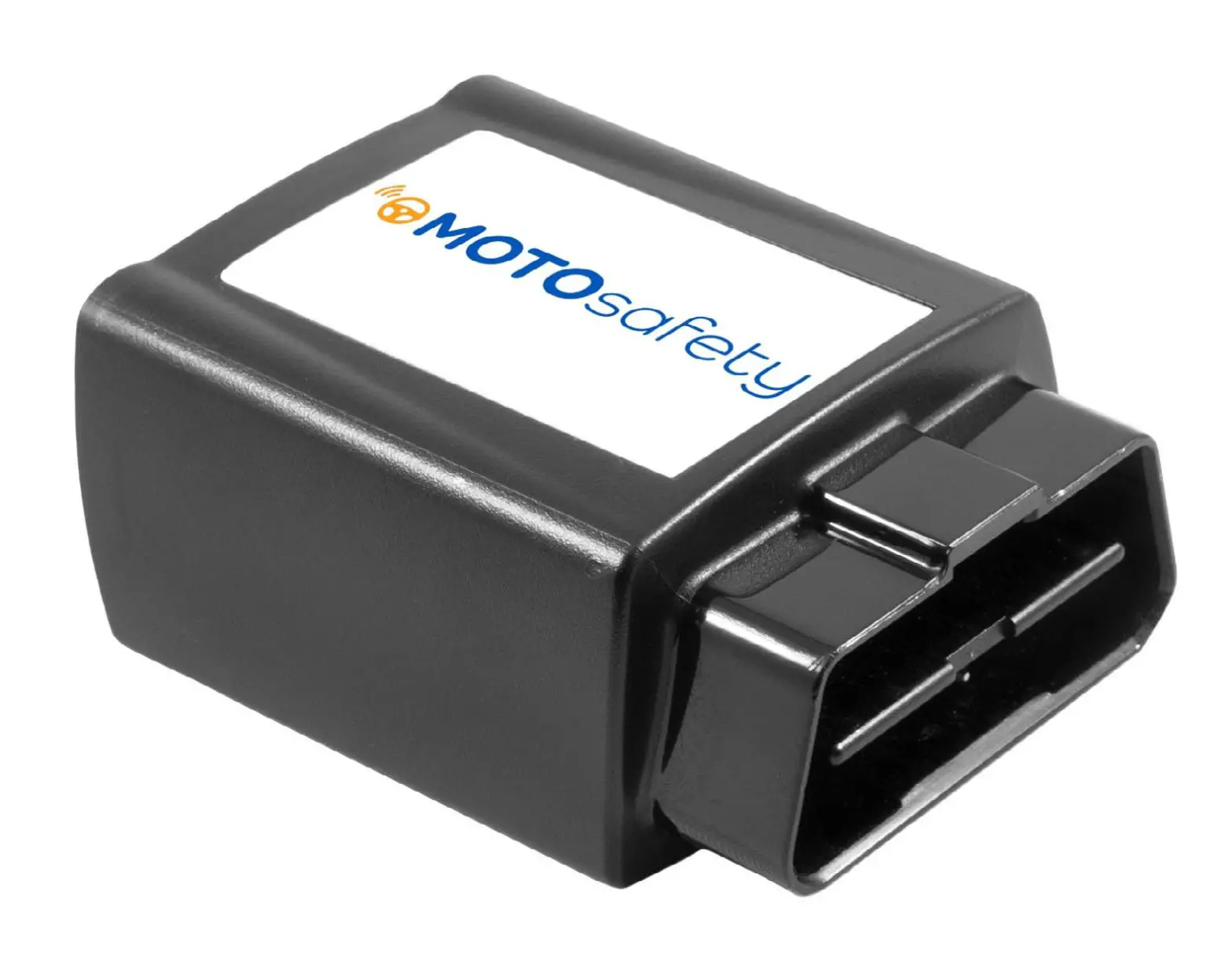
 Plug-In OBD
Vehicle Tracker
Quick Start Guide
Welcome to MOTOsafety!
This simple step-by-step guide will walk you through activating your account and installing your GPS tracker. You’ll also find easy instructions to customize your Customer Portal for tracking vehicles, monitoring reports, setting alerts, and much more. Let’s get started!
Account Activation
- Open your web browser (Chrome is recommended) and go to: https://activate.motosafety.com
- You will be directed to the Activation Page where you will finish your account registration. Fill out the following information:
 • Activation Code: You can enter either the Activation Code found on your device OR your Billing Account Number (BAN) provided in your confirmation email.
• Email Address: Please use the email address you provided when completing the order.
• Create/Confirm Your Password: Make it strong and secure!
• Read through our Terms & Conditions and then click the radio box to agree before clicking “Next”.
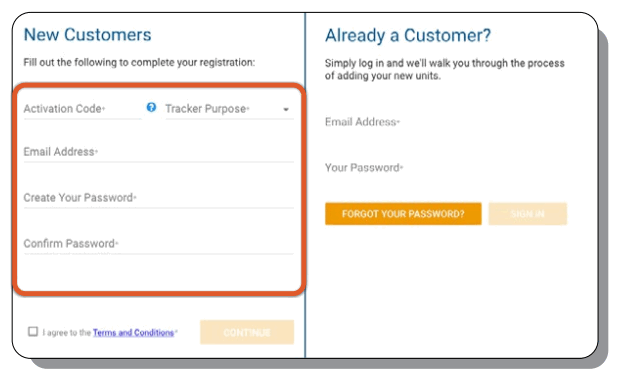 • Activation Code: You can enter either the Activation Code found on your device OR your Billing Account Number (BAN) provided in your confirmation email.
Device Activation
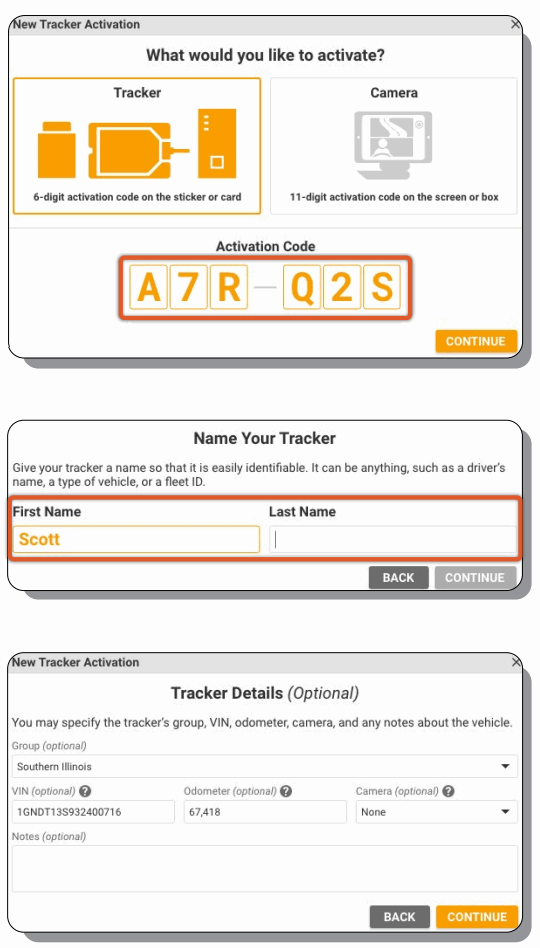
- Welcome to your portal!
• If you entered in your activation code on the previous screen it will auto-populate here.
• If you entered your Billing Account Number (BAN), you will need to enter the activation code shown on your device here. - Name your tracker based on the naming convention you use to manage your vehicles.
• Some common ways to name your vehicle: Blue Truck, Van ##, Sophie’s Car, Ford F150, Tractor ###, etc. - Enter in any optional information you would like to add to your tracker.
• Tip! If you are adding trackers into multiple groups, complete Group Setup before activating the remainder of your devices. - Congratulations! You have now set up your first device and your portal has been activated for use. From here, you can either choose to Activate More Trackers or Complete the process and begin using your system.
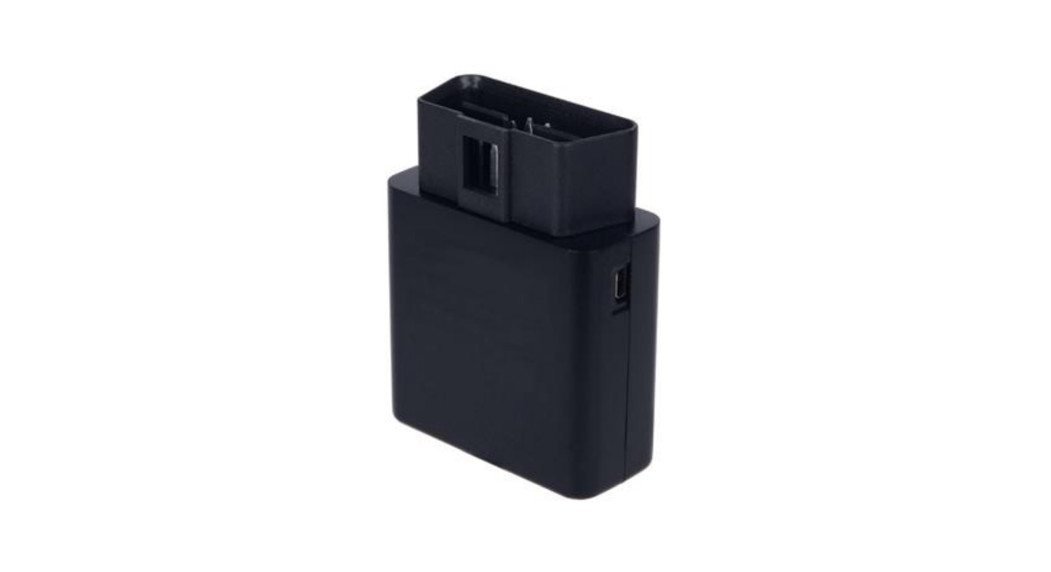
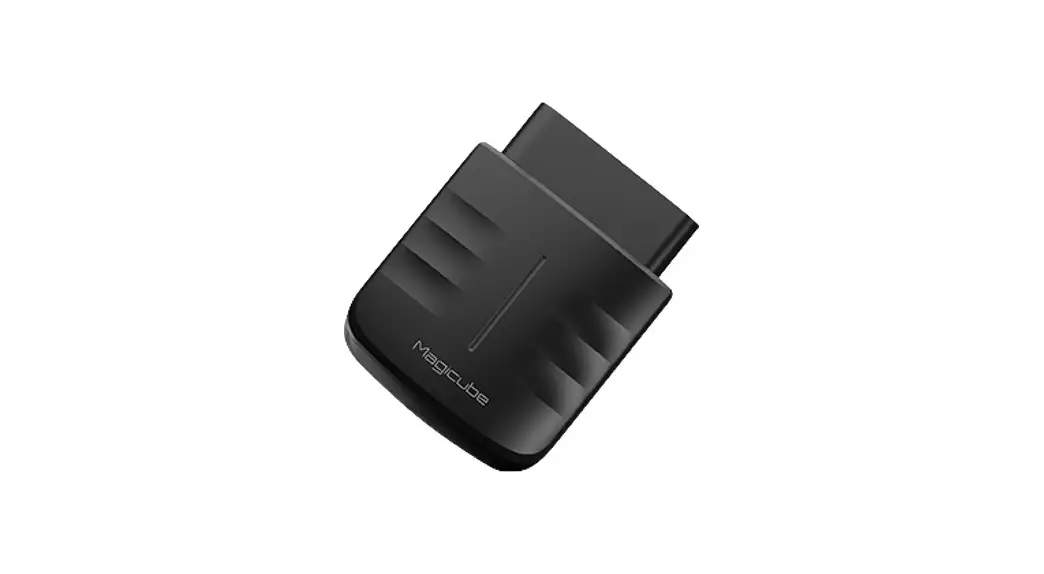
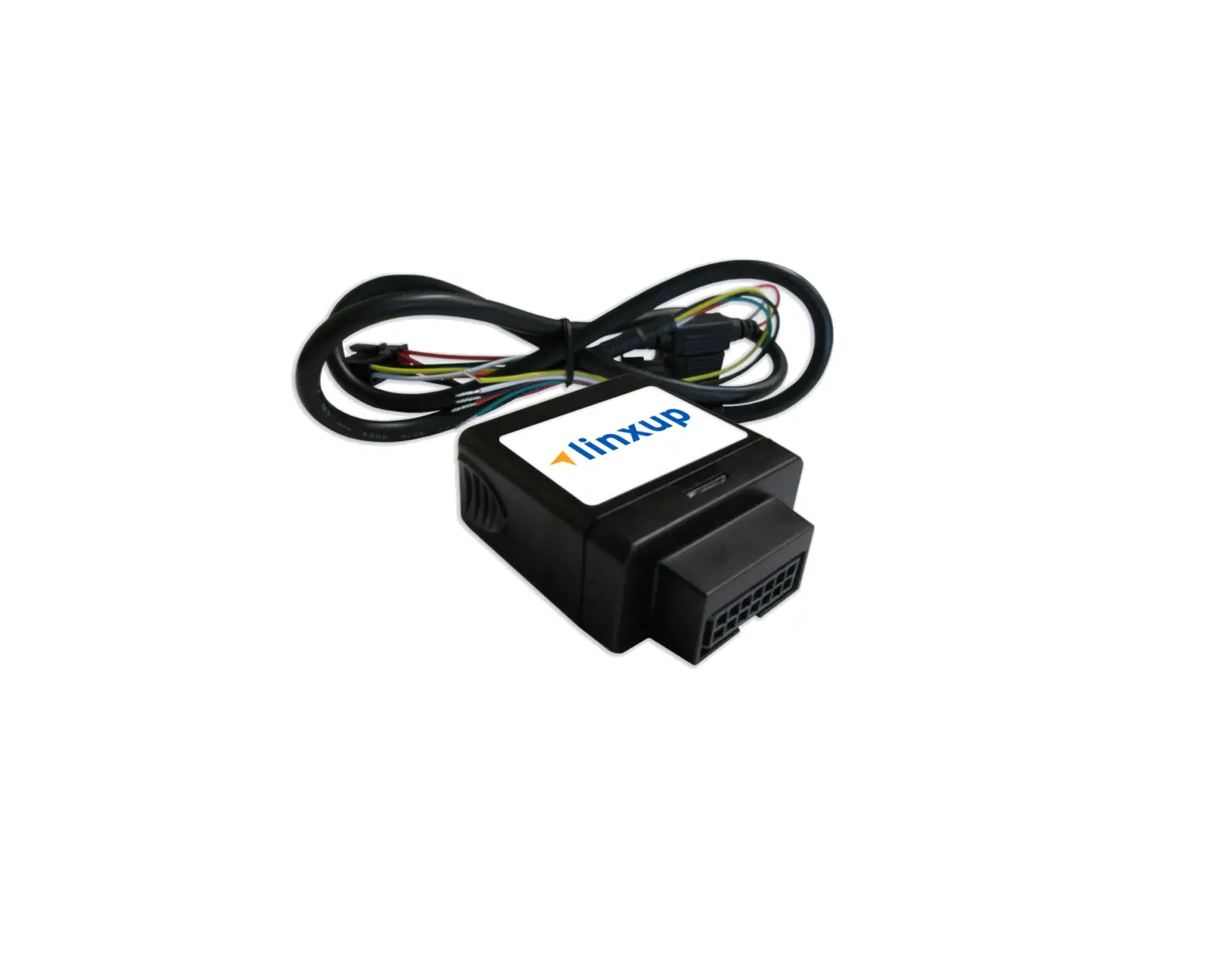
Installing Your Plug-In Tracking Device
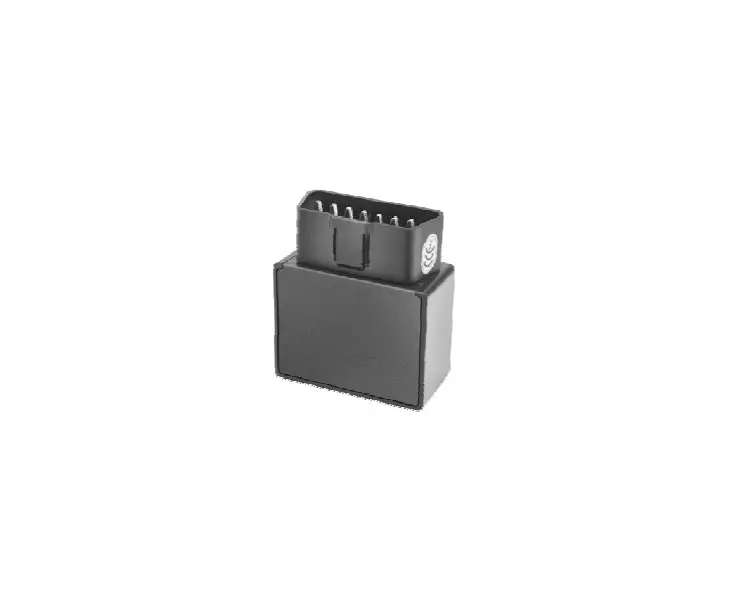
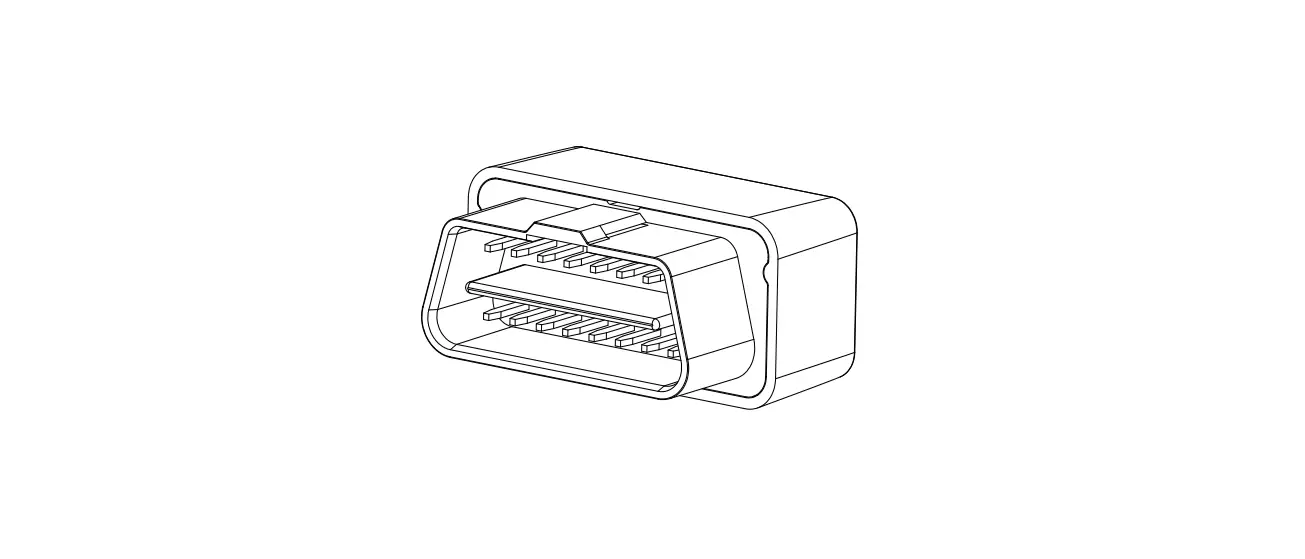
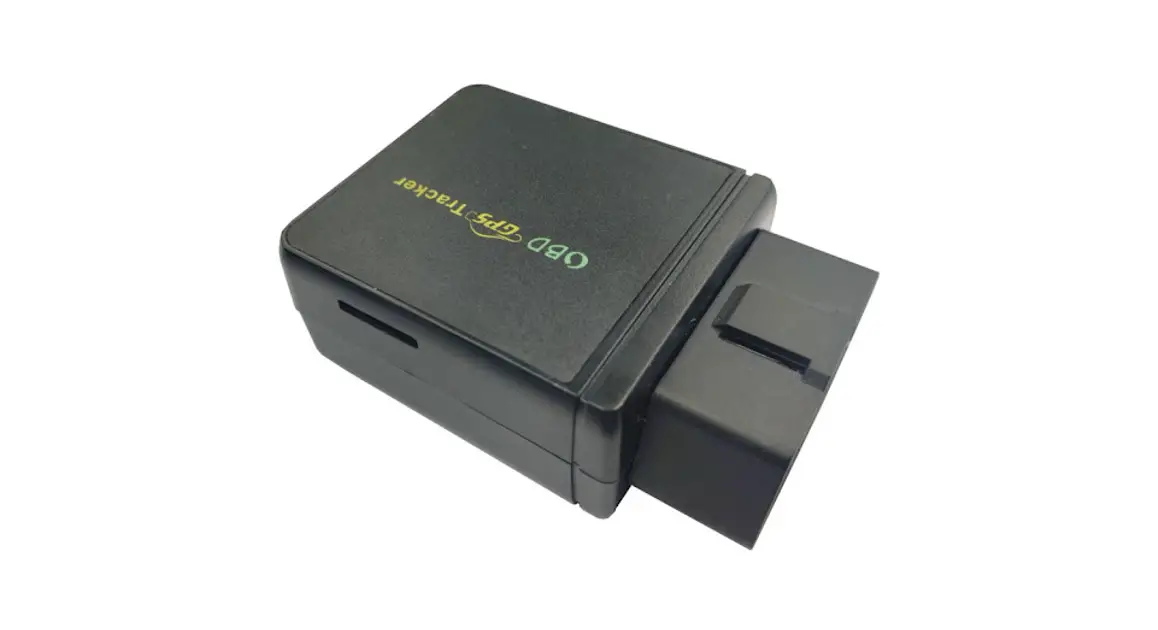
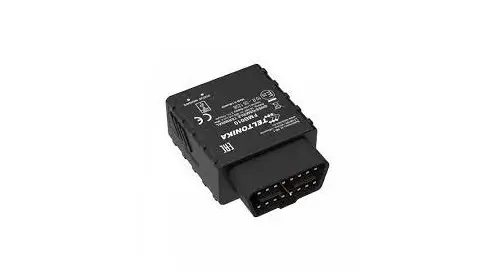
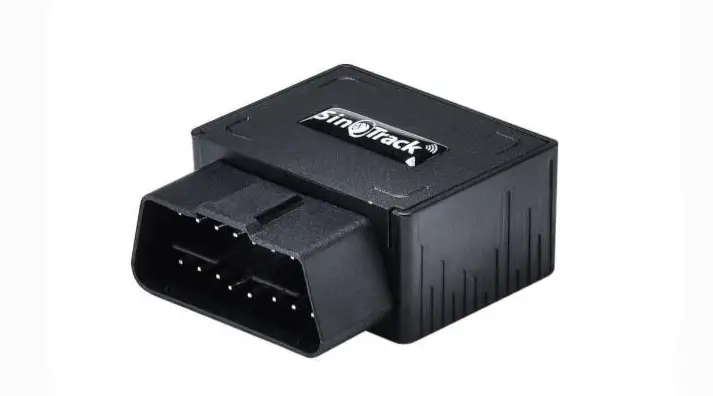
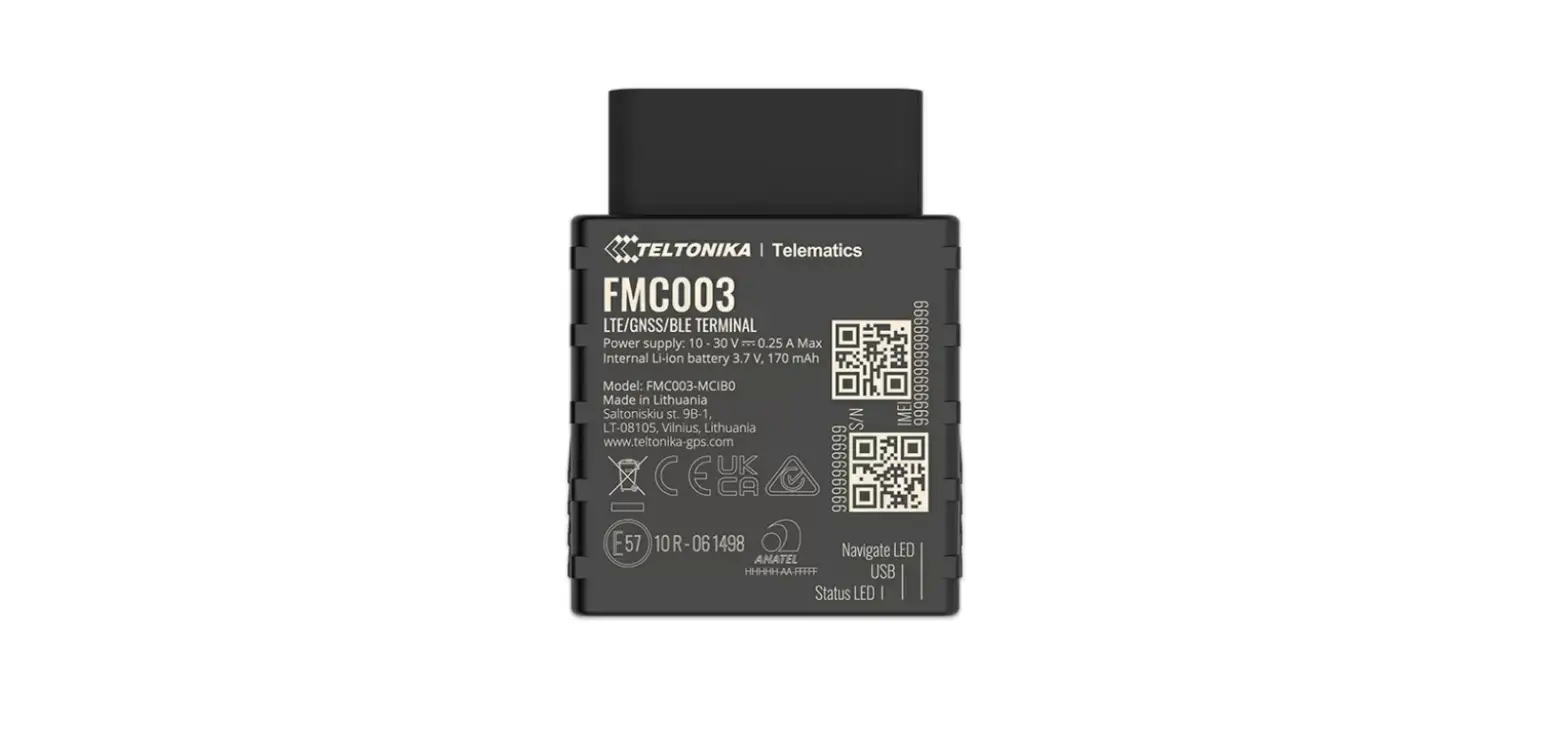
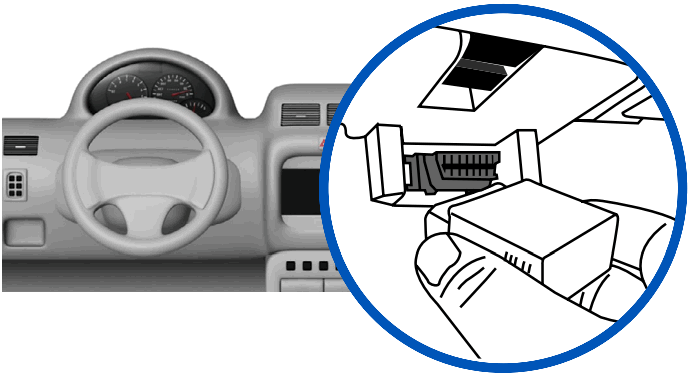
- Locate the OBDII port of your vehicle and connect your device.
If you need help locating the connector, please reference your vehicle’s owner manual. You may use the enclosed zip tie to secure the device and prevent tampering.
When removing the device from your vehicle, make sure you grasp the device as close to the port as possible.
- Start your vehicle, and check the lights on the GPS.

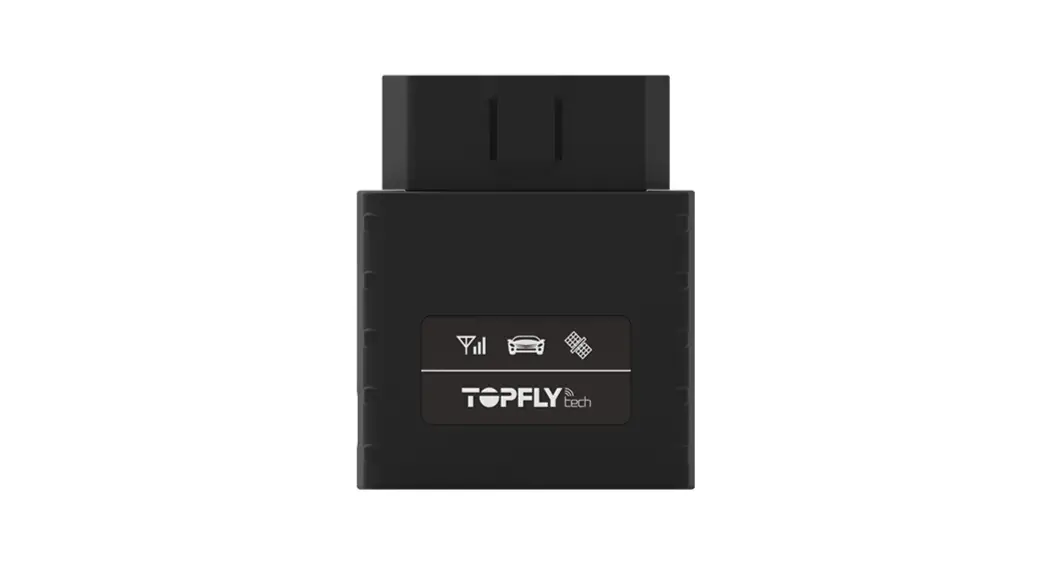
 Cell (Orange)
Fast Blinking Searching for a cell network Slow Blinking Connected to network Off Cell modem off (sleep mode), or disconnected  (Blue)
Internal Use Only  GPS (Green)
Blinking GPS lock (connected to satellites) off No GPS signal / Acquiring satellites Your vehicle must be outside and not in a covered area so that it will receive a GPS signal. When working properly, the orange and green lights will be on. You should see your car’s location on the map (may take up to two hours).
IMPORTANT NOTICE: remove the device before jump-starting the vehicle.
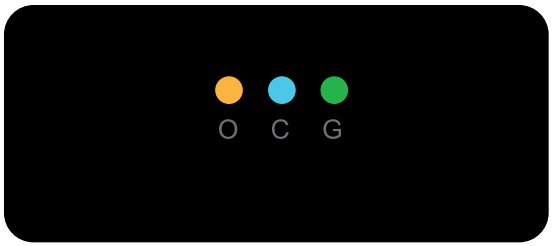
 Cell (Orange)
 (Blue)
 GPS (Green)
If you need help or have any questions, contact us at 1-877-732-4970 or [email protected]