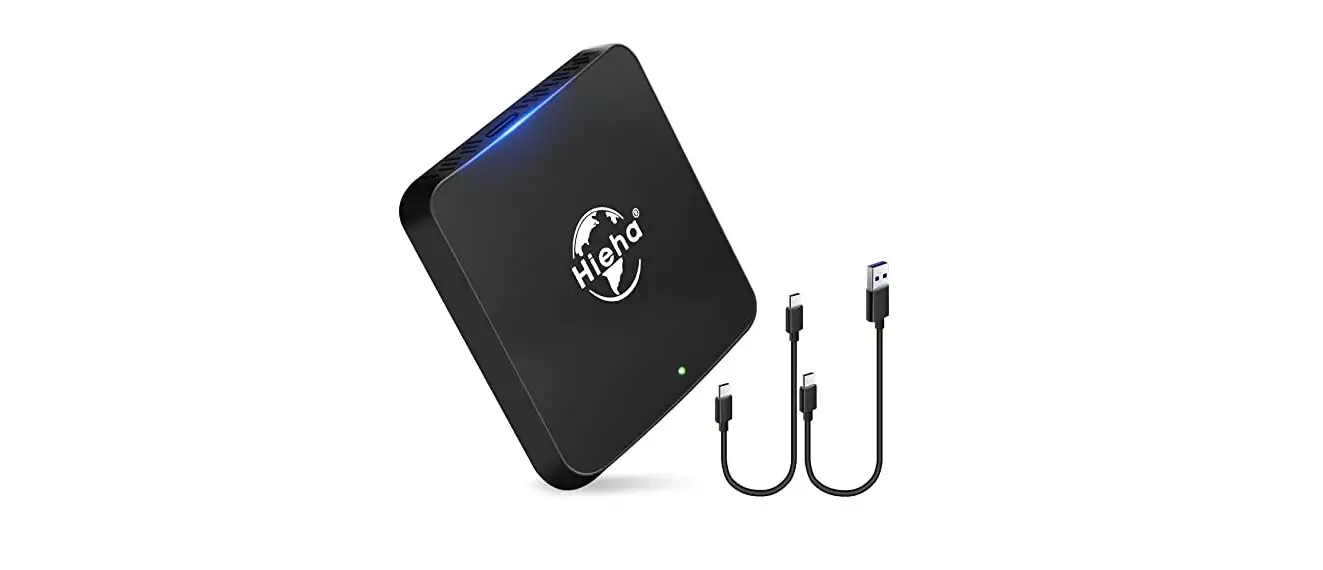
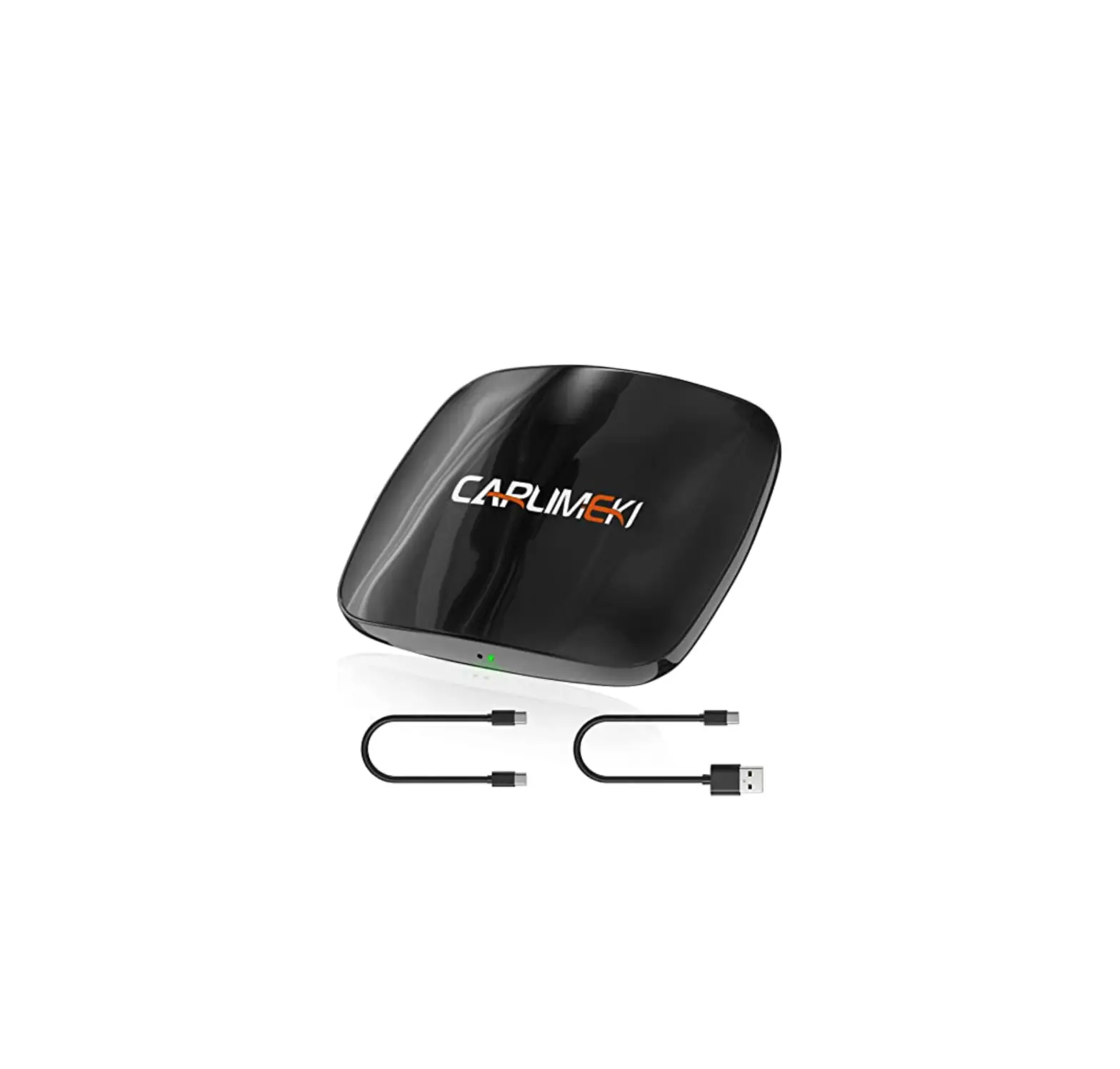
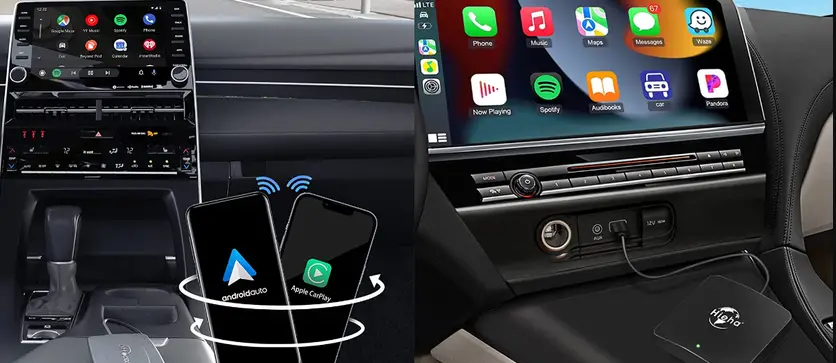
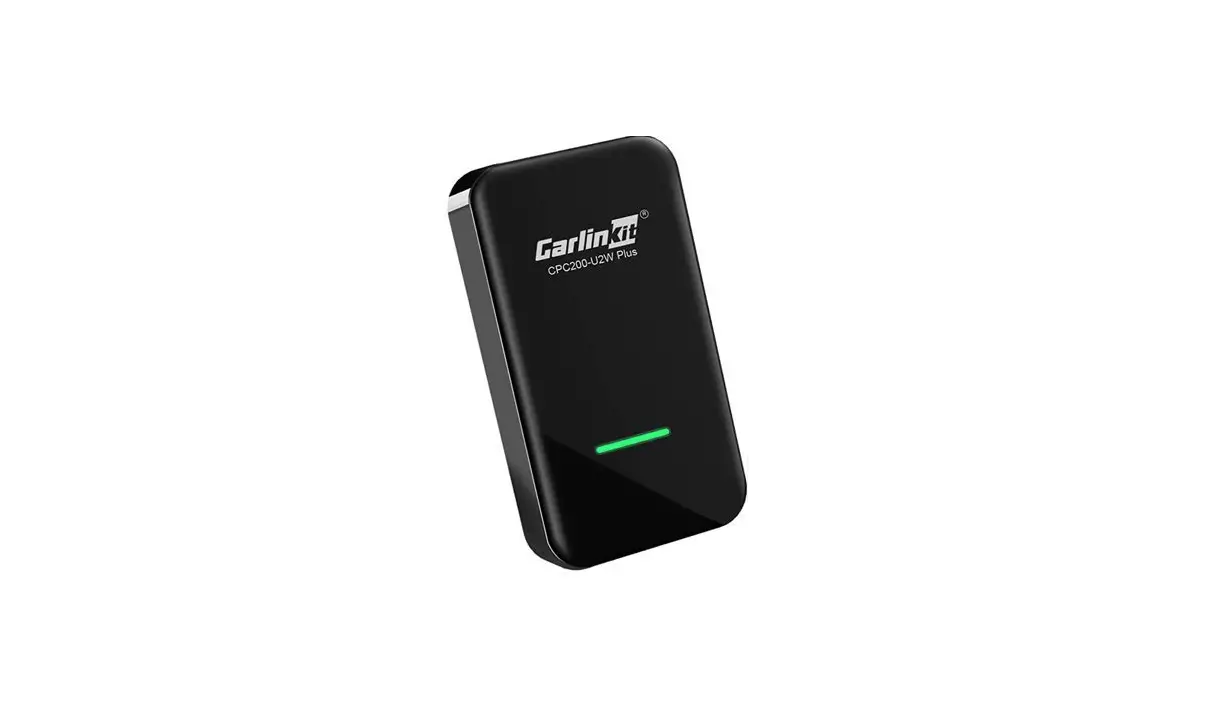
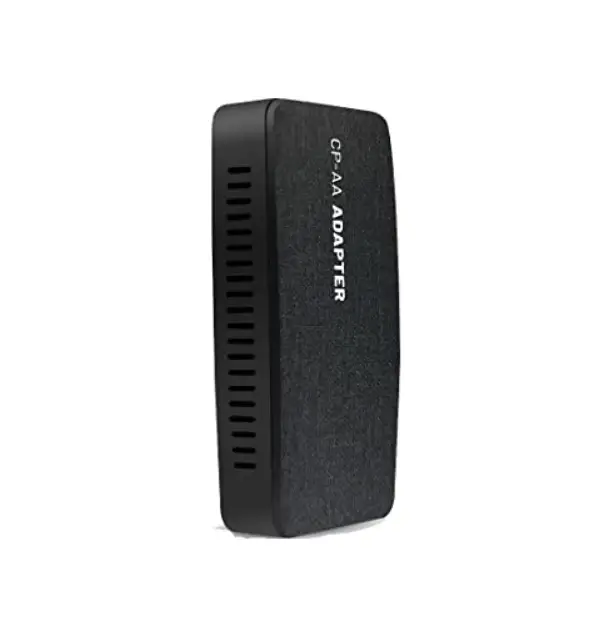
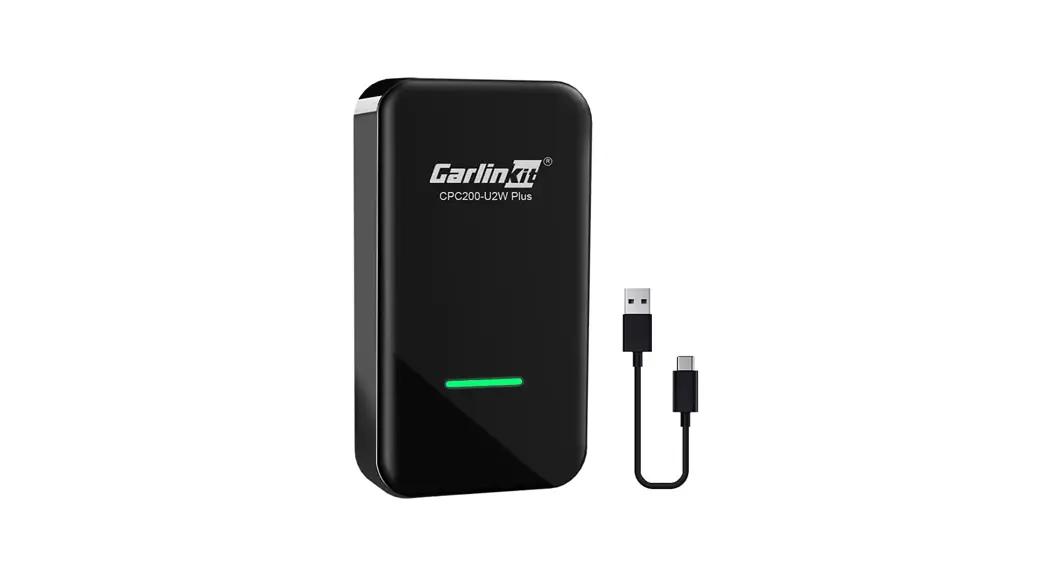
H2 Wireless CarPlay Adapter AI Box
AI BOX User Manual
Product Description
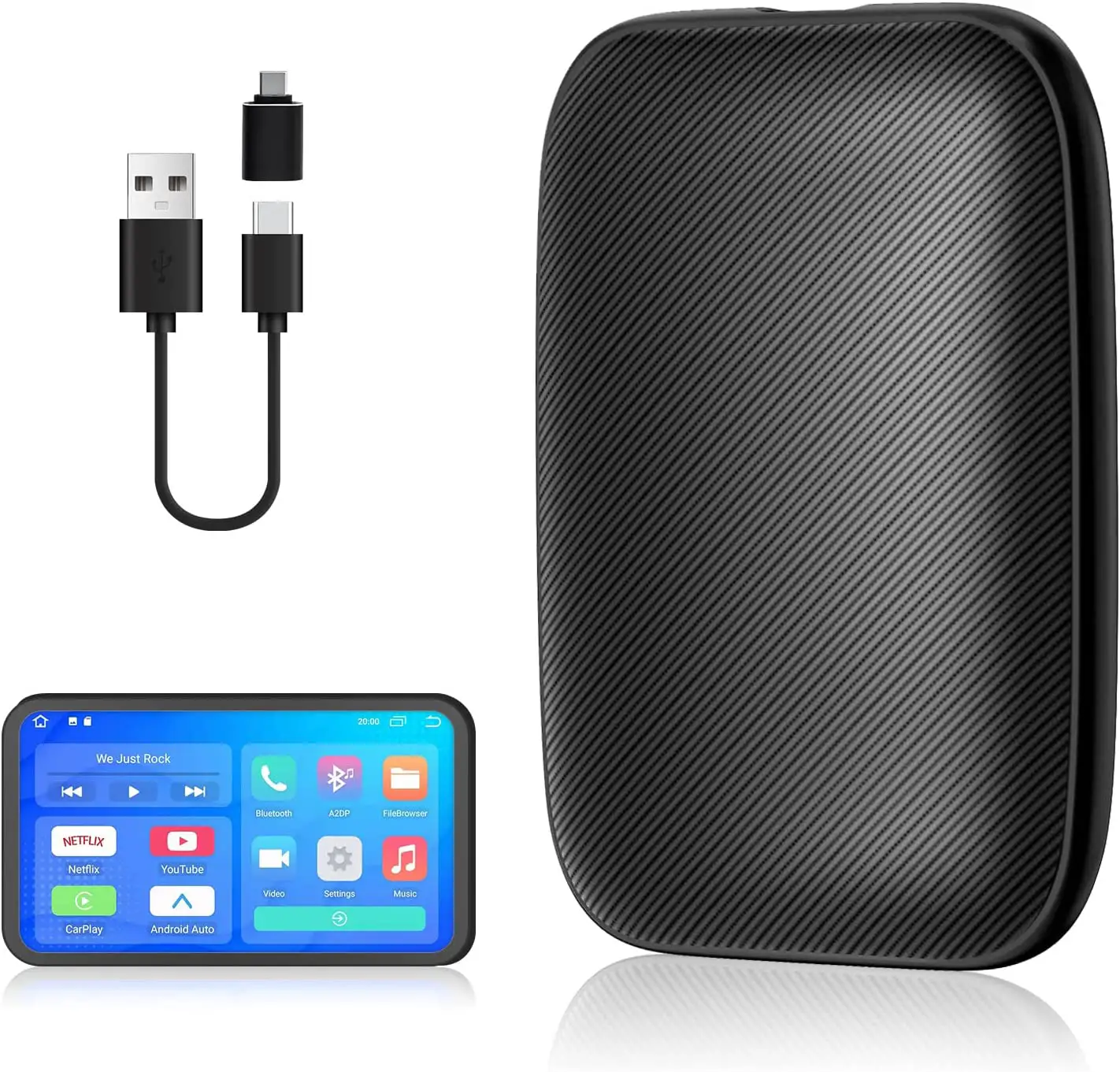
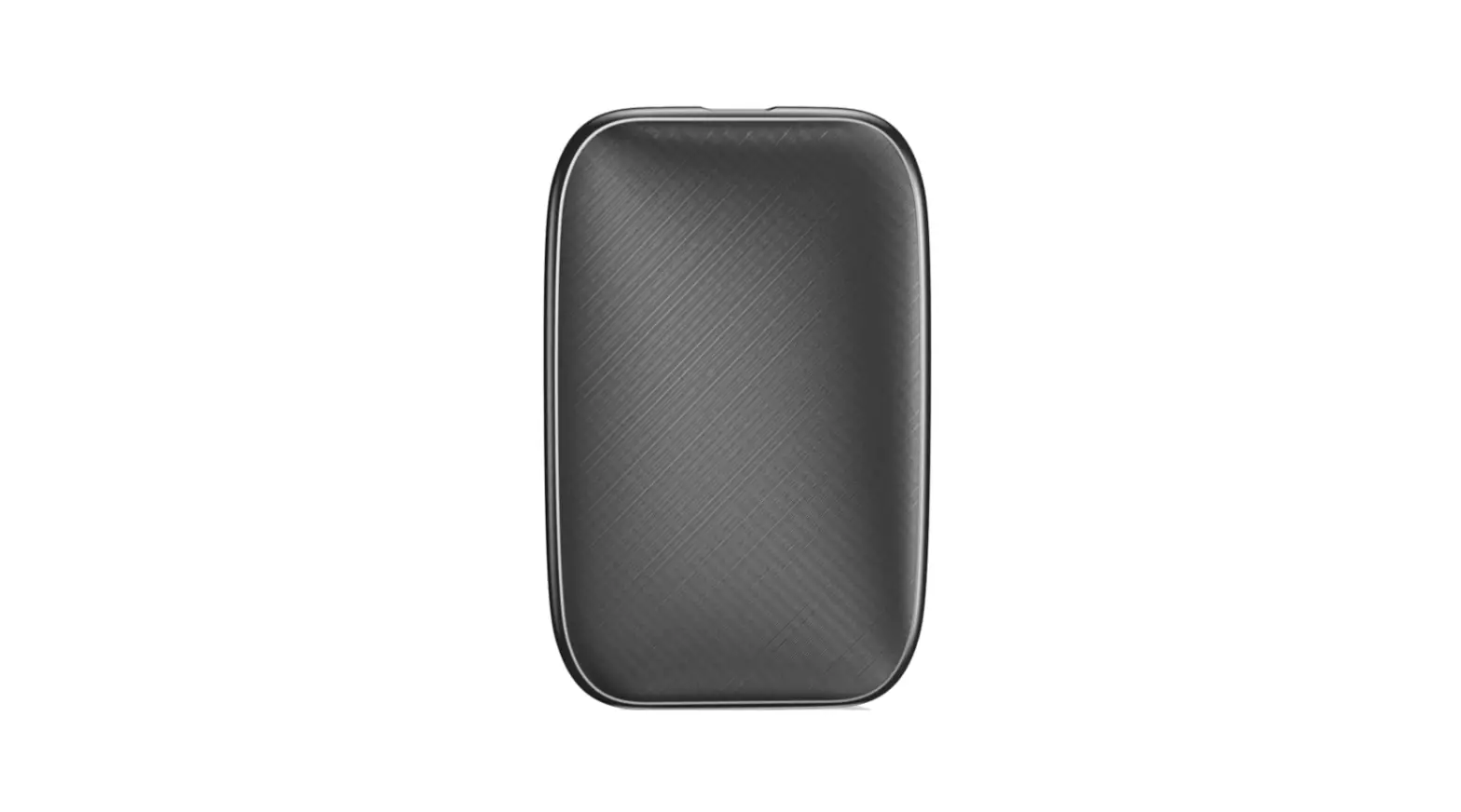
The AI BOX is a device that allows you to connect your car to
your smartphone and access various functions such as CarPlay,
Android Auto, media playback, and WiFi connectivity. It has a USB
interface, indicator light, reset hole, and SD card slot.
AI BOX Connection
To connect the AI BOX, insert the USB cable into the car’s USB
interface and plug the other end into the bottom of the AI BOX. The
indicator light will flash and the connection should be established
within 1 minute. For the initial connection, the AI BOX will need
to adapt to the car’s central control device and resolution. As a
result, the AI BOX will restart automatically, which is a normal
occurrence.
SD Card Media Playback
The AI BOX supports media playback from an SD card. Simply
insert an SD card with music, pictures, or video and it will play
through the device.
WiFi Connectivity
To connect to WiFi, access the device’s settings and enable WiFi
connectivity. Find the network you wish to connect to and enter the
password. Note that this system cannot be used simultaneously with
Carplay/Android Auto. If you wish to use YouTube/Netflix, please
disconnect Carplay/Android Auto before use.
Wireless CarPlay Connection
To connect your device wirelessly to CarPlay, turn on Bluetooth
and WiFi on your phone. Then, use your iPhone to connect to the
device’s Bluetooth (HI-BOX). After a successful connection, a
notification window will appear prompting you to click Use
CarPlay.
Wireless Auto Connection
To connect your Android device wirelessly to Android Auto,
follow the same steps as outlined above for Apple CarPlay.
System Upgrade
To upgrade your device, place the upgrade package (update.zip)
in the root directory of your SD card. Insert the SD card into the
card slot. A confirmation box for the upgrade will appear. Please
ensure that the clear upgrade option is checked. Click OK and the
product will automatically upgrade. After a successful upgrade, the
device will reboot.
Common Troubleshooting
If you encounter any issues with your AI BOX, please refer to
the Common Troubleshooting section of the manual for solutions.
Product List
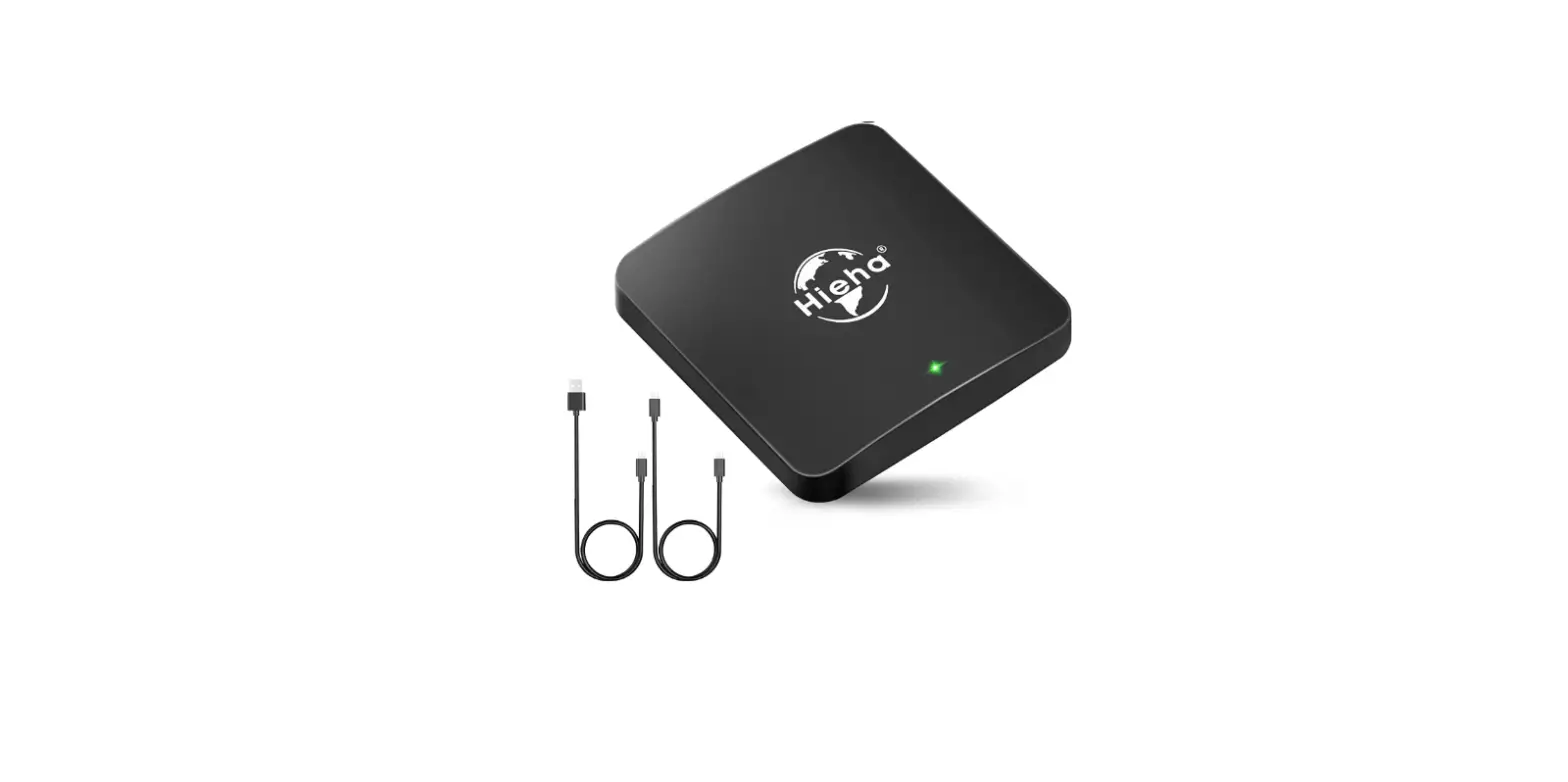
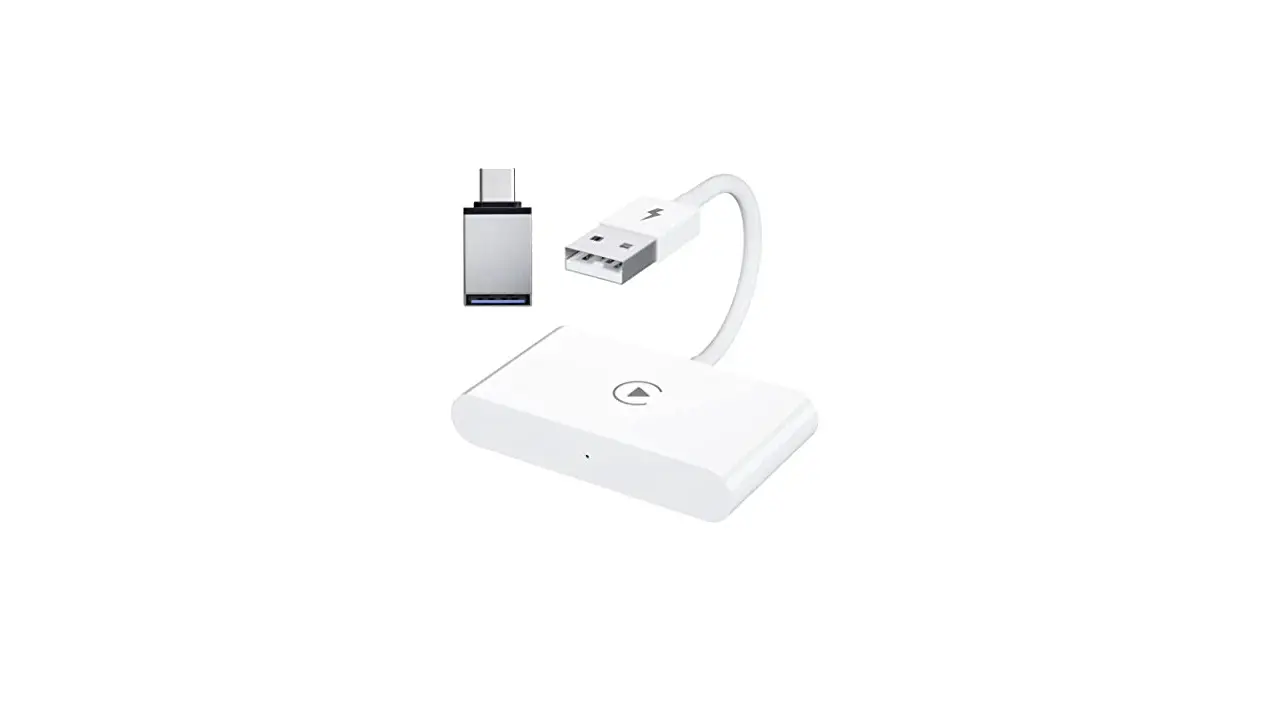
- AI BOX
- Type-C
- USB to C
Product Information
Thank you for purchasing and using our AI BOX! In order to
ensure that you can use this machine properly, we kindly ask that
you read the manual carefully before operating it. Our aim is to
provide you with the best possible products and services, and we
believe that by following the instructions in the manual, you will
be able to make the most of your AI BOX.
Instruction Manual
Please read these operating instructions carefully before use
Thanks for purchasing and using our AI BOX!In order to ensure that you can use this machine properly, we kindly ask that you read the manual carefully before operating it. Our aim is to provide you with the best possible products and services, and we believe that by following the instructions in the manual, you will be able to make the most of your AI BOX.
1. Product description
USB interface
Indicator light Reset Hole
AI BOX
SD card slot
2. AI BOX Connection
Please note that this system only supports wired Carplay on original car models.
To connect the AI BOX, insert the USB cable into the car’s USB interface and plug the other end into the bottom of the AI BOX. The indicator light will flash and the connection should be established within 1 minute. Once connected, the indicator light will remain on.
For the initial connection, the AI BOX will need to adapt to the car’s central control device and resolution. As a result, the AI BOX will restart automatically, which is a normal occurrence.
3.SD Card Media Playback
Insert SD cardcan play music, pictures, video
4. WiFi Connectivity
1. Access your machine’s Settings. 2. Enable WiFi connectivity. 3. Find the WiFi network you wish to connect to and enter the password for the network.
Note:This system cannot be used simultaneously with Carplay/Android Auto.If you wish to use YouTube/Netflix, please disconnect Carplay/Android Auto before use.
Here’s a possible revision:
Assuming there are existing pairing records of your phone’s Bluetooth and your car’s Bluetooth, please delete them before use. This will allow the AI BOX to connect and operate more efficiently.
The next time the car is started, it will remember the state it was in when the engine was turned off by default. If the car was turned off while in Carplay/Android Auto mode, it will automatically return to that mode when the car is started again. Likewise, if the car was turned off while in hotspot mode, it will automatically return to the hotspot mode. To switch between modes, simply disconnect the hotspot and reconnect the Bluetooth.
5.Wireless CarPlay Connection
To connect your device, please turn on Bluetooth and WiFi on your phone. Then, use your iPhone to connect to the device’s Bluetooth (HI-BOX). After a successful connection, a notification window will appear prompting you to click “Use CarPlay”.
6.Wireless Auto Connection
The process for wirelessly connecting Android Auto is the same as the steps outlined above for Apple CarPlay. Once successfully connected, you will be able to access various functions of the”Hi Box”.
7. System Upgrade
To upgrade your device, please follow these steps:
1. Place the upgrade package (update.zip) in the root directory of your SD card. 2. Insert the SD card into the card slot. 3. A confirmation box for the upgrade will appear. Please ensure that the clear upgrade option is checked. 4. Click “OK” and the product will automatically upgrade. After a successful upgrade, the device will reboot.
8. Common Trouble Shooting
1.If the car cannot be connected after starting, please try unplugging and re-plugging the box to connect again. 2.If there are abnormal phenomena such as crashing, please press the reset button (RESET). 3.If the wireless CarPlay cannot be connected, please check if your phone’s Bluetooth is turned on. 4.If the SD card is not recognized, please check if the card is damaged, and try re-inserting it, formatting it, or replacing it with a new one. 5.If the box cannot be connected, please try clearing the connection record of the car’s central control device.
9. Product List
AI BOX
Type-C
USB to C
10. Product Information
Pre-shopping Notes Before you purchase, Please make sure your factory car has OEM CarPlay function
1. For OEM Car Convert Wired to Wireless 2. Plug & Play, Non-inductive connection, Faster connection 3. Support OTA upgrade,it also provides the functions of wired CarPlay to wireless CarPlay, and wired CarPlay to Android Auto. 4. Controlled by OEM touch function, or OEM controller, button support the high resolution same as original image quality 5. Built-in Youtube & Netflix Apps
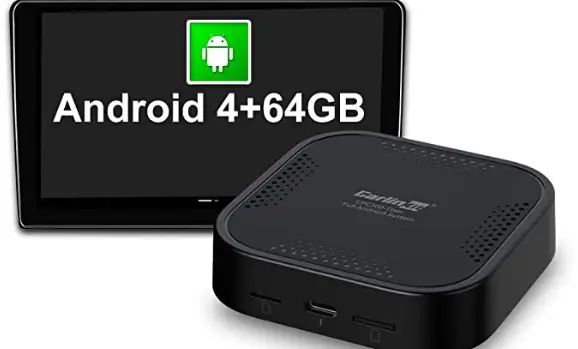
Model:H2 CPU: Quad-core Cortex-A35 up to 1.5 GHz GPU: Mali-G31MP2 GPU Storage: 2GB LPDDR4X + 8GB eMMC Video encoding: 1080P H.264/VP8 video encoder Wi-Fi: WIFI 802.11a/b/g/n/ACsupports 2.4GHz/5GHz WIFI transmission simultaneously. Bluetooth: Master Bluetooth, complete mobile phone side Bluetooth protocol stack, support to connect to various Bluetooth devices. Stable and fast transmission OS: Android 8.1 TF Card interface,support external storage media Type-C interface